 Try ShortPoint now
Keeping your SharePoint intranet fresh and relevant shouldn't require constant manual updates. That's where ShortPoint Connect comes in! It is a powerful SharePoint connection feature that transforms static pages into dynamic, data-driven experiences that update automatically. Whether you're displaying company news, event calendars, or team directories, ShortPoint Connect makes it effortless to bring your content to life.
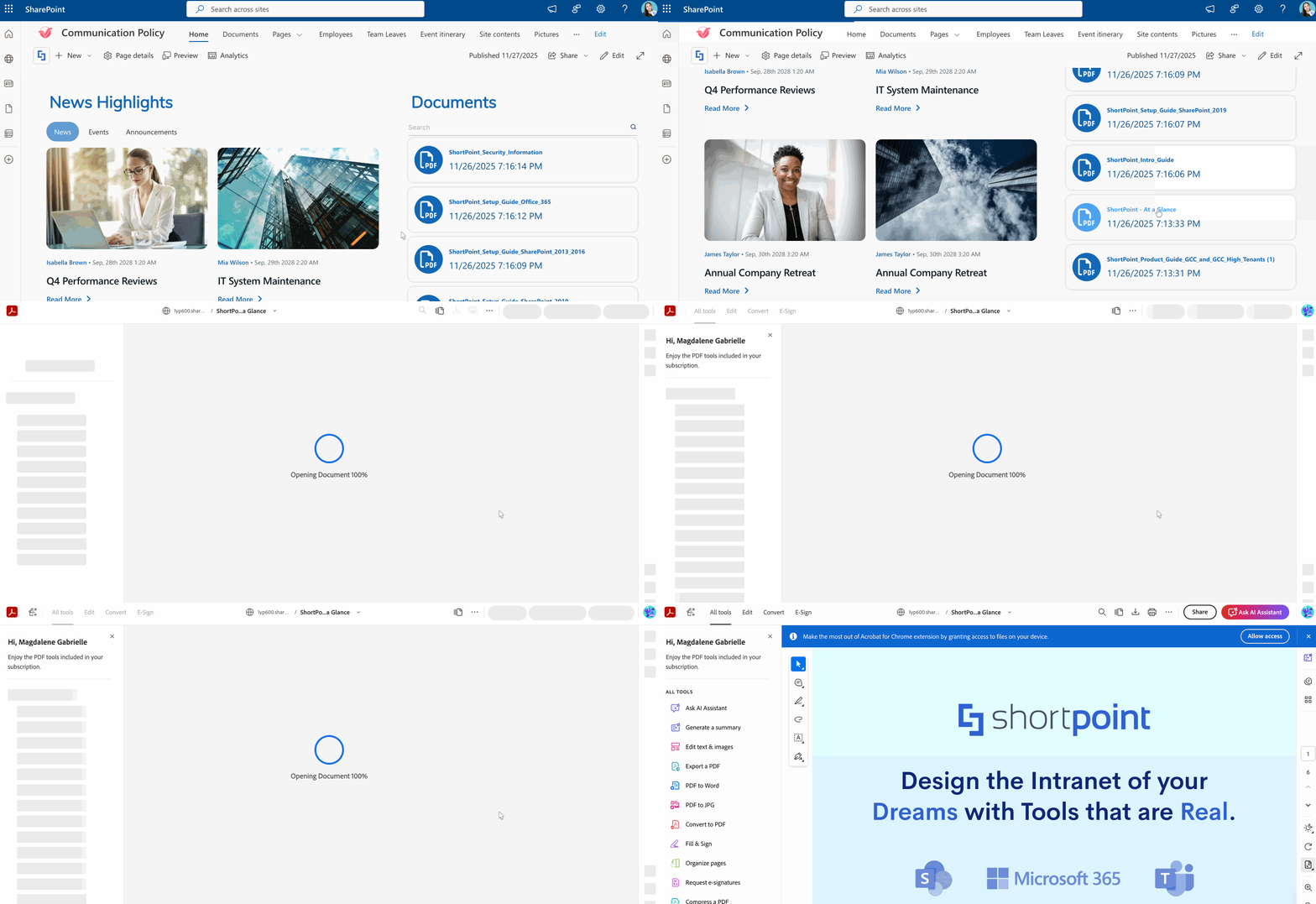
Let's walk you through the basics of ShortPoint Connect: what it is, how to use it, and what customization features are available for you to use.
TABLE OF CONTENTS
- Prerequisites
- What is ShortPoint Connect?
- How to Use ShortPoint Connect
- ShortPoint Connect Features
- Practical Use Cases
- Getting Started with ShortPoint Connect
- Frequently Asked Questions
- What is ShortPoint Connect used for?
- Which design elements support ShortPoint Connect?
- Can I connect to data sources outside of SharePoint?
- Do I need to be a developer to use ShortPoint Connect?
- How often does connected content update?
- Will connected content respect SharePoint permissions?
- Can I connect to lists from different SharePoint sites?
- How many items can I display from a connected list?
- What happens if the source list is deleted or renamed?
- Can I customize how connected data appears?
- Is there a limit to how many connections I can create?
- How do I access the Connect feature?
Prerequisites
- You must have ShortPoint SPFx version 8.7.2.0 or higherinstalled on your SharePoint environment.
- You must be a ShortPoint Designer with an active license.
- You must already have the ShortPoint Design Element you want to use to connect on your SharePoint pages.
- This article features the updated version of the Connect Feature UX. This means you will see differences in the user interface if you are using ShortPoint Farm Solution or ShortPoint SPFx versions older than ShortPoint SPFx version 8.7.2.0.
NOTEIf you are using ShortPoint SPFx versions older than ShortPoint SPFx 6.9, check out ShortPoint Connect: Basic Tutorial (Classic Experience, Previous UX).
What is ShortPoint Connect?
ShortPoint Connect enables you to link any of your Microsoft SharePoint lists, SharePoint document library, or other external sources to Design Elements on your pages. Instead of manually copying and pasting content every time something changes, ShortPoint Connect automatically pulls the latest source data and displays it in real-time.
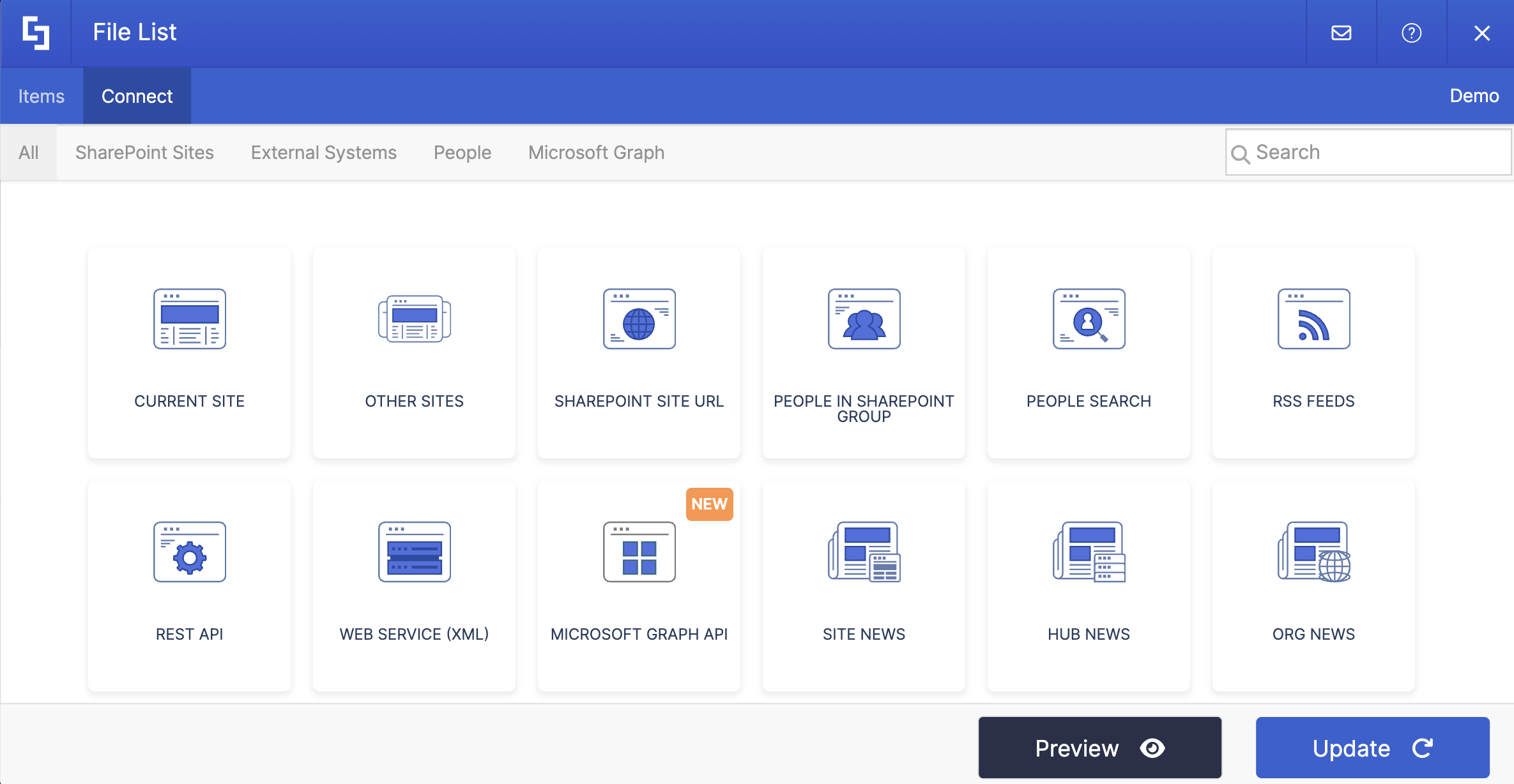
ShortPoint Connect has a wide variety of connection types. You can link Design Elements to SharePoint News (Hub News, Org News, Site News), Microsoft 365 apps (Teams, Viva Engage, Power BI), and even APIs (REST API, Microsoft Graph API). This means you're not limited to SharePoint content alone. You can bring in data from various platforms to create a comprehensive information hub for your organization.
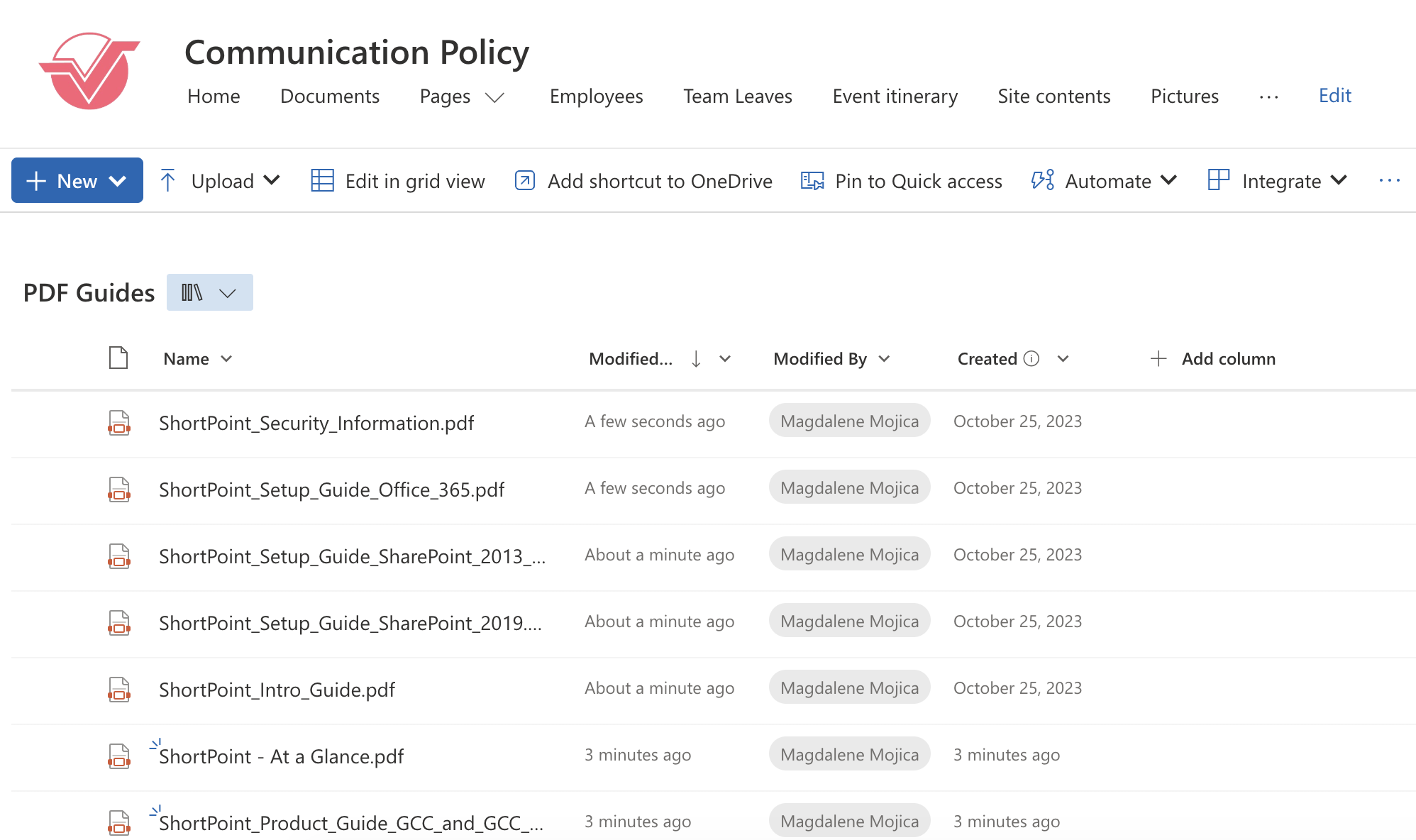
Let's take this SharePoint Online List as an example. With ShortPoint Connect, we can take the data from this list and display it on your SharePoint pages.
See how every piece of information is integrated word-for-word? That's the power of ShortPoint Connect!
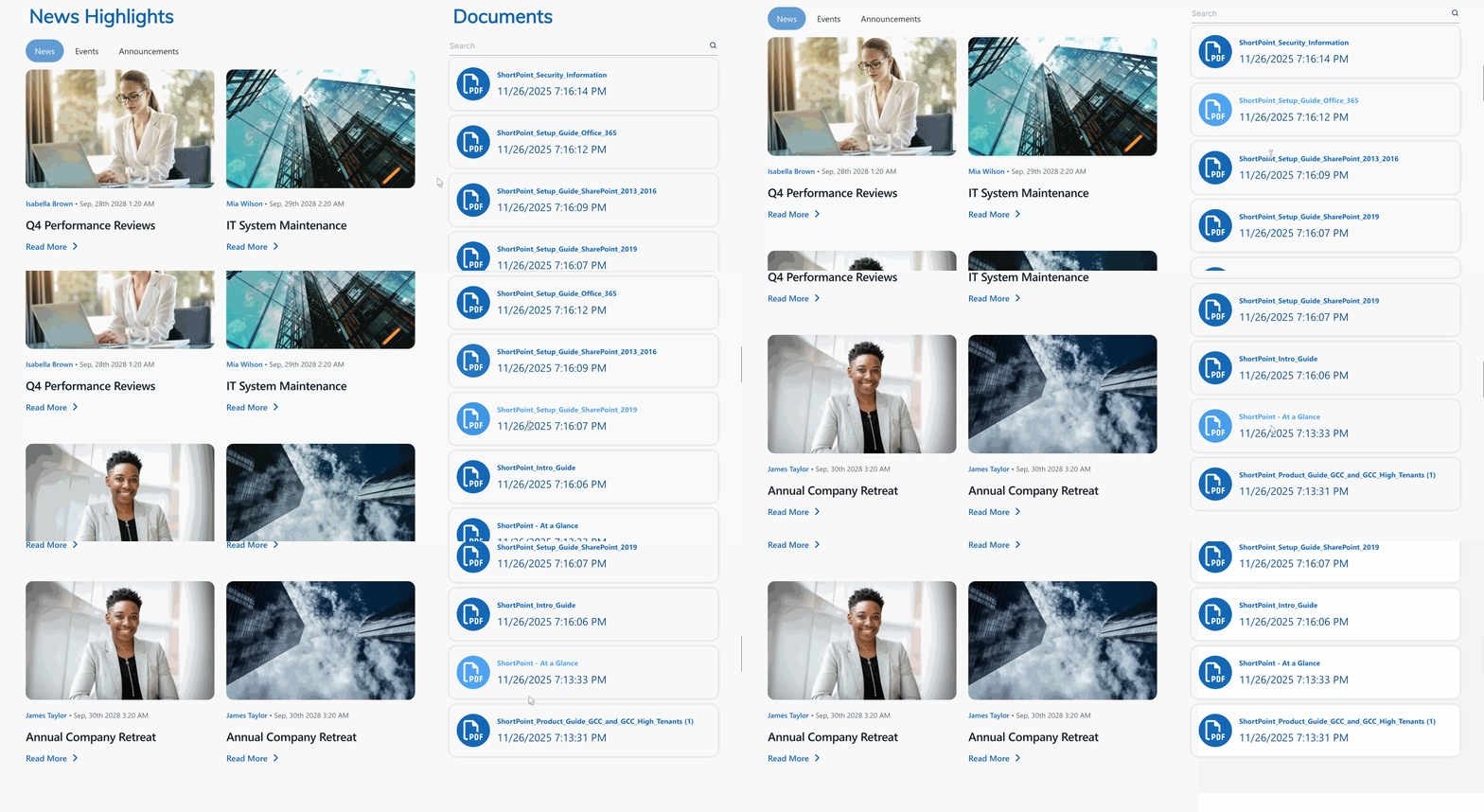
And to take things a step further, when you change anything on your SharePoint List, it will automatically be applied to your connected Design Element. No more manual updates!
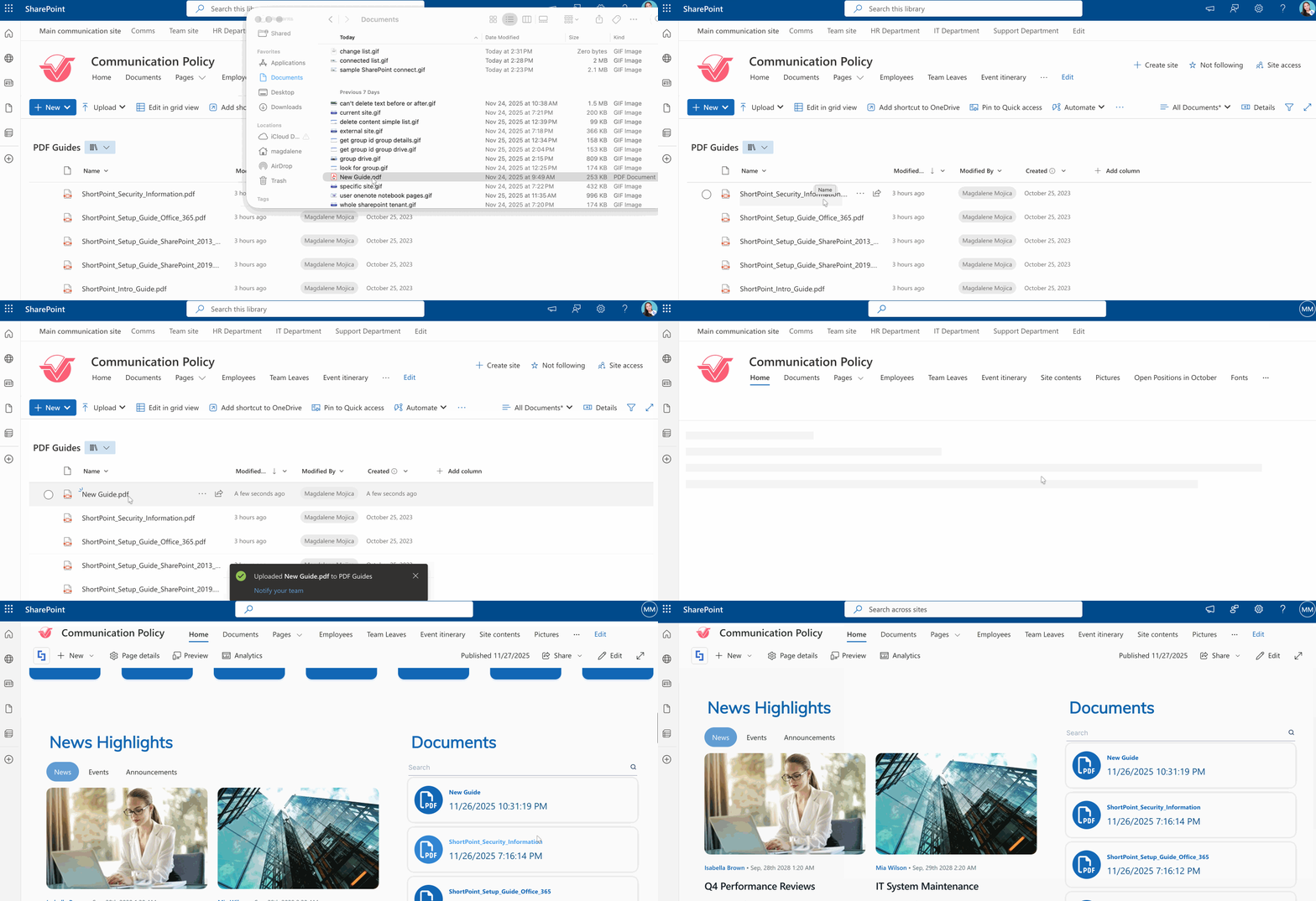
How to Use ShortPoint Connect
Ready to use ShortPoint Connect? Let's show you how to establish a new connection, edit it, and disconnect if you no longer want to use it.
NOTEFor this guide, we will use this sample SharePoint List located on the same site as the page we are building.
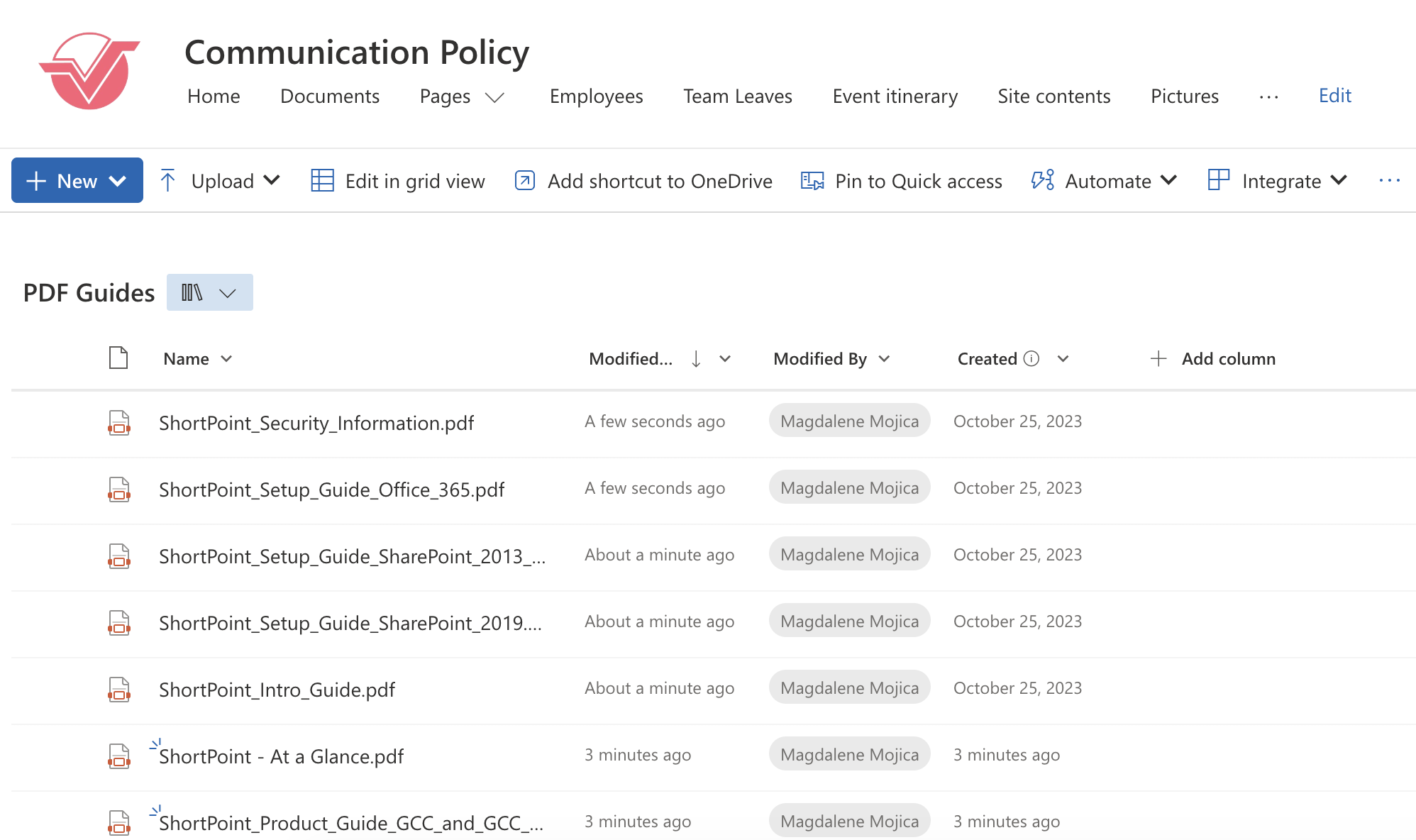
Establishing Connection
Follow the steps below to learn how to connect:
Step 1: Edit the ShortPoint Web Part
- Go to the SharePoint page you want to use and click Edit:

- Close the Toolbox:
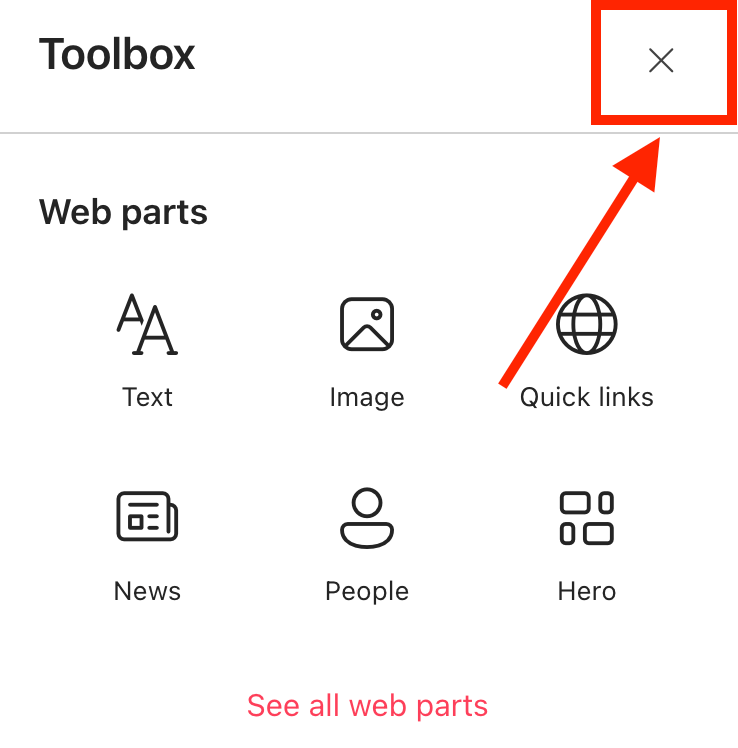
- Click the Edit icon:

Step 2: Edit the Design Element
NOTEBefore proceeding, make sure you already have the Design Element you want to use on your page. For this guide, we’ll use File List.
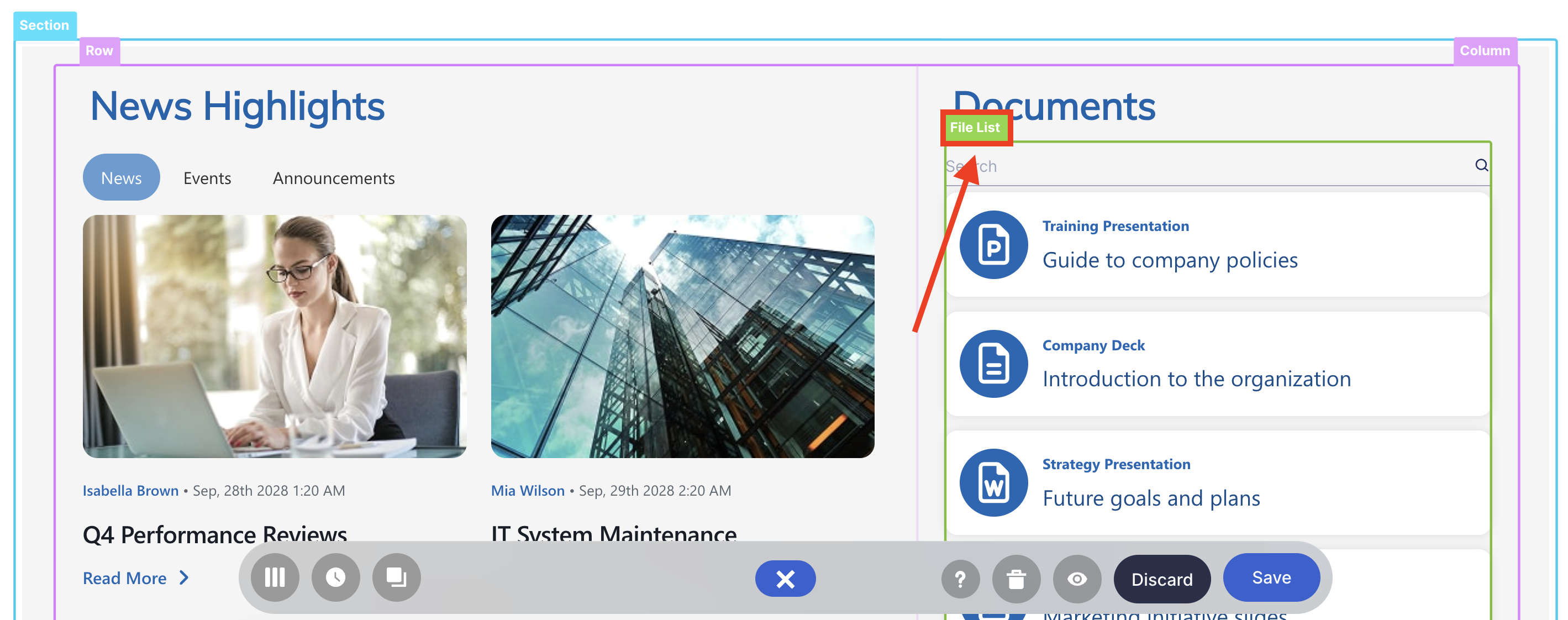
- Click the Easypass tag of the Design Element:
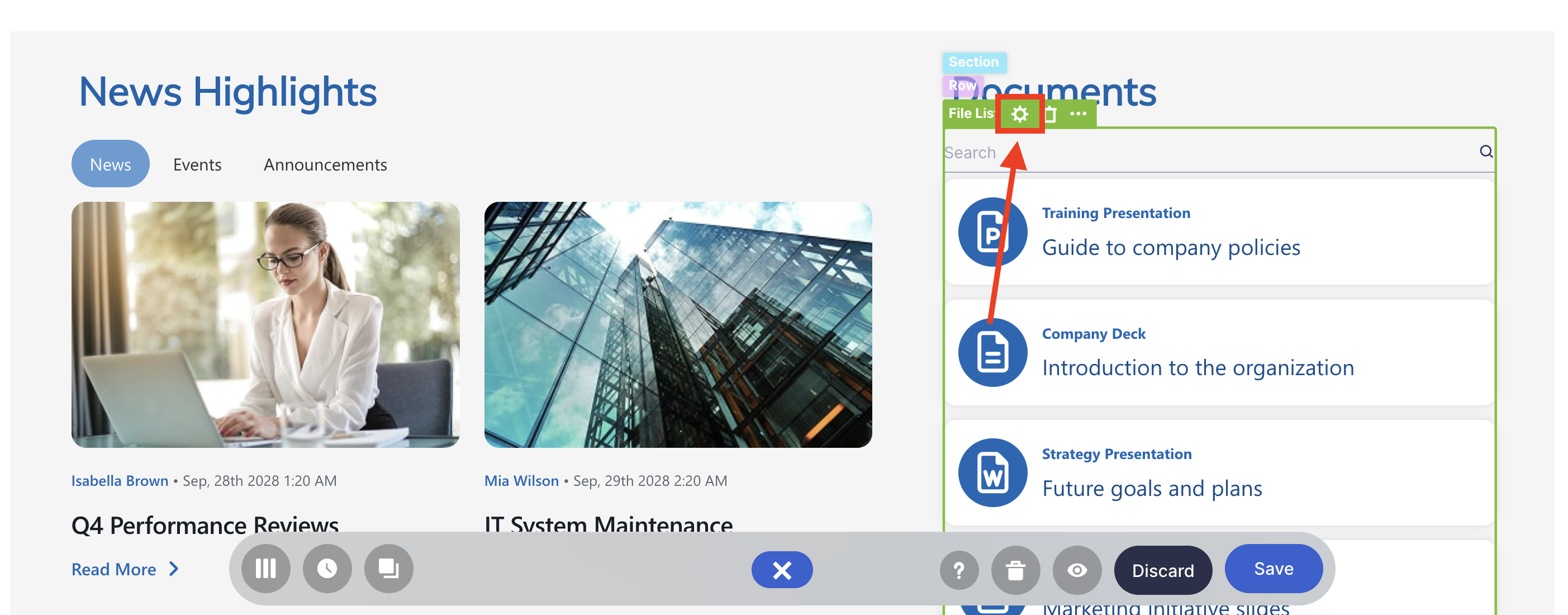
- Click the cogwheel icon:
Step 3: Open the Connect Window
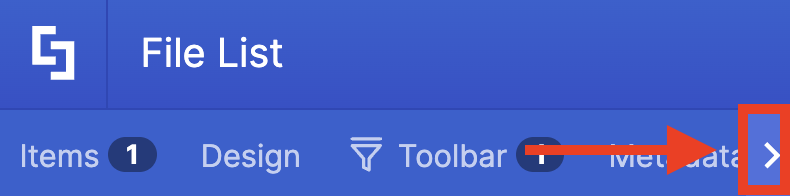
- Click the next icon:
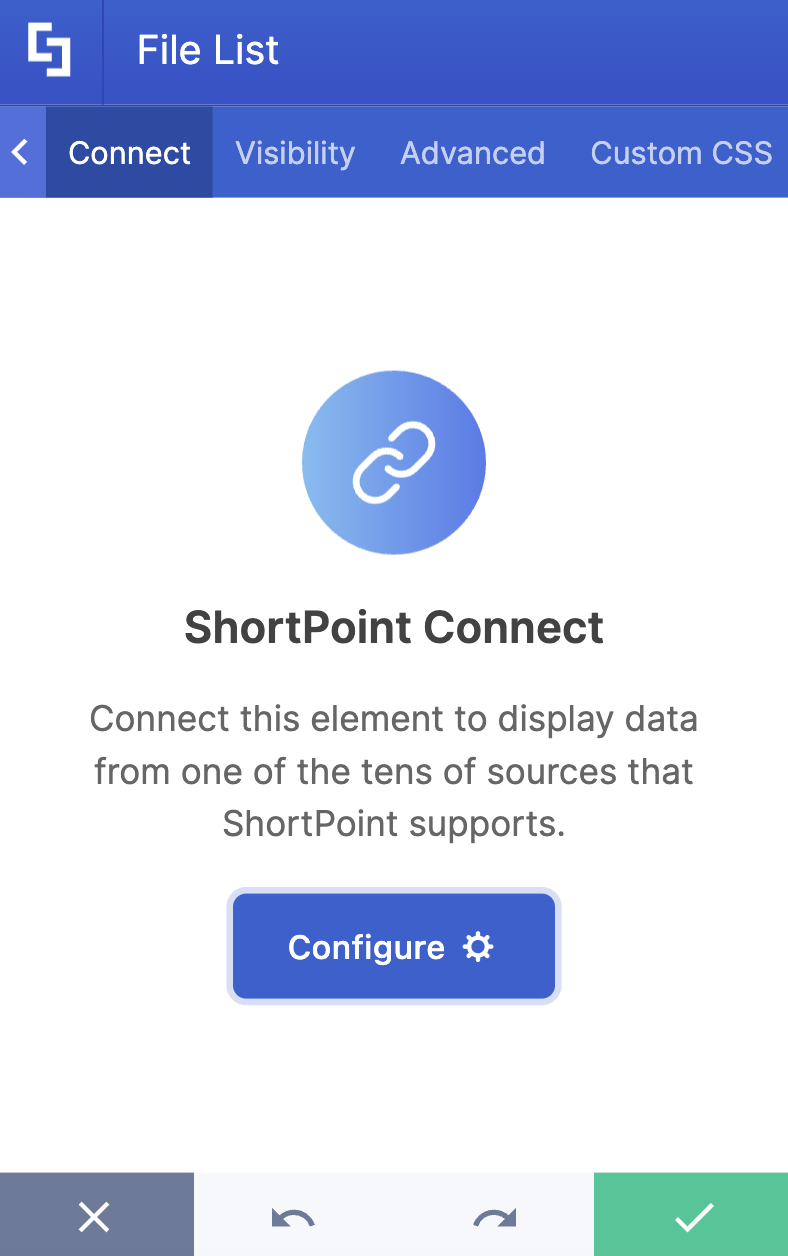
- Go to the Connect tab.
- Select Configure:
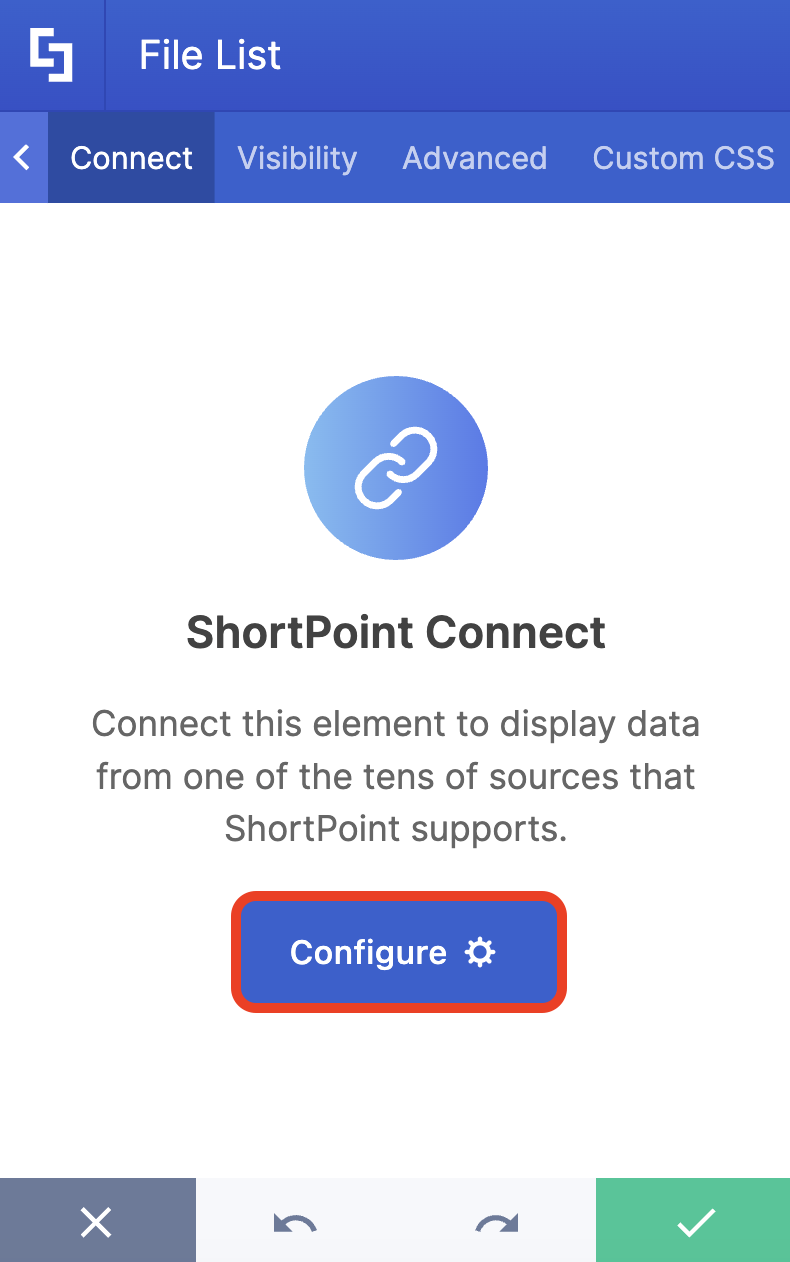
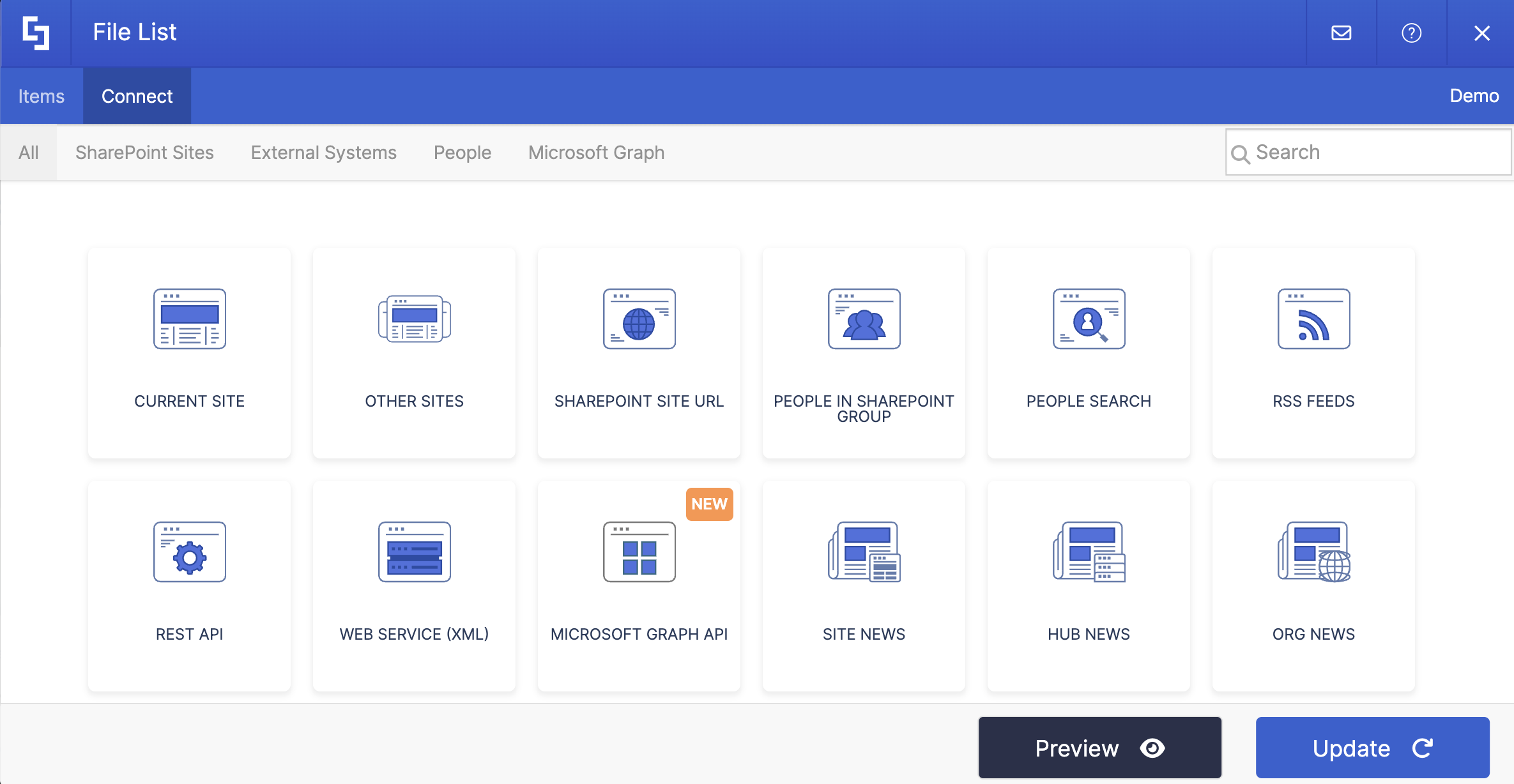
- The Connect window will open:
Step 4: Connect
- Choose the connection type you want to use. Since the SharePoint List we’re using is located in the current site, we’ll use the Current Site connection type.
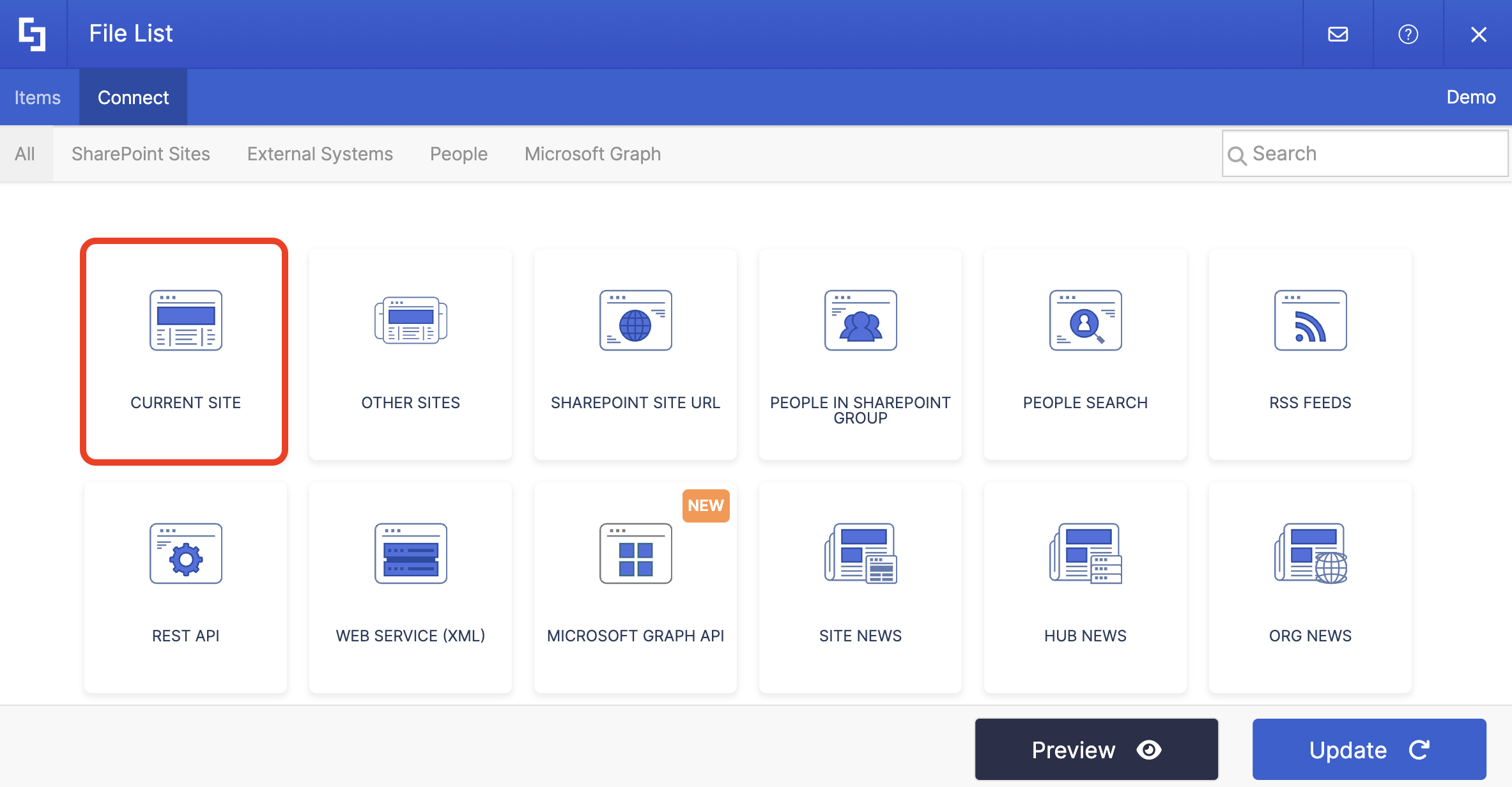
NOTECheck out ShortPoint Connect Features for the list of connection types you can use.
Depending on the connection type you chose, different options may appear. Fill in the details needed to establish the connection.
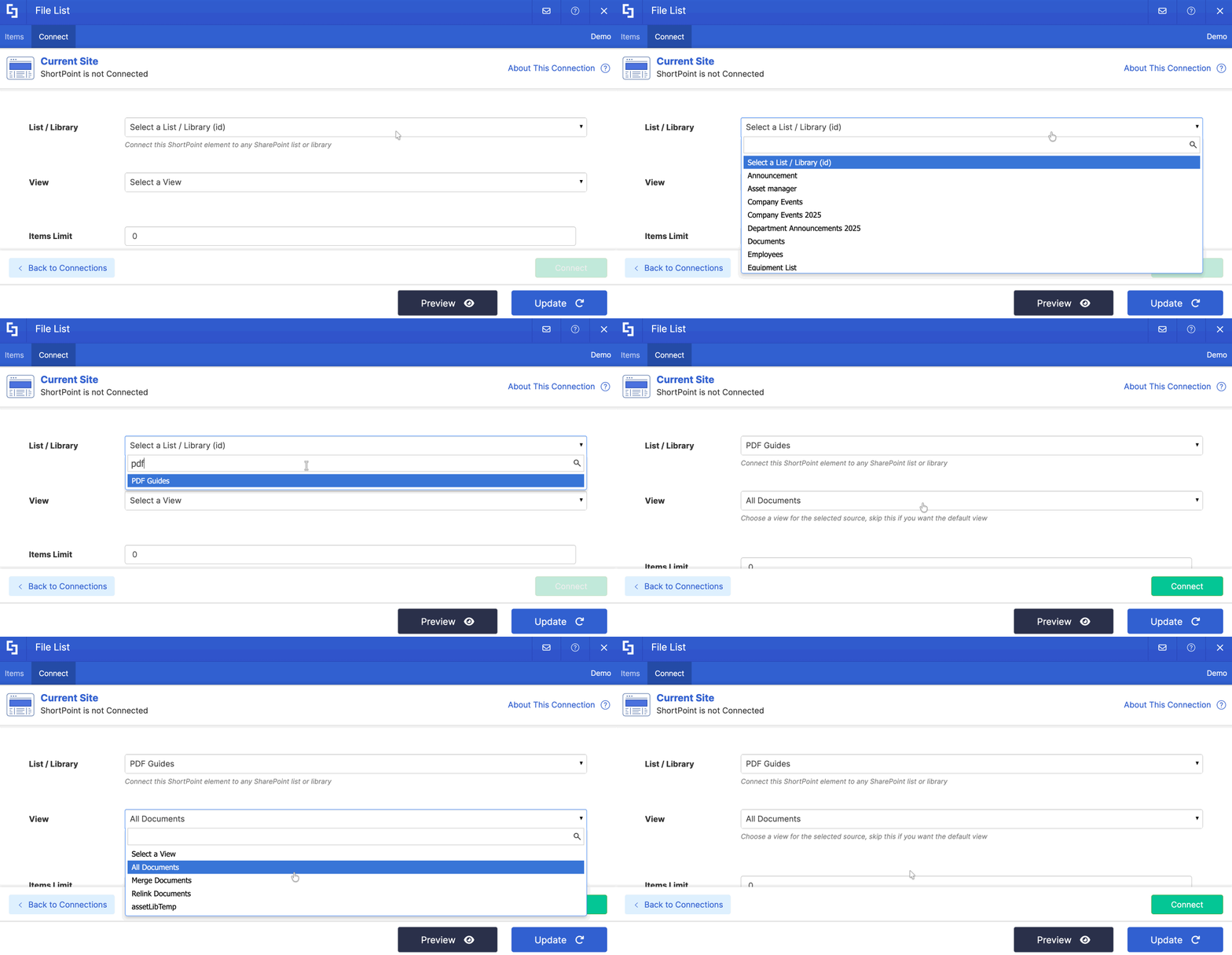
NOTECheck out ShortPoint Connect Features for the list of options you can modify.
- Once done, click Connect.
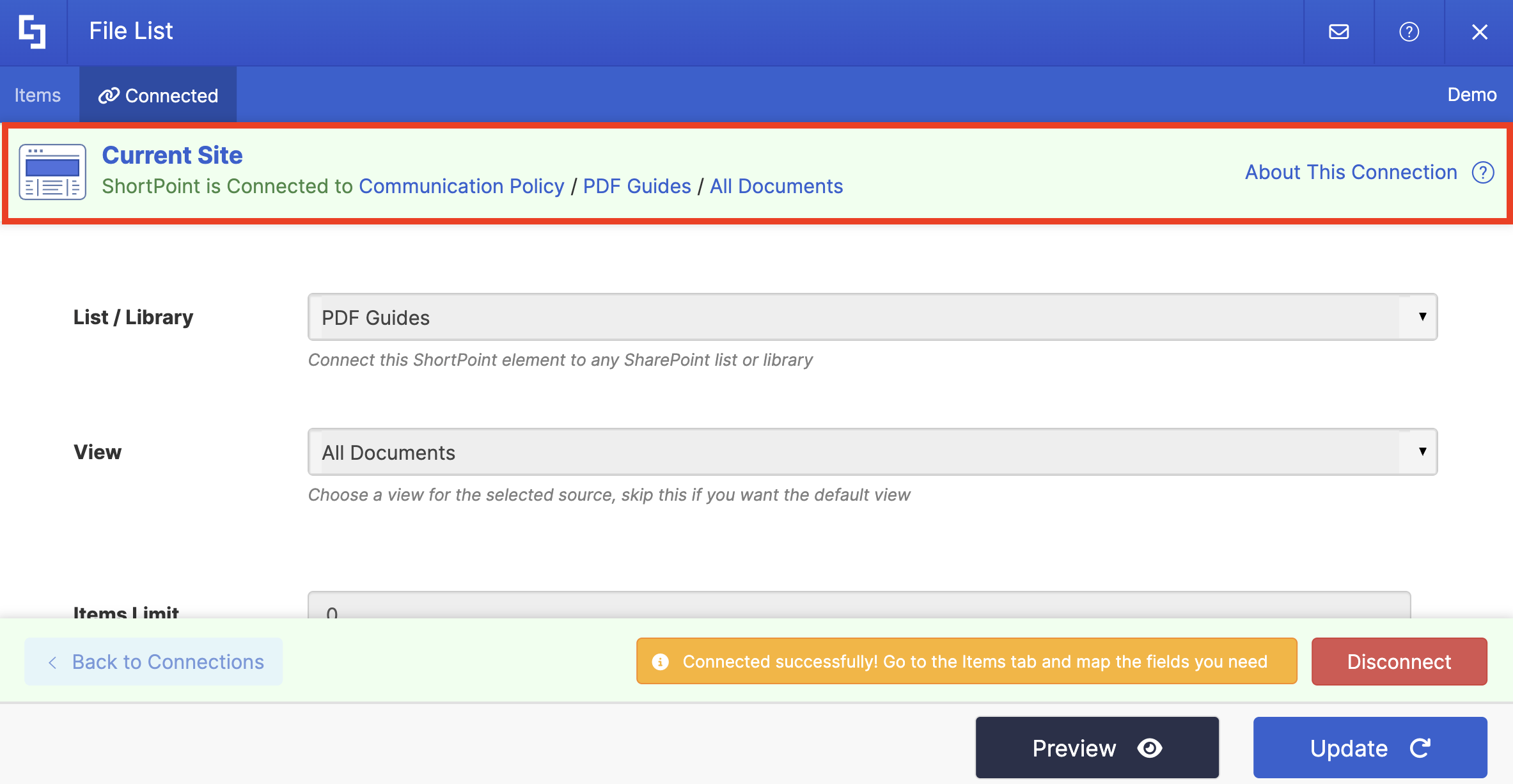
- A green banner containing details about the connection will appear to signify a successful connection:
Step 5: Map Items
- Go to the Items tab.
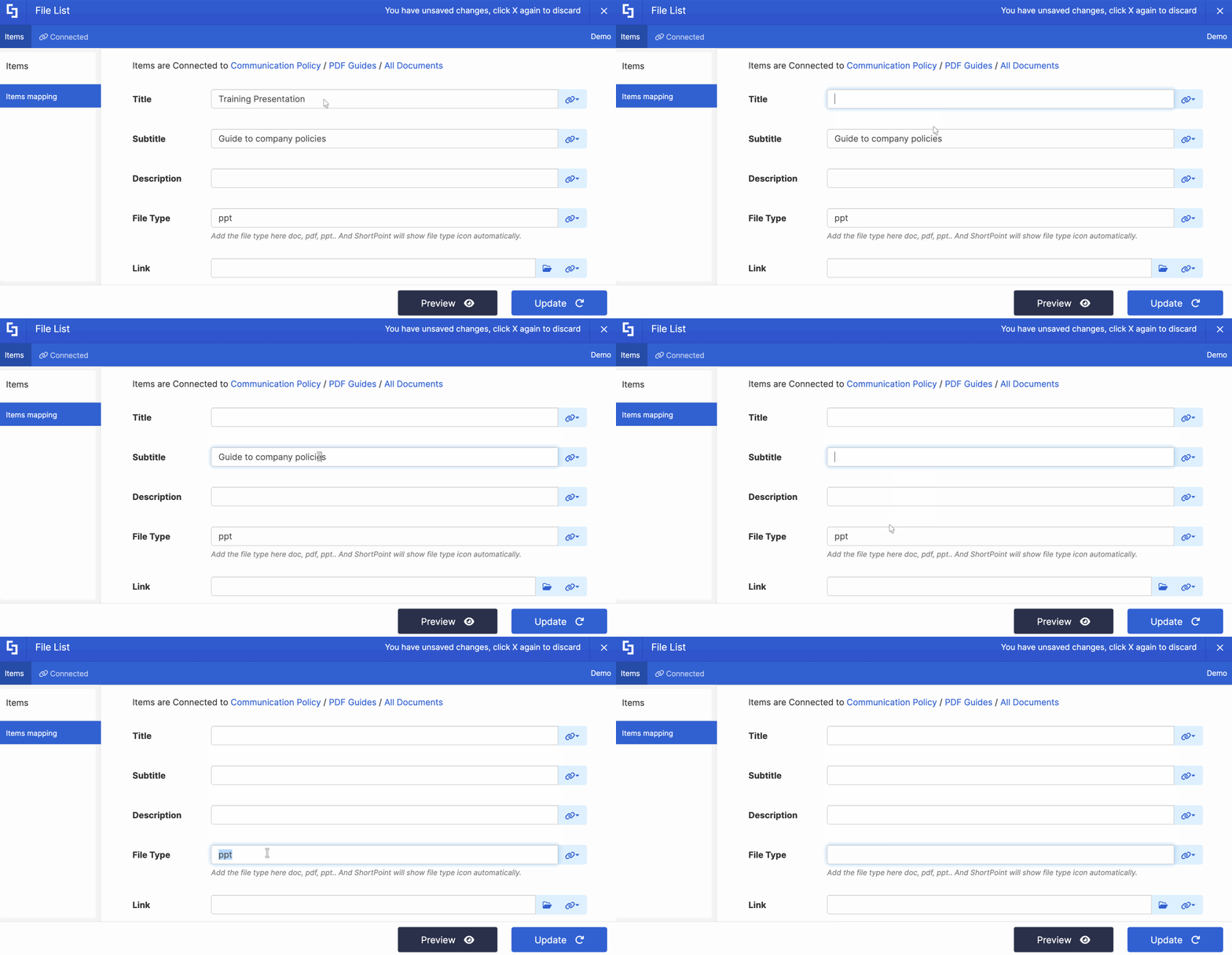
- Delete all default content:
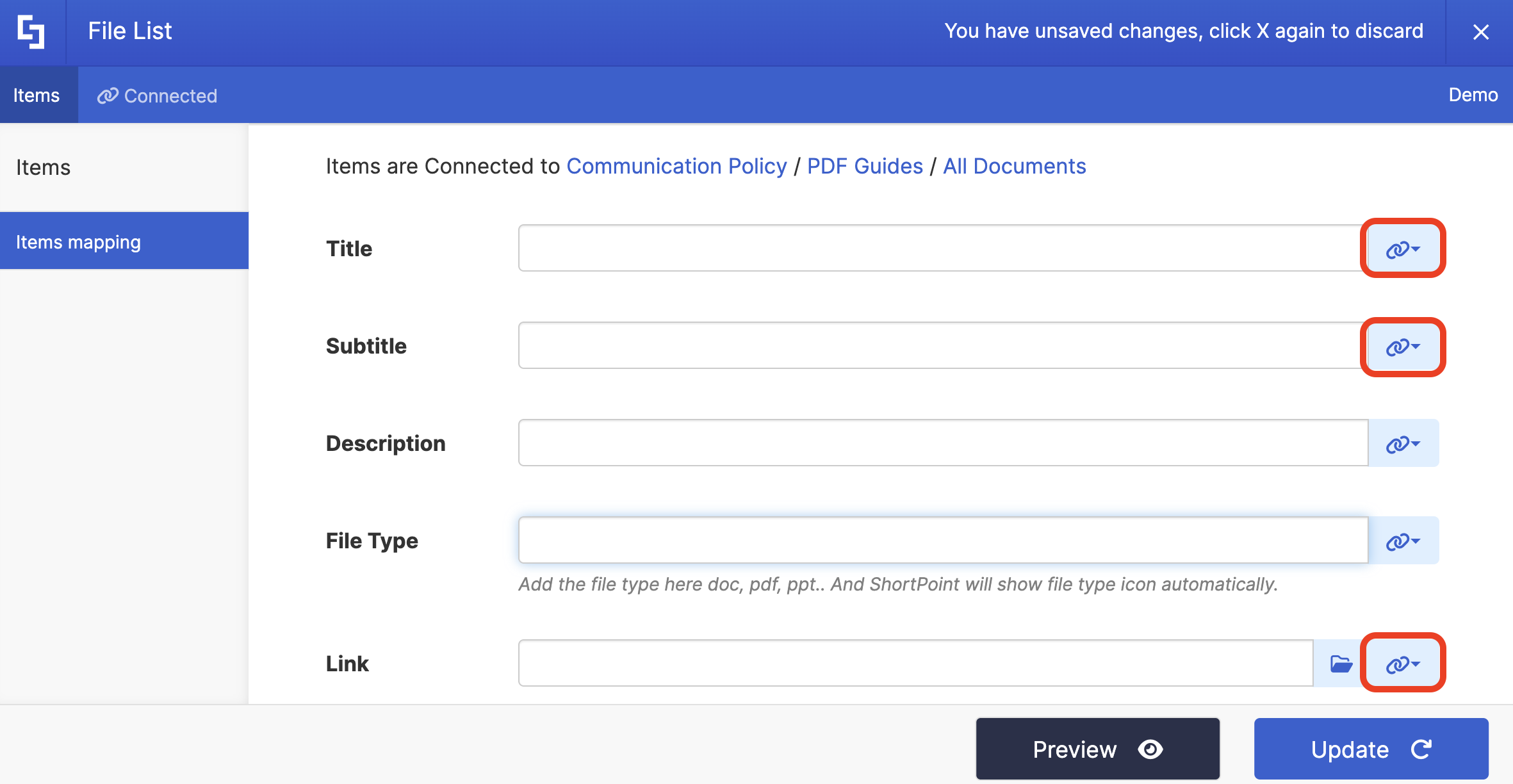
- Use the link icon to map the items you want to be shown inside the connected Design Element:
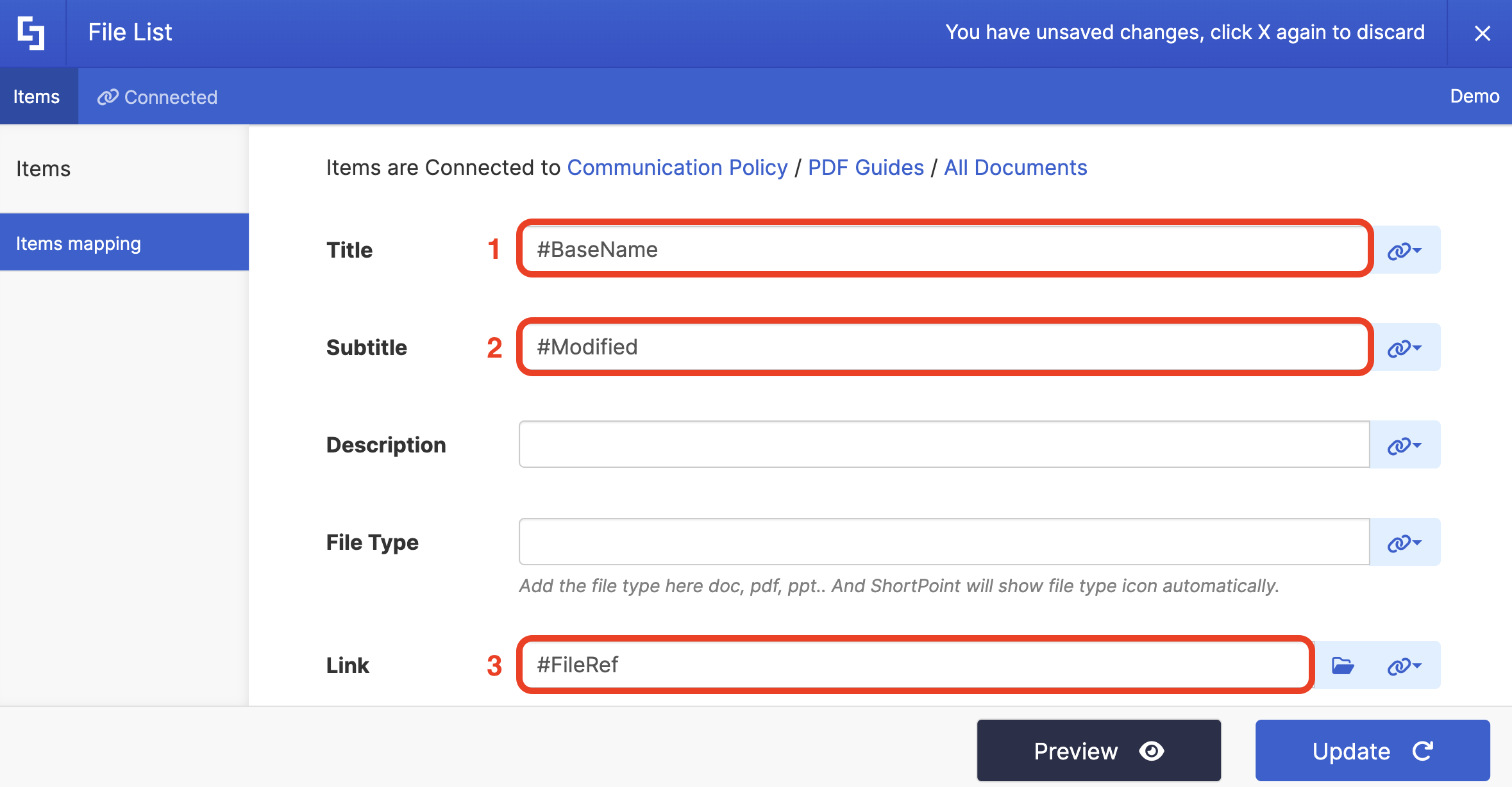
- You can map the properties you want or follow what we’ve set up below:
- #BaseName - shows the name of the file as the title.
- #Modified - shows the date and time the file was modified as the subtitle.
- #FileRef - links the file to its source.
Step 6: Save
- Click Preview to see your page in real-time.
- Once satisfied, click Update.
- Then, click the green checkmark.
- Click the eye icon to see your page in real-time:

- Save your changes:

Congratulations! You’ve successfully established the connection.
Editing a Connection
Follow the steps below to learn how to edit a connected Design Element:
Step 1: Edit the Design Element
NOTEBefore proceeding, make sure you already have a connected Design Element. For this guide, we have a connected File List.
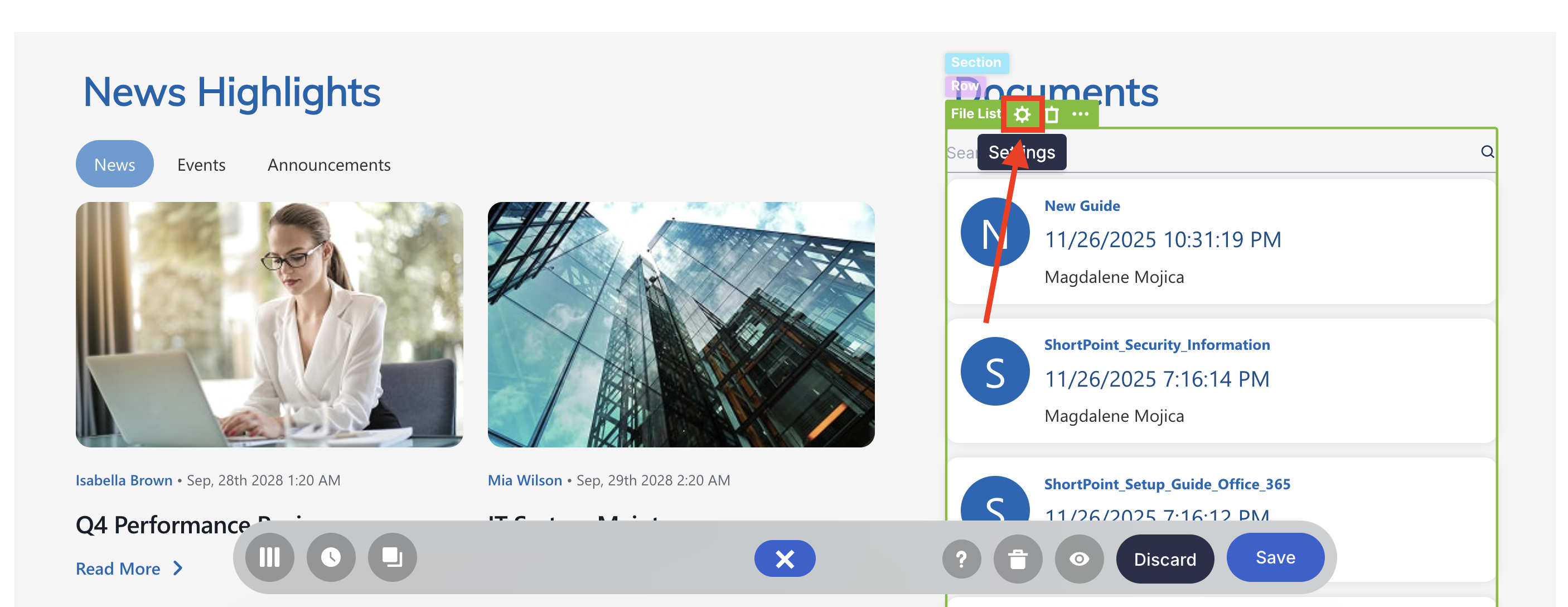
- Click the Easypass tag of the connected Design Element:
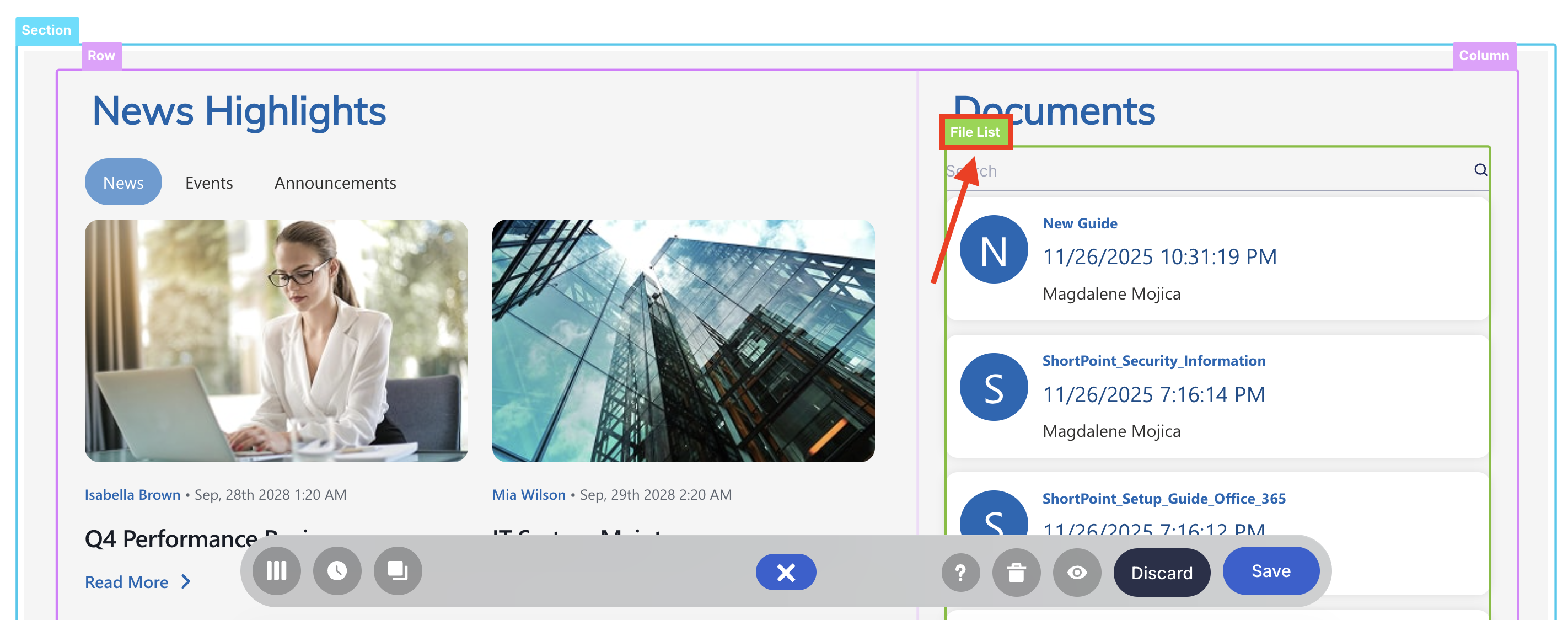
- Click the cogwheel icon:
Step 2: Make your Changes
- Click Configure.
- Make the changes you desire.
Step 3: Save
- Click Update once done.
- Save your changes:

Great work! You now know how to edit a connected Design Element.
Disconnecting
Follow the steps below to learn how to disconnect a connected Design Element:
Step 1: Edit the Connected Design Element
NOTEBefore proceeding, make sure you already have a connected Design Element. For this guide, we have a connected File List.
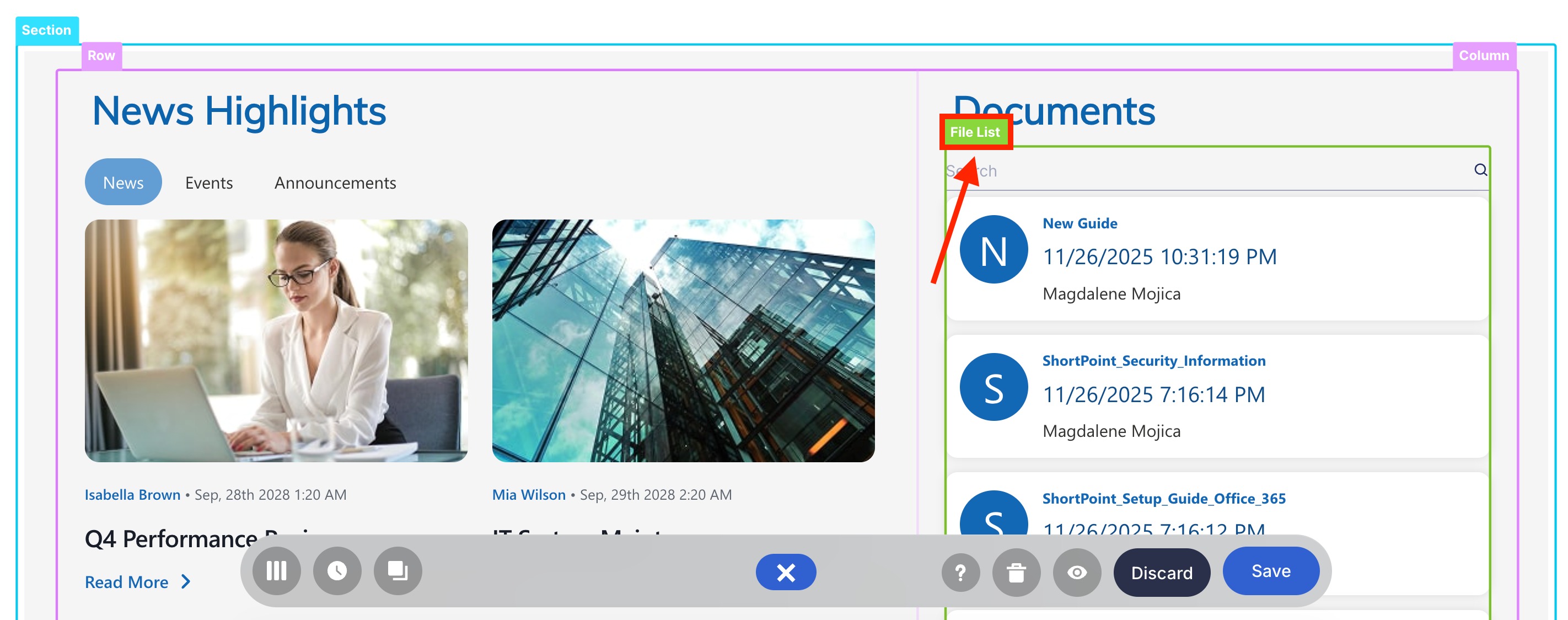
- Click the Easypass tag of the connected Design Element:
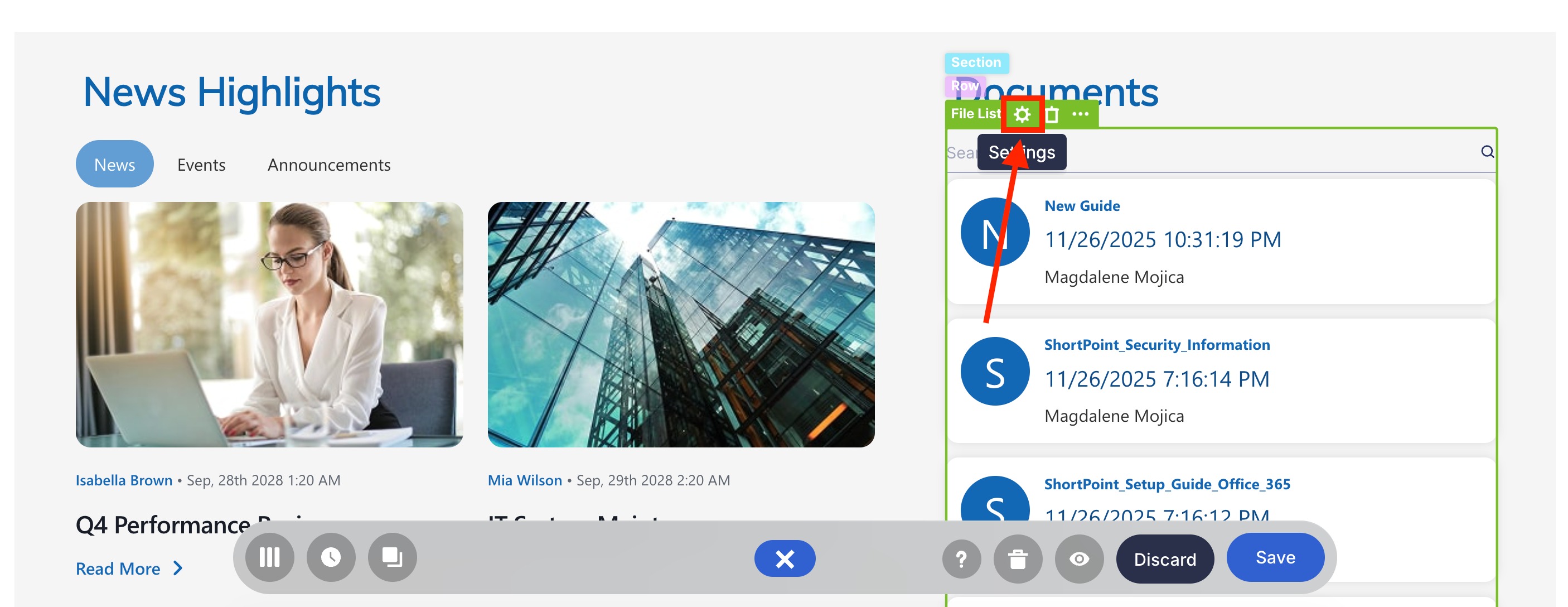
- Click the cogwheel icon:
Step 2: Disconnect
- Go to the Connected tab.
- Select Configure.
- Click Disconnect.
- Make the necessary changes you want for the Design Element.
That’s it! You’ve successfully disconnected a connected Design Element.
ShortPoint Connect Features
ShortPoint Connect offers several connection types and advanced customizations to meet different needs. Let's learn more about these features.
Connection Types
Below are the connections you can use:
 | Current Site | Connect to lists and libraries within the same SharePoint site where you're building your page. Learn more. |
 | Other Sites | Pulls content from different sites within your SharePoint environment, perfect for consolidating information from multiple departments or teams. Learn more. |
 | SharePoint Site URL | Retrieves content from a specific SharePoint site. Learn more. |
 | People in SharePoint Group | Displays the information of the group members of your organization. Learn more. |
 | People Search | Pulls information about your SharePoint organization members. Learn more. |
 | RSS Feeds | Displays content from RSS feeds, ideal for aggregating news or blog posts from external sources. Learn more. |
 | REST API | Integrates with external data sources using REST API connections, opening up virtually unlimited integration possibilities. Learn more. |
 | Web Service (XML) | Connects to any web service endpoint that responds to XML format data. Learn more. |
 | Microsoft Graph API | Integrates with external data sources using Microsoft Graph API connections (Teams, OneNote, Planner, etc.). Learn more. |
 | Site News | Retrieves news posts/links within your Site Collection or a specific Site Collection within your organization’s tenancy. Learn more. |
 | Hub News | Pulls news posts/links from sites and subsites associated with a hub site. Learn more. |
 | Org News | Shows news posts/links across all Site Collections. Learn more. |
 | Current User | Retrieves the details of the specific user viewing your page. Learn more. |
 | Shared Events (Outlook) | Showcases events from shared Outlook calendars directly on your intranet pages. Learn more. |
 | Group Events (Outlook) | Showcases events from group Outlook calendars directly on your intranet pages. Learn more. |
 | My Events (Outlook) | Showcases events from your Outlook calendars directly on your intranet pages. Learn more. |
Other Settings
The options shown for each connection type may differ. However, there are some features that you can find in almost all of the connection types. Let's go through each one.
 | Convert HTML to Plain Text | when enabled, this option will convert all the HTML data to plain text. |
 | Items Limit | lets you set the maximum number of items displayed in your Design Element. |
ADVANCED SETTINGS
 | Enable Advanced Settings | when enabled, advanced settings will be displayed. |
 | Custom headers | allows you to append custom header parameters using JavaScript. This option is only available when Enable Advanced Settings is turned on. Learn more about the Custom Headers function. |
 | Change Parameters | allows you to pass parameters to the URL with JavaScript. This option is only available when Enable Advanced Settings is turned on. Learn more about the Change Parameters function. |
 | Change Path | allows you to modify the Service URL Path using JavaScript. This option is only available when Enable Advanced Settings is turned on. Learn more about the Change Path function. |
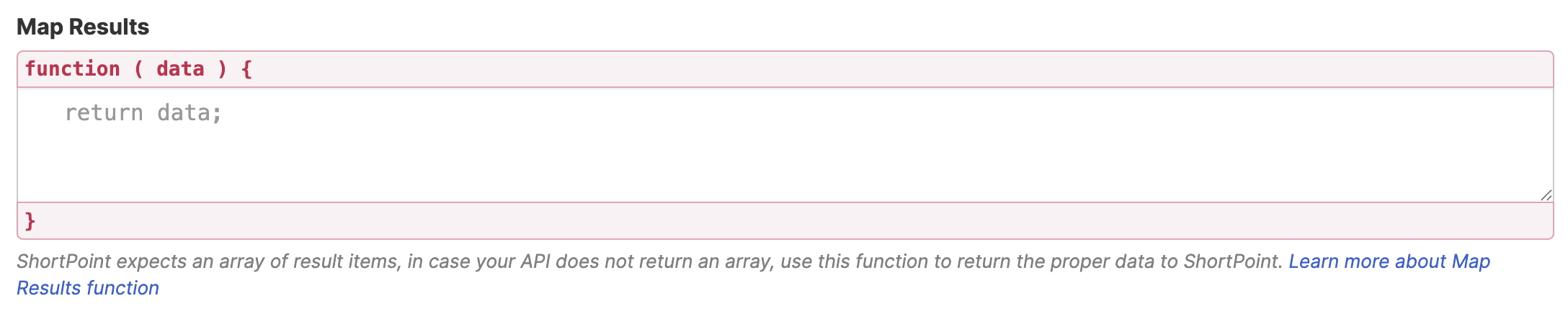 | Map Results | If your API doesn't return an array of result items (which ShortPoint expects), you can use this function to transform the data into the proper format for ShortPoint. This option is only available when Enable Advanced Settings is turned on. Learn more about the Map Results function. |
PERFORMANCE AND CACHING
 | Enable Partial Loading | This feature is enabled by default. It allows partial loading to activate automatically when the connection returns more than 20 results. Additional results will load as the user scrolls. Learn more about the Partial Loading function. |
 | Cache Options | allows you to choose from 3 caching options. Learn more about these caching options and how to improve ShortPoint performance on your SharePoint sites. It has the following options:
|
Practical Use Cases
From what you've seen so far, you probably already know how powerful ShortPoint Connect is, especially when it comes to building dynamic content on your SharePoint intranet. But if you haven't realized its full potential yet, here are some use cases you can apply to your own SharePoint sites:
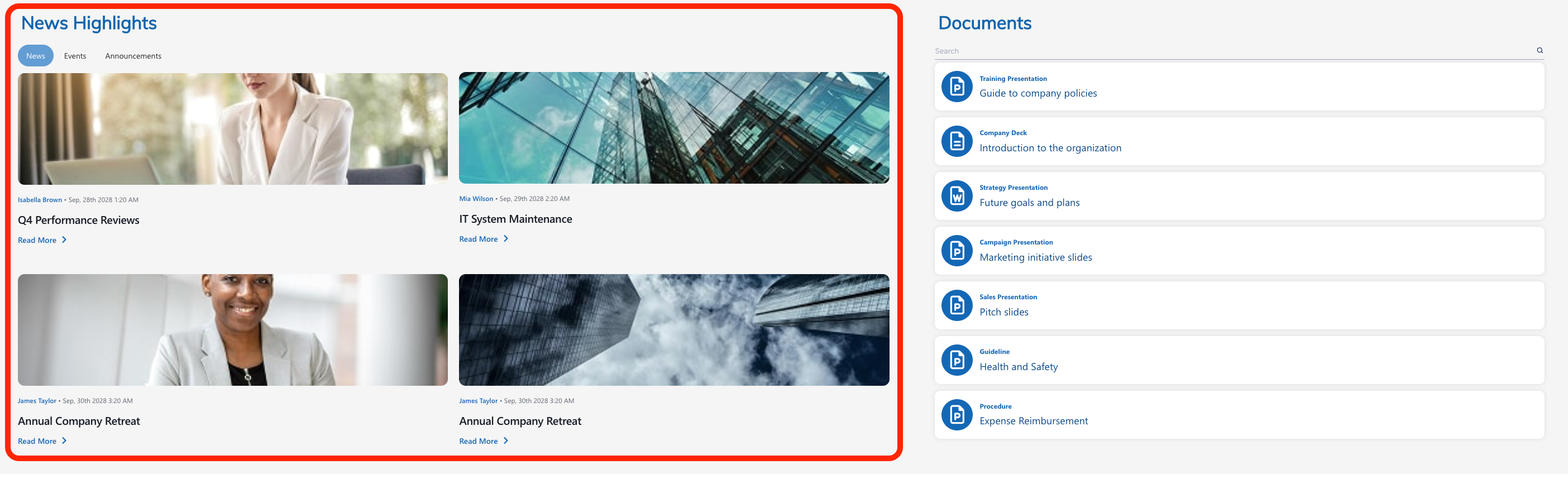
- Display Latest News and Announcements: Showcase your organization's latest news and announcements. With it, your page viewers will never miss any important information.
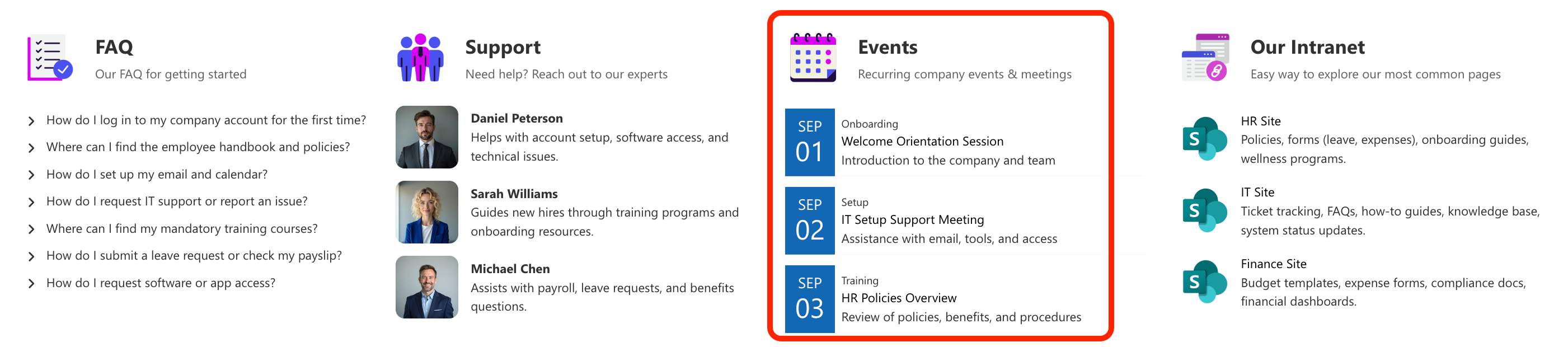
- Showcase Events: Keep employees informed about upcoming meetings, trainings, and social activities. No more missing deadlines and important events.
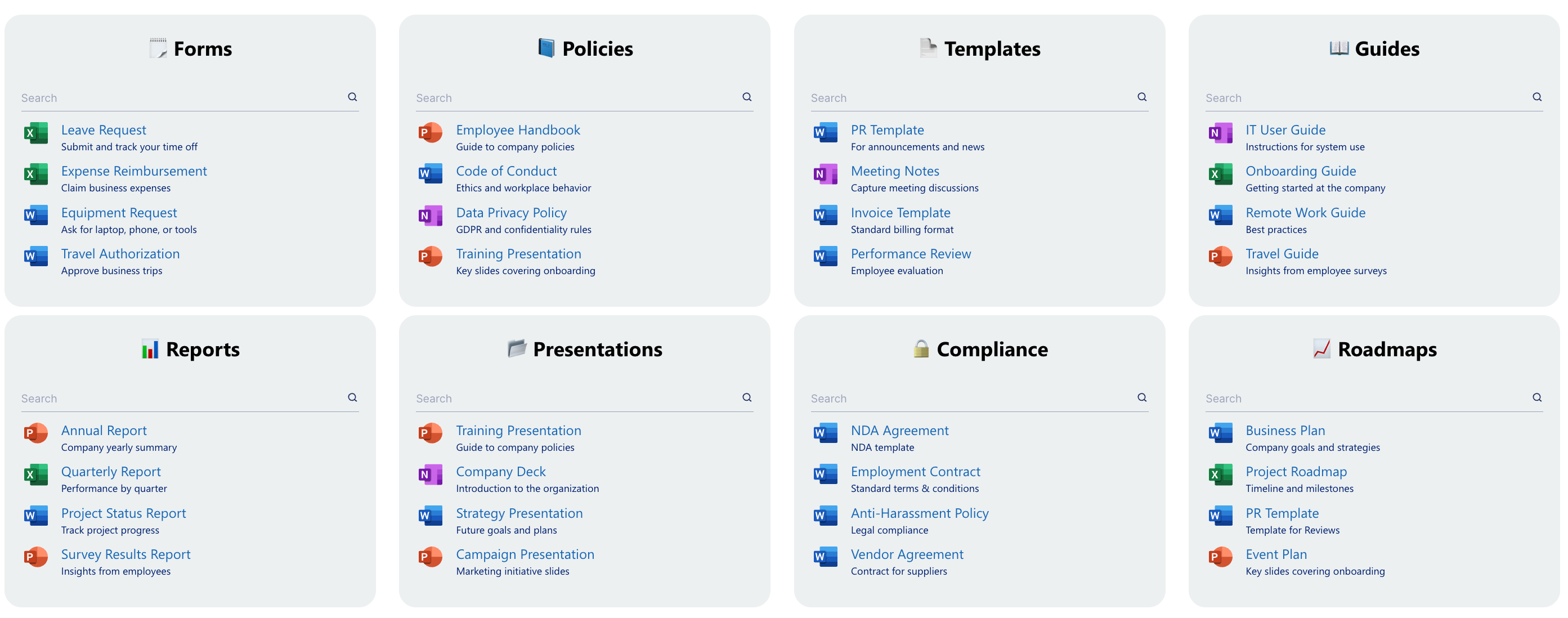
- Create an Effective Knowledge Base: Display your company's recent documents, policies, or resources. Your team members can now have a central knowledge hub.
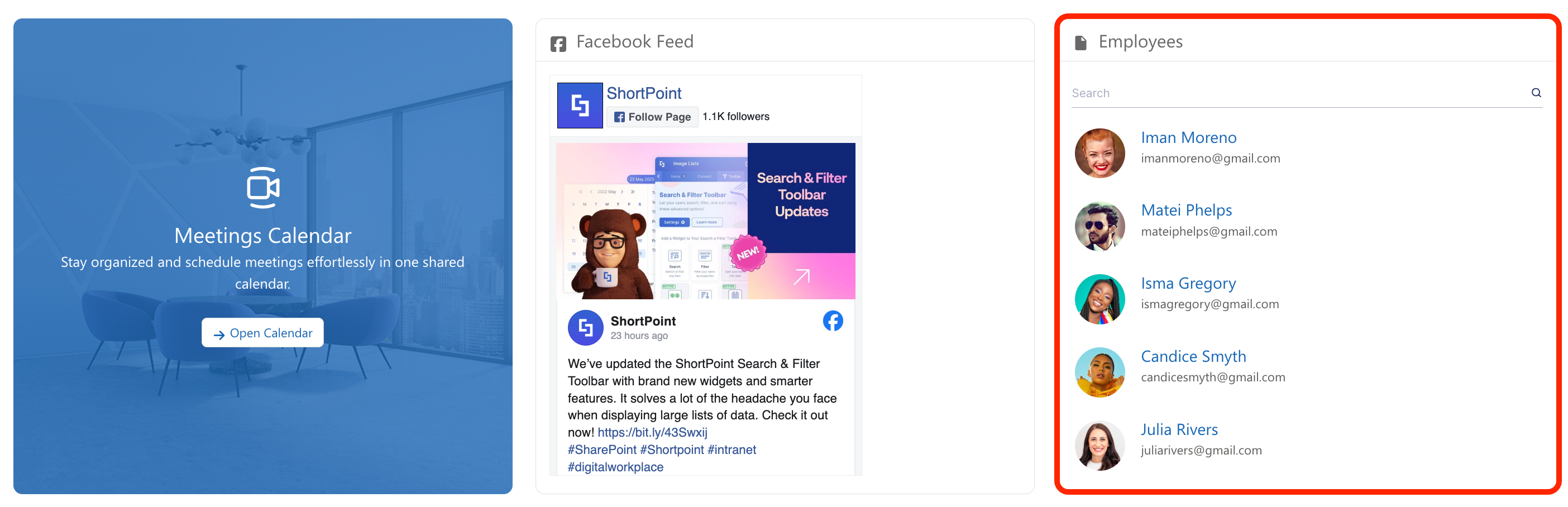
- Integrate Team Directories: Create dynamic people pages that automatically update when new team members join or roles change.
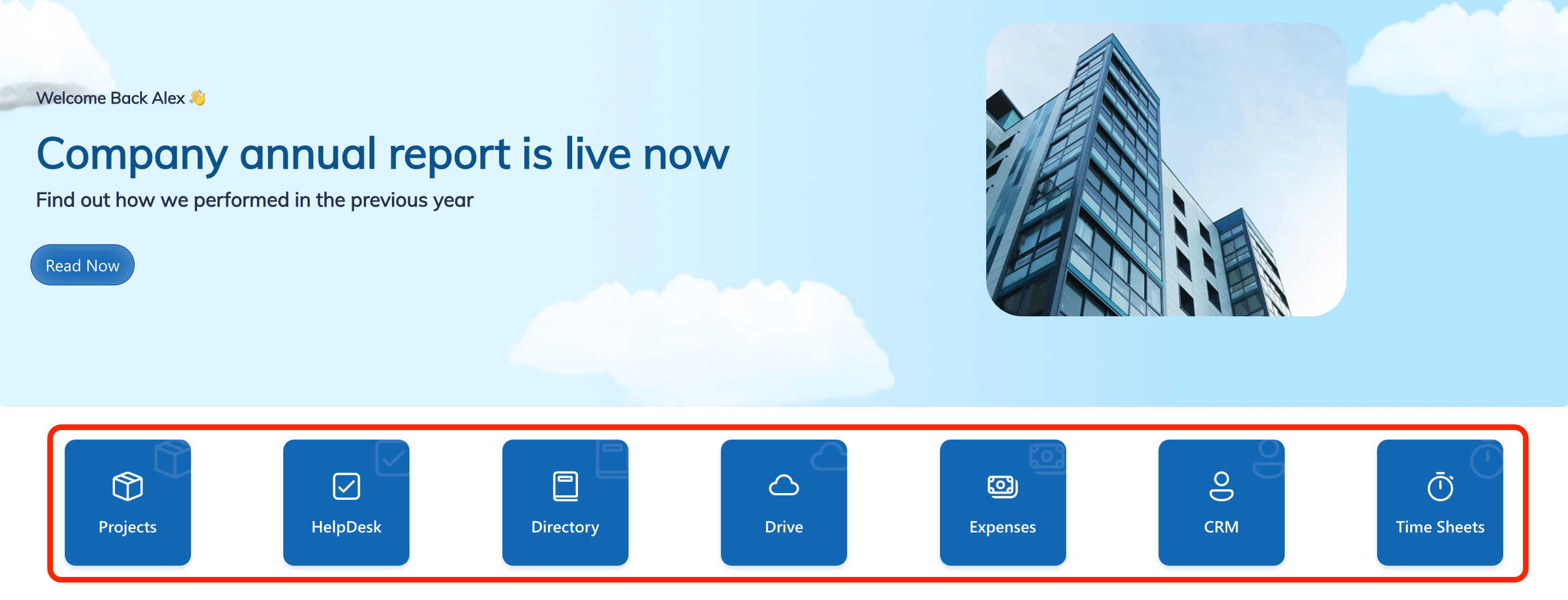
- Create Seamless Navigation: Build a navigation section that redirects your page viewers to useful internal and external resources.
Getting Started with ShortPoint Connect
ShortPoint Connect represents a fundamental shift in how SharePoint intranet connections can be managed and maintained. By automating content updates and enabling seamless integration with multiple data sources, including RSS Feeds, Microsoft Graph API, and so much more, it empowers organizations to create intranets that are both beautiful and effortlessly current.
Whether you're building a company homepage, a department site, or a project workspace, ShortPoint Connect gives you the tools to create dynamic, data-driven pages that engage your audience and save your team countless hours of manual updates.
Ready to experience the power of automatic content updates? ShortPoint Connect is waiting to transform your SharePoint experience. If you're already a ShortPoint Designer, simply upgrade to ShortPoint SPFx version 8.7.2.0 or higher to try the new connect experience for yourself. If you aren't yet, you don't have to worry. You can enjoy a FREE 15-day trial with us or reach out to our team of experts to help you see ShortPoint Connect in action.
Frequently Asked Questions
What is ShortPoint Connect used for?
ShortPoint Connect allows you to link SharePoint lists, SharePoint document library, and external data sources to design elements on your intranet pages. It automatically displays and updates content from these sources, eliminating the need for manual content maintenance.
Which design elements support ShortPoint Connect?
Almost all ShortPoint Design Elements support the feature, including Simple Lists, Accordions, Tabs, Tiles, Carousels, Events Lists, and many more. This flexibility allows you to choose the perfect visual presentation for your data, ensuring seamless integration with your SharePoint site.
Can I connect to data sources outside of SharePoint?
Yes! ShortPoint Connect supports REST API, RSS connections, Microsoft Graph API, and so much more. This enables you to integrate external data sources beyond SharePoint.
Do I need to be a developer to use ShortPoint Connect?
Not at all. ShortPoint Connect is designed for users of all technical levels. The interface is intuitive and user-friendly, with dropdown menus and simple mapping tools that make connecting straightforward and efficient.
How often does connected content update?
Connected content updates in near real-time, depending on your cache settings. The Smart Cache+ option balances performance with freshness, ensuring users see current information without compromising page load speed or data source integrity.
Will connected content respect SharePoint permissions?
Absolutely. ShortPoint Connect honors SharePoint's existing security and permission structures. Users only see content they have access to, maintaining your organization's required permissions and security protocols to ensure safe and controlled access to your SharePoint site and connected data sources.
Can I connect to lists from different SharePoint sites?
Yes, using the "Other Sites" connection type, you can pull content from different SharePoint sites within your SharePoint environment. This is perfect for consolidating information from multiple departments or locations, allowing you to create connections across your organization seamlessly.
How many items can I display from a connected list?
You have full control over item limits. You can choose to display all items from your source file or set a specific limit (like showing only the 5 most recent news articles). This helps you manage page length and focus on the most relevant content, ensuring your SharePoint connection performs efficiently without hitting the maximum number of items allowed.
What happens if the source list is deleted or renamed?
If the source list is modified significantly, your SharePoint connection may break. If you experience this issue, it’s very easy to reconnect. Just follow the same steps we’ve provided in this article.
Can I customize how connected data appears?
Definitely! Once connected, you have full control over styling, layout, and which fields to display. You can use ShortPoint's design options and even add custom CSS to achieve your desired look. This flexibility allows you to configure the SharePoint connection to perfectly fit your intranet's needs and branding.
Is there a limit to how many connections I can create?
There's no practical limit to the number of SharePoint connections you can create across your site. You can have multiple connected elements on a single page and across all your SharePoint pages, enabling seamless data access and integration throughout your SharePoint site. However, to keep the performance of your page at its best, we recommend applying caching options. Learn more about the Partial Loading function.
How do I access the Connect feature?
Simply edit your page, select a design element, and navigate to the Connect tab to begin setting up your SharePoint connection.
Related articles:
