 Try ShortPoint now
Ever randomly found design inspirations while browsing the web? We certainly have! That’s why we made it super easy to copy and paste design inspirations to ShortPoint AI Designer.
Want to learn how? Let’s dive right in!
IMPORTANTKeep in mind that running the same image more than once may give you slightly different results each time. AI tools, like ShortPoint AI Designer, are built on neural networks, which means a small degree of variability is part of how they work. It's basically AI bringing a fresh perspective with every run.
TABLE OF CONTENTS
- What are the Prerequisites?
- What Is the Paste from Clipboard Feature?
- How to Use Paste from Clipboard
- Frequently Asked Questions
- What is the Paste from Clipboard feature in ShortPoint AI Designer?
- What do I need before using this feature?
- How do I copy design inspiration to use with the AI Designer?
- Can I specify what elements the AI should replicate or avoid?
- How do I access the AI Designer on my SharePoint page?
- What if I want to change the AI-generated design?
- Can I upload images saved on my computer or document libraries?
What are the Prerequisites?
- You must have the latest version of ShortPoint SPFx installed.
- You must be a ShortPoint Designer with a Pro or Enterprise License.
- You must have ShortPoint AI Designer enabled in the ShortPoint Admin page and have AI credits available. For more information, go to How to Enable/Disable the ShortPoint AI Designer.
What Is the Paste from Clipboard Feature?
Paste from Clipboard is a ShortPoint AI Designer feature that allows you to grab an image from anywhere and paste it into the prompt area. We rolled out this feature to make it as easy as possible to interact with our AI tool and get the results you want.
How to Use Paste from Clipboard
Here’s an easy-to-follow guide on how to use paste from clipboard in ShortPoint AI Designer.
TIPYou can also upload images that are saved on your computer or in your Document Libraries to the AI Designer. To learn how, check out How to Use Image-to-Image Prompting in ShortPoint AI Designer.
Step 1: Copy Inspiration
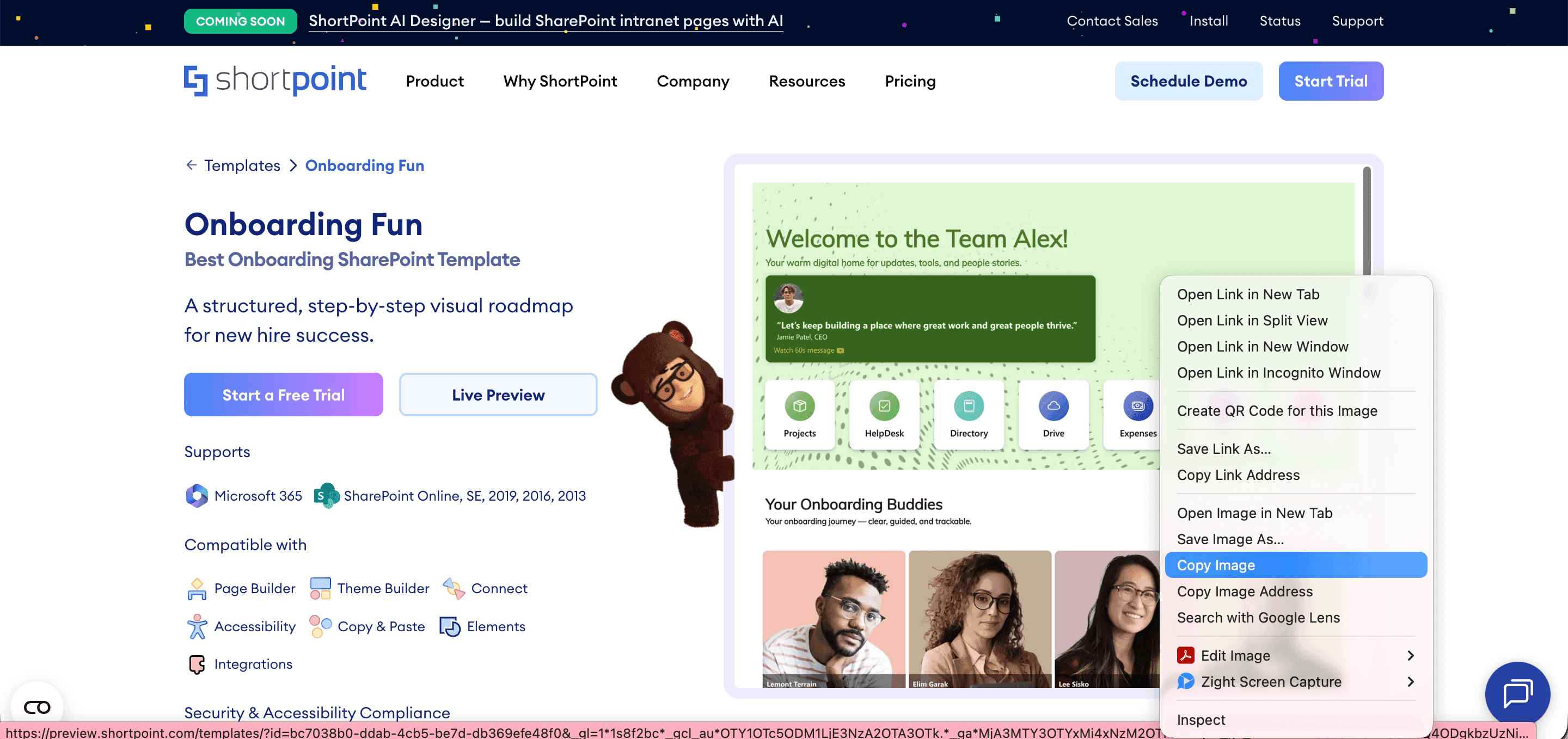
- Browse through any site and copy the resource you want the AI Designer to emulate:
Step 2: Edit the ShortPoint Web Part
- Go to the SharePoint page you want to use and click Edit.
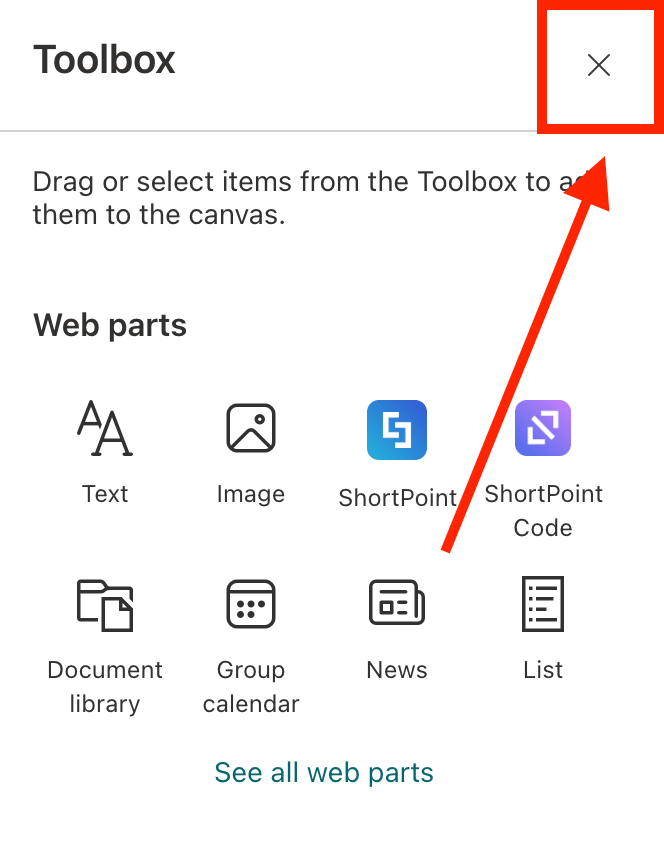
- Close the Toolbox.
- Edit the ShortPoint web part.

Step 3: Open AI Designer in Page Builder
- Select AI Designer:

Step 4: Paste
- Paste the image you copied into the prompt area.
- Then, in the text box, add further instructions. You can specify which elements to replicate (typography, color palette, card styles, spacing, iconography, navigation patterns, etc.) and clarify what NOT to copy (branding marks, logos, proprietary content, etc).
- Once done, click Enter.

Step 5: Refine
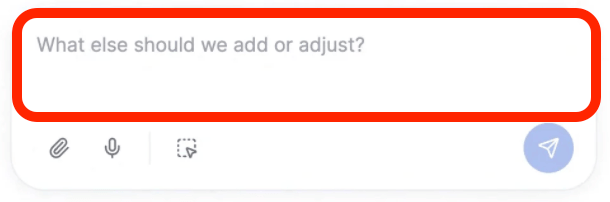
- The AI Designer will start designing your page. If you want to make any changes to the design output, simply write down what you want to modify:
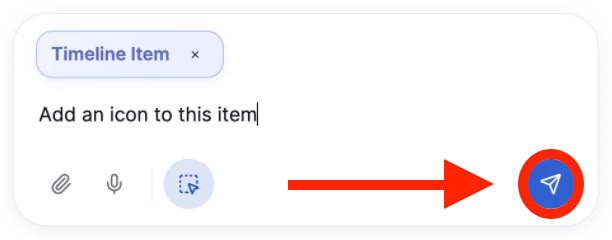
- Then, click Enter:
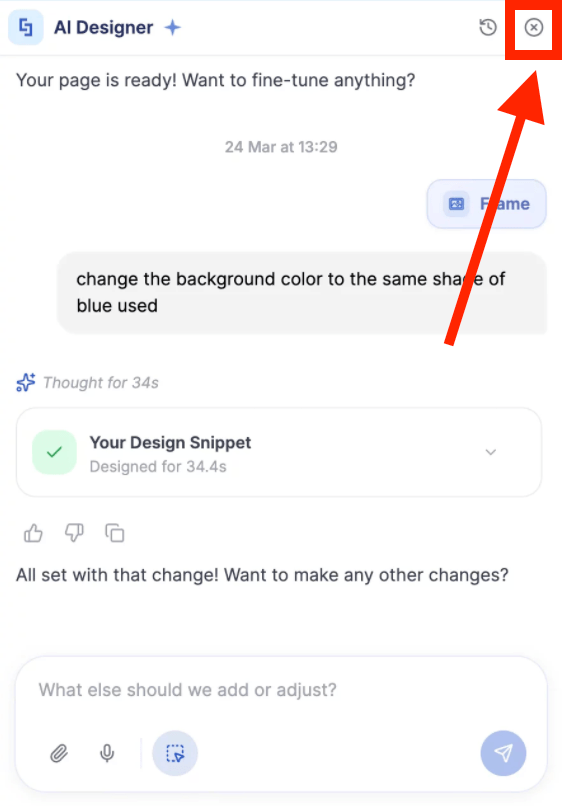
Step 6: Edit as Usual
- Once you’re done using the AI Designer, you can now start editing your page like usual. Simply close the AI Designer panel and make your changes:
Step 7: Save
- Done editing? Make sure to Save your changes:

- And Publish your page:

Congratulations! You now know how to use the paste from clipboard feature.
Frequently Asked Questions
What is the Paste from Clipboard feature in ShortPoint AI Designer?
It is a feature that allows you to copy an image from anywhere and paste it directly into the AI Designer prompt area to use as design inspiration.
What do I need before using this feature?
You must have the latest version of ShortPoint SPFx installed and a licensed ShortPoint Designer account with access to ShortPoint AI Designer.
How do I copy design inspiration to use with the AI Designer?
Browse any website, copy the image or resource you want the AI Designer to emulate, then paste it into the prompt area.
Can I specify what elements the AI should replicate or avoid?
Yes, after pasting the image, you can add instructions about which design elements to replicate (like typography, color palette, spacing) and clarify what not to copy (such as logos or proprietary content).
How do I access the AI Designer on my SharePoint page?
Edit the SharePoint page, close the Toolbox, edit the ShortPoint web part, and select the AI Designer option in the Page Builder.
What if I want to change the AI-generated design?
You can write down the modifications you want in the prompt area and click Enter to refine the design.
Can I upload images saved on my computer or document libraries?
Yes, you can also upload saved images to the AI Designer. For detailed instructions, refer to How to Use Image-to-Image Prompting in ShortPoint AI Designer.
Related articles:
- ShortPoint AI Designer: An Overview
- Quickstart Guide: Generate your first intranet page
- ShortPoint AI Designer Features: What Can it Do?
- How to Use the ShortPoint AI Designer: Detailed Step-by-step
- How to Write Effective AI Prompts for ShortPoint AI Designer
- How to Use Text Prompting in ShortPoint AI Designer
- How to Use Voice Prompting in ShortPoint AI Designer
- How to Use Image-to-Image Prompting in ShortPoint AI Designer
- How Brand-Aware Design Works in ShortPoint AI Designer
- How to Use ShortPoint AI Designer to Edit an Existing ShortPoint Template
- How to Revert to Previous Prompt Versions in ShortPoint AI Designer
- Prompt Library
- Iterating with Multi-Turn Conversation in ShortPoint AI Designer
- How to Modify Specific Page Elements Using the ShortPoint AI Designer
- How to Queue Prompts in ShortPoint AI Designer
- How to Create Dynamic Design Elements Using ShortPoint AI Designer
- How to Activate the Search & Filter Widgets Using ShortPoint AI Designer
- How to Copy and Paste Design Snippets from ShortPoint AI Designer to Another SharePoint Site
