 Try ShortPoint now
If the AI Designer created a page you love and you'd like to use the same design across your intranet, you're in luck! ShortPoint makes it easy to copy and paste Design Snippets from one page to another.
Just follow the step-by-step tutorial below to get started.
TABLE OF CONTENTS
- What are the Prerequisites?
- What Are Design Snippets?
- How to Copy and Paste Design Snippets
- Frequently Asked Questions
What are the Prerequisites?
- You must have the latest version of ShortPoint SPFx installed.
- You must be a ShortPoint Designer with a Pro or Enterprise License.
- You must have ShortPoint AI Designer enabled in the ShortPoint Admin page and have AI credits available. For more information, go to How to Enable/Disable the ShortPoint AI Designer.
What Are Design Snippets?
Design Snippets are shortcodes created by the AI Designer that capture everything in your generated design (Section, Rows, and all Design Elements), so you can effortlessly recreate it on any SharePoint page.
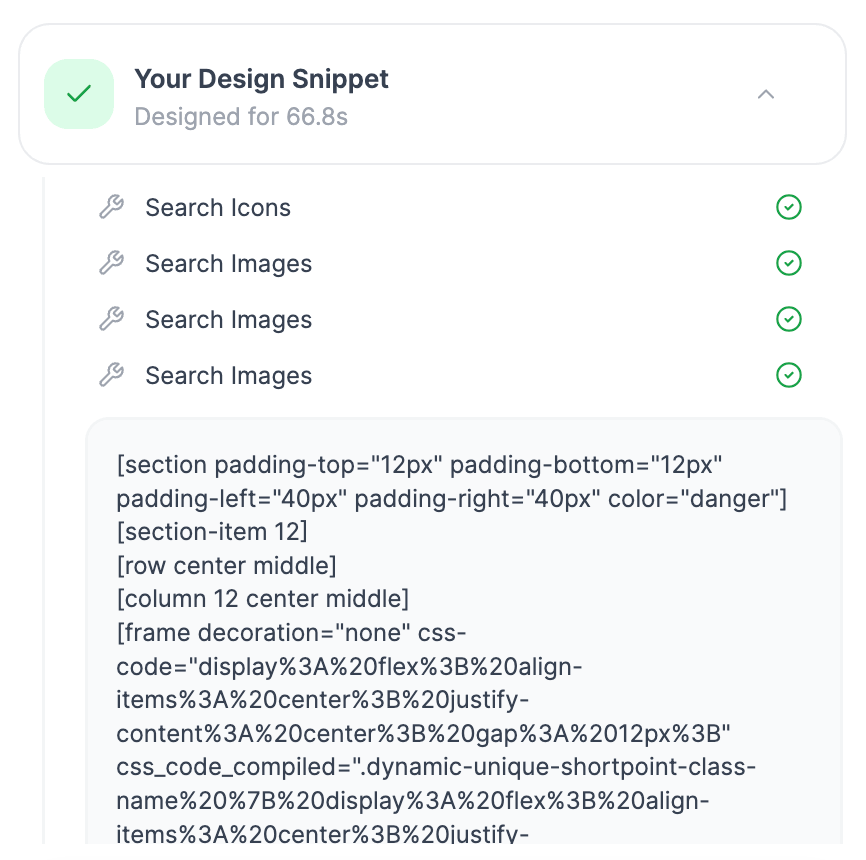
With a simple copy and paste, your team can roll out the same polished, on-brand look across your entire intranet, keeping every page consistent and cohesive.
How to Copy and Paste Design Snippets
Here’s an easy-to-follow guide on how to create dynamic connections using ShortPoint AI Designer:
Step 1: Edit the ShortPoint Web Part
- Go to the SharePoint page you want to use and click Edit.
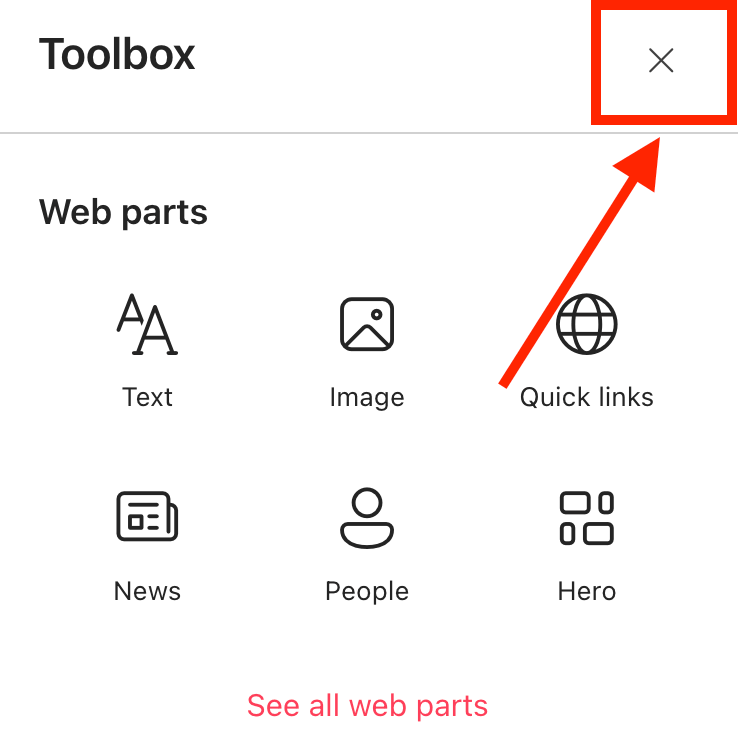
- Close the Toolbox.
- Edit the ShortPoint web part.

Step 2: Open AI Designer
- Click the AI Designer icon in the floating bar:

Step 3: Copy
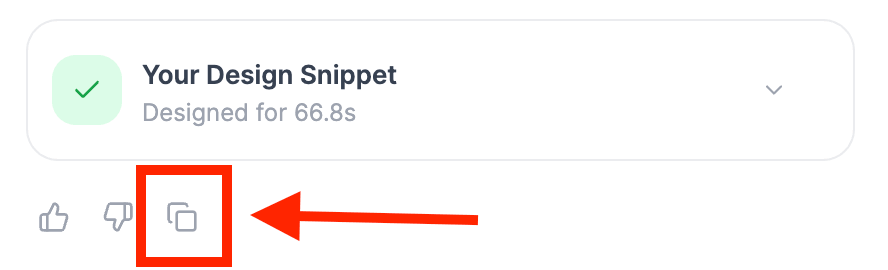
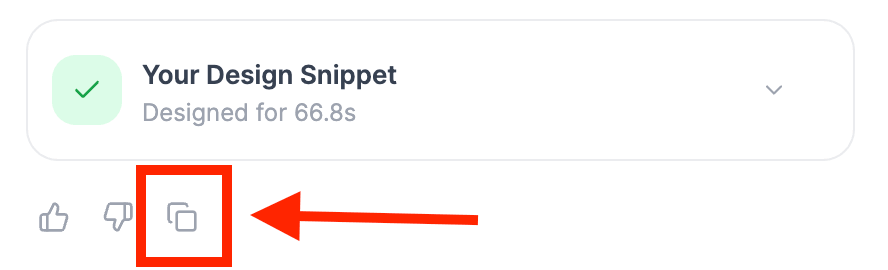
- Click the copy icon under Your Design Snippet. This will copy the entire shortcode into your clipboard.
Step 4: Paste
- Go to the SharePoint page where you want to paste the Design Snippet and click Edit.
- Close the Toolbox:
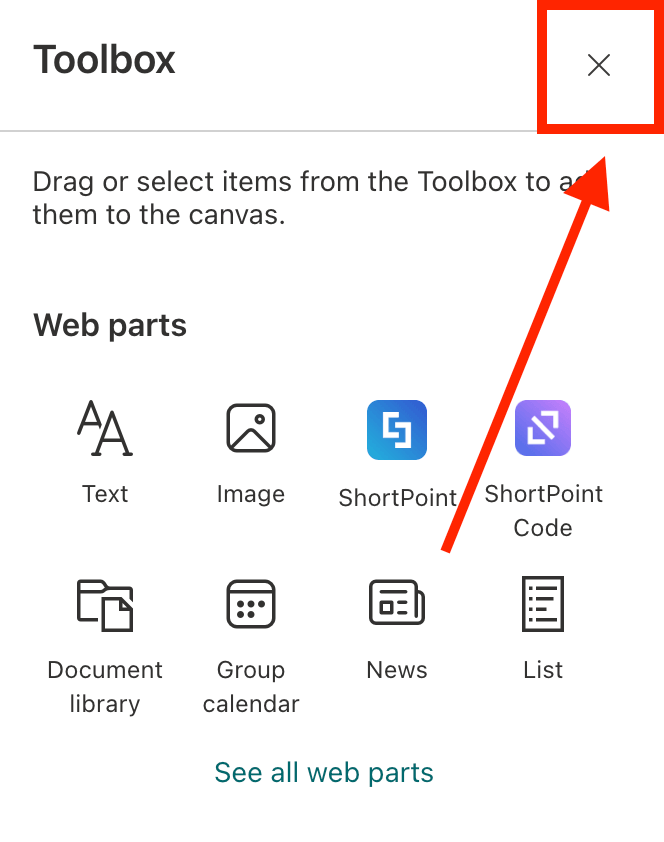
- Edit the ShortPoint web part:

- Right-click and paste the Design Snippet:
Step 5: Edit the Design
- Edit the page to fit the needs of the new page.
Step 6: Save
- Once done, Save your changes:

- And Publish your page:

Great work! You can now create consistent and on-brand designs with a simple copy and paste function.
Frequently Asked Questions
What are Design Snippets in ShortPoint AI Designer?
Design Snippets are shortcodes generated by the AI Designer that capture your entire design, including Sections, Rows, and Design Elements, allowing you to easily recreate the same design on any SharePoint page.
Do I need a license to use ShortPoint AI Designer?
Yes, you must be a ShortPoint Designer with a valid license to access the AI Designer features.
Can I use the same design across multiple SharePoint sites?
Absolutely! You can copy and paste Design Snippets from one SharePoint page to another to maintain a consistent, on-brand look across your intranet.
Can I customize the pasted design after inserting the Design Snippet?
Yes, after pasting the Design Snippet, you can edit the page to fit the specific needs of the new page before saving and publishing.
Related articles:
- ShortPoint AI Designer: An Overview
- Quickstart Guide: Generate your first intranet page
- ShortPoint AI Designer Features: What Can it Do?
- How to Use the ShortPoint AI Designer: Detailed Step-by-step
- How to Write Effective AI Prompts for ShortPoint AI Designer
- How to Use Text Prompting in ShortPoint AI Designer
- How to Use Voice Prompting in ShortPoint AI Designer
- How to Use Image-to-Image Prompting in ShortPoint AI Designer
- How Brand-Aware Design Works in ShortPoint AI Designer
- How to Use ShortPoint AI Designer to Edit an Existing ShortPoint Template
- How to Revert to Previous Prompt Versions in ShortPoint AI Designer
- Prompt Library
- Iterating with Multi-Turn Conversation in ShortPoint AI Designer
- How to Modify Specific Page Elements Using the ShortPoint AI Designer
- How to Queue Prompts in ShortPoint AI Designer
- How to Create Dynamic Design Elements Using ShortPoint AI Designer
- How to Activate the Search & Filter Widgets Using ShortPoint AI Designer
- How to Use the Paste from Clipboard Feature of ShortPoint AI Designer
