 Try ShortPoint now
ShortPoint AI Designer is your new AI-powered creative partner. It’s built to help ShortPoint Designers transform simple prompts into stunning SharePoint pages in a fraction of the time.
This article will demonstrate how to enable/disable this AI-powered design solution in your SharePoint environment.
TABLE OF CONTENTS
- What are the Prerequisites?
- Enabling / Disabling the AI Designer
- Frequently Asked Questions
- What are the prerequisites for enabling the ShortPoint AI Designer?
- Who can enable or disable the AI Designer?
- Is the ShortPoint AI Designer available for all license types?
- How do I enable the ShortPoint AI Designer?
- What happens when I enable the AI Designer for the first time?
- How do I disable the ShortPoint AI Designer?
- Does disabling the AI Designer affect all users?
What are the Prerequisites?
- You must have the latest version of ShortPoint SPFx installed.
- You must be assigned the ShortPoint Admin role to access the Admin page. For more information about the admin role, check out Who is the ShortPoint Admin.
- You must have a Pro or Enterprise License.
Enabling / Disabling the AI Designer
Start the interactive tutorial to learn how to enable/disable the AI Designer:
NOTEWhen you have a Pro License, and it’s your first time enabling the ShortPoint AI Designer, you will get an initial 2000 AI credits per tenant. For designers with an Enterprise License, you'll get 10,000 AI credits per tenant. ShortPoint AI Designer is currently not available for the Lite license.
Enable AI Designer
Follow the steps to learn how to turn on the AI Designer:
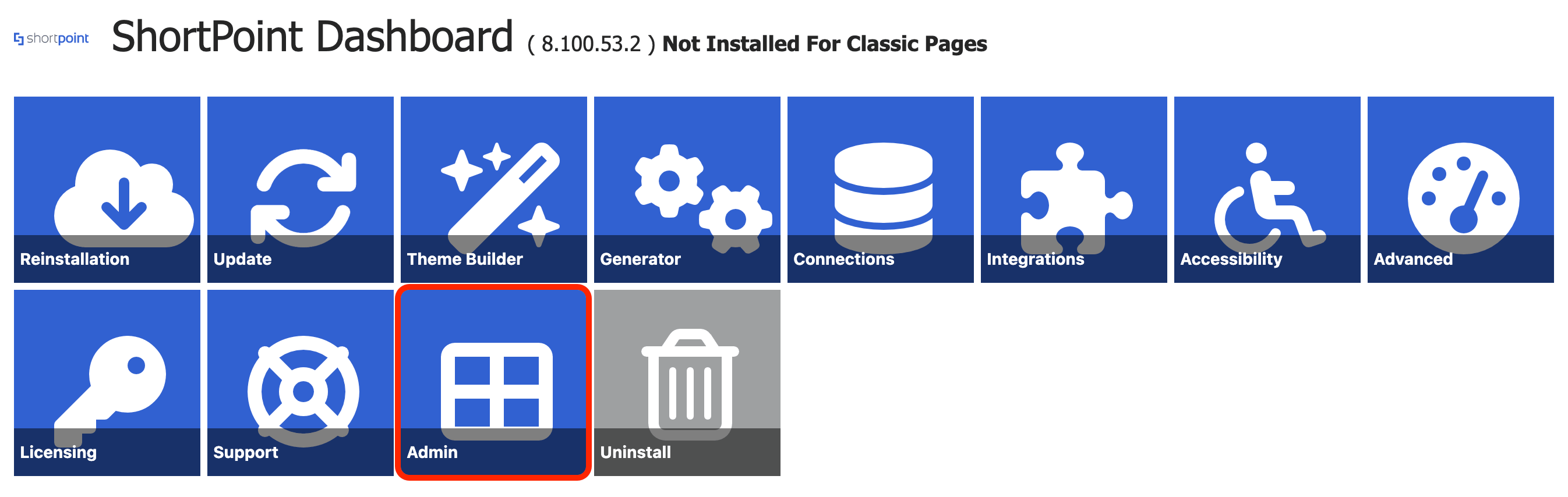
Step 1: Go to the ShortPoint Admin page
- Go to the SharePoint page you want to use and click the ShortPoint Icon:

- Select Dashboard:

- Click Admin:
Step 2: Toggle on AI Designer
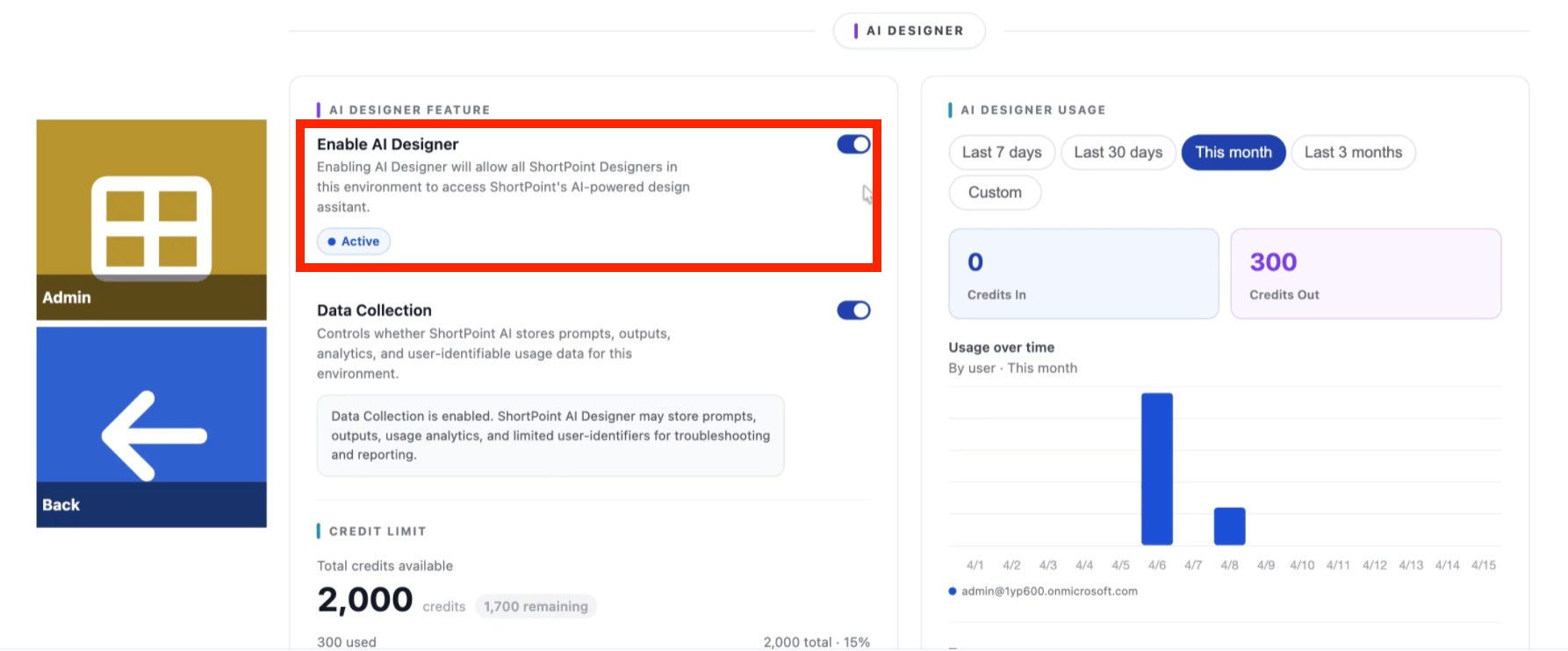
- Look for the Enable AI Designer option and toggle it on. This will enable the use of ShortPoint AI Designer for all ShortPoint Designers.
NOTEWhen you have a Pro License, and it’s your first time enabling the ShortPoint AI Designer, you will get an initial 2000 AI credits per tenant. For designers with an Enterprise License, you'll get 10,000 AI credits per tenant. ShortPoint AI Designer is currently not available for ShortPoint Designers with the Lite license.
That’s it! You now have the ShortPoint AI Designer enabled. You can now use its full capabilities.
Disable AI Designer
Follow the steps to learn how to turn off the AI Designer:
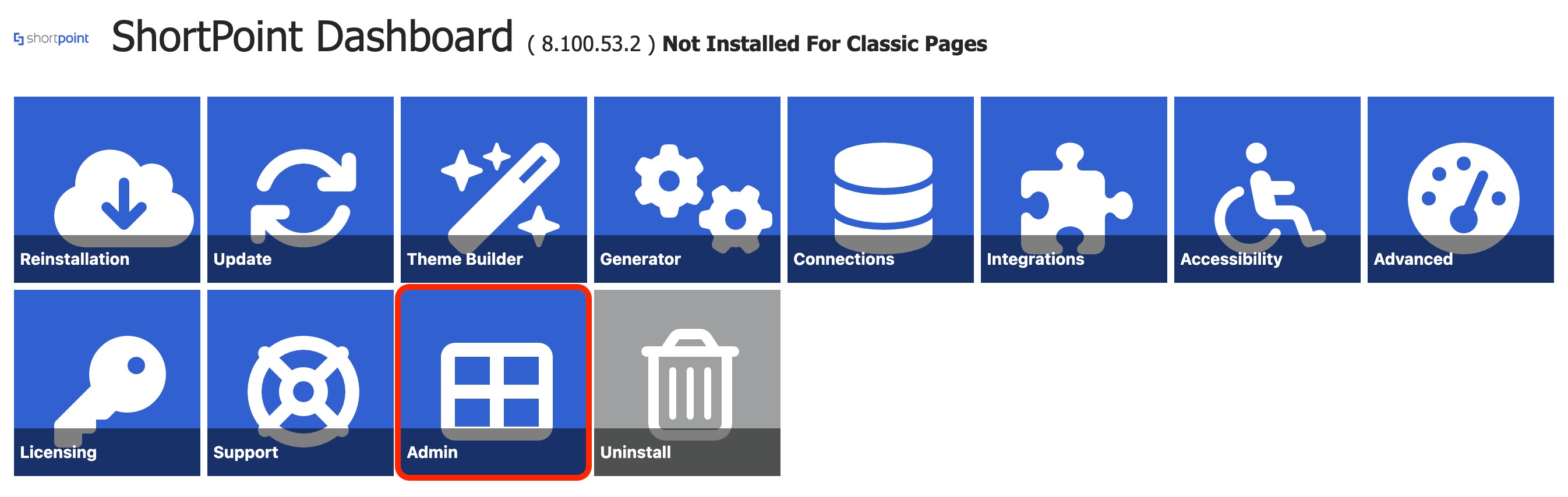
Step 1: Go to the ShortPoint Admin page
- Go to the SharePoint page you want to use and click the ShortPoint Icon:

- Select Dashboard:

- Click Admin:\
Step 2: Toggle off AI Designer
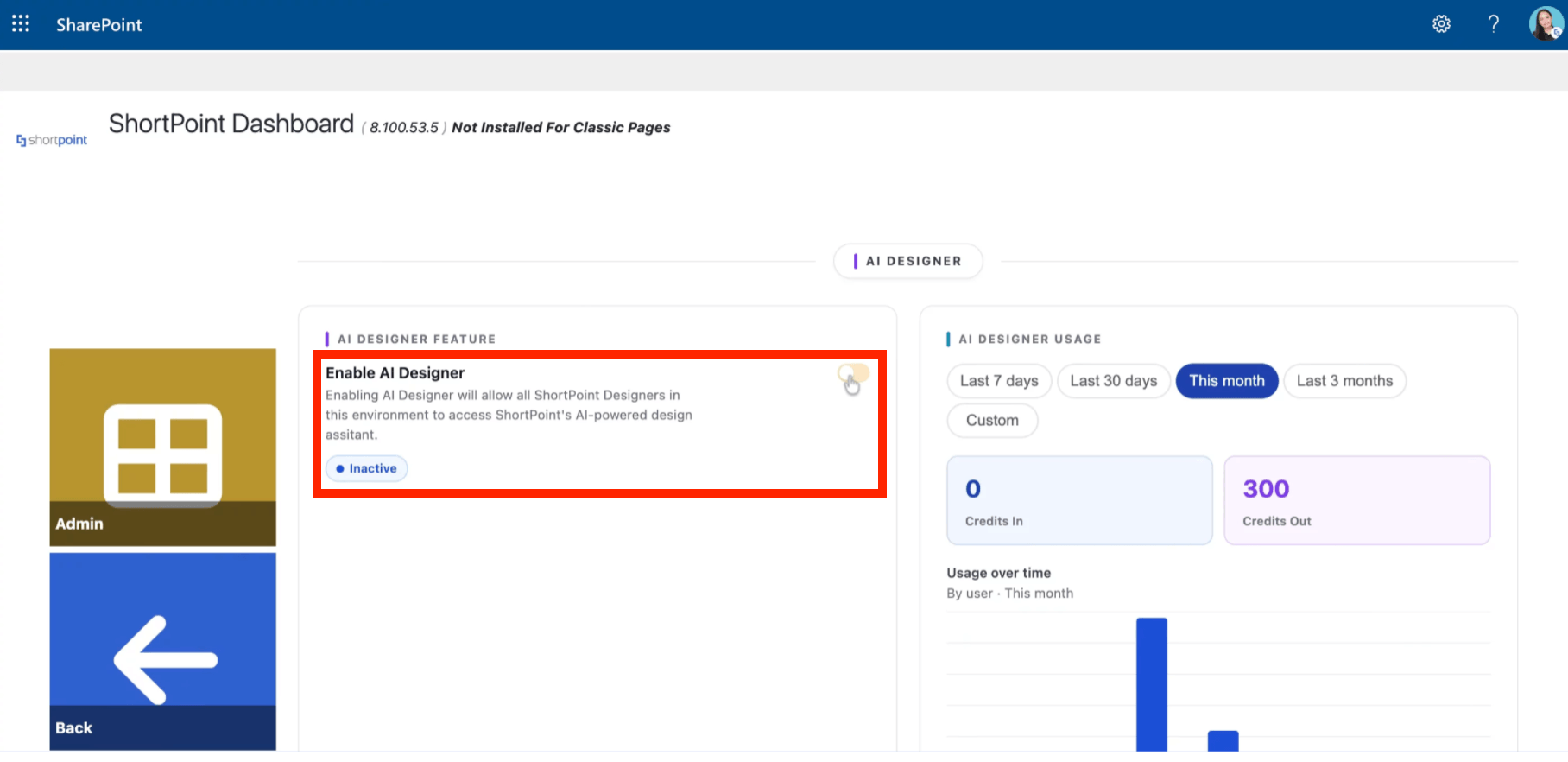
- Look for the Enable AI Designer option and toggle it off. Disabling the AI Designer will turn off all AI Designer features for all ShortPoint Designers in the ShortPoint Admin page and in your SharePoint pages.
That’s it! You now have the ShortPoint AI Designer disabled.
Frequently Asked Questions
What are the prerequisites for enabling the ShortPoint AI Designer?
You must have the latest version of ShortPoint SPFx installed, be assigned the ShortPoint Admin role, and have a Pro License.
Who can enable or disable the AI Designer?
Only users with the ShortPoint Admin role can access the Admin page and toggle the AI Designer on or off.
Is the ShortPoint AI Designer available for all license types?
No, it is available only for Pro Licenses. It is currently not available for the Lite license.
How do I enable the ShortPoint AI Designer?
Go to the SharePoint page, click the ShortPoint Icon, select ShortPoint Dashboard, click Admin, then toggle on the "Enable AI Designer" option.
What happens when I enable the AI Designer for the first time?
Pro License holders will receive an initial allocation of 2,000 AI credits per tenant to use with the ShortPoint AI Designer. Enterprise License holders will receive 10,000 AI credits per tenant.
How do I disable the ShortPoint AI Designer?
Go to the SharePoint page, click the ShortPoint Icon, select ShortPoint Dashboard, click Admin, then toggle off the "Enable AI Designer" option.
Does disabling the AI Designer affect all users?
Yes, disabling the AI Designer turns off all AI Designer features for all ShortPoint Designers in your SharePoint environment.
Related articles:
- How to Enable/Disable the ShortPoint AI Designer
- AI Credits for ShortPoint AI Designer: What Are They and How to Buy Them
