 Try ShortPoint now
If you've ever used ShortPoint Connect to create dynamic, data-driven content, you already know how powerful it can be. And now, ShortPoint AI Designer takes that experience to a whole new level.
Instead of manually configuring your connections, all you need to do is describe what you want in plain language, and ShortPoint AI Designer will handle the rest. No extra steps, no technical heavy lifting. Just tell it the connection you'd like to establish, and watch it come to life effortlessly. This article will show you how to do it step by step.
TABLE OF CONTENTS
- What are the Prerequisites?
- What Is ShortPoint Connect?
- How to Use ShortPoint AI Designer to Connect Design Elements
- Frequently Asked Questions
- What do I need to use ShortPoint AI Designer?
- How does ShortPoint AI Designer simplify connecting design elements?
- Which data connections does ShortPoint AI Designer currently support?
- Can I use ShortPoint AI Designer to establish a connection for any design element?
- Can I specify additional parameters for the connection?
- What happens after I describe the connection and press Enter?
- Is there a resource to learn about Microsoft Graph API use cases supported by ShortPoint AI Designer?
- Who can benefit from using ShortPoint AI Designer?
What are the Prerequisites?
- You must have the latest version of ShortPoint SPFx installed.
- You must be a ShortPoint Designer with a Pro or Enterprise License.
- You must have ShortPoint AI Designer enabled in the ShortPoint Admin page and have AI credits available. For more information, go to How to Enable/Disable the ShortPoint AI Designer.
What Is ShortPoint Connect?
ShortPoint Connect is a powerful feature within ShortPoint that lets you link your design elements directly to live data sources, so your SharePoint pages always display up-to-date content automatically.
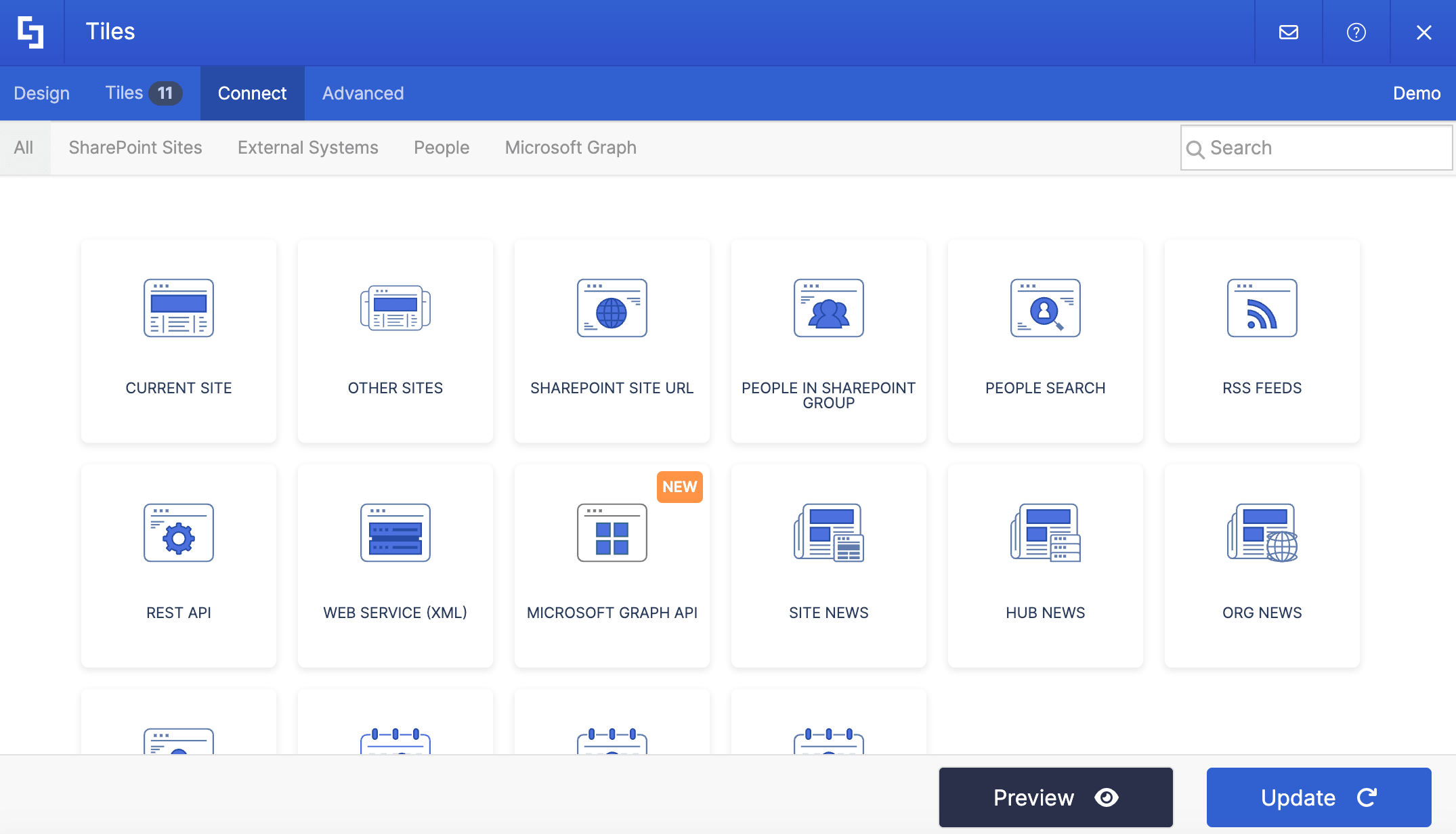
Typically, when you connect a Design Element to a live data source, you need to select the connection type you want to use, configure the connection details, and map the properties you want shown. Though straightforward and easy, it takes quite a few clicks.
Now, with the ShortPoint AI Designer, you remove all those extra steps. All you have to do is describe the connection you want to establish, and the AI Designer will do all those extra steps behind the scenes for you. No manual work needed.
Currently, ShortPoint AI Designer can only pull data using the Microsoft Graph API connection and the REST API connection.
How to Use ShortPoint AI Designer to Connect Design Elements
Here’s an easy-to-follow guide on how to create dynamic connections using ShortPoint AI Designer:
Step 1: Edit the ShortPoint Web Part
- Go to the SharePoint page you want to use and click Edit.
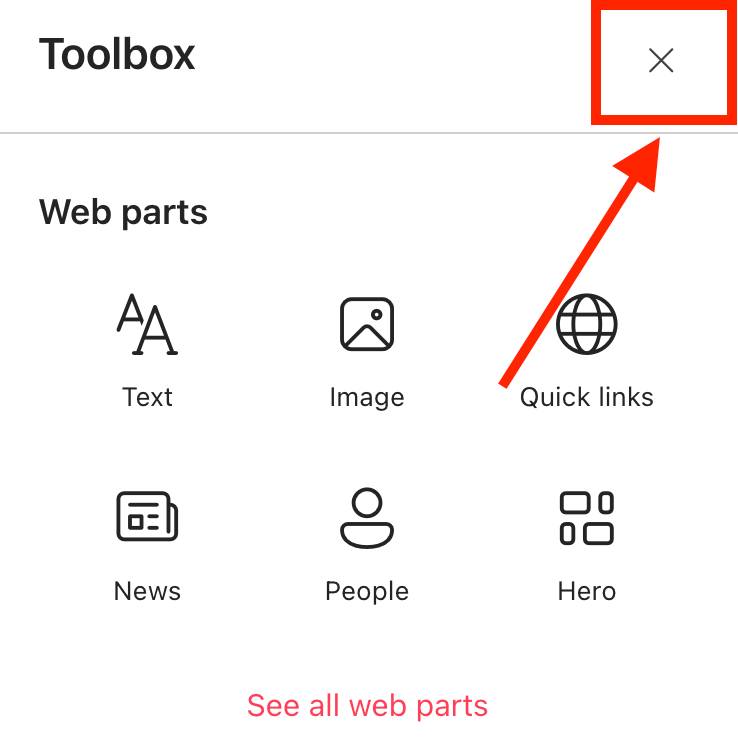
- Close the Toolbox.
- Edit the ShortPoint web part.

Step 2: Open AI Designer
NOTEBefore proceeding, make sure you already have the Design Element you want to use for the connection on your SharePoint page.
- Click the AI Designer icon in the floating bar:

Step 3: Connect
Click the Select & Edit icon:

Find the Design Element you want to use and select it. For this guide, we’ll use a File List. You’ll see the name of the Design Element in the prompt area.
- Describe the connection you want to establish. In our case, we want to connect the File List to our recent documents. For a full list of Microsoft Graph API use cases you can use, check out Microsoft Graph API: Use Cases.
- Then, if you have any additional parameters you want the AI Designer to fulfill, add them in, as well. For example, we want only to showcase PDF files:
- Once done, click Enter:

Step 4: Save
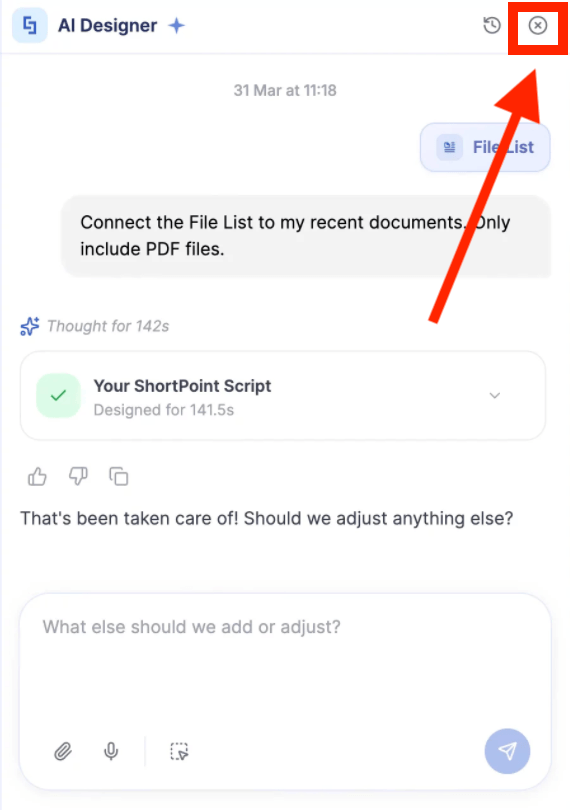
- The ShortPoint AI Designer will establish the connection for you. Close the AI Designer panel:
- Save your changes:

- And Publish your page:

Well done! With a simple prompt, you can now create a dynamic and data-driven SharePoint page.
Frequently Asked Questions
What do I need to use ShortPoint AI Designer?
You must have the latest version of ShortPoint SPFx installed and a ShortPoint Designer license that grants access to the AI Designer feature.
How does ShortPoint AI Designer simplify connecting design elements?
Instead of manually selecting connection types and configuring details, you just describe the connection you want, and the AI Designer handles all the technical setup behind the scenes.
Which data connections does ShortPoint AI Designer currently support?
It currently supports pulling data using the Microsoft Graph API connection and the REST API connection.
Can I use ShortPoint AI Designer to establish a connection for any design element?
Yes, you can use ShortPoint AI Designer on any ShortPoint Design Element that allows connection.
Can I specify additional parameters for the connection?
Yes, you can add extra details in your description to refine the connection, such as filtering to show only specific file types, etc.
What happens after I describe the connection and press Enter?
The ShortPoint AI Designer will automatically establish the connection for you. You then save and publish your page to see the dynamic content in action.
Is there a resource to learn about Microsoft Graph API use cases supported by ShortPoint AI Designer?
Yes, go to Microsoft Graph API: Use Cases. It lists all Microsoft Graph API use cases available for you to use.
Who can benefit from using ShortPoint AI Designer?
Designers and users who want to create dynamic, data-driven SharePoint pages quickly and easily without technical complexity will find this tool valuable.
Related articles:
- ShortPoint AI Designer: An Overview
- Quickstart Guide: Generate your first intranet page
- ShortPoint AI Designer Features: What Can it Do?
- How to Use the ShortPoint AI Designer: Detailed Step-by-step
- How to Write Effective AI Prompts for ShortPoint AI Designer
- How to Use Text Prompting in ShortPoint AI Designer
- How to Use Voice Prompting in ShortPoint AI Designer
- How to Use Image-to-Image Prompting in ShortPoint AI Designer
- How Brand-Aware Design Works in ShortPoint AI Designer
- How to Use ShortPoint AI Designer to Edit an Existing ShortPoint Template
- How to Revert to Previous Prompt Versions in ShortPoint AI Designer
- Prompt Library
- Iterating with Multi-Turn Conversation in ShortPoint AI Designer
- How to Modify Specific Page Elements Using the ShortPoint AI Designer
- How to Queue Prompts in ShortPoint AI Designer
- How to Activate the Search & Filter Widgets Using ShortPoint AI Designer
- How to Use the Paste from Clipboard Feature of ShortPoint AI Designer
- How to Copy and Paste Design Snippets from ShortPoint AI Designer to Another SharePoint Site
