 Try ShortPoint now
Got more than one idea to bring to life? No problem! The ShortPoint AI Designer lets you queue up multiple prompts at once and works through them one by one. With this feature, you can keep your creative momentum going without any interruptions. This article will show you how it works.
TABLE OF CONTENTS
- What are the Prerequisites?
- What Is the Prompt Queue Feature?
- How to Activate Prompt Queue
- Prompt Queue Features
- Frequently Asked Questions
What are the Prerequisites?
- You must have the latest version of ShortPoint SPFx installed.
- You must be a ShortPoint Designer with a Pro or Enterprise License.
- You must have ShortPoint AI Designer enabled in the ShortPoint Admin page and have AI credits available. For more information, go to How to Enable/Disable the ShortPoint AI Designer.
What Is the Prompt Queue Feature?
The Prompt Queue feature in ShortPoint AI Designer allows you to submit multiple prompts one after another, even while a previous one is still being processed. The tool works through your list in order, so everything stays organized and on track.
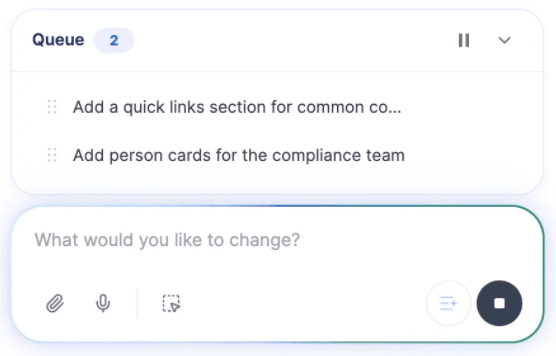
The best part? You can even rearrange, edit, duplicate, and remove prompts as you see fit.
How to Activate Prompt Queue
Here’s an easy-to-follow guide on how to use the select & edit feature:
Step 1: Edit the ShortPoint Web Part
- Go to the SharePoint page you want to use and click Edit.
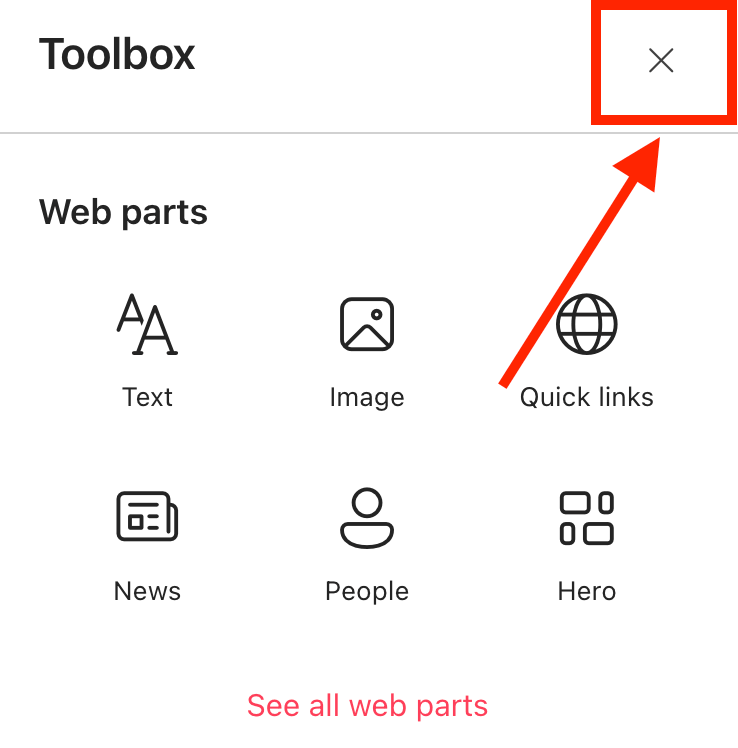
- Close the Toolbox.
- Edit the ShortPoint web part.

Step 2: Open AI Designer
- Click the AI Designer icon in the floating bar:

Step 3: Activate Queues
- In the prompt area, add all the prompts you need. The Prompt Queue box will appear.
Step 4: Rearrange / Edit Prompts (Optional)
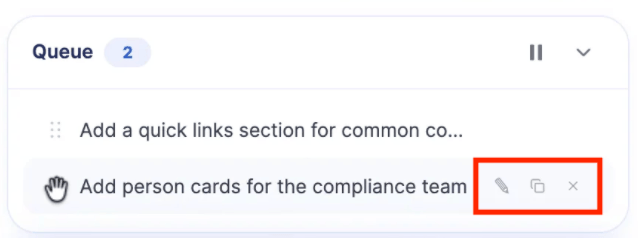
- If your priorities change, you can easily change the order of the prompts in the Queue box. To do that, simply drag and drop the prompts in the order you want.
- You can also edit, duplicate, or remove prompts as you like:
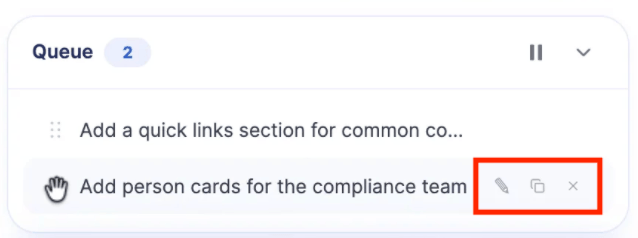
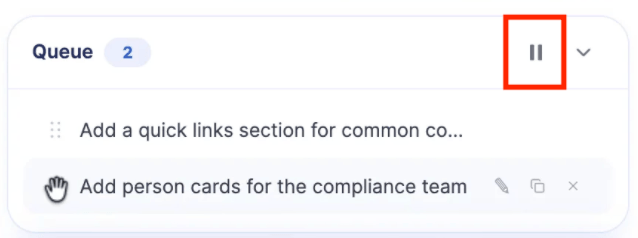
- Or even pause the prompt queue:
NOTETo see all the options available inside the Prompt Queue box, check out Prompt Queue Features.
That’s it! You now know how to activate the prompt queue. You can add more prompts or wait for all of the prompts to be executed. The AI Designer will work on them one at a time.
Prompt Queue Features
Let’s dig into the features you can use in the Prompt Queue box:
 | Drag and drop icon | allows you to rearrange the prompts. |
 | Edit icon | allows you to edit a prompt. |
 | Duplicate icon | allows you to copy a prompt. |
 | Remove icon | allows you to delete a prompt from the queue. |
 | Pause icon | allows you to pause the prompt queue. |
 | Collapse icon | allows you to minimize the prompt queue box. |
Frequently Asked Questions
What is the Prompt Queue feature in ShortPoint AI Designer?
The Prompt Queue feature allows you to submit multiple prompts at once, which the AI Designer processes one by one in order. You can also rearrange, edit, duplicate, or remove prompts as needed to stay organized and flexible.
How do I activate the Prompt Queue?
To activate the Prompt Queue, edit the ShortPoint web part on your SharePoint page, open the AI Designer, and add all your prompts in the prompt area. The Prompt Queue box will automatically appear, allowing you to manage your queued prompts.
Can I change the order of prompts in the queue?
Yes, you can easily drag and drop prompts within the Prompt Queue box to rearrange their order according to your priorities.
Is it possible to pause the prompt queue?
Yes, the Prompt Queue box includes a pause icon that lets you pause the queue at any time.
What other actions can I perform on prompts in the queue?
Besides rearranging, you can edit, duplicate, or remove prompts from the queue to customize your workflow.
Do I need a license to use ShortPoint AI Designer?
Yes, you must be a ShortPoint Designer with a license to access the AI Designer feature. Make sure you have the latest version of ShortPoint SPFx installed.
Related articles:
- ShortPoint AI Designer: An Overview
- Quickstart Guide: Generate your first intranet page
- ShortPoint AI Designer Features: What Can it Do?
- How to Use the ShortPoint AI Designer: Detailed Step-by-step
- How to Write Effective AI Prompts for ShortPoint AI Designer
- How to Use Text Prompting in ShortPoint AI Designer
- How to Use Voice Prompting in ShortPoint AI Designer
- How to Use Image-to-Image Prompting in ShortPoint AI Designer
- How Brand-Aware Design Works in ShortPoint AI Designer
- How to Use ShortPoint AI Designer to Edit an Existing ShortPoint Template
- How to Revert to Previous Prompt Versions in ShortPoint AI Designer
- Prompt Library
- Iterating with Multi-Turn Conversation in ShortPoint AI Designer
- How to Modify Specific Page Elements Using the ShortPoint AI Designer
- How to Create Dynamic Design Elements Using ShortPoint AI Designer
- How to Activate the Search & Filter Widgets Using ShortPoint AI Designer
- How to Use the Paste from Clipboard Feature of ShortPoint AI Designer
- How to Copy and Paste Design Snippets from ShortPoint AI Designer to Another SharePoint Site
