 Try ShortPoint now
Have you ever used a ShortPoint Template to start building your SharePoint page? If you have, you know just how easy and convenient it is!
And if you think ShortPoint templates are amazing, think again! ShortPoint AI Designer can make more out of these templates. With the AI Designer, you can transform them into a page that’s uniquely yours. Want to add additional sections, change fonts, or connect to Microsoft Graph API? No problem! If you can envision it, you can do it with the AI Designer.
TABLE OF CONTENTS
- What are the Prerequisites?
- What Is the ShortPoint Templates Library?
- How to Edit an Existing ShortPoint Template
What are the Prerequisites?
- You must have the latest version of ShortPoint SPFx installed.
- You must be a ShortPoint Designer with a Pro or Enterprise License.
- You must have ShortPoint AI Designer enabled in the ShortPoint Admin page and have AI credits available. For more information, go to How to Enable/Disable the ShortPoint AI Designer.
What Is the ShortPoint Templates Library?
The ShortPoint Templates Library is a built-in collection of professionally designed, pre-built SharePoint page and section layouts that help you create beautiful, functional intranet sites. All without writing a single line of code.
The library houses 100+ professional, pre-built designs developed by seasoned UI/UX professionals. These templates draw from research into what organizations actually need and industry best practices to deliver solutions that work in day-to-day operations.
And now, with the ShortPoint AI Designer, you can transform these templates to fit the needs of your organization even faster. All you need to do is say what you need, and the AI Designer will start designing for you.
How to Edit an Existing ShortPoint Template
Here’s an easy-to-follow guide on how to edit existing templates with the AI Designer:
Step 1: Edit the ShortPoint Web Part
- Go to the SharePoint page you want to use and click Edit.
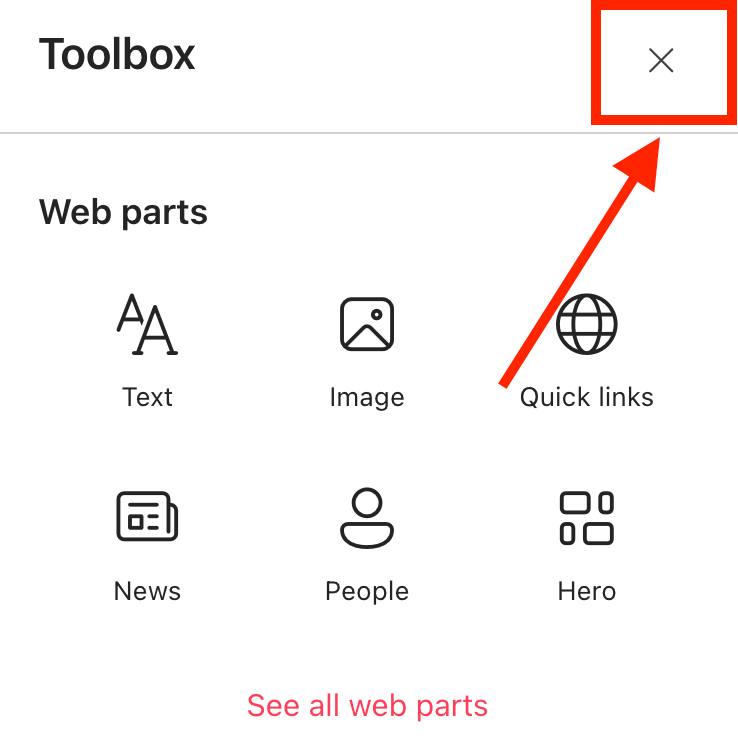
- Close the Toolbox.
- Edit the ShortPoint web part.

Step 2: Choose a Template
- Select the Add a Template icon:

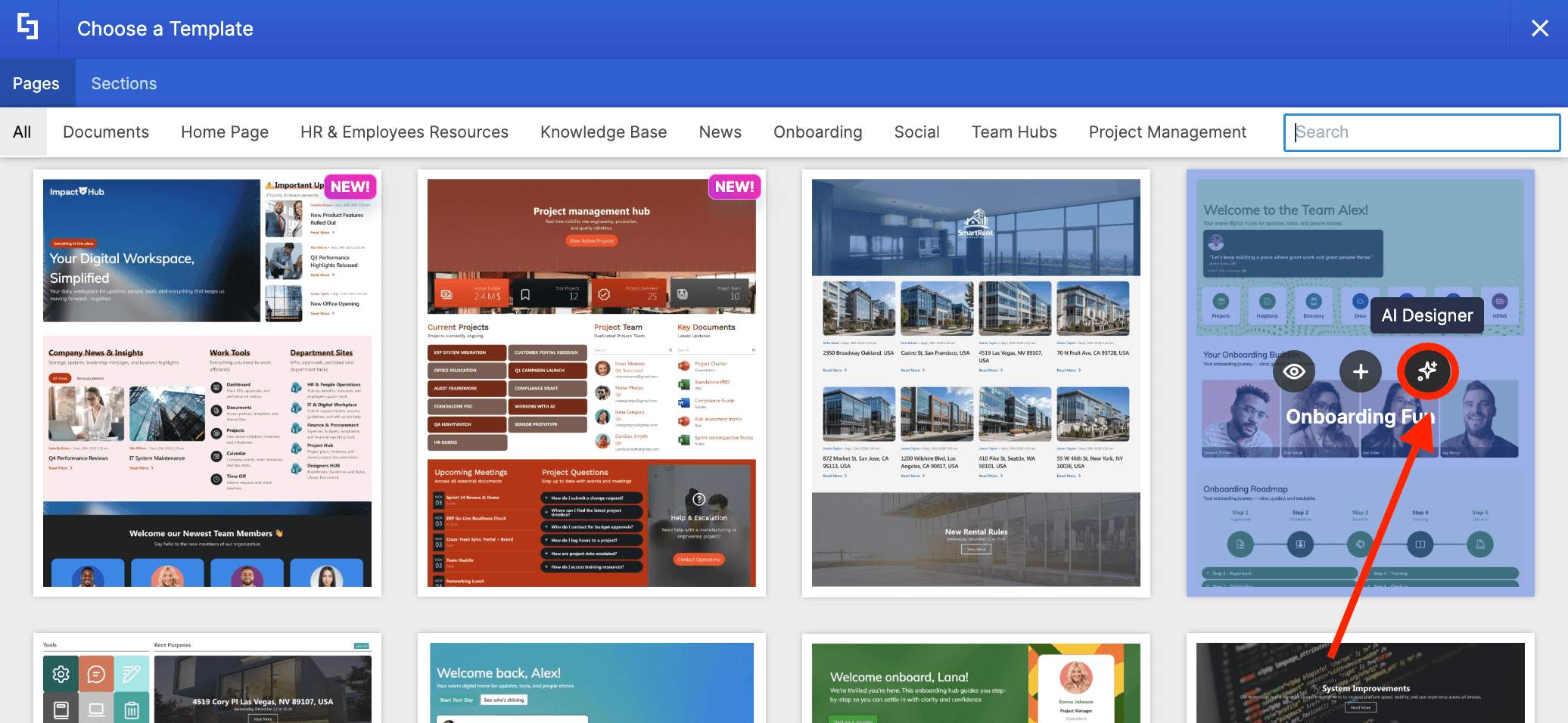
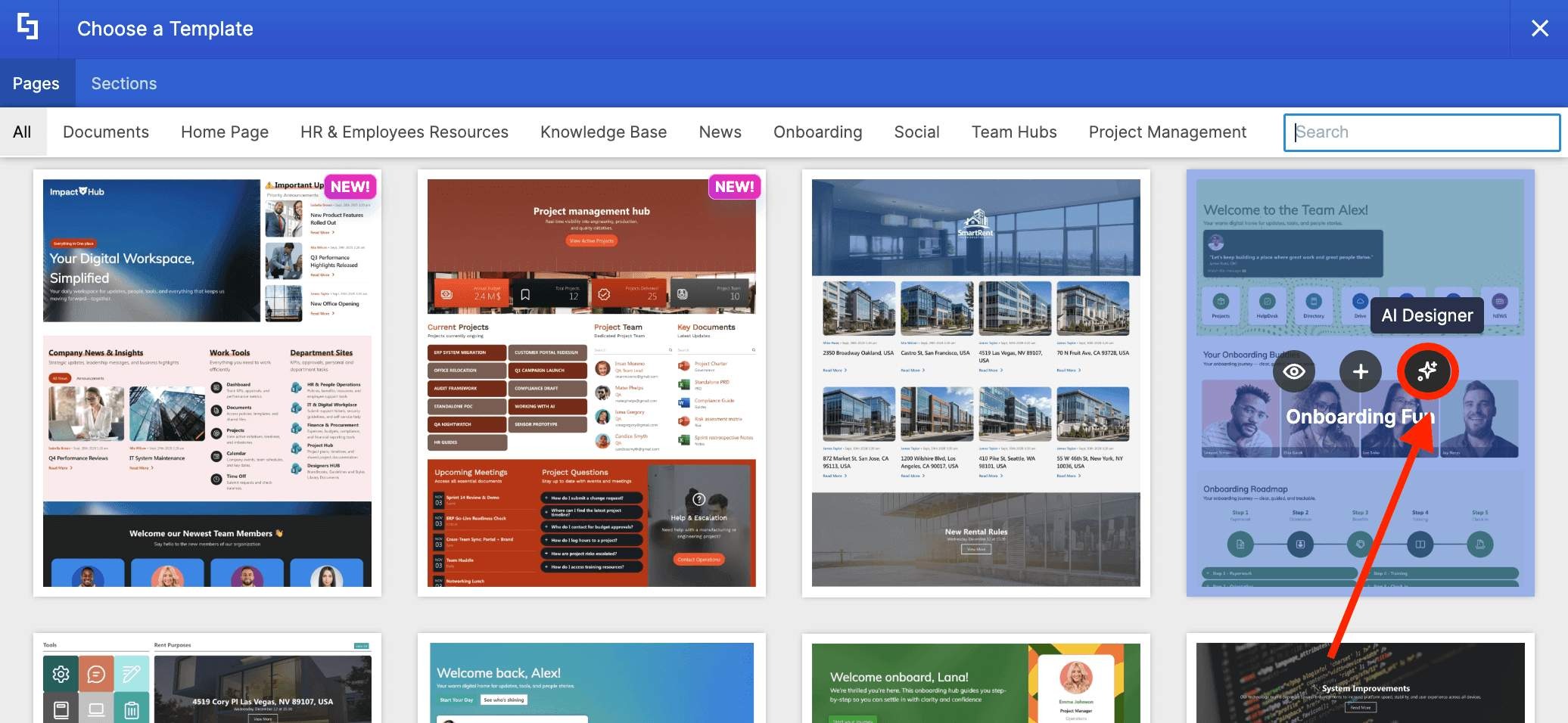
- Choose the template you want to use and click the AI Designer icon:
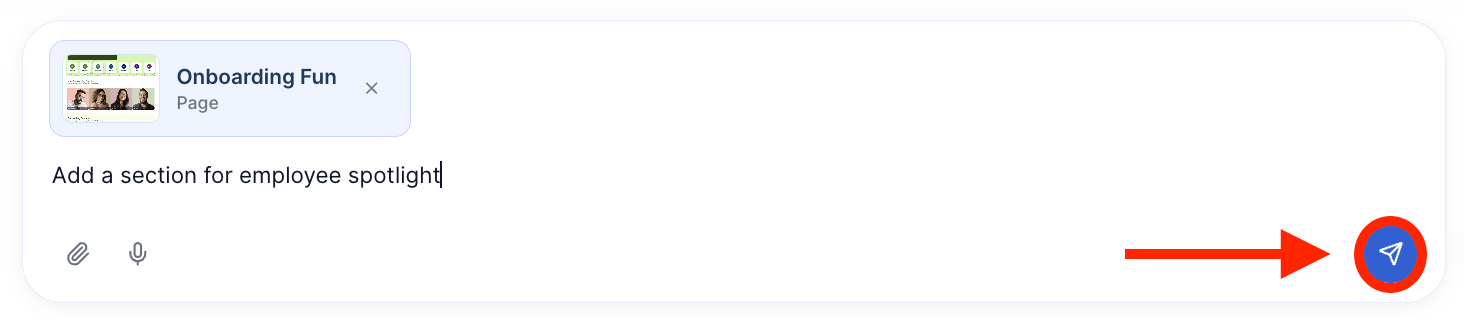
Step 3: Tell the AI What You Need
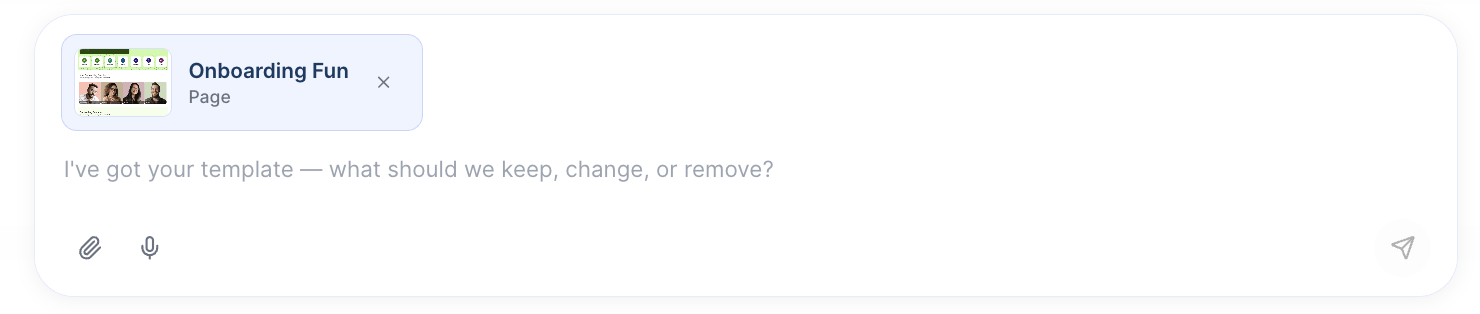
- Describe what you want the AI to do. You have four ways to do so: type it, say it out loud, attach an image, or copy & paste references.
TIPDon’t know what to say? Learn how to prompt effectively in How to Write Effective AI Prompts for ShortPoint AI Designer.
- Once done, click Enter. The AI Designer will start applying your changes.
Step 4: Refine
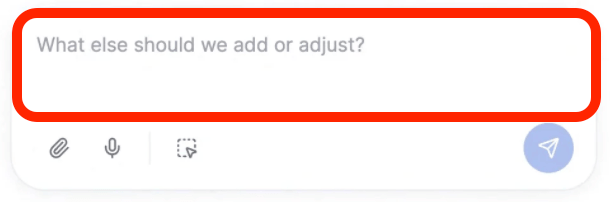
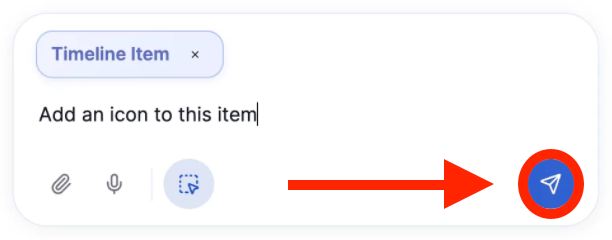
- If you want to make changes to the results AI gave, describe what you want to be modified:
- And click Enter:
Step 5: Edit as Usual
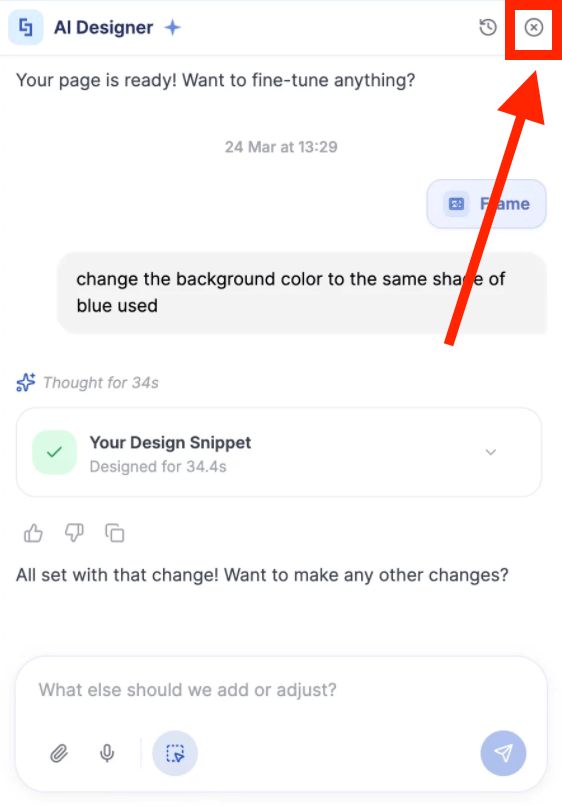
- Once you’re done using the AI Designer, you can edit your page like usual. Simply close the AI Designer panel and make your changes:
Step 6: Save
- Done editing? Make sure to Save your changes:

- And Publish your page:

Congratulations! You can now transform existing ShortPoint templates using the ShortPoint AI Designer.
Related articles:
- ShortPoint AI Designer: An Overview
- Quickstart Guide: Generate your first intranet page
- ShortPoint AI Designer Features: What Can it Do?
- How to Use the ShortPoint AI Designer: Detailed Step-by-step
- How to Write Effective AI Prompts for ShortPoint AI Designer
- How to Use Text Prompting in ShortPoint AI Designer
- How to Use Voice Prompting in ShortPoint AI Designer
- How to Use Image-to-Image Prompting in ShortPoint AI Designer
- How Brand-Aware Design Works in ShortPoint AI Designer
- How to Revert to Previous Prompt Versions in ShortPoint AI Designer
- Prompt Library
- Iterating with Multi-Turn Conversation in ShortPoint AI Designer
- How to Modify Specific Page Elements Using the ShortPoint AI Designer
- How to Queue Prompts in ShortPoint AI Designer
- How to Create Dynamic Design Elements Using ShortPoint AI Designer
- How to Activate the Search & Filter Widgets Using ShortPoint AI Designer
- How to Use the Paste from Clipboard Feature of ShortPoint AI Designer
- How to Copy and Paste Design Snippets from ShortPoint AI Designer to Another SharePoint Site
