 Try ShortPoint now
Ever typed something into any AI tool (Gemini, Chat GPT, Claude, etc.)? If you have, congratulations, you’ve already done AI text prompting! It’s basically the words or series of instructions you wrote in the AI tool so it can help you accomplish a task.
This article will dive into everything you need to know about AI text prompts: what they are, how to use them in ShortPoint AI Designer, and why they matter.
TABLE OF CONTENTS
- What are the Prerequisites?
- What Is an AI Text Prompt?
- How to Add Text Prompts in ShortPoint AI Designer
- Why Good Text Prompts Matter?
- Frequently Asked Questions
What are the Prerequisites?
- You must have the latest version of ShortPoint SPFx installed.
- You must be a ShortPoint Designer with a Pro or Enterprise License.
- You must have ShortPoint AI Designer enabled in the ShortPoint Admin page and have AI credits available. For more information, go to How to Enable/Disable the ShortPoint AI Designer.
What Is an AI Text Prompt?
An AI text prompt is simply the set of instructions you type into an AI tool. It's your way of communicating with the model: what you want to do, what your goal is, etc. The more detailed the instructions are, the better the results will be.
Adding text prompts is the primary input option for the ShortPoint AI Designer. Simply describe the design or the page you want the AI Designer to build, and it gives you a fully-functional and stunning SharePoint page in minutes.
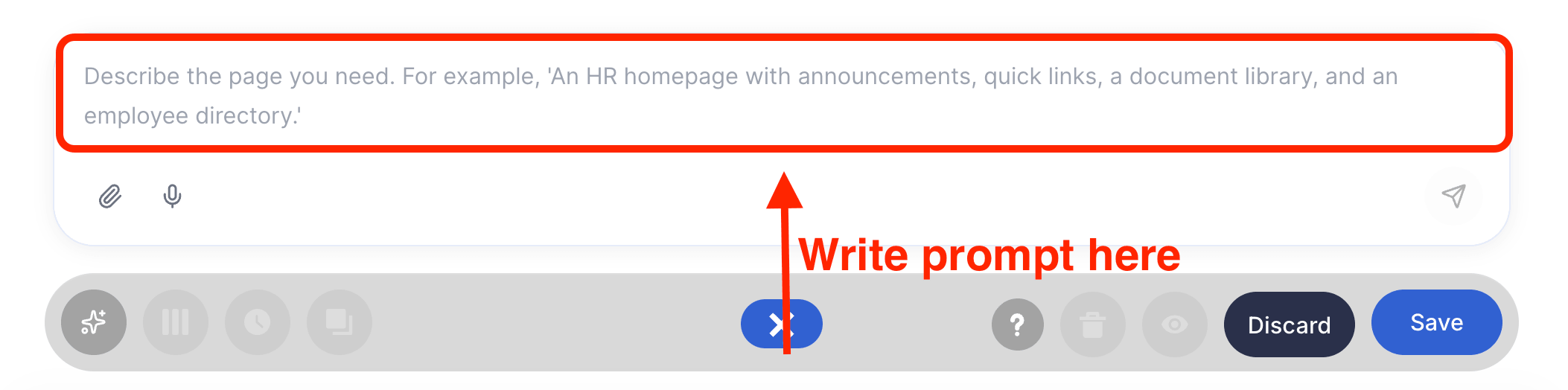
How to Add Text Prompts in ShortPoint AI Designer
Here’s an easy-to-follow guide on how to use text prompts in ShortPoint AI Designer.
Step 1: Edit the ShortPoint Web Part
- Go to the SharePoint page you want to use and click Edit.
- Close the Toolbox.
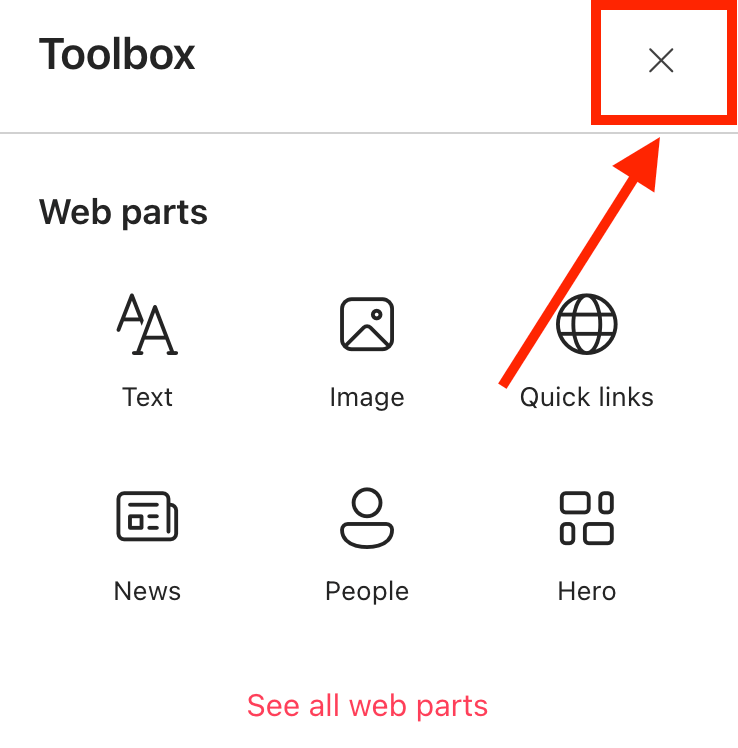
- Edit the ShortPoint web part.

Step 2: Open AI Designer in Page Builder
- Select AI Designer:

Step 3: Tell the AI What You Need
- Write down your prompt:
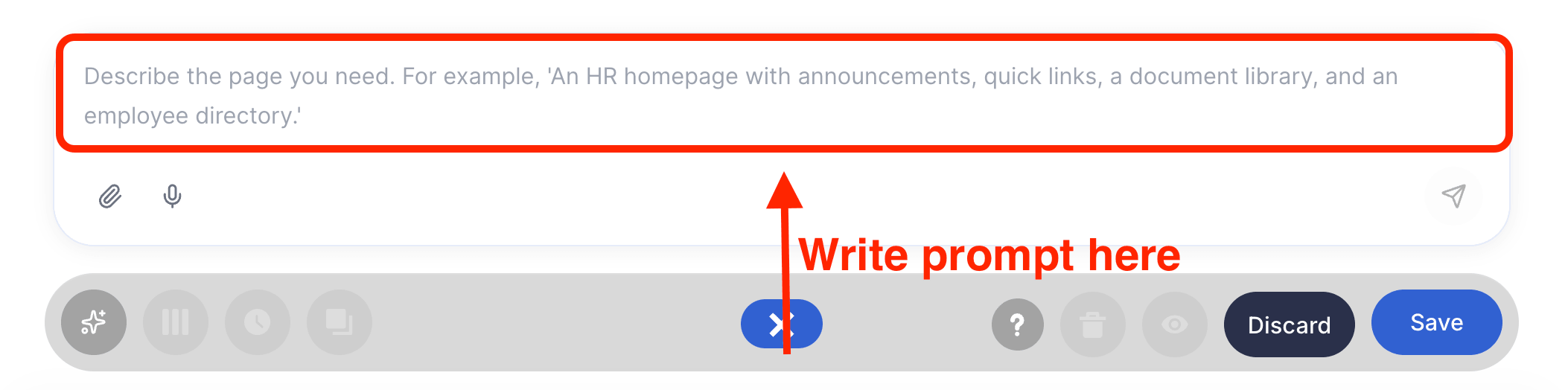
TIPDon’t know how to structure your text prompts? We’ve got you covered! Check out How to Write Effective AI Prompts for ShortPoint AI Designer for more information.
- Then, select Enter:
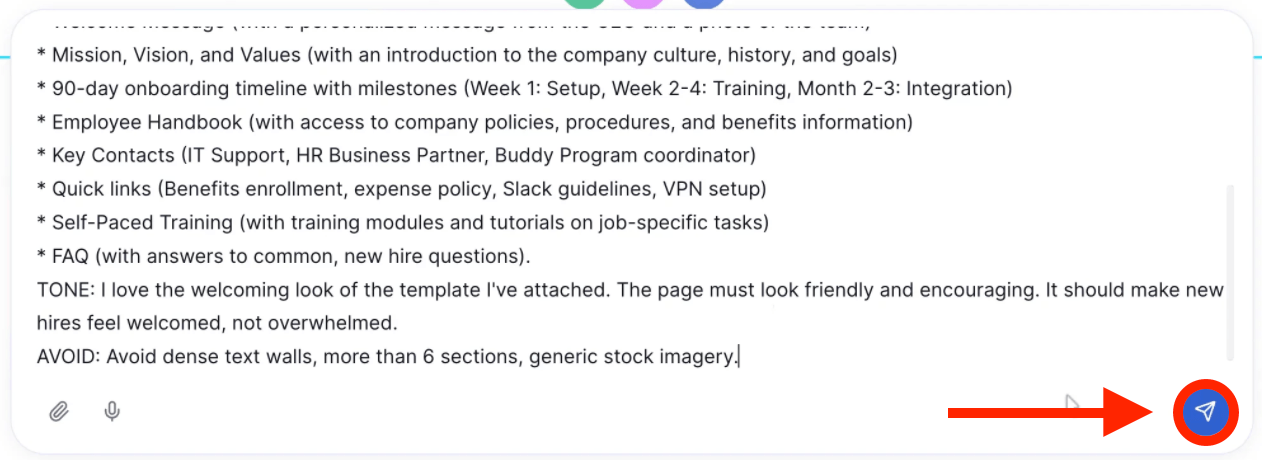
Step 4: Refine
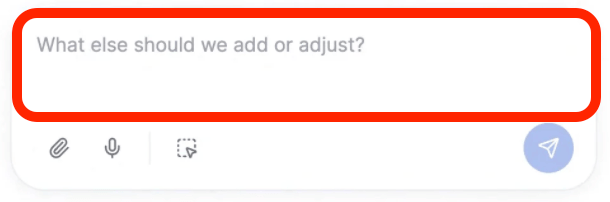
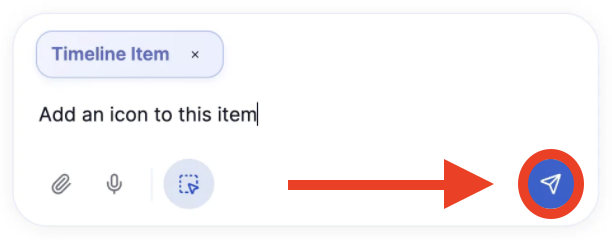
- Once you’ve given your text prompt, the AI Designer will start designing your page. If you want to make any changes to the design output, simply write down what you want to modify:
- Then, click Enter:
Step 5: Edit as Usual
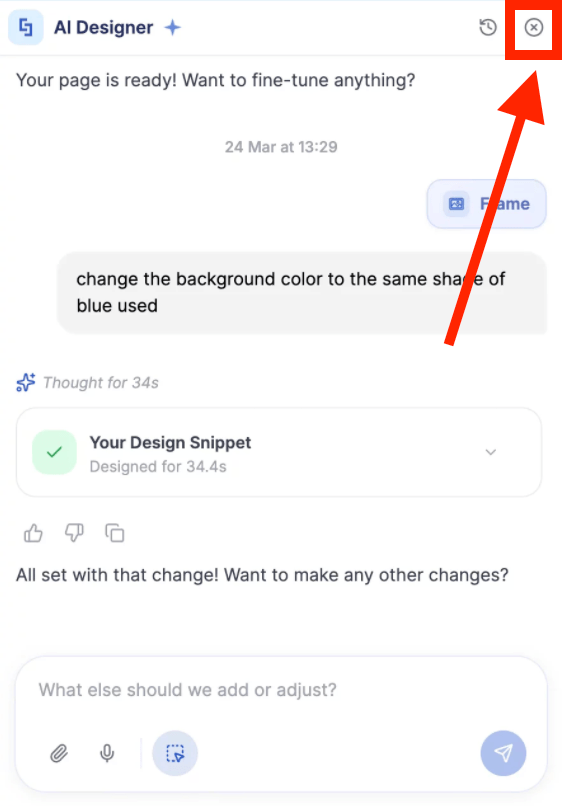
- Once you’re done using the AI Designer, you can now start editing your page like usual. Simply close the AI Designer panel and make your changes:
Step 6: Save
- Done editing? Make sure to Save your changes:

- And Publish your page:

Congratulations! You now know how to add text prompts in ShortPoint AI Designer.
Why Good Text Prompts Matter?
AI language models are incredibly powerful, but they're not mind readers. They work by predicting what comes next based on the context you give them. The more context, clarity, and direction you provide, the better they can zero in on what you actually need.
Ready to take your prompting skill to the next level? Check out How to Write Effective AI Prompts for ShortPoint AI Designer. You’ll learn useful tips on effective text prompting.
Frequently Asked Questions
Do I need to be technical to write a good AI prompt?
Not at all. If you can write a clear email, brief a colleague on a project, or explain a task to a new team member, you already have the core competency to write effective AI prompts.
What's the difference between a prompt and a search query?
A search query is designed to retrieve existing content from the web. It's usually short and keyword-based, like "intranet homepage design examples." A prompt is a conversational instruction that generates new content tailored specifically to your requirements.
AI prompts can be much longer, more detailed, and more nuanced than search queries. The output isn't pulled from a pre-existing webpage; it's created fresh based on your instructions.
How long should a prompt be?
As long as it needs to be. A simple task might need just two or three sentences. A complex deliverable, like a full intranet homepage specification, might warrant a detailed paragraph covering role, context, format, and multiple sub-requirements. The deciding factor isn't length but completeness. Before sending a prompt, ask yourself: Have I included the role? The context? The specific ask? The key constraints? If yes, your prompt is ready, whether it's three lines or fifteen.
What AI tools work best for intranet design prompting?
ShortPoint AI Designer is the best tool to use when it comes to SharePoint intranet designs. It automatically builds your page from the prompt you provide. It brings powerful AI functionality that not only streamlines content creation but also builds stunning pages effortlessly.
Can I reuse prompts across different intranet projects?
Absolutely! Once you've written a prompt that produces a genuinely useful output, save it. Next time, swap out the organisation-specific details and you'll consistently get high-quality, contextually relevant output without starting from scratch. This is especially valuable for teams that manage multiple intranet projects or who do this kind of work regularly.
Related articles:
- ShortPoint AI Designer: An Overview
- Quickstart Guide: Generate your first intranet page
- ShortPoint AI Designer Features: What Can it Do?
- How to Use the ShortPoint AI Designer: Detailed Step-by-step
- How to Write Effective AI Prompts for ShortPoint AI Designer
- How to Use Voice Prompting in ShortPoint AI Designer
- How to Use Image-to-Image Prompting in ShortPoint AI Designer
- How Brand-Aware Design Works in ShortPoint AI Designer
- How to Use ShortPoint AI Designer to Edit an Existing ShortPoint Template
- How to Revert to Previous Prompt Versions in ShortPoint AI Designer
- Prompt Library
- Iterating with Multi-Turn Conversation in ShortPoint AI Designer
- How to Modify Specific Page Elements Using the ShortPoint AI Designer
- How to Queue Prompts in ShortPoint AI Designer
- How to Create Dynamic Design Elements Using ShortPoint AI Designer
- How to Activate the Search & Filter Widgets Using ShortPoint AI Designer
- How to Use the Paste from Clipboard Feature of ShortPoint AI Designer
- How to Copy and Paste Design Snippets from ShortPoint AI Designer to Another SharePoint Site
