 Try ShortPoint now
Did you know that you can use your own voice to give AI prompts? Yes, your voice!
ShortPoint AI Designer makes this possible. It gives you four ways to interact with AI, and one of them is literally saying your prompts out loud. After all, what can be easier than clicking a button and talking, right?
In this article, we're breaking down everything you need to know about AI voice prompts: what they are, how to use AI voice prompts in ShortPoint AI Designer, and why they matter. Let's dive in.
TABLE OF CONTENTS
- What are the Prerequisites?
- What Is an AI Voice Prompt?
- How to Use Voice in ShortPoint AI Designer
- Why Are AI Voice Prompts So Useful?
- Frequently Asked Questions
What are the Prerequisites?
- You must have the latest version of ShortPoint SPFx installed.
- You must be a ShortPoint Designer with a Pro or Enterprise License.
- You must have ShortPoint AI Designer enabled in the ShortPoint Admin page and have AI credits available. For more information, go to How to Enable/Disable the ShortPoint AI Designer.
What Is an AI Voice Prompt?
Ever asked Siri for directions? Or told Alexa to play your favorite playlist? If you have, those are voice prompts.
An AI voice prompt is an instruction or input that you give to an AI system using spoken language rather than typed text. Instead of typing 'Schedule a meeting for Tuesday at 3 PM,' you just say it out loud, and artificial intelligence does it.
Voice prompts tap into natural language processing (NLP), which is a branch of AI that helps machines understand and respond to human speech. The AI listens, interprets the meaning behind your words, and then takes action or provides a response.
The same thinking applies to the ShortPoint AI Designer. All you need to do is say your instructions out loud, and from there, the AI designer will start building your SharePoint page.
How to Use Voice in ShortPoint AI Designer
Here’s an easy-to-follow guide on how to use voice in ShortPoint AI Designer.
Step 1: Edit the ShortPoint Web Part
- Go to the SharePoint page you want to use and click Edit.
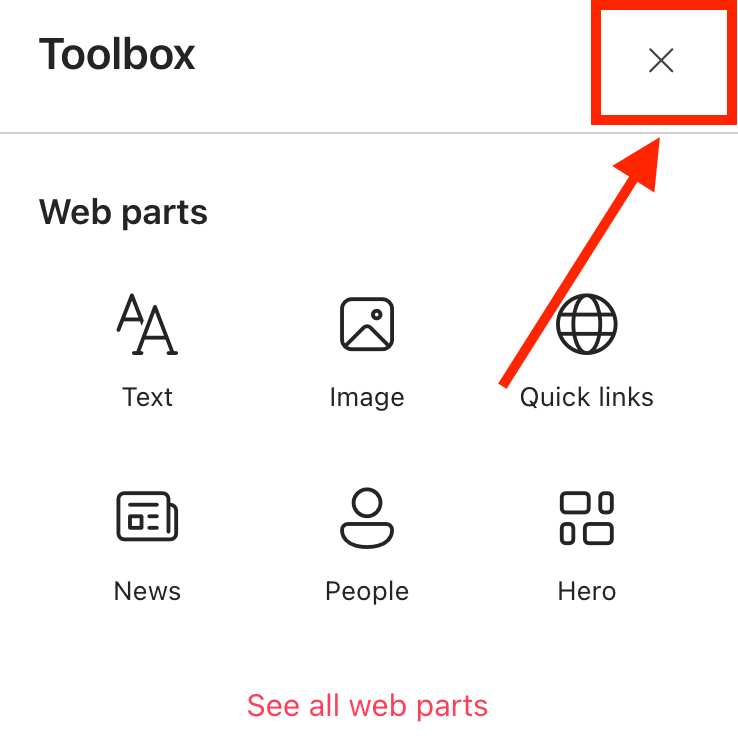
- Close the Toolbox.
- Edit the ShortPoint web part.

Step 2: Open AI Designer in Page Builder
- Select AI Designer:

Step 3: Tell the AI What You Need
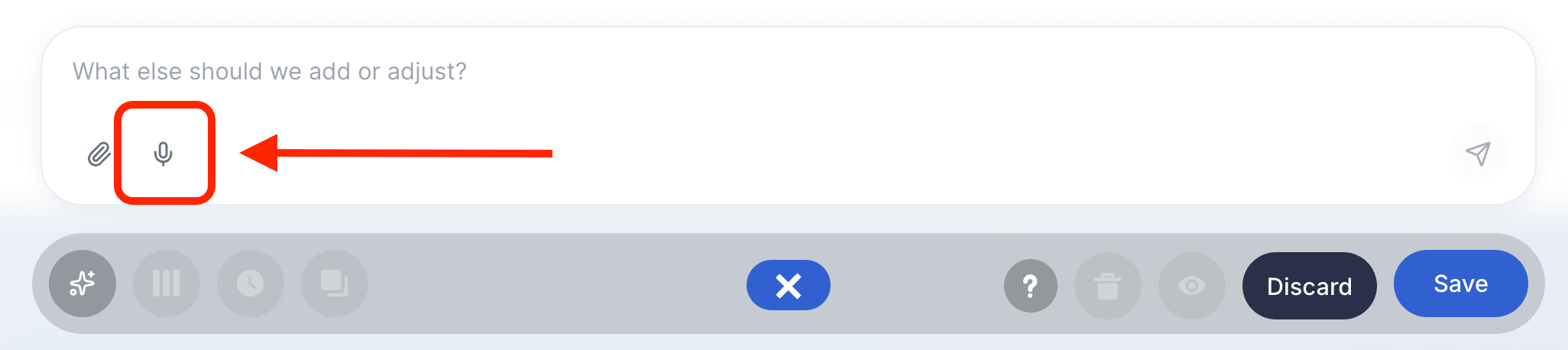
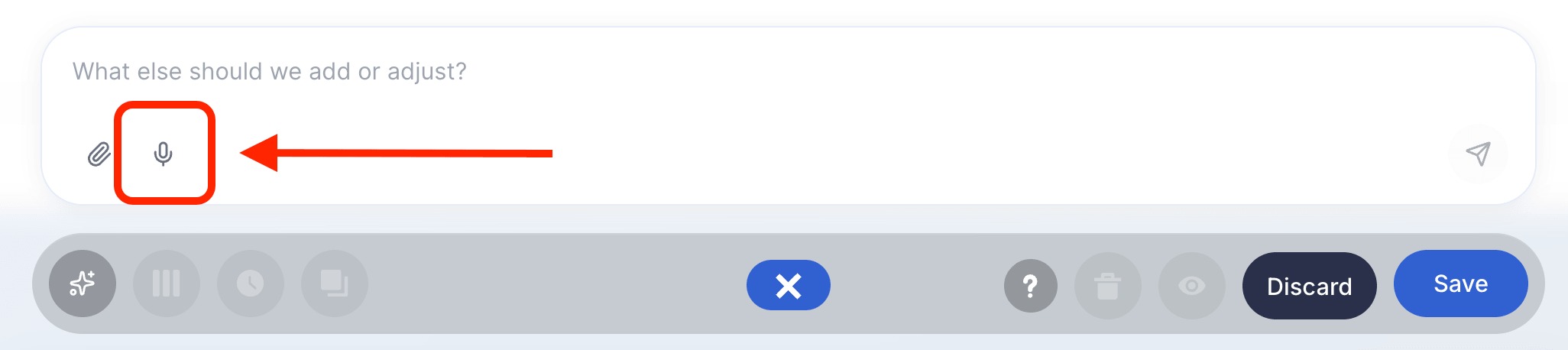
- Click the voice input icon:
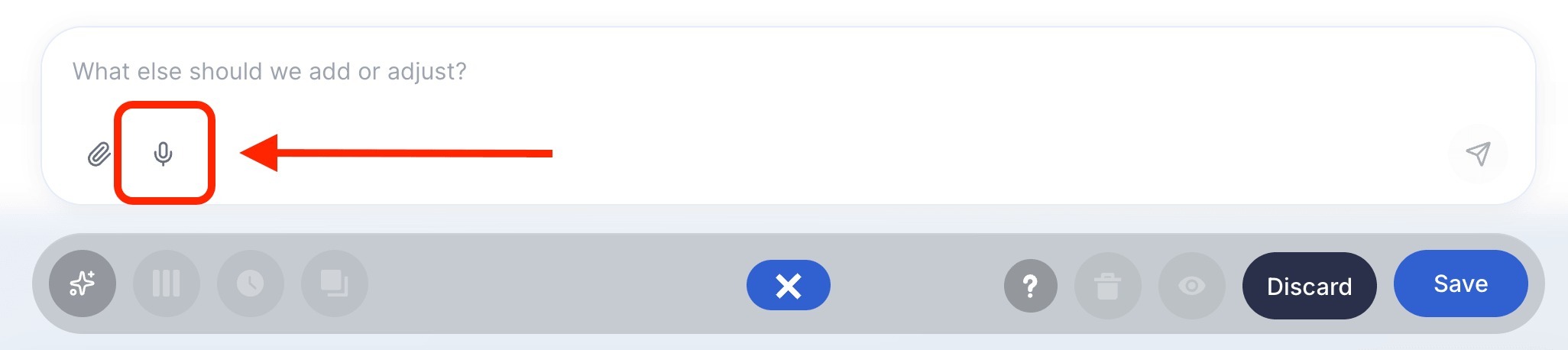
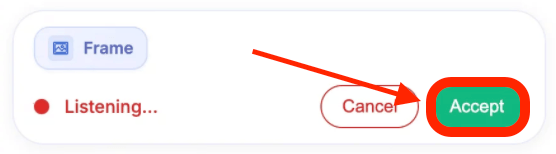
- The ShortPoint AI Designer will actively listen to what you want to do. Once you’re done talking, click Accept:

NOTECurrently, ShortPoint AI Designer's voice input function only supports the English language.
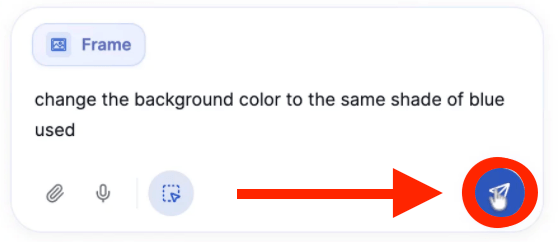
- Check if the AI heard you right. If it did, select Enter.

Step 4: Refine
- Once you’ve given your voice prompt, the AI Designer will start designing your page. If you want to make any changes to the design output, simply select the voice input icon again:
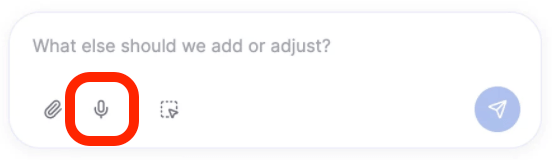
- Say out loud what you want it to do. Once done, click Accept:
- Check if the AI heard you right. If it did, select Enter:
Step 5: Edit as Usual
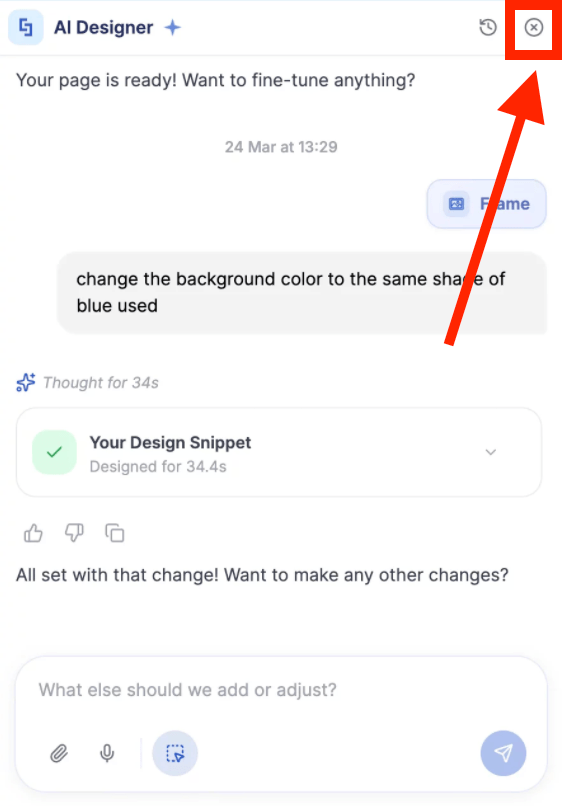
- Once you’re done using the AI Designer, you can now start editing your page like usual. Simply close the AI Designer panel and make your changes:
Step 6: Save
- Done editing? Make sure to Save your changes:

- And Publish your page:

Congratulations! You now know how to use voice prompts in ShortPoint AI Designer.
Why Are AI Voice Prompts So Useful?
Okay, so we know what they are and how to use them in ShortPoint AI Designer. But why should you actually care? Here are a few reasons AI voice prompts are earning their place in the modern workplace toolkit:
They Save Serious Time
Typing takes time. Voice prompts let you skip the friction and get straight to the point. For busy professionals, that adds up fast.
They're More Natural
Here's the thing: humans are wired to communicate through speech. Talking feels more natural than typing, which means you spend less mental energy on the 'how to ask' and more on the actual work you're trying to get done.
They Boost Accessibility
For team members with physical disabilities, repetitive strain injuries, or other challenges that make typing difficult, voice prompts aren't just convenient, they're essential. AI voice tools can level the playing field in a meaningful way.
Frequently Asked Questions
Can non-technical employees use AI voice prompts effectively?
Absolutely! That's one of the biggest benefits. AI voice prompts are designed to lower the barrier to entry. You don't need to know code, understand databases, or have a technical background. If you can describe what you need in plain English, the AI can often handle the rest.
How do AI voice prompts work with tools like SharePoint AI Designer?
When integrated with tools like SharePoint AI Designer or an AI Intranet Builder, voice prompts allow users to describe what they want to build or change in plain language. The AI interprets the request and executes it directly, making the design and content process significantly faster and more accessible.
Can AI voice prompts understand different accents and languages?
Modern AI voice systems have gotten remarkably good at understanding diverse accents and multiple languages. While no system is perfect, leading AI platforms continue to improve their multilingual and accent-recognition capabilities at a rapid pace.
Related articles:
- ShortPoint AI Designer: An Overview
- Quickstart Guide: Generate your first intranet page
- ShortPoint AI Designer Features: What Can it Do?
- How to Use the ShortPoint AI Designer: Detailed Step-by-step
- How to Write Effective AI Prompts for ShortPoint AI Designer
- How to Use Text Prompting in ShortPoint AI Designer
- How to Use Image-to-Image Prompting in ShortPoint AI Designer
- How Brand-Aware Design Works in ShortPoint AI Designer
- How to Use ShortPoint AI Designer to Edit an Existing ShortPoint Template
- How to Revert to Previous Prompt Versions in ShortPoint AI Designer
- Prompt Library
- Iterating with Multi-Turn Conversation in ShortPoint AI Designer
- How to Modify Specific Page Elements Using the ShortPoint AI Designer
- How to Queue Prompts in ShortPoint AI Designer
- How to Create Dynamic Design Elements Using ShortPoint AI Designer
- How to Activate the Search & Filter Widgets Using ShortPoint AI Designer
- How to Use the Paste from Clipboard Feature of ShortPoint AI Designer
- How to Copy and Paste Design Snippets from ShortPoint AI Designer to Another SharePoint Site
