 Try ShortPoint now
ShortPoint AI Designer ensures every page it generates is automatically aligned with your organization's visual identity through its Brand-Aware Design feature, no manual styling needed.
What is Brand-Aware Design?
ShortPoint AI Designer doesn't just build pages. It builds pages that already look like yours. Brand-Aware Design is the capability that makes this possible. Every page the ShortPoint AI Designer generates automatically reflects your organization's visual identity by pulling your colors, typography, and design settings directly from the Theme Builder, no manual styling required.
How does the feature work?
When you describe a page and AI Designer builds it, it doesn't start from a blank, generic canvas. It reads your active Theme Builder configuration and applies your brand settings at the moment of generation. By the time the page appears in front of you, it already looks on-brand and ready to refine.
New design elements automatically inherit your Theme Builder settings, allowing the AI Designer to produce pages that are visually consistent with your site collection from the very first draft.
| Theme | Page Design |
|---|---|
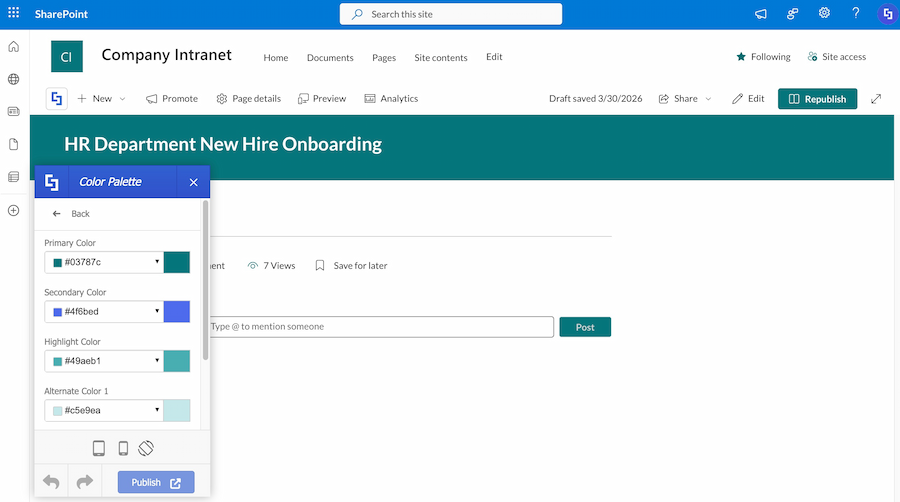 | 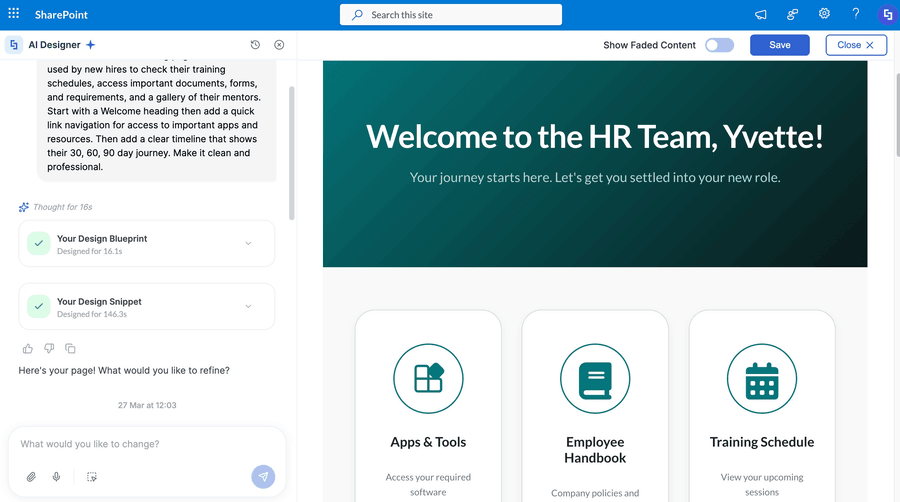 |
Which Theme Builder settings get applied?
Brand-Aware Design applies your Theme Builder settings across every component on the generated page. ShortPoint Theme Builder gives you over 30 theme customizations covering branding, fonts, custom themes, backgrounds, mobile settings, and more. AI Designer draws from all of these, including:
- Color Palette — your primary, secondary, and accent colors are applied throughout layouts, buttons, and design elements
- Typography — your defined brand fonts are applied consistently across headings, body text, and all design elements on the page
- Component Styling — link styles, title spacing, and more on all ShortPoint design elements inherit your settings automatically
Because it applies to all ShortPoint elements, every part of the generated page stays on brand.
Why is this a game-changer?
Maintaining a consistent visual identity across an intranet is one of the most time-consuming parts of page building. Traditionally, every new page requires manual styling or a designer's involvement to ensure it matches the rest of the site.
Brand-Aware Design removes that step entirely. ShortPoint Theme Builder enables full brand implementation that makes your intranet reflect your company's identity, and AI Designer extends that capability to every page it generates automatically. Anyone on your team can generate a fully on-brand page without touching a single design setting. This means faster publishing, fewer revision cycles, and a more consistent intranet experience for your entire organization.
What are the prerequisites?
Make sure the following are in place:
- You have the latest version of ShortPoint installed on your site collection.
- You are a licensed ShortPoint Designer with access to ShortPoint AI Designer.
How do I set up brand-aware design?
Brand-Aware Design works best when your Theme Builder has already been configured with your organization's colors, typography, and design preferences. ShortPoint Theme Builder lets you customize elements of your intranet site, including colors, fonts, headers, and other custom settings, and AI Designer will pick them up and apply them automatically once configured.
If Theme Builder hasn't been set up yet, AI Designer will fall back to the SharePoint theme currently applied to your site. Your pages will still be generated and functional; they'll reflect your active SharePoint theme rather than a custom brand configuration.
To get the most out of Brand-Aware Design, set up your Theme Builder before generating your first page.Can I change the design after generation?
Yes. Brand-Aware Design sets the starting point. It doesn't lock anything in. Every page AI Designer generates is fully customizable after generation. You can adjust colors, swap fonts, restyle individual components, or make any other design changes directly in the ShortPoint Page Builder. Live previews let you instantly see changes without deployment, installation, or heavy customizations.
Frequently Asked Questions
What happens if Theme Builder hasn't been configured yet?
AI Designer will apply the SharePoint theme currently active on your site. For fully custom, on-brand results, configure your Theme Builder settings before generating pages.
Can I override the brand settings on a specific page?
Yes. All generated pages are fully customizable after generation. Brand-Aware Design gives you a consistent starting point, but you have complete control to adjust any element afterward.
Does Brand-Aware Design apply to all components on the page?
Yes. It applies across all ShortPoint components, every layout, card, button, navigation element, and interactive feature on the generated page reflects your brand settings.
Can I use my own custom fonts?
Yes. Theme Builder allows you to upload your own fonts and apply them across your pages, and AI Designer will use those custom fonts when generating pages.
Does Brand-Aware Design work on mobile?
Yes. Theme Builder's mobile theme settings are also applied, so your AI-generated pages are on-brand across both desktop and mobile devices.
Related articles:
- ShortPoint AI Designer: An Overview
- Quickstart Guide: Generate your first intranet page
- ShortPoint AI Designer Features: What Can it Do?
- How to Use the ShortPoint AI Designer: Detailed Step-by-step
- How to Write Effective AI Prompts for ShortPoint AI Designer
- How to Use Text Prompting in ShortPoint AI Designer
- How to Use Voice Prompting in ShortPoint AI Designer
- How to Use Image-to-Image Prompting in ShortPoint AI Designer
- How to Use ShortPoint AI Designer to Edit an Existing ShortPoint Template
- How to Revert to Previous Prompt Versions in ShortPoint AI Designer
- Prompt Library
- Iterating with Multi-Turn Conversation in ShortPoint AI Designer
- How to Modify Specific Page Elements Using the ShortPoint AI Designer
- How to Queue Prompts in ShortPoint AI Designer
- How to Create Dynamic Design Elements Using ShortPoint AI Designer
- How to Activate the Search & Filter Widgets Using ShortPoint AI Designer
- How to Use the Paste from Clipboard Feature of ShortPoint AI Designer
- How to Copy and Paste Design Snippets from ShortPoint AI Designer to Another SharePoint Site
