Try ShortPoint now
TL;DR: ShortPoint Generator is a tool in the ShortPoint Dashboard that lets you save design components or whole page layouts as reusable custom elements and site footers for SharePoint. Custom elements show up in the Page Builder’s Library of Design Elements next to the standard ones. Custom footers are applied site-wide through ShortPoint Theme Builder. Because you edit everything in one place, a change you make in the Generator updates every page that uses that element or footer, so you never have to visit pages one by one.
Building and maintaining a cohesive SharePoint intranet is a game of constant updates. If you've ever had to update the same banner or footer content across dozens of SharePoint pages one by one, you know how time-consuming it can be.
Here's where ShortPoint Generator comes to the rescue! Designed to make SharePoint site management smoother and more efficient, this tool changes how you build reusable components and update them.
This article will discuss everything you need to know about ShortPoint Generator, including what it is, what its key features are, why it's useful, and how to use it.
TABLE OF CONTENTS
- Prerequisites
- What is the ShortPoint Generator?
- Key Features of ShortPoint Generator
- The Anatomy of the Generator
- Why is ShortPoint Generator Useful?
- Practical Use Cases
- Using the ShortPoint Generator
- Frequently Asked Questions
- What is ShortPoint Generator?
- How does ShortPoint Generator support reusable design principles?
- Can I create custom site footers with ShortPoint Generator?
- What are some practical use cases for ShortPoint Generator?
- Do I need to write code to use ShortPoint Generator?
- How does ShortPoint Generator integrate with other ShortPoint tools?
- What are the prerequisites to use ShortPoint Generator?
- How can I start creating reusable components with ShortPoint Generator?
- How does ShortPoint Generator help maintain brand consistency?
- Can ShortPoint Generator accommodate dynamic content?
Prerequisites
- You must have the latest version of ShortPoint SPFx installed.
- You must be a ShortPoint Designer with either a Pro or Enterprise License. For more information, check out Licensing Options.
What is the ShortPoint Generator?
ShortPoint Generator is one of the tools found in the ShortPoint Dashboard.
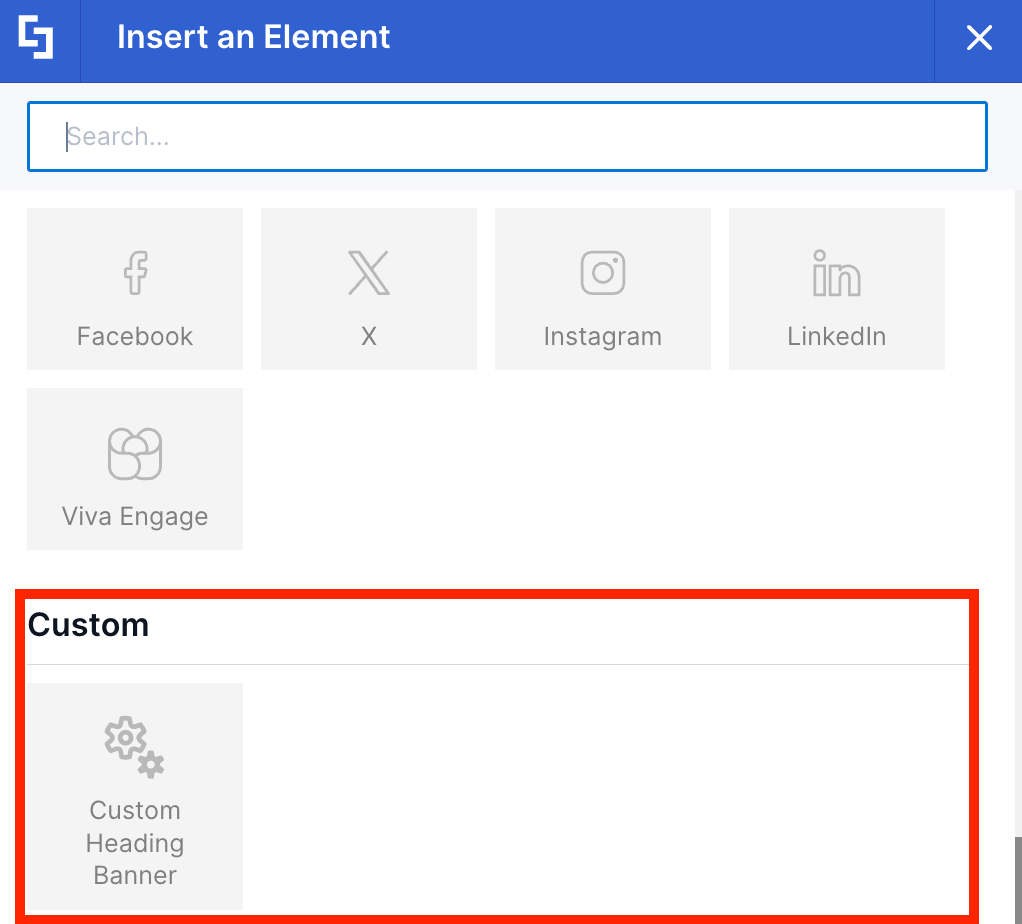
It allows you to bundle design components or entire page layouts into custom elements that appear directly inside the Library of Design Elements alongside standard ones:
ShortPoint Generator also acts as the central engine for creating custom site footers that you can use across your SharePoint sites using ShortPoint Theme Builder:
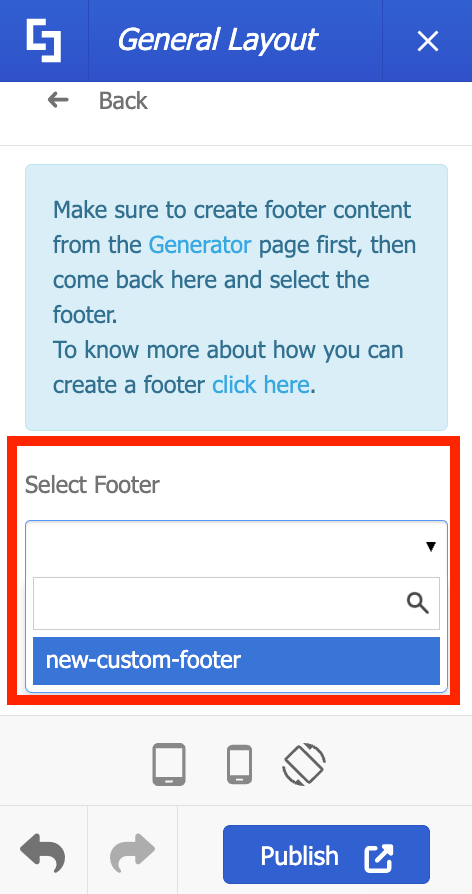
The biggest advantage? Centralized editing. When you update a design element or footer inside the Generator, that element automatically inherits your changes across multiple pages. There is no need to visit pages individually to make updates, which significantly helps users save time and effort in managing their SharePoint site content.
Key Features of ShortPoint Generator
ShortPoint Generator includes several powerful features that make managing custom templates and site design seamless for intranet designers:
TIPWant to learn more about these features, check out ShortPoint Generator: An Overview of Best Features.
Single-Source Updating
Create custom generator elements that you can add to any page within your site collection. Once added to your site, any updates made inside the Generator are immediately applied across every single page using it.
Customizable Attributes
You can create dynamic placeholders using Generator. With it, ShortPoint Designers can easily modify the Generator fields to fit the specific needs of different SharePoint pages.
Predefined Layouts with Modifiable Content
You can format content-holder Design Elements to fit the branding of your organization, while allowing ShortPoint Designers to place custom text, images, or child elements inside them.
Seamless Page Builder & Theme Builder Integration
Saved elements appear directly alongside native ShortPoint elements inside the Page Builder library, while custom footers integrate smoothly into the ShortPoint Theme Builder for global application.
The Anatomy of the Generator
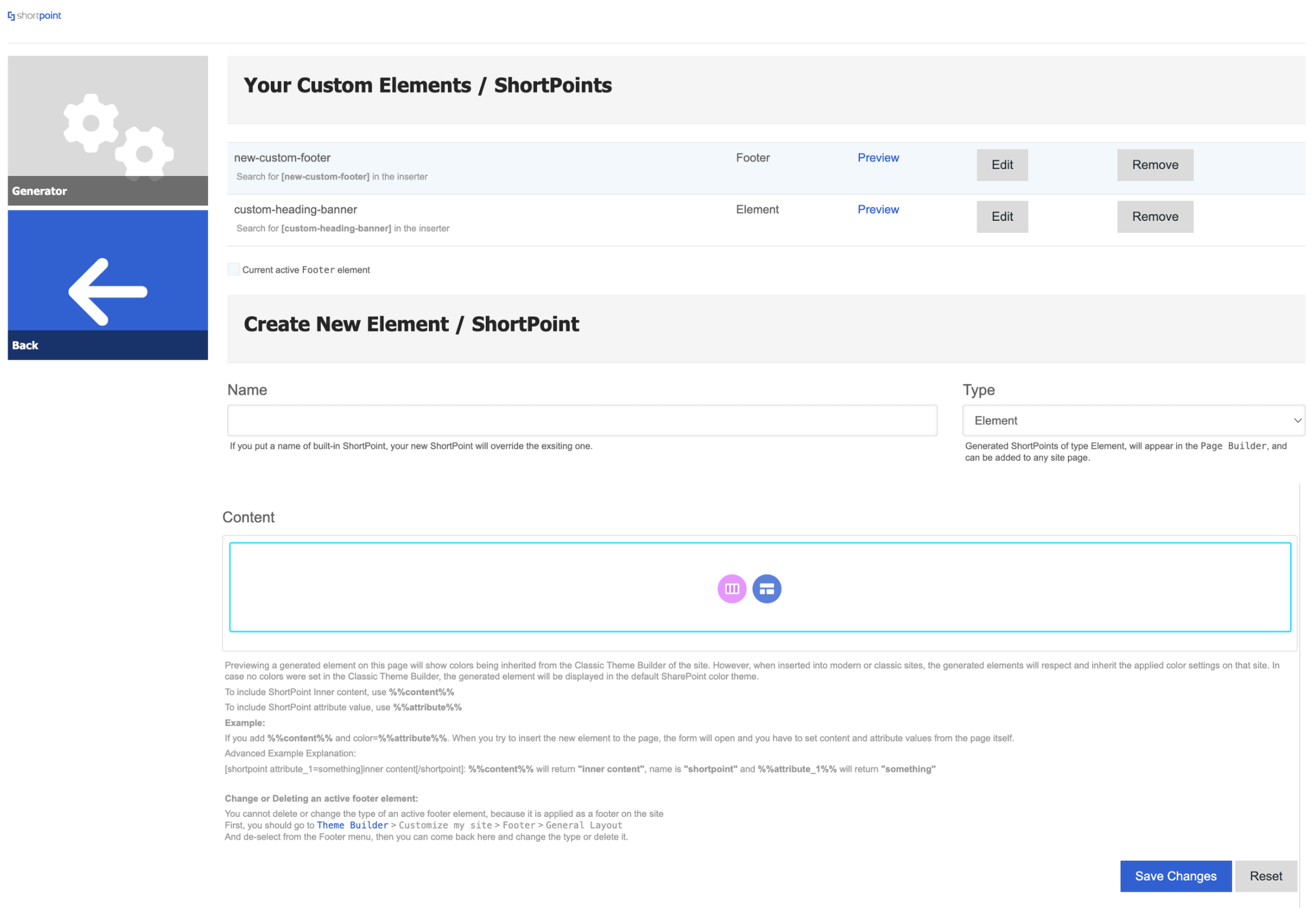
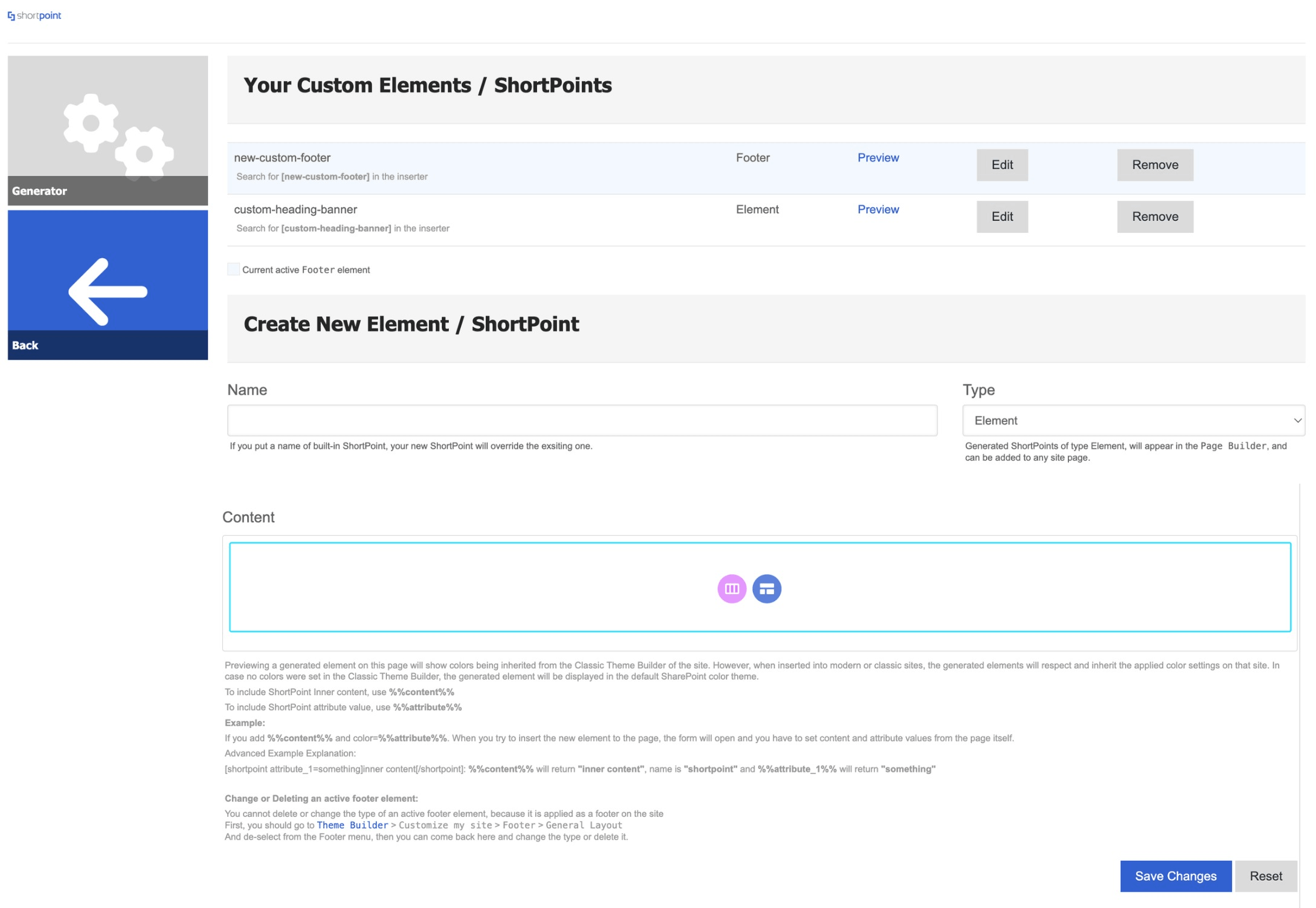
Let's get you familiarized with the Generator page. It's divided into two parts:
Your Custom Elements / ShortPoints
This section shows all the custom elements and footer you've previously created. It has the following functions:
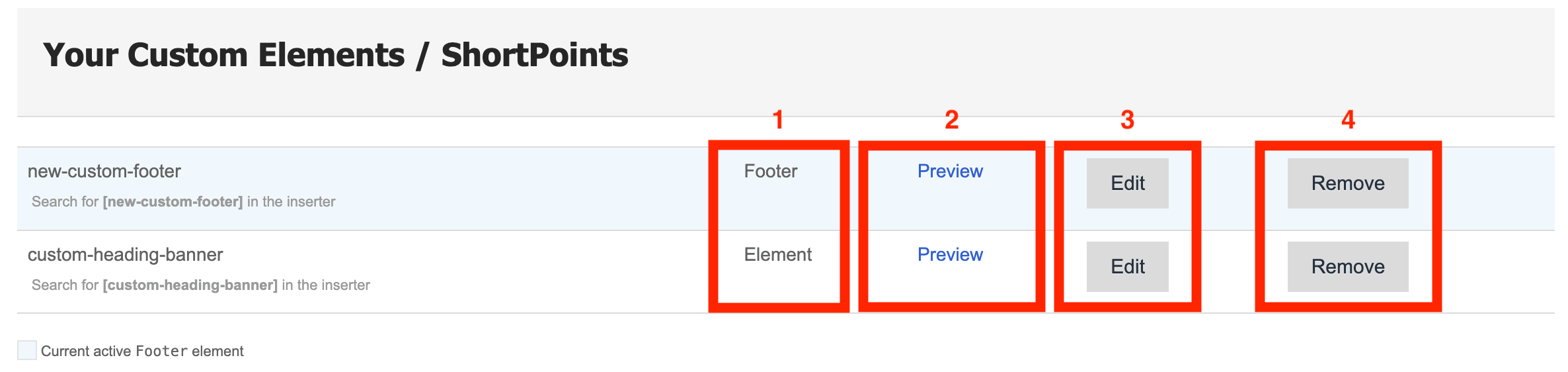
1 | Footer / Element | identifies whether the saved generator is a footer or an element. |
2 | Preview | allows you to see what the custom element/footer looks like. |
3 | Edit | allows you to edit the saved custom element/footer. |
4 | Remove | allows you to permanently delete a saved custom element/footer. If it's used in any SharePoint sites, you will need to remove it in those sites first before you can delete it. |
Create New Element / ShortPoint
This section is the actual editing interface of the Generator. This is where you will create and save your custom element/footer.
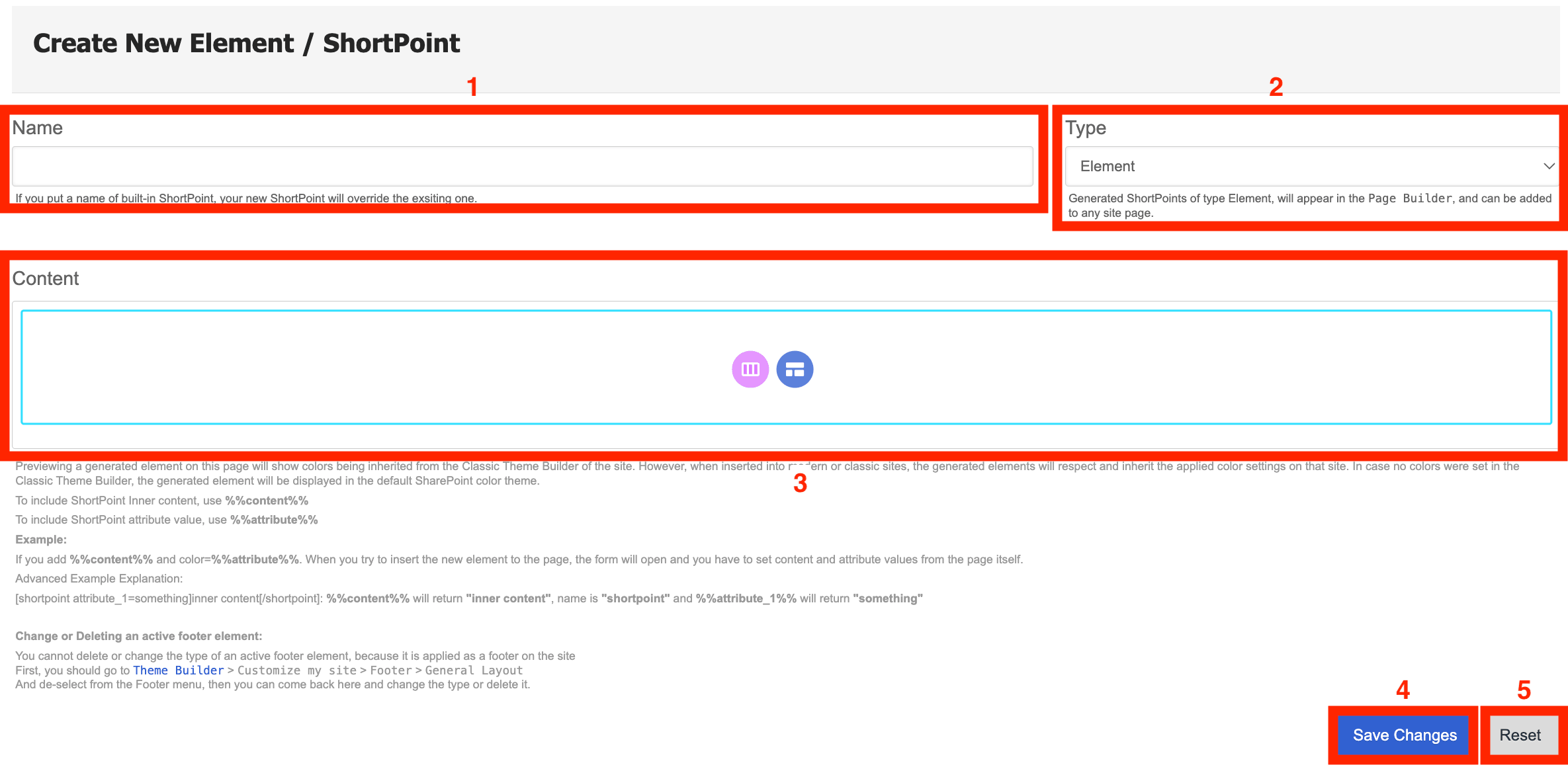
1 | Name | allows you to name the custom element/footer you create. |
2 | Type | allows you to choose whether the custom generator will be an element or a footer. |
3 | Content | this is where you will create the custom element/footer. It works the same way as the editing experience in actual SharePoint sites. You can start from scratch or use a template. |
4 | Save changes | saves the custom element/footer. Once saved, you'll be able to see it under 'Your Custom Elements / ShortPoints'. |
5 | Reset | when clicked, all changes made will be scrapped. |
Why is ShortPoint Generator Useful?
If you manage an intranet, team site, or portal, ShortPoint Generator offers several key benefits:
- Eliminates Repetitive Work: Create complex layout combinations once, save them as custom design elements or reusable footers, and insert them anywhere in just a few clicks.
- Guarantees Brand and Layout Consistency: Ensures team members across different departments use the exact same, approved designs and brand assets across all pages, improving workflow efficiency.
- Streamlines Global Maintenance: Need to change a phone number in a contact widget or update a link in the site footer? Edit it once in the Generator, and it updates site-wide instantly, enhancing management and publishing practices.
Practical Use Cases
Here are a few common scenarios where ShortPoint Generator makes a big difference:
Site-Wide Custom Footers
Standard SharePoint footers can feel limited. With ShortPoint Generator, you can build a rich, multi-column footer filled with quick links, copyright details, dynamic logos, and social media icons. Once saved in the Generator, you apply it site-wide through the ShortPoint Theme Builder.
Standardized Call-to-Action (CTA) Banners
Whether you are promoting an upcoming company-wide town hall, an open enrollment period, or an IT system maintenance alert, you can build a central CTA banner in Generator. Insert it into multiple team hubs, and edit the announcement centrally when details change.
Departmental Contact Cards & Help Desks
Build a styled contact card complete with support hours, contact persons, and quick-help links. HR, IT, and Finance teams can drop this identical card onto their respective intranet spaces, ensuring users always see up-to-date contact information.
Custom Navigation Blocks & Quick-Link Hubs
Create grouped navigation blocks for specific project teams or resource portals. Instead of rebuilding link groups on every subsite, drop the generated element in place and manage all link destinations from one dashboard.
Using the ShortPoint Generator
Ready to create your own Generator elements/footer? We've listed support articles that you can check out to create your very first customized Design Element and Footer.
- To create a customized design element: ShortPoint Generator: How to Create Custom Design Elements and ShortPoint Generator: How to Add Custom Design Elements to a SharePoint Page.
- To create a customized footer: Getting Started with ShortPoint Footer for SharePoint or Part 1: Create the Footer from ShortPoint Generator Page.
Frequently Asked Questions
What is ShortPoint Generator?
ShortPoint Generator is a tool within the ShortPoint Dashboard that enables SharePoint Designers to create reusable custom elements and page layouts. These custom elements appear alongside standard design elements in the Page Builder library, allowing for centralized editing and consistent branding across multiple SharePoint pages.
How does ShortPoint Generator support reusable design principles?
ShortPoint Generator embodies reusable design by allowing you to create modular, customizable components that can be reused across your SharePoint intranet. Updates made to a single custom element or footer automatically propagate to all pages where it is used, saving time and ensuring consistency.
Can I create custom site footers with ShortPoint Generator?
Yes. ShortPoint Generator allows you to build rich, multi-column custom footers with quick links, dynamic logos, social media icons, and more. These footers integrate seamlessly with the ShortPoint Theme Builder for site-wide application.
What are some practical use cases for ShortPoint Generator?
Common use cases include creating site-wide custom footers, standardized call-to-action banners, departmental contact cards, help desks, and custom navigation blocks or quick-link hubs. These elements help organize content and streamline updates across your SharePoint platform.
Do I need to write code to use ShortPoint Generator?
No coding is required. ShortPoint Generator provides a no-code environment where you can design and customize elements directly within SharePoint sites, making it accessible for intranet designers without development expertise.
How does ShortPoint Generator integrate with other ShortPoint tools?
Custom elements created in the Generator appear directly in the Page Builder library, while custom footers integrate with the Theme Builder. This seamless integration supports a unified intranet design and simplifies site management.
What are the prerequisites to use ShortPoint Generator?
You must have the latest version of ShortPoint SPFx installed and hold a Pro or Enterprise License as a ShortPoint Designer.
How can I start creating reusable components with ShortPoint Generator?
Begin by accessing the Generator page in the ShortPoint Dashboard. You can create new custom elements or footers from scratch or use templates. Save your changes, and the elements become available for use across your SharePoint sites.
How does ShortPoint Generator help maintain brand consistency?
By centralizing the editing of design elements and footers, ShortPoint Generator ensures that all pages use approved branding assets and layouts. This reduces the risk of inconsistent designs and streamlines global maintenance.
Can ShortPoint Generator accommodate dynamic content?
Yes. It supports customizable attributes and dynamic placeholders, allowing designers to modify fields to fit specific needs on different SharePoint pages while reusing the same base elements.
Related Articles