Try ShortPoint now
TL;DR: ShortPoint has two places to find ready-made SharePoint designs: the Templates Library and the demos.shortpoint.com website. The Templates Library is built into Page Builder, so you can preview and insert a template without leaving your page. It always has the newest templates and uses the latest design elements. The demos site is an older website where you copy a design and paste it into your page. It no longer gets new templates, so we recommend the Templates Library for building your pages.
ShortPoint gives you two places to find ready-made SharePoint designs: the ShortPoint Templates Library inside Page Builder, and the Demos Library website at demos.shortpoint.com. Both show you designs you can reuse, but they aren't the same. This article explains the difference between them and why we recommend the Templates Library for building your pages.
TABLE OF CONTENTS
- Prerequisites
- What is the ShortPoint Templates Library?
- What is demos.shortpoint.com?
- Templates Library vs. demos.shortpoint.com at a Glance
- Why We Recommend the Templates Library
- When Can demos.shortpoint.com Still Help?
- How to Get Started with the Templates Library
- Frequently Asked Questions
Prerequisites
- You must have the latest version of ShortPoint SPFx installed.
- You must have a Modern SharePoint page.
- You must be a ShortPoint Designer with an active license.
What is the ShortPoint Templates Library?
The ShortPoint Templates Library is a collection of ready-made page and section designs built right into ShortPoint Page Builder. You open it from any empty ShortPoint Section, pick a template, and add it to your SharePoint page in a few clicks.
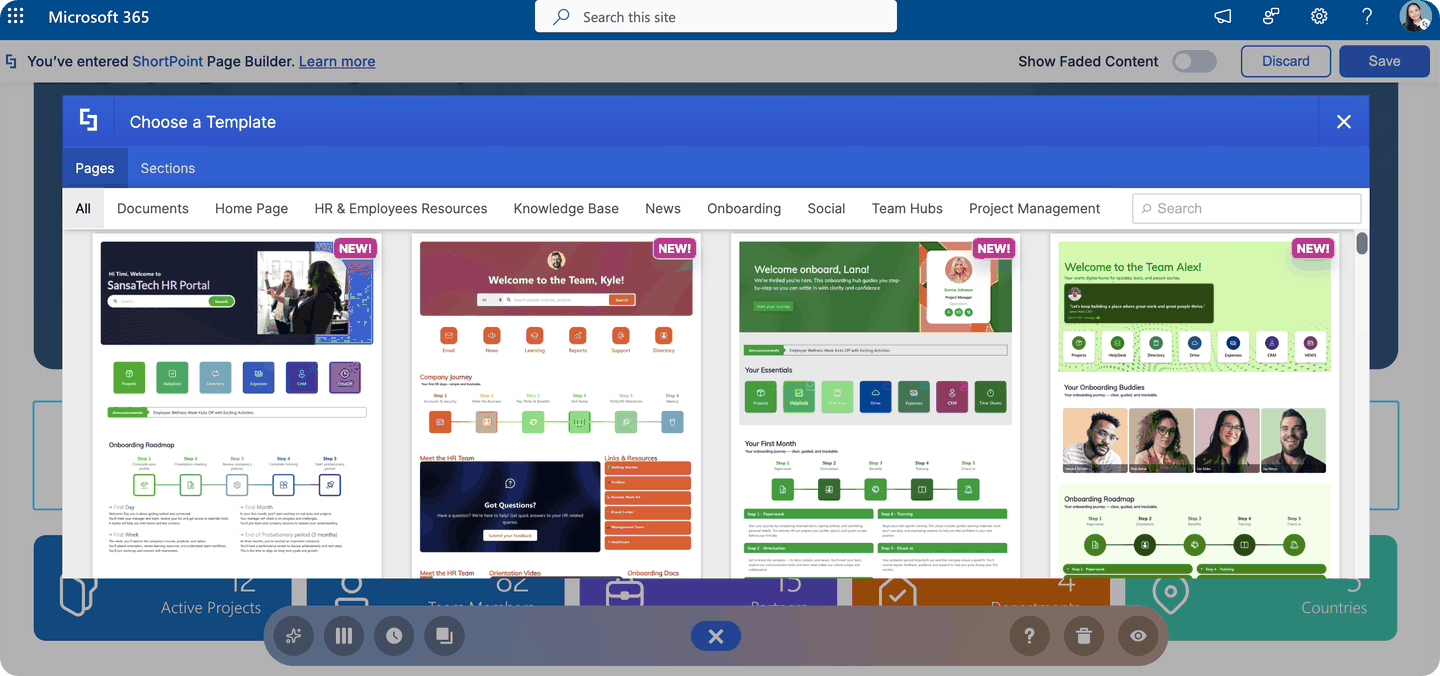
Every template in the library is created by ShortPoint's design experts. When they design a new template, they upload it straight to the Templates Library, so it's always where you'll find ShortPoint's newest designs.
What is demos.shortpoint.com?
demos.shortpoint.com is a separate website that shows example SharePoint pages built with ShortPoint. While it's also a great resource to get started on your designs, it takes much more effort to add it to your page. You'd have to browse the demo site in another window, copy a page design, open your SharePoint page and edit it, then paste the page design into your own page.
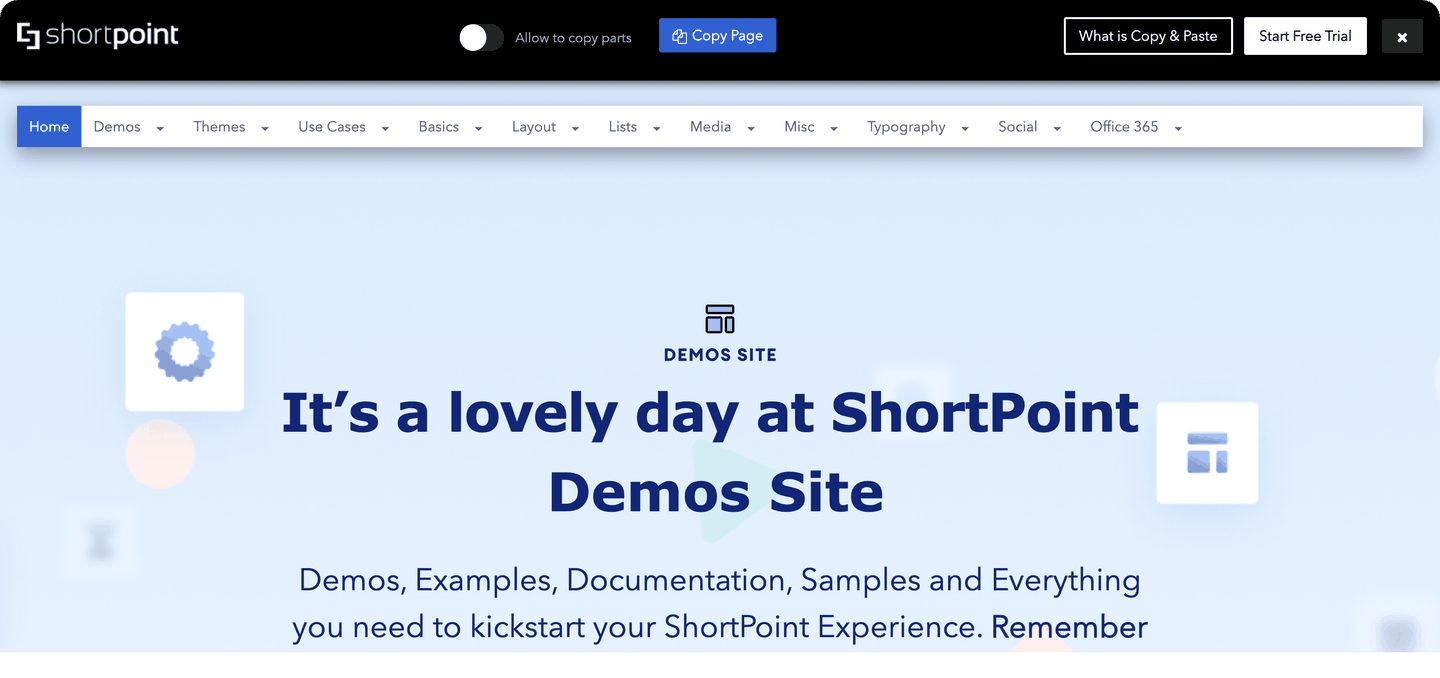
NOTE: When copying from the Demos Library, some aspects of the page may break as it contains older versions of the design elements.
Templates Library vs. demos.shortpoint.com at a Glance
| ShortPoint Templates Library (RECOMMENDED) | demos.shortpoint.com | |
|---|---|---|
| Where you find it | Inside ShortPoint Page Builder | A separate website |
| How you add a design | Click to preview, insert, or customize with AI Designer | Copy from the website, then paste into Page Builder |
| Latest templates | Yes, new templates are added by ShortPoint's design experts | No, it doesn't have the latest templates |
| Design elements used | Current design elements | Older design elements |
Why We Recommend the Templates Library
The Templates Library is the most convenient way to add our expertly made page and section templates to your page. Here's why:
It's Right Where You Work
You don't need to leave your SharePoint page or open another browser tab. The Templates Library opens from inside Page Builder, so you can browse, preview, and insert a template without switching windows or copying and pasting between sites.
It Has the Newest Templates
ShortPoint's design experts create new templates and upload them to the Templates Library. When new designs come out, this is where they appear first, and the demos site doesn't get them.
It Uses the Latest Design Elements
Templates in the library are built with ShortPoint's current design elements. That means your page gets the newest features and styling options. Designs on demos.shortpoint.com use older design elements, so you may miss out on newer features, or have to rebuild parts of the design to use them.
More Ways to Add a Template
Each template in the library gives you three options: preview it first, insert it right away, or open it in AI Designer to adapt it to your needs before it lands on your page. To learn more, see How to Insert Templates from the Templates Library to a SharePoint Page.
Templates Are Organized for You
Templates are split into Page Templates (complete pages) and Section Templates (single building blocks like headers, news, or footers), and each is sorted into categories such as Home Page, News, Onboarding, and HR. This makes it quick to find a design that fits your page. To learn more, see What Are the Template Categories in the ShortPoint Templates Library?
When Can demos.shortpoint.com Still Help?
The demos site can still be a good place to get ideas for how a ShortPoint page might look. However, when you're ready to build, we recommend starting from the Templates Library so your page uses ShortPoint's newest templates and design elements.
How to Get Started with the Templates Library
Ready to start adding your first template using the ShortPoint Templates Library? To help you get started, check out our step-by-step guide at ShortPoint Templates Library: Complete Guide to Using Pre-Built SharePoint Page Designs.
Frequently Asked Questions
Is demos.shortpoint.com being updated with new templates?
No. New templates are added to the ShortPoint Templates Library only. To find the latest designs, open the Templates Library in Page Builder.
I already copied a design from demos.shortpoint.com. Do I need to replace it?
No, the design will keep working on your page. However, it uses older design elements, so it may not include newer features. If you'd like a fresher design, try a similar template from the Templates Library.
Do I need a special license to use the Templates Library?
You need to be a ShortPoint Designer with an active license. Using AI Designer on a template also needs a Pro or Enterprise Designer license, AI Designer turned on in the ShortPoint Admin page, and available AI credits.
Why don't I see the Open Templates icon?
The icon only appears inside an empty ShortPoint Section. If your page already has content, add a new ShortPoint Section first, then open the Templates Library from it.
Related articles: