Try ShortPoint now
TL;DR: The ShortPoint Templates Library is a set of ready-made page and section designs, and you open it from an empty ShortPoint Section. If your page has no ShortPoint content yet, add a section to the page, put the ShortPoint web part in it, and click the Open Templates icon. If your page already has ShortPoint content, open the Page Builder, hover over a Section, and click the plus icon to add an empty Section below it. Then click Open Templates inside it.
The ShortPoint Templates Library is a collection of ready-made page and section designs you can add to your SharePoint page in a few clicks. Instead of building every part of a page from scratch, you pick a template, insert it, and customize it to match your content. This article shows you the two ways to open the Templates Library, so you can start from a blank page or add new designs to a page you've already built.
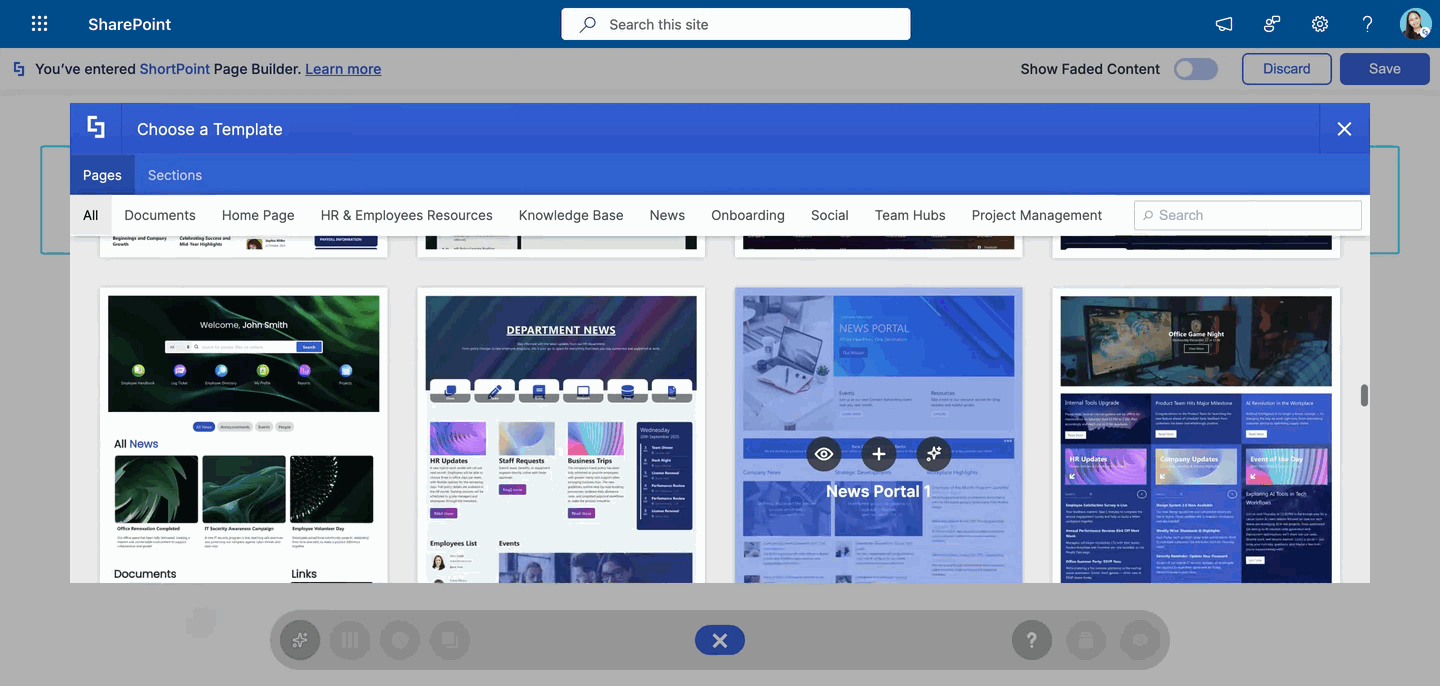
TABLE OF CONTENTS
- Prerequisites
- Two Ways to Open the ShortPoint Templates Library
- Interactive Tutorial
- Step-by-step Tutorial
- Frequently Asked Questions
Prerequisites
- You have ShortPoint SPFx installed on your SharePoint environment.
- You are a ShortPoint Designer with an active license.
- You have permission to edit the SharePoint page.
Two Ways to Open the ShortPoint Templates Library
You can open the Templates Library from any empty ShortPoint Section. How you get to that empty Section depends on what's already on your page.
Option 1: Starting from Scratch
Recommended if your page doesn't have any ShortPoint content yet.
With this option, you start with a blank SharePoint page. You add a new SharePoint section, put the ShortPoint web part inside it, and open the Templates Library straight from the empty web part.
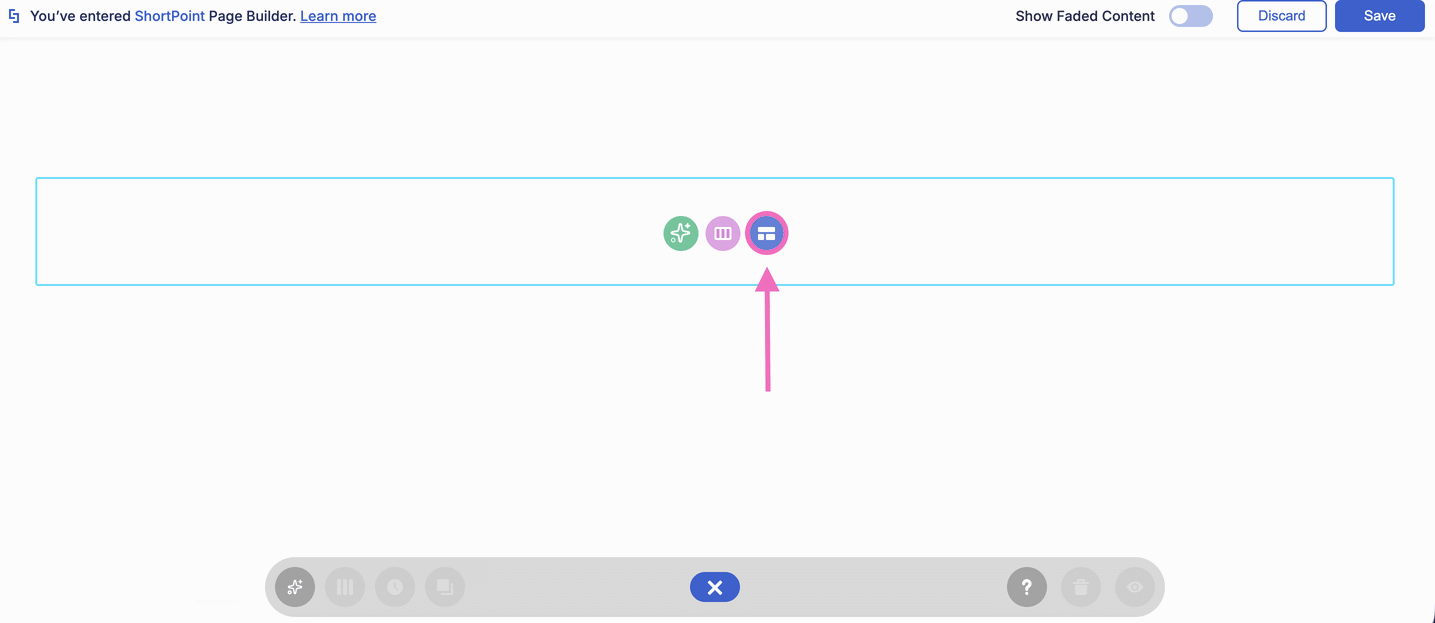
Since the page is empty, this is the best time to choose a full page template. A page template gives you a complete layout, such as a homepage, news portal, or onboarding page, in one go. You then replace the sample text and images with your own.
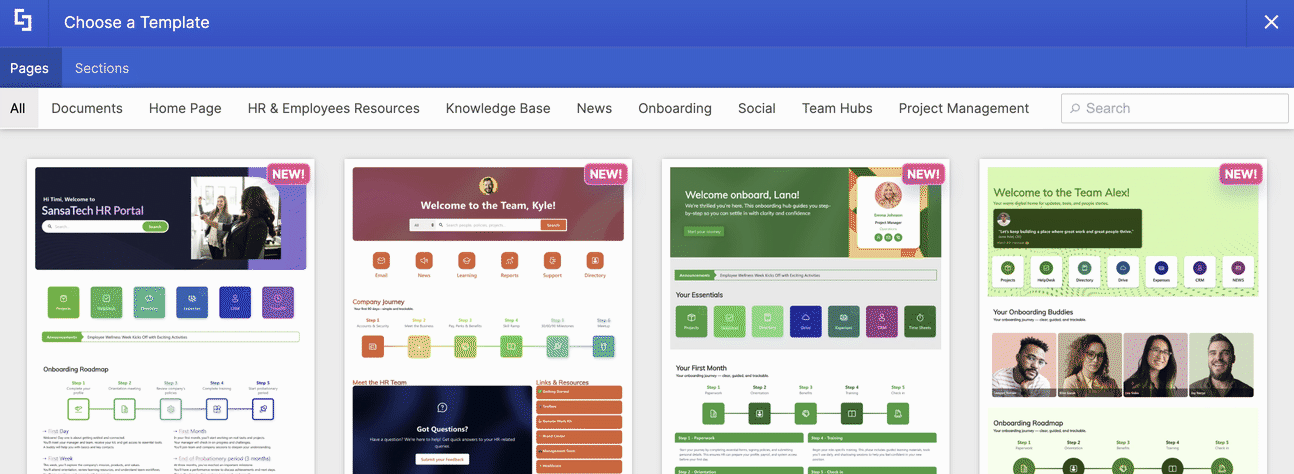
Why choose this option:
- It's the fastest way to build a new page. One page template can fill the whole page.
- You choose the layout from the start. Adding the web part to a Full-width section lets your template stretch across the whole screen.
NOTEIf your page already has a ShortPoint web part with content, use Option 2 instead, so you don't end up with two separate web parts.
Option 2: Adding a New ShortPoint Section
Recommended if your page already has ShortPoint Design Elements on it.
ShortPoint pages are made of Sections, and the Templates Library only opens in an empty one. If your page already has content, every Section is in use. So, you first add a new, empty ShortPoint Section inside the Page Builder, and then open the Templates Library from it.
The new Section is added right below the Section you hover over. This makes it easy to place a new design exactly where you want it.
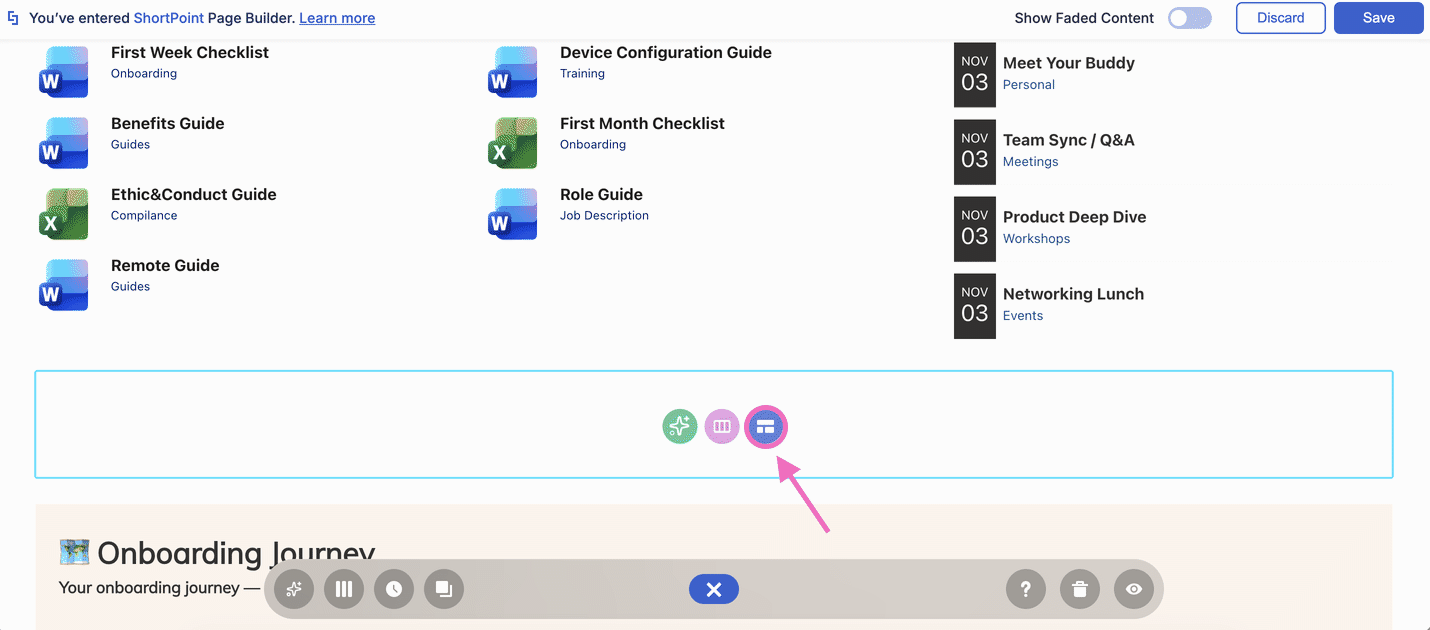
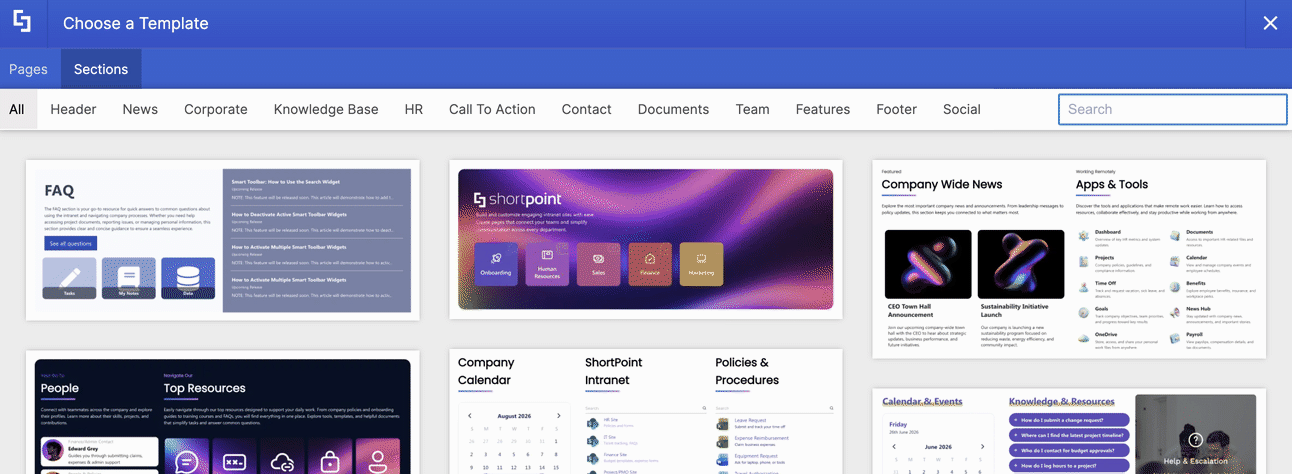
It's perfect for section templates. Use the Sections tab to add a single block, like a header, a contact card, or a document list, to a page that's already built.
Why choose this option:
- Your existing design stays as it is. You only add to the page; nothing is replaced.
- You control where the new design goes. Pick the Section above the spot where you want the template.
Interactive Tutorial
Click Get Started to try it yourself:
Step-by-step Tutorial
Option 1: Starting from Scratch
This option is recommended if you don't have the ShortPoint web part on your page yet.
Step 1: Edit Your SharePoint Page
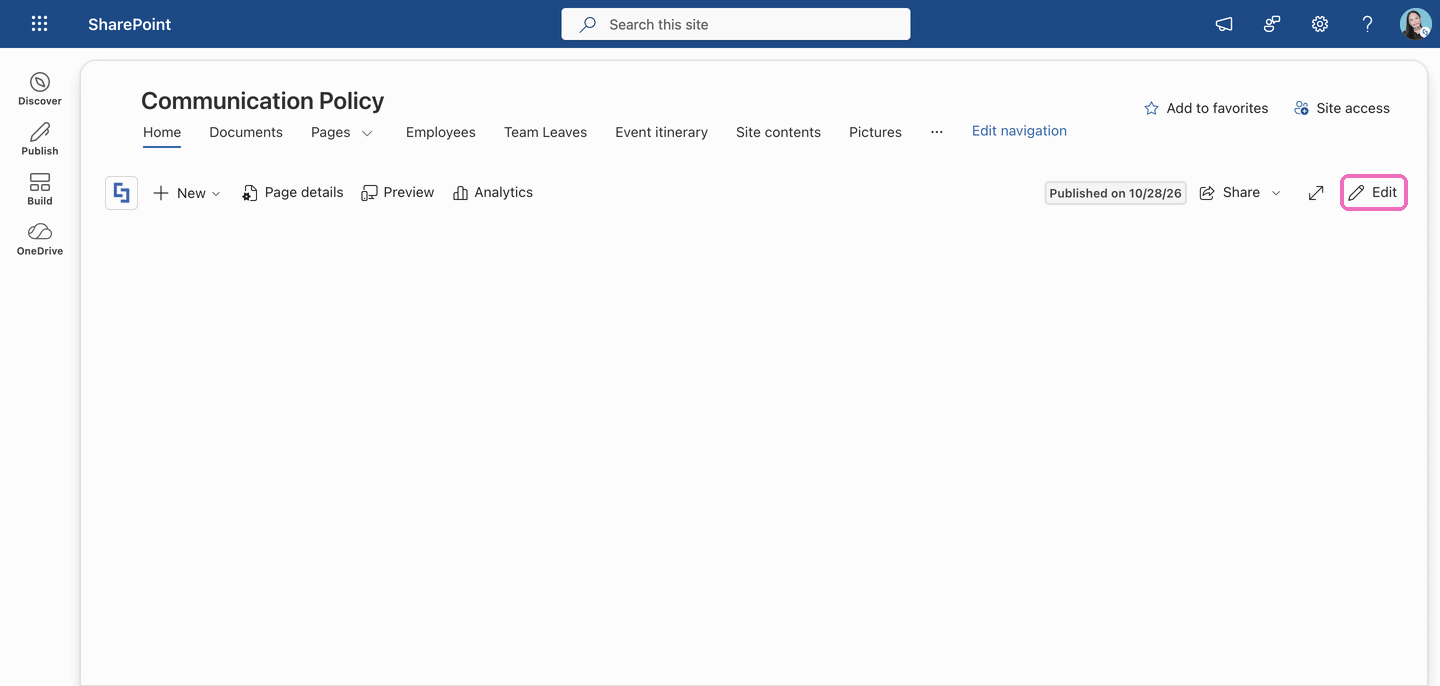
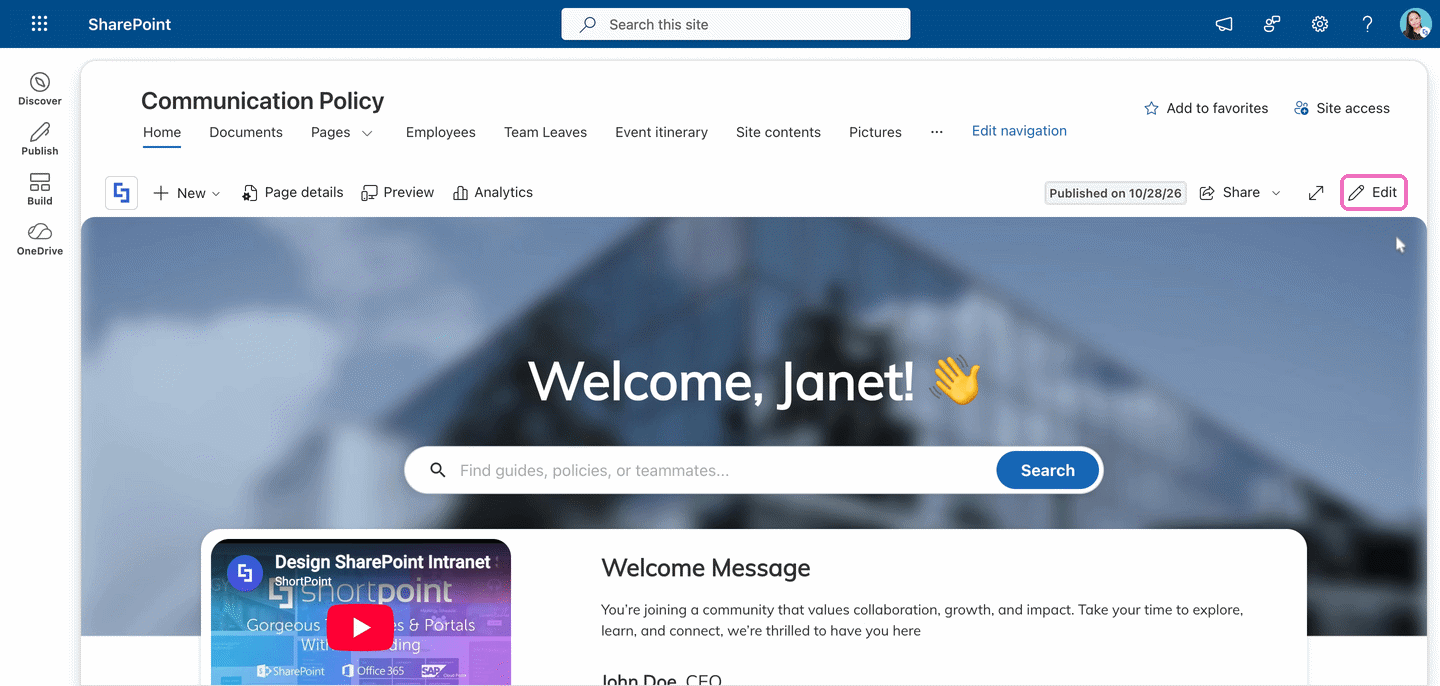
- Go to the SharePoint page you want to use and click Edit.
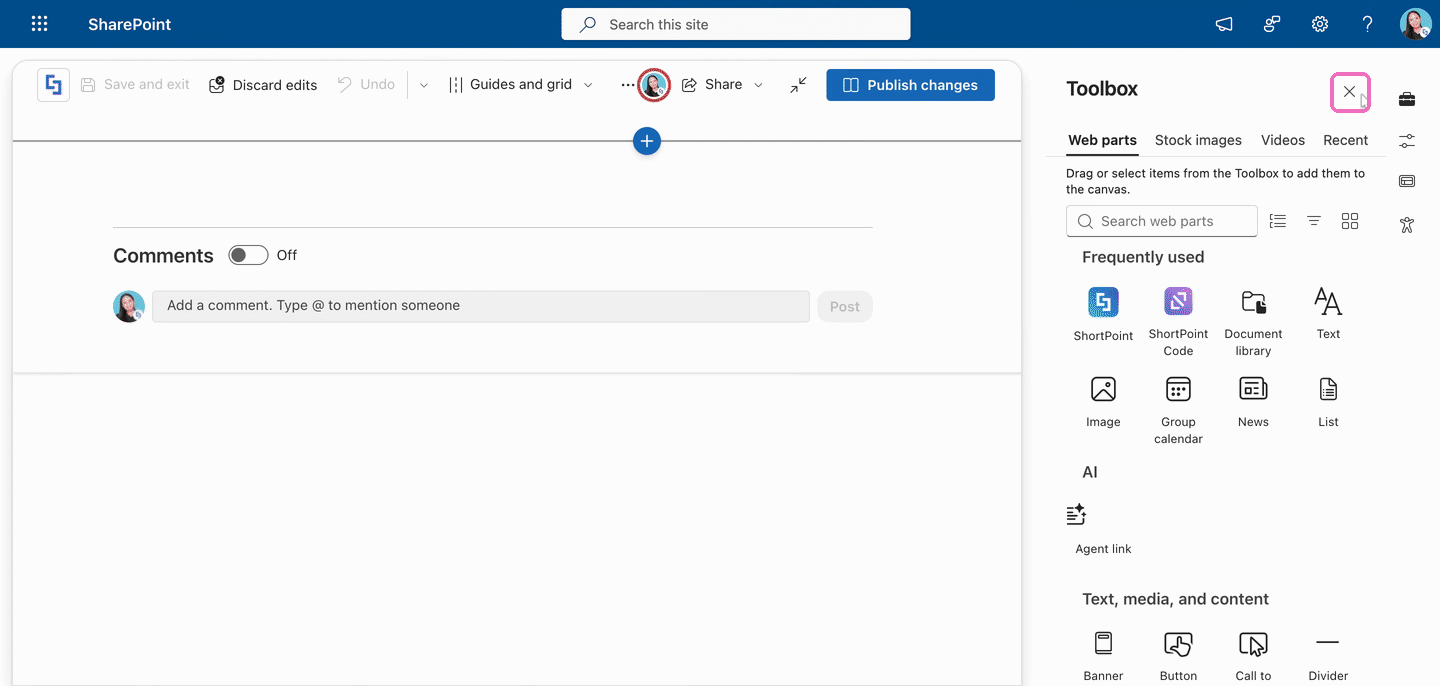
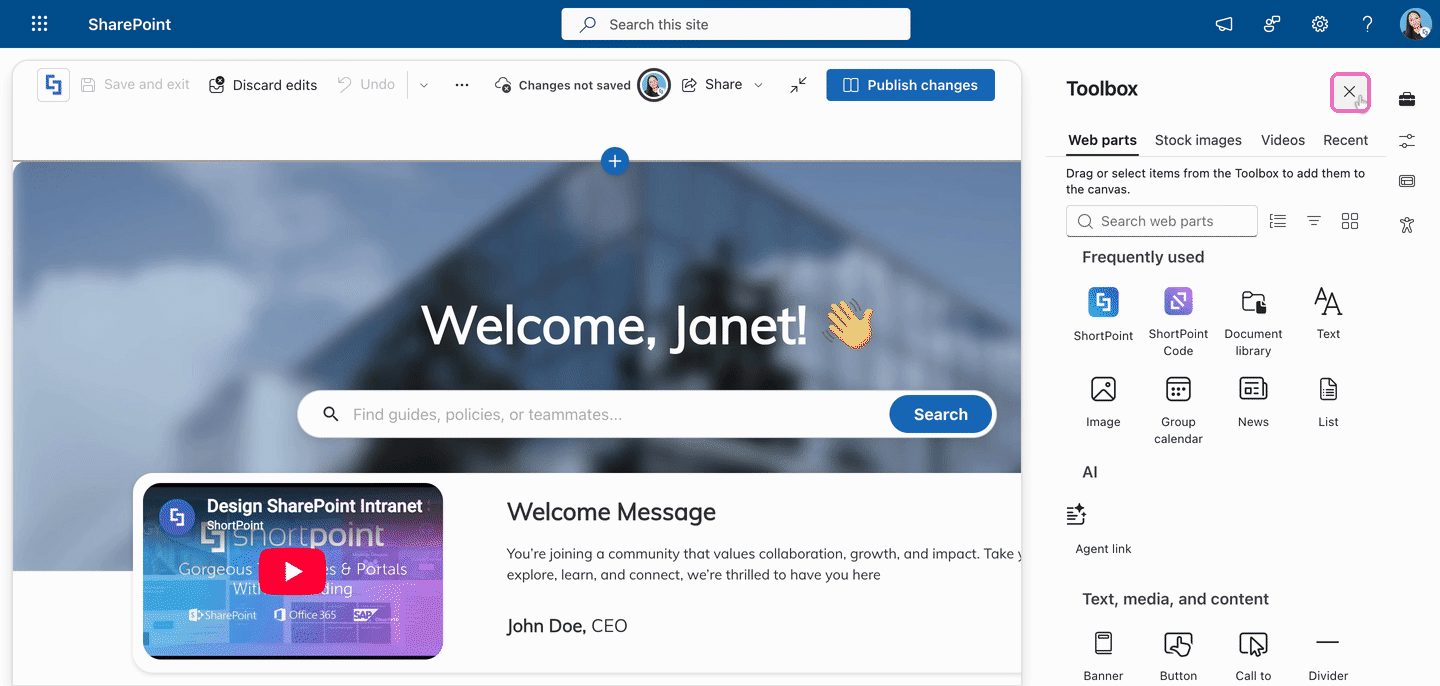
- Close the Toolbox.
Step 2: Add a SharePoint Section
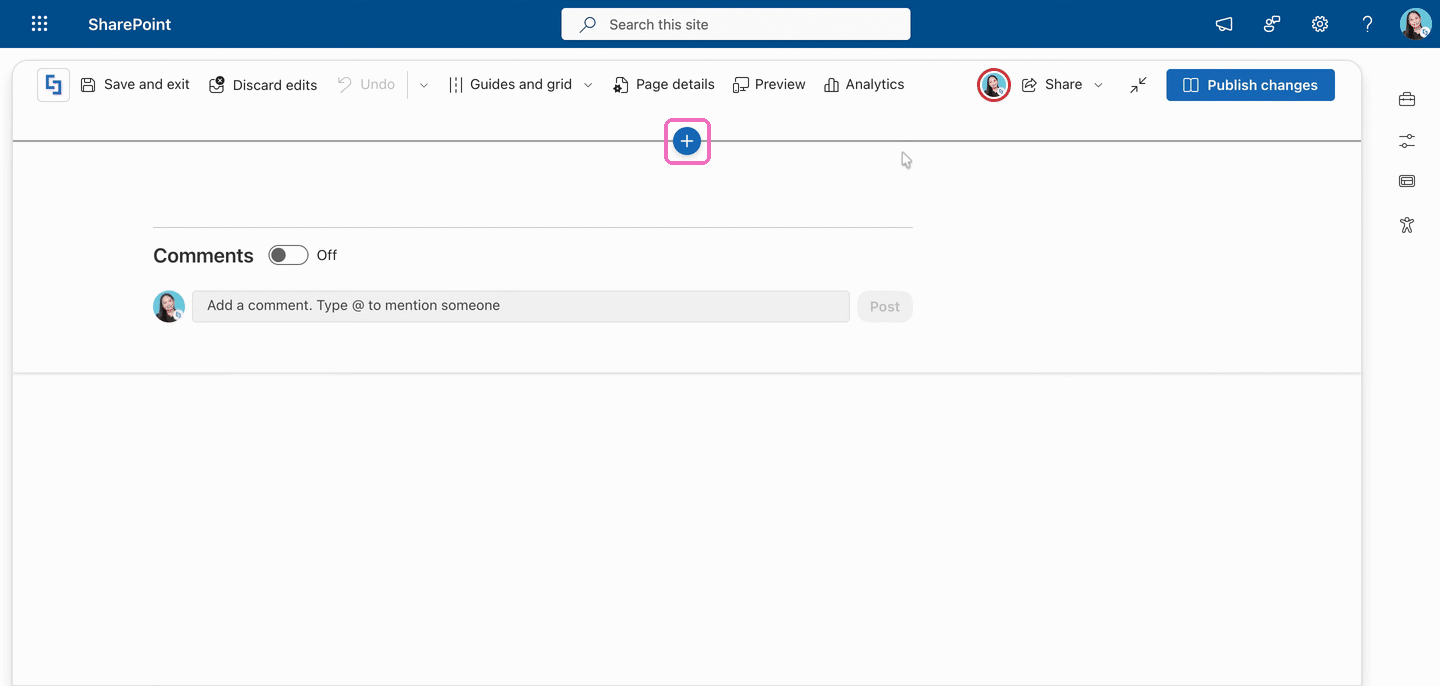
- Click the blue plus icon to add a new section.
- Select Full-width section.
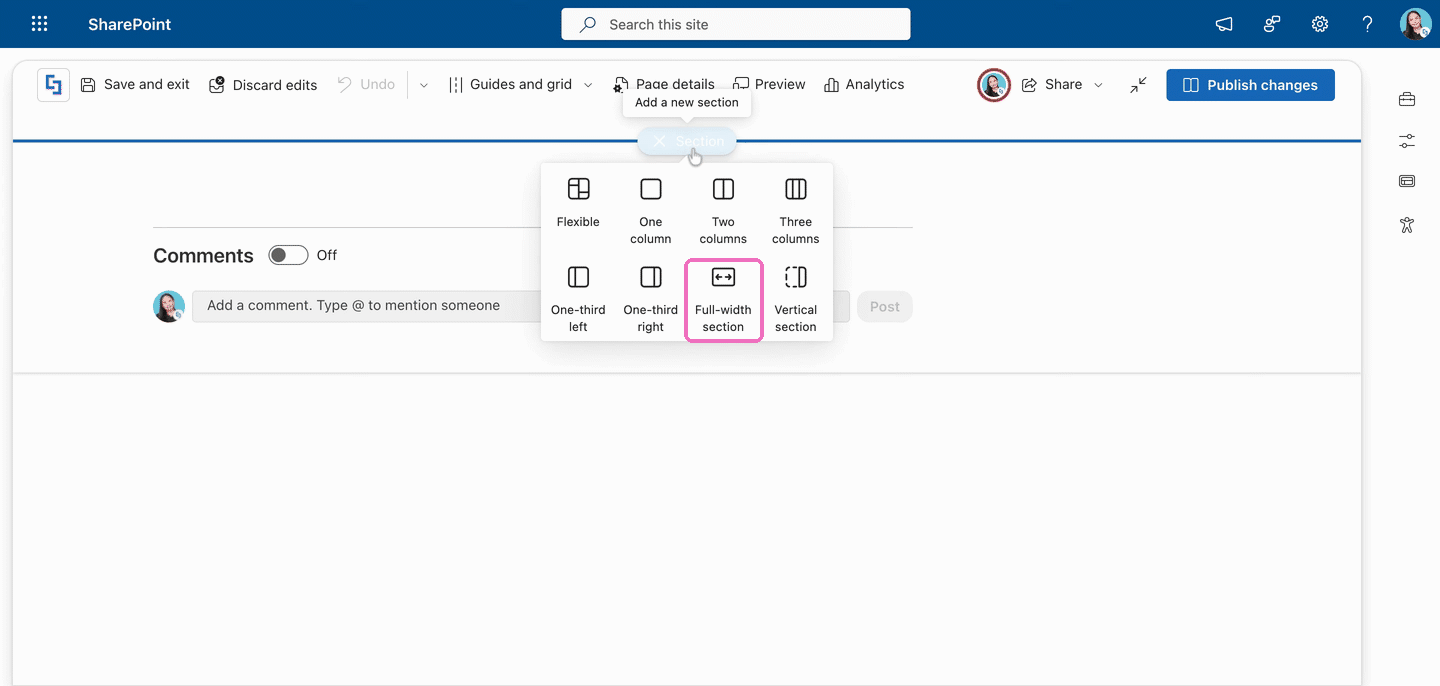
TIPA full-width section lets your template fill the whole screen. If you don't see this option, your site may be a team site. In that case, you can follow this guide: How to Use the SharePoint Drag and Drop Feature to Create a Full-width ShortPoint Section or choose another layout, such as One column.
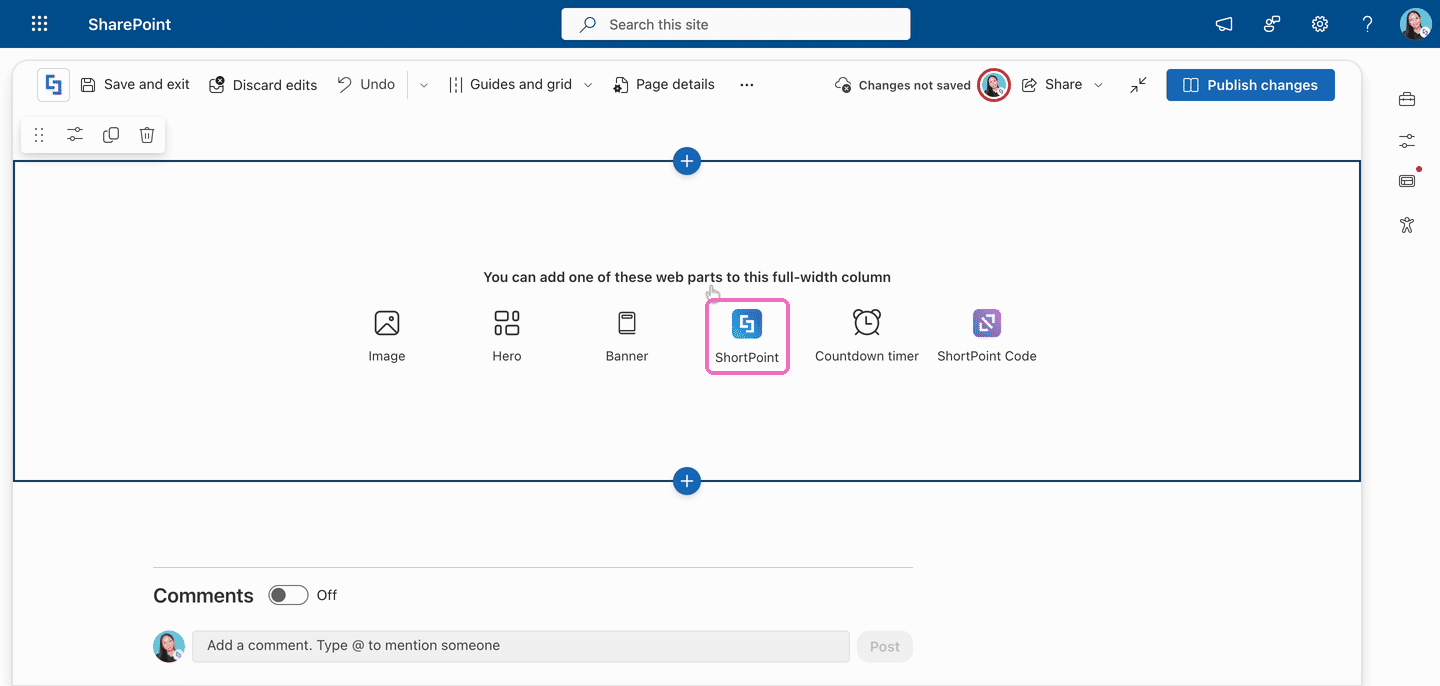
Step 3: Add the ShortPoint Web Part
- Choose ShortPoint from the list of web parts.
Step 4: Open the Templates Library
- Click the Open Templates icon.
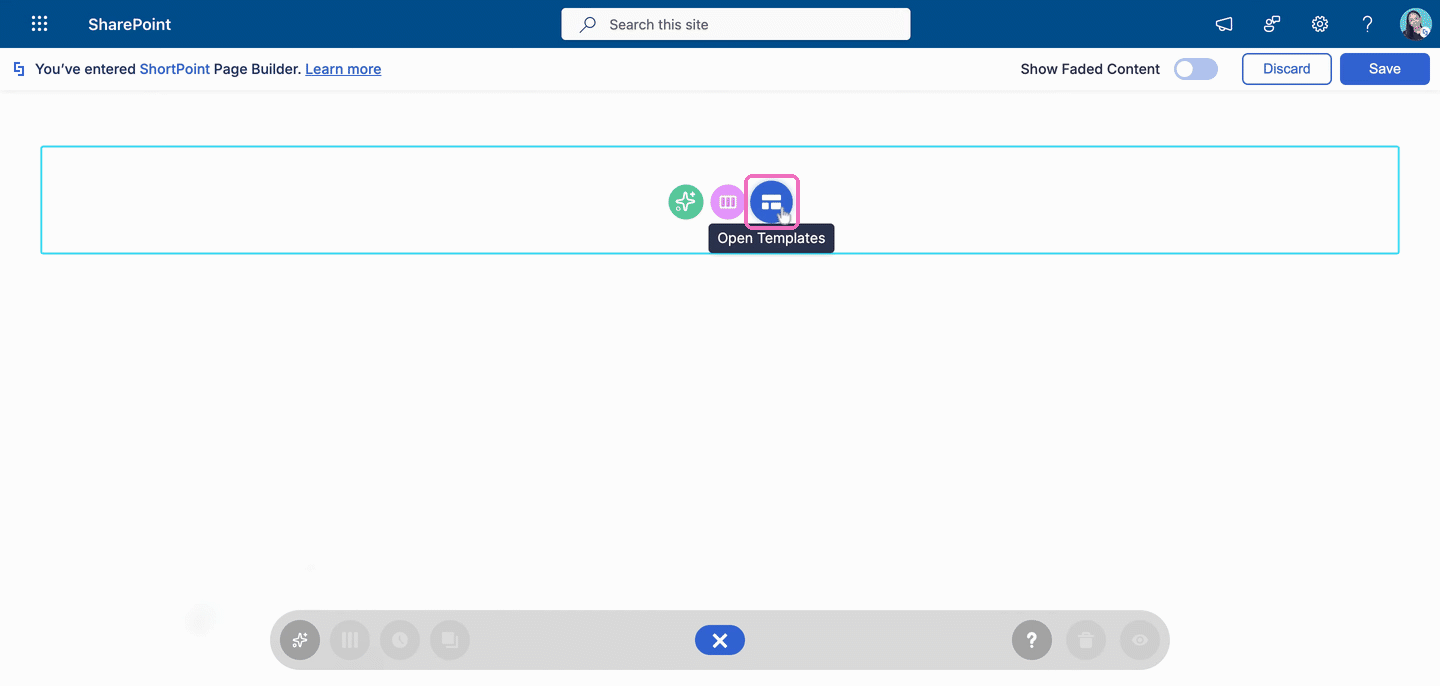
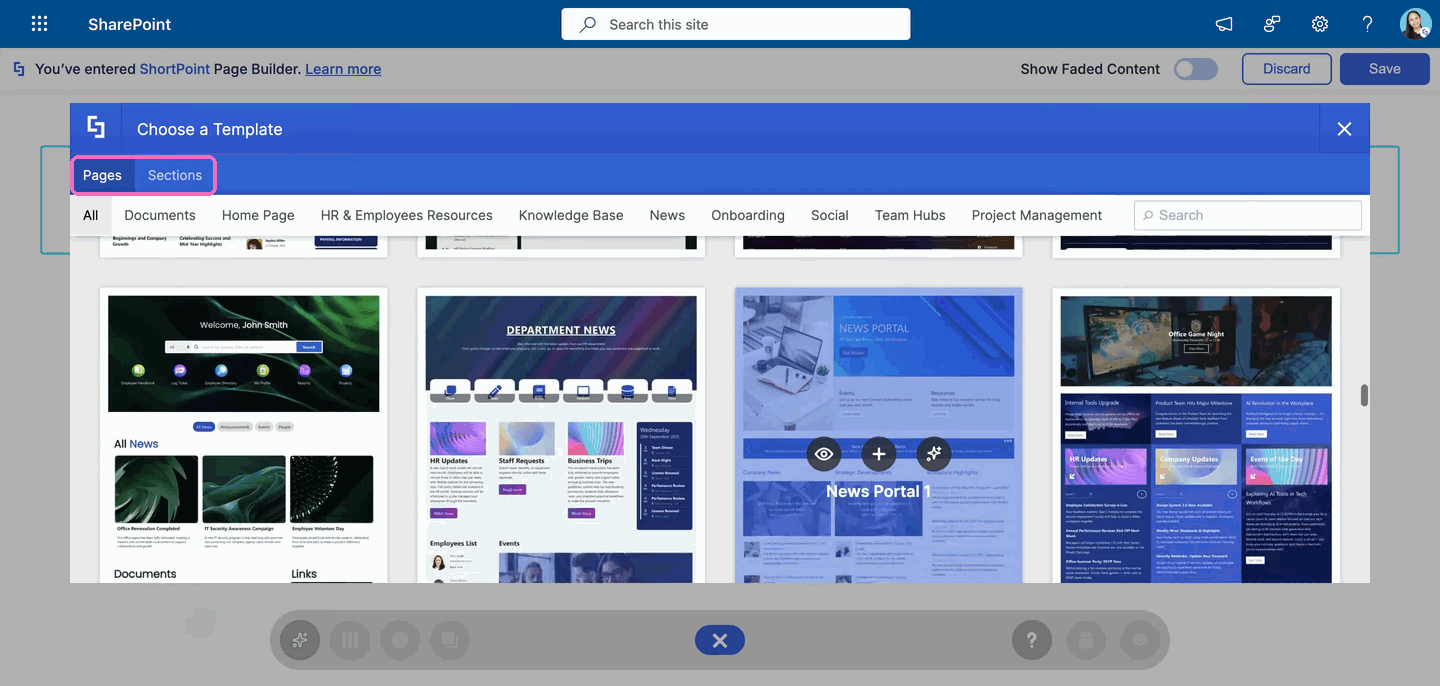
That's it! You've opened the Templates Library. Use the Pages and Sections tabs to switch between full page templates and single section templates, and start adding templates to your page.
Option 2: Adding a New ShortPoint Section
This option is recommended if you already have existing ShortPoint Design Elements on your page.
Step 1: Edit Your SharePoint Page
- Go to the SharePoint page you want to use and click Edit.
- Close the Toolbox.
Step 2: Edit the ShortPoint Web Part
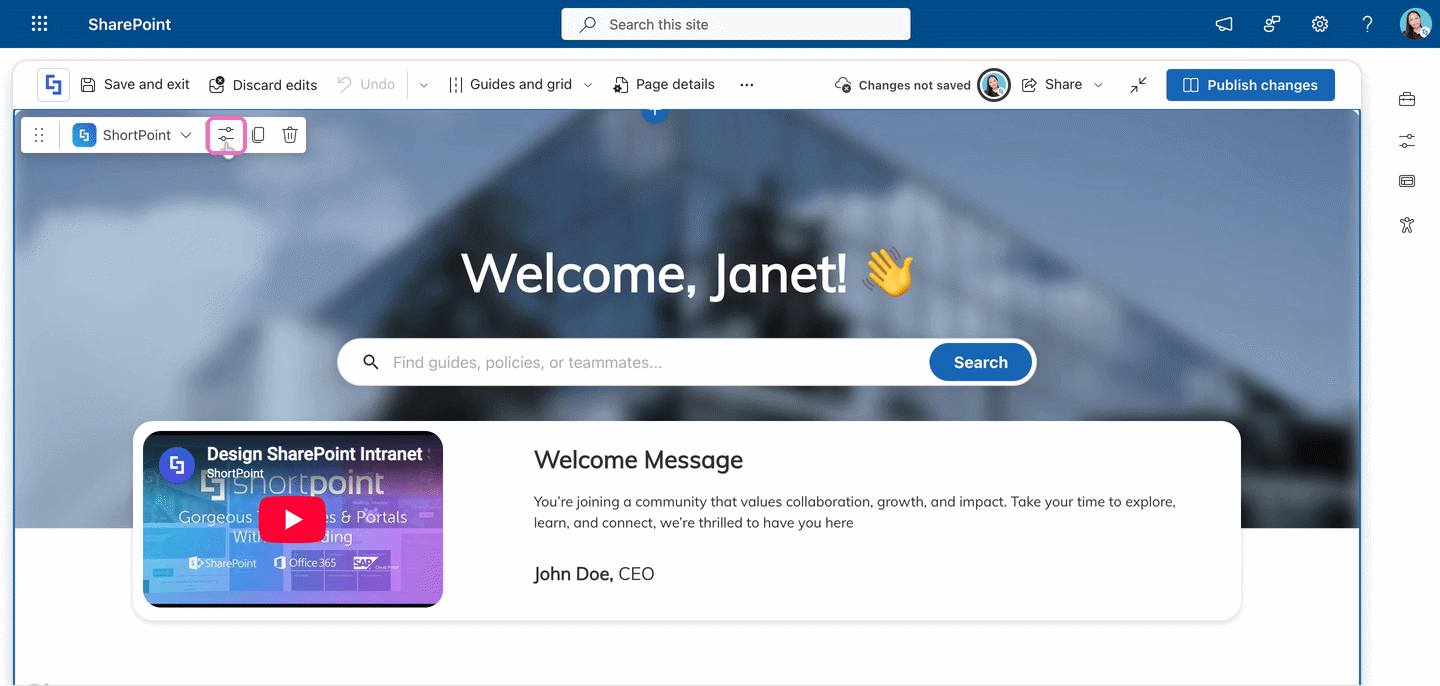
- Click the edit web part icon on the ShortPoint web part toolbar. This opens the ShortPoint Page Builder.
Step 3: Add a New ShortPoint Section
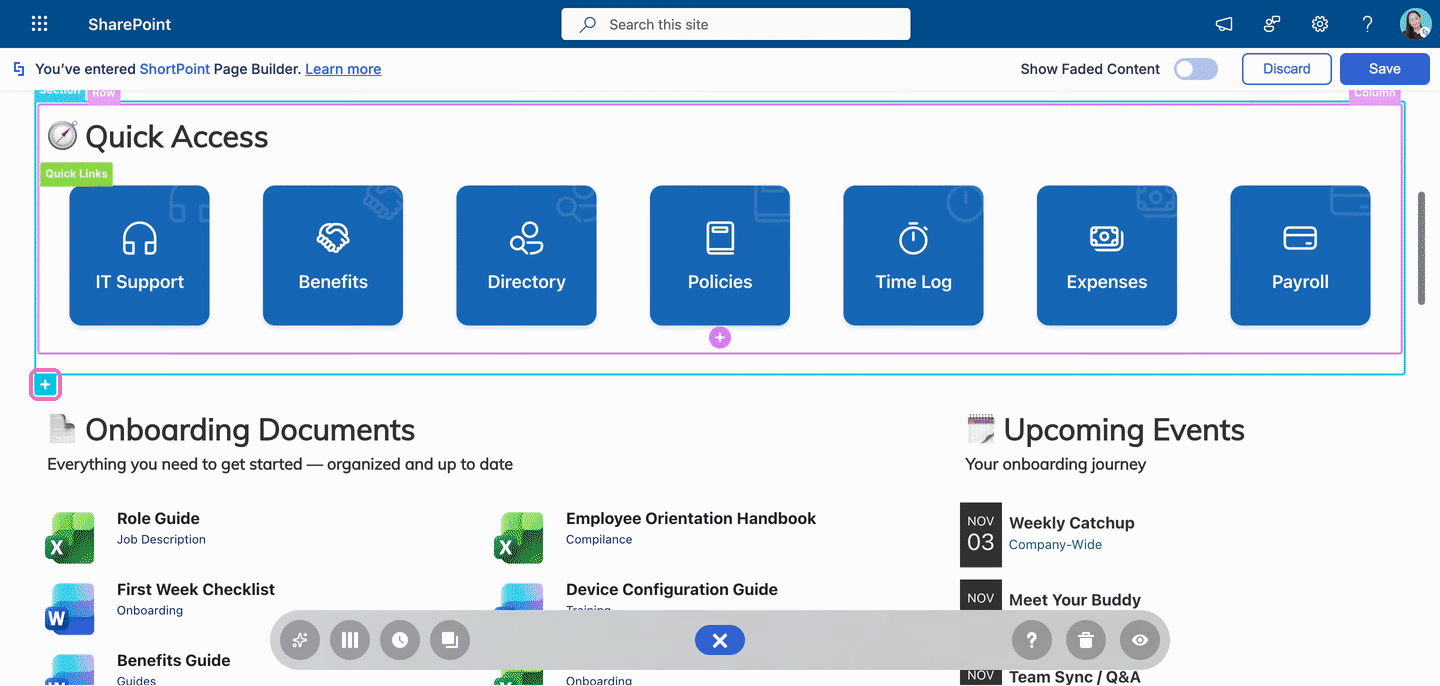
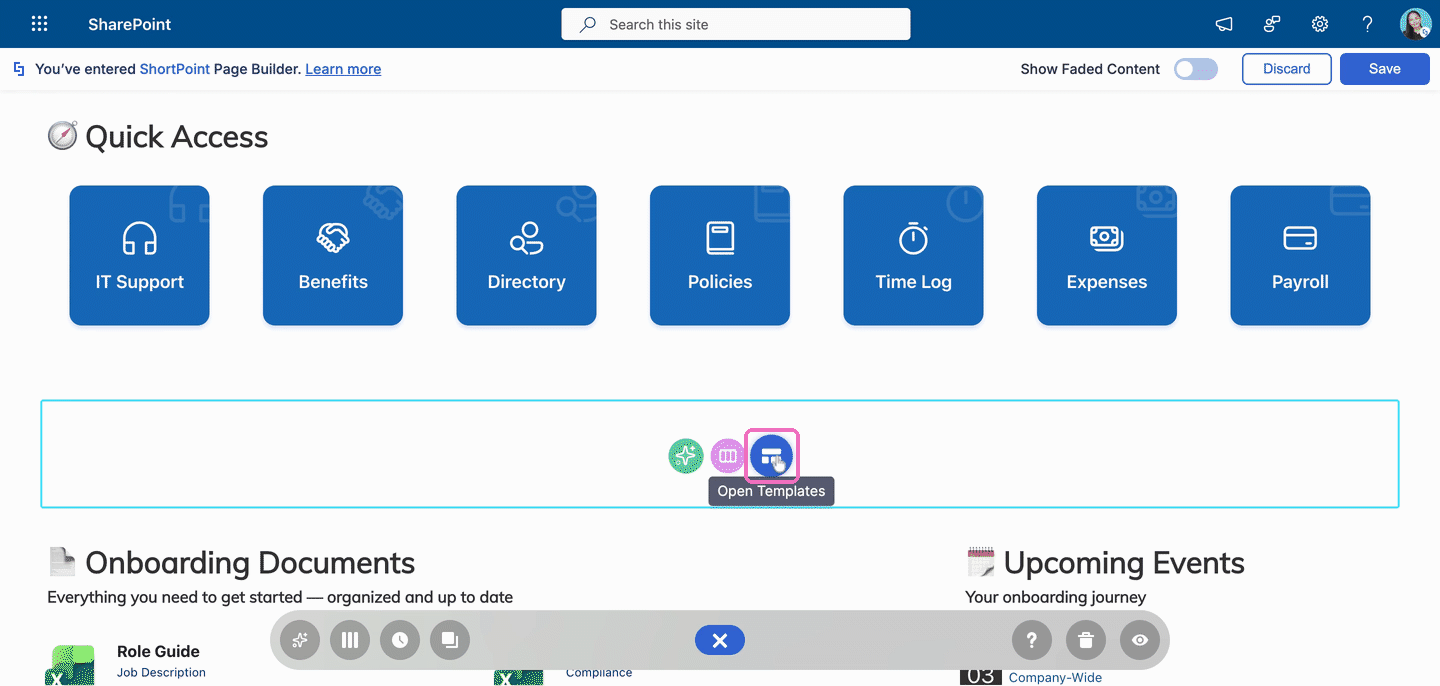
- To open the Templates Library, you need an empty ShortPoint Section. Hover over a Section and click the blue plus icon. The new Section is added right after the Section you hovered over.
Step 4: Open the Templates Library
- Click the Open Templates icon inside the new Section.
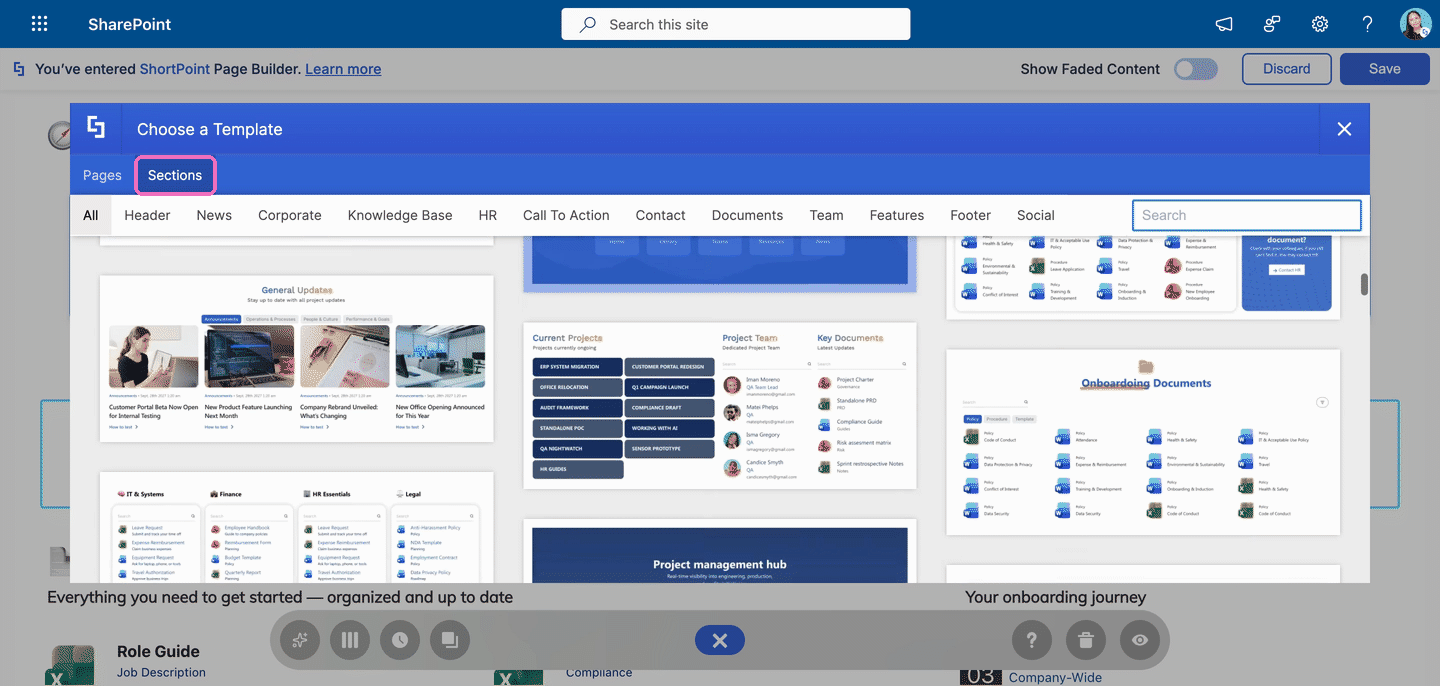
Amazing! You've opened the Templates Library. Go to the Sections tab to browse ready-made blocks you can drop into your existing page.
Frequently Asked Questions
What's the difference between the Pages and Sections tabs?
The Pages tab has complete page templates, such as homepages, news portals, and onboarding pages. The Sections tab has single building blocks, such as headers, news blocks, contact cards, and footers. Use page templates to build a whole page at once and section templates to add one part at a time.
Why don't I see the Open Templates icon?
The icon only appears inside an empty ShortPoint Section. If your page already has content, add a new Section first (Option 2, Step 3), and the icon will appear inside it.
Will opening the Templates Library change my current page?
No. Opening the library only shows you the templates. Your page changes only when you add a template, and even then, it goes into the empty Section you created. Your existing content stays where it is.
Can I add more than one template to the same page?
Yes. Add a new ShortPoint Section for each template you want, then open the Templates Library from each one. This lets you mix several section templates on one page.
Do I need to save after adding a template?
Yes. After you add and customize a template, click Save in the Page Builder, then click Publish changes in SharePoint, so your viewers can see the updated page.
Related articles: