 Try ShortPoint now
AI is only as good as the instructions you give it. With the new ShortPoint AI Designer, your words can instantly generate beautiful, fully-branded SharePoint pages. But to unlock that power, you need the right formula.
In this guide, we’ll show you exactly how to craft effective AI prompts for intranet design. We’ll break down the anatomy of a perfect prompt, share a foolproof template you can use today, and help you turn your ideas into reality in seconds.
TABLE OF CONTENTS
- What is an AI Prompt?
- What Makes a Great ShortPoint AI Designer Prompt?
- How to Write Effective AI Prompts?
- How to Add the Prompt to the ShortPoint AI Designer
- What are Some Prompting Tips?
What is an AI Prompt?
An AI prompt is a set of clear instructions you give to an artificial intelligence tool (like ChatGPT, Claude, or Gemini) to get it to produce a response.
Prompts can be as simple as a single sentence ("Summarize this document") or as detailed as several paragraphs with additional context, constraints, and formatting requirements. New models can also handle not just text, but also images and audio. Despite this growing sophistication, the fundamental principle remains the same: the more thoughtfully you provide context and write prompts with relevant examples, the better the desired outcome you'll get from the AI.
What Makes a Great ShortPoint AI Designer Prompt?
Here's a quick checklist of what you need. We'll discuss each one in detail in the step-by-step guide.
[ ] Purpose of the site and the #1 user action
[ ] Audience description (role, tech level, device)
[ ] Main content sections
[ ] Functional Requirements
[ ] Overall Page Tone and Examples
[ ] Anything to avoid
NOTEKeep in mind that running the same prompt more than once may give you slightly different results each time. AI tools like ShortPoint AI Designer are built on neural networks, which means a small degree of variability is part of how they work. It's basically AI bringing a fresh perspective with every run.
How to Write Effective AI Prompts?
Always remember that your output quality depends almost entirely on how well you write your instructions. Here's a friendly, step-by-step guide to crafting prompts that get results
Step 1: Define the Purpose of Your Site
Get crystal-clear on what your SharePoint site needs to do. Every great design starts with a clear 'why.' Include why you're building the site, what kind of site you're building, and what actions you want your users to take.
Sample Prompt:
Create a new employee onboarding hub for a 2,000-person fintech company. The main function of the page is to guide new hires through their first 90 days with clear steps, key contacts, and essential resources.
Step 2: Describe Your Audience
Context is everything. The AI has no idea what your organization does, who your users are, or what challenges you're facing. So, you must tell it.
Since great design is user-centered, the more AI knows about your audience, the more targeted and useful your site will be. Include their job rob roles, typical site access (desktop, mobile, or both), accessibility needs, and how often they'll visit the site.
Sample Prompt:
Primary users are new employees (mixed tech levels). They will be accessing the page primarily on desktop during onboarding week. They are not yet familiar with the company culture, so prioritize user-friendly navigation and minimal jargon. They will visit the site daily for their onboarding.
Step 3: Outline the Key Content Areas
SharePoint designs need structure. Tell your prompt what sections, pages, or content types you want, even if you don't have all the details yet.
Sample Prompt:
The page should include the following sections:

- Welcome Message (with a personalized message from the CEO and a photo of the team)
- Mission, Vision, and Values (with an introduction to the company culture, history, and goals)
- 90-day onboarding timeline with milestones (Week 1: Setup, Week 2-4: Training, Month 2-3: Integration)
- Employee Handbook (with access to company policies, procedures, and benefits information)
- Key Contacts (IT Support, HR Business Partner, Buddy Program coordinator)
- Quick links (Benefits enrollment, expense policy, Slack guidelines, VPN setup)
- Self-Paced Training (with training modules and tutorials on job-specific tasks)
- FAQ (with answers to common, new hire questions).
Step 4: Add Functional Requirements
Beyond the look and feel, what does your site actually need to do? Functional requirements turn a pretty mockup into a working solution. For example, you can include live data needs (upcoming events from a calendar or display team members from the directory) and interactive features (searchable FAQs, filterable Document Library).
Sample Prompt:
Show upcoming orientation events from the company calendar and display the new hire's team members from the directory.
Step 5: Set the Overall Tone and Provide Examples
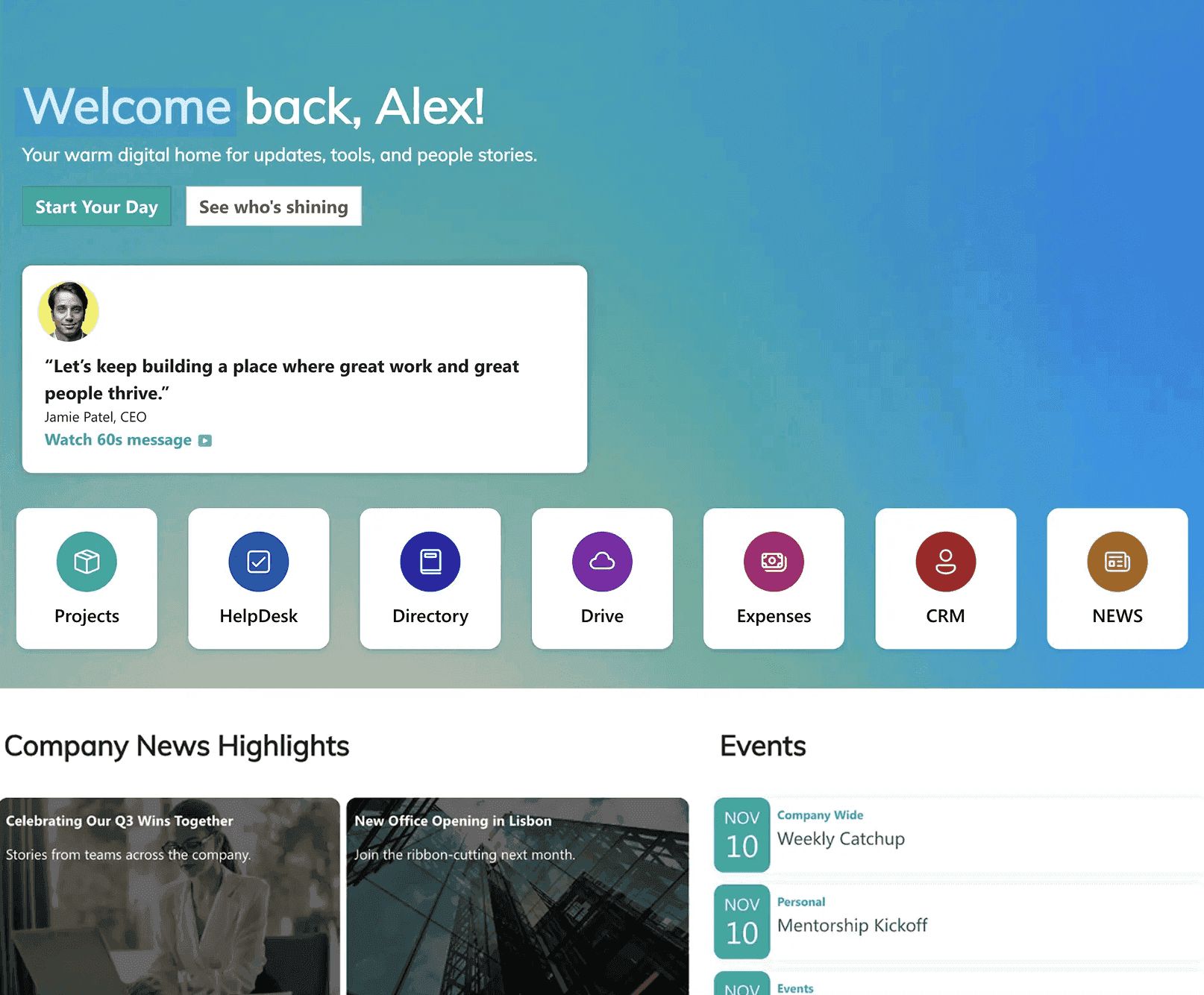
Show, don't just tell! Sharing references or examples of what you like dramatically improves the quality of design output. It's best to have a reference photo that you want the AI to follow.
Sample Prompt:
I love the welcoming look of the template I've attached. The page must look friendly and encouraging. It should make new hires feel welcomed, not overwhelmed.
Attached Reference Template:
Step 6: Add Constraints
Constraints are your guardrails. Adding them helps keep the AI's response focused, practical, and aligned with your real-world limitations.
Sample Prompt:
Avoid dense text walls, more than 6 sections, generic stock imagery.
Step 7: Put It All Together — The Master Prompt
Now combine everything into one clear, structured prompt. Here's a template you can customize:
Create a [PAGE TYPE] for a [SIZE] [ORGANIZATION TYPE] in [INDUSTRY].


PURPOSE: [What this page is for and the #1 thing users should be able to do]

AUDIENCE: [Who uses it and what types of devices it will be used for]

CONTENT:
- [Specific sections, features, or information to include]
- [Real department names, team names, or resource names if known]
- [Specific calls-to-action]

FUNCTIONALITY:
- [Live data needs — e.g., "show upcoming events from our calendar",
"display team members from the directory"]
- [Interactive features — e.g., searchable FAQ, filterable document library]


TONE: [Visual personality — e.g., bold and energetic, calm and minimal, premium and editorial]

AVOID: [Anything you don't want — e.g., stock photos, too many sections, carousel fatigue]

copy prompt
Remember our sample prompts from the previous steps? Here it is all together:
Create a new employee onboarding hub for a 2,000-person fintech company.

PURPOSE: The main function of the page is to guide new hires through their first 90 days with clear steps, key contacts, and essential resources.

AUDIENCE: Primary users are new employees (mixed tech levels). They will be accessing the page primarily on desktop during onboarding week. They are not yet familiar with the company culture, so prioritize user-friendly navigation and minimal jargon. They will visit the site daily for their onboarding.

SECTIONS:
The page should include the following sections:

- Welcome Message (with a personalized message from the CEO and a photo of the team)
- Mission, Vision, and Values (with an introduction to the company culture, history, and goals)
- 90-day onboarding timeline with milestones (Week 1: Setup, Week 2-4: Training, Month 2-3: Integration)
- Employee Handbook (with access to company policies, procedures, and benefits information)
- Key Contacts (IT Support, HR Business Partner, Buddy Program coordinator)
- Quick links (Benefits enrollment, expense policy, Slack guidelines, VPN setup)
- Self-Paced Training (with training modules and tutorials on job-specific tasks)
- FAQ (with answers to common, new hire questions).

FUNCTIONALITY: Show upcoming orientation events from the company calendar and display the new hire's team members from the directory.

TONE: I love the welcoming look of the template I've attached. The page must look friendly and encouraging. It should make new hires feel welcomed, not overwhelmed.

AVOID: Avoid dense text walls, more than 6 sections, generic stock imagery.
BONUS: If you’re in a rush, here’s a shorter version of the prompt. You can also use this template depending on your purpose and how detailed you want to be:
Create a [PAGE TYPE] for [ORGANIZATION DESCRIPTION].

PURPOSE: [What this page helps users do]

INCLUDE: [Key content or features you want]

TONE: [How it should feel — e.g., professional, friendly, modern, minimal]

copy prompt
How to Add the Prompt to the ShortPoint AI Designer
Now that you have your master prompt ready, you might be wondering how to bring it to life on your SharePoint sites.
That's where ShortPoint AI Designer comes in! It's a smart AI intranet builder for SharePoint that takes your prompt and instantly transforms it into a fully realized design. Simply paste, and your design comes to life. No manual work required.
TIPWant to see how ShortPoint AI Designer works? Check out How to Use the ShortPoint AI Designer.
What are Some Prompting Tips?
AI prompting may sound complicated at first, but it’s actually super simple and useful when done right. Just remember these key prompting tips, and you’re all set:
Be Specific
We know it’s been said a million times here, but providing accurate and specific information about your organization truly matters. It gives AI a much better context, which gives you better results in the end.
Lead with Purpose
Goals tell AI what success looks like. Always remember that AI designs best when it knows your primary goal.
Name Real Content
When possible, it’s best to use the actual names or labels you want to be on your SharePoint page. This way, AI will be able to add your actual department names, team names, and resource names instead of placeholders.
Skip What’s Automatic
Everything is simplified with ShortPoint AI Designer! It already automatically pulls the brand colors, fonts, and design system details from your SharePoint Theme. You don’t need to manually add HEX codes or font styles anymore.
Request live data
Your SharePoint sites shouldn’t only look good, they should also be functional. If you want real events, news, or team members pulled from Microsoft 365, just ask, and you’ll receive.
Related articles:
- ShortPoint AI Designer: An Overview
- Quickstart Guide: Generate your first intranet page
- ShortPoint AI Designer Features: What Can it Do?
- How to Use the ShortPoint AI Designer: Detailed Step-by-step
- How to Use Text Prompting in ShortPoint AI Designer
- How to Use Voice Prompting in ShortPoint AI Designer
- How to Use Image-to-Image Prompting in ShortPoint AI Designer
- How Brand-Aware Design Works in ShortPoint AI Designer
- How to Use ShortPoint AI Designer to Edit an Existing ShortPoint Template
- How to Revert to Previous Prompt Versions in ShortPoint AI Designer
- Prompt Library
- Iterating with Multi-Turn Conversation in ShortPoint AI Designer
- How to Modify Specific Page Elements Using the ShortPoint AI Designer
- How to Queue Prompts in ShortPoint AI Designer
- How to Create Dynamic Design Elements Using ShortPoint AI Designer
- How to Activate the Search & Filter Widgets Using ShortPoint AI Designer
- How to Use the Paste from Clipboard Feature of ShortPoint AI Designer
- How to Copy and Paste Design Snippets from ShortPoint AI Designer to Another SharePoint Site
