 Try ShortPoint now
If you've ever struggled to make SharePoint look modern and engaging, ShortPoint Design Elements are about to become your best friend! They make designing your SharePoint pages a breeze.
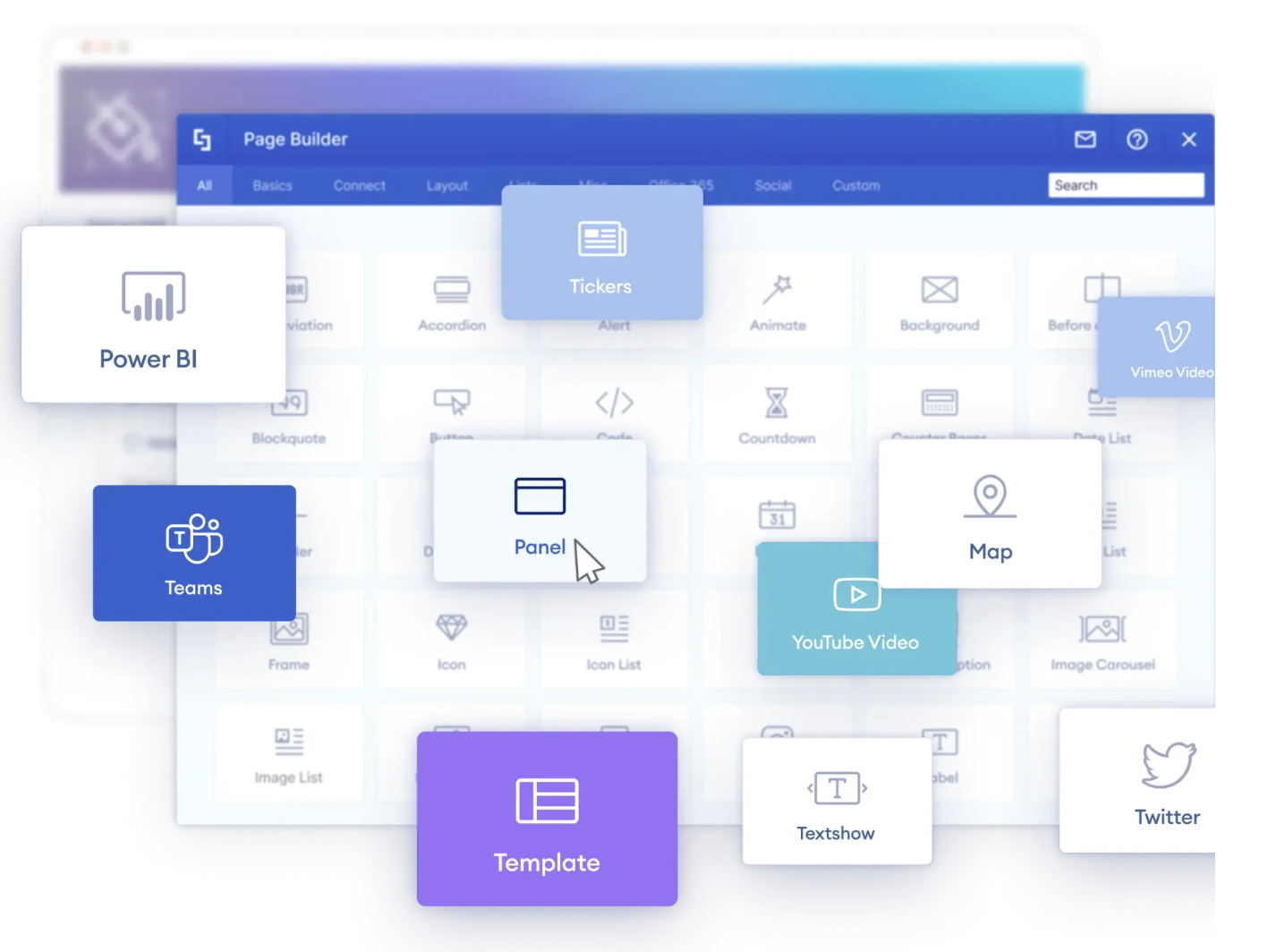
This guide will walk you through what they are and list practical ways to use them on your SharePoint site.
TABLE OF CONTENTS
- What Are ShortPoint Design Elements?
- Complete List of ShortPoint Design Elements
- Basic Uses for ShortPoint Design Elements
- Creating Navigation Menus and Quick Access Links
- Organizing Content with Layouts and Sections
- Creating Visual Separators and Page Sections
- Adding and Displaying Images
- Creating Lists and Displaying Documents
- Adding Text Content and Typography
- Displaying Video Content
- Displaying News and Announcements
- Displaying Calendar Events and Schedules
- Team Showcases
- Showcasing Statistics and Key Performance Indicators (KPIs)
- Building Process Workflows and Step-by-Step Guides
- Adding Testimonials and Quotes
- Displaying Tables and Structured Data
- Showing Alerts & Notifications
- Displaying Locations
- Showcase SharePoint Web Parts
- Adding Search and Filter Functionality
- Integrating Social Media Feeds
- Creating Call-to-Action (CTA) Buttons and Links
- Displaying Frequently Asked Questions (FAQs)
- Creating Interactive Features and Special Effects
- Why Use ShortPoint Design Elements?
- Getting Started With ShortPoint Design Elements
- FAQs
- What are ShortPoint Design Elements?
- How do ShortPoint Design Elements improve SharePoint site design?
- Can I use ShortPoint Design Elements without coding skills?
- Are ShortPoint Design Elements compatible with SharePoint Online and on-premises?
- What types of content can I add using ShortPoint Design Elements?
- Can ShortPoint Design Elements connect to live SharePoint data?
- How do ShortPoint Design Elements help with branding?
- Are ShortPoint Design Elements mobile-friendly?
- Where can I find support and tutorials for using ShortPoint Design Elements?
- How do ShortPoint Design Elements integrate with Microsoft 365 tools?
- Can I use ShortPoint Design Elements to create custom layouts and sections?
- How do I get started with ShortPoint Design Elements?
What Are ShortPoint Design Elements?
ShortPoint Design Elements are pre-designed, professional components that you can drop into your SharePoint site and customize to match your brand.
ShortPoint offers a collection of over 60 powerful design elements that will transform your modern pages into something truly engaging. Whether you're crafting navigation menus, showcasing your content beautifully, or adding those interactive features that site visitors love, these incredible building blocks give you all the flexibility and functionality you could ever need. And on top of that, you won't need a single line of code!
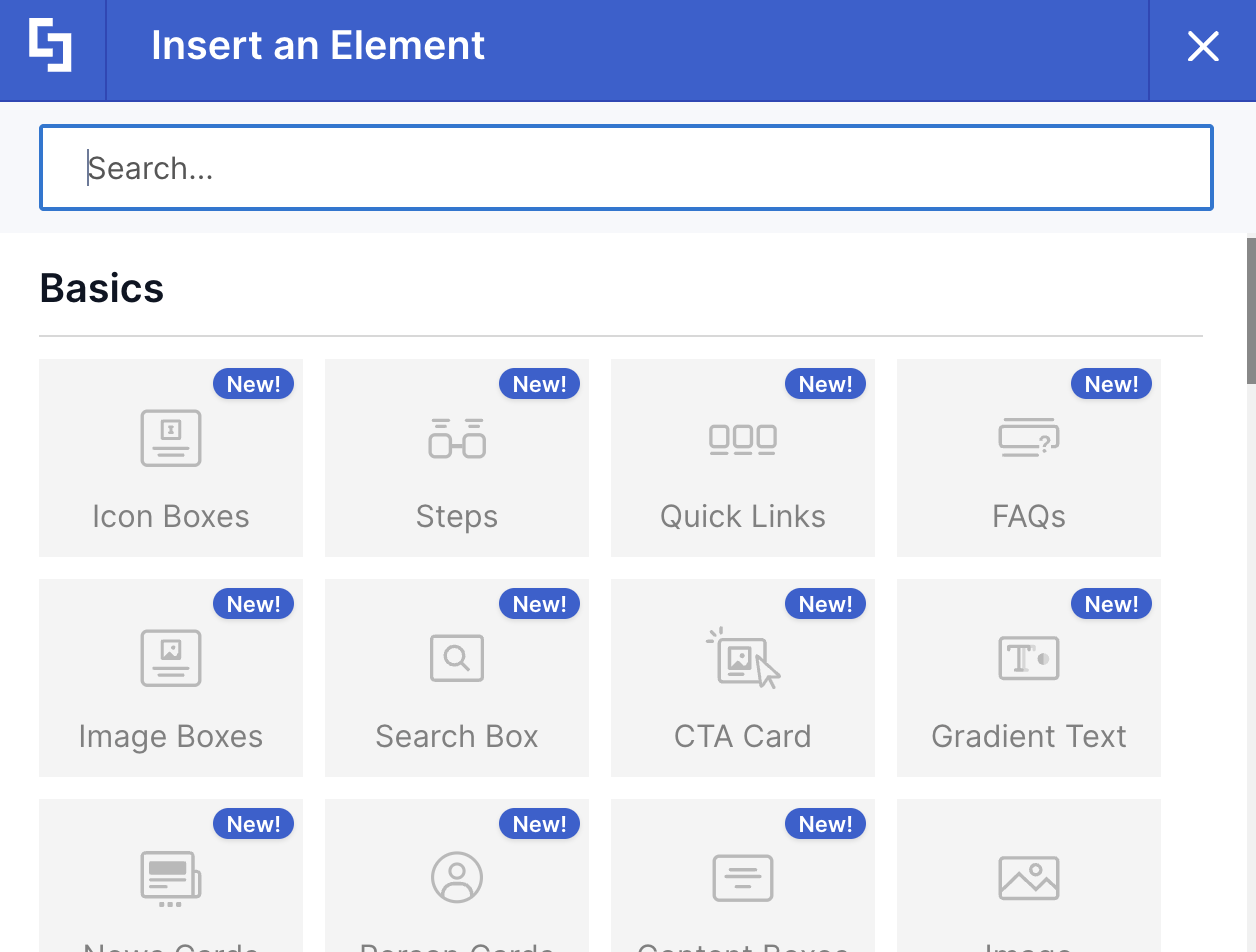
Complete List of ShortPoint Design Elements
Here's the full list of ShortPoint Design Elements with links to detailed articles about each one.
New Design Elements | ||
|---|---|---|
Content BoxesVersatile containers for organizing and presenting text-based information in a clean, structured format | CTA CardDemand attention and drive user-specific actions with compelling call-to-action cards | FAQsPresent frequently asked questions in an expandable accordion format that keeps pages clean |
Gradient TextTransform ordinary headlines and key phrases into stunning visual statements using smooth color transitions | Icon BoxesCombine eye-catching icons with concise text to create visually appealing content blocks | Image BoxesTransform static images into interactive content containers that engage users through stunning visuals |
News CardsDisplay organizational updates, announcements, or blog posts in engaging card layouts | Person CardsShowcase team members, leadership, or department contacts with professional profile displays | Quick LinksDeliver instant access to frequently visited pages, documents, or external resources |
Search BoxIntegrate powerful search functionality directly into any page for quick information access | StepsGuide users through processes, workflows, or sequential information with clear visual progression indicators | HeadingDesign professional, fully customizable headers to establish a clear visual hierarchy and capture attention immediately |
Dual ButtonPlace two call-to-action buttons side-by-side to create clear navigation paths and drive immediate user action | Hero CaptionElevate your key messages and announcements with an elegant, high-impact display that integrates seamlessly into your page | Highlighted TextEmphasize critical keywords or phrases with stylish highlights to make your content scannable and engaging |
TimelineVisualize your organization's history, project roadmaps, or milestones in a clear, stunning chronological layout | Rotating TextCapture attention in a limited space with dynamic text animations that cycle through multiple key messages | LottieAdd sophisticated, lightweight motion design to your pages using premium animations without writing a single line of code |
Organization ChartVisualize your company's reporting structure with a professional, customizable employee directory | Table of ContentsTurn long, text-heavy pages into effortless navigation with an auto-generated, clickable content menu | |
Basics | ||
|---|---|---|
AbbreviationAdd abbreviations with tooltips to explain acronyms and shortened terms | ButtonAdd call-to-action buttons with customizable styles and links | DividerSeparate content sections with stylish dividing lines |
ImageInsert images with text overlays, cropping, and resizing options | LinkCreate rich preview links with images and text from linked content | PopoverAdd interactive tooltips and popovers |
TooltipAdd helpful tooltips to any content | ||
Typography | ||
|---|---|---|
BlockquoteHighlight important quotes or testimonials in an elegant format | DropcapCreate stylish opening paragraphs with enlarged first letters | EmphasisDraw attention to specific text with various emphasis styles |
LabelAdd labels to categorize or tag content on your page | LeadCreate introductory text that stands out from the rest of your content | ListDisplay SharePoint list items with rich formatting options |
SmallAdd fine print or secondary information in smaller text | ||
Layout | ||
|---|---|---|
AccordionsOrganize content into collapsible sections perfect for FAQs and lengthy content | AlertDisplay important messages and announcements | InfoPresent highlighted information boxes |
NoteDisplay important notes, tips, or warnings to users | PanelOrganize content into labeled sections with various panel styles | RowStructure your layout with customizable rows and columns |
SectionDefine distinct sections on your page with background options | TabsDisplay content in tabbed interfaces for better organization | TextAdd and format rich text content with the powerful text editor |
TogglesAdd toggle switches for showing and hiding content | WellCreate contained sections with subtle backgrounds | |
Media | ||
|---|---|---|
BackgroundAdd background images, colors, or videos to sections | Before and AfterCreate interactive before/after image comparisons | FrameEmbed external content in stylish frames |
Image CaptionDisplay images with descriptive captions | Image CarouselCreate rotating image slideshows with automatic transitions | Image TitlesCombine images with titles for content cards |
SlideshowBuild custom slideshows with images and content | TextshowCreate expandable text sections with show more/less functionality | Vimeo VideoEmbed Vimeo videos directly into your pages |
YouTube VideoEmbed YouTube videos with customizable players | ||
Lists | ||
|---|---|---|
Date ListDisplay items organized by date in timeline format | File ListDisplay document libraries with various layout options | Icon ListCreate lists with icons for better visual organization |
Image ListShow collections of images in grid or list layouts | Simple ListCreate basic lists with clean, minimal styling | |
Misc | ||
|---|---|---|
CodeInject custom HTML, CSS, or JavaScript code into pages | Counter BoxesShow animated counting statistics and metrics | CountdownAdd countdown timers for events or deadlines |
EventsShowcase upcoming events with dates and details | IconAdd icons from various libraries to enhance visual appeal | MapAdd interactive maps with location markers |
SharePoint Web PartEmbed native SharePoint web parts into your ShortPoint designs | TickersDisplay scrolling news or announcements | TilesCreate interactive tile layouts for navigation or content display |
TOC NavigationCreate sticky navigation menus based on page structure | ||
Social | ||
|---|---|---|
Embed Facebook feeds and content | Display Instagram posts and feeds | Integrate LinkedIn content and profiles |
Viva EngageEmbed Viva Engage (Yammer) feeds and conversations | XDisplay X (formerly Twitter) feeds and tweets | |
Basic Uses for ShortPoint Design Elements
To help you get started on your ShortPoint design journey, we've listed practical ways to use ShortPoint Design Elements in your SharePoint environment. For each use case, we've listed the specific elements that'll get the job done, so you can choose the approach that works best for your modern pages.
- Creating Navigation Menus and Quick Access Links
- Organizing Content with Layouts and Sections
- Creating Visual Separators and Page Sections
- Adding and Displaying Images
- Creating Lists and Displaying Documents
- Adding Text Content and Typography
- Displaying Video Content
- Displaying News and Announcements
- Displaying Calendar Events and Schedules
- Team Showcases
- Showcasing Statistics and Key Performance Indicators (KPIs)
- Building Process Workflows and Step-by-Step Guides
- Adding Testimonials and Quotes
- Displaying Tables and Structured Data
- Showing Alerts & Notifications
- Displaying Locations
- Showcase SharePoint Web Parts
- Adding Search and Filter Functionality
- Integrating Social Media Feeds
- Creating Call-to-Action (CTA) Buttons and Links
- Displaying Frequently Asked Questions (FAQs)
- Creating Interactive Features and Special Effects
NOTEThis guide covers common use cases, but many Design Elements can serve multiple purposes. Don't feel limited by these categories. Use the Design Elements in whatever ways make sense for your specific needs. The ShortPoint Knowledge Base has detailed tutorials on each Design Element if you want to dive deeper into specific functionality.
Creating Navigation Menus and Quick Access Links
What You're Trying to Do: Build intuitive navigation systems that help users find important pages and resources without getting lost.
ShortPoint Design Elements That'll Help:
- Quick Links - The go-to element for creating fast-access link collections
- Tiles - Build tile-based navigation that's visual and easy to browse
- Icon List - Create navigation menus where icons help people identify destinations quickly
- Button - Add prominent navigation buttons that direct users to key pages
- TOC Navigation - Generate automatic navigation based on your page's heading structure
Organizing Content with Layouts and Sections
What You're Trying to Do: Structure your page so content doesn't just run together in one long scroll. Create distinct sections that make information easy to digest.
ShortPoint Design Elements That'll Help:
- Row - The foundation of page structure. Divide your page into columns and rows to organize everything
- Section - Create distinct areas on your page with their own backgrounds and styling
- Panel - Organize related content into labeled boxes that group things logically
- Well - Add subtle background containers that separate content without being too bold
- Accordions - Hide lengthy content in collapsible sections—perfect for keeping pages tidy
- Tabs - Let users switch between different content without leaving the page
- Toggles - Give users control over what they see with simple show/hide switches
Creating Visual Separators and Page Sections
What You're Trying to Do: Break up your content visually so pages feel organized rather than overwhelming.
ShortPoint Design Elements That'll Help:
- Divider - Add stylish lines that visually separate content sections
- Section - Create distinct page areas with different backgrounds and styling
- Row - Structure your page with customizable column layouts
- Well - Add subtle background containers that define content boundaries
- Background - Use images, colors, or videos to differentiate sections
- Panel - Group related content in labeled, visually distinct boxes
Adding and Displaying Images
What You're Trying to Do: Make your pages visually appealing by adding photos, graphics, and images that enhance your content and catch people's attention.
ShortPoint Design Elements That'll Help:
- Image - Your go-to for single images. You can add text overlays, crop, resize, and adjust to get exactly the look you want
- Image Carousel - Perfect for showing multiple images in a rotating slideshow that cycles automatically
- Image Boxes - Takes static images and turns them into clickable, interactive elements that users can engage with
- Image Caption - When your image needs context, this adds clean, professional captions
- Image List - Great for displaying photo galleries in organized grids or list formats
- Image Titles - Combines images with headlines—ideal for creating content cards
- Slideshow - Build custom presentations with images and accompanying content
- Before and After - Show transformations with an interactive slider that lets users compare two images
Creating Lists and Displaying Documents
What You're Trying to Do: Pull information from SharePoint lists, document libraries, or other sources and display it in formats that make sense.
ShortPoint Design Elements That'll Help:
- List - Connect directly to SharePoint lists and display items with tons of formatting options
- File List - Show document libraries in various layouts so people can find and access files easily
- Date List - Display items in chronological order—perfect for timelines and schedules
- Icon List - Add icons to your lists to make them more visual and easier to scan
- Simple List - When you just need a clean, straightforward list without any bells and whistles
- Image List - Display collections of images in organized grids that look professional
Adding Text Content and Typography
What You're Trying to Do: Add written content to your pages with formatting that makes it readable, scannable, and visually interesting.
ShortPoint Design Elements That'll Help:
- Text - Your main tool for adding formatted text with all the editing options you need
- Blockquote - Make important quotes or testimonials stand out with elegant styling
- Emphasis - Draw attention to key phrases without shouting (metaphorically speaking)
- Lead - Create introductory paragraphs that set the tone and hook readers
- Label - Add small tags or labels to categorize content
- Dropcap - Start paragraphs with that classic enlarged first letter for a polished look
- Small - Perfect for disclaimers, fine print, or secondary information
- Gradient Text - Turn headlines into eye-catching statements with smooth color transitions
- Content Boxes: Add versatile containers designed specifically to present text information in a structured format
Displaying Video Content
What You're Trying to Do: Add video content to your pages to make them more engaging and help explain things visually.
ShortPoint Design Elements That'll Help:
- YouTube Video - Embed YouTube content with a player that you can customize to match your page
- Vimeo Video - Same deal as YouTube, but for Vimeo-hosted content
- Background - Add video backgrounds to sections for a dynamic, eye-catching effect
- Code - For videos from other platforms, you can inject custom embed codes
Displaying News and Announcements
What You're Trying to Do: Keep everyone in the loop with company updates, news, and important announcements that people will actually notice and read.
ShortPoint Design Elements That'll Help:
- News Cards - Display updates and articles in attractive card layouts that people love to browse
- Alert - For those "hey, pay attention to this!" moments—these stand out on the page
- CTA Card - Highlight major announcements with eye-catching designs and action buttons
- Tickers - Create scrolling news feeds that continuously display updates
- Slideshow - Rotate through multiple news items in a dynamic presentation
- Image Boxes - Feature stories with compelling visuals that draw people in
- Textshow - Add announcements or feature company news in an engaging text slideshow format
Displaying Calendar Events and Schedules
What You're Trying to Do: Show upcoming events, meetings, and important dates to keep teams informed and organized.
ShortPoint Design Elements That'll Help:
- Events - Built specifically for showcasing upcoming events with dates, times, and descriptions
- Date List - Display items chronologically—perfect for event timelines and schedules
- Countdown - Create excitement with countdown timers for upcoming events
- Image Boxes - Feature events with eye-catching images and key details
- News Cards - Announce events in engaging card formats
- Tiles - Create an interactive event calendar with clickable tiles
Team Showcases
What You're Trying to Do: Help people find and connect with team members by displaying contact information, roles, and photos in an organized way.
ShortPoint Design Elements That'll Help:
- Person Cards - The star of the show for team directories. This Design Element showcases names, photos, job titles, email addresses, phone numbers, and even LinkedIn profiles.
- Icon Boxes - A simpler option when you just need to list team members with basic info
- Image Boxes - Great for creating visual team displays that highlight people's information
- Content Boxes - Organize employee details in clean, structured layouts that are easy to scan
- Image Titles - Combine images with titles to create content cards suitable for profiles
- Image List - Showcase your team in a clean list with images.
- Tiles - Display team members in an interactive tile format.
Showcasing Statistics and Key Performance Indicators (KPIs)
What You're Trying to Do: Display important metrics and performance data in ways that grab attention and communicate value quickly.
ShortPoint Design Elements That'll Help:
- Counter Boxes - Show impressive numbers with animated counting effects
- Content Boxes - Display multiple KPIs in organized, scannable layouts
- Icon Boxes - Pair numerical data with relevant icons for visual impact
- Info - Highlight key statistics in attention-grabbing information boxes
- Panel - Create organized dashboard-style displays for multiple metrics
- Power BI - Embed full Power BI reports and dashboards for sophisticated data visualization
Building Process Workflows and Step-by-Step Guides
What You're Trying to Do: Walk users through processes or procedures in a clear, sequential way that's easy to follow.
ShortPoint Design Elements That'll Help:
- Steps - Designed specifically for guiding users through sequential processes
- Date List - Show process stages on a timeline
- Accordions - Break down complex procedures into expandable steps
- Icon Boxes - Use numbered icons to visually represent each step
- Content Boxes - Organize detailed instructions in structured, easy-to-read containers
- Image Boxes - Combine visual examples with written step descriptions
- Timeline - Display important milestones and company practices in a timeline format
Adding Testimonials and Quotes
What You're Trying to Do: Build credibility and trust by showcasing feedback, testimonials, and meaningful quotes from customers or employees.
ShortPoint Design Elements That'll Help:
- Blockquote - The classic choice for displaying quotes with elegant formatting
- Content Boxes - Structure testimonials in clean, organized containers
- Image Boxes - Pair customer photos with their testimonials for authenticity
- Person Cards - Show testimonials alongside professional profile information
- Slideshow - Rotate through multiple testimonials automatically
- Image Carousel - Feature testimonials in a carousel that users can browse through
Displaying Tables and Structured Data
What You're Trying to Do: Present information in table formats that make comparisons easy and data accessible.
ShortPoint Design Elements That'll Help:
- Table - Create traditional data tables with rows and columns
- Content Boxes - Display structured information in grid layouts
- List - Show SharePoint list data in organized, structured formats
- Simple List - Present data in clean, no-frills list displays
- File List - Display document libraries with table-like layouts
- Icon List - Make data more scannable by adding relevant icons
Showing Alerts & Notifications
What You're Trying to Do: Display important messages, warnings, tips, or announcements to ensure users see critical information.
ShortPoint Design Elements That'll Help:
- Alert - Displays important messages and announcements to users
- Note - Designed to display important notes, tips, or warnings
- Info - Presents information in highlighted information boxes
Displaying Locations
What You're Trying to Do: Add interactive maps or visual representations of locations.
ShortPoint Design Elements That'll Help:
- Map - Adds interactive maps with location markers
- Code - Use custom embed codes to integrate other map widgets
Showcase SharePoint Web Parts
What You're Trying to Do: Display SharePoint OOTB web parts inside ShortPoint Design Elements.
ShortPoint Design Elements That'll Help:
- SharePoint Web Part Add SharePoint web parts and their basic functionality into ShortPoint
Adding Search and Filter Functionality
What You're Trying to Do: Help users find exactly what they're looking for without endless scrolling or clicking.
ShortPoint Design Elements That'll Help:
- Search Box - Add powerful search capabilities directly to any page
- TOC Navigation - Create searchable page navigation based on content structure
- List (with Search & Filter Toolbar) - Make SharePoint lists searchable and filterable
- File List (with Search & Filter Toolbar) - Enable document searching and filtering
- Date List (with Search & Filter Toolbar) - Add date-based filtering to chronological content
- Code - Build custom search solutions for specific needs
Integrating Social Media Feeds
What You're Trying to Do: Show what's happening on your organization's social media accounts right on your SharePoint pages.
ShortPoint Design Elements That'll Help:
- Facebook - Display your Facebook feed and posts
- Instagram - Show your Instagram content directly on your page
- LinkedIn - Integrate the LinkedIn follow button and encourage users to visit your LinkedIn page
- X (formerly Twitter) - Display your X feed and tweets
- Viva Engage (Yammer) - Embed conversations and updates from Viva Engage
- Code - Use custom embed codes for other social platforms not covered above
Creating Call-to-Action (CTA) Buttons and Links
What You're Trying to Do: Guide people to take action—whether that's signing up for something, downloading a file, or visiting an important page.
ShortPoint Design Elements That'll Help:
- Button - The classic choice for calls-to-action. Customize the style, color, and link to point anywhere
- CTA Card - When you need more than just a button. These cards let you add two action buttons, plus supporting text and images for announcements that really stand out
- Quick Links - Perfect for creating a hub of frequently accessed pages, documents, or resources
- Link - Creates rich preview links that pull in images and descriptions from the destination page
- Tiles - Build interactive, tile-based navigation that looks modern and invites clicks
Displaying Frequently Asked Questions (FAQs)
What You're Trying to Do: Answer common questions in a format that's easy to navigate and doesn't overwhelm people with walls of text.
ShortPoint Design Elements That'll Help:
- FAQs - Purpose-built for Q&A formats with collapsible sections that keep things tidy
- Accordions - Organize questions and answers into expandable sections that people can browse through
- Tabs - Separate FAQ categories into tabs for better organization
- Toggles - Let users expand the questions they care about and skip the rest
- Content Boxes - Structure FAQs in organized boxes when you prefer everything visible at once
Creating Interactive Features and Special Effects
What You're Trying to Do: Add elements that people can interact with, or that add visual interest to keep pages from feeling static.
ShortPoint Design Elements That'll Help:
- Countdown - Build anticipation with timers counting down to events or deadlines
- Counter Boxes - Show animated numbers that count up to display impressive statistics
- Search Box - Let users search directly from your page instead of hunting around
- Popover - Add helpful information that appears when people hover or click
- Tooltip - Provide context with subtle tooltips that don't clutter your design
- Abbreviation - Help people understand acronyms with automatic tooltip explanations
- Heading - Create stunning, professional headers that immediately capture your visitors' attention
- Hero Caption - Highlight key messages, announcements, or featured content across your SharePoint Online sites
- Highlighted Text - Add personality and emphasis to your content with beautiful text highlights
- Rotating Text - Capture attention with dynamic, animated text that cycles through multiple messages
- Lottie - Bring your SharePoint sites to life with stunning, lightweight animations
Why Use ShortPoint Design Elements?
ShortPoint Design Elements don't just make your SharePoint pages look good; they're also built to make designing easy. Here's what makes ShortPoint Design Elements special:
- Designer-crafted
Each element is professionally designed by graphic designers, so your pages will look polished right out of the box. No more struggling with formatting or wondering why things don't line up.
- Built for SharePoint
These aren't generic web components—they're specifically designed to work seamlessly with SharePoint in Microsoft 365.
- No Coding Required
You don't need to be a developer or write a single line of code. Everything works through an intuitive drag-and-drop interface in edit mode that anyone can master.
- Fully Customizable
While they look great as-is, you can customize every aspect to match your organization's branding: colors, fonts, spacing, animations, and more.
- Connected to Live Data
Many Design Elements can pull information directly from your SharePoint lists, libraries, or external data sources, so your content stays up-to-date automatically. Learn More
- Control Visibility
Show different content to different people based on user groups, departments, or device types. For example, you can set up your page where your HR team will be able to see different information than your sales team, all on the same page. Learn More
- Search & Filter Capabilities
Compatible Design Elements come with built-in search, filter, and sort functionality. Users can find what they need without you having to build complex solutions. Learn More
- Built-In Image/Video Gallery
Design Elements with image compatibility have a built-in image/video gallery where stock images and videos can be readily used by ShortPoint Designers. Learn More
- Mobile Friendly
All elements automatically adjust to look perfect on any device, from desktop monitors to tablets and smartphones.
- Professional Support
ShortPoint has a comprehensive knowledge base, video tutorials through ShortPoint Academy, and responsive support when you need help. Get Support
Getting Started With ShortPoint Design Elements
ShortPoint Design Elements take the technical complexity out of SharePoint design. You don't need to be a developer, designer, or IT expert to create SharePoint pages that look professional and work well. The elements handle the hard stuff—you just focus on your content and your users.
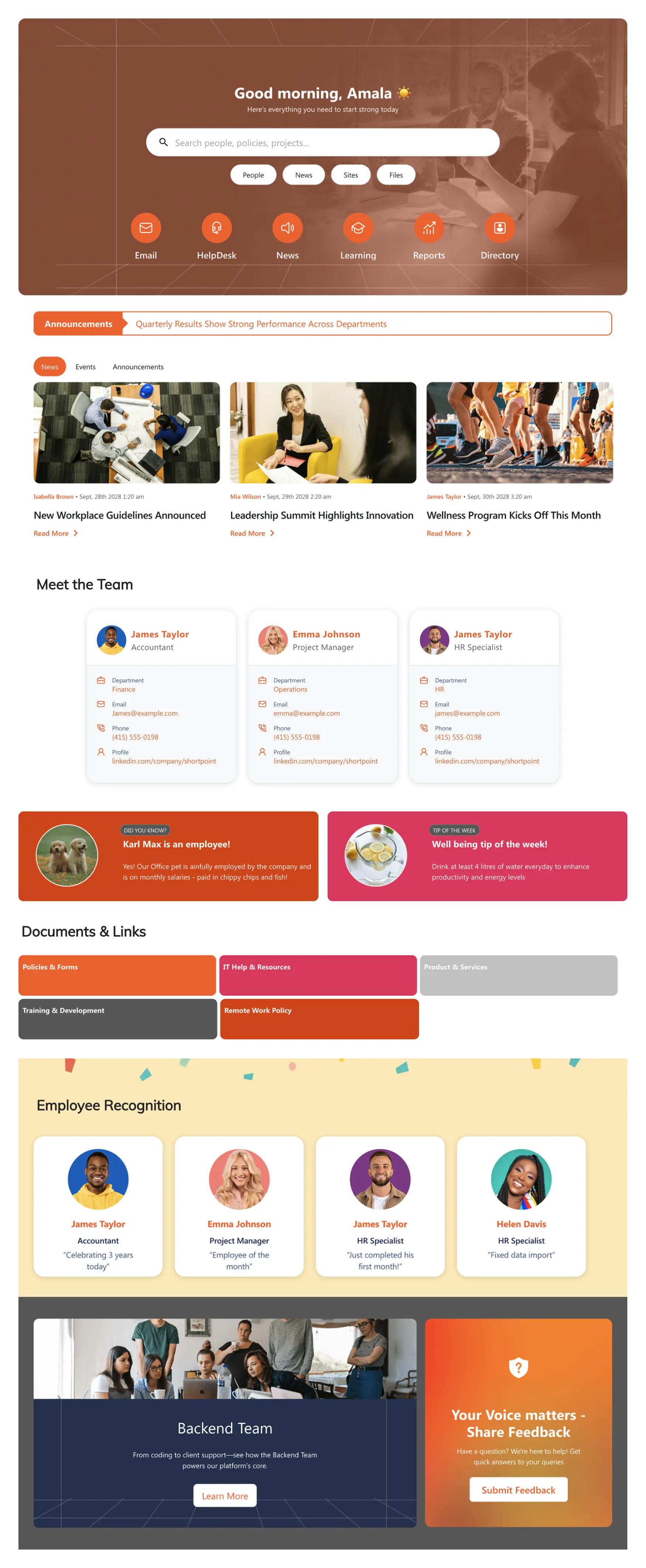
Whether you're building an intranet from scratch, refreshing outdated pages, or just trying to make one specific thing look better, there's likely a Design Element that'll help you get there faster and with better results than trying to do it manually. Here’s an example of how your SharePoint sites can look with the help of ShortPoint Design Elements:
Ready to start designing with ShortPoint Design Elements? If you're already a ShortPoint Designer with an active license, you can access the following resources to get you up and running:
ShortPoint Academy Courses
- Getting Started with ShortPoint - Learn ShortPoint basics fast: insert elements, use templates, and build engaging pages quickly.
- ShortPoint Design Elements - Master adding, customizing, and styling Design Elements to build engaging SharePoint pages.
ShortPoint Support Articles
- How to Insert a Design Element in Live Mode - Step-by-step guide to adding Design Elements to SharePoint pages using Live Mode editor.
- Design Elements Folder - Contains comprehensive guides for each ShortPoint Design Element: setup, features, and use cases.
General Design Element Features
- ShortPoint Connect: Basic Tutorial - Learn to connect Design Elements to a variety of data sources, SharePoint Lists and Libraries, Microsoft 365 apps, RSS Feeds, and more, for dynamic content.
- How to Manage the Visibility of Design Elements - Control who sees your content by managing Design Element visibility for users and devices.
- Getting Started: The Basics of the Search & Filter Toolbar - Add search, filter, and sort widgets to Design Elements for easier data navigation on pages.
- Add Custom CSS to a ShortPoint Element Right from the Page Builder (Advanced Tutorial) - Apply custom CSS styling to Design Elements using nesting and advanced syntax techniques.
Not yet a ShortPoint Designer?
We'd be happy to set you up with a FREE 15-day trial so you can explore everything ShortPoint has to offer—no credit card needed. And if you'd prefer a guided tour, our experts are available for personalized demos where they'll walk you through the Design Elements and answer any questions you have.
FAQs
What are ShortPoint Design Elements?
ShortPoint Design Elements are pre-designed, professional building blocks that you can easily add to your SharePoint pages to create visually engaging and branded intranet sites without any coding. They offer over 60 customizable components tailored for modern pages in SharePoint in Microsoft 365.
How do ShortPoint Design Elements improve SharePoint site design?
They enable users to enhance the visual design of their SharePoint sites by adding images, interactive features, layouts, and navigation elements that improve site visitors' experience while maintaining brand consistency and accessibility.
Can I use ShortPoint Design Elements without coding skills?
Absolutely! ShortPoint is built for non-developers. Its intuitive drag-and-drop interface in edit mode allows anyone to create professional SharePoint pages without writing a single line of code.
Are ShortPoint Design Elements compatible with SharePoint Online and on-premises?
Yes, ShortPoint supports both SharePoint Online and on-premises environments, seamlessly integrating with modern pages and providing a consistent experience across platforms.
What types of content can I add using ShortPoint Design Elements?
You can add a wide range of content, including images, videos, text, quick links, news posts, document libraries, call-to-action buttons, and interactive features like accordions and tabs to organize content effectively.
Can ShortPoint Design Elements connect to live SharePoint data?
Yes, many Design Elements can dynamically pull information from SharePoint lists, libraries, and external data sources, ensuring your content stays up-to-date automatically.
How do ShortPoint Design Elements help with branding?
They allow full customization of colors, fonts, spacing, and animations to match your organization's brand guidelines, ensuring your SharePoint pages reflect your company’s identity consistently.
Are ShortPoint Design Elements mobile-friendly?
Yes, all elements automatically adjust to look perfect on any device, including desktops, tablets, and smartphones, enhancing accessibility and user experience on the go.
Where can I find support and tutorials for using ShortPoint Design Elements?
ShortPoint offers a comprehensive knowledge base, video tutorials through ShortPoint Academy, and responsive customer support to help you get the most out of your SharePoint design projects.
How do ShortPoint Design Elements integrate with Microsoft 365 tools?
ShortPoint Design Elements can incorporate content from Microsoft 365 apps like Microsoft Teams, Power BI, and Viva Engage, providing seamless integration and enhancing collaboration within your SharePoint sites.
Can I use ShortPoint Design Elements to create custom layouts and sections?
Yes, you can use elements like rows, sections, and panels to organize content into logical chunks, reduce white space, and improve readability and navigation on your SharePoint pages.
How do I get started with ShortPoint Design Elements?
If you have an active ShortPoint license, you can access tutorials and support resources to start adding and customizing Design Elements. New users can try a free 15-day trial to explore all features with no credit card required.
