 Try ShortPoint now
This article will walk you through using the Accordions Design Element to create a SharePoint Accordion.
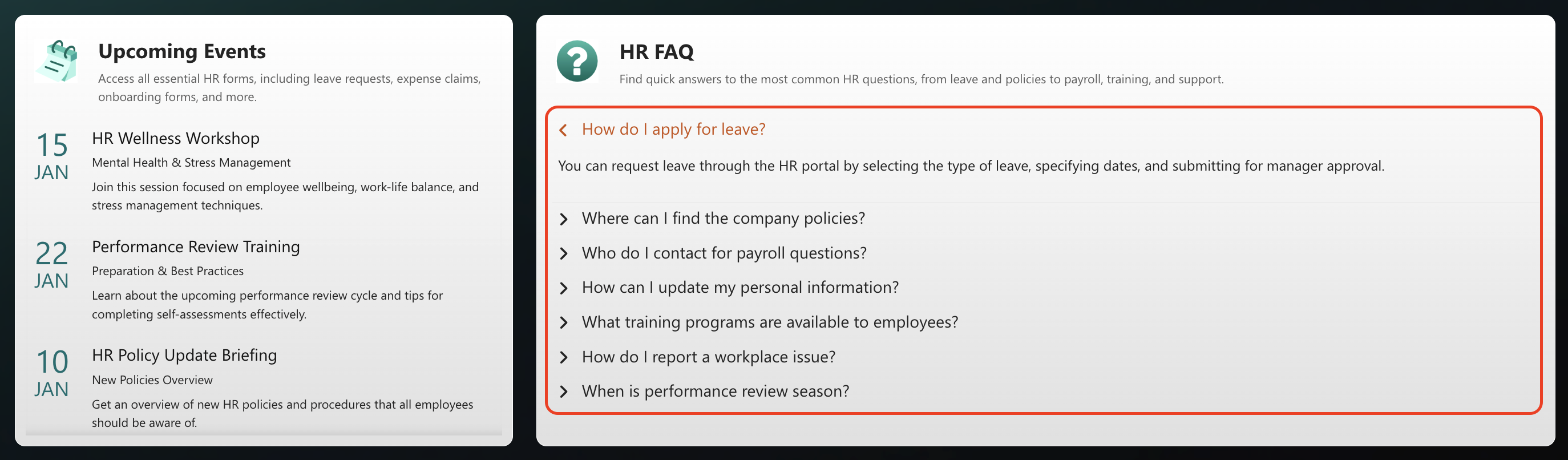
TABLE OF CONTENTS
Prerequisite
- You have the latest version of ShortPoint SPFx installed on your SharePoint environment.
- You are a ShortPoint Designer with an active license.
Interactive Tutorial
Click Get Started to learn how to customize the Accordions Design Element:
NOTECheck out Accordions Features to learn more about the OOTB options you can customize.
Step-by-step Tutorial
Follow the steps below for a detailed guide on how to customize the Accordions Design Element:
Step 1: Edit the ShortPoint Web Part
- Go to the SharePoint page you want to use and click Edit.

- Click the ShortPoint tag.
- Select the pencil icon.
Step 2: Insert the Accordions Design Element
- Click the plus icon.
- Use the search box to look for Accordions and click it.
Step 3: Edit the items in the Accordions
- Navigate to the Items tab.
- Click the cogwheel icon of the first item.

- Add a Title.
- Delete default item content.
NOTEYou can opt to add your own content in the Content field if you only want to have text inside your Accordions. However, if you want to insert a separate Design Element, you need to delete the default content and follow the next steps.

- Click the back icon to edit the other items.

- Repeat the steps above.
- (Optional) If you want to add other items, click Add New. Then, repeat the same steps above to edit the new item's content.

NOTEYou can also create dynamic Accordions content. Check out ShortPoint Connect: Basic Tutorial.
Step 4: Customize the Tabs’ design
- Navigate to the Design tab.
- Customize the design of the Accordions according to your preference.
- Click the green check mark once you are satisfied with your edits.
NOTECheck out Accordions Features to learn more about the OOTB options you can customize.
Step 5: Add content
- Click the Accordions tag.

- Select the item where you want to add content.

- Click the plus icon inside the item.

- Use the search bar to look for the Design Element you want to use and click it.
- Customize the selected Design Element according to your preference.
Step 6: Save
- Then, click the eye icon to see your page in real-time.

- Click Save to apply all your changes.

Amazing! You can now create a SharePoint Accordion. Make the most of the Accordions Design Element with these amazing features.
Accordions Features
Below are the tabs you can find in the Accordions Settings window:
A. Items tab
The Items tab allows you to duplicate, delete, configure content, and add new items. It has the following options:

ITEMS ACTION ICONS
 | Cogwheel | opens a new window that allows you to edit the content of each item. See the table below for the cogwheel icon settings. |
 | Duplicate | duplicates the item selected. |
 | Trash | deletes the item selected. |
 | Add New | adds a new item. |
 | Drag and Drop | allows you to re-arrange the position of the item. |
COGWHEEL ICON SETTINGS
 | Title | add item title. |
 | Content | allows you to add text content inside each item. |
B. Design tab
The Design tab allows you to customize the design of the Tabs Design Element. It has the following options:

SETTINGS
 | Title Color | allows you to customize the color of the Title. By default, it is set to the primary color. |
 | Title Hover Color | allows you to modify the hover color of the items. |
 | Title Text Size | allows you to customize the text size of the Title. |
 | Hide divider | when enabled, this will remove the divider between each item in the Accordions. |
ICONS
 | Collapse Icon | allows you to choose the icon that is shown when the accordion is closed. |
 | Expand Icon | allows you to choose the icon that is shown when the accordion is open. |
 | Icon Location | allows you to modify the location of the icon. You can choose from Default, Right, or Left. |
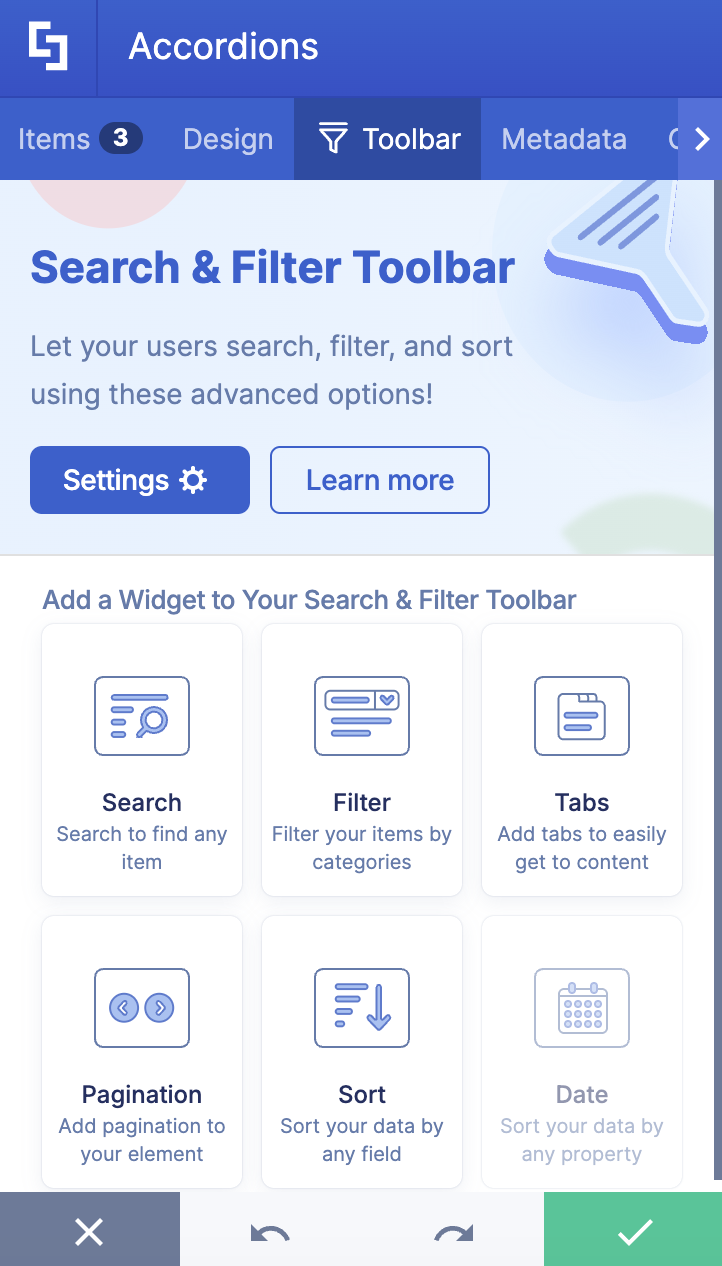
C. Toolbar tab
The Toolbar tab allows you to add Smart Toolbar widgets. These Smart Toolbar widgets can help you search, sort, or filter data in your Accordions:
NOTEThe Toolbar tab is only available for SportPoint SPFx version 8.5.0.0 or later. For more information on the Toolbar tab, check out Getting Started: The Basics of the Smart Toolbar.
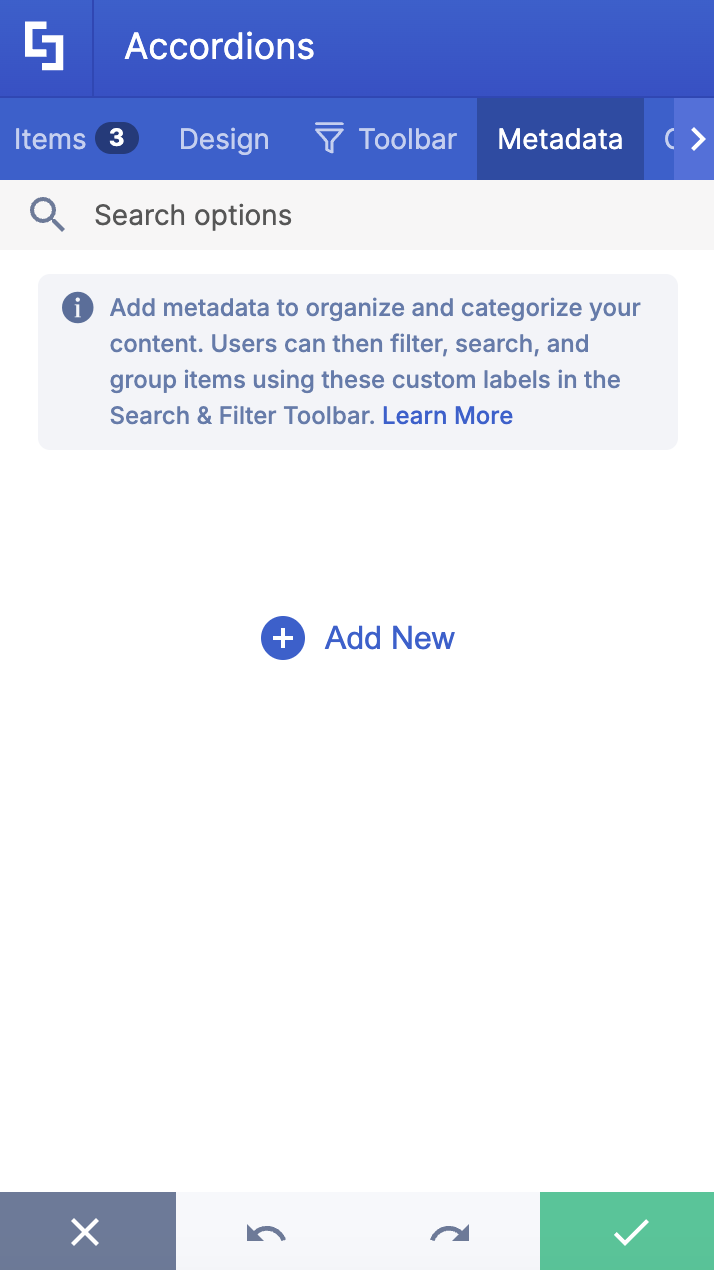
D. Metadata tab
This allows you to add metadata tags to organize and categorize your content. You can then filter, search, and group items using these custom labels in the Search & Filter Toolbar. For more details, check out How to Add SharePoint Metadata Tags to Organize Content.
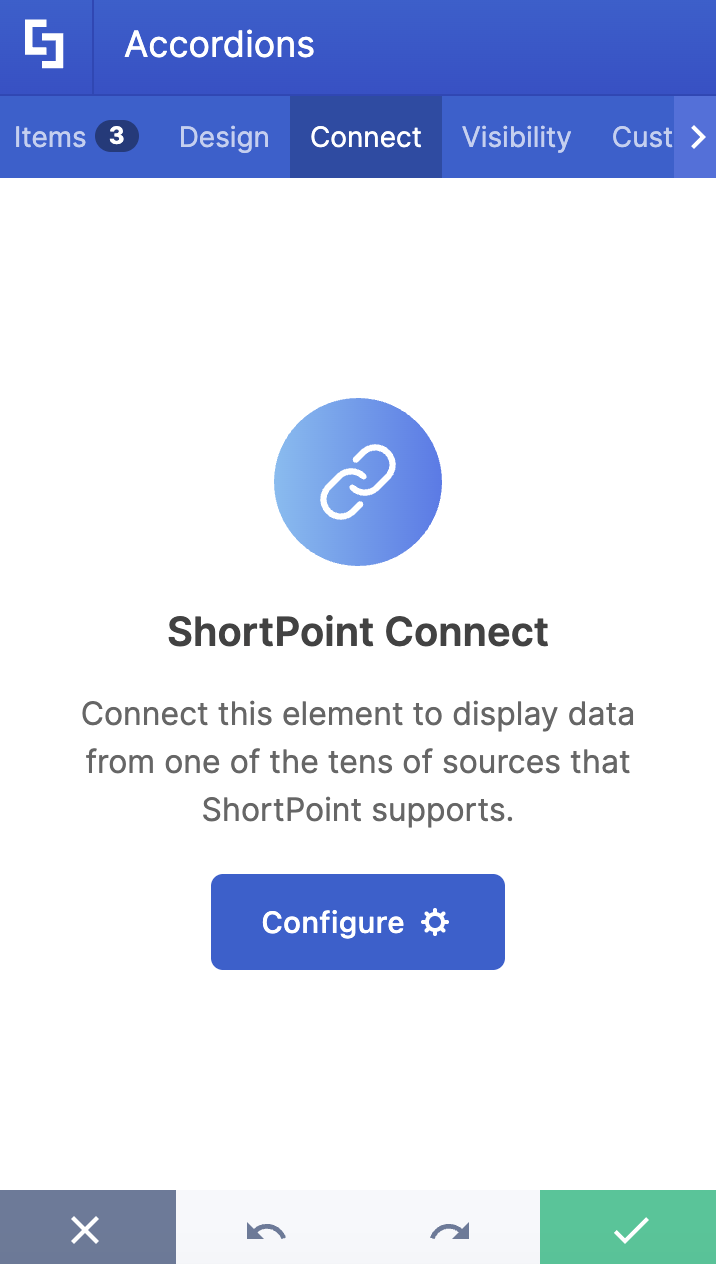
E. Connect Tab
The Connect tab allows you to link the Design Element to SharePoint sources (List, Document Library, News, etc.) and other external sources (Microsoft Graph API, Teams, Outlook, etc.). For more details about ShortPoint Connect, check out Basic Tutorial: How to Establish Seamless SharePoint Connection with ShortPoint Connect.
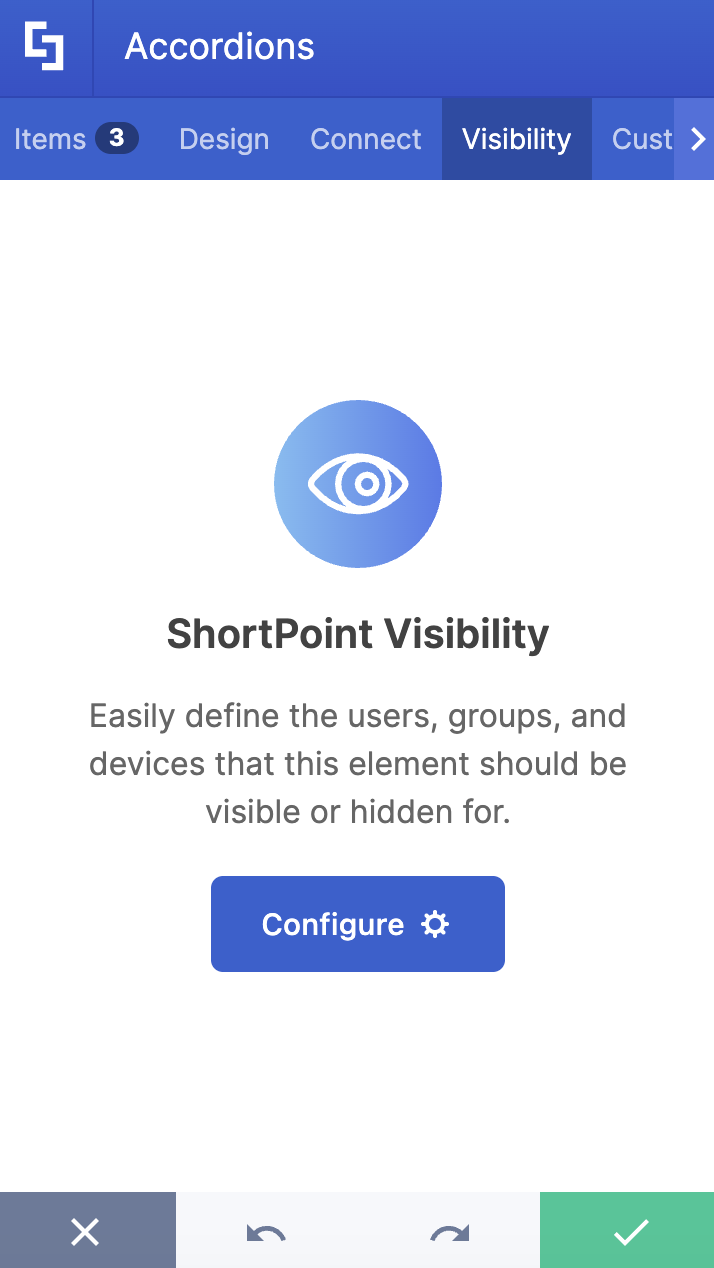
F. Visibility Tab
The Visibility tab allows you to specify who can see the Design Element and what type of devices it can be shown on. For more details, check out How to Use the ShortPoint Visibility Feature for Effective SharePoint Access Management.
G. Custom CSS Tab
This tab allows you to use your own CSS, HTML, and Javascript code to customize the Accordions Design Element.
NOTECheck out our support article on How to Insert Custom CSS into a Page Builder Element? (Basic Tutorial) to know more about Custom CSS.

Related articles:
