Try ShortPoint now
TL;DR: You can build a custom SharePoint footer in ShortPoint Generator and use it across your site. Open the ShortPoint Dashboard and go to Generator. Start from a ready-made footer template, or pick a column layout and design your own. Customize it the way you want, then click Save Changes.
While SharePoint's out-of-the-box footer options are a great starting point, you might occasionally run into design limitations when trying to match your brand's exact look and feel, especially on modern communication sites.
That’s where ShortPoint Custom Footers can help! ShortPoint provides greater design flexibility, alongside a library of customizable templates to help you build unique, eye-catching site footers in no time. Best of all, you can seamlessly deploy your final design site-wide across multiple SharePoint sites, including communication sites and team sites, with just a few clicks.
This article will show you the basics of ShortPoint Custom Footers, including what it is, why it's useful, and two ways to create one.
TABLE OF CONTENTS
- Prerequisites
- What is a ShortPoint Custom Footer?
- Why Use ShortPoint Custom Footers?
- Creating Custom Footers
- Frequently Asked Questions
Prerequisites
- You must have the latest version of ShortPoint SPFx installed.
- You must be a ShortPoint Designer with either a Pro or Enterprise License. For more information, check out Licensing Options.
What is a ShortPoint Custom Footer?
A ShortPoint Custom Footer is a reusable visual component designed using the ShortPoint Generator and deployed using the ShortPoint Theme Builder. It enhances your site footer by providing even more styling options.
The best part? Aside from giving you the option to build your footers from scratch, ShortPoint gives you access to a library of pre-designed footer templates. You can easily access these templates using the ShortPoint Generator.
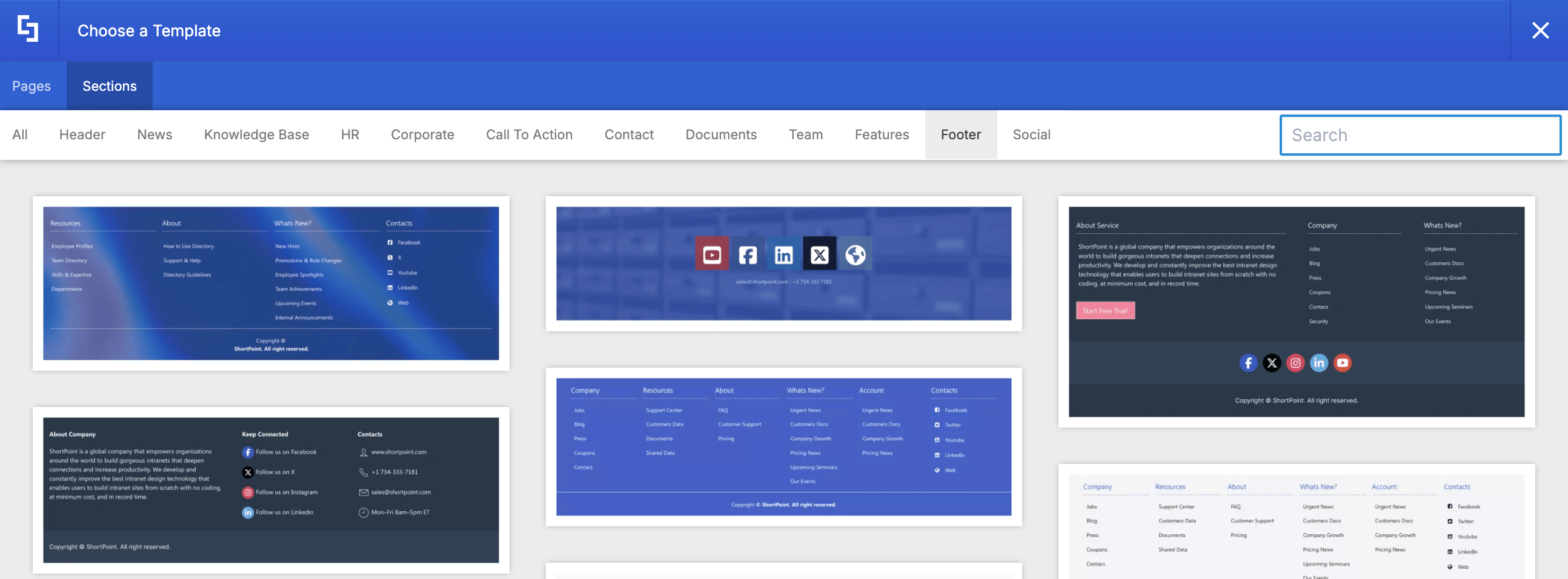
Once created, custom footers can be applied sitewide across an entire SharePoint site collection using the Theme Builder, enabling a consistent footer design for all site viewers.
Why Use ShortPoint Custom Footers?
Adding a custom SharePoint site footer through ShortPoint offers several key advantages for organization intranets:
- Fills the Design Gap: Default SharePoint pages often end abruptly, making pages feel incomplete. A custom footer grounds the page layout and gives it a finished, professional look.
- Improves Navigation & Usability: Provides quick access to frequently used navigation links, privacy policies, helpdesk portals, office locations, and department directories from anywhere on the site, helping to organize links effectively.
- Reinforces Company Branding: Allows designers to integrate brand colors, logos, dividers, predefined font families, and typography across all pages consistently, ensuring a cohesive footer style.
- Sitewide Centralization: Updating a footer in the ShortPoint Generator and Theme Builder updates it dynamically across every page in your site collection, including new communication sites, eliminating the need to edit pages individually.
Creating Custom Footers
Start the interactive tutorial to begin creating your custom footers:
Step 1: Launch the Generator Page
- Go to a SharePoint page and click the ShortPoint shortcut:

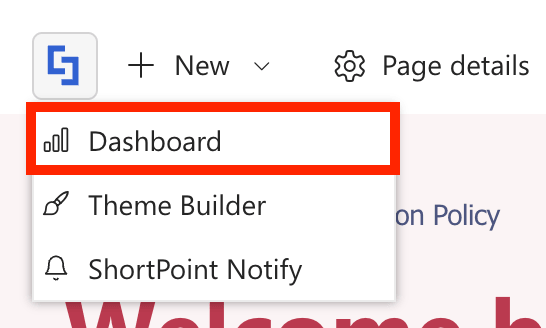
- Select Dashboard:
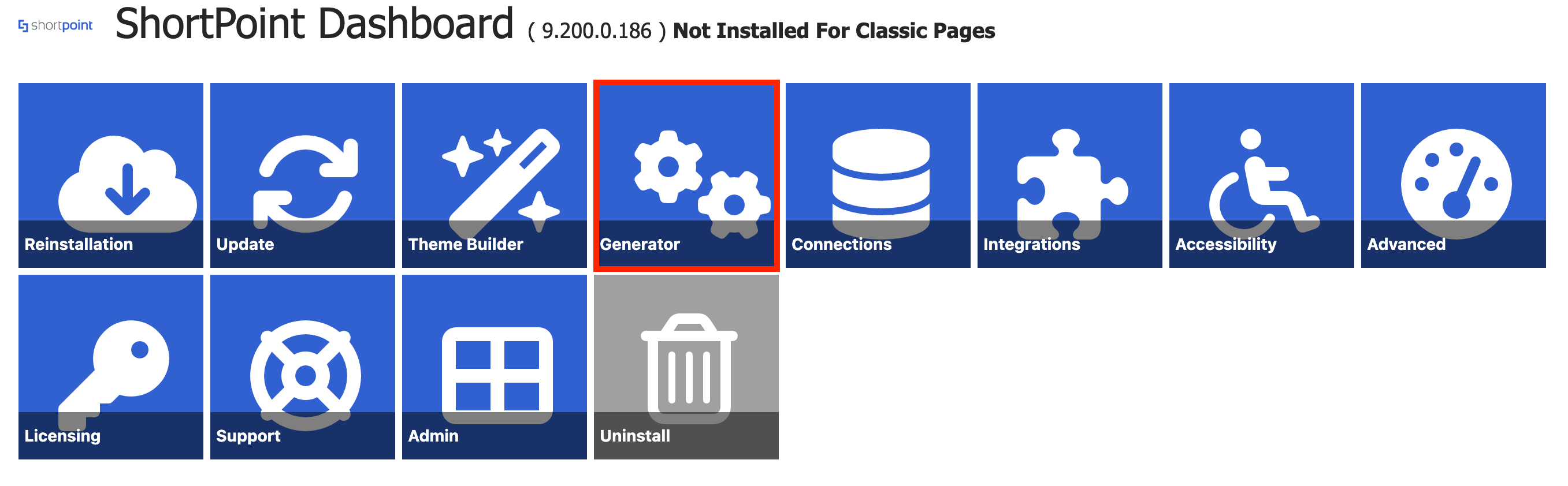
- Choose Generator:
- [1] Name your footer and ensure that the Type is set to [2] Footer:

Step 2: Create the Custom Footer
There are two ways to create custom footers using ShortPoint Generator. Choose the option that best suits your needs:
Option 1: Start from a Template (Recommended)
- Click the Open Templates icon:

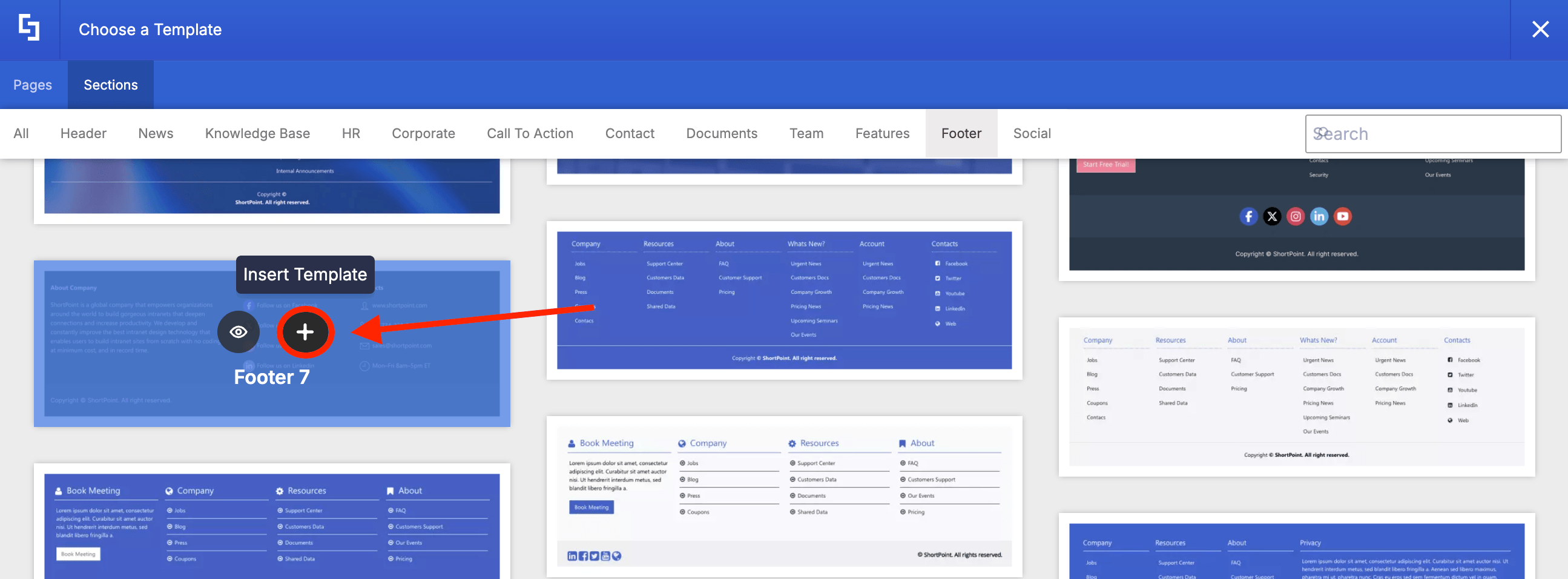
- Go to the Section tab:

- Choose the Footer category:

- Hover over the template you want to use and click the plus icon:
- Customize the template to your liking:
Option 2: Start from Scratch
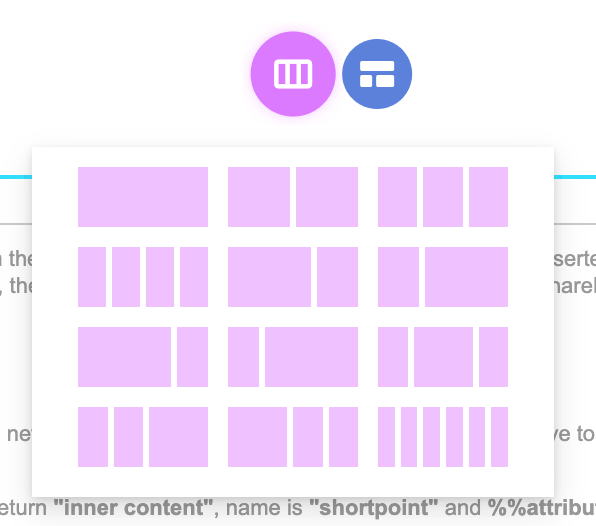
- Click the Choose Layout icon:

- Select the column layout you want to use:
- Design the footer the way you like:
Step 3: Save
- Once satisfied, click Save Changes:
Great work! You'll now see your newly created custom footer under Your Custom Elements / ShortPoints. You can preview it, edit it, or remove it at any time.
To add your custom footer to your SharePoint sites, go to How to Add Custom Footers to SharePoint Sites Using ShortPoint Theme Builder.
Frequently Asked Questions
What is a ShortPoint Custom Footer?
A ShortPoint Custom Footer is a reusable visual component designed using the ShortPoint Generator and deployed via the ShortPoint Theme Builder. It enhances your SharePoint footer by offering advanced styling options and customizable templates for consistent branding and navigation.
Can I apply a custom footer across multiple SharePoint sites?
Yes! Once created, a custom footer can be applied sitewide across an entire SharePoint site collection, including both communication sites and team sites, ensuring consistent footer links and footer name display for all users.
How many ways are there to create a custom footer with ShortPoint?
There are two main ways: starting from a pre-designed footer template or creating a footer from scratch using a chosen column layout. Both methods allow you to customize the footer's look and functionality.
How does updating a custom footer affect my SharePoint sites?
Updating the footer in the ShortPoint Generator dynamically updates it across every page in your site collection, eliminating the need to modify pages individually.
What elements can I include in a custom footer?
You can include logos, brand colors, dividers, predefined font families, and organized footer links such as privacy policies, helpdesk portals, and department directories to improve usability and navigation.
Related Articles