 Try ShortPoint now
This article will cover the basics of the ShortPoint Dashboard, including what it is, how to access it, and what features are available for you to use.
NOTESome features in the ShortPoint Dashboard might not be accessible depending on your current license plan (Lite, Pro, or Enterprise).
TABLE OF CONTENTS
- Prerequisites
- What Is the ShortPoint Dashboard
- Accessing the ShortPoint Dashboard
- ShortPoint Dashboard Features
Prerequisites
- You must have the latest version of ShortPoint SPFx installed on your SharePoint environment.
- You must be a ShortPoint Designer with an active license.
What Is the ShortPoint Dashboard
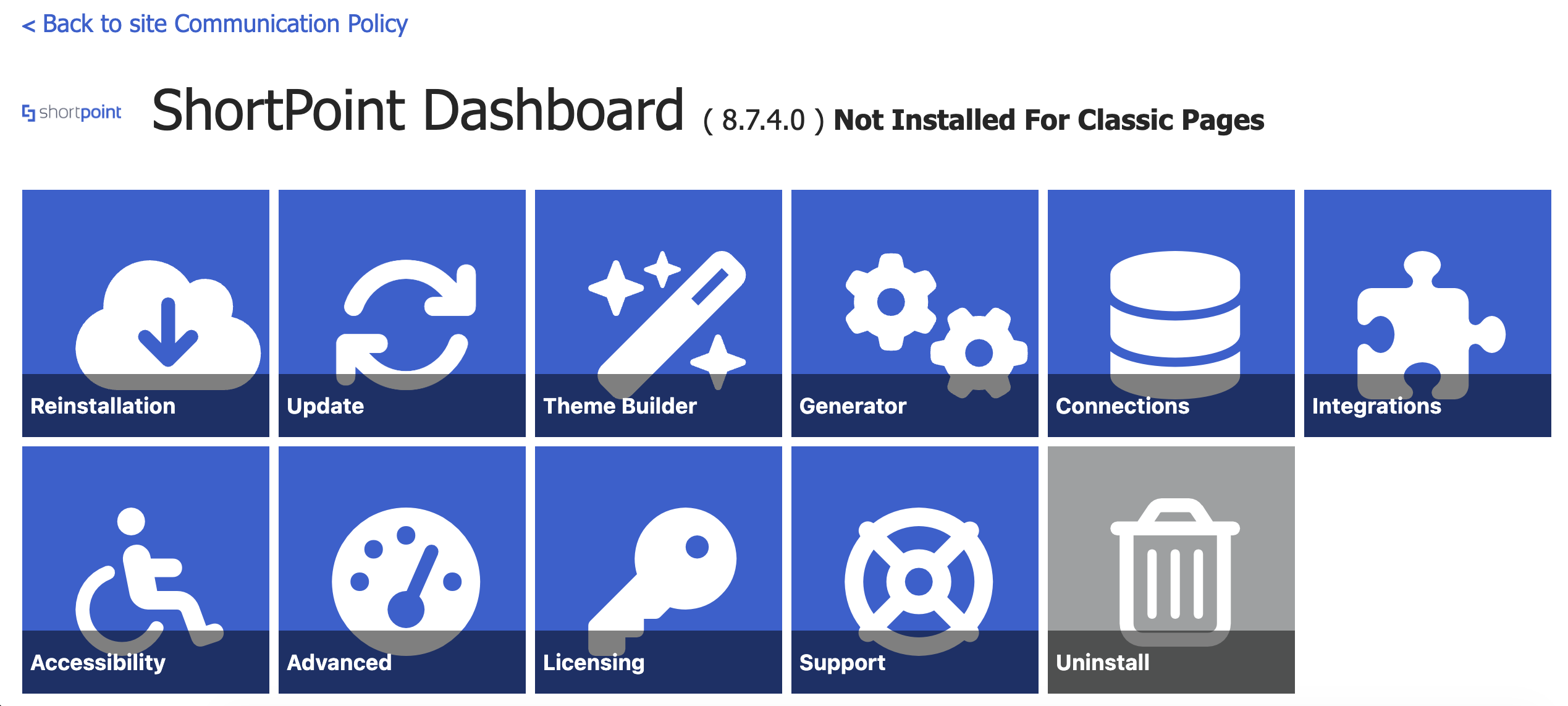
The ShortPoint Dashboard is your go-to hub for managing everything ShortPoint! It’s your central command center where all the important tools and features come together in one convenient place. Whether you’re getting the latest updates, creating custom themes, or enabling accessibility, it streamlines your workflow and makes it easier than ever to create beautiful, functional SharePoint sites.
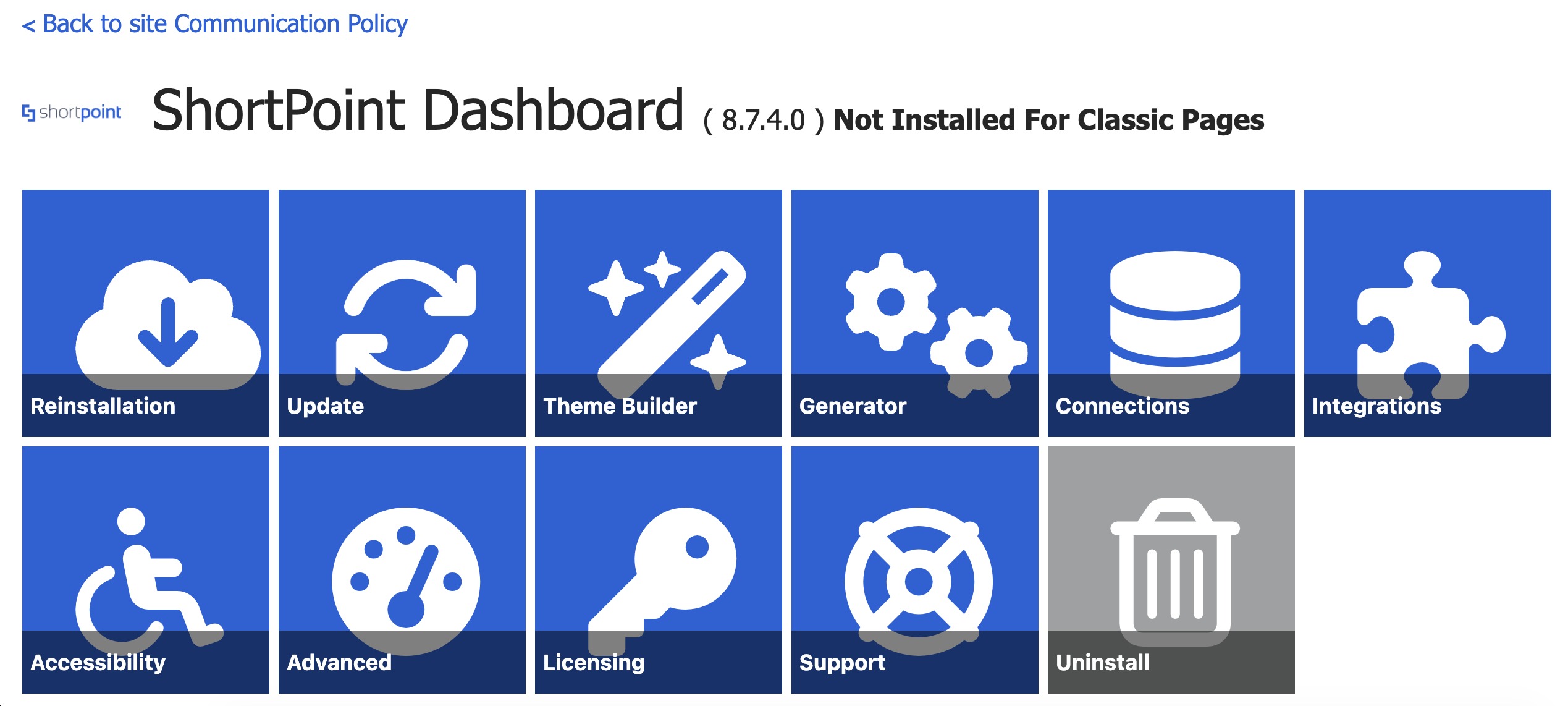
NOTECheck out ShortPoint Dashboard Features to see all the modifiable features.
Accessing the ShortPoint Dashboard
There are two ways to access the ShortPoint Dashboard. Choose the option that best suits your needs.
NOTEYou can only use the first option if you have ShortPoint Shortcuts enabled. To learn more about it, check out Introducing ShortPoint Dashboard and Theme Builder Quick Access.
Option 1: Using the ShortPoint Shortcut
Step 1: Click ShortPoint Shortcut
- Go to the SharePoint page where ShortPoint is installed and click the ShortPoint logo:

Step 2: Open Dashboard
- Select Dashboard:

NOTEYou can only use this option if you have ShortPoint Shortcuts enabled. To learn more about it, check out Introducing ShortPoint Dashboard and Theme Builder Quick Access.
That’s it! You successfully opened the ShortPoint Dashboard.
Option 2: Using Site Contents
Step 1: Open Site Contents
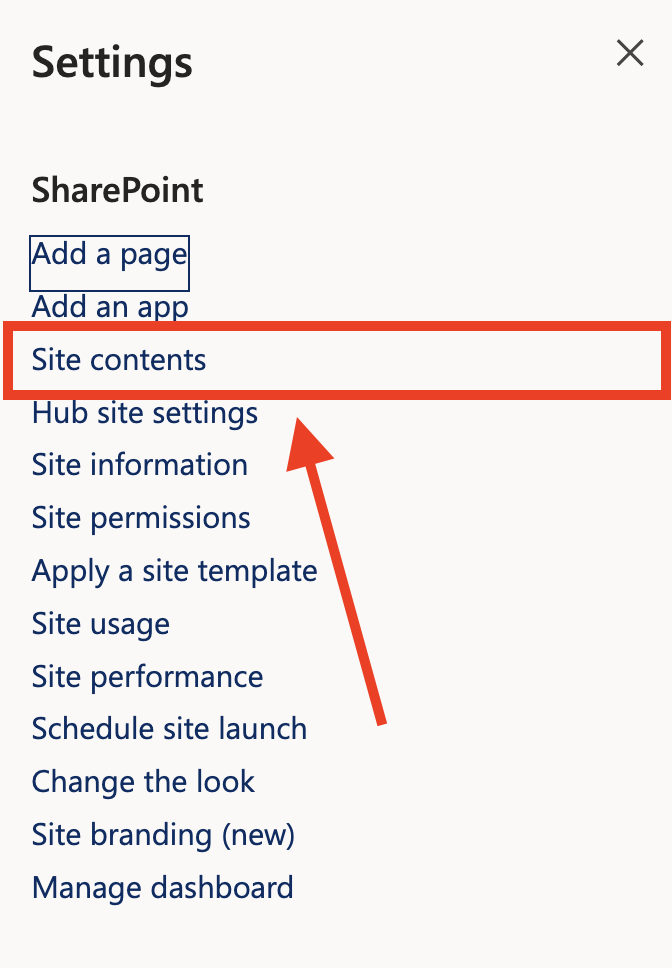
- Click the cogwheel icon:

- Choose Site contents:
Step 2: Open Dashboard
- Look for ShortPoint Dashboard and select it:
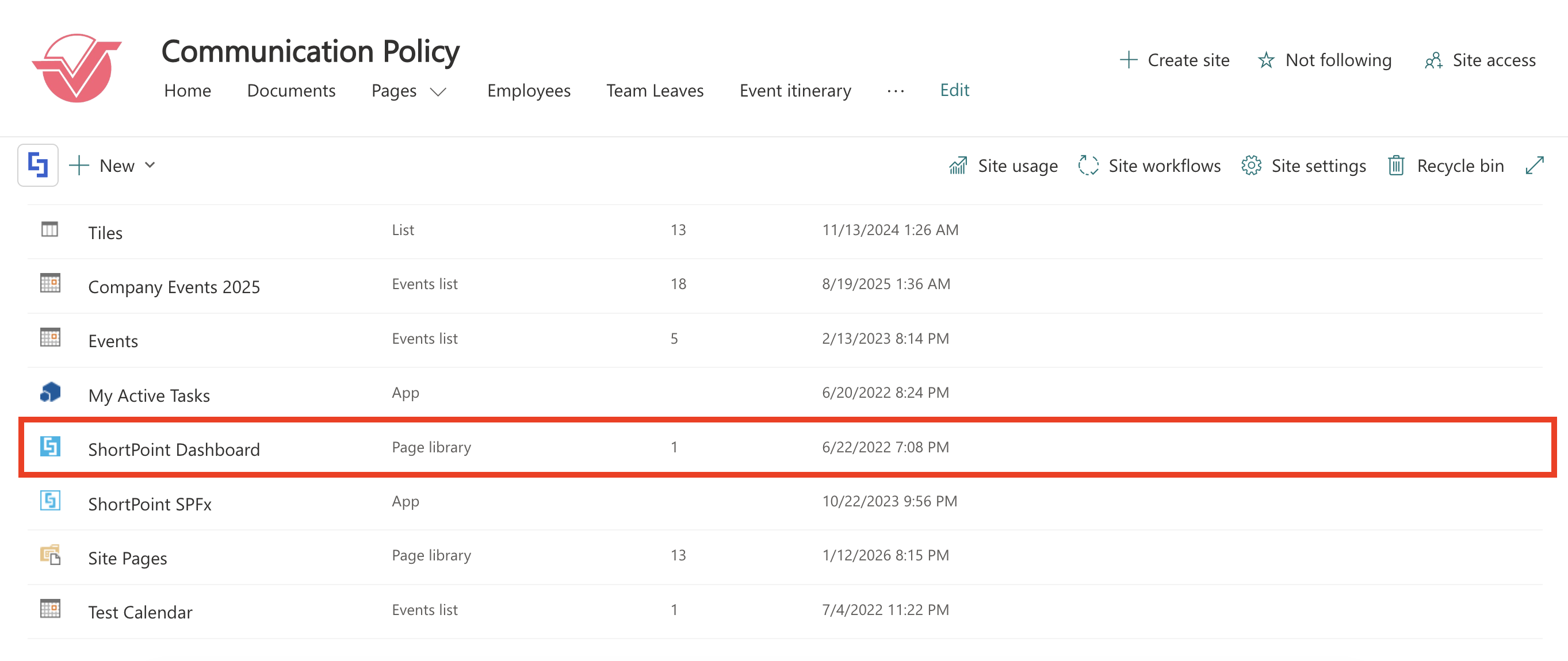
Congratulations! You can now access the ShortPoint Dashboard.
ShortPoint Dashboard Features
The ShortPoint Dashboard has the following features:
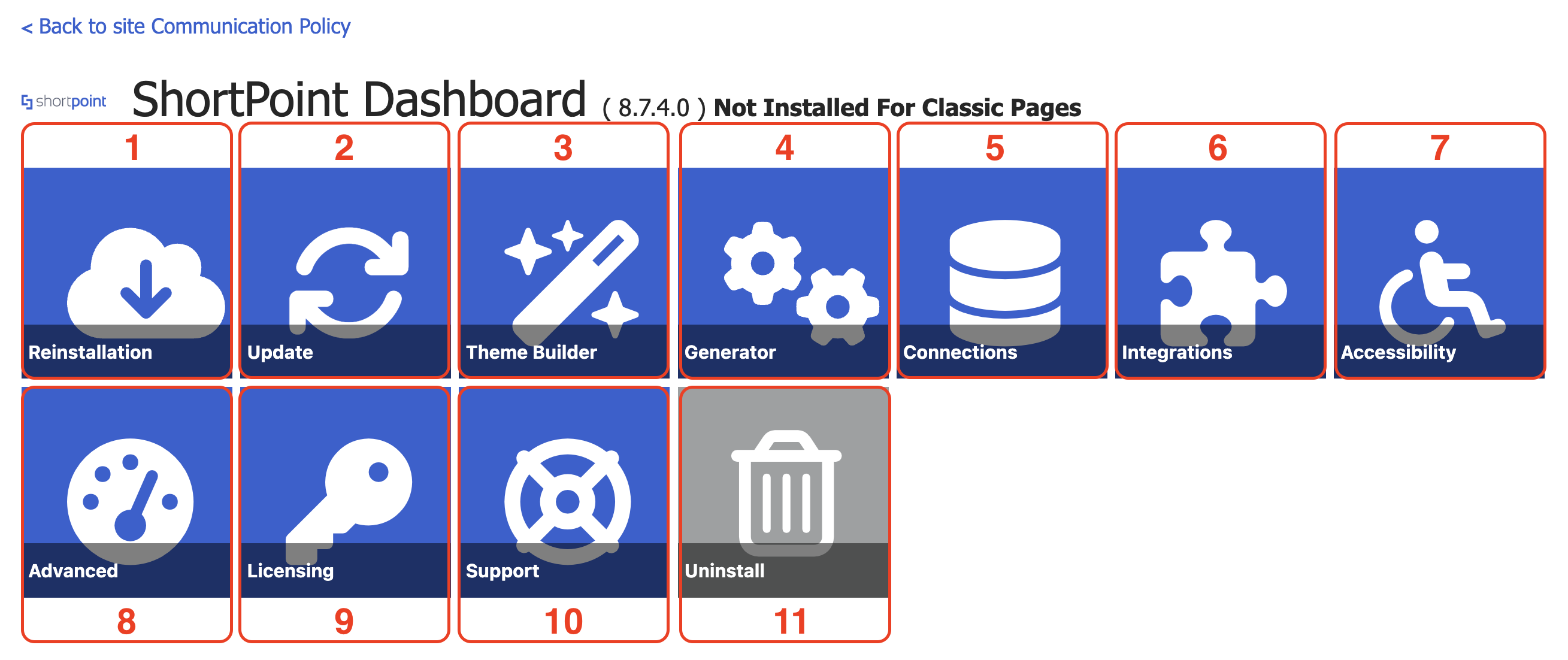
| 1 | Installation / Reinstallation | reconfigure installation settings. |
| 2 | Update | manage how you get the latest ShortPoint SPFx versions. |
| 3 | Theme Builder | launch the Theme Builder tool to create custom themes and apply company branding to your modern SharePoint sites. |
| 4 | Generator | create reusable footers and Design Elements that you can add to your SharePoint sites. |
| 5 | Connections | set up reusable integrations with REST API and RSS connections |
| 6 | Integrations | establish Microsoft Graph connection to enable Teams and Power BI integrations. |
| 7 | Accessibility | enable and configure ShortPoint's AI-powered accessibility solution to detect and remediate accessibility violations. |
| 8 | Advanced | manage Global Scripts & Styles and clear cache to improve performance. |
| 9 | Licensing | access license status and assign ShortPoint Designers. |
| 10 | Support | get support by submitting a ticket. |
| 11 | Uninstall | remove ShortPoint from the site. |
NOTESome features in the ShortPoint Dashboard might not be accessible depending on your current license plan (Lite, Pro, or Enterprise).
Related articles:
