 Try ShortPoint now
This guide will show you how to customize a ShortPoint template after you have imported it. You will learn how to modify text, replace images, adjust settings, connect to a data source, and rearrange the layout to fit your specific needs.
TABLE OF CONTENTS
Prerequisites
- You must have the latest ShortPoint SPFx version installed in your SharePoint environment.
- You must be a ShortPoint Designer with an active license.
- You have chosen a page or section template from the ShortPoint Templates Library and inserted it into your SharePoint page.
Step-by-step: Editing a ShortPoint Template
After inserting a template, you can edit all its Design Elements and other components in the Page Builder. Follow these steps to start adding your content and customizing settings to achieve the result that you want:
Editing Design Element Content and Design
For the Text Design Element
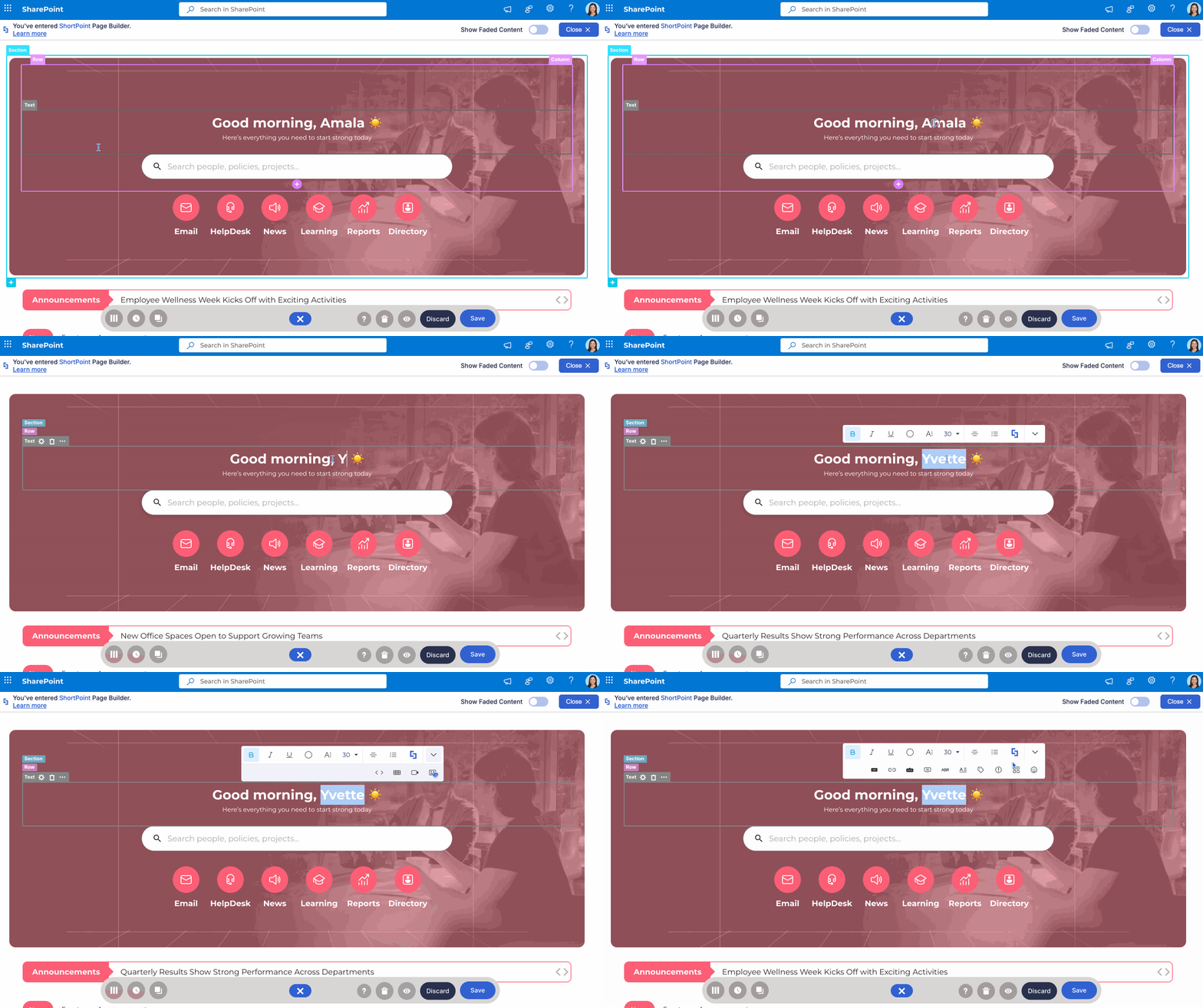
We have a text editing experience where you can simply double-click inside any text element and start replacing the sample content.
- You can use the rich text editor toolbar to change bolding, alignment, or font styles immediately.
- You can also add Inline Design Elements such as emojis, buttons, and tooltips.
For all Design Elements
You can update content and apply changes to the design through the settings window. Here’s how to do it:
Step 1: Open the Design Element settings window
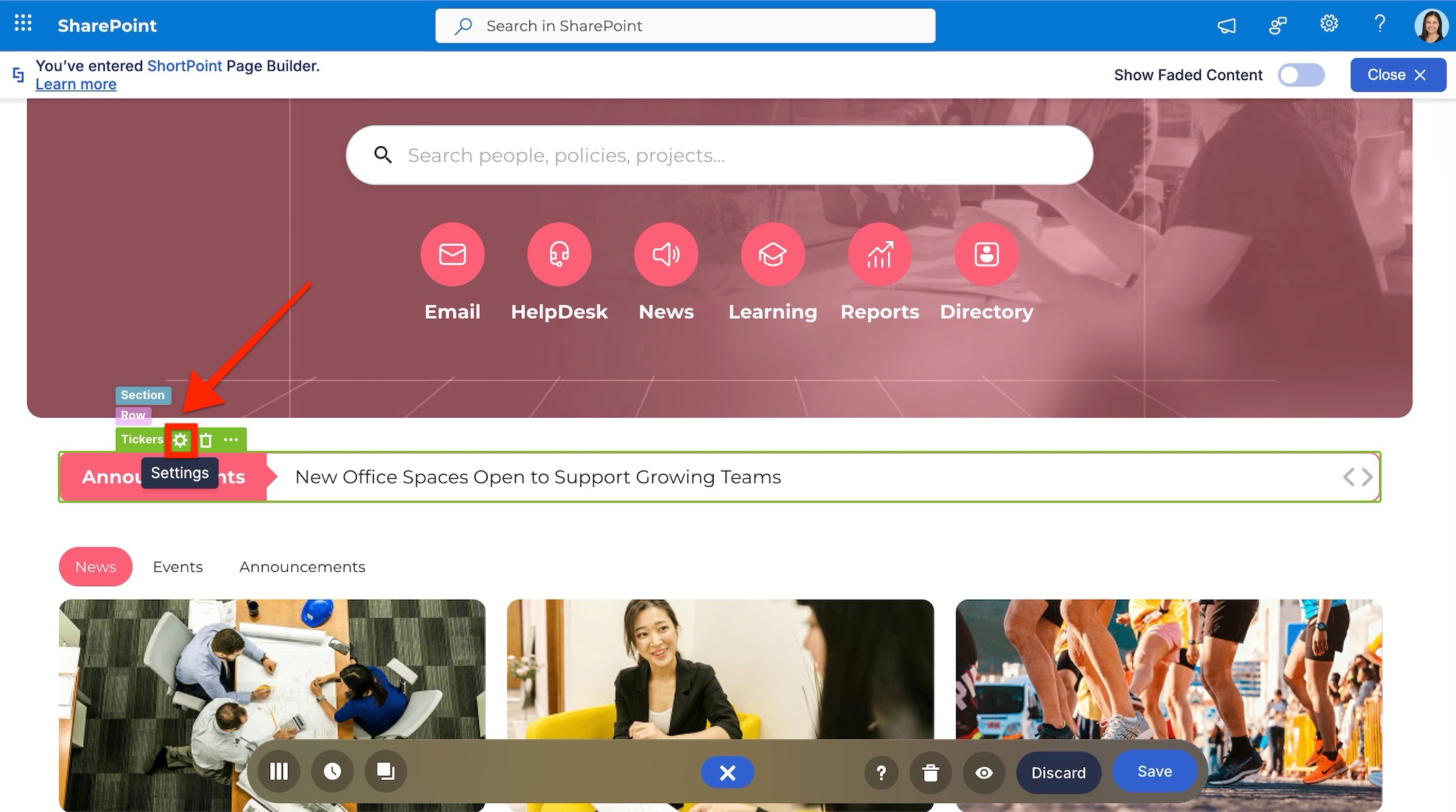
- Select the EasyPass tag of the Design Element that you want to edit.
- Click the cogwheel icon to launch the settings window.
Step 2: Update Design Element content
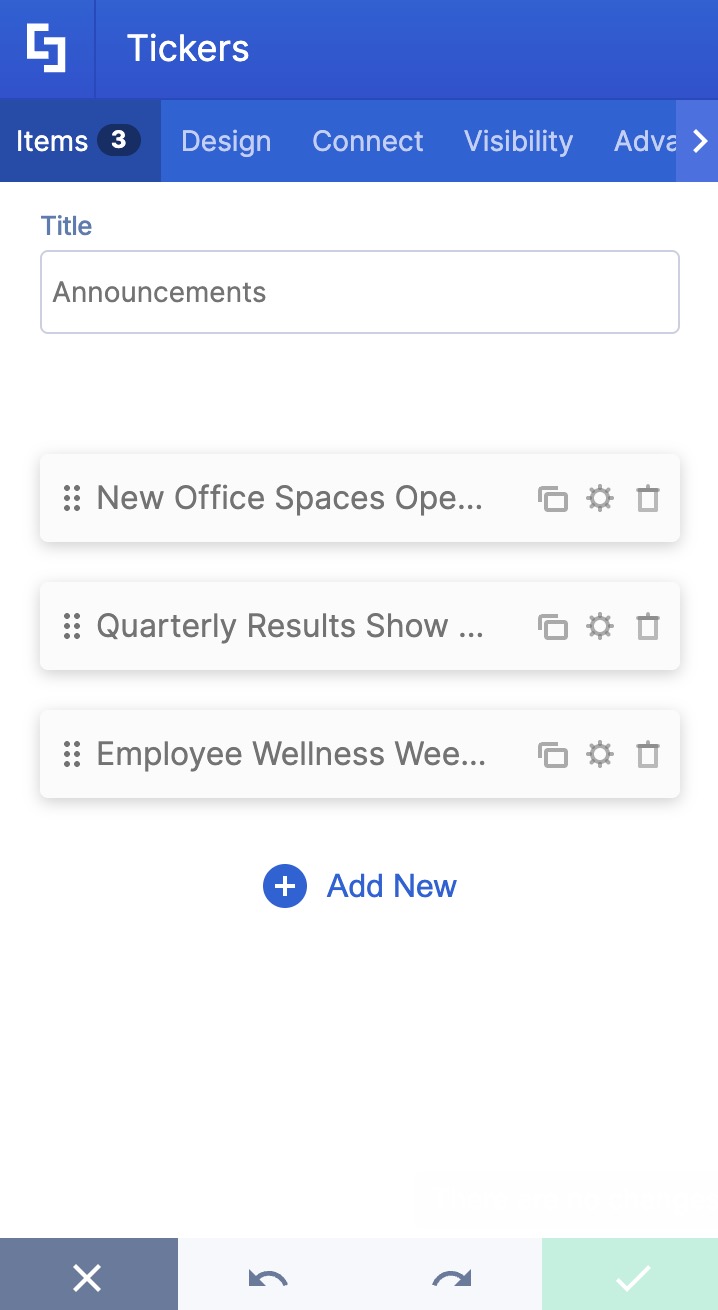
Depending on the Design Element you are editing, you will find fields where you can add content. They may hold sample content that came with the template. They can contain text, image URLs, video URLs, etc.
To add static content:
- Delete sample content.
- Add your content. You will see your changes applied to the Design Element in real-time.
To add dynamic content:
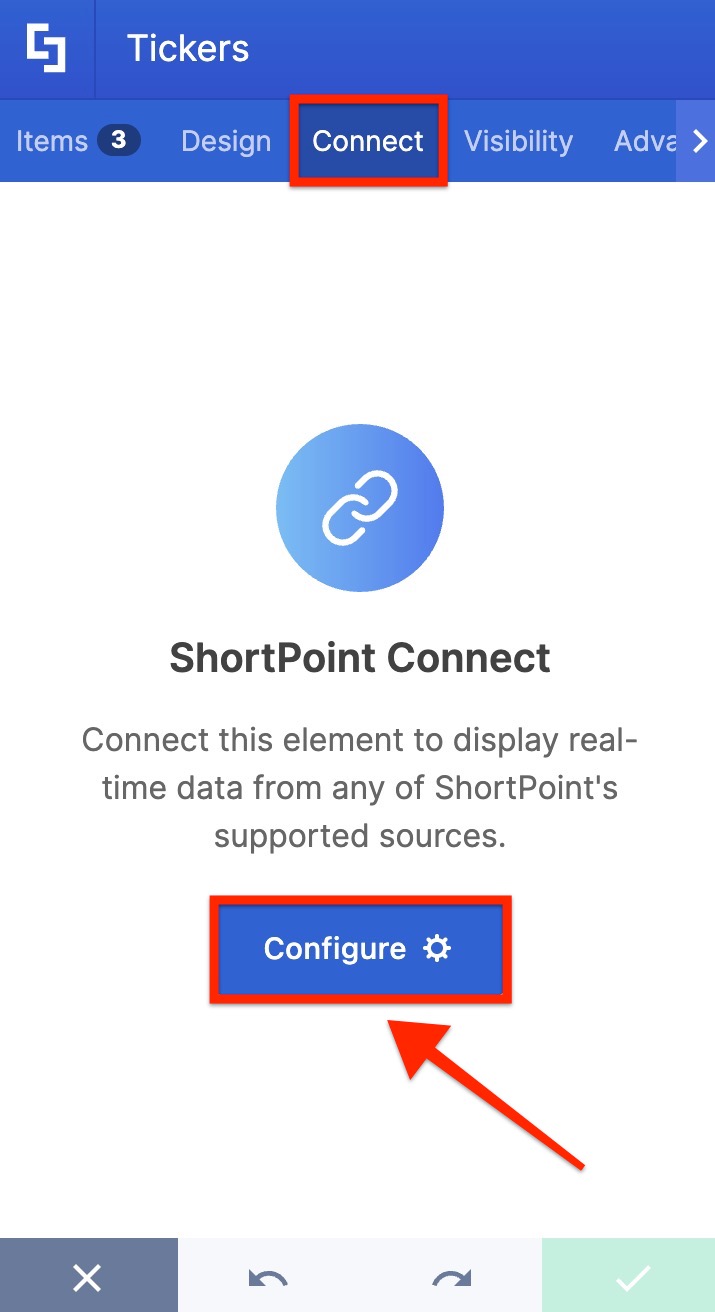
- Switch to the Connect tab.
- Hit the Configure button.
- And, set up your connection. For more information about ShortPoint Connect, refer to our detailed tutorial article.
Step 3: Customize Design Element settings
Access and modify the different customization options through the tabs in the settings window. Key tabs that contain additional functionality you can use are the Search and Filter Toolbar widgets, Visibility settings, and Custom CSS.
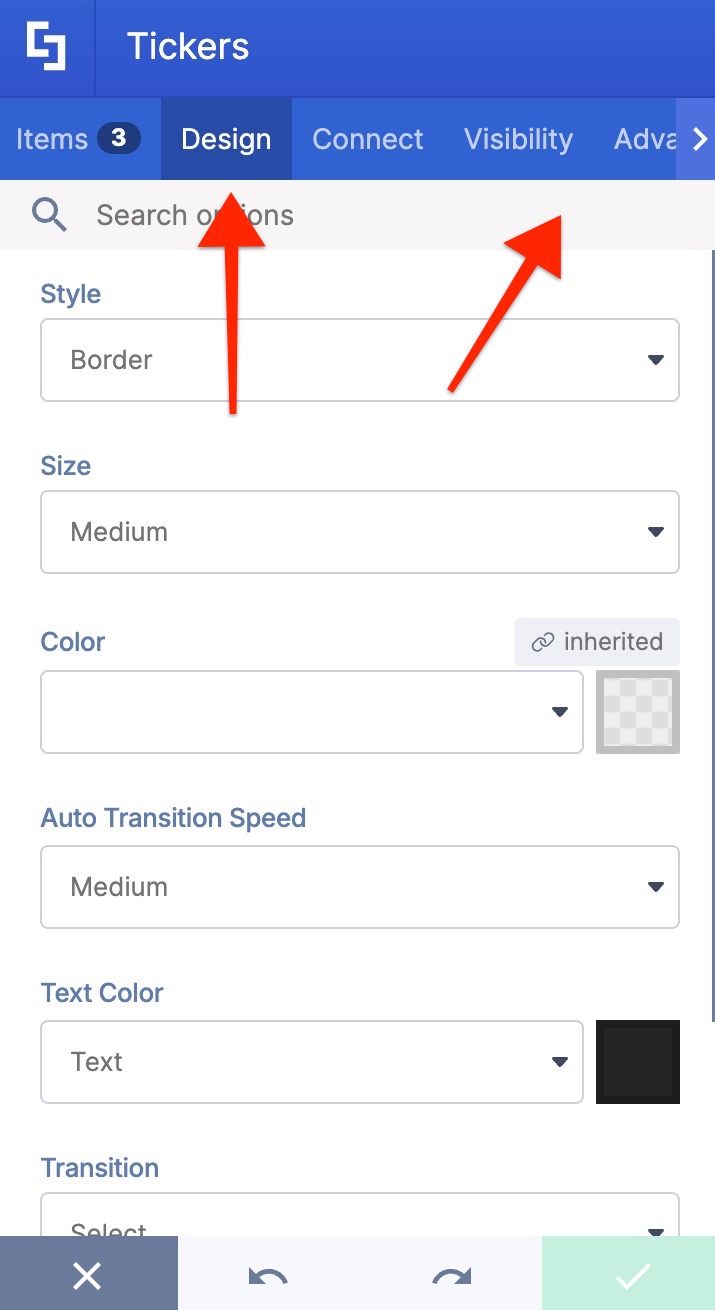
Step 4: Apply your changes
- Once done, press the green checkmark button to update the Design Element with your changes.
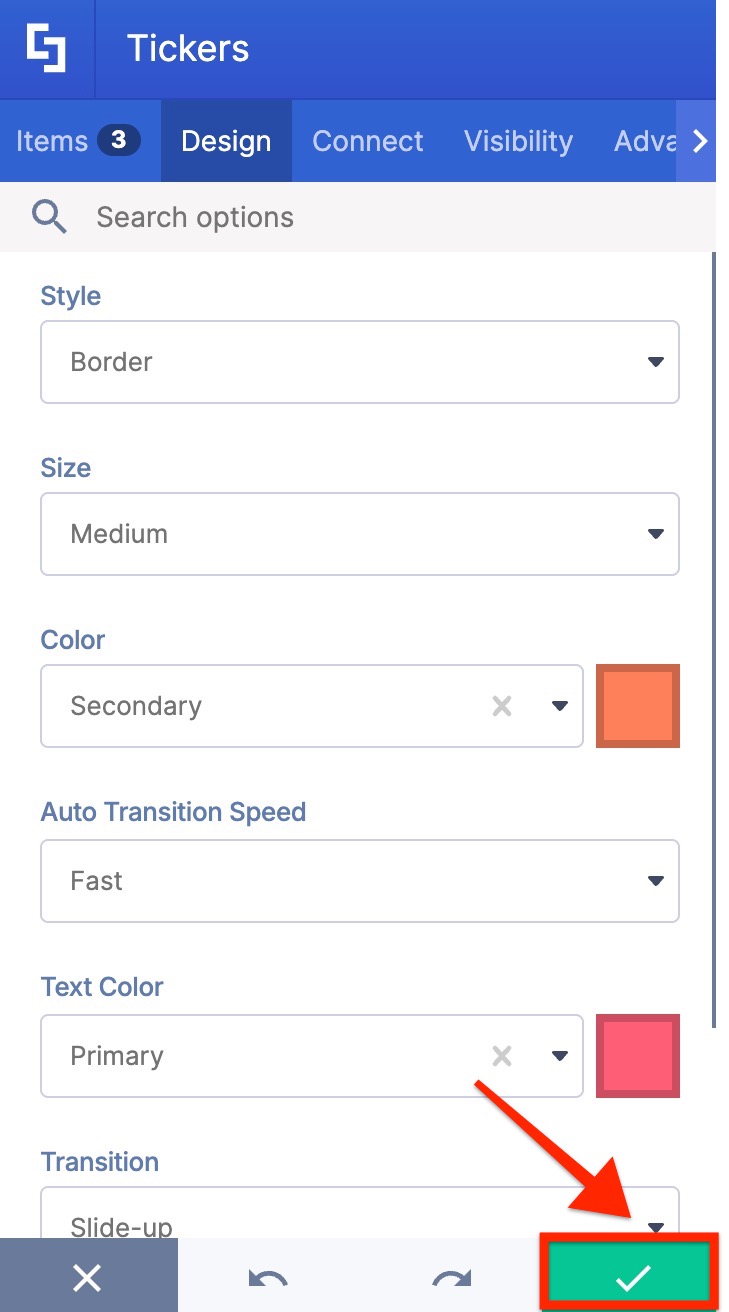
You can repeat these steps for the other Design Elements present in the template you are using.
Other Editing Actions
Beyond basic content updates, the Page Builder provides specific tools to restructure your layout and manage elements efficiently.
Copy, Paste, and Duplicate
To replicate parts of the template, access the Other Actions menu (ellipsis icon) located on the Design Element EasyPass tag. From this dropdown, you can Copy an element to paste it elsewhere, or select Duplicate to instantly create a clone of the element directly below the original.
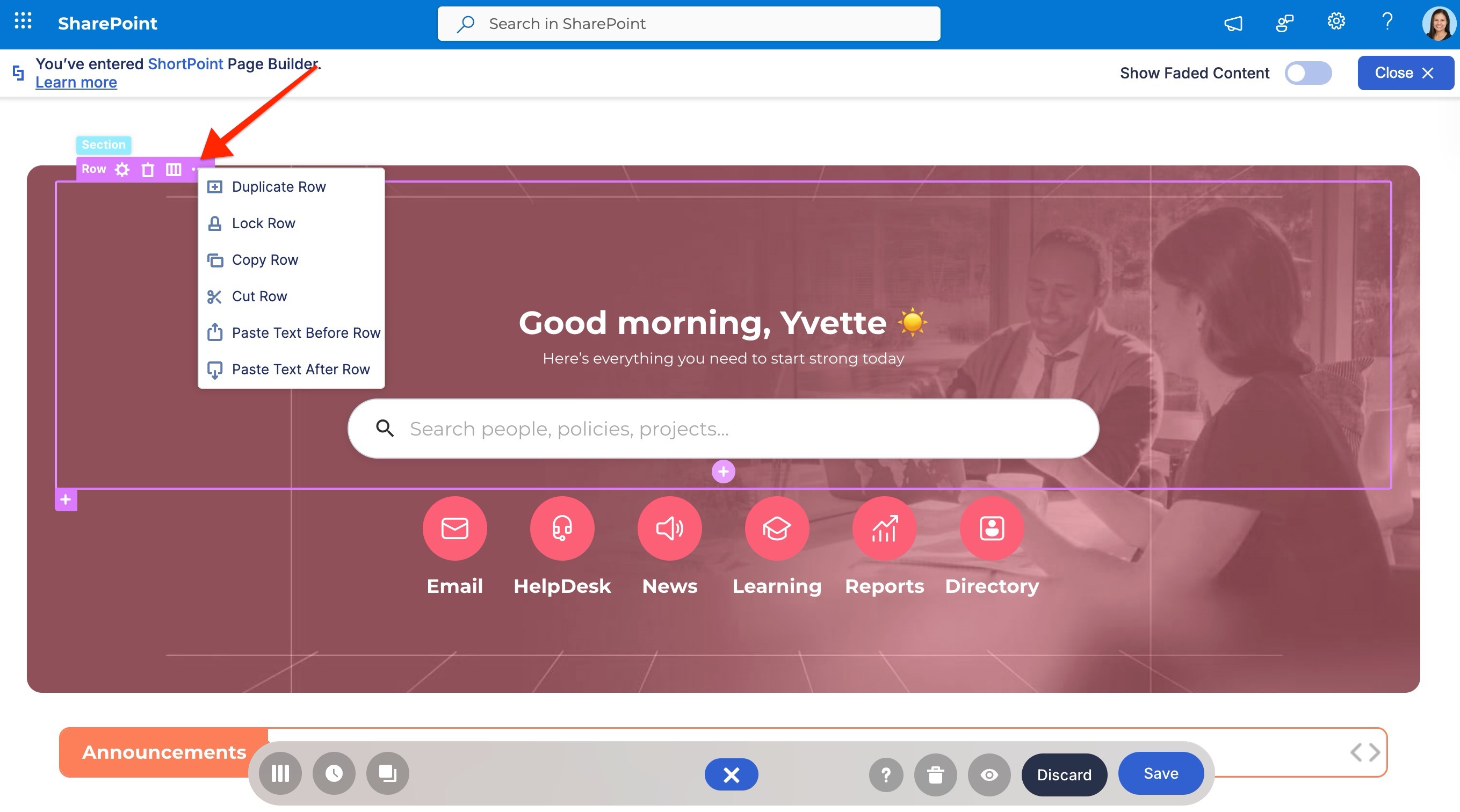
Add New Sections, Rows, or Columns
To expand your page structure, look for the Plus (+) buttons:
- Add Rows/Sections: Click the Plus button at the bottom of an existing Row or Section. Adding a new Section will open the Templates Library, allowing you to insert a fresh pre-designed template into that area.
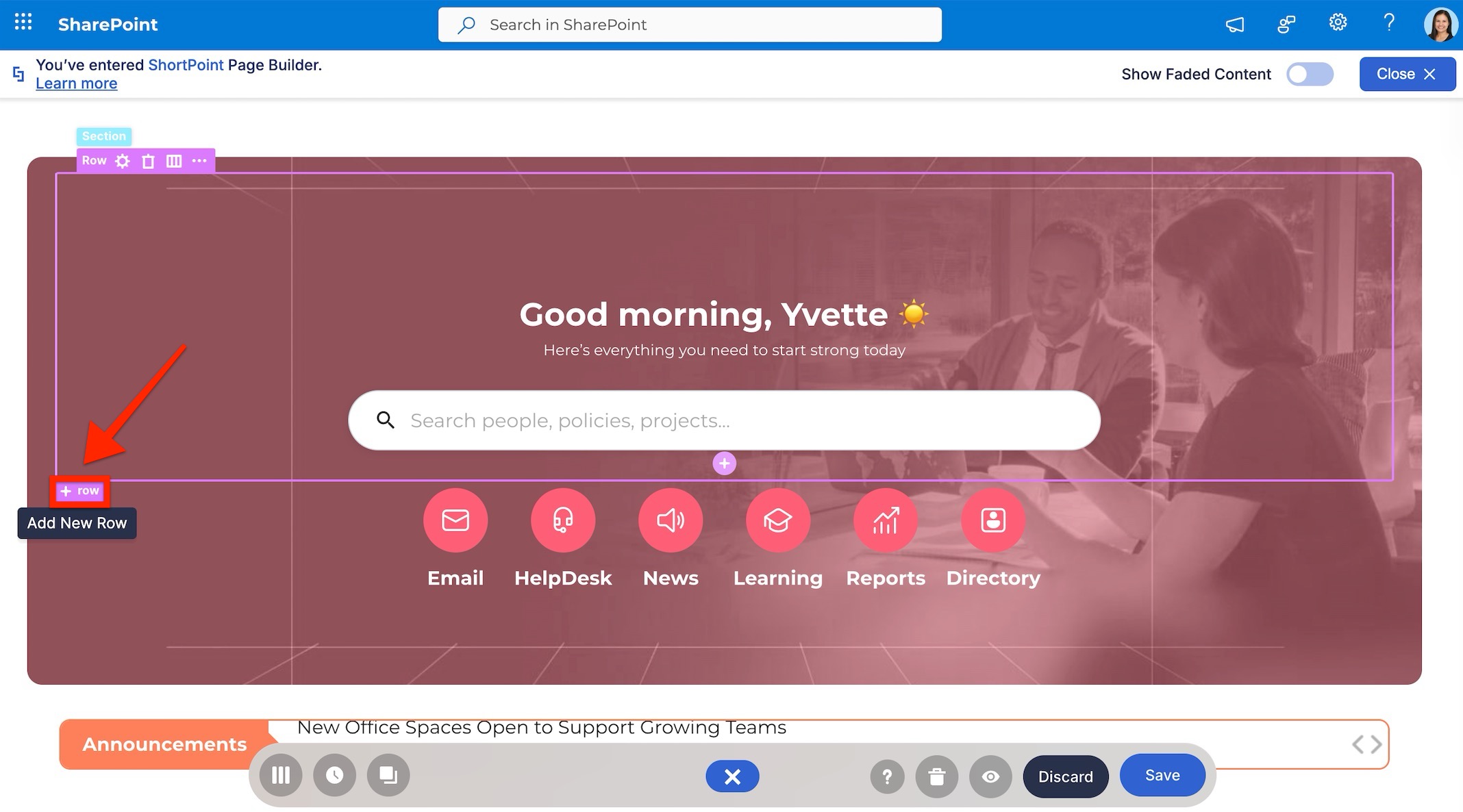
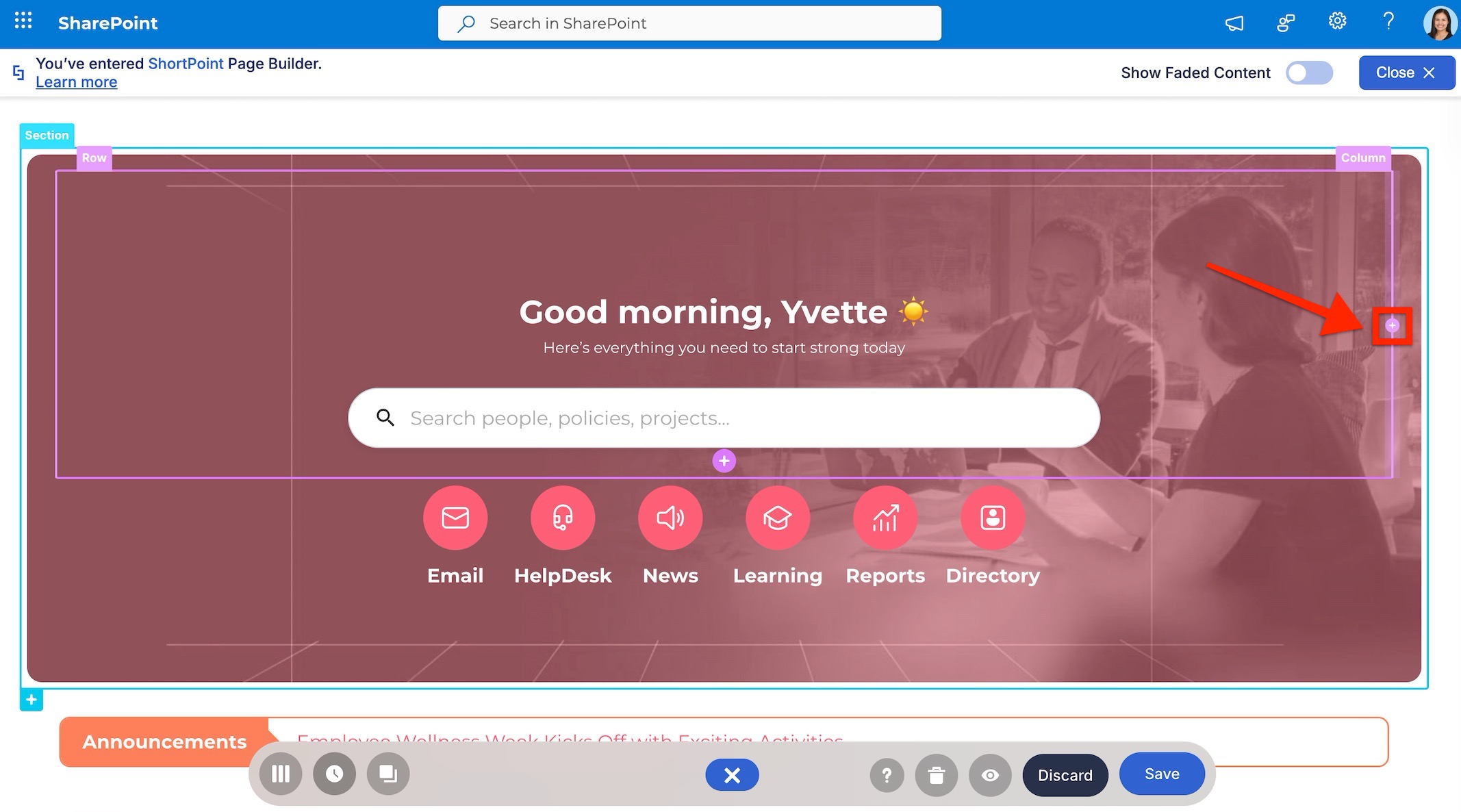
- Add Columns: Click the Plus button on the left or right border of an existing Column to insert a new column next to it.
Adjust Layouts and Column Widths
You can modify the structure of your page in a few clicks:
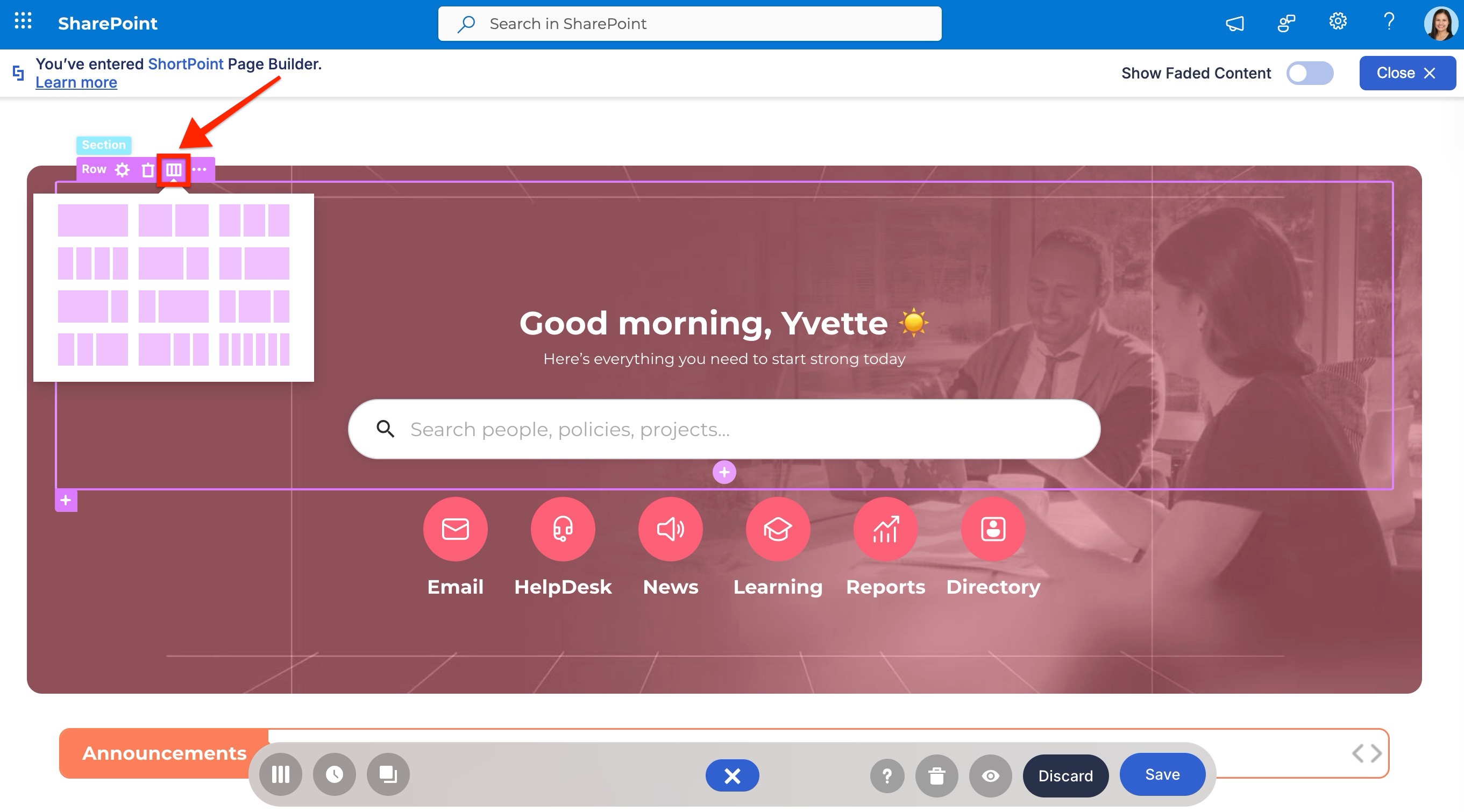
- Row/Section Layouts: Click the Show Layouts icon on the element tag to open a menu of preset grid structures. Selecting a preset automatically re-aligns your content.
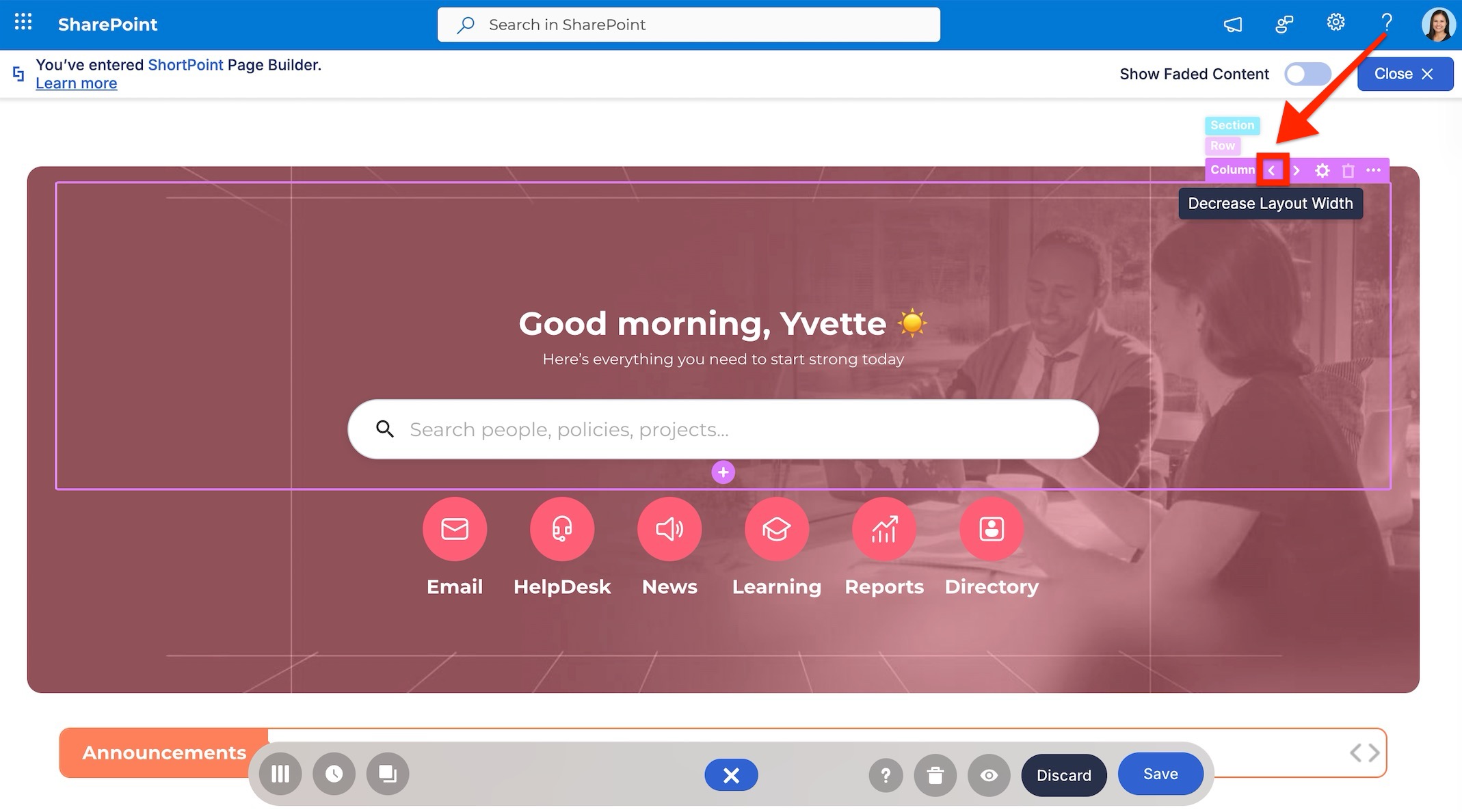
- Column Resizing: Select a Column and use the Left/Right Arrow icons on the tag to increase or decrease its width relative to the surrounding columns.
Delete Elements
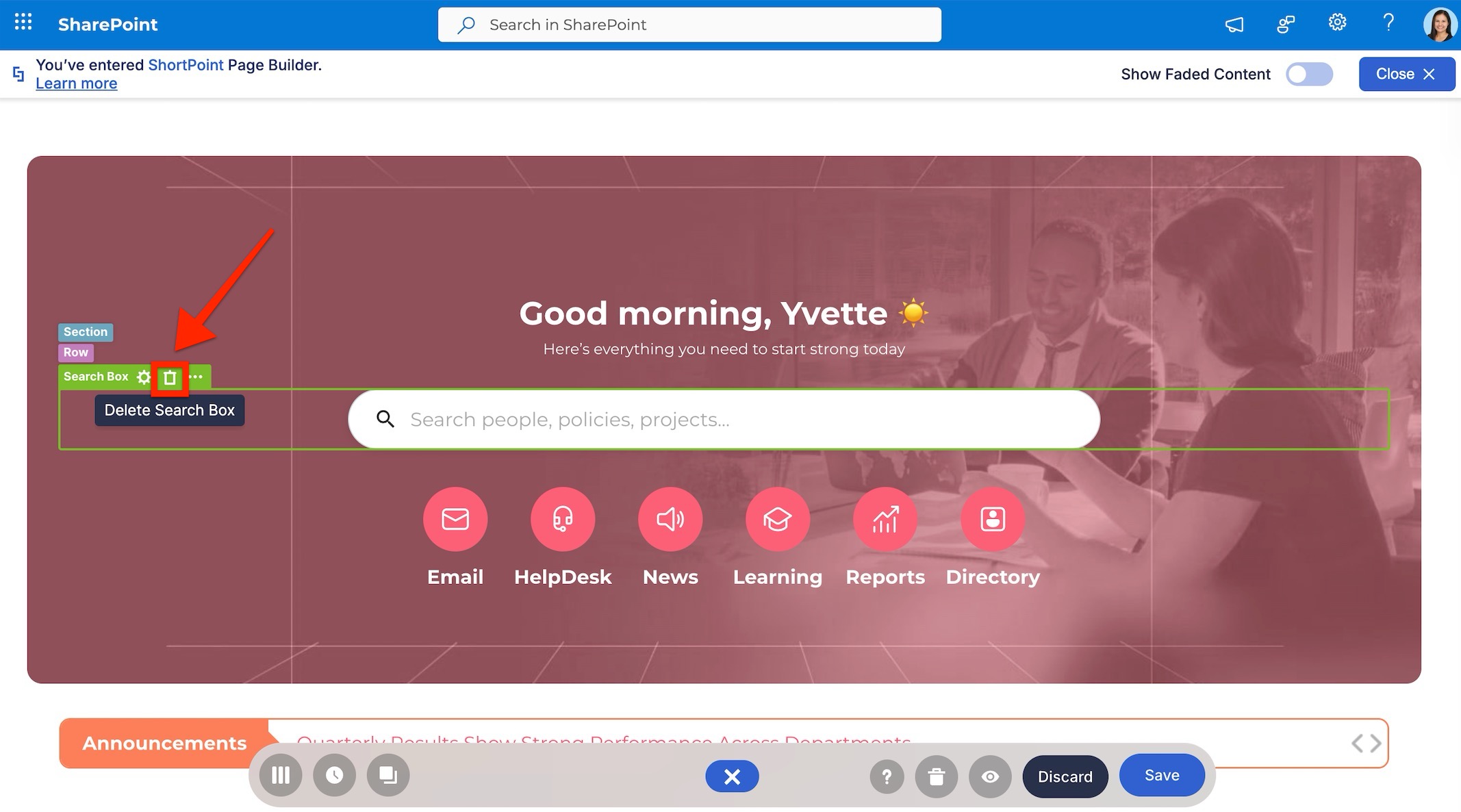
To remove any unwanted text, image, or layout structure, simply click the Trash Can (Delete) icon located on the element's tag.
By mastering these editing techniques, you have moved from building to refining. Instead of spending days wrestling with layouts and code, you can now take a professional template, tailor it to your brand, and launch a stunning SharePoint page in a fraction of the time.
Related articles:
- ShortPoint Templates Library: Complete Guide to Using Pre-Built SharePoint Page Designs
- Complete Guide to ShortPoint Design Elements
- Basic Tutorial: How to Establish Seamless SharePoint Connection with ShortPoint Connect
- How to Copy and Paste in Live Mode
