 Try ShortPoint now
The ShortPoint Templates Library is your most powerful tool for delivering stunning SharePoint pages faster than ever before. This guide will walk you through accessing and customizing our 100+ professional, pre-built designs so you can spend less time on layout and more time on high-impact content.
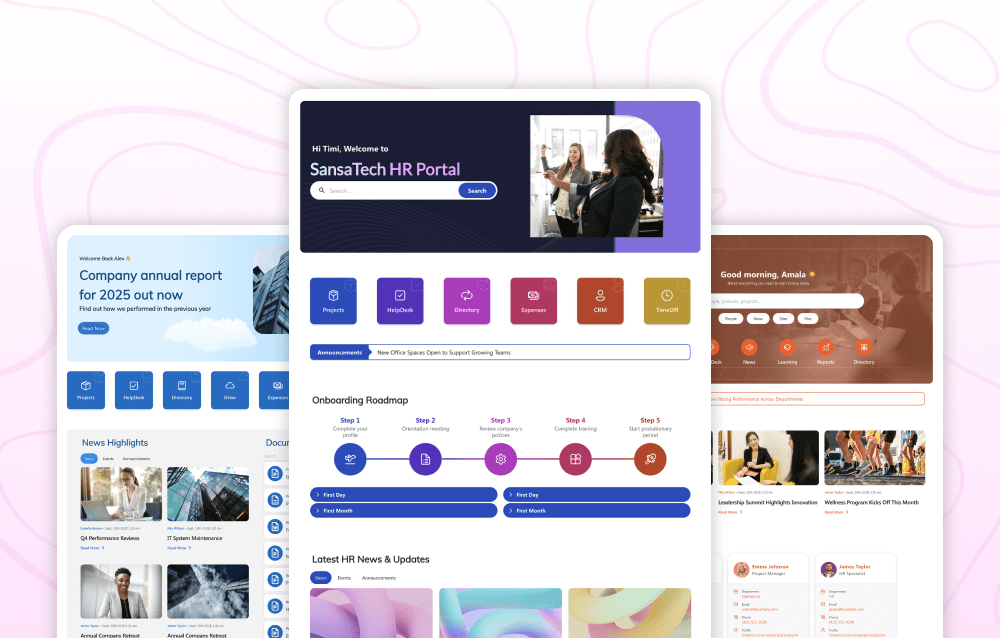
TABLE OF CONTENTS
- SharePoint Templates by ShortPoint: an Overview
- What has changed for ShortPoint Templates?
- What is the ShortPoint Templates Library?
- Can anyone use ShortPoint Templates?
- How to Get Started with ShortPoint Templates
- Using ShortPoint Templates: Video Tutorial
- Accessing the ShortPoint Templates Library: Step-by-step
- Step 1: Add or Edit a SharePoint Page
- Step 2: Insert or Edit a ShortPoint Web Part
- If you are adding a new ShortPoint web part, just click the insert web part plus icon and select ShortPoint. This will open the ShortPoint Page Builder in Live Mode, and a default Section will be inserted.
- Step 3: Open the Templates Library
- Step 4: Navigate and Preview the Templates Library
- Inserting a ShortPoint Template into Your SharePoint Page
- Customizing the ShortPoint Template
- What is the Difference Between ShortPoint Templates and SharePoint OOTB Templates?
SharePoint Templates by ShortPoint: an Overview
SharePoint Templates by ShortPoint are professionally created page designs that level up your SharePoint experience! These stunning layouts use our powerful Design Elements to create functional, eye-catching pages that will make your intranets truly shine. Developed by seasoned UI/UX design professionals who know what they're doing, these templates draw from research into what organizations actually need and industry best practices to deliver solutions that work in your day-to-day scenarios.
Each template is built to accelerate user adoption while maximizing engagement and giving your team an overall user experience they'll love! Rather than wrestling with SharePoint's basic styling options or investing months in custom development that will drain your budget, you can implement polished, professional pages in just minutes. Best of all, these designs are inherently responsive and seamlessly adapt to your existing SharePoint theme, ensuring consistent branding across all devices while maintaining that visual identity your organization has already established. It's a game-changer that saves you time and delivers results that will surely impress everyone who visits your site.
What has changed for ShortPoint Templates?
Previously, we released new templates exclusively on our demos.shortpoint.com site, where users could browse designs, copy their favorites, and paste them directly into their SharePoint pages. While this demo site remains a valuable resource, we've significantly enhanced access to the templates by introducing a comprehensive Templates Library as part of our Live Mode update in ShortPoint SPFx version 8.1.x.xx.
Since then, we’ve been producing more modern, sophisticated SharePoint templates that are housed directly within the Templates Library for instant access. As ShortPoint continues to expand with new design elements and advanced features, we're committed to developing fresh templates that showcase these capabilities and ensuring our library stays current with both design trends and evolving user experience requirements.
What is the ShortPoint Templates Library?
The ShortPoint Templates Library is a built-in feature accessible directly within ShortPoint Live Mode on modern SharePoint experiences (available since SPFx version 8.1.x.xx). This integrated library houses an extensive collection of SharePoint templates, offering an alternative to the traditional copy-and-paste method from our demo site. The library is thoughtfully organized into two distinct template types: complete page layouts that provide full-page designs for homepages, department pages, or landing pages, and flexible section templates that offer specific content blocks you can insert into existing pages.
What makes this library particularly powerful is its intuitive categorization system, which enables faster searching and improved visibility of relevant templates. Rather than browsing through numerous demo pages, you can quickly filter templates by category to find exactly what you need. The insertion process is significantly more efficient; templates can be applied with just a few clicks directly from within your SharePoint editing environment, eliminating the need to navigate between multiple browser tabs or worry about formatting issues during the copy-paste process.
Can anyone use ShortPoint Templates?
Here are a couple of prerequisites before you can access the ShortPoint Templates Library and add the pre-designed templates to your SharePoint pages:
- You must have the latest ShortPoint SPFx version installed in your SharePoint environment.
- You must be a ShortPoint Designer with an active license.
How to Get Started with ShortPoint Templates
Using ShortPoint Templates: Video Tutorial
Watch this video tutorial from our ShortPont Academy to quickly learn how to access, insert, and edit the templates. You can also go through the step-by-step walkthrough in the next sections of the article.
Accessing the ShortPoint Templates Library: Step-by-step
You can open the Templates library by following these steps:
Step 1: Add or Edit a SharePoint Page
- To add a new SharePoint page, click the New button and select Page.

- To edit an existing SharePoint page, press the Edit button.

Step 2: Insert or Edit a ShortPoint Web Part
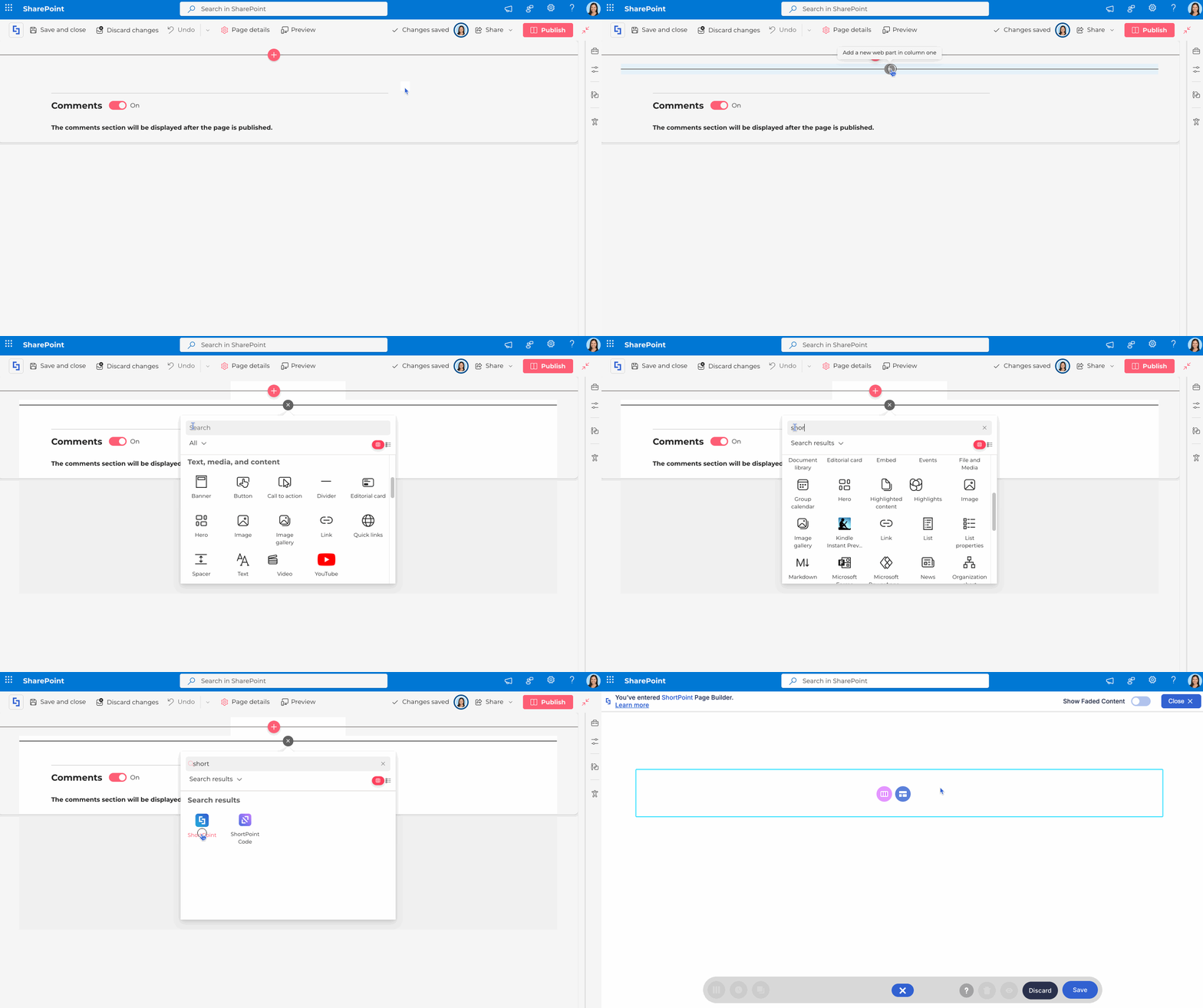
- If you are adding a new ShortPoint web part, just click the insert web part plus icon and select ShortPoint. This will open the ShortPoint Page Builder in Live Mode, and a default Section will be inserted.
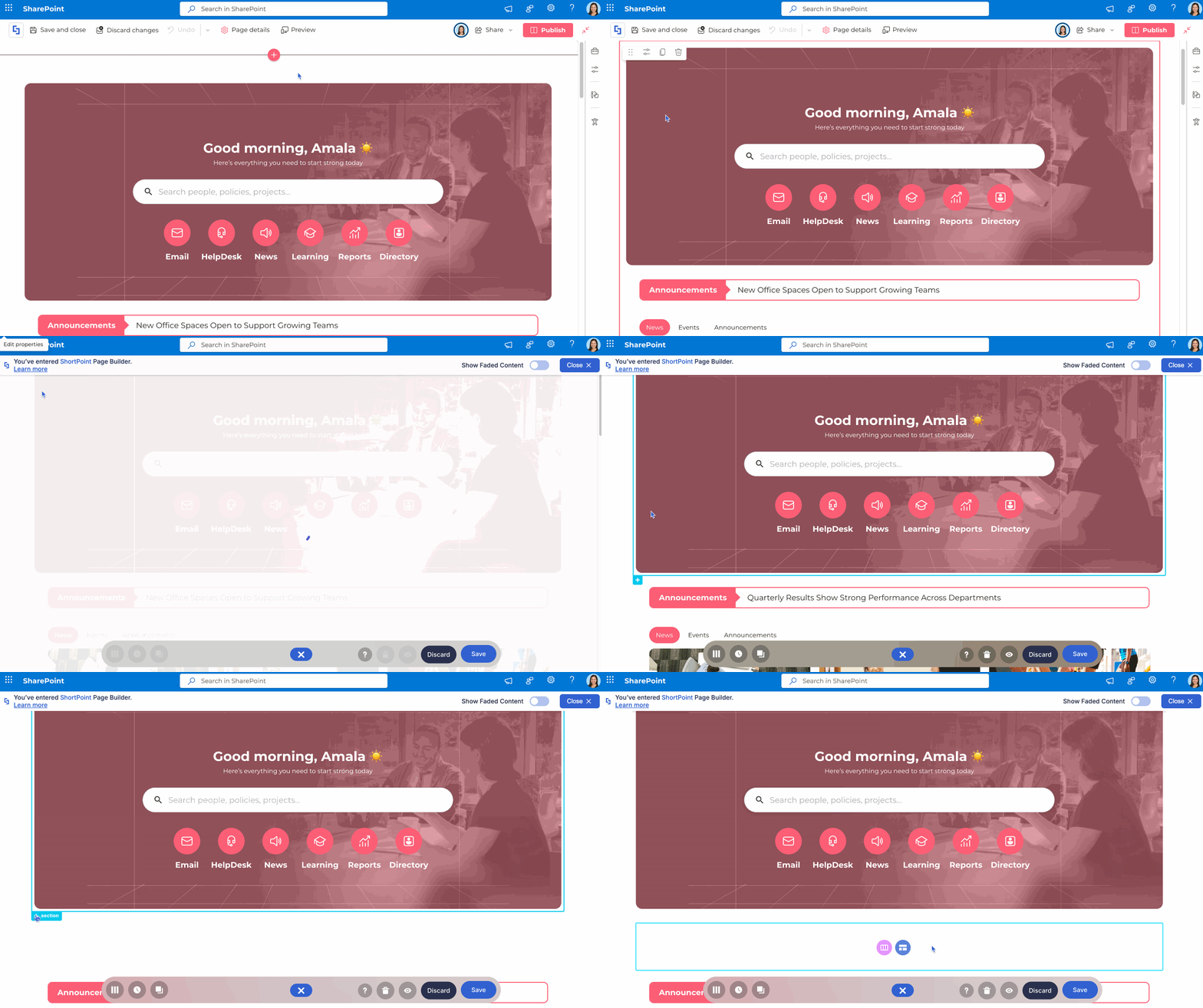
- If you are editing an existing ShortPoint web part, select it and click the Edit Properties button. Then insert a new Section.
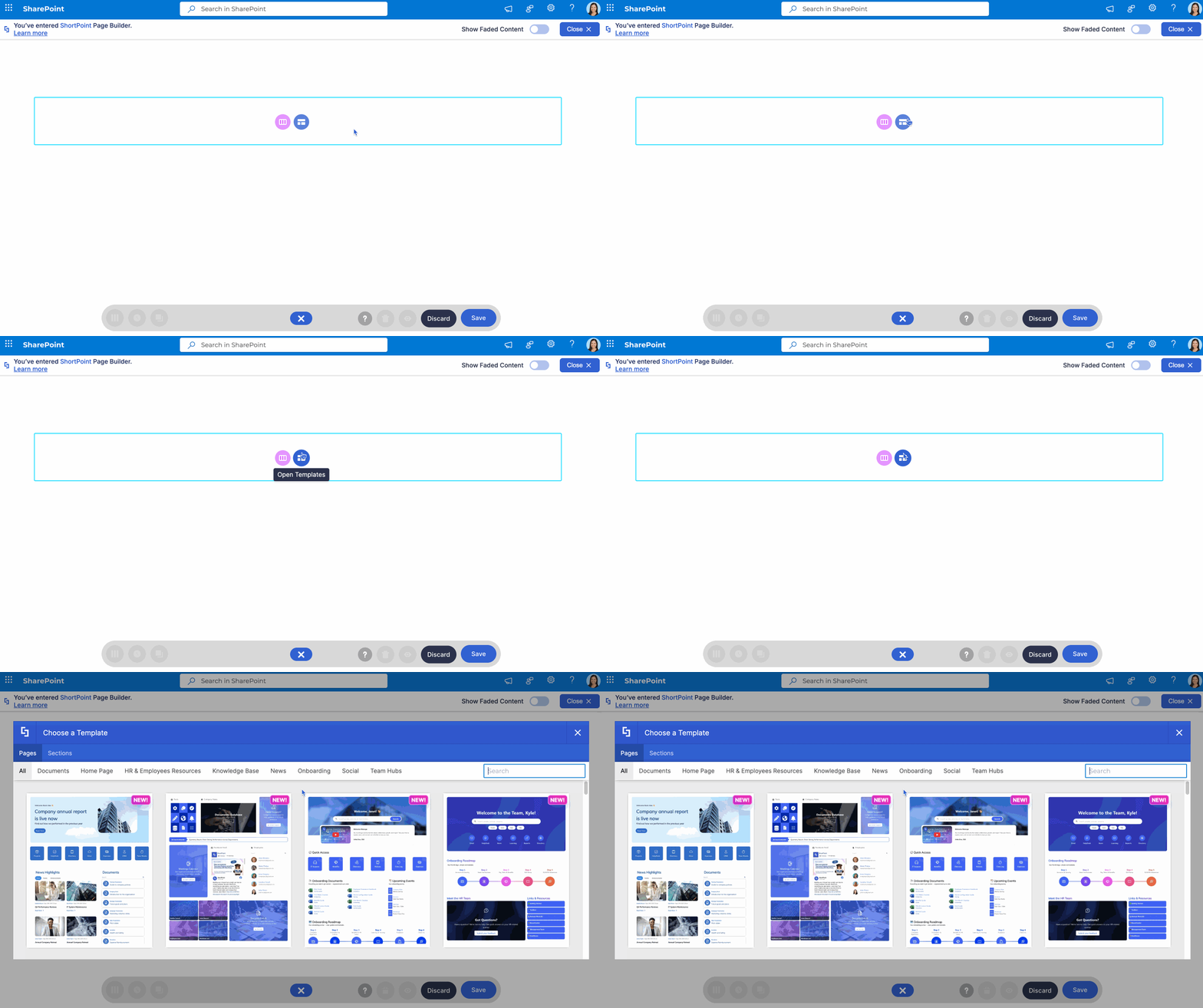
You will now be able to see the initial ShortPoint icons: the Choose Layout and Templates Library icons.
Step 3: Open the Templates Library
Press the Templates Library icon found within the default or new Section added to your SharePoint page. This will open a new window showcasing all the available SharePoint page and section templates you can choose from.
Step 4: Navigate and Preview the Templates Library
You can navigate through the contents of the Templates Library by doing the following:
- Select between the page or section template tabs depending on what you require. Category tabs are also available to filter the templates.
- Scroll down to view the thumbnails of different templates.
- If you find something you want to preview, click the eye icon, and it will give you a larger view of the page or section.
- Click the back icon if you want to continue viewing other templates.
- If you have been to the Templates Hub on our main website and already know the template name you are looking for, you can use the search box to find the template you need.
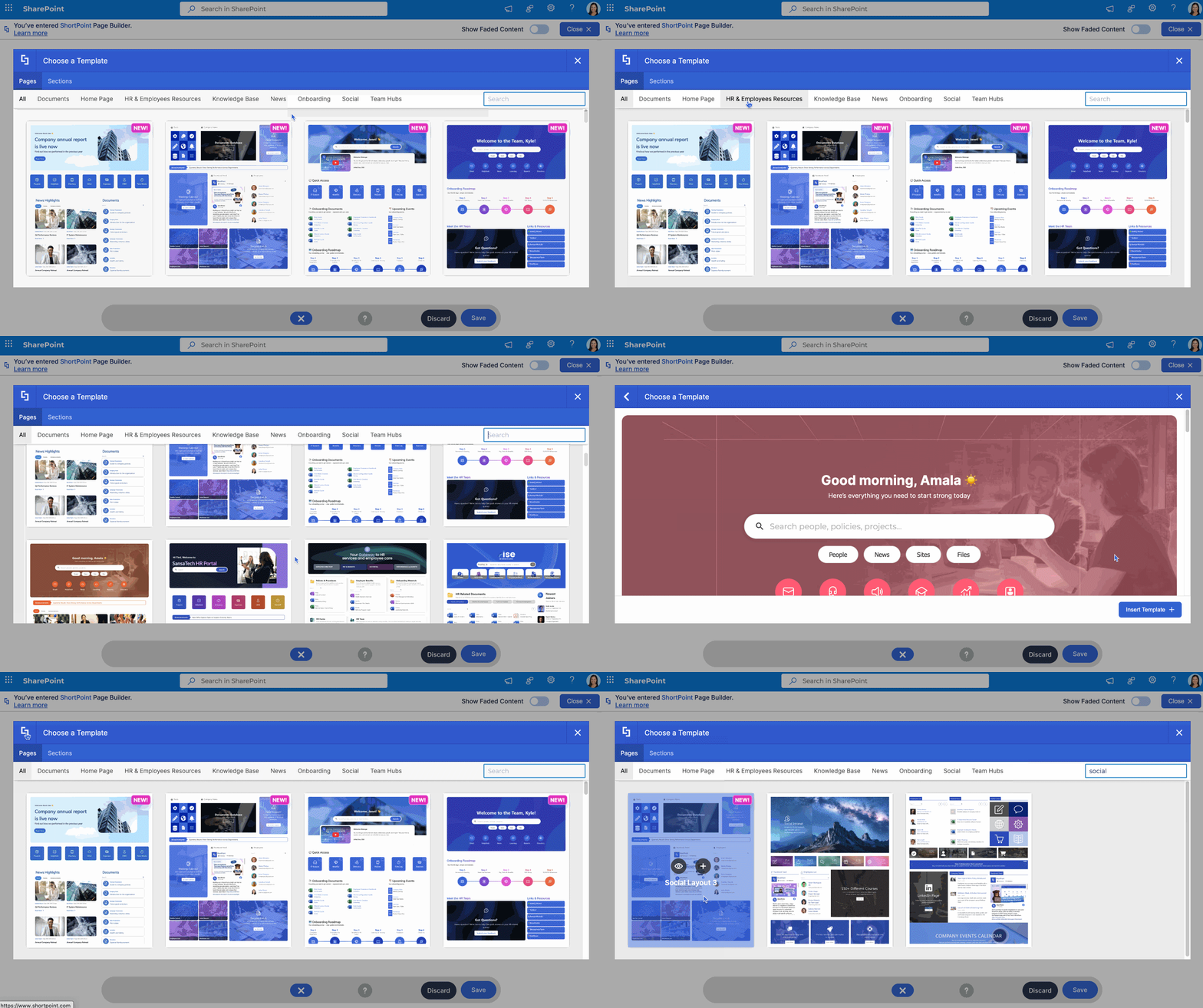
Inserting a ShortPoint Template into Your SharePoint Page
In the Templates Library, there are two ways to insert the page or section template you want to use:
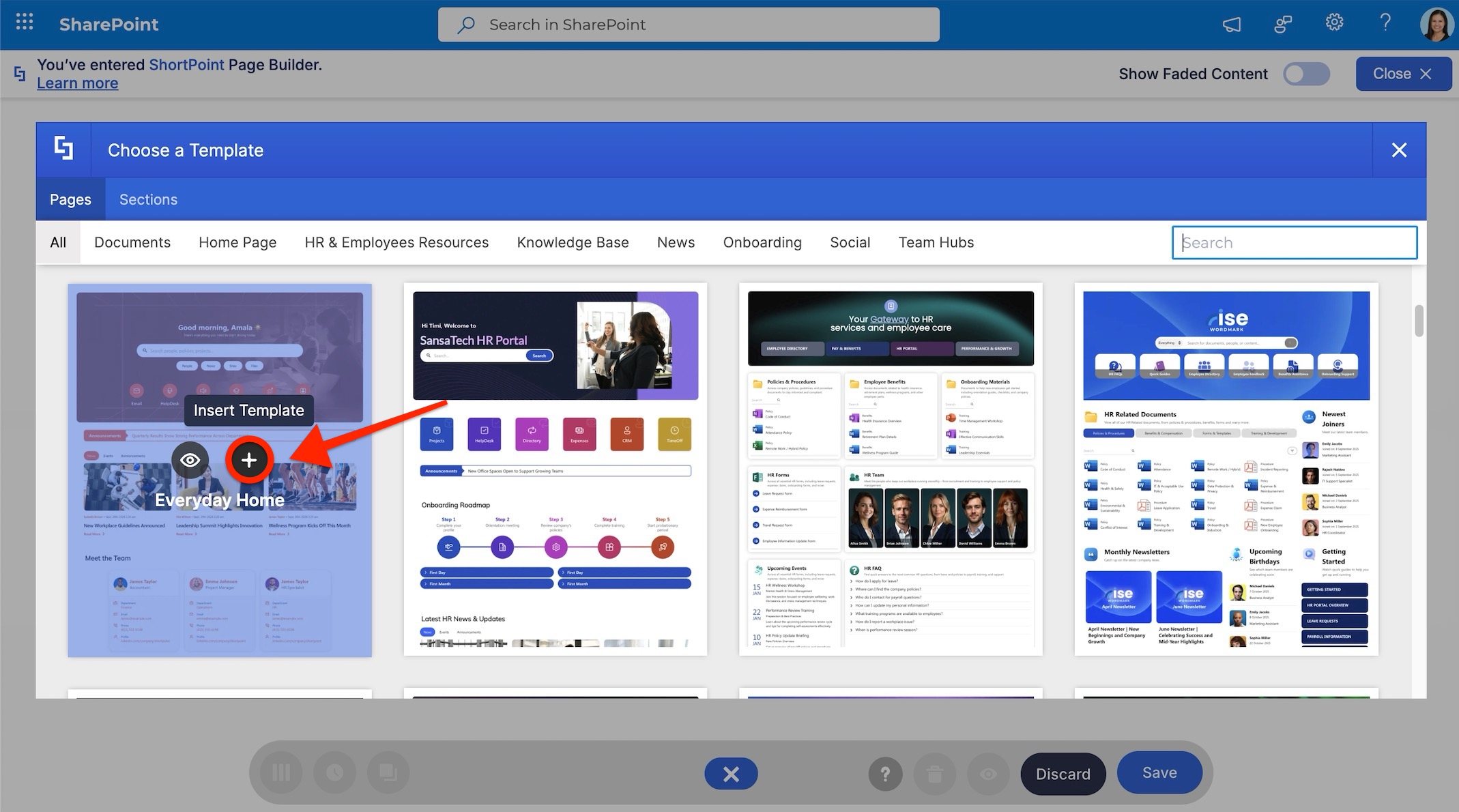
- From browsing the thumbnails, hover over the template you want to insert and click the plus button.
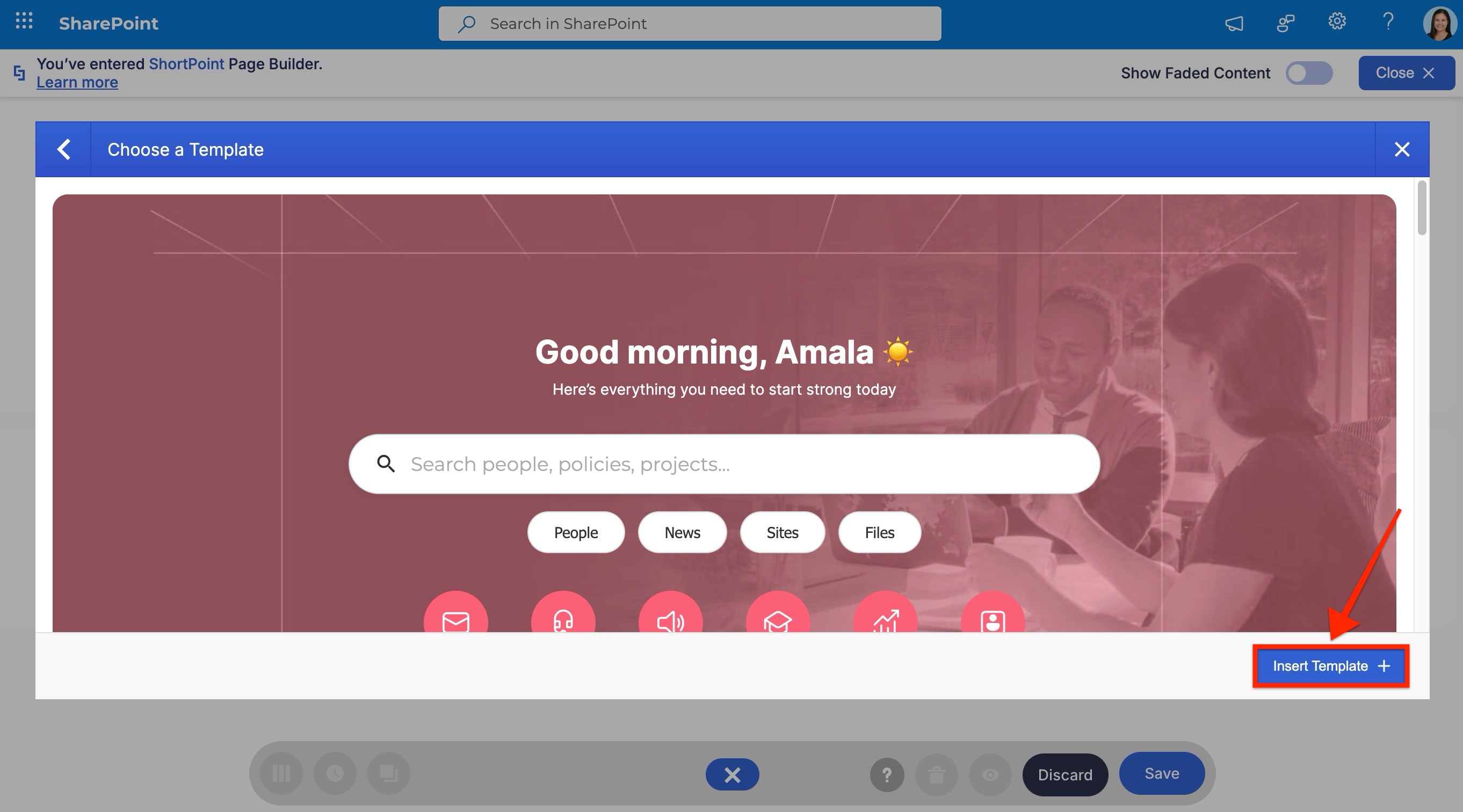
- From the preview window, press the Insert Template button.
Your template will now be added to your page. That’s how quick it is!
Customizing the ShortPoint Template
Once inserted into your page, all the Design Elements found within the template will be customizable just as if you were the one who inserted them in the first place.
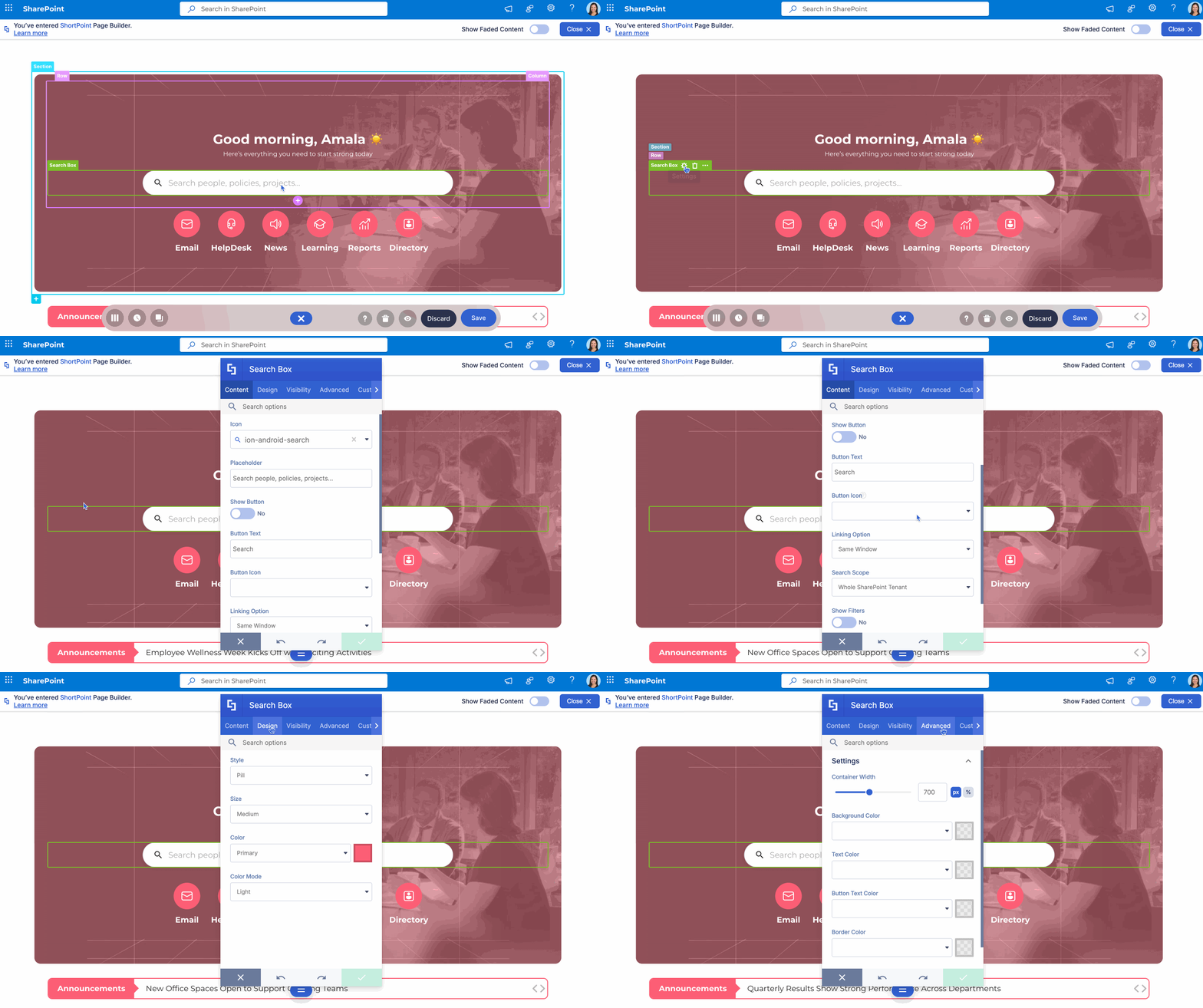
Here is an overview of the things you can do:
- Content and Design Customization: Input your own content and customize the design by opening the settings window and modifying its components. Edit the placeholder content, replace images, adjust the colors, sizes, design settings, and other element functions to match your specific needs and branding requirements.
- Data Integration: Integrate content from SharePoint and other internal or external data sources by switching to Grid Mode, opening the settings window, going to the connect tab, and configuring the connection. This allows you to pull live data from SharePoint lists, libraries, or external systems directly into your template elements.
- Layout Rearrangement: Rearrange the Design Elements by clicking on the Section or Row up or down buttons. This flexibility ensures you can modify the template's structure to better suit your content flow and organizational preferences.
- Template Reusability: Reuse the parts of the template that you like by copying and pasting any Section or Design Element to other Columns within the ShortPoint web part, to another page on your site, or even to another site collection. This maximizes your investment in quality designs across your entire SharePoint environment.
- Theme Adaptability: The templates will automatically adapt your existing site themes and site settings. But if you wish to update them, open ShortPoint Theme Builder and make your changes to ensure perfect alignment with your brand guidelines.
Once you are done, simply save the page and publish it. You already have a beautiful, engaging, and running page in no time, transforming what used to be a complex development process into a matter of minutes.
What is the Difference Between ShortPoint Templates and SharePoint OOTB Templates?
SharePoint's Templates Gallery is a great starting point. You'll find visually impressive pre-built designs that work across different organizational needs. From employee directories to news and announcements. But here's what you'll notice pretty quickly: most out-of-the-box templates hit a wall when it comes to interactivity. Because they rely on native SharePoint web parts, the content tends to stay static. You get a nice-looking page, but it doesn't really adapt or update in ways that keep your intranet feeling fresh and responsive.
More Flexibility, More Choices
ShortPoint templates give you that same beautiful starting point but with real flexibility built in. Each design element within the template can be freely customized to fit what you need. You have access to their settings window and you can adjust the design as you see fit. It will be as if you were the one who put them together from scratch in the first place.
We're also constantly releasing new designs, so you're not stuck choosing from a limited palette. If you want to refresh your employee onboarding hub or pivot your communication strategy, you can switch templates or customize existing ones without starting from scratch. Your team gets breathing room to experiment and evolve your intranet without the technical overhead.
Connect: The Game-Changer for Dynamic Content
Here's where ShortPoint really separates itself. Nearly every design element includes our Connect feature, which means you can pull live data directly into your templates. Need to display today's announcements from a SharePoint list? Done. Want to showcase team calendars from Microsoft Teams or pull in relevant content from Outlook? Easy. You can even embed RSS feeds, integrate with other Microsoft 365 apps, and much more, all without needing custom development or IT intervention. Your intranet becomes genuinely dynamic, updating in real-time as your source data changes.
Imagine a leadership dashboard that automatically displays the latest company goals from a SharePoint list, or an employee resources page that pulls training materials from multiple libraries and surfaces them based on department or role. That's the kind of functionality Connect delivers.
Built to Scale With Your Organization
As your intranet grows, more sites, more users, more content, managing it needs to stay simple. ShortPoint's architecture is designed with scalability in mind. Whether you're managing a single team site or an enterprise-wide intranet spanning multiple departments, you can maintain consistency, push updates efficiently, and keep everything running smoothly without complexity multiplying along the way.
SharePoint provides the foundation your organization needs. But to build an intranet that actually works, one that engages employees, adapts to business needs, and scales as you grow, you need more than out-of-the-box capabilities. ShortPoint is the design and functionality layer that transforms SharePoint into a truly dynamic, customized digital workplace. It's the difference between having a solid platform and having a platform that delivers real impact.
