 Try ShortPoint now
If you're looking to showcase your team's user profile in SharePoint Online, ShortPoint's People Search connection type is exactly what you need. This powerful feature transforms the way you highlight your team members: from a static list into an engaging, interactive experience that your users will actually want to use. It leverages user profile information stored in Azure Active Directory, enabling you to efficiently display dynamic content based on user properties.
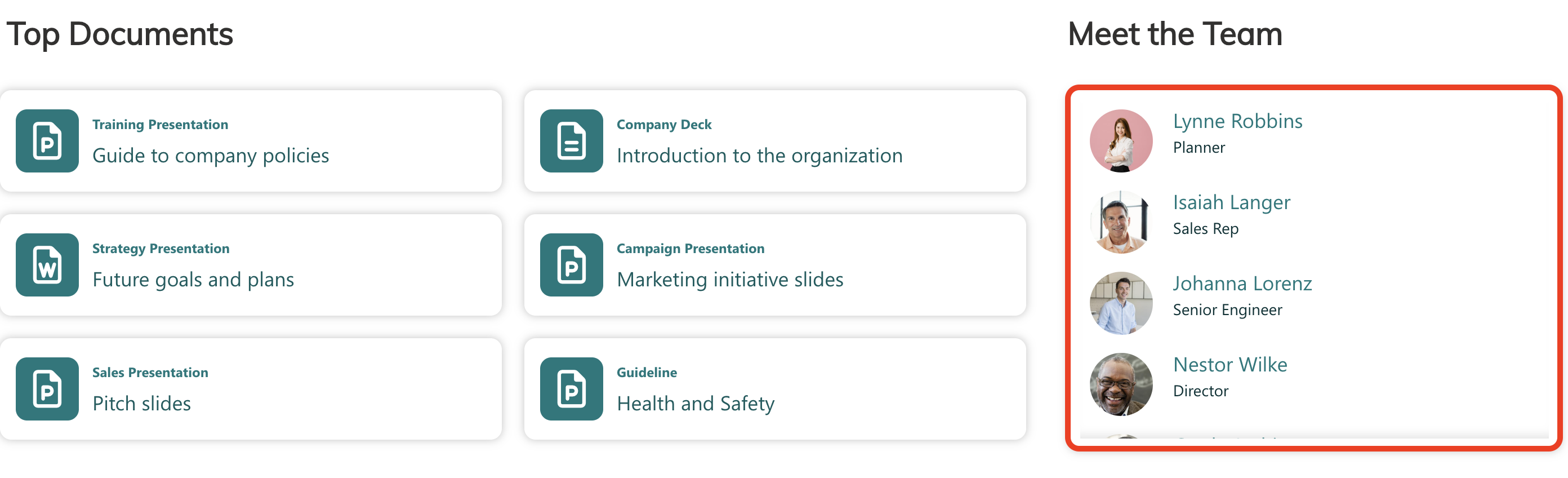
TABLE OF CONTENTS
- Prerequisites
- What is the ShortPoint People Search Connection Type?
- Interactive Tutorial
- Step-by-step Tutorial
- People Search Connection Features
- Practical Use Cases
- Start Connecting Using People Search
- Frequently Asked Questions
- Can I use People Search with any Design Element?
- How often does the information update?
- I'm seeing strange entries like "spsearch" or "sharepoint content services" in my results. What's going on?
- Can I limit the number of people displayed?
- What if I want to sort people by a specific property?
- Can I display custom user profile properties?
- Does this work for external users or guests?
- How do I link people to their Delve profiles?
- What's the difference between People Search and People in SharePoint Group?
Prerequisites
- You have the latest version of ShortPoint SPFx installed (version 8.7.2.0 and up) on your SharePoint environment.
- You are a ShortPoint Designer with an active license.
- You must have the ShortPoint Design Element you want to use to connect on your page.
What is the ShortPoint People Search Connection Type?
The People Search connection type is a ShortPoint Connect feature that lets you pull and display information about your SharePoint organization members directly onto your pages.
What makes it special? The connection taps directly into your SharePoint user profile data and search engine, which means you don't have to manually enter or update employee information. Once you set it up, changes to user profile information automatically reflect on your connected pages. It's dynamic, it's smart, and it saves you countless hours of maintenance work.
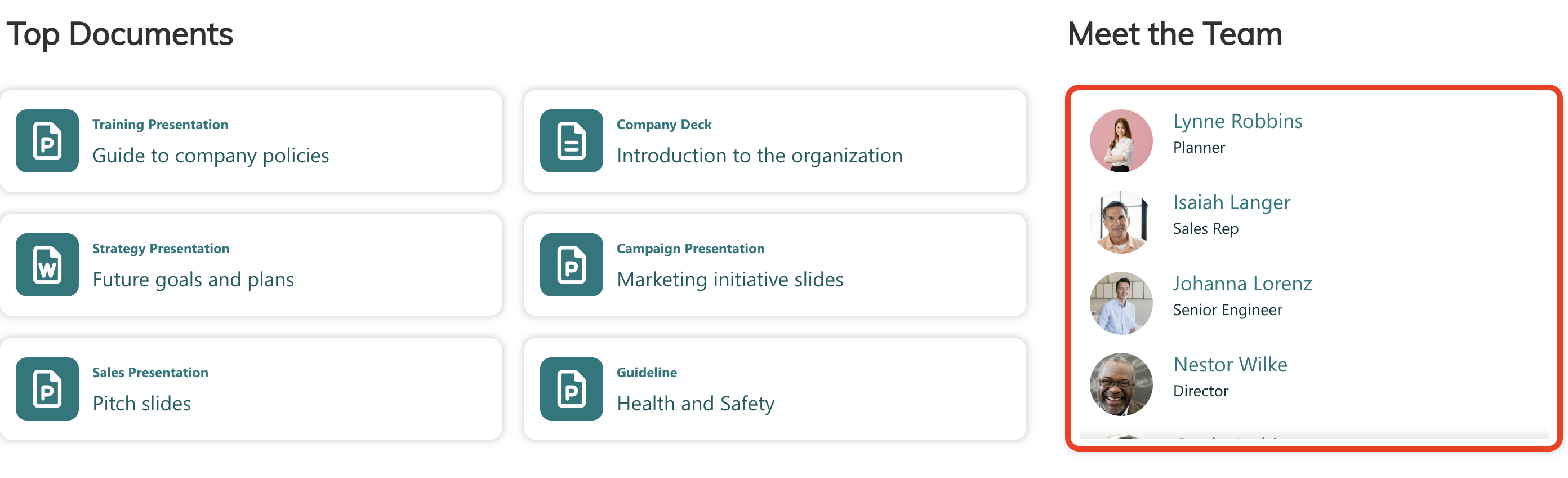
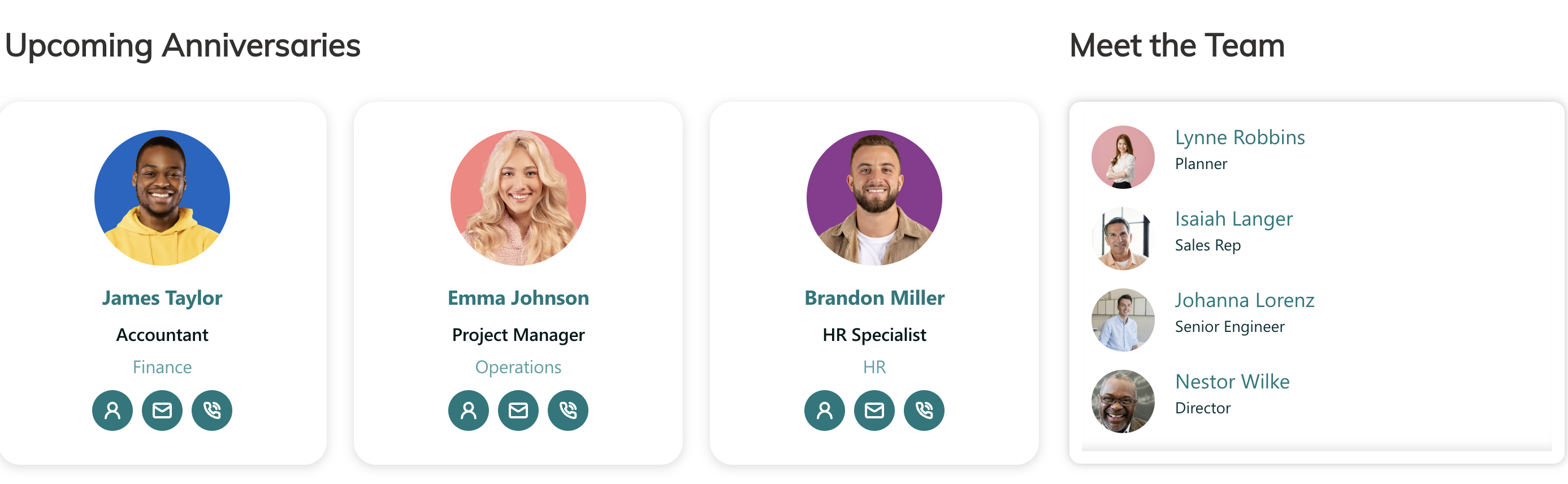
The best part is that you can use any ShortPoint Design Element to present this information. Whether you prefer a sleek card layout, a traditional list view, or an eye-catching image gallery, People Search adapts to your design vision. With over 60 design elements at your disposal, you can create a SharePoint user directory that actually looks good.
Interactive Tutorial
Click Get Started to learn how to use the People Search connection type:
NOTETo learn more about the options you can modify, go to People Search Connection Features.
NOTEPeople Search connection relies entirely on SharePoint People Search. Make sure that the selected fields for sorting are configured to support sorting. Check out Enabling sorting by field in SharePoint Search for more information.
Step-by-step Tutorial
Learn how to use the People Search connection type in this step-by-step guide:
Step 1: Edit the ShortPoint web part
- Go to the SharePoint page you want to use and click Edit:

- Close the Toolbox:
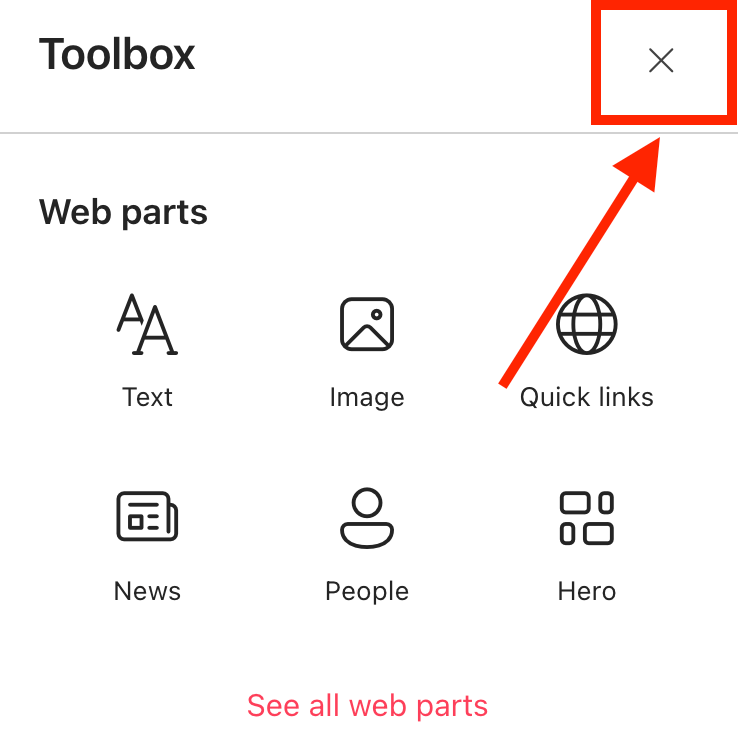
- Edit the ShortPoint web part:

Step 2: Edit the Design Element
NOTEBefore proceeding, you must already have the Design Element you want to use to connect on your SharePoint page. You can use any Design Element you prefer, but we recommend using Design Elements that allow listing of multiple items, including Simple List, Image List, Icon List, and so much more. For this guide, we'll use Image List.
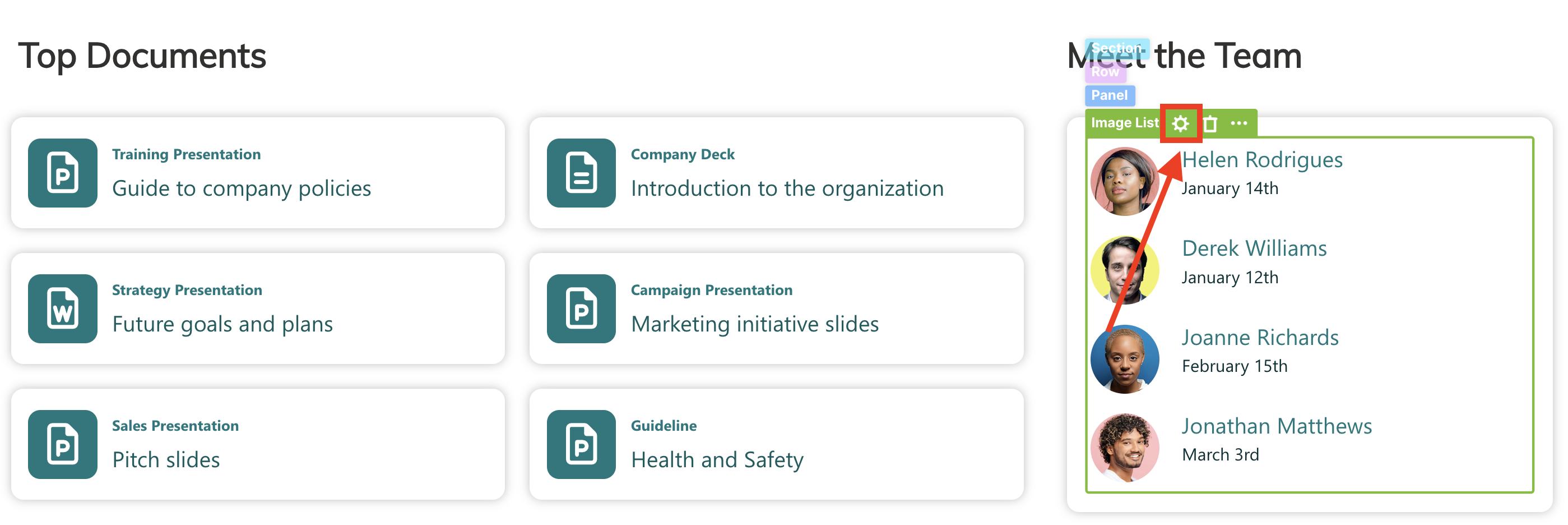
- Click the EasyPass tag of the Design Element you want to use to connect:
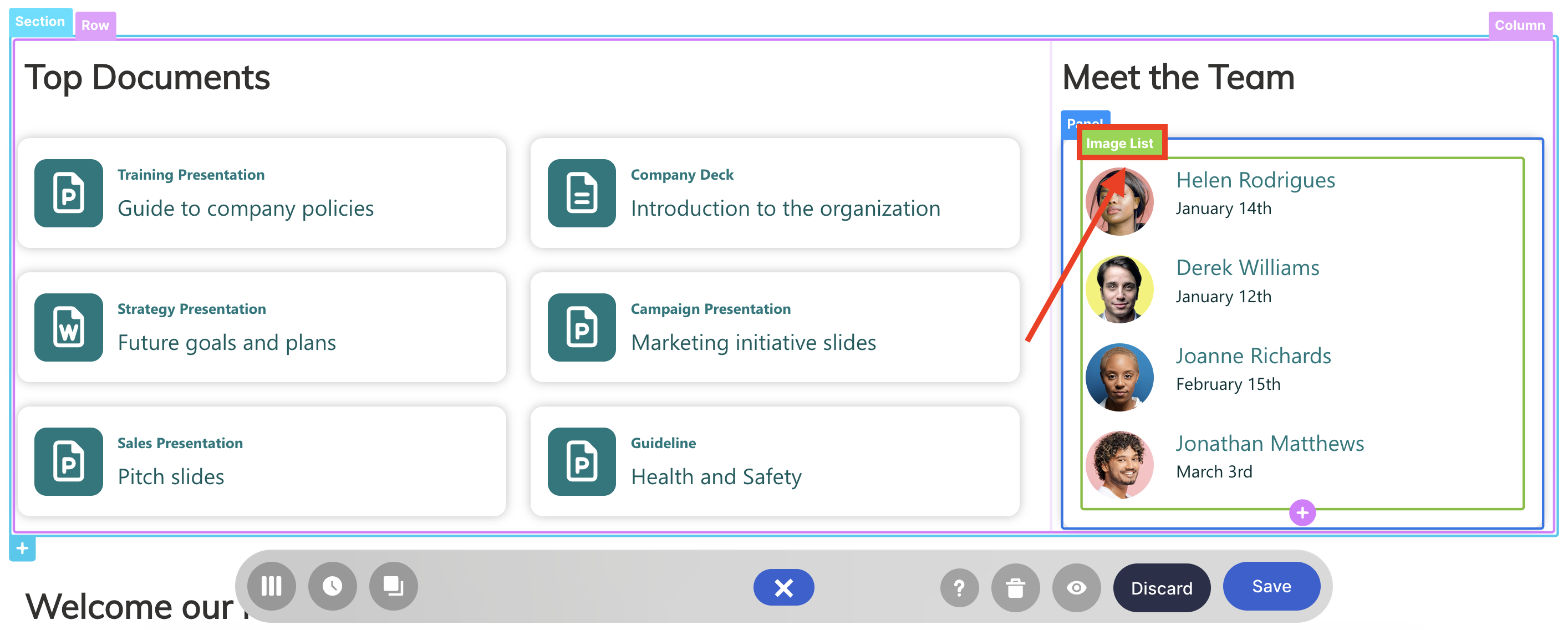
- Select the cogwheel icon:
Step 3: Connect using the People Search connection type
- Go to the Connect tab.
- Click Configure:
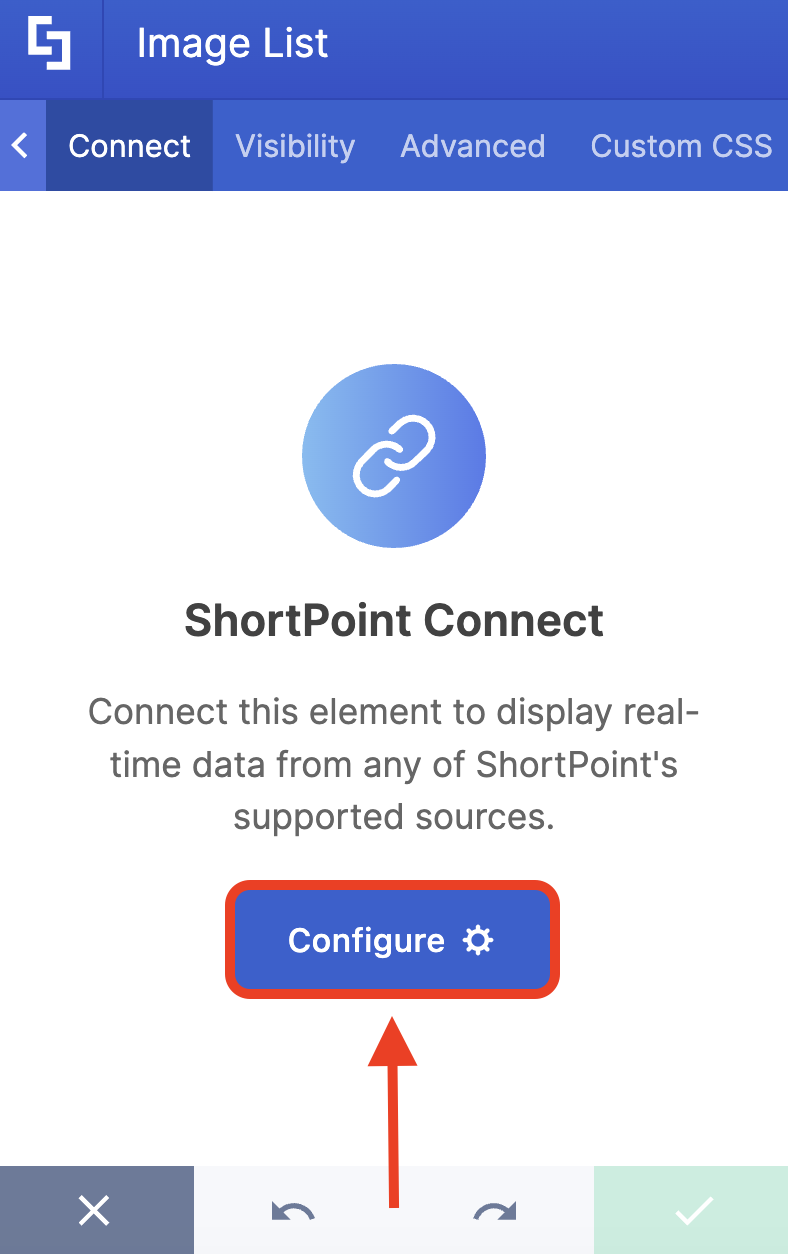
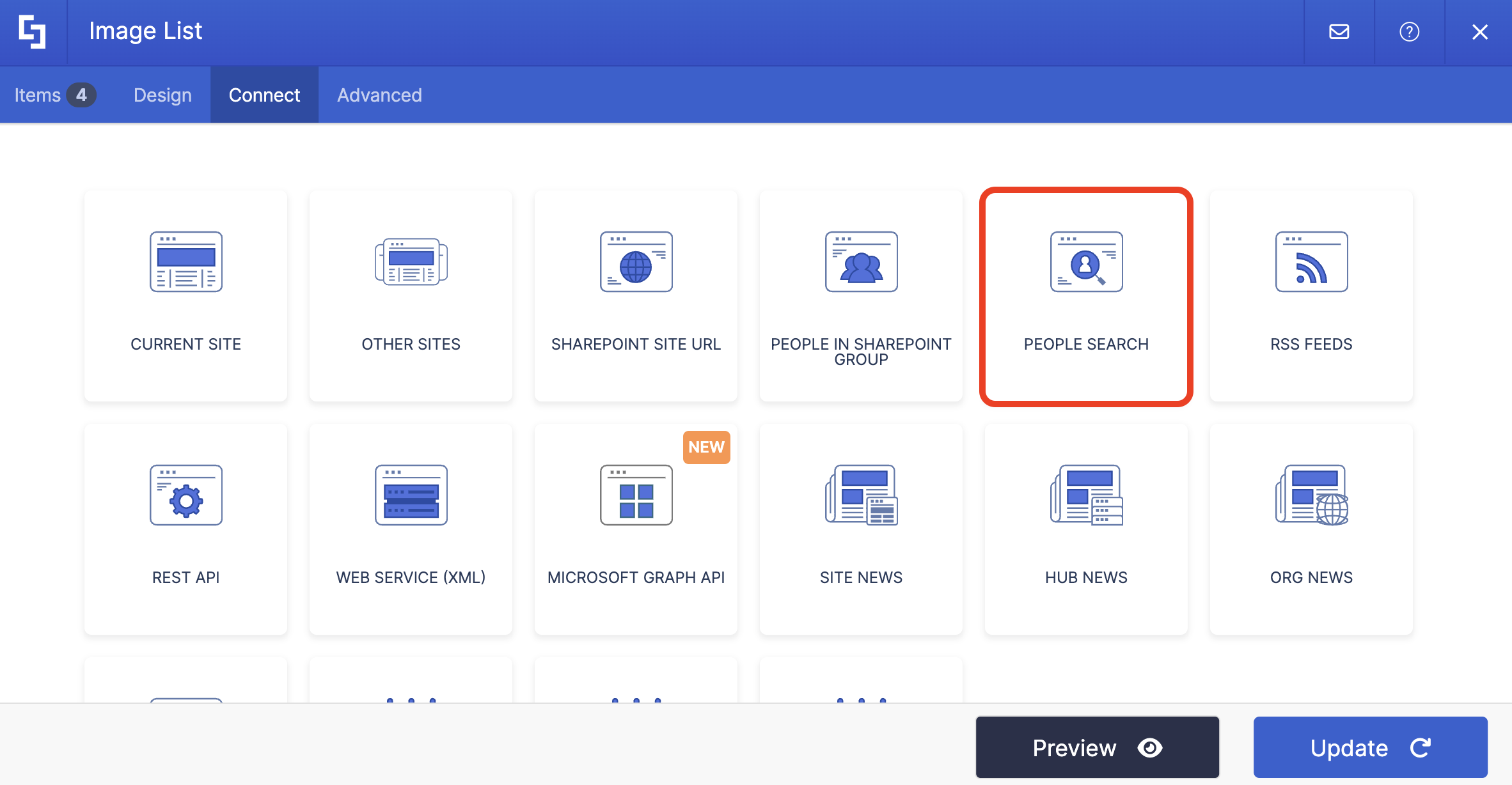
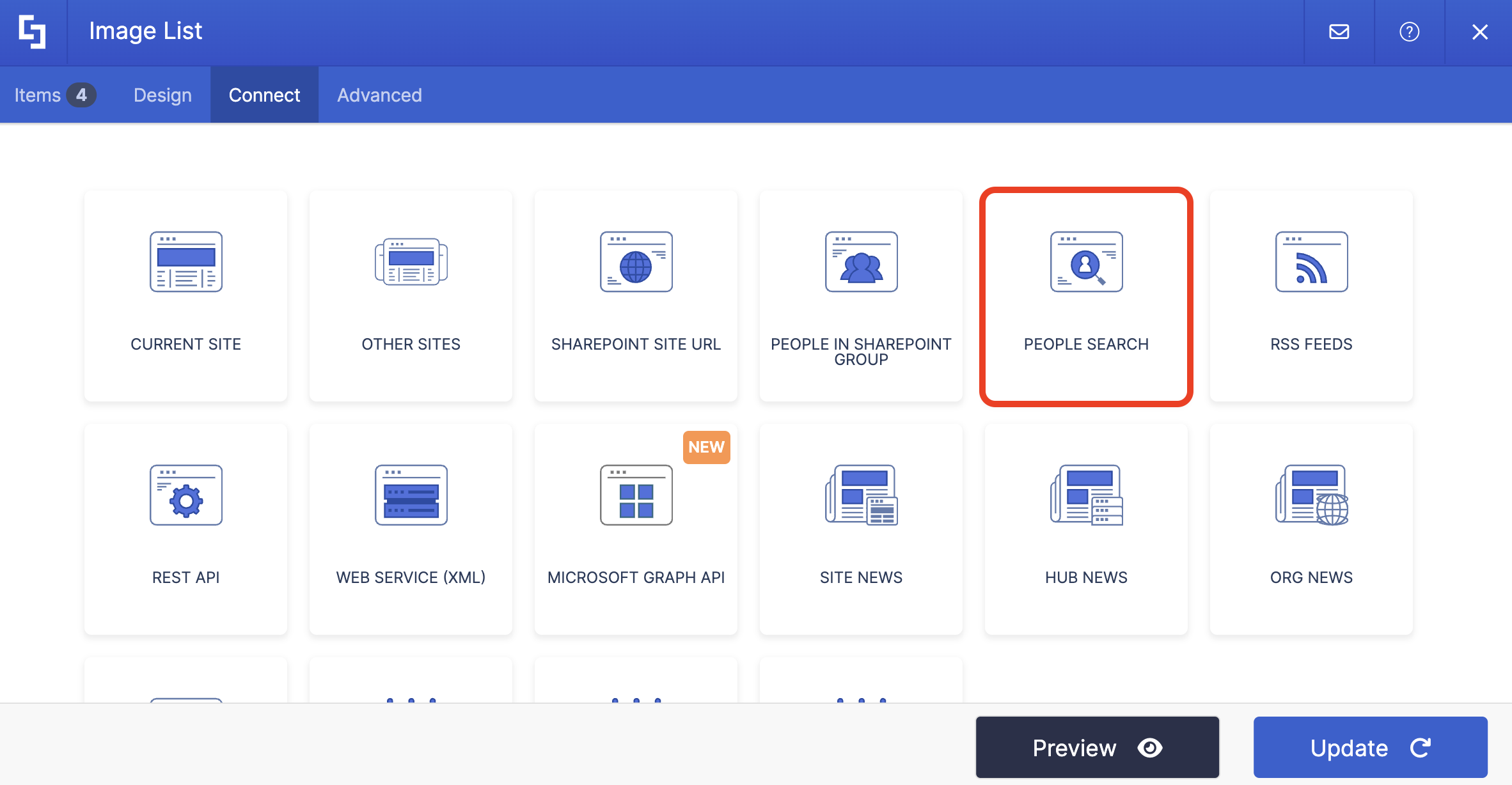
- Select People Search:
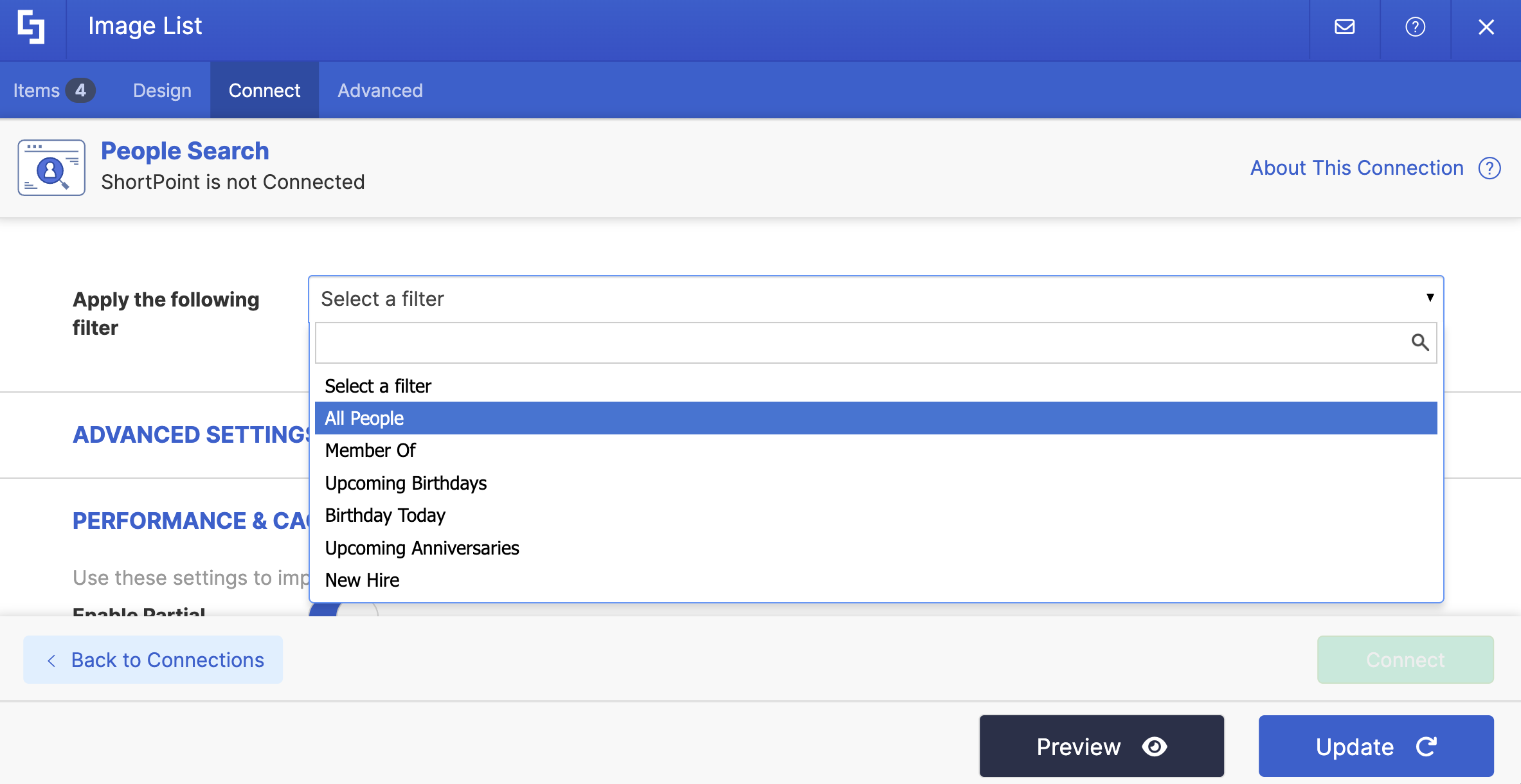
- Choose the filter you want to use in the Apply the following filter drop-down. Depending on your choice, additional fields may appear. To learn more about the options, go to People Search Connection Features.
- Set an Items Limit.
- Then, click Connect to establish the connection.
NOTEPeople Search connection relies entirely on SharePoint People Search. Make sure that the selected fields for sorting are configured to support sorting. Check out Enabling sorting by field in SharePoint Search for more information.
Step 4: Map Items to display
- Go to the Items tab.
- Delete all default content:
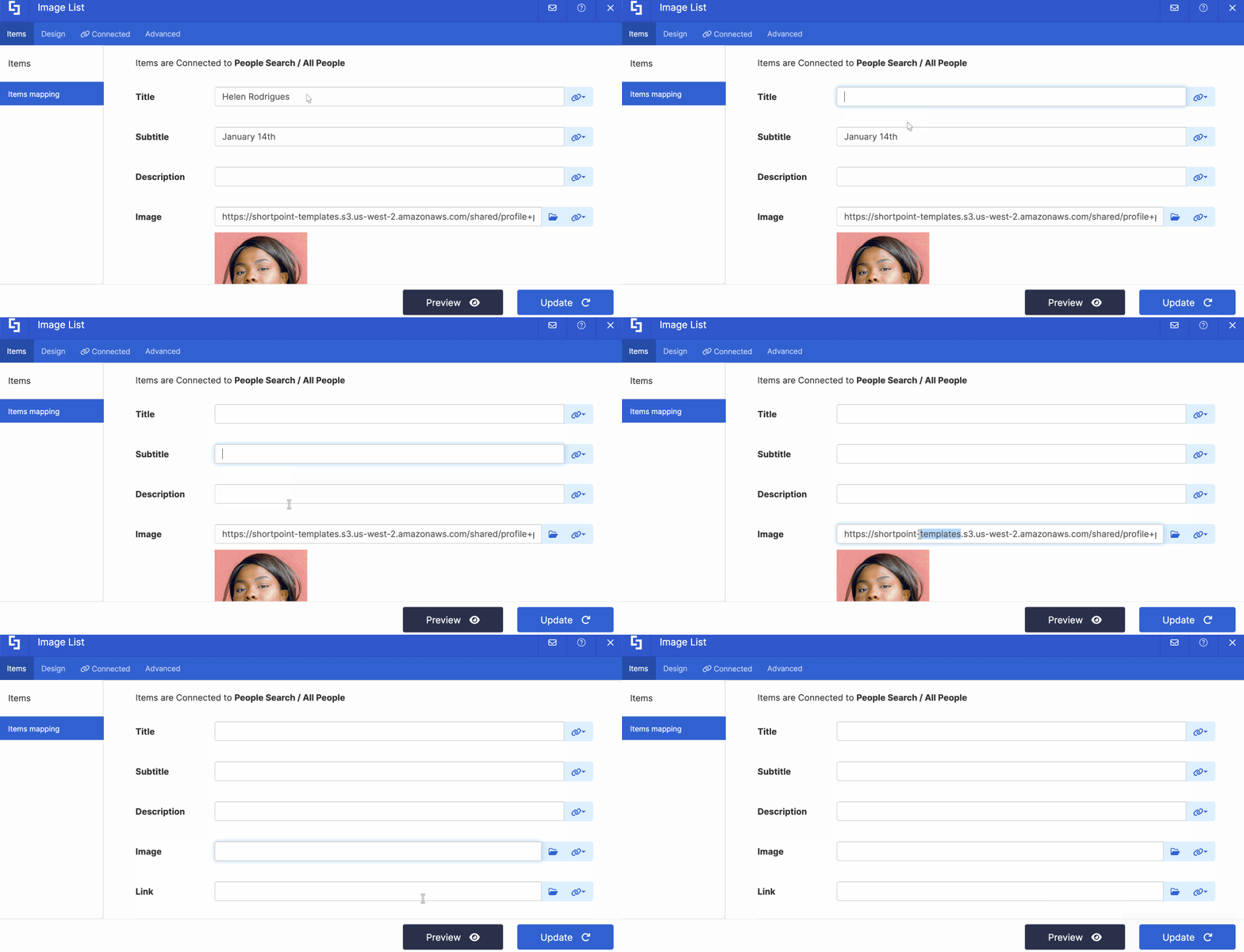
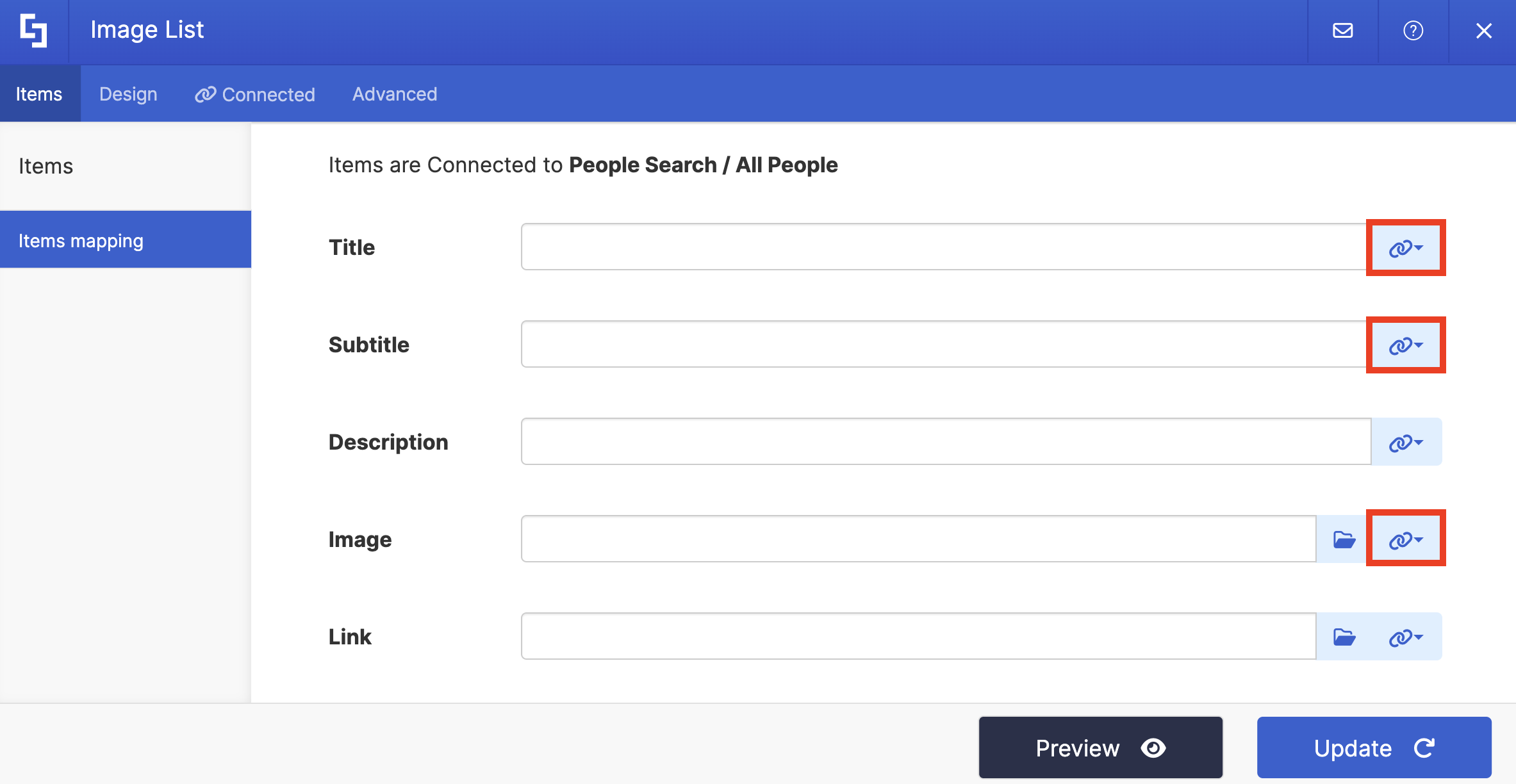
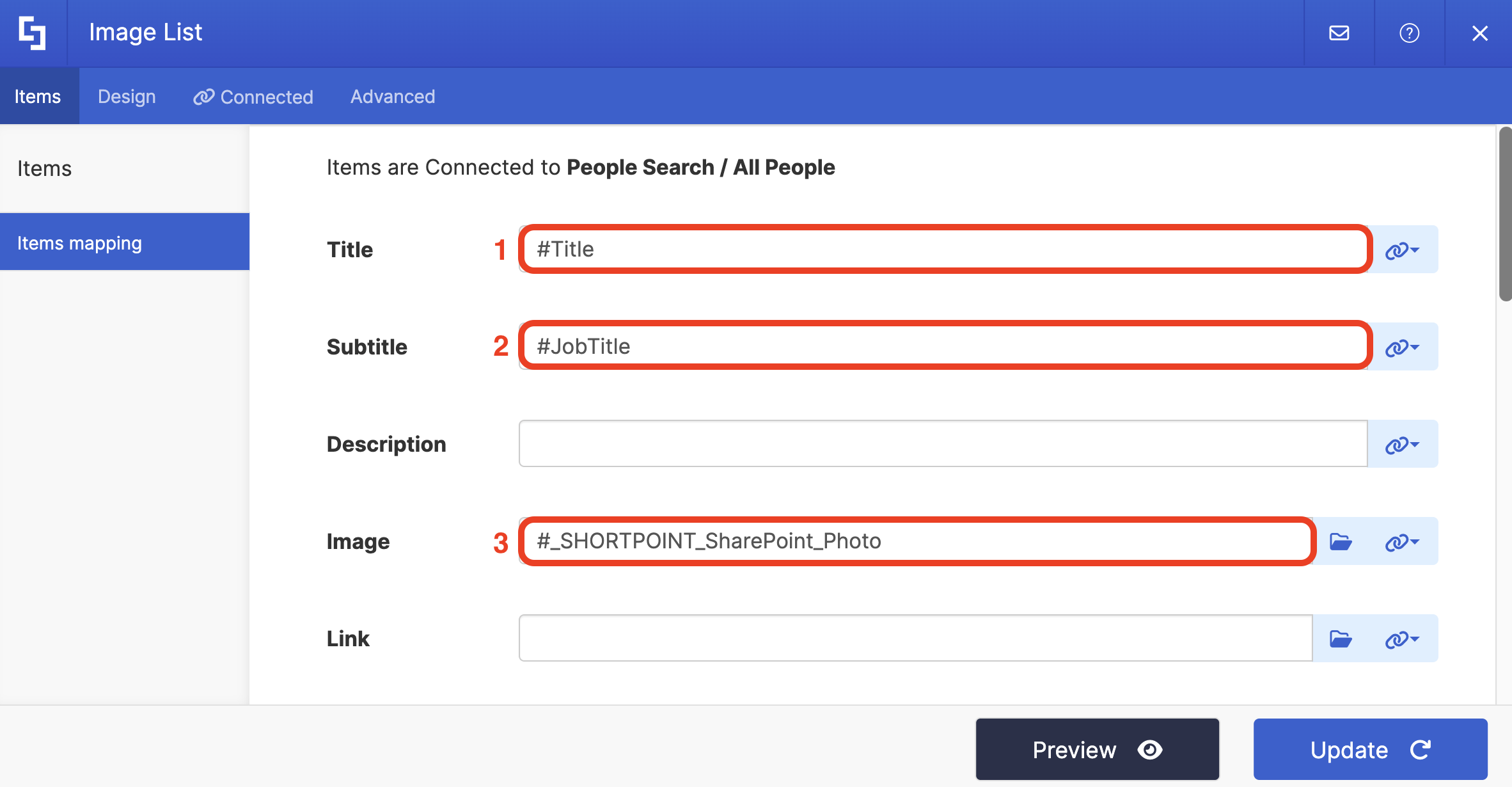
- Click the link icon to choose the properties you want to display. You can map any property you prefer. Just take note that the properties you can map depend on the information you have on your SharePoint user profiles.
- Here’s an example of our mapped properties:
- #Title - shows the complete name of the user.
- #JobTitle - shows the work title of the user.
- #_SHORTPOINT_SharePoint_Photo - shows the profile image of the user
HINTIf you'd like to map the Link with the Delve profile page, paste this URL to the Link field: https://eur.delve.office.com/?u=#AADObjectID&v=work.
NOTETo learn more about the Connect Feature and Items Mapping, check out Basic Tutorial: How to Establish Seamless SharePoint Connection with ShortPoint Connect.
Step 5: Update and Save
- Click Preview to see how the Design Element will look on your page.
NOTE: If you see the following items: spsearch, sharepoint content services, and app@sharepoint, check out our solution article on how to hide them from the search: Known Issue: SPS-UserTypes Are Shown in People Search Connection Type.

- Once satisfied, click Update.
- Select the green checkmark.
- Then, click the eye icon to see how your page will look in real-time.

- Click Save to apply your changes.

Congratulations! You can display your team's user profiles in SharePoint Online using the People Search connection. This gives your SharePoint sites a much more interactive user experience.
People Search Connection Features
Let’s tackle all the features you can modify using the People Search connection in edit mode:
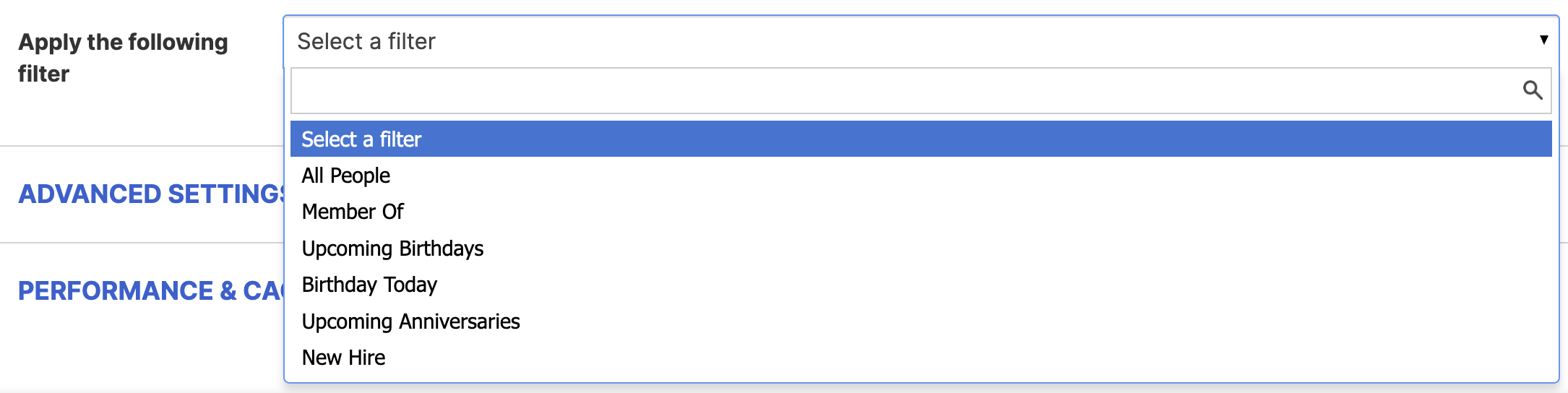 | Apply the following filter | allows you to choose from a list of pre-defined filters:
|
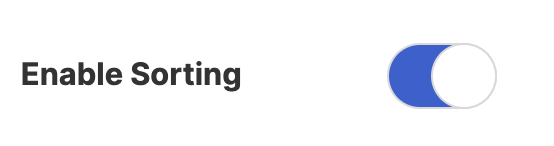 | Enable Sorting | when enabled, you can choose how the results are arranged. |
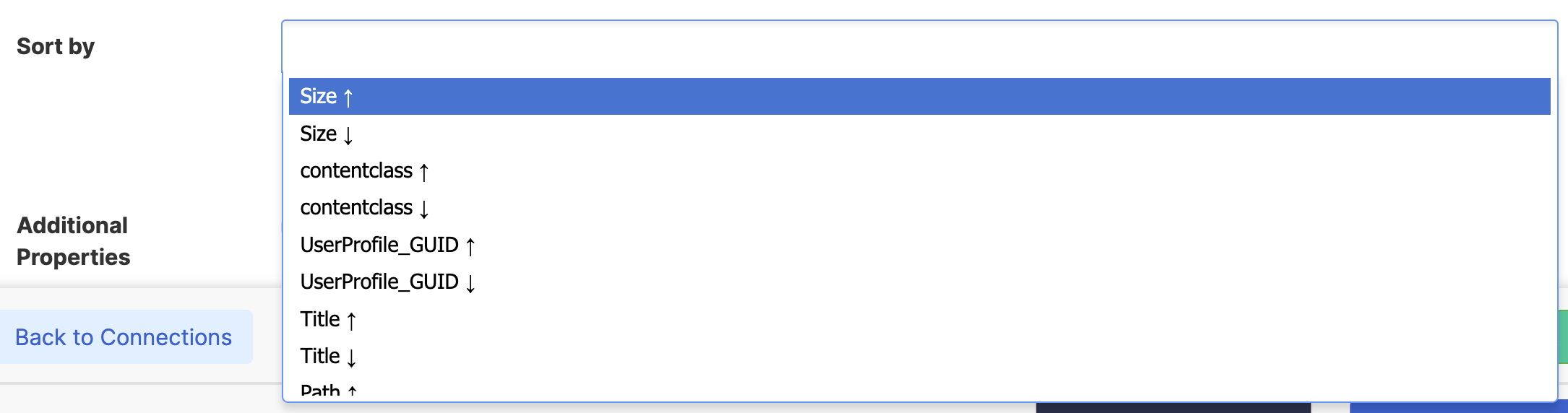 | Sort by | choose how you want the results to be arranged. This option will only appear when Enable sorting is turned on. |
 | Additional Properties | when enabled, an additional option will appear. |
 | Select Properties | allows you to specify the properties that can be mapped. This option will only appear when Additional Properties is enabled. |
 | Item Limit | allows you to set the maximum number of users to display. |
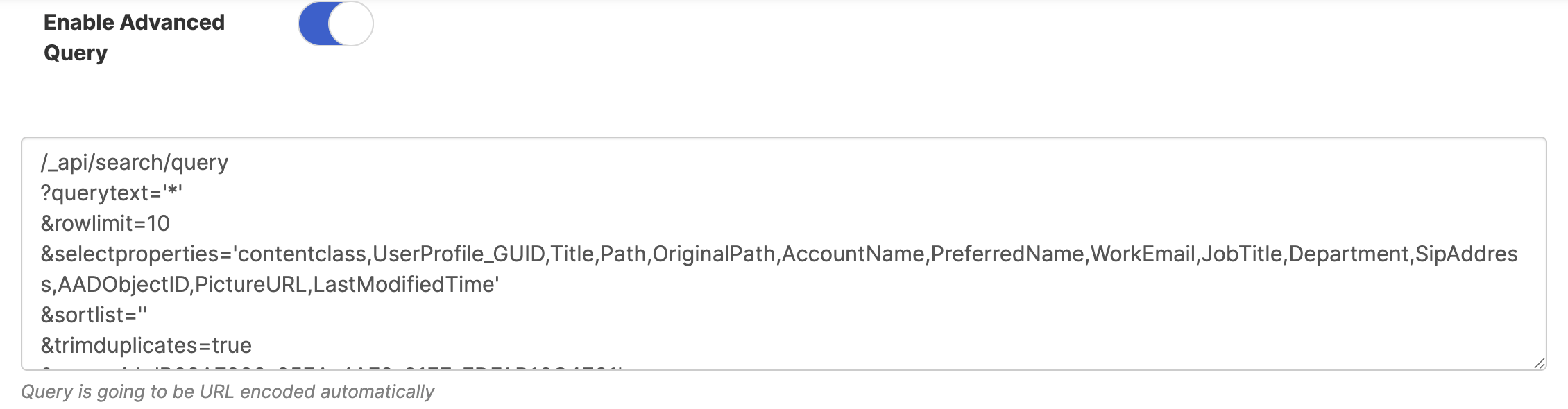 | Enable Advanced Query | when enabled, you'll be able to edit the query. This is automatically encoded. |
ADVANCED SETTINGS
 | Enable Advanced Settings | when enabled, advanced settings will be displayed. |
 | Custom headers | allows you to append custom header parameters using JavaScript. Learn more about the Custom Headers function. |
 | Change Parameters | allows you to pass parameters to the URL with JavaScript. Learn more about the Change Parameters function. |
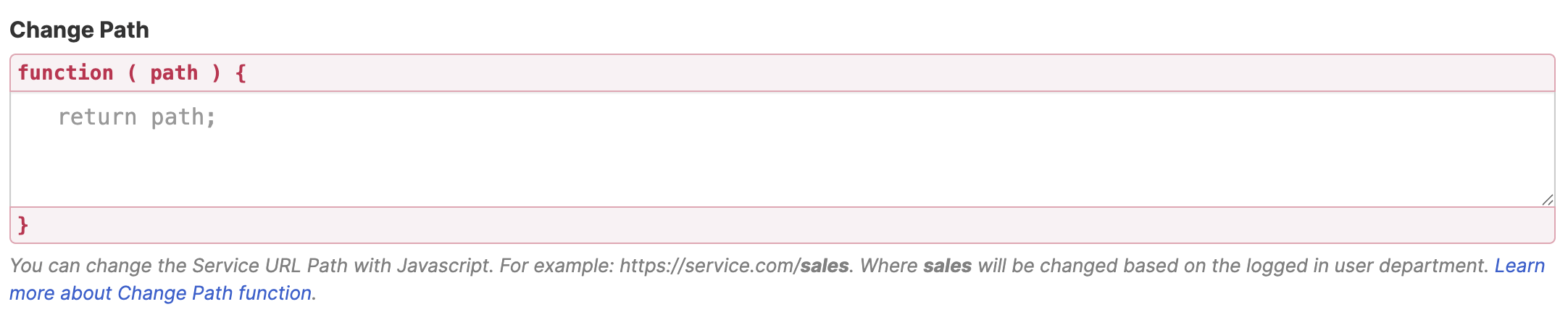 | Change Path | allows you to modify the Service URL Path using JavaScript. Learn more about the Change Path function. |
 | Map Results | If your API doesn't return an array of result items (which ShortPoint expects), you can use this function to transform the data into the proper format for ShortPoint. Learn more about the Map Results function. |
PERFORMANCE AND CACHING
 | Enable Partial Loading | This feature comes enabled by default. It allows partial loading to activate automatically when the connection returns more than 20 results. Additional results will load as the user scrolls. Learn more about the Partial Loading function. |
 | Cache Options | allows you to choose from 3 caching options. Learn more about these caching options and how to improve ShortPoint performanceon your SharePoint sites.
|
Practical Use Cases
Let's talk about real-world applications. Here are some ways organizations are using People Search to create more connected workplaces:
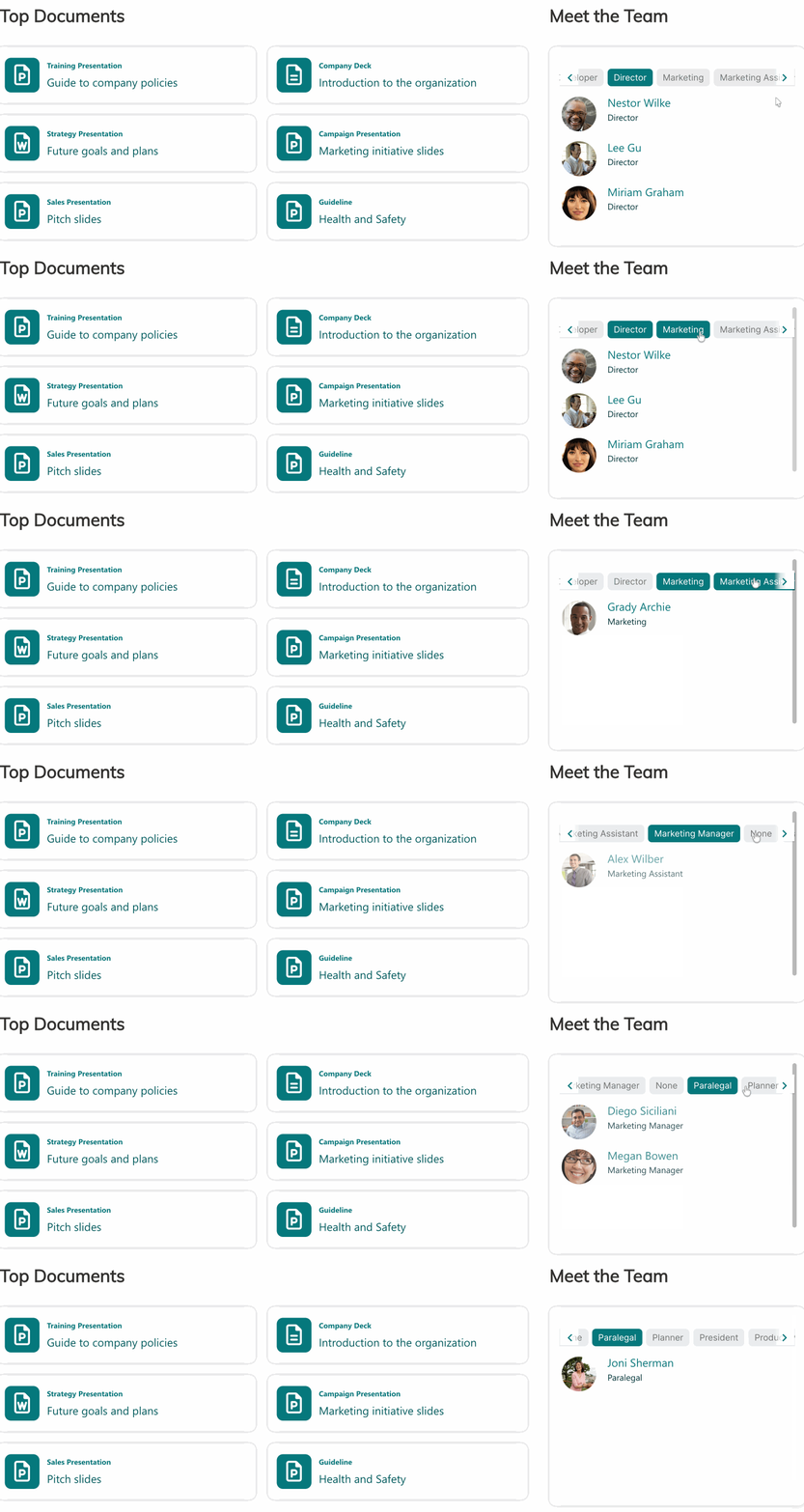
Employee Directory with Smart Filtering
Create a comprehensive employee directory where users can search, sort, and filter by department, location, or job title. Add the Search & Filter Toolbar to your Design Element, and suddenly your team can find exactly who they're looking for in seconds. No more scrolling through endless spreadsheets or outdated org charts.
Welcome New Hires
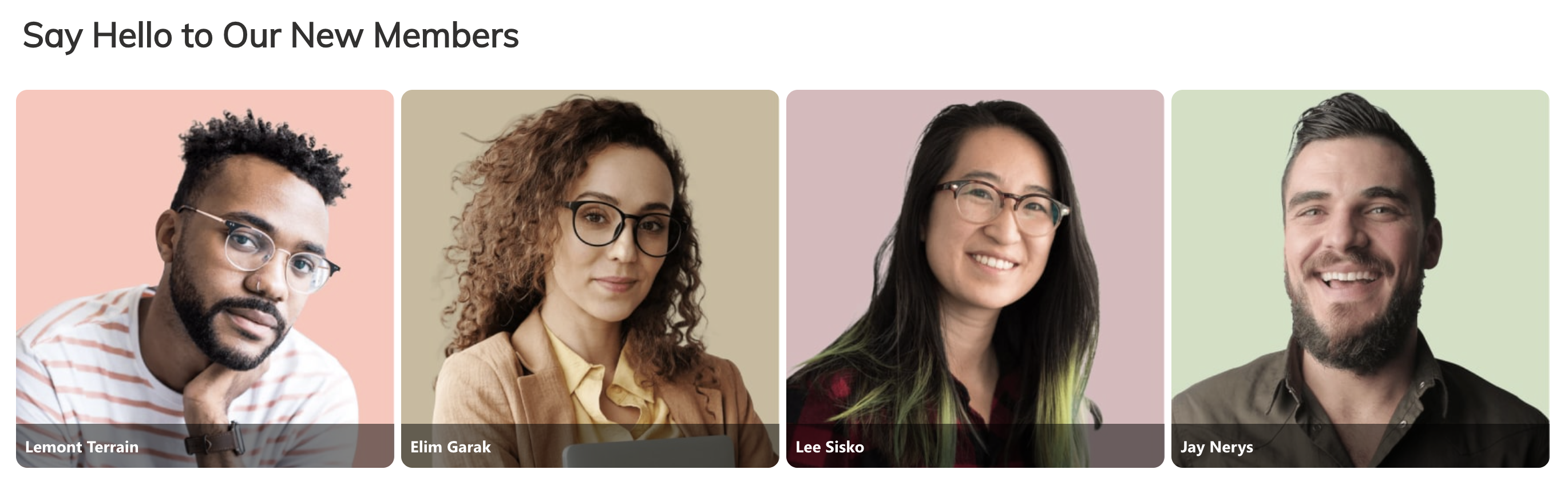
Set up a "New Hires" section on your homepage using the pre-built New Hire filter. This automatically displays team members who recently joined based on their hire date property. It's a welcoming touch that helps new employees feel recognized and helps existing staff put faces to names.
Celebrate Milestones
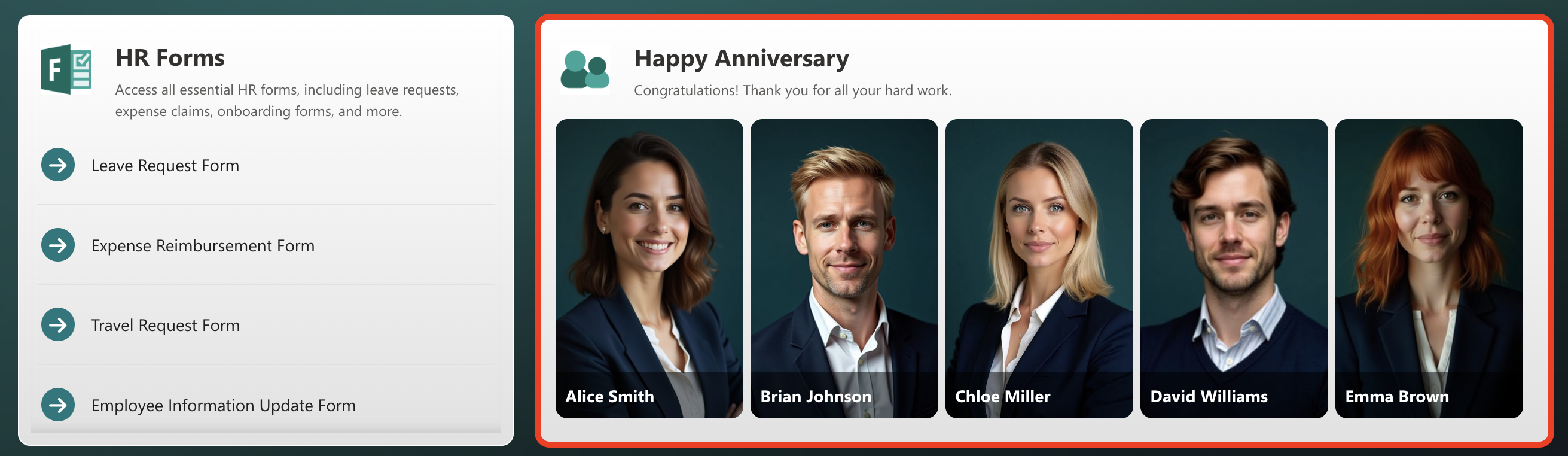
Use the Upcoming Anniversaries filter to highlight employees celebrating work anniversaries in the coming days or weeks. You can specify the timeframe (say, show anniversaries within the next 30 days), and the connection does the rest. It's an easy win for company culture and employee recognition.
Birthday Board
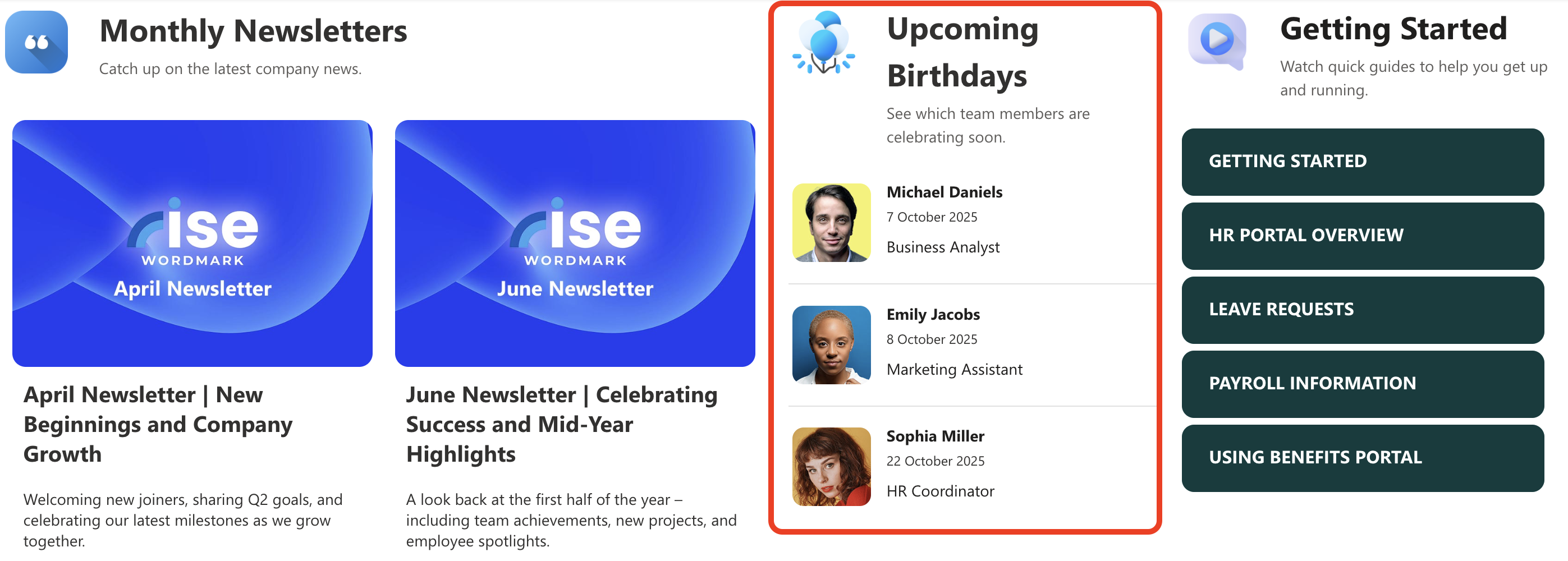
The Upcoming Birthdays filter lets you create an engaging birthday board that automatically updates. Set it to show birthdays within the next week or month, and you've got an automatic reminder to celebrate your colleagues.
Start Connecting Using People Search
The People Search connection type transforms how you showcase your team on SharePoint Online. It's flexible, automated, and designed to make your intranet feel more human and connected. Whether you're building an employee directory, celebrating milestones, or highlighting team structures, this feature puts the power of dynamic, data-driven design at your fingertips.
Ready to transform your SharePoint experience? Current ShortPoint Designers can access our interactive tutorial to master the People Search connection. First-time users can start with a FREE 15-day trial or connect with our experts for a personalized demo. Discover how effortlessly you can create vibrant, user-friendly hubs that keep people coming back.
Frequently Asked Questions
Can I use People Search with any Design Element?
Yes! That's one of the great features of this connection type. People Search works seamlessly with all ShortPoint Design Elements.
How often does the information update?
The connection pulls from SharePoint's search index, which in SharePoint Online is crawled every six hours. This means changes to user profiles will appear on your pages within that timeframe. The connection itself is dynamic, so there's no need to manually refresh anything.
I'm seeing strange entries like "spsearch" or "sharepoint content services" in my results. What's going on?
This is a known issue where system accounts appear in the search results. ShortPoint has an article that you can refer to for a solution. Simply go to Known Issue: SPS-UserTypes Are Shown in People Search Connection Type.
Can I limit the number of people displayed?
Absolutely. There's an Items Limit field in the connection settings where you can specify exactly how many people you want to show. This is particularly useful when you want to keep your page clean and focused.
What if I want to sort people by a specific property?
You can enable sorting in the connection settings and choose which property to sort by. Just remember that the property you choose must be configured in SharePoint search to support sorting. To do this, go to Enabling sorting by field in SharePoint Search.
Can I display custom user profile properties?
Yes, but there's a bit of setup involved. You'll need to ensure your custom properties have been crawled by SharePoint search and mapped to a managed property that's searchable, queryable, and retrievable. Once that's done, you can map it just like any standard property.
Does this work for external users or guests?
The connection pulls from SharePoint user profiles, so it will only show users who have profiles set up in your SharePoint environment.
How do I link people to their Delve profiles?
In the Link field of your item mapping, you can paste this URL: https://eur.delve.office.com/?u=#AADObjectID&v=work. This creates clickable links that take users directly to each person's Delve profile page.
What's the difference between People Search and People in SharePoint Group?
People Search pulls from the entire user base based on filters and search queries, while People in SharePoint Group specifically shows members of a designated SharePoint group. Use People Search when you want broad filtering options; use People in SharePoint Group when you need to display a specific group's members.
Related articles:
