 Try ShortPoint now
Finding a specific teammate sounds easy, right? But in a large organization, finding the right person can sometimes feel like searching for a needle in a digital haystack.
That is where the SharePoint User Profile Properties come in. They are the backbone of discovery in SharePoint, turning a basic directory into a powerful, searchable expertise map. This article will walk you through the basics of User Profile Property, including what it is and how to create a custom property.
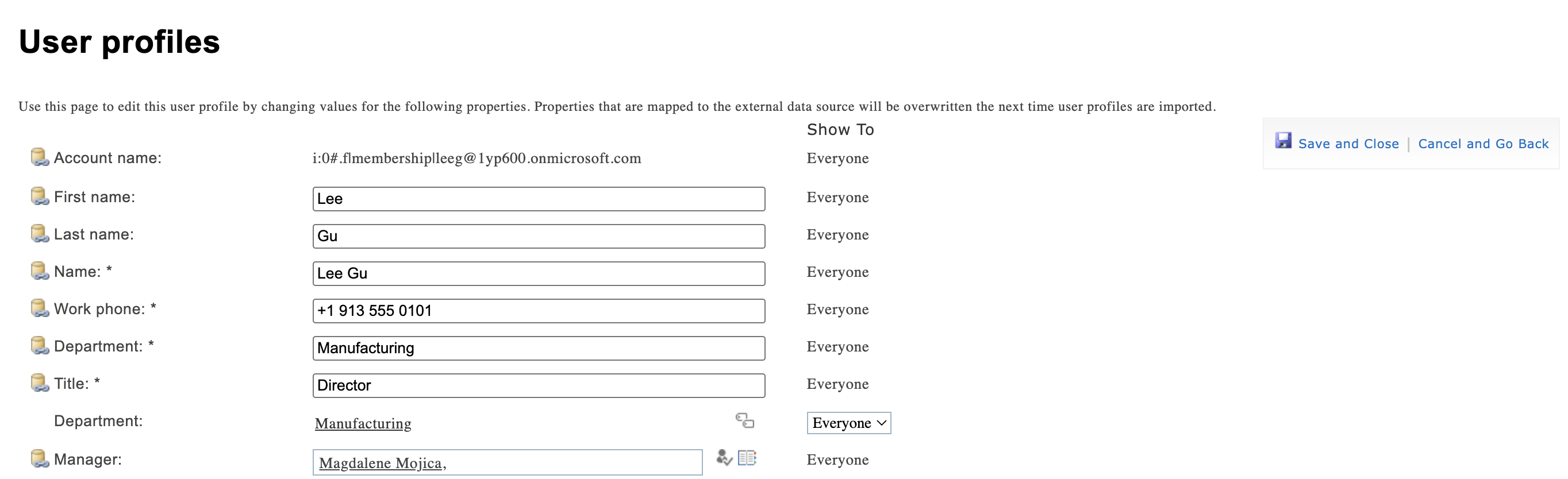
TABLE OF CONTENTS
- What Exactly Are SharePoint User Profile Properties?
- How to Create Custom User Profile Properties
- Why Are the User Profile Properties Important
- Frequently Asked Questions
- What is a user profile property in SharePoint Online?
- How do I create a custom user profile property in the SharePoint Admin Center?
- Why should I add employee details to a custom property?
- What is the process to make a custom user profile property searchable?
- How often does SharePoint crawl user profile properties?
- What permissions are needed to manage user profile properties?
- Can custom user profile properties be used to customize content?
- What is the benefit of maintaining accurate user profile properties?
- How does ShortPoint integrate with user profile properties?
What Exactly Are SharePoint User Profile Properties?
User Profile Properties are the metadata tags attached to a user’s profile. Think of it this way: if a user profile is a "book," the properties are the details written on the spine and the inside cover: the author, the genre, the publication date, and the summary.
In SharePoint, these properties are pulled from Microsoft Entra ID (formerly Azure AD) and the User Profile Service. Standard properties include name, job title, department, office location, email, and so much more.
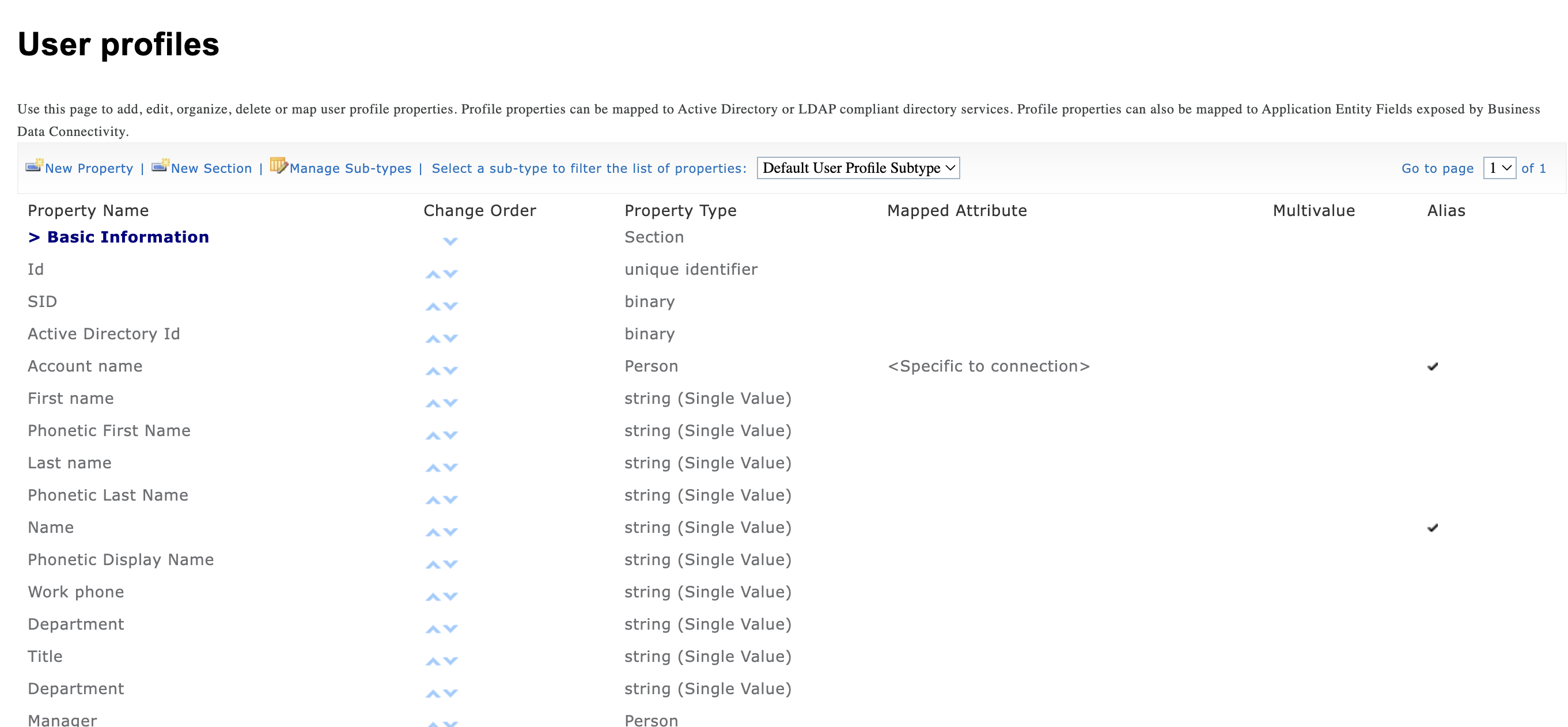
The Power of Custom Properties
While "Department" and "Job Title" are great, they don’t always capture the unique nuances of your specific business. This is where Custom Properties shine.
Custom properties allow you to map unique data points that matter to your culture. For example, you can have a user profile property that pulls the pronouns your teammates want to be addressed by or even the hobbies they're passionate about.
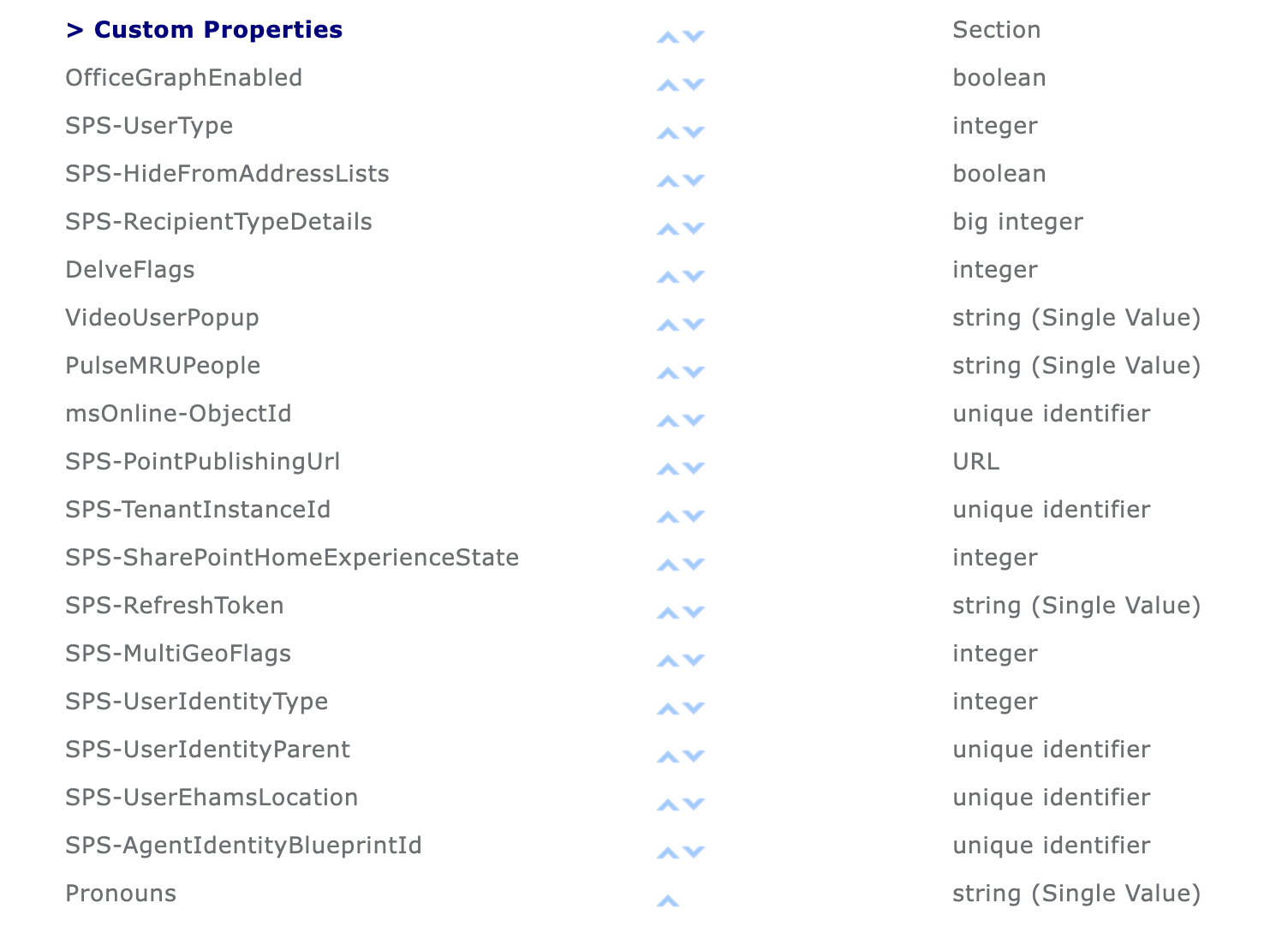
By configuring these in the SharePoint Admin Center, you can make these specific fields "Searchable," "Queryable," and "Retrievable," meaning they’ll show up in search results and can be used to filter people down.
How to Create Custom User Profile Properties
The steps have been divided into three parts. Make sure to go through each one to successfully get your custom properties up and running in no time:
Part 1: Create a Custom Property
This section will provide detailed steps for custom property creation.
Step 1: Open User Profiles
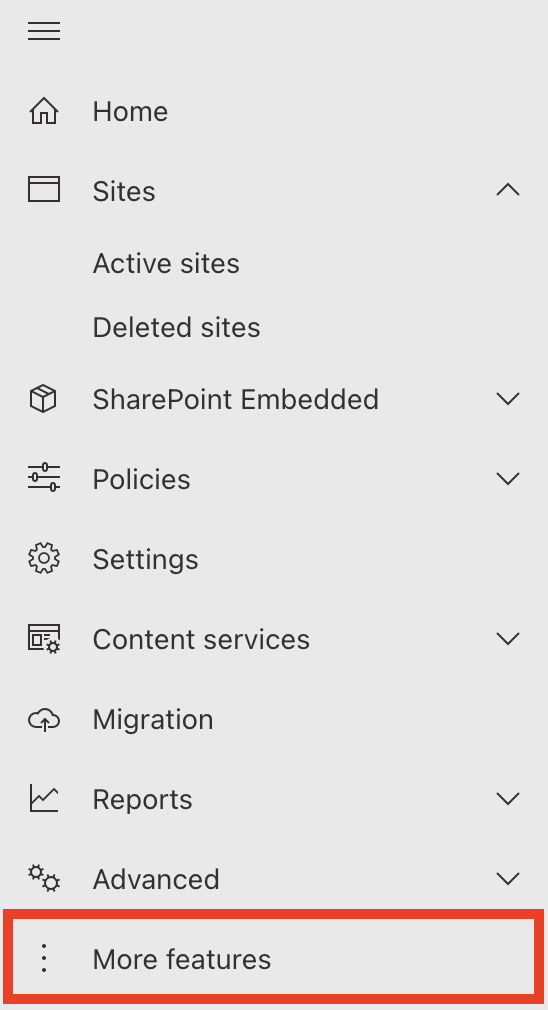
- Go to the SharePoint Admin Center and click More features:
- Click Open under User Profiles:
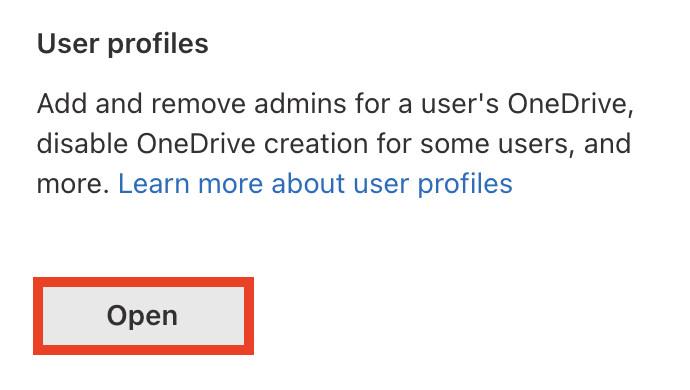
Step 2: Create a New Property
- Select Manage User Properties:

- Then, click New Property:

Step 3: Add Property Details
- Name the custom property:
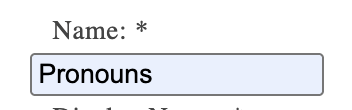
- Add a Display Name:
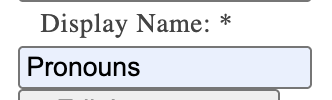
- Set the Privacy Setting to Everyone:
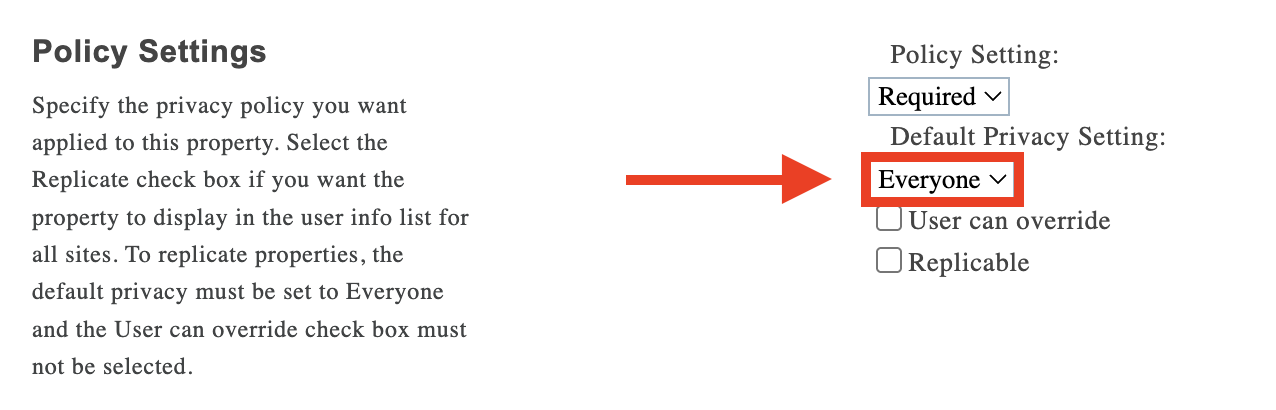
- Toggle on [1] show in the profile properties and [2] edit details page:

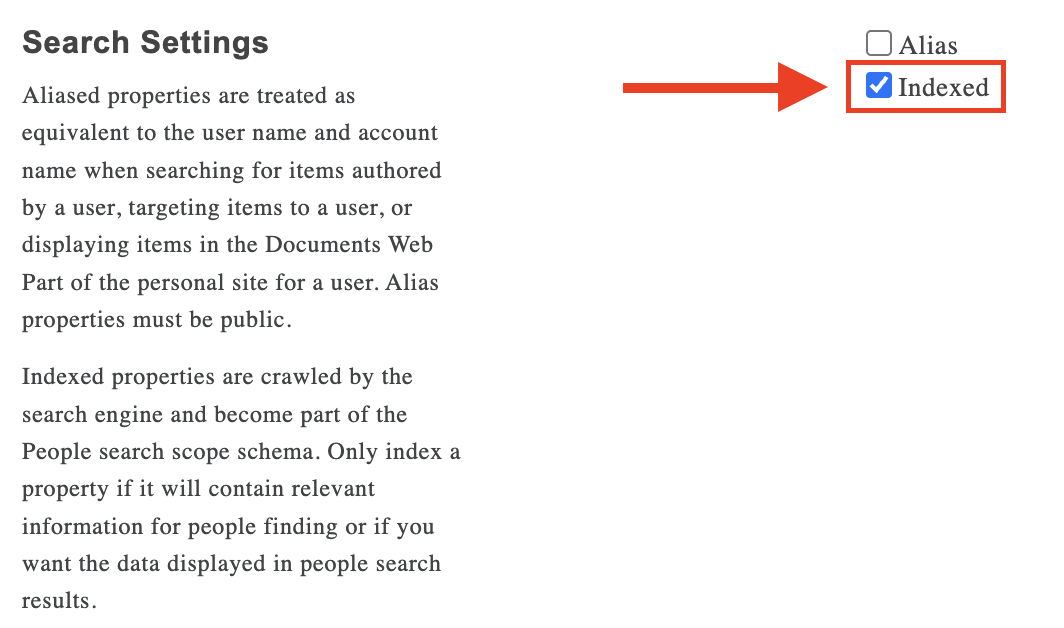
- Make sure that the search settings are Indexed.
- Once done, click OK.
Great work! You will now see the custom property under the Custom Properties section. You can now proceed to Part 2.
Part 2: Add Employee Details to Custom Property
If none of your user profiles have an entry in the custom property field you created, the crawled property won't appear in the search schema at all, which you will need in the next part. So, before you proceed, make sure to accomplish Part 2 first.
Step 1: Open User Profiles
- Go to the SharePoint Admin Center again and click Open under User Profiles:
Step 2: Add details to custom property
- Select Manage User Profiles.

- Type the employee’s name whose custom property field you want to update, then click Find.

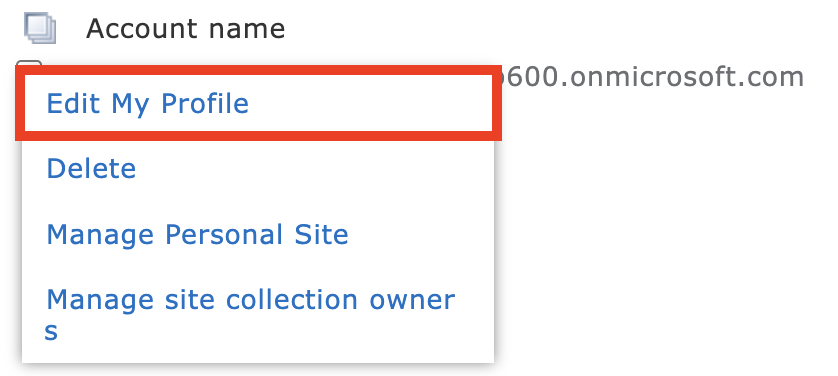
- Then, click Edit My Profile.
- Locate the custom property field you created, then enter the required information. In our case, it’s the Pronouns field:
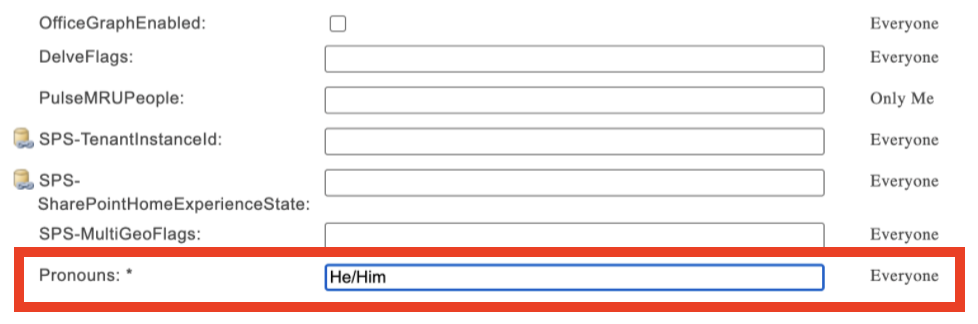
- Once done, click Save and Close.

- Repeat the same steps for other employees.
That's it! You have successfully added employee details to the custom field. You can now proceed to Part 3.
Part 3: Add a Mapping
For the custom user profile property to be truly useful, it must be assigned to a managed property. This section will show you how to do that.
Step 1: Open Search Schema
- Go back to the SharePoint admin center and open Search.
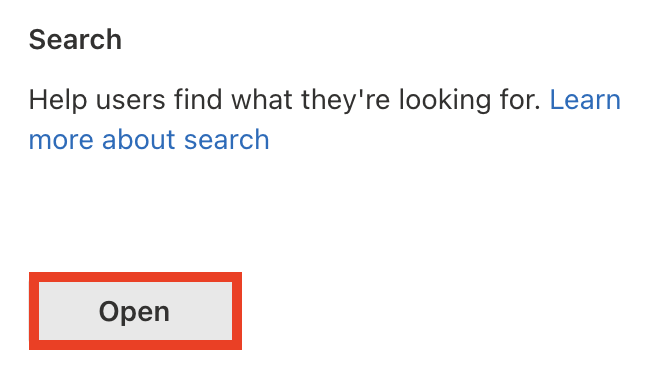
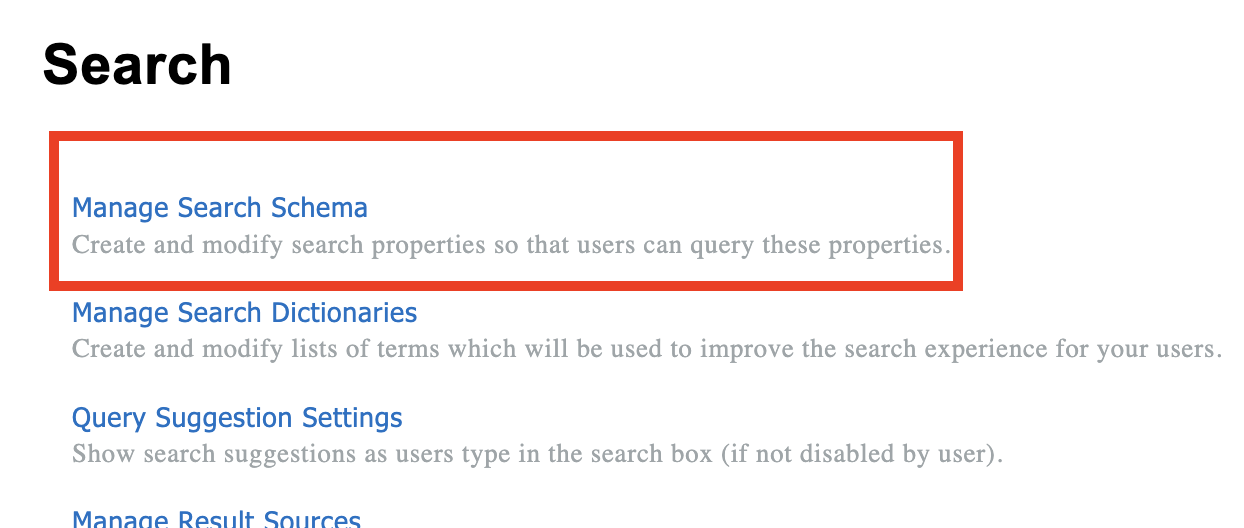
- Select Manage Search Schema:
Step 2: Check Custom Property
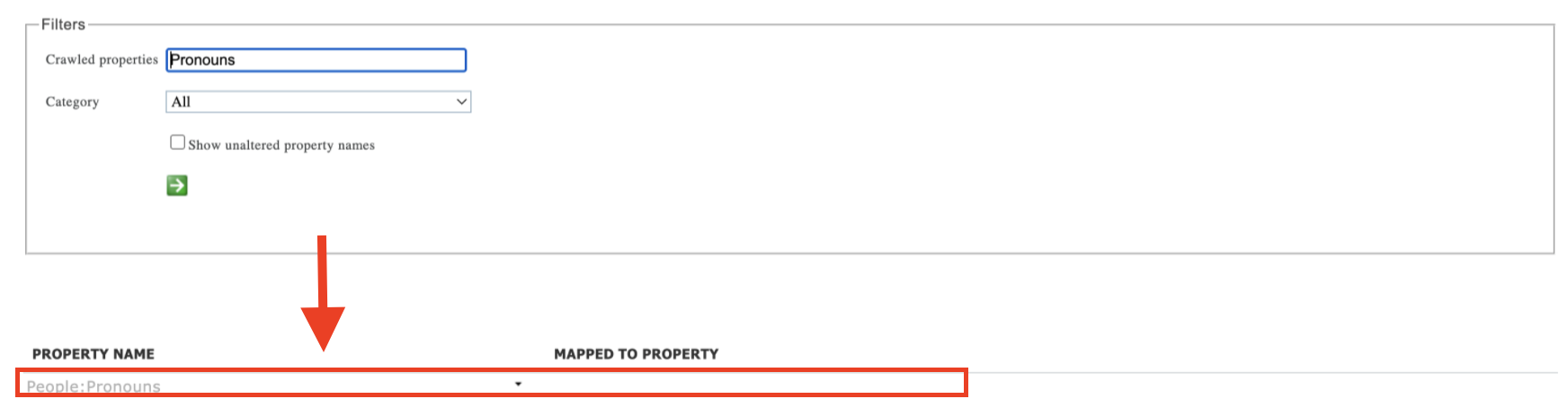
- Go to the Crawled Properties tab.

- Find the custom property.
- Confirm that the custom property appears in the list. If you don’t see it, it likely hasn’t been crawled yet. User Profile crawling runs every 6 hours.
Step 3: Create a New Managed Property
- If the custom property is already crawled, go to the Manage Properties tab.

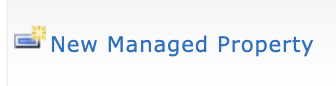
- Click New Managed Property.
- Write the property name.

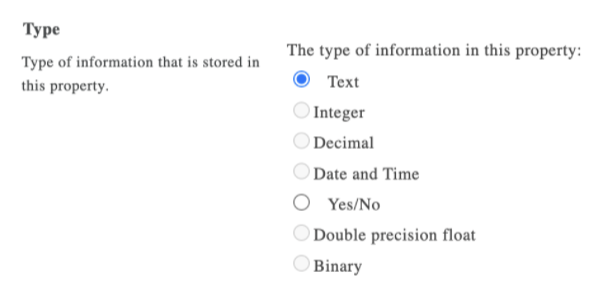
- Choose the type of information in this property. In our case, we will select Text.
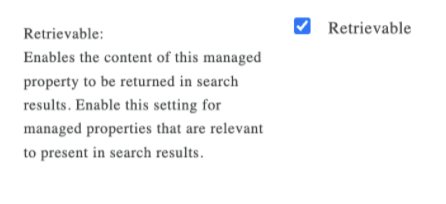
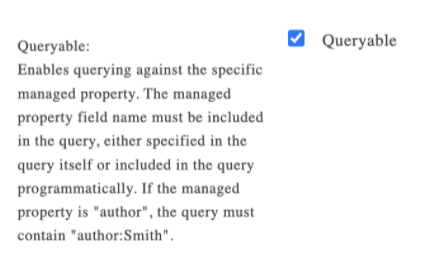
- Make sure it is Searchable, Queryable, and Retrievable:
 |  | 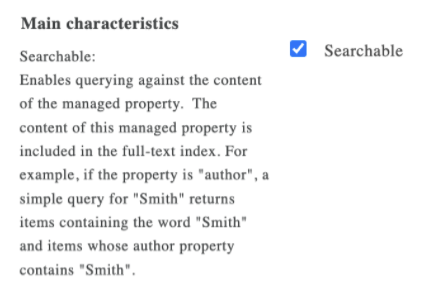 |
Step 4: Add a Mapping
- Then, scroll down to the bottom and click Add a Mapping.
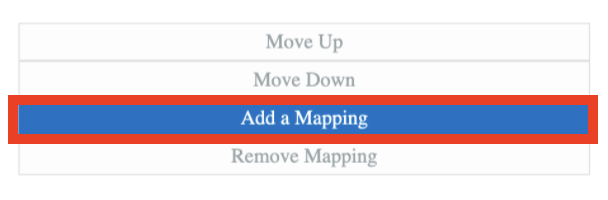
- Find the custom property you created and select it:
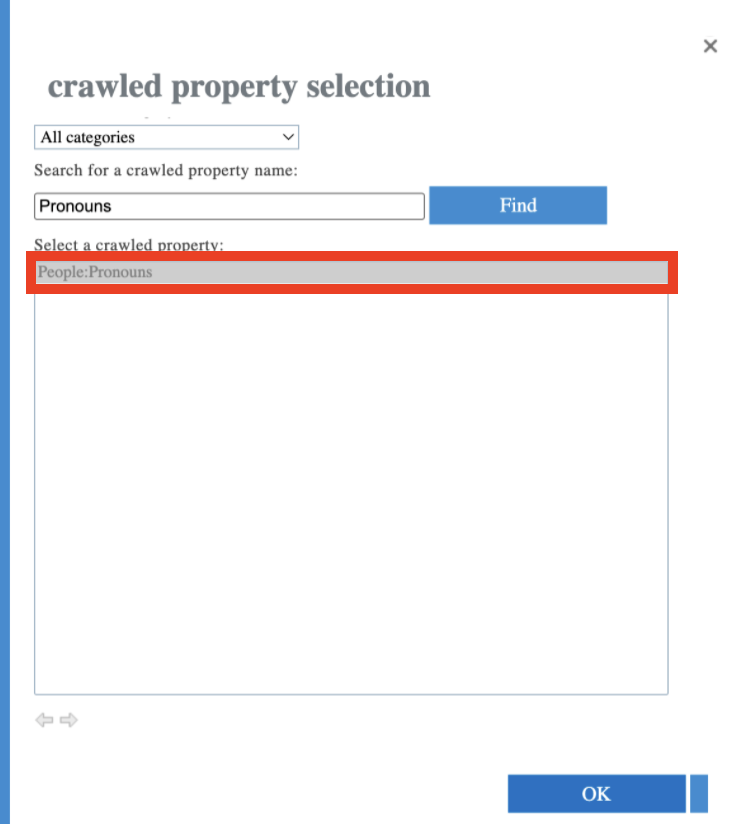
- Click OK:

- Select OK, again:

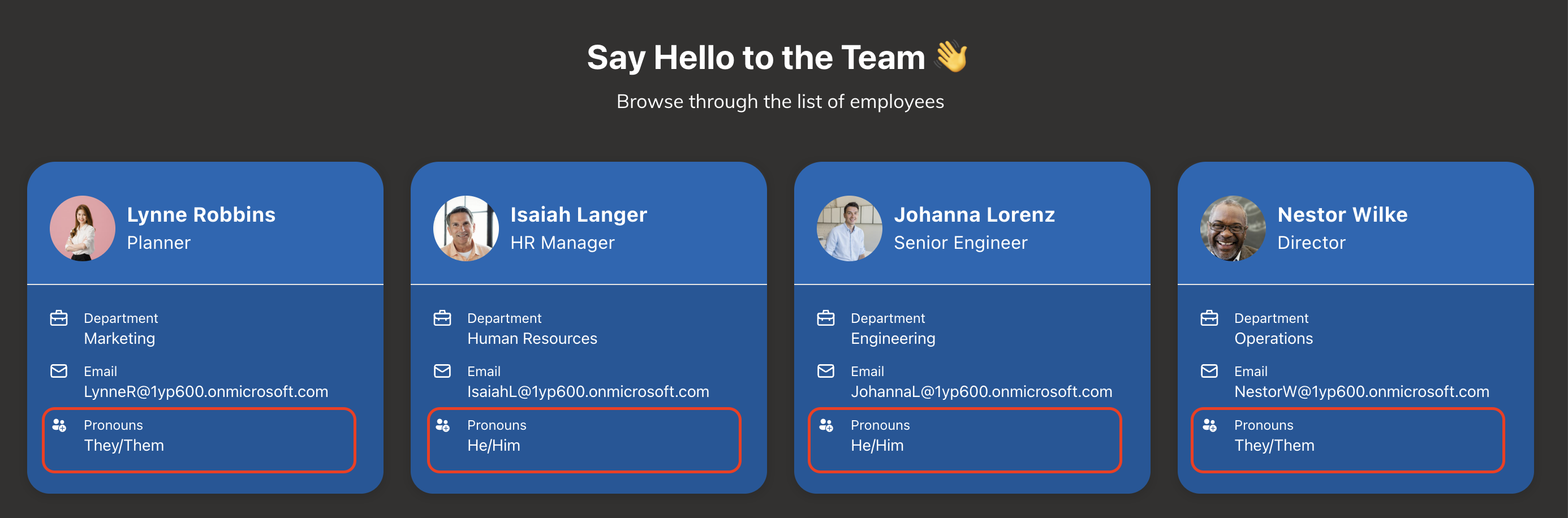
Congratulations! You will now see the mapped custom property. You can now use this custom property for ShortPoint connections (like what we have below). For more information, check out How to Map Custom User Profile Properties Using the People Search Connection.
Why Are the User Profile Properties Important
Why exactly is this important? Imagine this: You open your intranet, determined to find "Jane" from accounting. But, yikes, you can't find her details. You've probably scrolled through hundreds of employees, and still, nothing.
Without well-maintained properties, search is just a guessing game. Encouraging your team to fill out their user profile properties will:
Break Down Silos
Properties allow people to find collaborators across different departments based on what they know, not just who they report to.
Improve Accuracy and Speed
High-quality metadata reduces "search fatigue." Instead of clicking through ten profiles to find a developer, a user can search Skills: Python and get the right list instantly.
Automation
You can use these properties to build dynamic pages. For instance, you could have a page that automatically displays all employees whose "Department" property is set to "Human Resources."
And with ShortPoint Connect, this becomes 100x easier! ShortPoint Connect allows you to pull data from SharePoint User profile properties and showcase them in beautiful, easy-to-navigate designs.
If you're already a ShortPoint Designer, you can go to How to Map Custom User Profile Properties Using the People Search Connection for more information.
Not yet a ShortPoint Designer? We'd love to have you! You can start a free 15-day trial to explore the possibilities, or schedule a one-on-one demo with our experts to see ShortPoint in action.
Frequently Asked Questions
What is a user profile property in SharePoint Online?
A user profile property is a metadata tag attached to a user's profile in SharePoint. It includes standard attributes such as name, job title, department, and email, which help in identifying and categorizing users within the organization.
How do I create a custom user profile property in the SharePoint Admin Center?
To create a custom attribute, go to the SharePoint Admin Center, select More features, then open User Profiles. Choose Manage User Properties, click New Property, and fill in the details such as name, display name, and set the default privacy setting to Everyone. Ensure the property is indexed to make it searchable.
Why should I add employee details to a custom property?
Adding employee details to a specific user profile property ensures the property appears in the crawled properties list, which is necessary for search functionality. Without this, the custom property won't be searchable or retrievable in SharePoint.
What is the process to make a custom user profile property searchable?
After creating and populating the custom property, navigate to the Search Schema in the SharePoint Admin Center. Verify the custom property appears under Crawled Properties. Then, create a managed property, map it to the custom crawled property, and set it as searchable, queryable, and retrievable. This enables users to search using that property.
How often does SharePoint crawl user profile properties?
User profile crawling runs approximately every 6 hours. It can take 15 minutes up to 4 hours for new properties to appear in the crawled properties list after creation.
What permissions are needed to manage user profile properties?
The administrative role, SharePoint Online Administrator, is required to create and manage custom user profile properties in SharePoint Online.
Can custom user profile properties be used to customize content?
Yes, by using these properties, you can build dynamic pages that display users based on criteria like department or skills, allowing you to customize content and improve user experience on your SharePoint intranet.
What is the benefit of maintaining accurate user profile properties?
Accurate user profile information improves search accuracy, breaks down silos by helping users find colleagues with specific expertise, and enables automation of content display, enhancing overall productivity.
How does ShortPoint integrate with user profile properties?
ShortPoint Connect allows you to pull data from SharePoint user profile properties and showcase it in visually appealing, easy-to-navigate designs, simplifying the process of building dynamic intranet pages. For more information, check out How to Map Custom User Profile Properties Using the People Search Connection.
Related articles:
