 Try ShortPoint now
Ever feel like important email messages are slipping through the cracks because they're buried in someone's personal inbox? Or maybe your team is juggling a generic email address with shared login credentials—which, let's be honest, is both inconvenient and a security nightmare. If this sounds familiar, it's time to discover shared mailbox Microsoft 365.
Think of a shared mailbox as your team's communal email hub. It's where multiple people can read, respond to, and manage incoming mail from a single address without the hassle of sharing passwords or wondering who saw what. Whether you're managing customer support tickets, sales inquiries, or general company information, shared mailboxes help keep everyone on the same page.
TABLE OF CONTENTS
- What Is a Shared Mailbox?
- Creating a Shared Mailbox
- Accessing the Shared Mailbox
- The Benefits of Using Shared Mailboxes
- Practical Use Cases for Shared Mailboxes
- Bonus: Showcase Shared Mailbox Calendar Events in SharePoint Sites
- Frequently Asked Questions
- Do I need a special license to create a shared mailbox?
- How many people can access a single shared mailbox?
- Can external users access our shared mailbox?
- Will the shared mailbox automatically appear in my Outlook?
- Can I send emails from the shared mailbox address?
- Can I use a shared mailbox on my phone or tablet?
- What's the difference between a shared mailbox and a Microsoft 365 group?
- Can I convert a regular mailbox to a shared mailbox?
- What happens to emails I send from the shared mailbox?
- Can we encrypt emails sent from a shared mailbox?
- How much does a shared mailbox cost?
- Can I prevent people from deleting emails in the shared mailbox?
- How do I set up a shared mailbox?
What Is a Shared Mailbox?
A shared mailbox is a collaborative email account in Microsoft 365 that allows multiple users to send and receive emails from a common email address, such as support@yourcompany.com or info@yourcompany.com. Unlike your personal mailbox, a shared mailbox is designed specifically for team collaboration and efficient mailbox management.
Here's what makes it special: when someone on your team replies to an email sent to the shared mailbox, the response appears to come from the shared address itself, and not from the individual team member. This creates a consistent, professional experience for your customers and contacts who won't see different names popping up in their inbox threads.
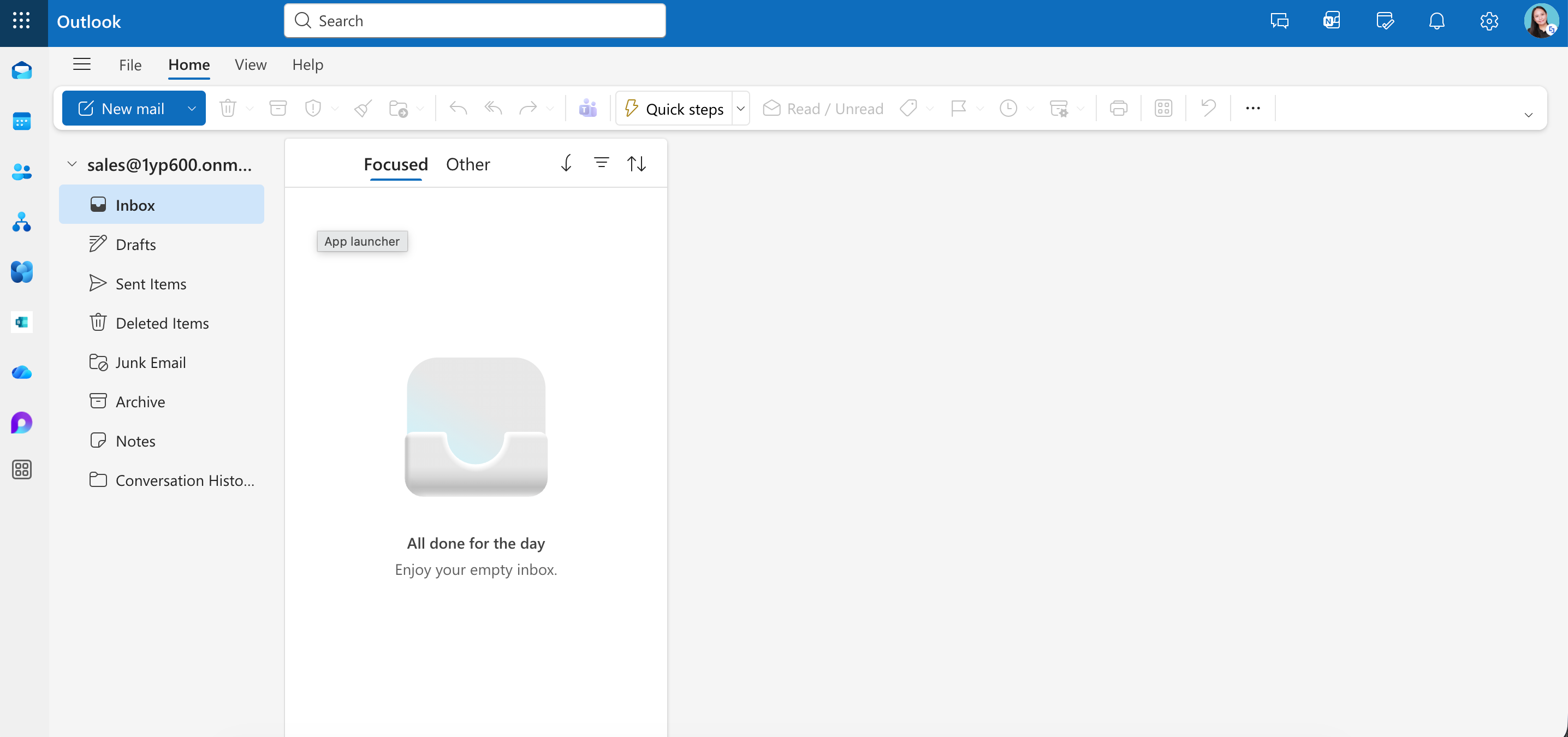
But it's more than just email. Every shared mailbox comes with a shared mailbox calendar where your team can schedule meetings, track project deadlines, or coordinate customer visits. There's also a shared contacts list, making it easy for everyone to access important client or vendor information without constantly asking around for contact details.
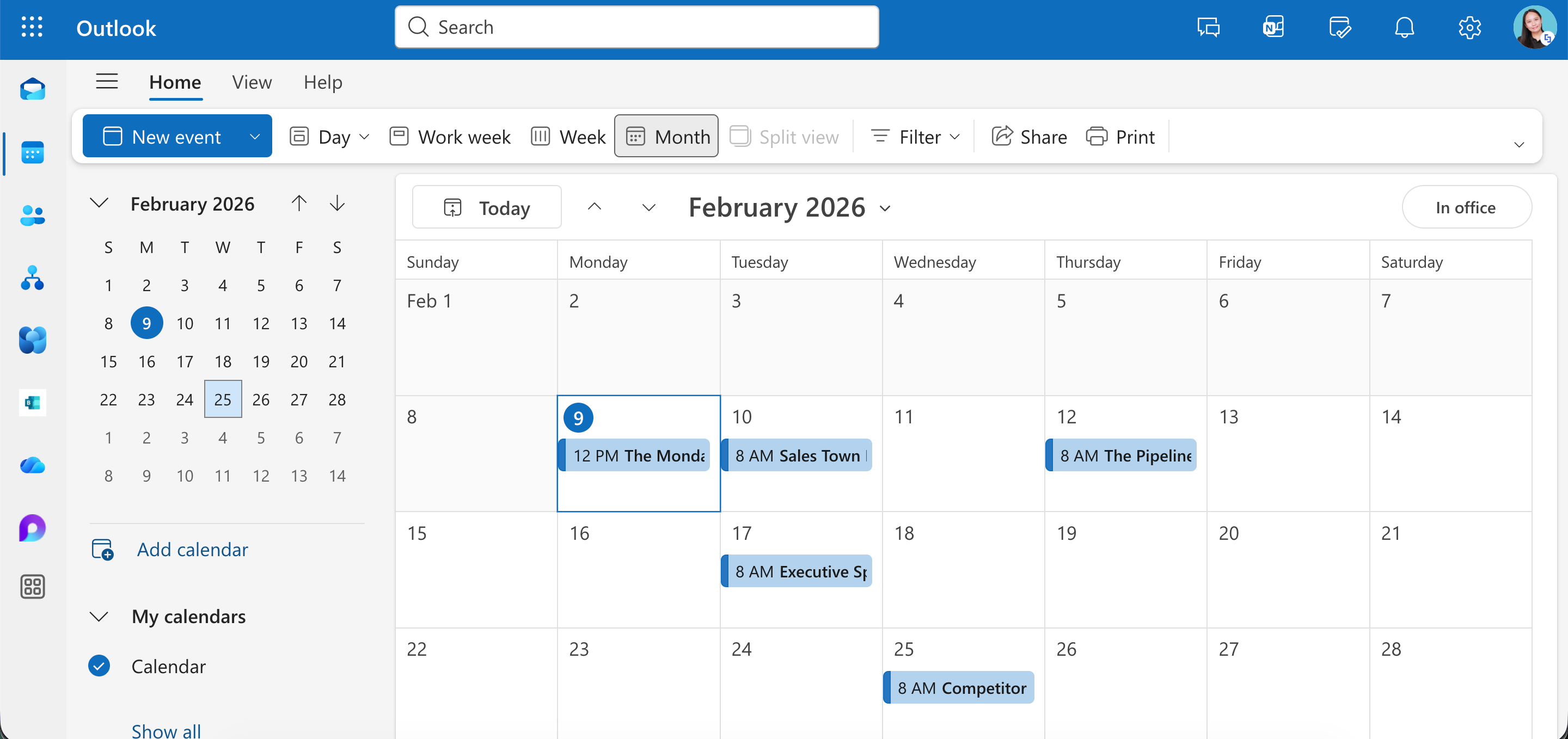
The best part? You don't need to get a new license for a shared mailbox as long as it stays under the 50GB storage limit. It's included with your Microsoft 365 subscription that includes Exchange Online, making it a cost-effective solution right out of the gate.
Creating a Shared Mailbox
Making a shared mailbox Microsoft 365 is very simple. Follow the steps below to get started:
Step 1: Open the Shared Mailbox Page
- Go to the Microsoft 365 Admin Center.
- Expand the Teams & Groups tab.
- Select Shared mailboxes.
Step 2: Add a shared mailbox
- Click Add a shared mailbox.
- Write the name and email address you prefer.
- Save your changes.
Step 3: Add members
- Click Add members to your shared mailbox.
- Look for the members you want to add and select them.
- Once done, Add the members.
- Close the toolbox.
Congratulations! You now have a shared mailbox Microsoft 365 that enables multiple users to collaborate efficiently.
Accessing the Shared Mailbox
Now that you know how to create a shared mailbox in Microsoft 365, let's show you how to access it. We've listed 3 ways for you to access a shared mailbox efficiently and ensure it appears in your Outlook app automatically.
Option 1: From Another Tab
This option will open the shared mailbox in another tab, separate from your main Outlook account.
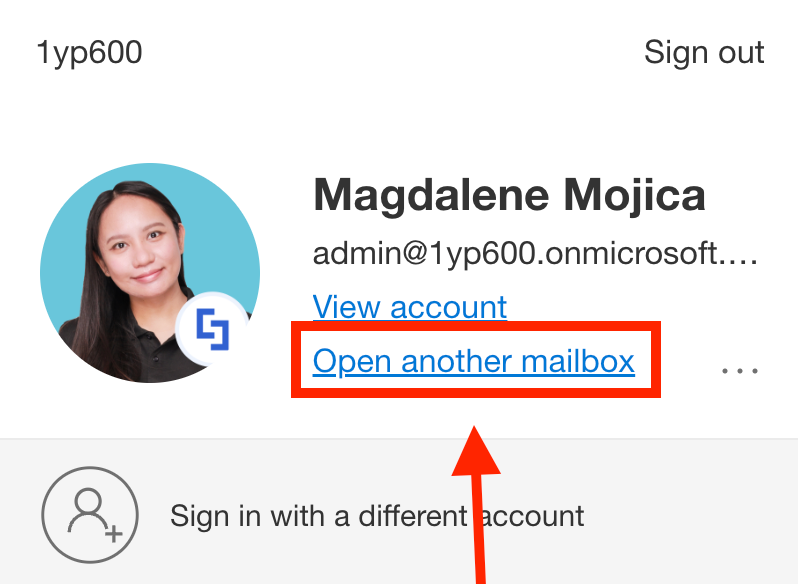
Step 1: Open another mailbox
- Go to your main Outlook account.
- Select your profile icon.

- Choose Open another mailbox.
Step 2: Enter the email of the shared mailbox
- Write the email address of the shared mailbox.
- Click Open.
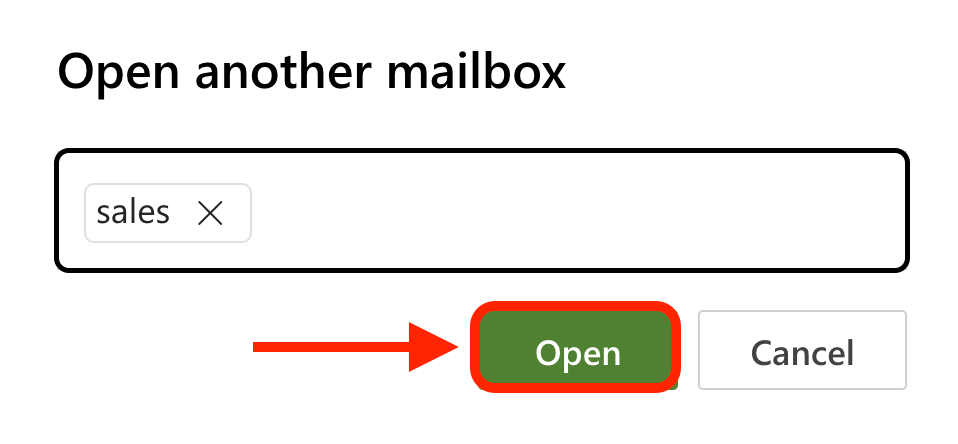
That's it! You've successfully opened your shared mailbox. You can now see its emails and calendar events.
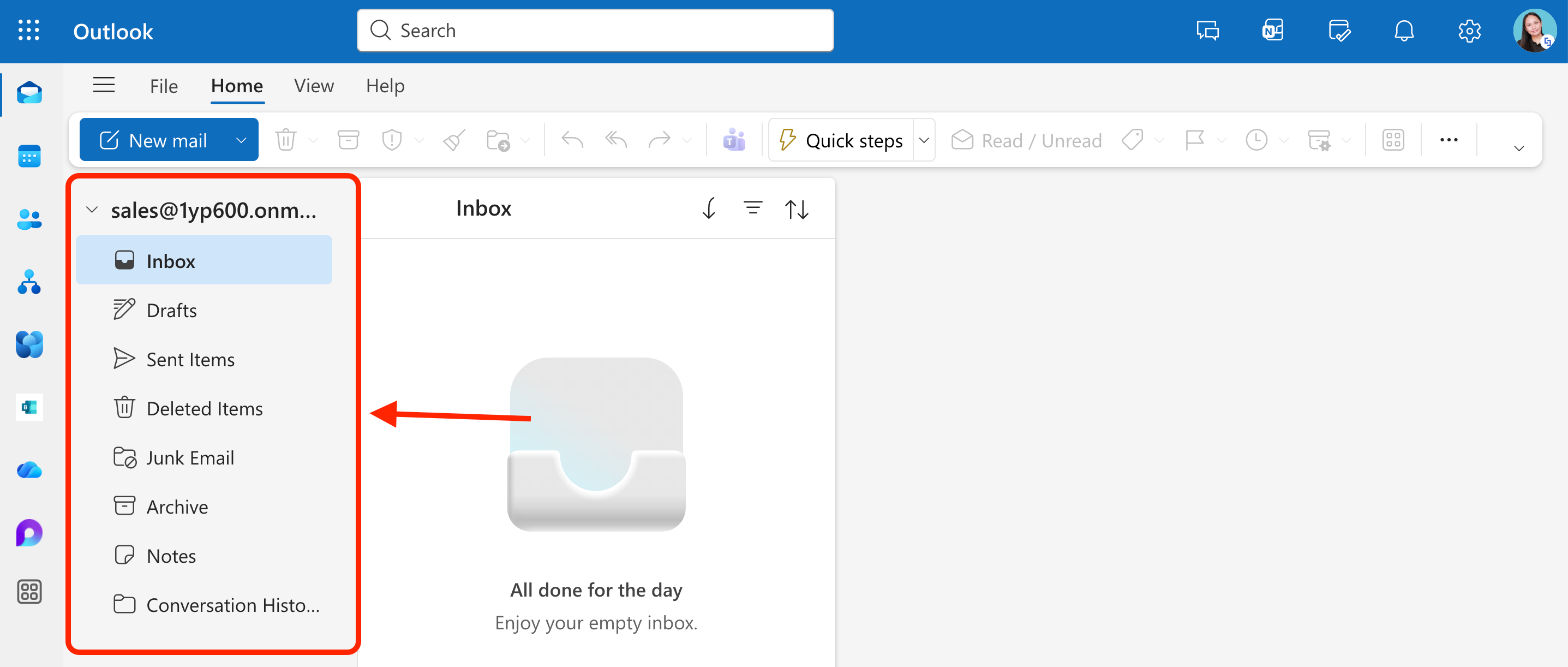
NOTEIf the shared mailbox is recently shared with you, it may take some time (approximately 60 minutes) before you can access it.
Option 2: From Your Main Outlook (Emails)
This option will show you how to see emails from your shared mailbox directly in your main Outlook account.
Step 1: Open Account Info
- Go to your main Outlook account.
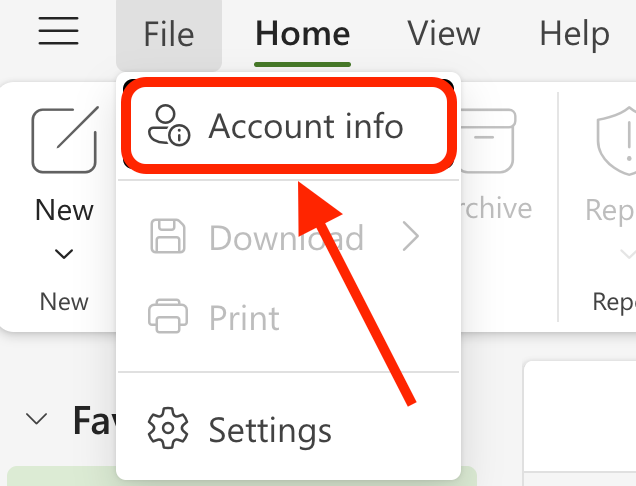
- Click the File tab:

- Select Account info.
Step 2: Add shared email account
- Go to the Shared with me tab:
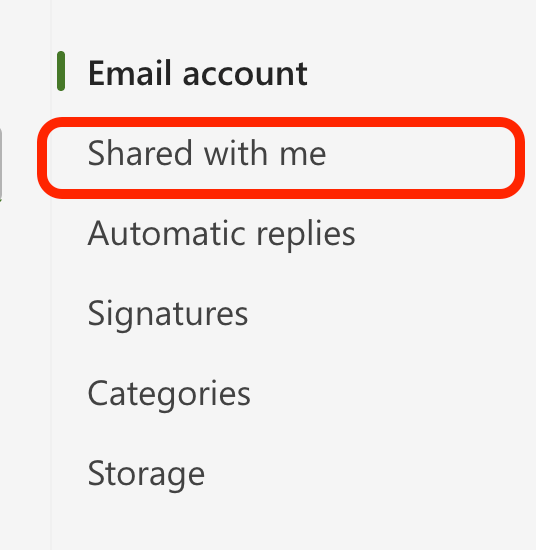
- Select Add.

- Write the email address of your shared mailbox.
- Then, click Continue.
- Close the dialog box.
- You will now see the added shared mailbox under Shared with me. Click the close icon.
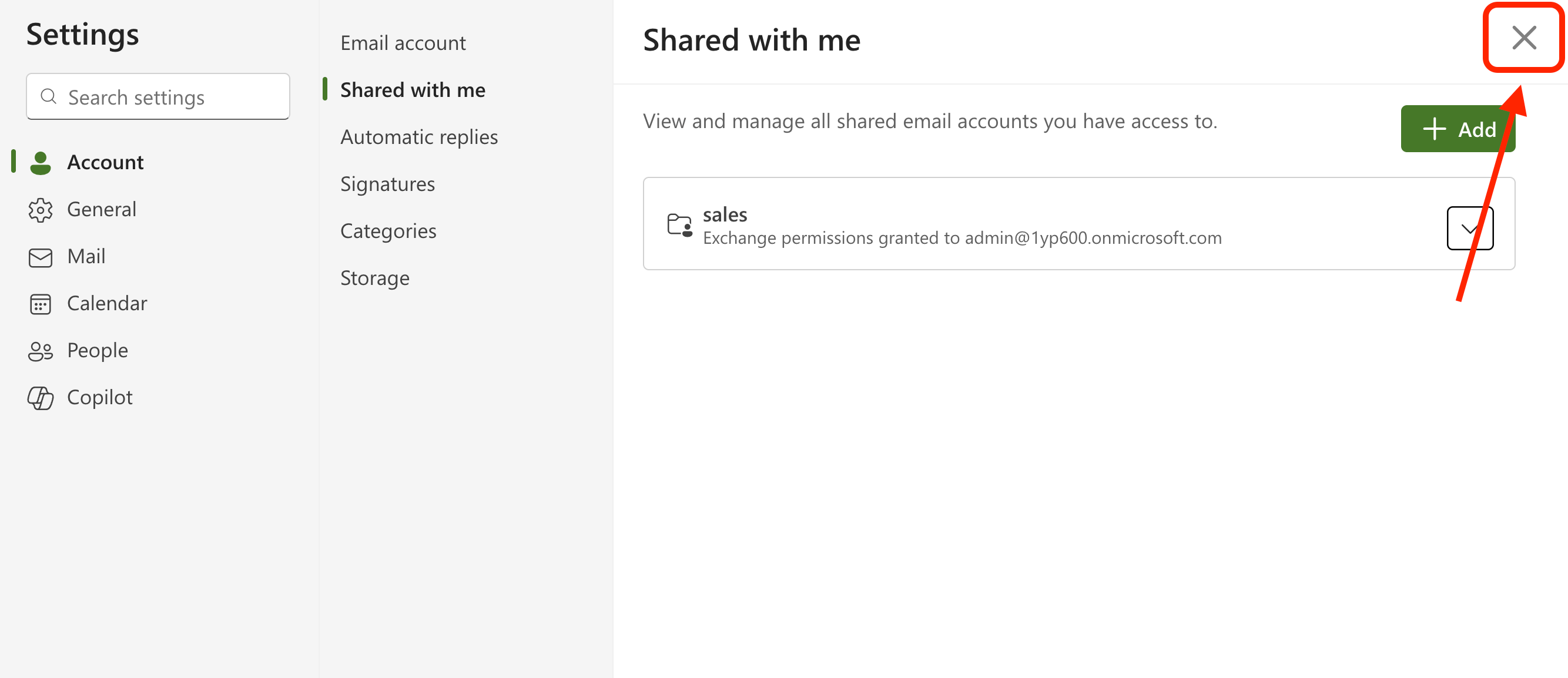
That's it! When you go through your emails in your main Outlook account, you will now see a new folder under the name of your shared mailbox. There, you'll be able to access all the emails from your shared mailbox.
Option 3: From Your Main Outlook (Calendar)
This option will show you how to see calendar events from your shared mailbox directly in your main Outlook account.
Step 1: Open Calendar tab
- Go to your main Outlook account.
- Select the calendar tab.
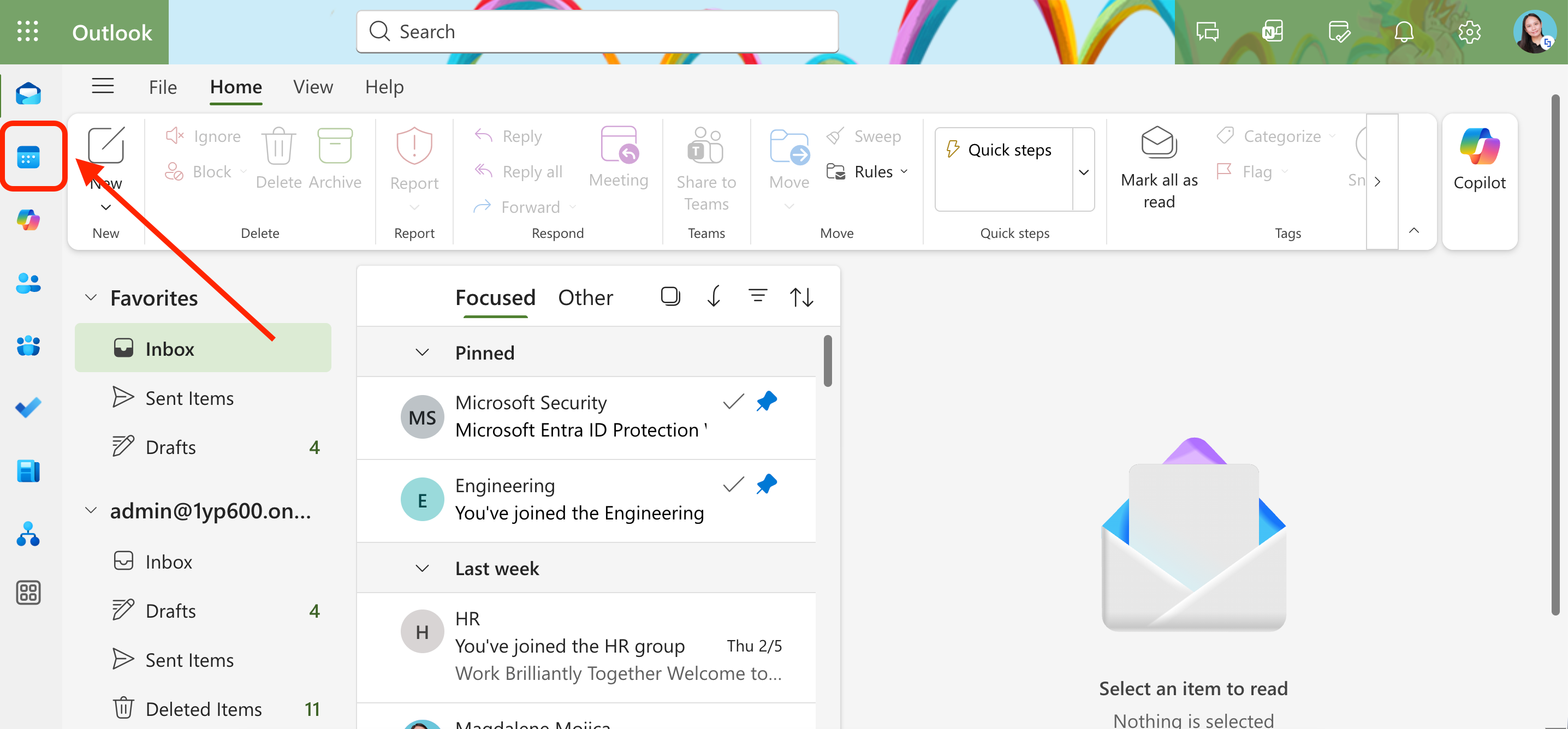
Step 2: Add a calendar
- Click Add calendar.
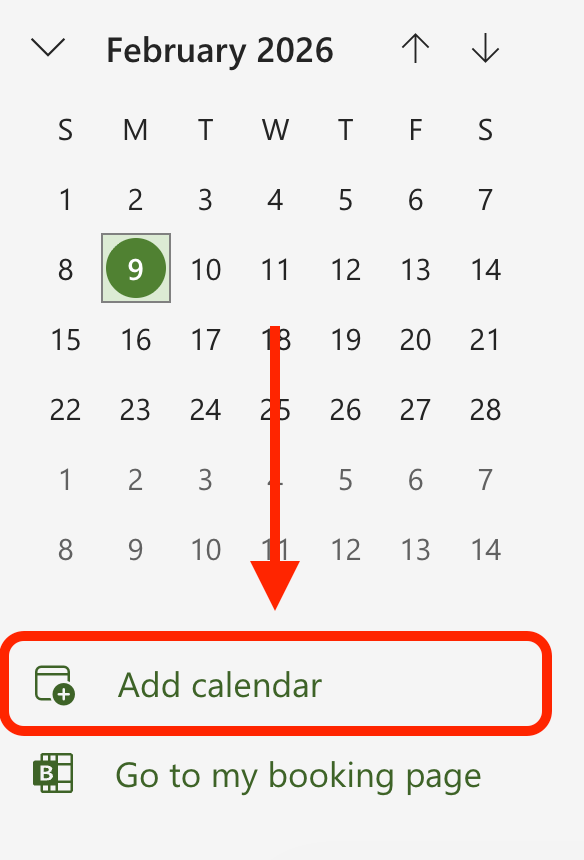
- Choose Add from directory.
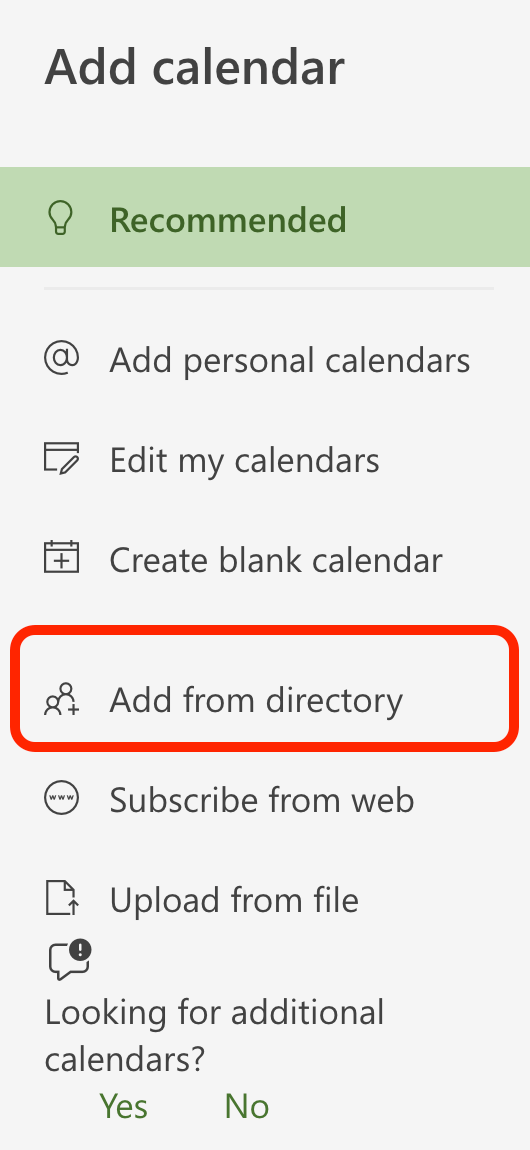
- From the drop-down, choose your account.
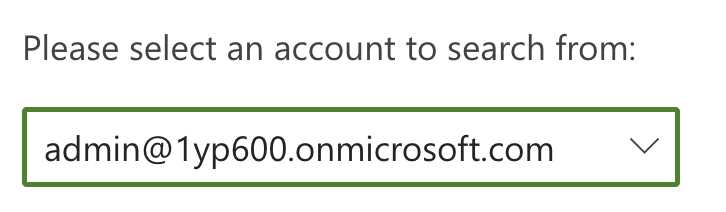
- Then, enter the email address of your shared mailbox.

- Choose the calendar group where you want to add it. You can choose whichever calendar group you prefer.
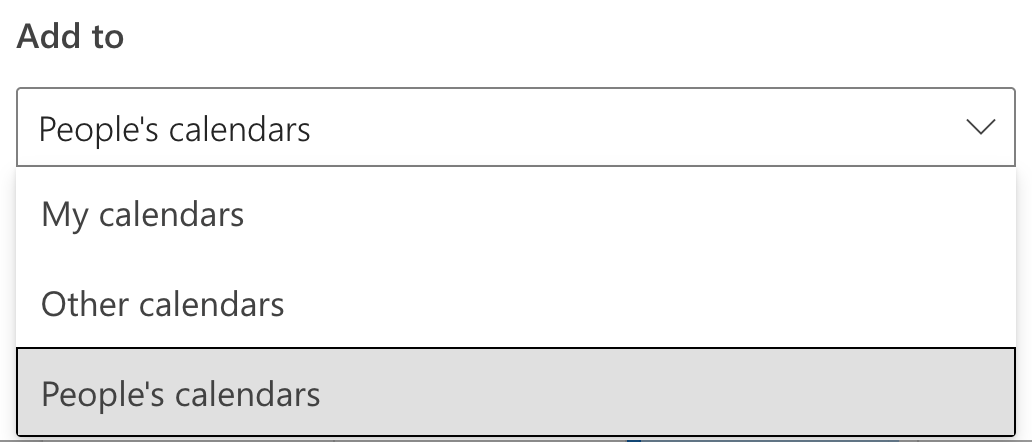
- Click Add.
- Close the dialog box.
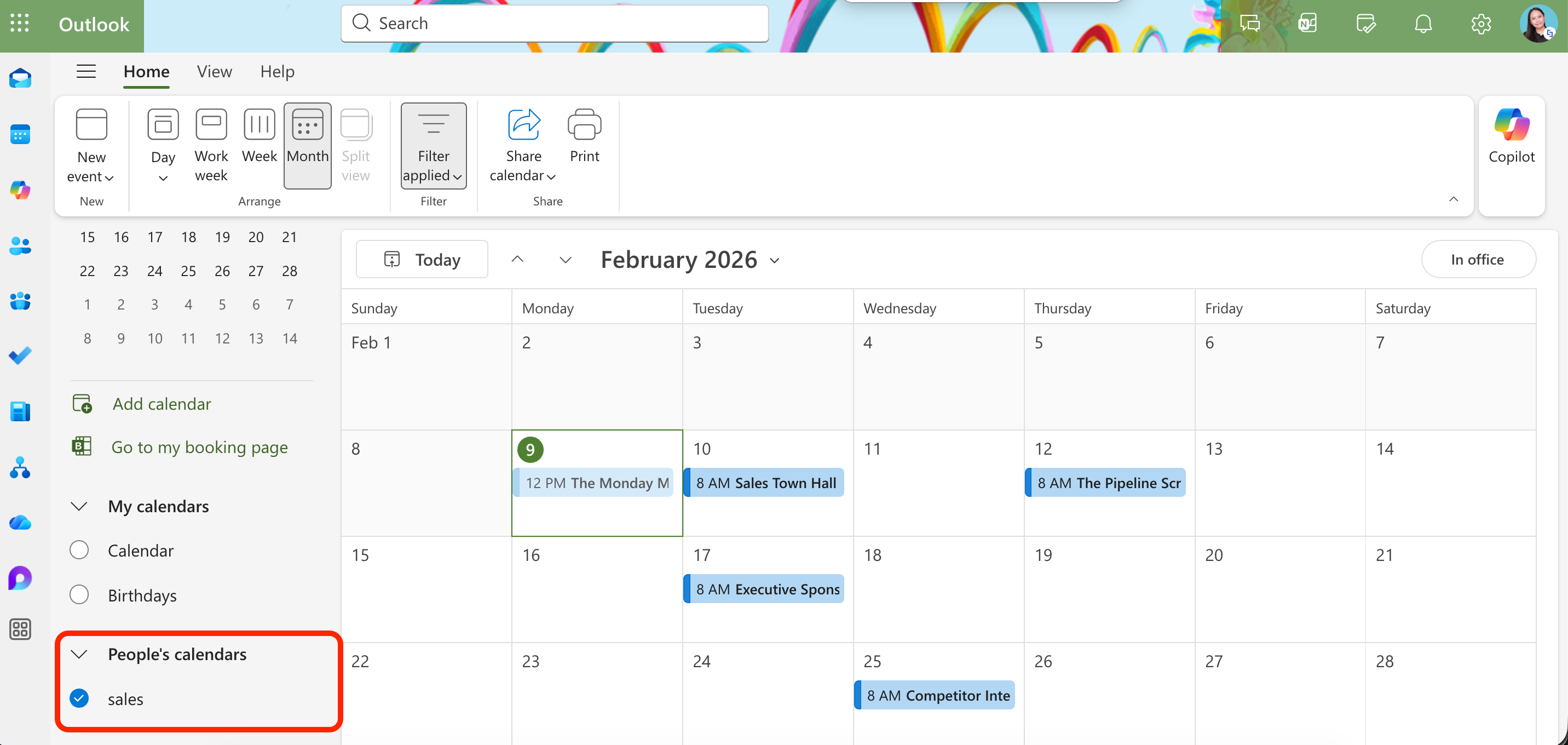
Congratulations! When you browse the calendars in your main Outlook account, you will now see a new calendar under the name of your shared mailbox. There, you'll be able to access all the calendar events from your shared mailbox.
The Benefits of Using Shared Mailboxes
Shared Mailboxes can benefit your organization in so many ways. Here are a few:
Enhanced Team Collaboration
When multiple people need to manage incoming mail, shared mailboxes eliminate the confusion of who's handling what. Your entire team can see which messages have been read, who responded, and what was said. No more duplicated efforts or messages falling into a black hole thanks to clear mailbox delegation.
Faster Response Times
Picture this: It's 3 PM on a Friday, and a customer sends an urgent inquiry to your support email. Even if the team member who usually handles these requests has left for the day, any other authorized team member can jump in and respond. The result? Happier customers who don't have to wait until Monday for answers.
Professional and Consistent Branding
When your team sends emails from a shared address like sales@yourcompany.com instead of individual addresses, it presents a unified front. Your customers interact with your brand, not just an individual, which builds trust and professionalism. They'll see consistent communication regardless of who on your team is actually typing the response, thanks to proper mailbox permissions and sending mail settings.
Built-In Visibility and Accountability
Everyone with access permission can see the full email history, making it easy to pick up where a colleague left off or understand the context of ongoing conversations. This transparency naturally encourages accountability—team members know their colleagues can see what's been handled and what hasn't.
Integrated Calendar and Contacts
The shared calendar feature is a game-changer for scheduling. Whether you're coordinating client meetings, tracking team availability, or planning customer visits, everyone stays in the calendar view loop. And with shared calendar contacts, you'll never again hear "Hey, does anyone have the email for that vendor we used last month?"
Practical Use Cases for Shared Mailboxes
Departments across your organization can benefit from shared mailboxes. Here are a few to get you started:
Customer Support Teams
A shared mailbox Microsoft 365 allows your entire support team to monitor incoming mail and manage customer inquiries efficiently. Team members with the appropriate user permissions can see which tickets have been addressed and which need attention, ensuring no customer inquiry goes unanswered. During busy periods or when someone's out of the office, the workload naturally distributes among available team members.
Sales Departments
Sales teams benefit enormously from shared mailboxes. Incoming leads are visible to the entire team, and colleagues can cover for each other during vacations or sick days. Plus, when leads come in outside business hours, the first person in the office the next morning can jump right in—no waiting for a specific salesperson to return.
Human Resources
HR departments can use shared mailbox Microsoft 365 accounts to manage job applications, employee inquiries, and general HR communications. This ensures that time-sensitive matters like interview scheduling or benefits questions get prompt attention, even when specific team members are unavailable.
Administrative and Reception Functions
Organizations often use shared mailboxes for general inquiries or reception desks. This allows multiple administrative staff members to manage incoming mail requests, schedule appointments, and provide information without bottlenecking communication through a single person. The shared calendar feature lets them enter appointments and keep track of schedules seamlessly.
Project Teams
For project-specific communication, a shared mailbox Microsoft 365 keeps all stakeholders in the loop. Team members can coordinate tasks, share updates, and maintain a complete email history that's accessible to everyone involved—even if team composition changes mid-project. They can also create calendar items and create tasks directly related to project milestones.
Marketing and PR
Marketing teams can use shared mailboxes to manage media inquiries, partnership requests, or general marketing communications. When a journalist or influencer reaches out, any team member can respond quickly, ensuring opportunities aren't missed because someone's in a meeting or on vacation.
Finance and Billing
Shared mailboxes help finance teams manage invoice submissions, payment inquiries, and financial documentation. Multiple team members can process requests efficiently while maintaining a clear audit trail of all communications.
Bonus: Showcase Shared Mailbox Calendar Events in SharePoint Sites
Does your organization have a SharePoint intranet? If you do, you're in luck! You can also showcase all the Outlook calendar events from your shared mailbox in your SharePoint sites. How? It's very simple with ShortPoint Connect's Shared Events connection.
The Shared Events (Outlook) connection is one of ShortPoint's powerful integrations. It pulls calendar events from a shared mailbox in Microsoft Outlook and displays them on your SharePoint pages in just a few clicks.
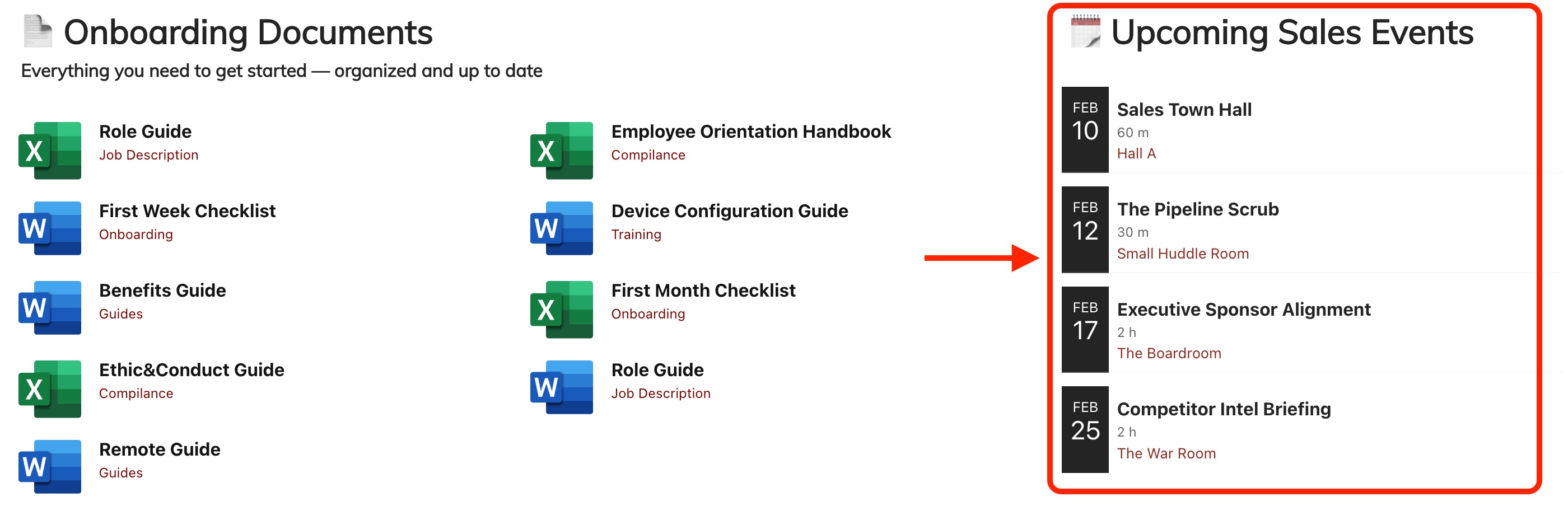
To make it even better, the connection is updated automatically. This simply means that when you add, edit, or remove events in your shared mailbox calendar, it syncs dynamically into your SharePoint page, keeping your events list always up to date.
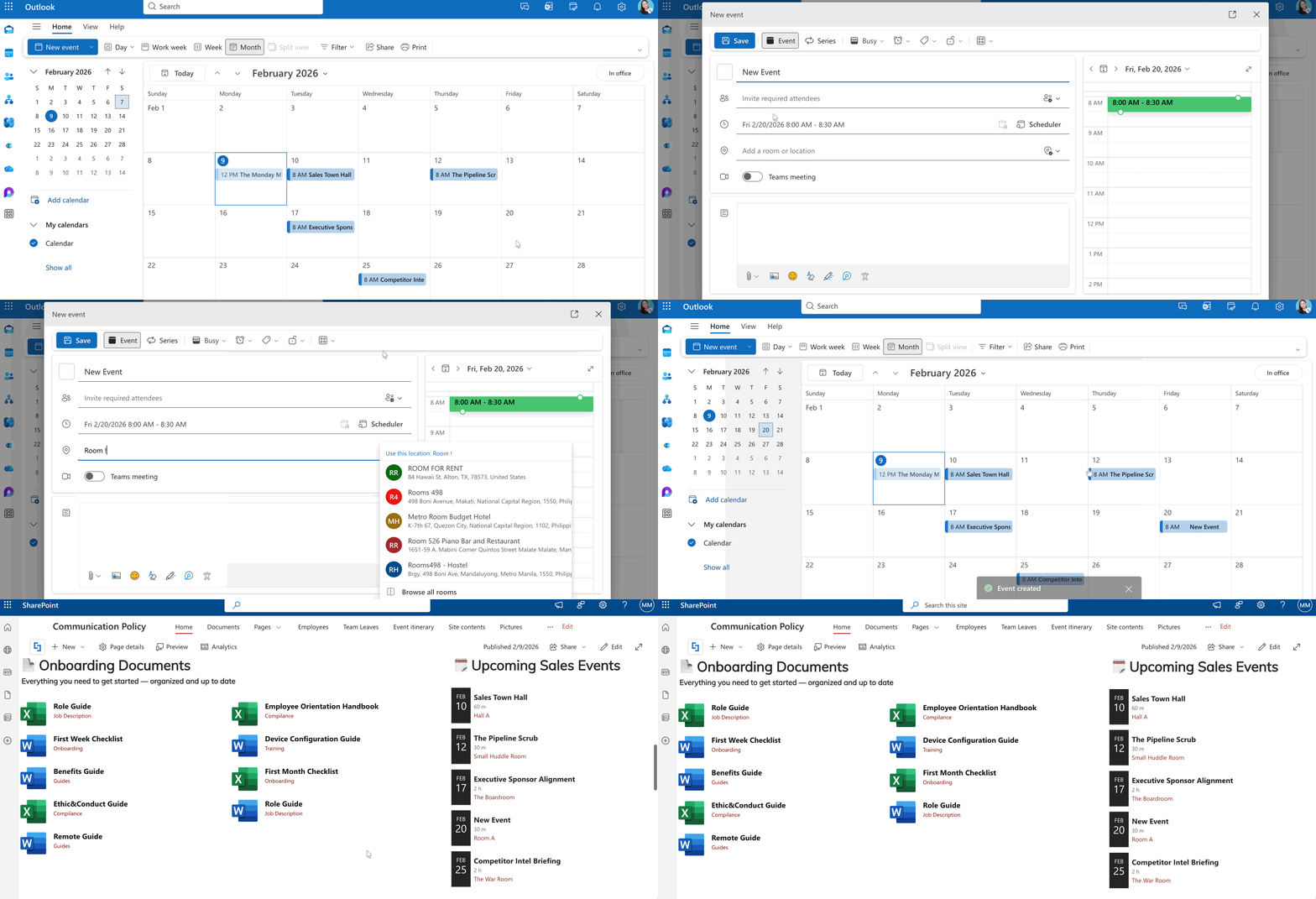
Ready to give this dynamic connection a try? For those of you already working with ShortPoint, you can check out How to Display Outlook Calendar Events from a Shared Mailbox in SharePoint Using the ShortPoint Shared Events (Outlook) Connection. If you're just discovering ShortPoint, you're welcome to take it for a test drive with our FREE 15-day trial—completely risk-free! Or, if you'd like someone to guide you through it, our experts are here for one-on-one demos. They'll show you how the Shared Events (Outlook) connection works and introduce you to the full range of what ShortPoint can do.
Frequently Asked Questions
Do I need a special license to create a shared mailbox?
No, shared mailboxes are included with Microsoft 365 subscriptions that include Exchange Online. You don't need a separate license unless the mailbox exceeds the 50GB storage limit or requires advanced features like litigation hold, in-place archiving, or Microsoft Defender for Office 365.
How many people can access a single shared mailbox?
While there's no hard limit on the number of users who can have permissions, Microsoft recommends keeping it to 25 or fewer concurrent users. Beyond that, you may experience performance issues like connection failures or duplicate messages. If you need more than 25 active users, consider using a Microsoft 365 group instead.
Can external users access our shared mailbox?
No, shared mailboxes are designed for internal use only. You cannot grant access to people outside your organization, such as contractors with Gmail accounts. If you need external collaboration, consider creating a Microsoft 365 group for Outlook instead.
Will the shared mailbox automatically appear in my Outlook?
If automapping is enabled (which it is by default for most organizations), the shared mailbox will automatically appear in your Outlook folder pane after you close and restart Outlook. Note that automapping only works for individual users, not through security groups.
Can I send emails from the shared mailbox address?
Yes, but you'll need the appropriate permissions. There are two options: "Send As" permission makes it appear as if the email came directly from the shared mailbox, while "Send on Behalf" permission shows that you sent it on behalf of the shared mailbox (recipients will see "Your Name on behalf of Shared Mailbox").
Can I use a shared mailbox on my phone or tablet?
Absolutely! You can access shared mailboxes through the Outlook for iOS or Outlook for Android mobile apps. Alternatively, you can use your mobile browser to access Outlook on the web, which provides full functionality for shared mailboxes.
What's the difference between a shared mailbox and a Microsoft 365 group?
Shared mailboxes are simpler and focused primarily on email and calendar sharing. Microsoft 365 groups offer more comprehensive collaboration features, including SharePoint calendar sites, OneNote notebooks, Planner, and Teams integration. If you need just email collaboration, start with a shared mailbox. If you need broader collaboration tools, consider a Microsoft 365 group.
Can I convert a regular mailbox to a shared mailbox?
Yes! Microsoft 365 administrators can convert user mailboxes to shared mailboxes and vice versa. This is useful if an employee leaves or goes on extended leave, and you want to maintain access to their communications without paying for a license.
What happens to emails I send from the shared mailbox?
By default, emails you send from a shared mailbox are saved only to your personal Sent Items folder. However, administrators can configure the shared mailbox to also save copies to its own Sent Items folder, allowing all team members to see what's been sent and track outgoing replies.
Can we encrypt emails sent from a shared mailbox?
No, shared mailboxes don't support email encryption because they lack their own security context (no individual username and password). If you need encrypted communications, team members would need to use their personal mailboxes.
How much does a shared mailbox cost?
Shared mailboxes under 50GB are completely free with your Microsoft 365 subscription. If you need more data storage or advanced features, you'll need to assign an Exchange Online license, but for most teams, the free version is more than sufficient.
Can I prevent people from deleting emails in the shared mailbox?
Unfortunately, no. If you need that level of control, you'd need to implement retention policies or consider using a Microsoft 365 group instead, which offers more granular permission settings.
How do I set up a shared mailbox?
Only Global Administrators or Exchange Administrators can create shared mailboxes. They'll need to sign into the Microsoft 365 admin center, navigate to Teams & Groups > Shared mailboxes, and select add a new shared mailbox. After creation, you can add members and configure mailbox permissions.
Related articles:
