Try ShortPoint now
TL;DR: You can copy any ShortPoint Design Element, such as a Section or a single element, and paste it into another SharePoint page. In ShortPoint Page Builder, click or right-click the element's EasyPass tag and choose Copy. Then open Page Builder on the other page, right-click where you want it, and choose a paste option.
Built a Section or Design Element you love and want to use it on another SharePoint page? You don't need to rebuild it from scratch. With ShortPoint, you can copy any Design Element, along with its content and design settings, and paste it into a different page in just a few clicks. This article shows you how.
TABLE OF CONTENTS
- Prerequisites
- Copy and Paste a Design Element
- Step-by-step Tutorial
- Frequently Asked Questions
- What gets copied when I copy a Design Element?
- Can I copy a single element instead of a whole Section?
- Is there a difference between the EasyPass tag and the right-click menu?
- Can I paste the Design Element more than once?
- Can I paste into a page on a different SharePoint site?
- Will editing the pasted copy change the original?
- Can I use Ctrl + V (Cmd + V on Mac) to paste?
- Why don't I see the paste options?
- How do I copy Design Elements without opening ShortPoint Page Builder?
Prerequisites
- You have the latest version of ShortPoint SPFx installed on your SharePoint environment.
- You are a ShortPoint Designer with an active license.
- You have a SharePoint page with the Design Element you want to copy.
- You have another SharePoint page with a ShortPoint web part where you want to paste it.
Copy and Paste a Design Element
You can copy and paste any Design Element: a whole Section, a Row, a Column, or a single element like Icon Boxes or Text. Whatever you copy comes with everything inside it, including its content and design settings.
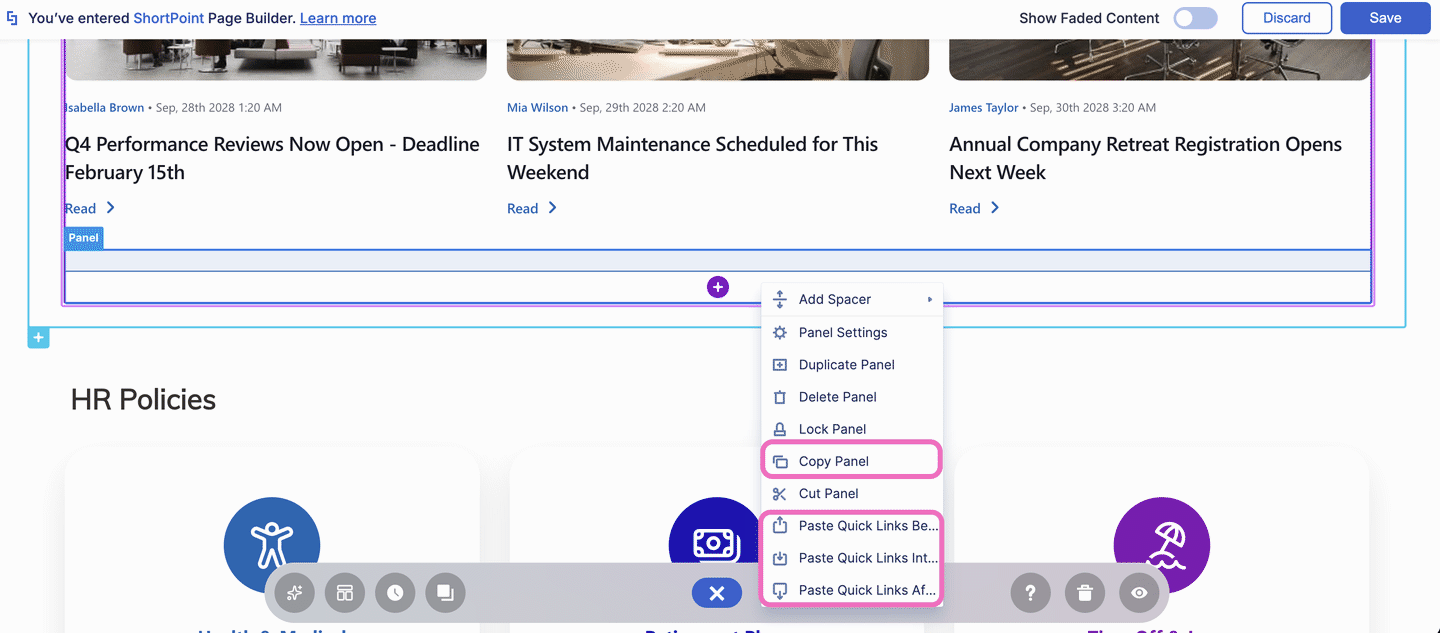
Here's what each copy and paste action does:
| Option | What it does |
|---|---|
| Copy <Element Name> | Copies the selected Design Element and everything inside it, so you can paste it on the same page or another page. |
| Paste <Element Name> Before | Adds the copied Design Element above the one you selected. |
| Paste <Element Name> After | Adds the copied Design Element below the one you selected. |
| Paste <Element Name> Into <Element Name> | Adds the copied Design Element inside the container you selected. This option appears for content-holder Design Elements, including Panel, Background, Column, etc. |
NOTEThe option names change depending on what you select. For example, you'll see Copy Section for a Section and Copy Row for a Row.
Step-by-step Tutorial
The steps are divided into two parts. First, copy the Design Element from your original page. Then, paste it into another page.
NOTEYou can also copy individual Design Elements straight from a published page, without opening ShortPoint Page Builder, by adding ?spcopy=1 to the page URL. To learn how, see How to Use ?spcopy=1 to Copy and Paste Individual Design Elements.
Part 1: Copy the Design Element
Step 1: Open ShortPoint Page Builder
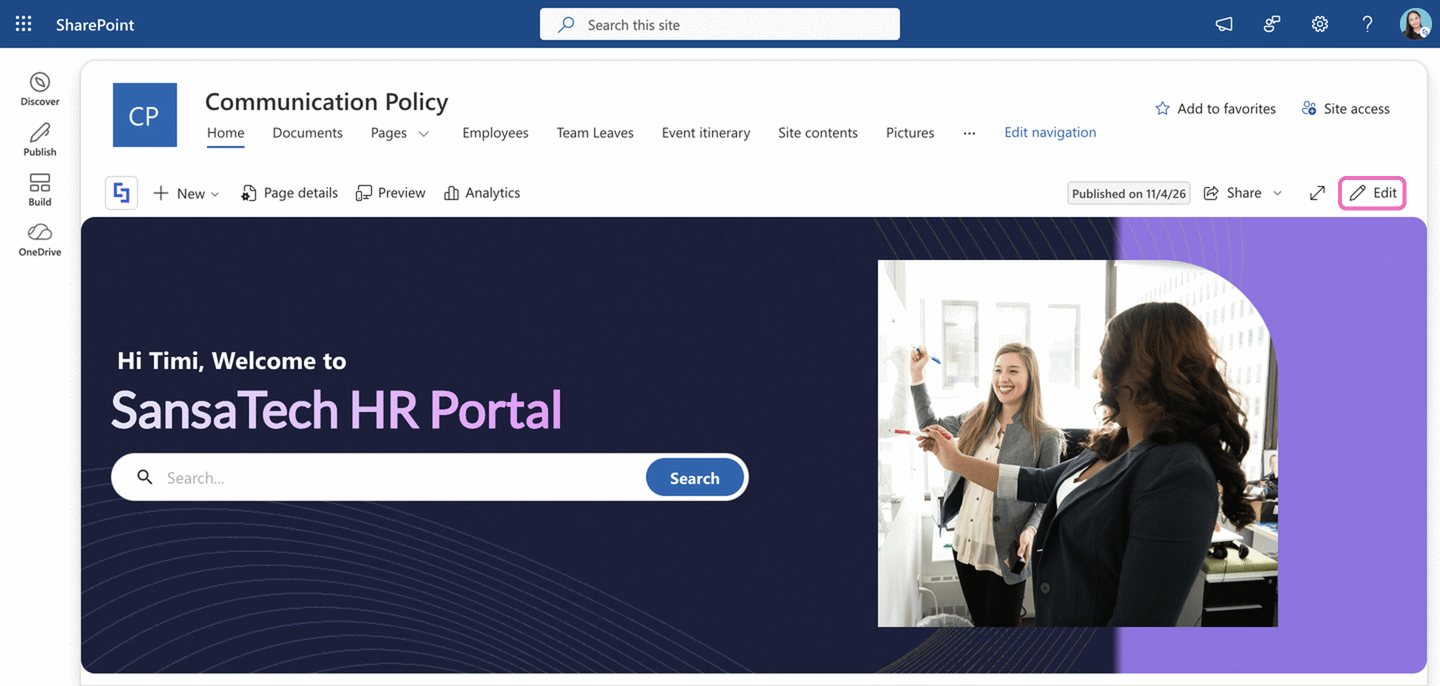
- Go to the SharePoint page where the Design Element you want to copy is located and click Edit.
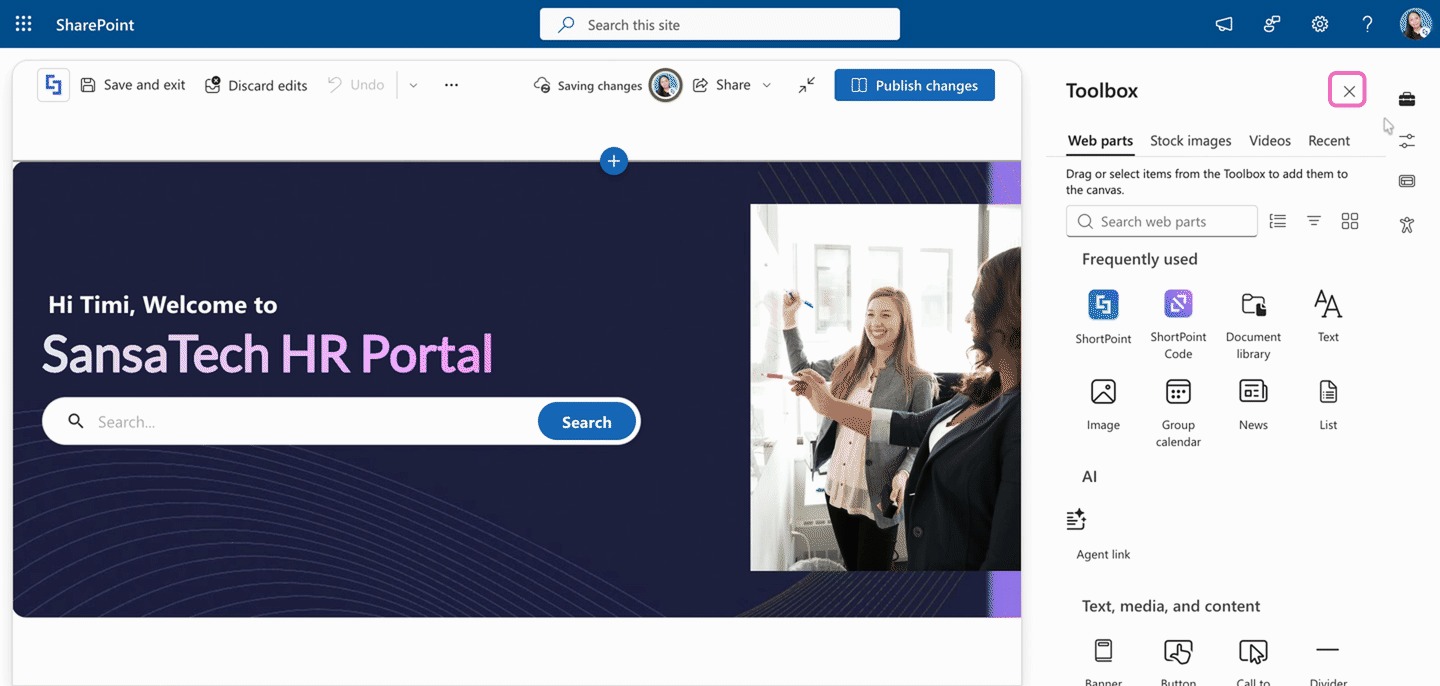
- Close the SharePoint Toolbox by clicking the X icon.
- Click the Edit web part icon on the ShortPoint web part toolbar. This opens ShortPoint Page Builder.
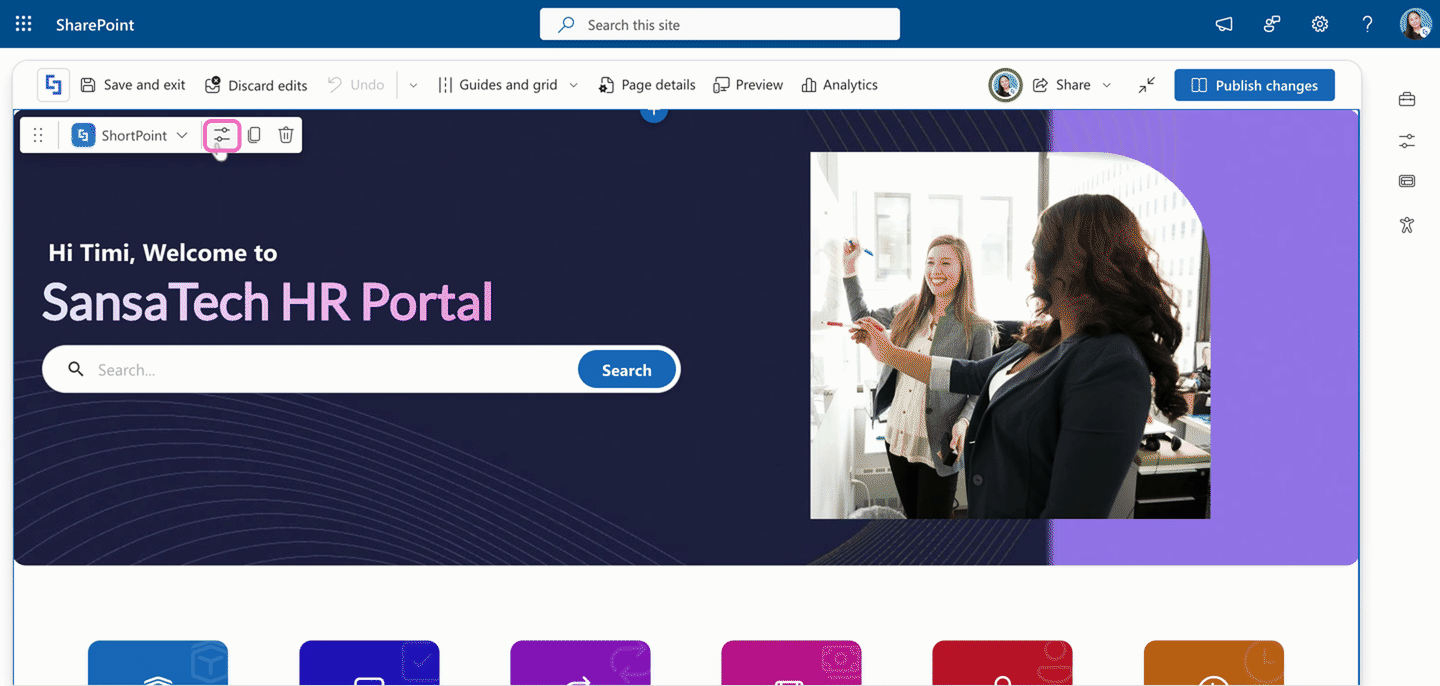
Step 2: Copy the Design Element
Choose the option that suits you.
Option 1: Using the EasyPass tag
- Look for the Design Element you want to copy and click its EasyPass tag. In this example, we're copying the whole HR Policies Section.
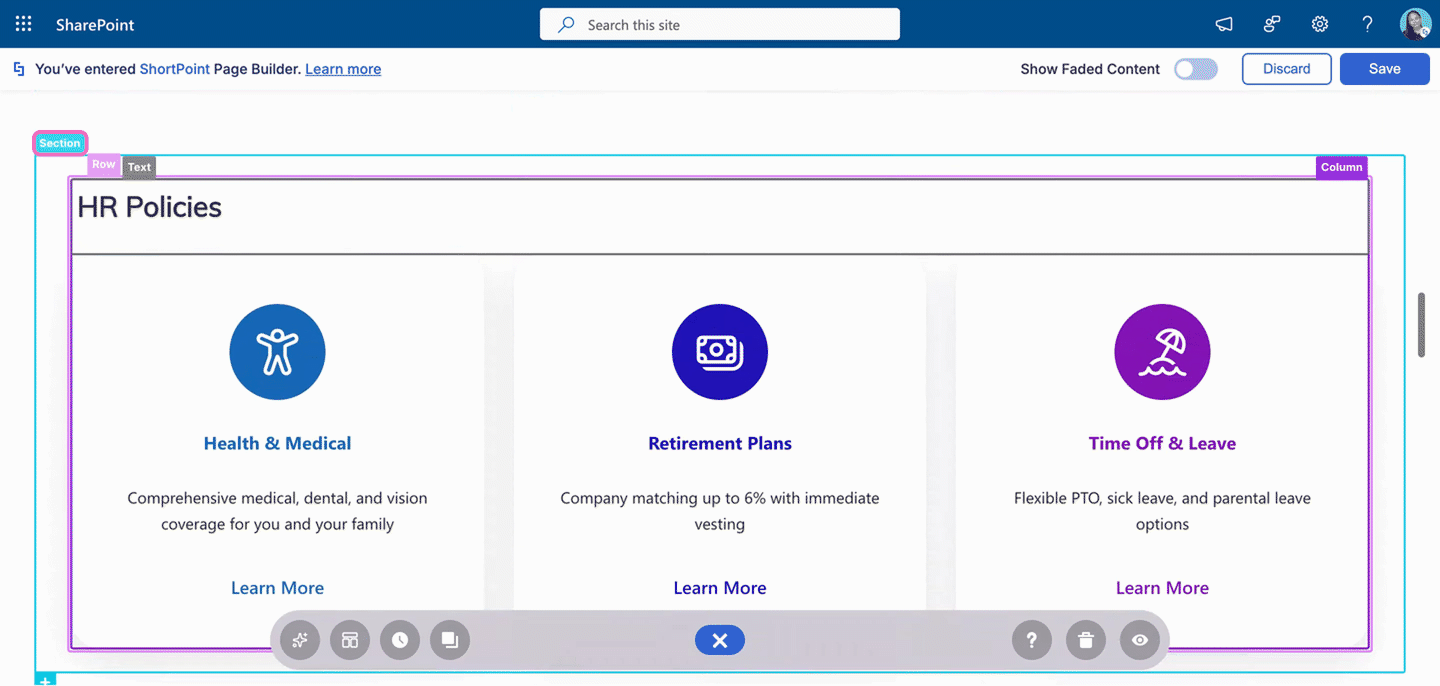
- Click the ellipsis (…) icon.
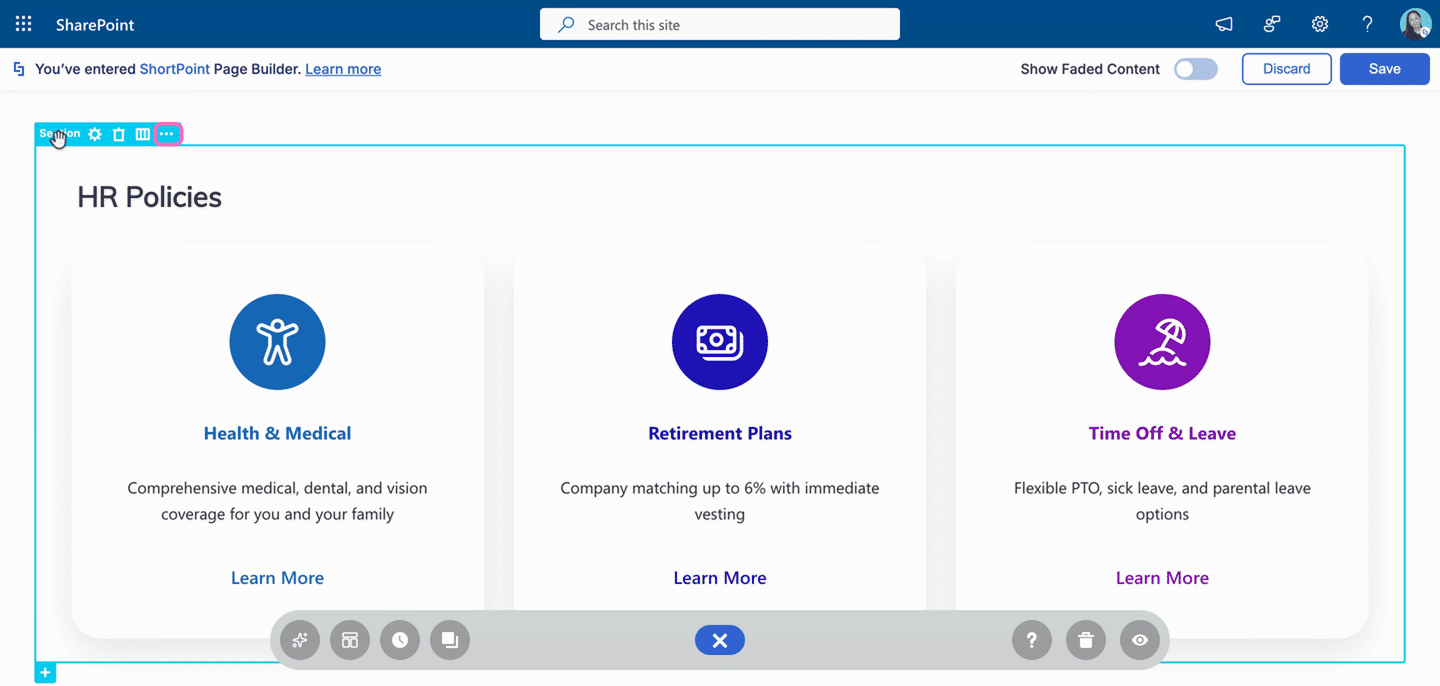
- Click Copy Section.
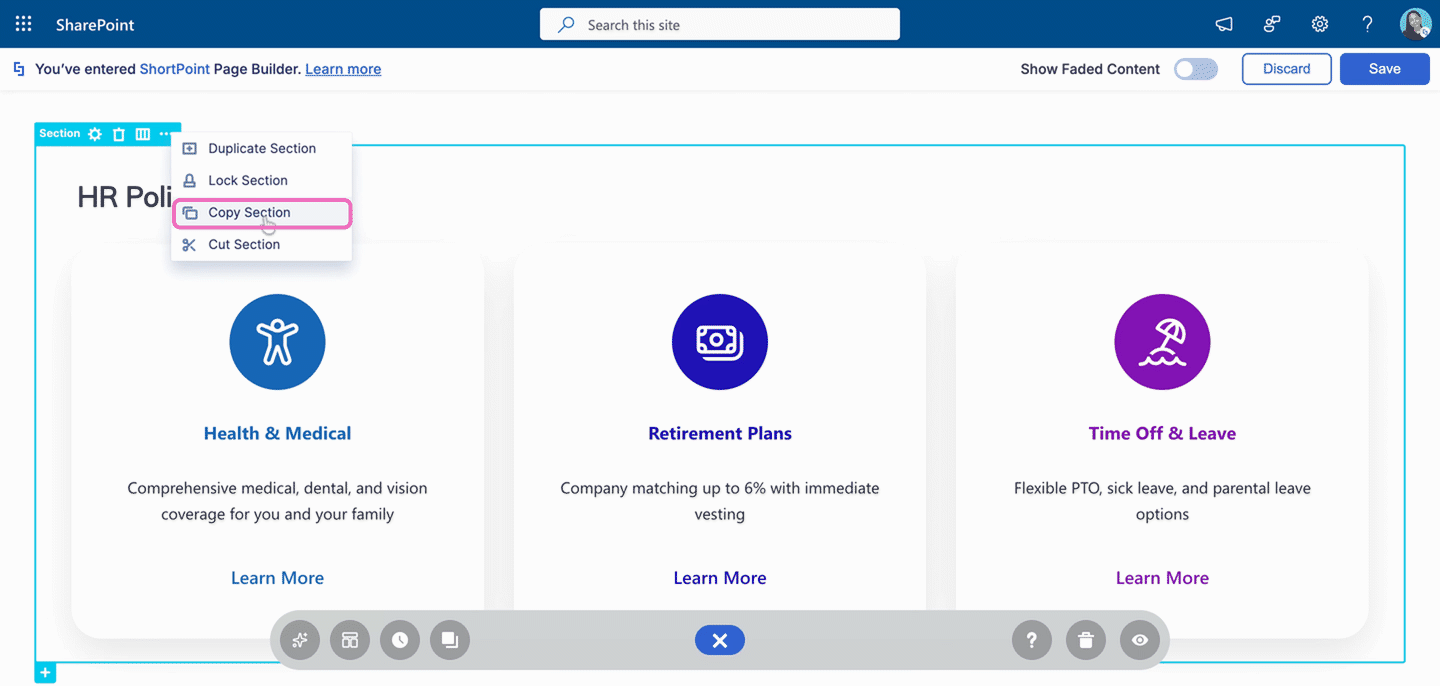
Option 2: Using the right-click menu
- Right-click the EasyPass tag of the Design Element you want to copy, then click Copy Section.
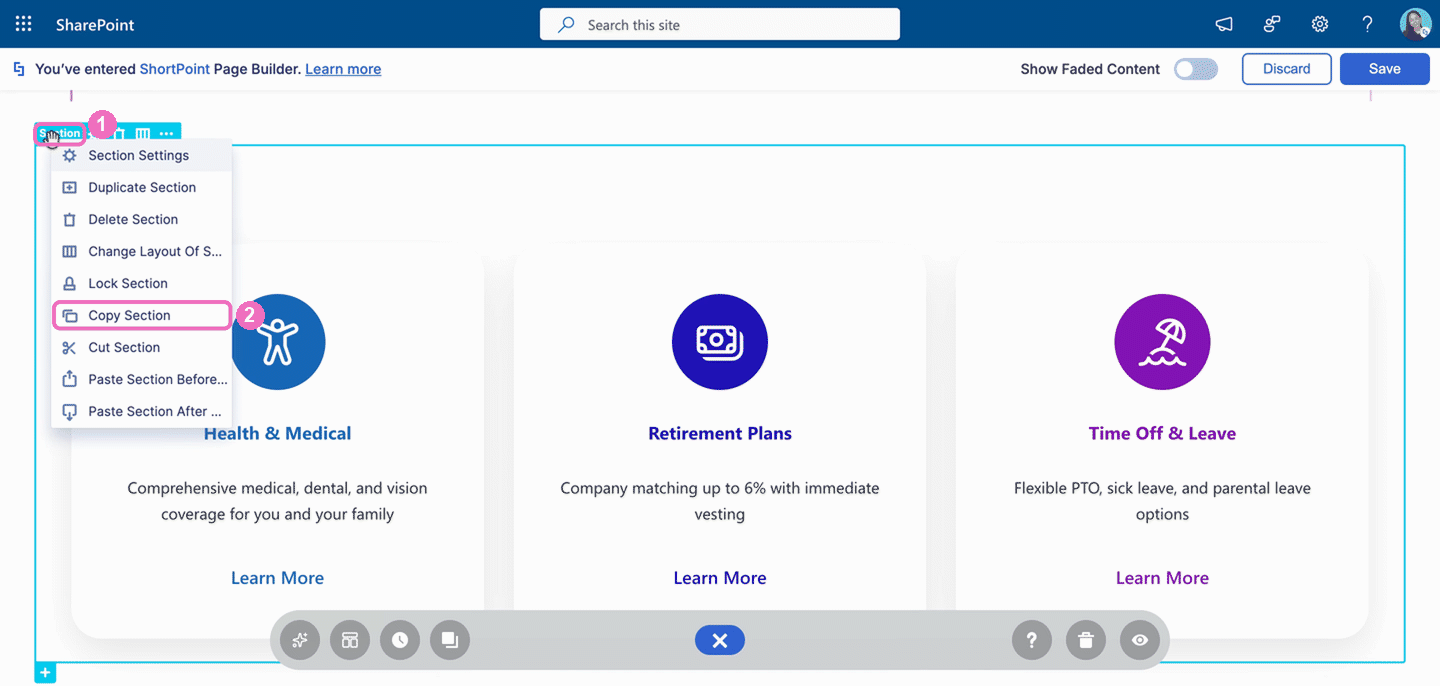
That's it! You've copied the Design Element. Now you can paste it into another SharePoint page.
Part 2: Paste the Design Element into Another Page
Step 1: Open ShortPoint Page Builder on the Other Page
- Go to the SharePoint page where you want to paste the copied Design Element and click Edit.
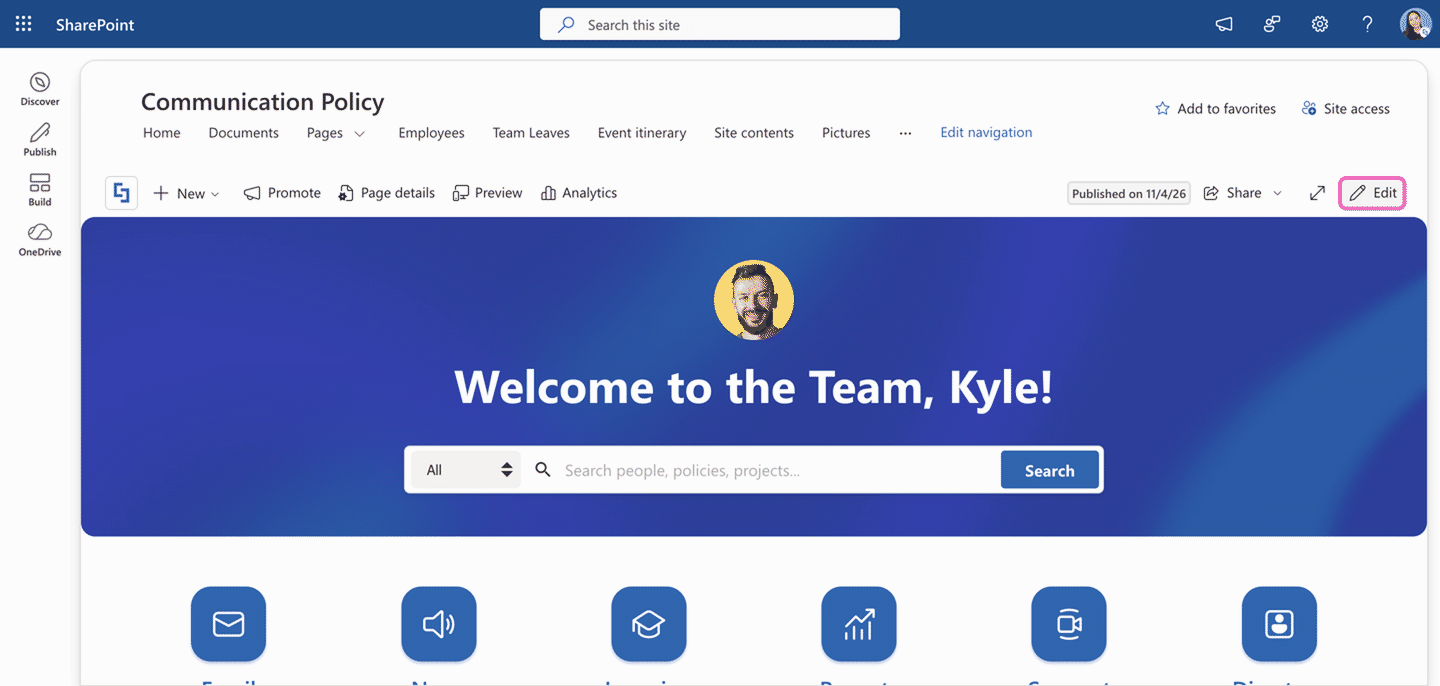
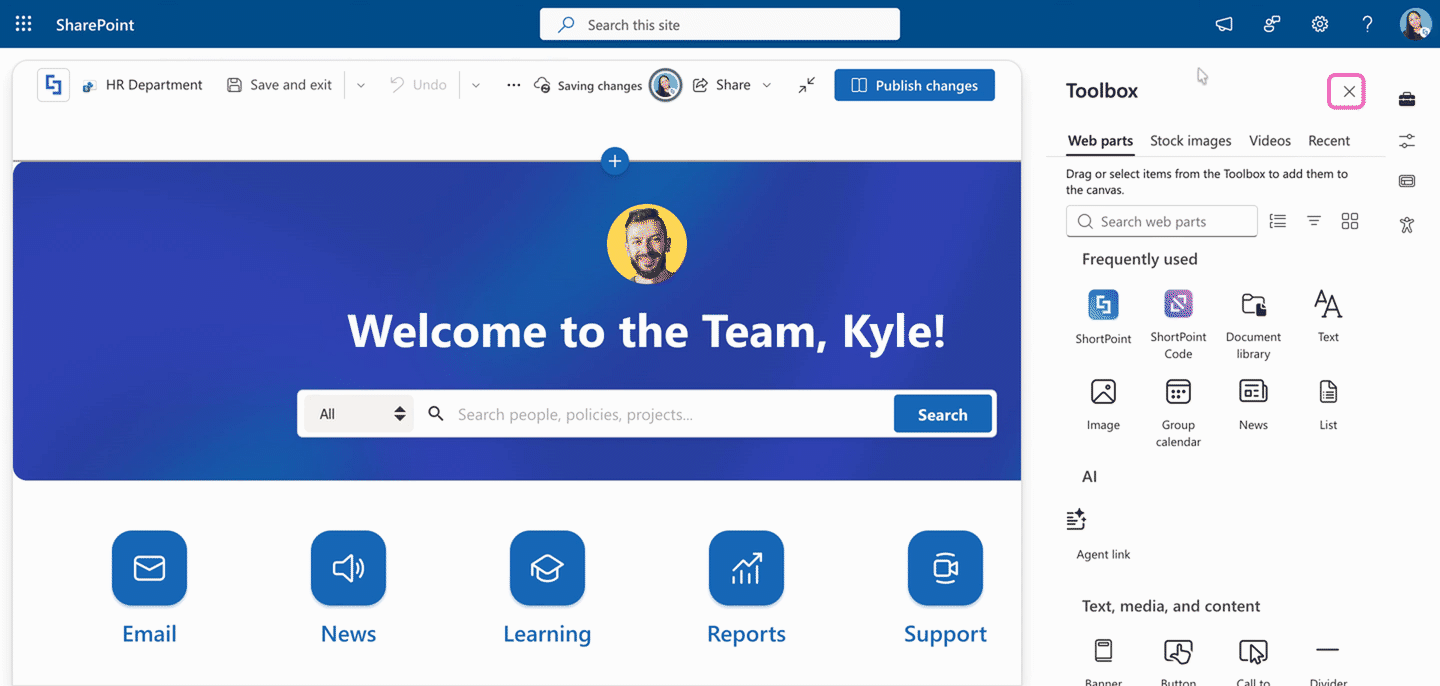
- Close the SharePoint Toolbox by clicking the X icon.
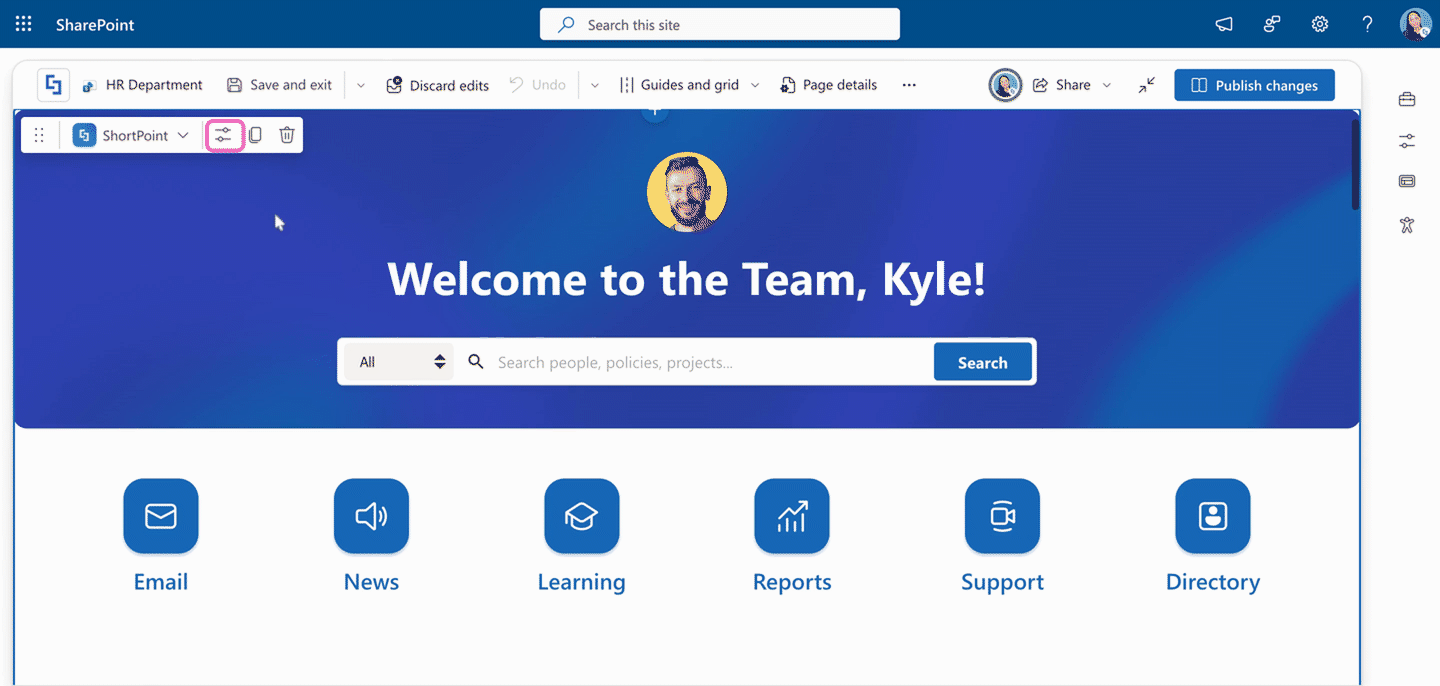
- Click the Edit web part icon on the ShortPoint web part toolbar.
Step 2: Paste the Design Element
Choose the option that suits you.
Option 1: Using the EasyPass tag
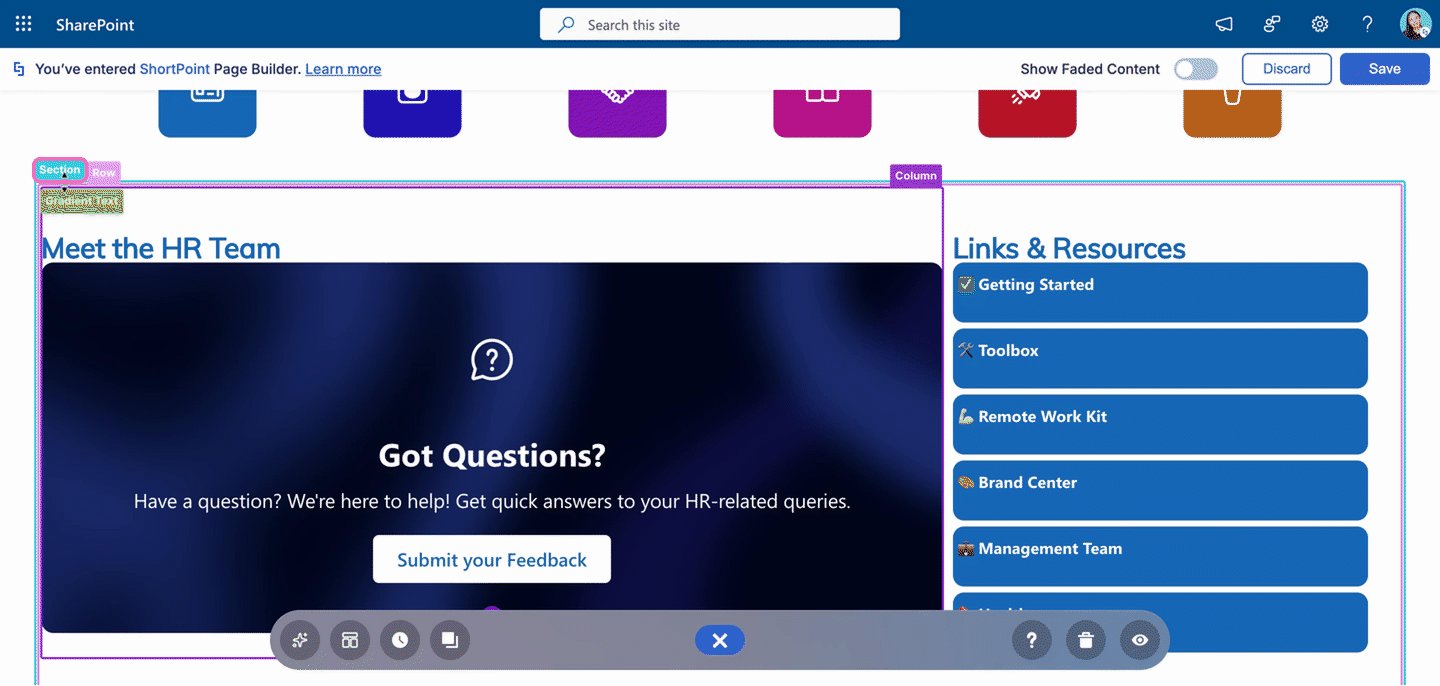
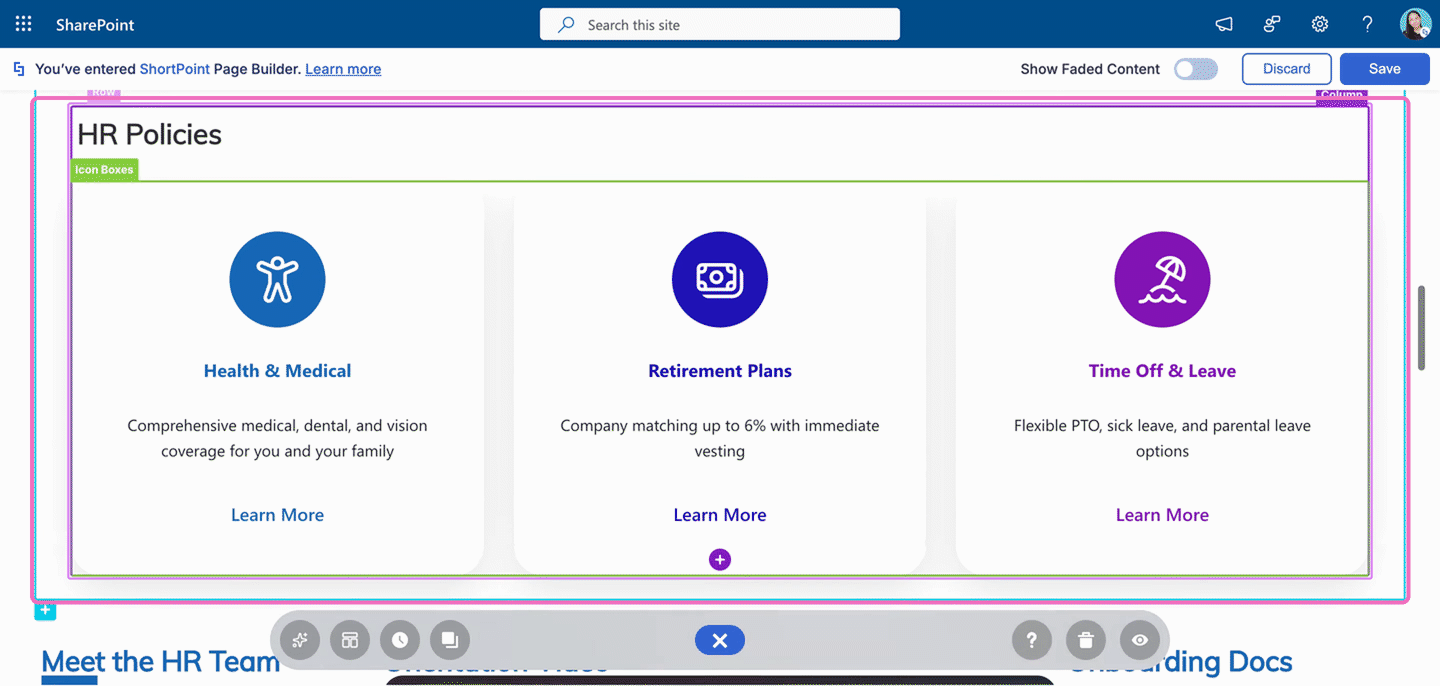
- Choose where you want to paste the Design Element and click that spot's EasyPass tag. In this example, we want to paste the copied Section below the Meet the HR Team Section.
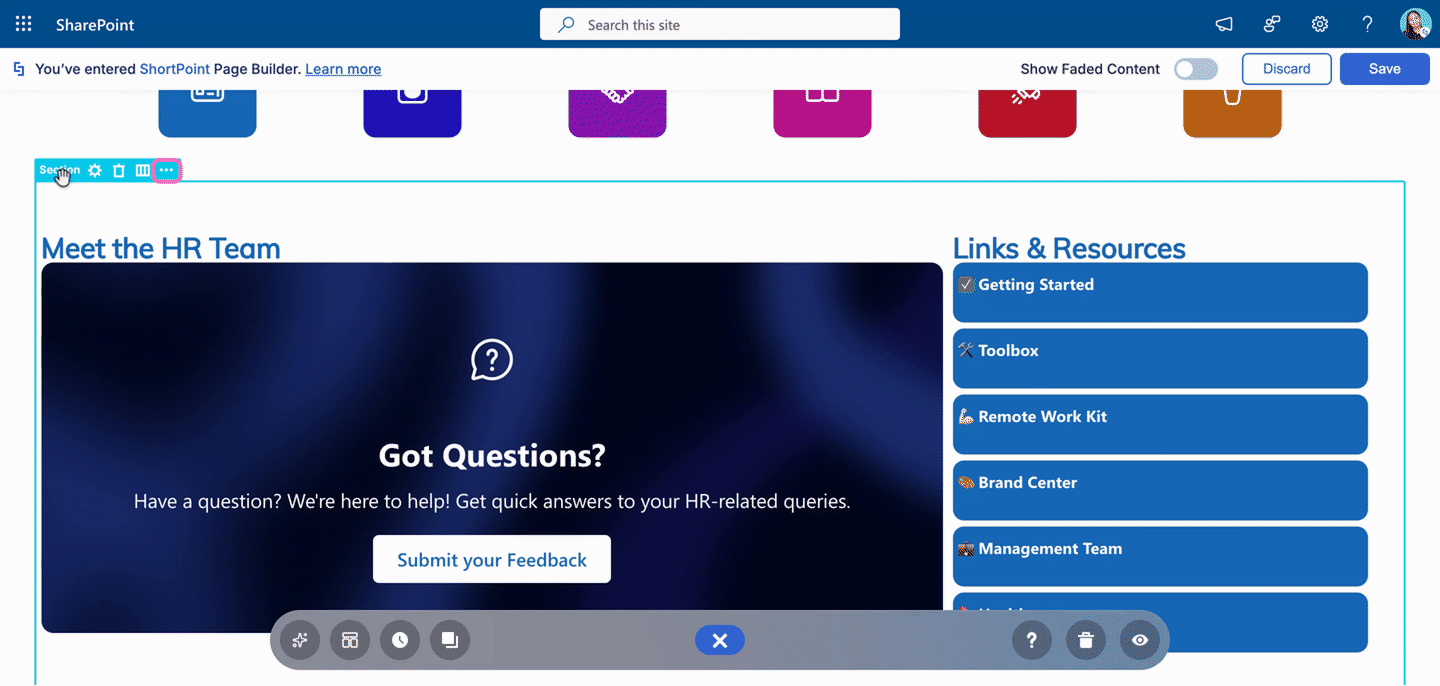
- Click the ellipsis (…) icon.
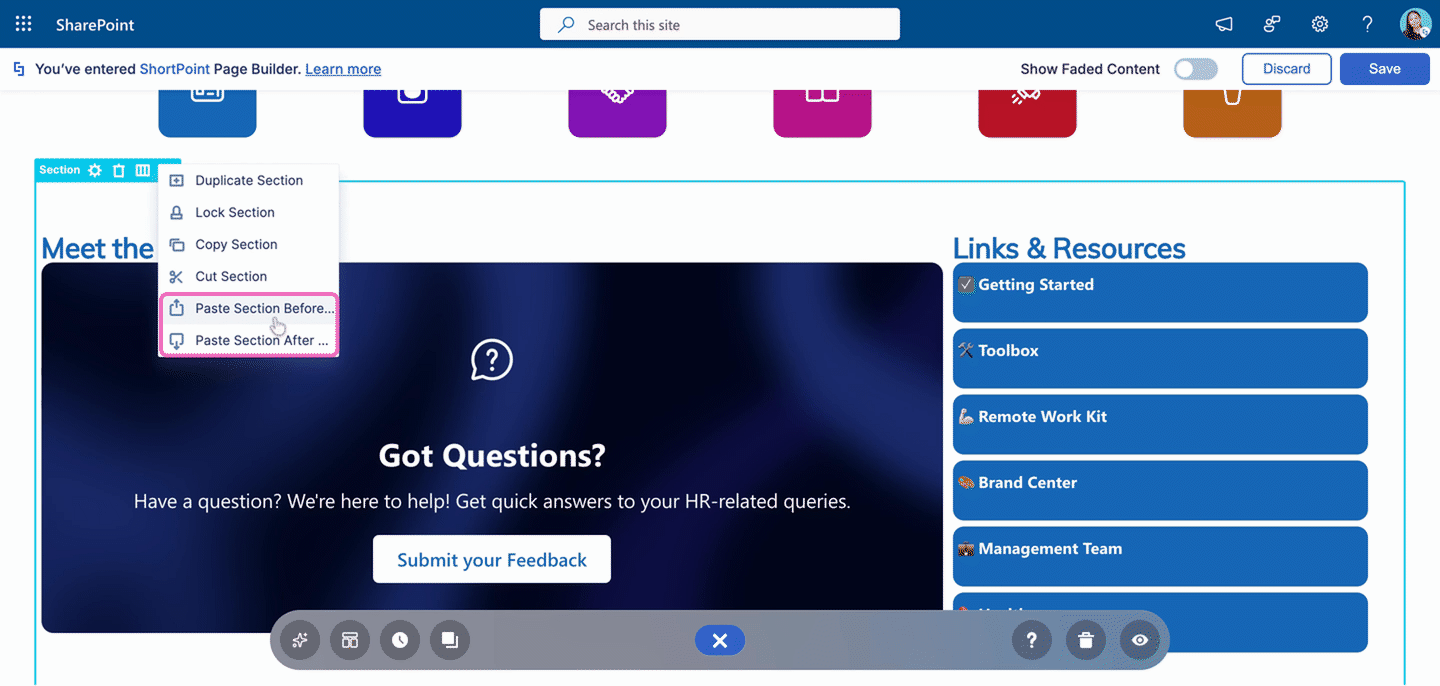
- Select the paste option you need:
- Paste <Element> Before adds the copied element above the selected one.
- Paste <Element> After adds the copied element below the selected one.
- Paste <Element Name> Into <Element Name> adds the copied element inside the container you selected. This option appears for Content-holder Design Elements.
Option 2: Using the right-click menu
- Right-click the spot where you want to paste the Design Element, then select Paste Section Before or Paste Section After.
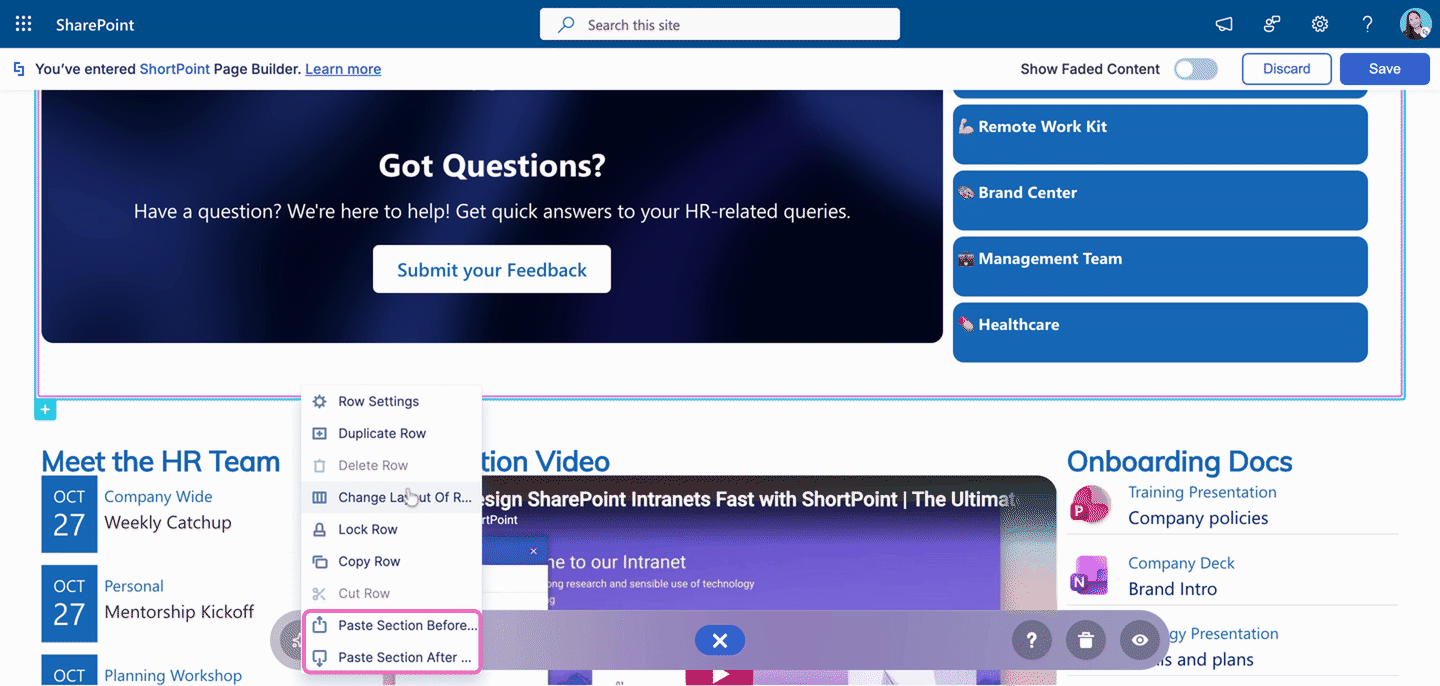
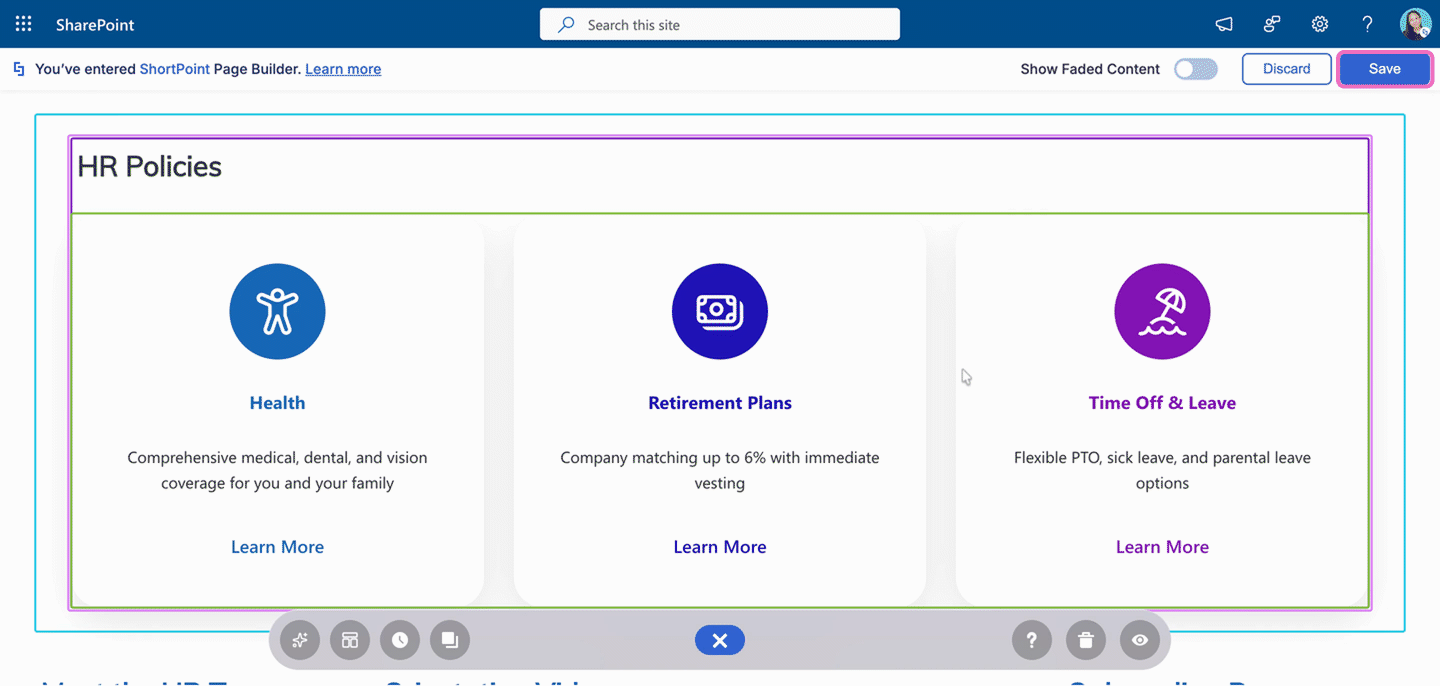
Awesome! The copied Design Element now appears on the page. You can edit it however you like, and your changes won't affect the original.
Step 3: Save and Publish
- Once you're happy with your changes, click Save.
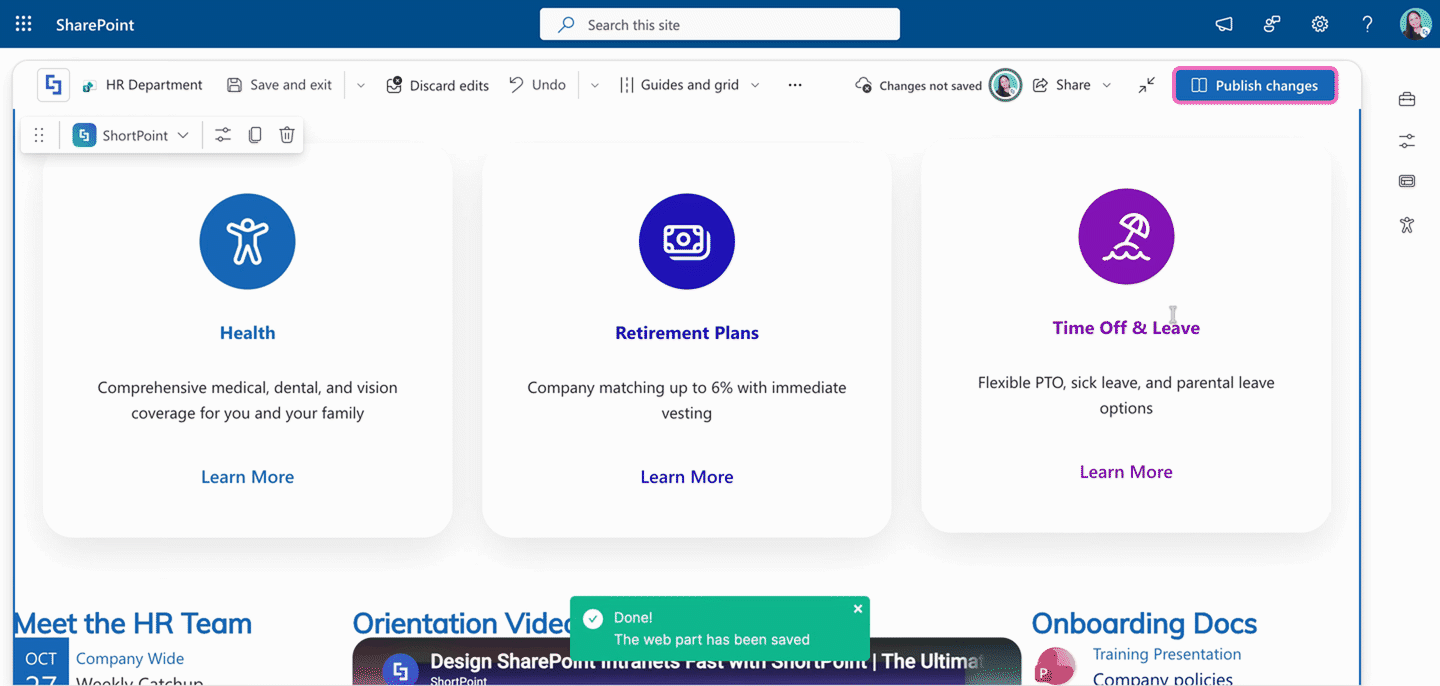
- Click Publish changes.
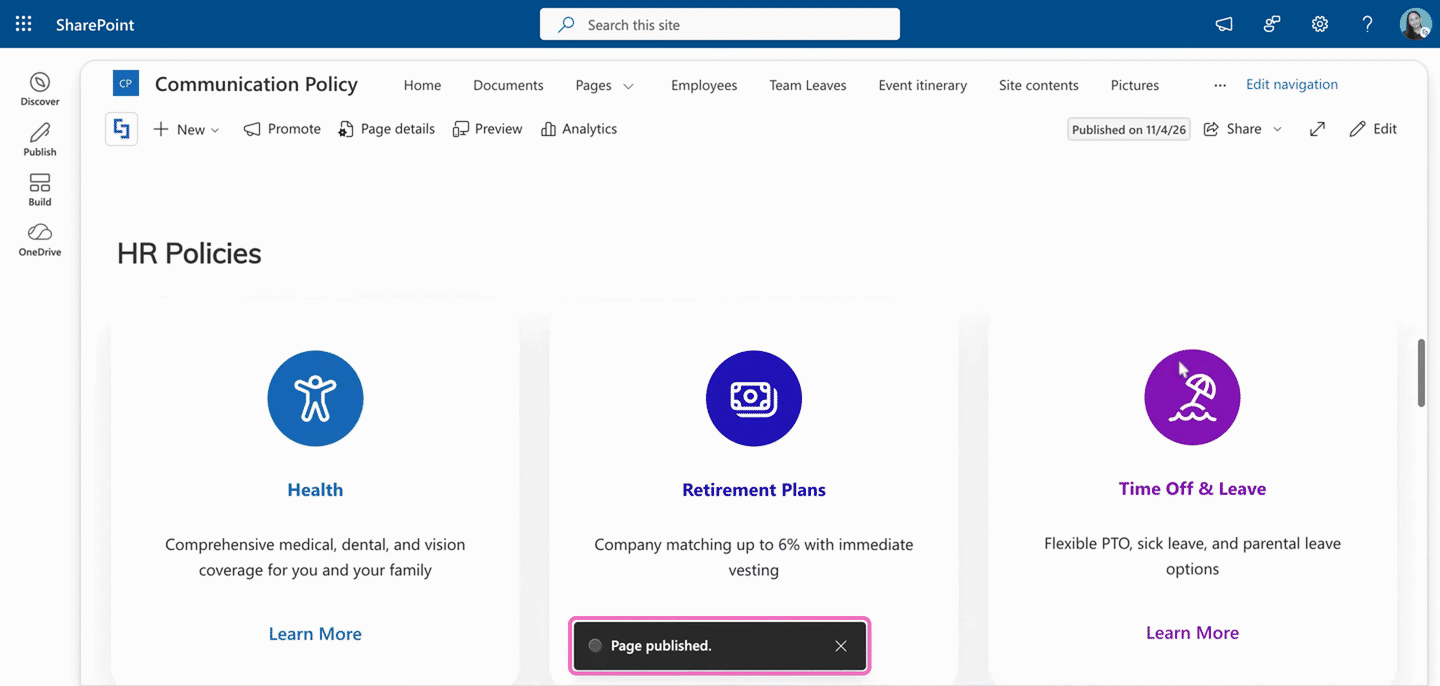
Congratulations! You've copied and pasted a Design Element into another SharePoint page.
Frequently Asked Questions
What gets copied when I copy a Design Element?
Everything inside it: its content, design settings, and any Design Elements it holds. For example, copying a Section also copies all of its Rows, Columns, and elements.
Can I copy a single element instead of a whole Section?
Yes. Click the EasyPass tag of the element you want and use the same Copy option. The option name changes to match what you selected, like Copy Icon Boxes.
Is there a difference between the EasyPass tag and the right-click menu?
No. Both give you the same Copy and Paste options. The right-click menu just saves you a click because you don't have to open the ellipsis icon first.
Can I paste the Design Element more than once?
Yes. The copied Design Element stays ready to paste, so you can paste it in several places or on several pages. Copying something new replaces it.
Can I paste into a page on a different SharePoint site?
Yes. As long as ShortPoint is installed on the other site and you're a ShortPoint Designer there, you can paste into any page you can edit.
Will editing the pasted copy change the original?
No. The pasted copy is separate from the original. You can change its text, images, or design without affecting the original page.
Can I use Ctrl + V (Cmd + V on Mac) to paste?
No. Use the Paste options in the EasyPass tag ellipsis menu or the right-click menu inside ShortPoint Page Builder.
Why don't I see the paste options?
Make sure you've copied a Design Element first, and that you're working inside ShortPoint Page Builder, not on the regular SharePoint page.
How do I copy Design Elements without opening ShortPoint Page Builder?
Add ?spcopy=1 to the end of the page URL. To learn how, see How to Use ?spcopy=1 to Copy and Paste Individual Design Elements.
Related articles:
- How to Copy and Paste Design Elements in ShortPoint Page Builder
- How to Copy and Paste a Whole ShortPoint Web Part into Another SharePoint Page
- How to Use ?spcopy=1 to Copy and Paste Individual Design Elements
- ShortPoint Page Builder Live Mode Feature: EasyPass
- How to Duplicate ShortPoint Design Elements in Page Builder