 Try ShortPoint now
In this article, we will tell you everything you need to know about ShortPoint Update, including what it is and how to upgrade to the new ShortPoint SPFx versions.
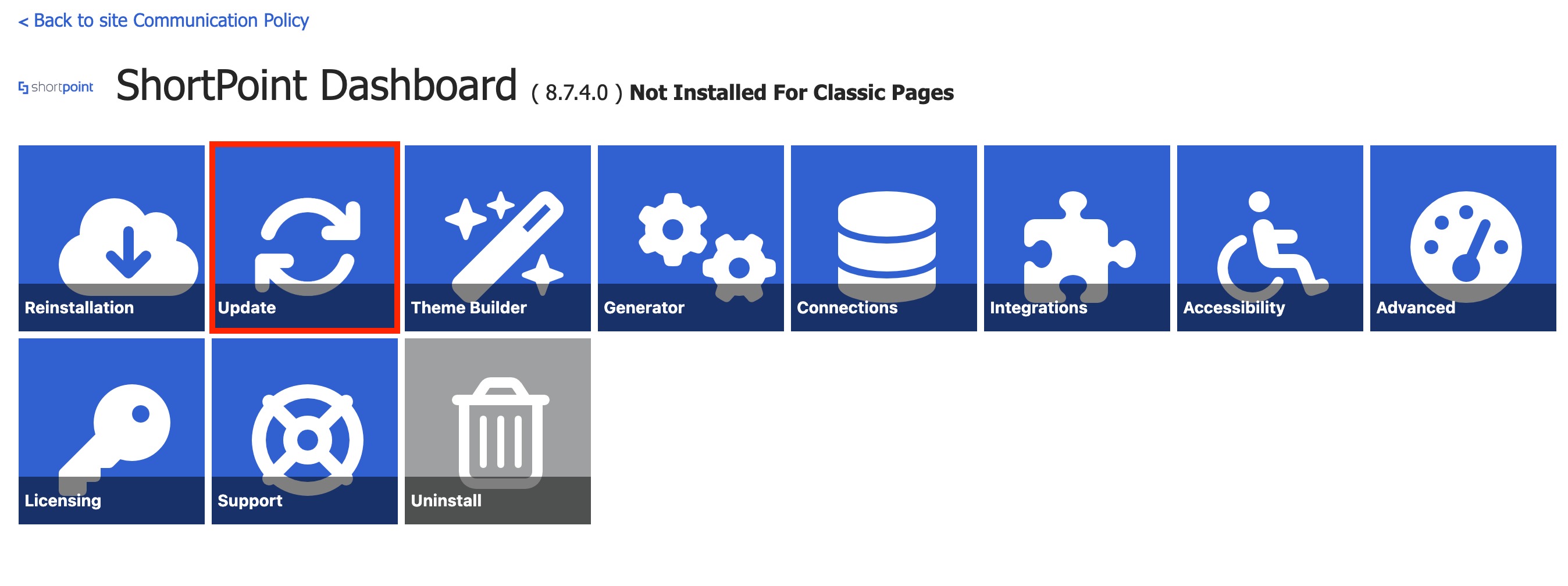
TABLE OF CONTENTS
- Before we begin
- What is ShortPoint Update?
- How to Get the New ShortPoint SPFx Versions
- Sandbox Mode and Rollback
- FAQ
Before we begin
- ShortPoint Update is available starting from ShortPoint SPFx version 7.1.5.xx and up.
- You must have the Microsoft 365 (SharePoint Online) or SharePoint 2019 On-Premise environment.
- You must be a ShortPoint Designer with an active license.
What is ShortPoint Update?
ShortPoint Update is the new way to update to the latest ShortPoint SPFx versions. With it, you no longer need to check each site collection on your tenancy that has ShortPoint installed and upgrade them one-by-one.
You have two ways to get the future ShortPoint versions:
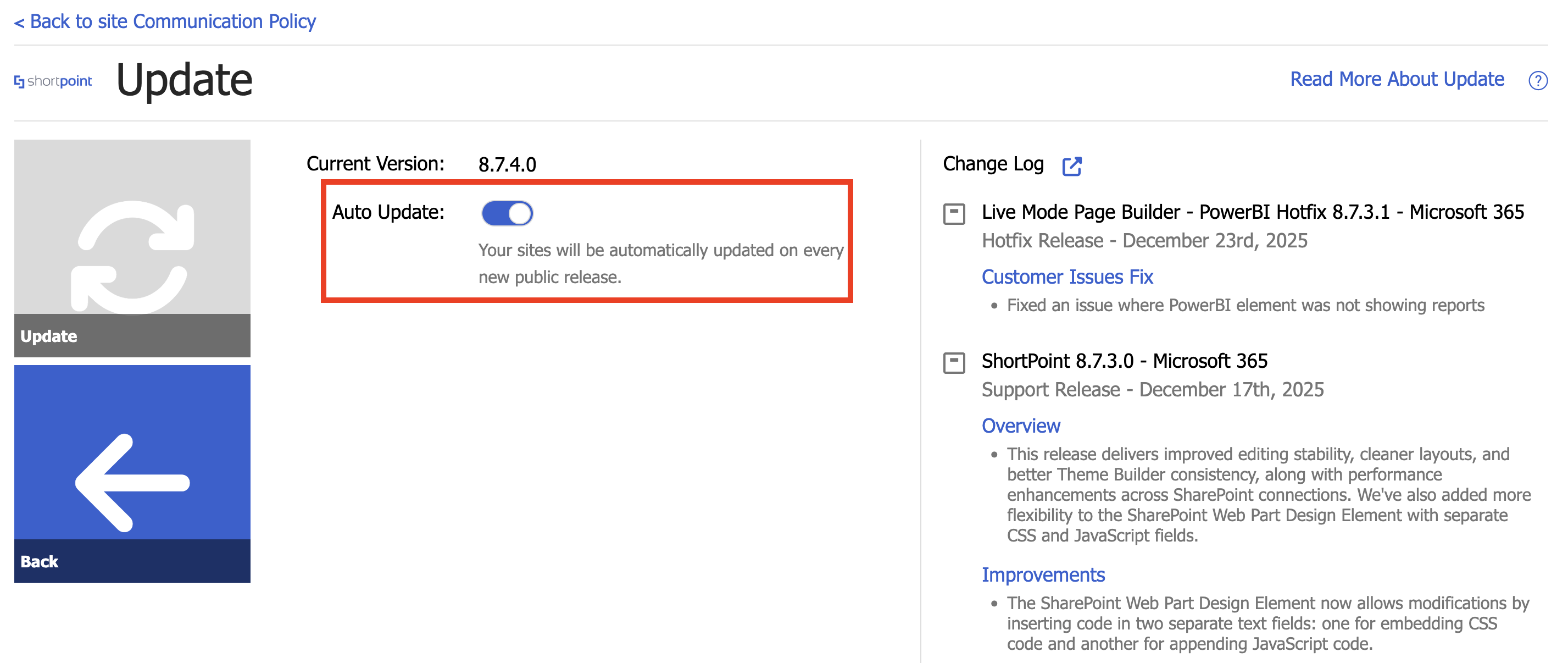
- Auto Update: This option allows you to update ShortPoint automatically whenever a new version is released. This is the default option. You can check out How to Use the Auto Update Feature to learn more about it.
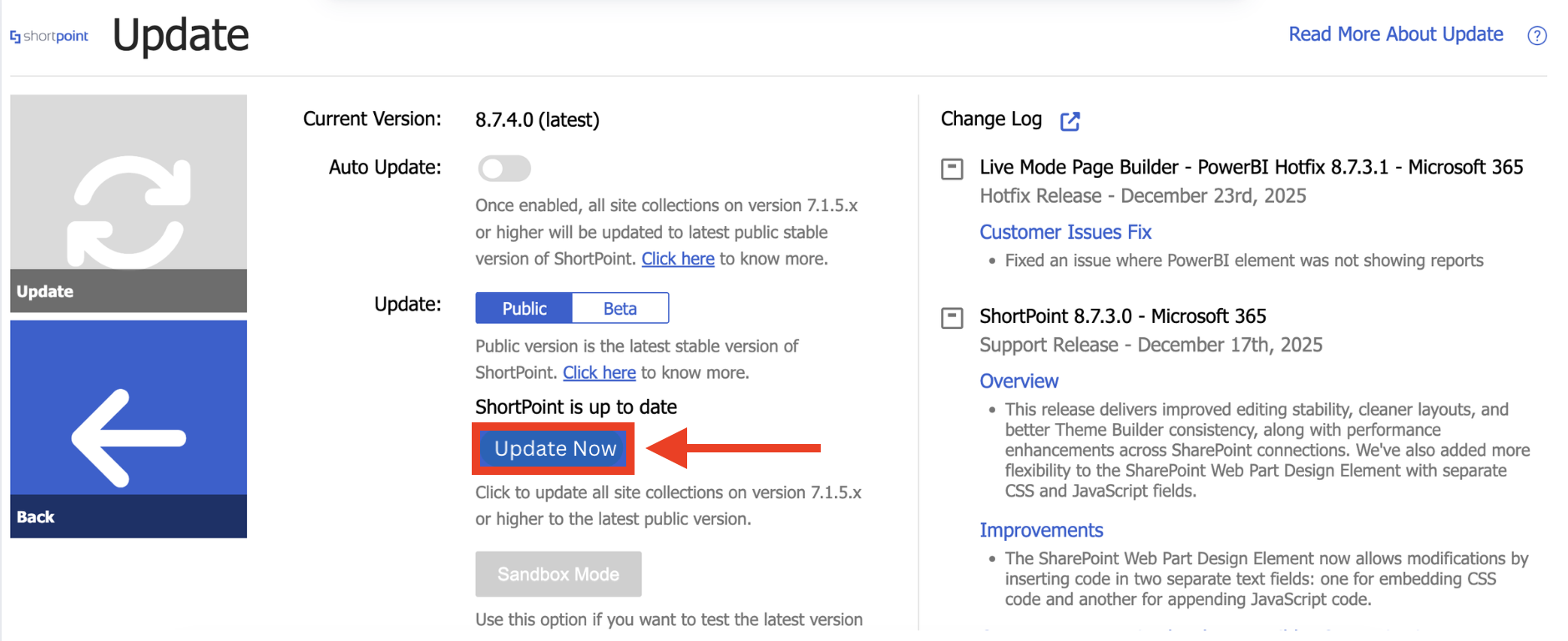
- Manual Update: This option allows you to update ShortPoint versions manually. All you have to do is select the Update Now button. You can also use the Sandbox Mode feature to preview the new version you're about to install. You can check out How to Use the ShortPoint Sandbox Mode Feature to learn more about Sandbox Mode.
ShortPoint Update is available starting from ShortPoint SPFx version 7.1.5.xx and up. To start using it, check out How to Switch to the New ShortPoint Update Experience.
How to Get the New ShortPoint SPFx Versions
IMPORTANT: If your ShortPoint SPFx version is 7.0.x.xx or below, you will need to do the App Catalog update for your sites one last time. Please visit our tutorial article for more details: How to Switch to the New ShortPoint Update Experience.
There are two ways to update to the latest ShortPoint SPFx version. Choose the option that best suits your needs:
Option 1: Auto Update
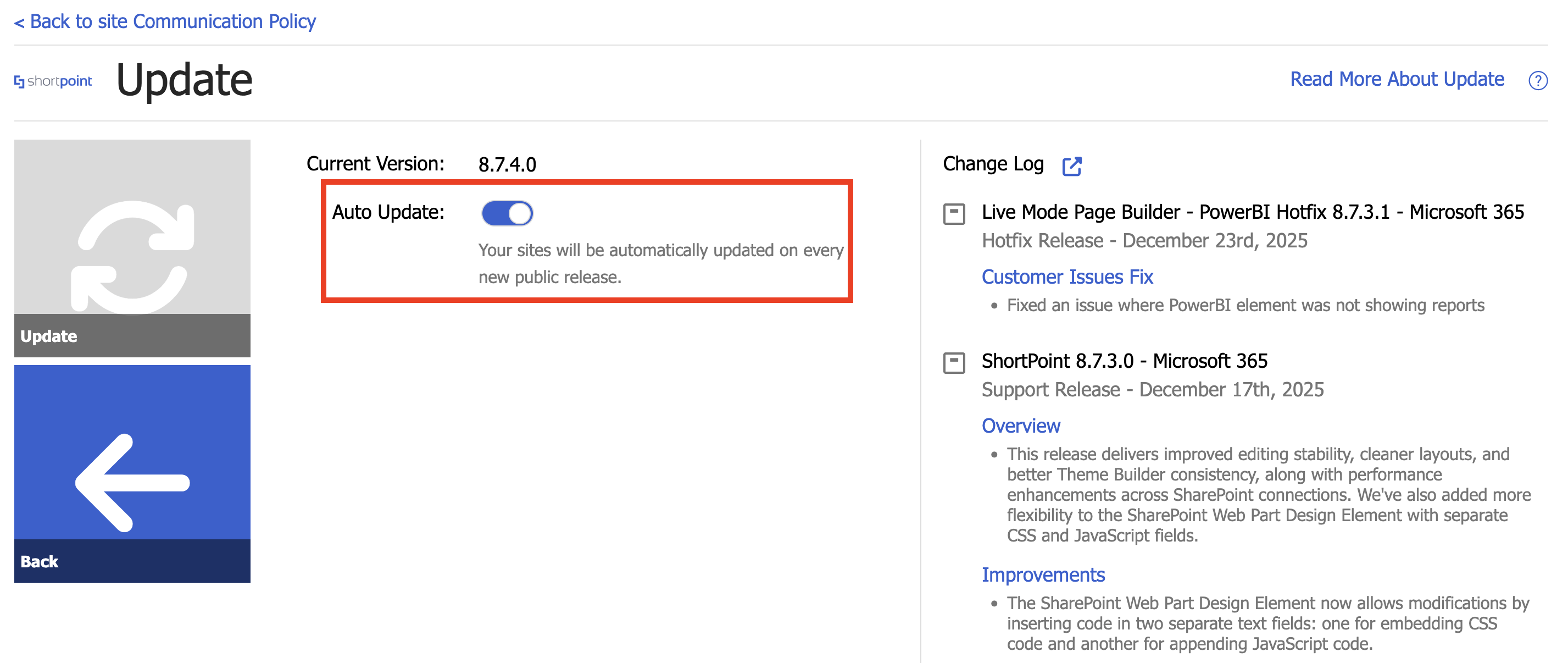
Choose this option if you want to update ShortPoint automatically whenever a new version is released. Follow the detailed guide below to learn how to enable this option:
Step 1: Open the ShortPoint Dashboard
- Go to the SharePoint site where ShortPoint is installed and click the ShortPoint logo:

- Select Dashboard:

Step 2: Open the Update Page
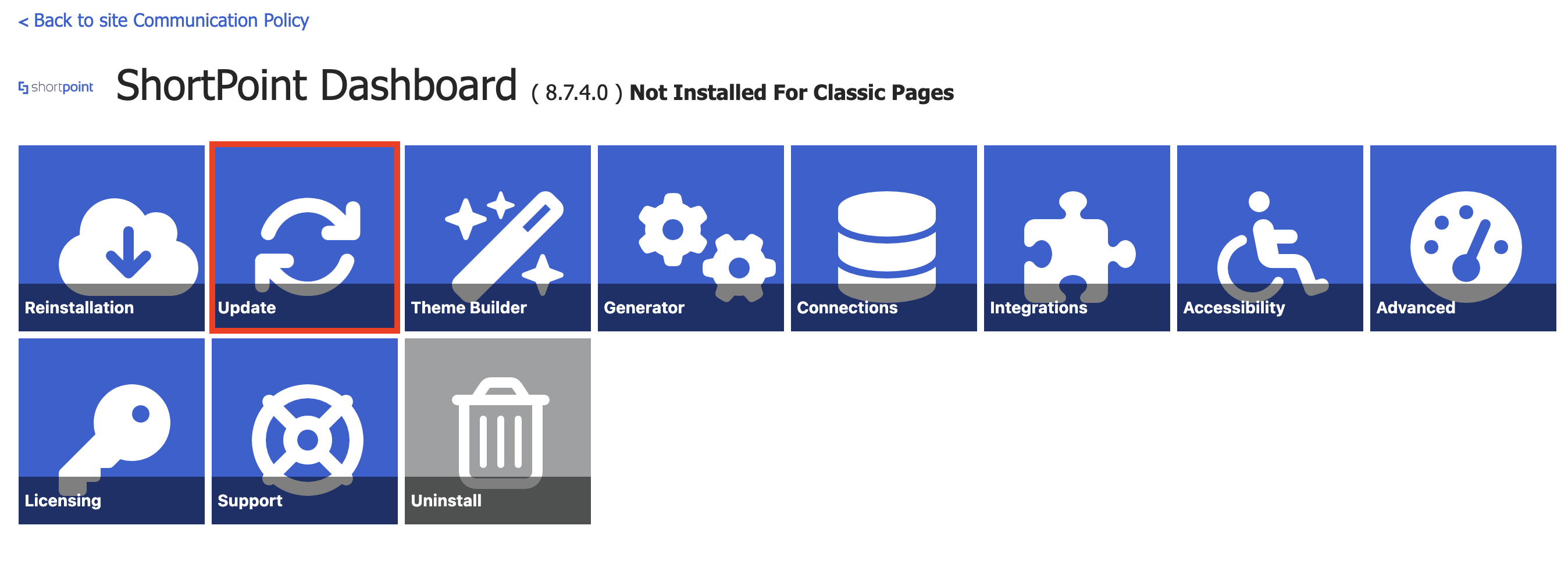
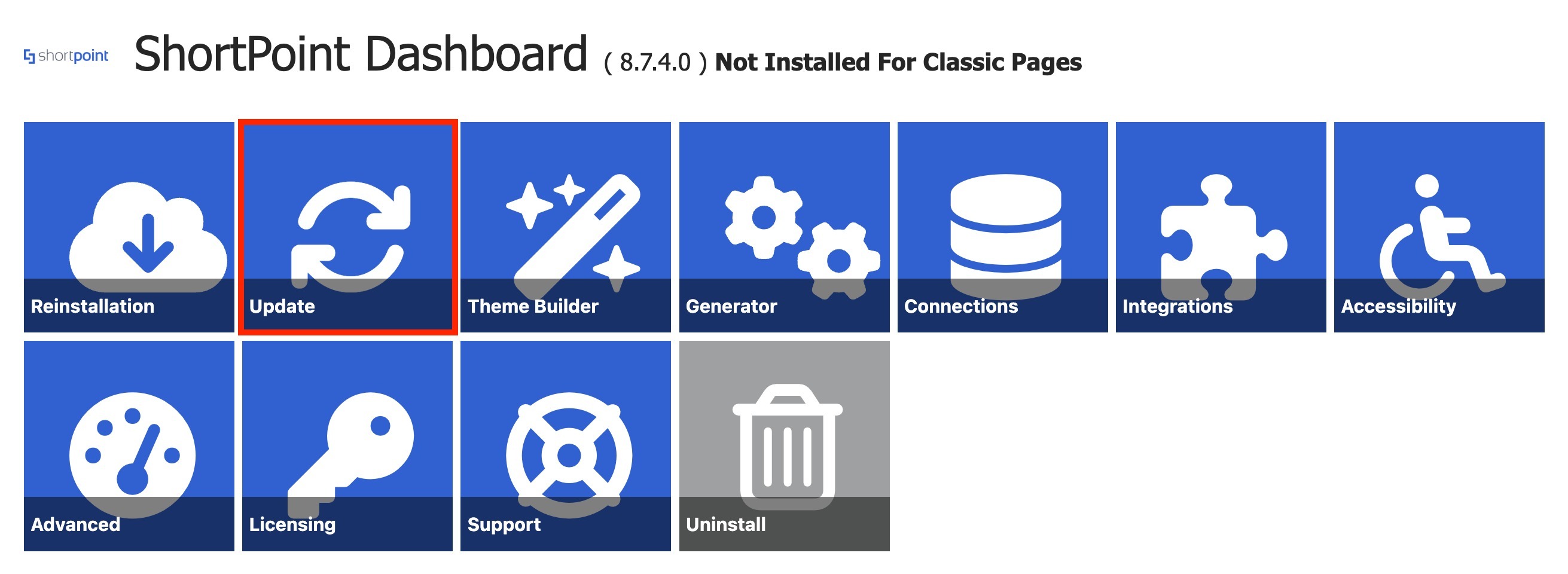
- Click Update:
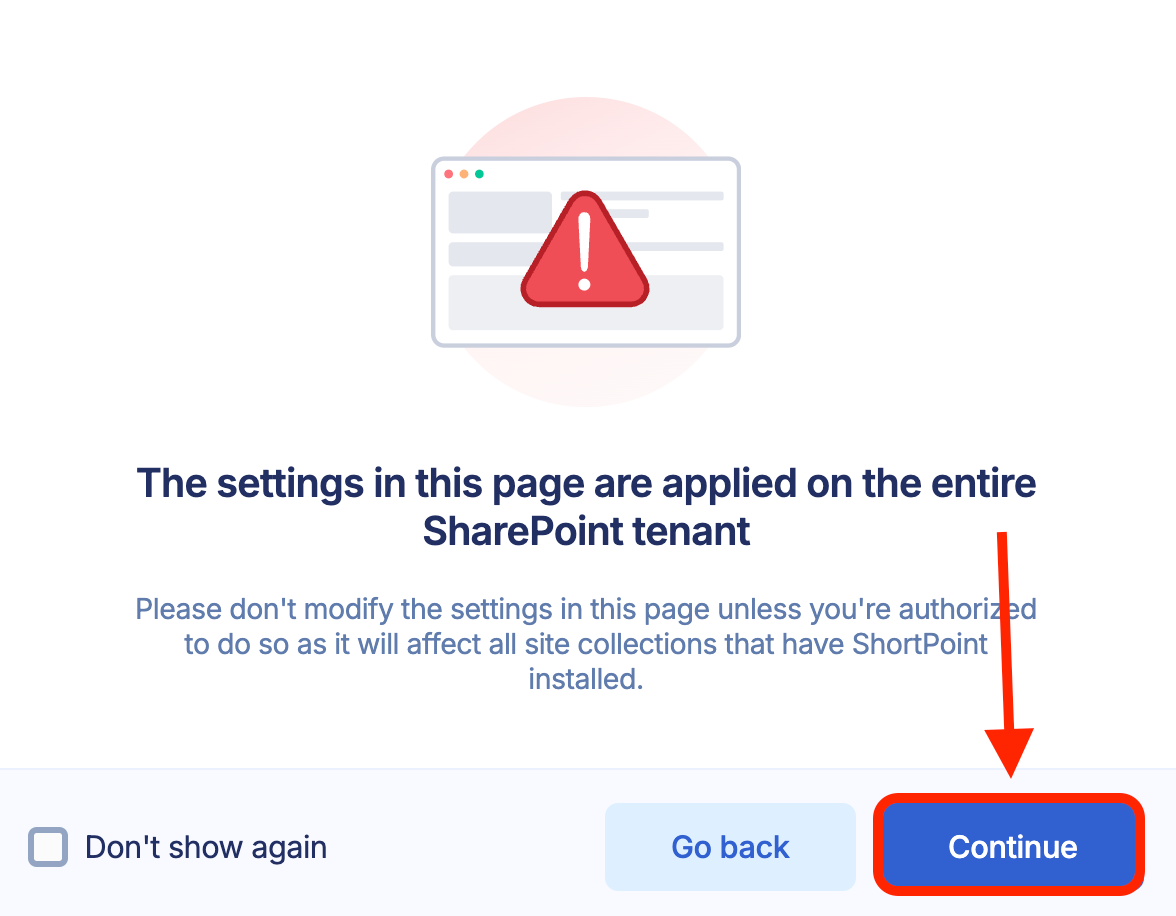
- A pop-up message informing you that changes made inside will affect the whole SharePoint tenant. Click Continue:
Step 3: Enable Auto Update
- Toggle on Auto Update:
Option 2: Manual Update
Choose this option if you want to update ShortPoint manually.
Step 1: Open the ShortPoint Dashboard
- Go to the SharePoint site where ShortPoint is installed and click the ShortPoint logo:
- Select Dashboard:
Step 2: Open the Update Page
- Click Update:
- A pop-up message informing you that changes made inside will affect the whole SharePoint tenant. Click Continue:
Step 3: Update
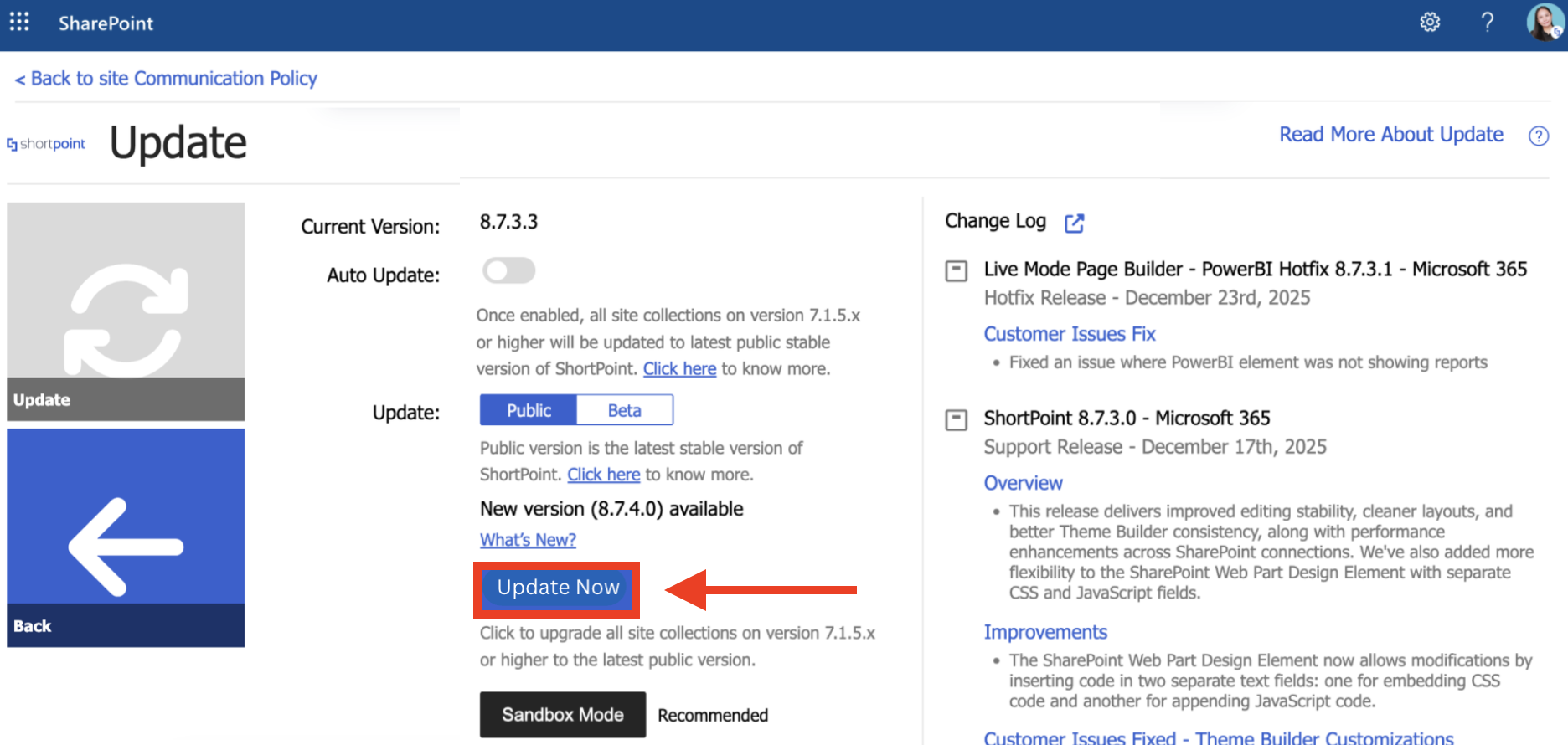
- Choose either [1] Public or [2] Beta. Choose Public if you want to update to the latest public release. Choose beta if you want to update to the latest Beta release.
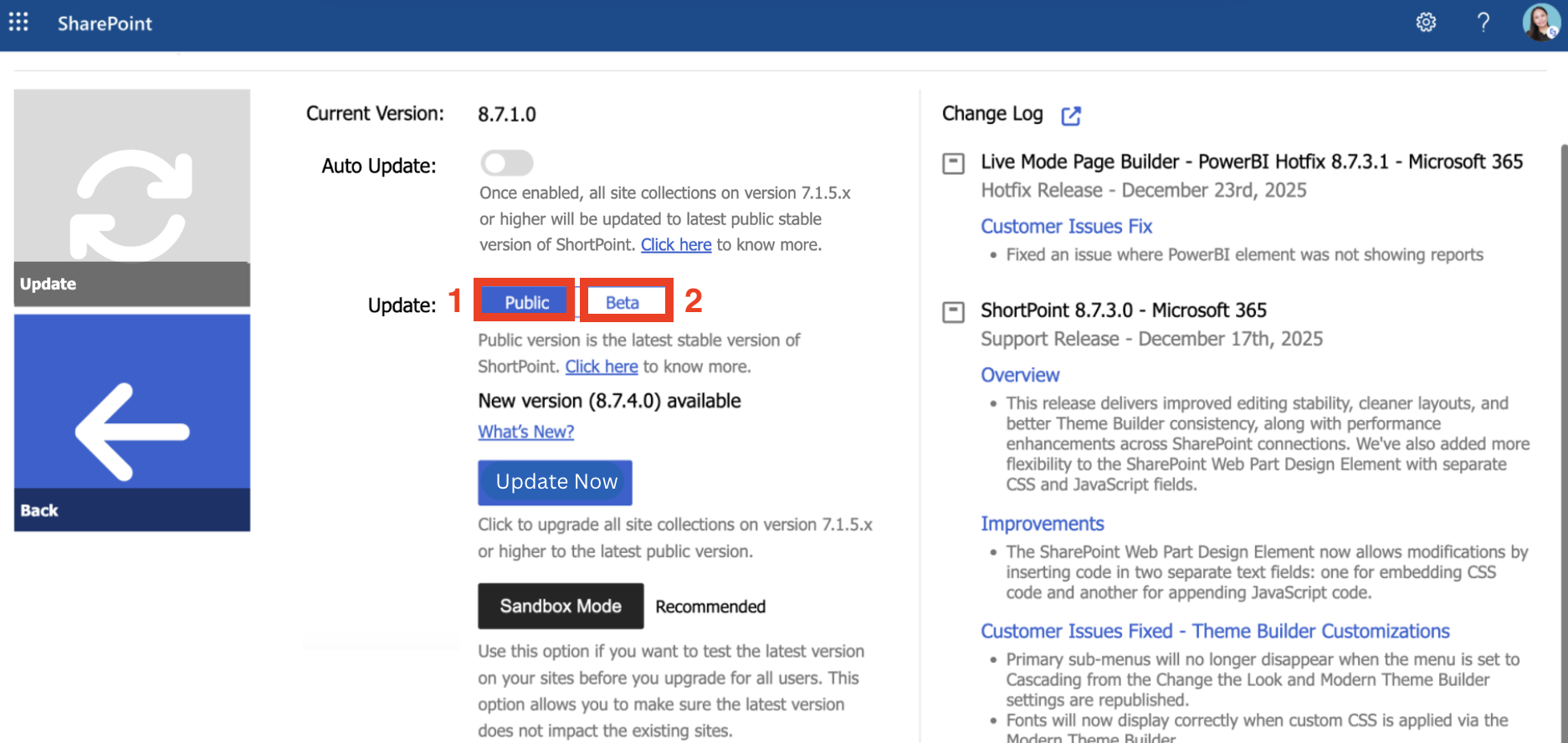
- Click Update Now:
- Click Update.
- Select OK.
- Click Continue.
Congratulations! You've successfully updated to the latest version.
Sandbox Mode and Rollback
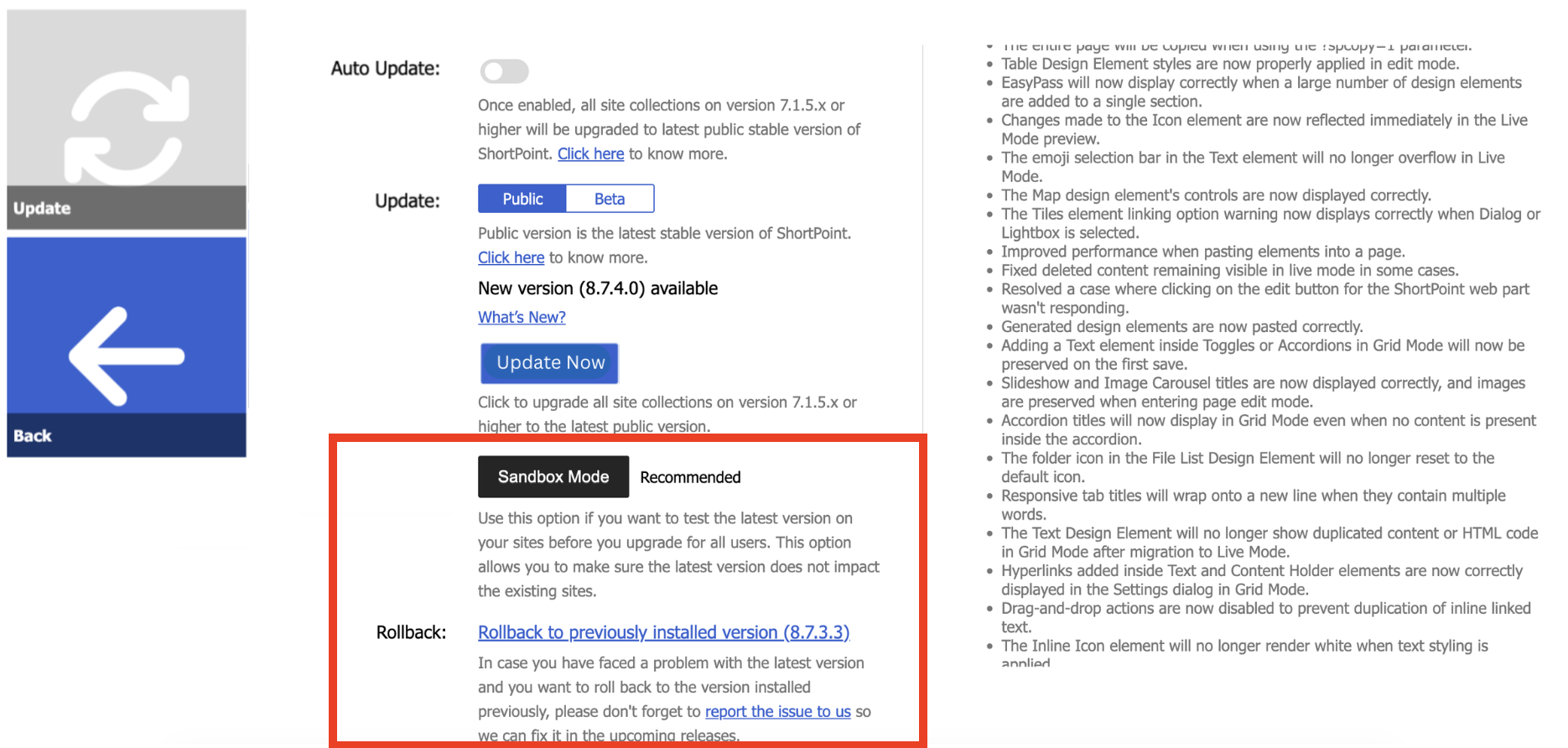
Sandbox Mode and Rollback are options available under Manual update. Sandbox Mode allows you to preview the latest ShortPoint SPFx version. Rollback allows you to return to the previous version you had after an update. To learn more about these features, check out How to Use the ShortPoint Sandbox Mode Feature.
FAQ
If you want to know more about the ShortPoint Update, check out the articles that we have collated for you in this Frequently Asked Questions folder.
Related articles:
