 Try ShortPoint now
This article will walk you through all you need to know about the ShortPoint SPFx Auto Update feature, including what it is and how to activate it.
NOTEIf you want to learn more about manually updating to the latest ShortPoint SPFx version, check out How to Update to New ShortPoint SPFx versions.
TABLE OF CONTENTS
- Before We Begin
- What is Auto Update?
- How to Activate Auto Update
- How to Disable the Auto Update Feature
- FAQ
Before We Begin
- You are in a Microsoft 365 (SharePoint Online) or SharePoint 2019 On-Premise environment.
- You must have the latest version of ShortPoint SPfx installed on your SharePoint environment.
What is Auto Update?
Auto Update keeps your ShortPoint experience fresh by automatically applying updates to your whole SharePoint tenant whenever ShortPoint releases a new SPFx version. This means you can skip the manual work of checking and updating through the ShortPoint Dashboard. Everything happens seamlessly in the background, so you're always running the latest version without lifting a finger. It is available starting from ShortPoint SPFx version 7.1.5.xx and up.
How to Activate Auto Update
Click Get Started to learn how to enable Auto Update:
NOTEBy enabling the Auto Update feature, you accept that whenever a new ShortPoint SPFx version is released, the update will be applied to your whole SharePoint tenant.
TIPYou may preview any ShortPoint SPFx version by adding the ?sp-preview=<version> query string at the end of your URL. If you want to know how it works, check out Preview Any ShortPoint SPFx Version on a Page Using URL Parameter.
Step 1: Open the ShortPoint Dashboard
- Go to the SharePoint site where ShortPoint is installed and click the ShortPoint logo:

- Select Dashboard:

Step 2: Open the Update Page
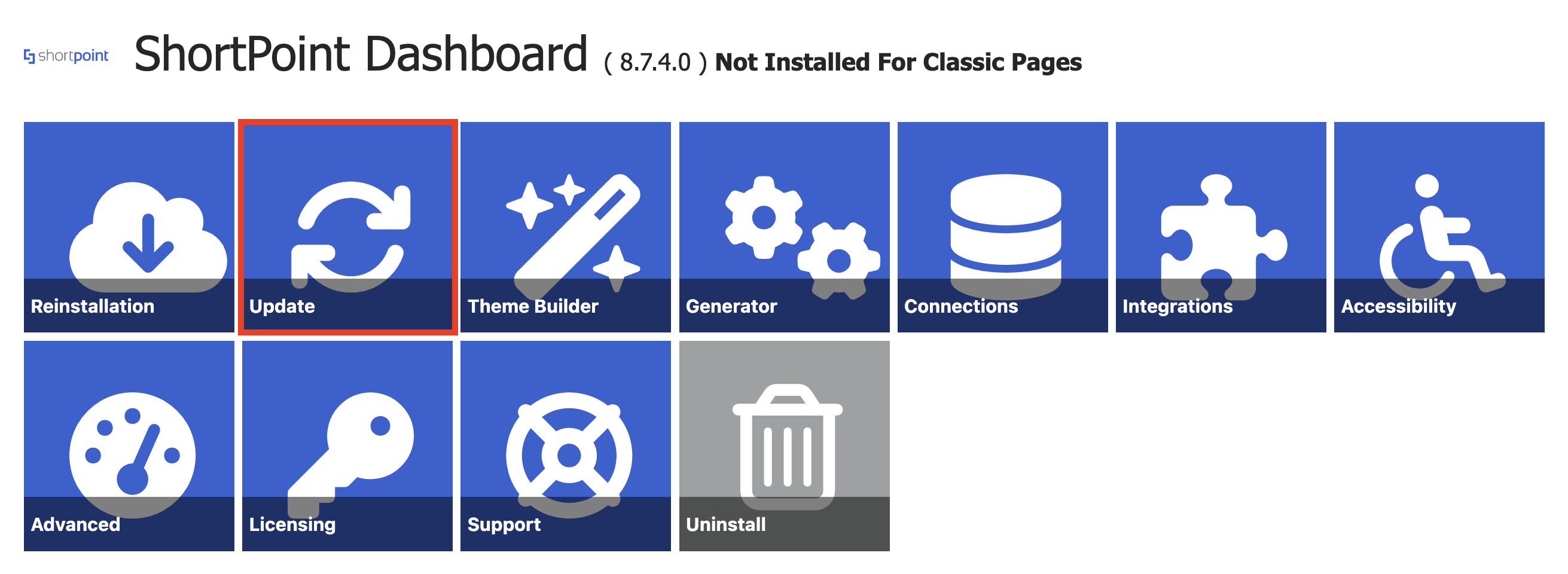
- Click Update:
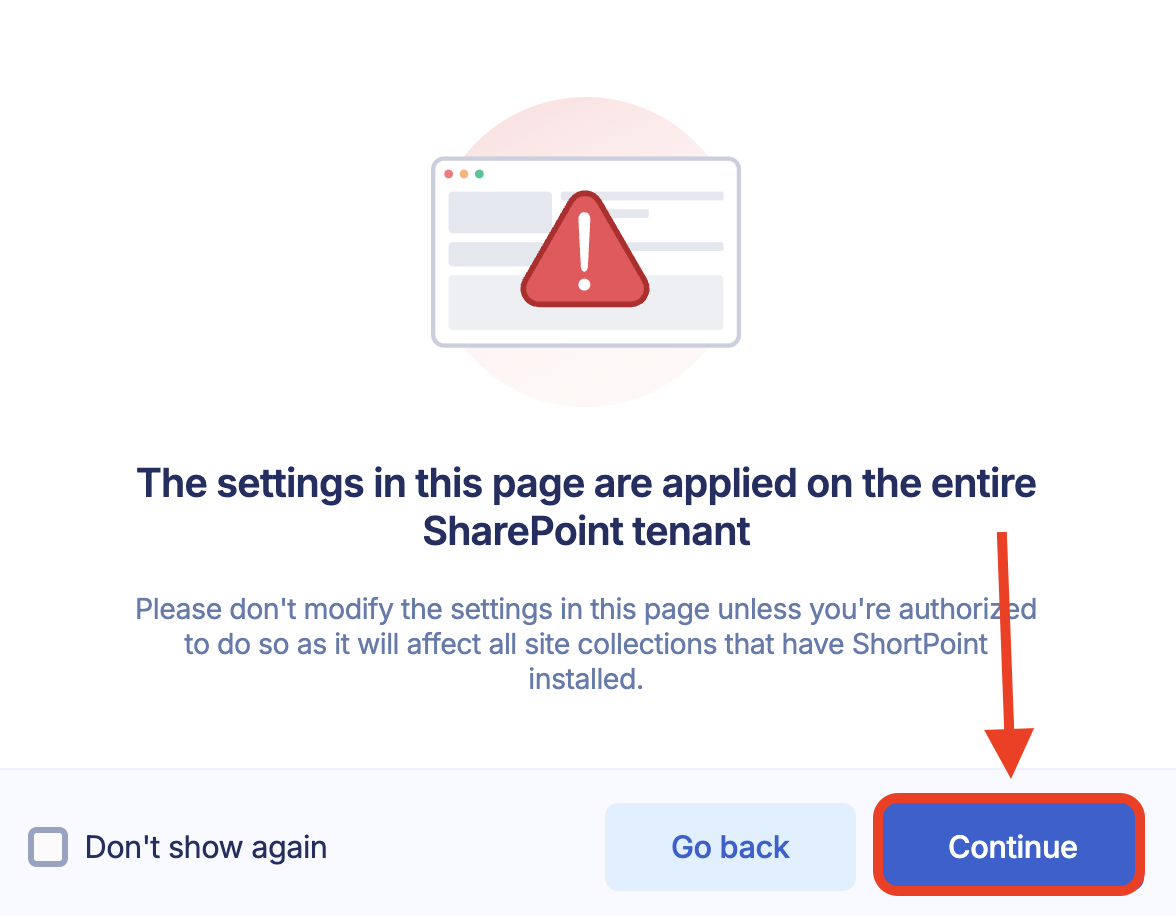
- A pop-up message informing you that changes made inside will affect the whole SharePoint tenant. Click Continue:
Step 3: Enable Auto Update
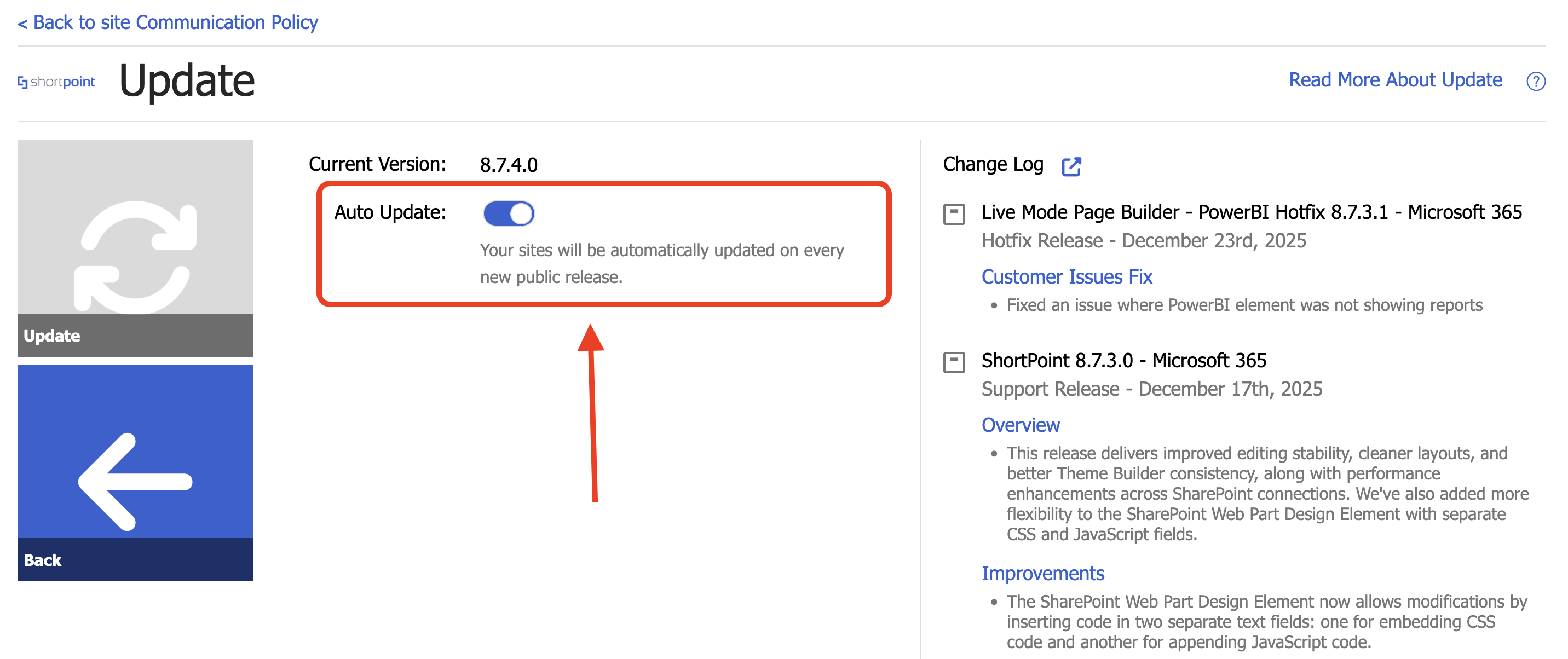
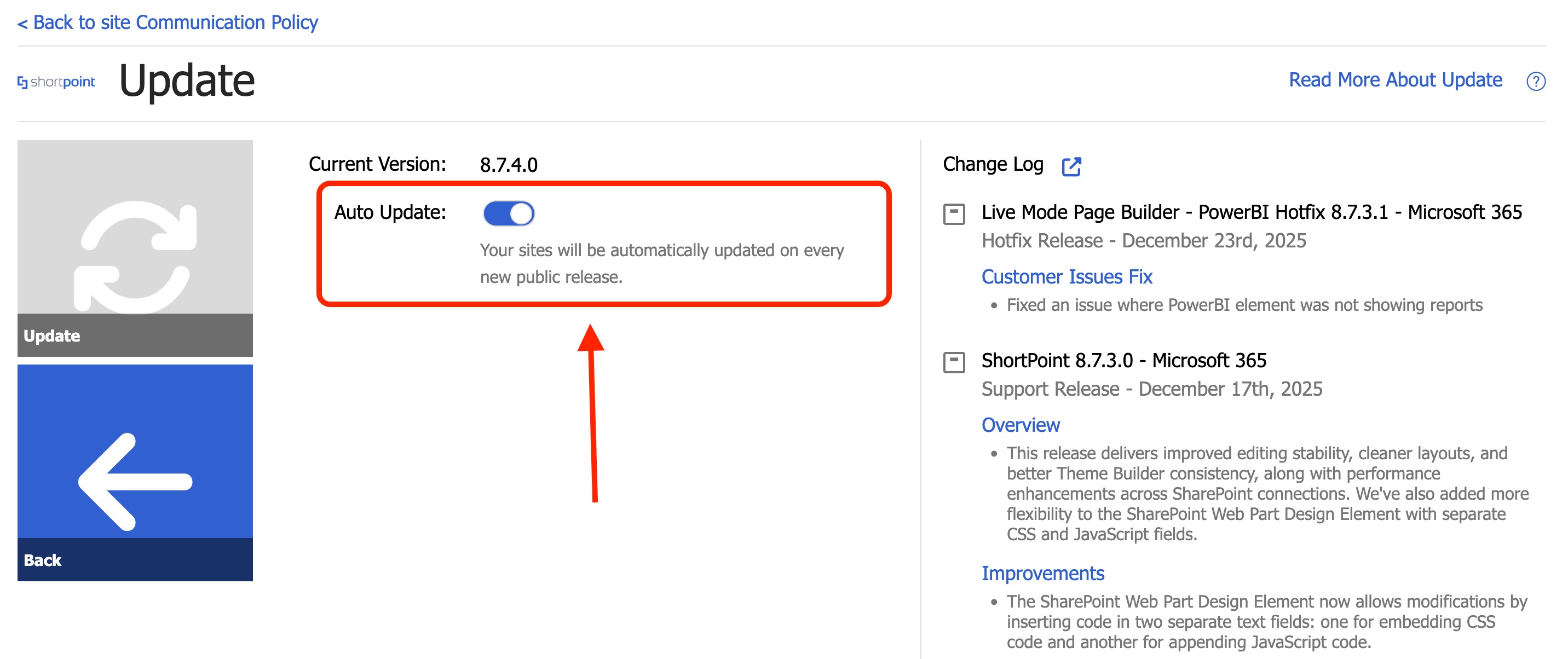
- Look for Auto Update and enable it.
- Select Enable Auto Update.
- A success message will pop up. Click OK.
- Select Continue.
That's it! You've successfully activated Auto Update. New ShortPoint SPFx versions will now be automatically applied to your whole SharePoint tenant.
How to Disable the Auto Update Feature
If you want to disable Auto Update for any reason, start the interactive tutorial below:
Step 1: Open the ShortPoint Dashboard
- Go to the SharePoint site where ShortPoint is installed and click the ShortPoint logo:
- Select Dashboard:
Step 2: Open the Update Page
- Click Update:
- A pop-up message informing you that changes made inside will affect the whole SharePoint tenant. Click Continue:
Step 3: Disable Auto Update
- Look for Auto Update and disable it.
- Write down your reason for disabling it.
- Select Disable Auto Update.
- A success message will pop up. Click OK.
- Select Continue.
That's it! You've successfully deactivated Auto Update.
NOTETo learn more about roll back options and Beta updates, check out How to Update to New ShortPoint SPFx versions.
FAQ
If you want to know more about the ShortPoint Update experience, check out these articles that we have collated for you in this Frequently Asked Questions folder.
Related articles:
