 Try ShortPoint now
When you are designing or updating an intranet page in SharePoint using ShortPoint, staying focused on a single section can sometimes feel tricky. Surrounding content, complex sidebars, and busy page layouts can distract you from tweaking that one perfect element.
ShortPoint's Isolate Mode feature is the perfect solution for that! Let's dive into what Isolate Mode is, why it's useful, and how to enter and exit this mode.
TABLE OF CONTENTS
Prerequisites
- You must have the latest version of ShortPoint SPFx installed.
- You must be a ShortPoint Designer with an active license.
Introduction to Isolate Mode
ShortPoint Isolate Mode is a dedicated editing view when ShortPoint Designers enter Page Builder. It blurs surrounding page content so you can concentrate entirely on designing your SharePoint page. It provides a distraction-free environment while keeping the full page structure safely intact in the background.
Key Benefits of Isolate Mode
Isolate Mode brings you a better editing experience:
- Zero Distractions: By softening or hiding other page elements, you can focus on fine-tuning text, images, or layout structures without visual noise.
- Faster Styling & Spacing: Adjust padding, column widths, and responsive settings without worrying about accidental clicks on neighboring SharePoint components.
Using Isolate Mode
Start the interactive tutorial to learn how to enter and exit Isolate Mode:
Step 1: Edit the ShortPoint Web Part
- Go to a SharePoint Page and click Edit:

- Close the Toolbox:
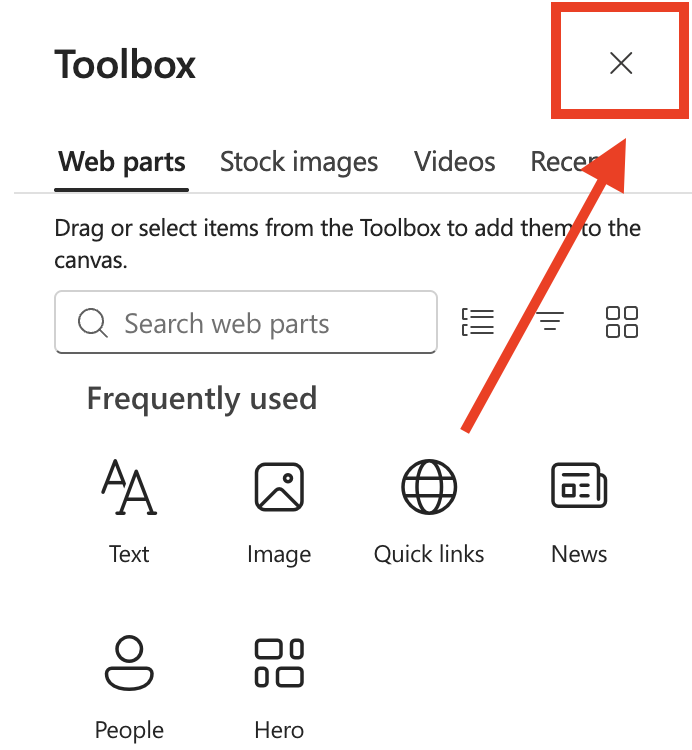
- Click the Edit Properties icon of the ShortPoint web part you want to open:

Step 2: Make Changes
NOTEIsolate Mode is tied to the ShortPoint web part you're editing. So if you have multiple ShortPoint web parts on your page, Isolate Mode blurs out the other web parts, allowing you to focus on the web part you're currently editing.
When you edit the web part, you'll automatically enter Isolate Mode. You'll notice that other components of your page have been blurred out. You can now make changes to your page as usual:
Step 3: (Optional) Exit Isolate Mode
There are two ways to exit Isolate Mode:
[1] Toggle on Show Faded Content. This will show you the rest of the content on your page. Take note that while you can see the other web parts on your page, you'll only be able to edit the ShortPoint web part you opened:
[2] Click the eye icon. This will show you a live preview of your page when you publish it. Since it's only meant to be a preview, you will not be able to edit any page components. For more information, check out Introducing the New Visibility Experience.
Great! You now know how Isolate Mode works.
Frequently Asked Questions
What is ShortPoint Isolate Mode?
ShortPoint Isolate Mode is a dedicated editing view within the ShortPoint Page Builder that blurs surrounding content on a SharePoint page, allowing you to focus entirely on editing a single web part without distractions.
Why should I use Isolate Mode when editing SharePoint pages?
Isolate Mode provides a distraction-free environment by softening or hiding other page elements, which helps you concentrate on fine-tuning text, images, or layout structures. It also enables faster styling and spacing adjustments without accidental clicks on neighboring components.
How do I enter Isolate Mode?
To enter Isolate Mode, edit a ShortPoint web part on a SharePoint page. Once you start editing the web part, Isolate Mode automatically activates by blurring the rest of the page content.
Can I edit multiple ShortPoint web parts at the same time in Isolate Mode?
No, Isolate Mode is tied to the specific ShortPoint web part you are editing. If your page has multiple ShortPoint web parts, only the web part currently being edited will be in focus, while others are blurred.
How do I exit Isolate Mode?
There are two ways to exit Isolate Mode:
- Toggle on "Show Faded Content" to view the rest of the page content while still editing the selected web part.
- Click the eye icon to preview the live page as it will appear after publishing; editing is disabled in this preview mode.
Does Isolate Mode affect the page structure?
No, Isolate Mode keeps the full page structure intact in the background while allowing you to focus on editing a single section.
Related articles:
