Try ShortPoint now
TL;DR: Wireframe Mode is the new editing experience in ShortPoint Page Builder that replaces Grid Mode, starting with ShortPoint SPFx version 9.5.0.0. It keeps Grid Mode’s color-coded structural frames and blurs your page content slightly behind them, so you can spot every Design Element at a glance. Unlike Grid Mode, you can also see and edit your actual content in real time. That means you no longer switch between abstract grid boxes and Live Mode, and you catch spacing, alignment and text-wrap problems before you publish.
Starting from ShortPoint SPFx version 9.5.0.0 and onwards, Grid Mode has officially been removed from ShortPoint Page Builder.
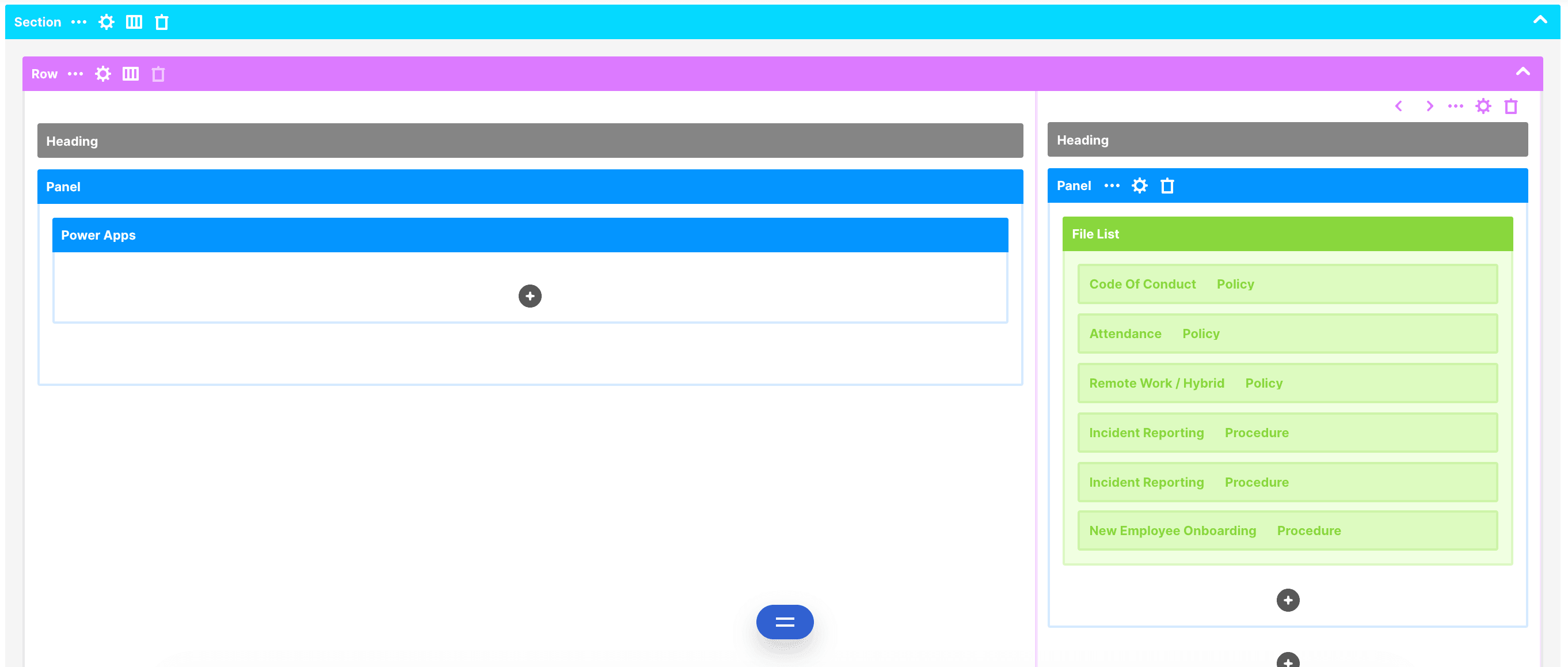
However, if you love using Grid Mode to build your SharePoint pages, you don’t have to worry! While Grid Mode is making its exit, the visual structure you love and rely on is here to stay with Wireframe Mode.
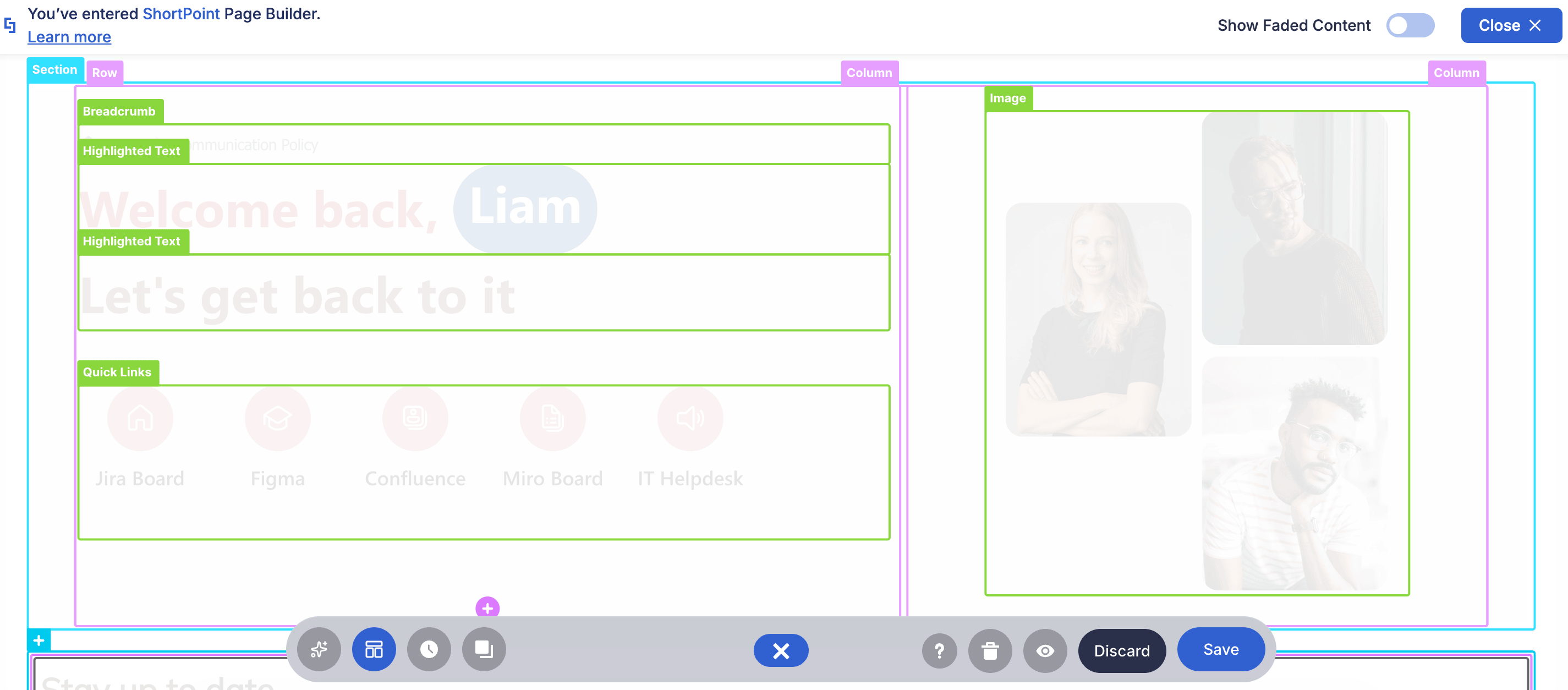
The new Wireframe Experience takes everything you love about Grid Mode and pairs it with a fresh, direct editing interface. You get to keep those familiar colorful frames; only now, you can see and edit your actual content in real time.
TABLE OF CONTENTS
- Prerequisites
- What Is the New Wireframe Experience?
- How to Enter Wireframe Mode
- Frequently Asked Questions
Prerequisites
- You must have ShortPoint SPFx version 9.5.0.0 or later installed.
- You must be a ShortPoint Designer with an active license.
What Is the New Wireframe Experience?
In the past, designing page structures often meant switching back and forth between abstract boxes (Grid Mode) and a live preview tab (Live Mode). The new Wireframe Experience bridges that gap so you can work seamlessly in one place.
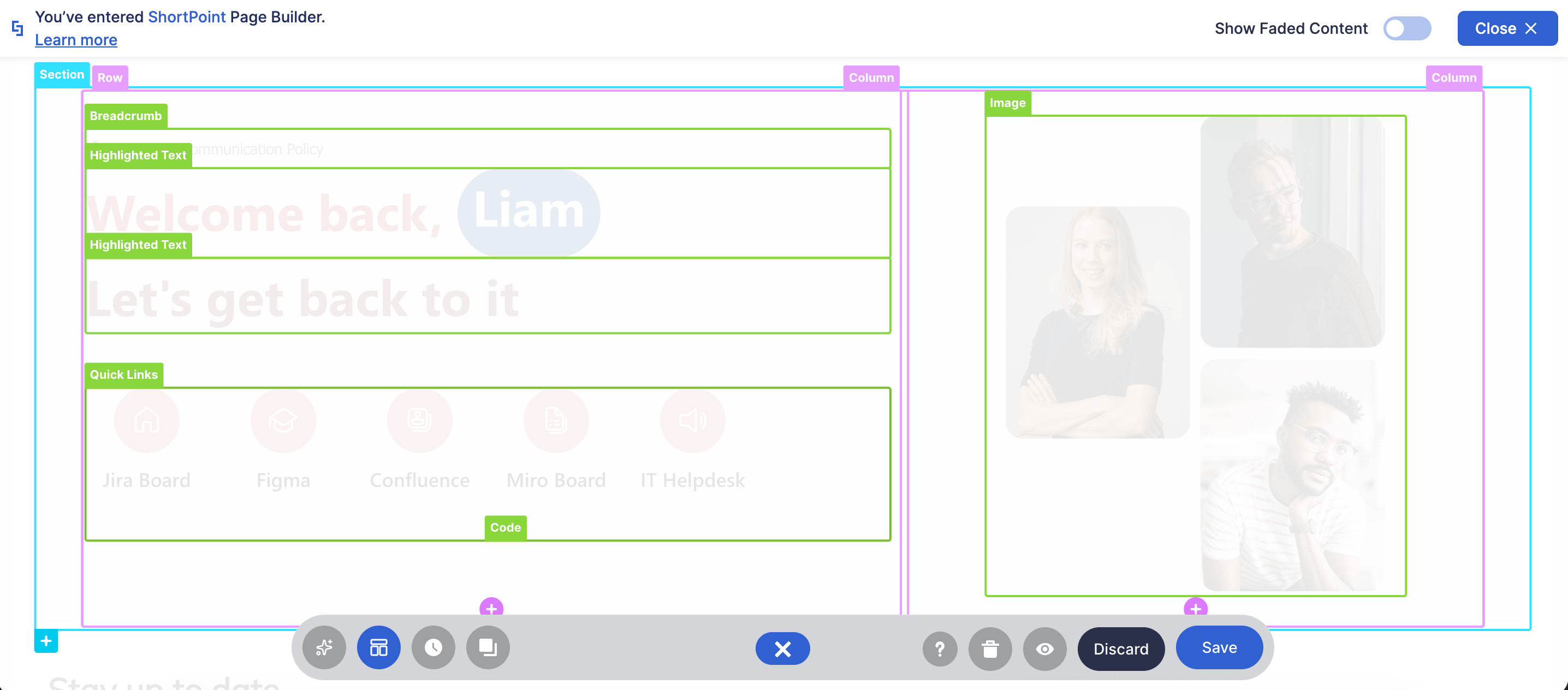
When you switch over to Wireframe mode, your page content gently blurs out so those color-coded structural frames can really shine. This makes it super easy to spot every single Design Element on your page at a glance (even the tricky, subtle ones like a Code Element running in Sandbox Mode).
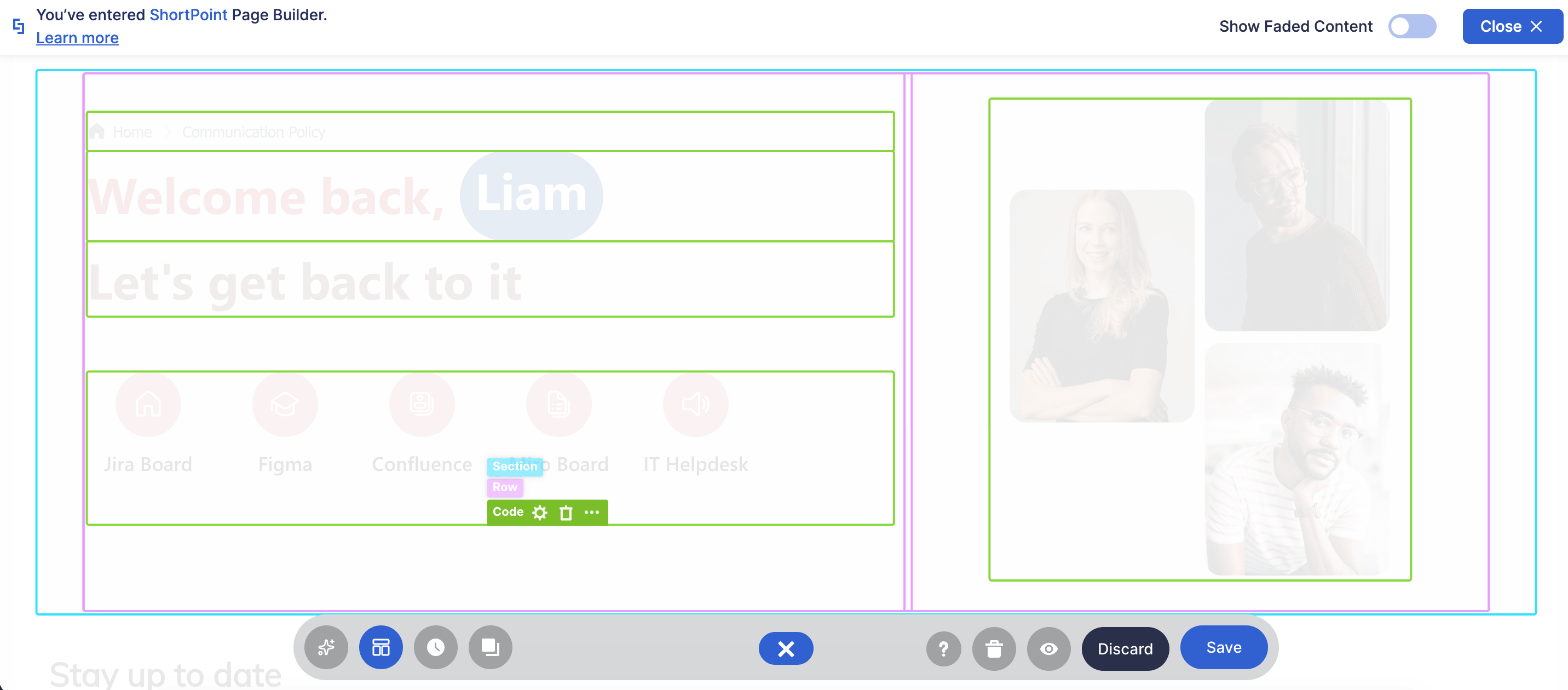
The best part? You get full, real-time editing while you work. Say goodbye to the old Grid Mode days of blindly editing into generic boxes. Now, every tweak and edit you make updates live right in front of you on the page!
Why You'll Love Using It
We designed this update to make your daily editing faster and far more intuitive, without forcing you to relearn your design process:
- No More Guesswork: Edit your text and images directly inside the frames so you always know how your page will look before hitting publish.
- Faster Page Building: Visualizing spacing, alignment, and layout changes happens instantly, saving you time on everyday tweaks.
- A Smooth Transition: Because it retains the color-coded structure from Grid Mode, jumping into the new interface feels completely familiar from day one.
- Fewer Formatting Surprises: Seeing live content inside your layout bounds helps you catch unexpected text wraps or spacing issues early.
How to Enter Wireframe Mode
Excited to start editing in Wireframe Mode? Start the interactive tutorial to learn how.
Step 1: Edit the ShortPoint Web Part
- Go to a SharePoint page and click Edit:

- Close the Toolbox:
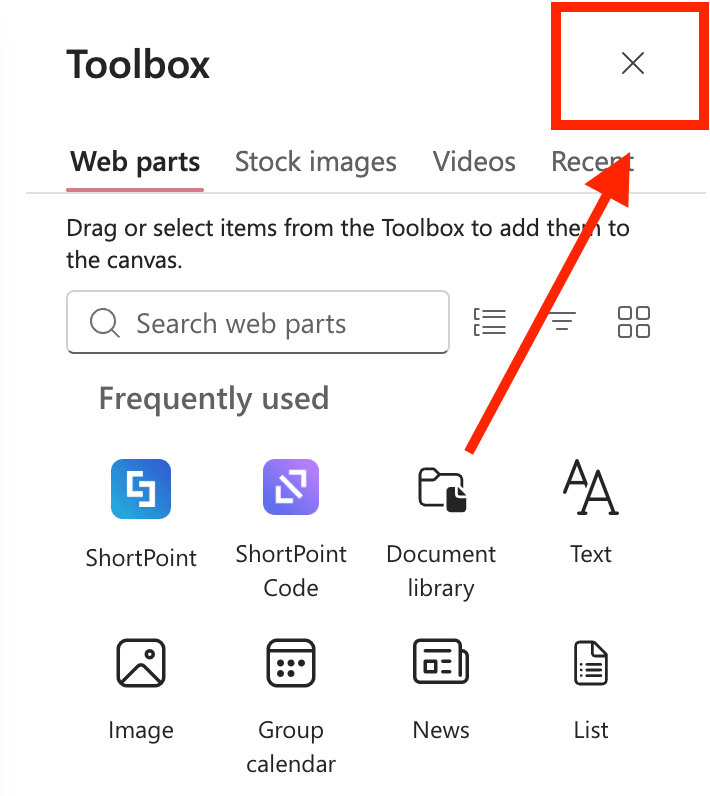
- Click the Edit Properties icon:

Step 2: Switch to Wireframe Mode
- In the Action Toolbar, select the Wireframe Mode icon:

NOTETo leave Wireframe Mode, simply select the Wireframe Mode icon again:

Step 3: Make your edits
- Edit your page as usual:
Awesome! You can now start using Wireframe Mode.
Frequently Asked Questions
What is Wireframe Mode?
Wireframe Mode is the new editing experience in ShortPoint Page Builder that replaces the old Grid Mode. It allows you to see and edit your actual page content in real time while still displaying the colorful structural frames for easy layout visualization.
How does Wireframe Mode improve page editing?
Wireframe Mode eliminates the need to switch between abstract grid boxes and live preview. It provides direct, real-time editing of content within the layout frames, making it faster and more intuitive to build and customize pages.
Can I still use the visual structure from Grid Mode?
Yes, Wireframe Mode retains the familiar color-coded frames from Grid Mode, so you get a smooth transition without having to relearn your design process.
How do I enter Wireframe Mode?
To enter Wireframe Mode, edit your SharePoint page, close the Toolbox, click the Edit Properties icon on the ShortPoint web part, and then select the Wireframe Mode icon in the Action Toolbar.
How do I exit Wireframe Mode?
Simply select the Wireframe Mode icon again in the Action Toolbar to leave Wireframe Mode.
Will my edits in Wireframe Mode update immediately?
Yes, every tweak and edit you make in Wireframe Mode updates live on the page in real time.
Does Wireframe Mode help with layout and spacing?
Yes, because you can see your actual content inside the layout bounds, it helps catch spacing, alignment, and formatting issues early, reducing surprises after publishing.
Related articles: