 Try ShortPoint now
Chances are, when you're new to a team or a restructuring has happened, you've found yourself trying to figure out who reports to whom. While static organizational charts can seem like a good idea, it's actually more of a band-aid solution rather than a permanent one.
Enter Dynamic Organization Charts in SharePoint, a living, breathing directory that keeps your company connected with accurate data in real time.
Let's dive into what they are, why your organization desperately needs them, how to create one on your SharePoint page, and how to keep your organizational structure fresh every time.
TABLE OF CONTENTS
- Prerequisites
- What is a Dynamic Org Chart in SharePoint?
- How to Make Dynamic Org Charts
- Why It’s Useful: The Benefits of Going Dynamic
- Tips for Maintaining a Flawless Dynamic Org Chart
- Frequently Asked Questions about SharePoint Organization Chart
- What is a dynamic SharePoint organization chart?
- How do I create a dynamic organization chart in SharePoint?
- What are the benefits of using a dynamic org chart web part?
- How can I maintain data accuracy in my SharePoint organization chart?
- Can I customize the layout and appearance of the organizational chart web part?
- What data sources does the SharePoint organization chart use?
- Can the organization chart display contact information and photos?
- How does the organization chart handle changes in reporting levels?
Prerequisites
- You must have the latest version of ShortPoint SPFx installed on SharePoint.
- You must be a ShortPoint Designer with a Pro or Enterprise License. Check out Licensing Options to learn more.
- You must have the Organization Chart Design Element on your SharePoint page.
- You must activate the Microsoft Graph API connection. To learn how, check out How to Enable Microsoft Graph API Integration.
What is a Dynamic Org Chart in SharePoint?
A dynamic SharePoint organization chart is a visual representation of your company’s hierarchical structure that updates automatically.
Unlike traditional charts that require manual plotting and constant uploading, a dynamic organizational chart in SharePoint pulls data directly from your company's central directory (usually Microsoft Entra ID, formerly Azure Active Directory) via Microsoft Graph.
How to Make Dynamic Org Charts
Creating dynamic Organization Charts using ShortPoint's Microsoft Graph API connection is super easy. Start the interactive tutorial or follow the steps below to get started.
Below are the GET query and JavaScript code used in the interactive tutorial.
- GET Query:
https://graph.microsoft.com/v1.0/users?$select=displayName,mail,department,jobTitle,userPrincipalName&$expand=manager($select=displayName,mail,userPrincipalName)
- JavaScript code:
if(!data || data.length == 0) {return data;} for(var i=0;i<data.length;i++){ data[i]['profileImage'] = "[%Current('SiteUrl')%]/_layouts/15/userphoto.aspx?size=L&accountname=" + data[i].mail;} return data;Step 1: Edit the ShortPoint Web Part
- Go to the SharePoint page you want to use and click Edit.

- Close the Toolbox.
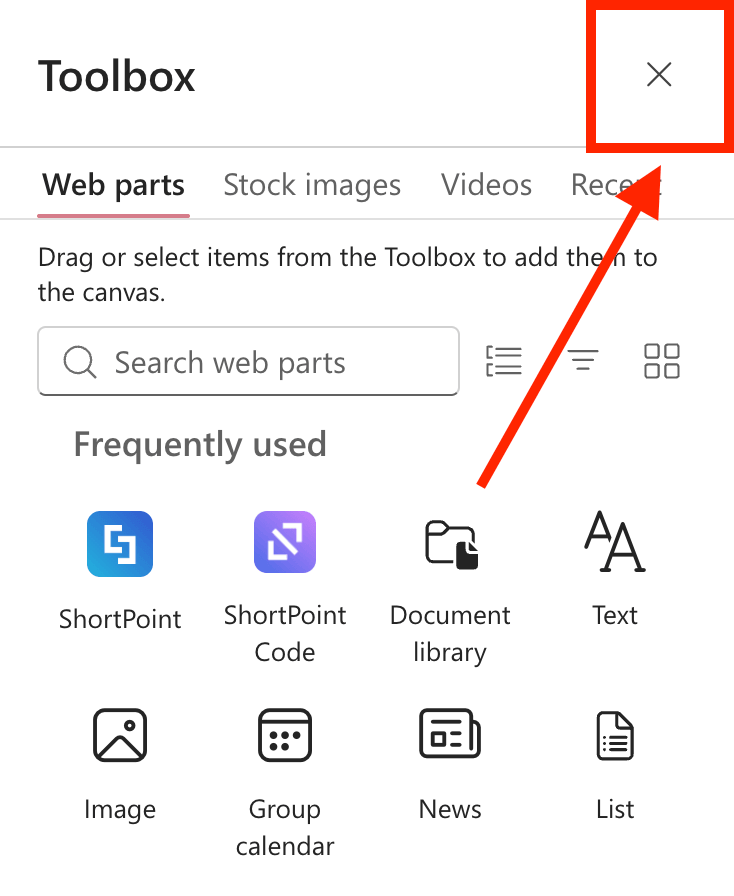
- Click the Edit properties icon:

Step 2: Edit the Organization Chart
NOTEBefore proceeding, make sure you already have an Organization Chart in your SharePoint Page. To learn more about it, check out Organization Chart Design Element: How to Add an Org Chart in SharePoint.
- Click the EasyPass tag of the Organization Chart:

- Select the cogwheel icon:

Step 3: Integrate with Microsoft Graph API
NOTETo use the Microsoft Graph API connection, you must activate it first. Check out How to Activate the Microsoft Graph API Integration to learn how.
- Go to the Connect tab.
- Click Configure.
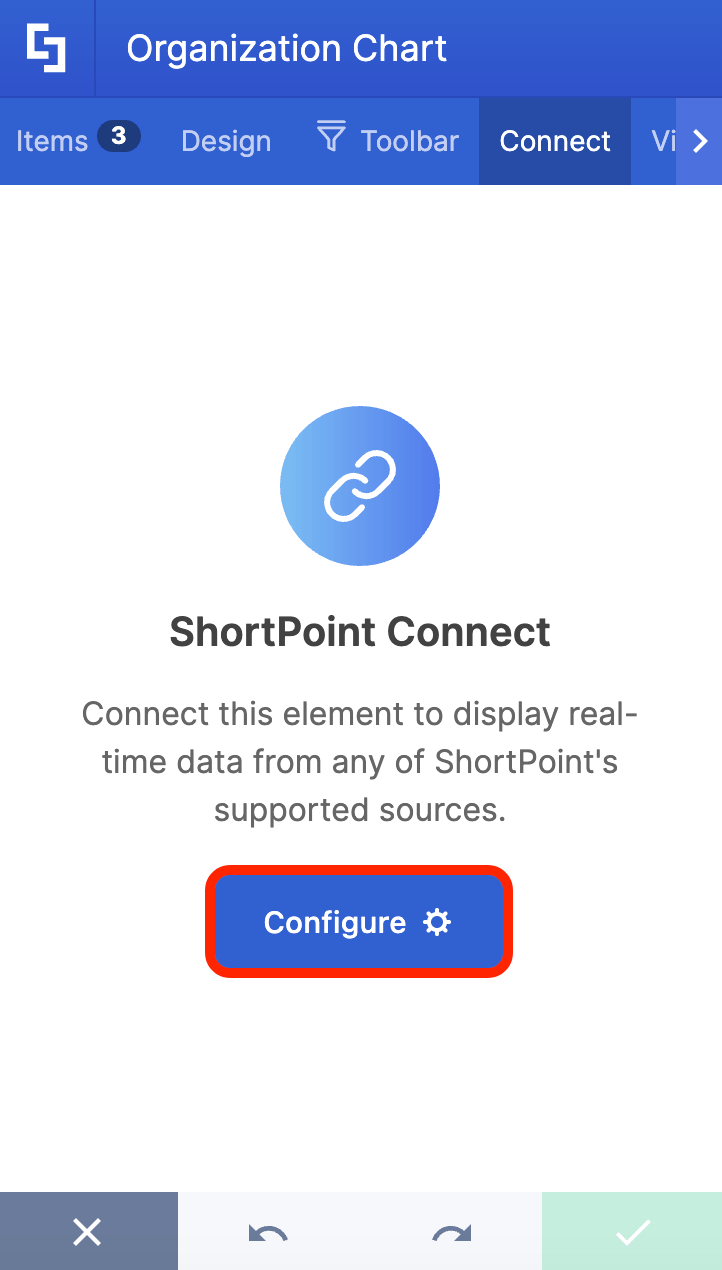
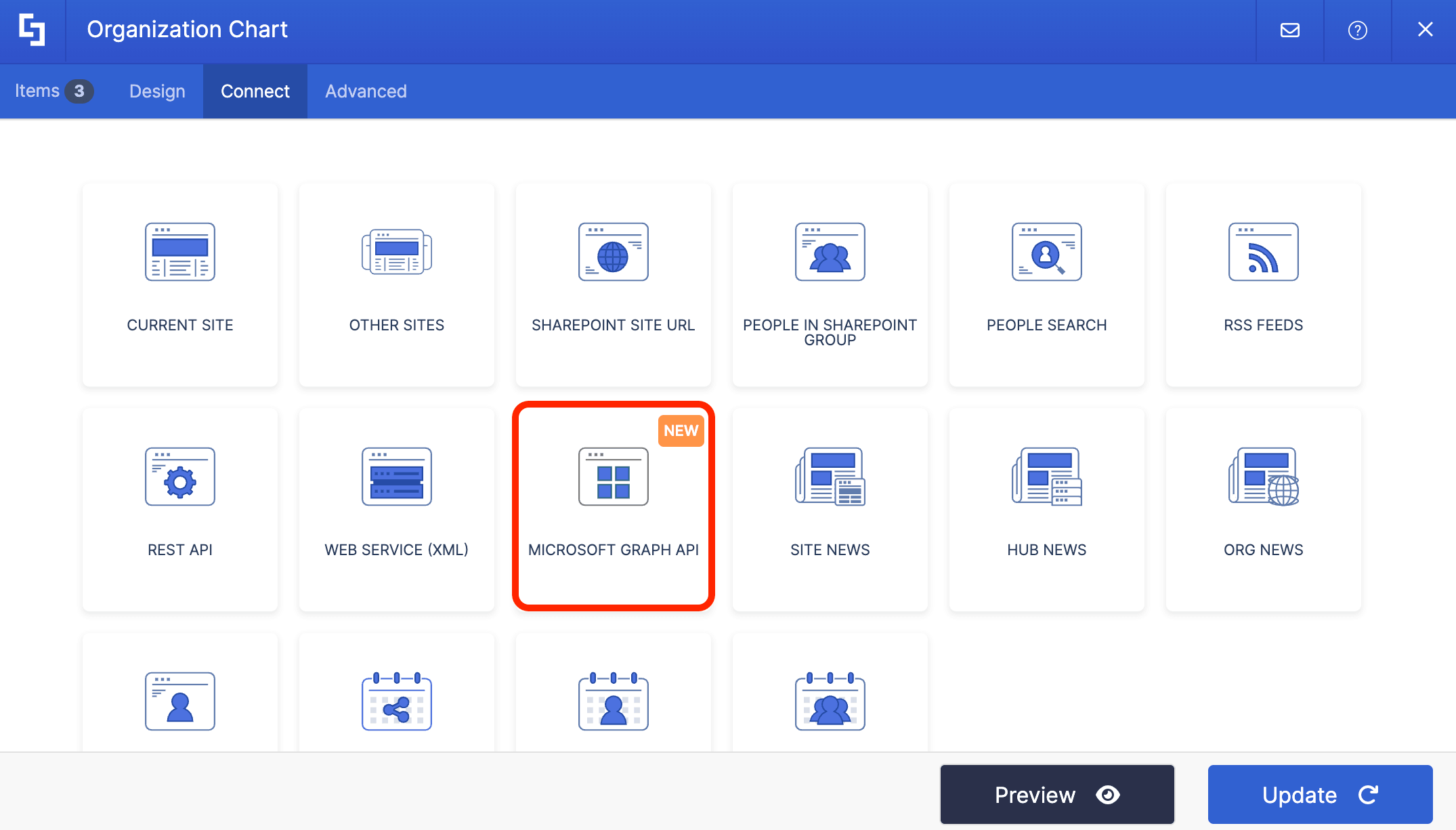
- Choose the Microsoft Graph API connection.
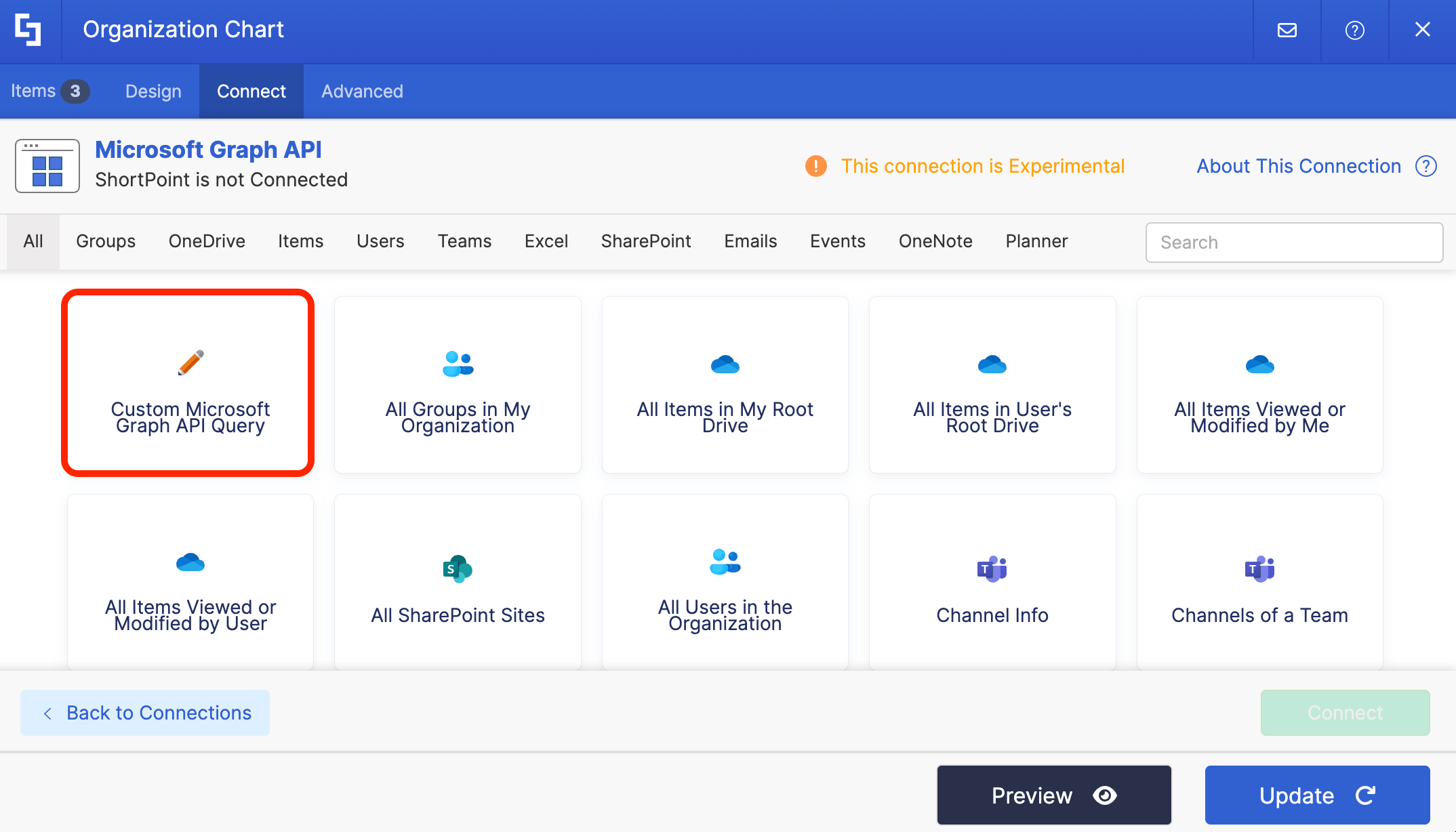
- Select Custom Microsoft Graph API Query.
Step 4: Connect
- Copy the custom GET query below:
https://graph.microsoft.com/v1.0/users?$select=displayName,mail,department,jobTitle,userPrincipalName&$expand=manager($select=displayName,mail,userPrincipalName)
- Paste the GET query in the field provided:

- Click Run Query:

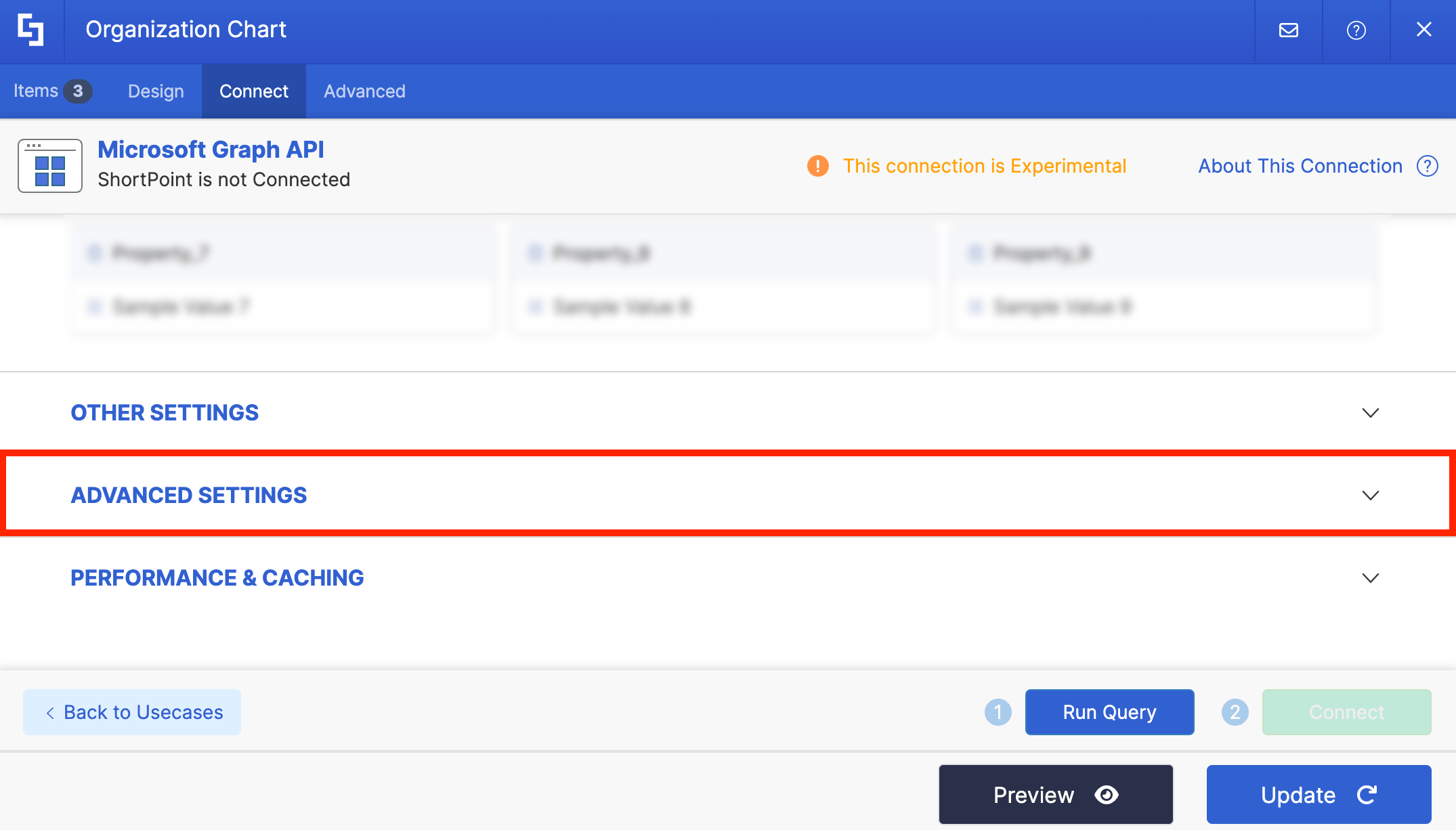
- Scroll down to Advanced settings and click it:
- Toggle on Enable Advanced Settings:

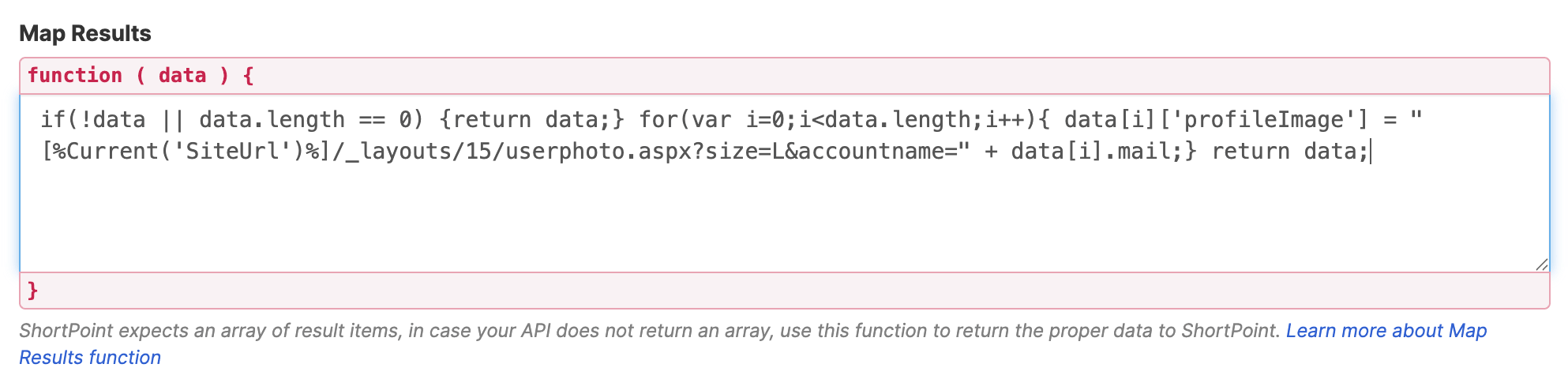
- Copy the JavaScript below:
if(!data || data.length == 0) {return data;} for(var i=0;i<data.length;i++){ data[i]['profileImage'] = "[%Current('SiteUrl')%]/_layouts/15/userphoto.aspx?size=L&accountname=" + data[i].mail;} return data;- Look for Map Results and paste the JavaScript in the field provided:
- Click Connect:

Step 5: Map Items
- Go to the Items tab.
- Delete all default content.
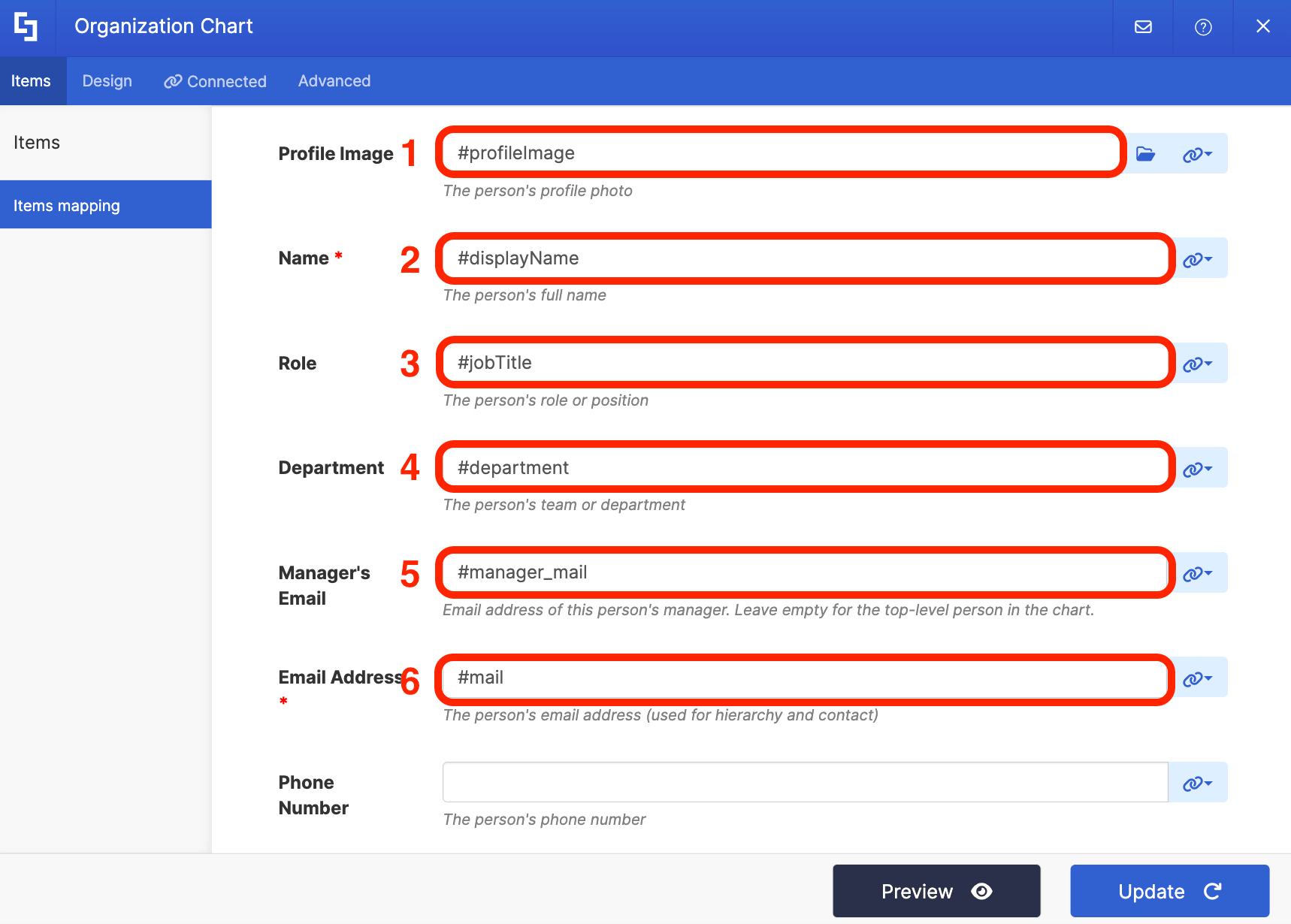
- Use the link icon to map the properties you want to display.
- You can map any property you want or use the mapped properties below as reference. Just make sure to map #manager_mail in the Manager’s Email field.
- #profileImage - shows the photo of the employee.
- #displayName - shows the name of the employee.
- #jobTitle - shows the work title of the employee.
- #department - shows the department of the employee.
- #manager_mail - pulls the email address of the employee’s manager. This mapped property will decide the hierarchy of your org chart.
- #mail - shows the employee’s email address.
Step 6: Save
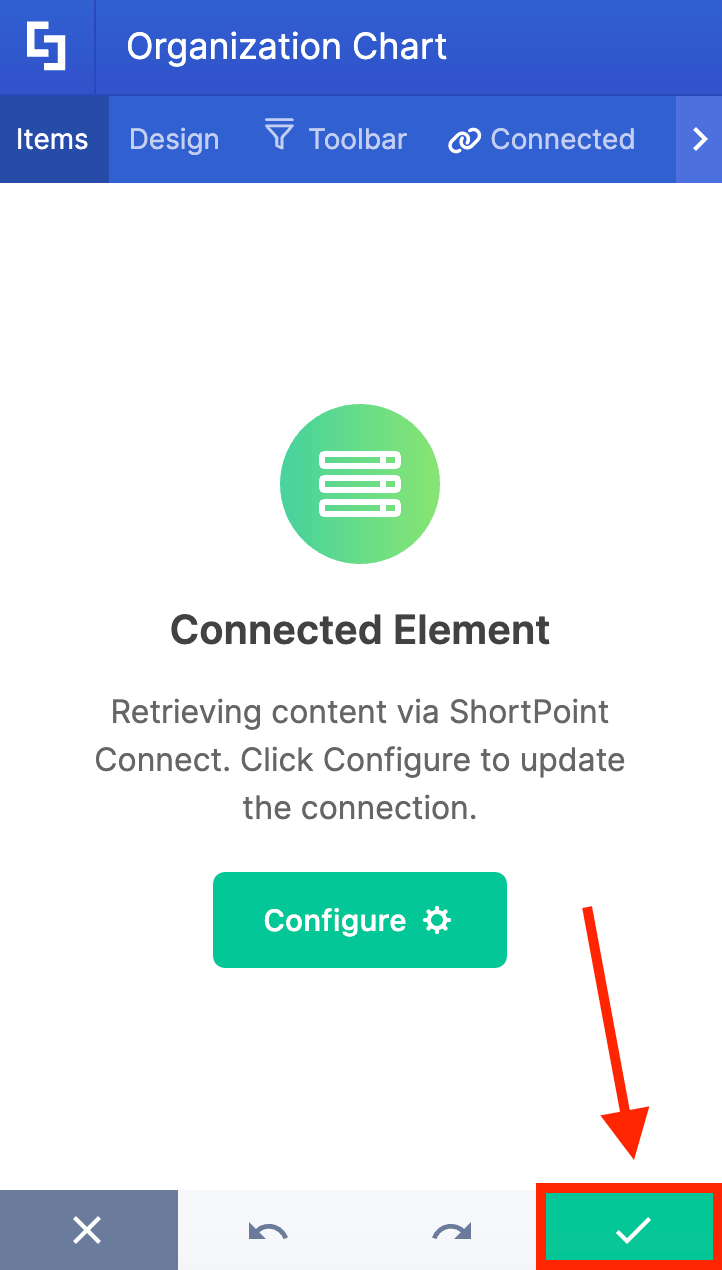
- Click the green checkmark:
- Save your changes:

- Publish your page:

Awesome! You now have a dynamic Organization Chart. It will now update automatically every time you or anyone in your team makes updates to your company's Active Directory.
Why It’s Useful: The Benefits of Going Dynamic
Switching from a static chart to a dynamic SharePoint organization chart is a game-changer for internal communications and HR efficiency. Here is why:
- Zero Maintenance for Site Owners: No more manual editing or having to enter edit mode frequently. Once it’s set up, you never have to move boxes around or delete departed employees again.
- Enhanced Onboarding: For new hires, a dynamic chart acts as an interactive map within your SharePoint intranet. They can visually explore the organization's structure, understand departmental hierarchies, and put faces to names.
- Improved Collaboration: Need to find the director of marketing or see who backs up a colleague while they are on leave? With a couple of clicks, you can navigate the chart, find the right contact, and immediately initiate an email right from the chart interface.
- A Single Source of Truth: Because it relies on Azure AD and SharePoint user profile data, there’s no risk of displaying conflicting information across different departments.
Tips for Maintaining a Flawless Dynamic Org Chart
While a dynamic org chart does the heavy lifting for you, it is only as good as the data feeding into it. Because it relies entirely on your company's directory, a little bit of governance goes a long way.
Here are the best practices to keep your org chart accurate and useful:
- Standardize HR Onboarding & Offboarding: Ensure that assigning a "Manager" in Microsoft 365 is a mandatory step in your IT/HR onboarding checklist. When an employee departs, ensure their direct reports are reassigned to a new manager before the departed employee's account is deactivated, preventing "orphaned" accounts on your chart.
- Empower Employees via Self-Service: Allow employees to update non-structural directory details (like their profile photo, preferred name, skills, or phone number) via Microsoft Delve or the Microsoft 365 "My Account" portal. This keeps the chart visually rich and useful without burying HR in minor edit requests.
- Establish a Data Gatekeeper: Appoint a specific person or team (usually in HR) to own directory data integrity. They should run monthly or quarterly audits to look for missing manager fields, typos in job titles, or broken reporting lines.
Frequently Asked Questions about SharePoint Organization Chart
What is a dynamic SharePoint organization chart?
A dynamic SharePoint organization chart is a visual representation of your company’s hierarchical structure that updates automatically by pulling data from your company’s central directory, such as Microsoft Entra ID (formerly Azure Active Directory), using Microsoft Graph API.
How do I create a dynamic organization chart in SharePoint?
You can create one by editing the ShortPoint web part on your SharePoint page, integrating it with Microsoft Graph API using a custom GET query, and configuring JavaScript code to map results. This setup ensures the org chart updates automatically with accurate data from your directory.
What are the benefits of using a dynamic org chart web part?
The dynamic org chart web part offers zero maintenance for site owners, enhances onboarding by visualizing team hierarchies, improves collaboration by enabling easy navigation and contact, and serves as a single source of truth by relying on Azure AD and SharePoint user profile data.
How can I maintain data accuracy in my SharePoint organization chart?
Maintain accuracy by standardizing HR onboarding and offboarding processes to ensure manager fields are correctly assigned, empowering employees to update their profile information via Microsoft 365 portals, and appointing a data gatekeeper to audit directory data regularly.
Can I customize the layout and appearance of the organizational chart web part?
Yes, you can customize the layout and appearance using the org chart's built-in features. You can easily access style options in the Design tab.
What data sources does the SharePoint organization chart use?
The chart primarily uses data from Azure Active Directory and SharePoint user profiles, ensuring up-to-date and reliable information on employees, reporting levels, and departments.
Can the organization chart display contact information and photos?
Yes, the dynamic org chart can display contact details, job titles, and photos.
How does the organization chart handle changes in reporting levels?
It updates automatically whenever changes are made to the manager field in the company’s directory, ensuring that reporting levels and organizational hierarchy remain current without manual intervention.
Related articles:
