 Try ShortPoint now
Want to list all the direct reports of a specific employee in your organization? It's a breeze with the ShortPoint Microsoft Graph API, which connects seamlessly with Microsoft Entra ID and Azure AD!
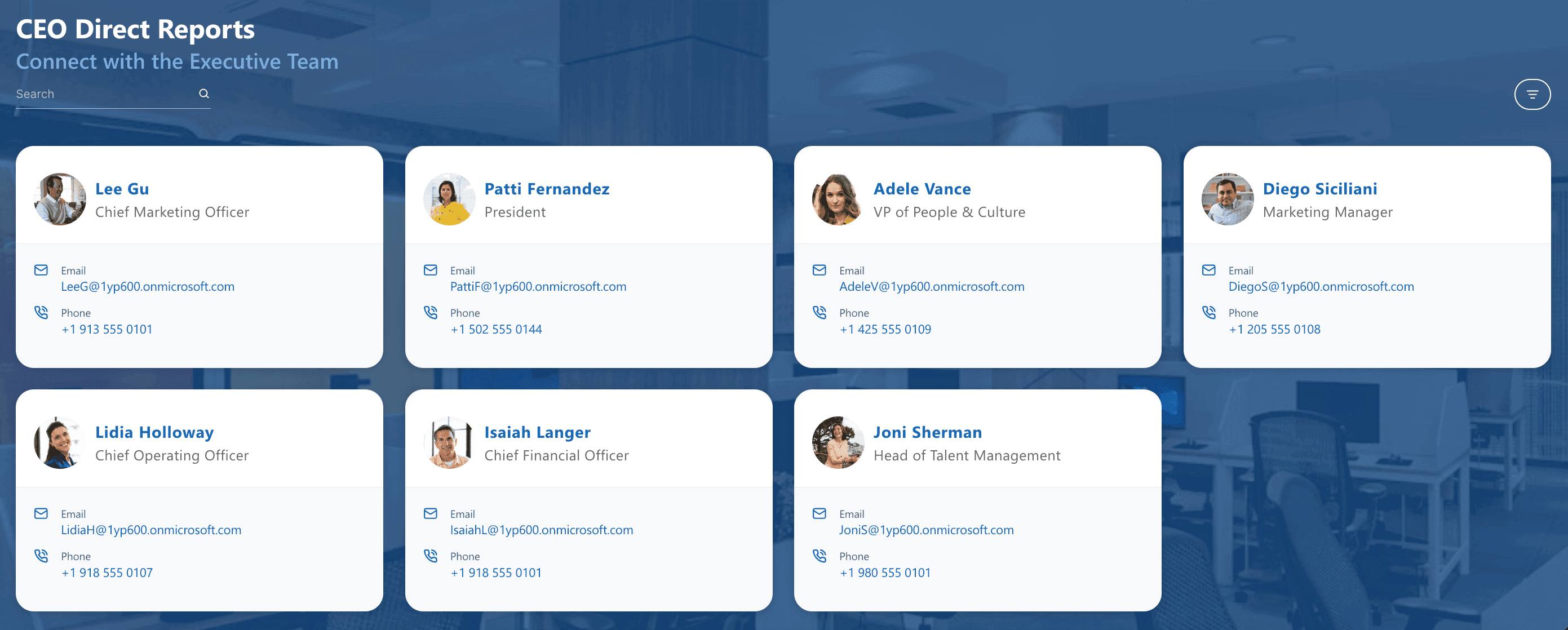
Let's break down exactly what use case is used to make this connection, how it works, and cover some frequently asked questions.
TABLE OF CONTENTS
- Prerequisites
- What is the "User's Direct Reports" Use Case?
- Step-by-step Tutorial
- Frequently Asked Questions
Prerequisites
- You must have ShortPoint SPFx version 8.6.0.0 and up installed.
- You also need to be a ShortPoint Designer with either a Pro or Enterprise license. For more details, check out Licensing Options.
- You must have the Microsoft Graph API connection enabled. Go to How to Enable Microsoft Graph Integration for MS Graph API Connections to learn how.
- You must authorize the necessary permissions (User.Read.All and Directory.Read.All) in the API access page. To check, go to your SharePoint Admin Center > Advanced > API access.
- You must have the Design Element you want to use to connect on your SharePoint page. We recommend using Design Elements that allow listing of multiple items (Person Cards, Image List, Tiles, etc).
What is the "User's Direct Reports" Use Case?
The User's Direct Reports use case allows you to fetch the directreports property of a specific user in your organization using their email address. This operation relies on the Microsoft Graph API to retrieve accurate manager and direct report relationships from Entra ID manager data, ensuring you get up-to-date additional information about each object in your organization tab.
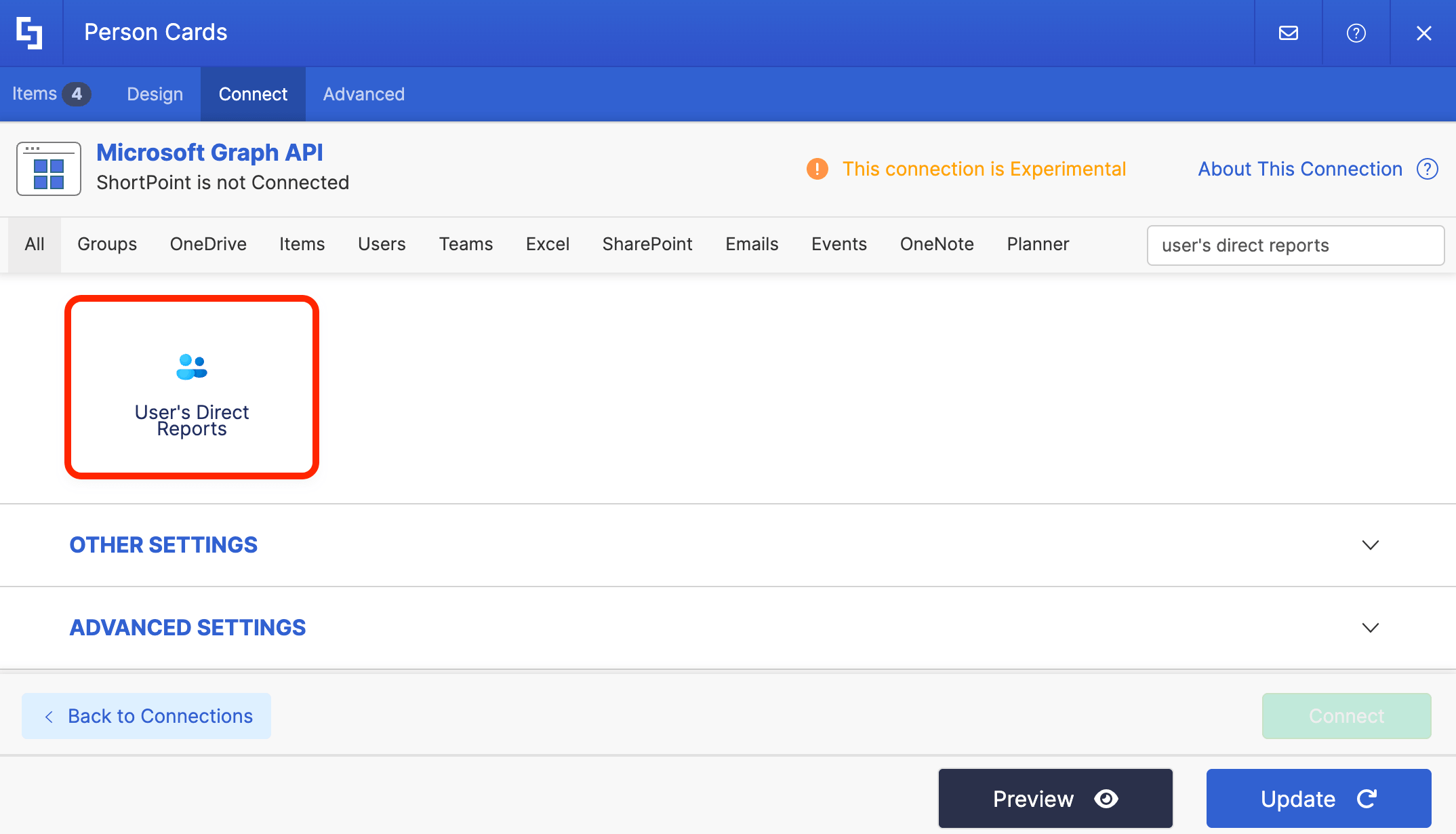
With it, you can see the basic details of the direct reports, including their job title, email address, phone number, and so much more.
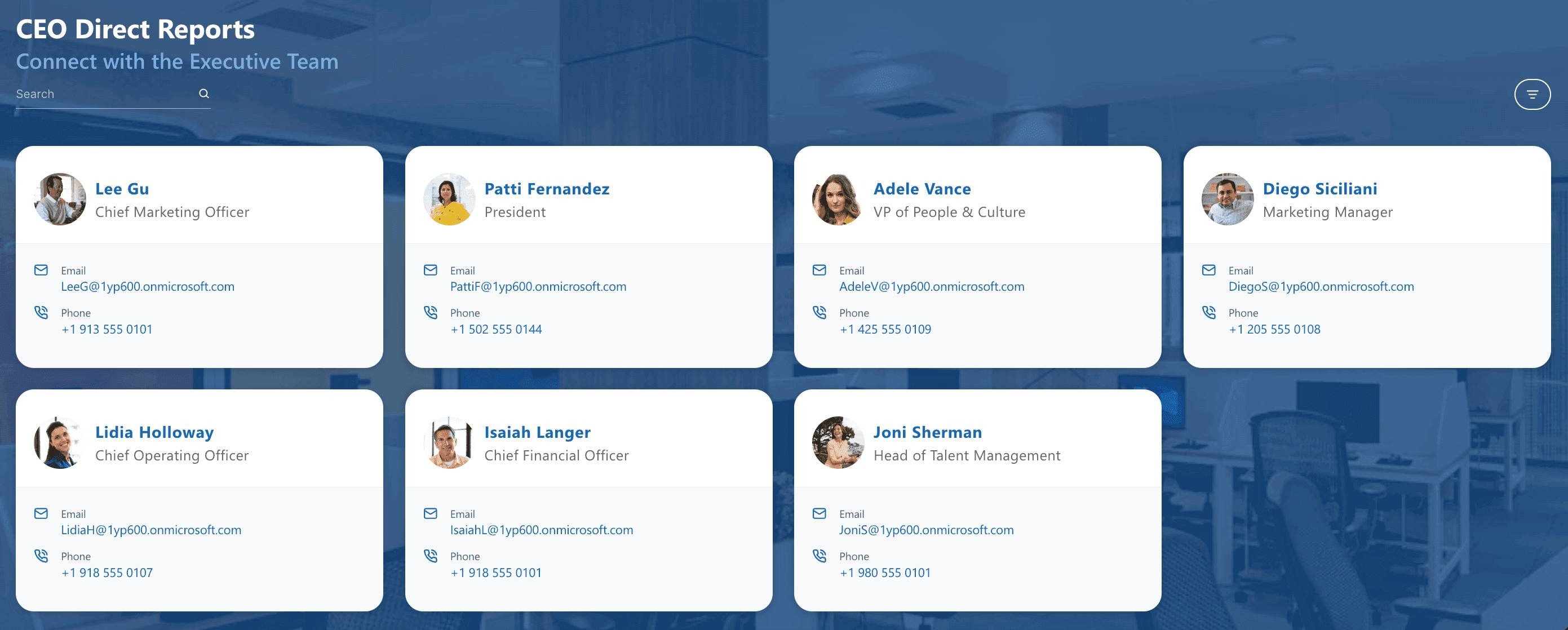
The typical structure of this use case is:
https://graph.microsoft.com/v1.0/users/#emailAddress/directReports
You must enable the following permissions in the SharePoint Admin Center to use it:
User.Read.All - gives permission to read data about every single user account within an organization's Microsoft Entra ID (formerly Azure AD) tenant.
Directory.Read.All - gives permission to access the entire directory structure including user profiles, groups, and organizational contacts.
NOTEIf you haven’t given access to the permissions above, go to your SharePoint Admin Center > Advanced > API access.
Step-by-step Tutorial
Follow the steps below to learn how to use the User’s Direct Reports use case to list direct reports effectively. By following these instructions, you'll be able to create a dynamic view of a specific manager's team, enabling better control and insights into your organization's reporting structure.
Step 1: Edit the ShortPoint Web Part
Go to the SharePoint page you want to use and click Edit:
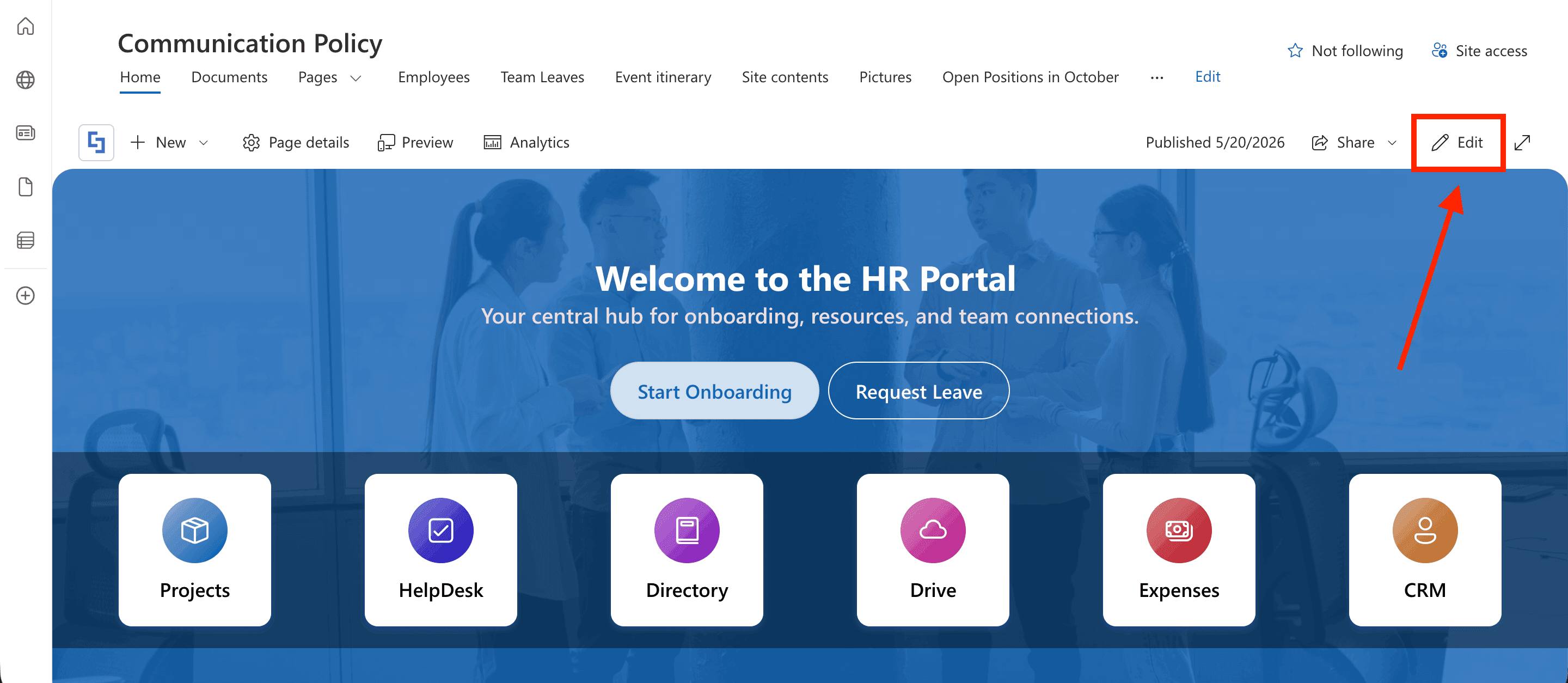
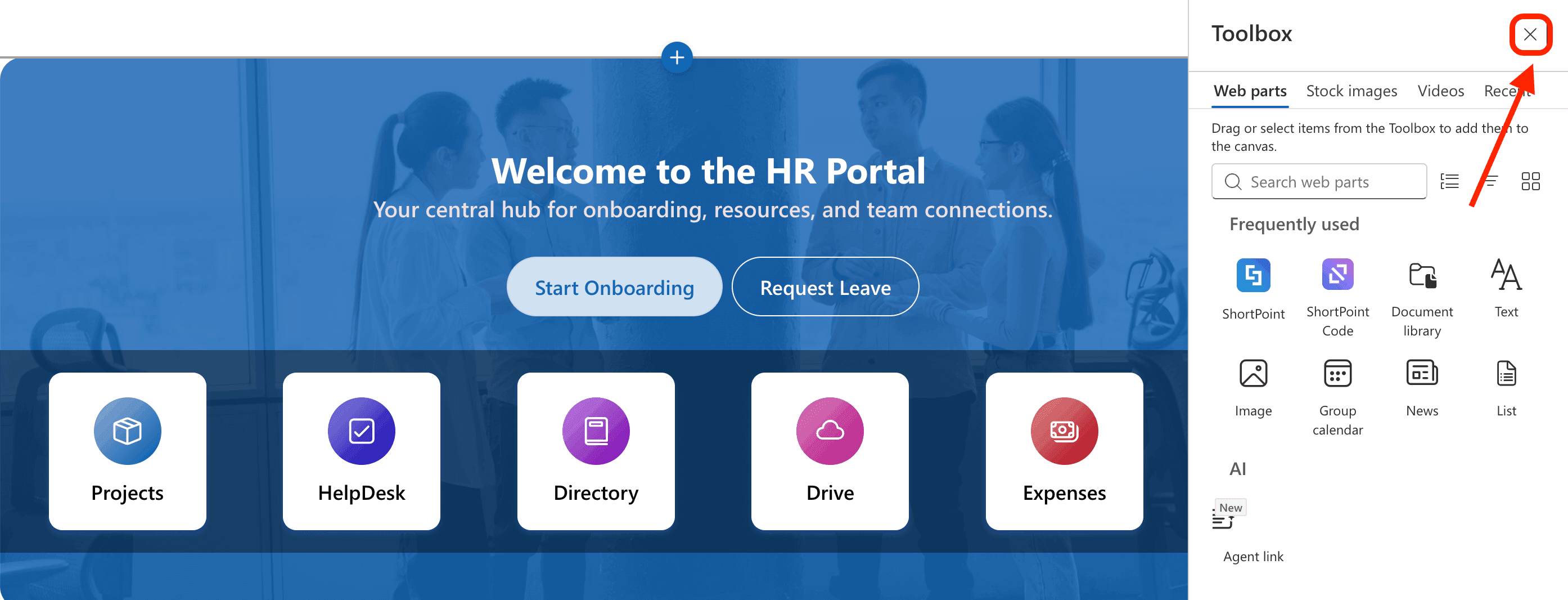
Close the Toolbox:
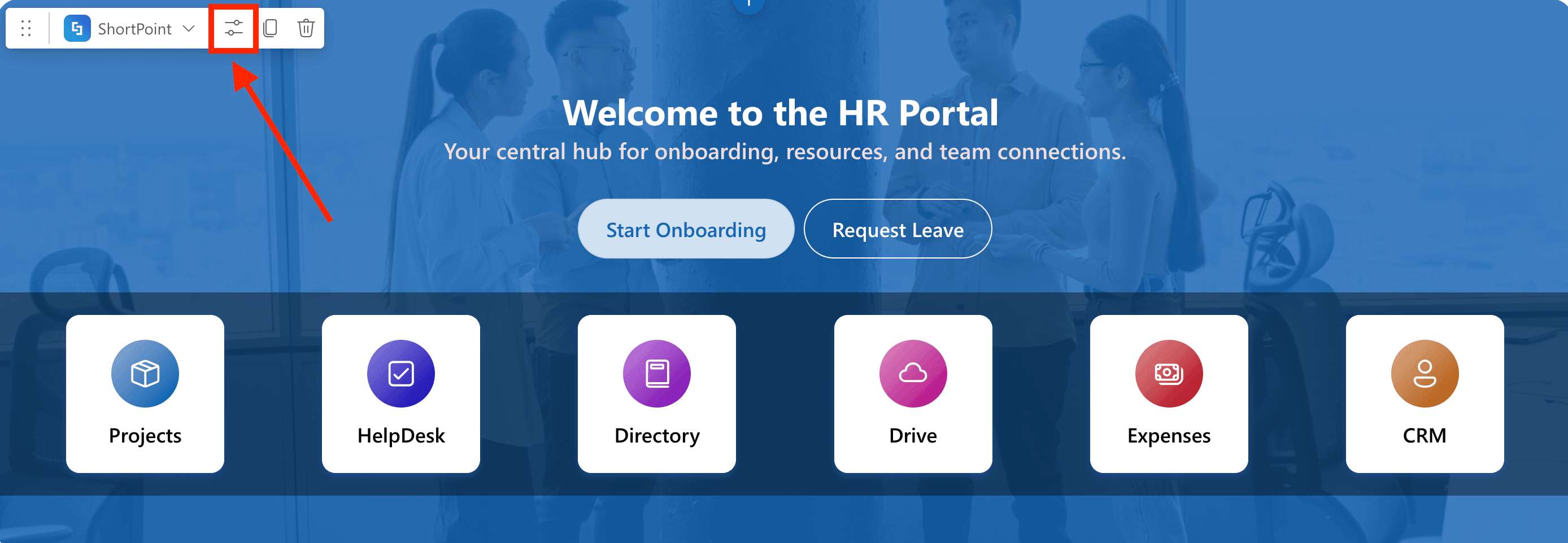
Select the ShortPoint web part and click the Edit Properties icon:
Step 2: Edit the Design Element
NOTEBefore proceeding, you must have the Design Element you want to use for the connection. We recommend using Design Elements that allow listing of multiple items (Person Cards, Image List, Tiles, etc). For this guide, we'll use Person Cards.
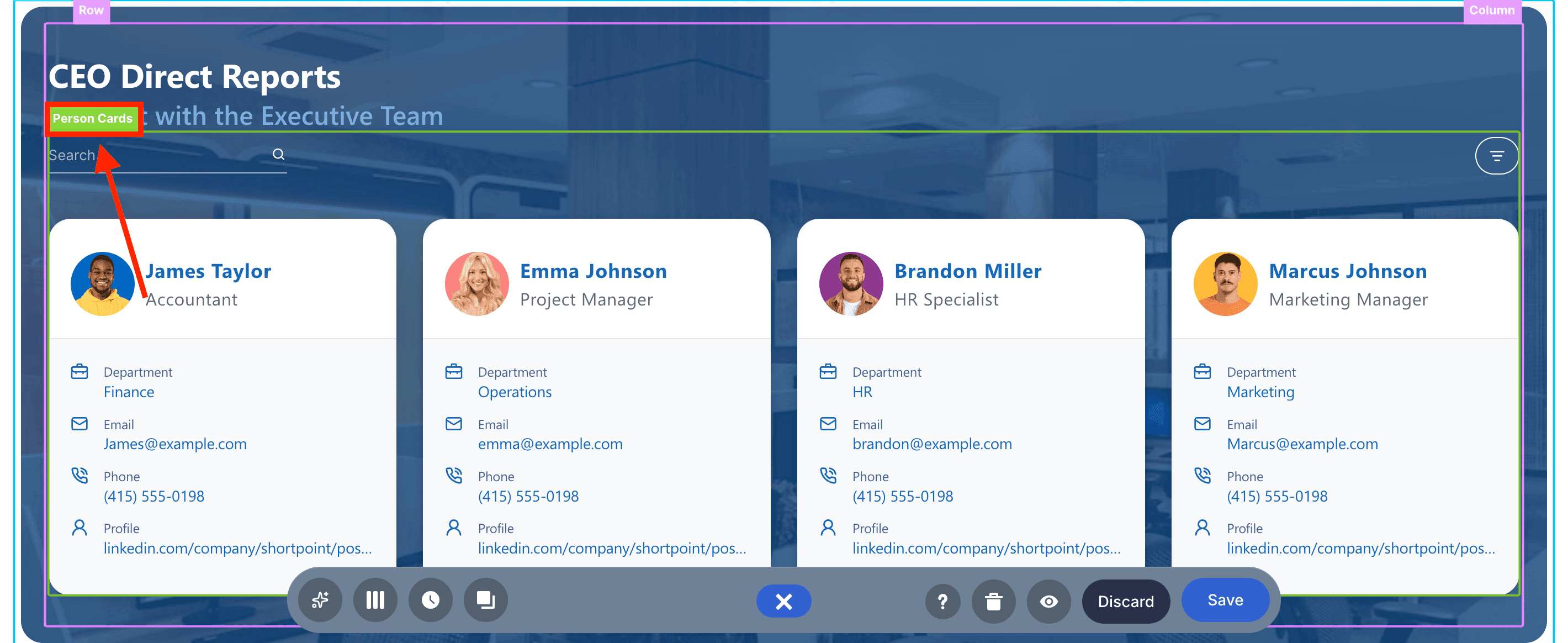
Click the EasyPass tag of the Design Element you’ll use:
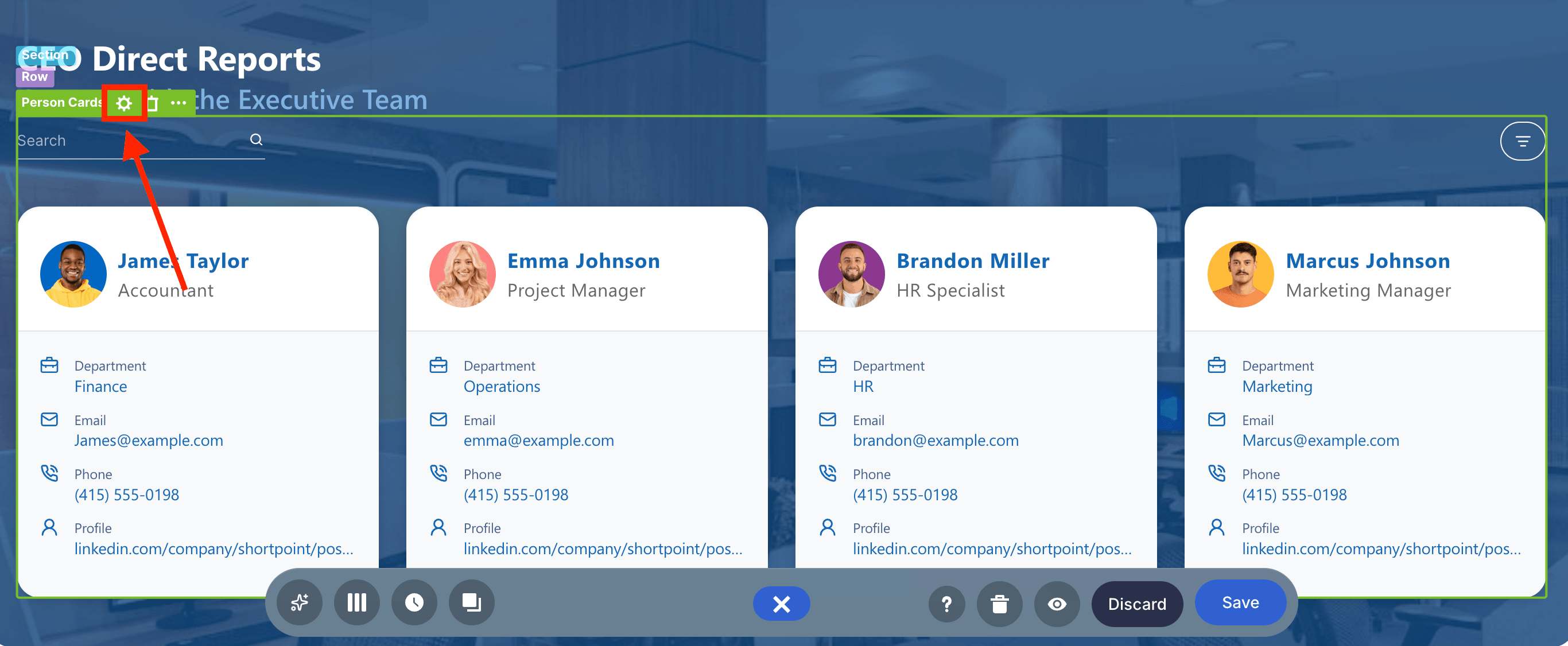
Select the cogwheel icon:
Step 3: Open the Connect Window
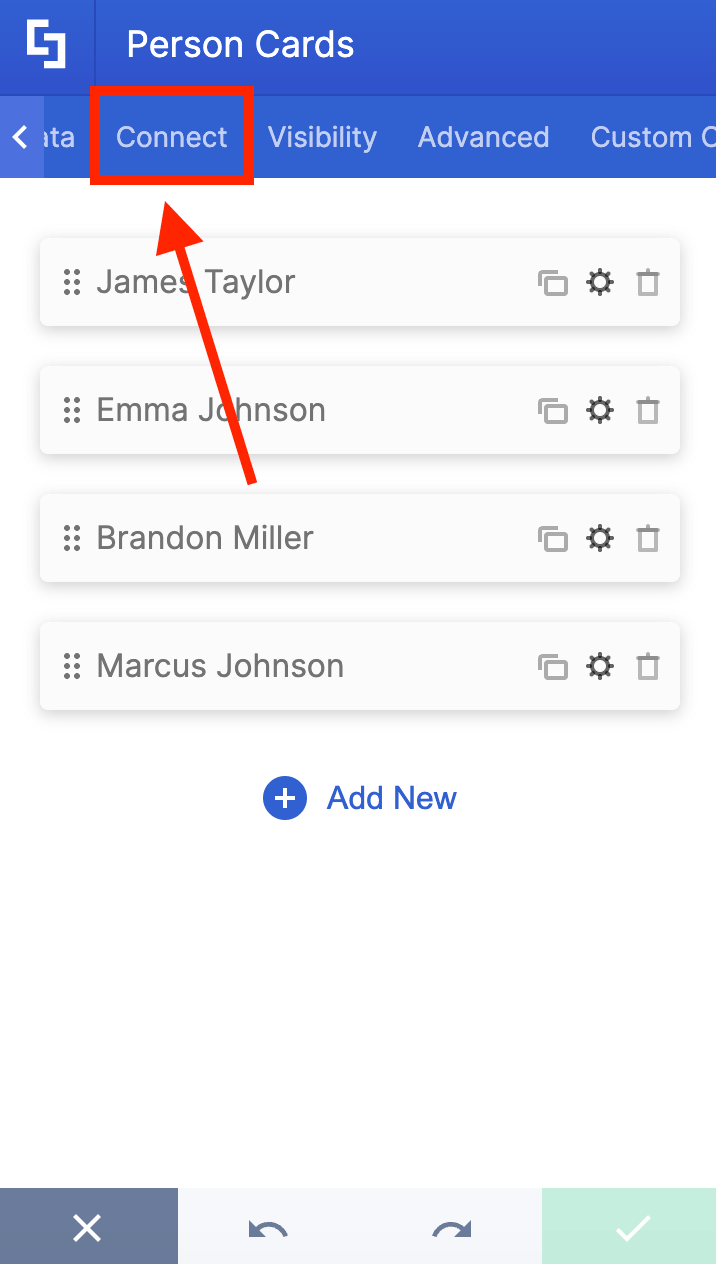
Go to the Connect tab:
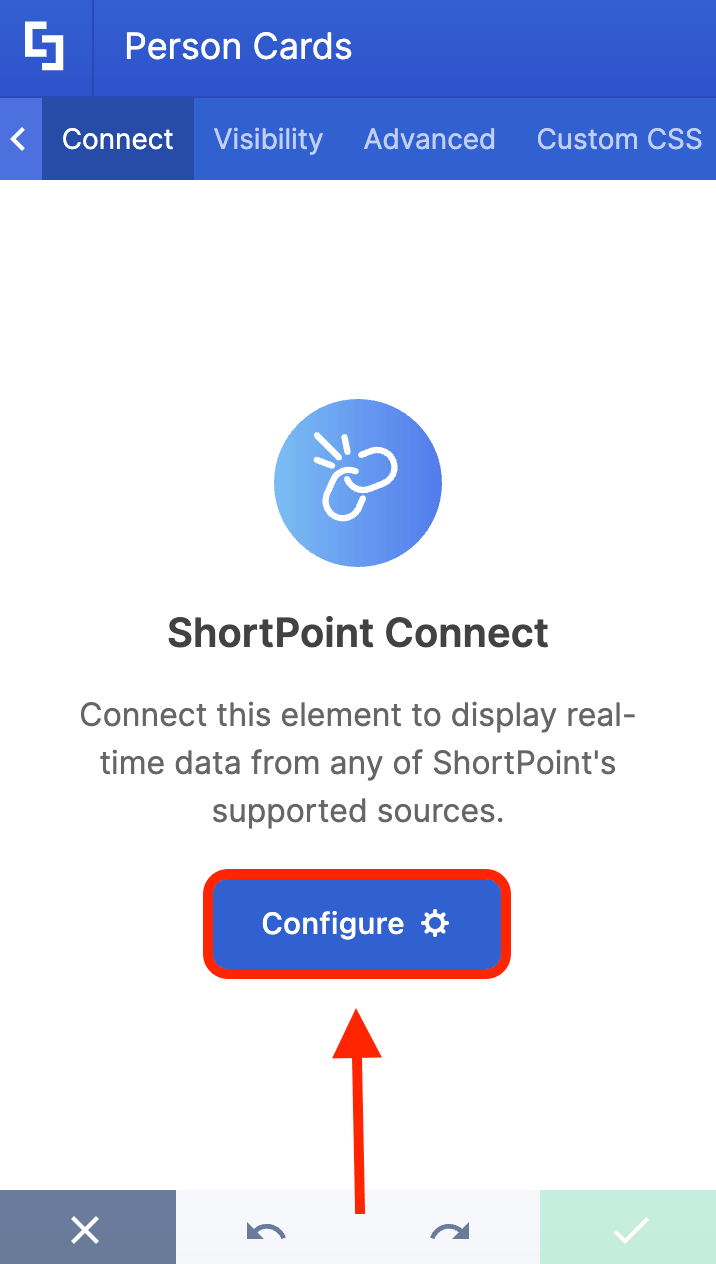
Click Configure to open the connect window:
Step 4: Connect to Microsoft Graph API
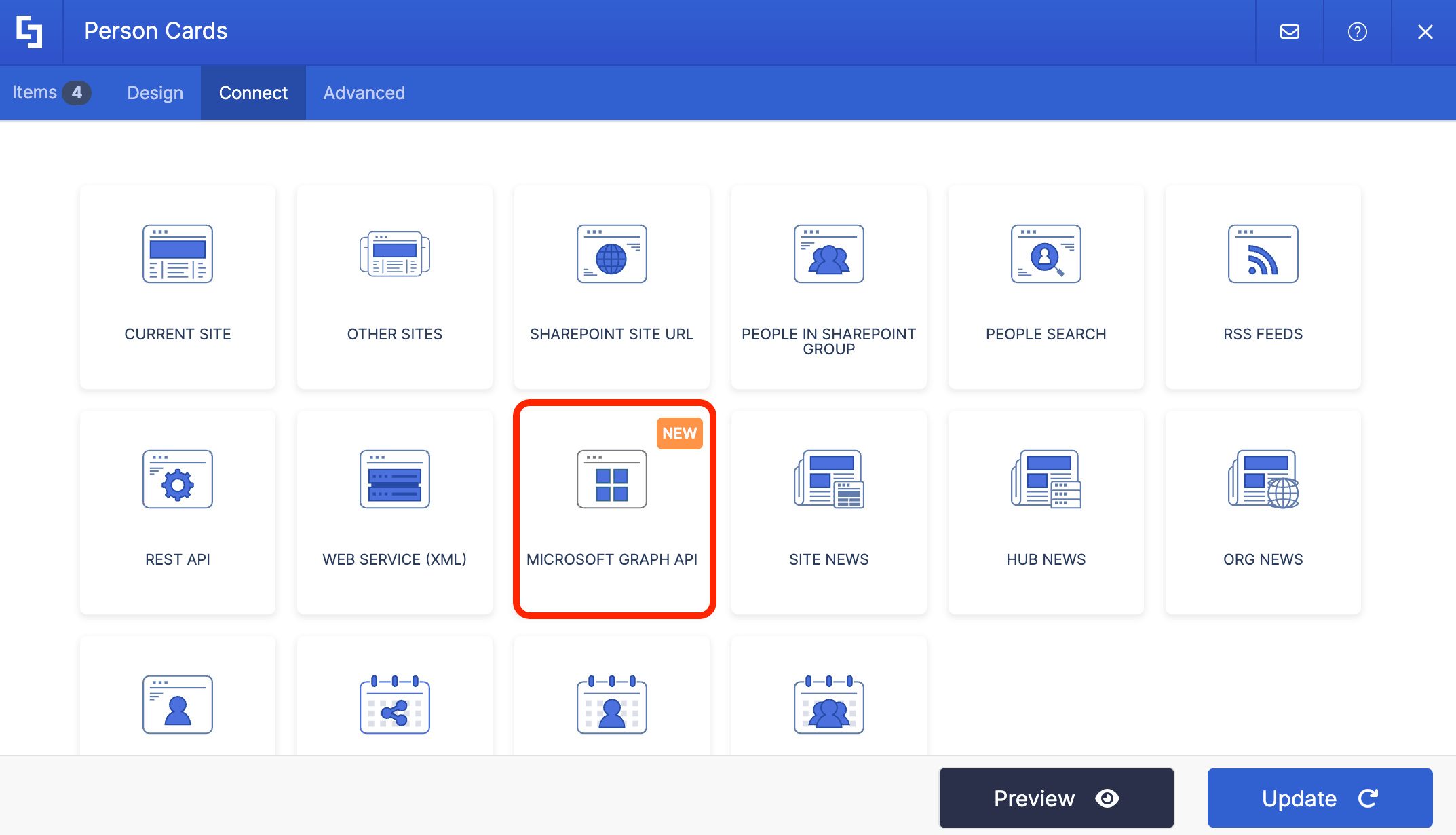
Select Microsoft Graph API:
NOTEYou need to enable the Microsoft Graph API connection before using it. Learn more about it in How to Enable Microsoft Graph Integration for MS Graph API Connections.
Step 5: Use the User’s Direct Reports Use Case
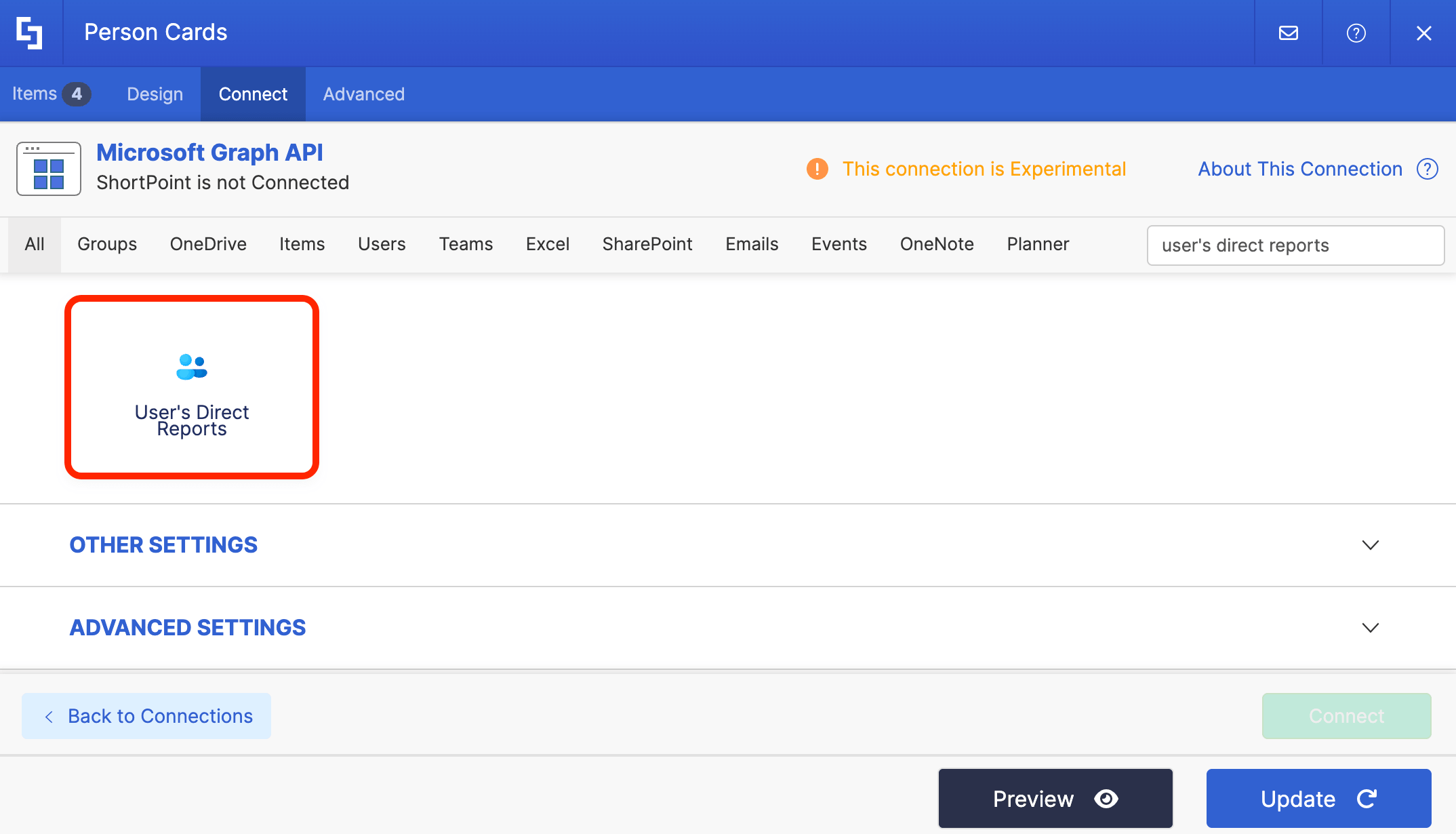
Search for User’s Direct Reports and select it:
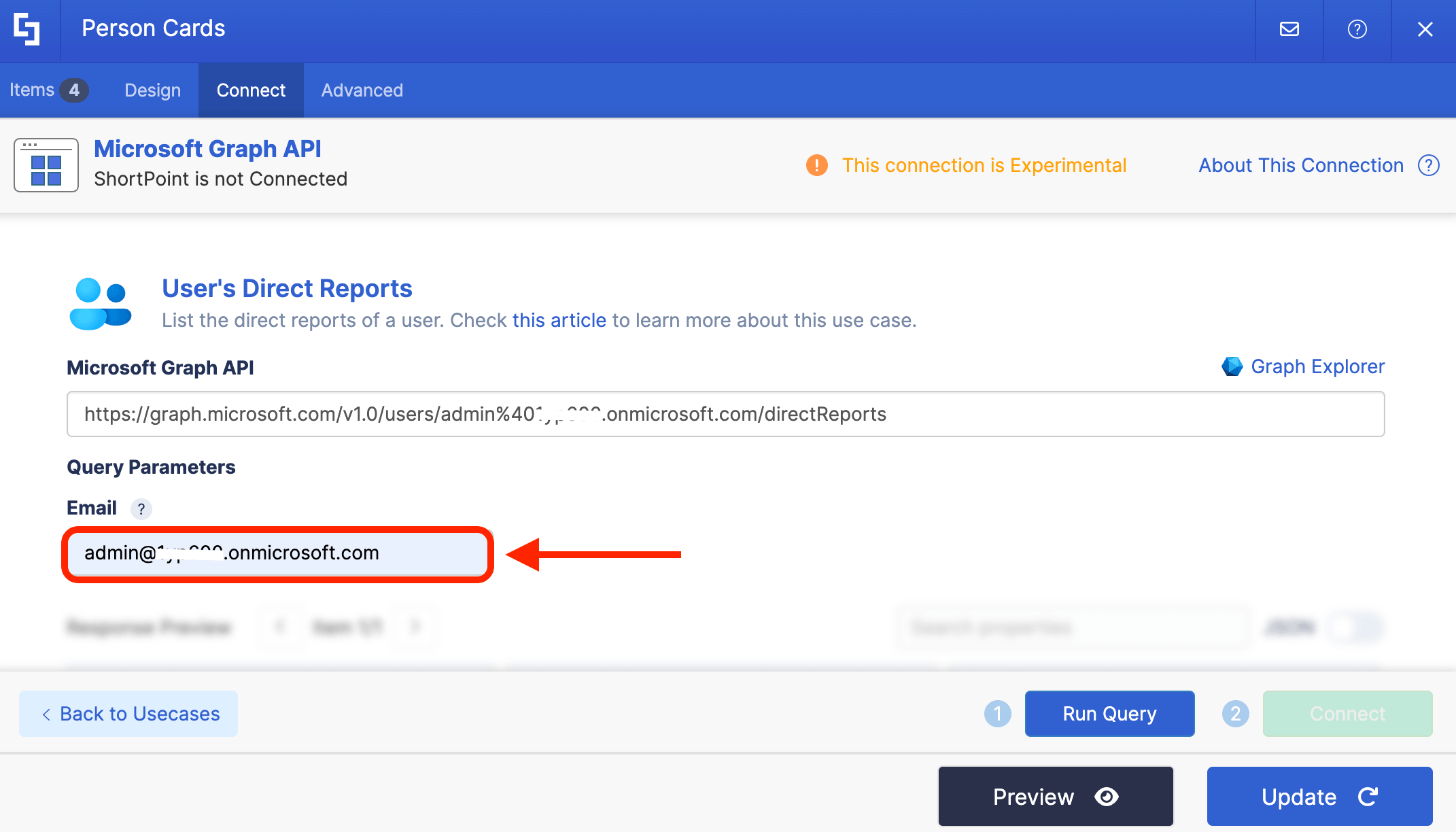
Step 6: Add Email Address
Add the email address you want to use:
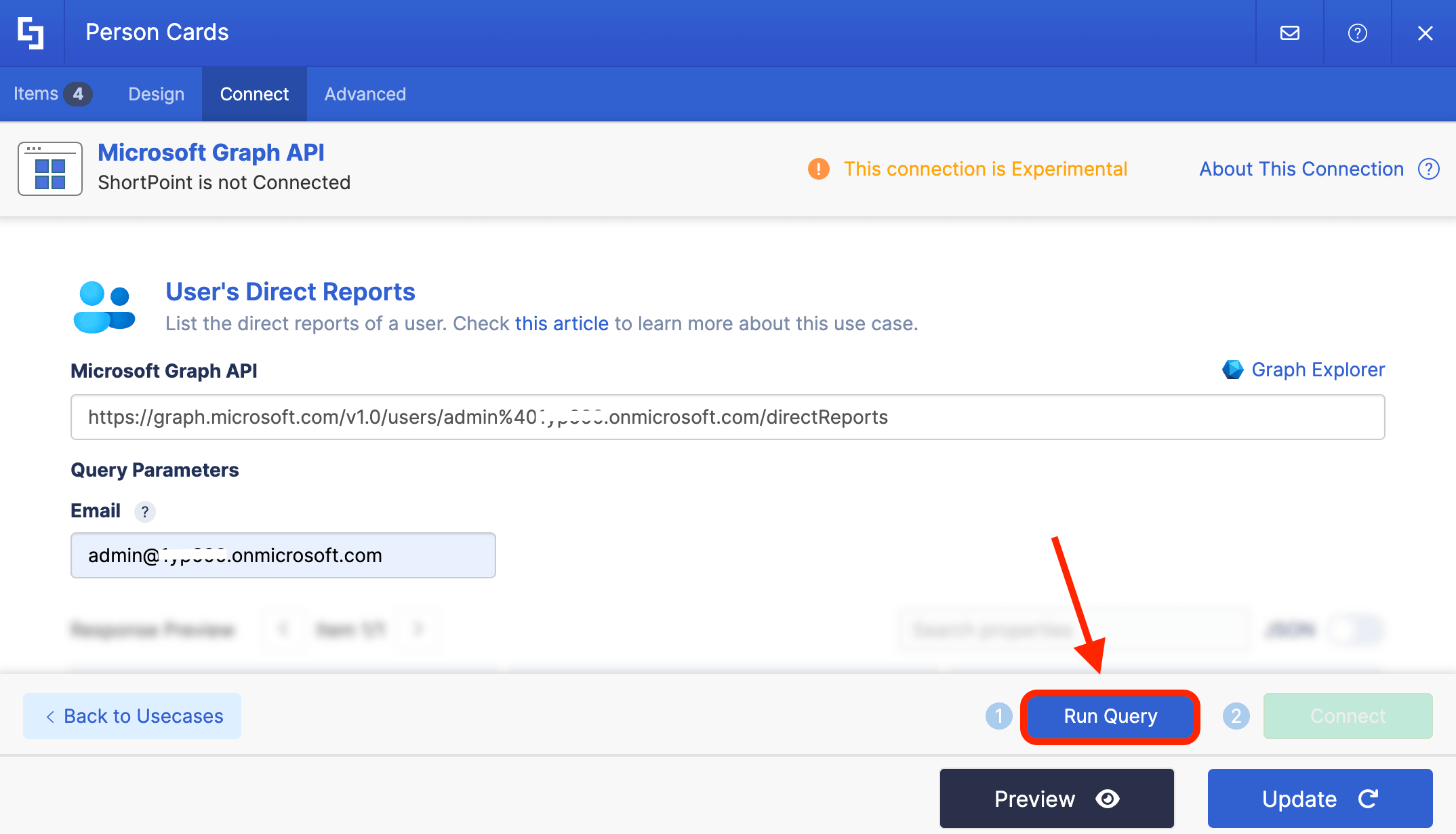
Step 7: Connect
Click Run Query:
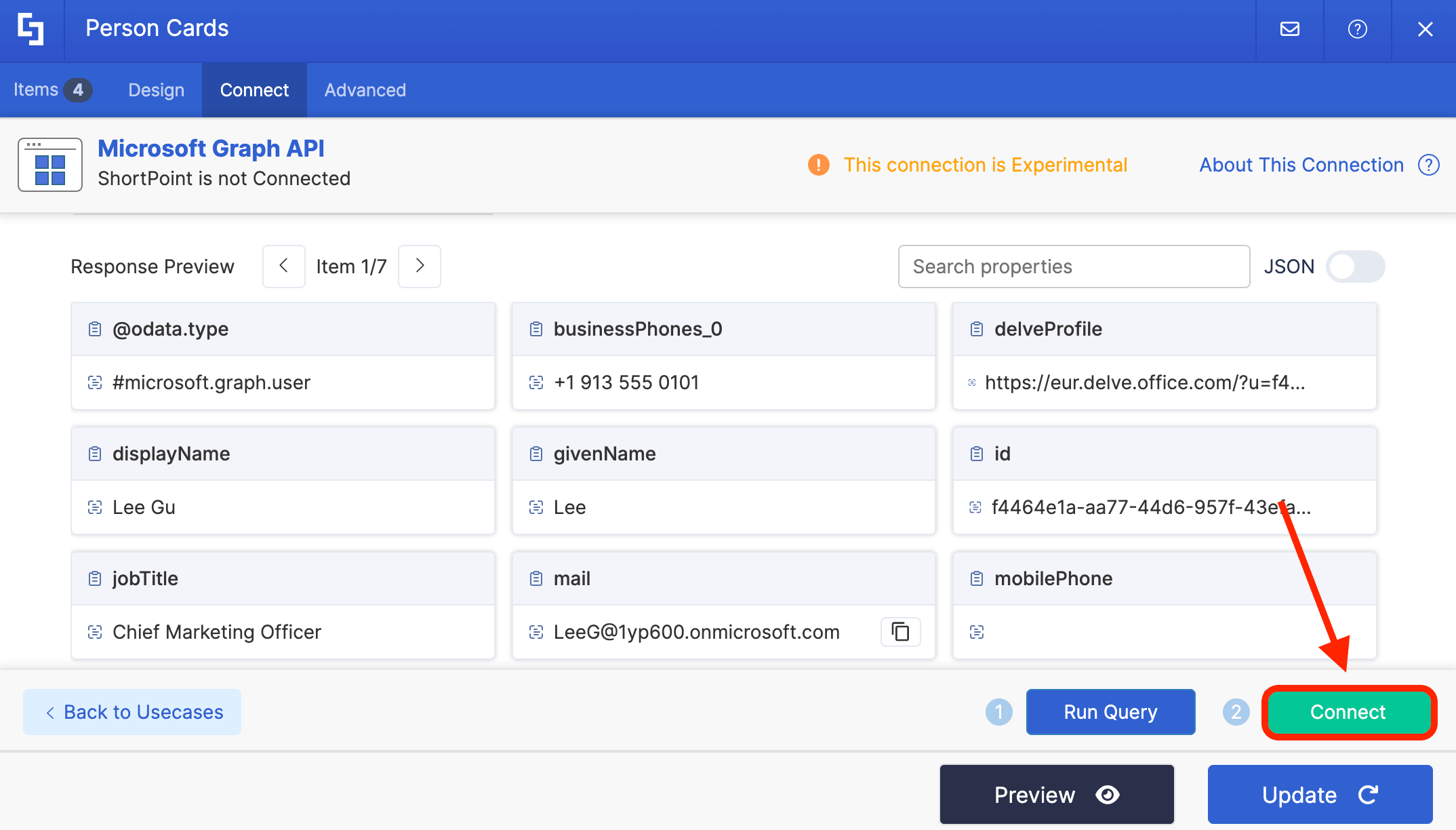
Select Connect:
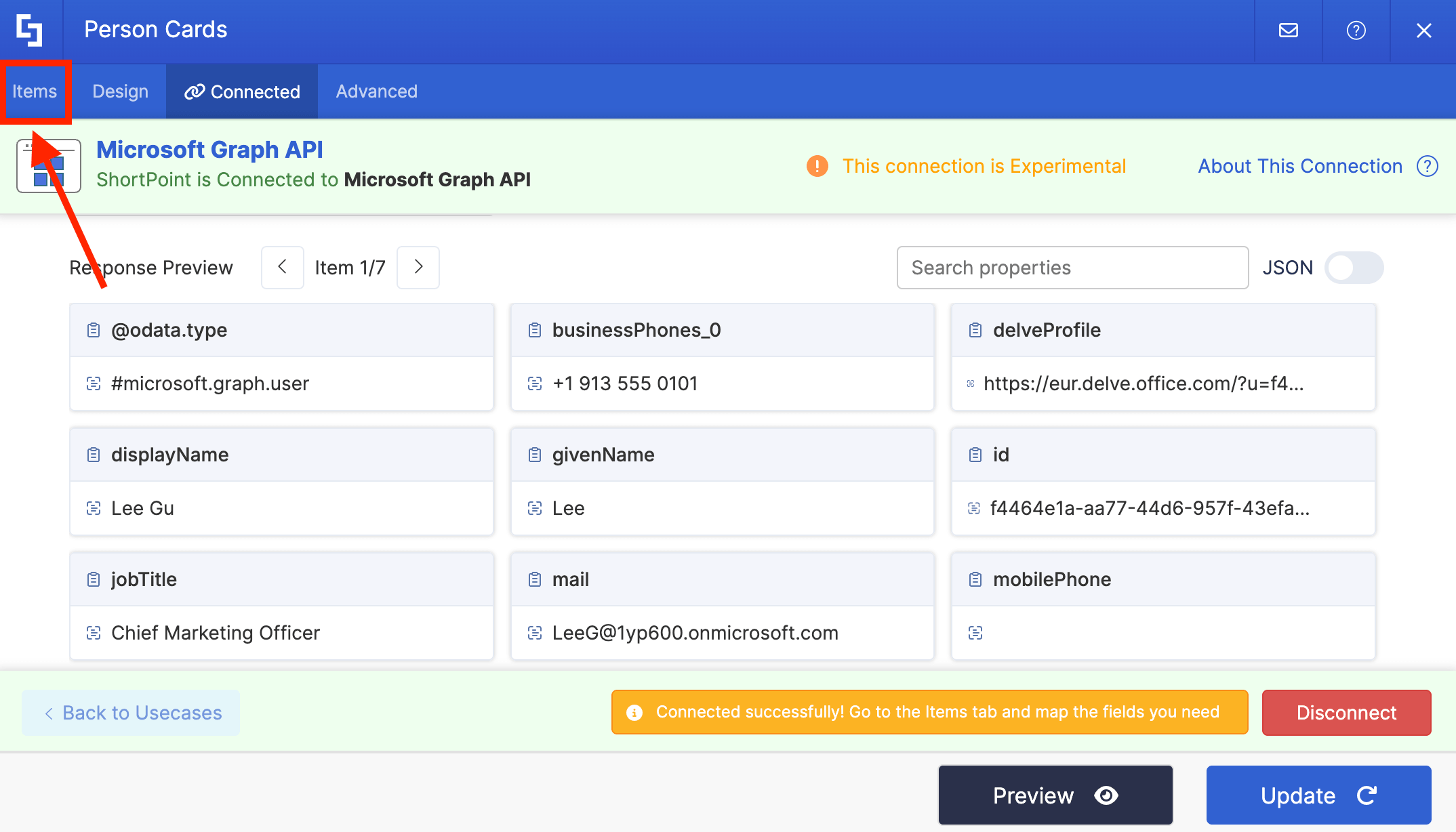
Step 8: Map Items
Go to the Items tab:
Delete default content and use the link icon to map the properties you want to be displayed:
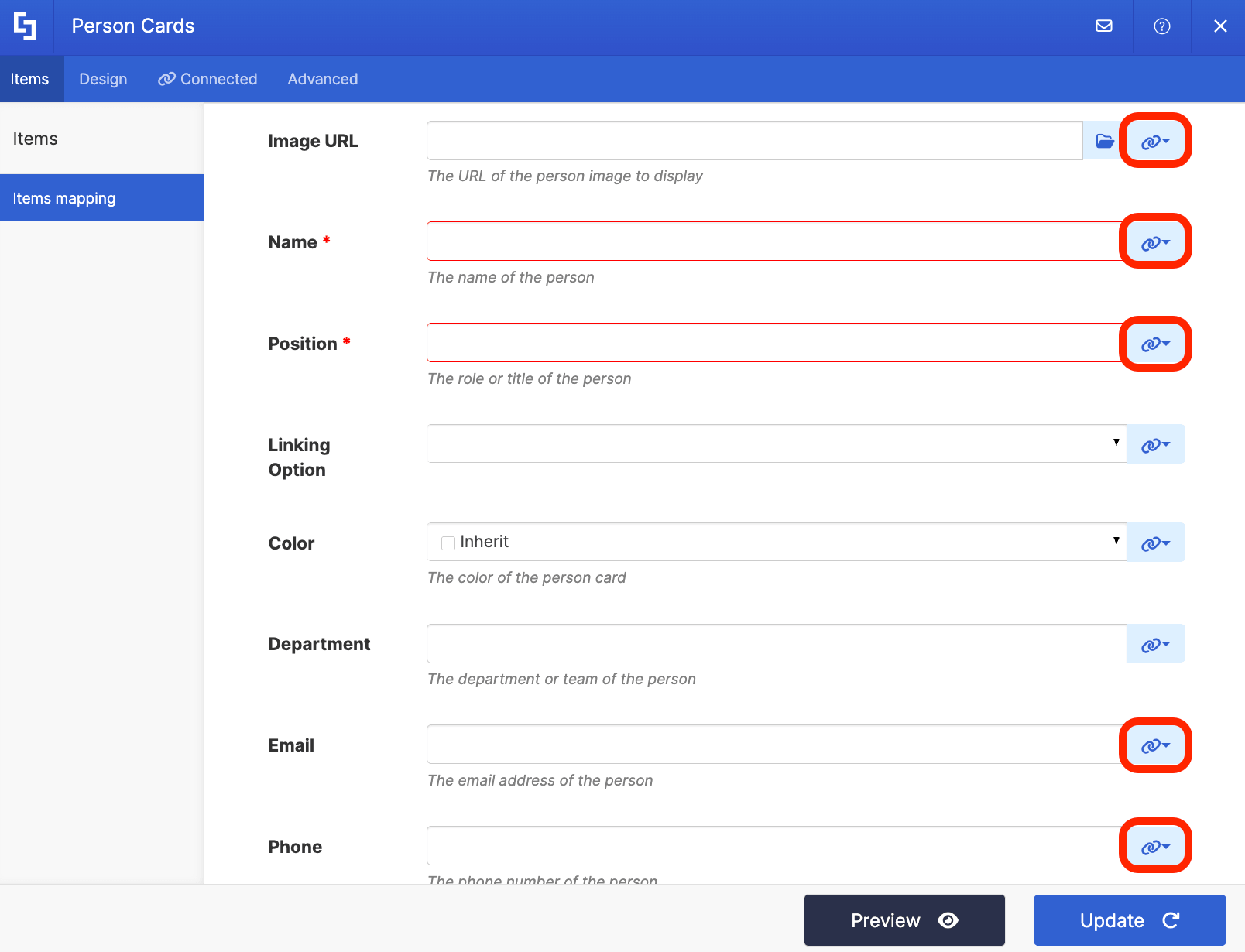
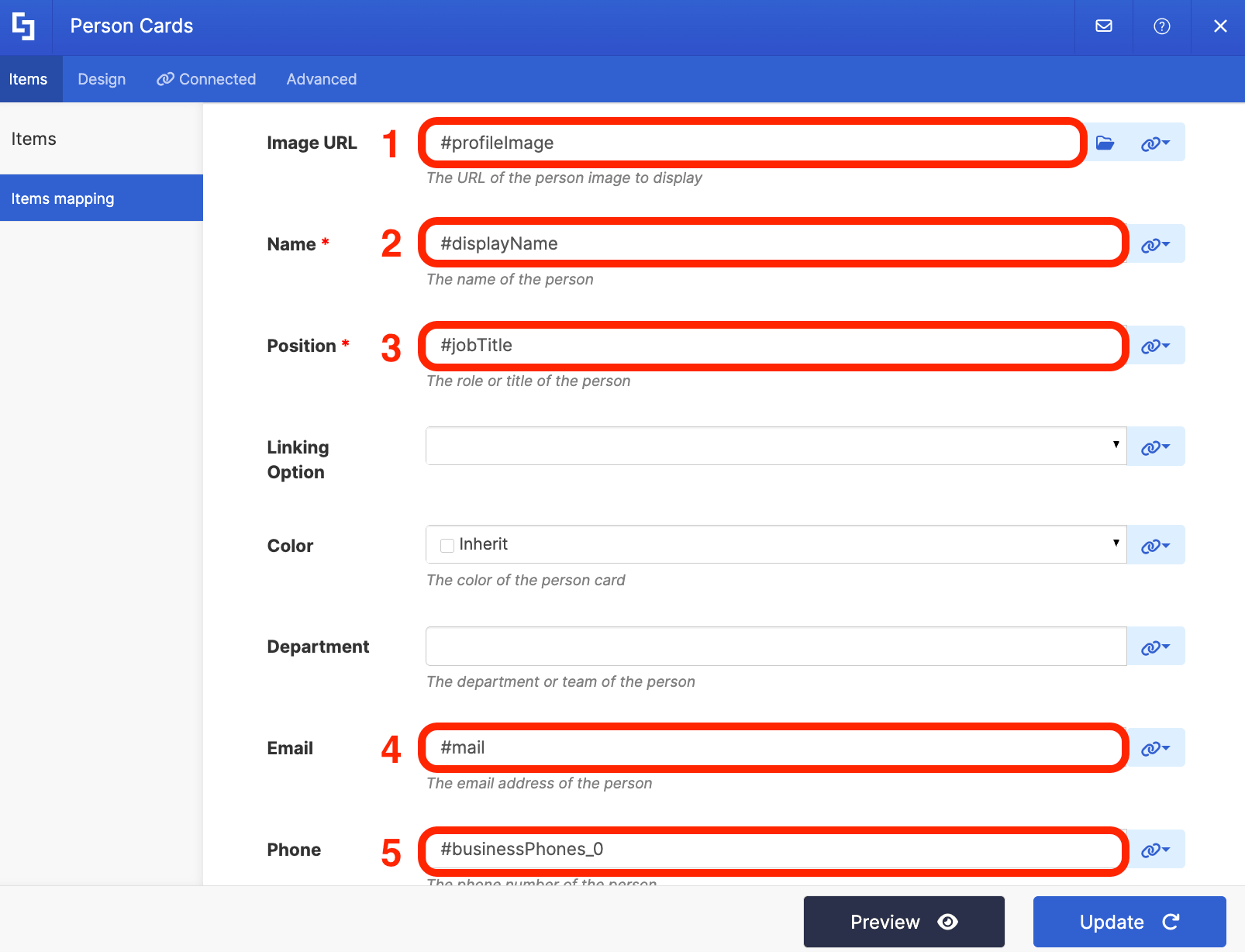
You can map any property you want. In our case, we used the following properties:
- #profileImage - shows the image of the direct report.
- #displayName - shows the name of the direct report.
- #jobTitle - shows the work title of the direct report.
- #mail - shows the email address of the direct report.
- #businessPhones_0 - shows the phone number of the direct report.
NOTECheck out ShortPoint Connect: How Items Mapping Works to learn more about mapping properties.
Step 9: Save
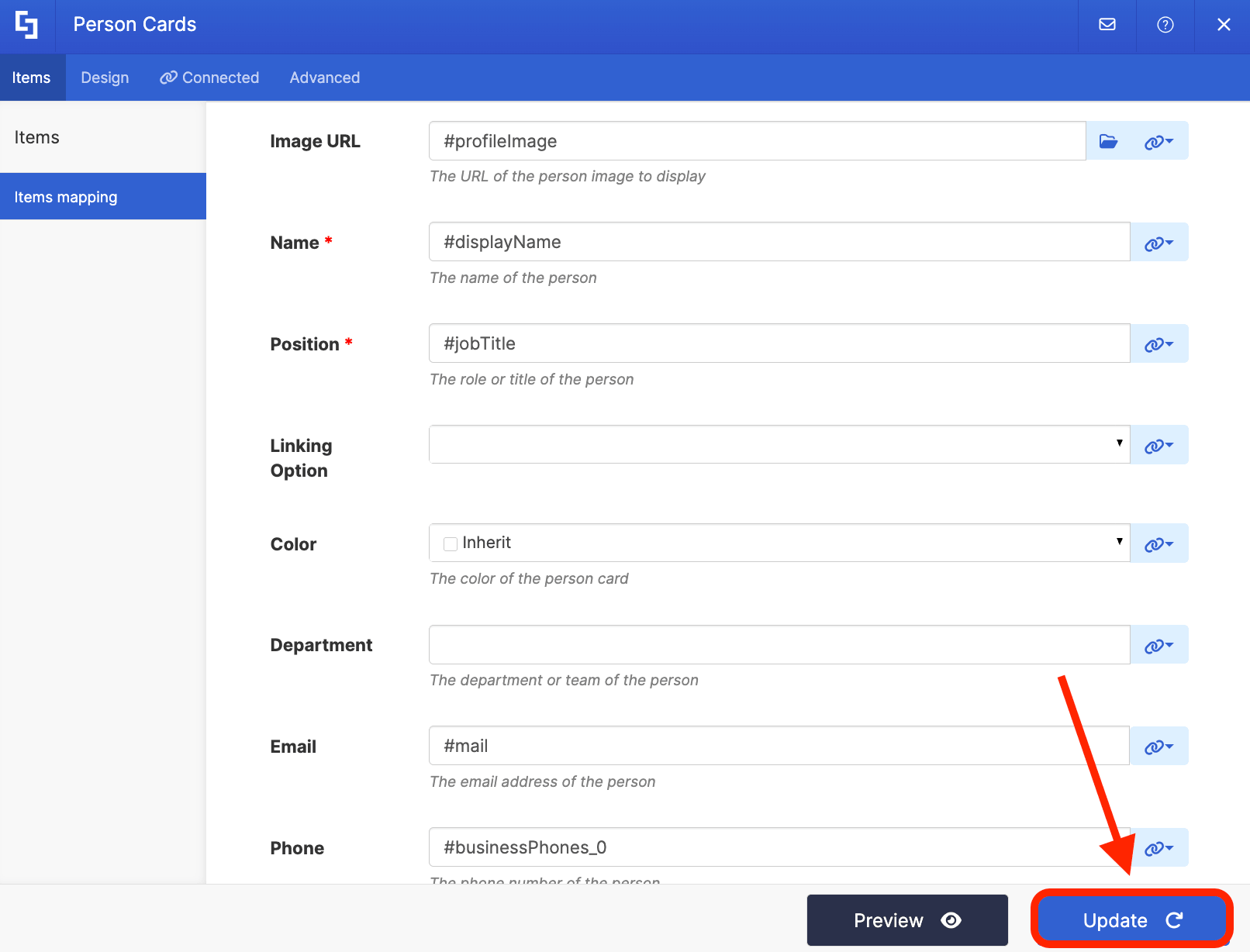
Click Update to apply your changes:
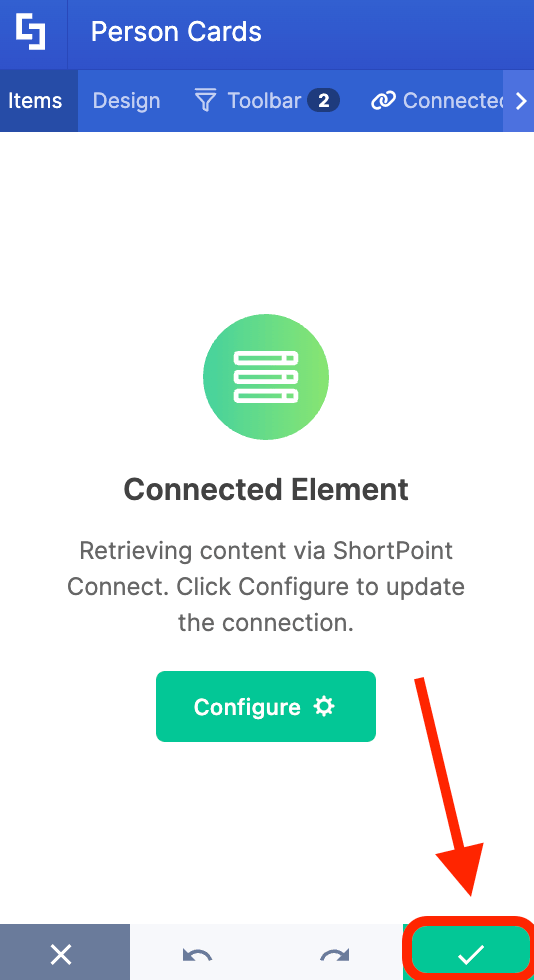
Click the green checkmark:
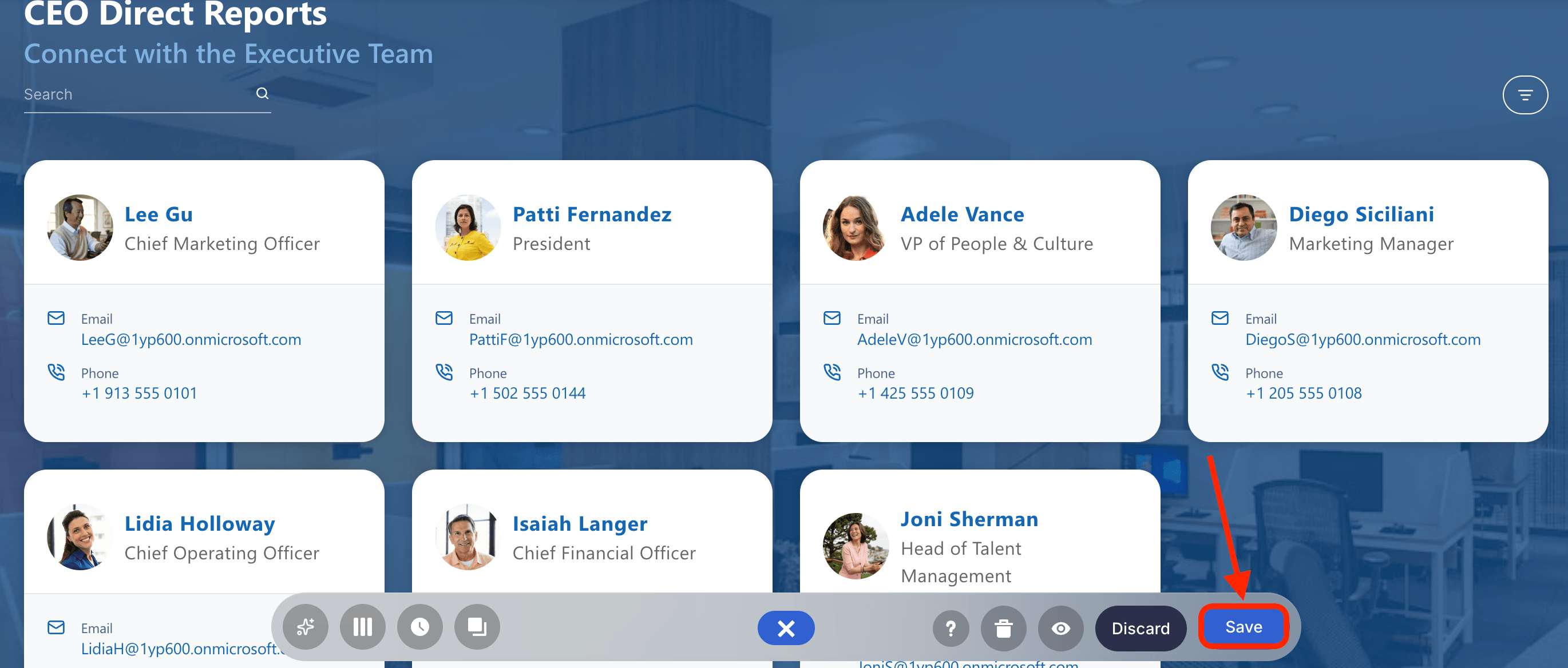
Once satisfied, click Save:
And Publish your page:
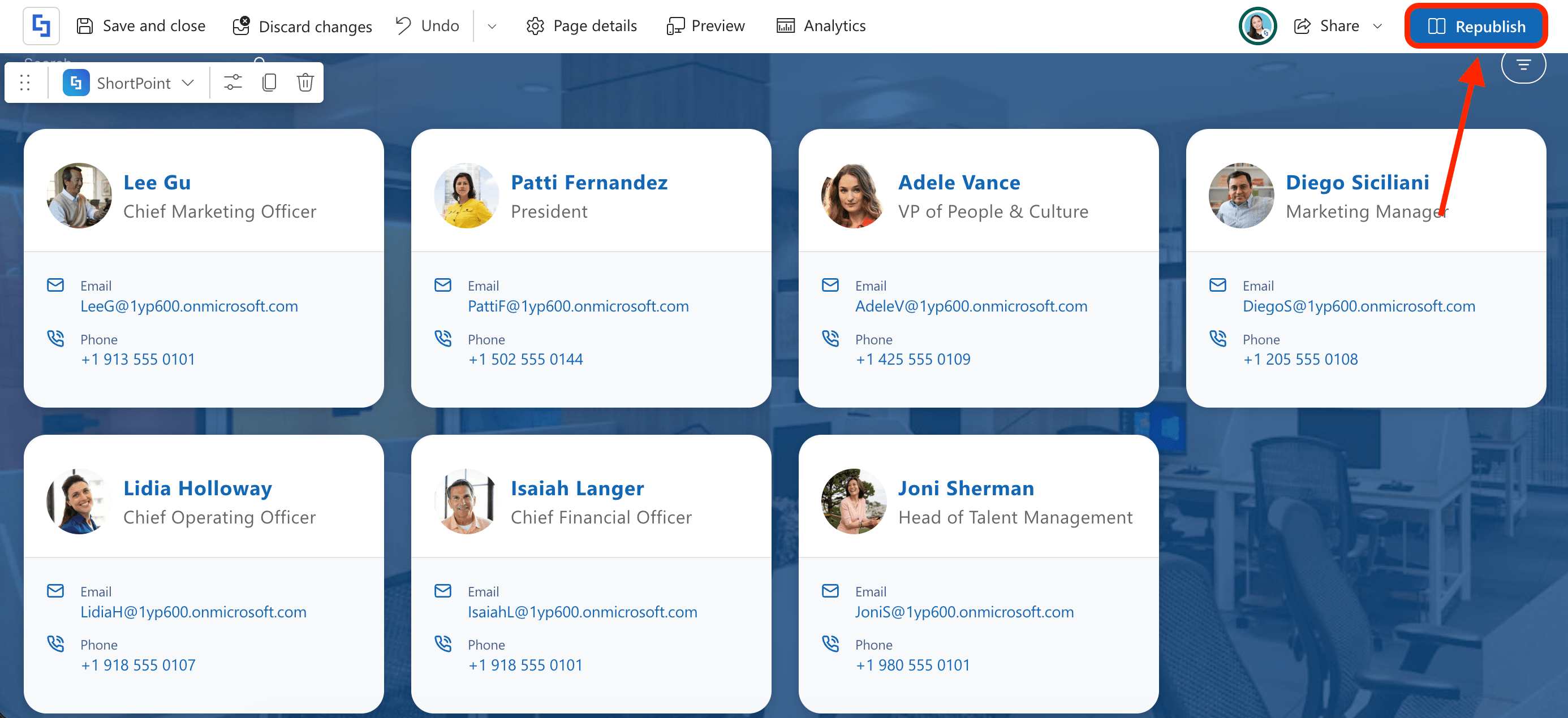
Amazing! You can now list direct reports of specific users in your SharePoint site, helping you analyze your organization's business structure effectively.
Frequently Asked Questions
How can I list direct reports of a specific user in SharePoint?
You can list direct reports by using the ShortPoint Microsoft Graph API integration. This involves configuring the User’s Direct Reports use case, which fetches the directreports property of a user via their email address, enabling you to display details such as job title, email, and phone number.
What permissions are required to use the Microsoft Graph API for listing direct reports?
You need to have User.Read.All and Directory.Read.All permissions enabled in your SharePoint Admin Center under API access. These permissions allow you to read user profiles and directory data securely.
Can I customize the information shown for each direct report?
Yes, you can customize the mapped properties in the ShortPoint Design Element. Common properties include profile image, display name, job title, email, and phone number. This flexibility helps tailor the display to your organization's needs. For more information, check out ShortPoint Connect: How Items Mapping Works.
What is the typical structure of the Microsoft Graph API request to get direct reports?
The typical API request URL format is: https://graph.microsoft.com/v1.0/users/{emailAddress}/directReports. This request retrieves the direct reports of the specified user.
Related articles:
- Connection Type: Microsoft Graph API
- Getting Started With Microsoft Graph API Use Cases
- How To Use Placeholders In ShortPoint Connections
- Microsoft Graph API: Supported and Non-Supported Endpoints
