 Try ShortPoint now
Microsoft Teams is the modern hubs for team discussions, file sharing, and collaboration. Having quick access to your Teams Channels in your SharePoint site makes it easy for page viewers to jump right into the Teams app, helping team members collaborate efficiently on different projects.
That is where ShortPoint's Microsoft Graph API connection comes into play! Let’s dive into how to use it to bring channel info right into your page.
TABLE OF CONTENTS
Prerequisites
- You must have ShortPoint SPFx version 8.6.0.0 and up installed.
- You also need to be a ShortPoint Designer with either a Pro or Enterprise license. For more details, check out Licensing Options.
- You must have the Microsoft Graph API connection enabled. Go to How to Enable Microsoft Graph Integration for MS Graph API Connections to learn how.
- You must authorize the necessary permissions (Channel.ReadBasic.All) in the API access page. To check, go to your SharePoint Admin Center > Advanced > API access.
- You must have the Design Element you want to use to connect on your SharePoint page.
What is the “Channel Info” Use Case?
The Channel Info use case fetches metadata about a specific channel within a Microsoft Team. This includes the channel’s unique ID, display name, description, channel type (such as standard channels, private channels, or shared channels), email address, and channel URL.
With this use case, you can display the basic details of your Teams channel and provide a quick access link to the actual channel:
The typical structure of this use case is:
https://graph.microsoft.com/v1.0/teams/#groupId/channels/#channelId
You must enable the following permissions in the SharePoint Admin Center to use it:
- Channel.ReadBasic.All - gives permission to access channel details across the entire organization.
NOTEIf you haven’t given access to the permissions above, go to your SharePoint Admin Center > Advanced > API access.
Step-by-step Tutorial
Follow the steps below to learn how to use the Channel Info use case to enhance communication and collaboration across your organization.
Step 1: Edit the ShortPoint Web Part
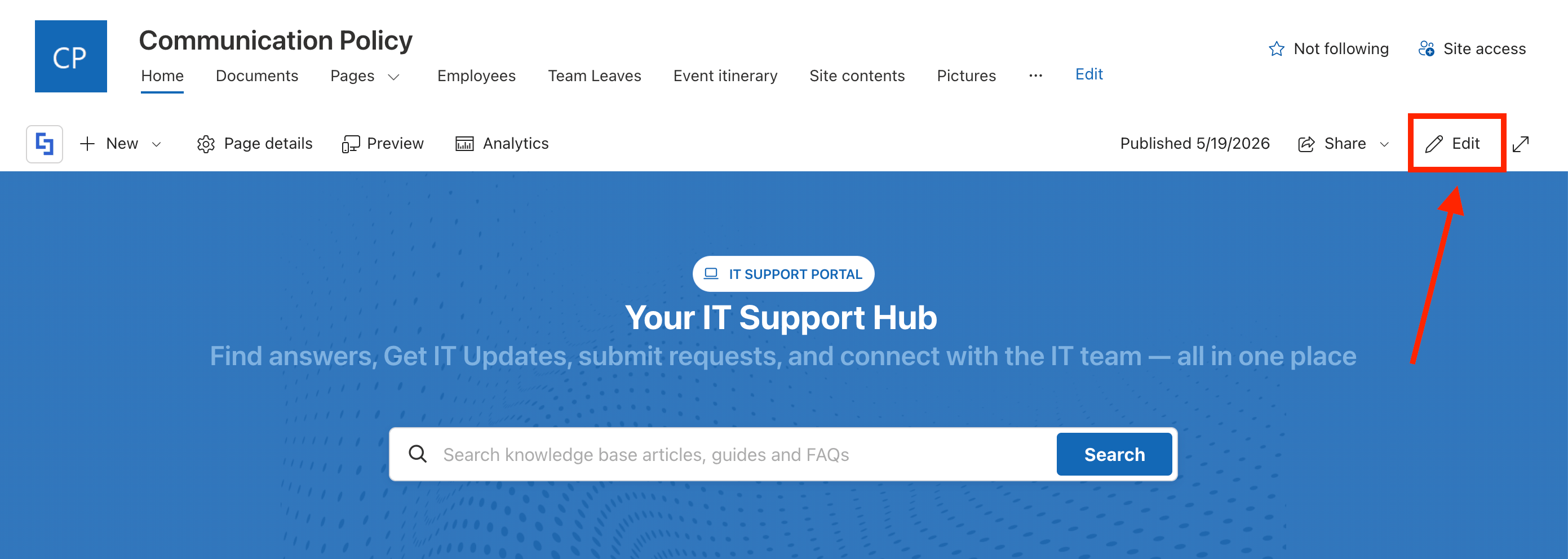
Go to the SharePoint page you want to use and click Edit:
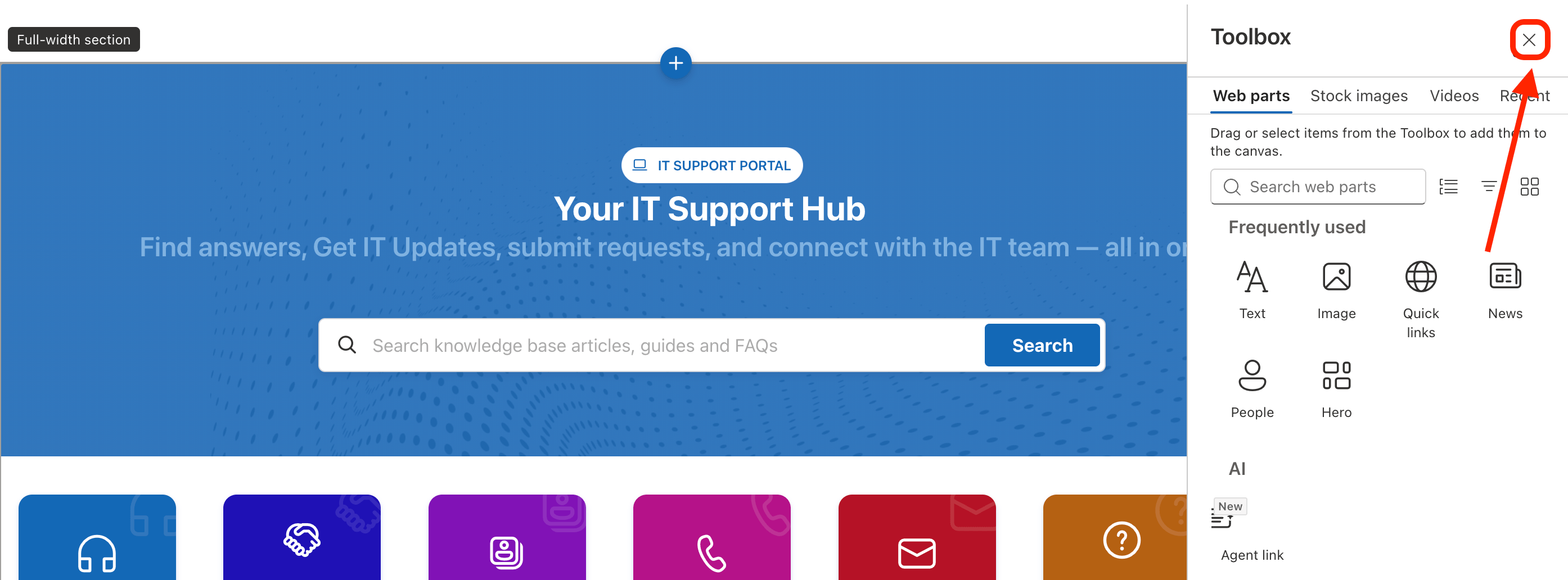
Close the Toolbox:
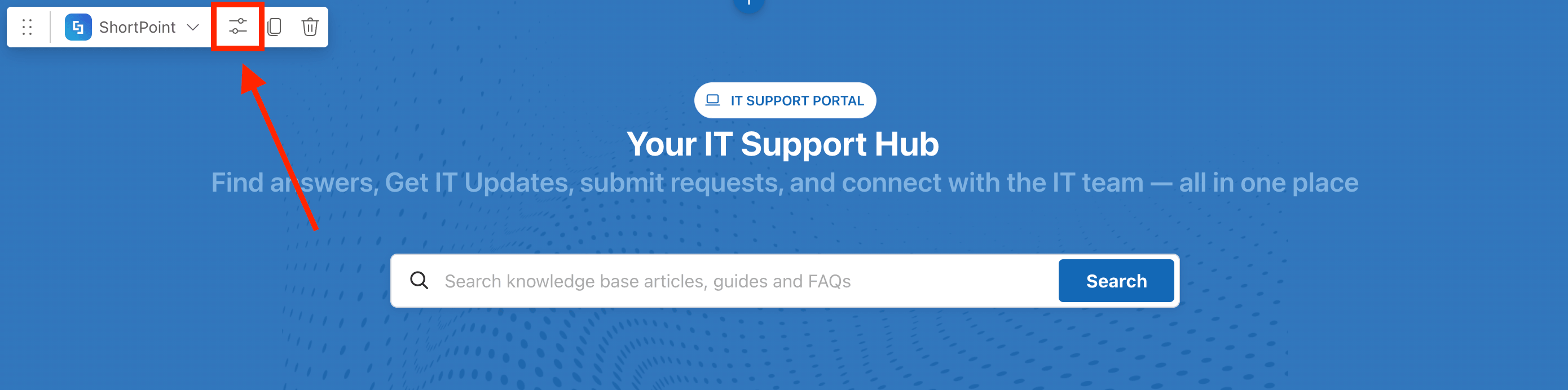
Select the ShortPoint web part and click the Edit Properties icon:
Step 2: Edit the Design Element
NOTEBefore proceeding, you must have the Design Element you want to use for the connection. For this guide, we'll use Icon Boxes.
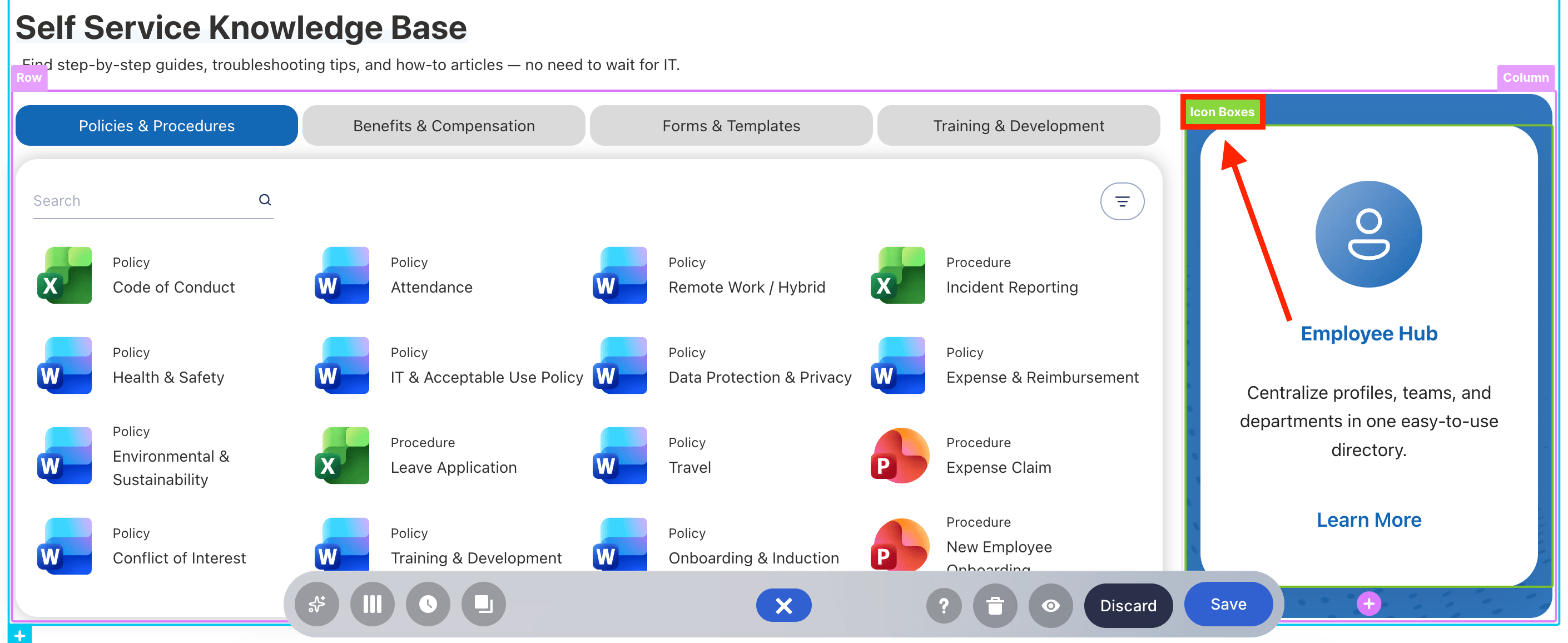
Click the EasyPass tag of the Design Element you’ll use:
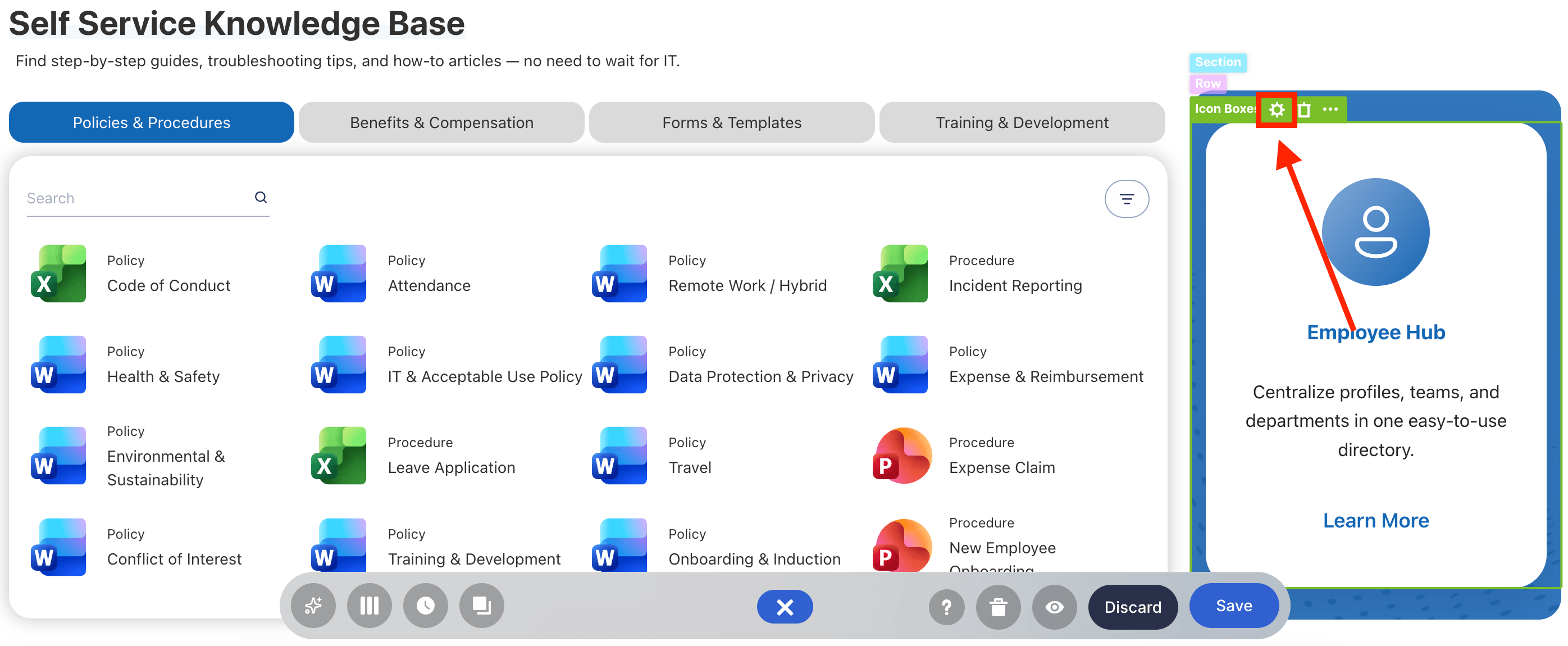
Select the cogwheel icon:
Step 3: Open the Connect Window
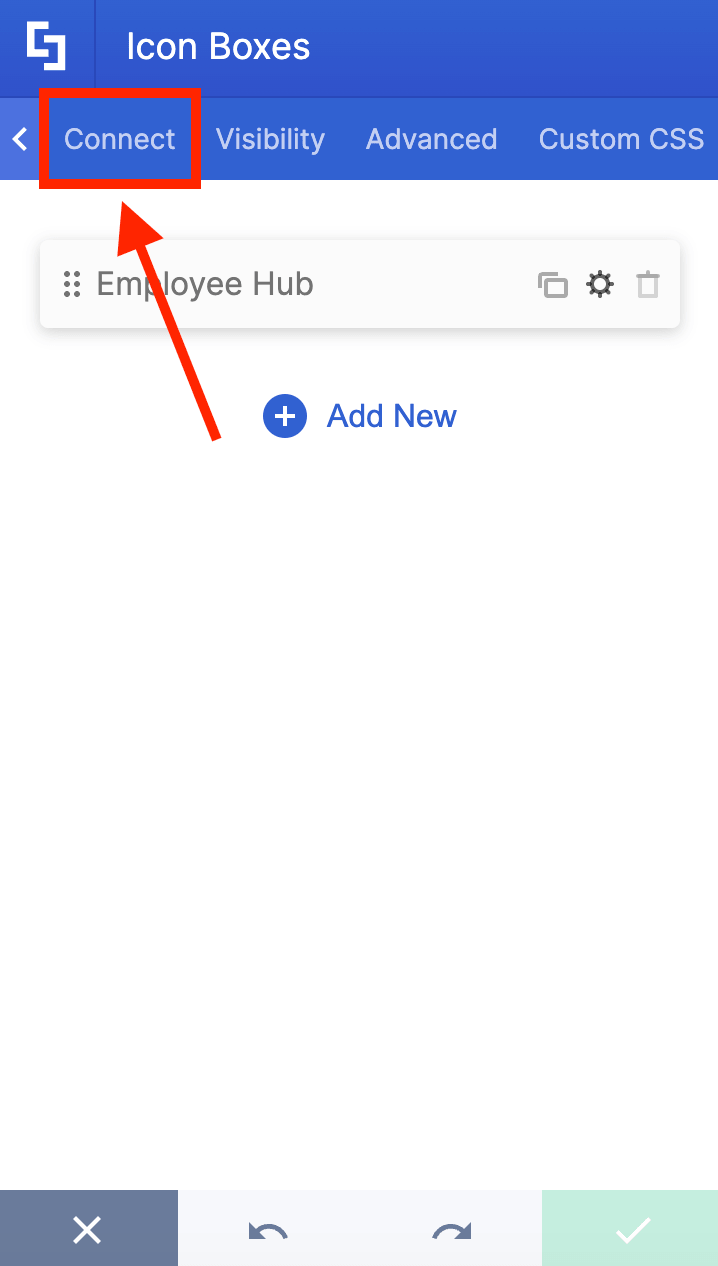
Go to the Connect tab:
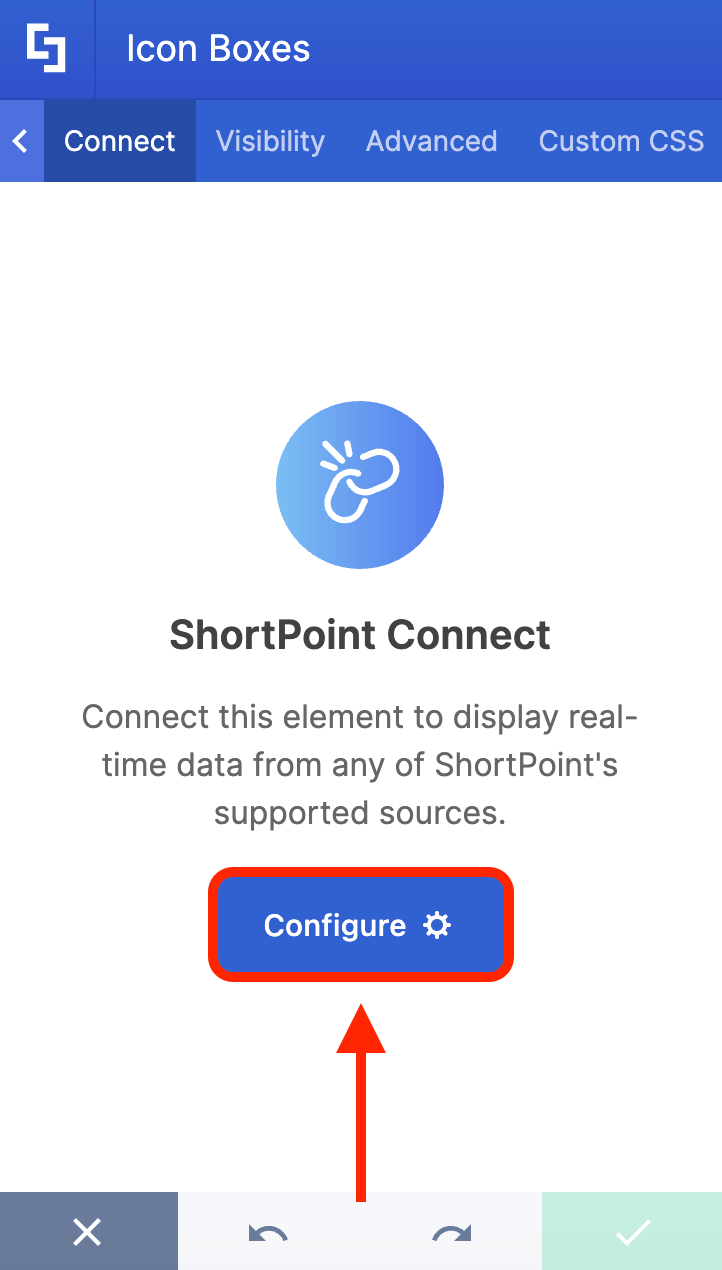
Click Configure to open the connect window:
Step 4: Connect to Microsoft Graph API
Select Microsoft Graph API:
NOTEYou need to enable the Microsoft Graph API connection before using it. Learn more about it in How to Enable Microsoft Graph Integration for MS Graph API Connections.
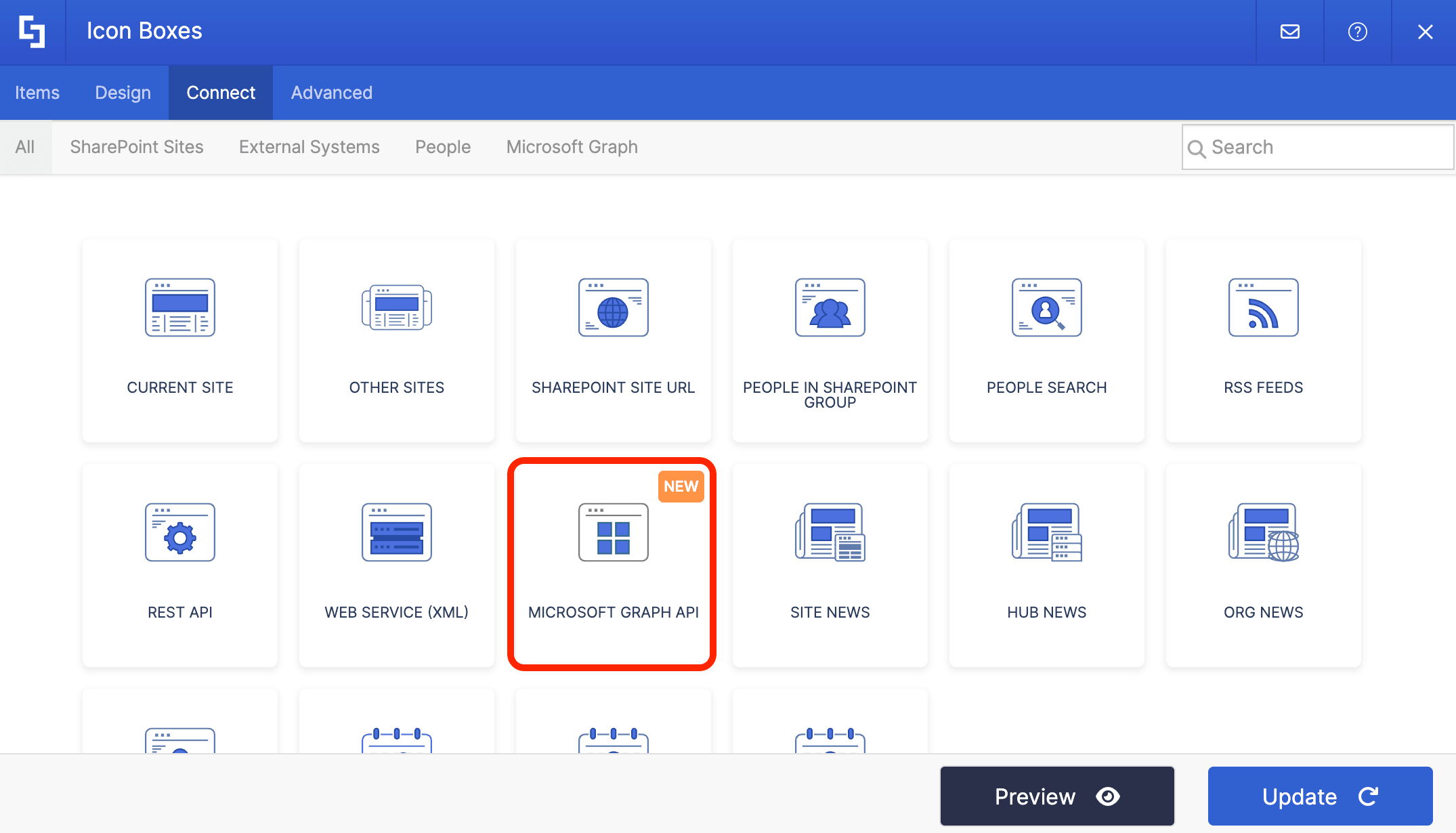
Step 5: Use the Channel Info Use Case
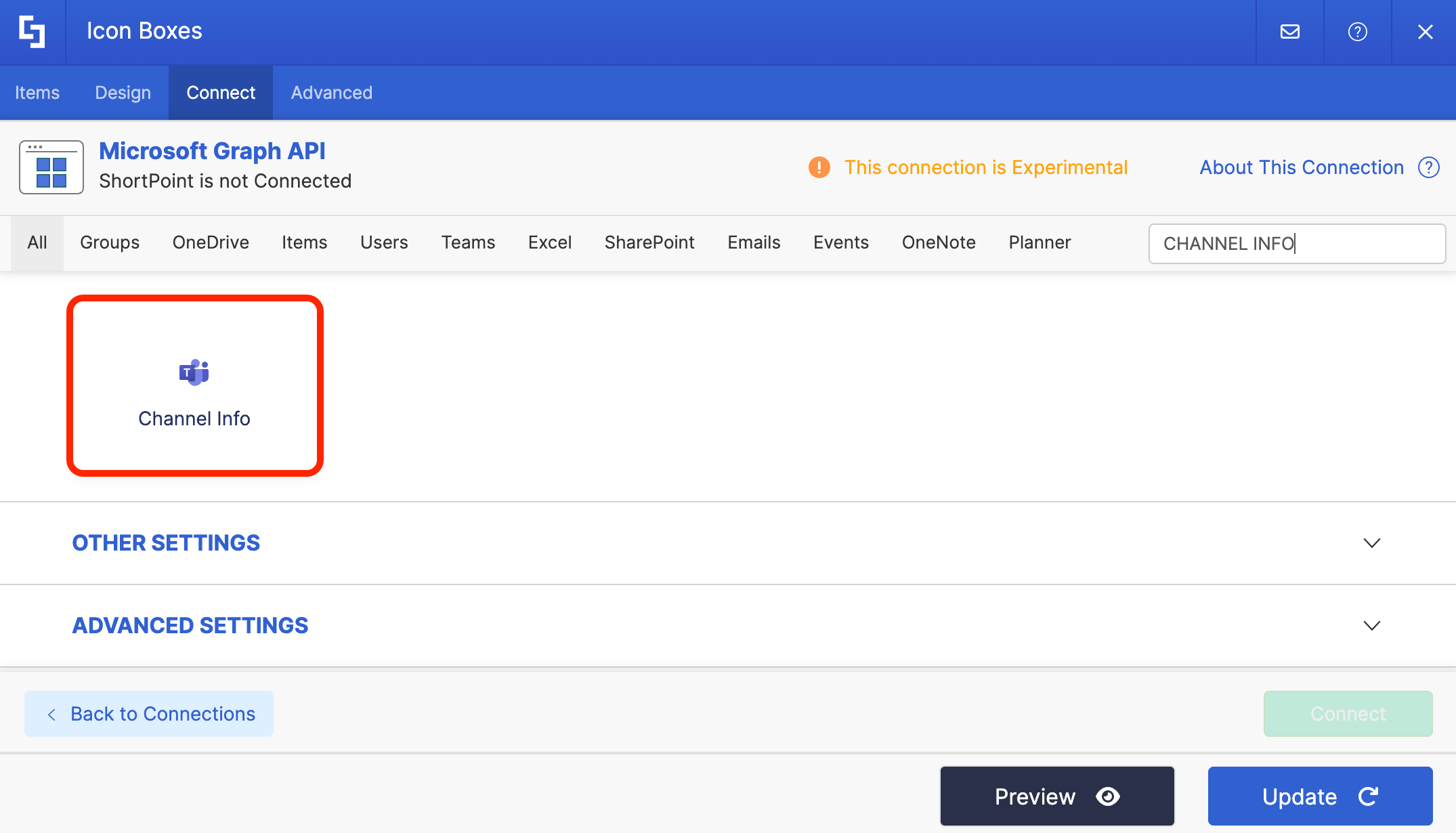
Search for Channel Info and select it:
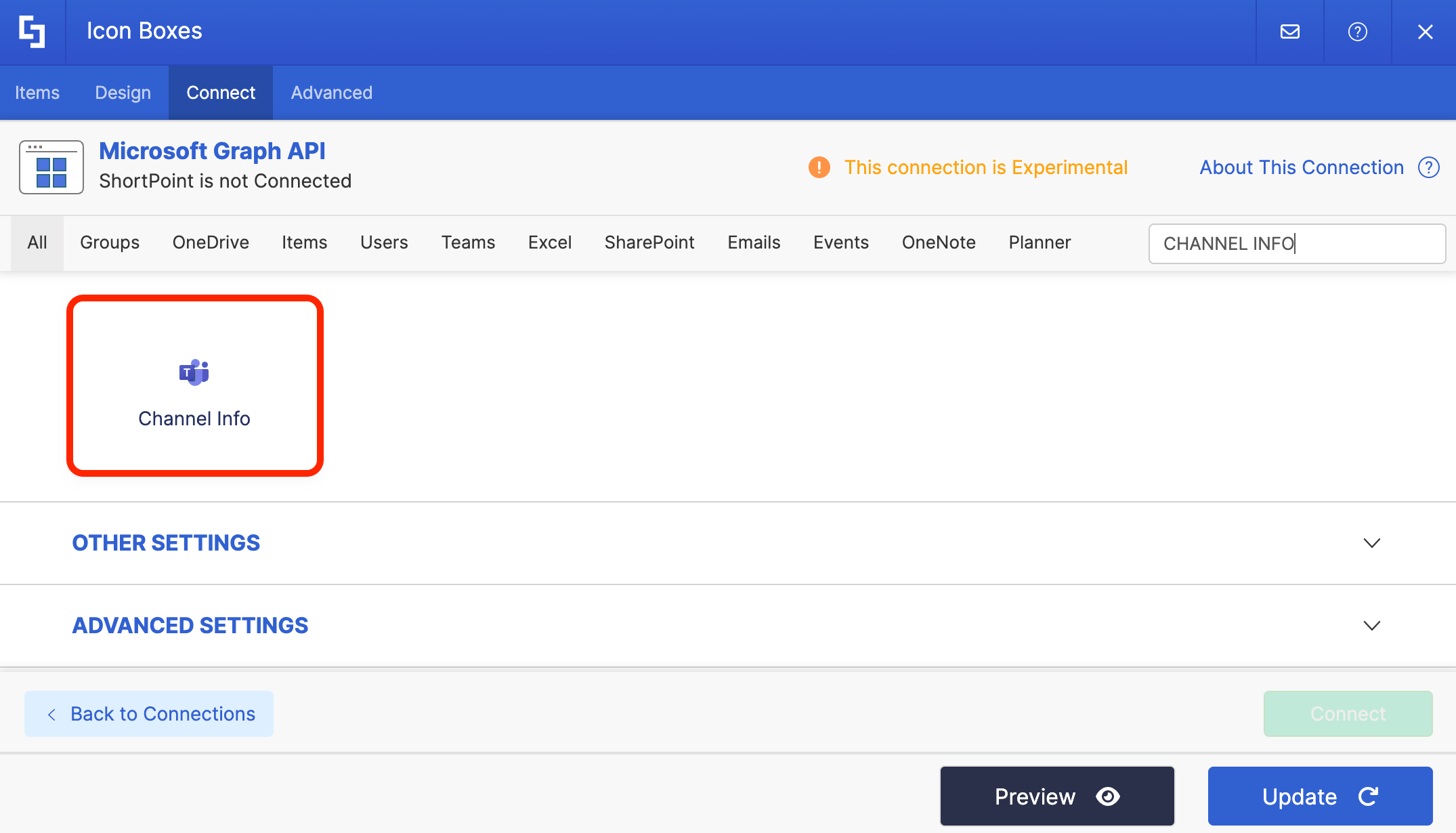
Step 6: Get Team ID
To successfully establish the connection, you need to get the required IDs. Let’s get the Team ID, first. To do that, click Get Parameter:
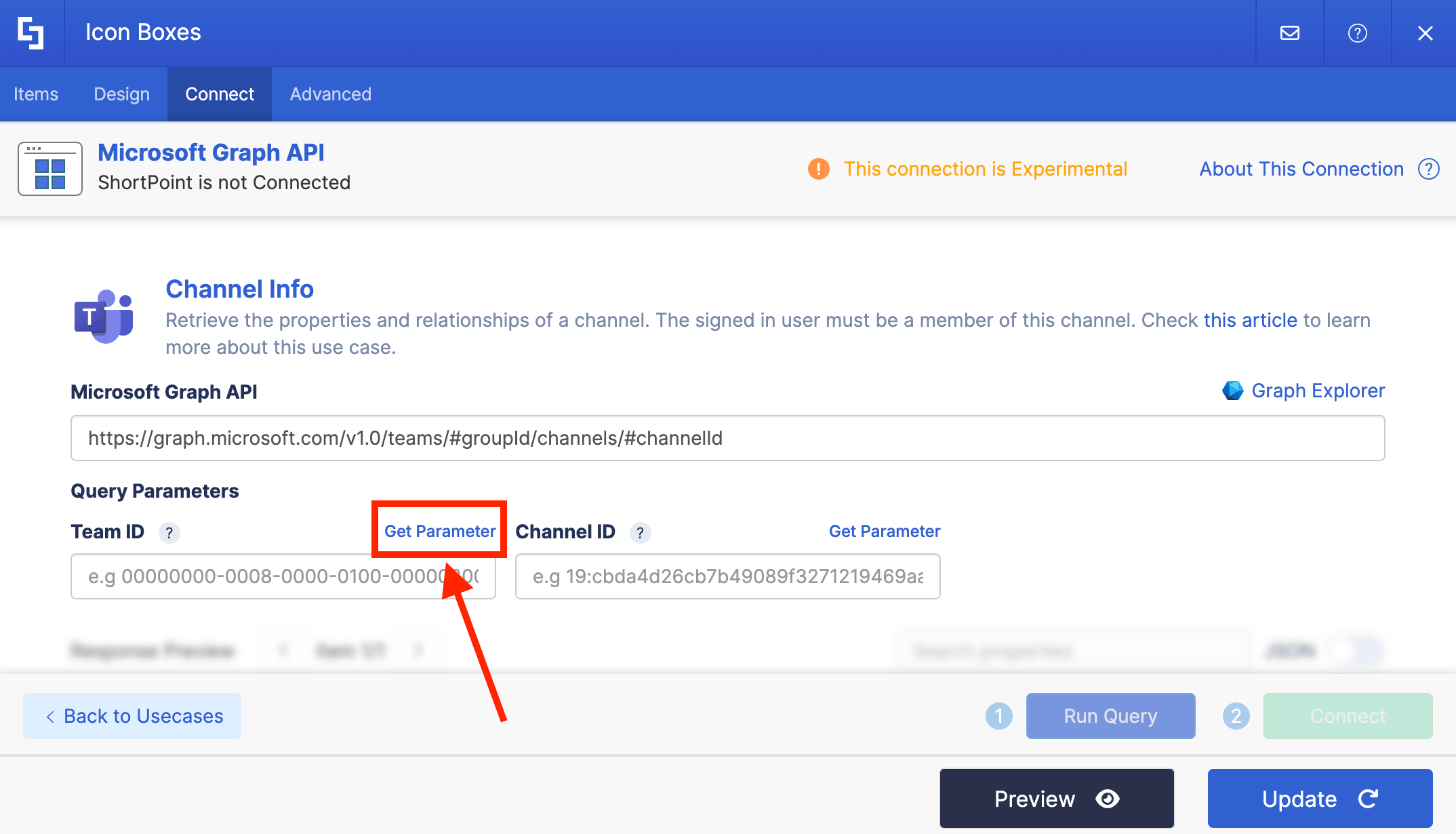
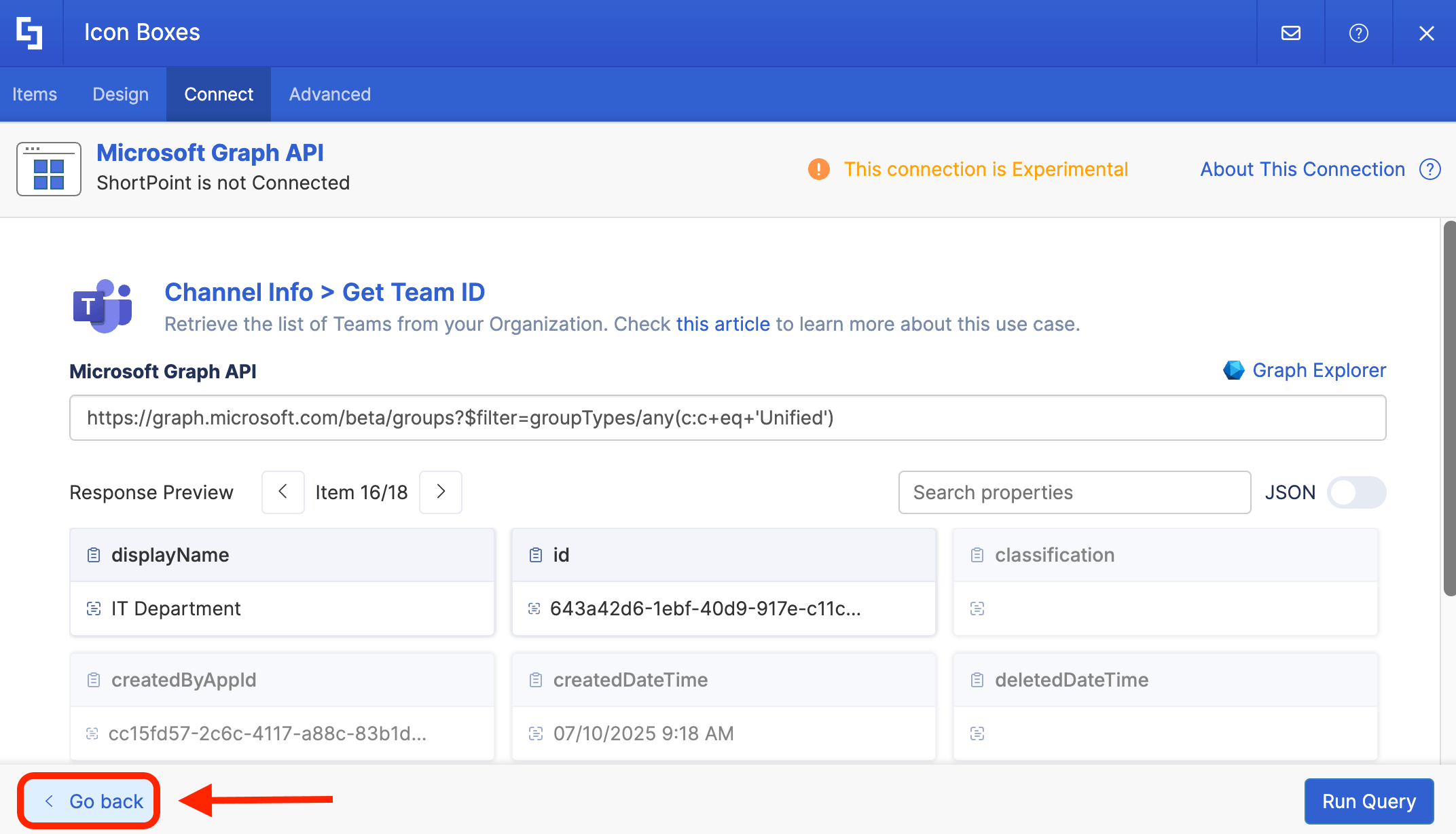
Then, look for the name of your Team and copy its ID:
Click Go Back:
Paste the copied Team ID in the field provided:
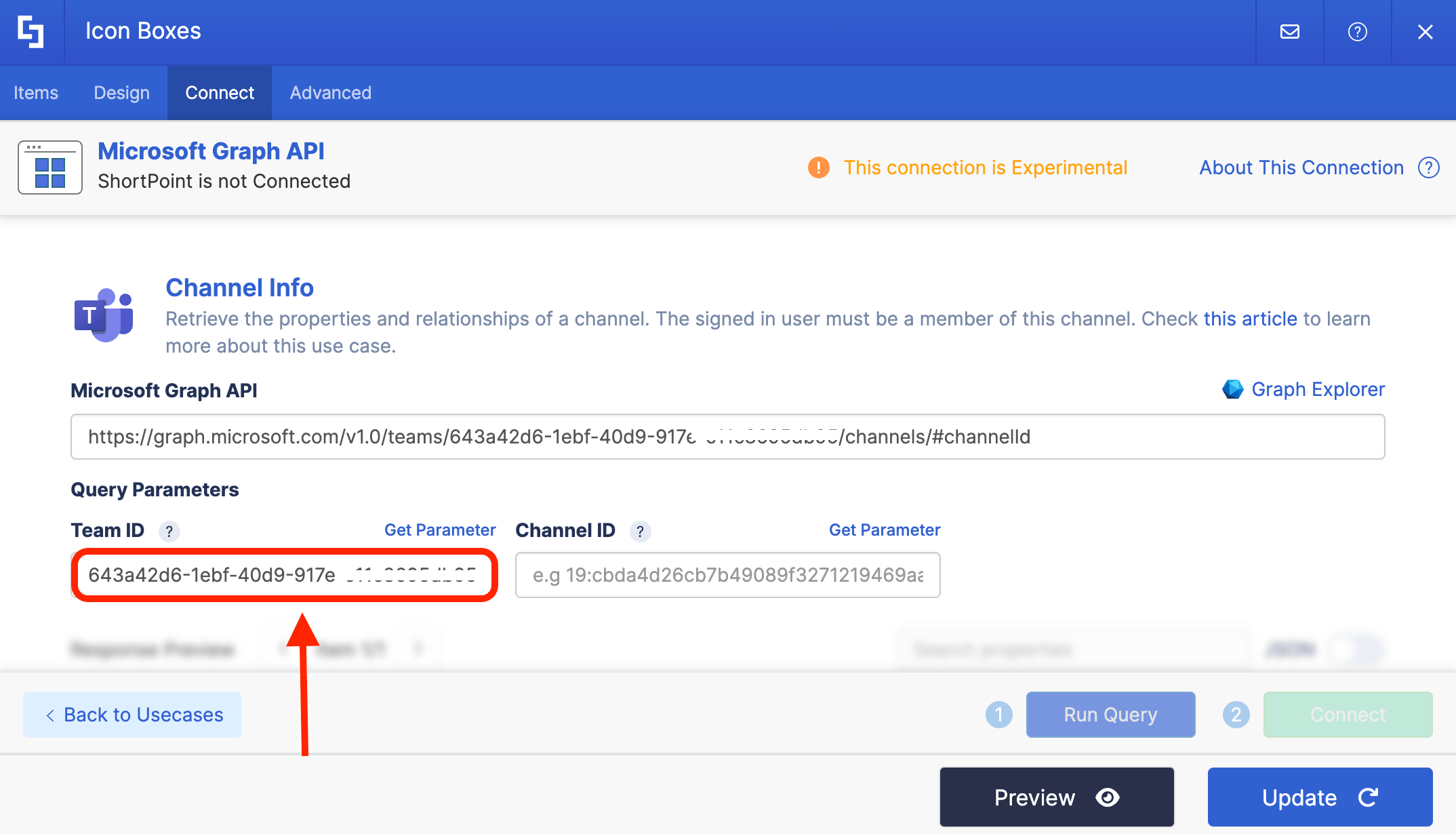
Step 7: Get Channel ID
Click Get Parameter:
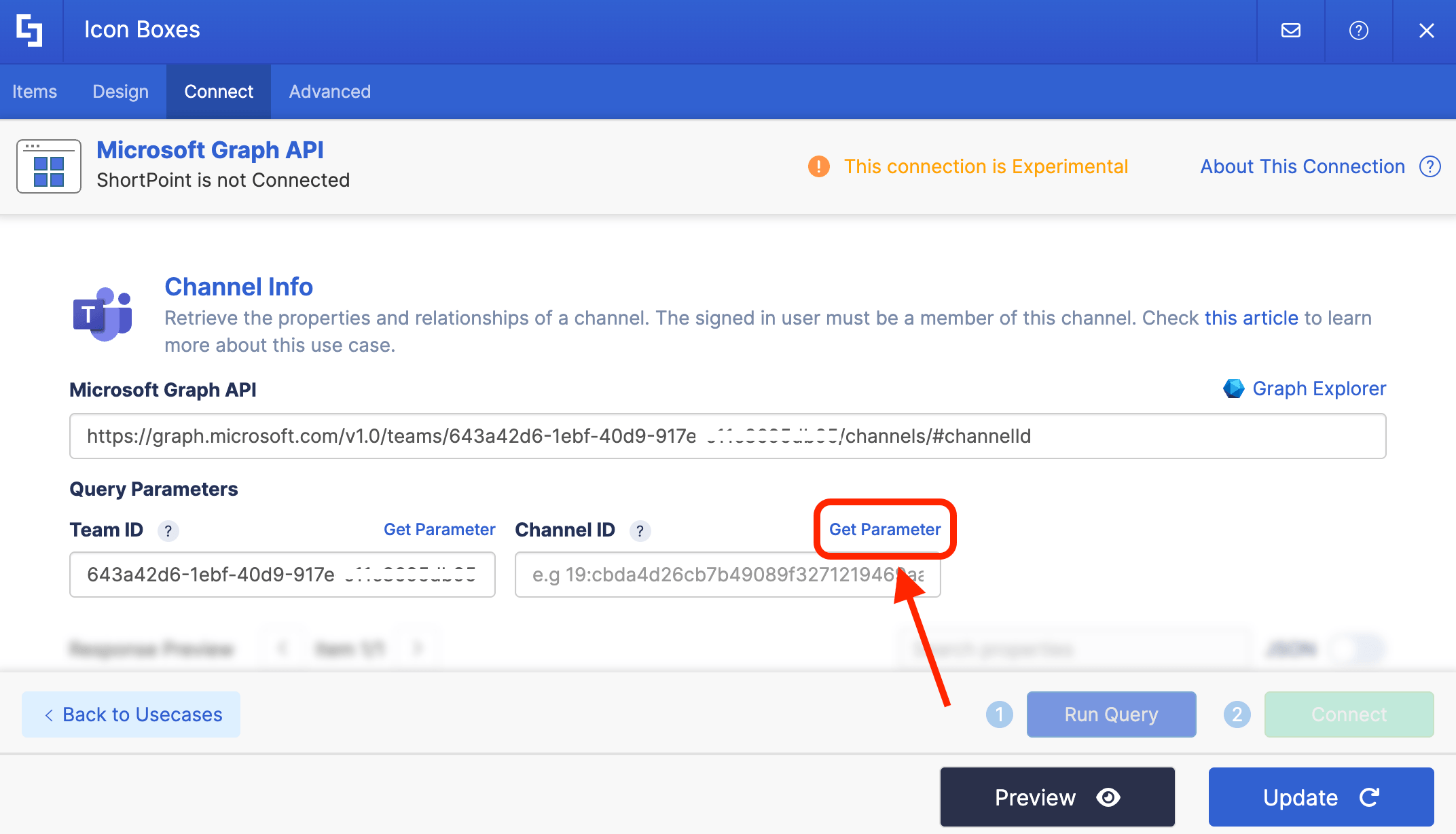
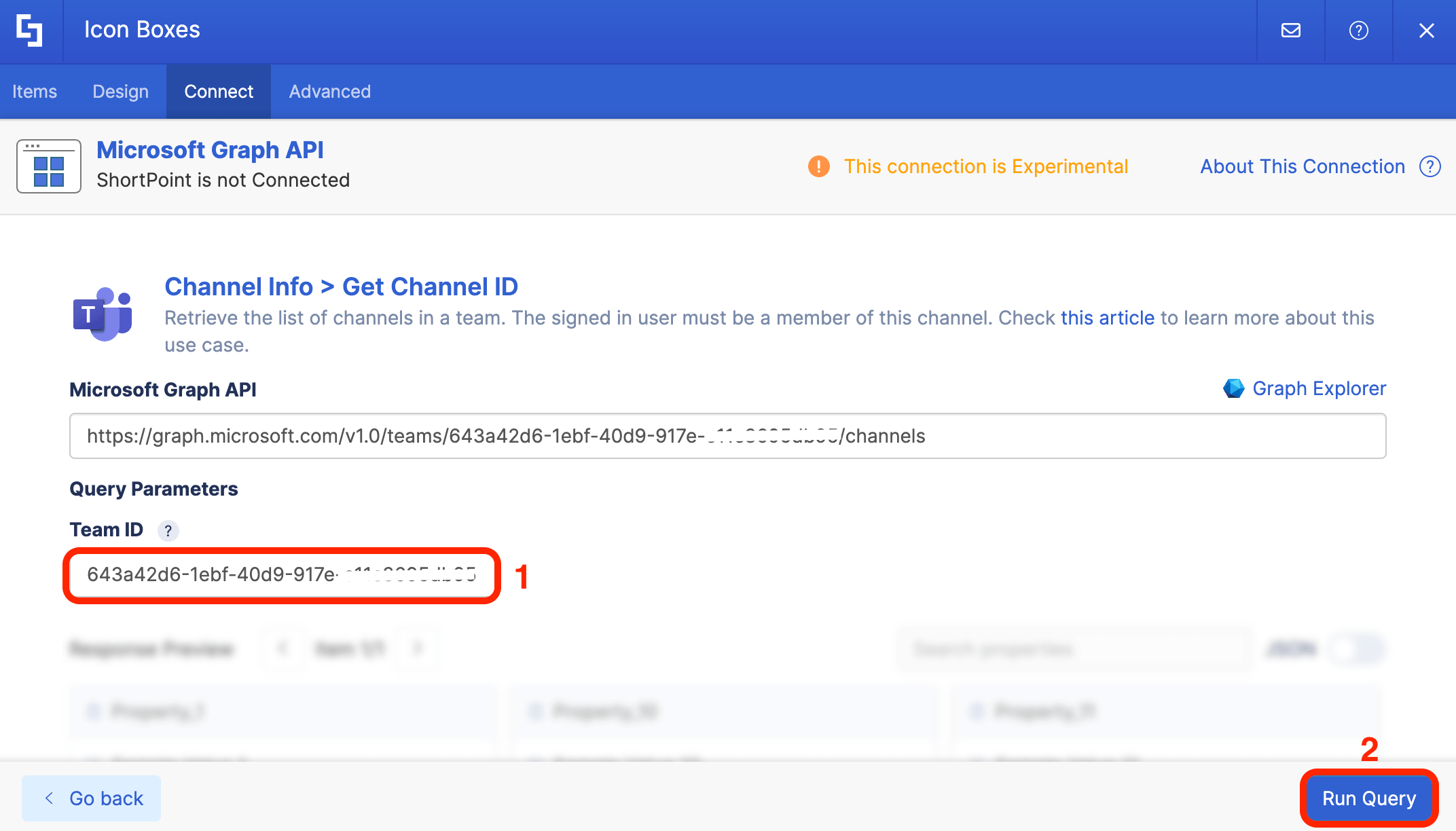
Paste the previously copied [1] Team ID and click [2] Run Query:
Look for the channel you want to use and copy its ID:
Click Go Back:
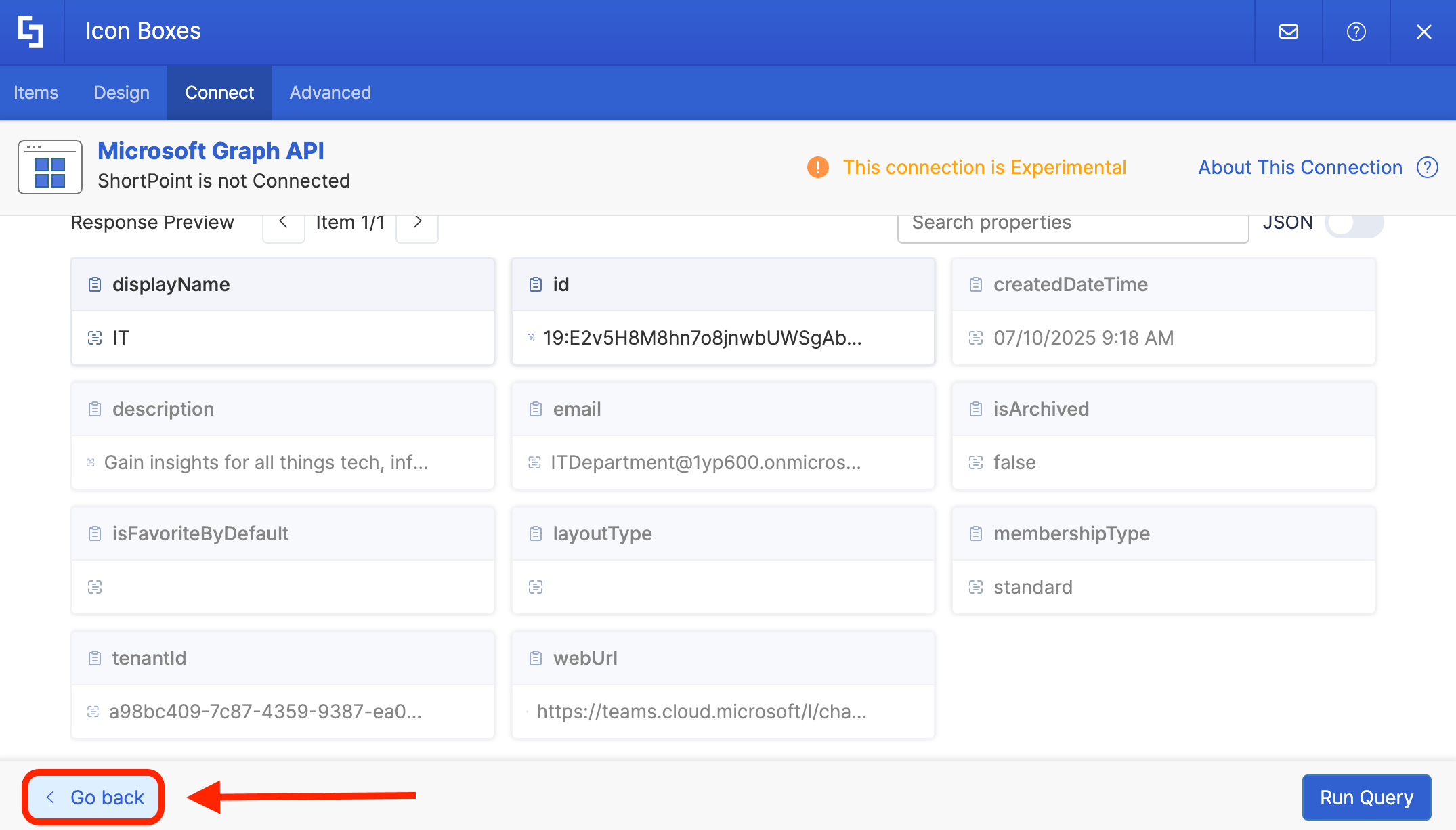
Paste the Channel ID in the field provided:
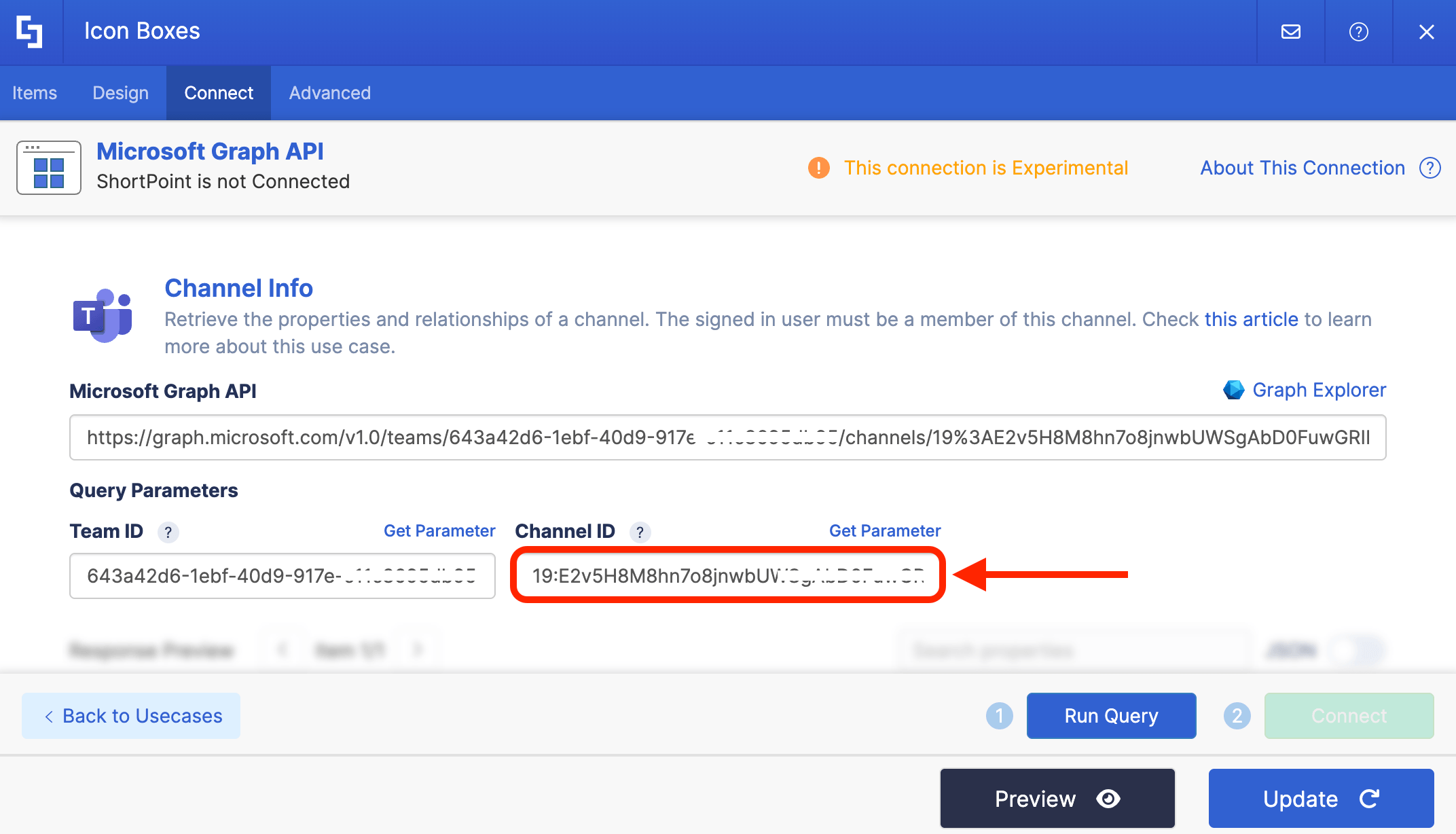
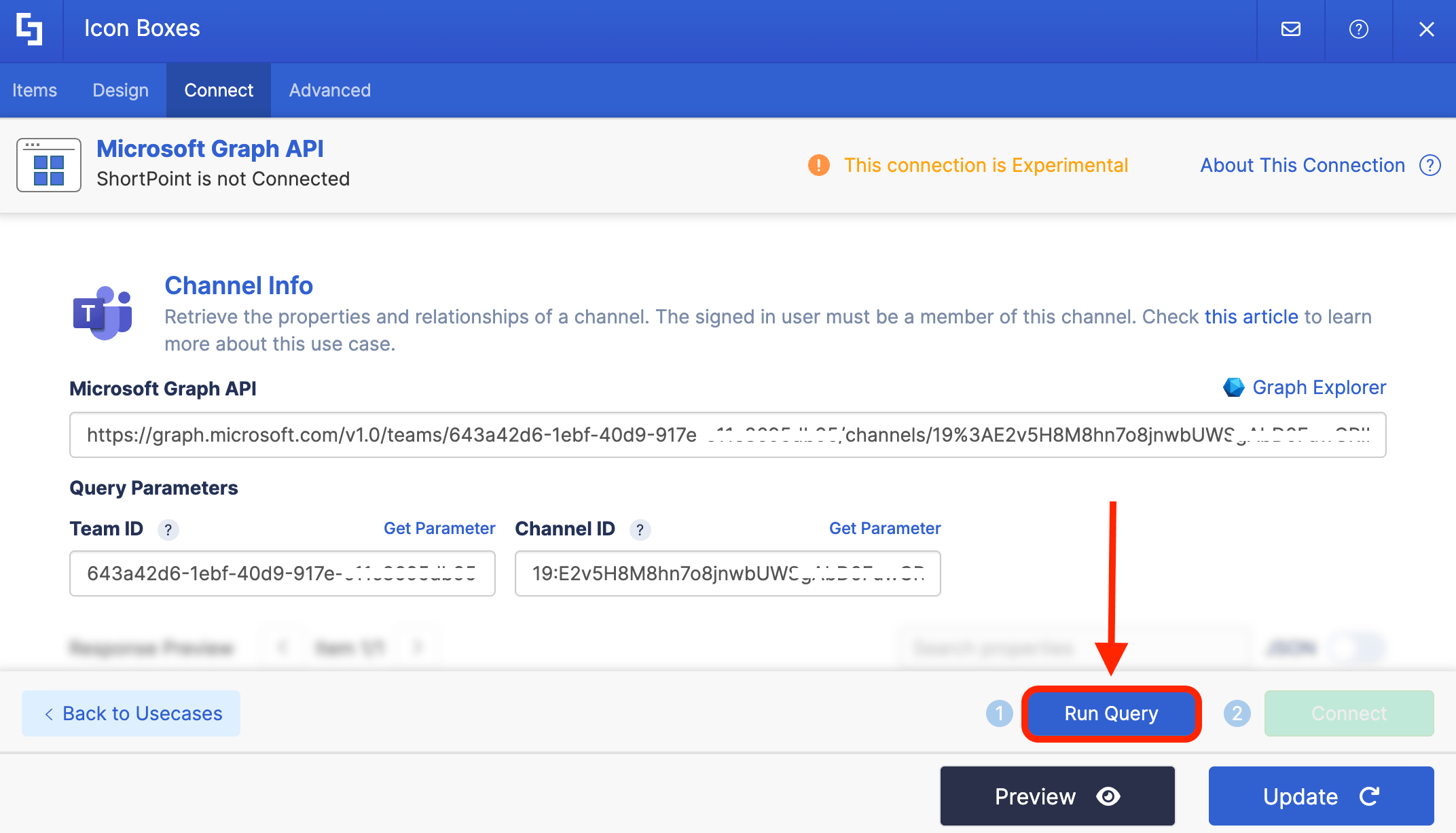
Step 7: Connect
Click Run Query:
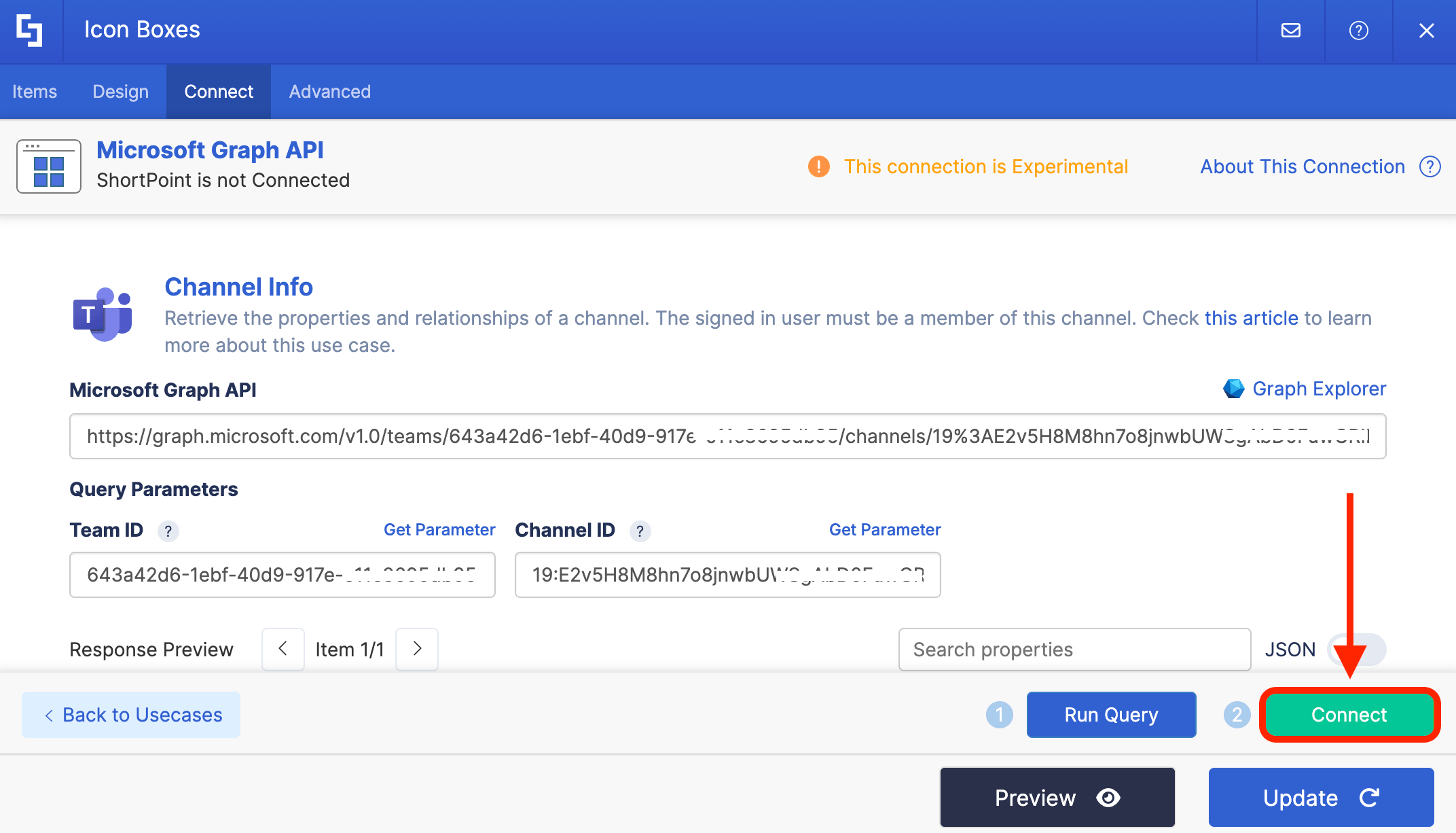
Select Connect:
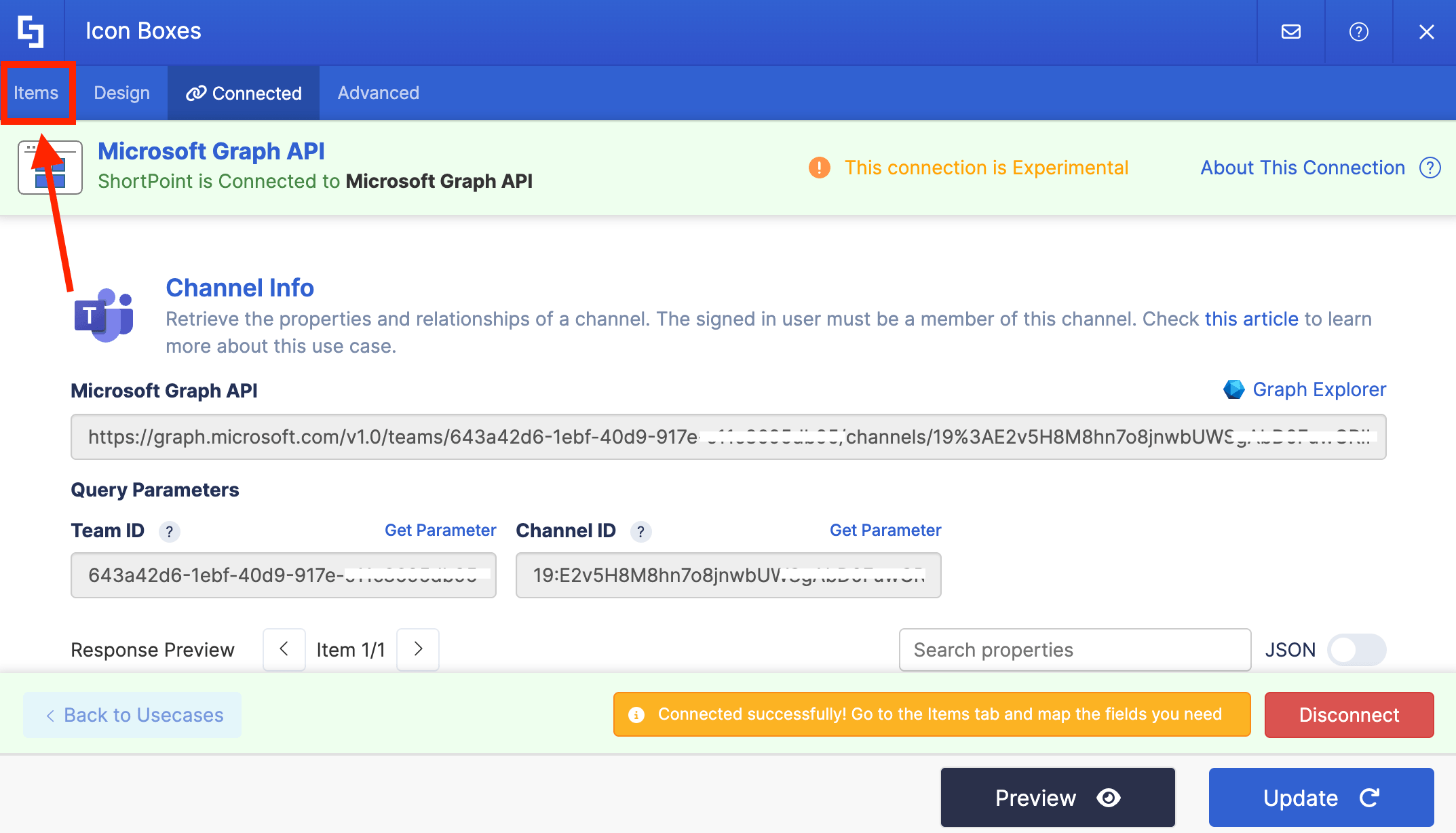
Step 8: Map Items
Go to the Items tab:
Delete default content and use the link icon to map the properties you want to be displayed:
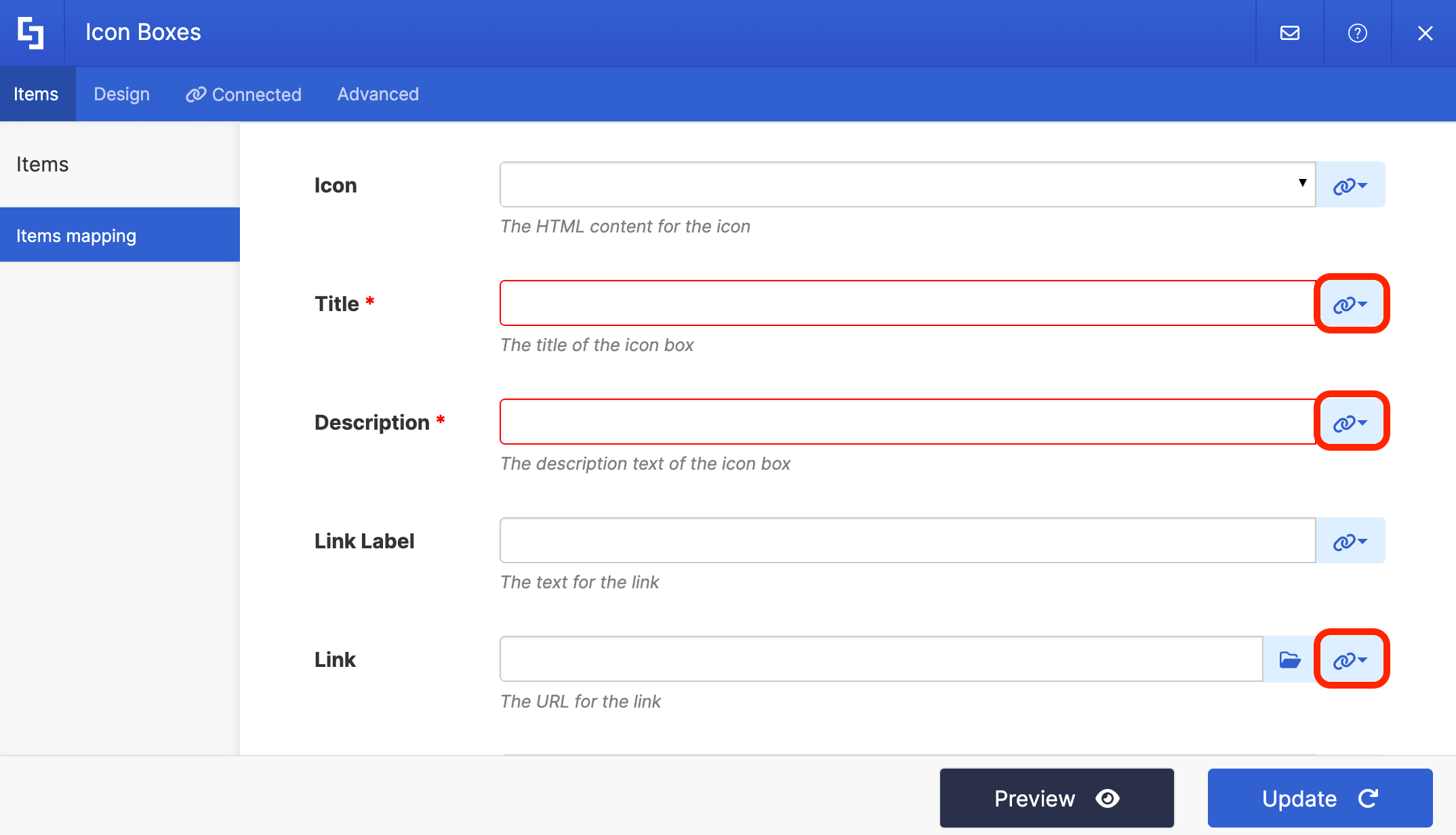
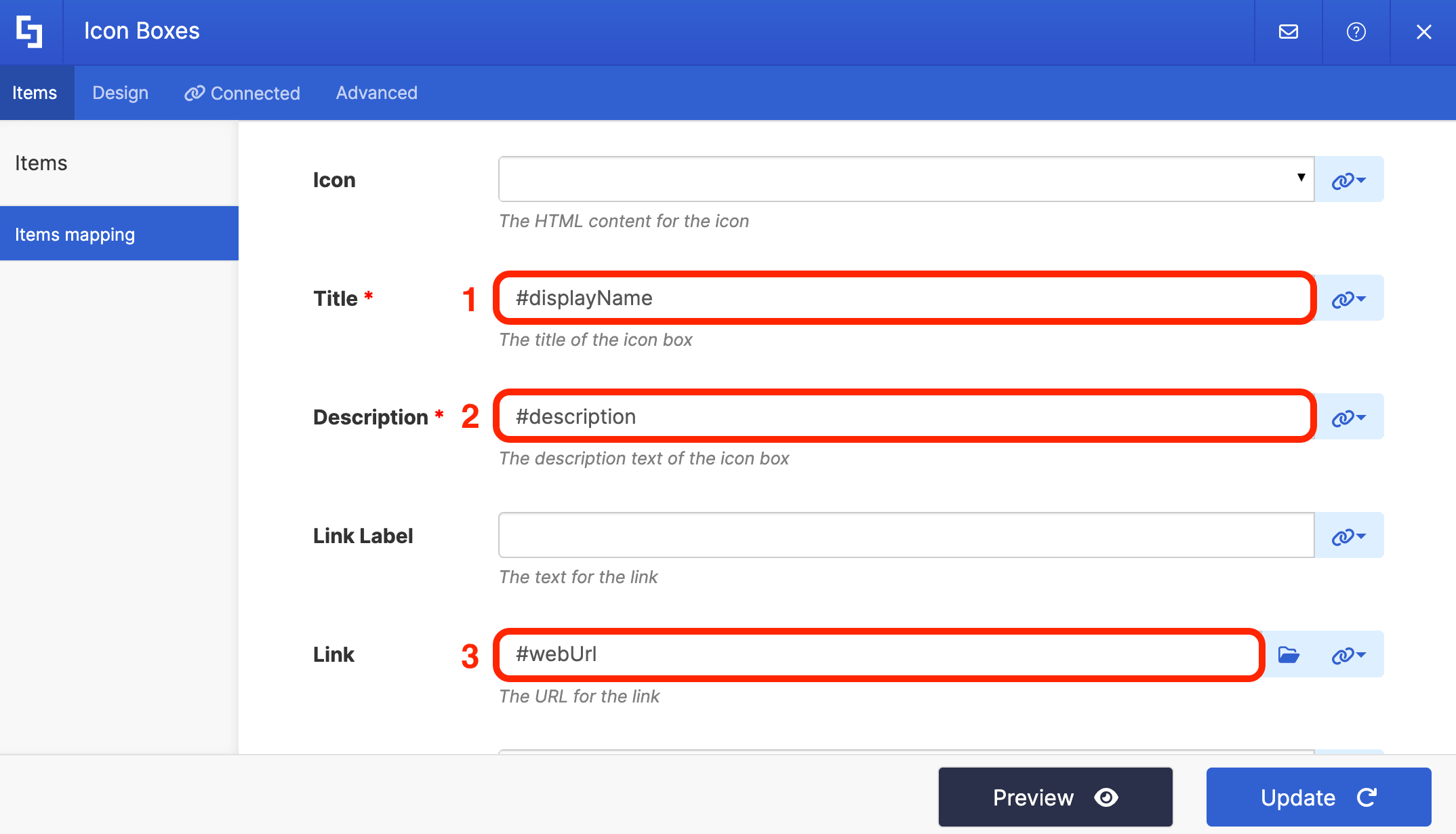
You can map any property you want. In our case, we used the following properties:
- #displayName - shows the name of the channel.
- #description - shows the description of the channel.
- #webUrl - redirects page viewers to the actual Teams channel.
NOTECheck out ShortPoint Connect: How Items Mapping Works to learn more about mapping properties.
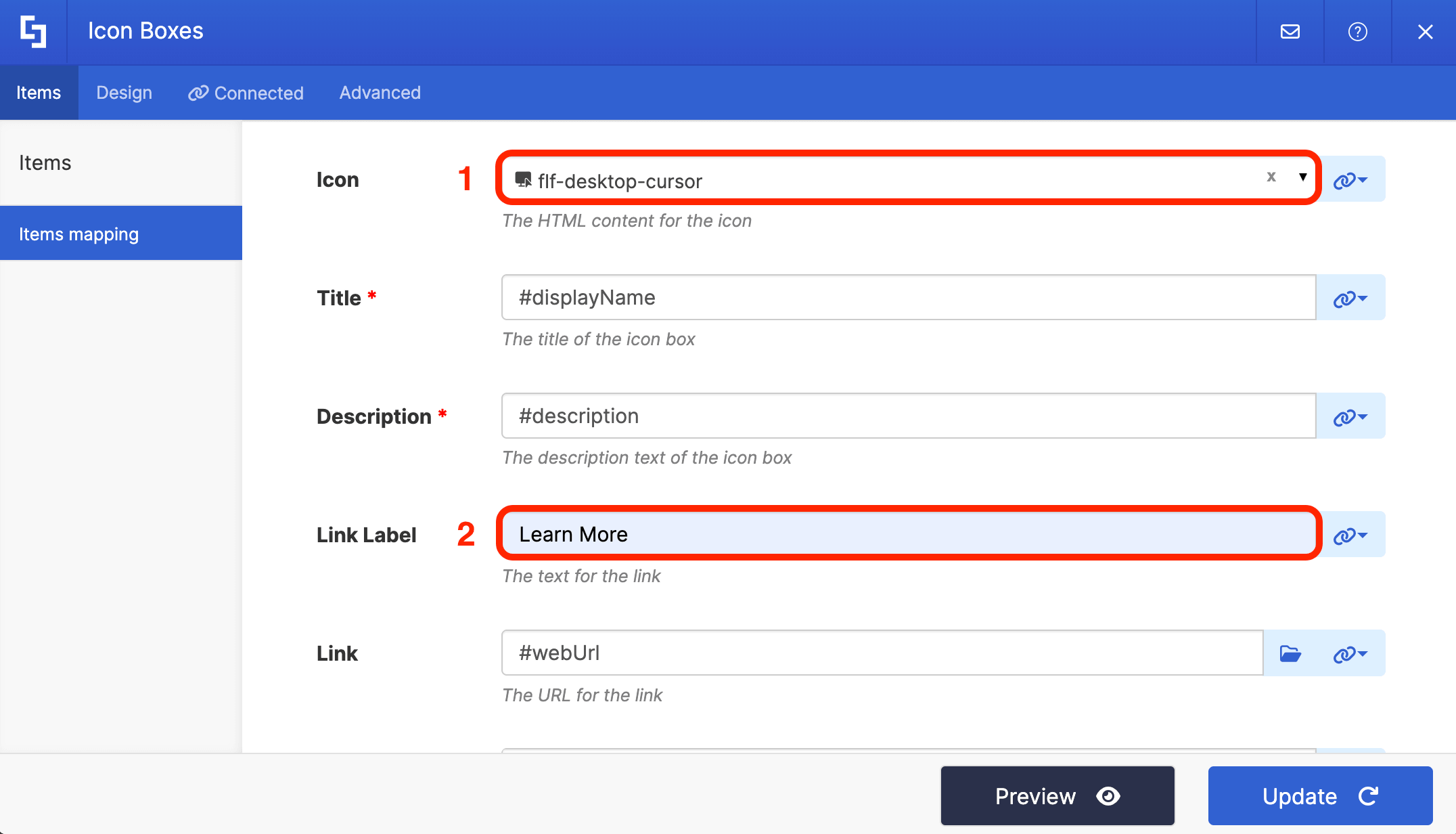
(Optional) If you’re using Icon Boxes, assign an [1] icon and a [2] Link Label:
Step 9: Save
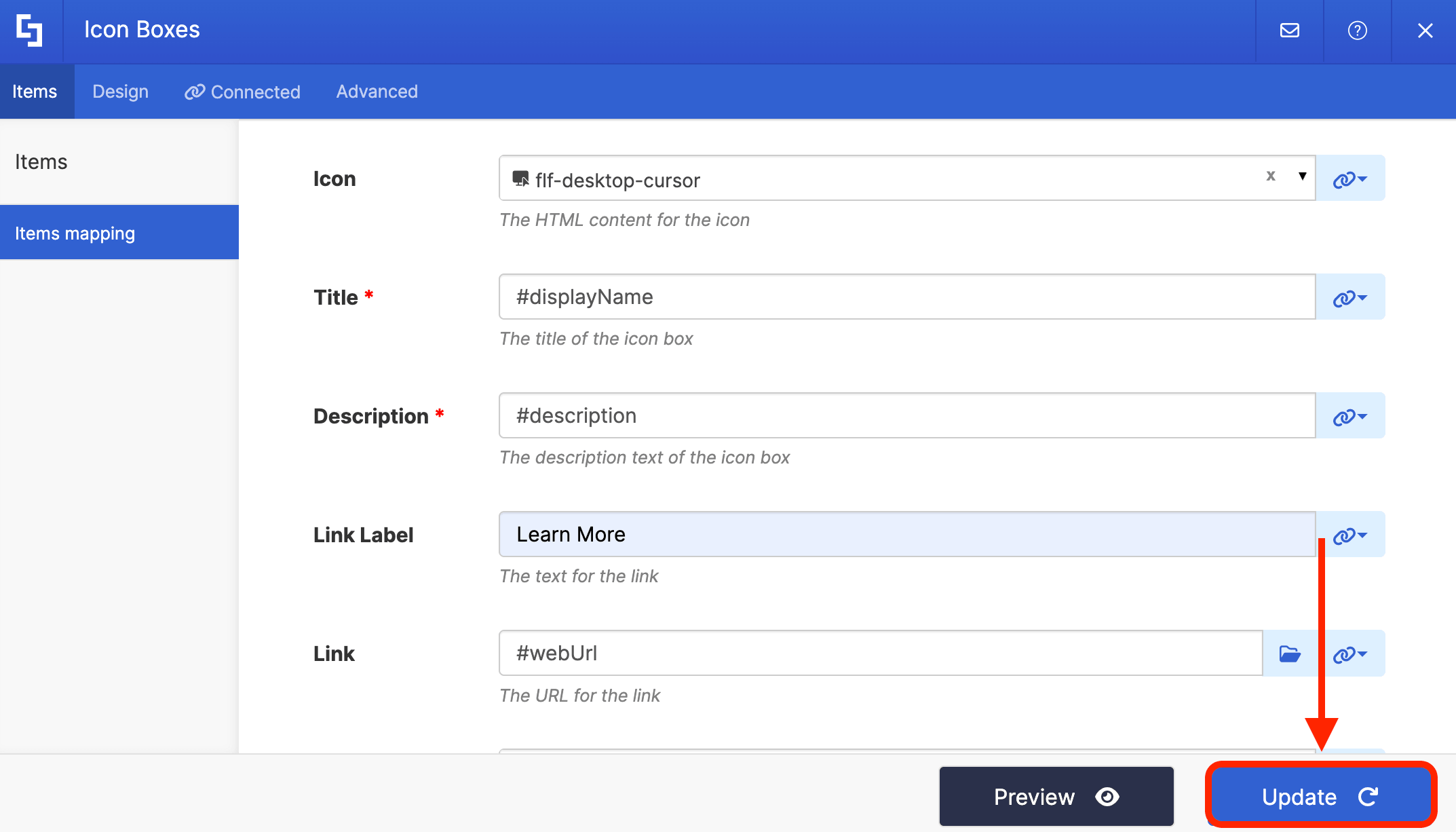
Click Update to apply your changes:
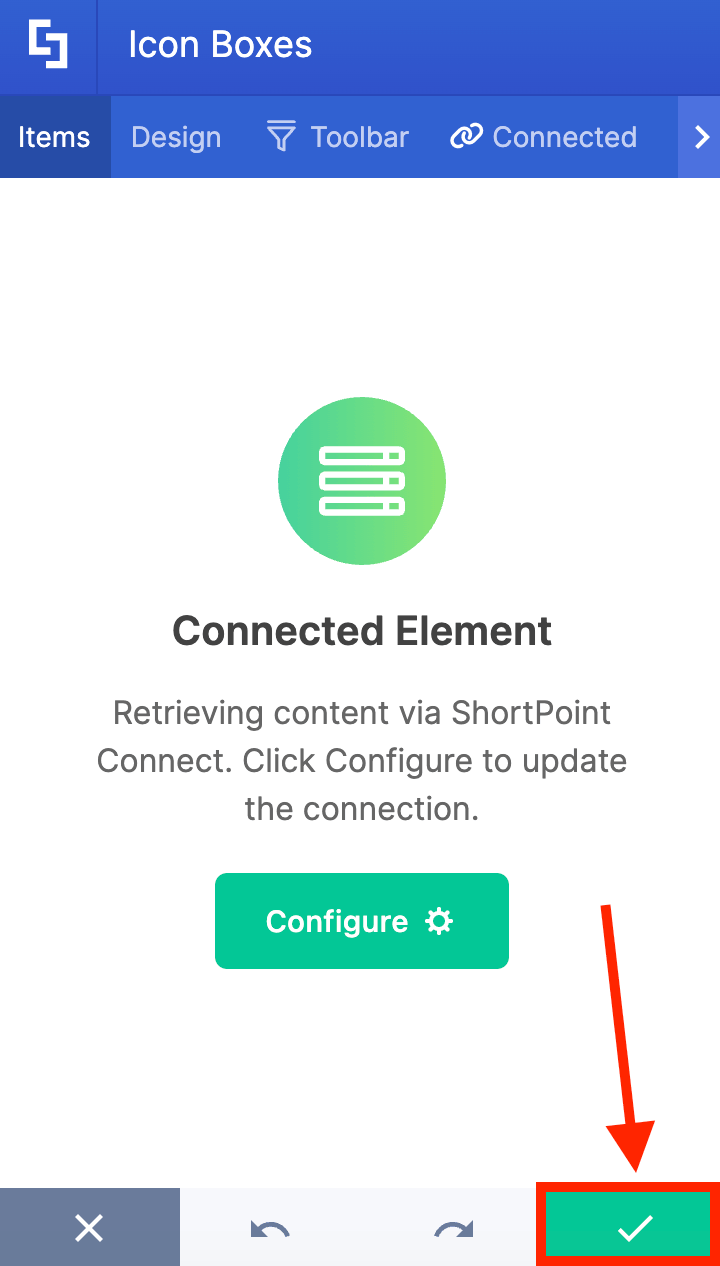
Click the green checkmark:
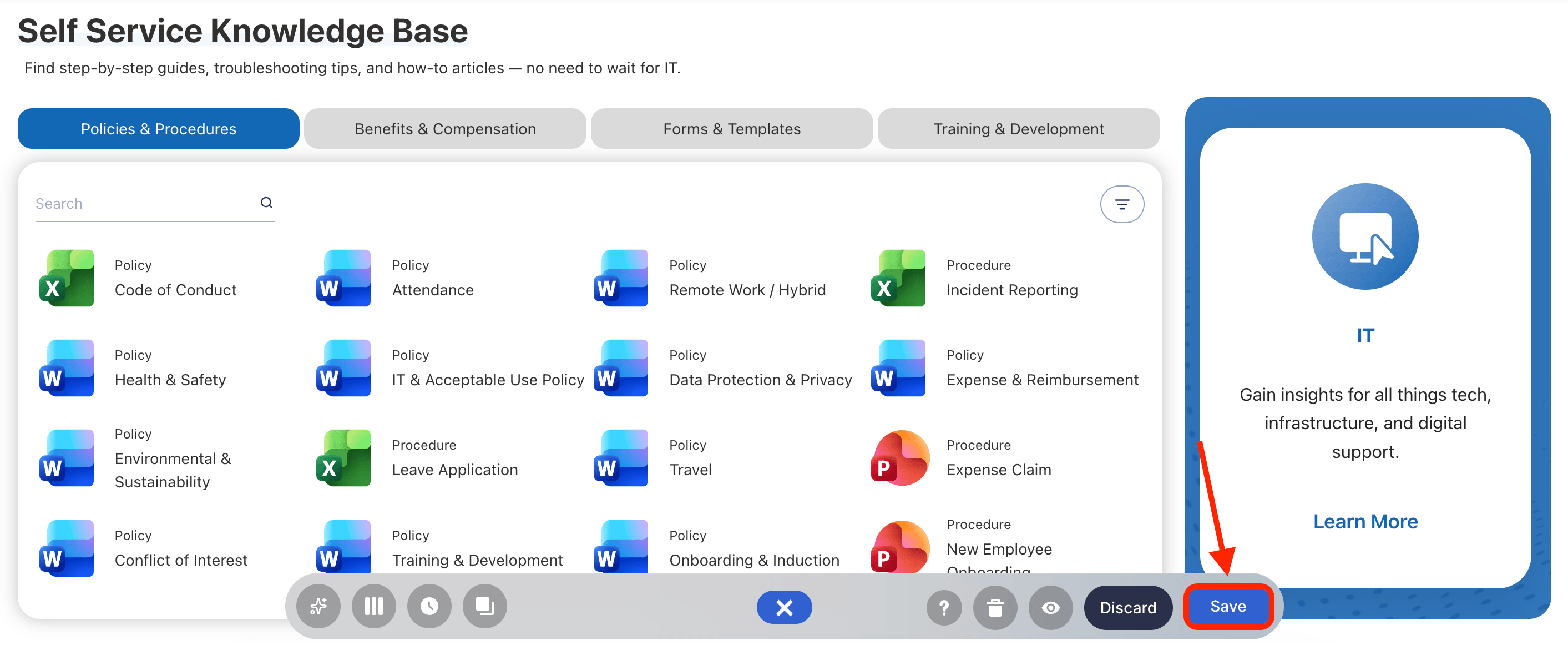
Once satisfied, click Save:
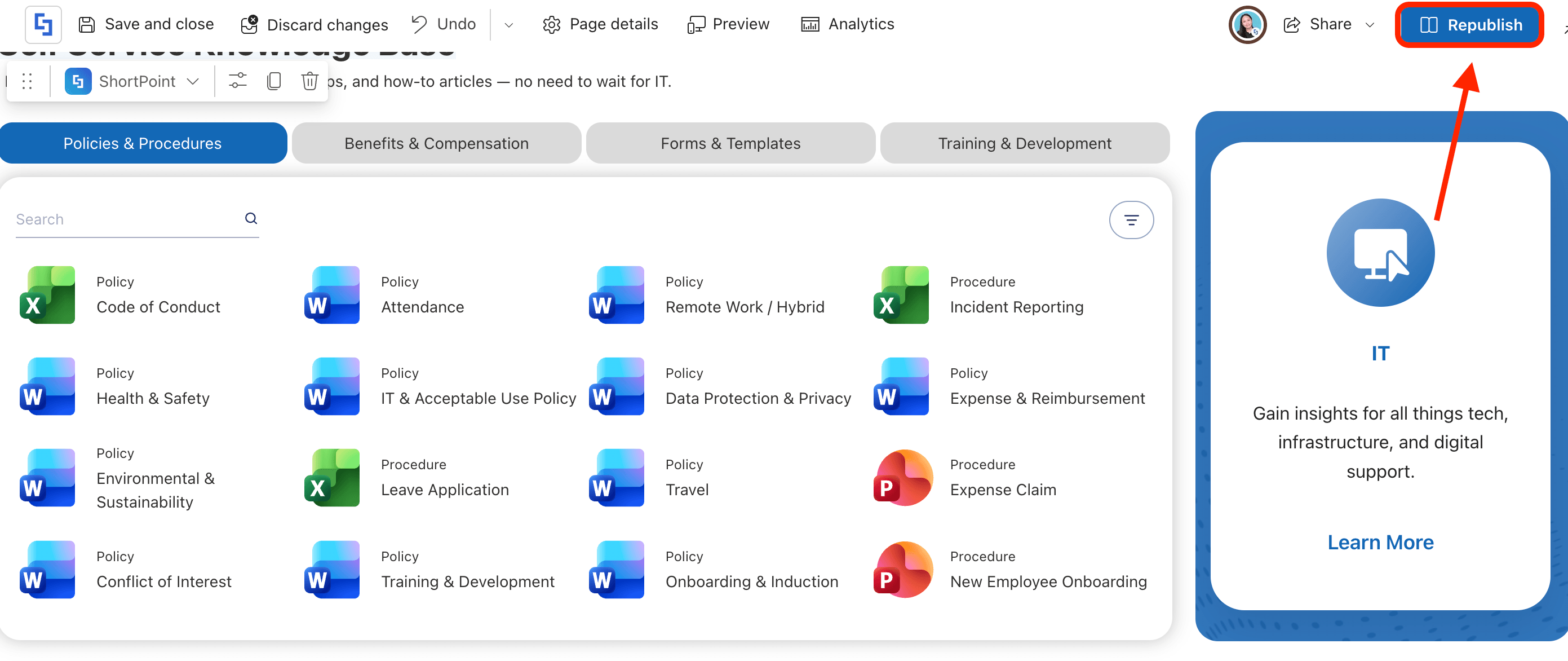
And Publish your page:
Awesome! You can now start showcasing your channel info directly on your SharePoint site, making it easier for your users to access important conversations, share files, and collaborate efficiently using Teams features.
Frequently Asked Questions
What permissions are needed to access channel info via Microsoft Graph API?
You need the Channel.ReadBasic.All permission enabled in the SharePoint Admin Center to access channel info across the organization. This permission allows fetching channel metadata to display on SharePoint pages.
Can I display channel info for any team within my organization?
Yes, as long as you have the necessary permissions and the team and channel IDs, you can display channel info for any team within your organization using the Microsoft Graph API connection.
Is it possible to link directly to a Teams channel from SharePoint?
Yes, the channel info includes a webUrl property that you can map to provide a direct link to the actual Teams channel for easy access.
Can I customize which channel properties are shown on my SharePoint page?
Yes, using the Items tab in ShortPoint Connect, you can map and display any channel properties you want, such as display name, description, or channel URL. For more information, check out ShortPoint Connect: How Items Mapping Works.
Related articles:
