 Try ShortPoint now
Want to showcase the emails of a specific person in your organization? You can easily accomplish this using the Microsoft Graph API connection.
This article will show you exactly how to show Outlook emails of a specific user efficiently.
TABLE OF CONTENTS
- Prerequisites
- What is the “User's Emails” Use Case?
- Step-by-step Tutorial
- Frequently Asked Questions
- What is the “User's Emails” use case in Microsoft Graph API?
- What permissions are required to show Outlook emails of a specific user?
- Can I display emails from multiple users in SharePoint using this method?
- Which ShortPoint Design Elements work best for showing Outlook emails?
- What type of ShortPoint license do I need to use the Microsoft Graph API integration?
- Is it possible to customize how Outlook emails are displayed in SharePoint?
- How do I enable Microsoft Graph API connection in ShortPoint?
- What is the benefit of integrating Outlook emails with SharePoint?
Prerequisites
- You must have ShortPoint SPFx version 8.6.0.0 and up installed.
- You also need to be a ShortPoint Designer with either a Pro or Enterprise license. For more details, check out Licensing Options.
- You must have the Microsoft Graph API connection enabled. Go to How to Enable Microsoft Graph Integration for MS Graph API Connections to learn how.
- You must authorize the necessary permissions (Mail.Read) in the API access page. To check, go to your SharePoint Admin Center > Advanced > API access.
- You must have the Design Element you want to use to connect on your SharePoint page. For best results, we recommend using Design Elements that allow listing of multiple items (Icon List, Simple List, Tiles, etc.).
What is the “User's Emails” Use Case?
The User's Emails use case allows you to retrieve all the Outlook emails of a specific user. This includes who sent it, who received it, the subject line, the body text (HTML or plain text), web links to the message, and timestamps.
With this use case, you can keep track of important emails for a specific user, ensuring you never miss out:
The typical structure of this use case is:
https://graph.microsoft.com/v1.0/users/#emailAddress/messages
You must enable the following permissions in the SharePoint Admin Center to use it:
- Mail.Read - gives permission to read emails and the contents of the message
NOTEIf you haven’t given access to the permissions above, go to your SharePoint Admin Center > Advanced > API access.
Step-by-step Tutorial
Follow the steps below to learn how to use the User's Emails use case to display the Outlook emails of a specific user in SharePoint.
Step 1: Edit the ShortPoint Web Part
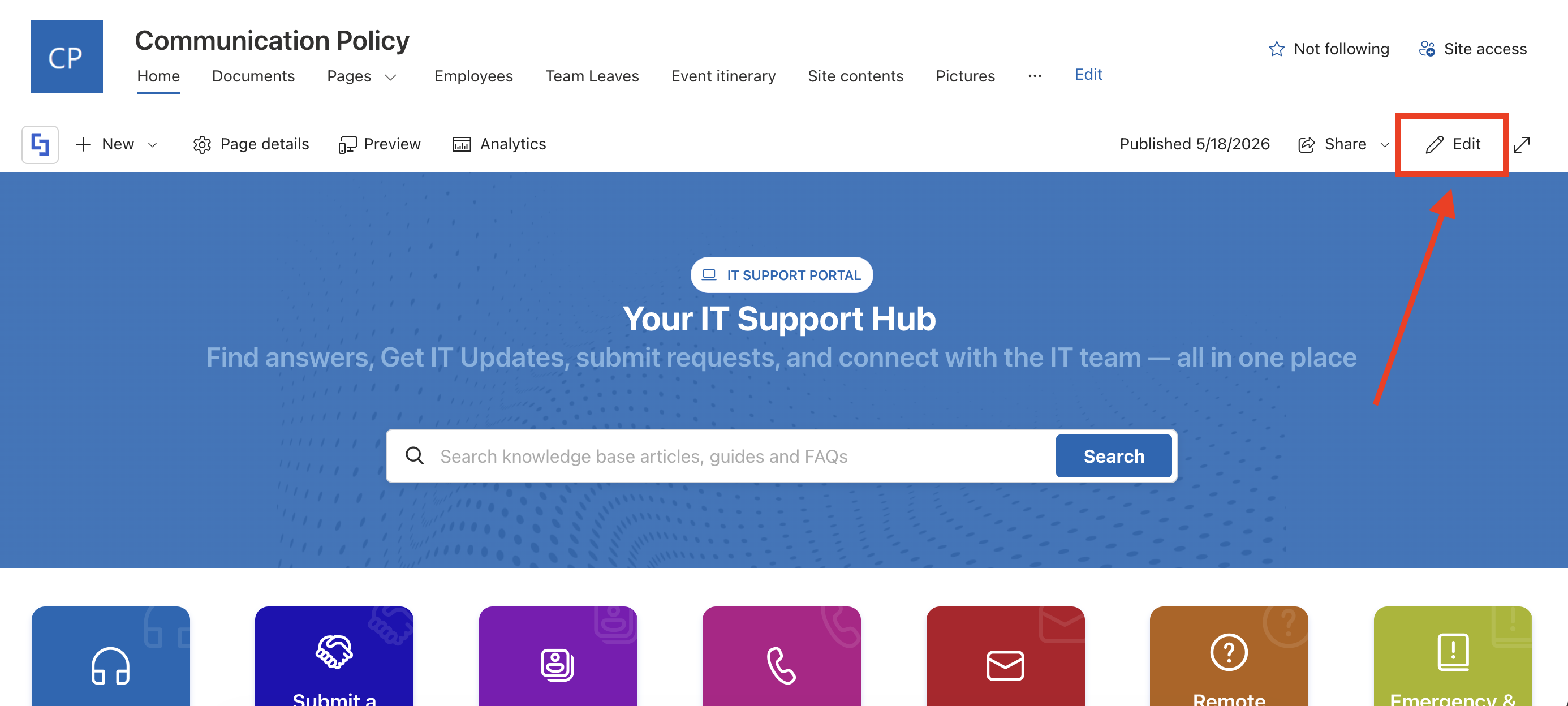
Go to the SharePoint page you want to use and click Edit:
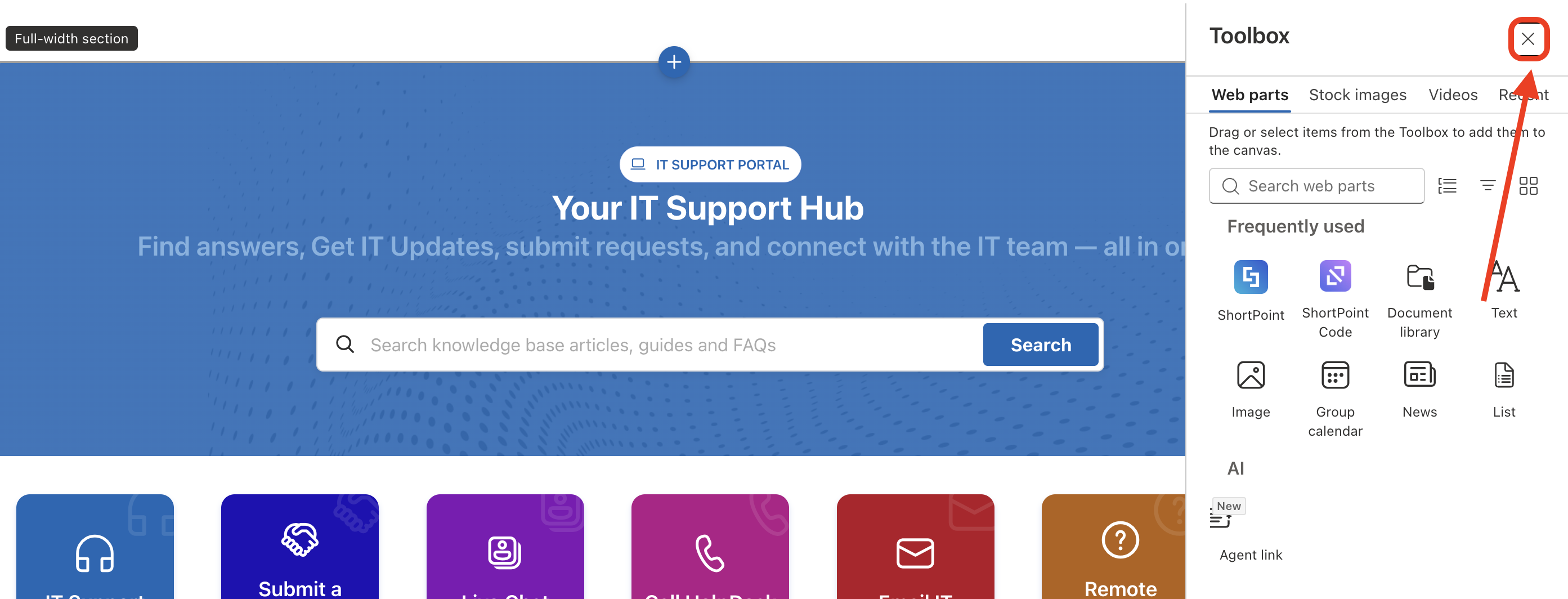
Close the Toolbox:
Select the ShortPoint web part and click the Edit Properties icon:

Step 2: Edit the Design Element
NOTEYou can use any Design Element you want. For best results, we recommend using Design Elements that allow listing of multiple items (Icon List, Simple List, etc.)
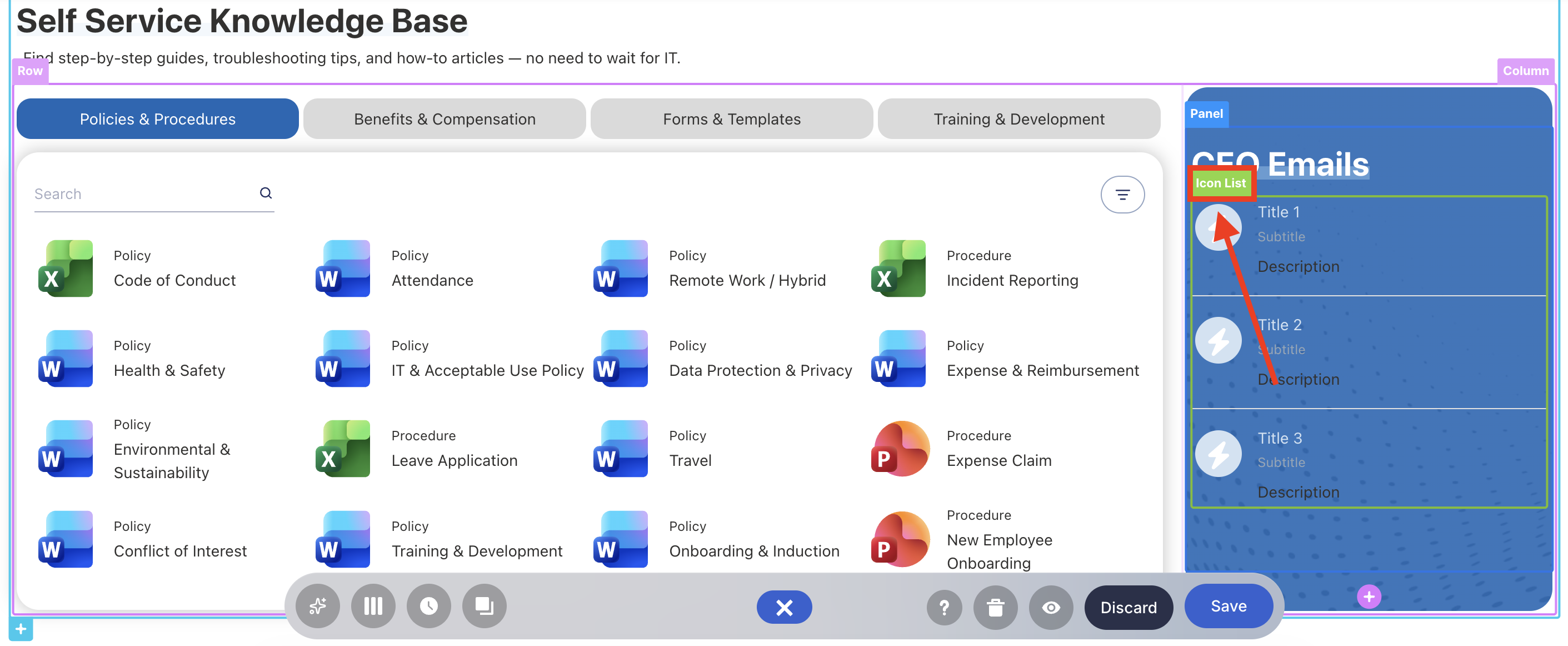
Click the EasyPass tag of the Design Element you’ll use:
Select the cogwheel icon:
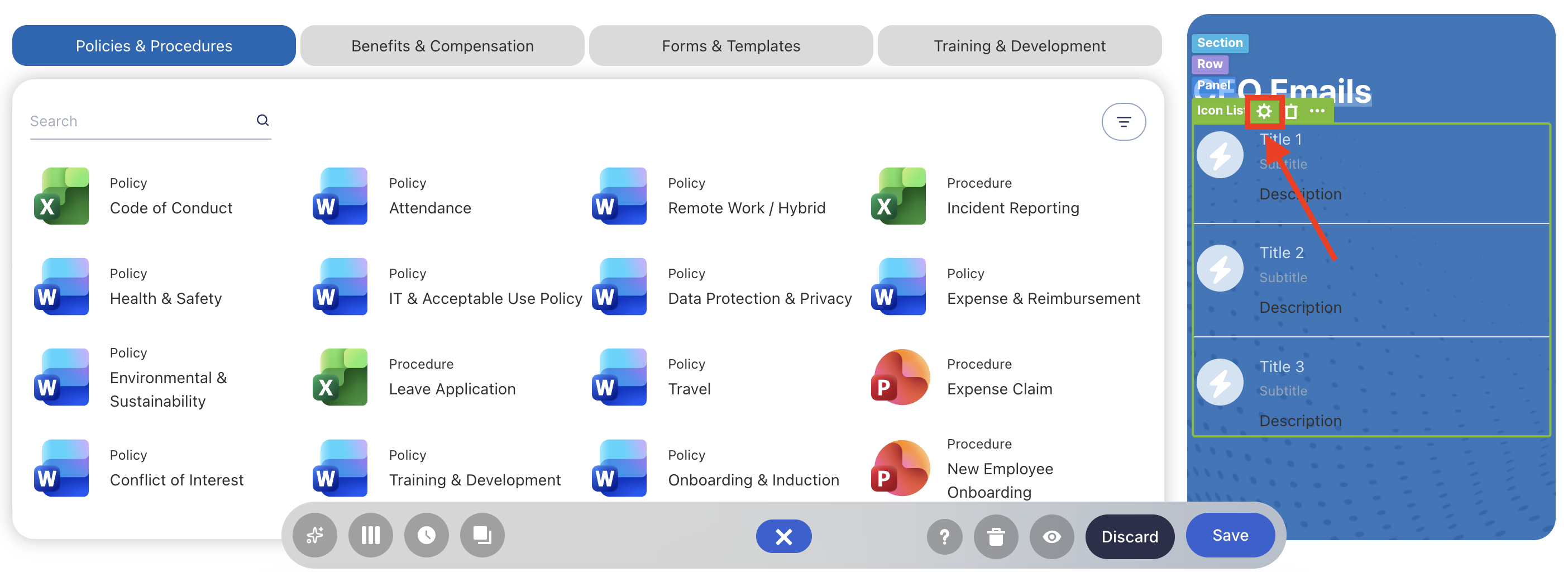
Step 3: Open the Connect Window
Go to the Connect tab:
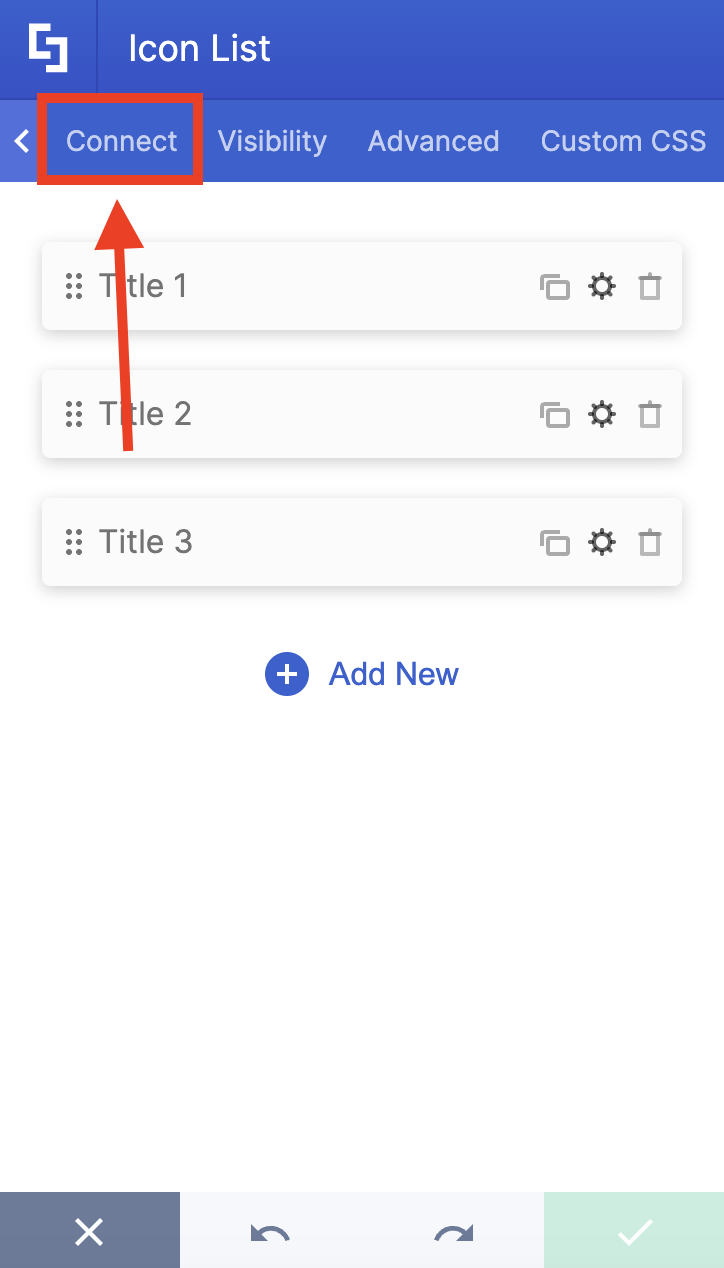
Click Configure to open the connect window:
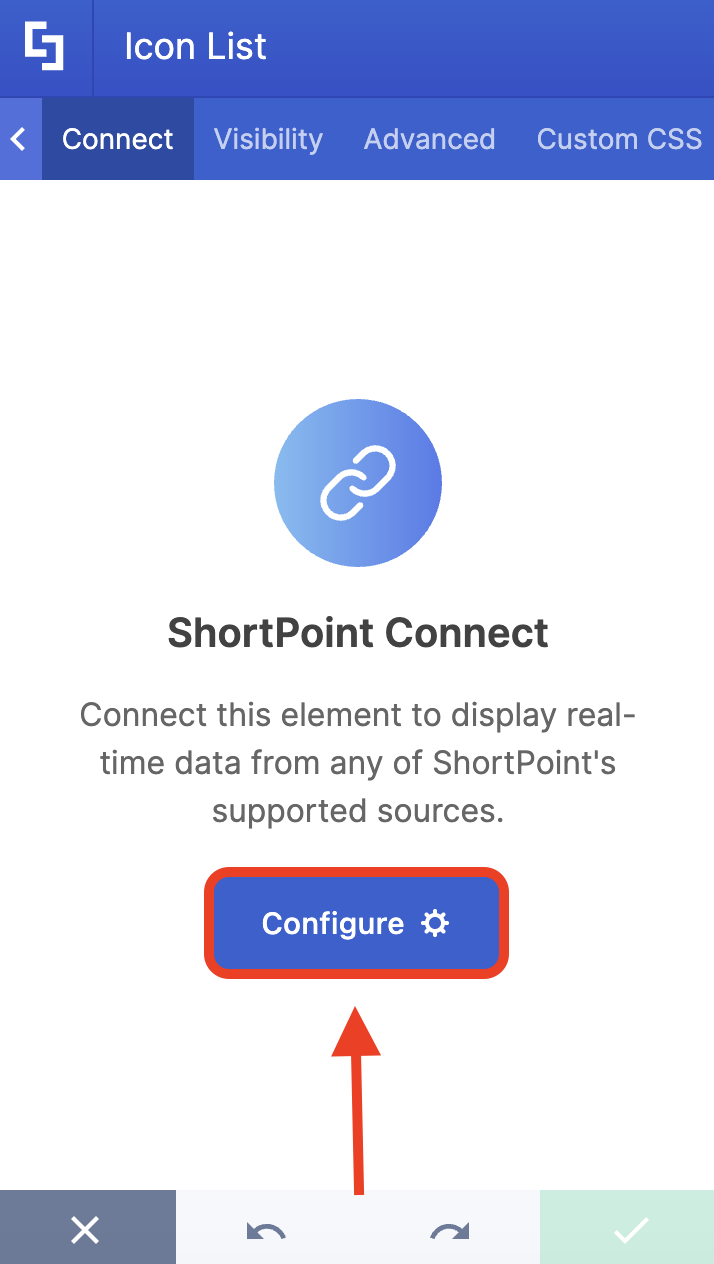
Step 4: Connect to Microsoft Graph API
Select Microsoft Graph API:
NOTEYou need to enable the Microsoft Graph API connection before using it. Learn more about it in How to Enable Microsoft Graph Integration for MS Graph API Connections.
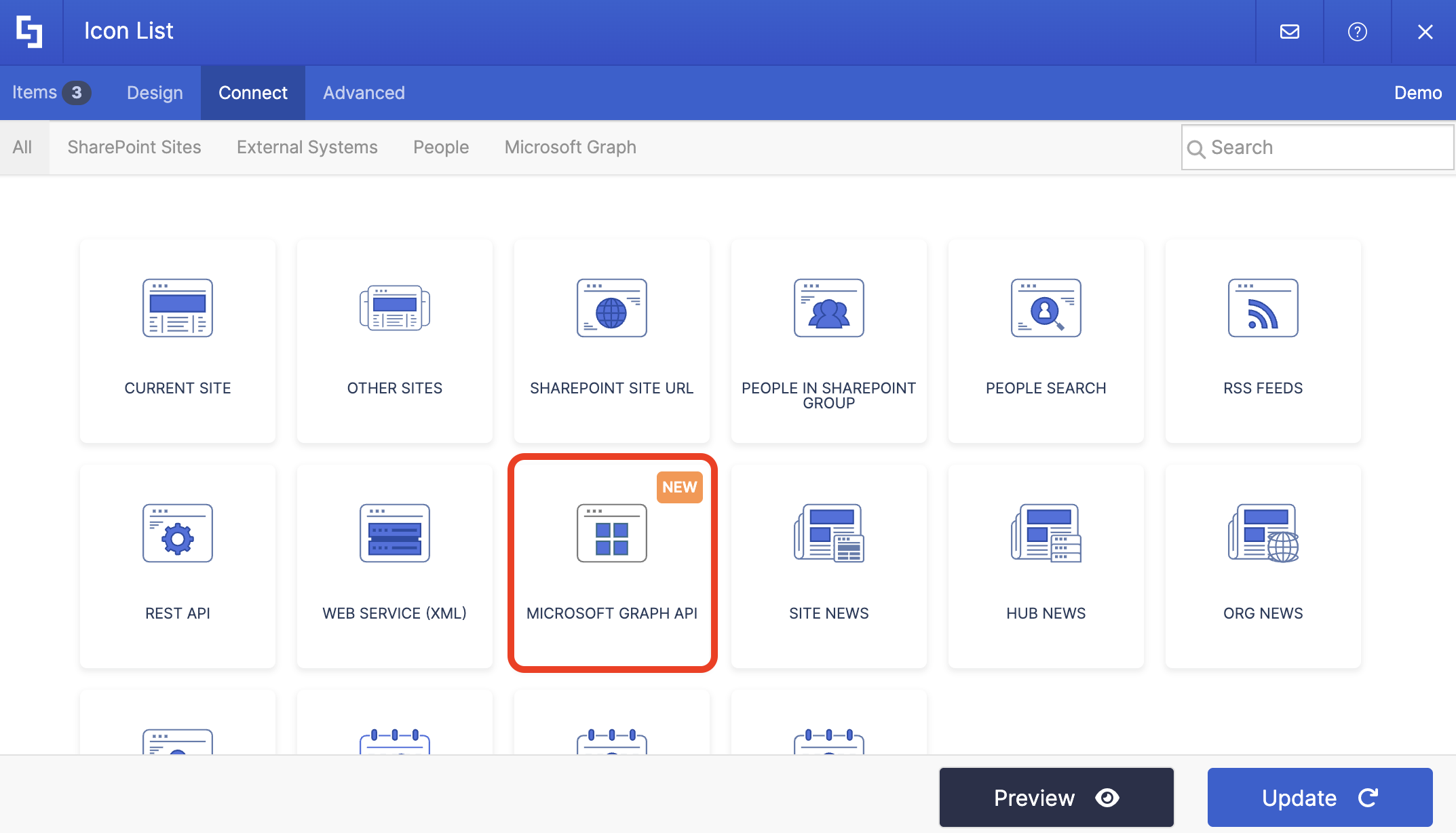
Step 5: Use the User's Emails Use Case
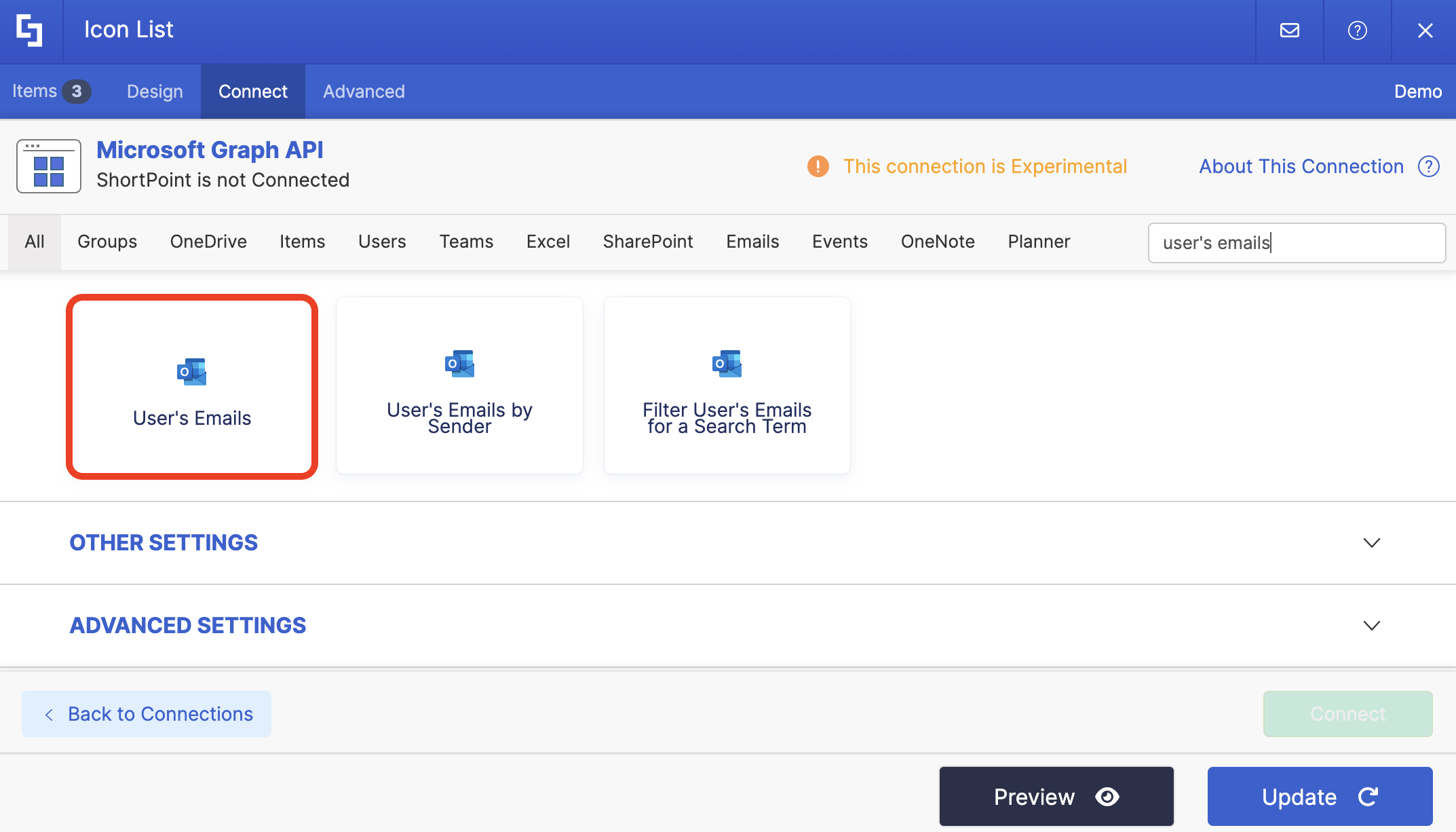
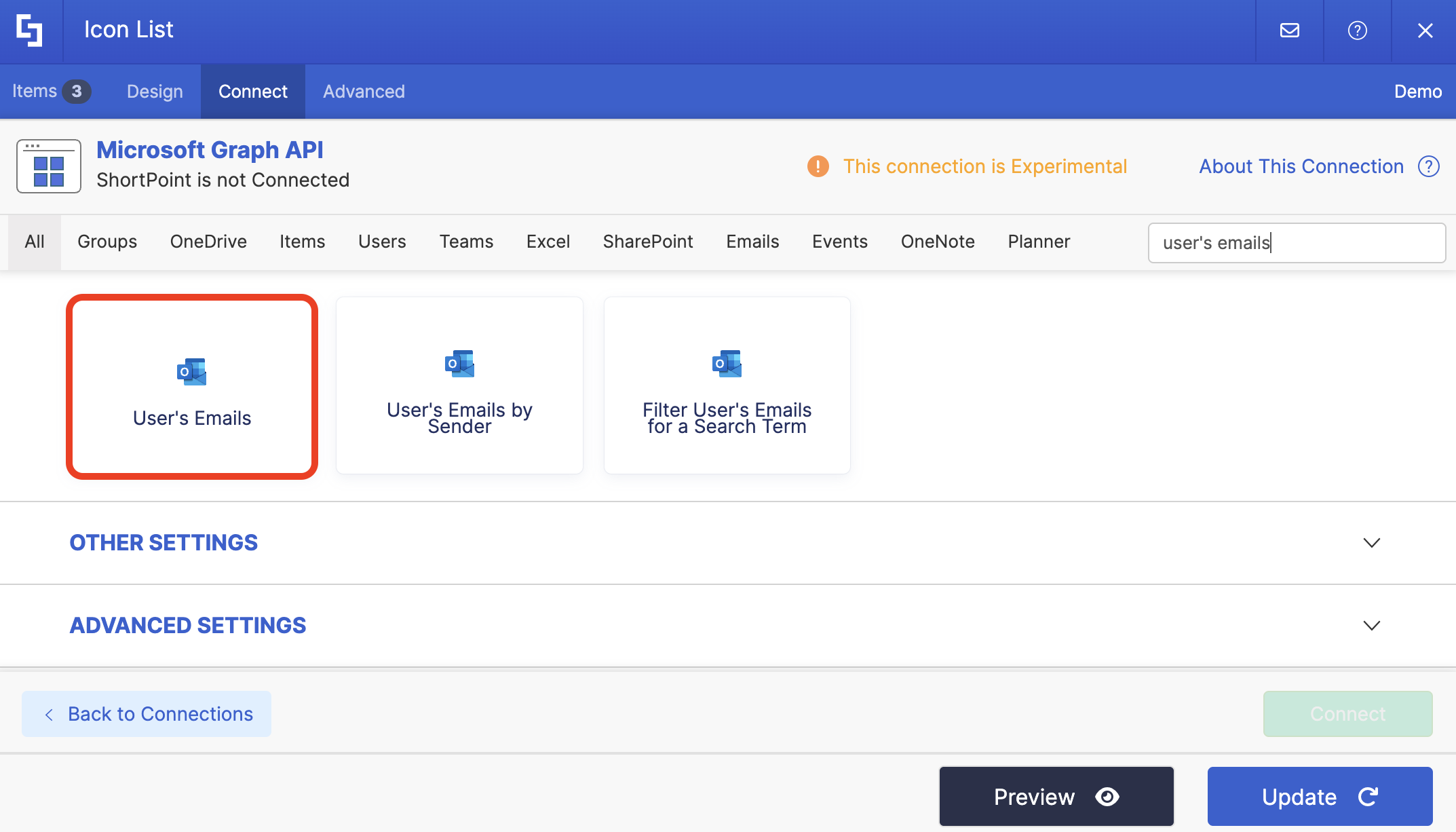
Search for User's Emails and select it:
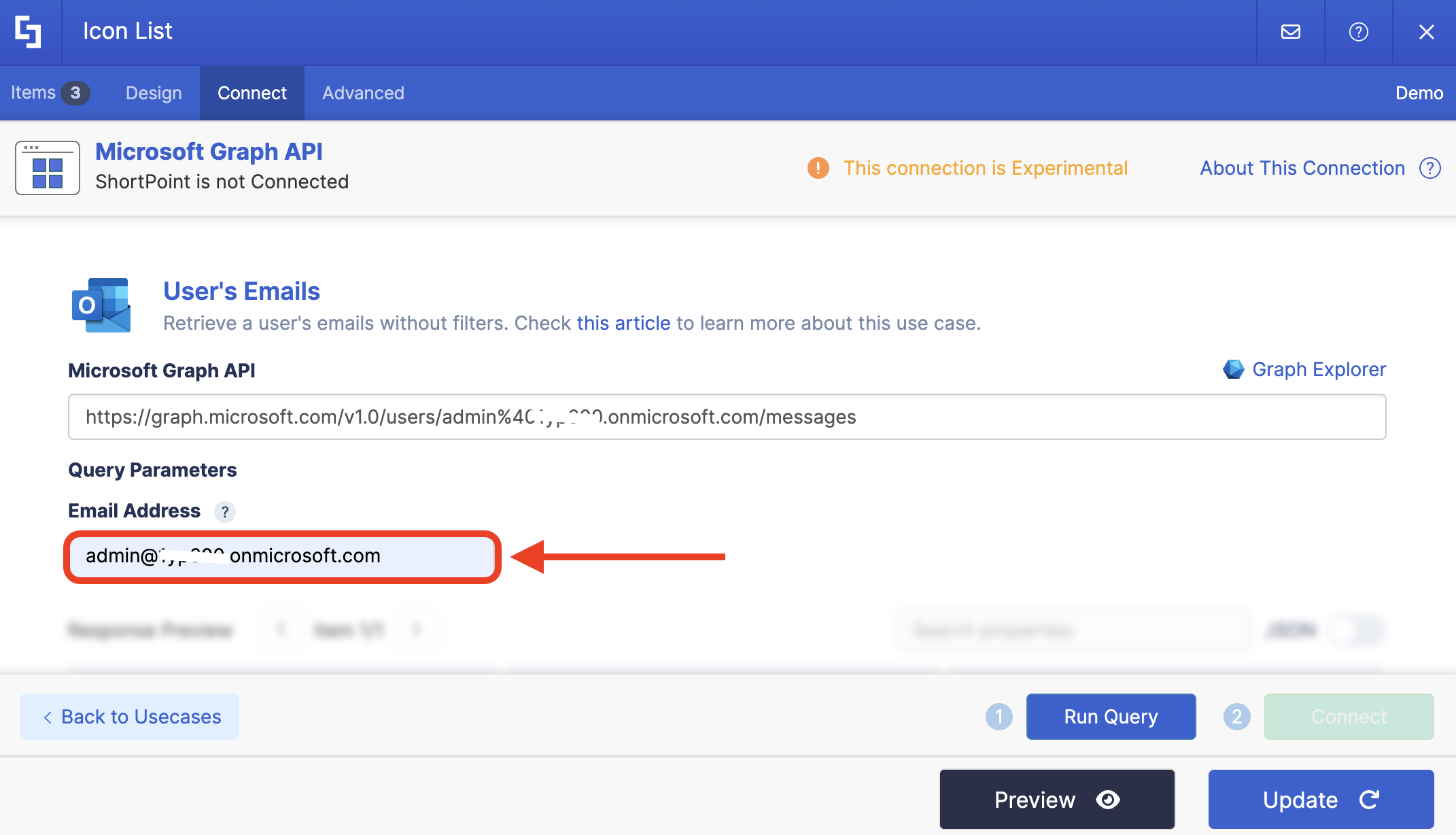
Add the email address you want to use:
Step 6: Connect
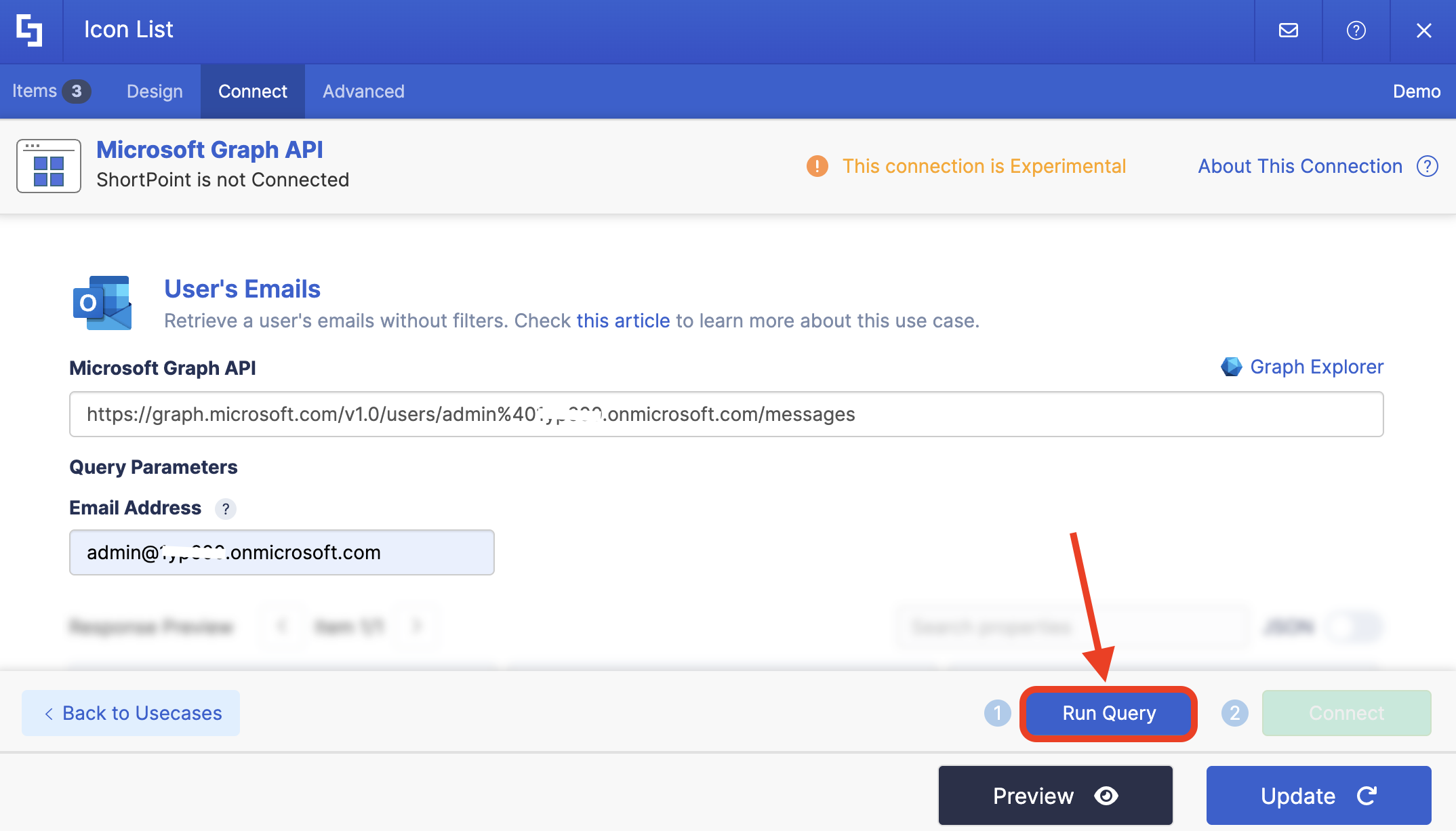
Click Run Query:
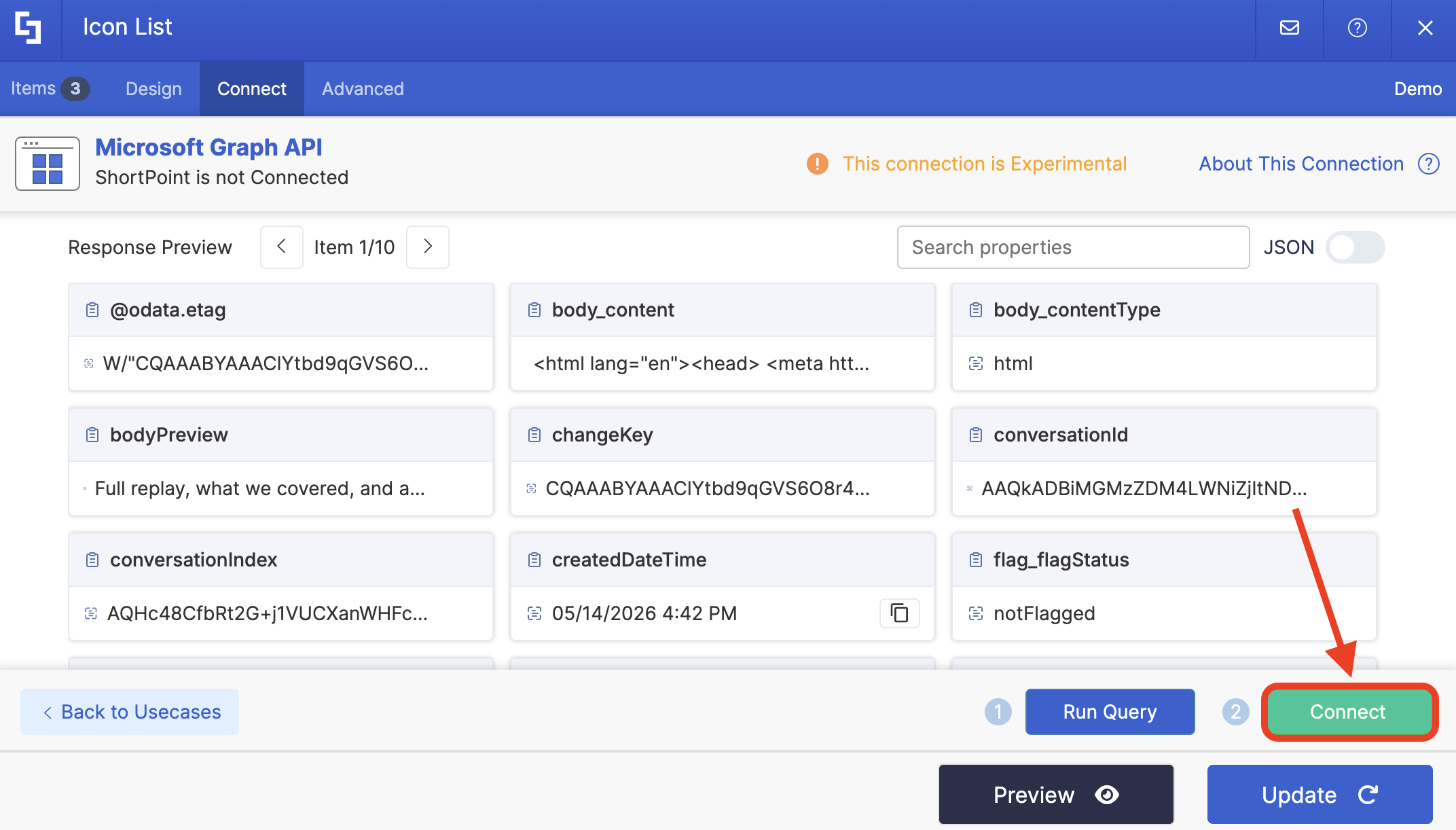
Select Connect:
Step 7: Map Items
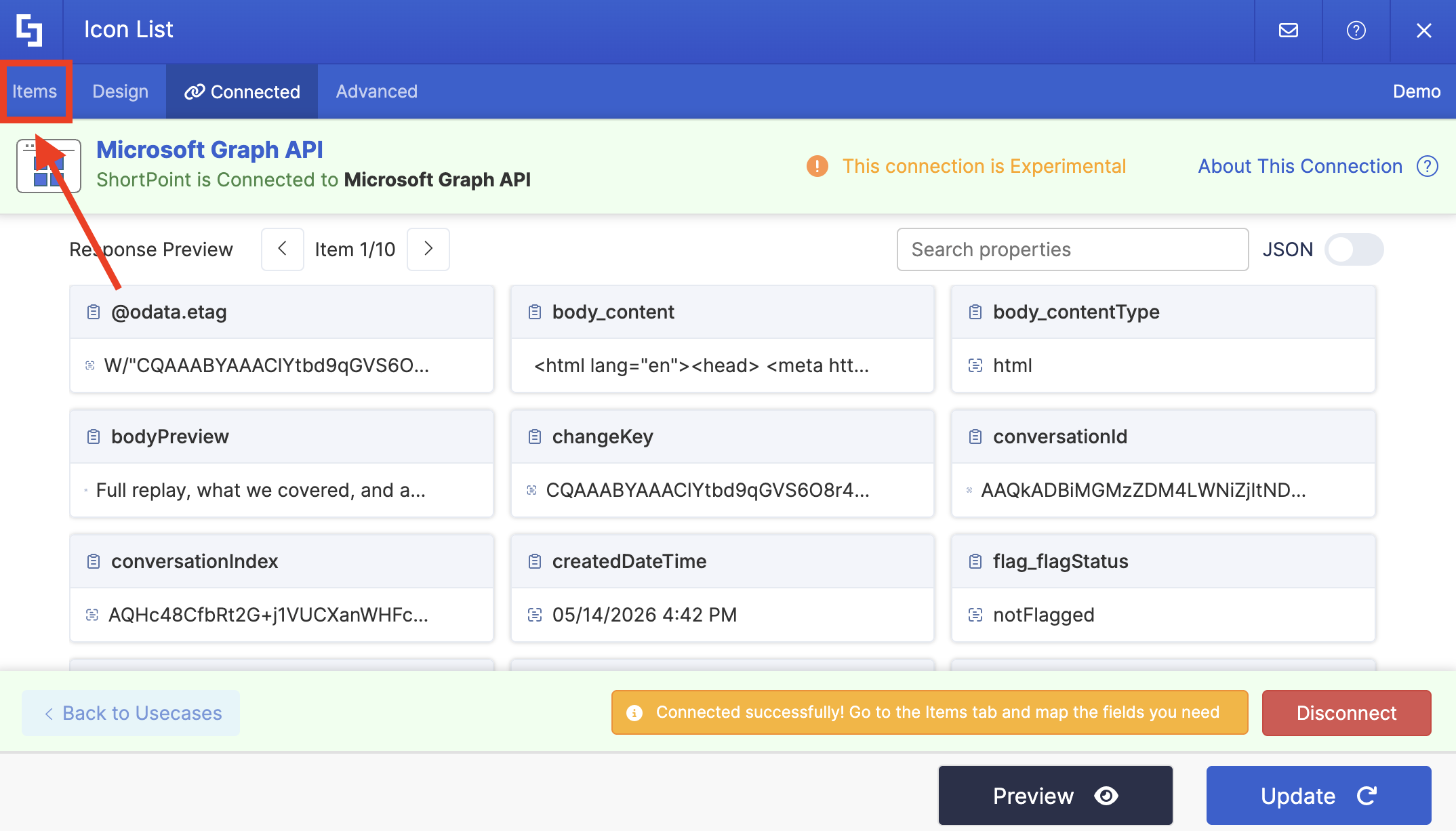
Go to the Items tab:
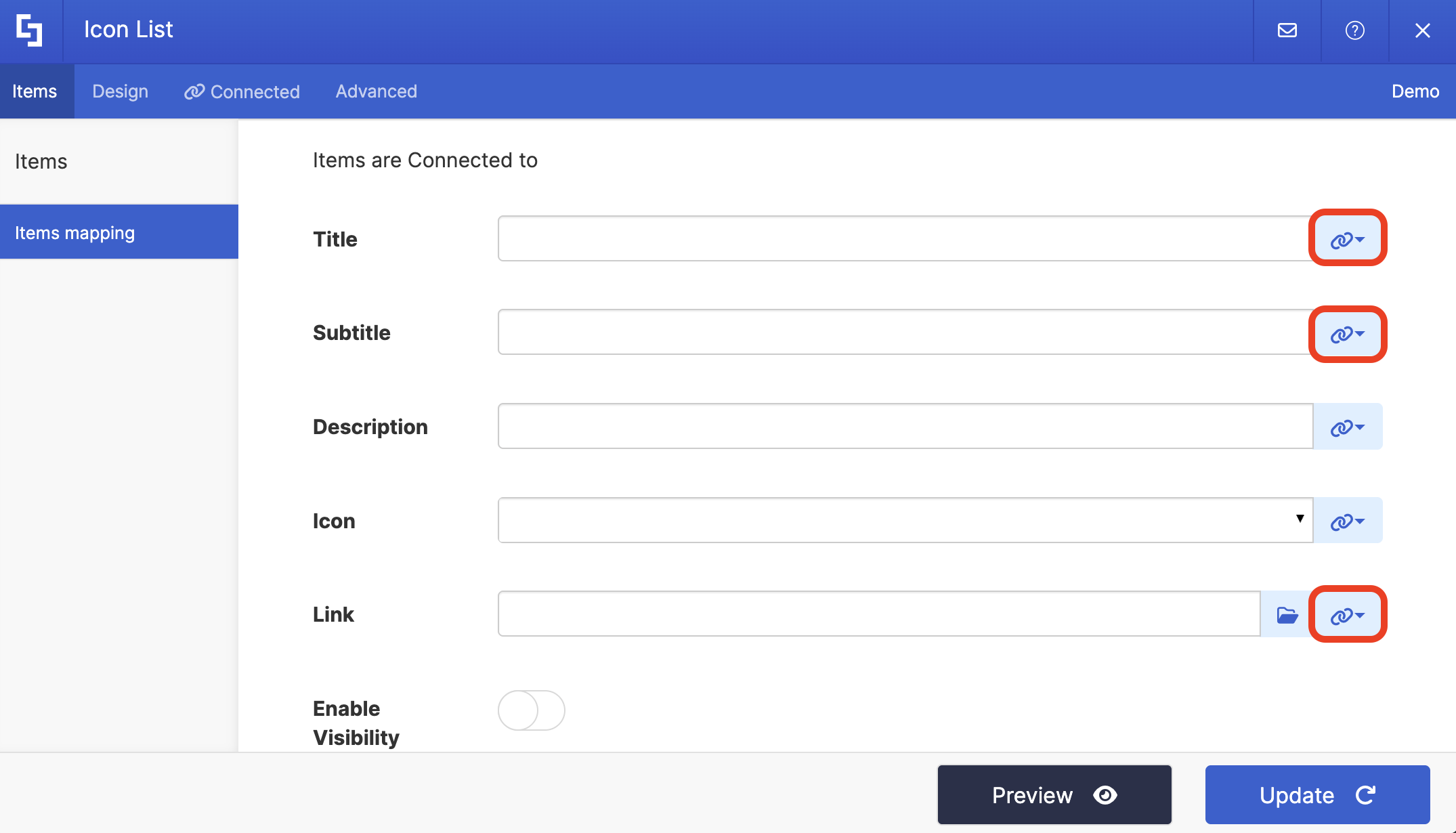
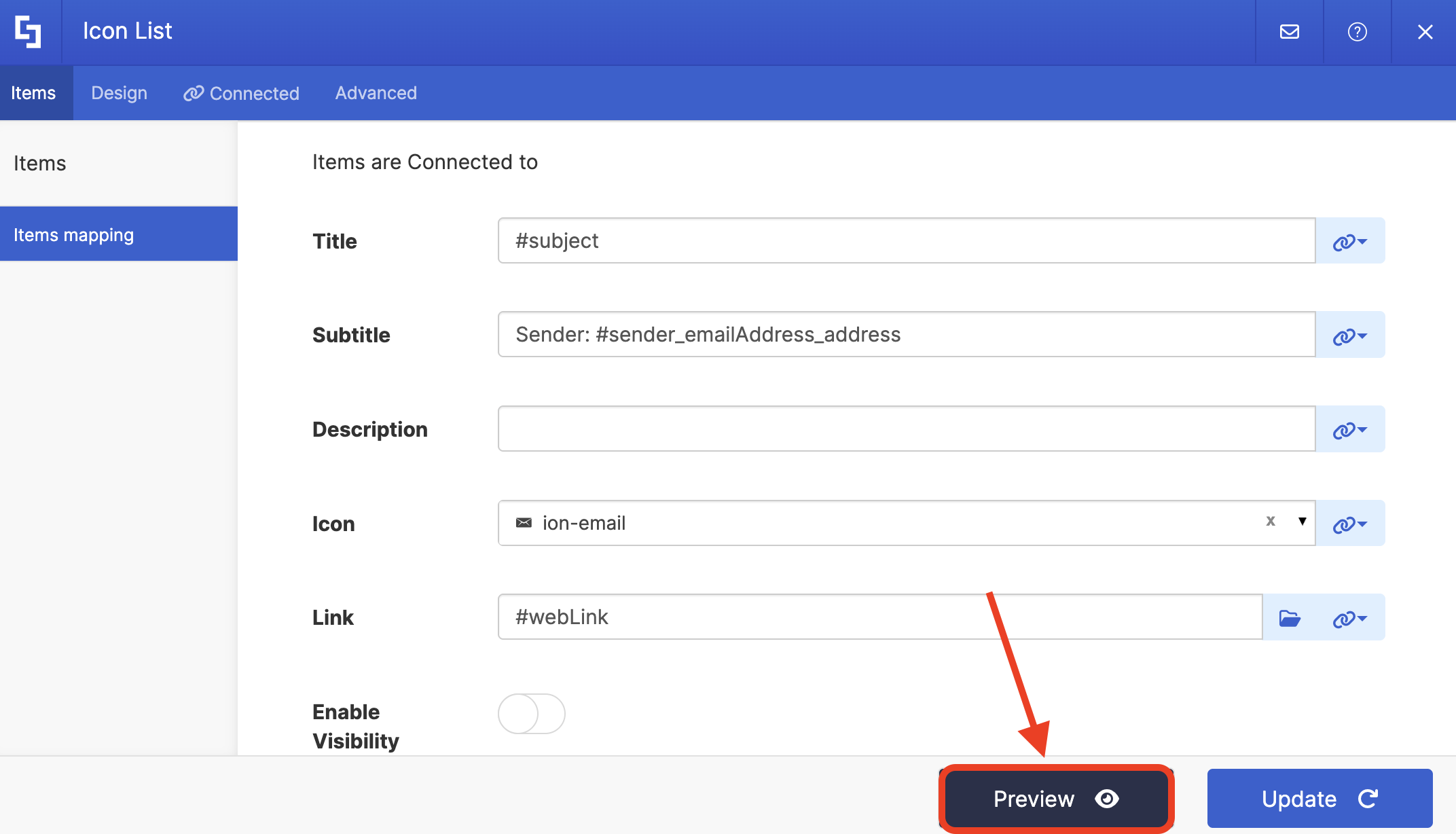
Delete default content and use the link icon to map the properties you want to be displayed:
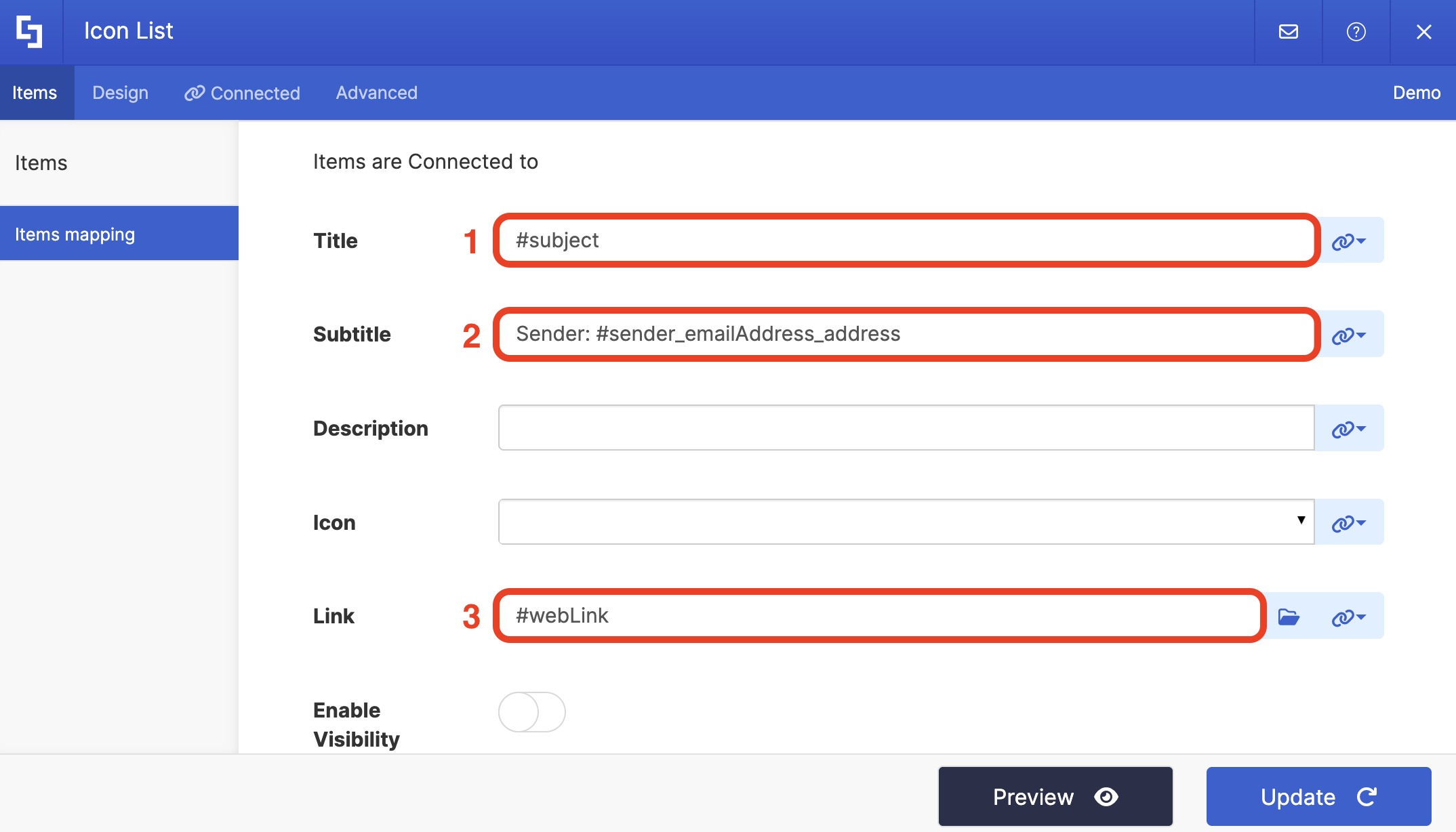
You can map any property you want. In our case, we used the following properties:
- #subject - shows the subject of the email.
- #sender_emailAddress_address - shows the sender of the email.
- #webLink - redirects page viewers to the actual email.
NOTECheck out ShortPoint Connect: How Items Mapping Works to learn more about mapping properties.
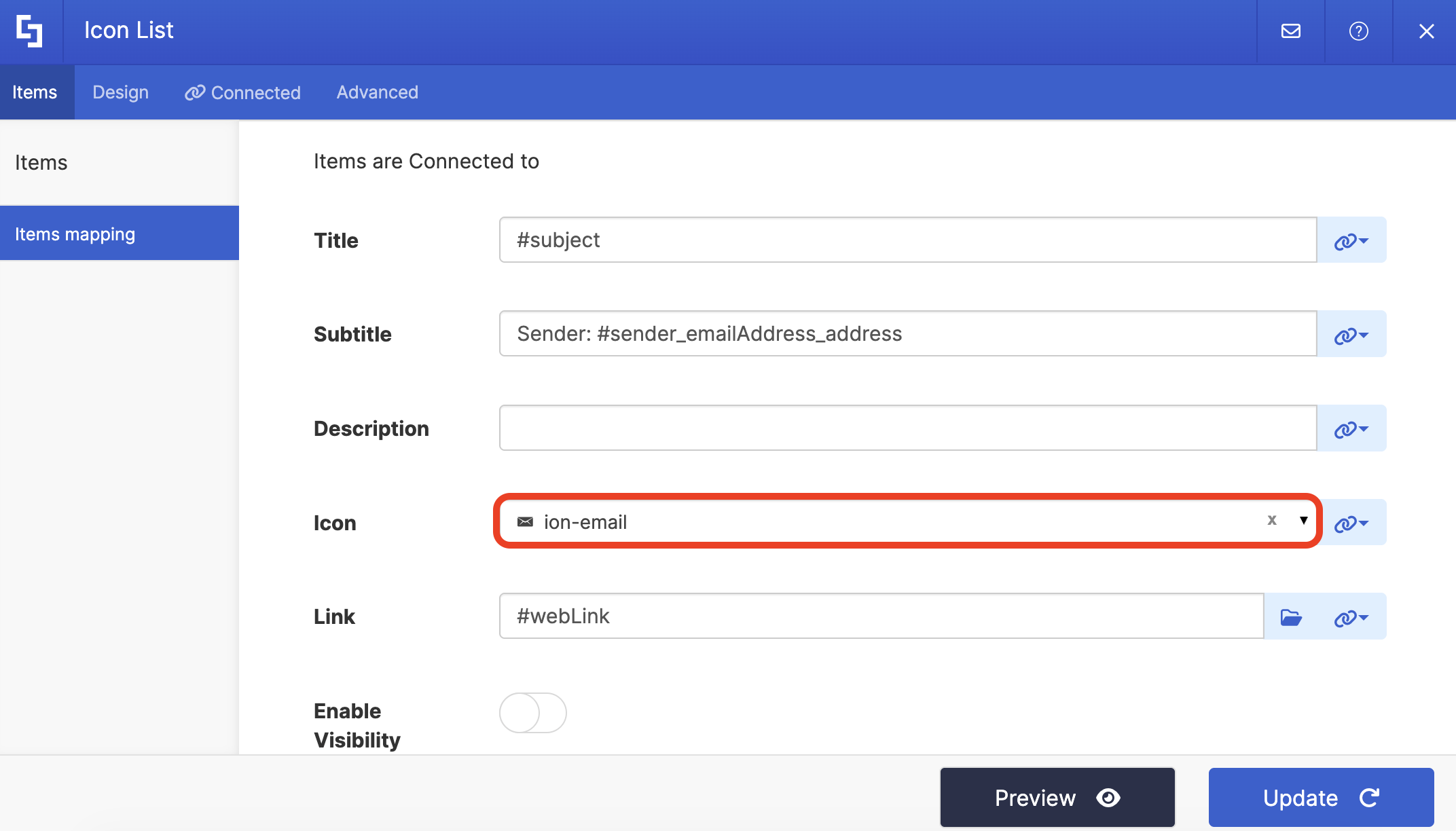
(Optional) If you’re using a Design Element that needs an icon, assign an icon to showcase:
Step 8: Save
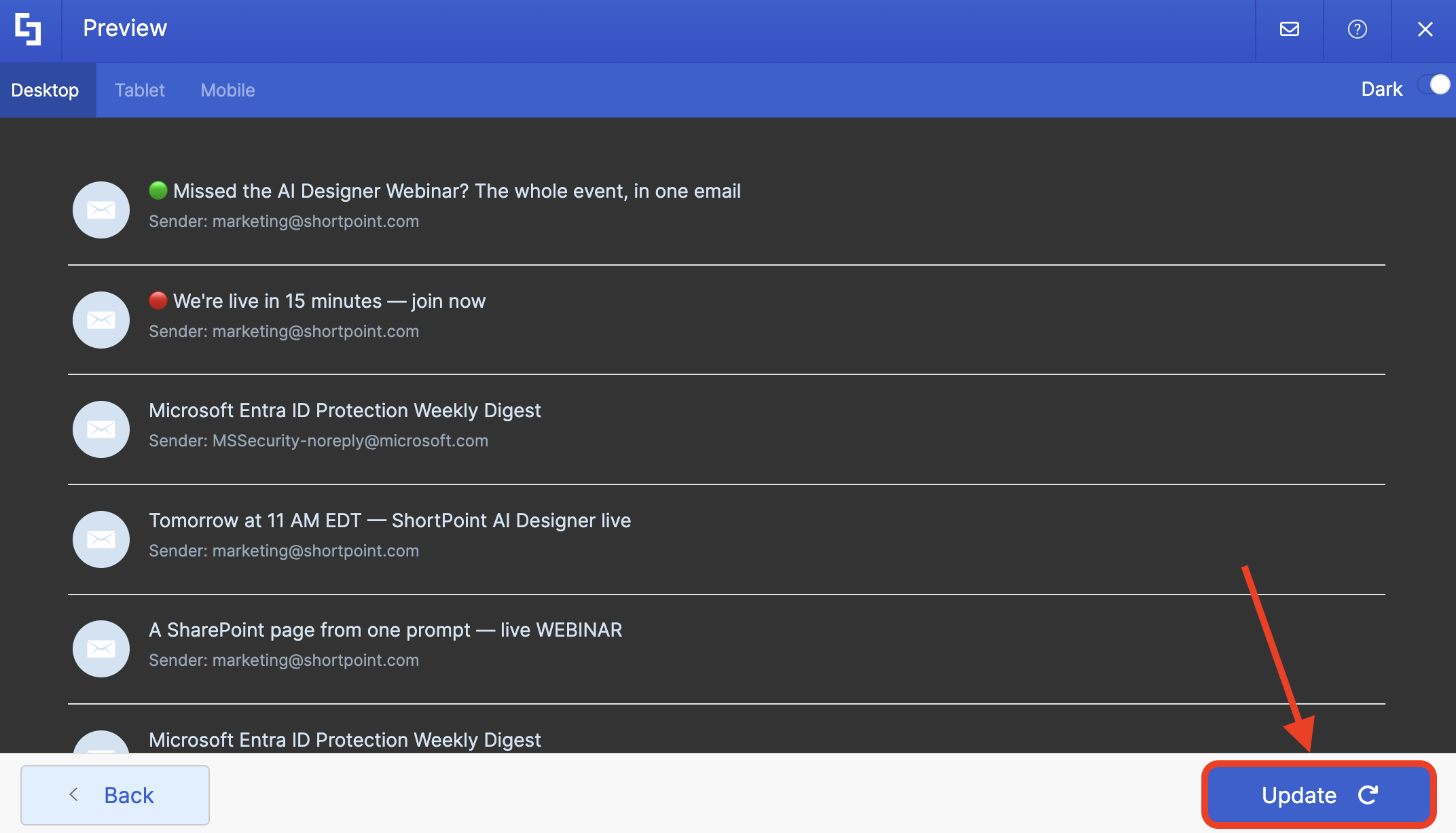
Select Preview to see how the Design Element looks:
Click Update to apply your changes:
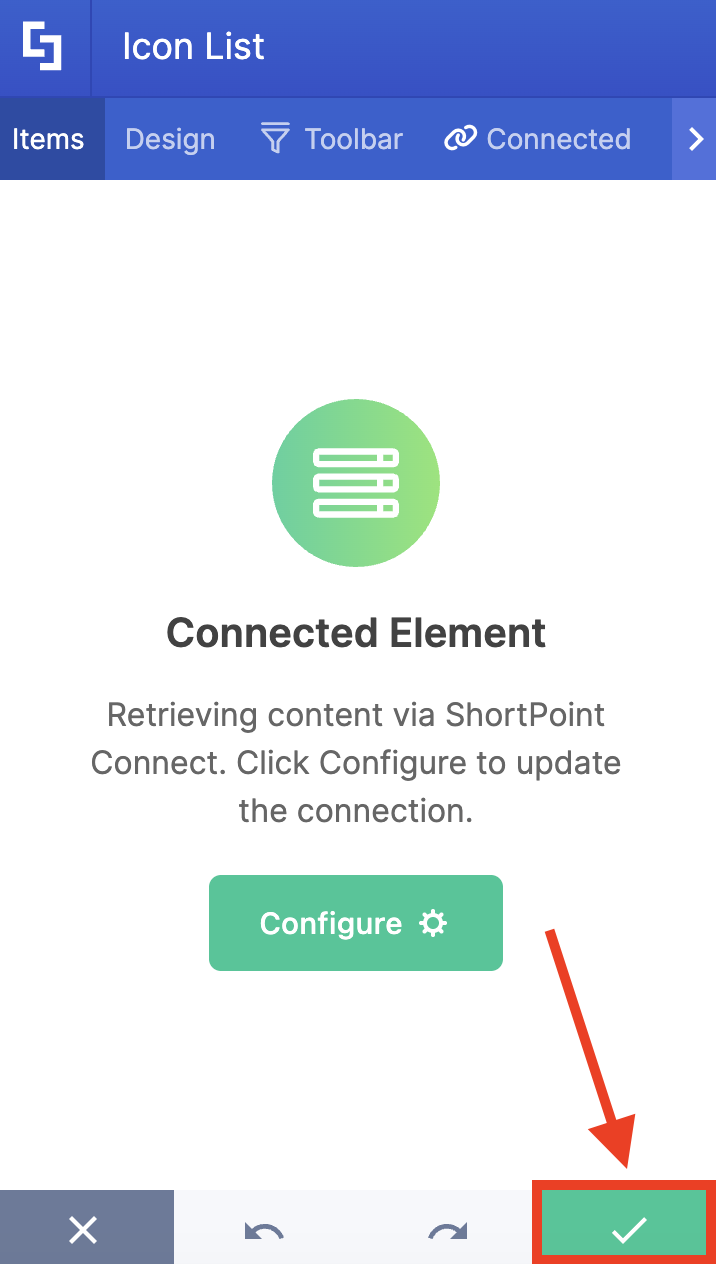
Click the green checkmark:
Once satisfied, click Save:
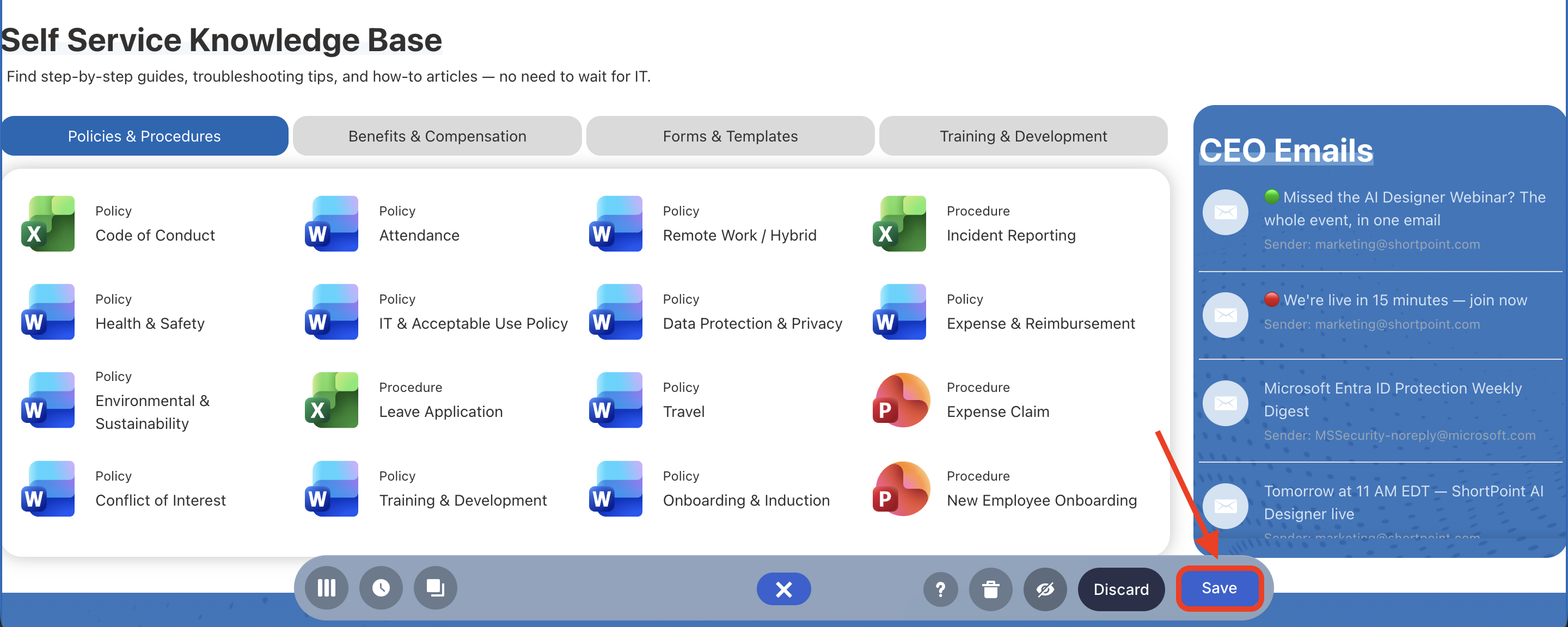
And Publish your page:
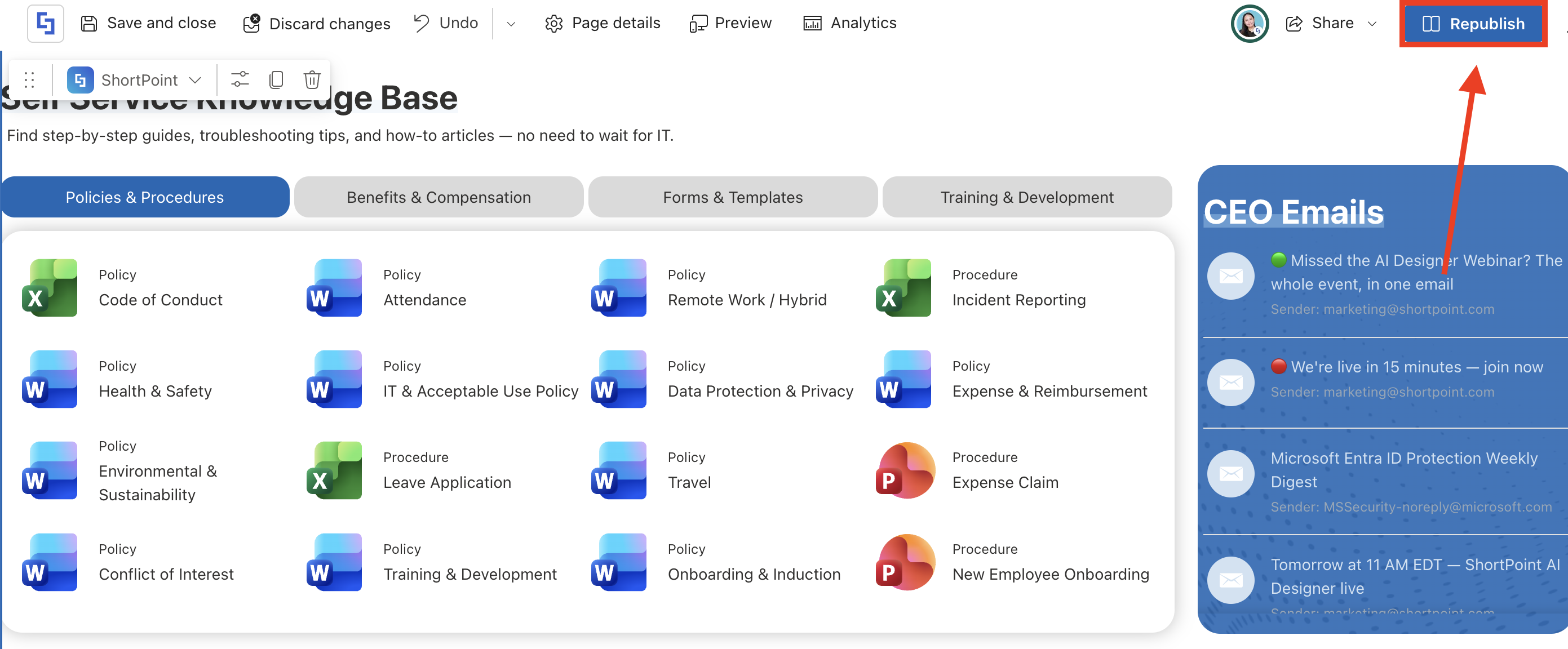
Great work! Showcasing a specific user's Outlook emails just became easier with the Microsoft Graph API connection, enabling seamless integration between your Outlook emails and SharePoint for better email management and collaboration.
Frequently Asked Questions
What is the “User's Emails” use case in Microsoft Graph API?
The “User's Emails” use case allows you to retrieve all Outlook emails of a specific user, including sender, recipient, subject, body text, web links, and timestamps. It enables seamless integration of Outlook emails into SharePoint for improved email management.
What permissions are required to show Outlook emails of a specific user?
You must authorize the Mail.Read permission in the SharePoint Admin Center under API access. This permission grants access to read emails and message content via Microsoft Graph API.
Can I display emails from multiple users in SharePoint using this method?
This article focuses on showing Outlook emails of a specific user, but you can configure multiple queries for different users by repeating the setup with their email addresses.
Which ShortPoint Design Elements work best for showing Outlook emails?
Design Elements that support listing multiple items, such as Icon List, Simple List, or Tiles, are recommended for displaying Outlook emails efficiently.
What type of ShortPoint license do I need to use the Microsoft Graph API integration?
Accessing Microsoft Graph API connection requires ShortPoint Designers to have a Pro or Enterprise License. For more information, check out Licensing Options.
Is it possible to customize how Outlook emails are displayed in SharePoint?
Yes, you can map various email properties like subject, web link, and body text using ShortPoint’s item mapping feature to customize the email display according to your needs. For more information, check ShortPoint Connect: How Items Mapping Works.
How do I enable Microsoft Graph API connection in ShortPoint?
Simply follow the steps in this article to enable the integration: How to Enable Microsoft Graph Integration for MS Graph API Connections.
What is the benefit of integrating Outlook emails with SharePoint?
Integrating Outlook emails with SharePoint enhances collaboration, centralizes business and application data, and streamlines email management within your organization’s digital workplace.
Related articles:
