 Try ShortPoint now
In the corporate world, collaboration is king. We are constantly sharing files and folders with teammates and external partners. Bringing this sense of community to our digital workspace, especially on your SharePoint site, is super important.
How do we do that? With the ShortPoint Microsoft 365 Graph API connection, of course! Using this connection, you can create a "Shared with Me" section that lets your users find recently shared items. This article will provide a step-by-step guide on how to do exactly that.
TABLE OF CONTENTS
- Prerequisites
- What is the “Items Shared With Me” Use Case?
- Step-by-step Tutorial
- Frequently Asked Questions
Prerequisites
- You must have ShortPoint SPFx version 8.6.0.0 and up installed.
- You also need to be a ShortPoint Designer with either a Pro or Enterprise license. For more details, check out Licensing Options.
- You must have the Microsoft Graph API connection enabled. Go to How to Enable Microsoft Graph Integration for MS Graph API Connections to learn how.
- You must authorize the necessary permissions (Files.Read.All and Sites.Read.All) in the API access page. To check, go to your SharePoint Admin Center > Advanced > API access.
- You must have the Design Element you want to use to connect on your SharePoint page. For best results, we recommend using Design Elements that allow listing of multiple items (File List, Icon List, Simple List, etc.).
What is the “Items Shared With Me” Use Case?
The Items Shared With Me use case is a specific GET query to the Microsoft Graph that helps you track shared items efficiently. It filters through SharePoint files and retrieves only those where the current user is a recipient, not the owner.
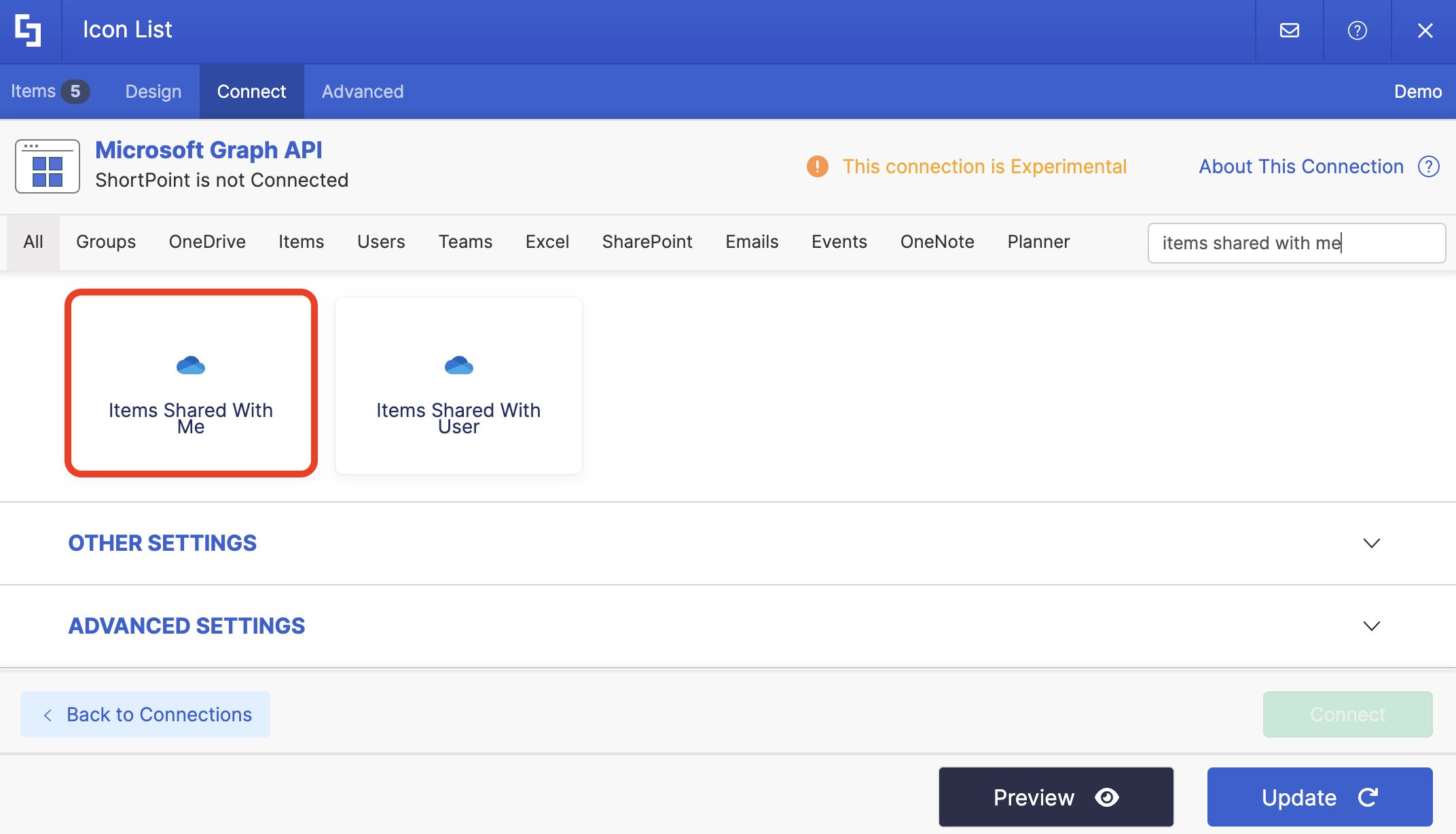
Each user will see a unique set of shared items that are relevant only to them, making it easier to find the files and folders they need.
The typical structure of this use case is:
https://graph.microsoft.com/v1.0/users/[%Me('email')%]/insights/sharedYou must enable the following permissions in the SharePoint Admin Center to use it:
Sites.Read.All - gives permission to read all content for all site collections within your organization's SharePoint and Microsoft Teams environment.
Files.Read.All - gives permission to read all files that the signed-in user has access to across the entire Microsoft 365 ecosystem.
NOTEIf you haven’t given access to the permissions above, go to your SharePoint Admin Center > Advanced > API access.
Step-by-step Tutorial
Follow the steps below to learn how to use the Items Shared With Me use case to create a personalized list of shared items.
Step 1: Edit the ShortPoint Web Part
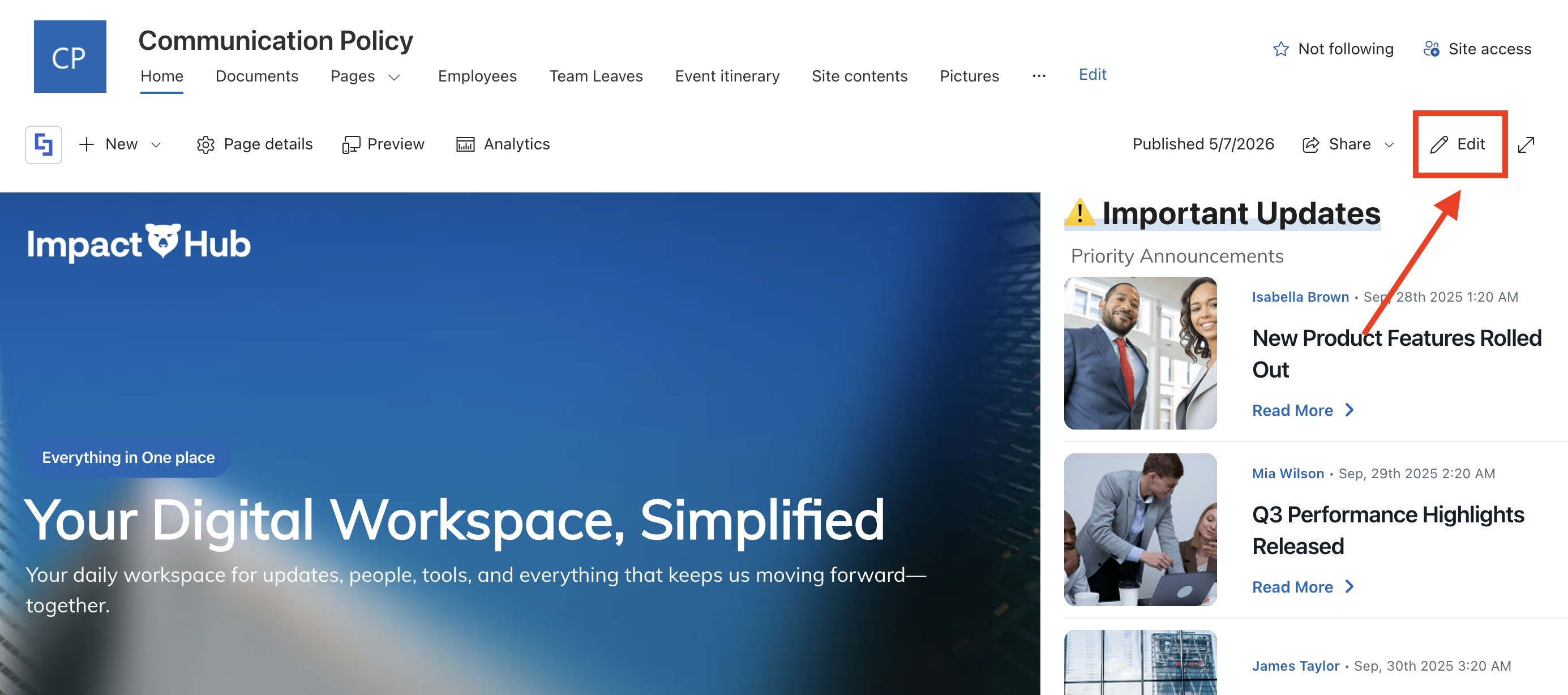
Go to the SharePoint page you want to use and click Edit:
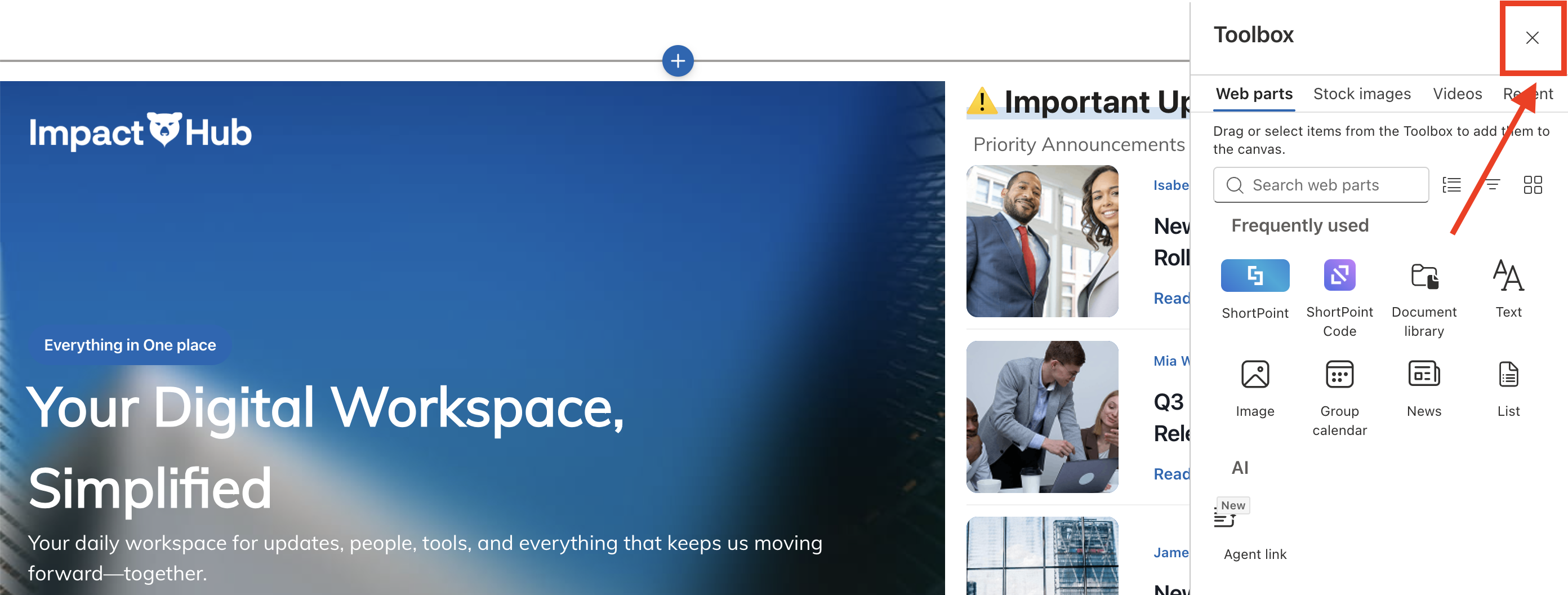
Close the Toolbox:
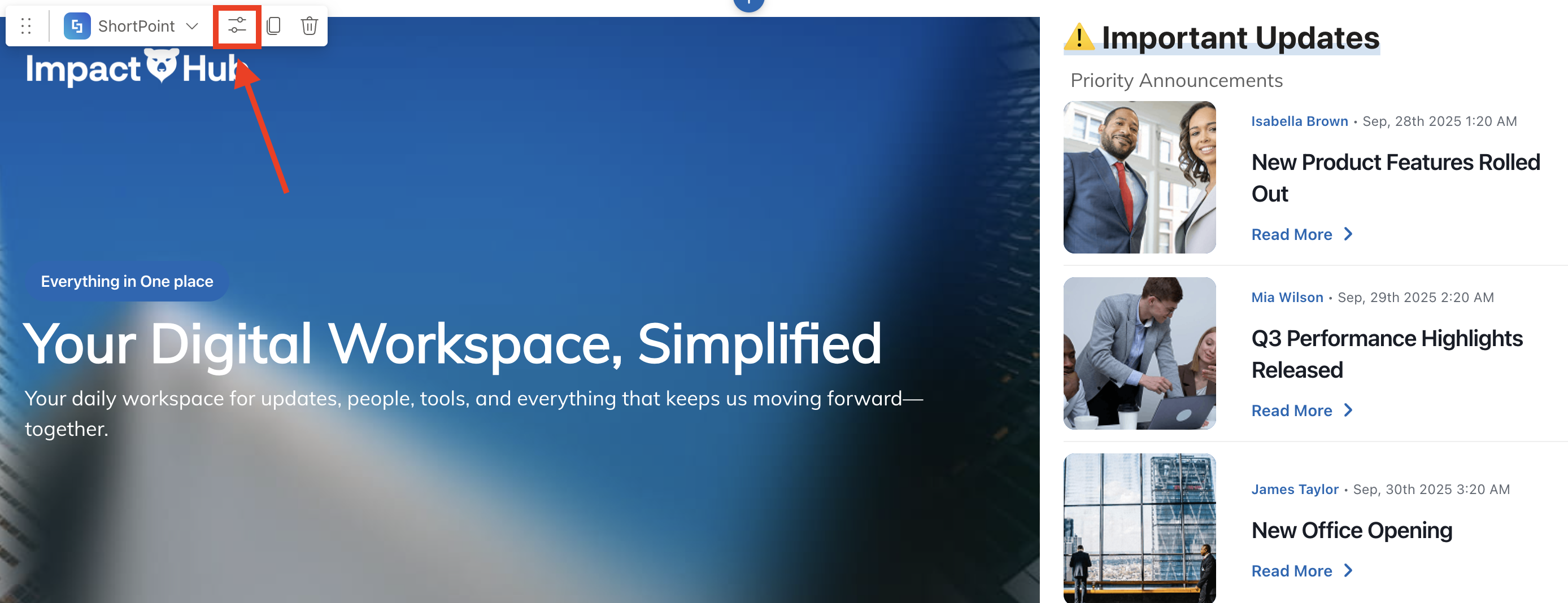
Select the ShortPoint web part and click the Edit Properties icon:
Step 2: Edit the Design Element
NOTEYou can use any Design Element you want. For best results, we recommend using Design Elements that allow listing of multiple items (Icon List, Simple List, etc.)
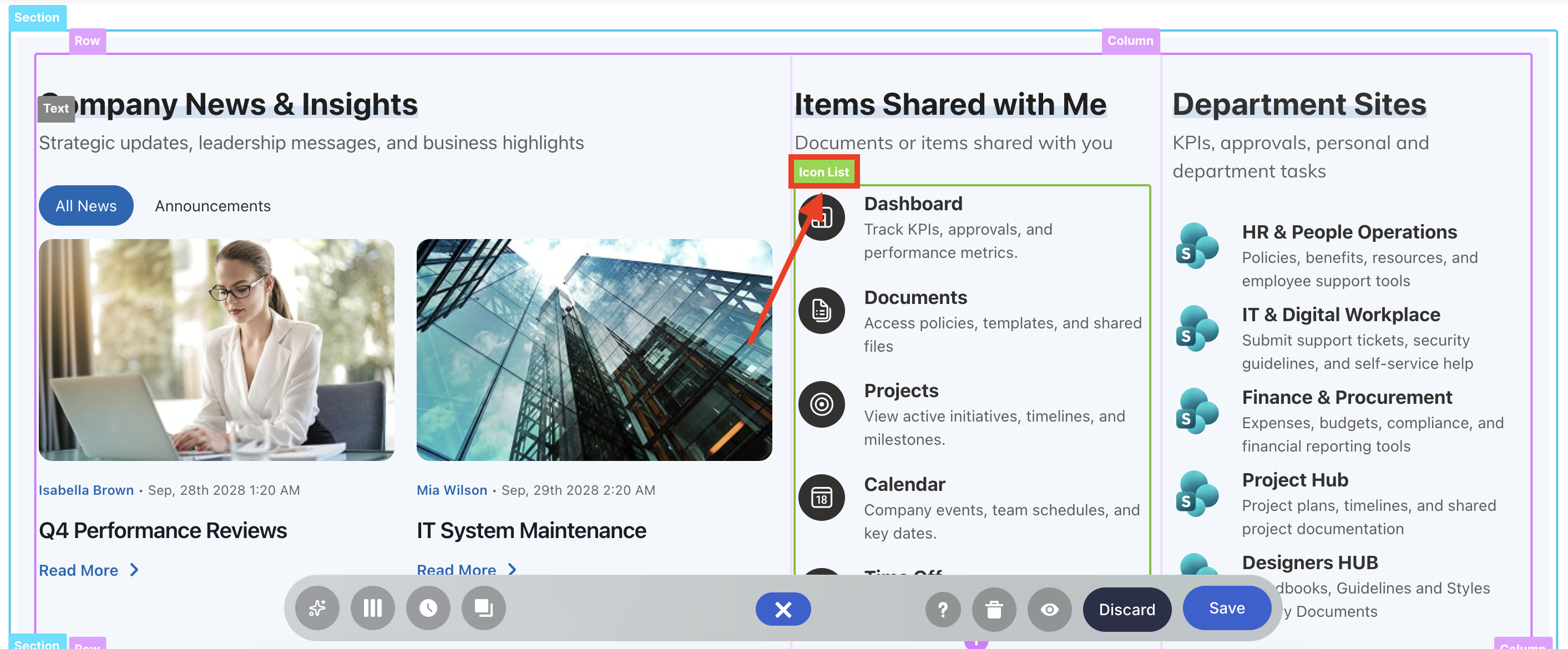
Click the EasyPass tag of the Design Element you’ll use:
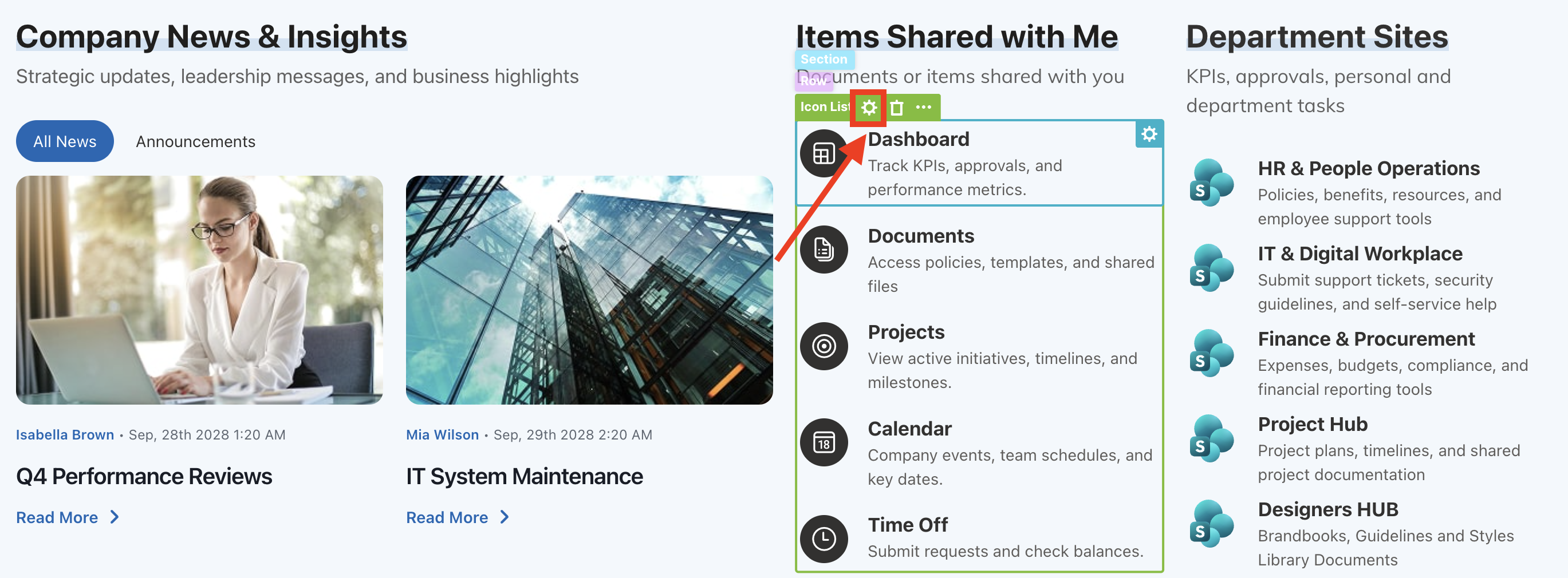
Select the cogwheel icon:
Step 3: Open the Connect Window
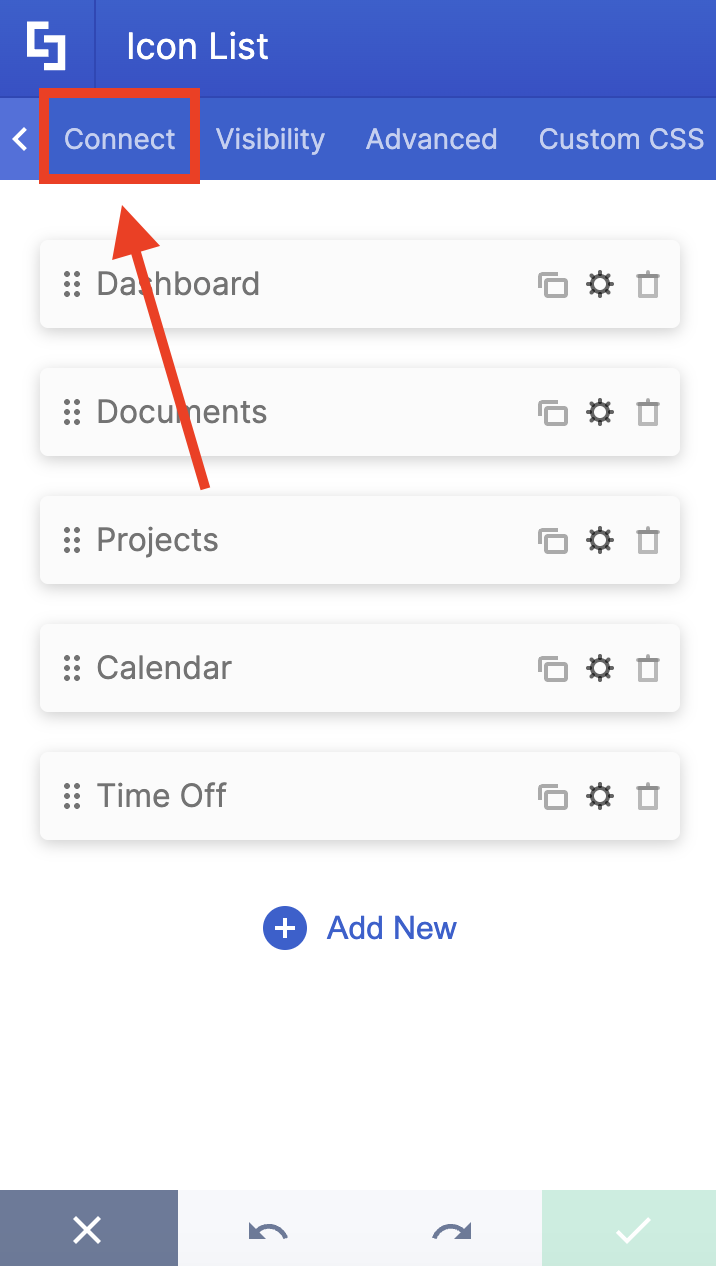
Go to the Connect tab:
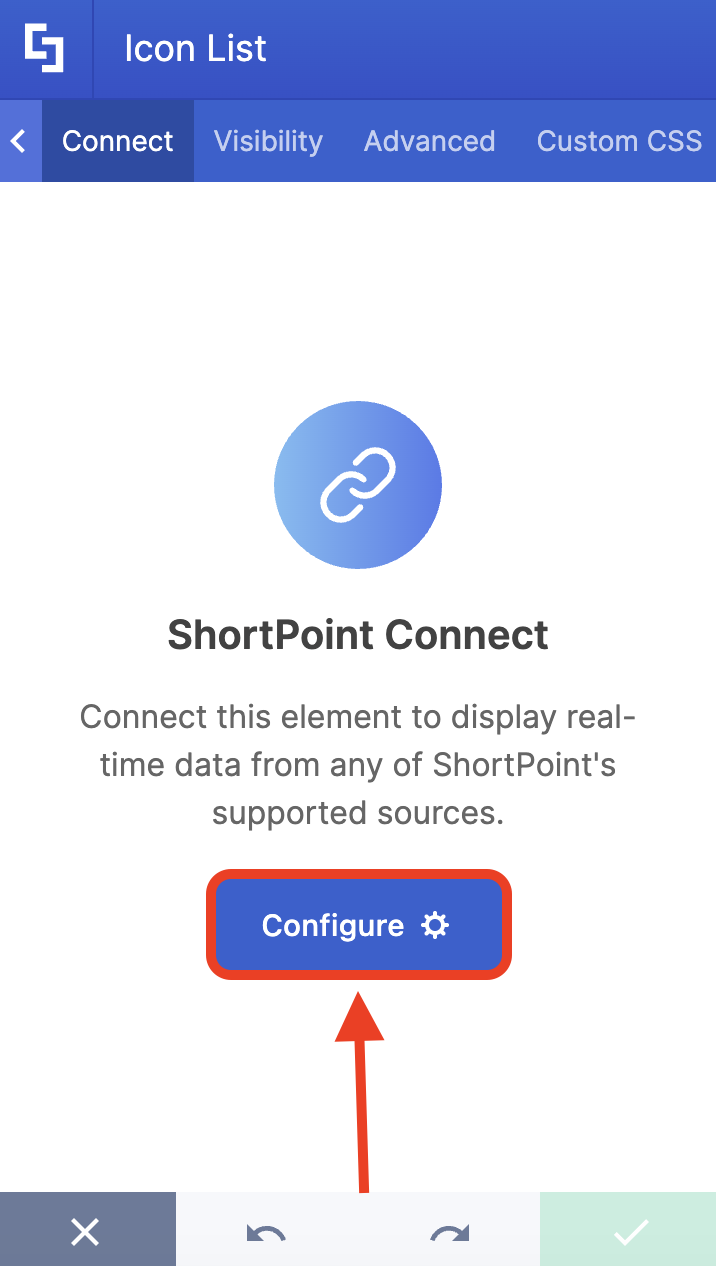
Click Configure to open the connect window:
Step 4: Connect to Microsoft Graph API
Select Microsoft Graph API:
NOTEYou need to enable the Microsoft Graph API connection before using it. Learn more about it in How to Enable Microsoft Graph Integration for MS Graph API Connections.
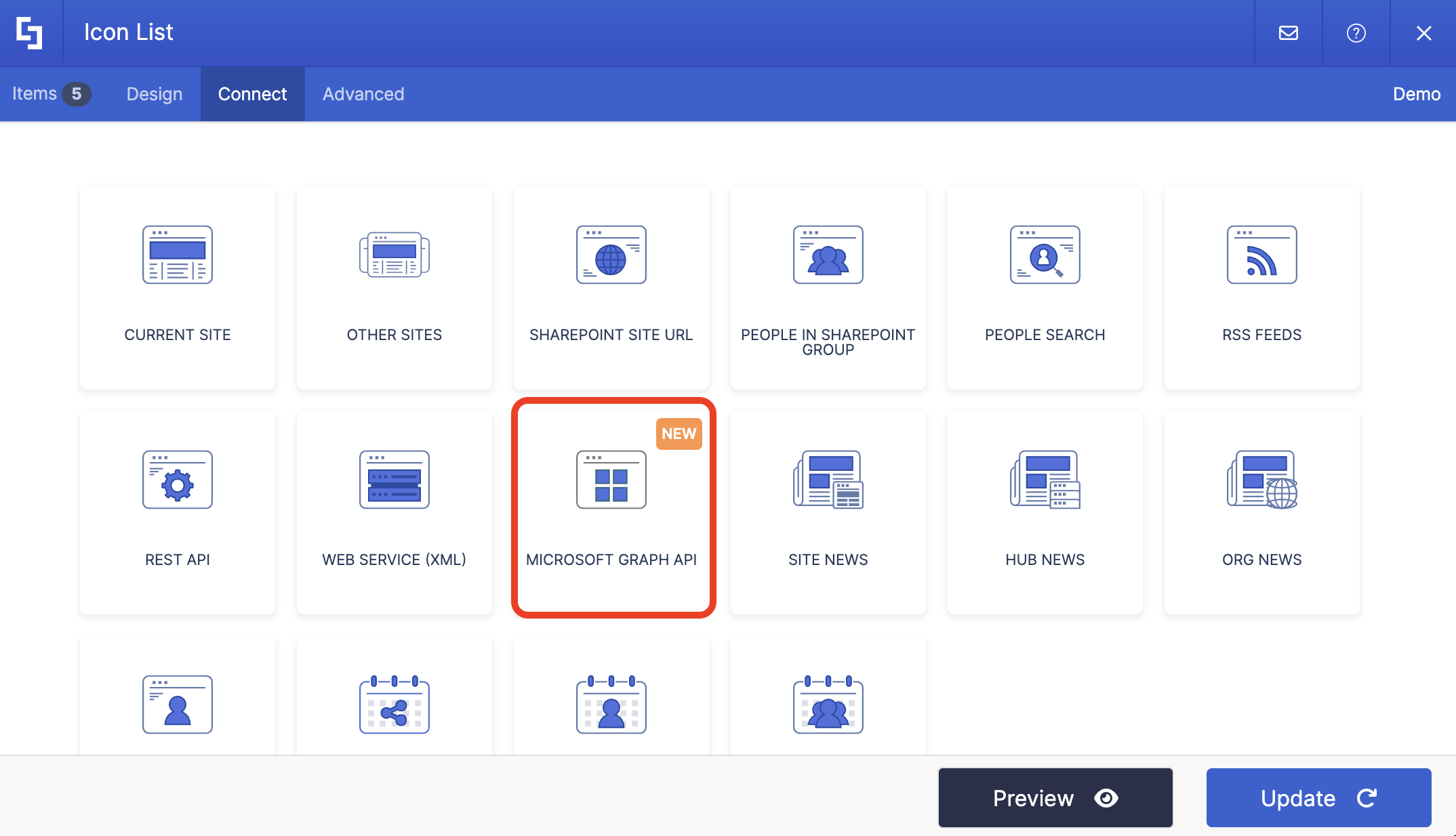
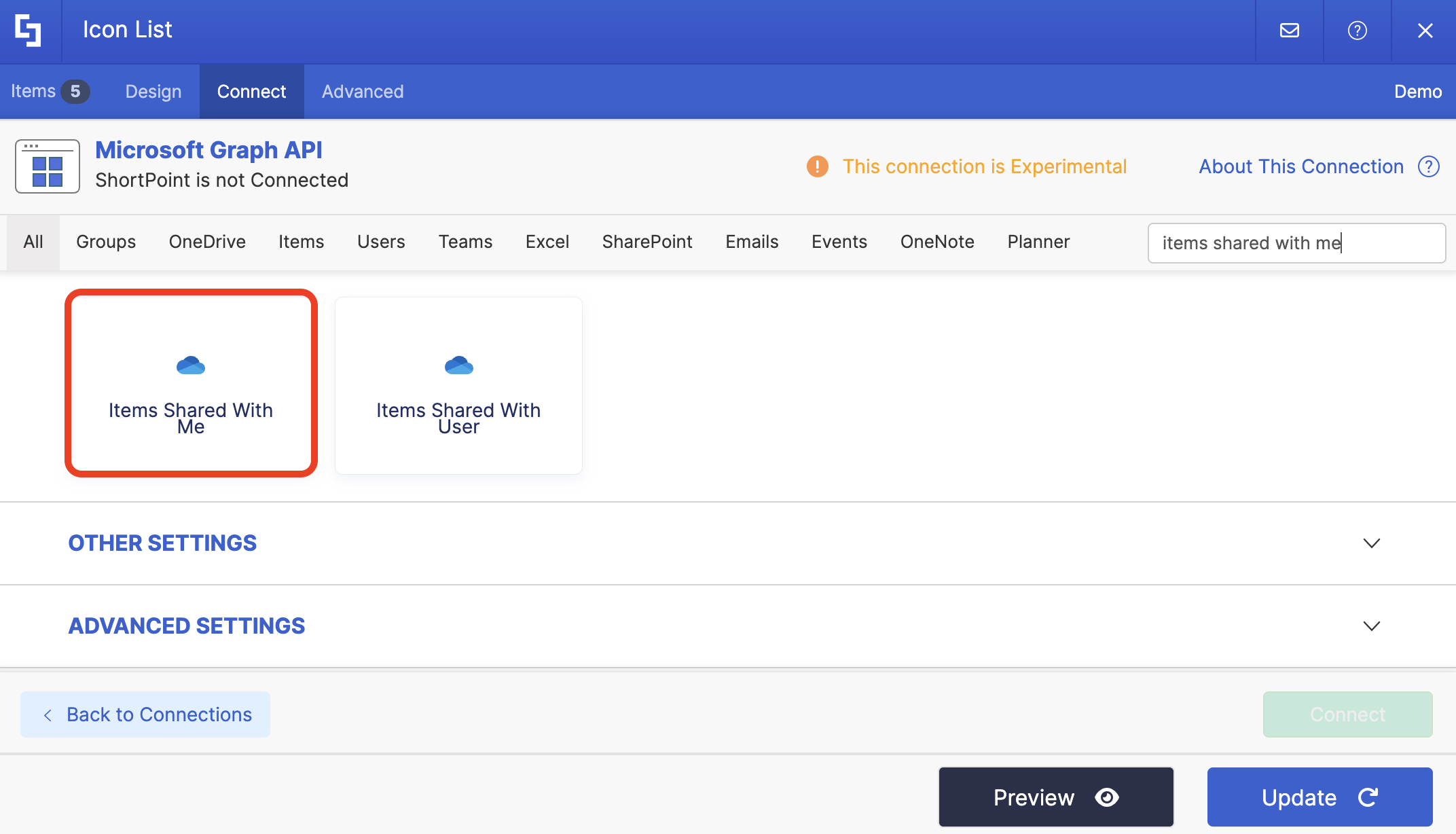
Step 5: Use the Items Shared With Me Use Case
Search for Items Shared With Me and select it:
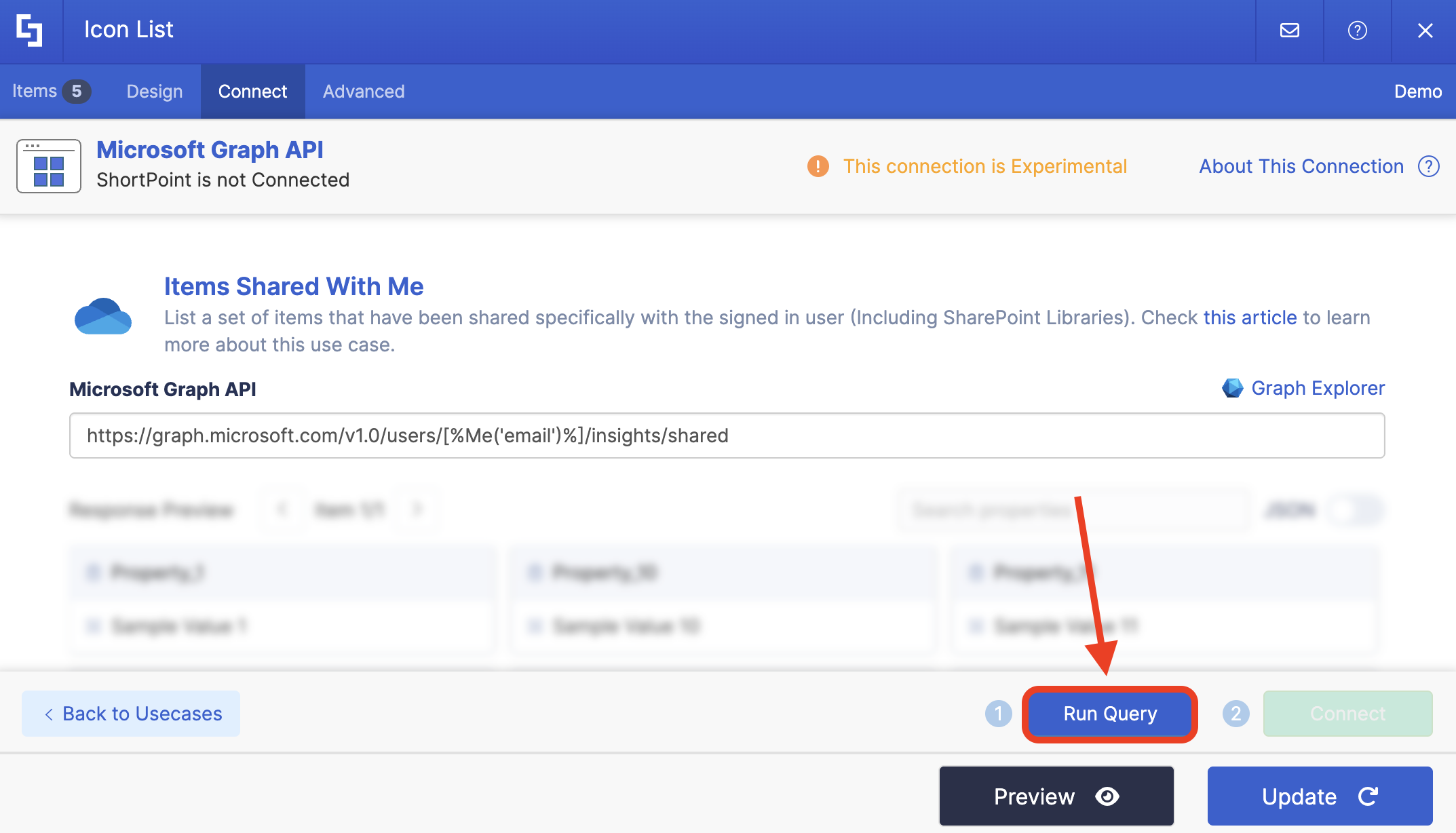
Step 6: Connect
Click Run Query:
Select Connect:
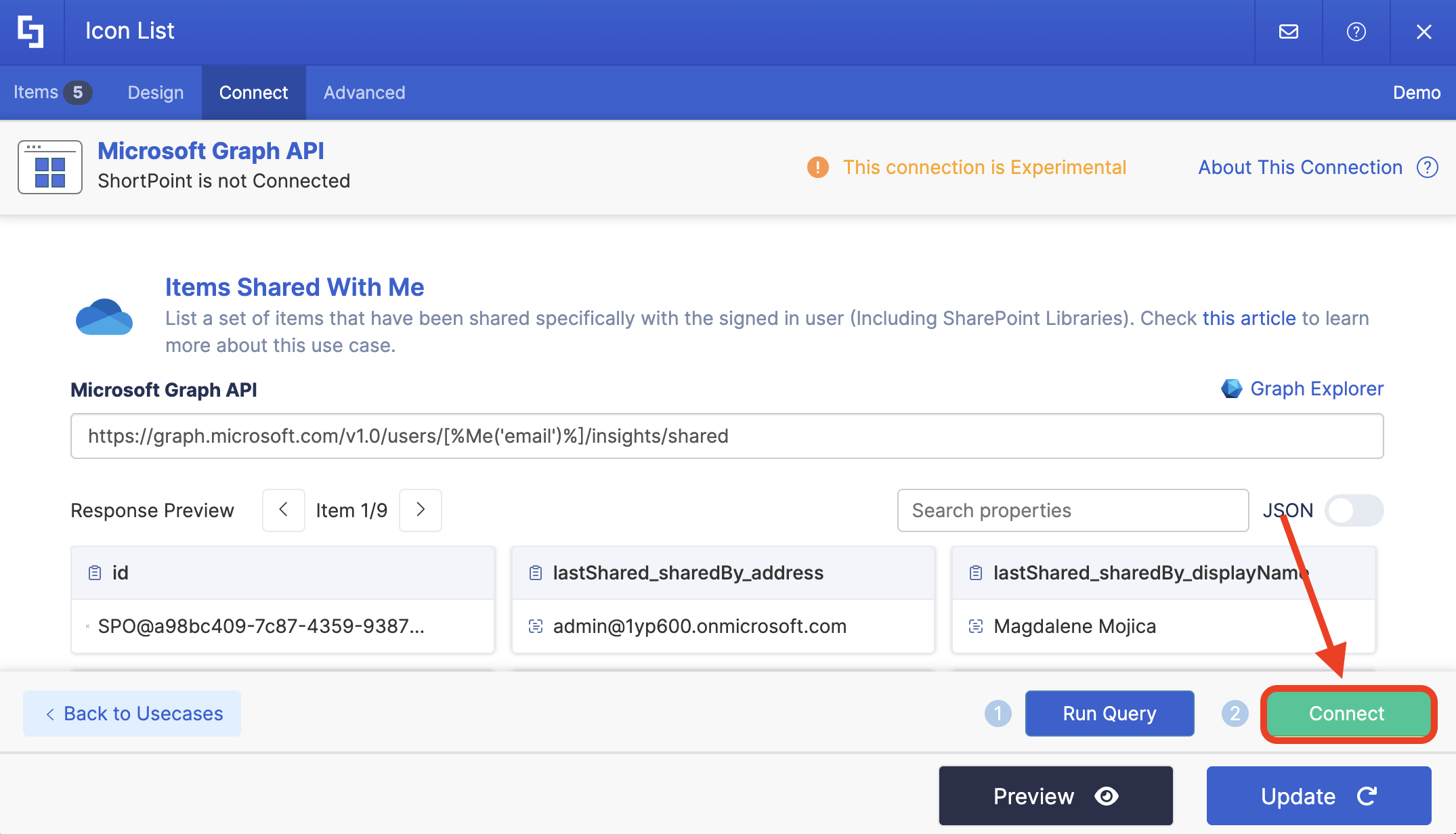
Step 7: Map Items
Go to the Items tab:
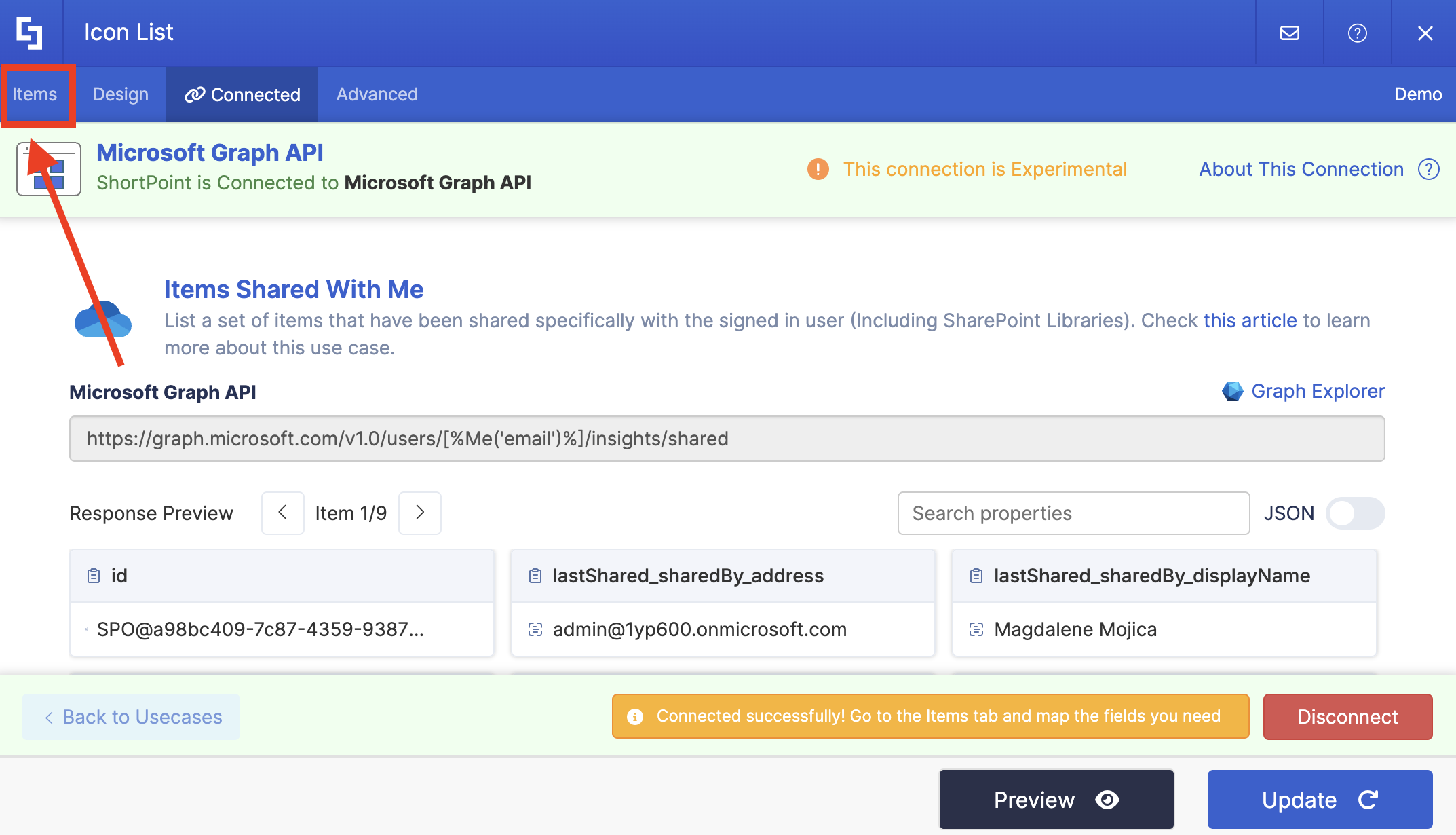
Delete default content:
Use the link icon to map the properties you want to be displayed:
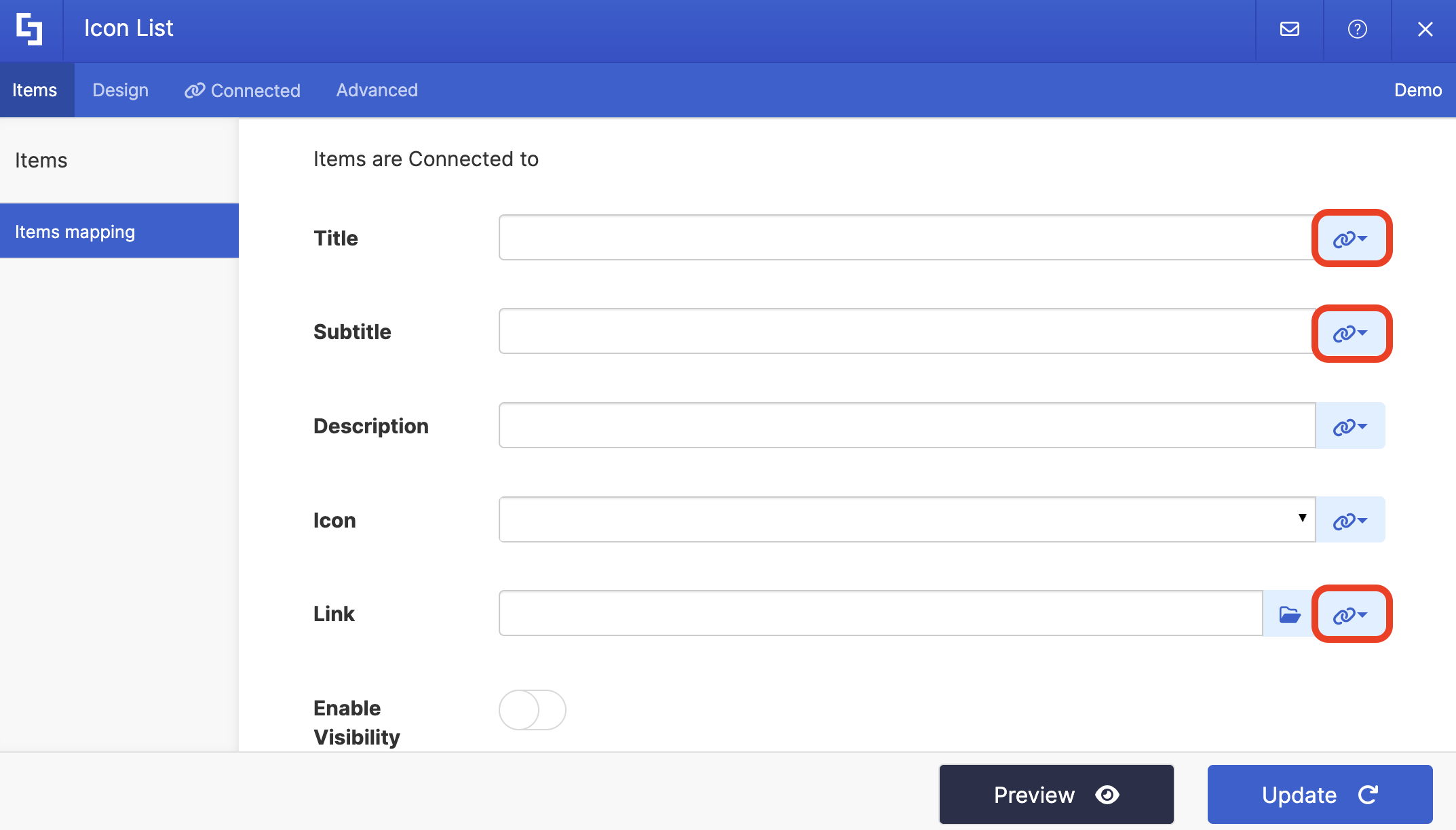
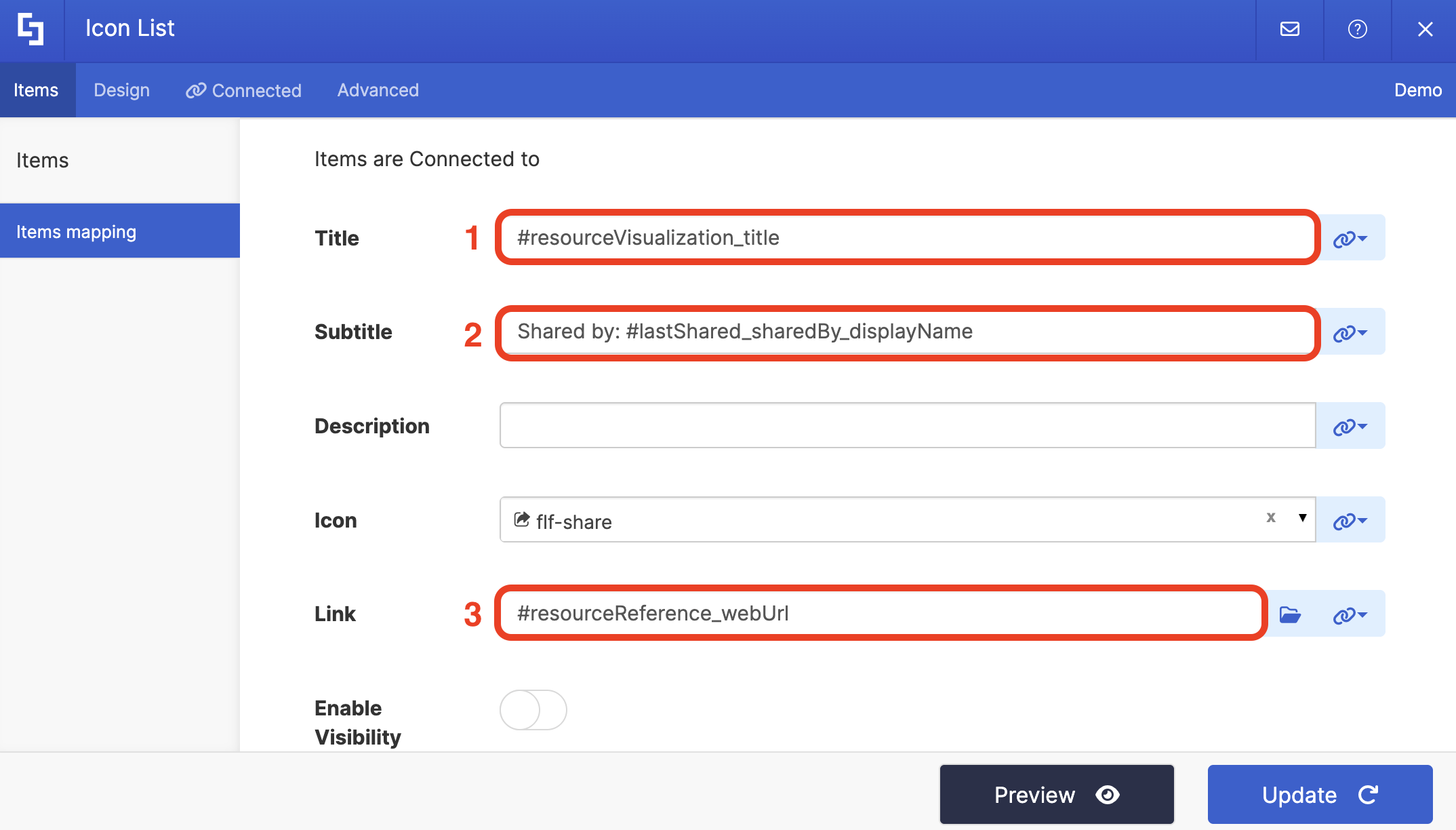
You can map any property you want. In our case, we used the following properties:
- #resourceVisualization_title - shows the file name.
- #lastShared_sharedBy_displayName - shows the name of the user who shared the file.
- #resourceReference_webUrl - redirects you to the actual file.
NOTECheck out ShortPoint Connect: How Items Mapping Works to learn more about mapping properties.
Step 8: Save
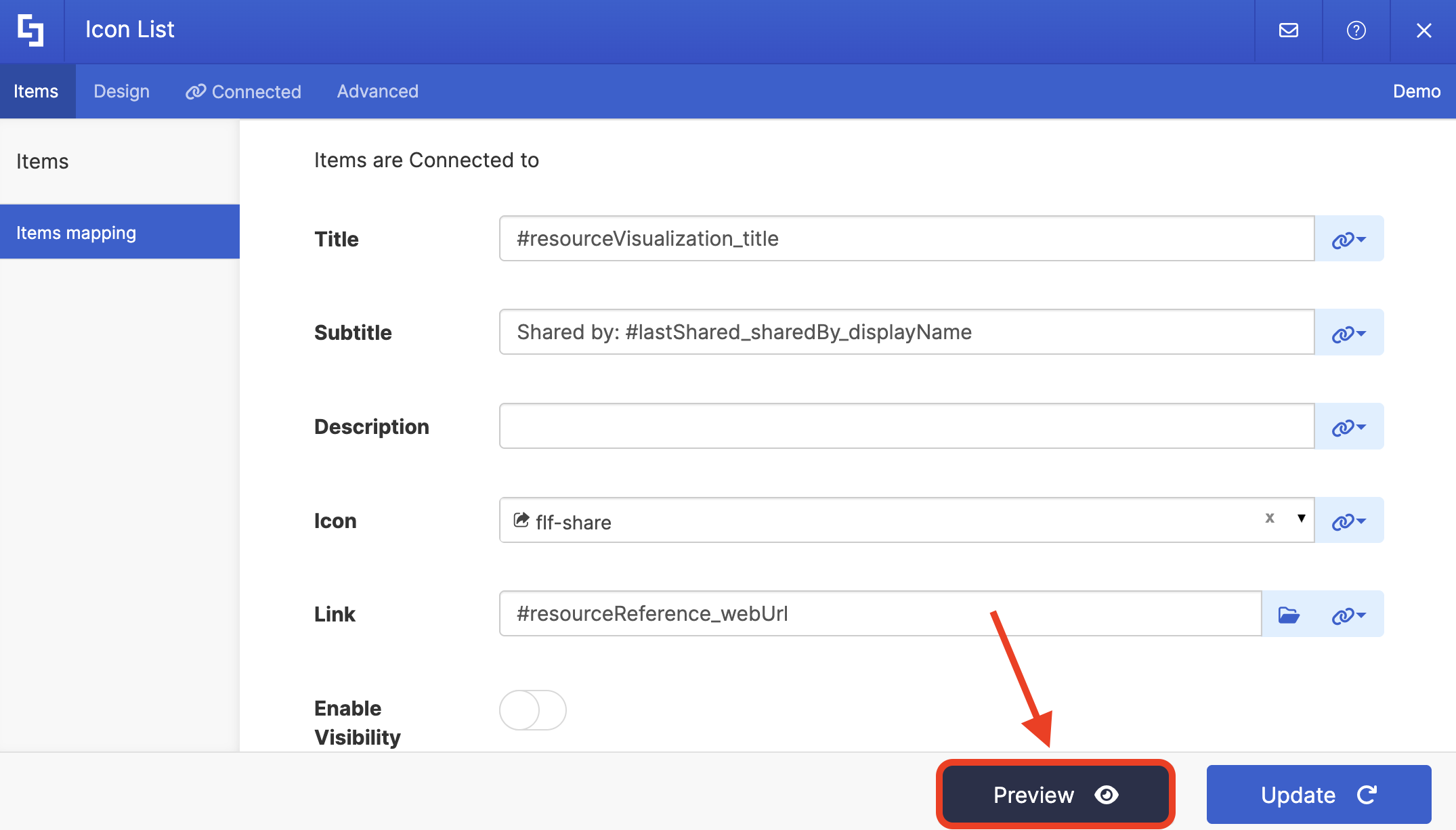
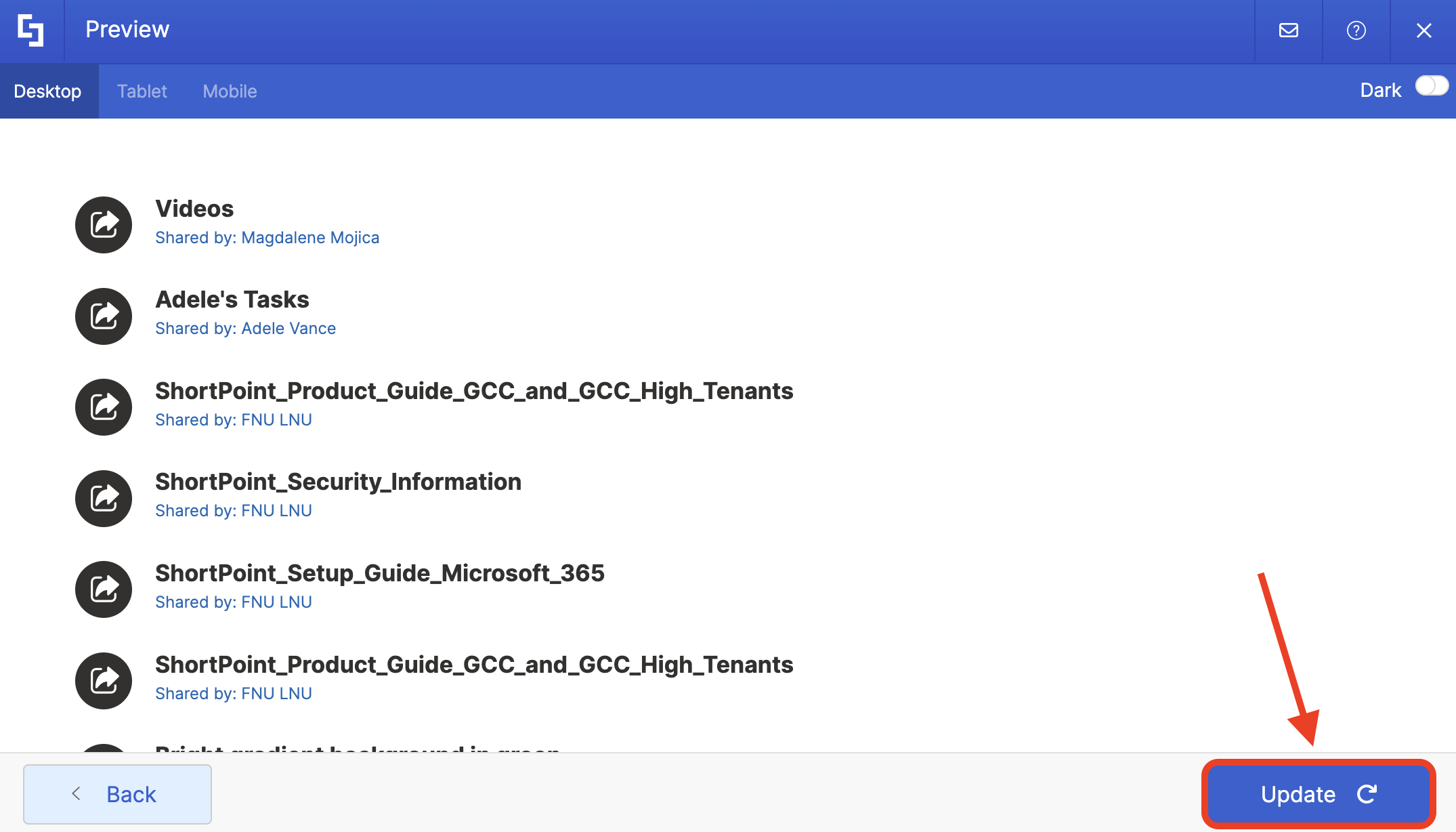
Select Preview to see how the Design Element looks:
Click Update to apply your changes:
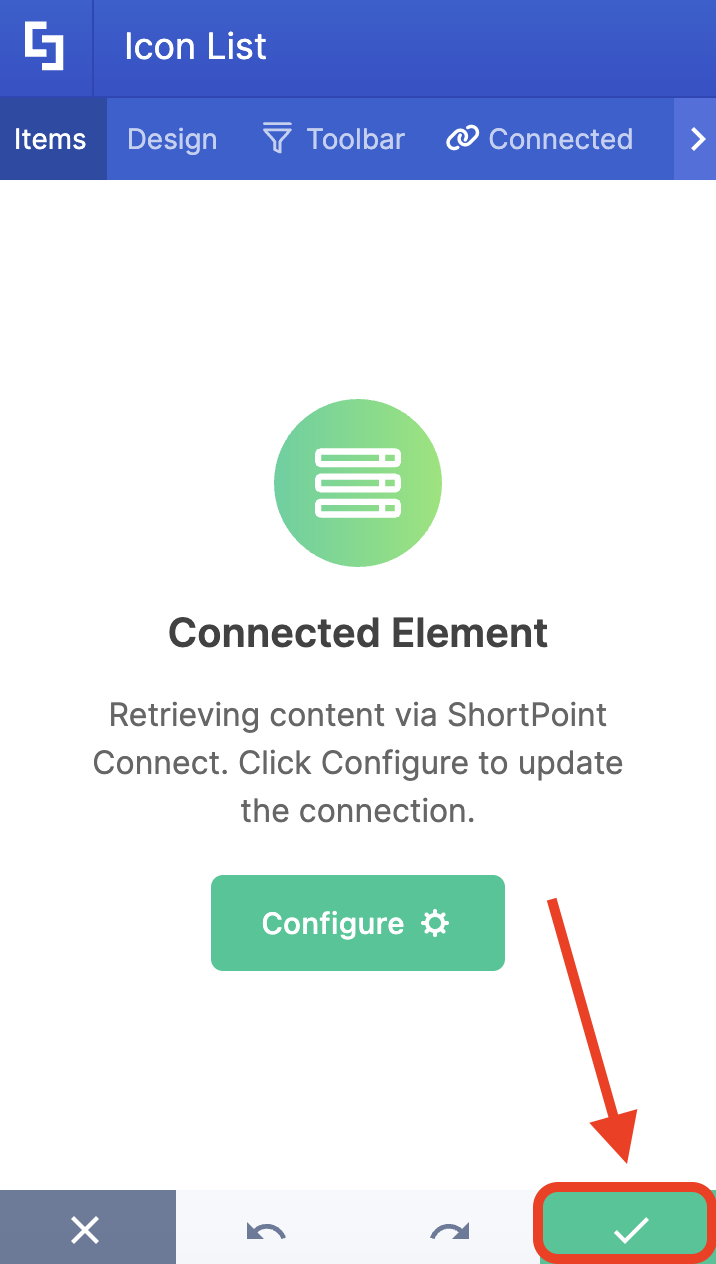
Click the green checkmark:
Once satisfied, click Save:

And Publish your page:
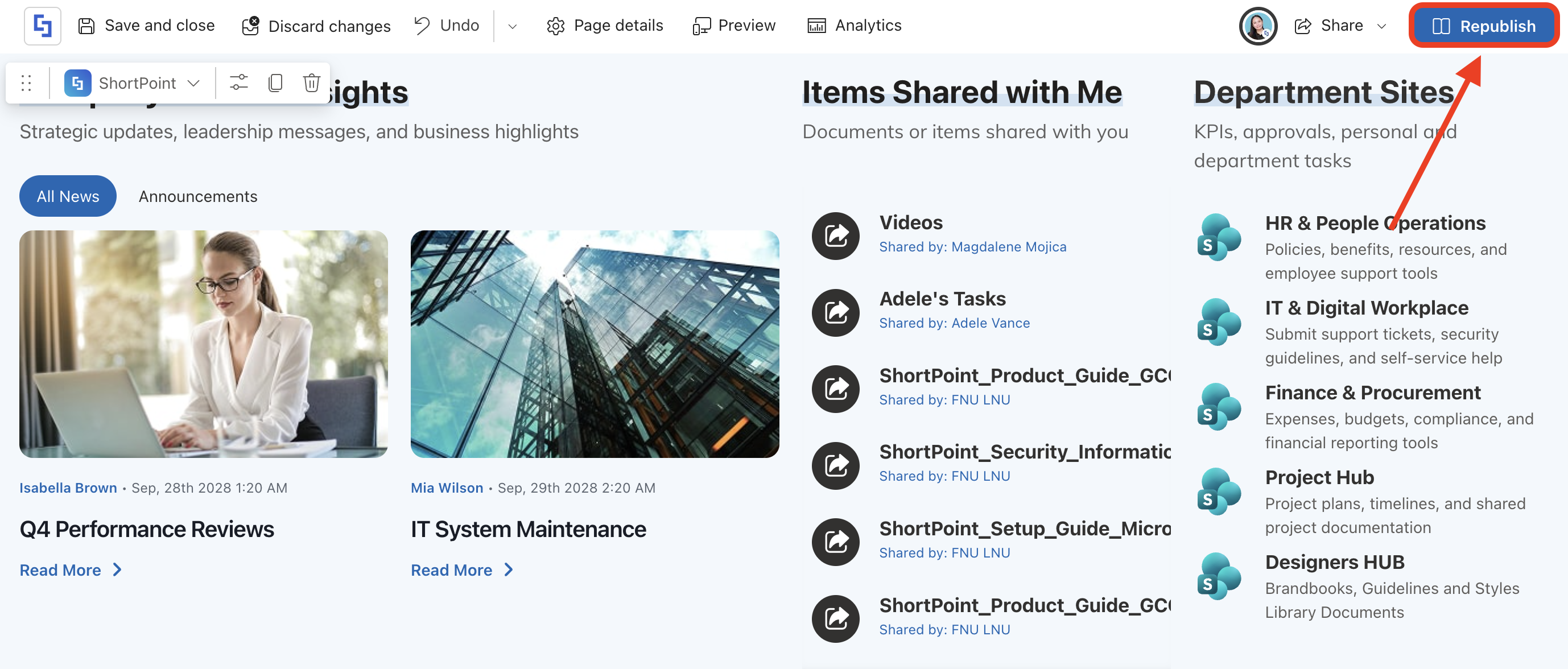
Amazing! You can now show recently shared items on your SharePoint site, enhancing user experience.
Frequently Asked Questions
What are shared items in SharePoint?
Shared items are files or folders that have been shared with you or others within your organization or externally. They can include documents, photos, and other content accessible via SharePoint or OneDrive.
How can I see the items shared with me in SharePoint?
Using the ShortPoint Microsoft 365 Graph API connection, you can create a “Shared with Me” section on your SharePoint site. This section displays files and folders recently shared with your Microsoft account, making it easier to find and manage access to shared items.
Does this work for SharePoint sites or just OneDrive?
It works for both! If a file is shared with you from a teammate’s OneDrive or a specific SharePoint document library, it will show up here as long as you have the right permissions to access it.
What permissions are needed to use the “Items Shared With Me” use case?
You need to enable the Sites.Read.All and Files.Read.All permissions in the SharePoint Admin Center. These permissions allow reading all content and files the signed-in user has access to across Microsoft 365.
What design elements work best for displaying shared items?
Design Elements that list multiple items, such as File List, Icon List, or Simple List, are recommended for the best display of shared items on your SharePoint page.
Related articles:
