 Try ShortPoint now
Having a wealth of documents within your SharePoint intranet is a great start, but today’s teams need more than just a storage space; they need a workspace that feels intuitive. Your users aren't just looking for files; they're looking for a personalized experience that anticipates their needs through smart data.
Imagine the productivity boost when a team member opens SharePoint and finds exactly what they were working on just moments ago, right at their fingertips. No manual searching or navigating through multiple libraries. Just a seamless transition back into the flow of work.
Using the ShortPoint Microsoft Graph API connection, you can easily surface a tailored list of the sites, documents, and presentations each user has recently interacted with. This powerful integration helps you track recent activity quickly. Let’s explore how you can implement this to make your intranet feel a lot more like a personal assistant and a little less like a filing cabinet.
TABLE OF CONTENTS
- Prerequisites
- What is the “All Items Viewed or Modified by Me” Use Case?
- Step-by-step Tutorial
- Frequently Asked Questions
Prerequisites
- You must have ShortPoint SPFx version 8.6.0.0 and up installed.
- You also need to be a ShortPoint Designer with either a Pro or Enterprise license. For more details, check out Licensing Options.
- You must have the Microsoft Graph API connection enabled. Go to How to Enable Microsoft Graph Integration for MS Graph API Connections to learn how.
- You must authorize the necessary permissions (Contacts.Read) in the API access page. To check, go to your SharePoint Admin Center > Advanced > API access.
- You must have the Design Element you want to use to connect on your SharePoint page. For best results, we recommend using Design Elements that allow listing of multiple items (File List, Icon List, Simple List, etc.).
What is the “All Items Viewed or Modified by Me” Use Case?
The All Items Viewed or Modified by Me use case allows you to retrieve the most recent items a user has viewed or modified across OneDrive and SharePoint.
NOTEThis particular use case will show all of the signed-in user’s recently viewed items that are in their drive, items they have access to from other drives, and their visited site pages. If you wish to only list recently viewed files (doc, pdf, xls, etc.), check out How to Display Recently Viewed or Modified Documents.
The items retrieved by this use case will vary from user to user, meaning each user will see a unique set of items.
The typical structure of this use case is:
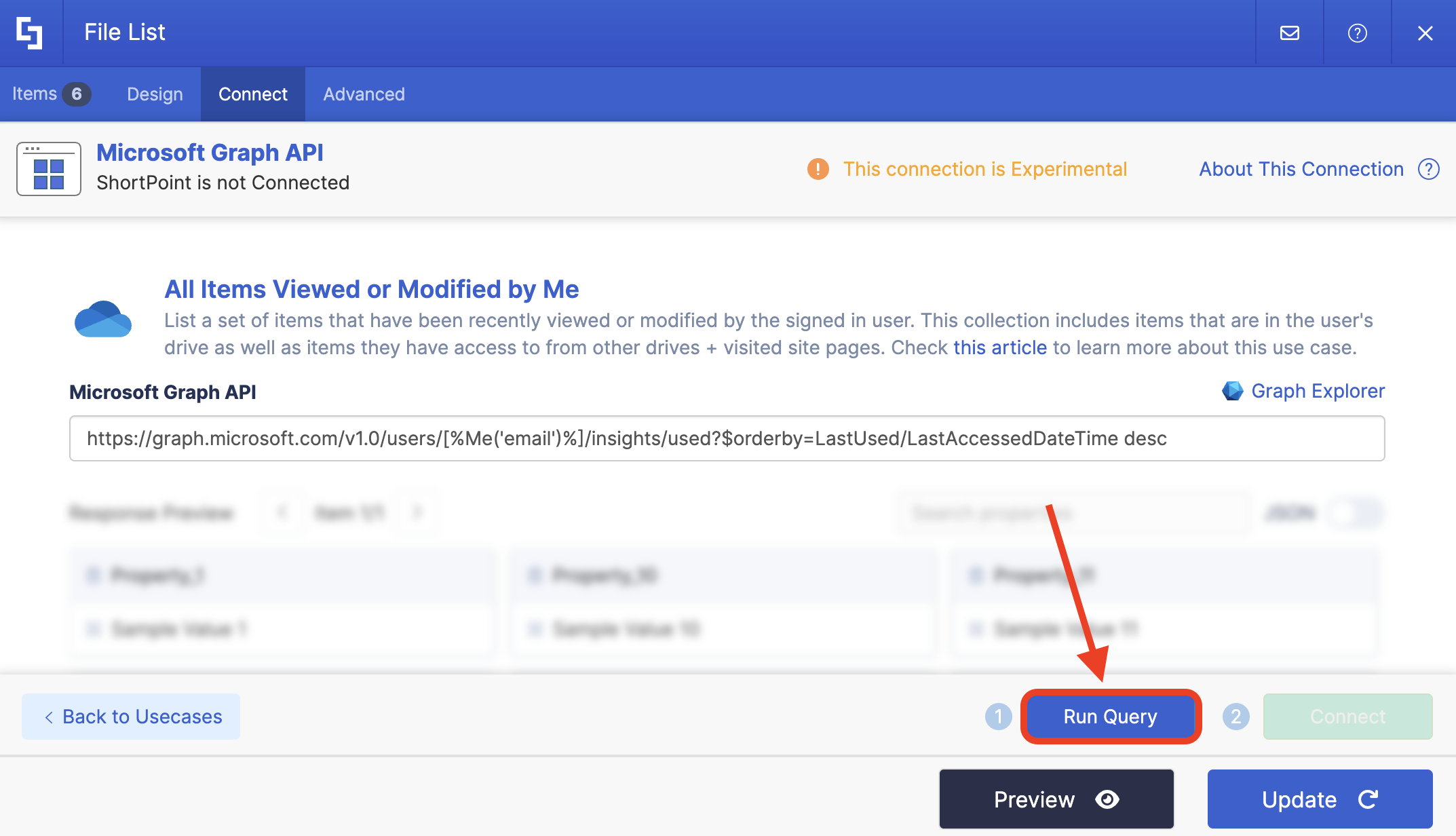
https://graph.microsoft.com/v1.0/users/[%Me('email')%]/insights/used?$orderby=LastUsed/LastAccessedDateTime descYou must enable the following permissions in the SharePoint Admin Center to use it:
Sites.Read.All gives permission to read all content for all site collections within your organization's SharePoint and Microsoft Teams environment.
NOTEIf you haven’t given access to the permissions above, go to your SharePoint Admin Center > Advanced > API access.
Step-by-step Tutorial
Follow the steps below to learn how to use the All Items Viewed or Modified by Me use case to create a personalized list of recent documents section that enhances user productivity and engagement on your SharePoint site.
Step 1: Edit the ShortPoint Web Part
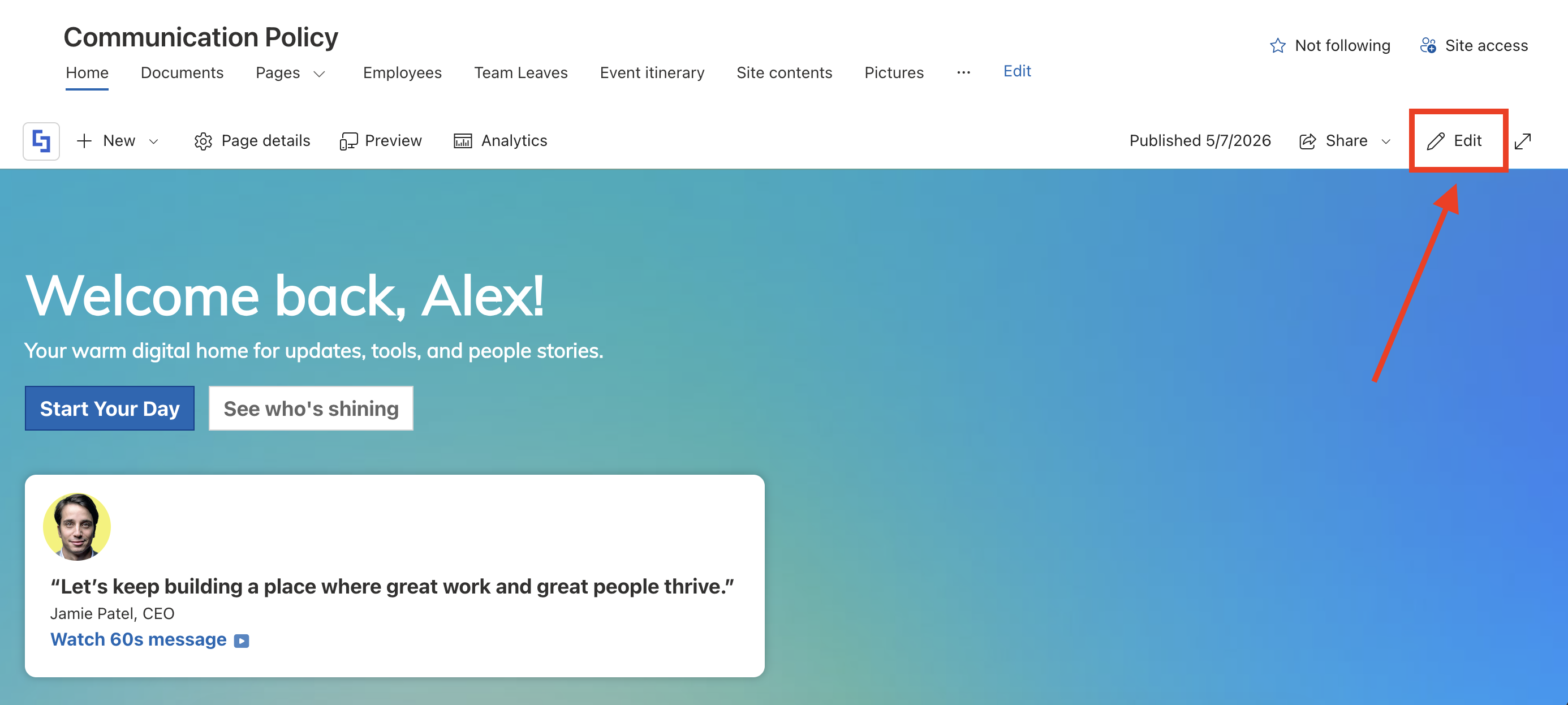
Go to the SharePoint page you want to use and click Edit:
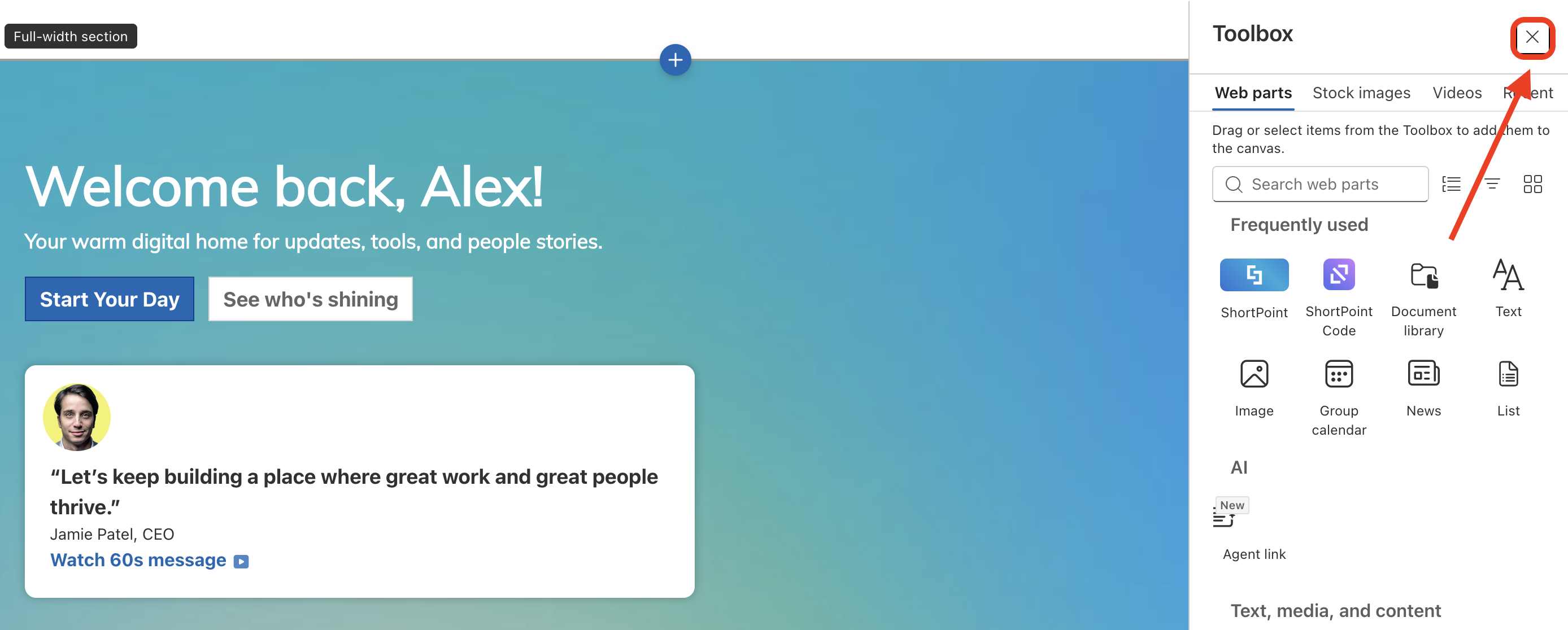
Close the Toolbox:
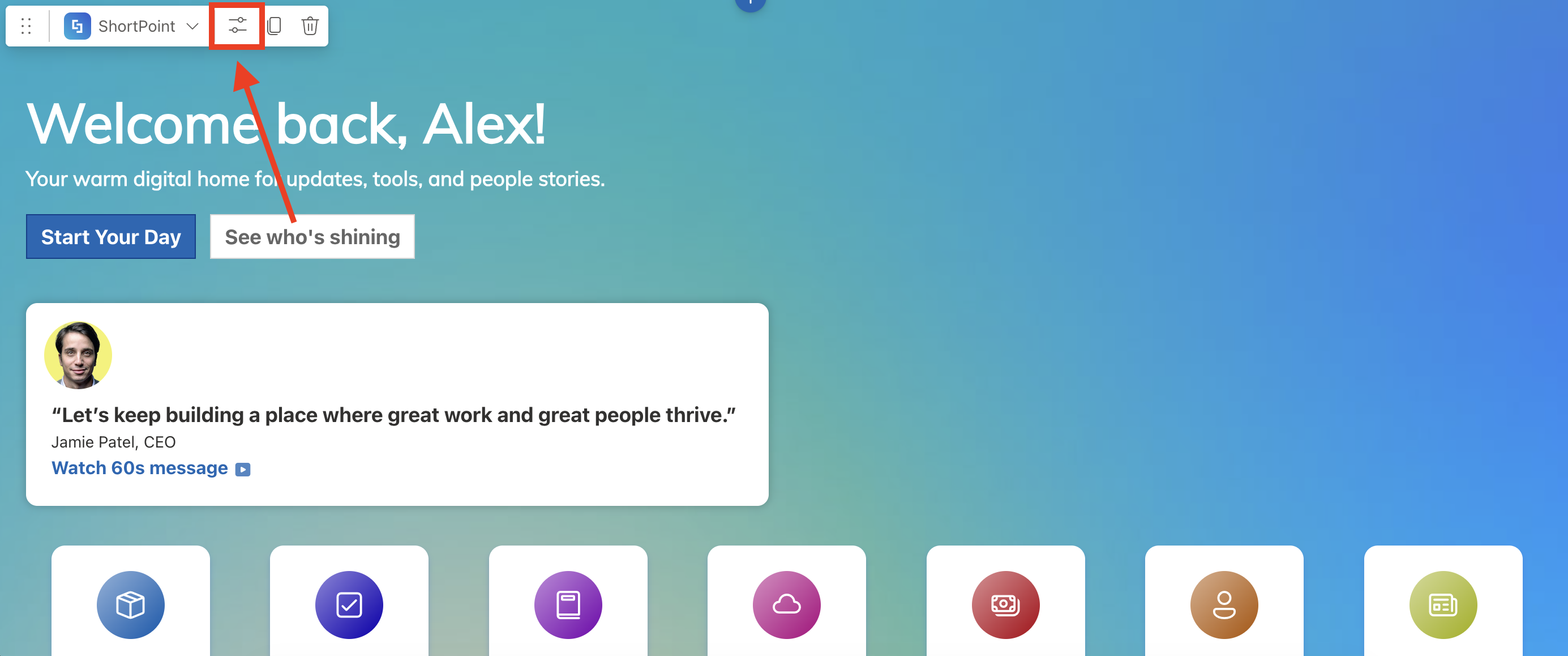
Select the ShortPoint web part and click the Edit Properties icon:
Step 2: Edit the Design Element
NOTEYou can use any Design Element you want. For best results, we recommend using Design Elements that allow listing of multiple items (Icon List, Simple List, etc.)
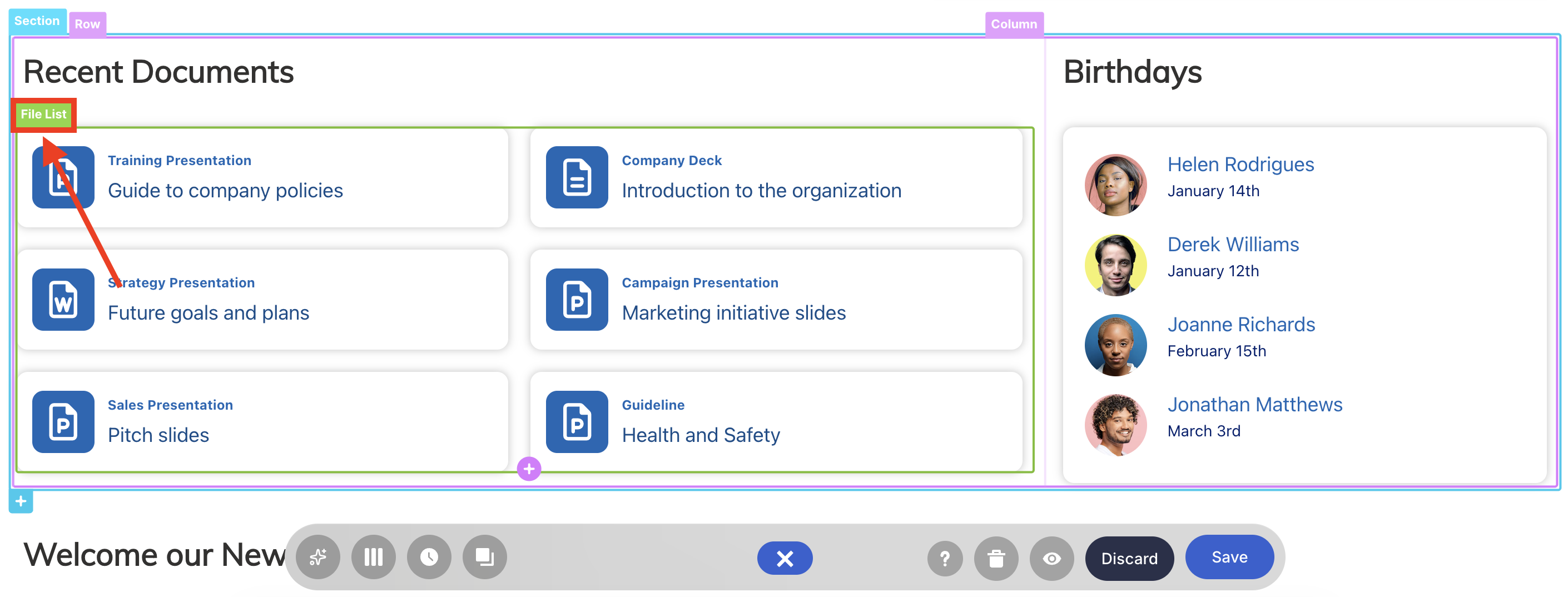
Click the EasyPass tag of the Design Element you’ll use:
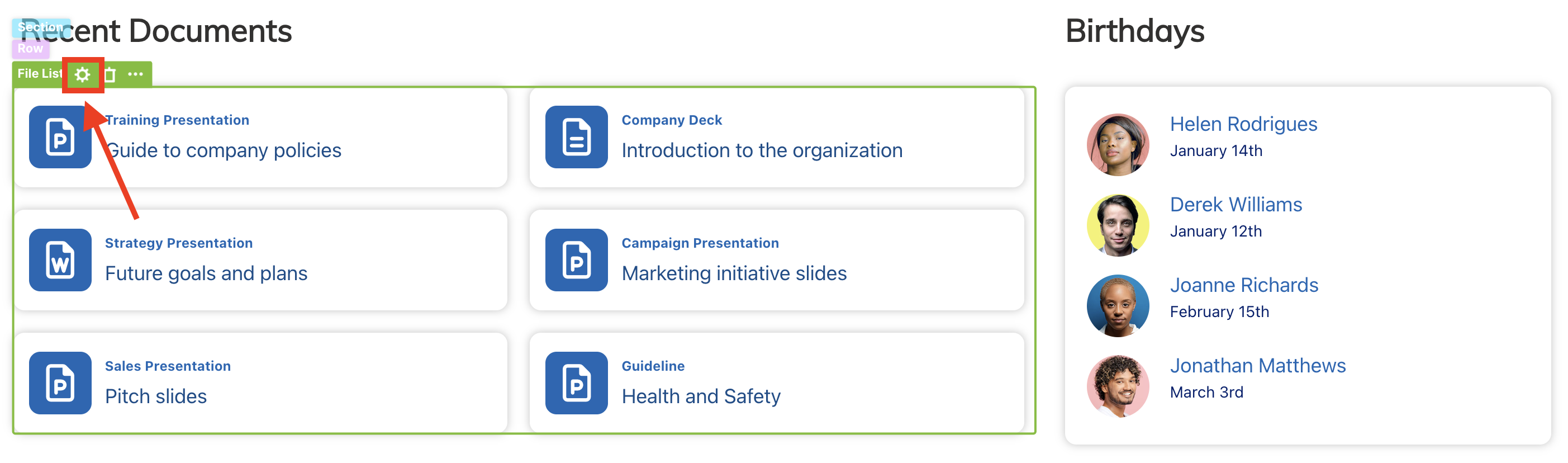
Select the cogwheel icon:
Step 3: Open the Connect Window
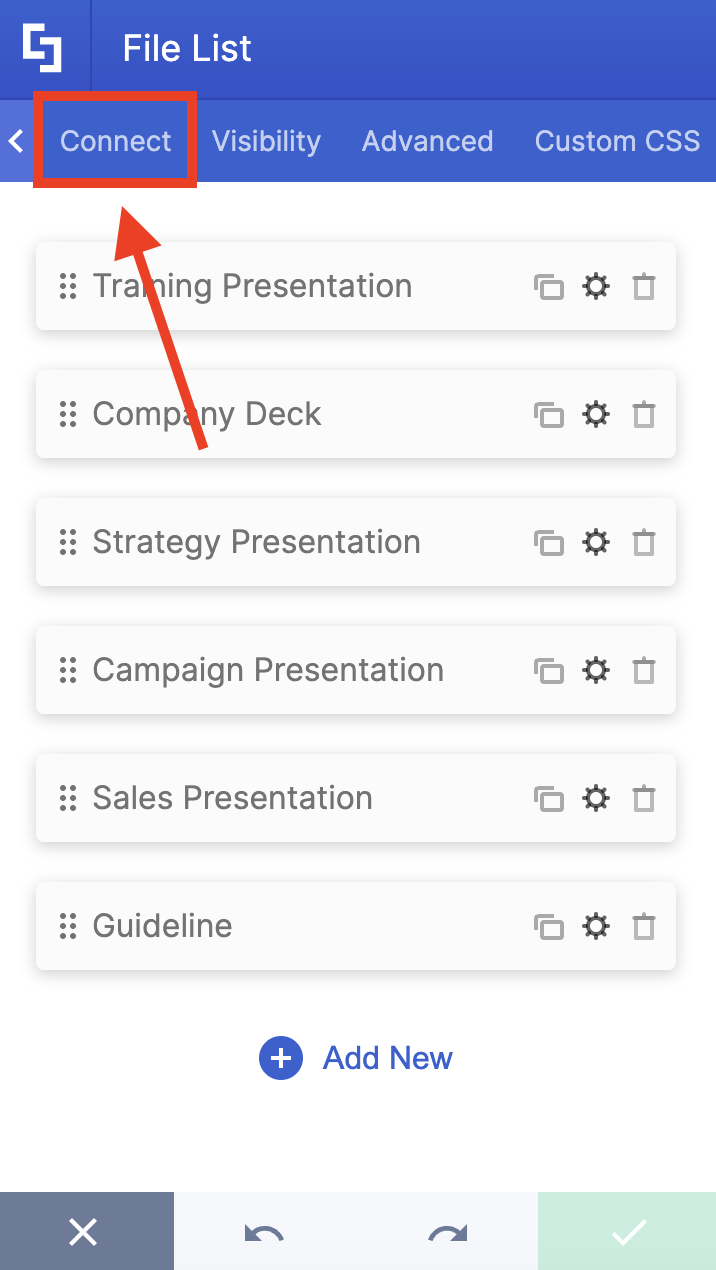
Go to the Connect tab:
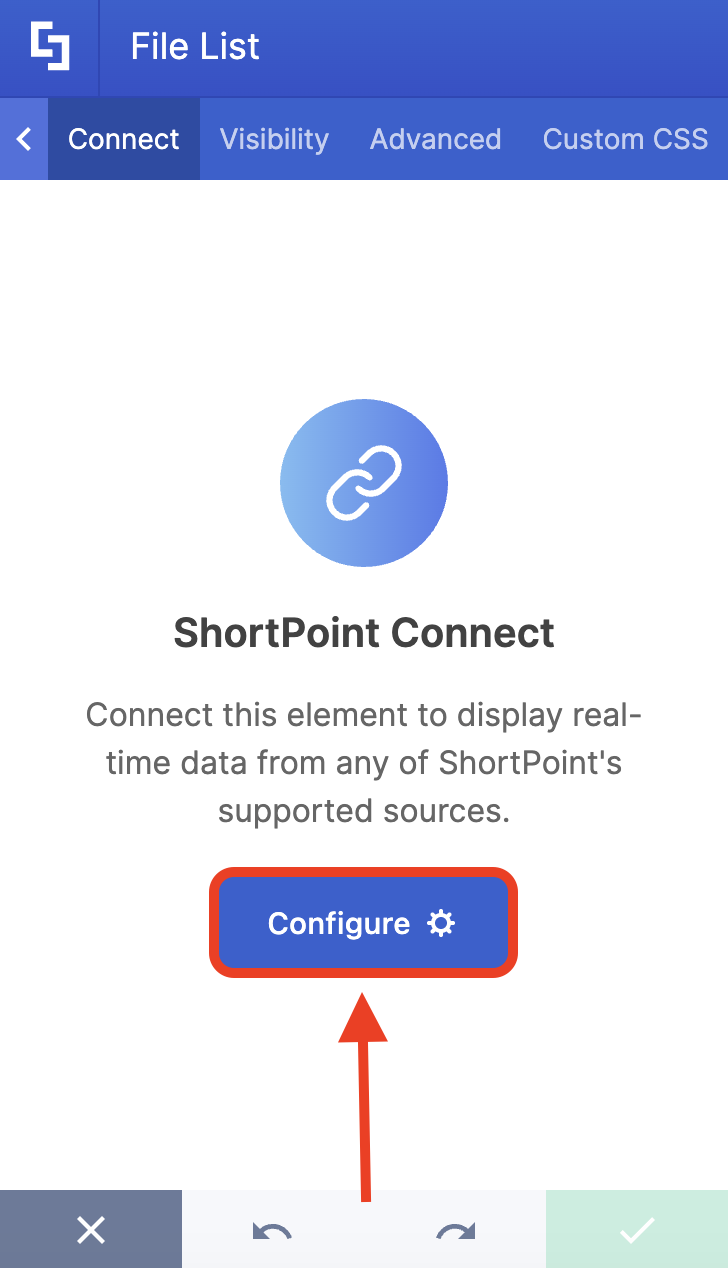
Click Configure to open the connect window:
Step 4: Connect to Microsoft Graph API
Select Microsoft Graph API:
NOTEYou need to enable the Microsoft Graph API connection before using it. Learn more about it in How to Enable Microsoft Graph Integration for MS Graph API Connections.
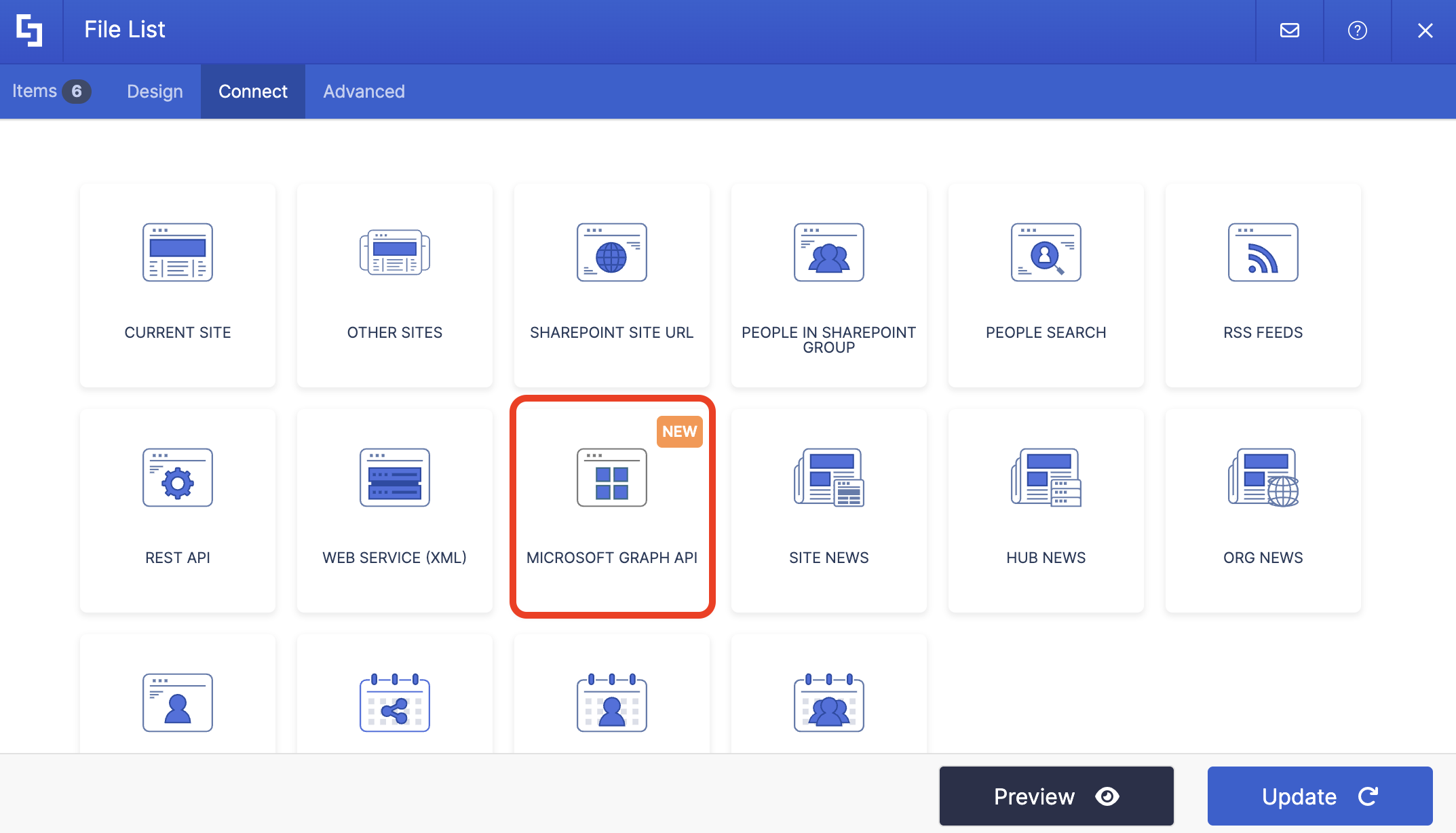
Step 5: Use the All Items Viewed or Modified by Me Use Case
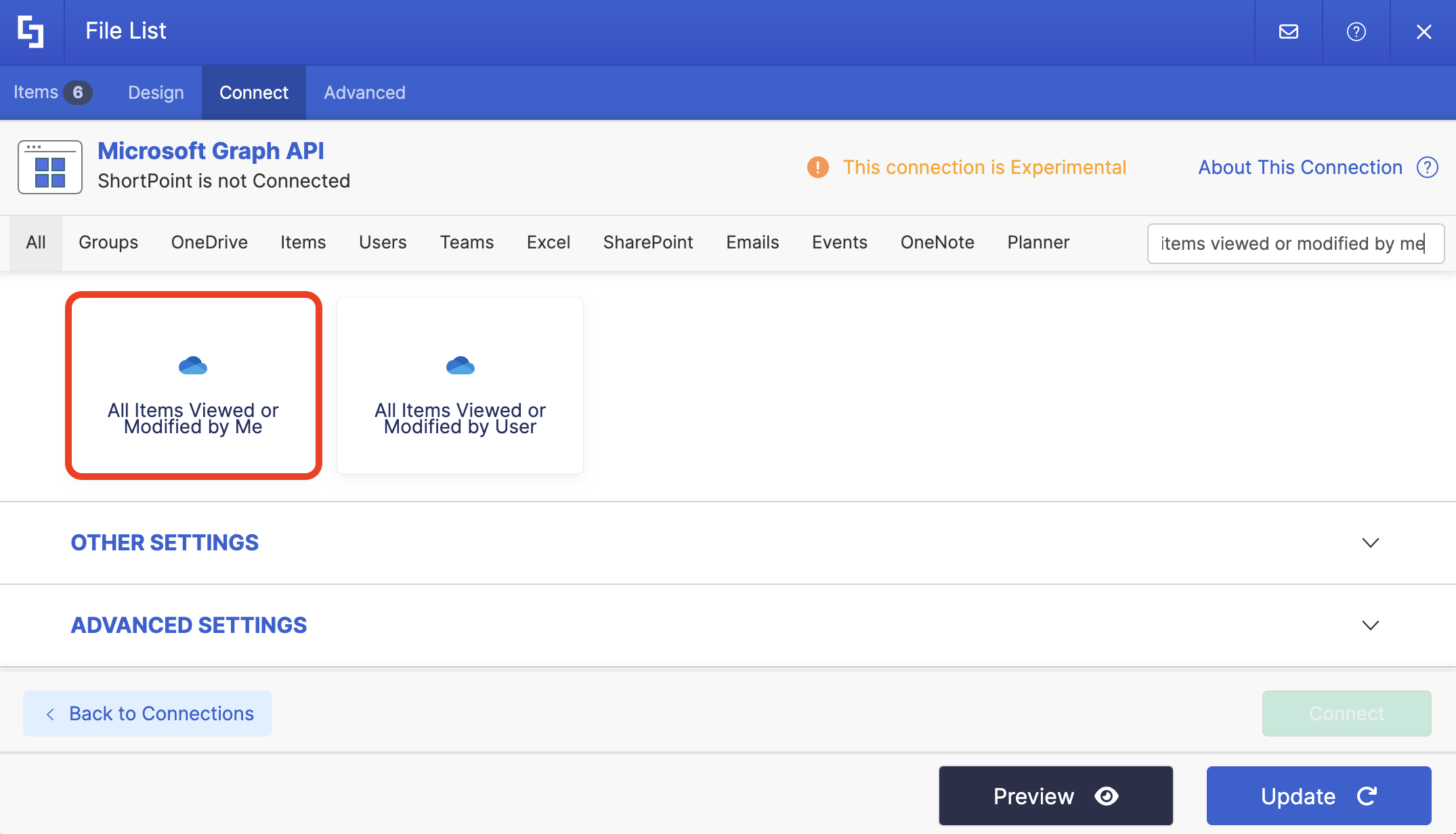
Search for All Items Viewed or Modified by Me and select it:
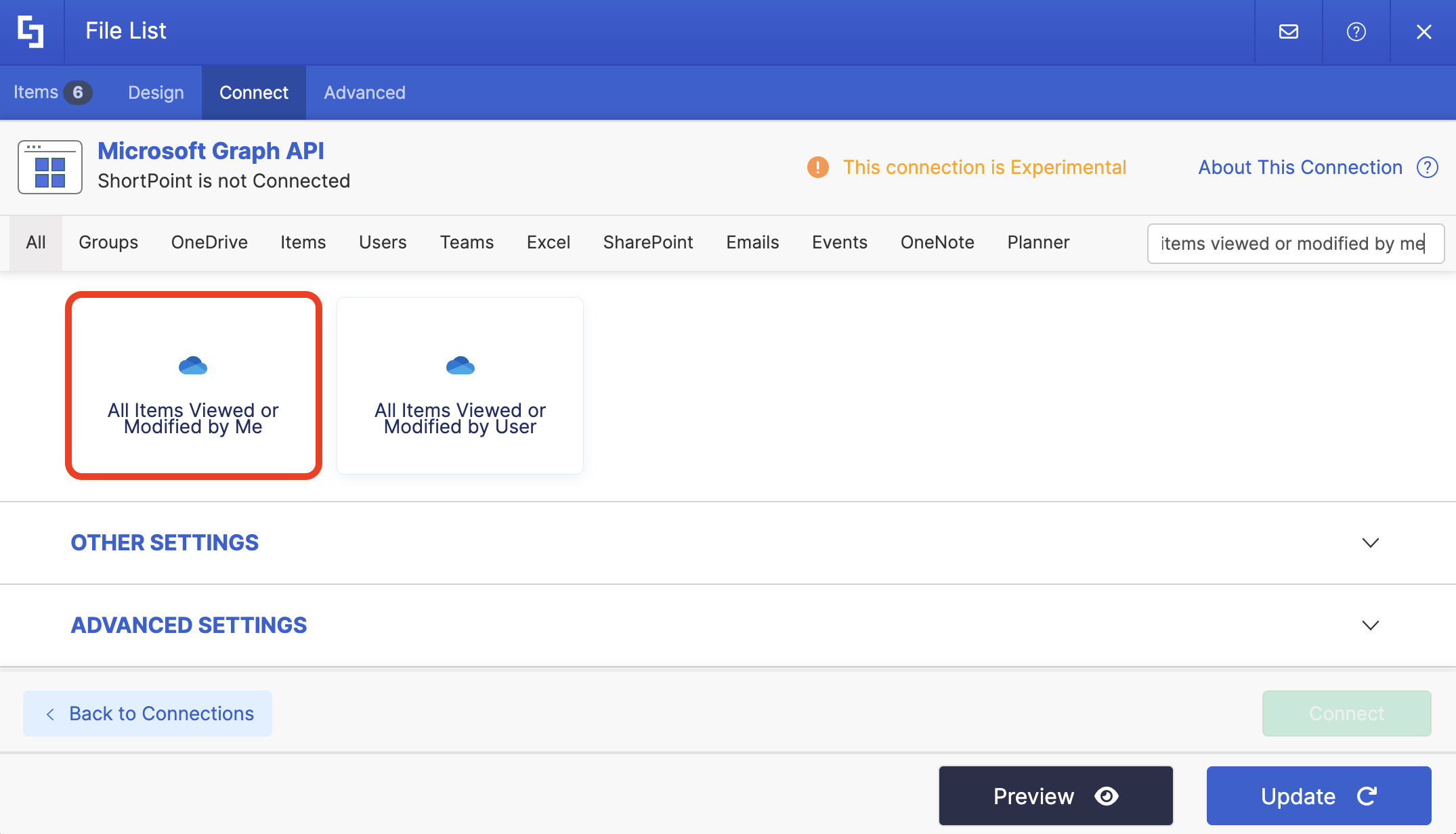
Step 6: Connect
Click Run Query:
Select Connect:
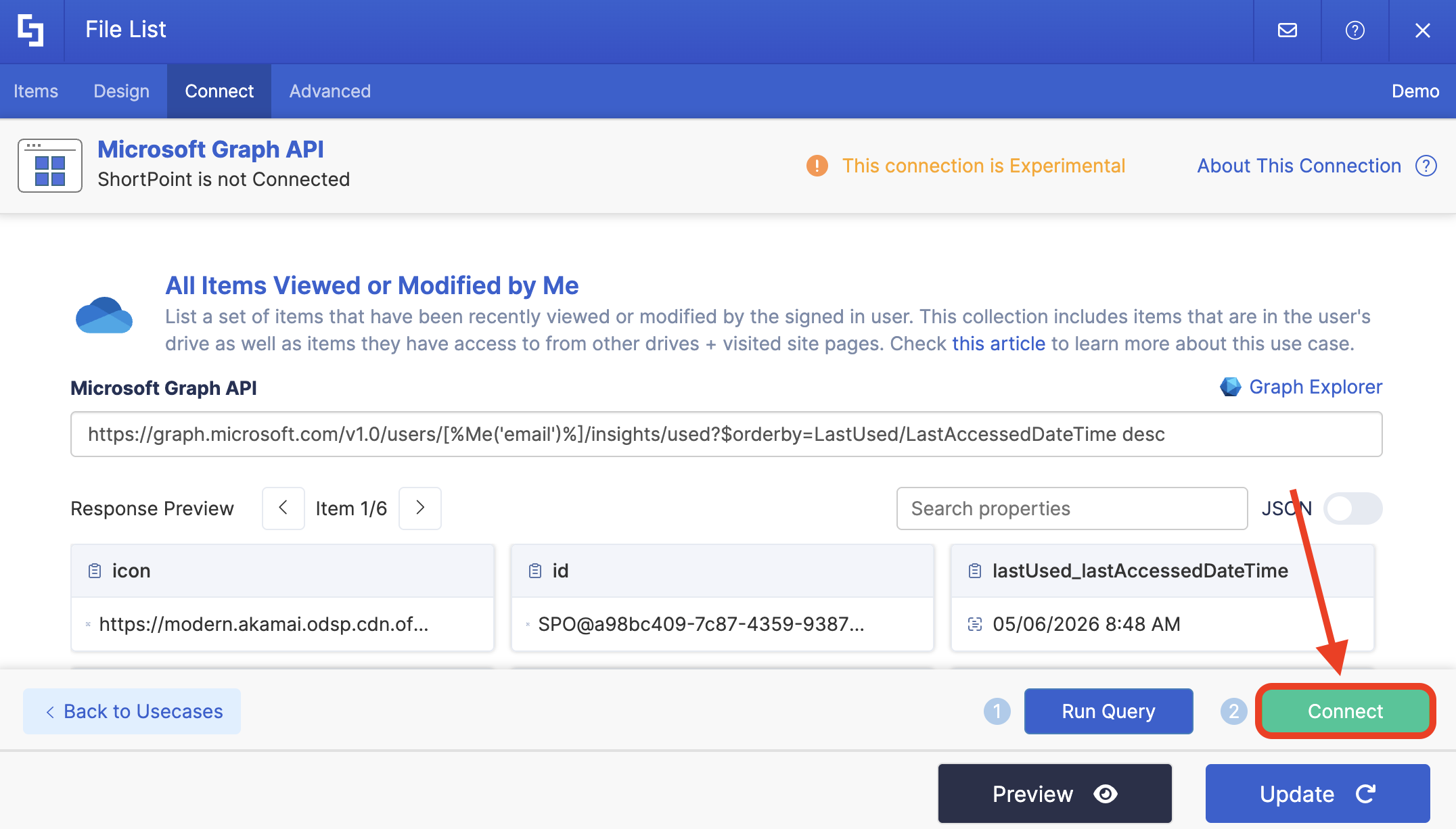
Step 7: Map Items
Go to the Items tab:
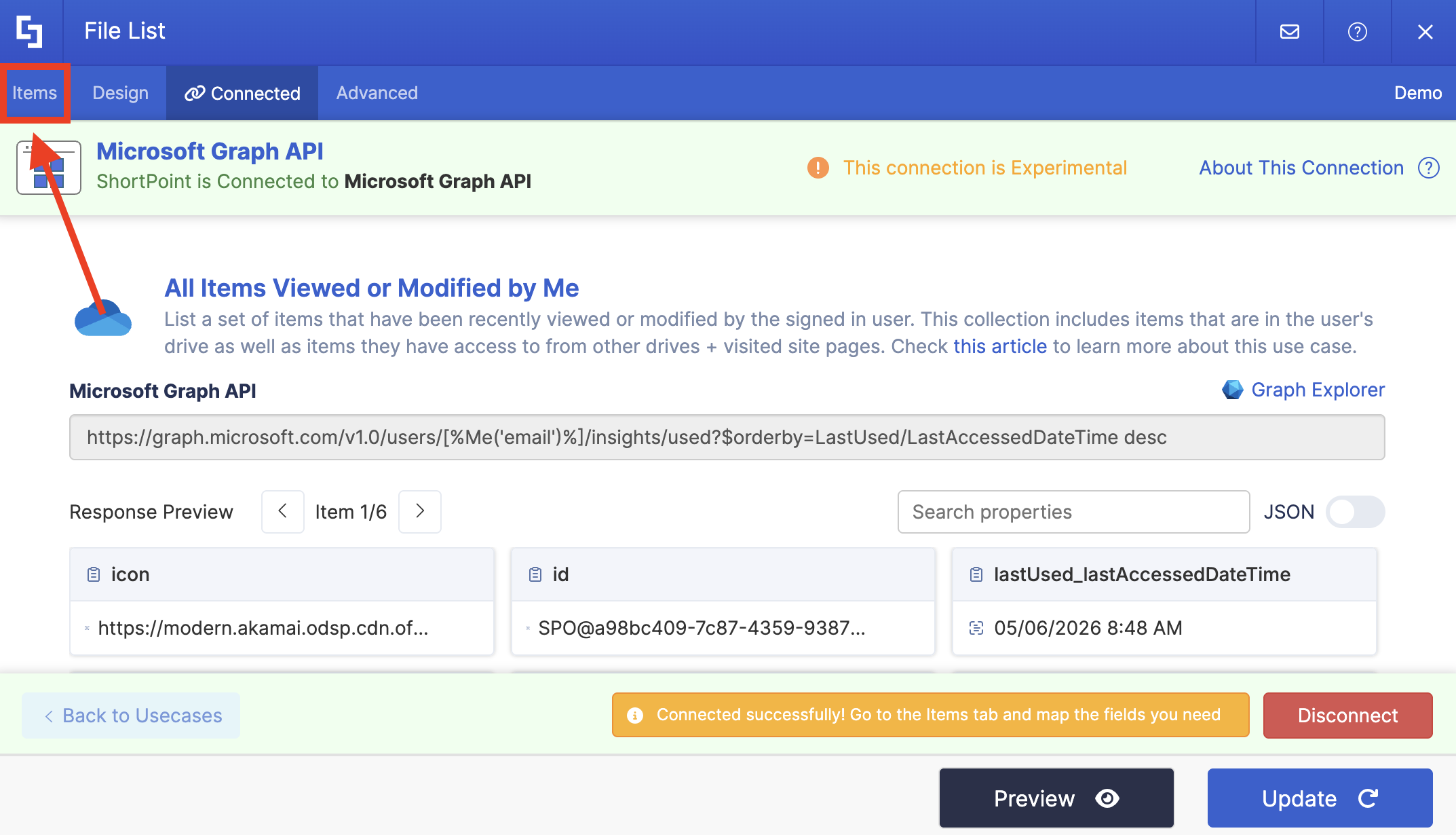
Delete default content:
Use the link icon to map the properties you want to be displayed:
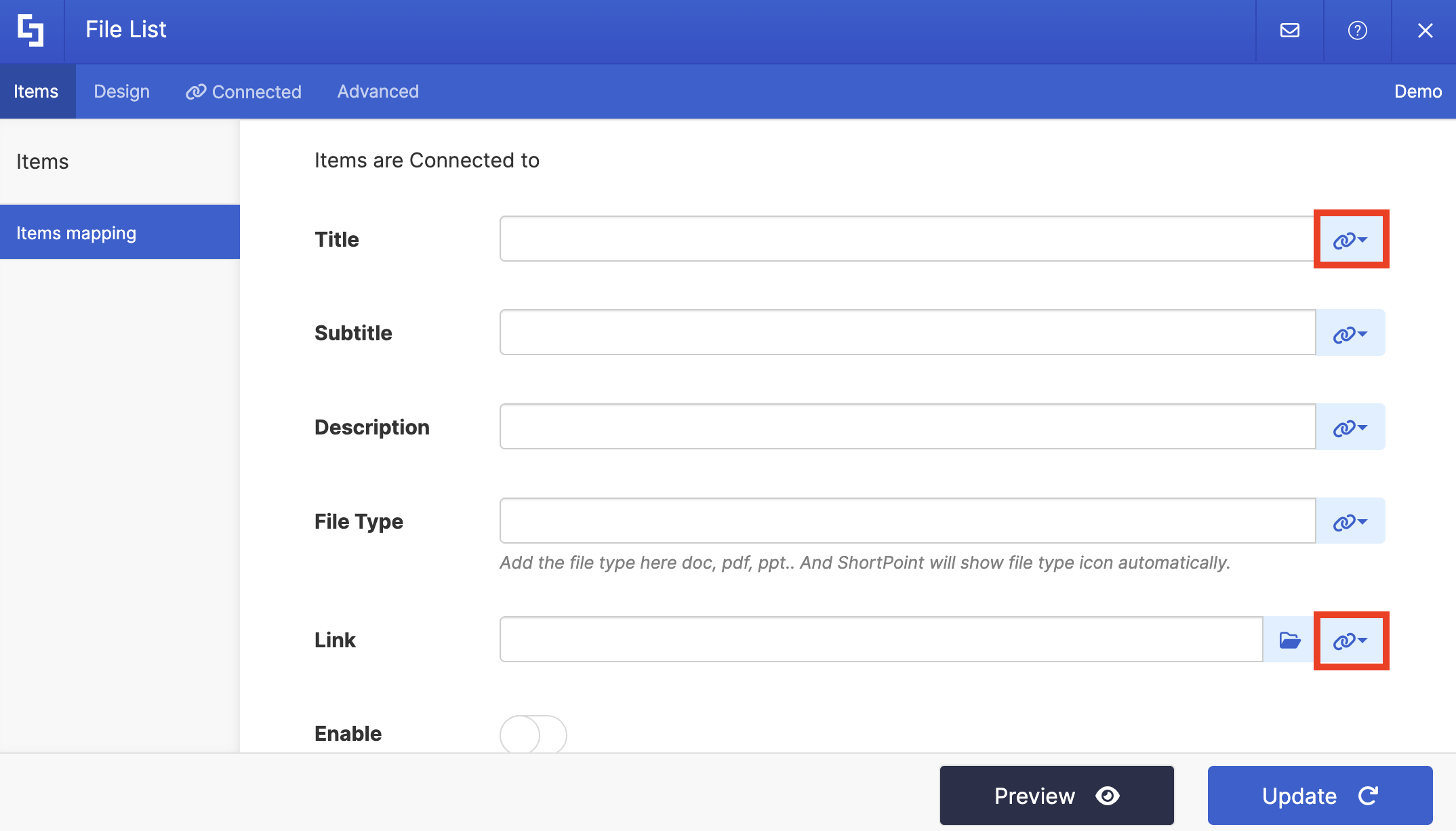
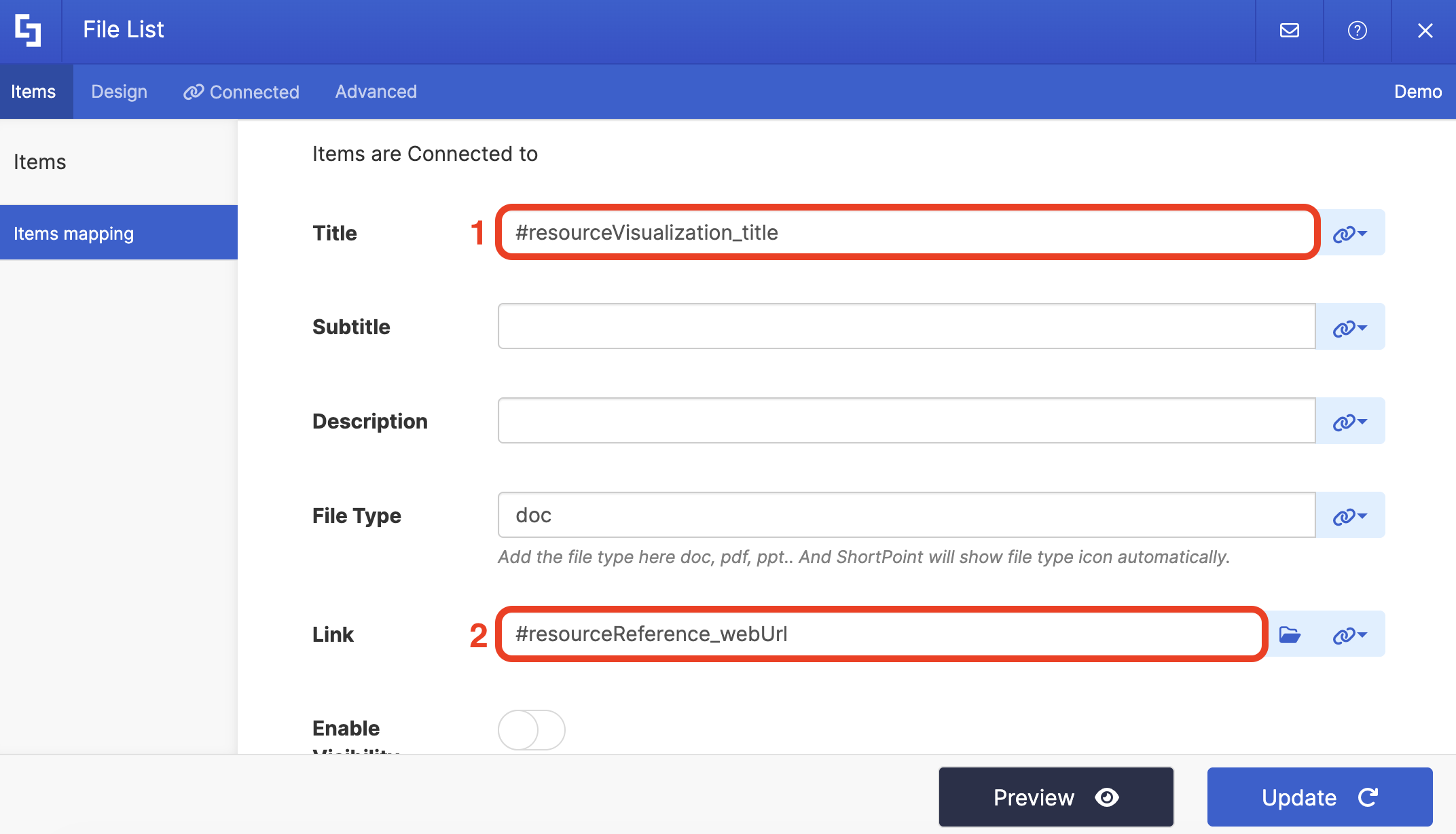
You can map any property you want. In our case, we used the following properties:
- #resourceVisualization_title - shows the file name.
- #resourceReference_webUrl - redirects page viewers to the actual file.
NOTECheck out ShortPoint Connect: How Items Mapping Works to learn more about mapping properties.
Step 8: Save
Select Preview to see how the Design Element looks:
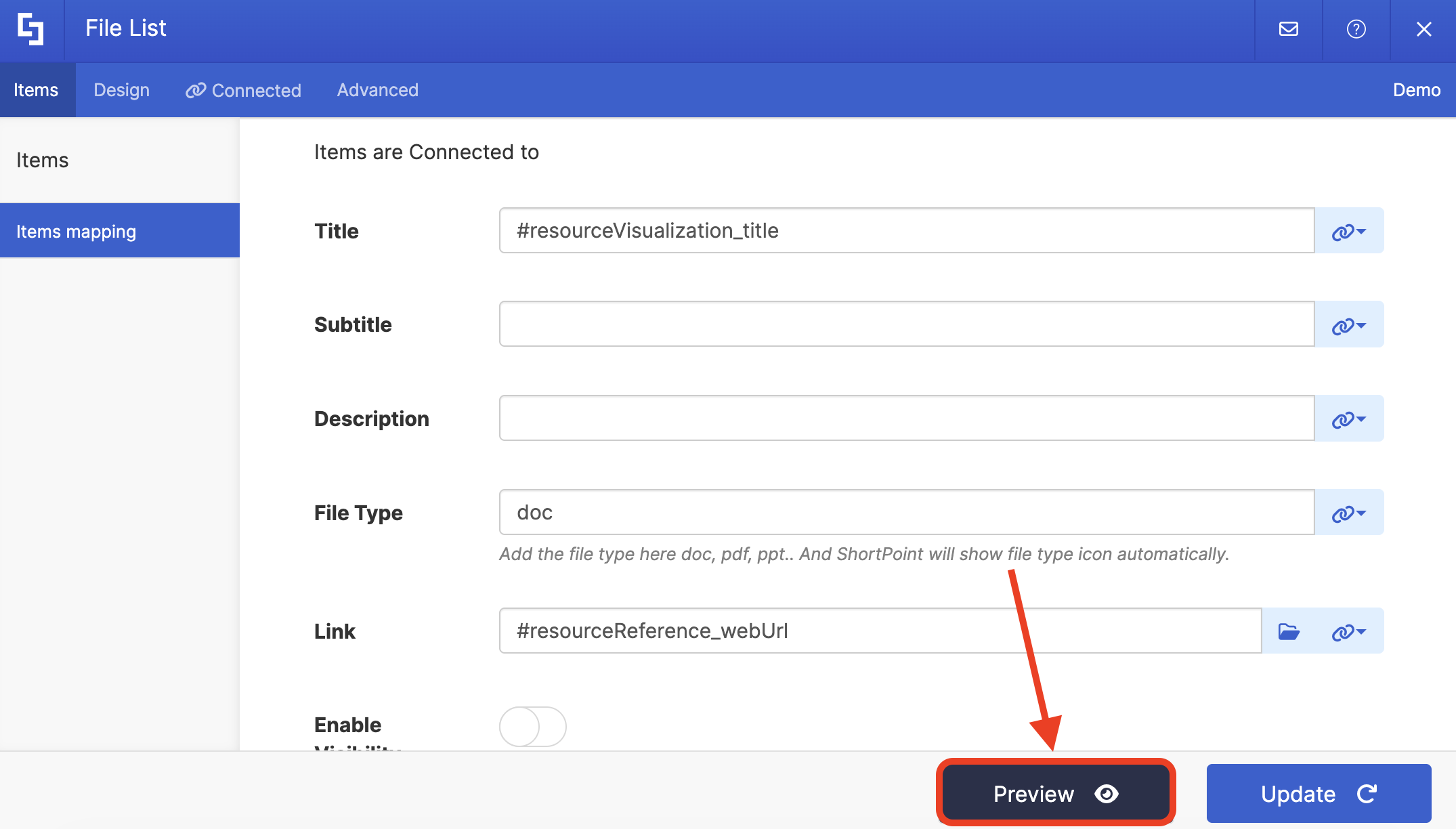
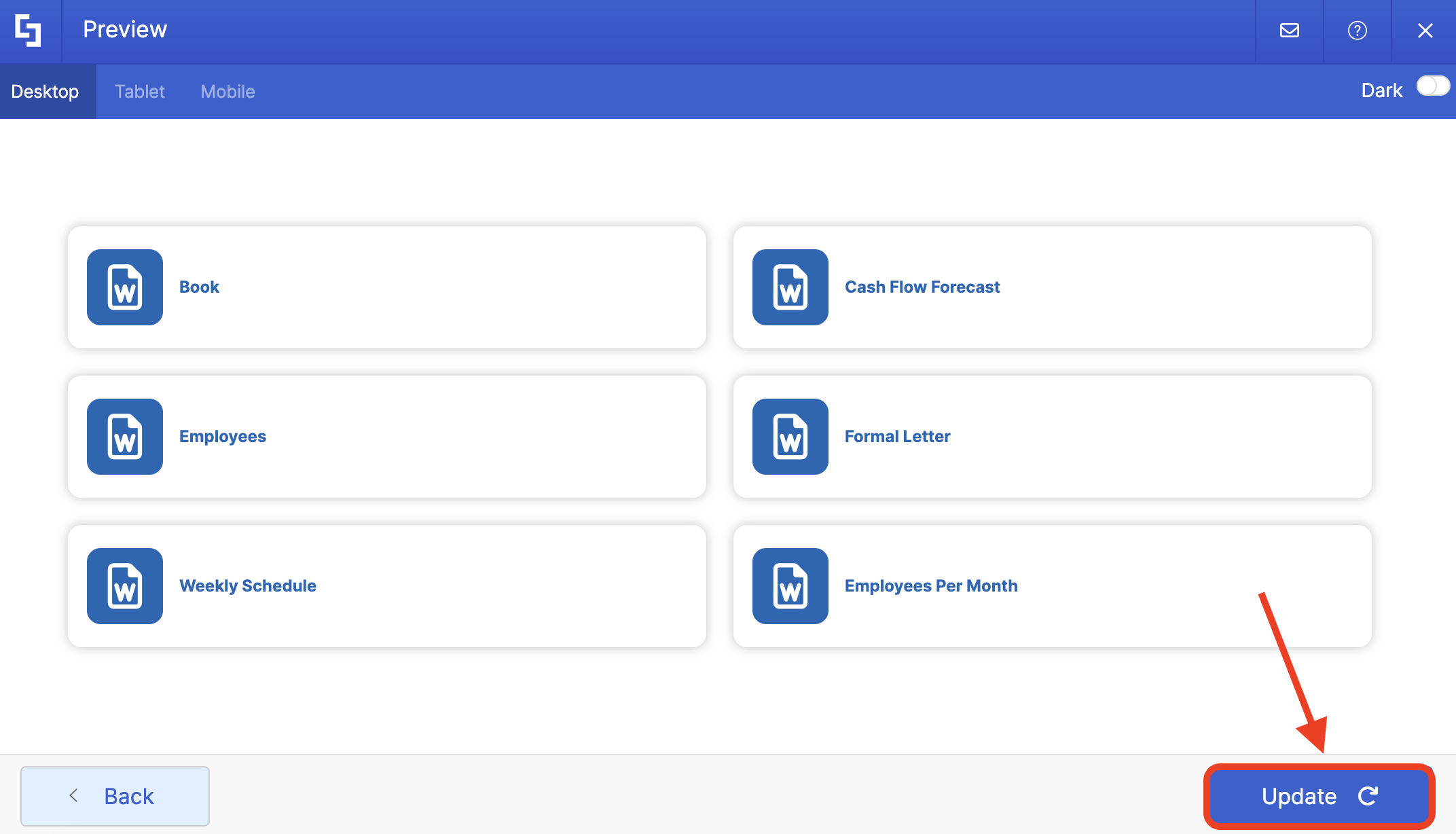
Click Update to apply your changes:
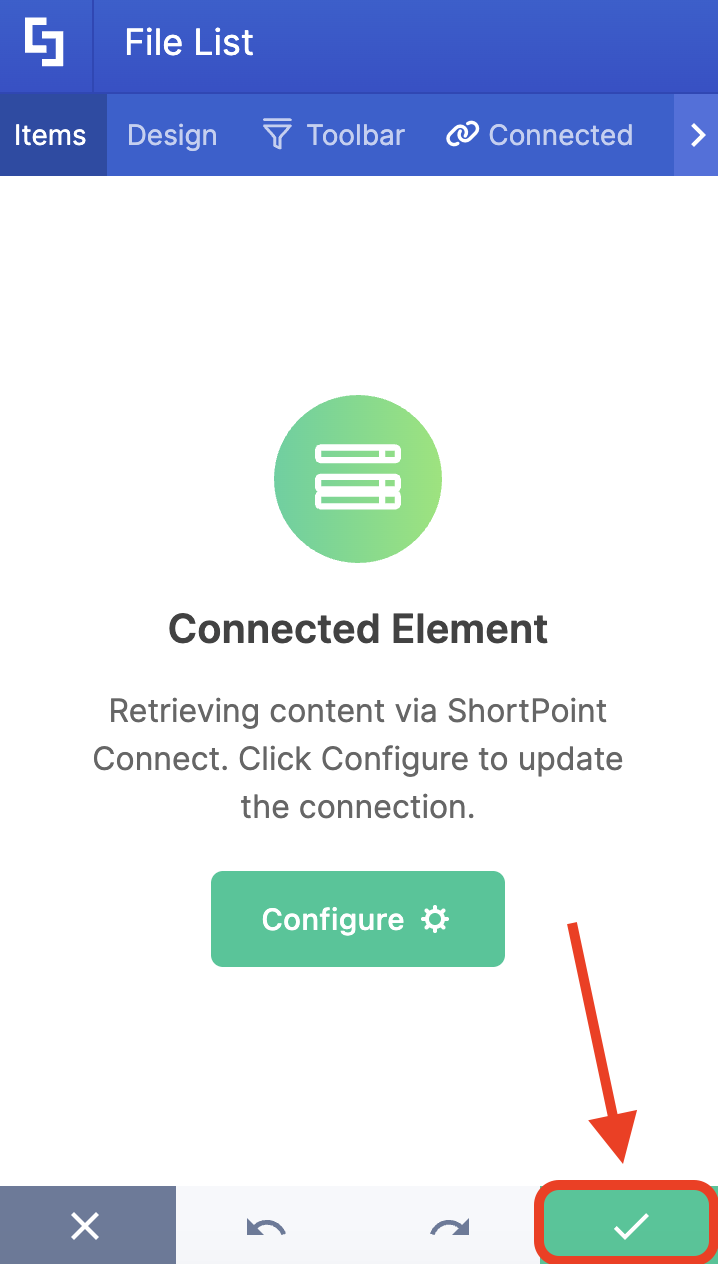
Click the green checkmark:
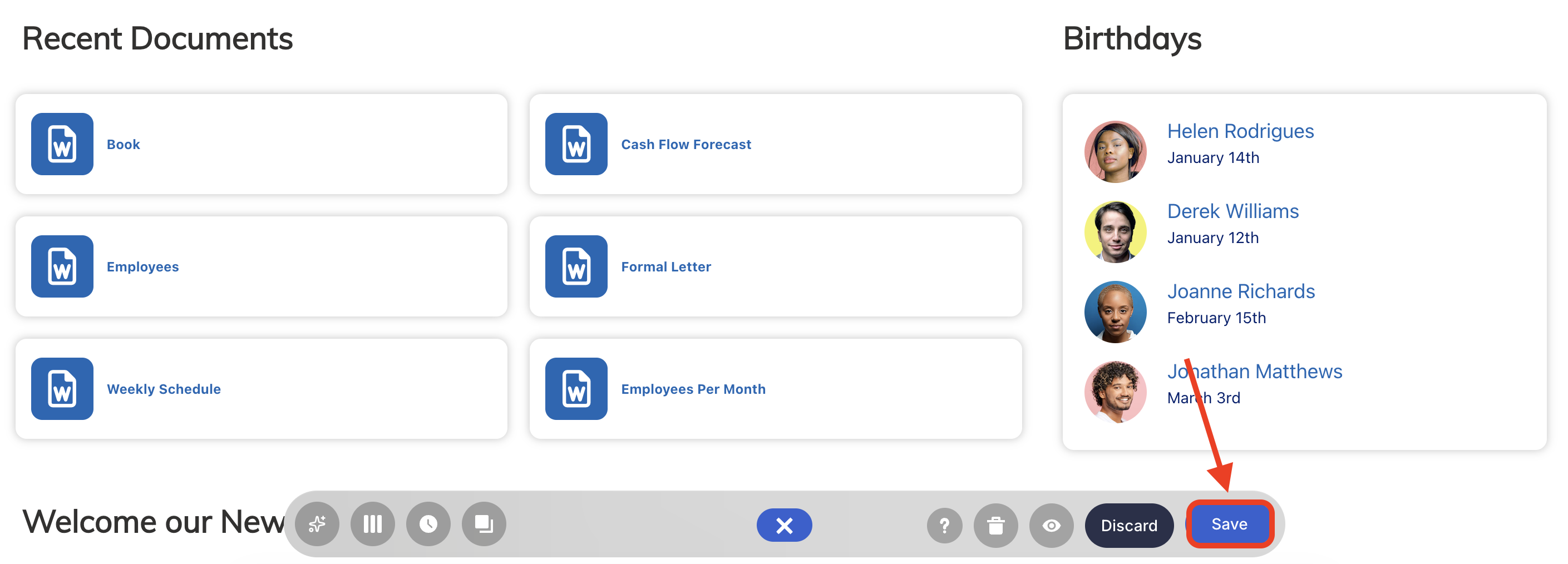
Once satisfied, click Save:
And Publish your page:
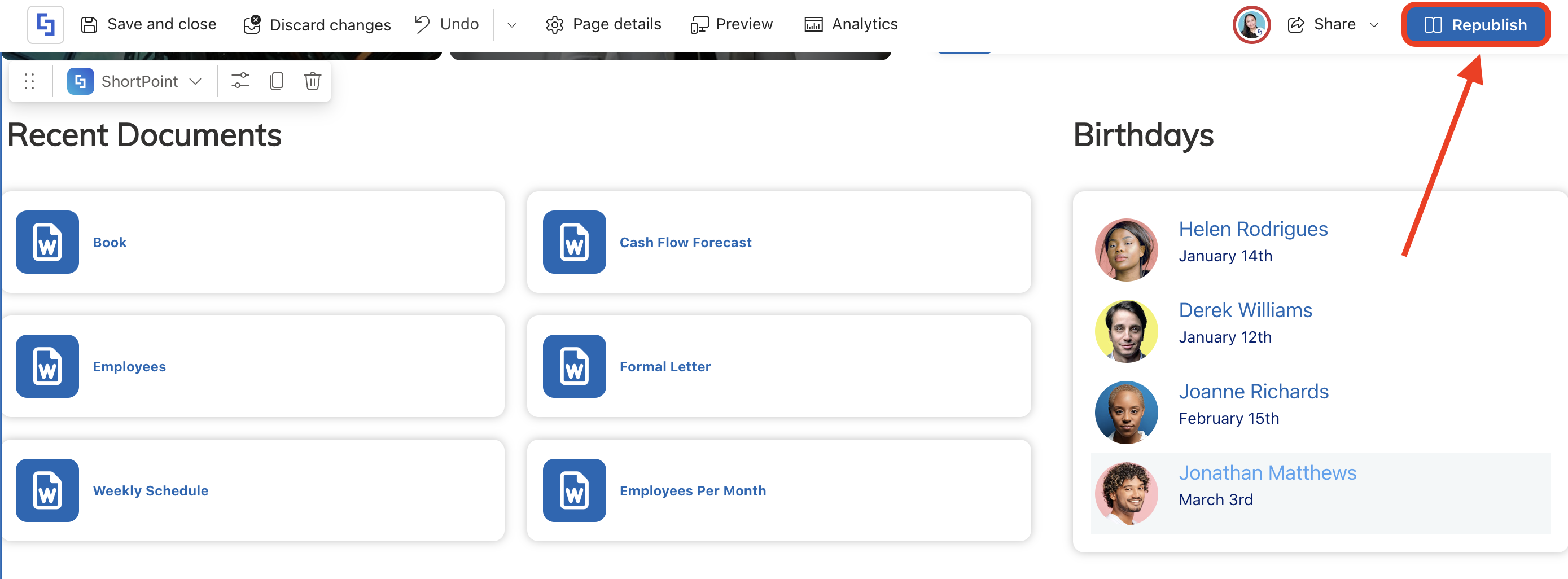
Great work! You can now show the recent items your users viewed on your SharePoint site, enhancing user experience by providing quick access to their log of activities.
Frequently Asked Questions
What permissions are required to use Microsoft Graph API for recent documents?
You need to enable permissions such as Sites.Read.All in the SharePoint Admin Center under API access. This allows reading content across all site collections.
How does the “All Items Viewed or Modified by Me” use case work?
This use case retrieves the most recent items a user has viewed or modified across OneDrive and SharePoint sites. It provides a dynamic and personalized list of recent documents and resources.
Related articles:
