 Try ShortPoint now
Creating a personalized experience for your SharePoint users is a great way to humanize your digital workplace.
One way to accomplish this is through the Microsoft Graph API connection. In this guide, we'll walk through how to retrieve and display user profile information effectively on your SharePoint sites.
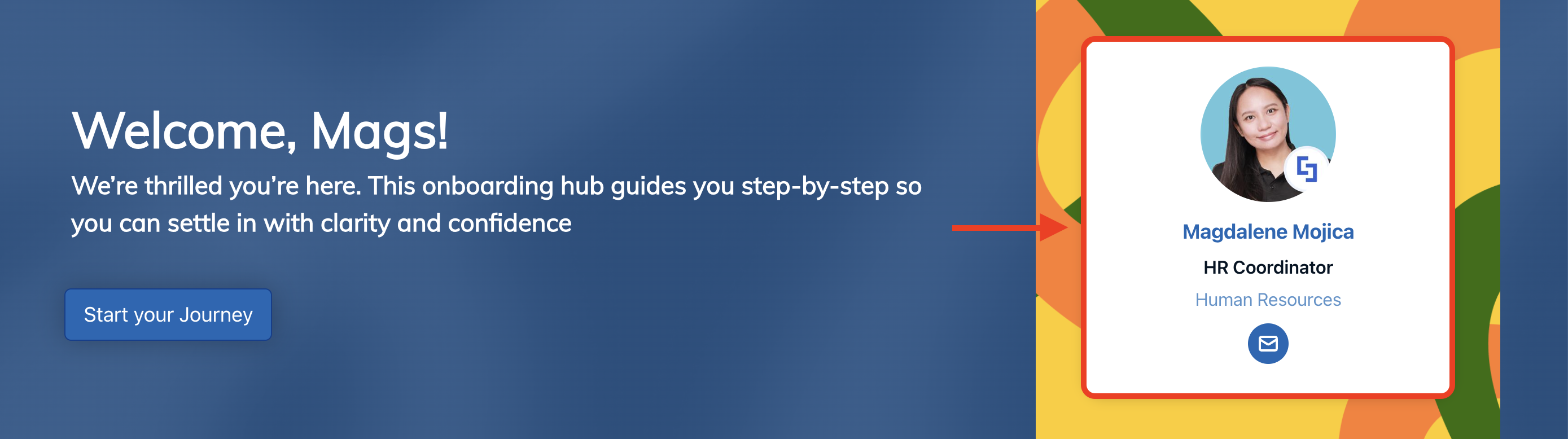
TABLE OF CONTENTS
- Prerequisites
- What is the “My User Profile” Use Case?
- Step-by-step Tutorial
- Frequently Asked Questions
- What are SharePoint user profiles?
- What user profile properties can I display using the Microsoft Graph API?
- Do I need specific permissions to use the My User Profile use case?
- Can user profile information be synchronized with Azure Active Directory?
- Which SharePoint design elements work best for displaying user profile data?
Prerequisites
- You must have ShortPoint SPFx version 8.6.0.0 and up installed.
- You also need to be a ShortPoint Designer with either a Pro or Enterprise license. For more details, check out Licensing Options.
- You must have the Microsoft Graph API connection enabled. Go to How to Enable Microsoft Graph Integration for MS Graph API Connections to learn how.
- You must authorize the necessary permissions (User.Read.All and Directory.Read.All) in the API access page. To check, go to your SharePoint Admin Center > Advanced > API access.
- You must have the Design Element you want to use to connect on your SharePoint page. For best results, we recommend using Design Elements that allow image display (Person Cards, Image List, etc.)
What is the “My User Profile” Use Case?
The My User Profile use case retrieves SharePoint user profile information, including basic contact details and organizational relationships.
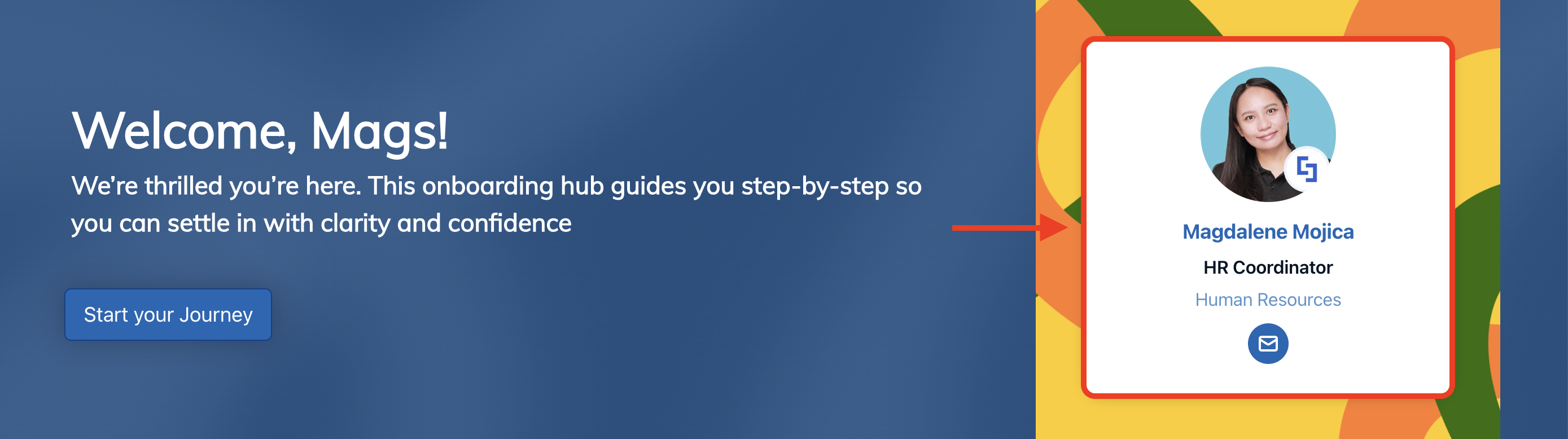
With this use case, you can display the basic information of the signed-in user, providing a personalized experience for all your site visitors.
The typical structure of this use case is:
https://graph.microsoft.com/v1.0/me?$select=displayName,givenName,jobTitle,mail,mobilePhone,surname,userPrincipalName,id,department&$expand=manager
You must enable the following permissions in the SharePoint Admin Center to use it:
- User.Read.All - gives permission to read the full profile of every user in the organization.
- Directory.Read.All - gives permission to read the entire directory metadata.
NOTEIf you haven’t given access to the permissions above, go to your SharePoint Admin Center > Advanced > API access.
Step-by-step Tutorial
Follow the steps below to learn how to use the My User Profile use case.
Step 1: Edit the ShortPoint Web Part
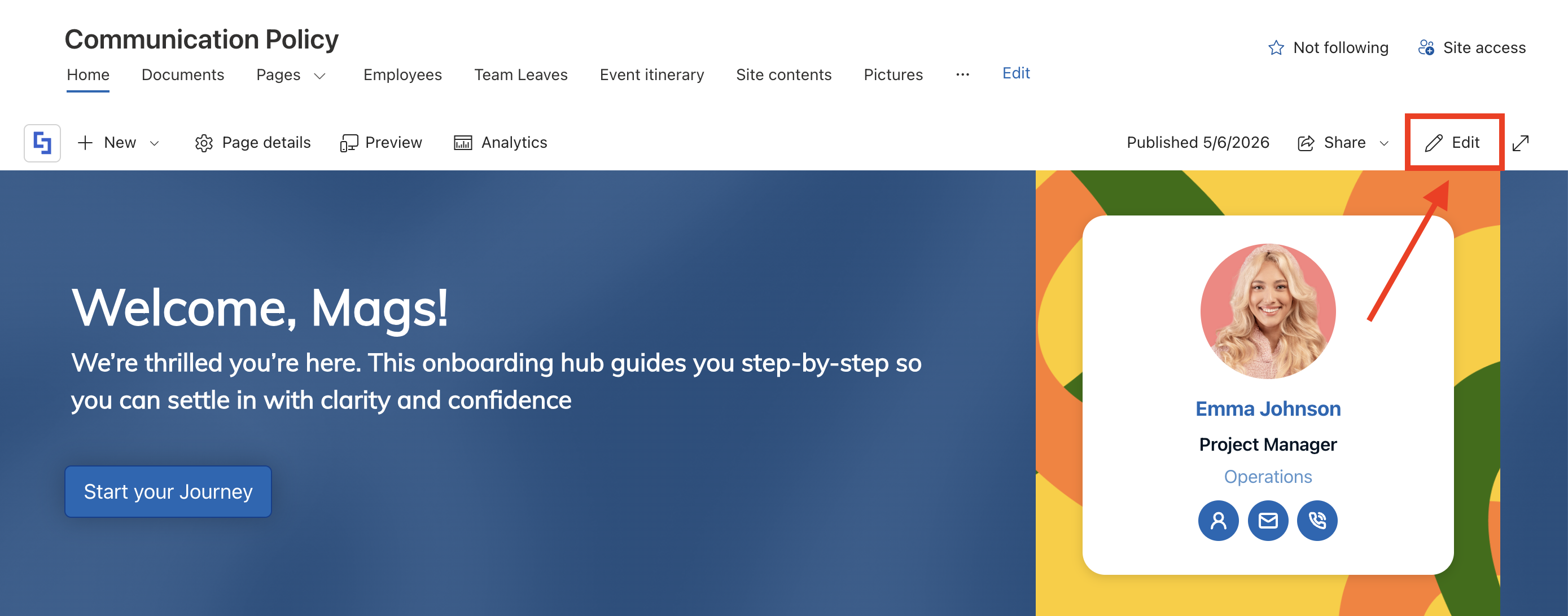
Go to the SharePoint page you want to use and click Edit:
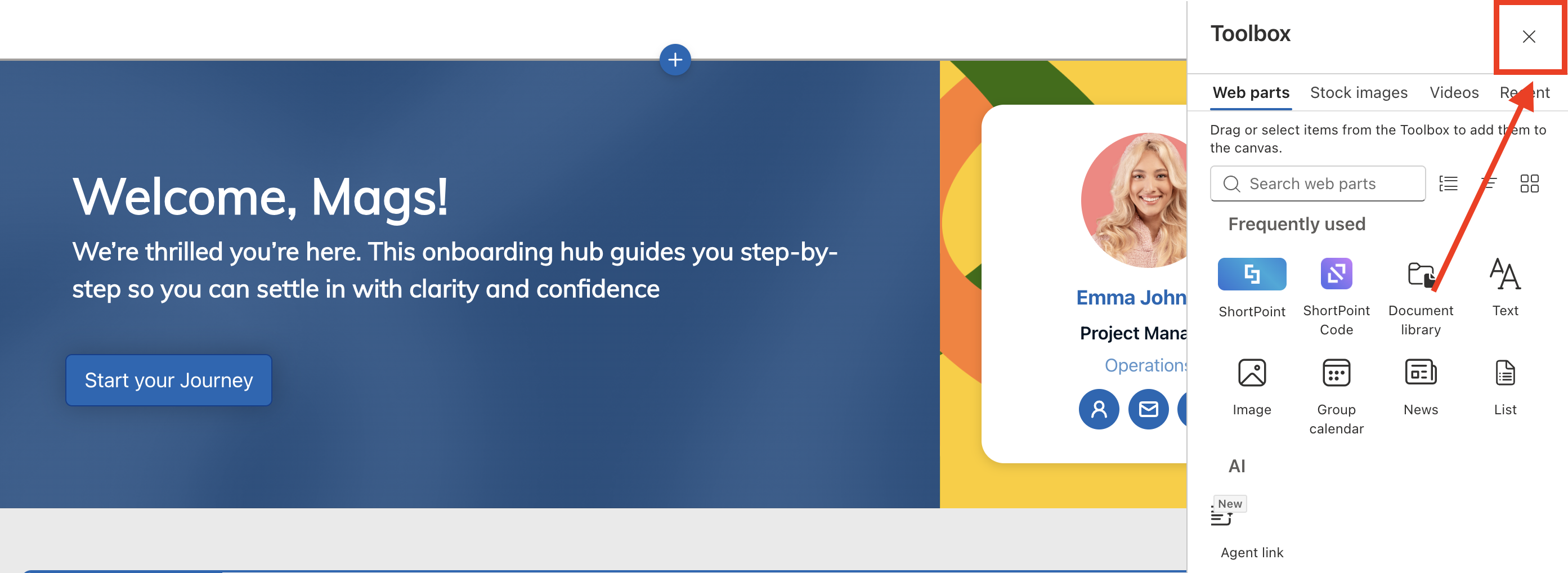
Close the Toolbox:
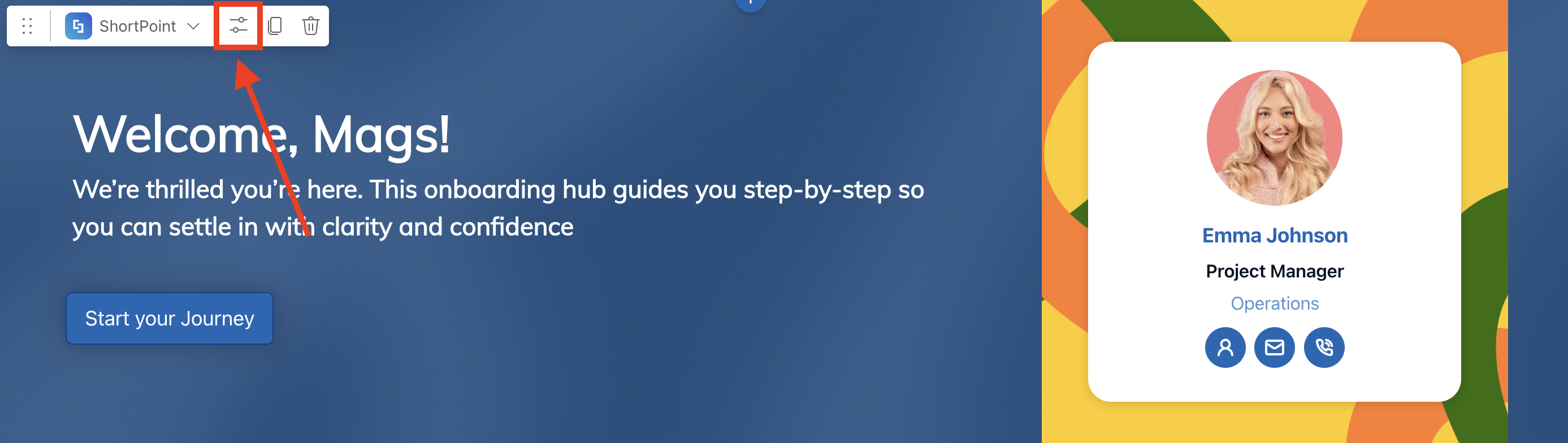
Select the ShortPoint web part and click the Edit Properties icon:
Step 2: Edit the Design Element
NOTEYou can use any Design Element you want. For best results, we recommend using Design Elements that allow image display (Image List, Person Cards, etc.)
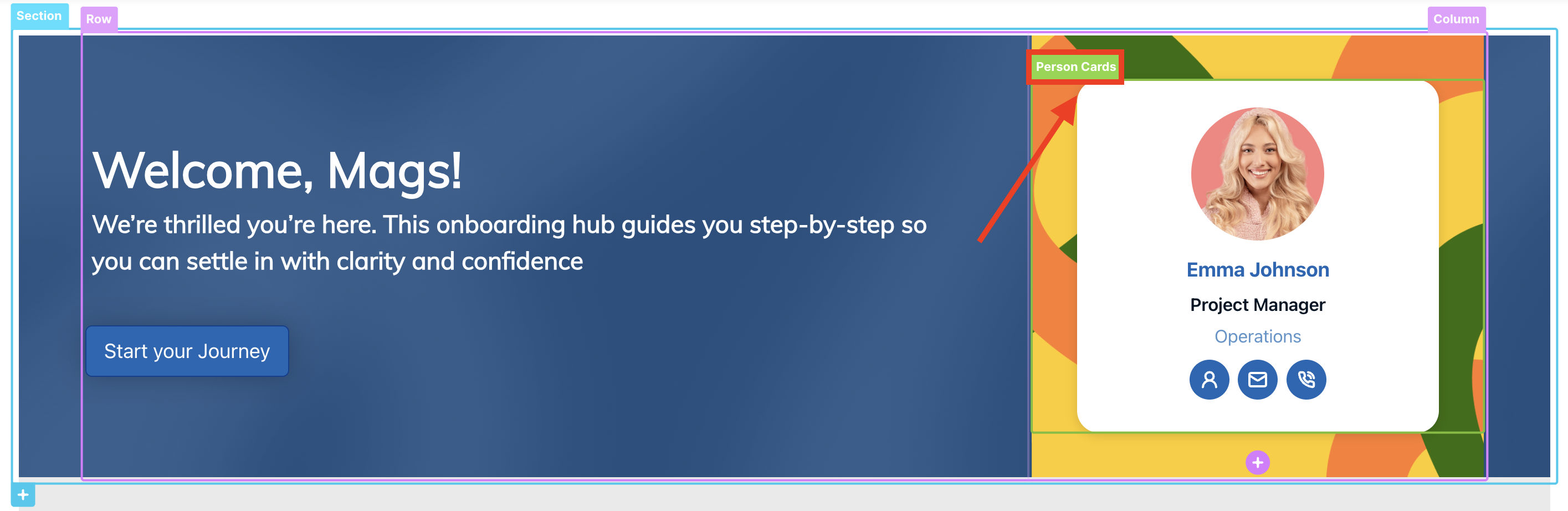
Click the EasyPass tag of the Design Element you’ll use:
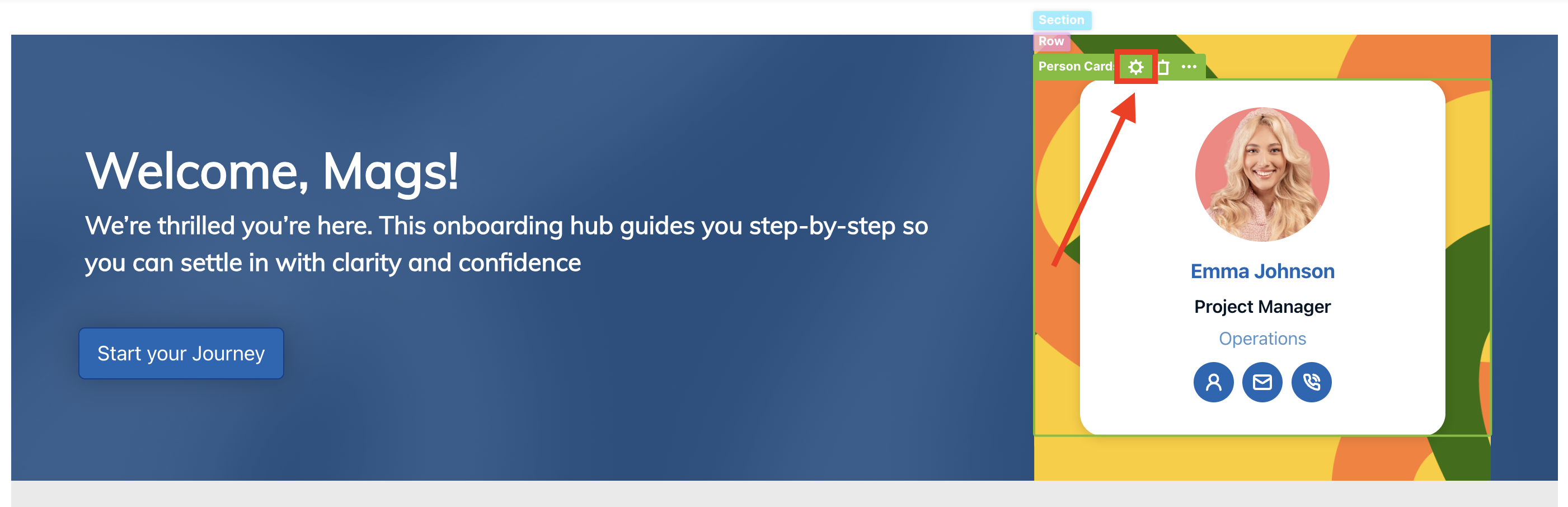
Select the cogwheel icon:
Step 3: Open the Connect Window
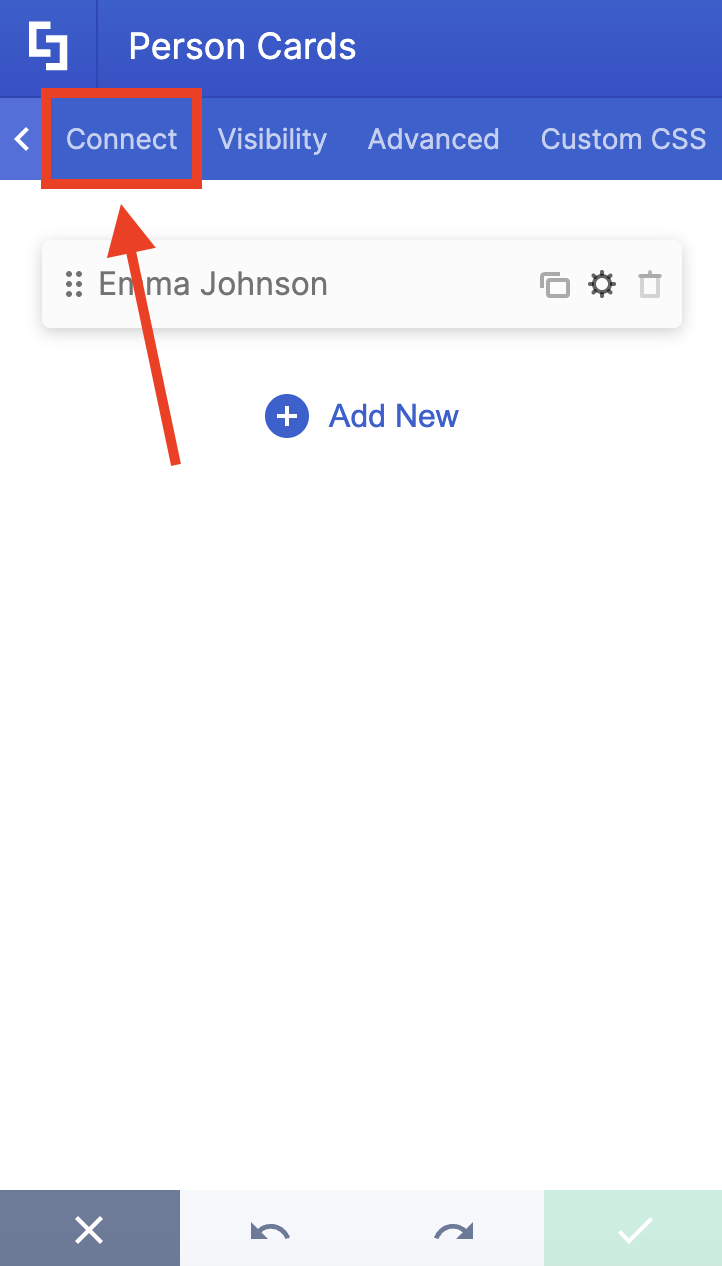
Go to the Connect tab:
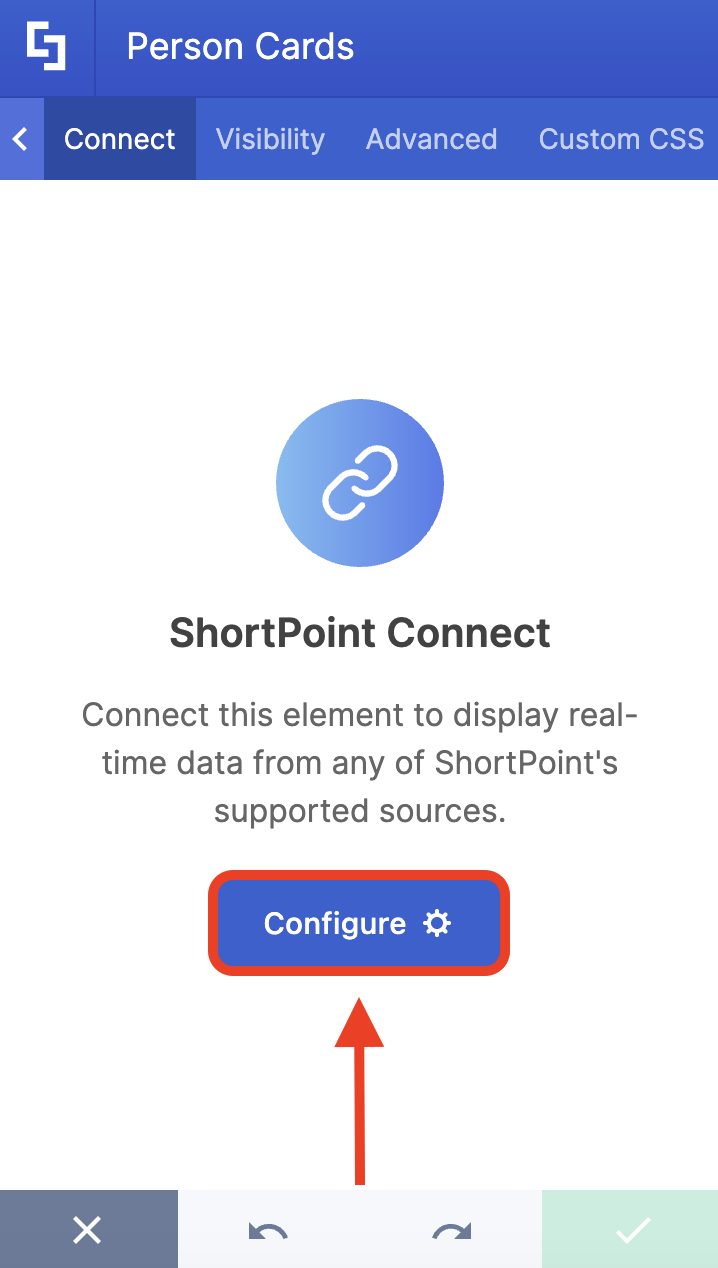
Click Configure to open the connect window:
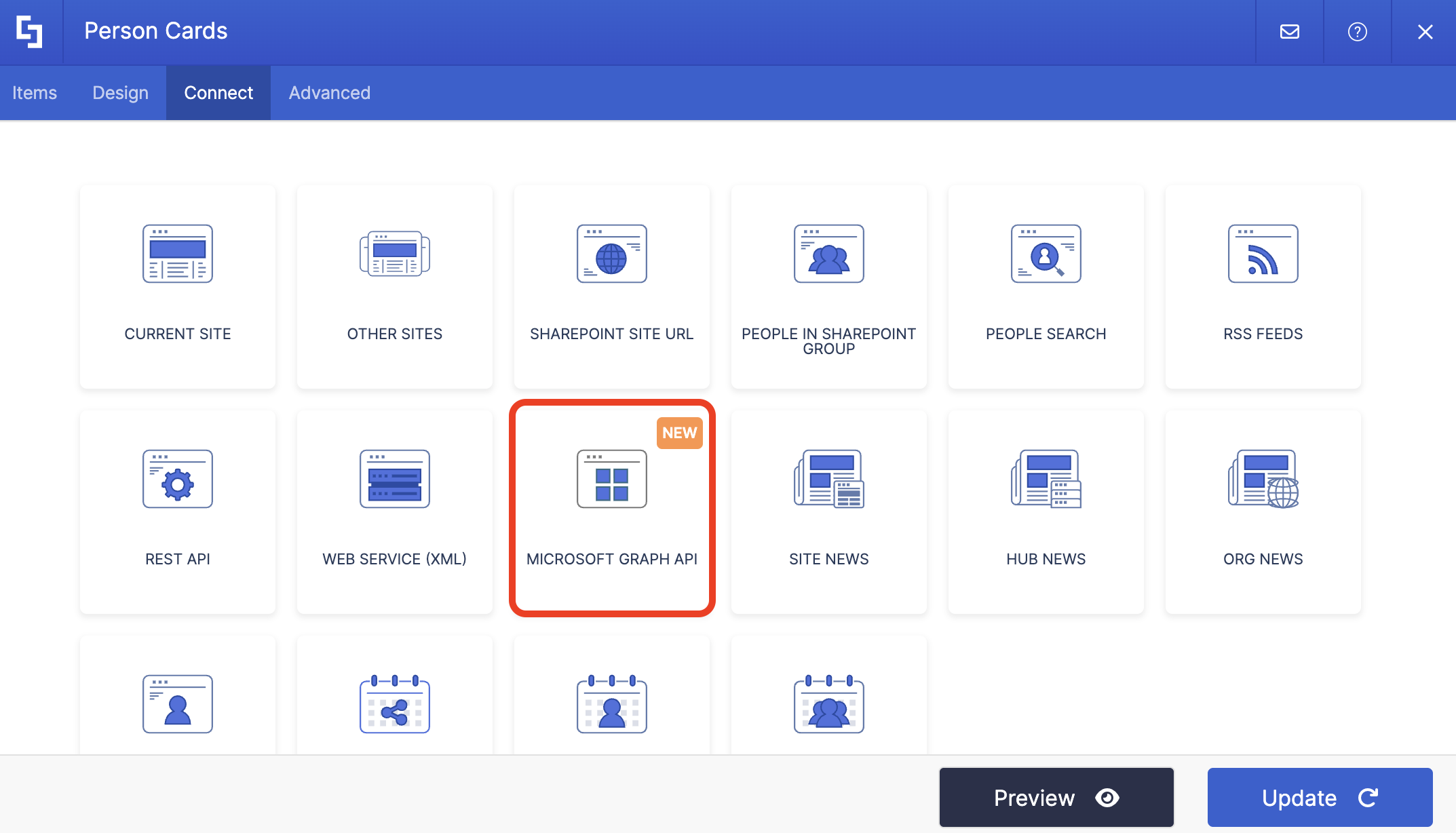
Step 4: Connect to Microsoft Graph API
Select Microsoft Graph API:
NOTEYou need to enable the Microsoft Graph API connection before using it. Learn more about it in How to Enable Microsoft Graph Integration for MS Graph API Connections.
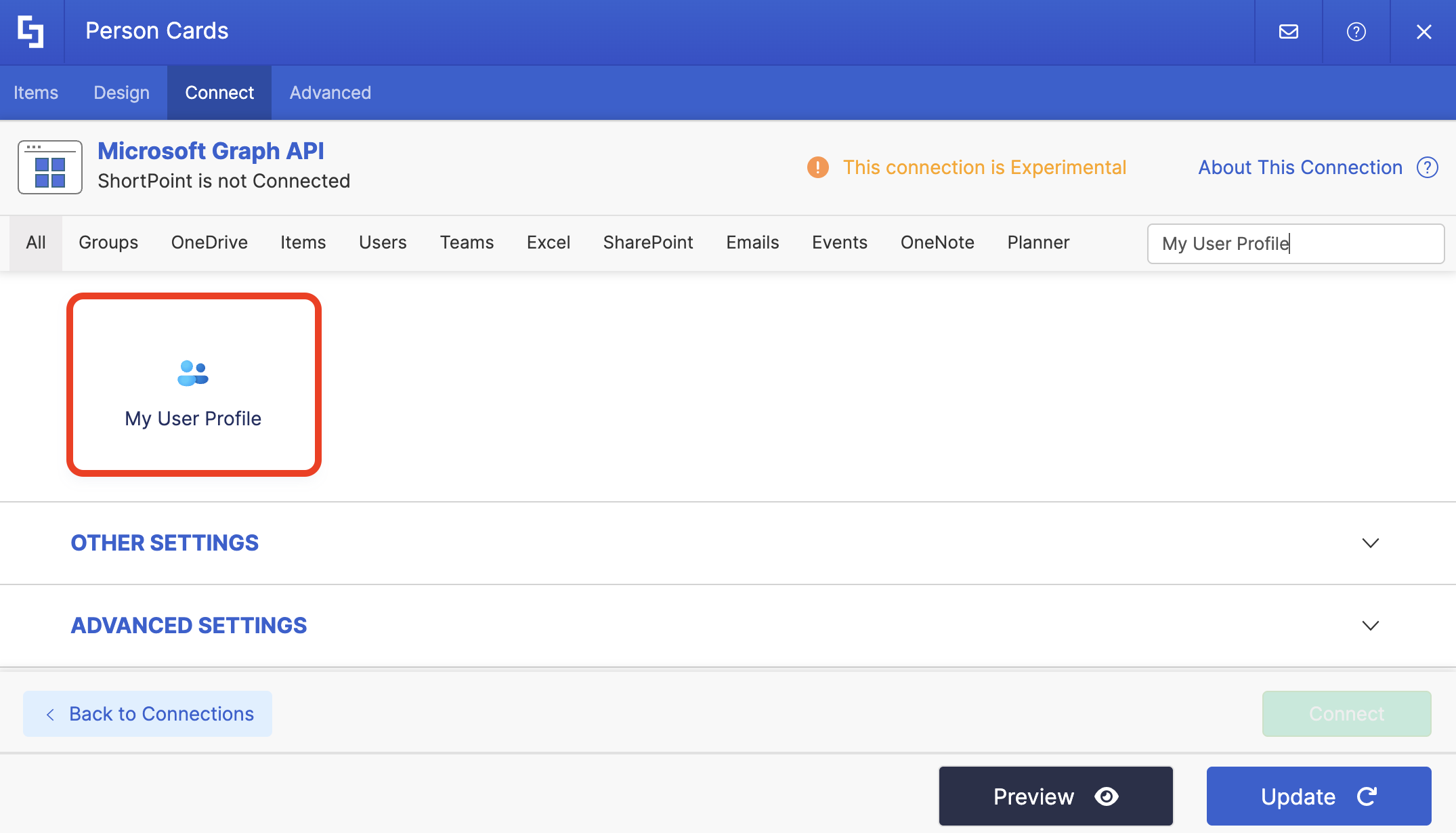
Step 5: Use the My User Profile Use Case
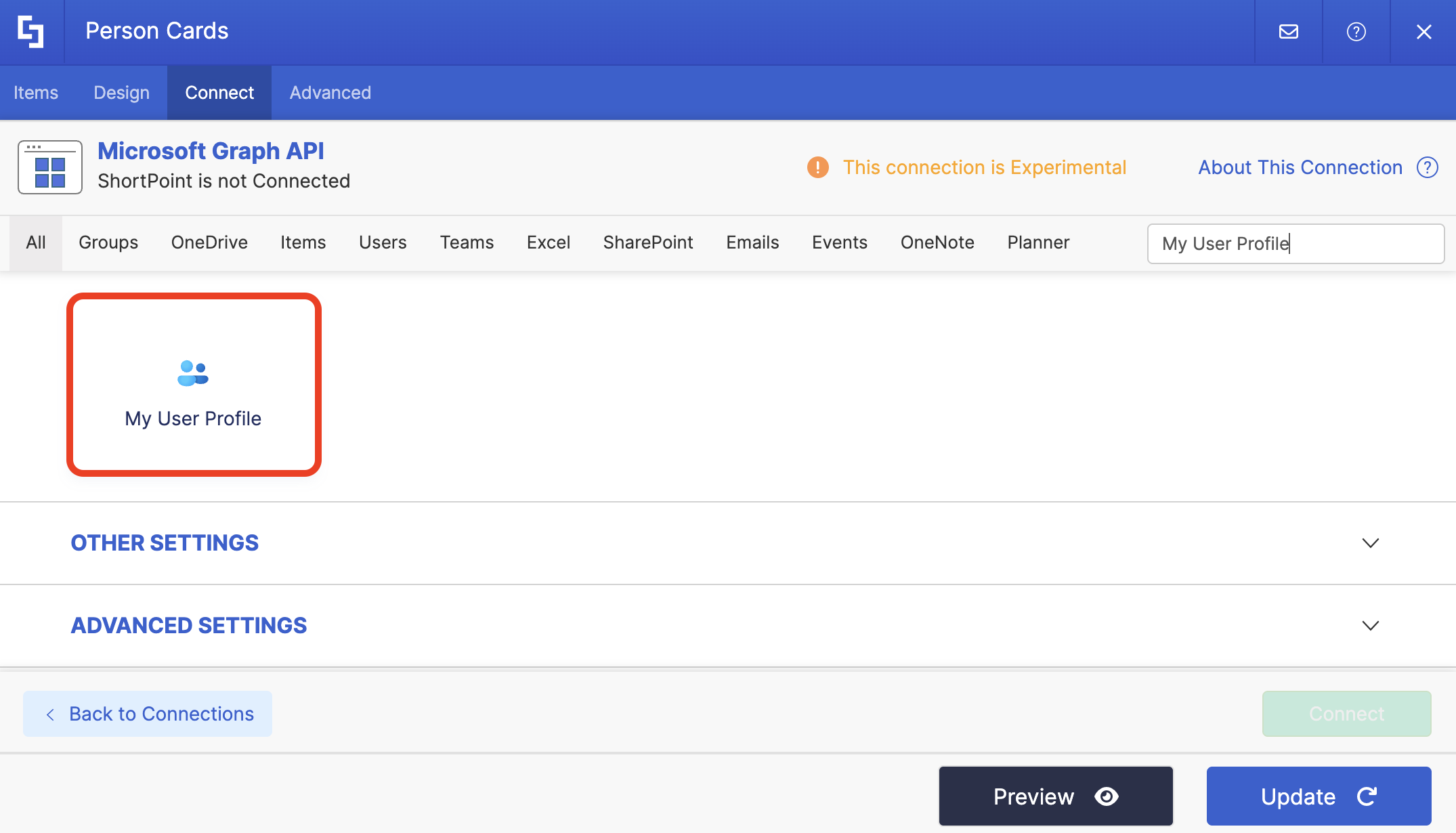
Search for My User Profile and select it:
Step 6: Connect
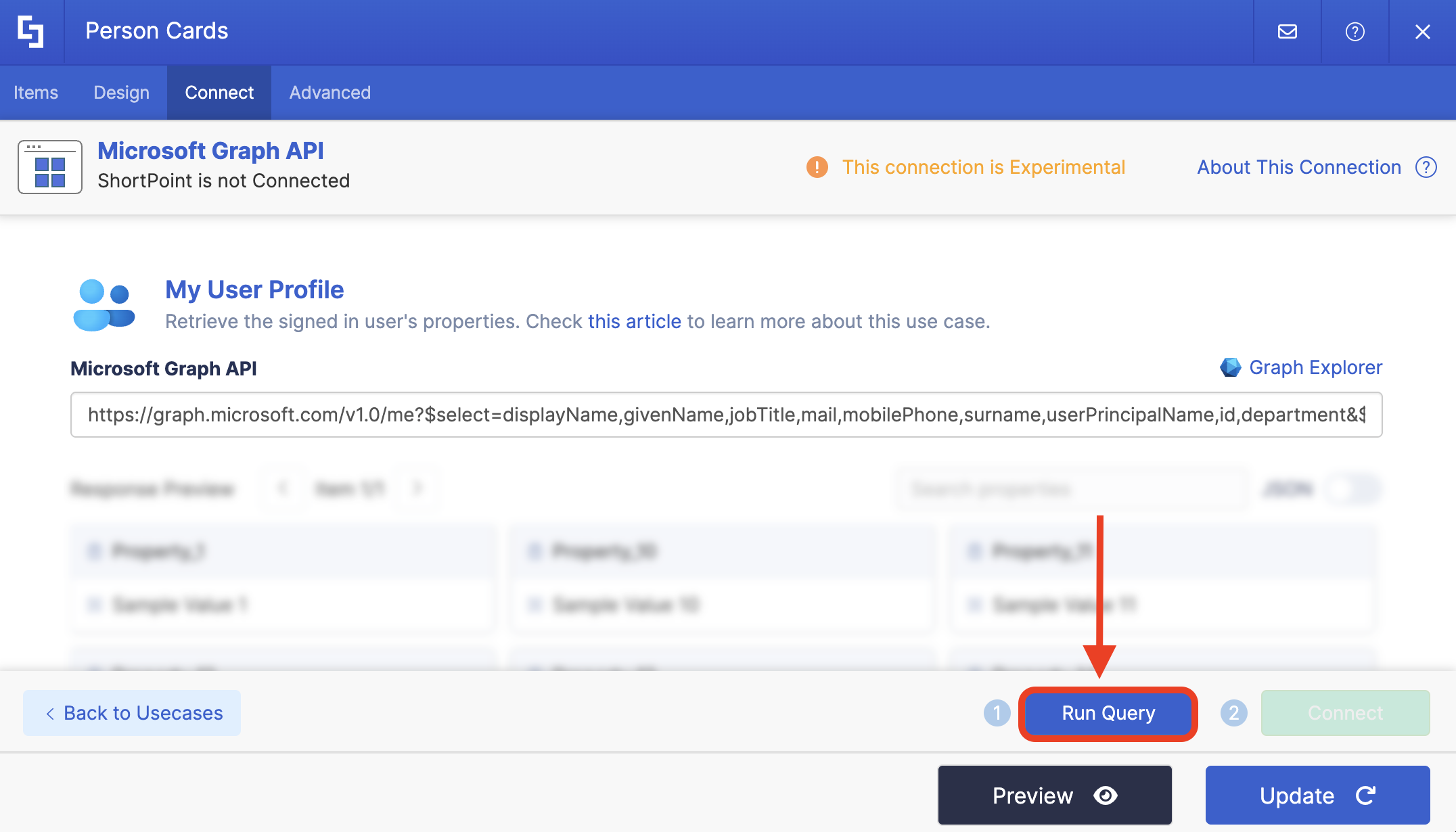
Click Run Query:
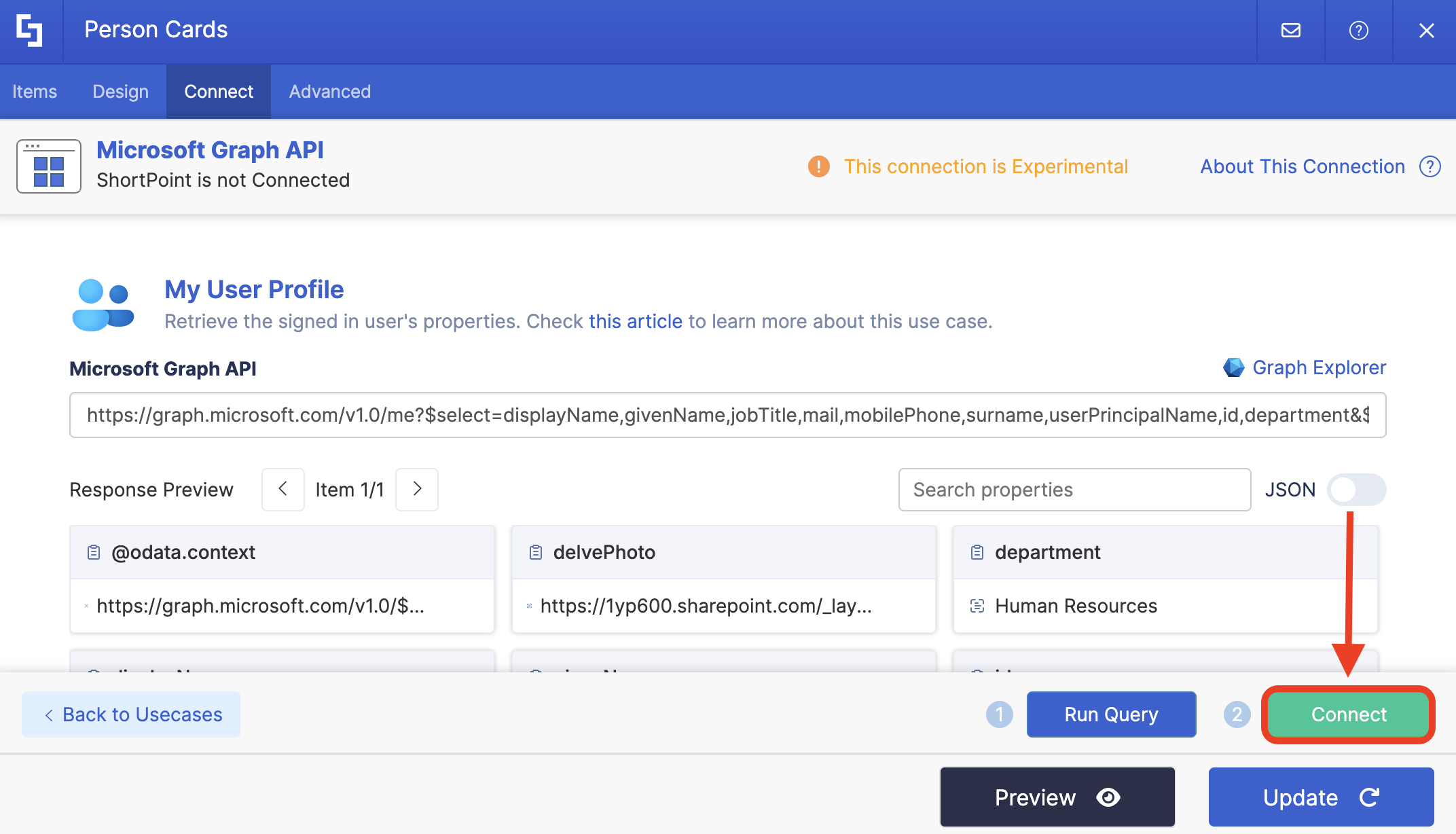
Select Connect:
Step 7: Map Items
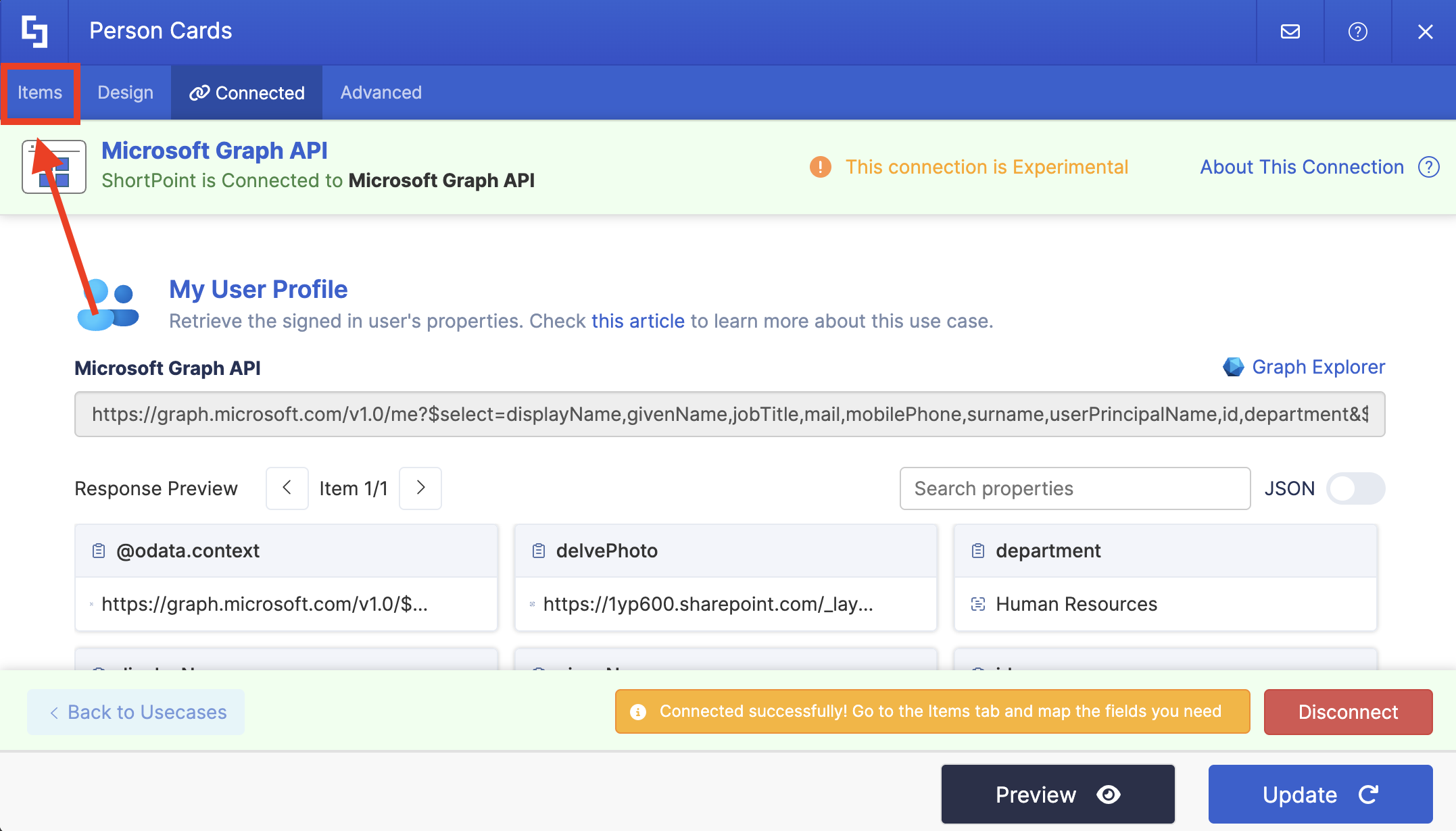
Go to the Items tab:
Delete default content:
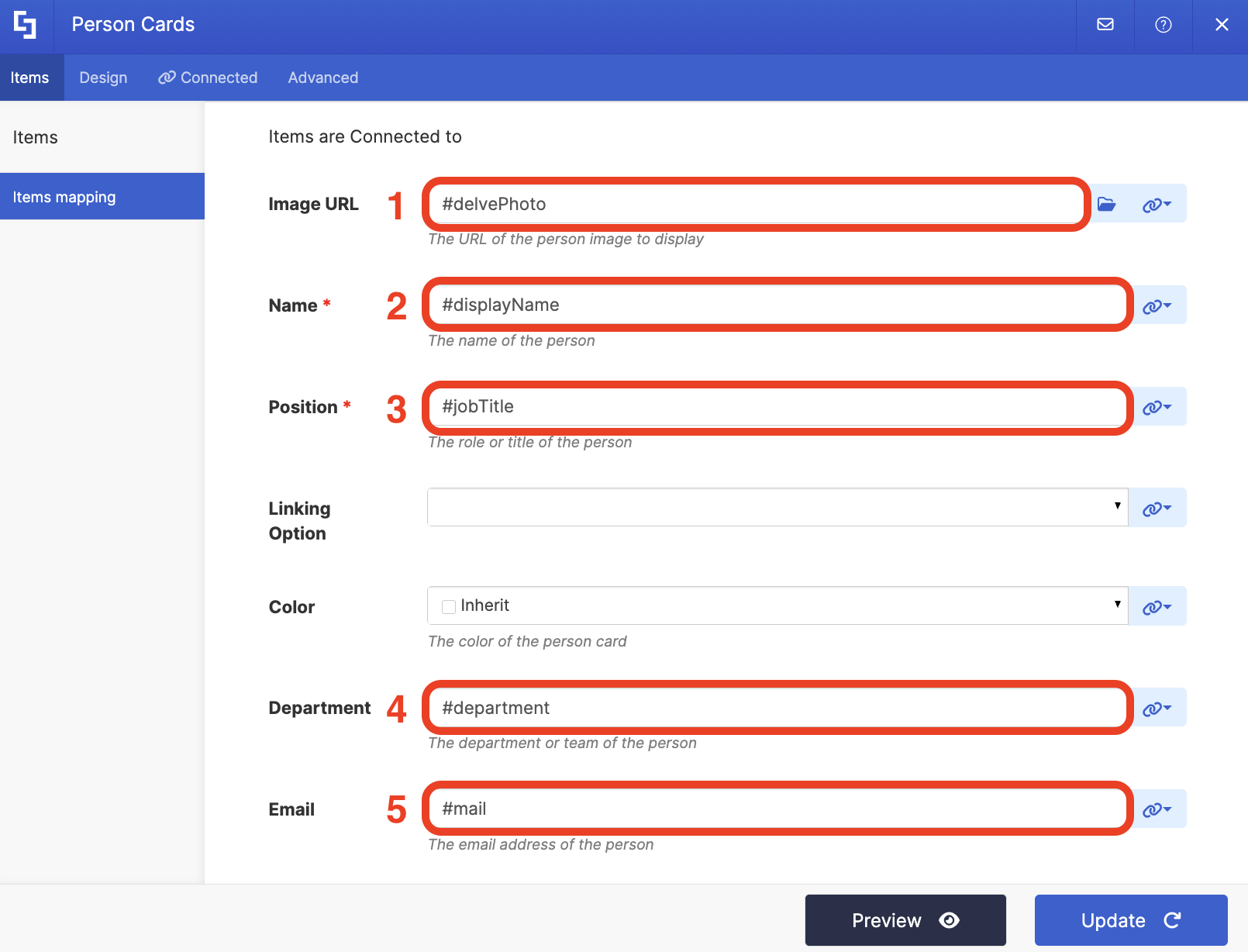
Use the link icon to map the properties you want to be displayed:
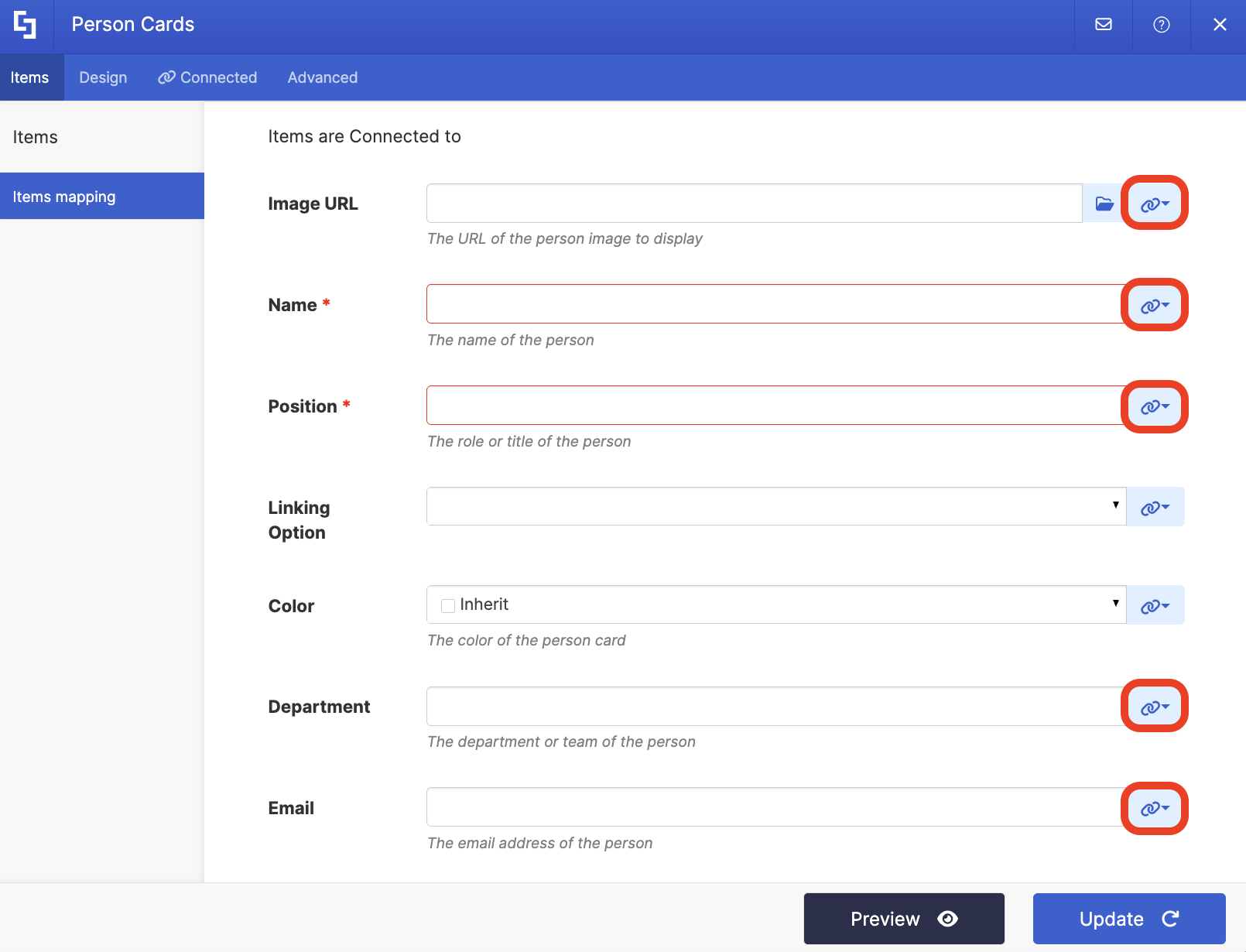
You can map any property you want. In our case, we used the following properties:
- #delvePhoto - shows a photo of the signed-in user.
- #displayName - shows the name of the signed-in user.
- #jobTitle - shows the work title of the signed-in user.
- #department - shows the department of the signed-in user.
- #mail -shows the email address of the signed-in user.
NOTECheck out ShortPoint Connect: How Items Mapping Works to learn more about mapping properties.
Step 8: Save
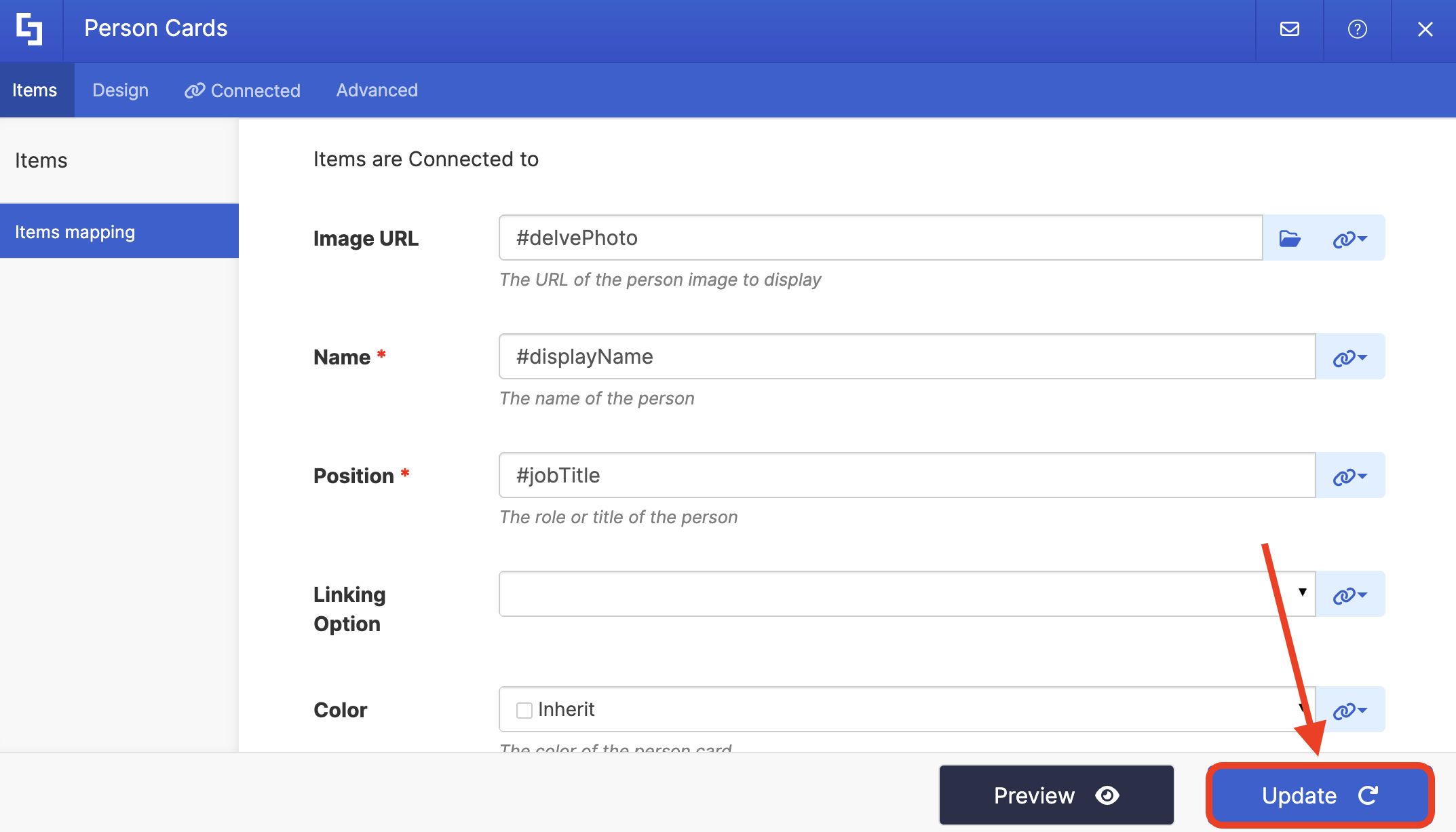
Click Update to apply your changes:
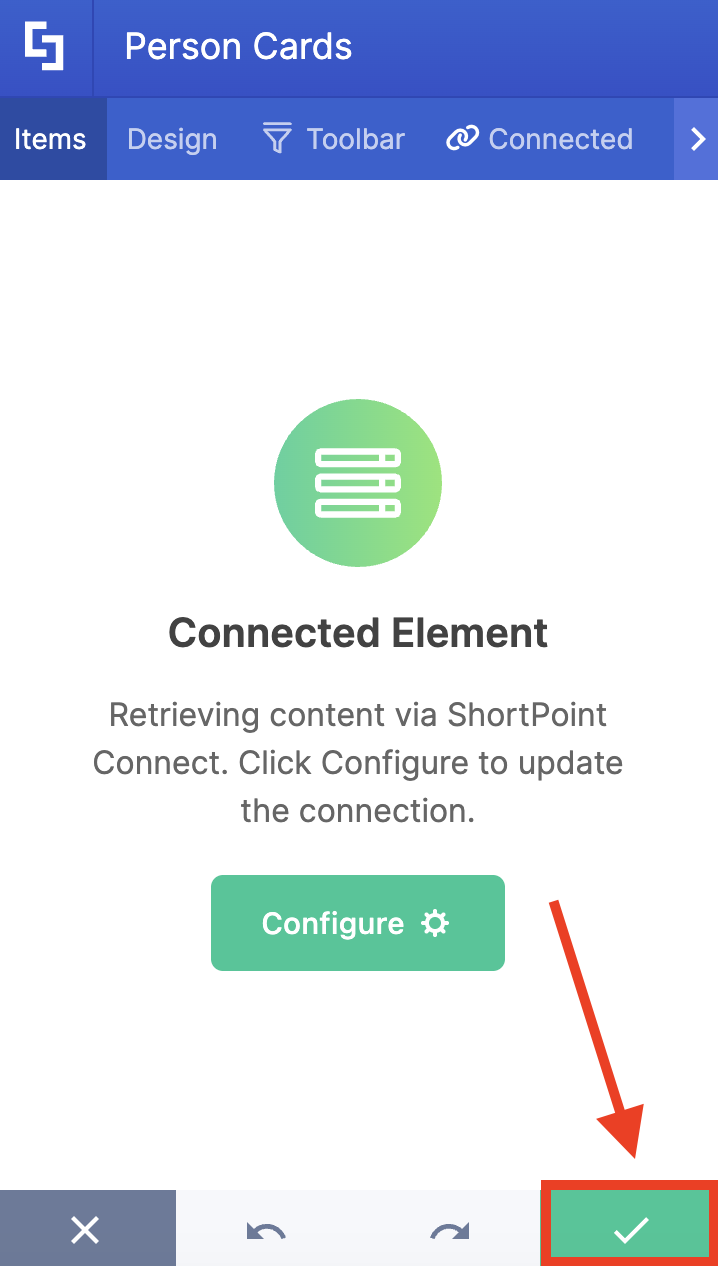
Click the green checkmark:
Once satisfied, click Save:
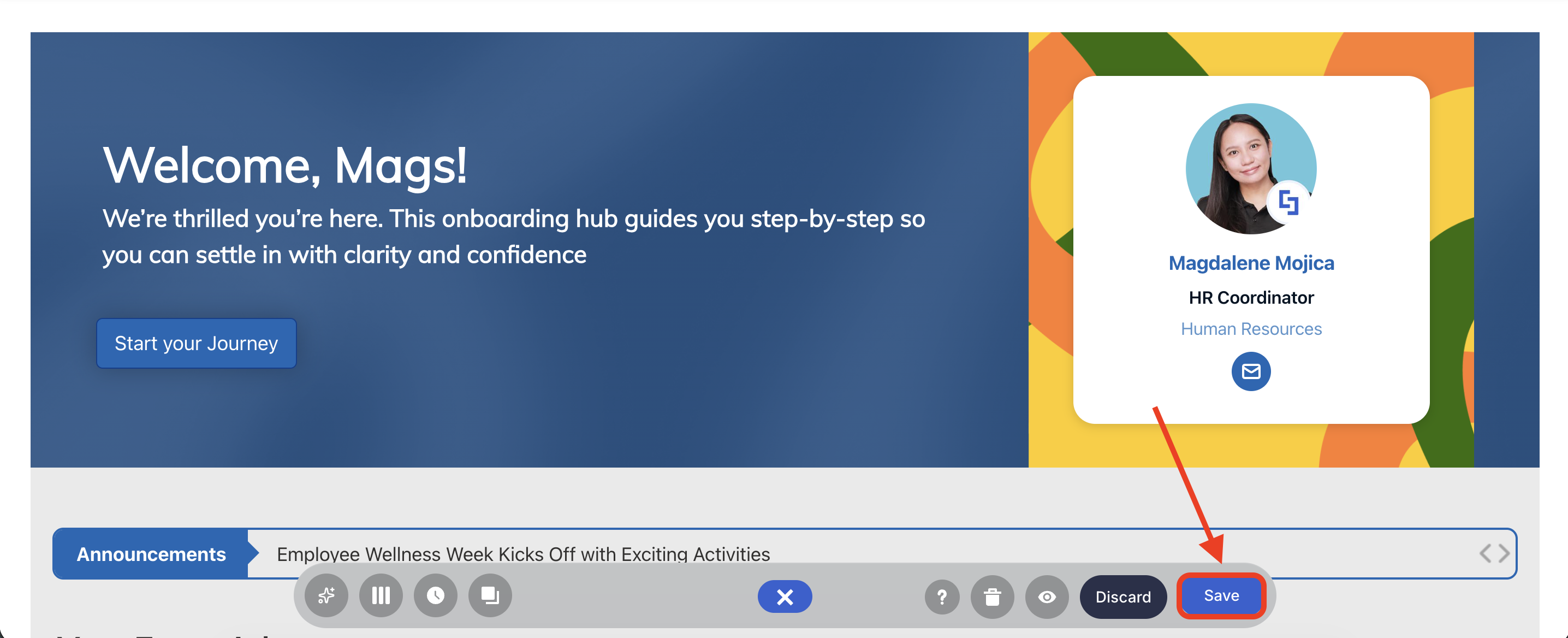
And Publish your page:
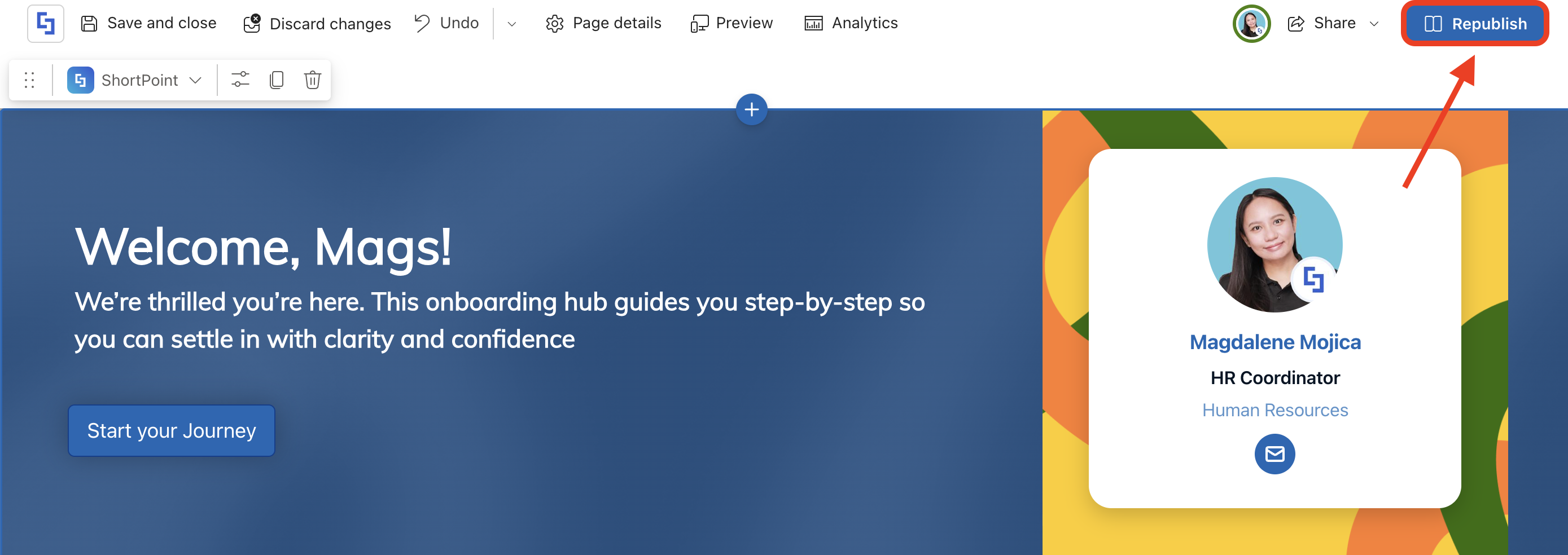
You're all set! You can now personalize your users' SharePoint experience through the My User Profile Use Case.
Frequently Asked Questions
What are SharePoint user profiles?
SharePoint user profiles are digital records containing essential user profile data such as contact details, job titles, and organizational relationships. They help personalize the SharePoint environment and improve collaboration across multiple sites.
What user profile properties can I display using the Microsoft Graph API?
Using the Microsoft Graph API, you can retrieve and display properties such as display name, job title, email, phone numbers, department, and manager information to customize content and enhance the user experience.
Do I need specific permissions to use the My User Profile use case?
Yes, you must enable permissions like User.Read.All and Directory.Read.All in the SharePoint Admin Center under API access. These permissions allow reading full user profiles and directory metadata across the SharePoint environment.
Can user profile information be synchronized with Azure Active Directory?
Yes, SharePoint user profiles often synchronize user properties with Azure Active Directory (Azure AD) or Microsoft Entra ID to maintain accurate and up-to-date user account information.
Which SharePoint design elements work best for displaying user profile data?
Design elements that support image display, such as Person Cards and Image List, are recommended for showcasing user profile information effectively on SharePoint pages.
Related articles:
- Connection Type: Microsoft Graph API
- Getting Started With Microsoft Graph API Use Cases
- How To Use Placeholders In ShortPoint Connections
- Microsoft Graph API: Supported and Non-Supported Endpoints
