 Try ShortPoint now
If you have an Image with a negative Margin value on your SharePoint page, you may notice some unexpected behavior when applying Roundness to the Section it's placed in.
This article will show you how to resolve the issue.
TABLE OF CONTENTS
Interactive Tutorial
Before starting the interactive tutorial, copy the code below:
overflow: unset !important;
Step-by-step Tutorial
Follow the steps below for a detailed guide:
Step 1: Edit the ShortPoint web part
- Go to the SharePoint page you want to use and click Edit.
- Close the Toolbox.
- Click the Edit properties icon.
Step 2: Edit the Section
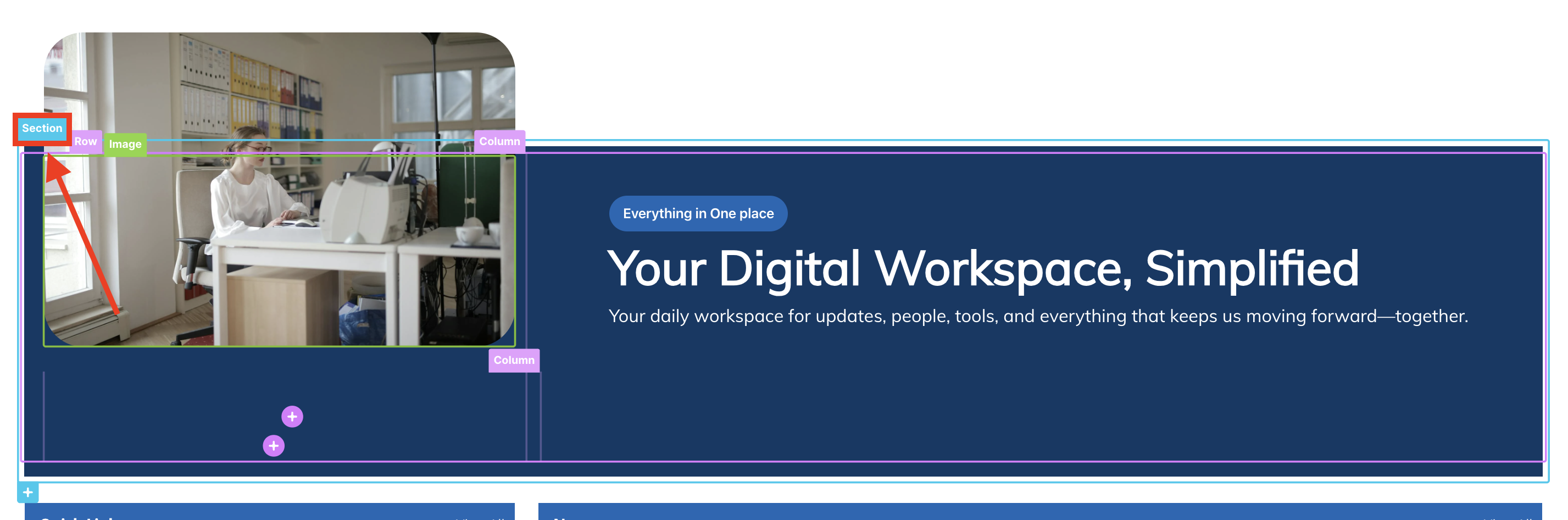
- Click the EasyPass tag of the Section where the Image is located:
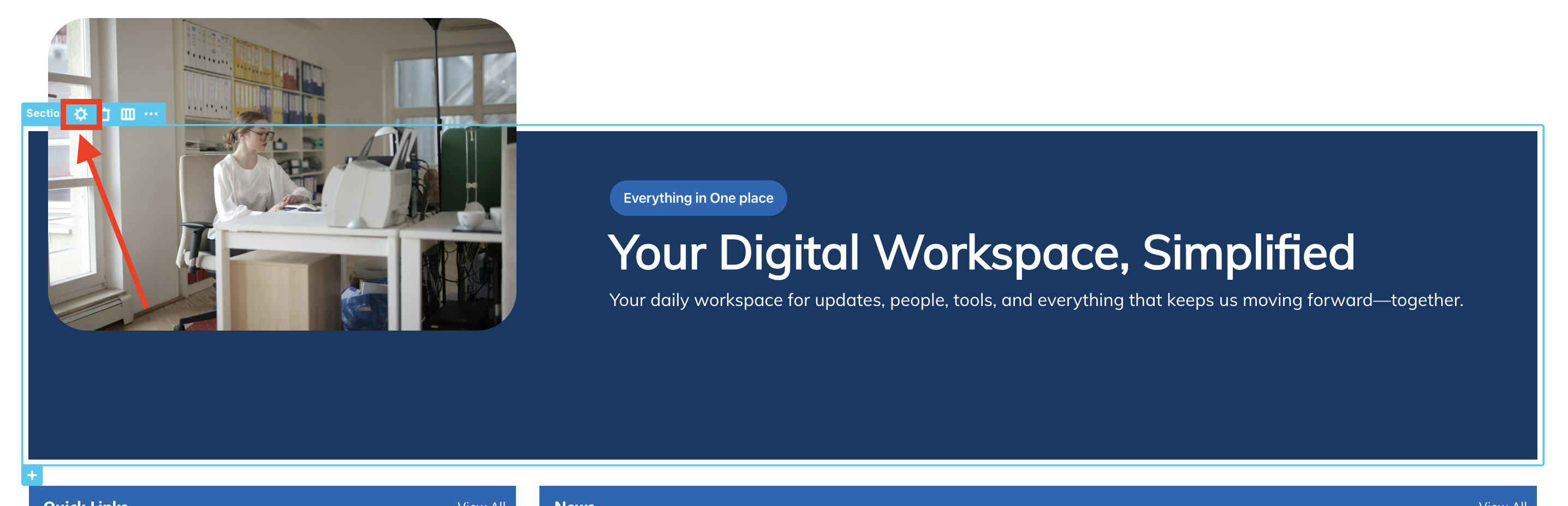
- Select the cogwheel icon:
Step 3: Copy Code
- Copy the code below:
overflow: unset !important;
Step 4: Paste Code
- Click the next icon:

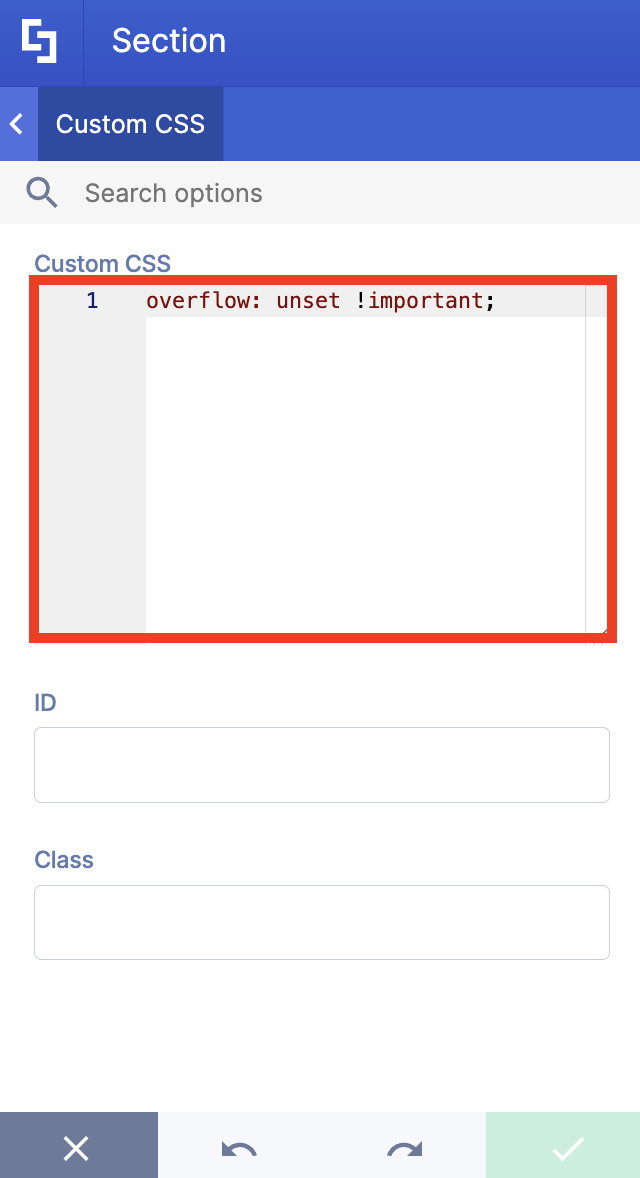
- Go to the Custom CSS tab.
- Paste the code in the Custom CSS field.
Step 5: Configure Roundness
- Click the back icon.

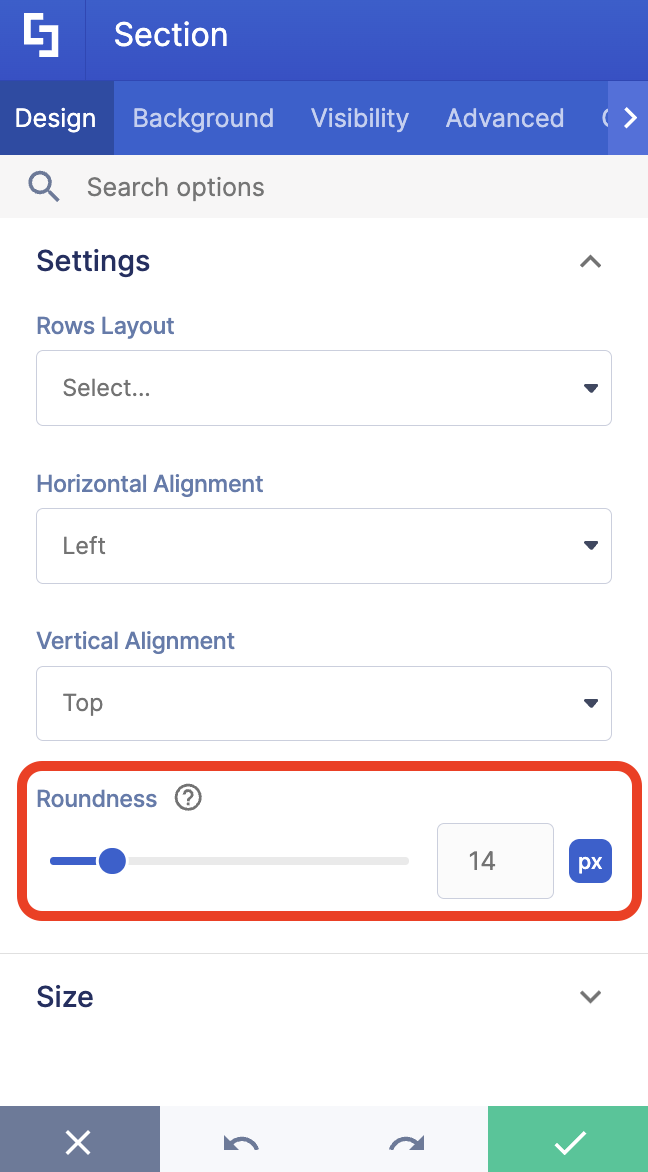
- Go to the Design tab.
- Modify the Roundness value.
Step 6: Save
- Click the green check mark.
- Save your changes.
That’s it! You’ve successfully resolved the issue.
Related articles:
