 Try ShortPoint now
Want to integrate SharePoint with other systems, or maybe you're looking to display important SharePoint data on your SharePoint sites? Understanding the SharePoint REST API is essential to accomplish all these. Let's dive into what makes this so powerful, how to start building SharePoint REST API URLs, and how you can leverage it in your projects to access SharePoint data efficiently.
TABLE OF CONTENTS
- What is the SharePoint REST API?
- Types of REST API Queries
- Understanding GET Queries
- Building SharePoint REST API URLs
- Ready to start RESTing?
- Frequently Asked Questions
- What's the difference between the SharePoint REST API and Microsoft Graph API?
- Do I need special permissions to use the REST API?
- Can I use the REST API with SharePoint On-Premises?
- What's the maximum number of items I can retrieve in a single request?
- How do I handle large result sets?
- Can I use REST API calls in SharePoint Framework (SPFx) solutions?
What is the SharePoint REST API?
The SharePoint REST API is a web service that allows developers to interact with Microsoft SharePoint data remotely using standard HTTP requests. It's like a universal translator that lets any client applications communicate with SharePoint in a language they all understand.
Built on the standard Open Data Protocol (OData), the REST interface follows Representational State Transfer (REST) principles, making it intuitive and straightforward to use. You can perform all the essential CRUD operations (Create, Read, Update, Delete) on SharePoint entities like sites, SharePoint lists, SharePoint libraries, items, and documents. This opens up SharePoint to a much broader ecosystem of tools and platforms.
Types of REST API Queries
To start using REST capabilities, you must construct a RESTful HTTP request. The SharePoint REST API supports several HTTP methods, each designed for specific operations:
- GET - Retrieves data from SharePoint (reading SharePoint resources)
- POST - Creates new items or executes post commands
- PUT - Updates existing items by replacing all properties
- DELETE - Removes items (often sending them to the Recycle Bin) using the HTTP DELETE command
While all these methods have their place, GET requests are the workhorses of the REST API. They're used constantly for retrieving information, and they're the safest type of request since they don't modify any data. Let's focus on GET queries since they're typically your starting point when working with the API.
Understanding GET Queries
GET requests are read-only operations that retrieve data from SharePoint. They're perfect for displaying information, building reports, or pulling data into external applications. Executing a GET query is very simple. Just construct a SharePoint REST URL pointing to the resource you want, and the SharePoint server sends back the data.
Every SharePoint REST API URL follows this anatomy:
https://{domain}/{site}/_api/{context}/{resource-path}?{query-parameters}Let's examine each component:
- Domain: This is your SharePoint domain. You can find this in the address bar of your SharePoint sites. For example, contoso.sharepoint.com.
- Site: This is your site path. For example, /sites/marketing.
- _api: This is the fixed entry point to the REST service.
- Context: Here, you need to add any of the following:
- site - if you want to retrieve data from your site collection
- web - if you want to retrieve data from your current site
- Resource-path: This is where you add which specific resources you want to retrieve. Here are a few URL paths to get you started:
- title - get site titles
- lists - get all lists
- getbytitle('List Name') - get a specific list by title
- getbytitle('List Name')/items - get all items from a list
- getbytitle('List Name')/items(5) - get a specific item by ID
- getbytitle('List Name')/fields - access list properties
- currentuser - get current user information
- siteusers - get site users
- folders - get all folders
- GetFolderByServerRelativeUrl('Document Library Name/Folder Name')/Files - get all files from a specific folder inside a Document Library
- Query-parameters: These let you refine exactly what data you get back. You can use the following OData query operators:
- $select - allows you to choose specific fields to return.
- $filter - allows you to retrieve only items that match specific criteria.
- $orderby - allows you to sort results by one or more fields.
- $top - allows you to limit the number of results
- $skip or $skiptoken - allows you to implement paging
- $expand - allows you to include related data (like lookup fields) operators for filtering, selecting, and sorting
NOTEFor more information about these query parameters, check out ShortPoint REST API: Selecting, Filtering, Sorting Results in a SharePoint List
Building SharePoint REST API URLs
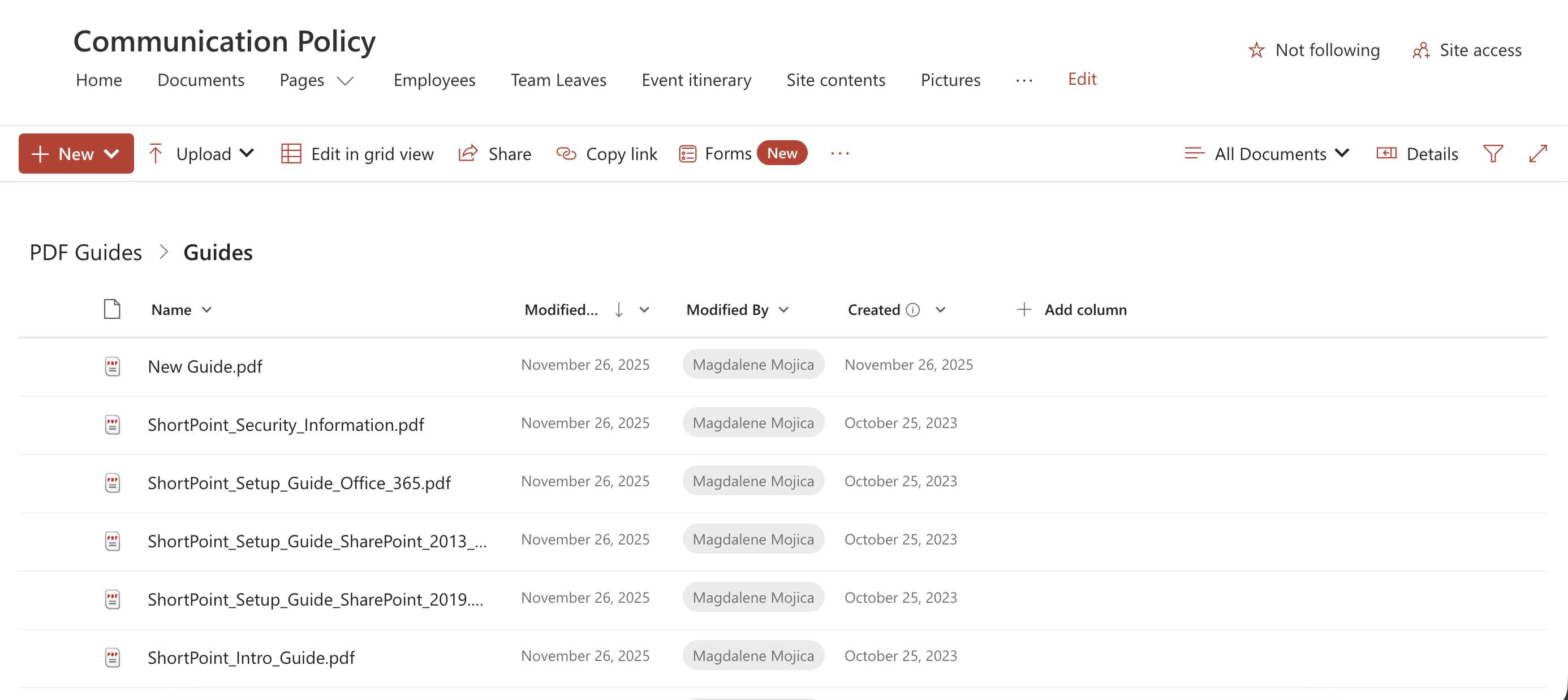
Creating effective SharePoint REST API URLs is the foundation of working with SharePoint data and performing CRUD operations efficiently. Let's break down the URL construction process step by step. For this guide, we want to retrieve all the files from a specific folder in a SharePoint Document Library:
Step 1: Start with Your Site URL
Begin by identifying your SharePoint site URL. You can typically find this in the address bar of your SharePoint sites:
https://contoso.sharepoint.com/sites/marketing
Step 2: Add the REST API Entry Point
Add /_api/ after your SharePoint site URL to access the REST service. Remember that the api endpoint is your gateway to all SharePoint REST operations.
https://contoso.sharepoint.com/sites/marketing/_api/
Step 3: Choose Your Context
Add either /web if you want to retrieve data from your current site or /site if you want to retrieve data from a site collection. Since the information we need is on our current site, we'll use /web:
https://contoso.sharepoint.com/sites/marketing/_api/web
Step 4: Navigate to Your Resource
Now comes the navigation path to your specific resource. You can use any of the resource paths we listed earlier. But, for this guide, we want to get files in a folder called 'Guides', which is inside a Document Library called 'PDF Guides'. Our REST API URL will now look like this:
https://contoso.sharepoint.com/sites/marketing/_api/web/GetFolderByServerRelativeUrl('PDF Guides/Guides')/FilesStep 5: Add Query Parameters
This is where URLs become really powerful. Query parameters let you refine exactly what data you get back. Add them after a '?'
In our case, we want to arrange the files in ascending order. To do that, we'll use the $orderby query parameter. Here's how it will look:
https://contoso.sharepoint.com/sites/marketing/_api/web/GetFolderByServerRelativeUrl('PDF Guides/Guides')/Files?
$orderby=Name asc
Step 6: Combine Multiple Parameters
You can also combine parameters. Simply add '&' to chain them together.
In our example, we want to limit the results to 5. To do that, we will use $top. Our REST API URL will now look like this:
https://contoso.sharepoint.com/sites/marketing/_api/web/GetFolderByServerRelativeUrl('PDF Guides/Guides')/Files?
$orderby=Name asc&
$top=5
Step 7: Use the SharePoint REST API URL in your SharePoint sites
It's now time to start RESTing! You can use the REST API URL you created in Power Automate (HTTP action) or Power Apps, for example, to trigger a Power Automate flow that uses the REST API URL to perform a specific task.
But one of the best ways to use your REST API URL is to display important information in your SharePoint sites. How? All you need is the ShortPoint REST API connection.
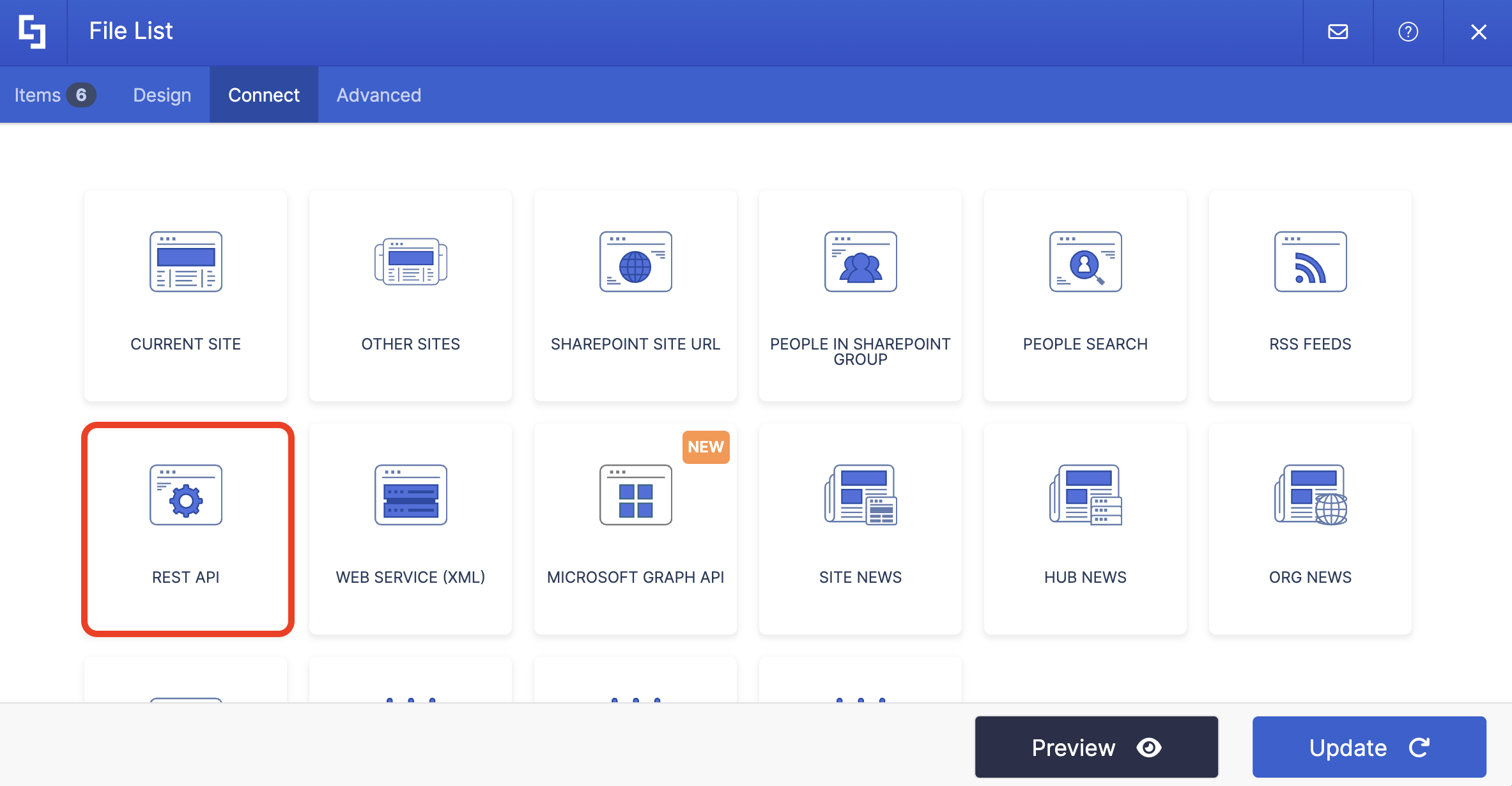
The ShortPoint REST API connection allows you to retrieve data from specific SharePoint sites and display it beautifully on your pages using ShortPoint Design Elements. Simply paste the REST API URL you created and map the items you want to be displayed. For more information, go to How to Use the REST API Connection to Showcase Information in Your SharePoint Sites.
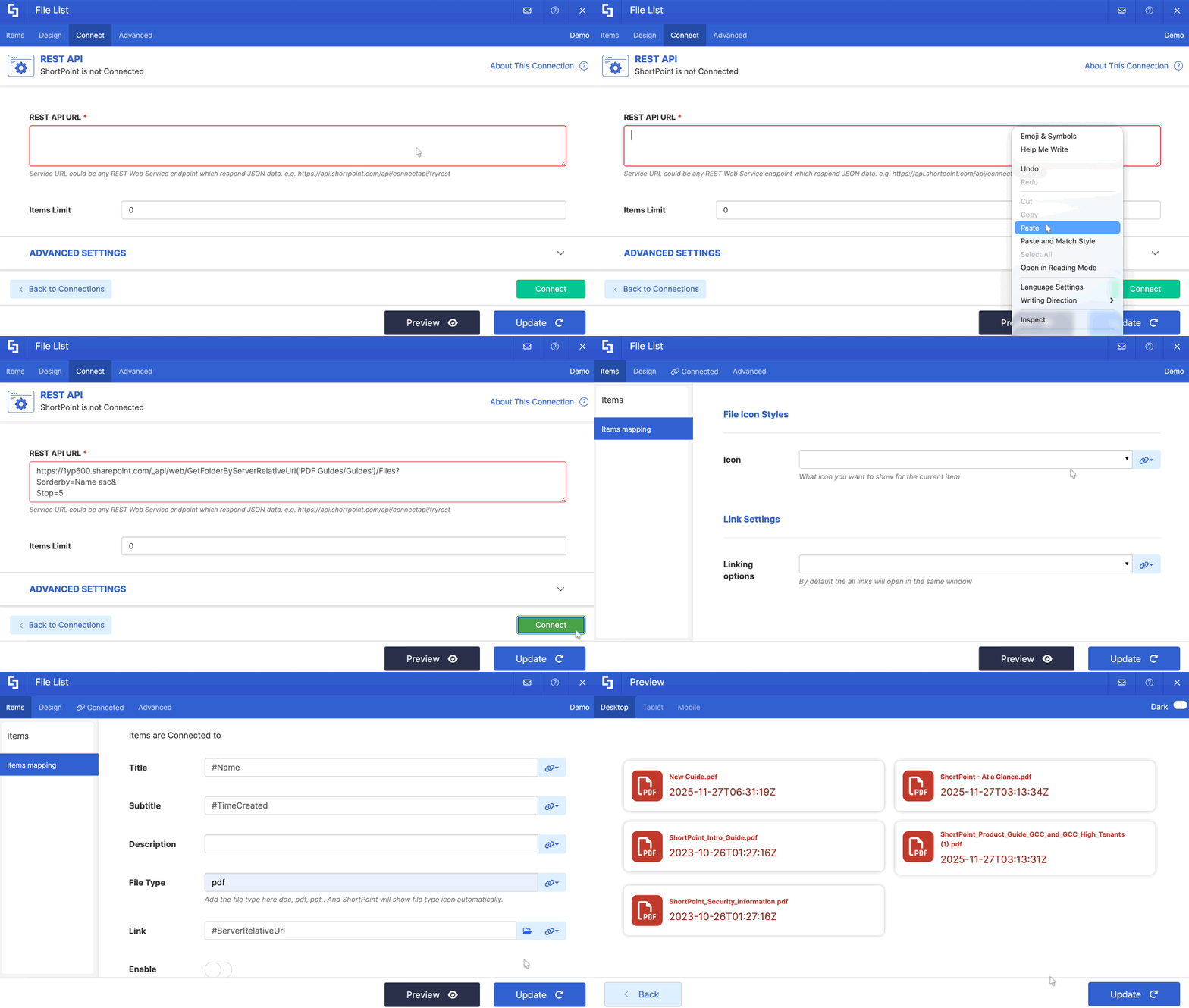
Congratulations! You can now start building your own SharePoint REST API URLs.
Ready to start RESTing?
The SharePoint REST API is a powerful and flexible tool that opens up SharePoint to virtually any platform or programming language. By mastering GET queries and understanding how to construct effective REST API URLs, you can build robust integrations that extend SharePoint functionality far beyond its out-of-the-box capabilities, enabling seamless data integration and allowing you to connect SharePoint remotely with other systems.
And to make the most out of it, start showcasing the information you GET in your SharePoint sites using ShortPoint's REST API connection! If you're already a ShortPoint Designer with a Pro or Enterprise license, simply follow our guide, "How to Use the REST API Connection to Showcase Information in Your SharePoint Sites."
Not yet a ShortPoint Designer? You can also tap into the power of the ShortPoint REST API connection with our FREE 15-day trial. You can also book a one-on-one demo with our experts to get you started on your ShortPoint journey.
Frequently Asked Questions
What's the difference between the SharePoint REST API and Microsoft Graph API?
The SharePoint REST API is specifically designed for SharePoint data and operations, offering deep integration with SharePoint-specific features. Microsoft Graph API is a unified API that spans multiple Microsoft 365 services, including SharePoint, Teams, Outlook, and OneDrive.
Use the SharePoint REST API when you need SharePoint-specific functionality like content types, workflows, or detailed list schema operations. Choose Graph API when building cross-platform applications that need to access data from multiple Microsoft 365 services.
Do I need special permissions to use the REST API?
Yes, you need appropriate permissions for the resources you're accessing. For GET requests, you need at least read permissions on the lists, libraries, or sites you're querying. Authentication typically happens through OAuth 2.0 tokens, and your application must be registered in Azure AD.
Can I use the REST API with SharePoint On-Premises?
Absolutely! The SharePoint REST API works with both SharePoint Online and SharePoint 2013/2016/2019 on-premises versions. The syntax and endpoints are largely the same, though some newer features might only be available in SharePoint Online.
What's the maximum number of items I can retrieve in a single request?
By default, SharePoint returns up to 100 items in a single GET request. You can increase this using the $top parameter (up to 5000 in some scenarios), but for larger datasets, you should implement paging using $skiptoken to avoid timeout issues and ensure optimal performance.
How do I handle large result sets?
Use pagination with the $skiptoken parameter. SharePoint includes a __next property in the response when more data is available.
Can I use REST API calls in SharePoint Framework (SPFx) solutions?
Definitely! SPFx provides built-in support for calling the REST API through the SPHttpClient service, which handles authentication automatically. This is one of the most common ways to interact with SharePoint data in modern SPFx web parts and extensions.
Related articles:
