 Try ShortPoint now
SharePoint offers a built-in mobile view feature that works well for standard pages. However, if your page includes ShortPoint Design Elements, you may notice that SharePoint's default mobile view doesn't display the page as intended.
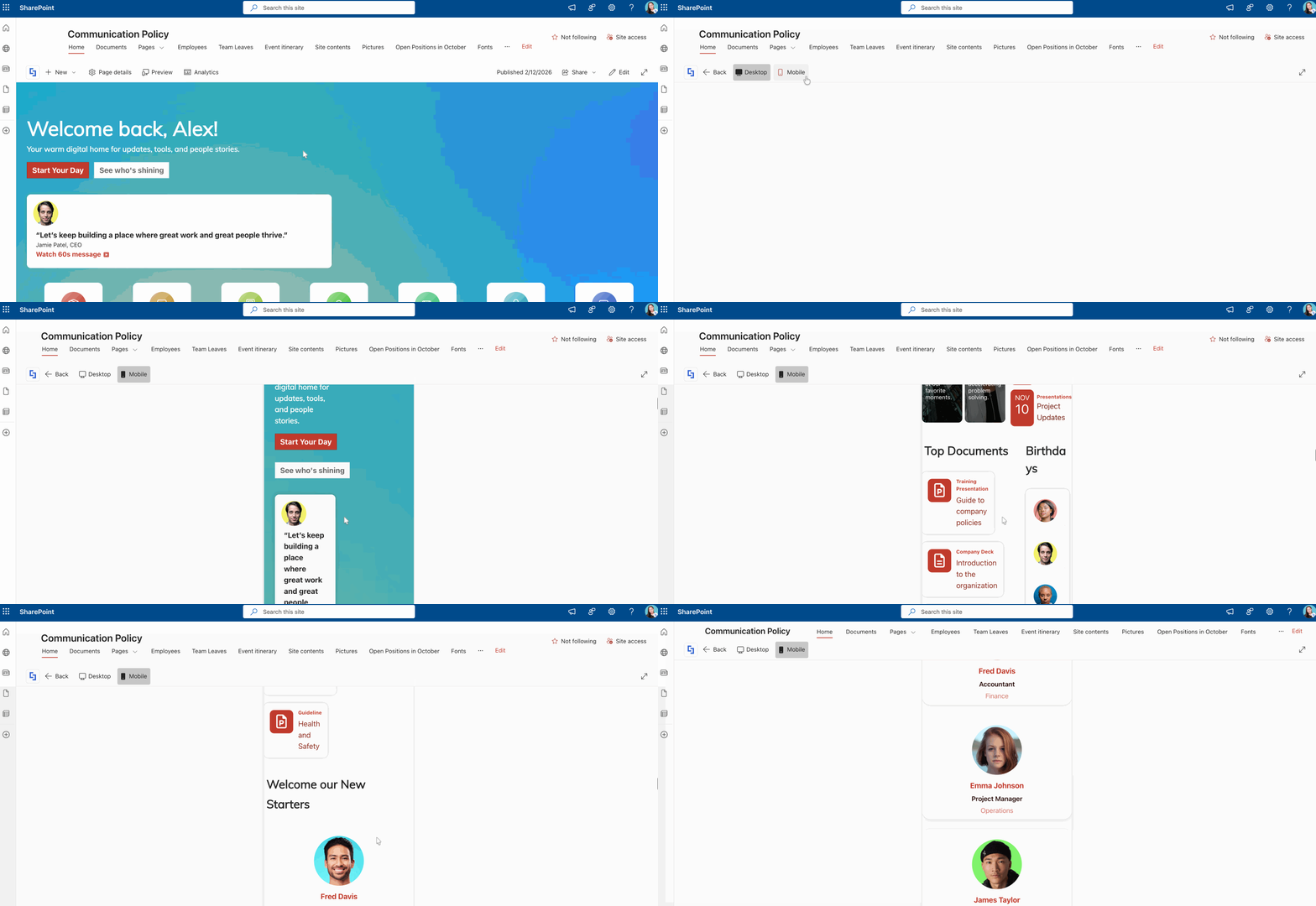
This article will show you how to use DevTools to see an accurate mobile view of your SharePoint page:
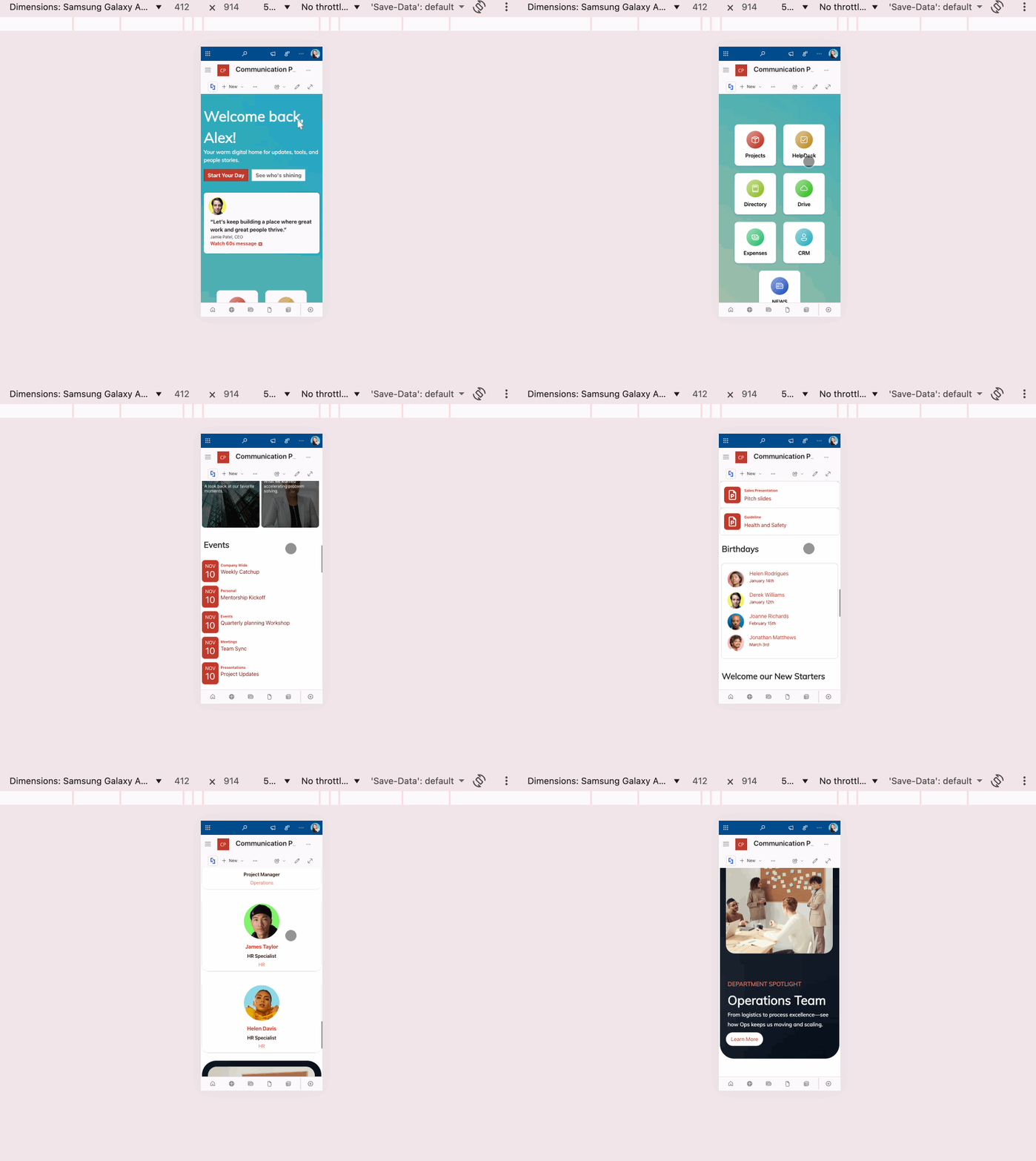
TABLE OF CONTENTS
Prerequisites
- You must have ShortPoint Design Elements on your SharePoint page.
Interactive Tutorial
Start the interactive tutorial to learn how to see your page in mobile view using DevTools:
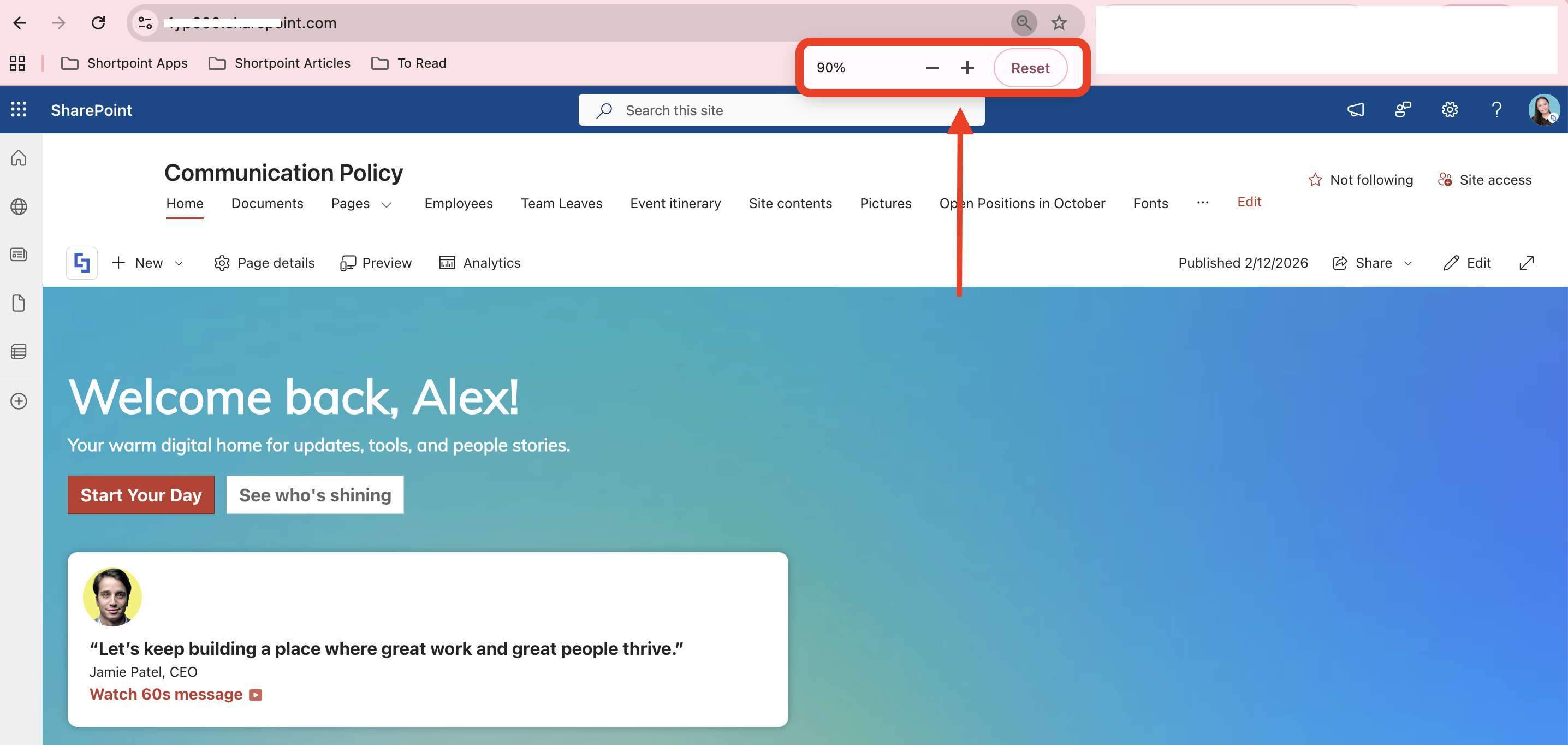
TIPFor the best viewing experience, set your page to 90% zoom:
Step-by-step Tutorial
Follow the detailed guide below:
Step 1: Open DevTools
- Open the SharePoint page you want to preview in mobile view.
- Right-click anywhere on your page.
- Select Inspect.
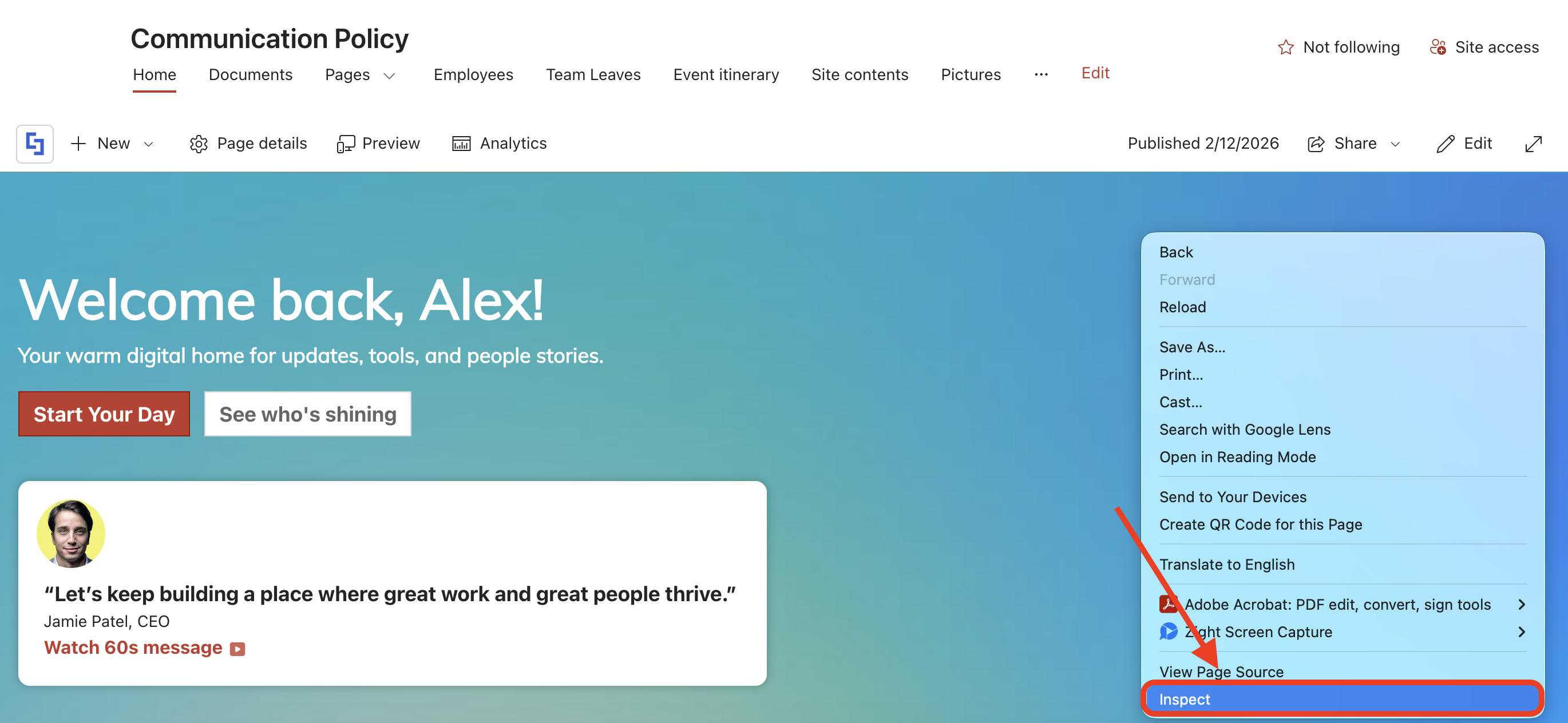
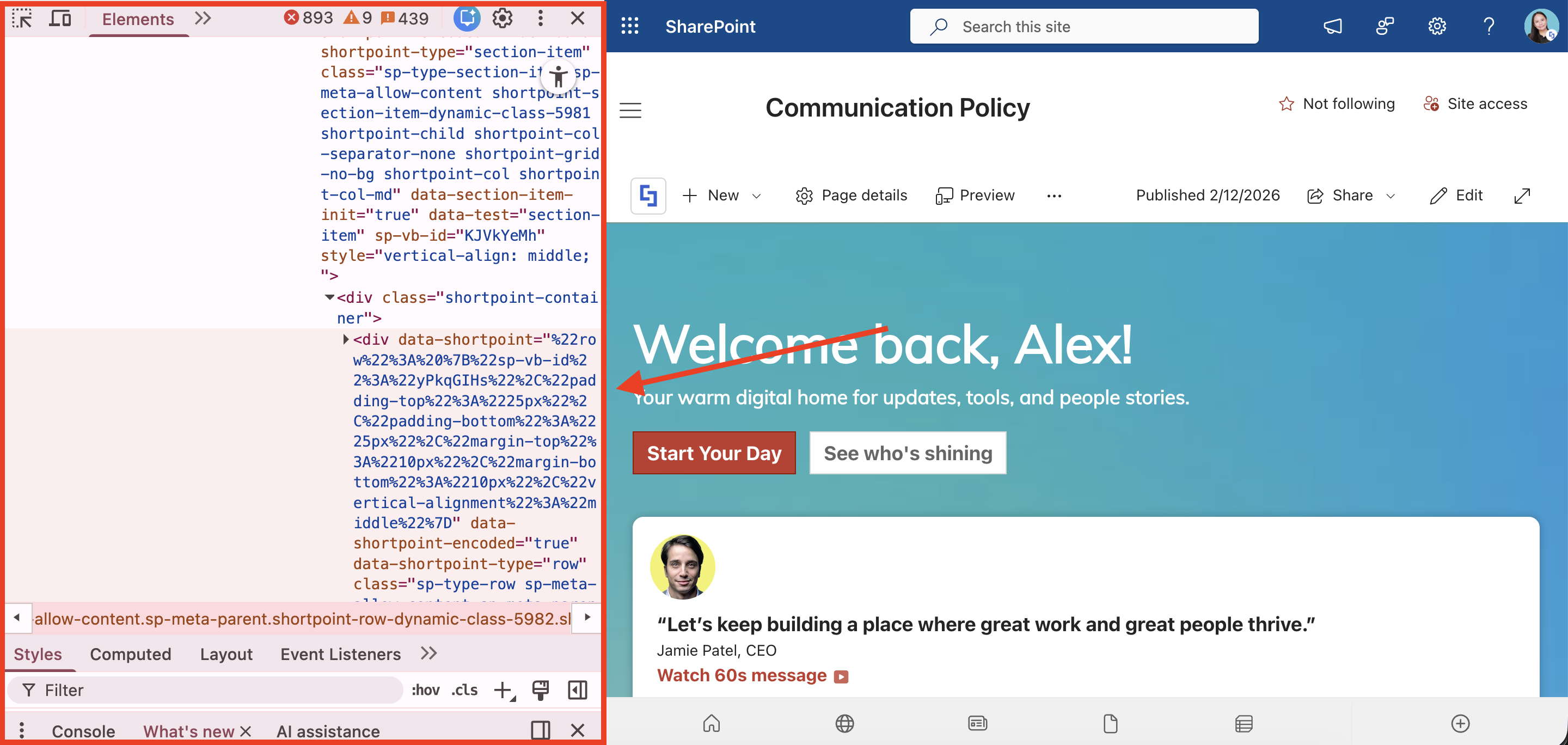
- The DevTools will open:
Step 2: Open Device Toolbar
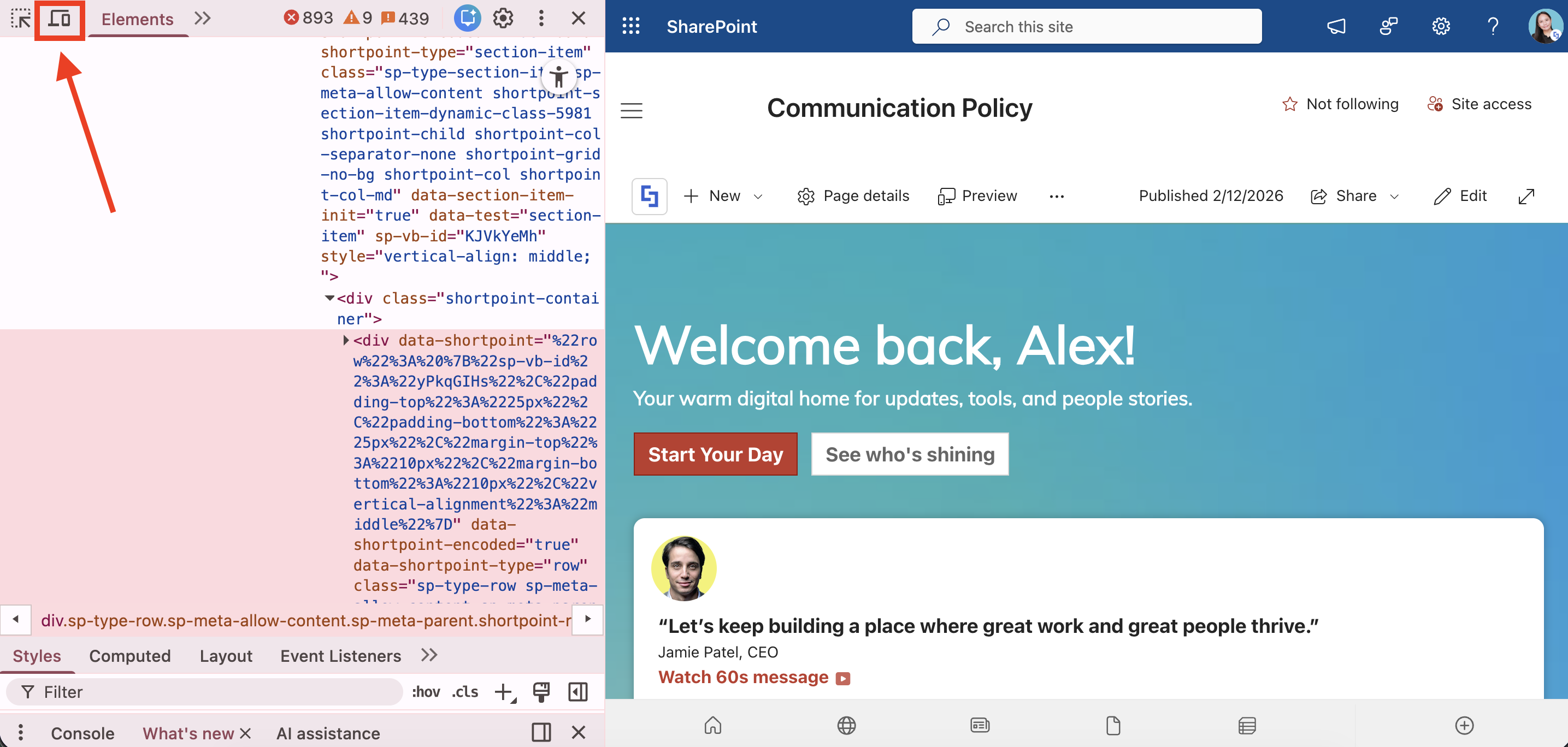
- Select the Device Toolbar icon:
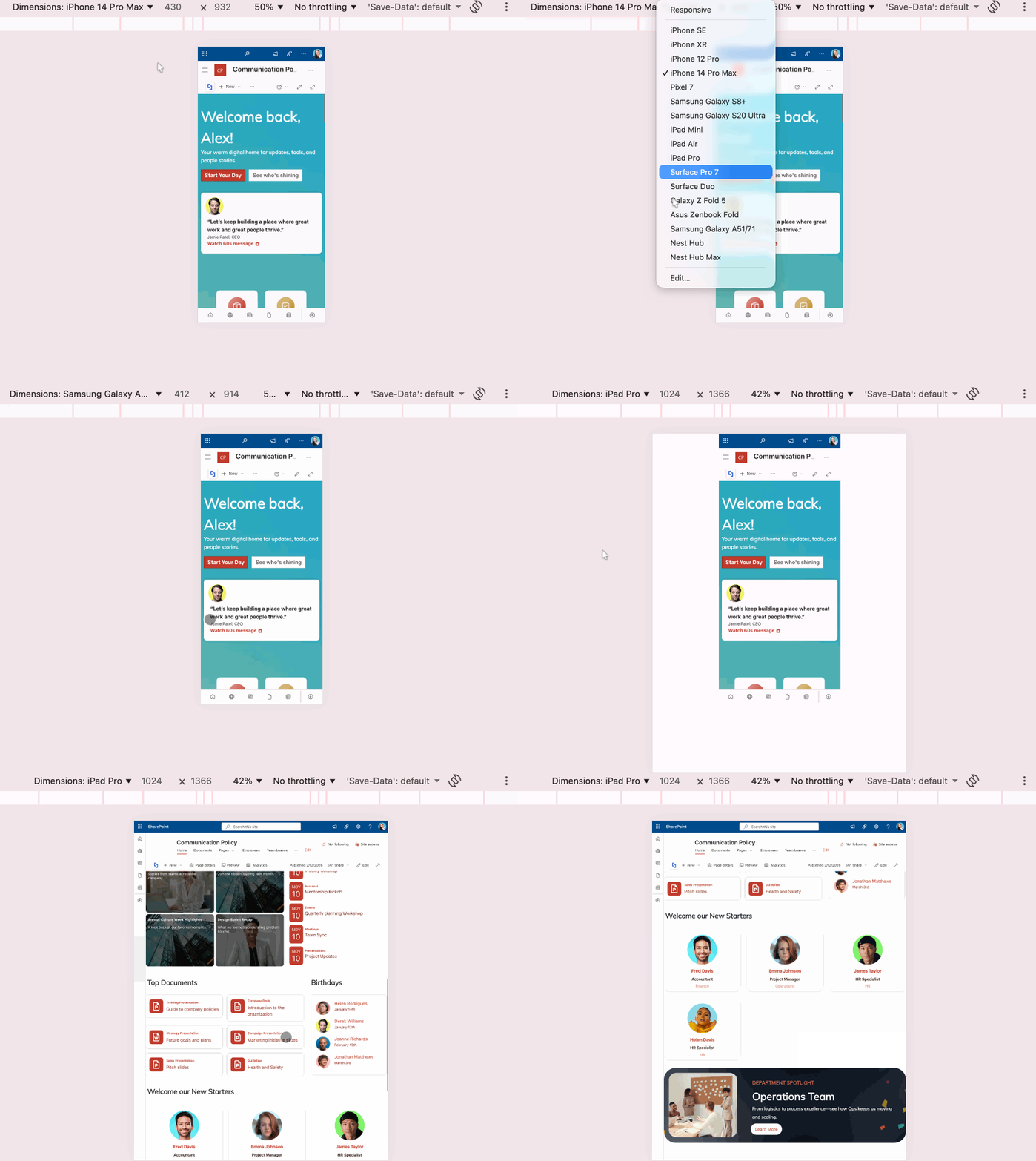
- Choose the mobile dimensions you want to preview:
That’s it! You can now preview your SharePoint page in mobile view using DevTools.
Related articles:
