 Try ShortPoint now
If you've ever tried to manage who can access what on a SharePoint site, you know it can get complicated pretty quickly. That's where SharePoint Groups come in. It keeps things secure while making collaboration as smooth as possible. Let's break it down in a way that actually makes sense.
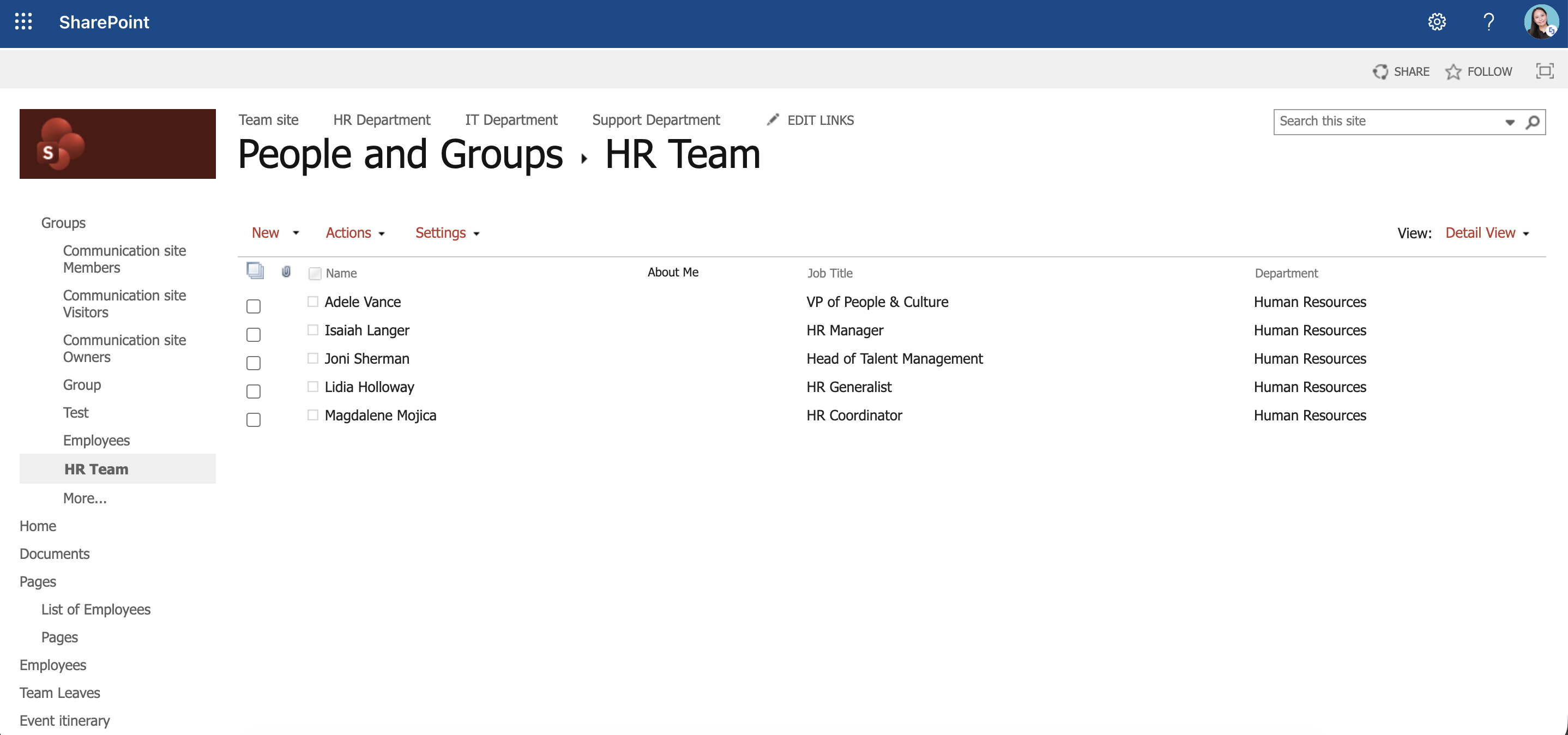
TABLE OF CONTENTS
- What Are SharePoint Groups?
- The Default SharePoint Groups
- How to Create a SharePoint Group
- Editing a SharePoint Group
- SharePoint Group Settings
- Practical Use Cases: When and How to Use SharePoint Groups
- BONUS: Showcase Your SharePoint Groups in Your SharePoint Sites
- Frequently Asked Questions
- What's the difference between SharePoint Groups and Microsoft 365 Groups?
- Can I create my own custom SharePoint Groups?
- What happens if I'm in multiple groups with different permission levels?
- How do I know which permission level I have on a site?
- Should I assign permissions to individual users or always use groups?
- I got an "Access Denied" error. What should I do?
- How often should I review permissions and group memberships?
What Are SharePoint Groups?
SharePoint Groups are collections of users who share the same level of access to a SharePoint site or its content. Instead of assigning permissions to each person individually (which would be a nightmare), you add users to groups, and those groups have specific permission levels.
Here's the simple version: SharePoint Groups answer the question "Who can do what?" on your site.
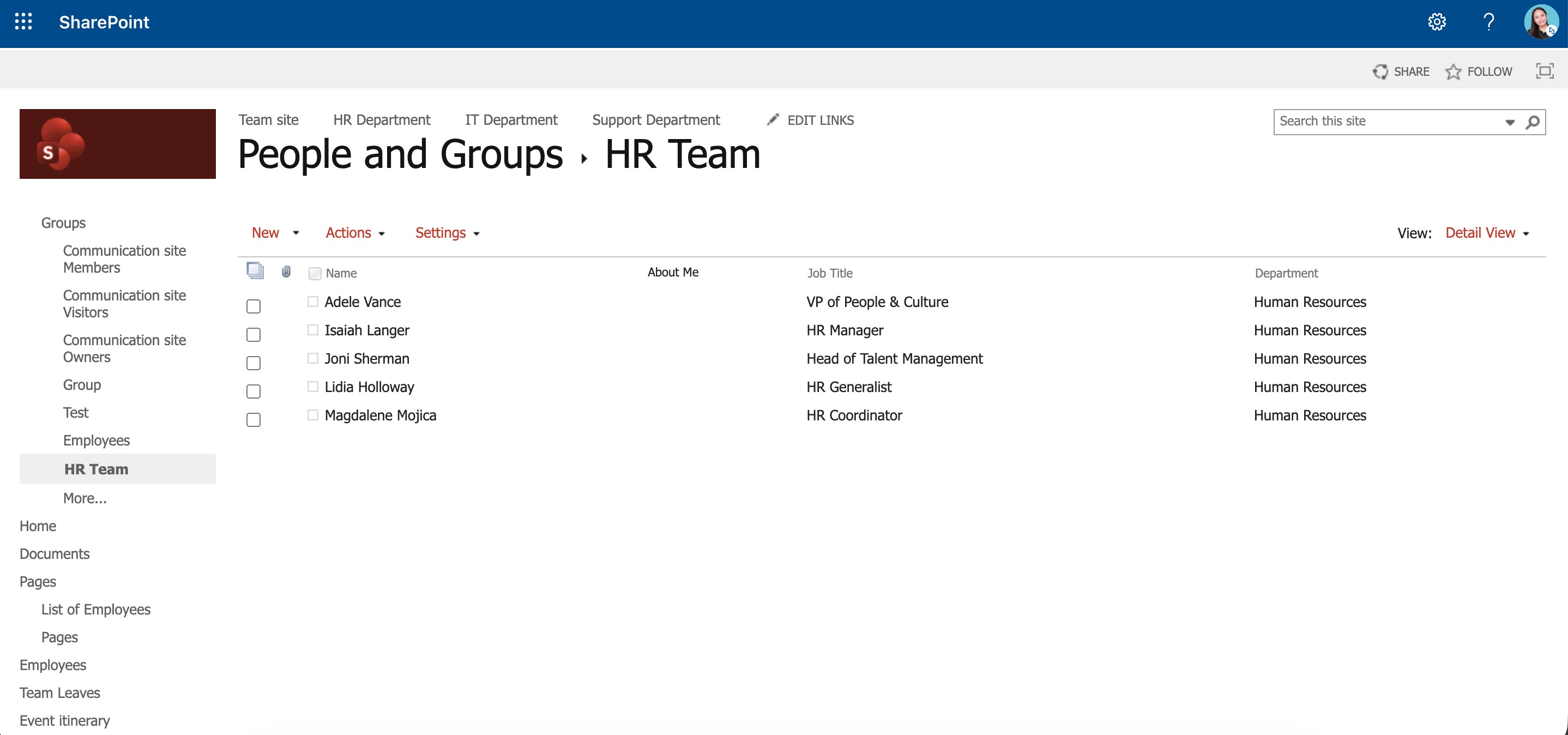
Each group is tied to a permission level, which is essentially a bundle of specific permissions. For example, the "Contribute" permission level includes the ability to add, edit, and delete items, but not to change the site's design or manage other users' access.
The Default SharePoint Groups
When you create a SharePoint site, three default groups are automatically set up. These groups are named after your site, so if your site is called "Communication," for example, you'll get:
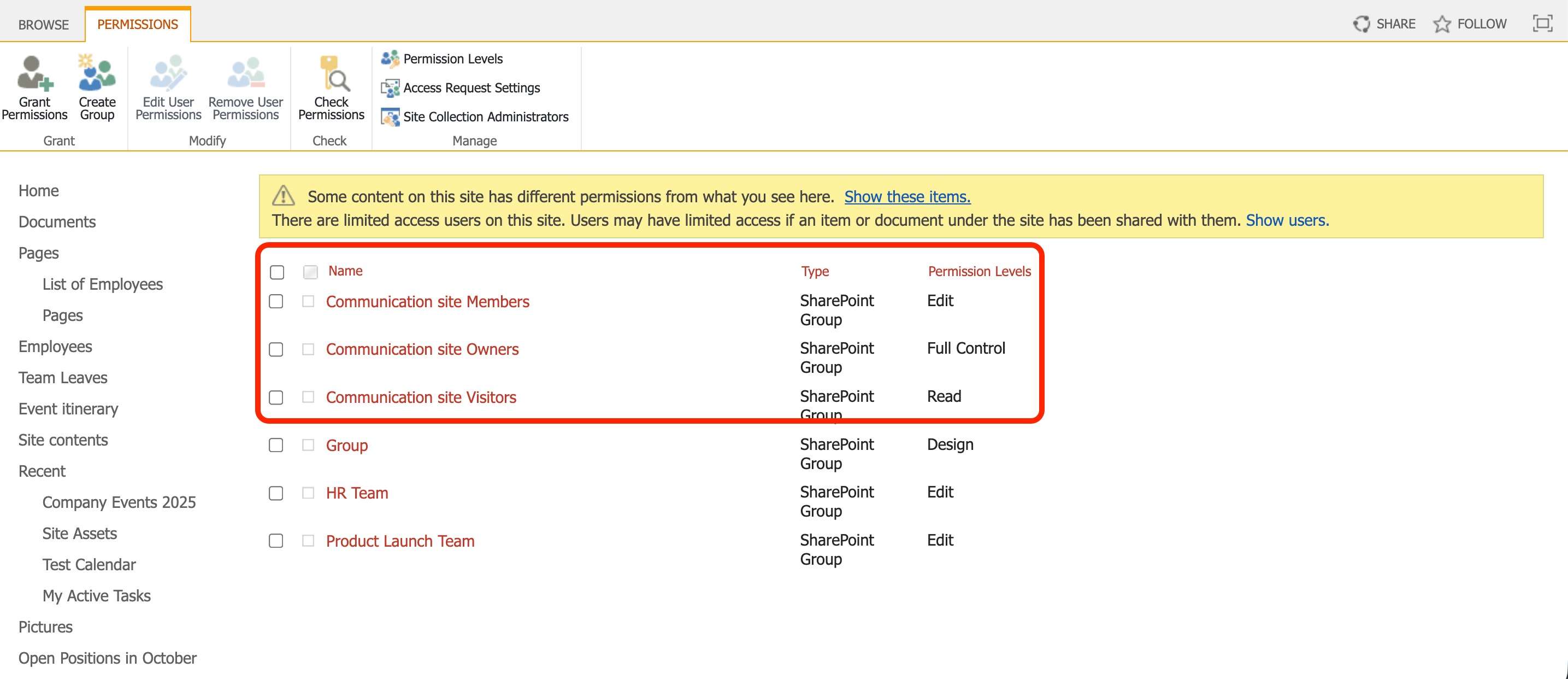
- Communication site Members – These are the worker bees of your site. They can create, edit, and delete content, but they can't mess with the site's structure or settings. This group has the "Contribute" permission level.
- Communication site Owners – These folks have the keys to the kingdom. They can change both the content and the settings on the site. This group has the "Full Control" permission level.
- Communication Visitors – The observers. They can view everything on the site, but can't make any changes. This group has the "Read" permission level.
How to Create a SharePoint Group
Creating SharePoint Groups is very simple. Follow the steps below to get started:
NOTETo see the settings you can modify, go to SharePoint Group Settings.
Step 1: Open Advanced permission settings
- Go to the SharePoint site where you want to create the SharePoint Group and select the cogwheel icon:

- Choose Site Permissions:
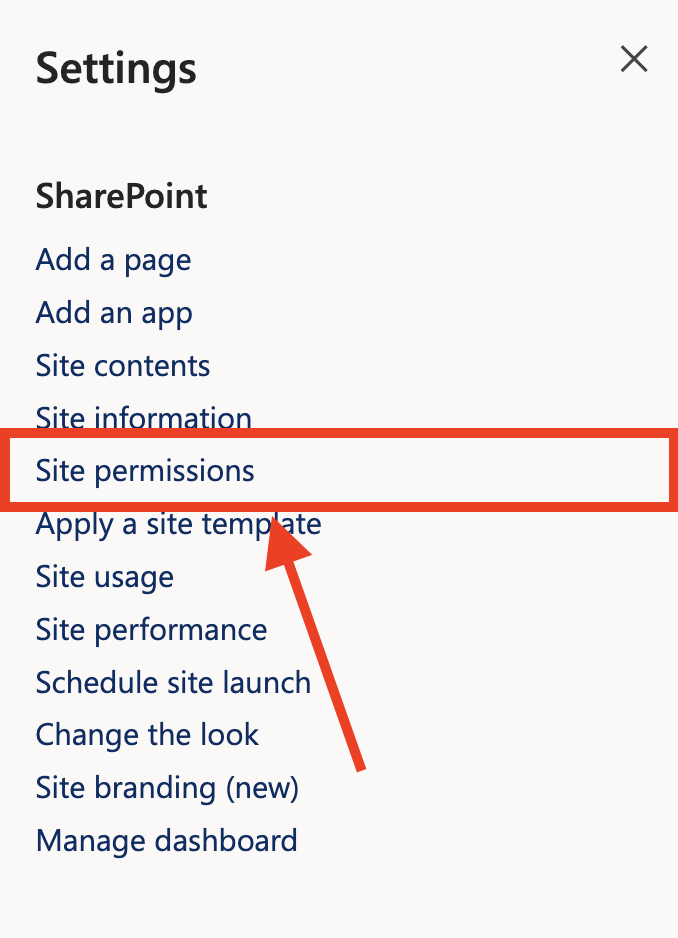
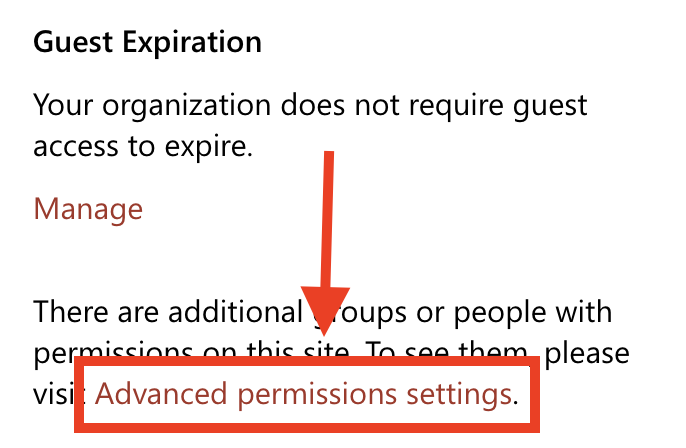
- Select Advanced permission settings:
Step 2: Create a Group
- Click Create Group:

- Add a group name.
- Modify group settings to your liking.
NOTETo see the settings you can modify, go to SharePoint Group Settings.
- Once satisfied, click Create.
Step 3: Add group members
- Click New:

- Add the names of your group members.
- Click Share.
Congratulations! You've successfully created a SharePoint Group.
Editing a SharePoint Group
Now that you know how to create a SharePoint group, let's learn how to edit an existing group:
SharePoint Group Settings
Below are the settings you can modify when creating a SharePoint Group:
Name and About Me Description
 | Name | allows you to modify the name of the SharePoint Group. |
 | About Me | allows you to add a group description. |
Owner
 | Group owner | allows you to assign the owner of the group. By default, it is assigned to the person who created the group. The owner can change anything about the group, such as adding and removing members or deleting the group. Only one user or group can be the owner. |
Group settings
 | Who can view the membership of the group? | allows you to specify who can see the members of the group. You can choose from group members or everyone. |
 | Who can edit the membership of the group? | allows you to specify who can add and remove members from the group. You can choose from group members or everyone. |
Membership Requests
 | Allow requests to join/leave this group? | choose whether to allow people to request to join or leave the group. If this were to be allowed, you will need to assign a user to approve requests. |
 | Auto-accept requests? | allows you to automatically approve requests. Just take note that choosing "Yes" will enable anyone to join the group and receive the permission levels associated with the group. |
 | Send membership requests to the following e-mail address | allows you to assign a user to approve requests. |
Give Group permission to this site
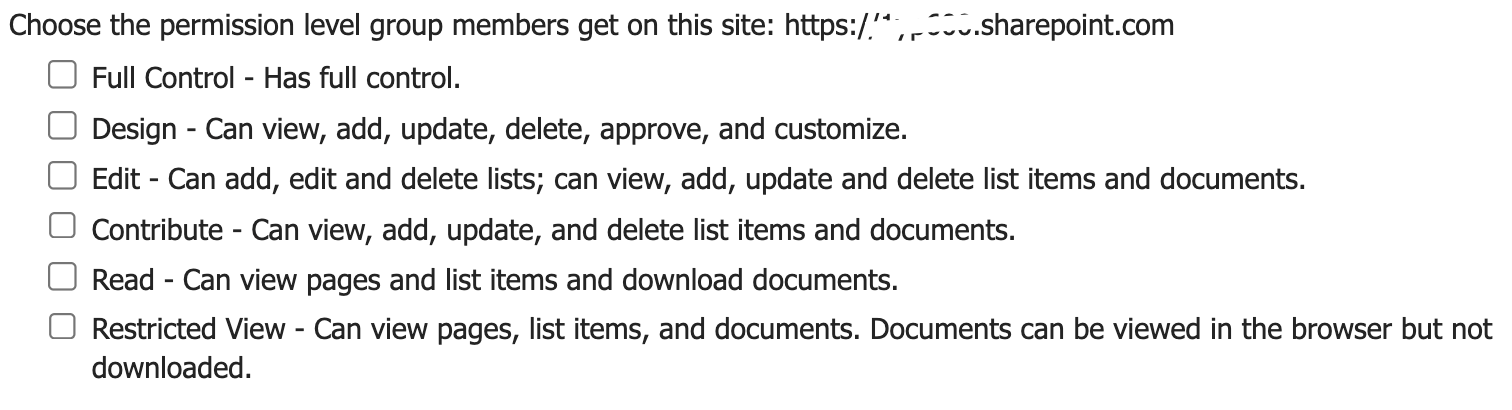 | Choose the permission level group members get on this site | allows you to choose the permission level of the members associated with the SharePoint group. If you do not want to give group members access to this site, ensure that all checkboxes are unselected. Here are the permissions you can assign:
|
Practical Use Cases: When and How to Use SharePoint Groups
Let's get real about how SharePoint Groups work in everyday situations. Here are some scenarios you'll likely encounter and how to handle them like a pro.
Protecting Confidential Documents
The Scenario: Your HR team stores employee salary information in a SharePoint library, but you need to make sure only the HR managers can access it and not the entire team.
The Solution: Create a custom SharePoint Group called "HR Managers" and assign them appropriate permissions to just that library. Break permission inheritance on the salary documents library, remove the default groups, and add only the HR Managers group with Full Control or Contribute permissions.
Why This Works: The rest of the HR site remains accessible to all HR staff, but this specific library is locked down. It's surgical precision without over-complicating your entire site structure.
External Collaboration with Clients
The Scenario: You're working with an external consultant who needs to review project documents but shouldn't have access to your internal planning materials.
The Solution: Add the consultant to the Visitors group for read-only access, or create a custom "External Reviewers" group with carefully scoped permissions. Better yet, share specific documents or folders with them directly rather than giving them access to the entire site.
Best Practice: When working with external users, always follow the principle of least privilege—give them only the minimum access they need to do their job. Review and remove their access once the project is complete.
Department-Specific Project Sites
The Scenario: Your organization has multiple departments (Sales, Marketing, Engineering), and each needs their own project site with different team members having different levels of access.
The Solution: Use Active Directory or Microsoft 365 security groups that mirror your organizational structure, then add those groups to your SharePoint Groups. For example, add the "Sales Team" security group to the "Sales Site Members" SharePoint Group. When someone joins the Sales department, they automatically get the right SharePoint access.
Why This Matters: This approach dramatically reduces administrative overhead. Instead of manually updating SharePoint permissions every time someone changes roles, you manage it once in your directory service, and the changes flow through automatically.
Temporary Project Teams
The Scenario: You're launching a six-month marketing campaign that requires collaboration between people from different departments who normally don't work together.
The Solution: Create a custom SharePoint Group specifically for this project (like "Spring Campaign Team") and add all the cross-functional team members to it. Assign this group the Contribute permission level. When the campaign ends, simply remove the group or archive the site.
Pro Tip: Set a reminder to review and clean up temporary groups and their permissions quarterly. Stale permissions are a security risk waiting to happen.
BONUS: Showcase Your SharePoint Groups in Your SharePoint Sites
SharePoint Groups gives you a smart way to organize who can access what. But did you know that you can also use it to display useful information in your SharePoint sites? This is where ShortPoint's People in SharePoint Group connection comes in!
People in SharePoint Group is a ShortPoint Connect feature that automatically displays information about members from your SharePoint groups. With it, you can show important details about them that your page viewers will find extremely useful: name, contact information, work title, department, and so much more. The best part? When someone joins or leaves a SharePoint group, the connection updates automatically. No need for manual edits!

Want to see what this connection can do for you? If you're already a ShortPoint Designer, you can check out How to Showcase SharePoint Group Team Members Using the People in SharePoint Group Connection.
Brand new to ShortPoint? Perfect timing! Start a FREE 15-day trial and get full access to explore at your own pace. There's absolutely no obligation. Prefer a personal walkthrough? Schedule a demo with our ShortPoint specialists who'll show you the connection in action and help you discover what else is possible.
Frequently Asked Questions
What's the difference between SharePoint Groups and Microsoft 365 Groups?
SharePoint Groups are specific to individual SharePoint sites and only control access to that site. Microsoft 365 Groups, on the other hand, are broader—they include a SharePoint site, but also come with a shared mailbox, calendar, Planner, and potentially a Teams team.
When you create a modern team site in SharePoint, it's usually connected to a Microsoft 365 Group. In this case, managing membership in the Microsoft 365 Group automatically manages SharePoint access. For communication sites or classic sites, you'll work with traditional SharePoint Groups.
Can I create my own custom SharePoint Groups?
Absolutely! While the default groups (Owners, Members, Visitors) cover most scenarios, you might need custom groups for specific situations. For example, you might create a "Marketing Managers" group that has more permissions than regular members but less than full owners.
Just remember: the more groups you create, the more complex your permission structure becomes. Try to keep it simple and use custom groups only when the default ones don't fit your needs.
What happens if I'm in multiple groups with different permission levels?
SharePoint follows a simple rule: the highest permission wins. If you're in both the Visitors group (read-only) and the Members group (contribute), you'll have contribute permissions. SharePoint is additive with permissions—it never takes them away because you're in a lower-permission group.
How do I know which permission level I have on a site?
There are a few tell-tale signs:
- If you can view but not edit anything, you have Read permissions (Visitors group)
- If you can edit content but not change site settings, you have Contribute permissions (Members group)
- If you can do everything including managing permissions, you have Full Control (Owners group)
You can also check by going to Site Settings > Site Permissions to see exactly which groups you belong to.
Should I assign permissions to individual users or always use groups?
Use groups whenever possible. While it might seem faster to add a single user directly when you're in a hurry, it creates management headaches down the road. Individual permissions are harder to track, audit, and remove when someone changes roles or leaves the company.
The best practice is to add users to appropriate groups (whether SharePoint Groups or Active Directory/Microsoft 365 Groups). This makes your permission structure transparent and easier to maintain.
I got an "Access Denied" error. What should I do?
First, don't panic. It just means you don't have the necessary permissions to view that content. If you believe you should have access, click the "Request access" button (if available), and the site owner will receive your request.
If you're the one receiving these requests, review them promptly. Consider whether the person truly needs access and what level of permissions is appropriate. Remember: always follow the principle of least privilege.
How often should I review permissions and group memberships?
At minimum, conduct a quarterly review. Look for:
- Users who have left the organization but still have access
- Employees who changed roles and shouldn't have their old permissions
- Temporary groups that are no longer needed
- External users whose contracts or projects have ended
Regular permission audits aren't just good security practice, they're often required for compliance in regulated industries.
Related articles:
