 Try ShortPoint now
While we recommend our primary installation methods—either using the Automated Installer or performing a Manual Reinstallation of the SPFx package, you may also achieve CSP compliance through this alternative approach. For details on those recommended installation paths, please refer to our Quick Guide to Ensuring ShortPoint Compatibility with Microsoft’s Content Security Policy (CSP).
In this article, we demonstrate a method that is ideal if you prefer not to go through a reinstallation process and instead wish to manually verify your version and manage trusted script sources directly within the SharePoint Admin Center.
TABLE OF CONTENTS
Prerequisites
- You have ShortPoint installed within your SharePoint environment.
- You will need Global Admin or SharePoint Admin permissions to implement these changes. If you do not have administrative rights, please forward this guide to your IT department or SharePoint Administrator so they can perform the update for you.
Authorizing ShortPoint Script Sources Manually
Step 1: Verify Your ShortPoint Version
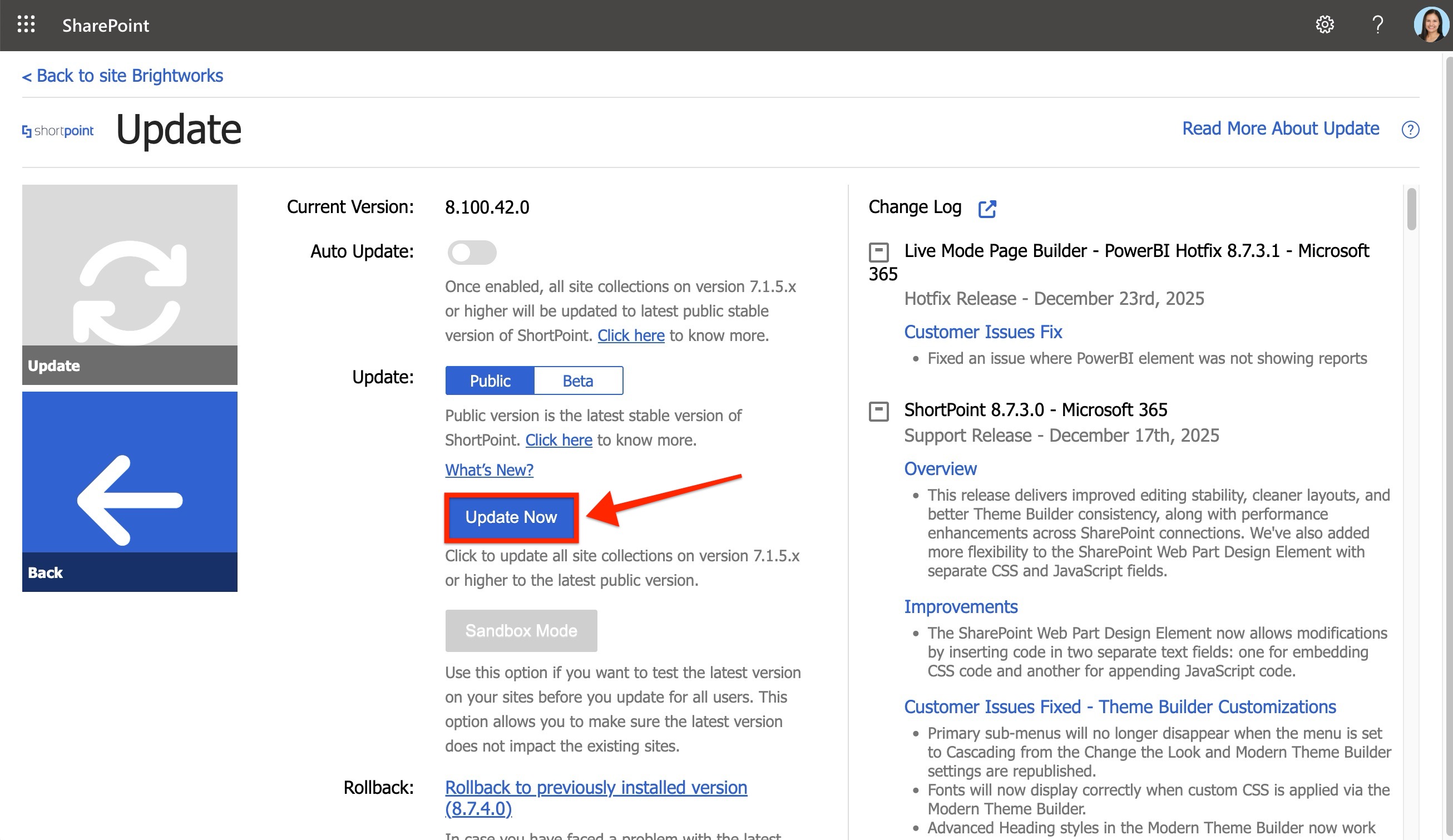
Before managing your script sources, ensure your current ShortPoint installation is already CSP-compliant. Open your ShortPoint Dashboard to confirm you are running ShortPoint SPFx version 8.7.6.0 or later.
- Check your Auto-Update toggle. If it is turned on, you should already have the latest CSP-compliant version installed, and no further update action is required. Or,
- Ensure you have upgraded to the most recent release before proceeding if you perform updates manually without reinstalling the package.
Step 2: Authorize ShortPoint Source Domains
Add the required ShortPoint domains as Trusted Script Sources to ensure your environment recognizes them as authorized providers under the new security policy.
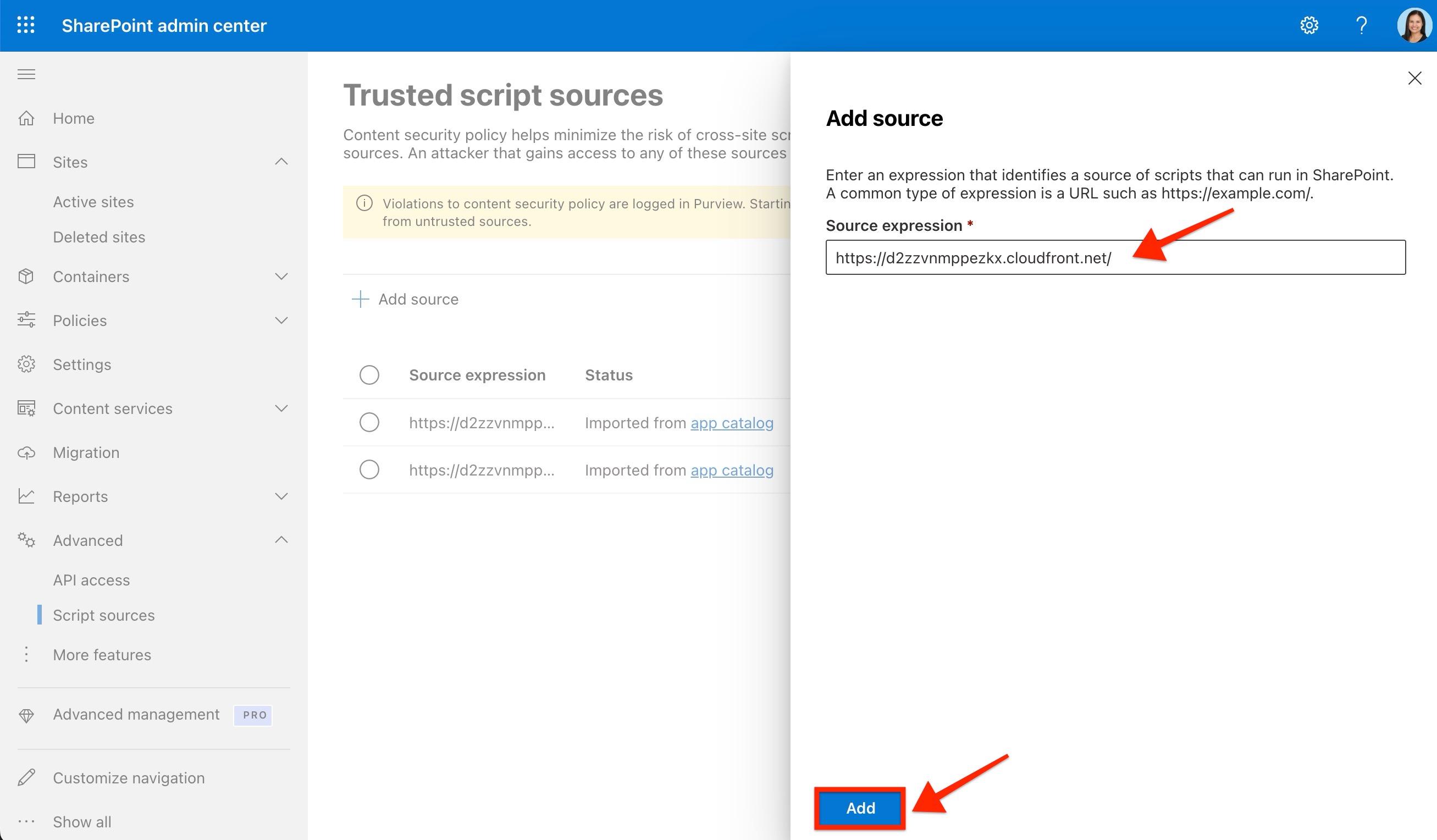
- Open the SharePoint Admin Center, navigate to the Advanced section, and select Script Sources.
- Click + Add Source to open the Add Source panel.
- Add the required domain URL to the Source expression field.
- Click Add to confirm the entry.
- Repeat these steps for each domain listed in the section below.
Your environment is now configured to recognize ShortPoint as a trusted source. This ensures that even under Microsoft's strictest security settings, your designs will load perfectly across all SharePoint sites.
List of Domains to Authorize
You can choose to add the Required Domains first and add the Optional Domains only when you plan to use the related Design Elements and features.
Required Domains
These domains are required to run ShortPoint.
https://d2zzvnmppezkx.cloudfront.net/
Optional Domains
These domains can be added when you plan to use the related Design Elements and features.
https://maps.googleapis.com/ - only if using the Maps Design Element
https://platform.twitter.com/ - only if using the X Design Element
https://www.linkedin.com/ - only if using the LinkedIn Design Element
https://platform.linkedin.com - only if using the LinkedIn Design Element
https://www.instagram.com/ - only if using the Instagram Design Element
https://www.youtube.com/ - only if using the YouTube Design Element
https://lottie.host/ - only if using the Lottie Design Element
https://www.canva.com/ - only if using the Canva Design Element
https://cdn.userway.org - only if using the Accessibility feature
Related articles:
- Quick Guide to Ensuring ShortPoint Compatibility with Microsoft’s Content Security Policy (CSP)
- Whitelist (white list) of Domains for ShortPoint
- How to Postpone SharePoint Content Security Policy (CSP) Enforcement Using Powershell
- Content Security Policy (CSP) in SharePoint Online: What It Is and Why It Matters
