 Try ShortPoint now
As part of SharePoint Online’s commitment to a secure modern environment, Microsoft utilizes a Content Security Policy (CSP) to manage how external scripts are executed on your pages. If you are adding custom JavaScript via the ShortPoint Theme Builder, Code Design Element, or Global Scripts and Styles, you may see a warning that the code originates from an "external source" and that you should add it as a Trusted script source in SharePoint.
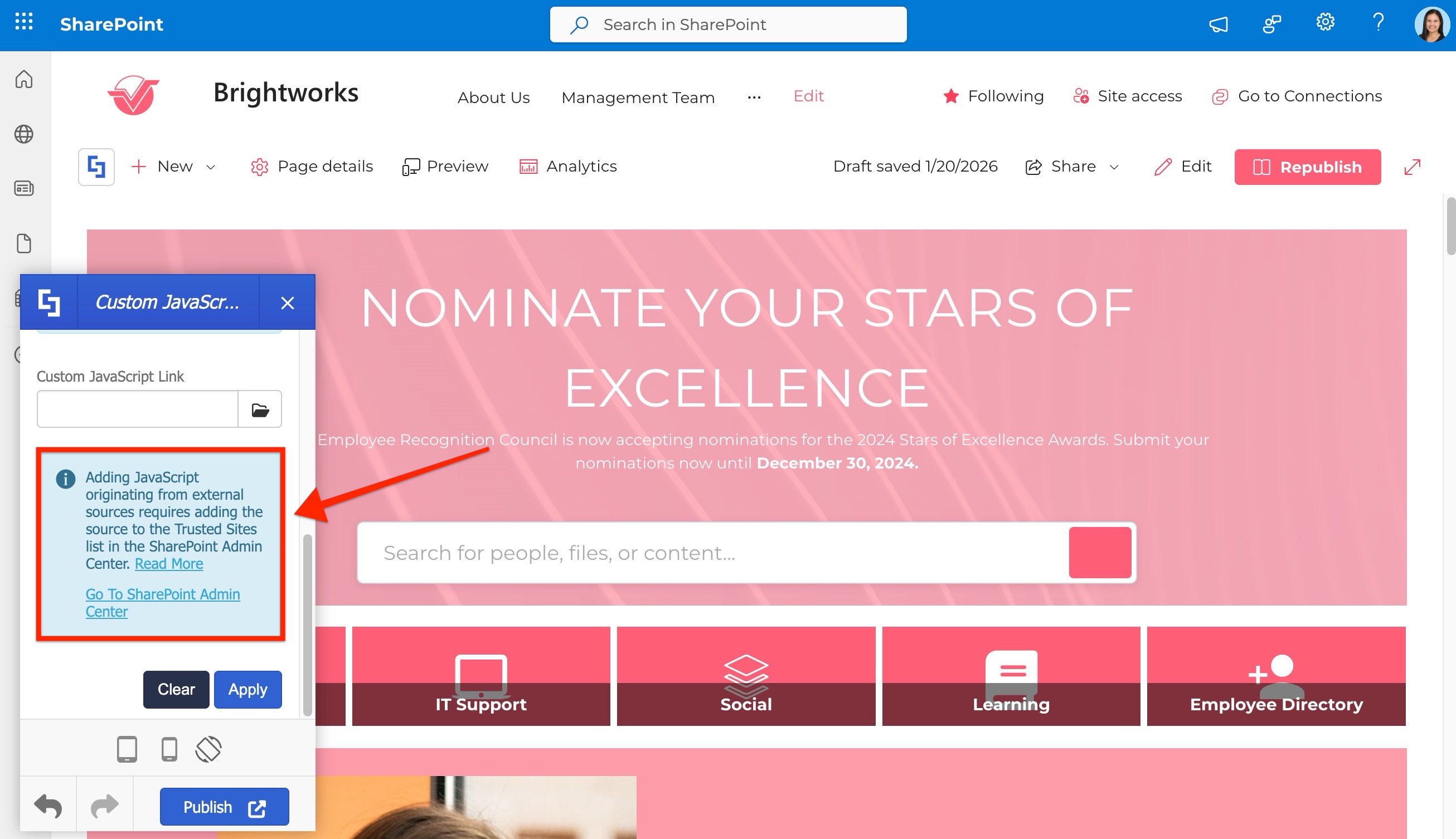
This guide explains the standard procedure for authorizing these sources to ensure your custom scripts and integrations function correctly within the SharePoint security framework.
TABLE OF CONTENTS
- Prerequisites
- Why am I seeing this warning?
- How to Add Trusted Source URLs
- How to Remove a Trusted Source
Prerequisites
- You have ShortPoint installed within your SharePoint environment.
- You will need Global Admin or SharePoint Admin permissions to modify security policies. If you do not have administrative rights, please forward this guide to your IT department or SharePoint Administrator so they can perform the changes for you.
Why am I seeing this warning?
To protect your environment from unauthorized code execution, SharePoint’s security rules require that any external domain providing a script must be explicitly "trusted" by a SharePoint Administrator.
When you add JavaScript to any of the following:
- Theme Builder Utilities
- Code Design Element
- Global Scripts and Styles feature
that references an external URL, such as a third-party analytics tool, a custom font library, or an external API, ShortPoint alerts you to ensure that the source domain is added to your tenant's allowed list. Without this step, the browser will block the script to remain compliant with the tenant's security policy, preventing your design or integration from working as intended.
Interactive Tutorial
You can go through this interactive tutorial to learn how to add and remove a source domain to your Trusted Script Sources. You can also view the steps in detail in the next section.
How to Add Trusted Source URLs
To ensure your custom scripts load correctly, follow these steps to add the source domain to the Trusted Script Sources page in the SharePoint Admin Center.
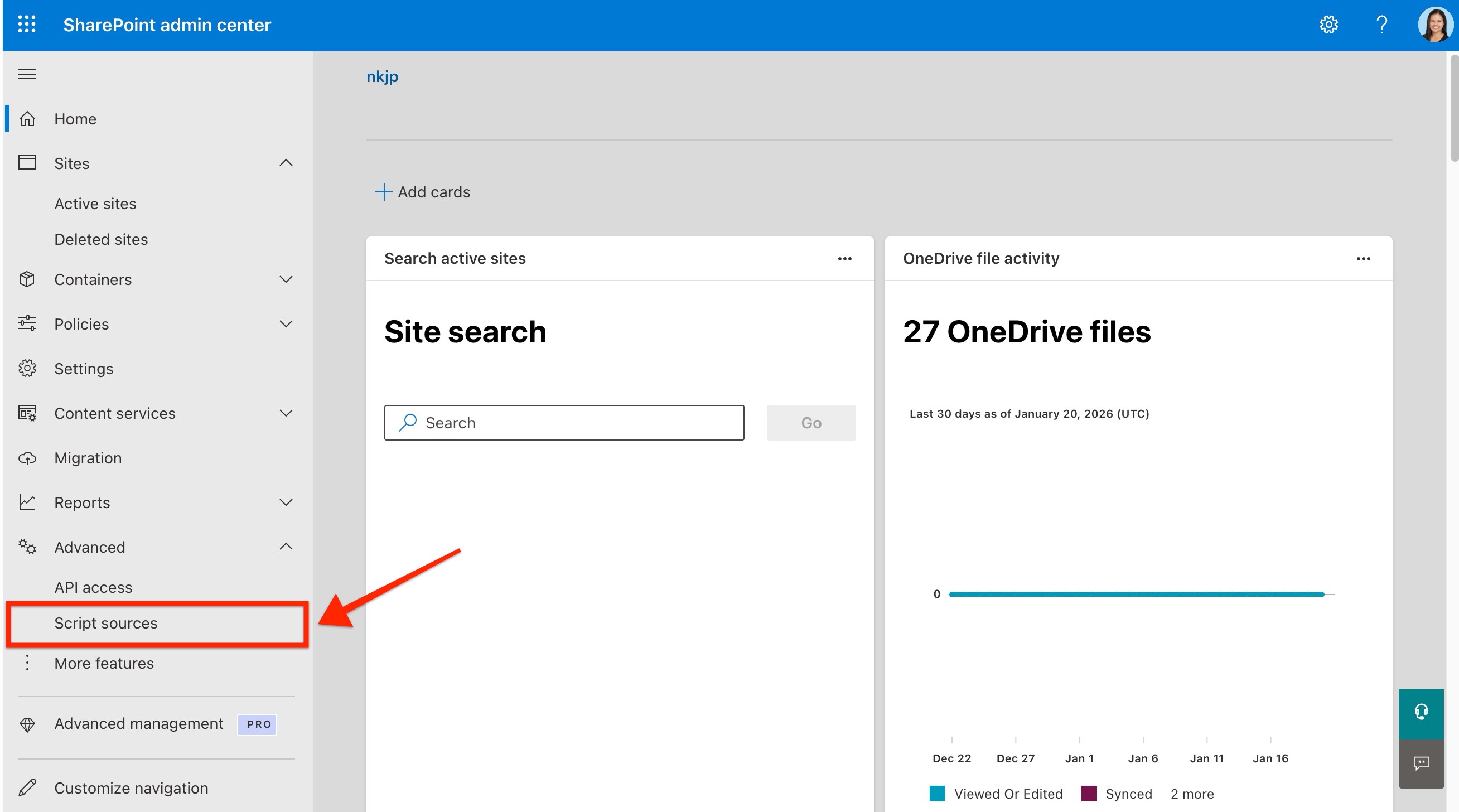
Step 1: Access the Trusted Script Sources Page
- Navigate to your SharePoint Admin Center.
- In the left-hand navigation, expand the Advanced section.
- Open Script sources.
Step 2: Add Your External Domain
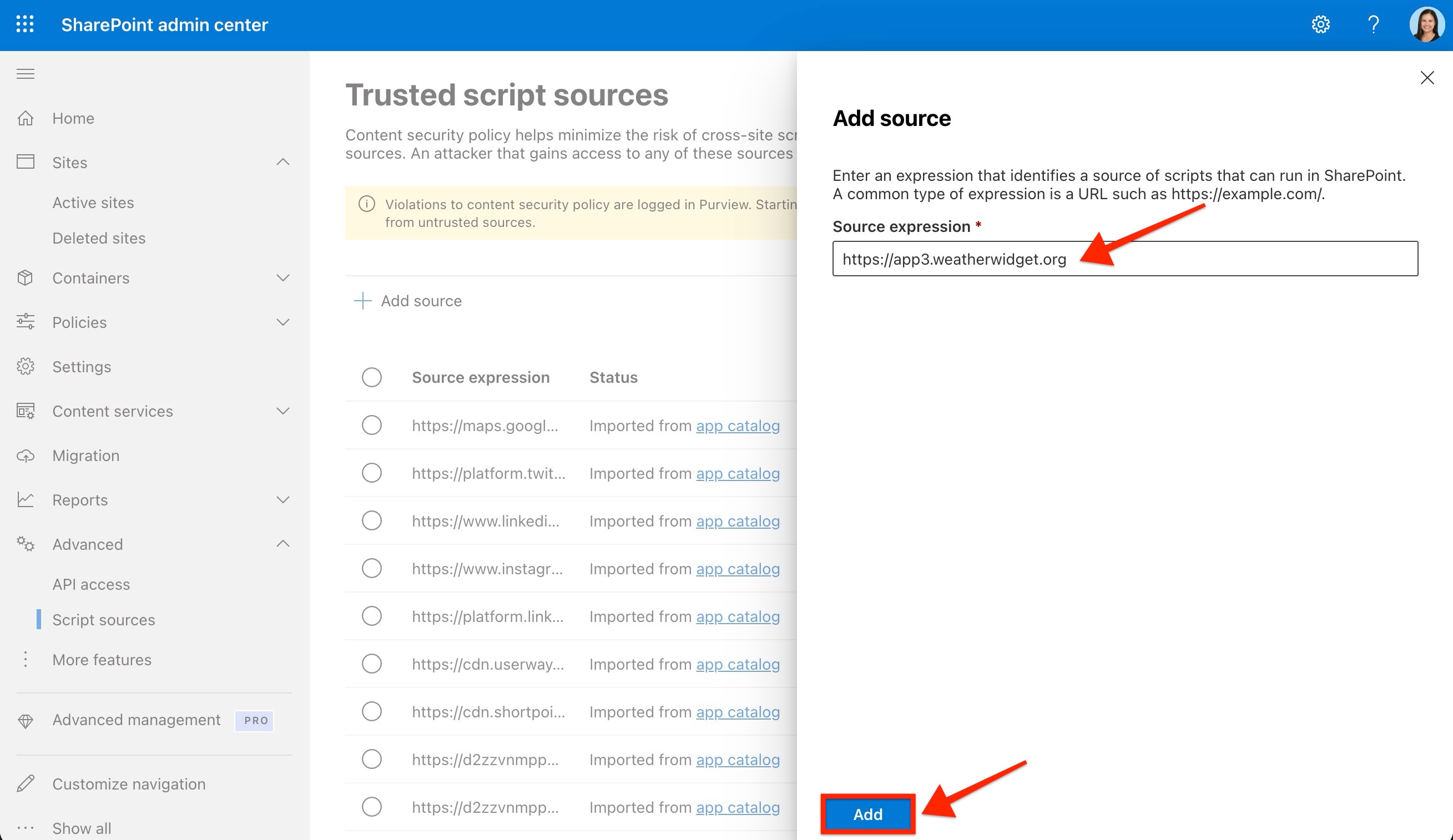
Click + Add source.
In the Source expression field, enter the base URL of the script you are using. Note that you only need the domain, not the full path to the specific .js file.
For example, if you want your page to load JavaScript from
https://app3.weatherwidget.org/js/?id=ww_306ac85834cbd, you only need to add the domainhttps://app3.weatherwidget.orgto your trusted sources list.Click Add.
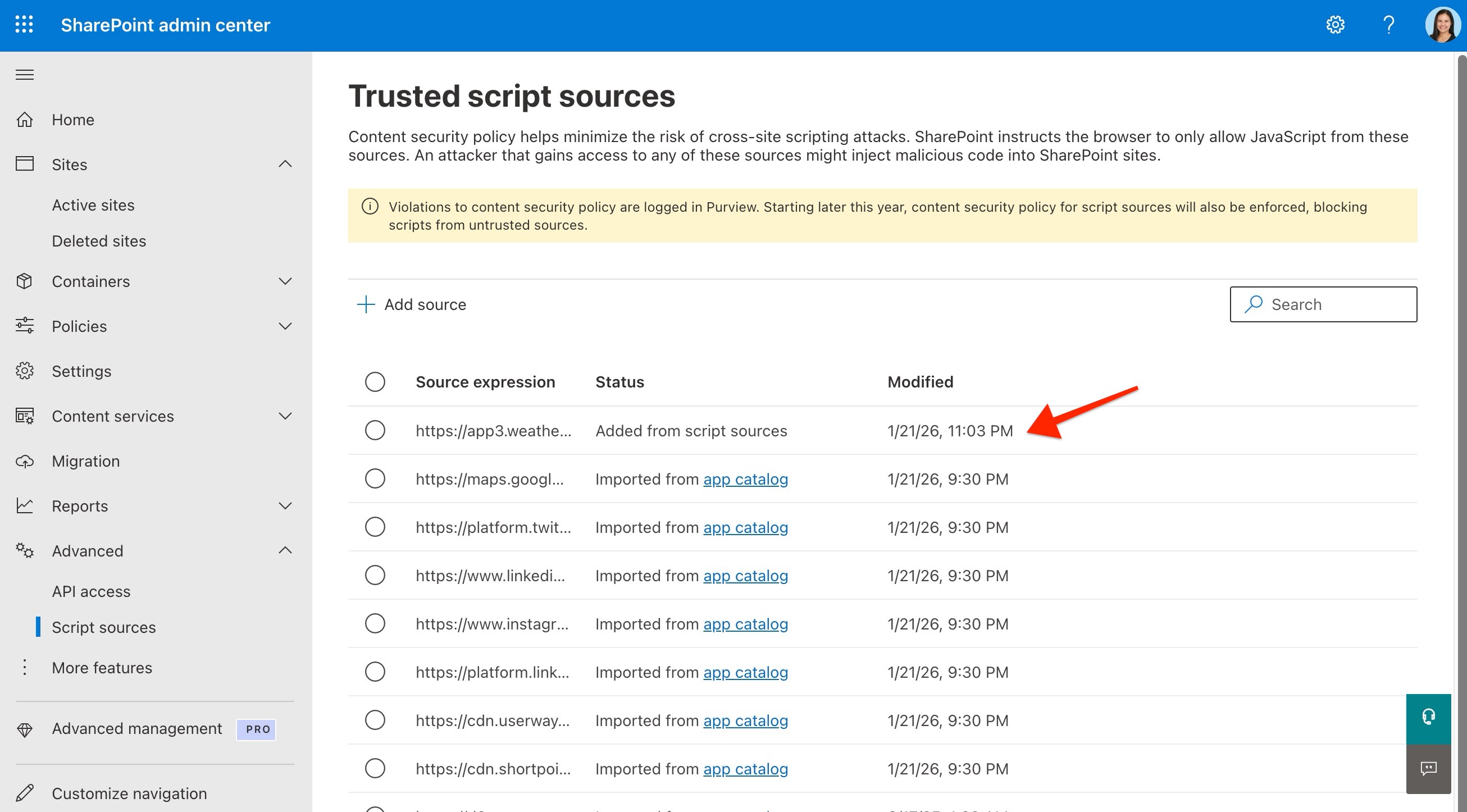
Step 3: Verify the Changes
Once saved, the domain will appear in your list of trusted sources. It may take a few minutes for the change to apply across your SharePoint tenant.
With the source now successfully authorized, you can return to implementing your JavaScript code. Your custom scripts will now execute correctly, and the warning will no longer prevent your integrations from functioning exactly as designed.
How to Remove a Trusted Source
To maintain a high security posture, your SharePoint Trusted Script Sources list should only include domains that you currently use. If you have removed custom JavaScript from the Theme Builder, Code Design Element, or Global Scripts and Styles, you should also revoke trust for the related domain in SharePoint.
Step-by-step guide
Follow these steps to revoke trust for a domain in the SharePoint Admin Center:
- Navigate to the Trusted Script Sources page: Go to SharePoint Admin Center > Advanced > Script sources > Trusted script sources.
- Locate the Domain: Scroll through the list or use the search bar to find the domain you wish to remove.
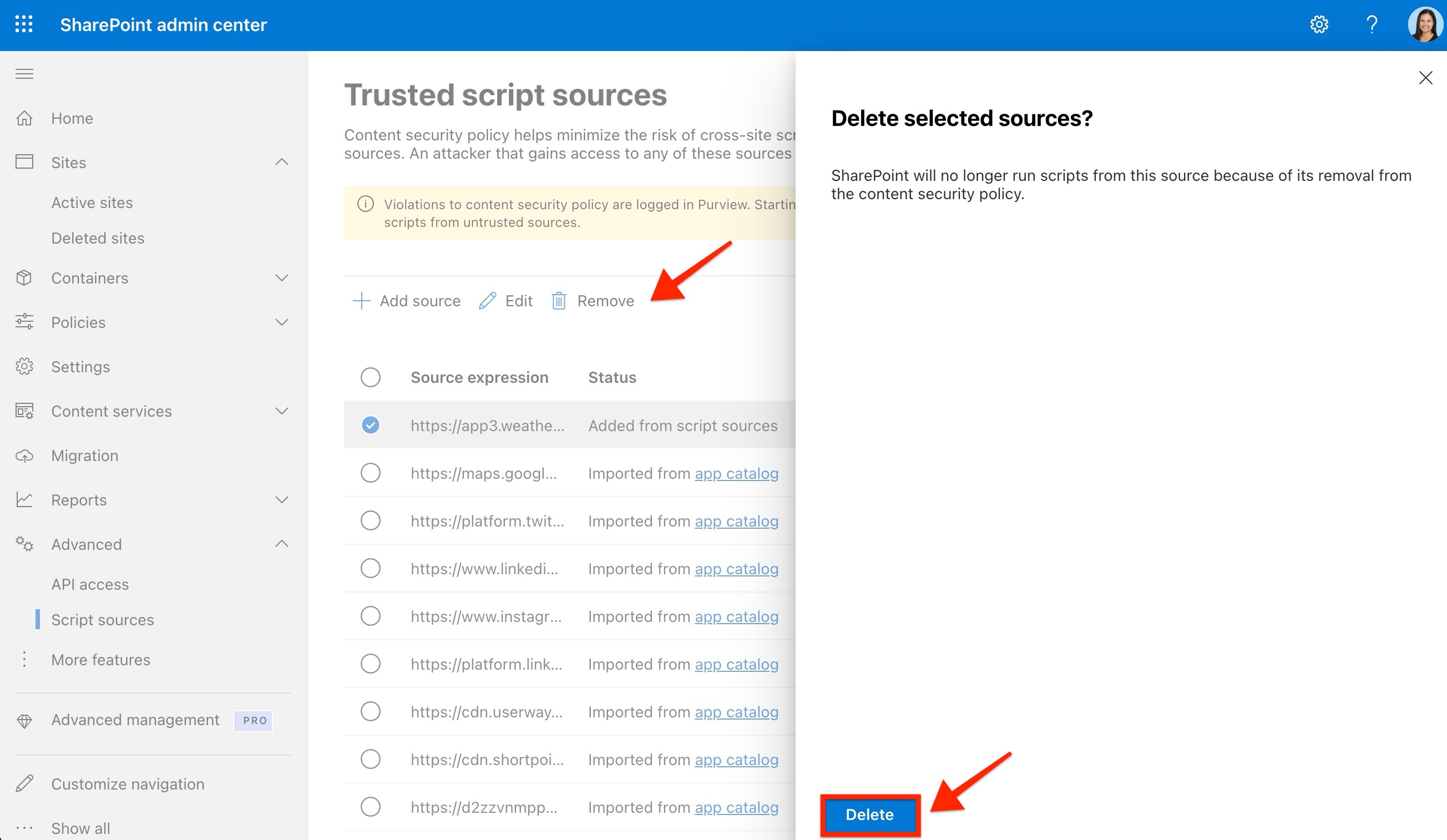
- Delete the Entry: Select the domain name and click Remove at the top of the list.
- Confirm Removal: A dialog will appear. Confirm that you want to remove the source by clicking Delete.
What happens after a source is removed?
Immediately after removal, SharePoint’s Content Security Policy will no longer recognize that domain as an authorized script provider. Any ShortPoint customizations that rely on scripts from that domain will be blocked by the browser.
Important:
Before removing a source, ensure you have also removed the corresponding JavaScript code to avoid console errors and broken functionality on your live site.
Related articles:
