 Try ShortPoint now
This guide will show you how to create a timeline in SharePoint using the Timeline Design Element. You'll be able to showcase important organizational milestones, project timelines, and calendar events directly on your SharePoint page, providing a clear visual representation of your project's start and end dates.
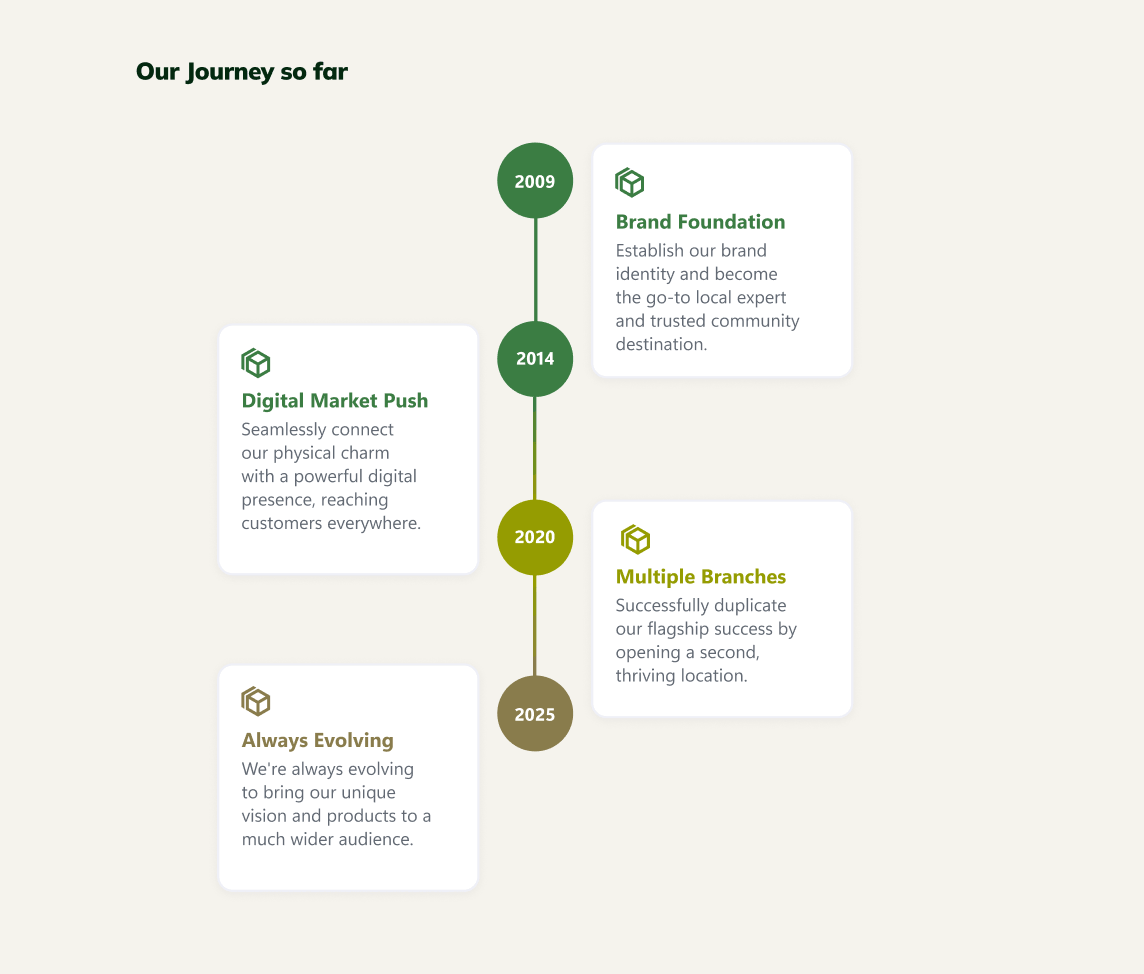
TABLE OF CONTENTS
- Prerequisites
- What Is the Timeline Design Element?
- Interactive Tutorial
- Step-by-step Tutorial
- Timeline Features
- Practical Use Cases for the Timeline Design Element
- Frequently Asked Questions
- What are ShortPoint Design Elements?
- How do I add tasks or milestones to the Timeline?
- Can I remove tasks or items from the Timeline?
- How can I customize the look of my SharePoint Timeline?
- Is it possible to connect the Timeline to SharePoint lists or other data sources?
- Can I control who sees the timeline on my SharePoint site?
Prerequisites
- You must have the ShortPoint SPFx version 8.8.0.0 or later installed in your SharePoint environment.
- You must be a ShortPoint Designer with an active license.
What Is the Timeline Design Element?
You'll find the Timeline Design Element in ShortPoint's library from SPFx version 8.8.0.0 onwards.
This helpful Timeline makes it simple to create and showcase key milestones or project timelines on your SharePoint Online sites. The best part? You can add as many milestones or items as you'd like.
Customize the configuration and design as needed. You can adjust the style, size, background color, text color, and so much more to align with your site's look and feel.
Interactive Tutorial
Click Get Started to easily add Timelines in SharePoint:
NOTETo learn more about the features you can customize for Timeline, check out Timeline Features.
Step-by-step Tutorial
Ready to add Timelines to SharePoint? This straightforward guide will walk you through each step to create an interactive timeline on your modern page. This will surely help you showcase important milestones and project timelines effectively.
Step 1: Edit the ShortPoint Web Part
- Go to the SharePoint page you want to use and click Edit.

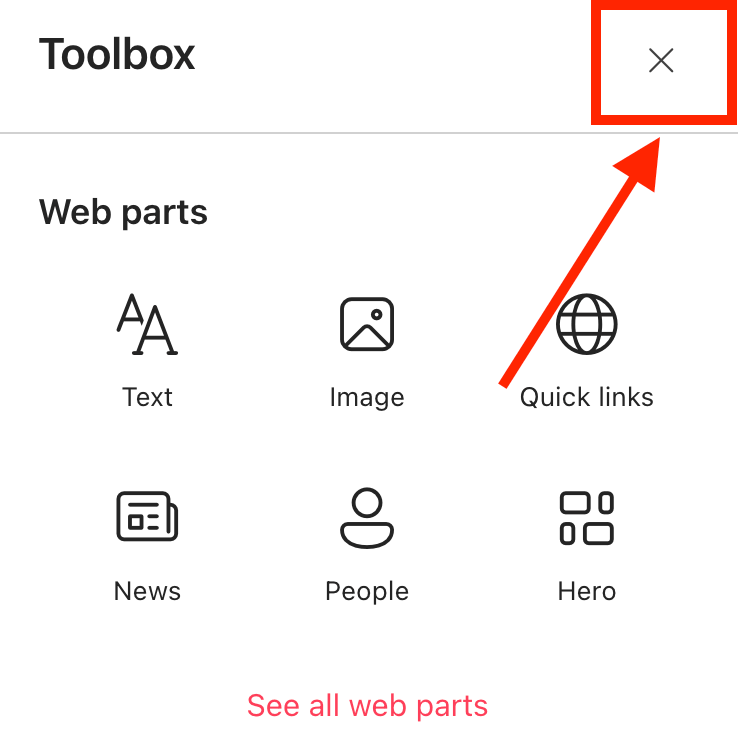
- Close the Toolbox:
- Click the Edit properties icon:

Step 2: Insert the Timeline Design Element
- Choose where you want to add the Timeline and click the plus icon:

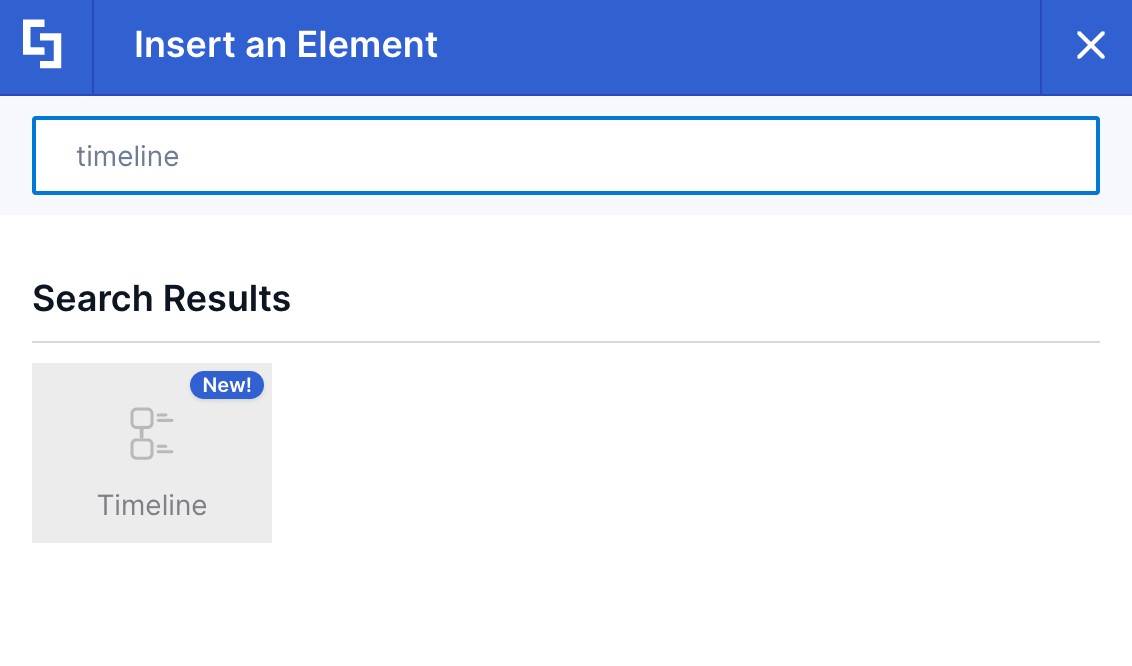
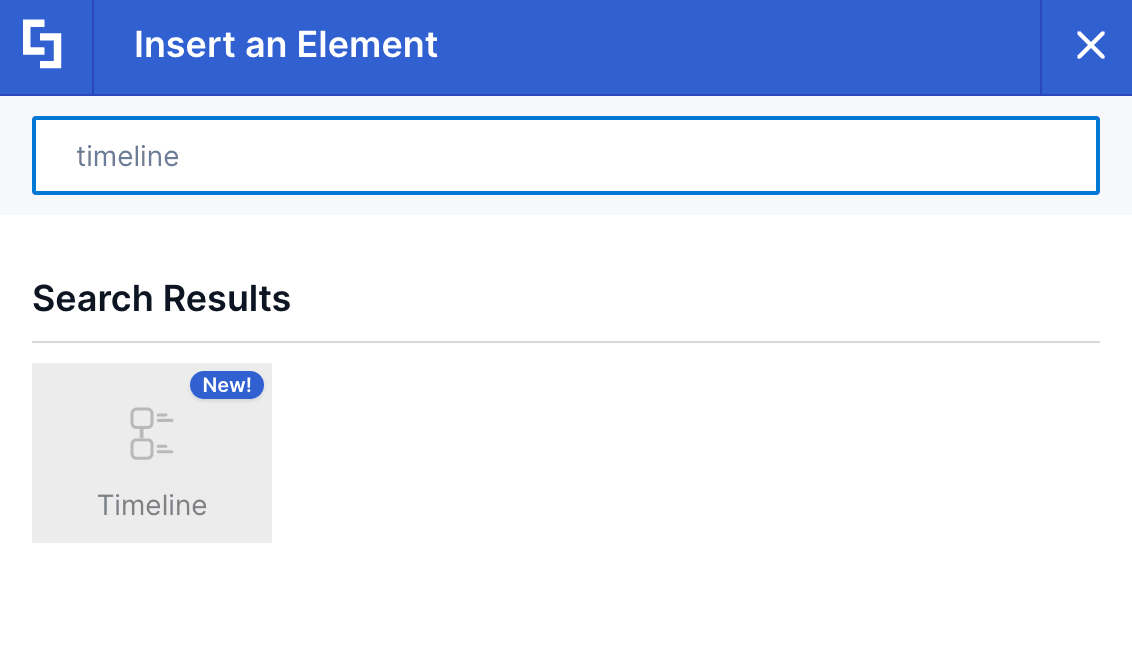
- Use the search box to look for Timeline and click it:
Step 3: Customize the Content
- Go to the Content tab.
- Click the cogwheel icon of the 1st timeline event:

- Customize the content according to your preferences.
- Click the back icon:
- Repeat the steps for the other timeline events.
NOTETo learn more about the features you can customize for Timeline, check out Timeline Features.
Step 4: Customize the Design
- Go to the Design tab.
- Customize the look of the Timeline according to your preferences.
- Go to the Advanced tab.
- Modify the design even further.
- Once satisfied, click the green check mark.
NOTETo learn more about the features you can customize for Timeline, check out Timeline Features.
Step 5: Save
- Click the eye icon to see your page in real-time:

- Save your changes:

Great work! You've successfully added a timeline in SharePoint, making it easy for page viewers to see important company milestones and project timelines with a clear visual representation for each event.
Timeline Features
The Timeline Settings window offers several useful options to help you customize your Timeline:
A. Items Tab
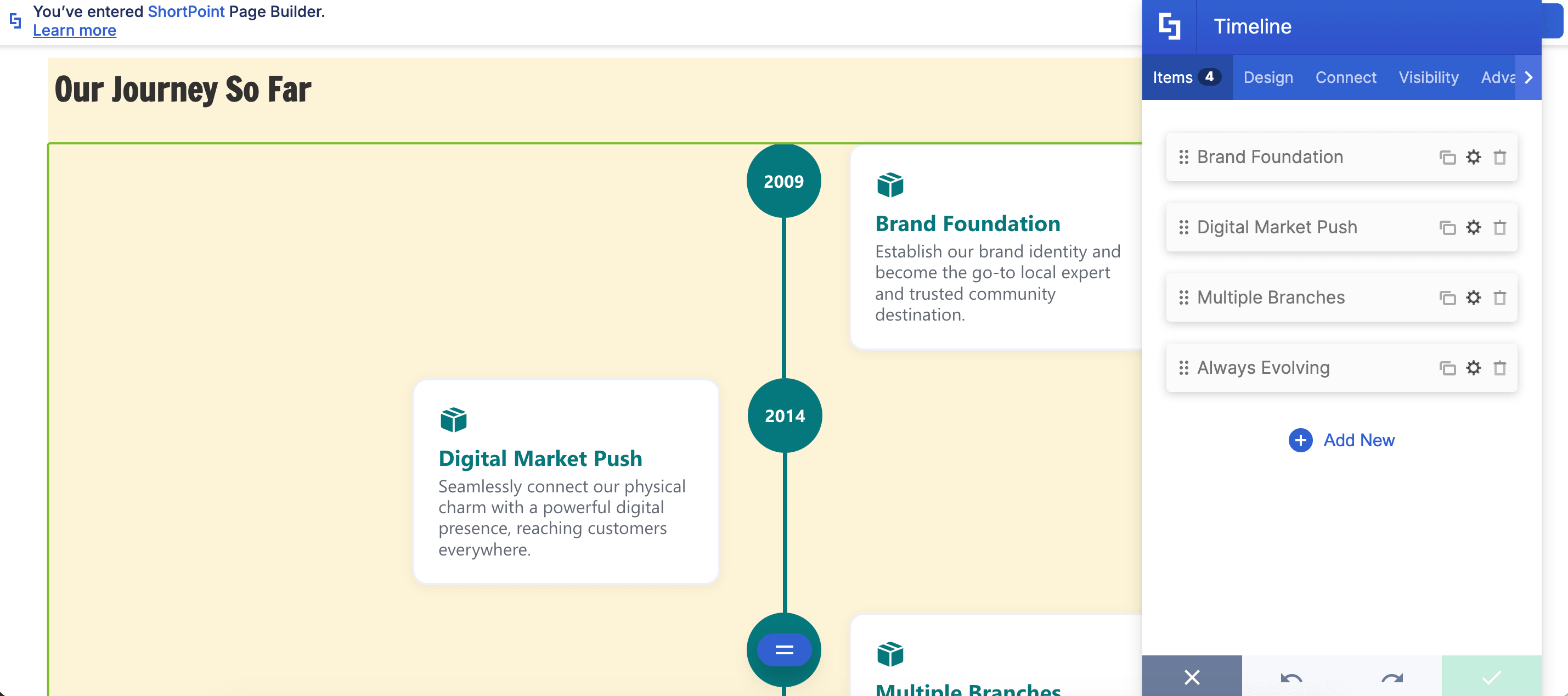
The Items tab is where you can edit the content inside the Timeline. Here are the options you can tweak:
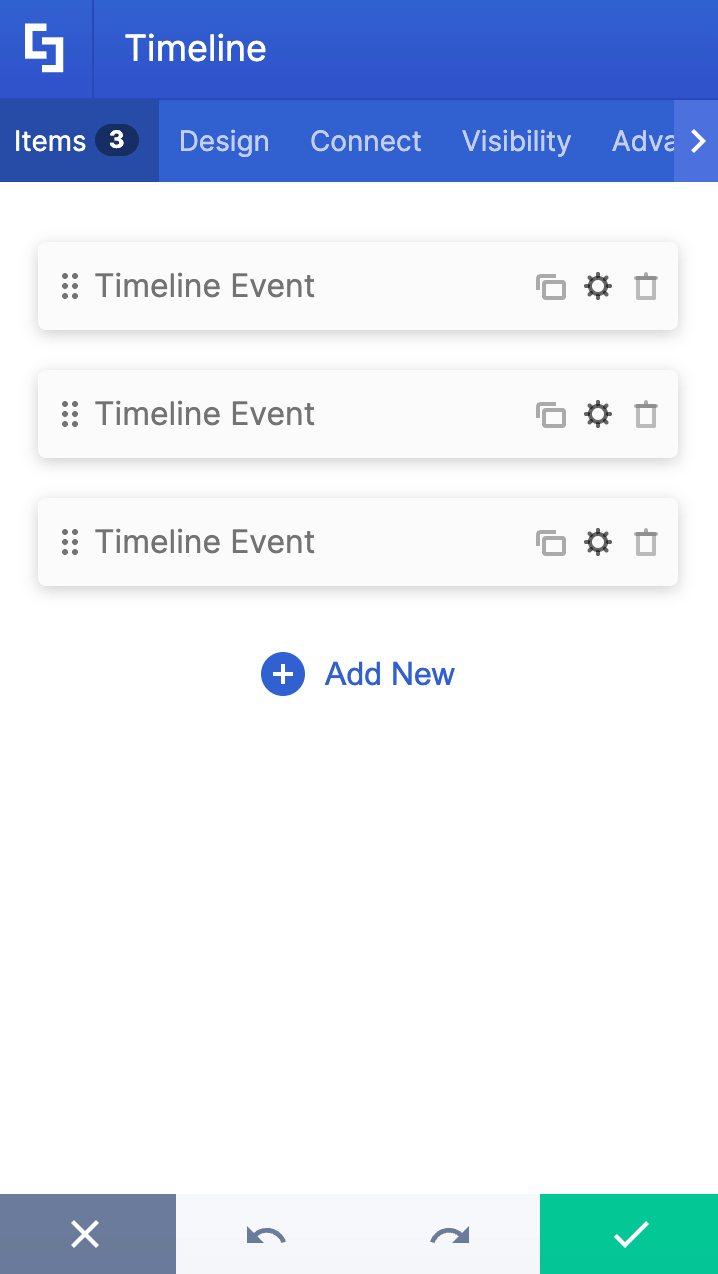
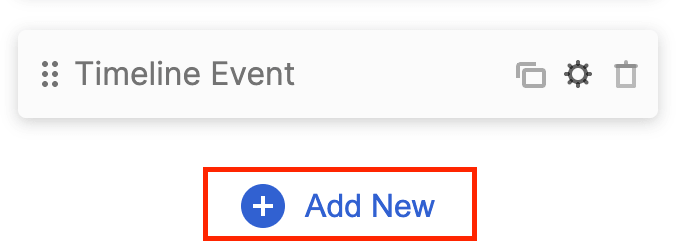 | Add New | allows you to add a new item. |
 | Drag icon | will enable you to rearrange the items. |
 | Duplicate icon | allows you to copy an item. |
 | Cogwheel icon | allows you to edit the content of an item. See the table below to view the options you can find inside. |
 | Trash icon | allows you to remove an item. |
COGWHEEL ICON OPTIONS (Content tab)
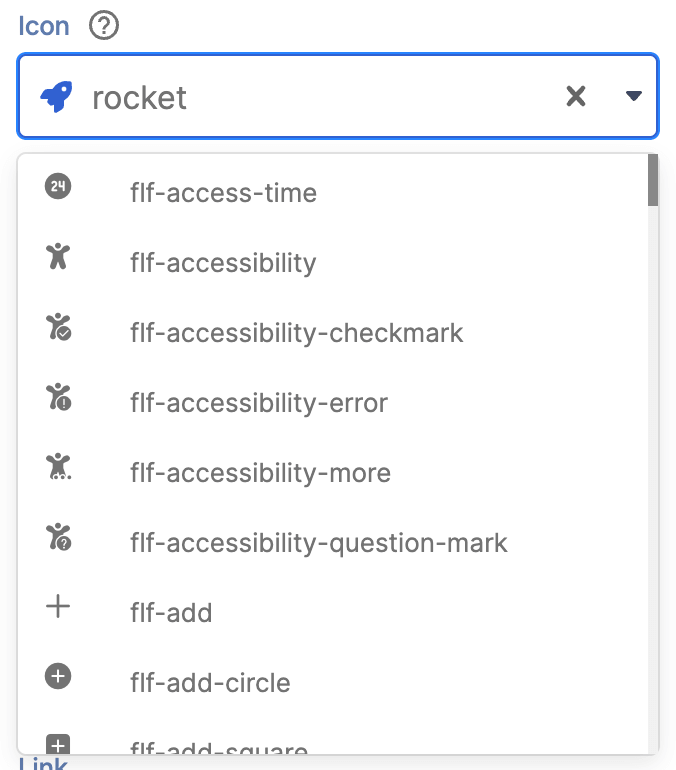 | Icon | allows you to choose an icon to show. |
 | Title | allows you to add a title. |
 | Date / Year | allows you to add the date or year the milestone happened. |
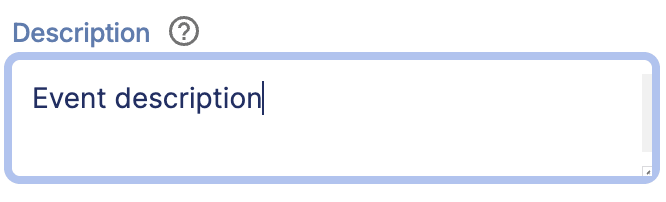 | Description | allows you to add a description to further describe the milestone. |
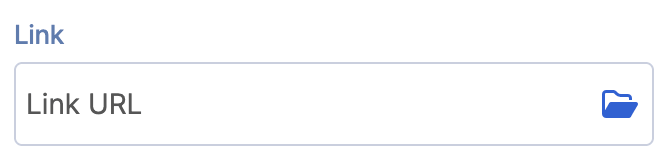 | Link | allows you to add a link that will redirect page viewers to a new page when the milestone is clicked. |
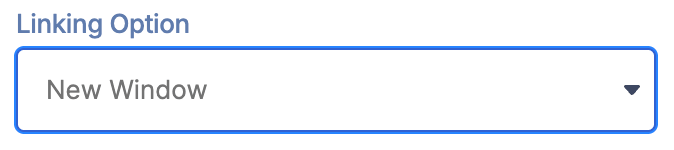 | Linking Option | allows you to specify how the link will be opened. |
COGWHEEL ICON OPTIONS (Design tab)
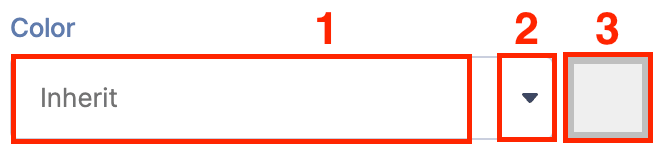 | Color | allows you to specify the color of the selected milestone. |
B. Design Tab
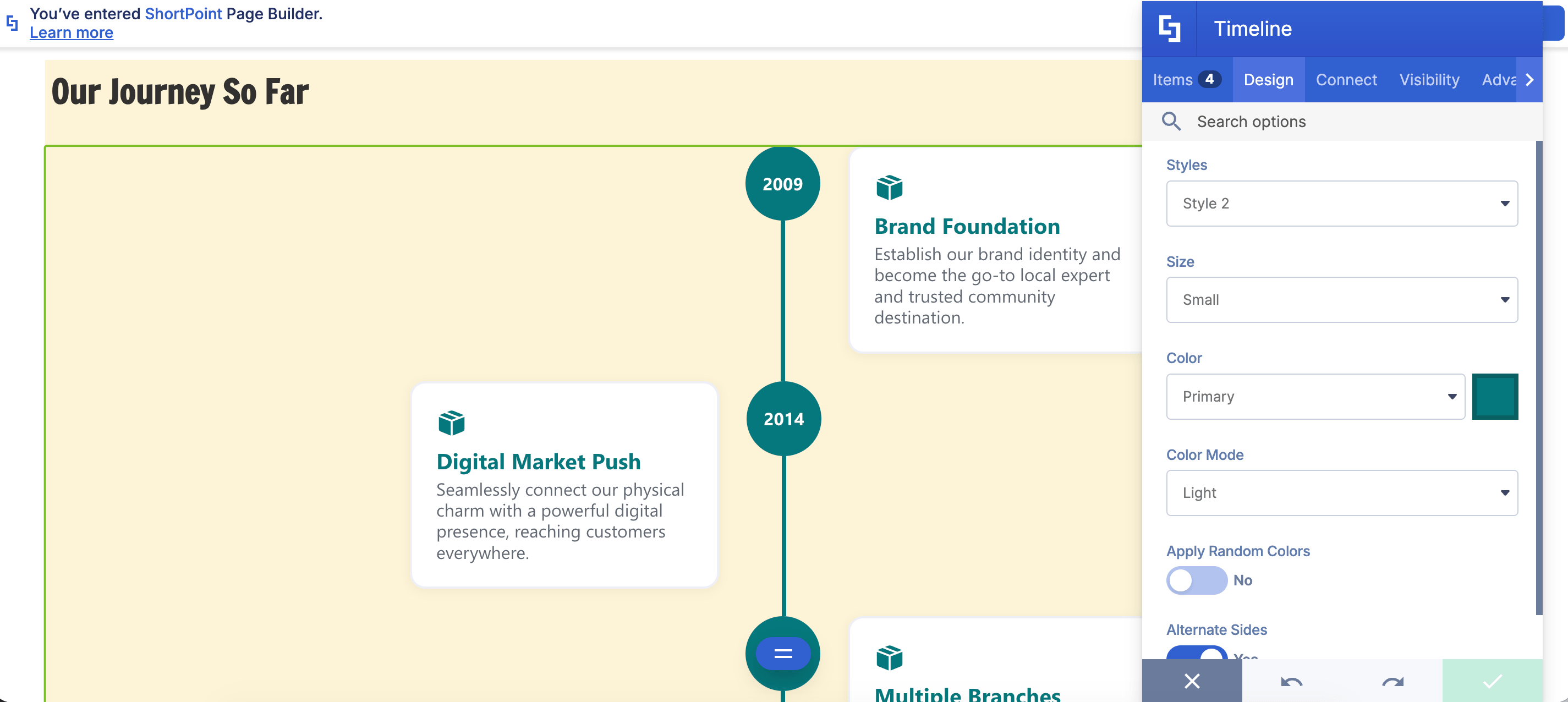
The Design tab is where you get to have fun customizing the look and feel of your Timeline. Here are the options you can modify:
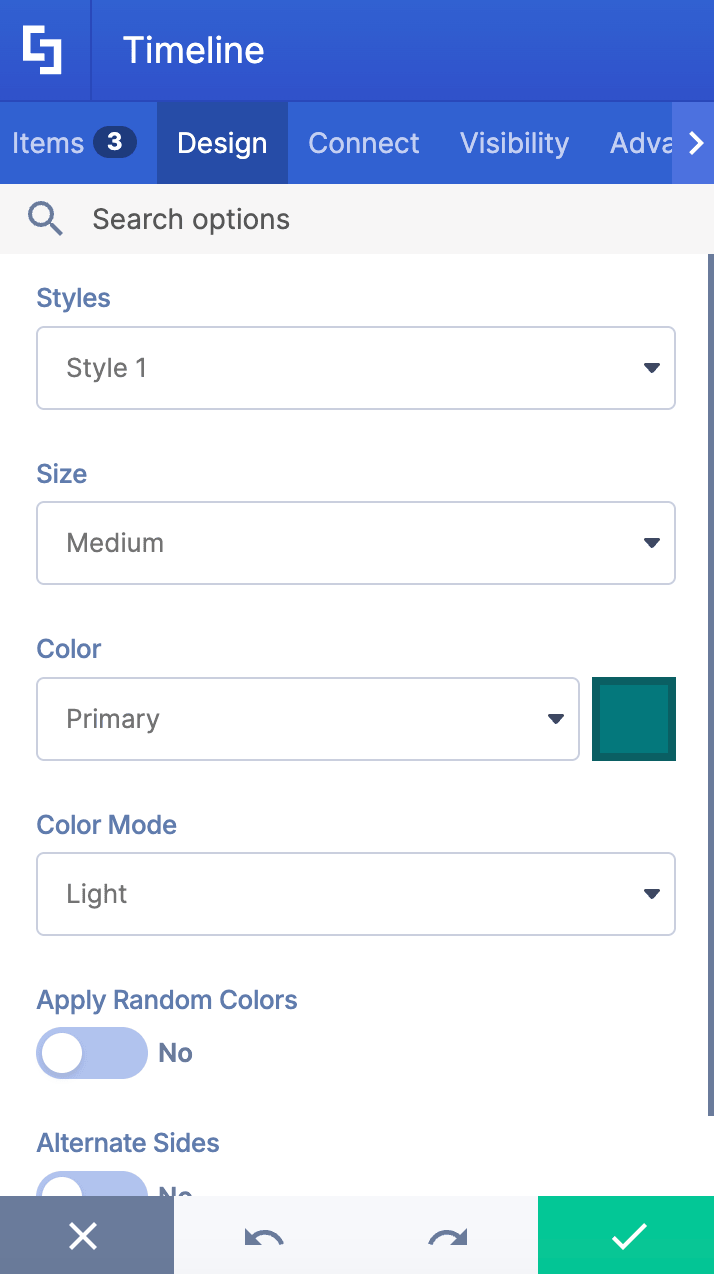
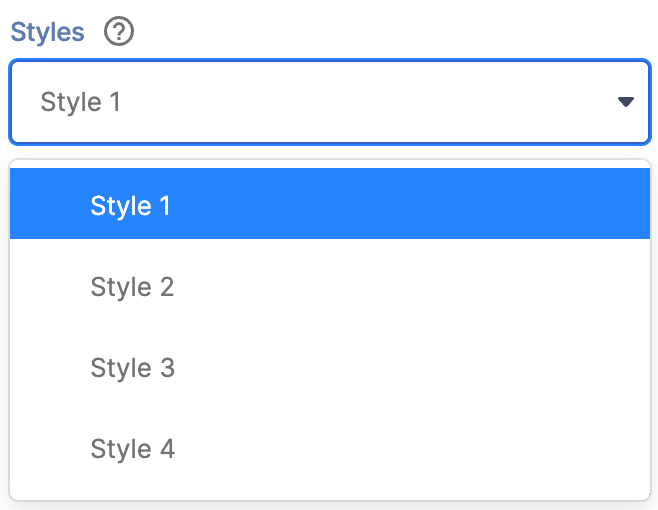 | Styles | allows you to choose the timeline style you prefer. You can choose from 4 styles. |
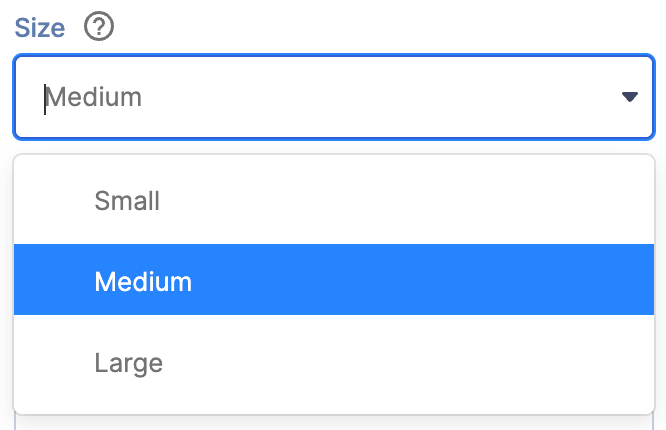 | Size | allows you to choose the size of the timeline. |
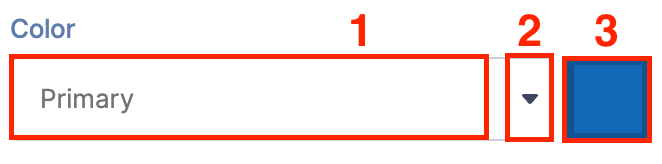 | Color | allows you to change the primary color of the timeline. You can change the color by [1] typing the HEX code, [2] using the drop-down, or [3] using the color picker. |
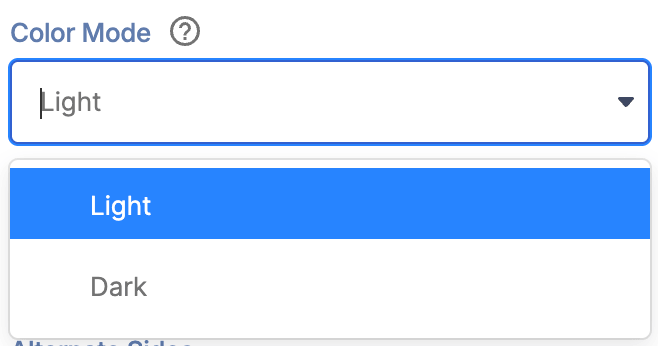 | Color Mode | allows you to choose from light or dark color mode. |
 | Apply Random Colors | when enabled, random colors will be applied to each milestone in the timeline. |
 | Alternate Sides | when enabled, the milestones will be shown on alternate sides. |
C. Connect Tab
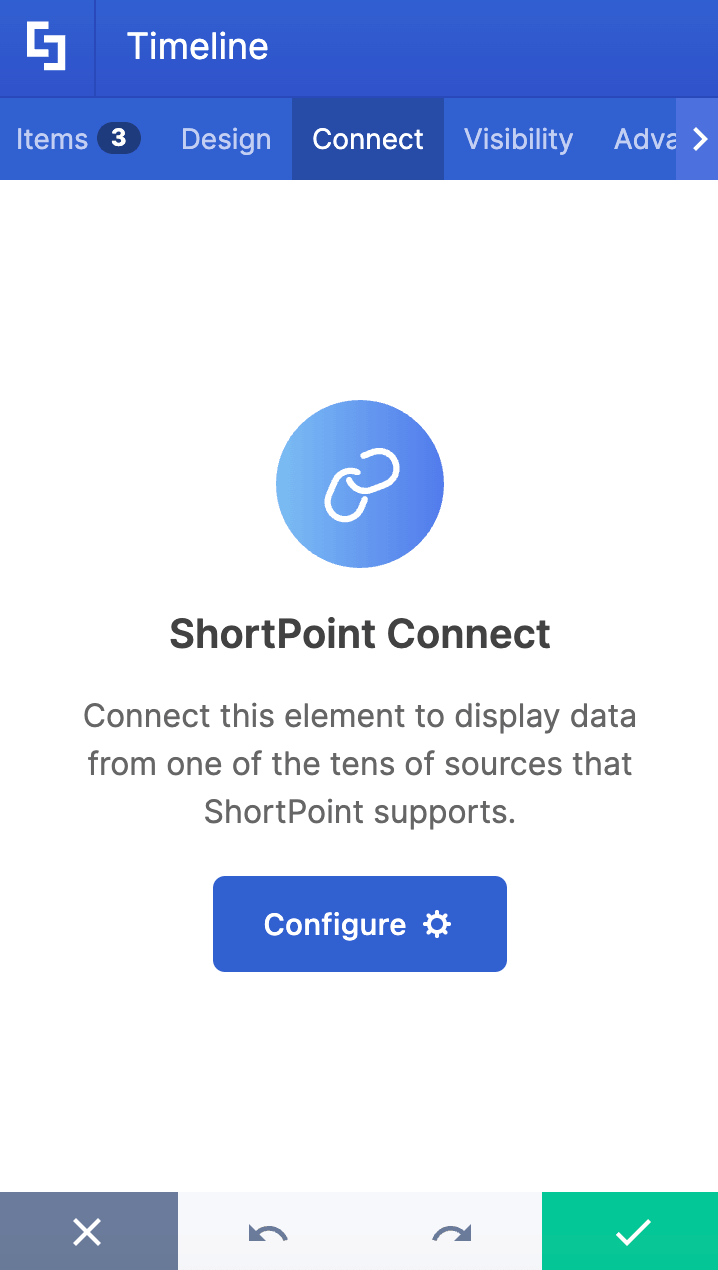
The Connect tab allows you to link the Design Element to SharePoint sources (List, Document Library, News, etc.) and other external sources (Microsoft Graph API, Teams, Outlook, etc.). For more details about ShortPoint Connect, check out Basic Tutorial: How to Establish Seamless SharePoint Connection with ShortPoint Connect.
D. Visibility Tab
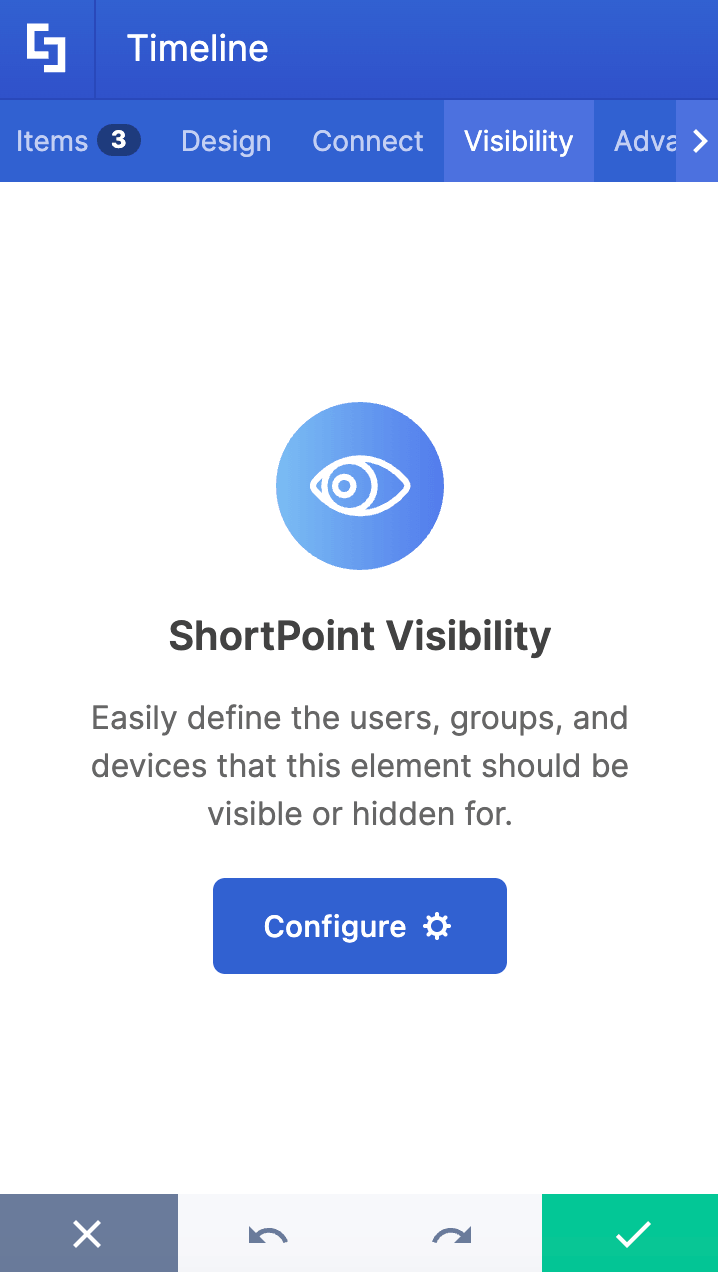
The Visibility tab allows you to specify who can see the Design Element and what type of devices it can be shown on. For more details, check out How to Use the ShortPoint Visibility Feature for Effective SharePoint Access Management.
E. Advanced Tab
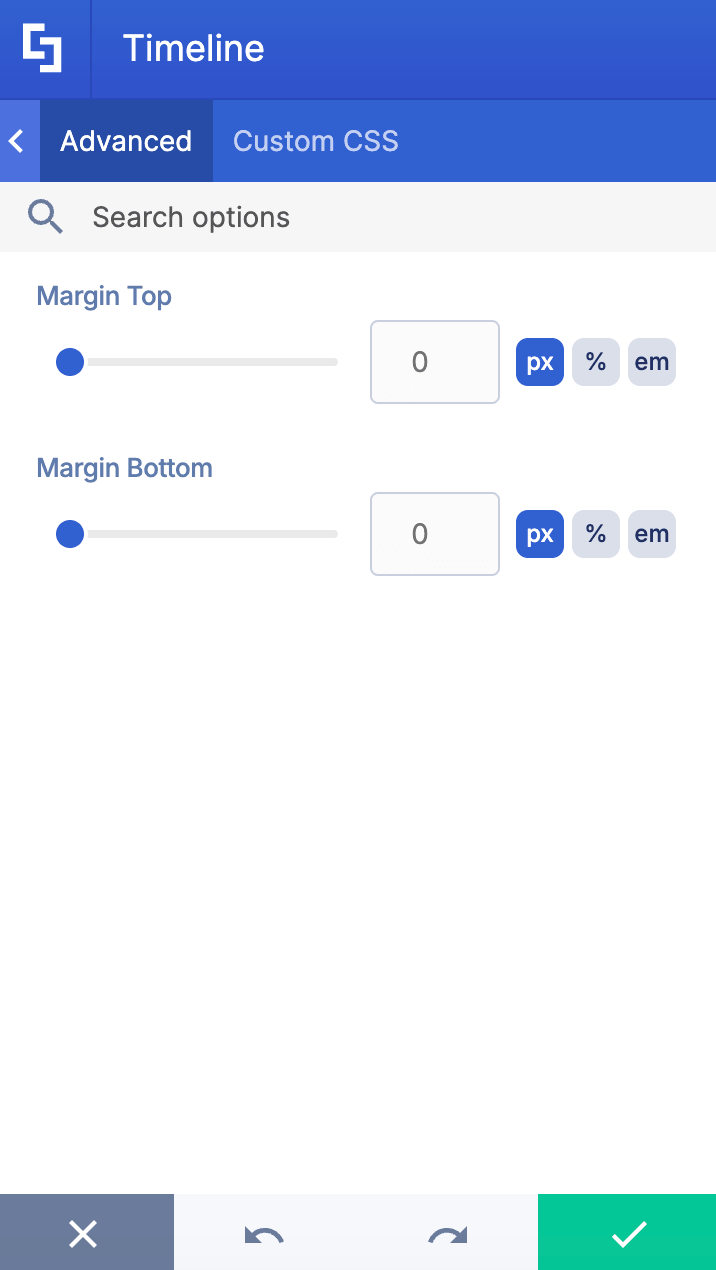
This tab allows you to further modify how the Timeline Design Element looks on your page. It has the following options:
SPACING
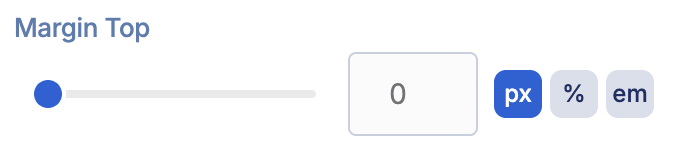 | Margin Top | allows you to adjust the top margin of the buttons. |
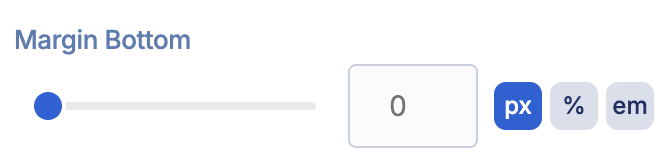 | Margin Bottom | allows you to adjust the bottom margin of the buttons. |
F. Custom CSS Tab
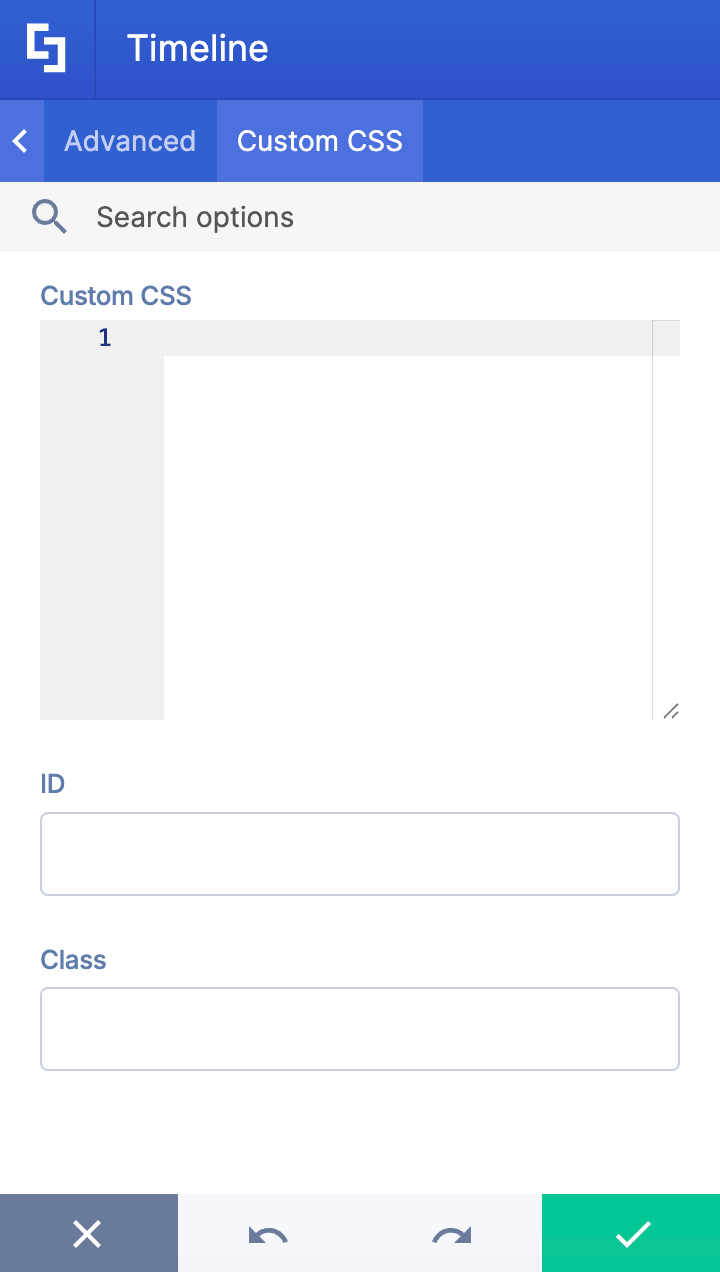
This tab lets you add your own custom touch to the Timeline Design Element using custom CSS, HTML, and JavaScript.
NOTECheck out our support article on How to Insert Custom CSS into a Page Builder Element? (Basic Tutorial) to know more about Custom CSS.
Practical Use Cases for the Timeline Design Element
The Timeline Design Element in SharePoint offers versatile applications that can enhance collaboration and communication across your organization. Here are some practical use cases where this timeline web part shines:
Project Management: Visualize project timelines and key milestones with a clear progress bar style display. Teams can easily track the status of tasks, helping to improve coordination and meet deadlines.
Event Planning: Showcase upcoming calendar events and important dates on your SharePoint site. The interactive timeline allows users to quickly navigate through events, providing a seamless visual representation of schedules.
Employee Onboarding: Create a structured onboarding journey by mapping out essential training sessions, compliance deadlines, and introductory meetings. This helps new hires stay aware of their progress and upcoming requirements.
Product Launches: Highlight critical phases in product development and launch schedules. Use the customizable color and design options to differentiate stages and keep all users informed.
Company History and Milestones: Present your organization's history by marking significant achievements and anniversaries. The timeline web part can be styled to match your corporate branding, making it an engaging storytelling tool.
By integrating this Design Element with SharePoint lists or other data sources via ShortPoint Connect, you can automate updates, ensuring your timelines always reflect the most current information without manual effort. This makes the timeline in SharePoint a powerful solution for keeping teams aligned and informed.
Frequently Asked Questions
What are ShortPoint Design Elements?
ShortPoint Design Elements are pre-built, customizable content that ShortPoint Designers can insert into SharePoint pages using the ShortPoint Page Builder. This allows advanced design, layout, and functionality without writing any code. There are over 60 Design Elements to choose from, including News Cards, Accordions, Quick Links, Buttons, and so much more.
How do I add tasks or milestones to the Timeline?
You can easily add tasks or milestones using the Timeline Design Element. Simply click Add New in the Content tab and start adding titles, dates, descriptions, and links for each task or event.
Can I remove tasks or items from the Timeline?
Yes, the Timeline Design Element lets you remove tasks or items by selecting the Trash icon next to the item you want to delete in the Content tab.
How can I customize the look of my SharePoint Timeline?
Use the Design tab to configure styles such as background color, text color, size, and layout. To top it off, you can also enable options to show milestones on alternate sides or apply random colors to make your timeline even more appealing.
Is it possible to connect the Timeline to SharePoint lists or other data sources?
Yes, absolutely! You can do this through ShortPoint Connect. With it, you can link the timeline to SharePoint lists, libraries, or other data sources like the Microsoft Graph API. This integration enables dynamic content that updates automatically based on your data.
Can I control who sees the timeline on my SharePoint site?
Yes, the Visibility tab in the Timeline Design Element allows you to configure who can view the timeline based on people, groups, or devices, ensuring the right audience has access.
Related articles:
- How to Create SharePoint Headers Using the Heading Design Element
- How to Place SharePoint Buttons Next to Each Other Using the Dual Button Design Element
- How to Create a SharePoint Hero Section Using the Hero Caption Design Element
- How to Highlight Words in SharePoint Using the Highlighted Text Design Element
- How to Create a Spinning Text Effect in SharePoint Using the Rotating Text Design Element
- How to Add Lottie Animation in SharePoint Using the Lottie Design Element
