 Try ShortPoint now
The ShortPoint Templates Library contains hundreds of professionally designed full-page and section templates. However, you often don't need the entire page or section. You might just want the Hero Section from a specific "HR" template or the Pricing Table from a "Sales" template.
To extract just one section without overwriting your existing page content, we recommend using a "Staging Page" (or Sandbox page). This allows you to load the full template safely, copy the exact part you need, and paste it into your live environment.
By the end of this guide, you will learn how to safely extract specific design elements from a full template and paste them into your production page without disrupting your existing layout.
TABLE OF CONTENTS
Prerequisites
- You must have the latest ShortPoint SPFx version installed in your SharePoint environment.
- You must be a ShortPoint Designer with an active license.
Step-by-Step Guide
Step 1: Create a Temporary "Staging" Page
Why do this? Importing a full-page template on your production page without needing to use all of its parts is often confusing. Doing this on a blank page ensures your live intranet page remains safe while you browse for designs.
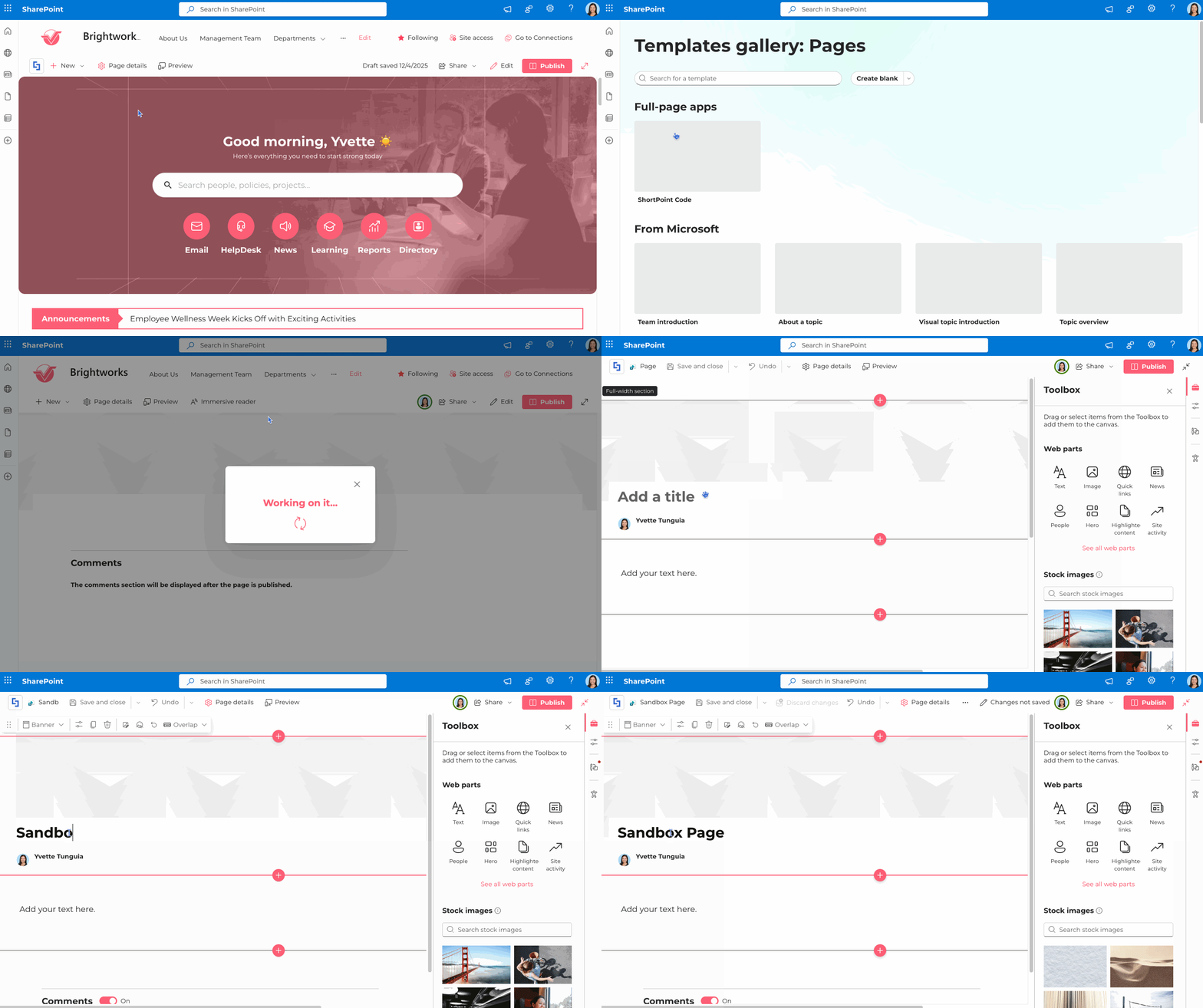
- In SharePoint, create a New Page.
- Press the create blank page button.
- Name it "Design Sandbox" (or something similar).
Step 2: Insert a Template from the Library
Now that you are in a safe environment, load the template you want to get elements from.
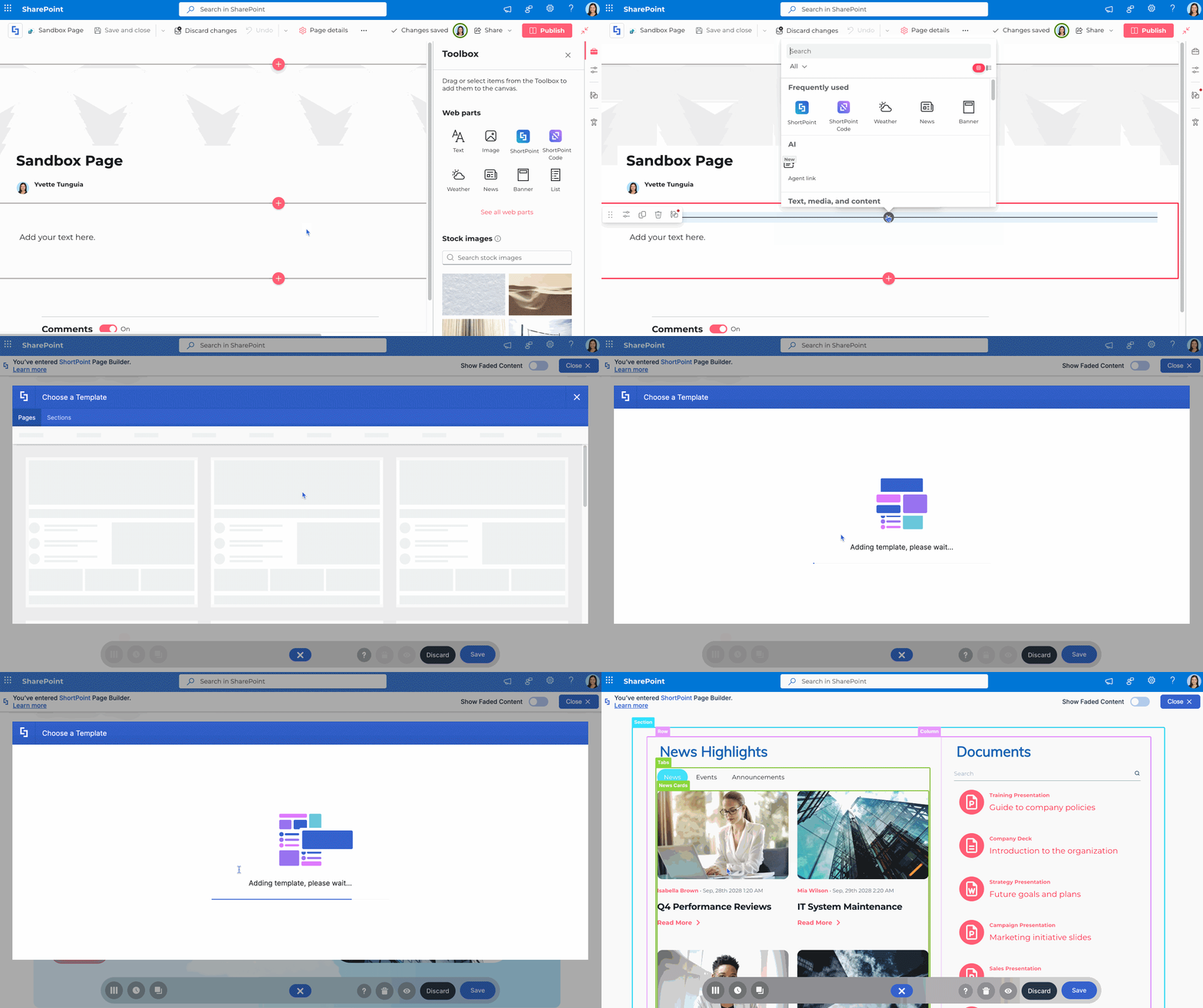
- Insert the ShortPoint web part.
- Click the Templates Library icon in the default Section.
- Browse and select a template that contains the section you want.
- Click Insert Template.
Step 3: Copy the Specific Section
Once the template renders on your Staging Page, you can pick out the specific parts you want.
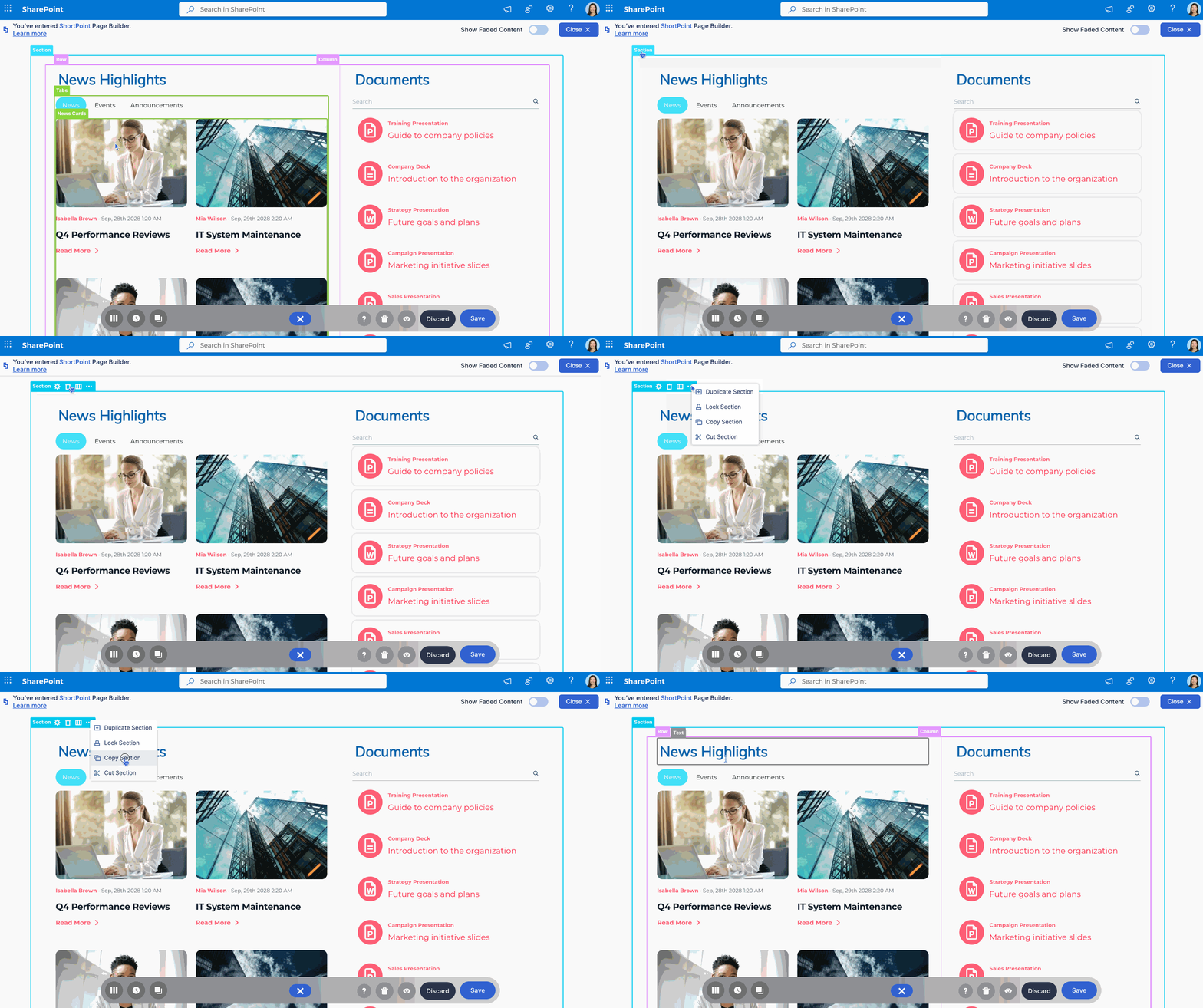
- Hover over the section or element you wish to copy.
- Click the ellipsis button and select Copy.
- Pro Tip: You can copy the Section or Row (the container) to include all its contents. This ensures you capture the background images, padding, and margins associated with that design.
Step 4: Paste to Your Production Page
Now, move to the actual page where you want the design to live.
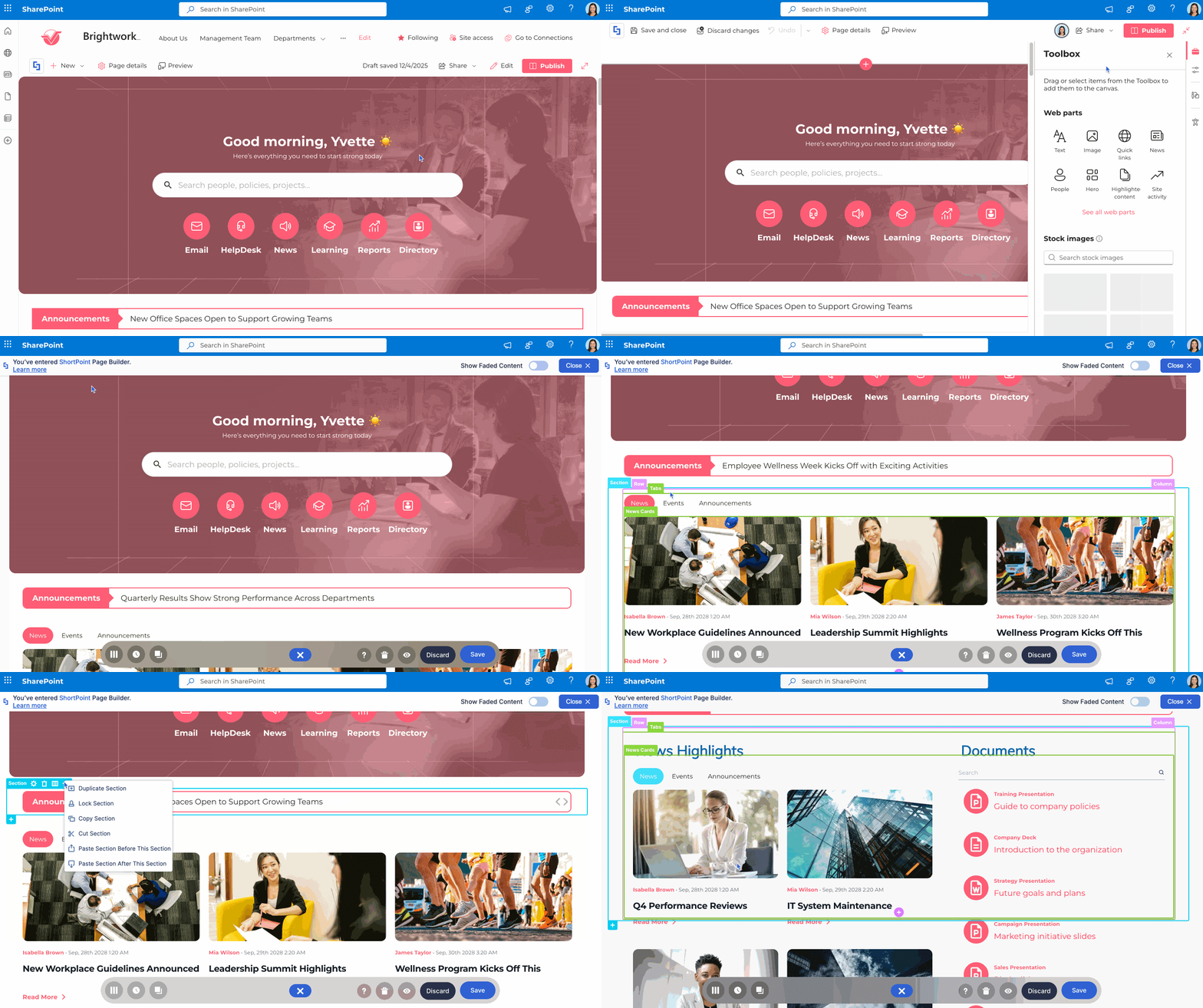
- Switch to your Production Page.
- Edit the page and launch the ShortPoint Page Builder.
- Navigate to the section or element next to where you want to add the copied design.
- Click the ellipsis button on that section or element and click Paste. Select the paste option that fits your target location.
The copied section or design element will appear instantly! You can now delete your "Design Sandbox" page or keep it for future design experiments.
Related articles:
