 Try ShortPoint now
Issue
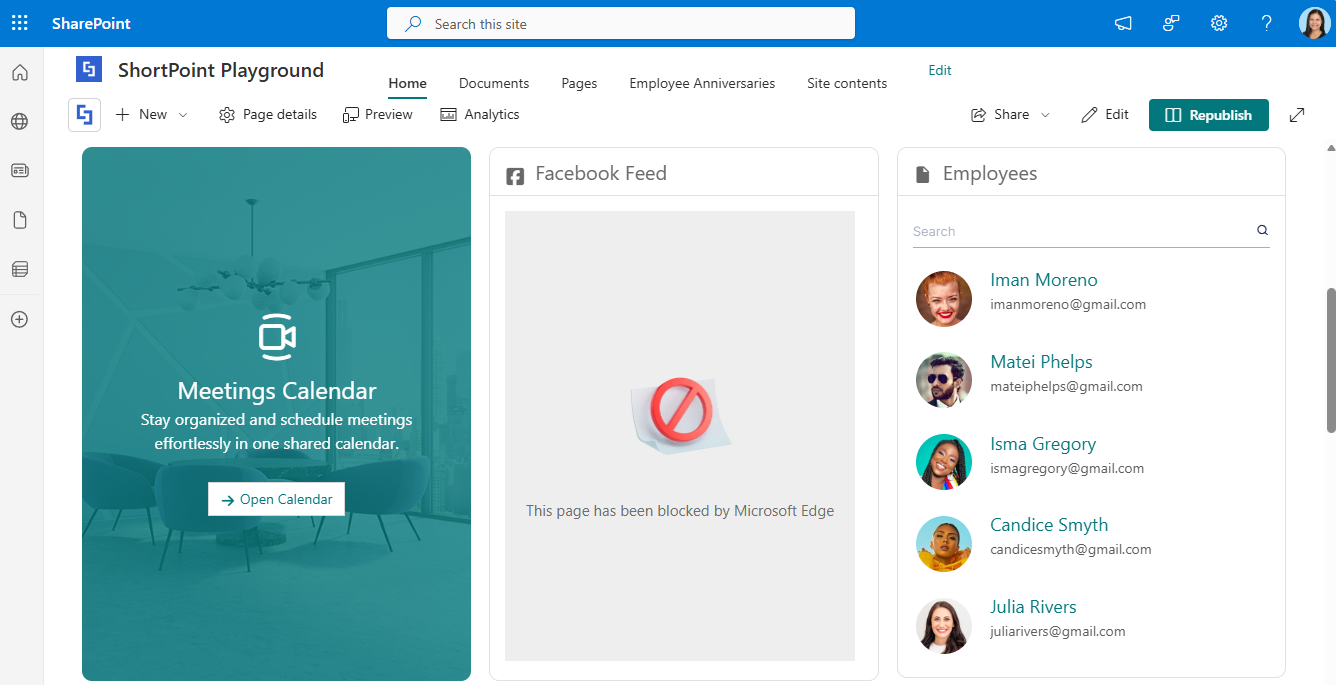
You've configured the ShortPoint Facebook Design Element in your Page Builder, and everything looks correct, but when you view the published page, the Facebook content doesn't load. Instead of seeing your Facebook feed or posts, you encounter either a blank space or an error message. This issue occurs most frequently in the Microsoft Edge browser, where the Facebook content fails to display despite being properly configured.
Reason
The issue stems from Microsoft Edge's tracking prevention settings, which automatically block third-party scripts to protect user privacy. Edge treats Facebook's embedded content as a potential tracking mechanism and prevents it from loading on your SharePoint page. Even with your ShortPoint Facebook Design Element configured correctly, Edge's tracking prevention blocks Facebook's scripts from executing, causing the blank spaces or loading errors you see on your published intranet pages.
Solution
To resolve this issue, you need to adjust Microsoft Edge's tracking prevention settings to allow Facebook content on your SharePoint site. You have two options to do this:
Note: If you are experiencing the same issue in other browsers such as Chrome, Firefox, Opera, you may want to check the equivalent of Edge's tracking prevention settings and adjust it accordingly.
Adjust tracking prevention for a specific site
To modify the tracking prevention settings for this specific SharePoint site, follow these steps:
Step 1: Open the Site Information panel
- Navigate to your SharePoint page where the Facebook Design Element should appear
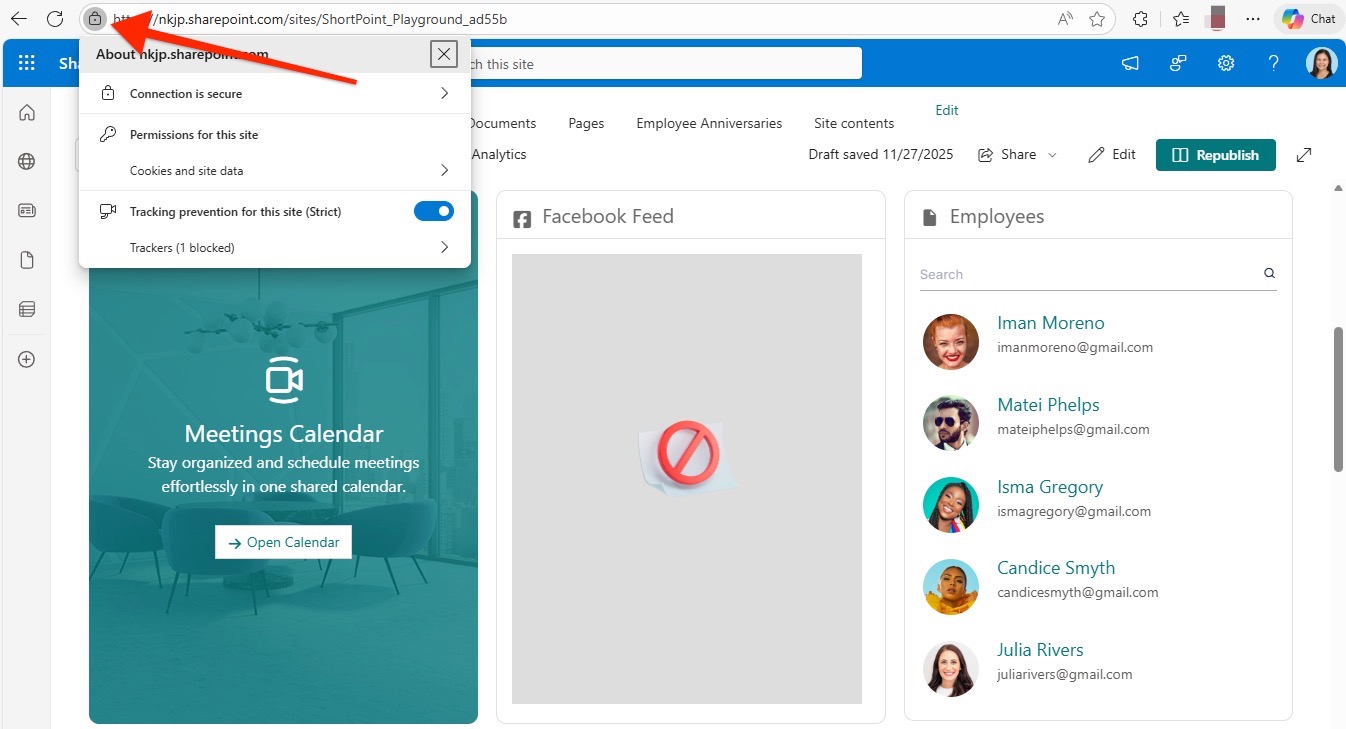
- Click the padlock icon located on the left side of your site URL in the address bar
- This opens the View Site Info menu
Step 2: Disable tracking prevention for this site
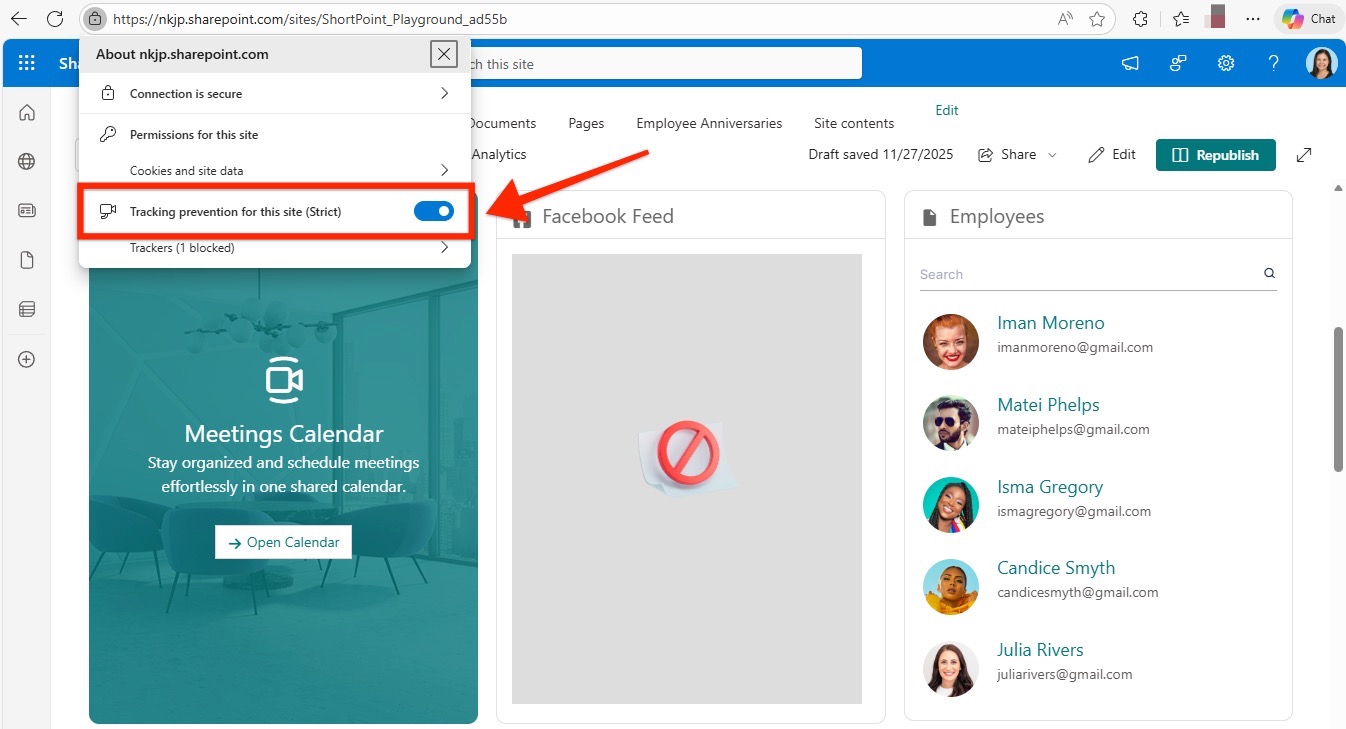
- Locate the "Tracking prevention for this site" toggle switch
- Slide the toggle to "Off" (it may show "Strict" or "Balanced" when enabled)
- The toggle should now appear gray/disabled
Step 3: Refresh and verify
- Refresh your SharePoint page
- Your Facebook Design Element should now load and display properly
Your Facebook content will appear correctly on your SharePoint page without affecting your browser's tracking prevention on other websites. This site-specific setting allows Facebook scripts to load while maintaining your privacy protection elsewhere.
Modify settings across all sites
If you prefer to adjust tracking prevention globally rather than site-by-site, follow these steps:
Step 1: Access Edge Settings
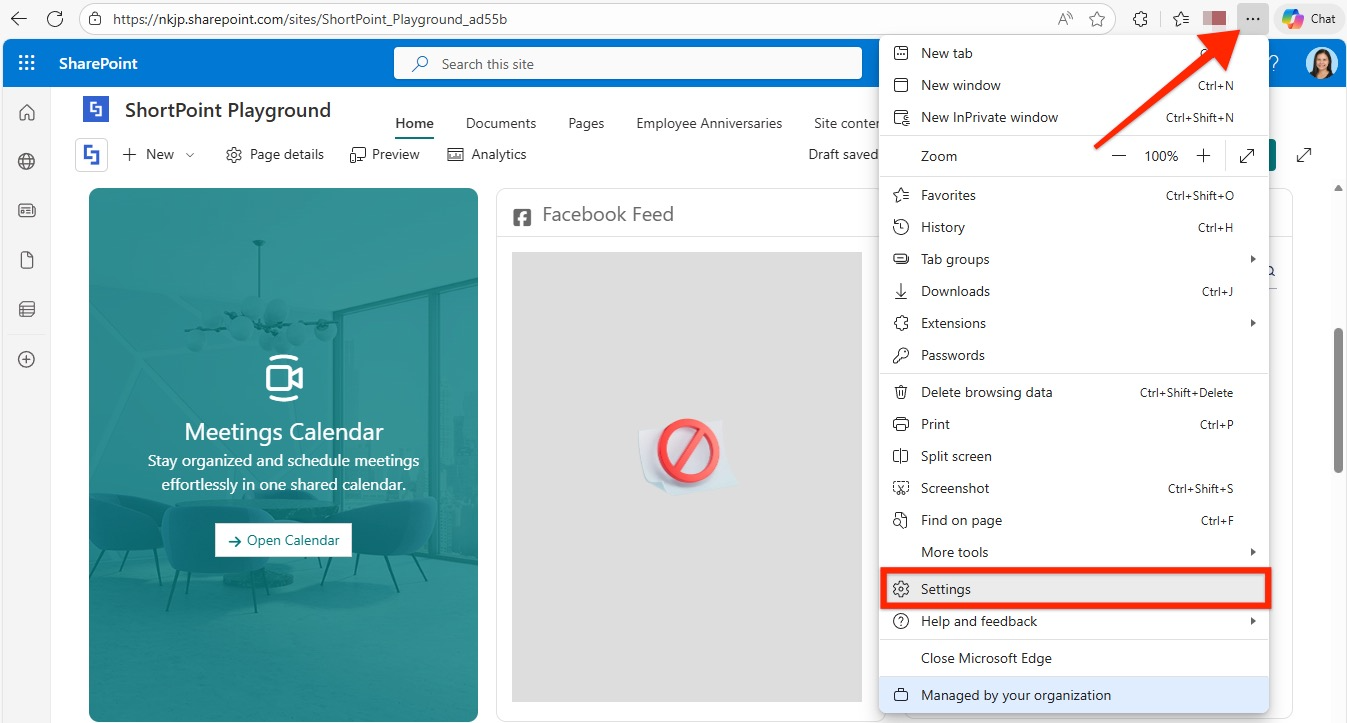
- Click the three dots menu in the top-right corner of Edge
- Select Settings from the dropdown menu
- Choose Privacy, search, and services from the left sidebar
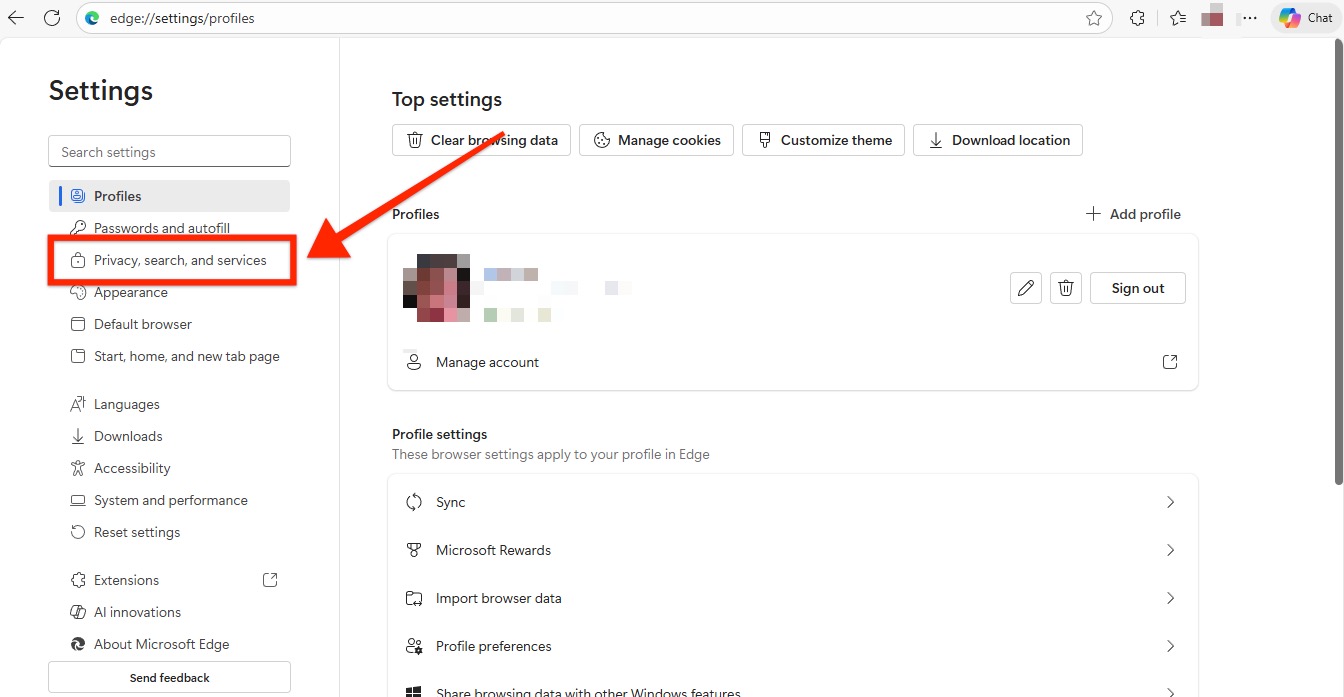
Step 2: Adjust tracking prevention level
- Open the Tracking prevention section
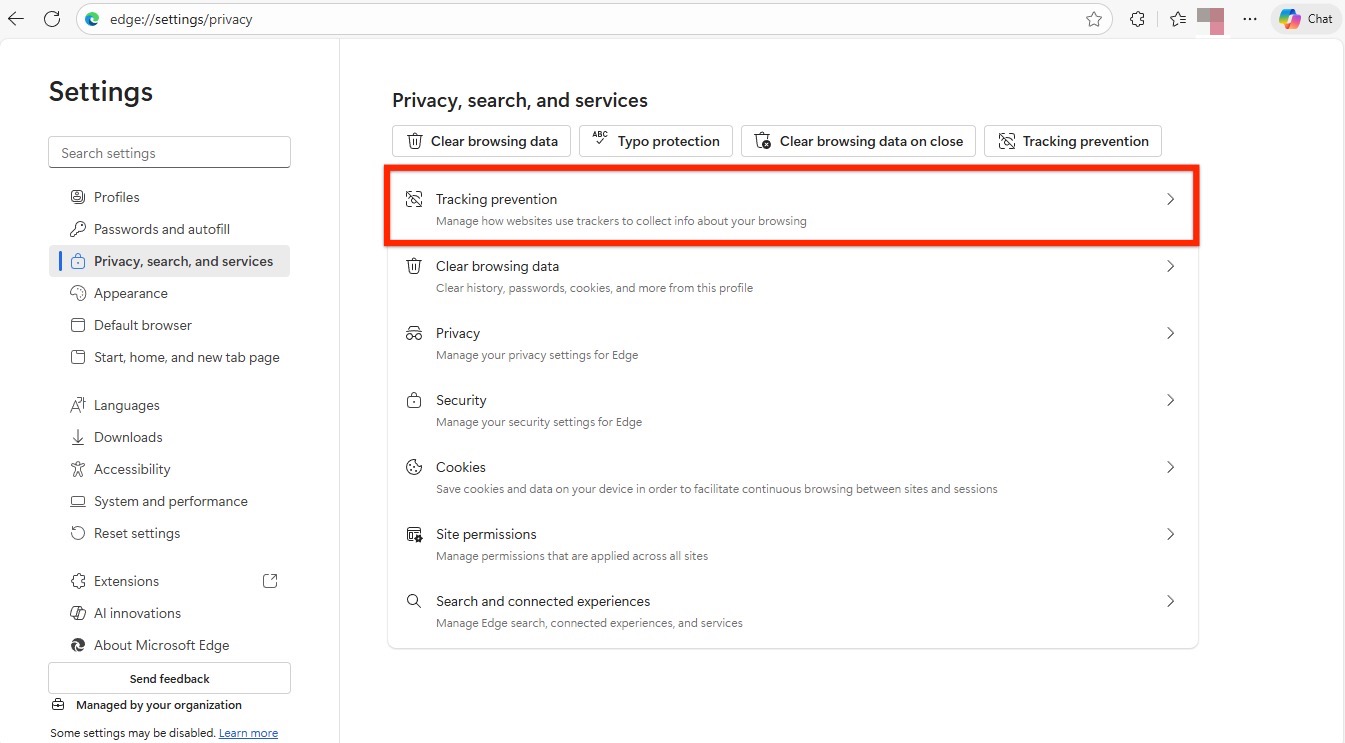
- Select Balanced instead of Strict
- This allows more third-party content (like Facebook embeds) while still blocking most trackers
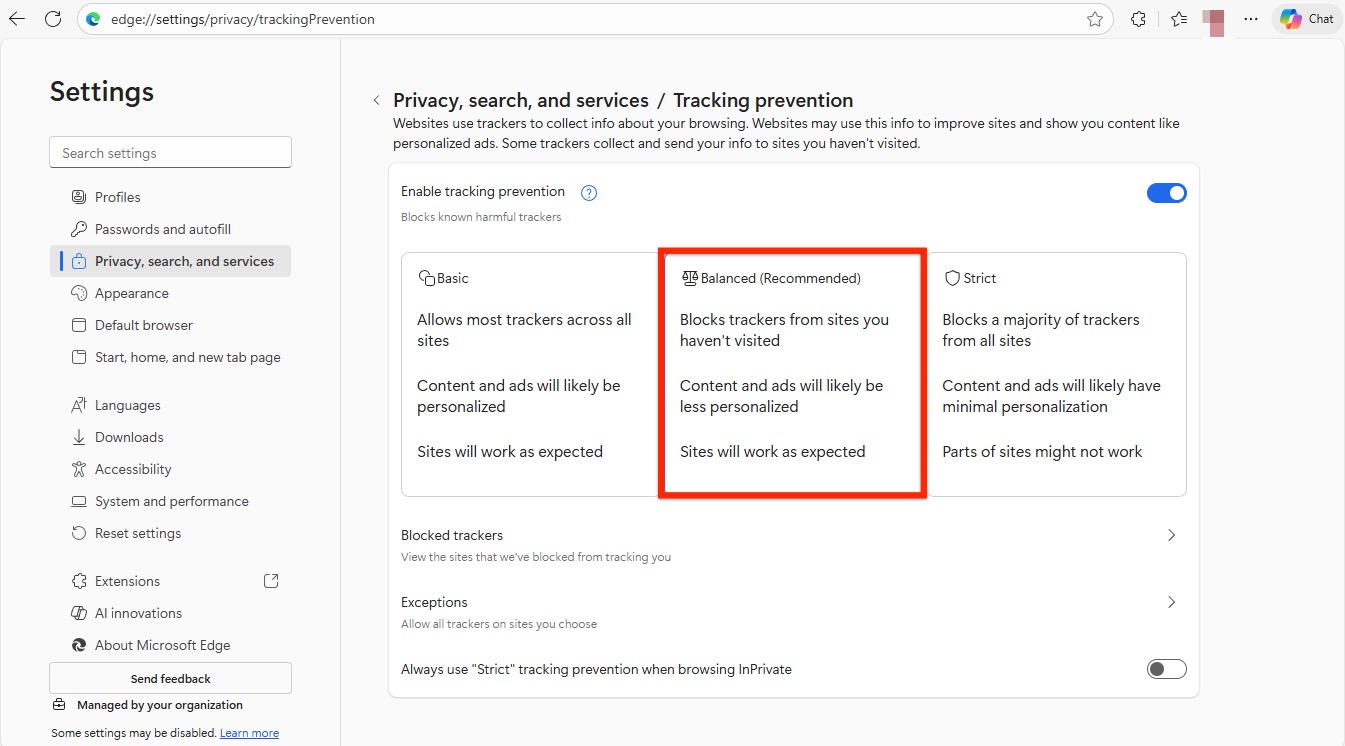
Step 3: Apply and test
- Return to your SharePoint page
- Refresh the page
- Your Facebook Design Element should now display properly
This browser-wide setting will allow Facebook content and similar third-party embeds to load on all websites you visit, not just your SharePoint site. While this reduces some privacy protection, it prevents similar issues from occurring on other sites that use Facebook or social media integrations.
Note: We recommend the site-specific method above for better privacy protection, but this global option works well if you frequently encounter similar issues across multiple websites.
