 Try ShortPoint now
Discover how to place SharePoint buttons next to each other using the Dual Button Design Element. This comprehensive guide covers all the essentials for creating dual buttons that provide quick access to key SharePoint Online resources and pages within your modern SharePoint environment.
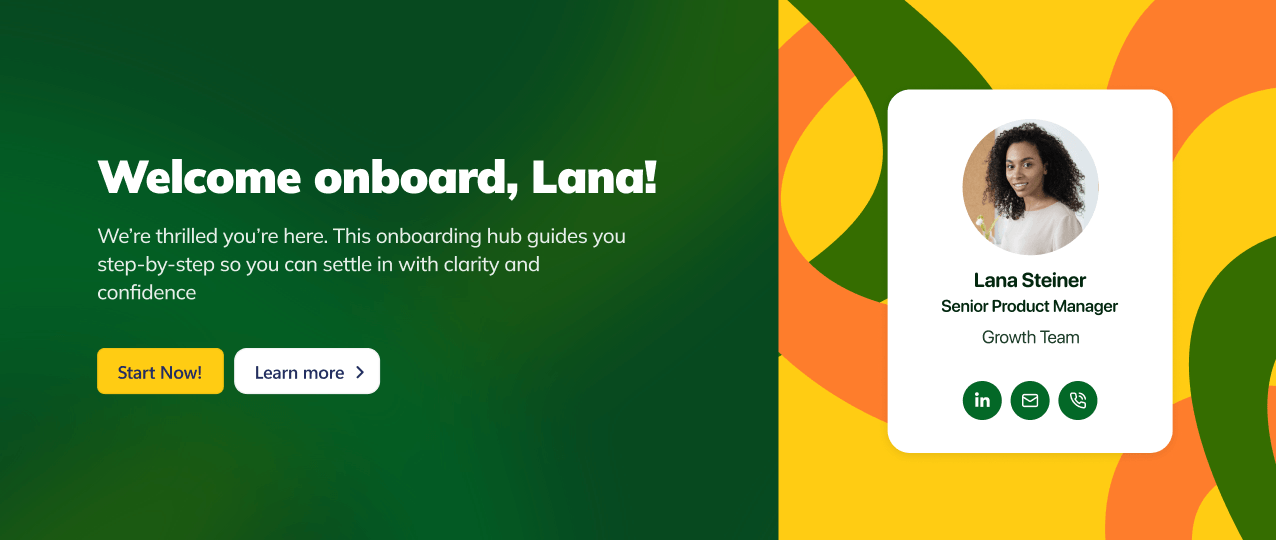
TABLE OF CONTENTS
- Prerequisites
- What Is the Dual Button Design Element?
- Interactive Tutorial
- Step-by-step Tutorial
- Dual Button Features
- Practical Use Cases for the Dual Button Design Element
- Frequently Asked Questions
Prerequisites
- You must have the ShortPoint SPFx version 8.8.0.0 or later installed in your SharePoint environment.
- You must be a ShortPoint Designer with an active license.
What Is the Dual Button Design Element?
Starting with SPFx version 8.8.0.0, you can access the Dual Button Design Element in ShortPoint's library.
This feature allows you to add two buttons side by side, enhancing the modern SharePoint experience without needing complex JSON code customization. You can tailor its content to fit your needs, including the ability to customize the text inside the buttons and add links easily.
To make things even better, you can customize everything from its style, size, and colors. This ensures that your dual buttons reflect your site's unique aesthetic.
Interactive Tutorial
Click Get Started to easily add a Dual Button to your SharePoint page:
NOTETo learn more about the features you can customize for Dual Button,
check out Dual Button Features.
Step-by-step Tutorial
Learn how to create dual buttons in SharePoint by following the step-by-step guide below. These clickable buttons make it super easy to redirect your users to useful organizational information, providing quick access to important SharePoint Online resources and enhancing your modern SharePoint page experience.
Step 1: Edit the ShortPoint Web Part
- Go to the SharePoint page you want to use and click Edit.

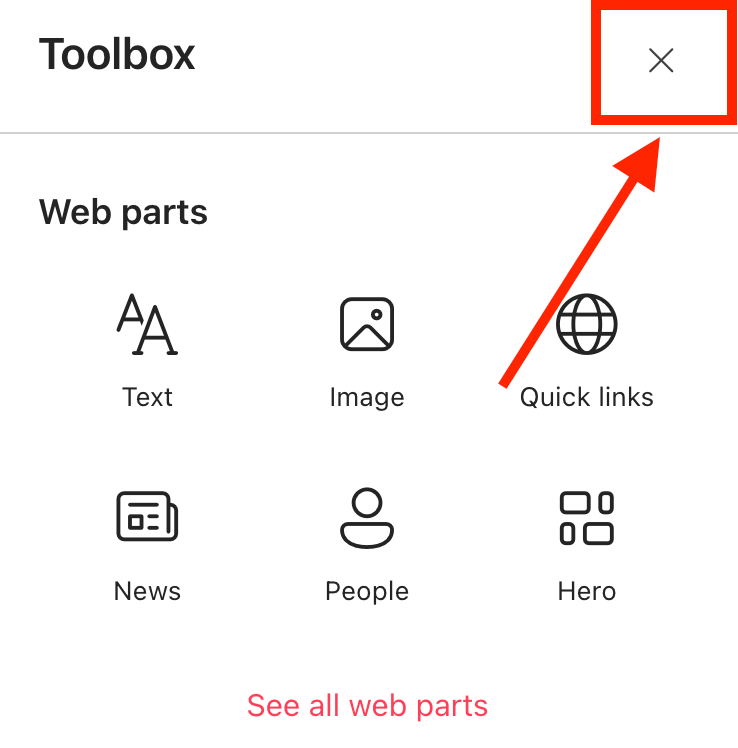
- Close the Toolbox:
- Click the Edit properties icon:

Step 2: Insert the Dual Button Design Element
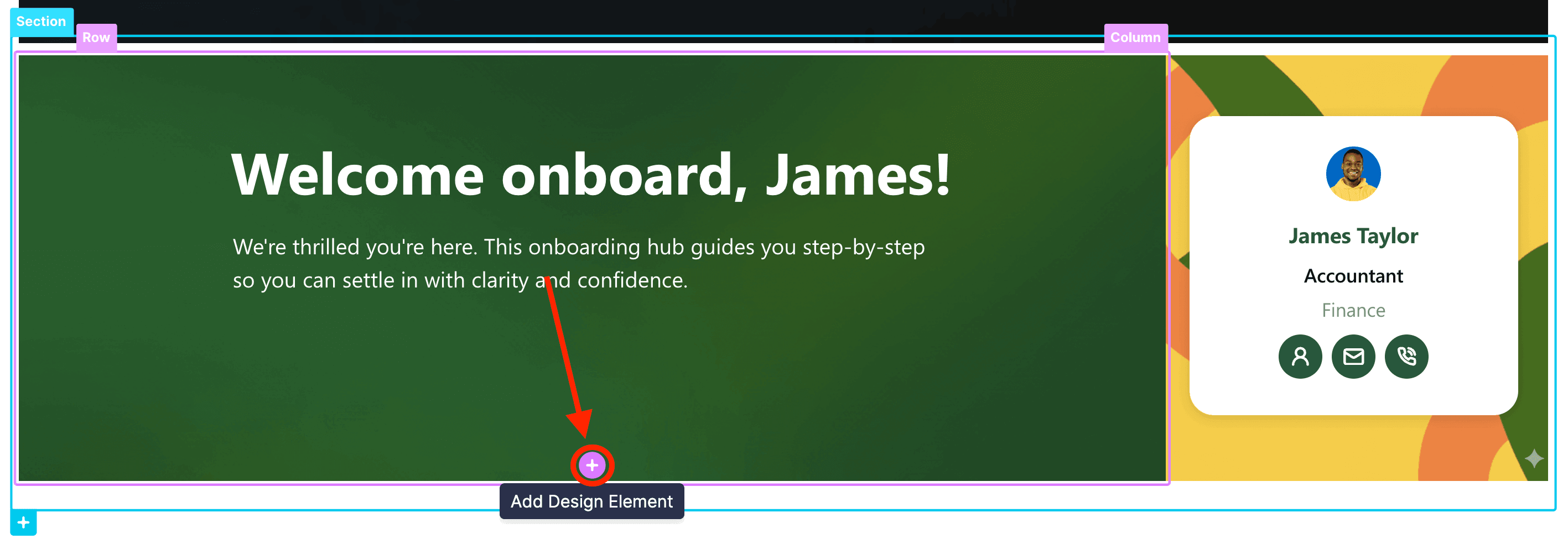
- Choose where you want to add the Dual Button and click the plus icon:
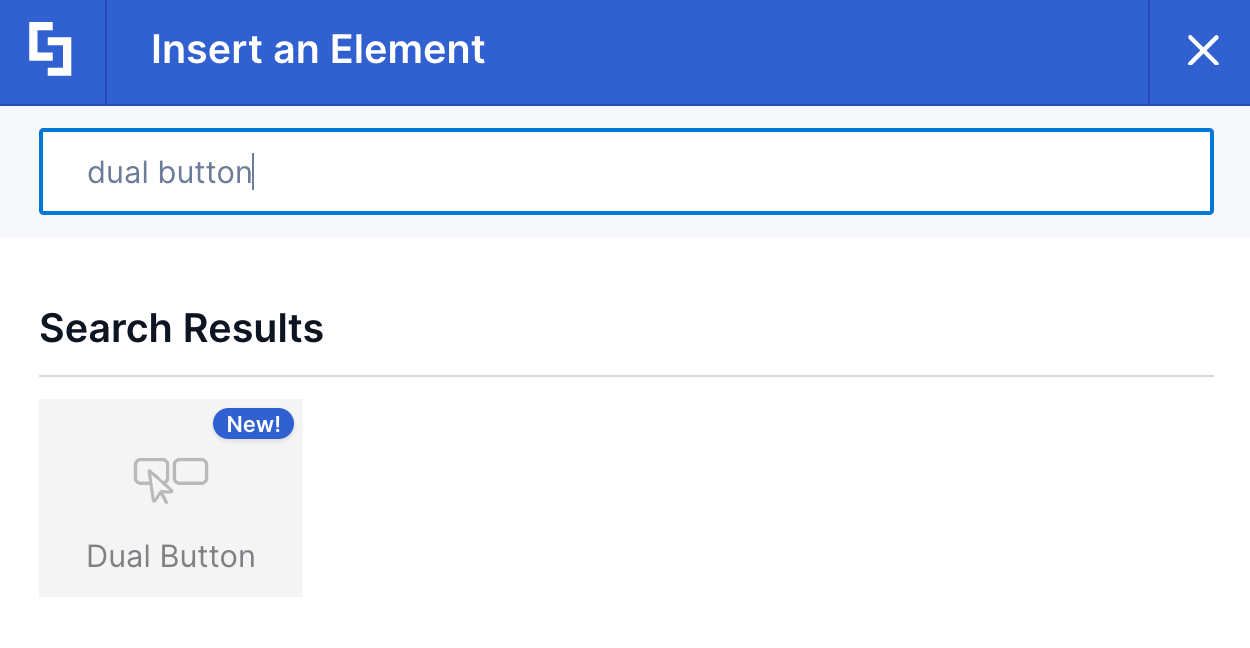
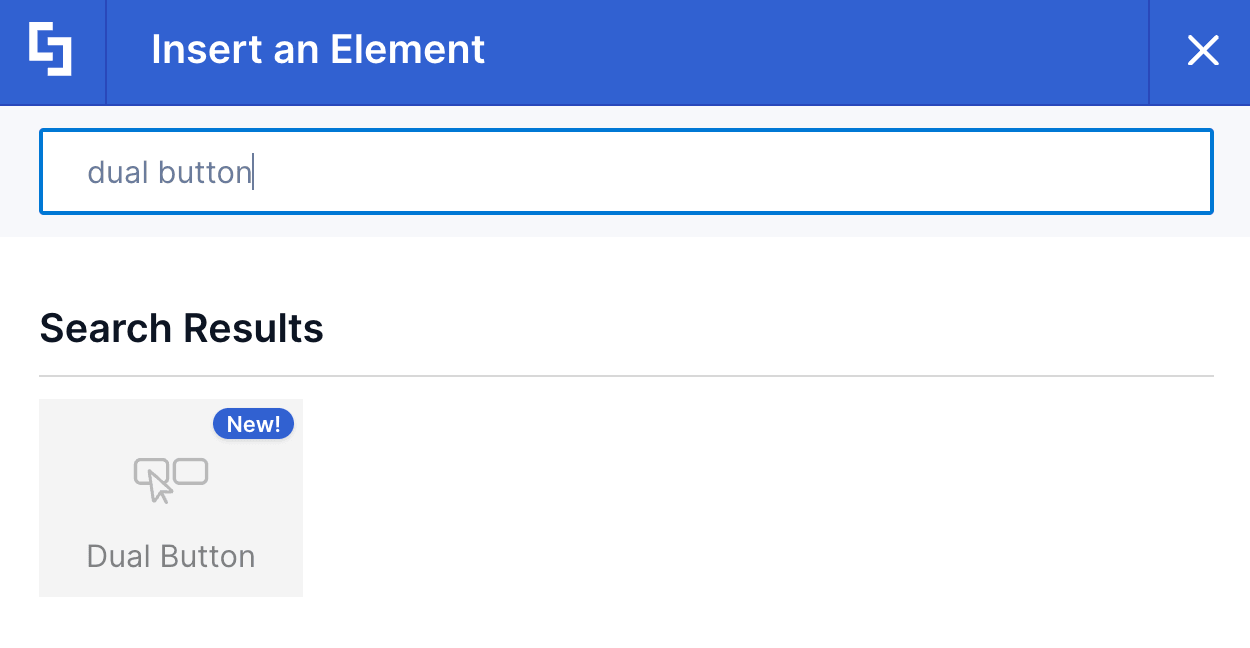
- Use the search box to look for Dual Button and click it:
Step 3: Customize the Content
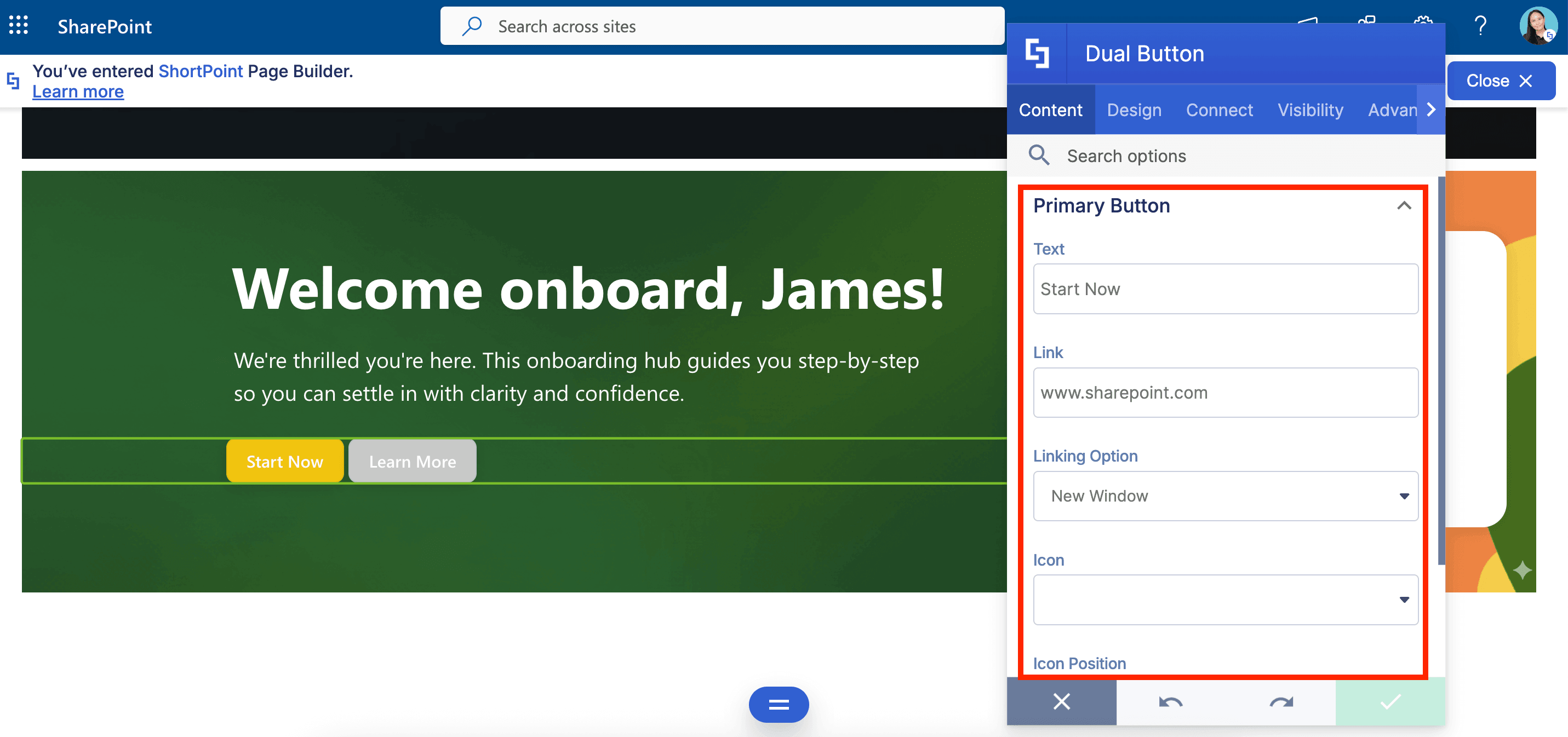
- Go to the Content tab.
- Customize the content of the Dual Button according to your preferences.
NOTETo learn more about the features you can customize for Dual Button,
check out Dual Button Features.
Step 4: Customize the Design
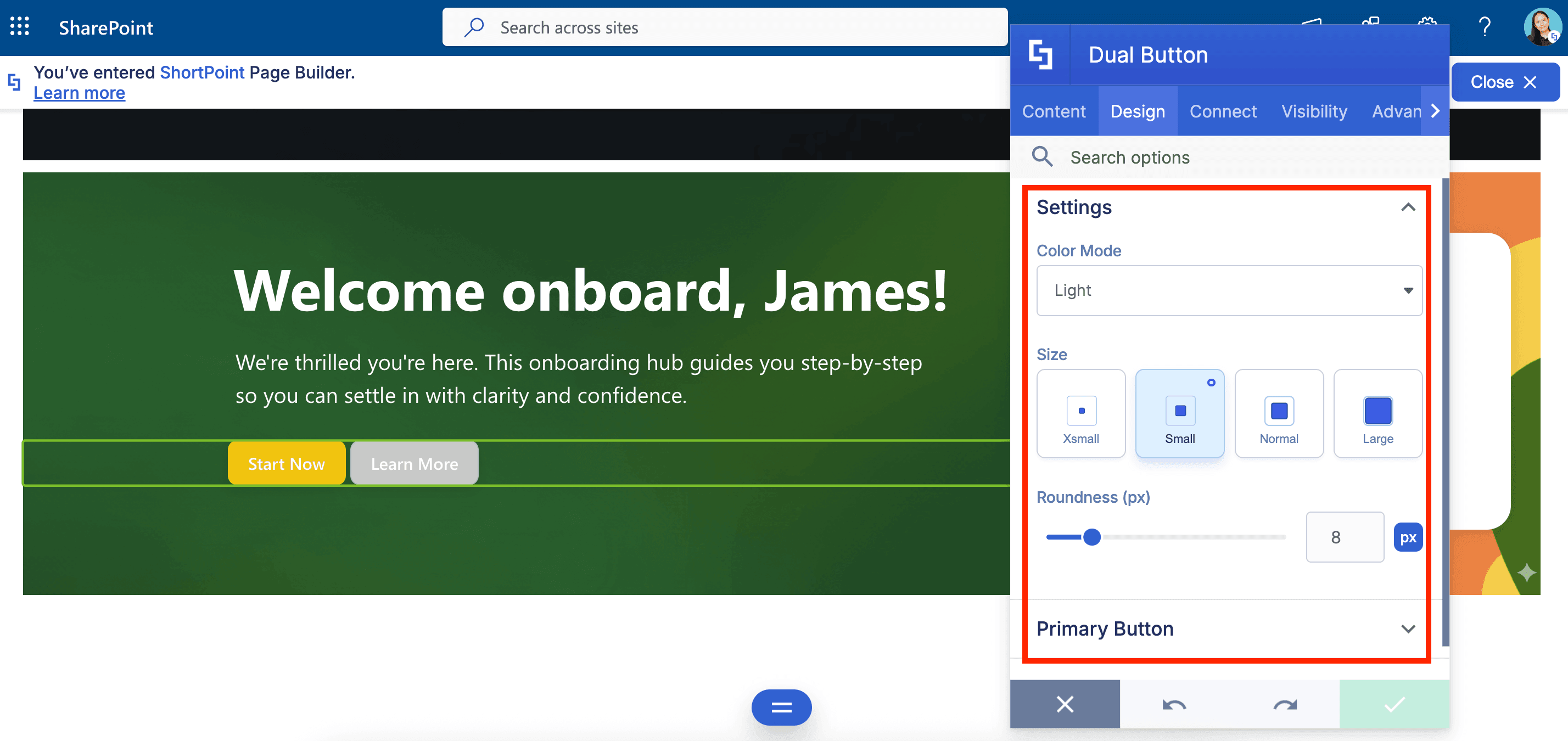
- Go to the Design tab.
- Customize the look of the Dual Button according to your preferences.
- Go to the Advanced tab.
- Modify the design even further.
- Once satisfied, click the green check mark.
NOTETo learn more about the features you can customize for Dual Button,
check out Dual Button Features.
Step 5: Save
- Click the eye icon to see your page in real-time:

- Save your changes:

You've successfully added dual buttons to SharePoint! Your page viewers can now easily access key SharePoint Online content.
Dual Button Features
Customize your Dual Buttons using the Settings window, which offers a variety of options to help you arrange the buttons effectively on your SharePoint page
A. Content Tab
The Content tab is where you can edit the content inside the Dual Button Design Element. Here are the options you can tweak:
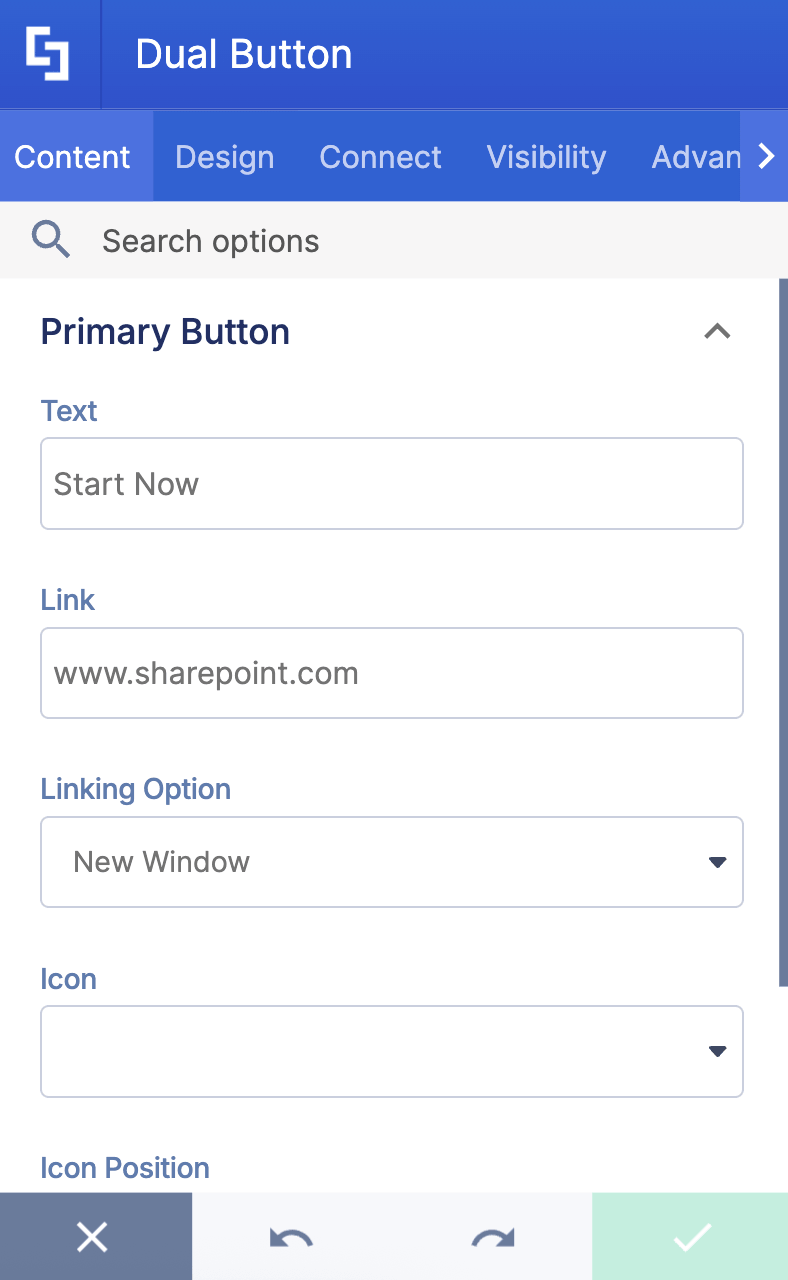
PRIMARY BUTTON
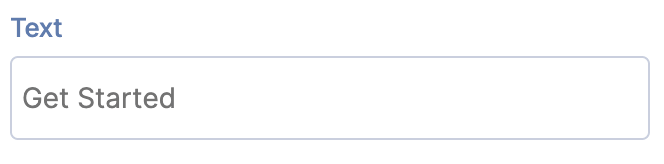 | Text | allows you to modify the content inside the first button. |
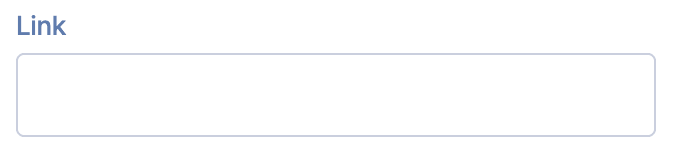 | Link | allows you to link the first button to an internal or external source. |
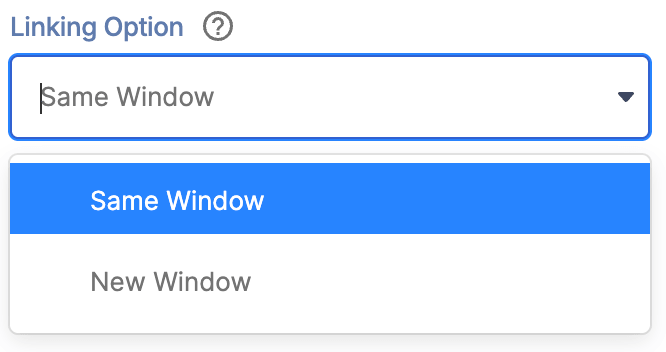 | Linking Option | allows you to choose how the first button will be opened. |
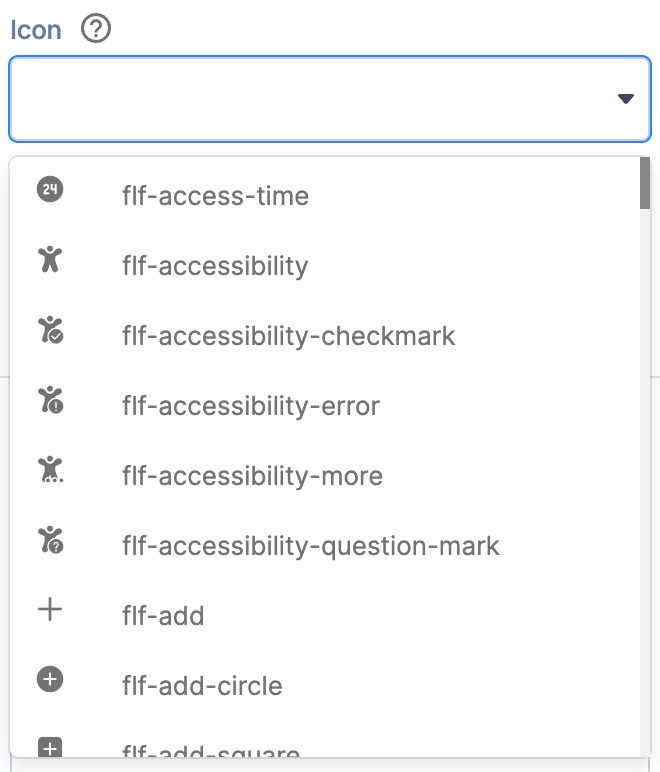 | Icon | allows you to choose an icon for the first button. |
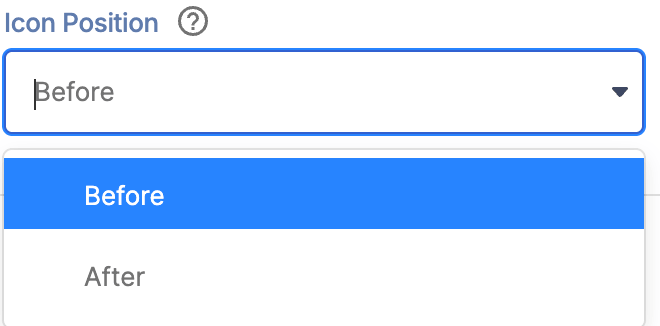 | Icon Position | allows you to modify the position of the icon inside the first button. |
SECONDARY BUTTON
 | Text | allows you to modify the content inside the second button. |
 | Link | allows you to link the second button to an internal or external source. |
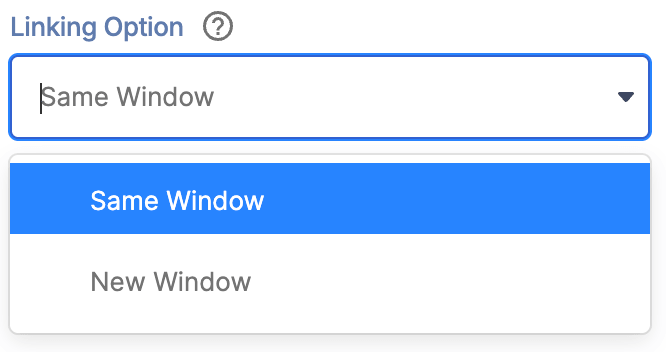 | Linking Option | allows you to choose how the second button will be opened. |
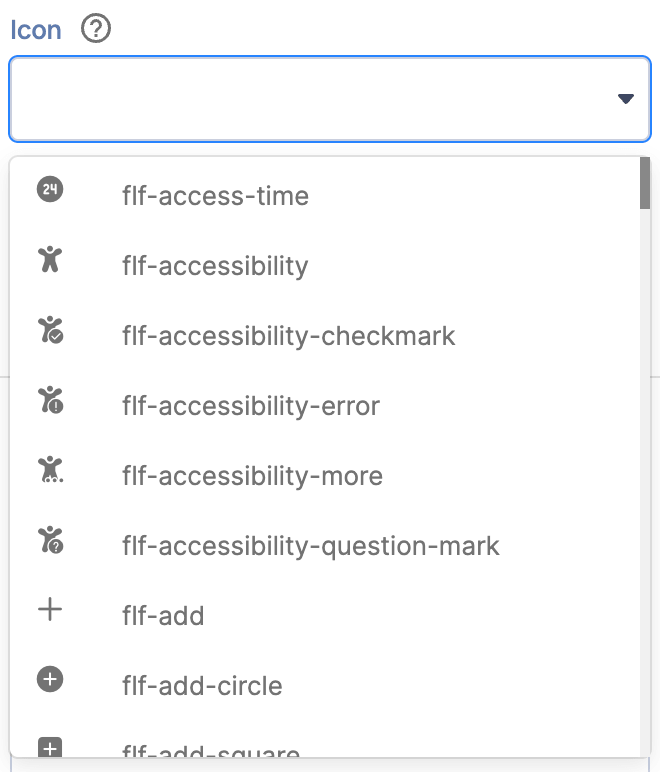 | Icon | allows you to choose an icon for the second button. |
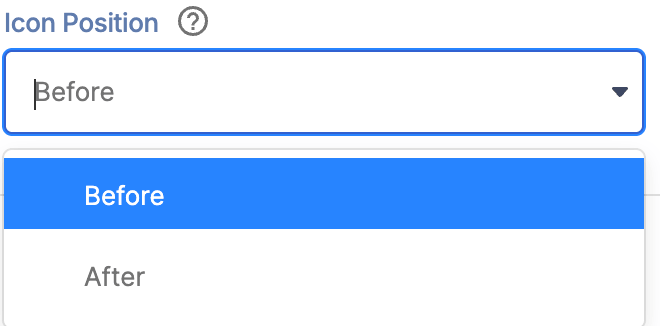 | Icon Position | allows you to modify the position of the icon inside the second button. |
B. Design Tab
The Design tab is where you get to have fun customizing the look and feel of your Dual Button. Here are the options you can modify:
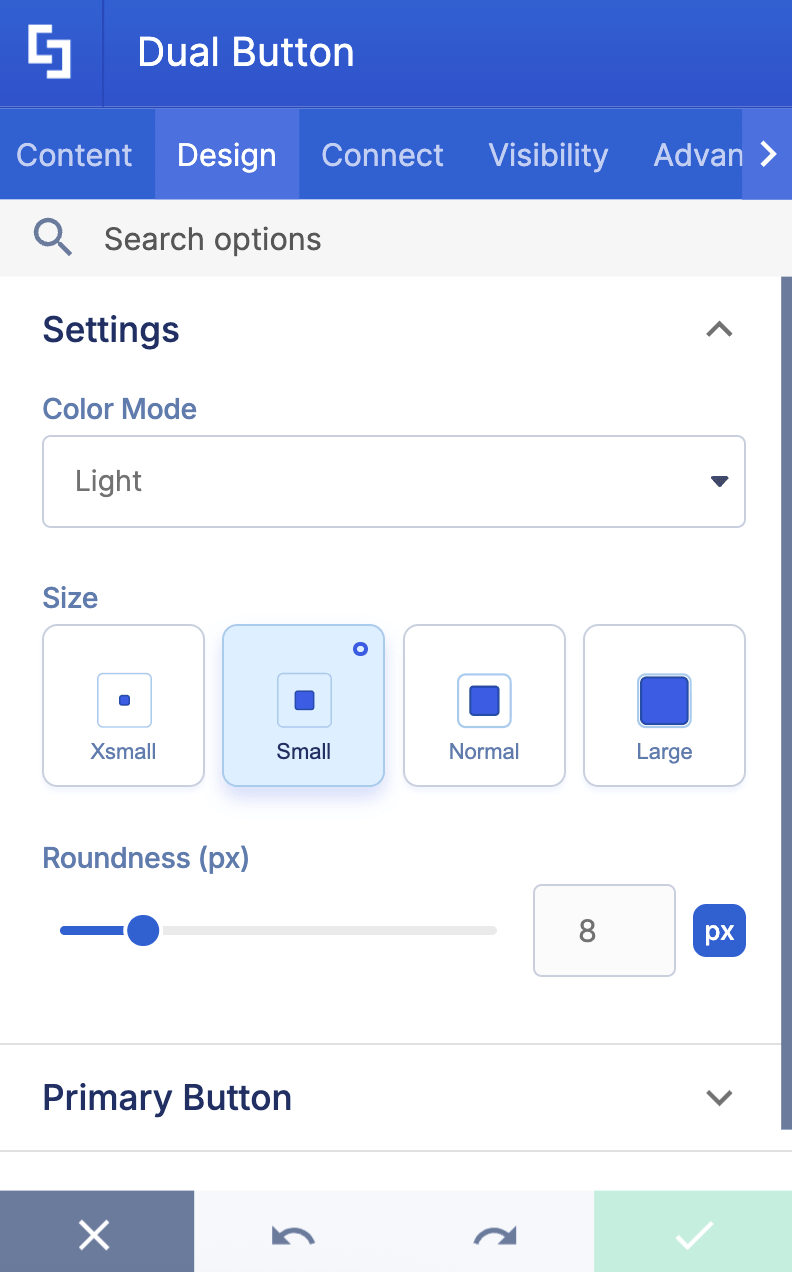
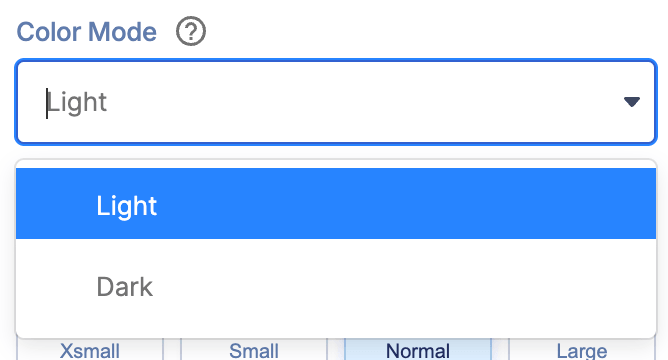 | Color Mode | allows you to choose from Light or Dark color mode. |
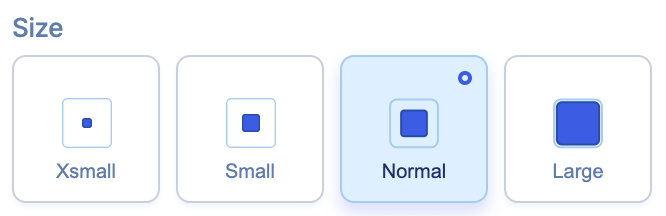 | Size | allows you to adjust the size of the Dual Button. You can choose from Xmall, Small, Normal, and Large. |
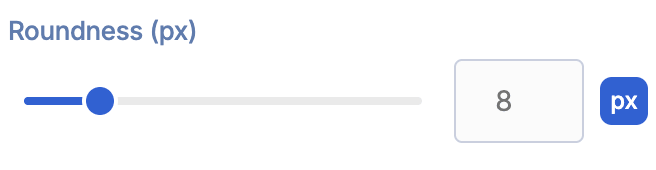 | Roundness | allows you to adjust the roundness value of the Dual Button. |
PRIMARY BUTTON
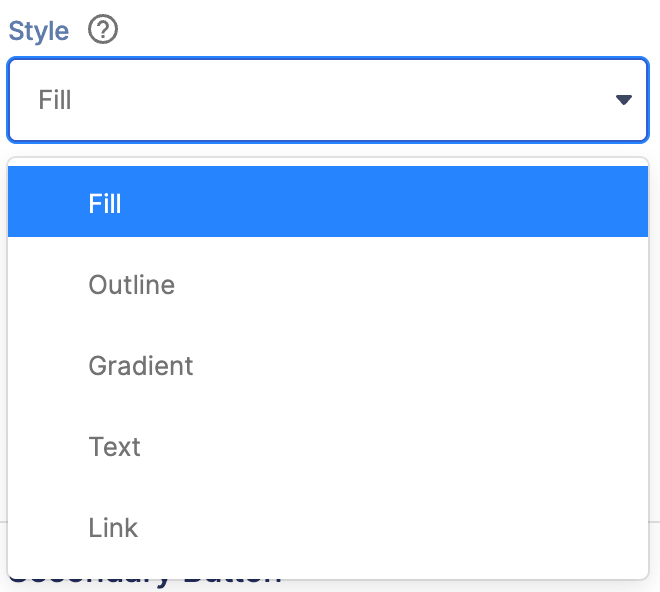 | Style | allows you to choose the first button’s style. You can choose from 5 styles. |
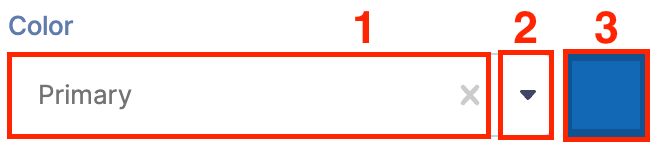 | Color | allows you to change the primary color of the first button. You can change the color by [1] typing the HEX code, [2] using the drop-down, or [3] using the color picker. |
 | Disabled | when enabled, the first button will be disabled. |
SECONDARY BUTTON
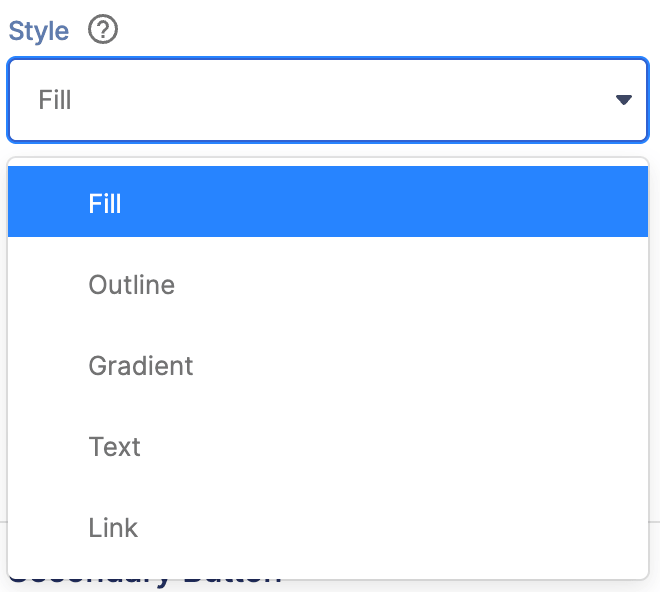 | Style | allows you to choose the second button’s style. You can choose from 5 styles. |
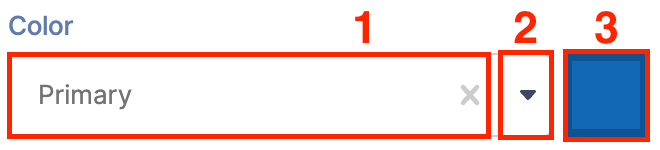 | Color | allows you to change the primary color of the second button. You can change the color by [1] typing the HEX code, [2] using the drop-down, or [3] using the color picker. |
 | Disabled | when enabled, the second button will be disabled. |
SHADOWS
 | Enabled | when enabled, a shadow effect will be added to the buttons. |
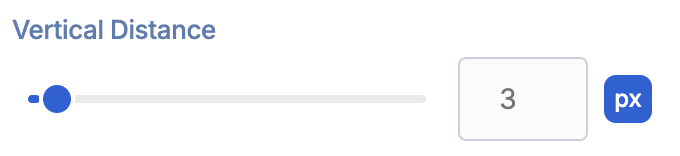 | Vertical Distance | allows you to modify the vertical distance value of the shadow. |
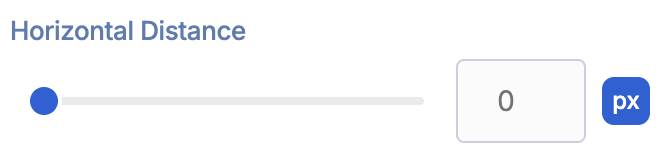 | Horizontal Distance | allows you to modify the horizontal distance value of the shadow. |
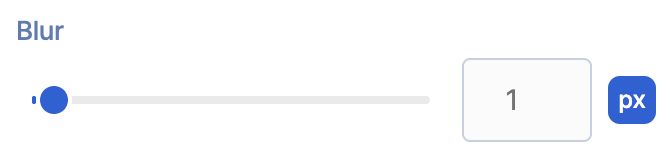 | Blur | allows you to add and control the blur effect for the shadow. |
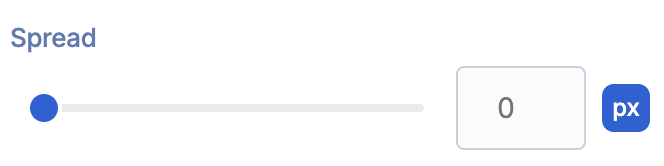 | Spread | allows you to control the spread value of the shadow. |
 | Inset | when enabled, the shadow will be inset. |
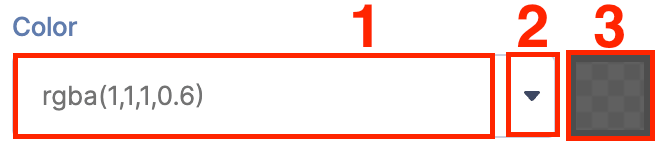 | Color | allows you to choose the color of the shadow. You can change the color by [1] typing the HEX code, [2] using the drop-down, or [3] using the color picker. |
C. Connect Tab
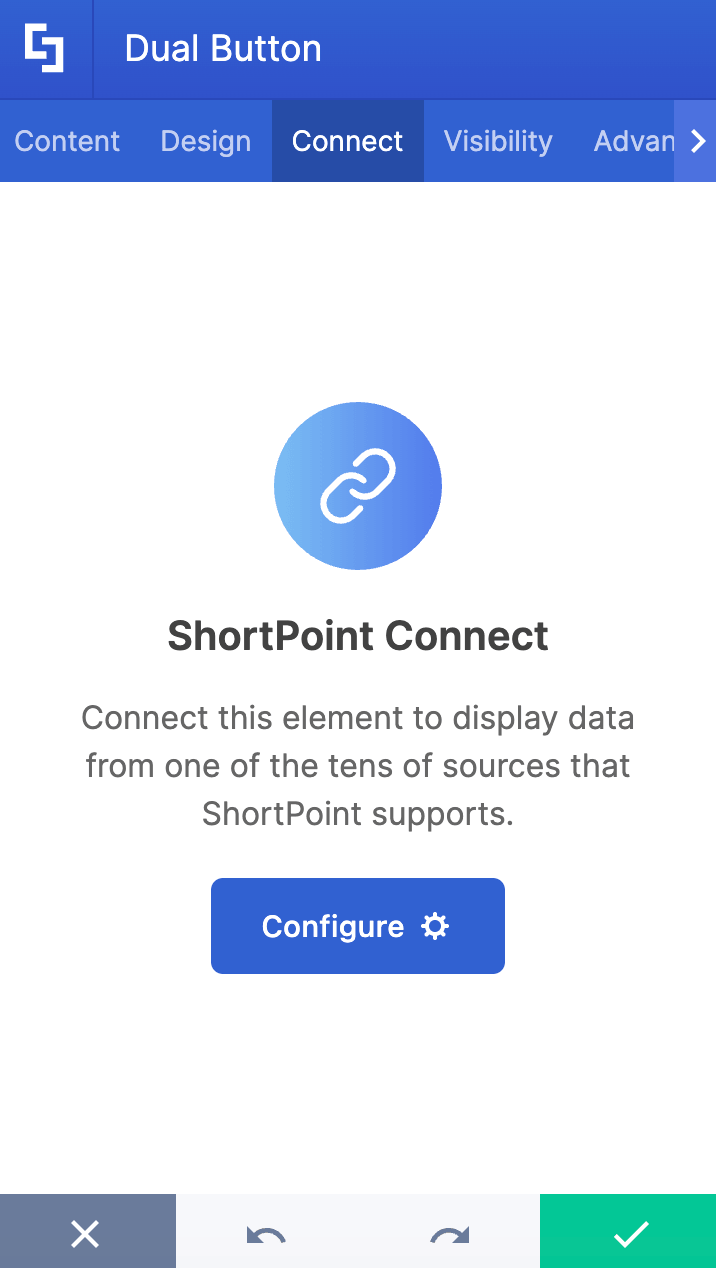
The Connect tab allows you to link the Design Element to SharePoint sources (List, Document Library, News, etc.) and other external sources (Microsoft Graph API, Teams, Outlook, etc.). For more details about ShortPoint Connect, check out Basic Tutorial: How to Establish Seamless SharePoint Connection with ShortPoint Connect.
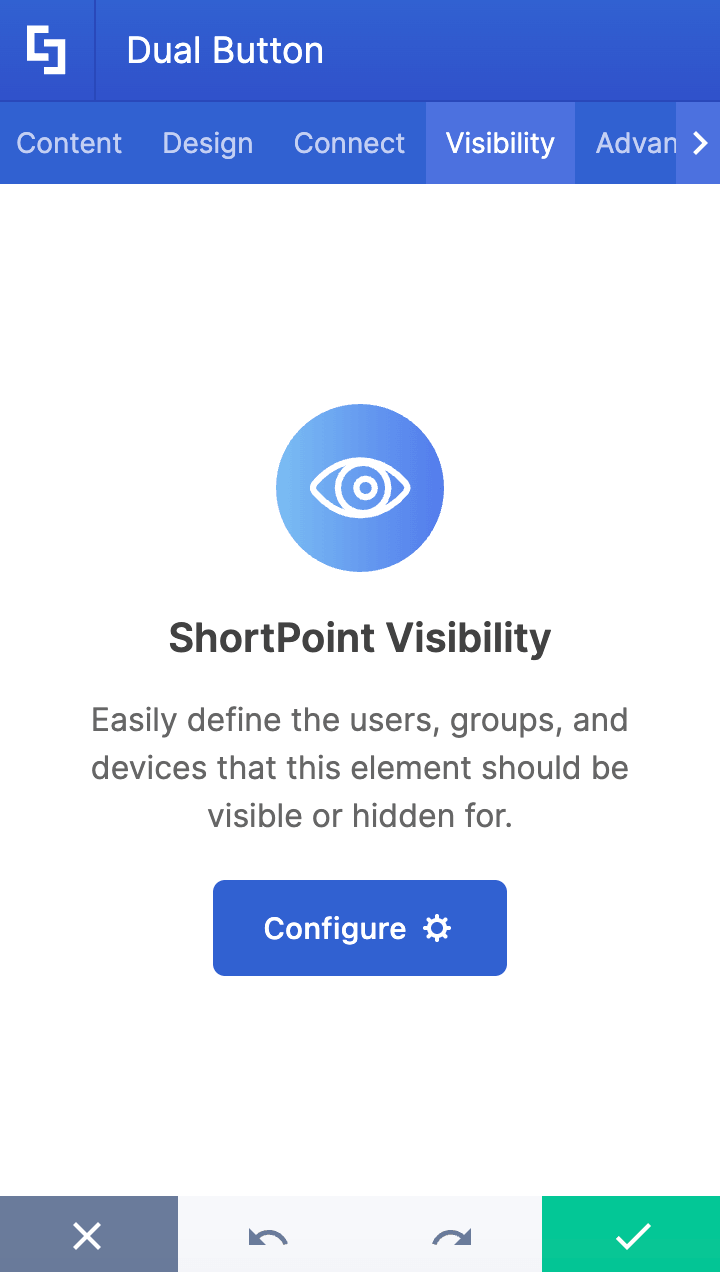
D. Visibility Tab
The Visibility tab allows you to specify who can see the Design Element and what type of devices it can be shown on. For more details, check out How to Use the ShortPoint Visibility Feature for Effective SharePoint Access Management.
E. Advanced Tab
The Advanced tab allows you to further customize the appearance of the Dual Button. Below are the options you can modify:
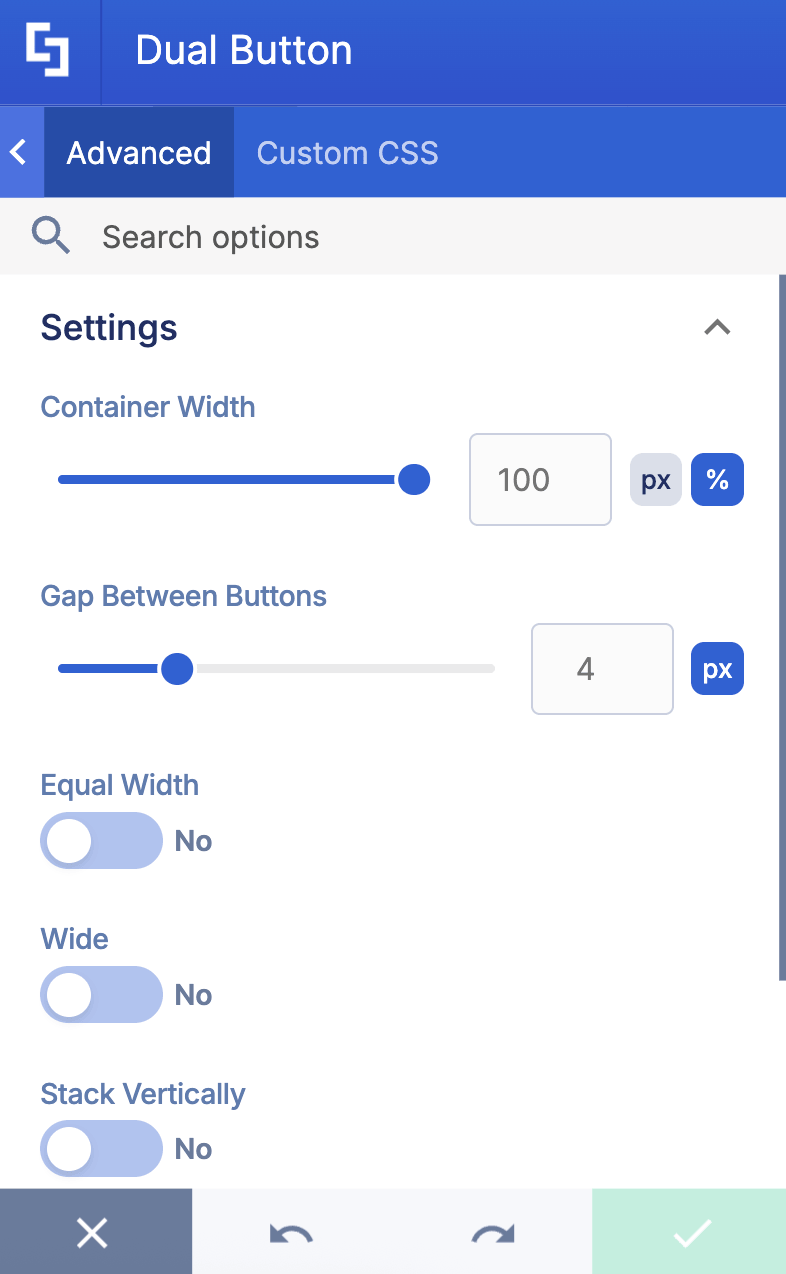
SETTINGS
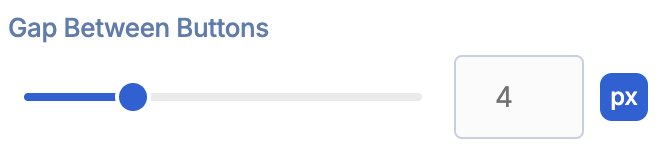 | Gap between buttons | allows you to adjust the space between the buttons. |
 | Equal Width | when enabled, both buttons will have the same width. |
 | Wide | when enabled, the buttons will take the full width of the container. |
 | Stack Vertically | when enabled, the buttons will be stacked vertically instead of being next to each other. |
SPACING
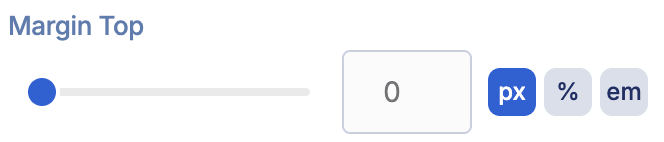 | Margin Top | allows you to adjust the top margin of the buttons. |
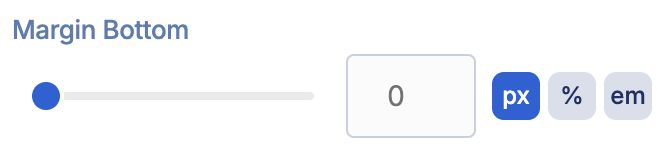 | Margin Bottom | allows you to adjust the bottom margin of the buttons. |
F. Custom CSS Tab
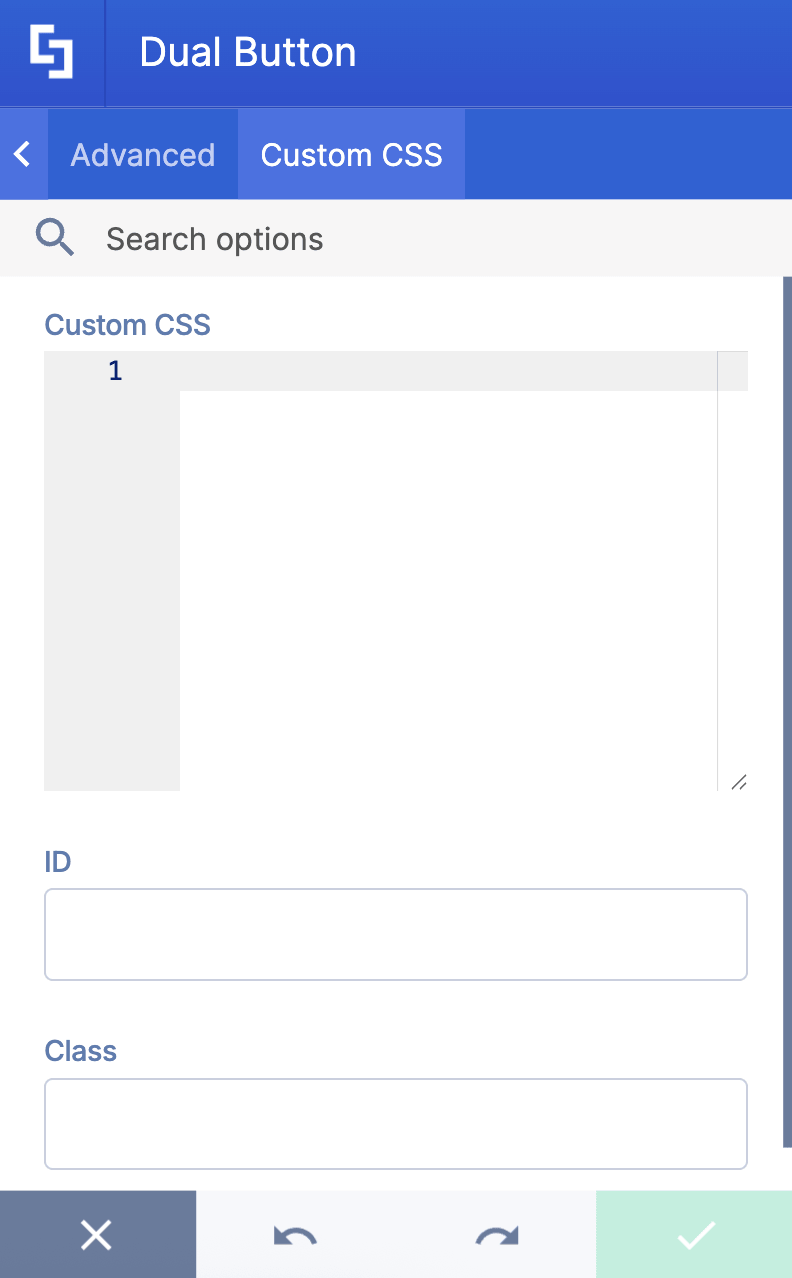
This tab lets you add your own custom touch to the Dual Button Design Element using custom CSS, HTML, and JavaScript. This gives site owners and designers greater control over how it will look.
NOTECheck out our support article on How to Insert Custom CSS into a Page Builder Element? (Basic Tutorial) to know more about Custom CSS.
Practical Use Cases for the Dual Button Design Element
The Dual Button Design Element makes it easy to add multiple buttons side-by-side on your SharePoint pages, giving users quick access to the resources they need most. Here are some great ways to use it:
- Get people to key resources faster: Add buttons that link directly to important document libraries, pages, or websites. Your team can jump straight to what they need without clicking through menus or hunting around.
- Make everyday tasks easier: Set up buttons that open your most-used Power Apps, forms, or workflows. When people can start common processes right from the page, it saves time and keeps work flowing smoothly.
- Keep everyone in the loop: Create buttons for company news, upcoming events, or training sessions so your team can easily stay up-to-date and get involved.
- Help new team members get started: Give new hires a smooth start by adding buttons to onboarding guides, company policies, and training materials, all in one convenient spot.
When you use the Dual Button Design Element thoughtfully, you'll create a SharePoint experience that just works better—one where people can find what they need quickly and get things done more efficiently. This approach helps improve site navigation, enhances user engagement, and supports modern SharePoint customization without requiring admin permissions or complex json code. It’s an ideal way to maintain a clean, professional page layout that fits seamlessly within your Microsoft 365 environment.
Frequently Asked Questions
How can I place SharePoint buttons next to each other on a SharePoint page?
You can use the Dual Button Design Element available in ShortPoint's library to add multiple buttons side by side easily. It's super easy to use and won't need any complex JSON code. This allows for better alignment and quick access to important SharePoint Online resources and pages.
Can I customize the appearance of the buttons?
Yes, the Dual Button Design Element lets you customize button color, size, style, and even add icons. You can adjust the gap between buttons, margins, and shadows for a professional look that matches your site’s branding.
Is it possible to link buttons to external sites or internal SharePoint libraries?
Absolutely. Each button can have its own link to internal SharePoint pages, document libraries, or external URLs, providing quick access to the resources your team needs.
Can I control who sees the buttons on my SharePoint page?
Yes, using ShortPoint's Visibility settings, you can target buttons to specific audiences or groups within Microsoft 365, ensuring personalized content delivery.
Related articles:
- How to Create SharePoint Headers Using the Heading Design Element
- How to Create a SharePoint Hero Section Using the Hero Caption Design Element
- How to Highlight Words in SharePoint Using the Highlighted Text Design Element
- How to Create a Spinning Text Effect in SharePoint Using the Rotating Text Design Element
- How to Add Lottie Animation in SharePoint Using the Lottie Design Element
How to Create a Timeline in SharePoint Sites Using the Timeline Design Element
