 Try ShortPoint now
Ready to elevate your SharePoint pages with creative SharePoint Hero sections? This guide shows you how to use the Hero Caption Design Element to build amazing hero sections that capture visual interest and enhance your site's design with compelling text.

TABLE OF CONTENTS
- Prerequisites
- What Is the Hero Caption Design Element?
- Interactive Tutorial
- Step-by-step Tutorial
- Hero Caption Features
- Practical Use Cases for the Hero Caption Design Element
- Frequently Asked Questions
- What are the prerequisites for using the Hero Caption Design Element?
- How can I customize the Hero Caption Design Element?
- Can I link the Hero Caption text to other pages or URLs?
- How do I add a Hero Caption to my SharePoint page?
- Can I control who sees the Hero Caption on my page?
- What is the benefit of using Hero Captions on SharePoint pages?
Prerequisites
- You must have the ShortPoint SPFx version 8.8.0.0 or later installed in your SharePoint environment.
- You must be a ShortPoint Designer with an active license.
What Is the Hero Caption Design Element?
The Hero Caption Design Element joins ShortPoint's library with SPFx version 8.8.0.0 onwards.
This new Design Element gives you an easy way to highlight content across your SharePoint Online sites. Enjoy complete flexibility when adding your content.
Plus, fine-tune every visual detail to your liking! From style, size, and colors, the hero caption can be customized to align seamlessly with your site's design. This will help you draw attention and enhance your modern SharePoint page experience.
Interactive Tutorial
Click Get Started to easily add Hero Caption to your SharePoint page:
NOTETo learn more about the features you can customize for Hero Caption, check out Hero Caption Features.
Step-by-step Tutorial
This guide will show you how to create a SharePoint Hero Caption. You'll be able to showcase and emphasize important content directly on your modern SharePoint page. This will enhance visual interest and help draw attention to your page.
Step 1: Edit the ShortPoint Web Part
- Go to the SharePoint page you want to use and click Edit.

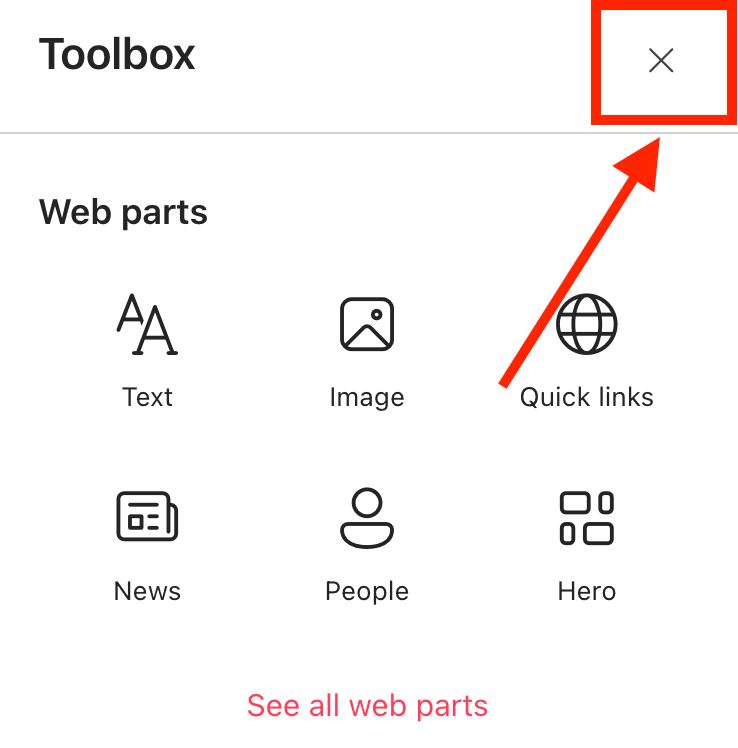
- Close the Toolbox:
- Click the Edit properties icon:

Step 2: Insert the Hero Caption Design Element
- Choose where you want to add the Hero Caption and click the plus icon:

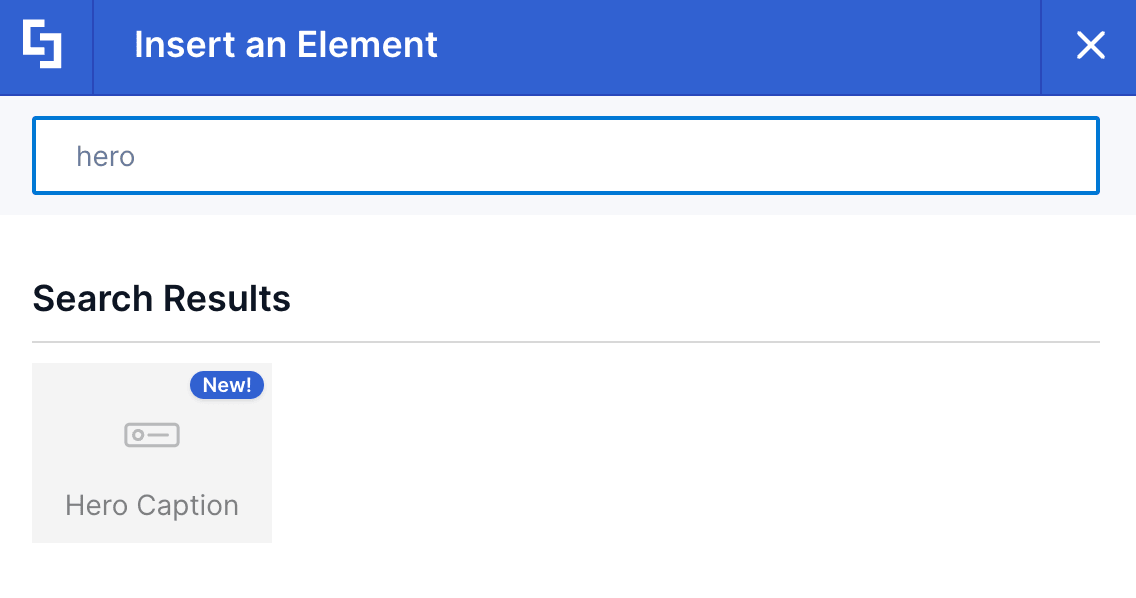
- Use the search box to look for Hero Caption and click it:
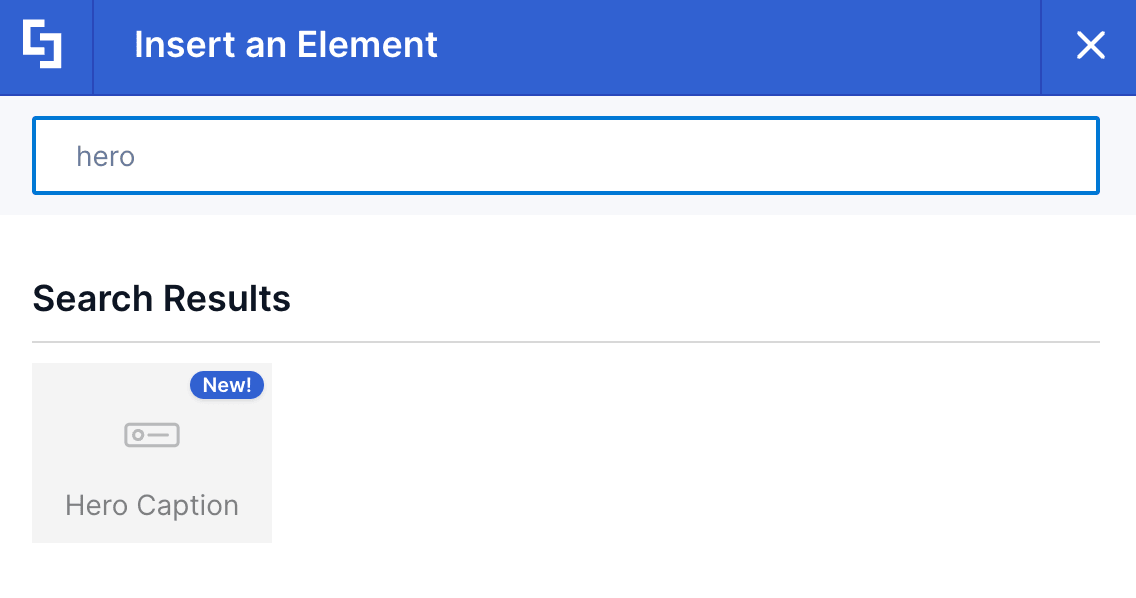
Step 3: Customize the Content
- Go to the Content tab.
- Customize the content of the Hero Caption according to your preferences.
NOTETo learn more about the features you can customize for Hero Caption, check out Hero Caption Features.
Step 4: Customize the Design
- Go to the Design tab.
- Customize the look of the Hero Caption according to your preferences.
- Go to the Advanced tab.
- Modify the design even further.
- Once satisfied, click the green check mark.
NOTETo learn more about the features you can customize for Hero Caption, check out Hero Caption Features.
Step 5: Save
- Click the eye icon to see your page in real-time:

- Save your changes:

And that's it! Your SharePoint hero section has now been added successfully. With the Hero Captions, you’ll surely grab your page viewer’s attention in a snap.
Hero Caption Features
You'll find several helpful options in the Hero Caption Settings window that let you customize it to suit your needs. Let’s go through them one by one.
A. Content Tab
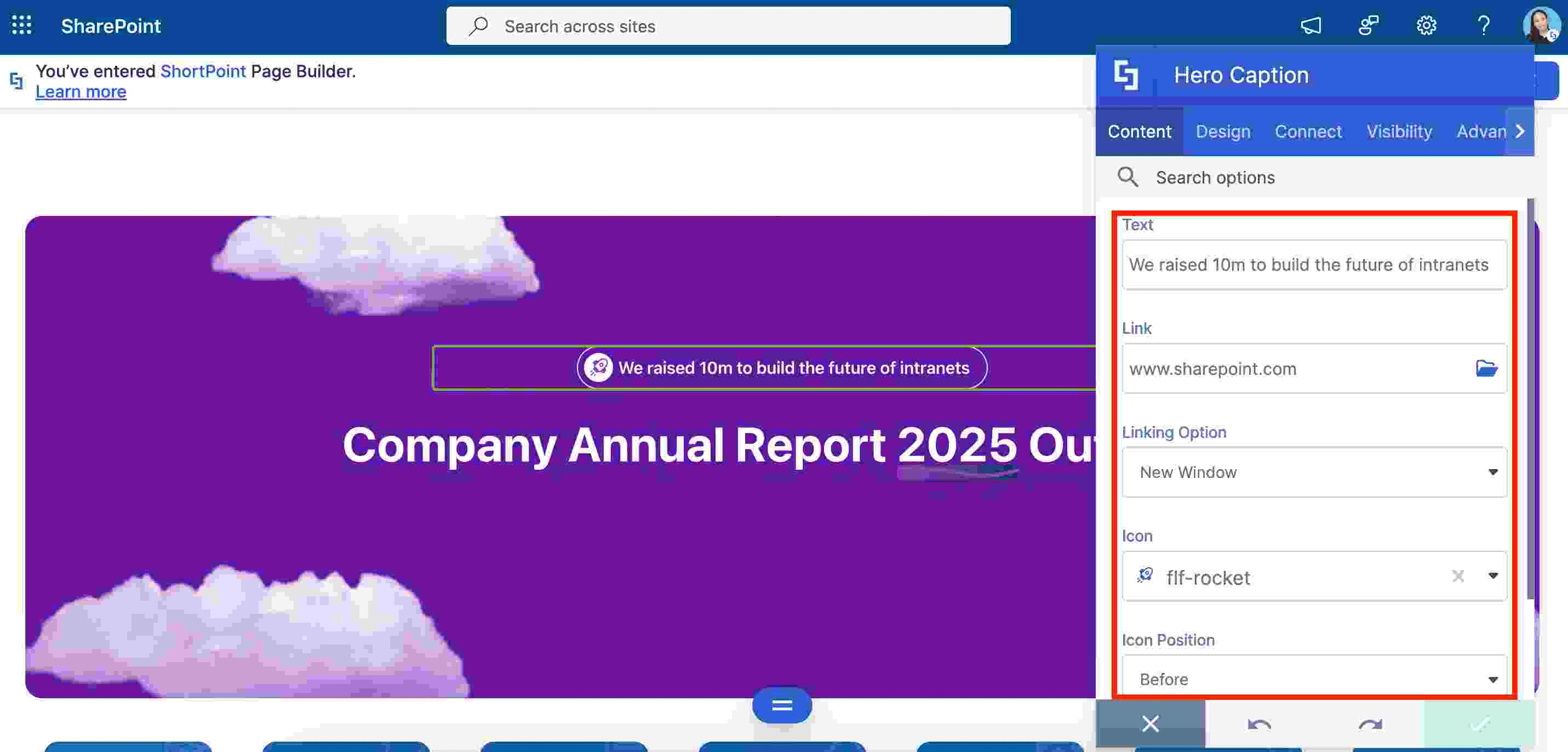
The Content tab is where you can edit the content inside the Hero Caption Design Element. Here are the options you can tweak:
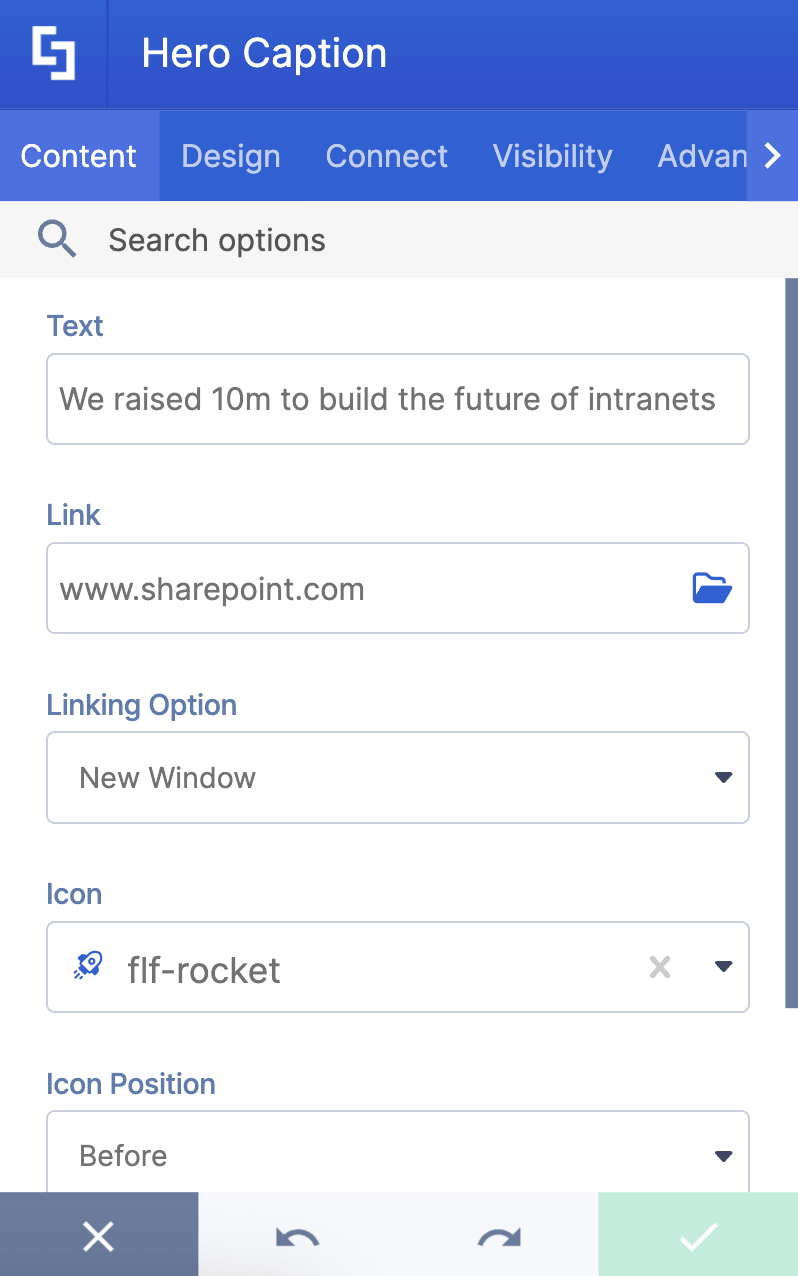
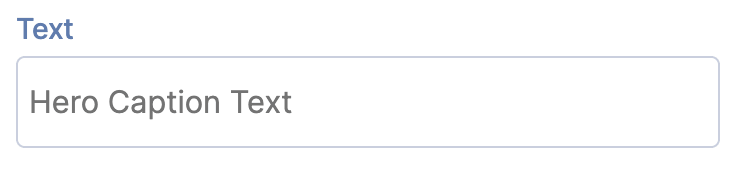 | Text | allows you to modify the content inside the Hero Caption. |
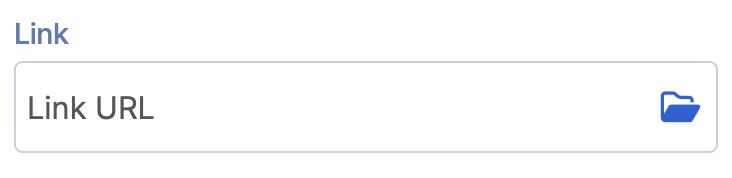 | Link | allows you to link the text to an internal or external source. |
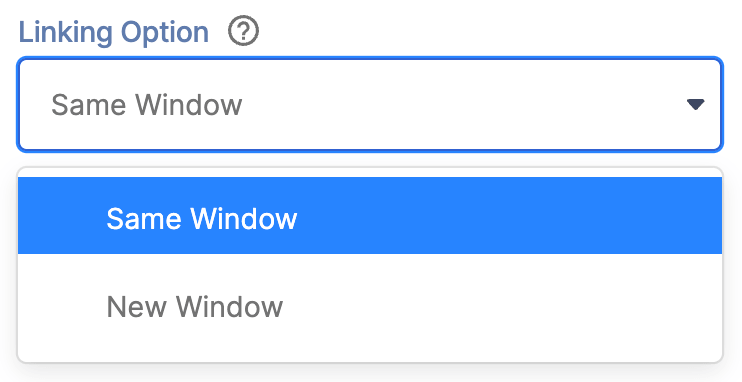 | Linking Option | allows you to choose how the link will be opened. |
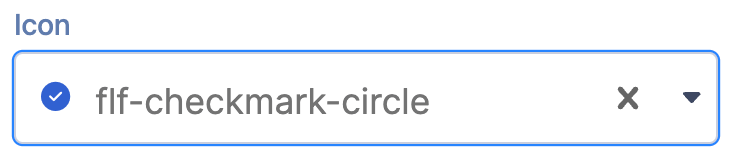 | Icon | allows you to choose an icon to showcase. |
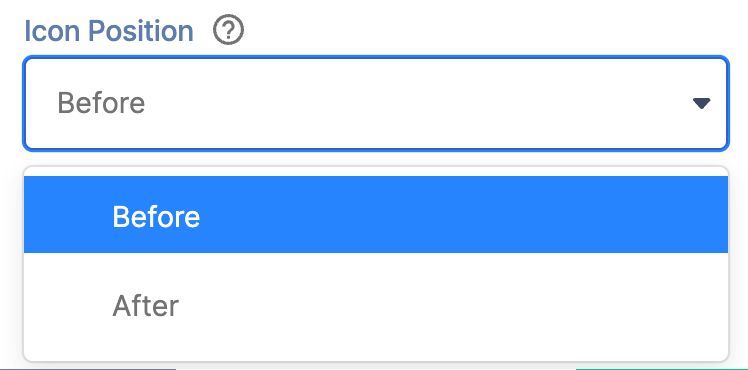 | Icon Position | allows you to modify the position of the icon. |
 | Icon Background | when enabled, the icon will have its own background. |
B. Design Tab
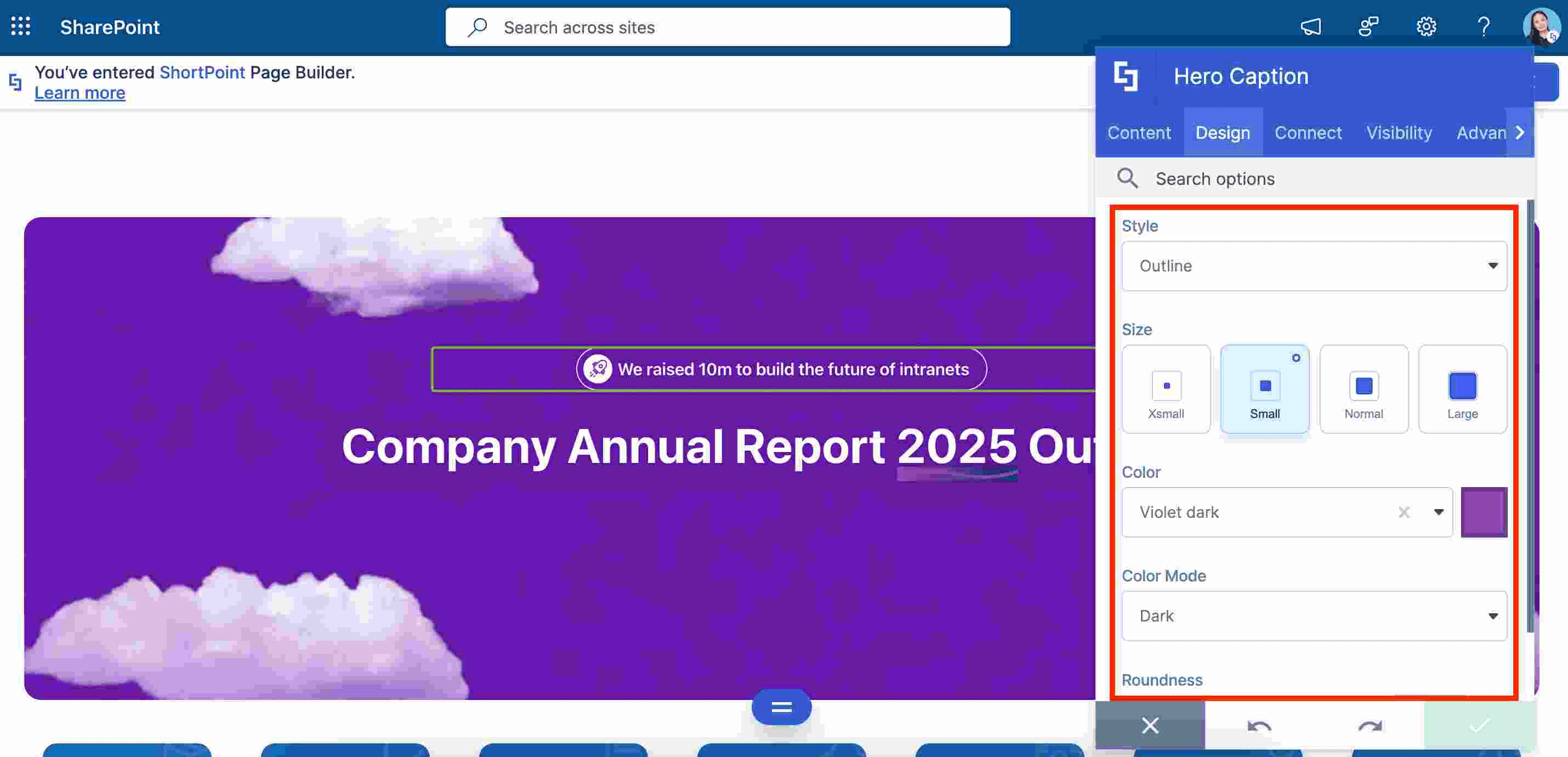
The Design tab is where you get to have fun customizing the look and feel of your Hero Caption. Here are the options you can modify:
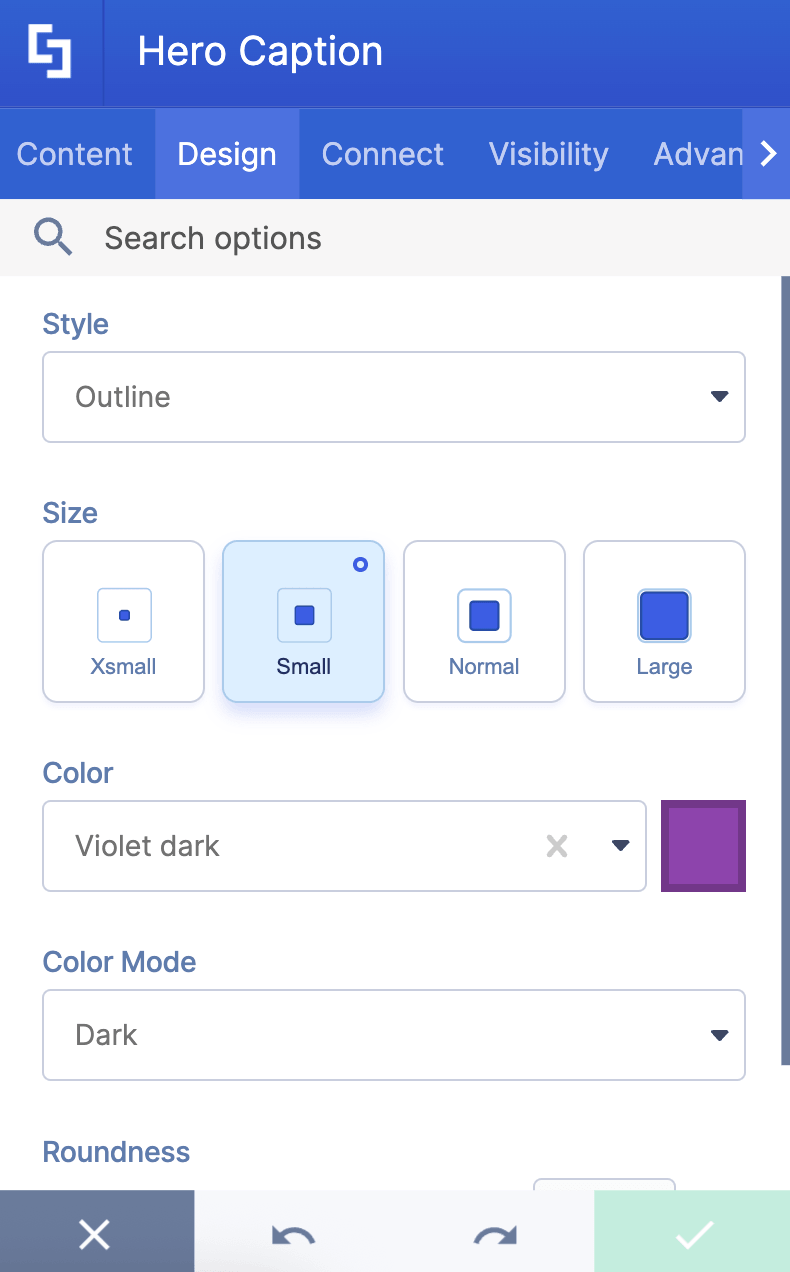
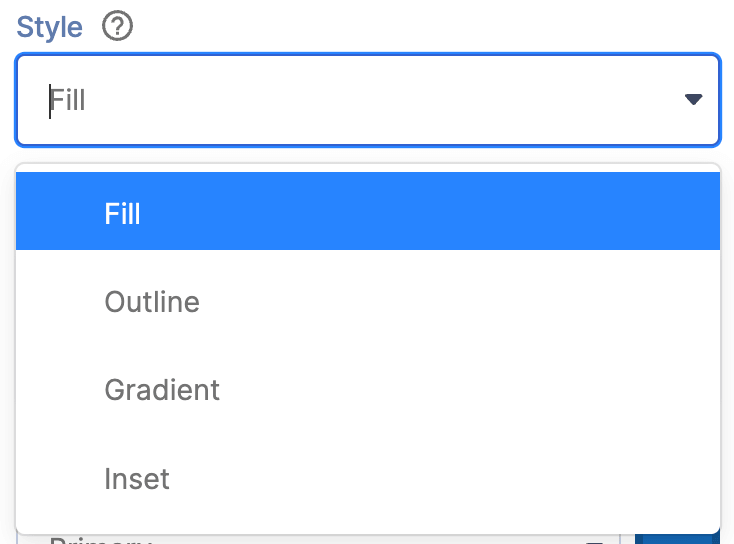 | Style | allows you to choose the Hero Caption’s style you prefer. You can choose from 4 styles. |
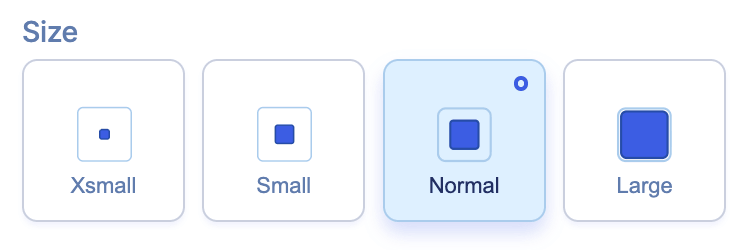 | Size | allows you to adjust the size of the Hero Caption. You can choose from Xmall, Small, Normal, and Large. |
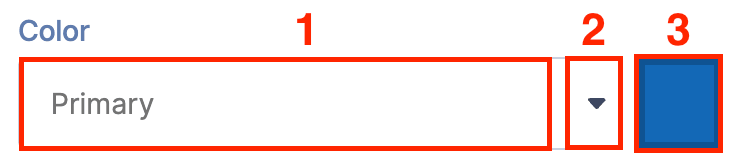 | Color | allows you to change the primary color of the Hero Caption. You can change the color by [1] typing the HEX code, [2] using the drop-down, or [3] using the color picker. |
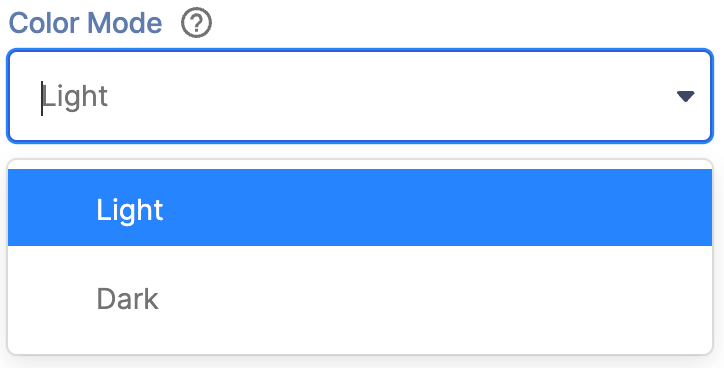 | Color Mode | allows you to choose from Light or Dark color mode. |
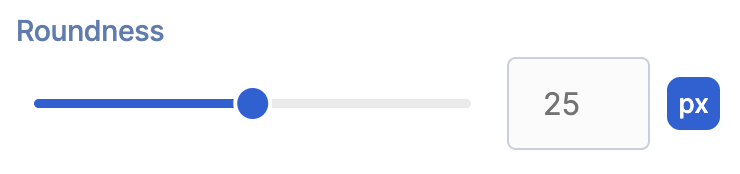 | Roundness | allows you to adjust the roundness value of the Hero Caption. |
SHADOWS
 | Shadow Enabled | when enabled, a shadow will be added to the Hero Caption. |
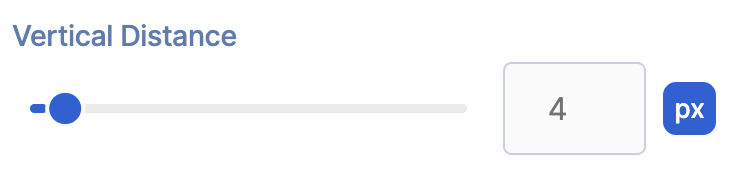 | Vertical Distance | allows you to modify the vertical distance value of the shadow. This is only available when Shadow Enabled is turned on. |
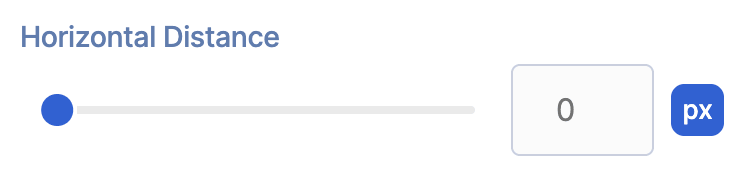 | Horizontal Distance | allows you to modify the horizontal distance value of the shadow. This is only available when Shadow Enabled is turned on. |
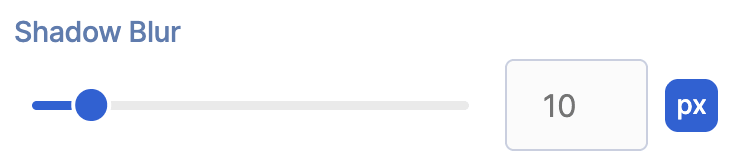 | Blur | allows you to add and control the blur effect for the shadow. This is only available when Shadow Enabled is turned on. |
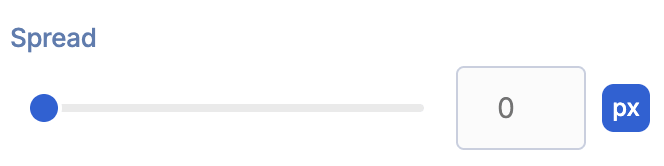 | Spread | allows you to change the spread value of the shadow. |
 | Inset | when enabled, the shadow will be inset. |
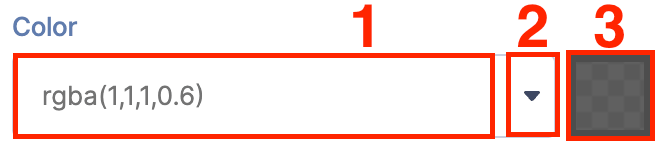 | Color | allows you to choose the color of the shadow. You can change the color by [1] typing the HEX code, [2] using the drop-down, or [3] using the color picker. This is only available when Shadow Enabled is turned on. |
C. Connect Tab
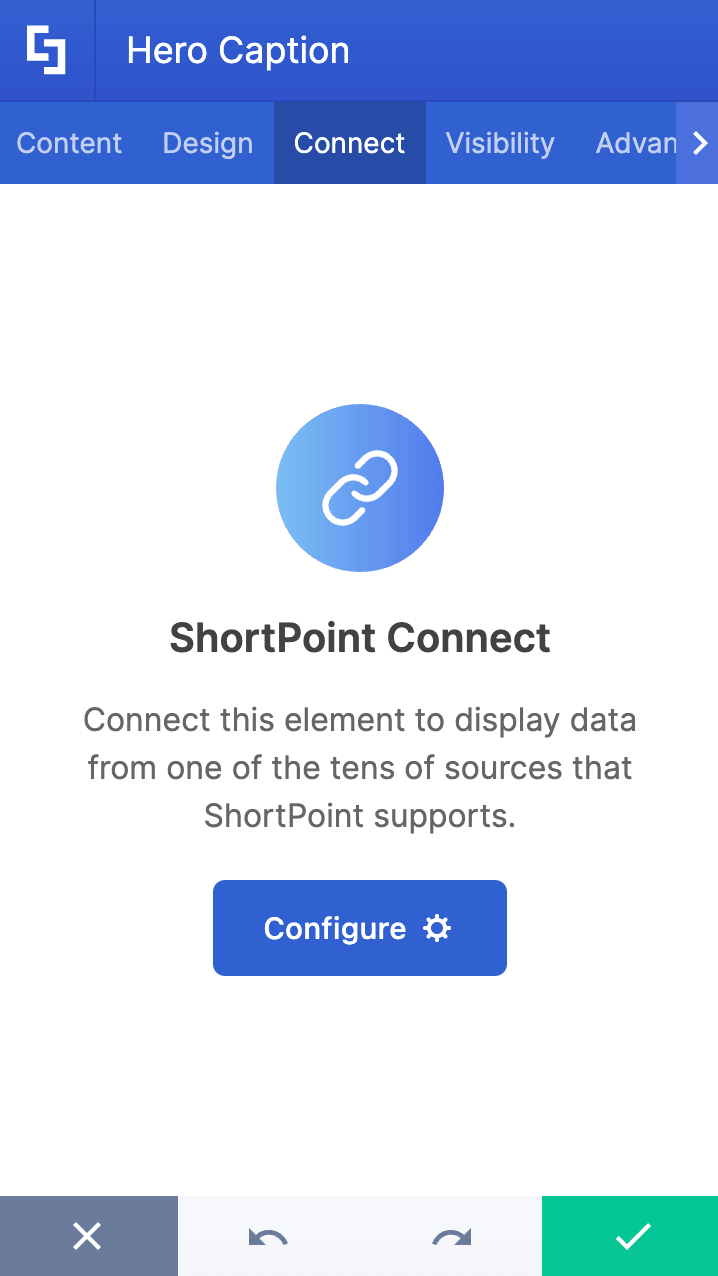
The Connect tab allows you to link the Design Element to SharePoint sources (List, Document Library, News, etc.) and other external sources (Microsoft Graph API, Teams, Outlook, etc.). For more details about ShortPoint Connect, check out Basic Tutorial: How to Establish Seamless SharePoint Connection with ShortPoint Connect.
D. Visibility Tab
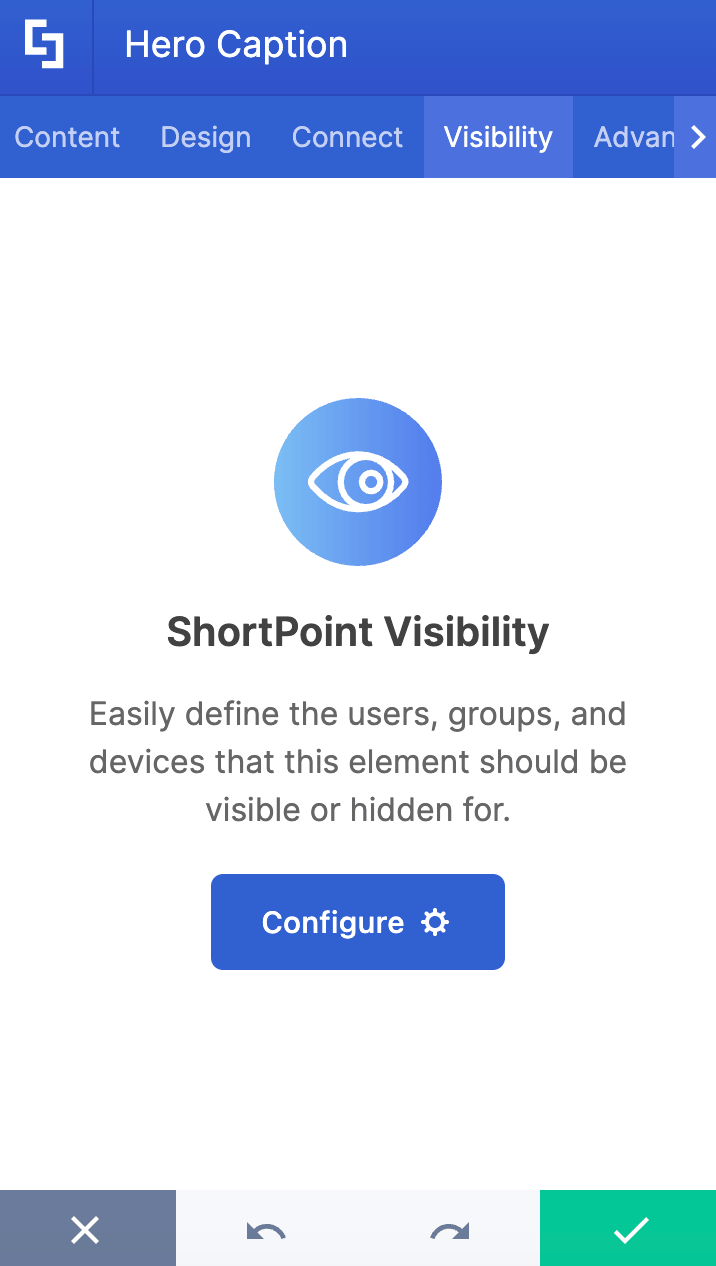
The Visibility tab allows you to specify who can see the Design Element and what type of devices it can be shown on. For more details, check out How to Use the ShortPoint Visibility Feature for Effective SharePoint Access Management.
E. Advanced Tab
The Advanced tab allows you to further customize the appearance of the Hero Caption. Below are the options you can modify:
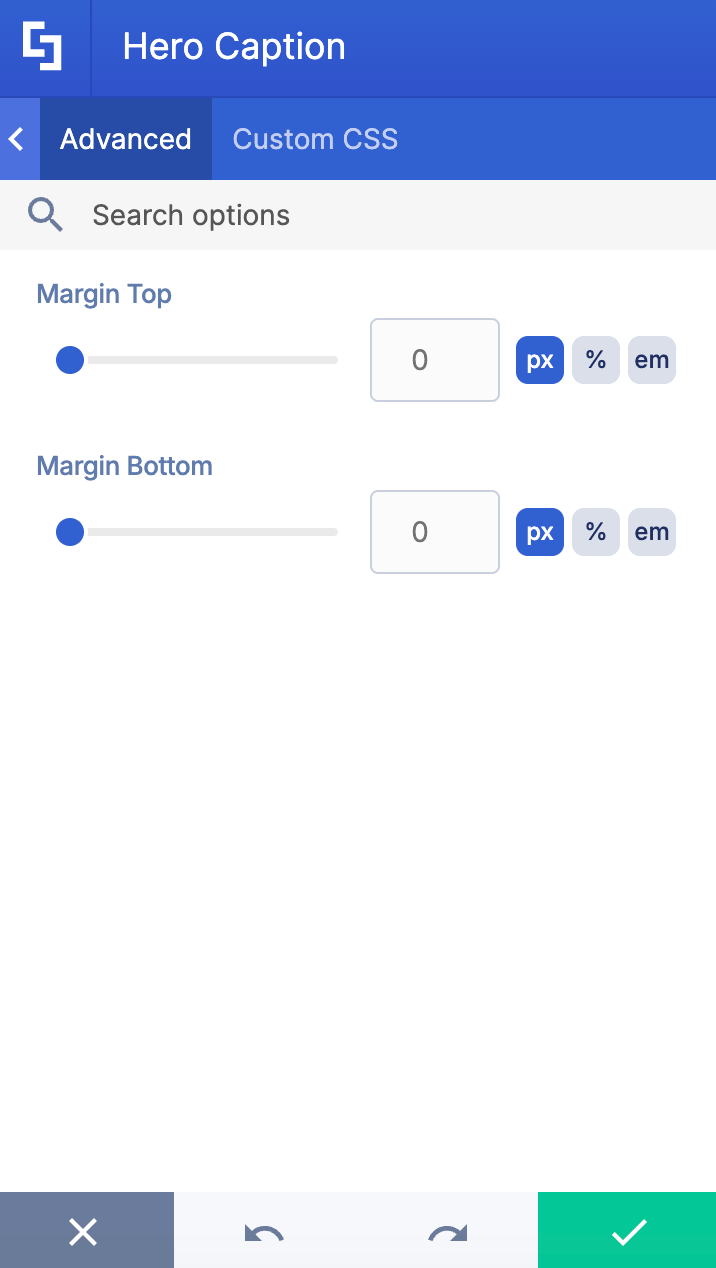
SPACING
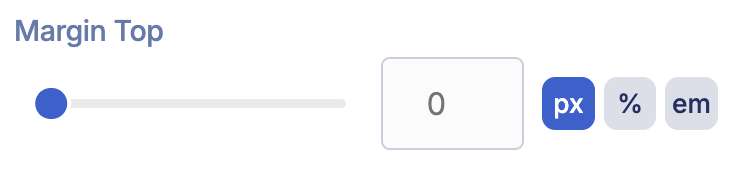 | Margin Top | allows you to adjust the top margin of the text. |
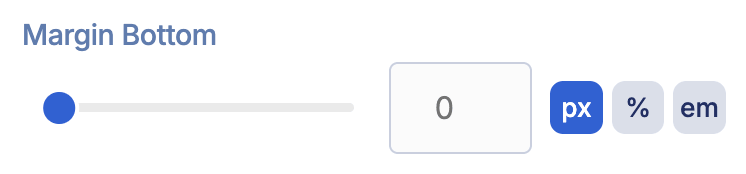 | Margin Bottom | allows you to adjust the bottom margin of the text. |
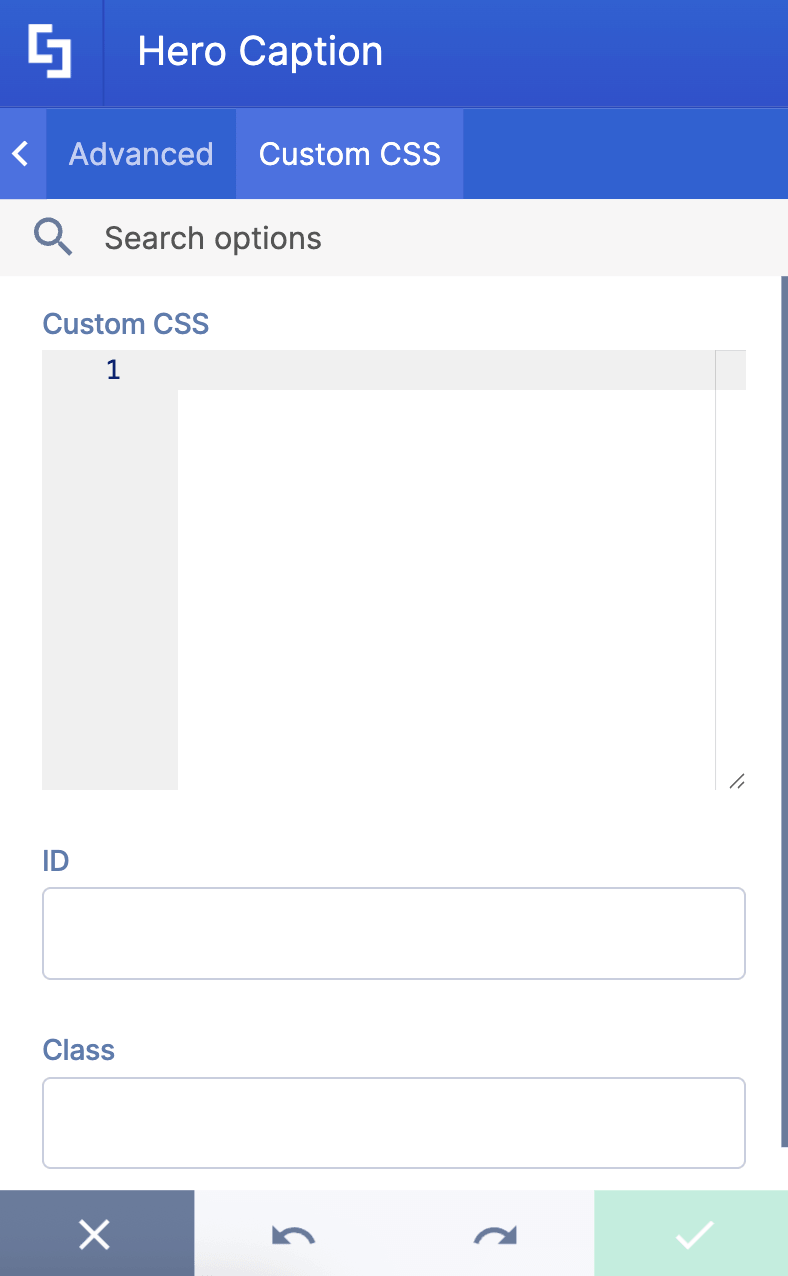
F. Custom CSS Tab
This tab lets you add your own custom touch to the Hero Caption Design Element using custom CSS, HTML, and JavaScript. This gives site owners and designers greater control over how it will look.
NOTECheck out our support article on How to Insert Custom CSS into a Page Builder Element? (Basic Tutorial) to know more about Custom CSS.
Practical Use Cases for the Hero Caption Design Element
The Hero Caption Design Element is a flexible tool that can help you enhance your SharePoint pages and keep users engaged. Here are some practical ways you might use it:
- Highlight Key Announcements: Draw immediate attention to important company news, policy updates, or upcoming events. With customizable styling and compelling text options, it's ideal for making sure timely messages don't get missed.
- Promote Featured Content: Showcase important documents, videos, or web pages by adding a clear call to action link in your Hero Caption. This makes it easy to guide users directly to the resources they need right from your modern SharePoint page.
- Enhance Navigation: Use the Hero Caption as a visual navigation tool by linking to different site sections or external URLs. You can even add icons and customize their placement to provide more context and improve the overall user experience.
- Branding and Theming: Customize the colors and border radius to match your organization's branding. This helps create a cohesive, professional look throughout your intranet.
- Accessibility Focus: With options to add alternative text and control visibility settings, the Hero Caption supports inclusive design and ensures your content is accessible to everyone.
By adding the Hero Caption Design Element to your SharePoint hero sections, you can create dynamic, engaging, and visually appealing content that captures attention and enhances the overall experience for everyone who visits your site.
Frequently Asked Questions
What are the prerequisites for using the Hero Caption Design Element?
To use the Hero Caption, you must have the ShortPoint SPFx version 8.8.0.0 or later installed in your SharePoint environment, and you need to be a licensed ShortPoint Designer.
How can I customize the Hero Caption Design Element?
You can customize the Hero Caption through three main tabs: [1] Content Tab: Modify the text, add links (internal or external), choose icon and icon position, and enable icon background. [2] Design Tab: Adjust the style (choose from 4 styles), size (Small to Large), color (including HEX codes and color picker), color mode (Light or Dark), and roundness. [3] Advanced Tab: Customize shadows (preset, distance, blur, color) and spacing (margin adjustments). There is also a Custom CSS Tab for adding your own CSS, HTML, or JavaScript for further personalization.
Can I link the Hero Caption text to other pages or URLs?
Yes, the Link option in the Content tab allows you to link the text to either internal SharePoint pages or external URLs. You can also control how the link opens with the Linking Option.
How do I add a Hero Caption to my SharePoint page?
Simply edit your SharePoint page, click the plus icon to add a new element, search for Hero Caption, and insert it. Then, customize the content and design as desired before saving your changes.
Can I control who sees the Hero Caption on my page?
Yes, using the Visibility tab, you can specify which users, groups, or devices can view the Hero Caption. This enables personalized content display.
What is the benefit of using Hero Captions on SharePoint pages?
Hero Captions enhance visual interest and help draw attention to key content, making your SharePoint pages more engaging and effective at communicating important messages.
Related articles:
- How to Create SharePoint Headers Using the Heading Design Element
- How to Place SharePoint Buttons Next to Each Other Using the Dual Button Design Element
- How to Highlight Words in SharePoint Using the Highlighted Text Design Element
- How to Create a Spinning Text Effect in SharePoint Using the Rotating Text Design Element
- How to Add Lottie Animation in SharePoint Using the Lottie Design Element
How to Create a Timeline in SharePoint Sites Using the Timeline Design Element
