 Try ShortPoint now
Let's face it, digital workspaces can sometimes feel disconnected. Gone are the days when you could simply lean over a cubicle wall to ask who handles payroll or which designer has expertise in motion graphics.
That's where the SharePoint employee directory comes in handy! It serves as the digital heartbeat of the modern workplace. This article shows you everything you need to know to build a functional and user-friendly employee directory list right in your SharePoint page.
TABLE OF CONTENTS
- Prerequisites
- What is an Employee Directory?
- How to Build a SharePoint Employee Directory
- Why Your Intranet Needs a Great Directory
- Frequently Asked Questions
Prerequisites
- You must have the ShortPoint SPFx version 8.6.2.0 or later installed in your SharePoint environment.
- You must be a ShortPoint Designer with an active license.
What is an Employee Directory?
At its simplest, an employee directory is a centralized, searchable SharePoint list of everyone within an organization. But in a modern SharePoint site, it’s much more than just a list of names and phone numbers. It serves as a professional social hub and a single source of truth for employee information.
A robust directory typically includes:
- The Basics: Name, job title, and department.
- Contact Info: Email addresses, phone numbers, and other contact details.
- The "Who’s Who": Profile pictures (because it’s nice to put a face to the name!)
- The "Context": Location, skills, past projects, languages spoken, and even a few personal interests or "fun facts,"
While a directory is only as good as the information it holds, it really shines when it’s easy to navigate. To make it truly functional, you need powerful filtering options and search tools that do the heavy lifting for you. After all, the goal is to help your team find exactly who or what they need in just a few clicks, avoiding wasting time with outdated information!
How to Build a SharePoint Employee Directory
Ready to create a functional employee directory? Start the interactive tutorial to get started.
Step 1: Edit the ShortPoint Web Part
- Go to the SharePoint page you want to use and click Edit.
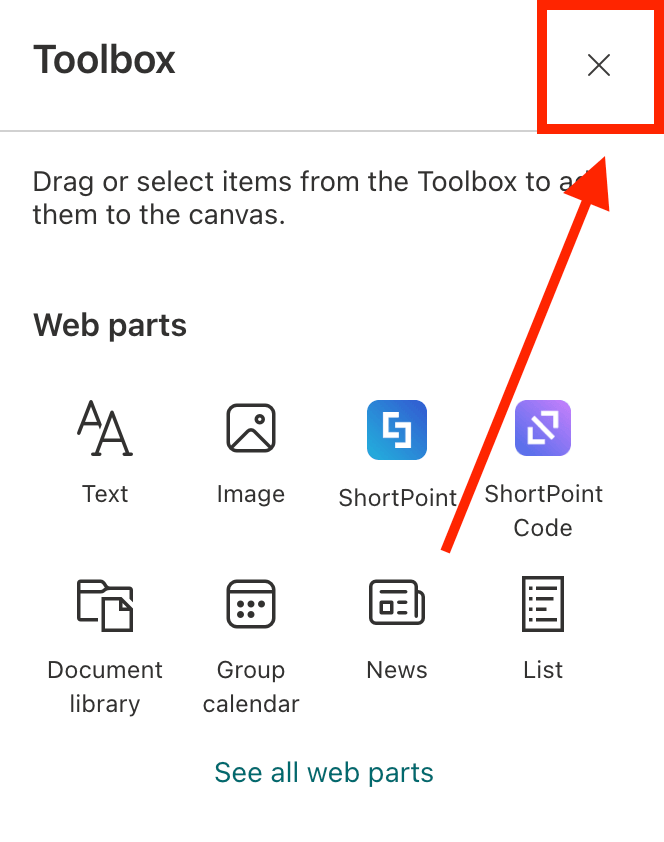
- Close the Toolbox:
- Edit the ShortPoint web part:

Step 2: Add the Employee Directory Template
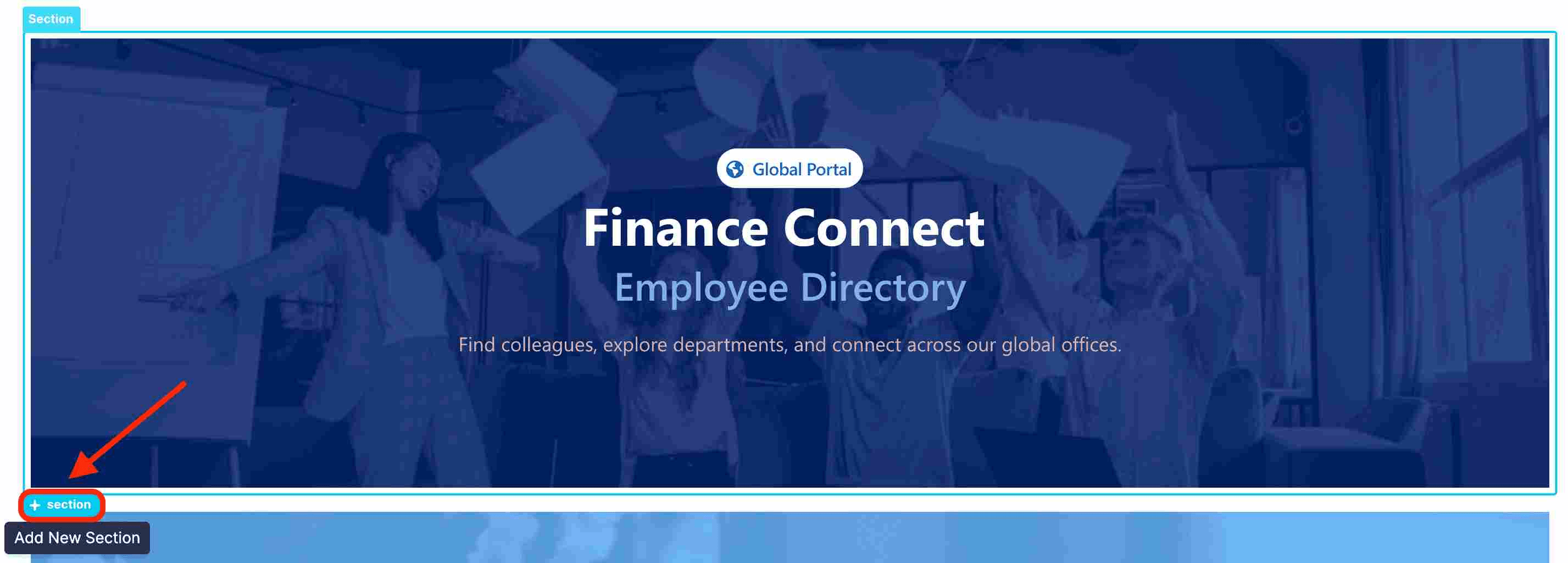
- Click the blue plus icon to add a new Section:
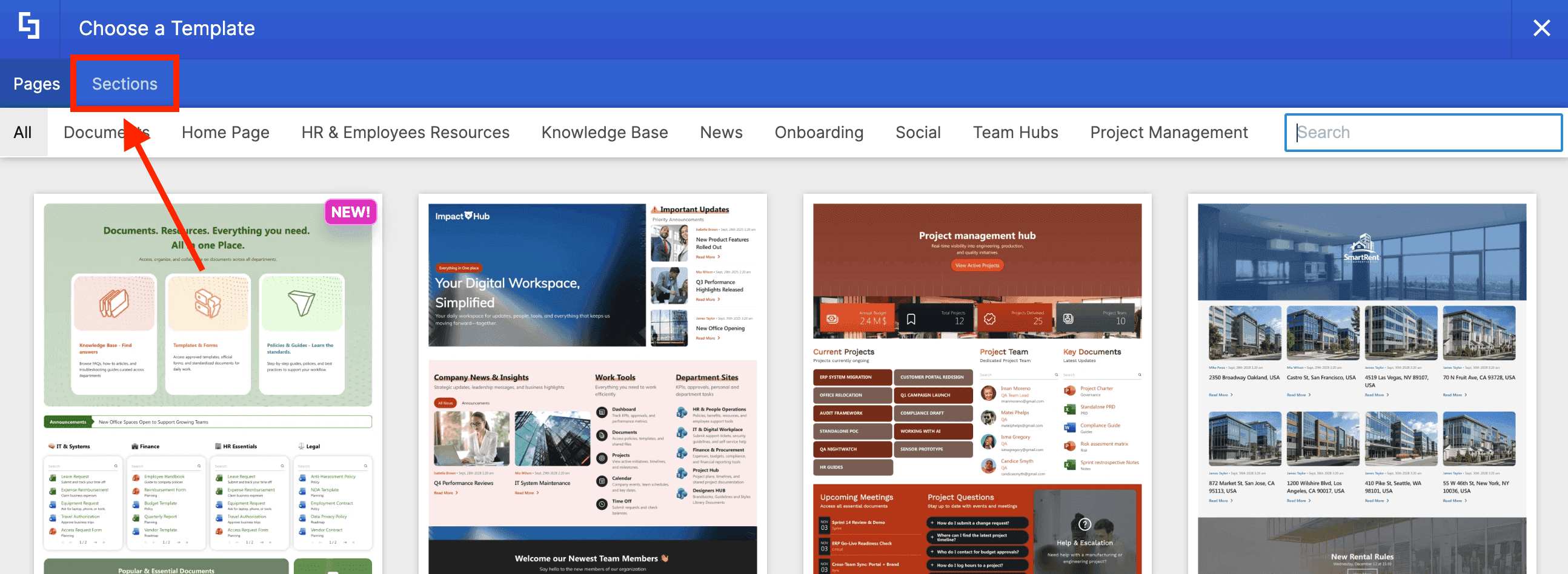
- Select the Template icon:

- Go to the Sections tab:
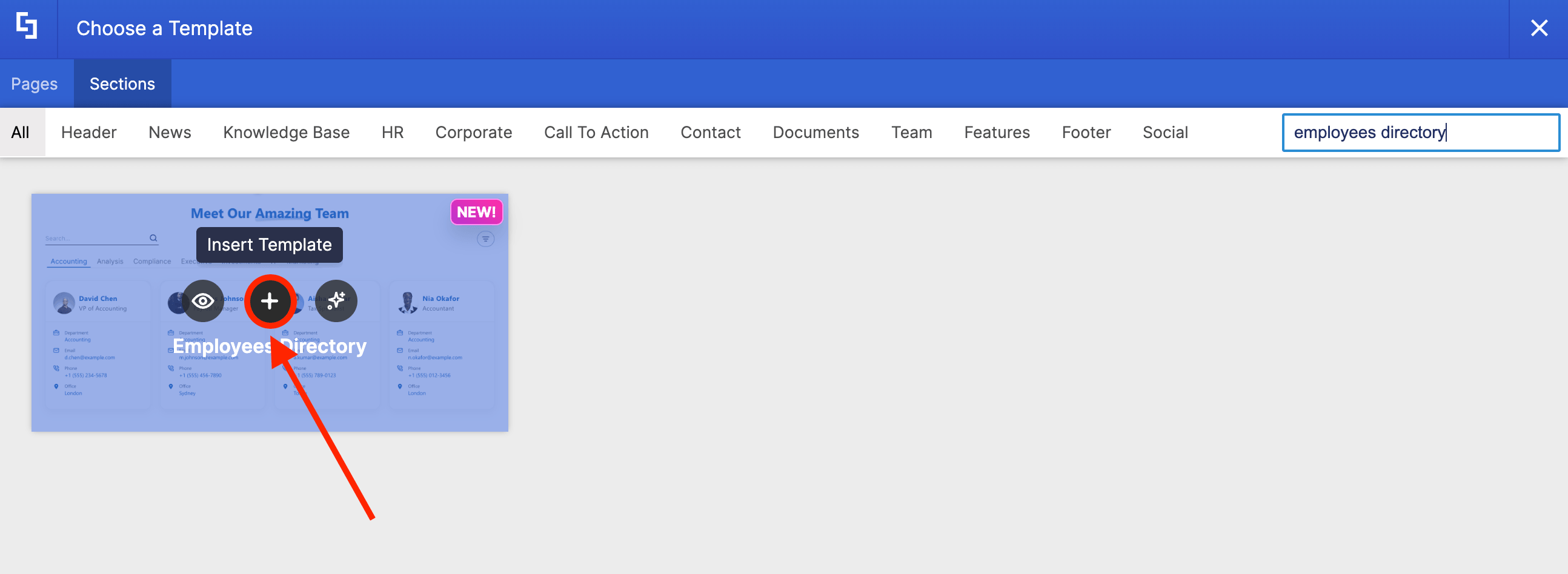
- Use the search bar to look for 'Employees Directory' and select it:
Step 3: Edit Person Cards
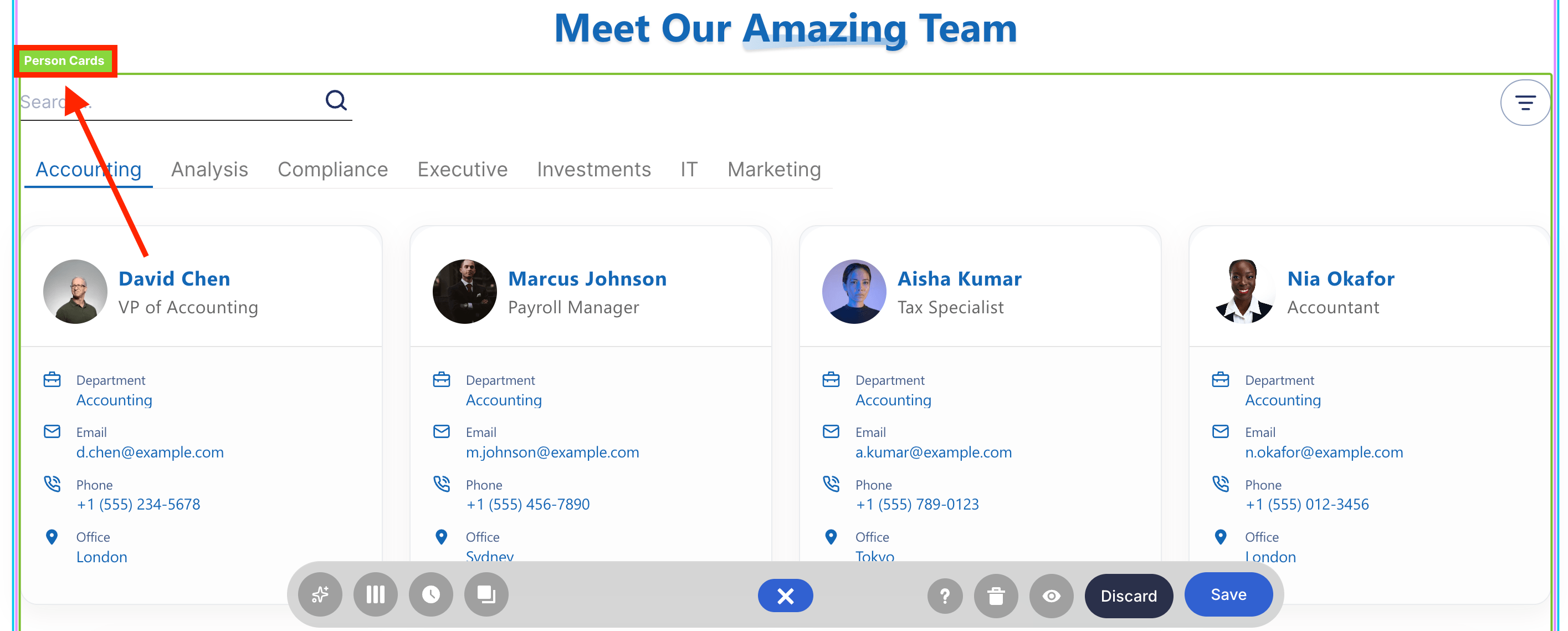
- Click the EasyPass tag of the Person Cards:
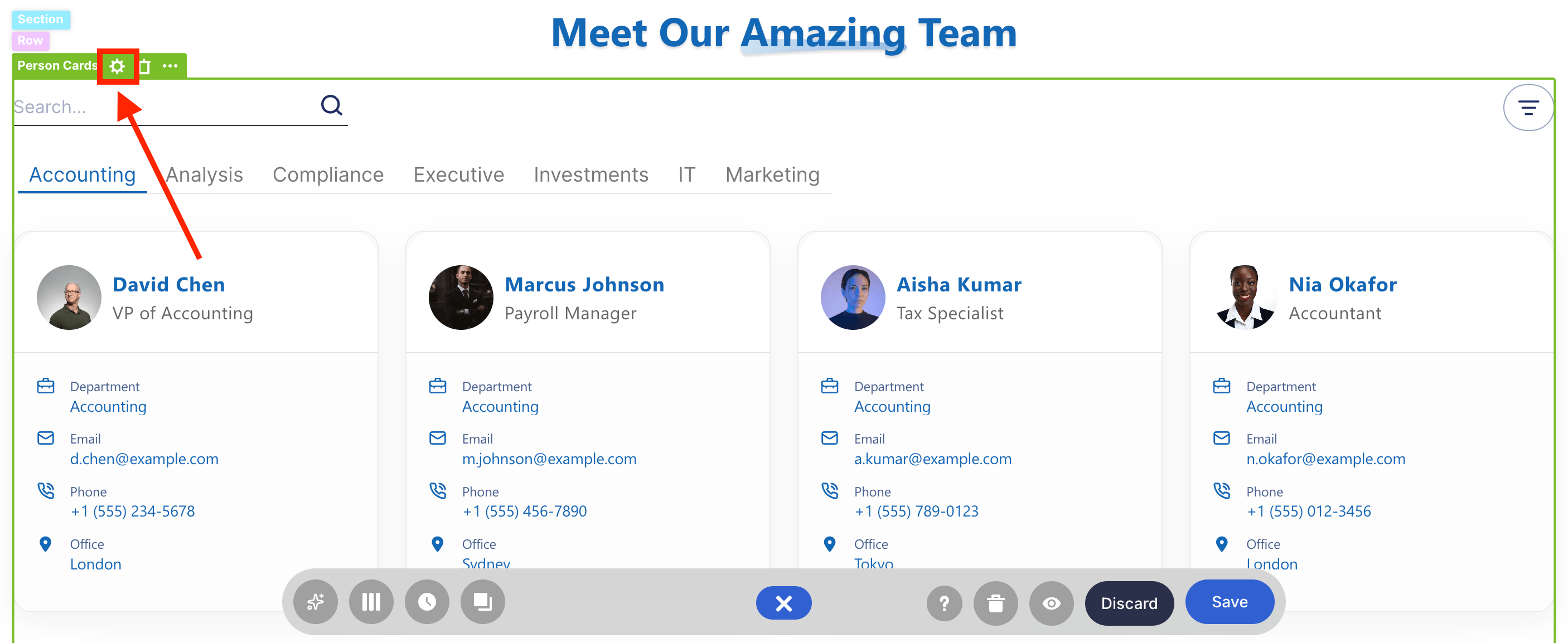
- Select the cogwheel icon:
Step 4: Connect
To create an Employee Directory that truly serves your team, it needs to be dynamic. This simply means that the information stays synced and accurately reflects your current organizational structure.
Depending on your workflow, there are two ways to build your directory. Please choose the connection type that best fits your needs:
Option 1: Microsoft Graph API
Use the Microsoft Graph API connection when you only want to add the employees’ basic information, including name, job title, department, and email address.
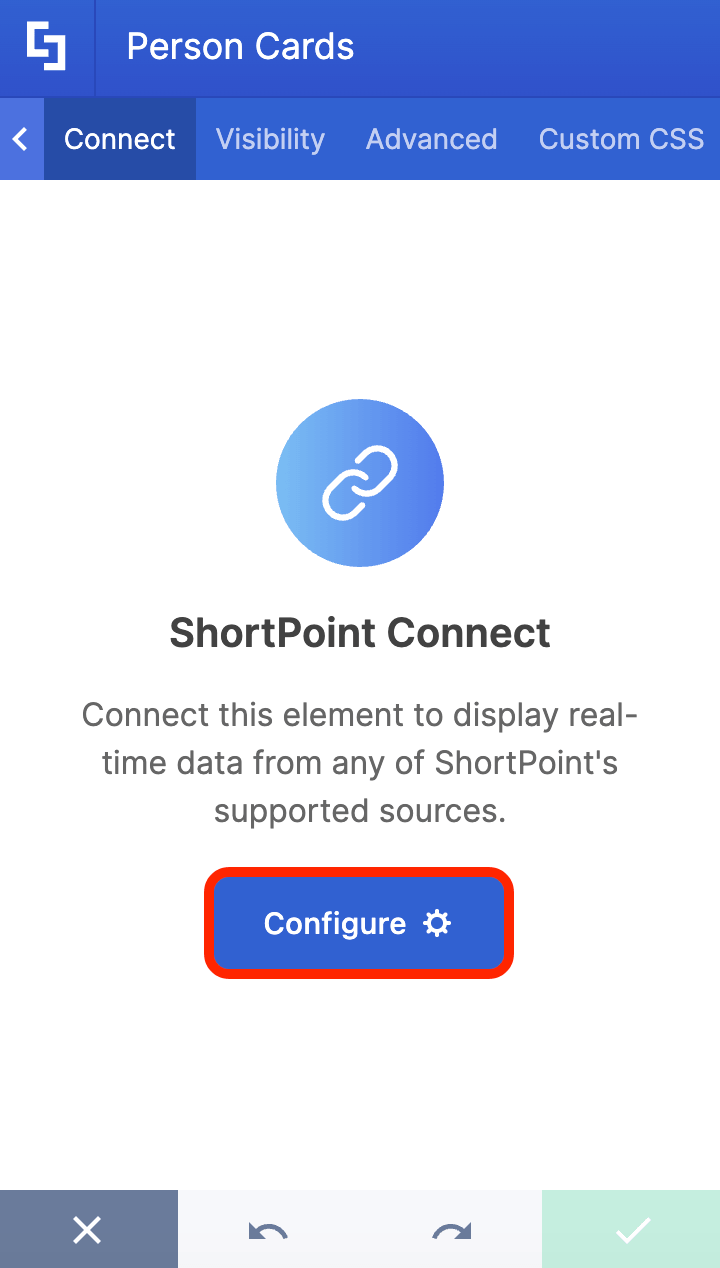
- Go to the Connect tab.
- Click Configure:
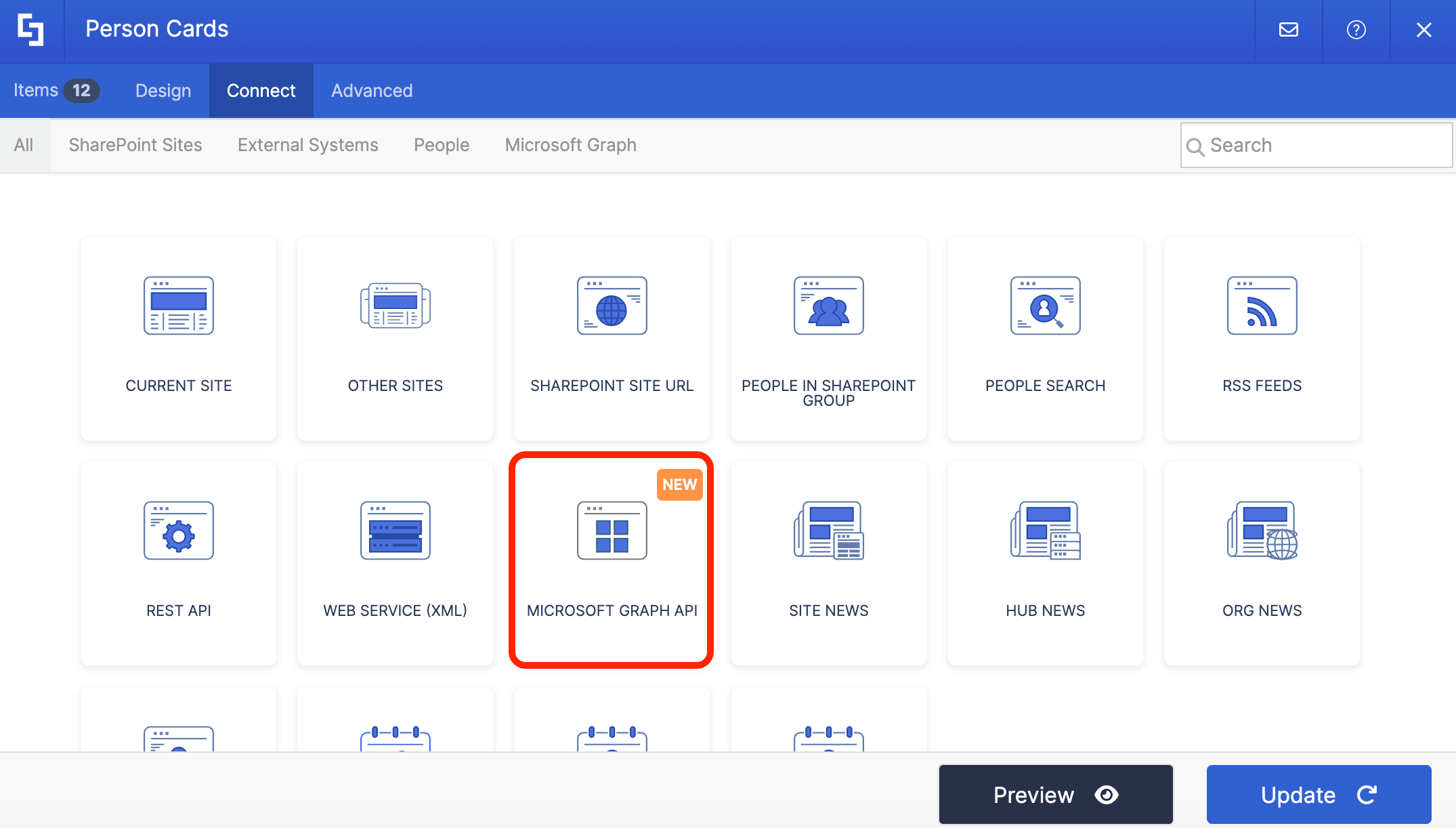
- Select Microsoft Graph API:
- Use the search bar to look for 'All Users in the Organization' and select it:
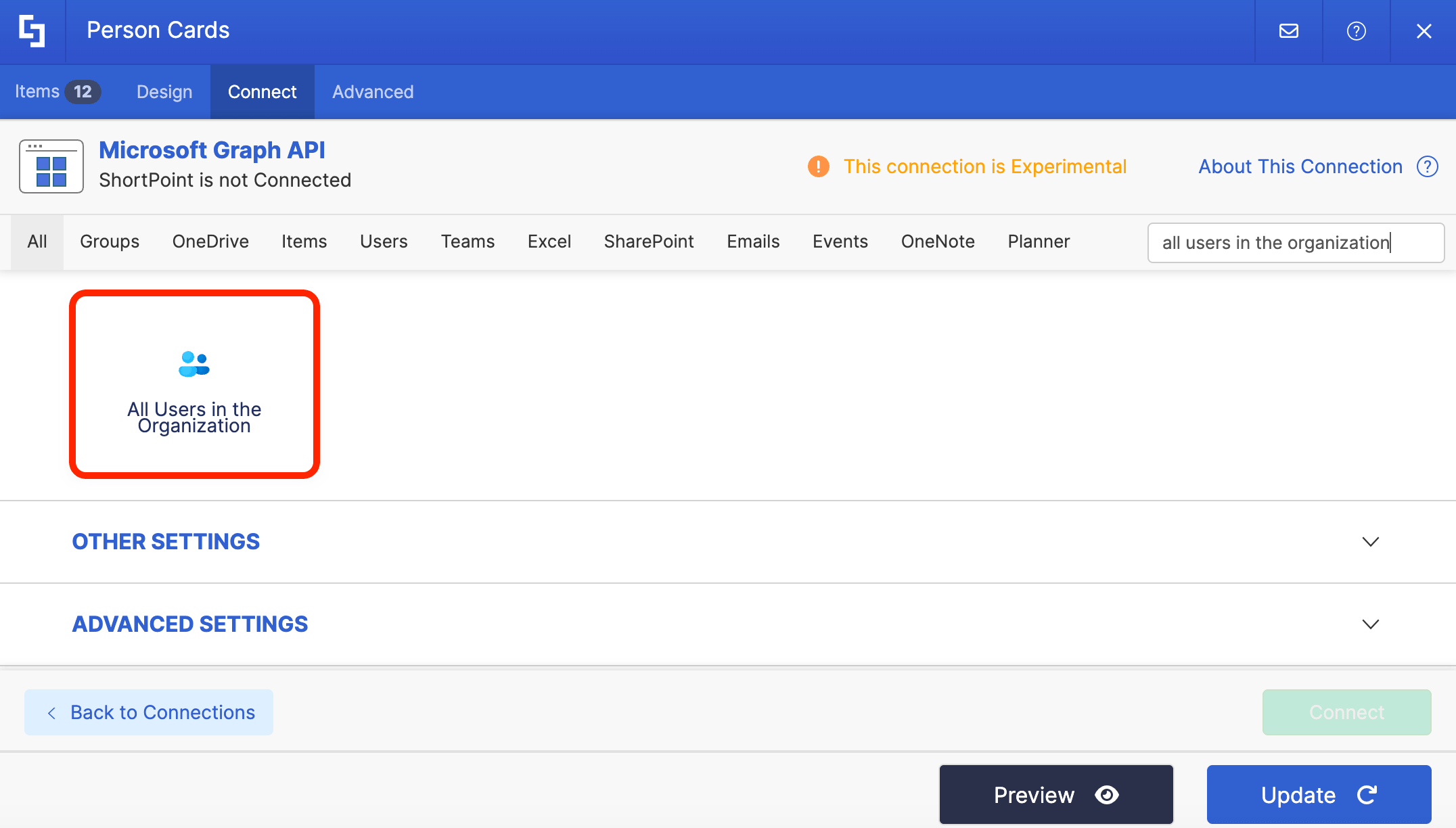
- Click Run Query:

- Click Connect.
- Go to the Items tab.
- Delete default content.
- Use the link icon to map the properties you want shown:
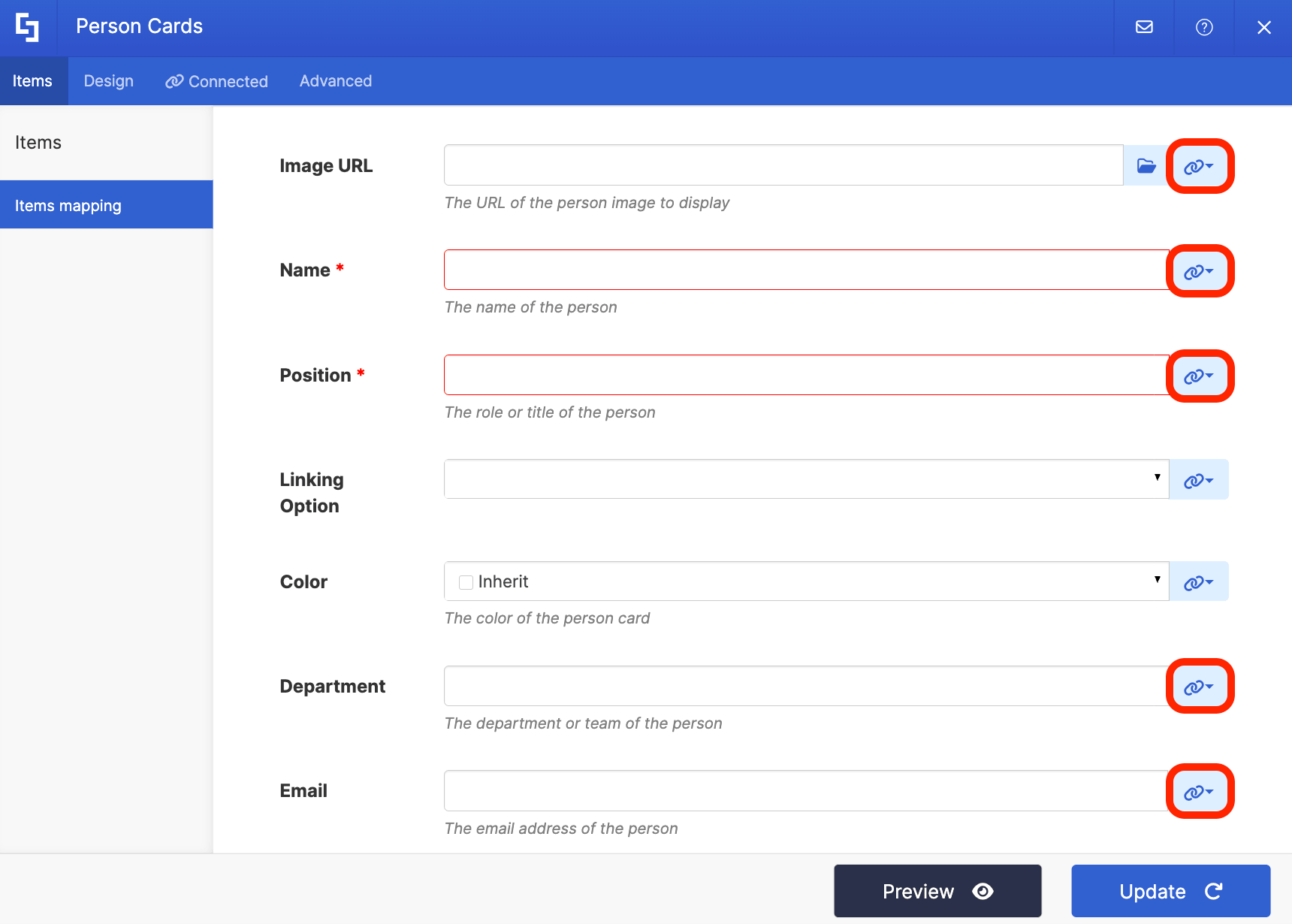
- Here's how we mapped the items. You can replicate it or map your own properties:
- #profileImage - shows the profile image of the employees.
- #displayName - shows the name of the employees.
- #jobTitle - shows the work title of the employees.
- #department - shows the department of the employees.
- #mail - shows the email address of the employees.
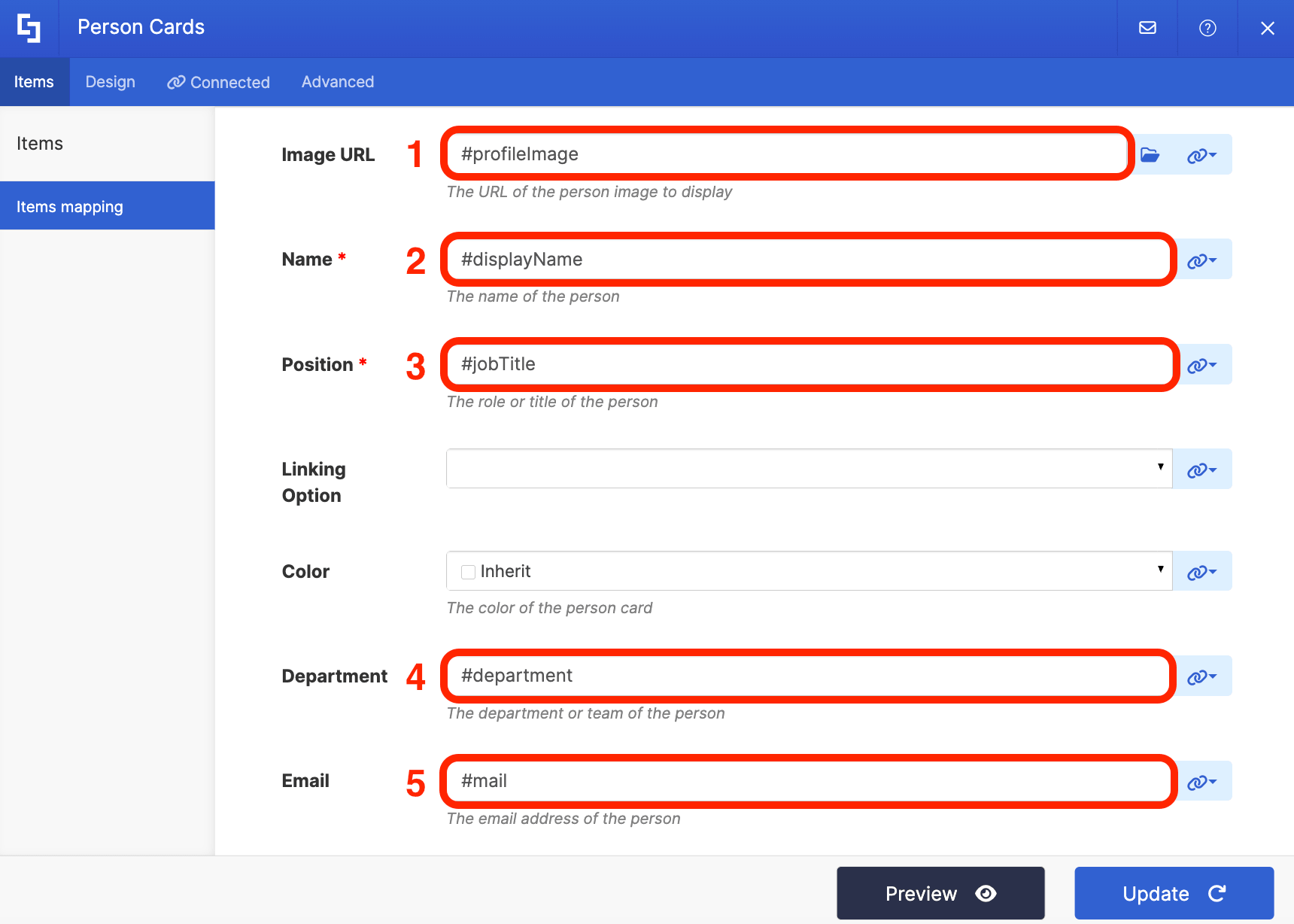
- Once done, click Update.
Option 2: People Search
Use the People Search connection if you want to add custom properties. The connection pulls data from the SharePoint search index, allowing you to add more information, including birthdates, skills, location, etc. To learn more about adding custom properties in Person Cards, check out How to Add Custom Properties.
- Go to the Connect tab.
- Click Configure:
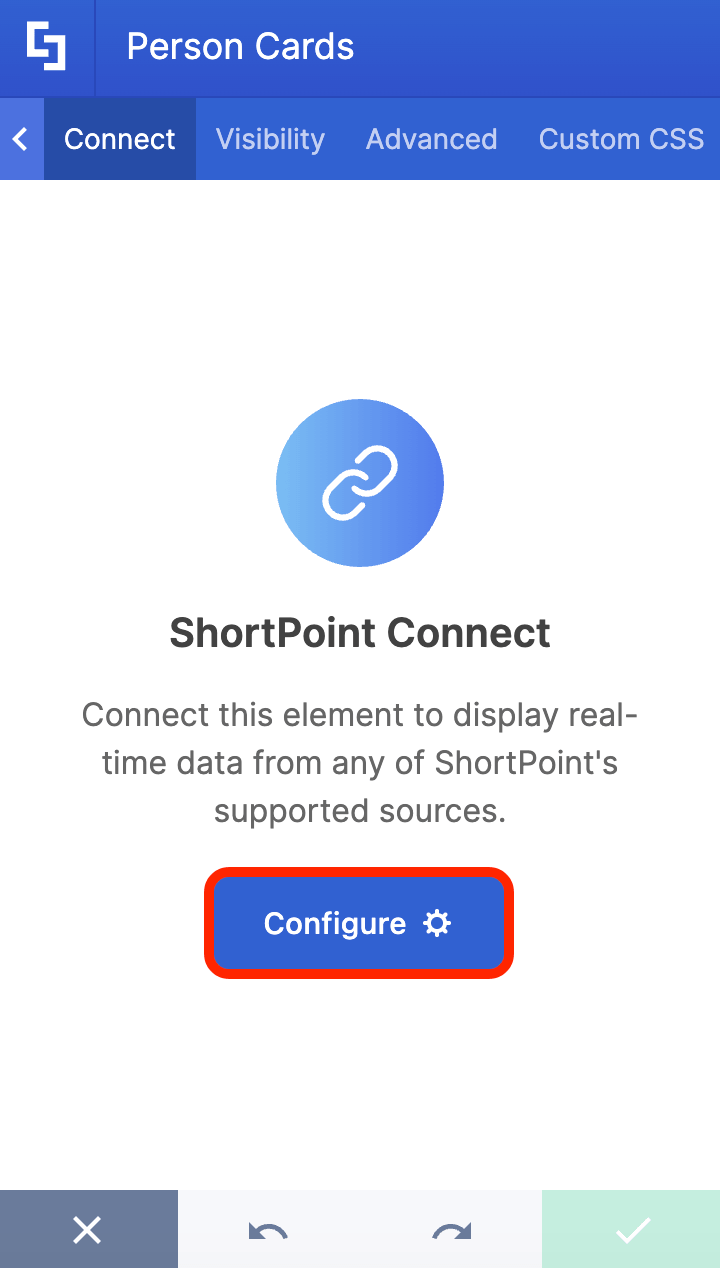
- Select People Search
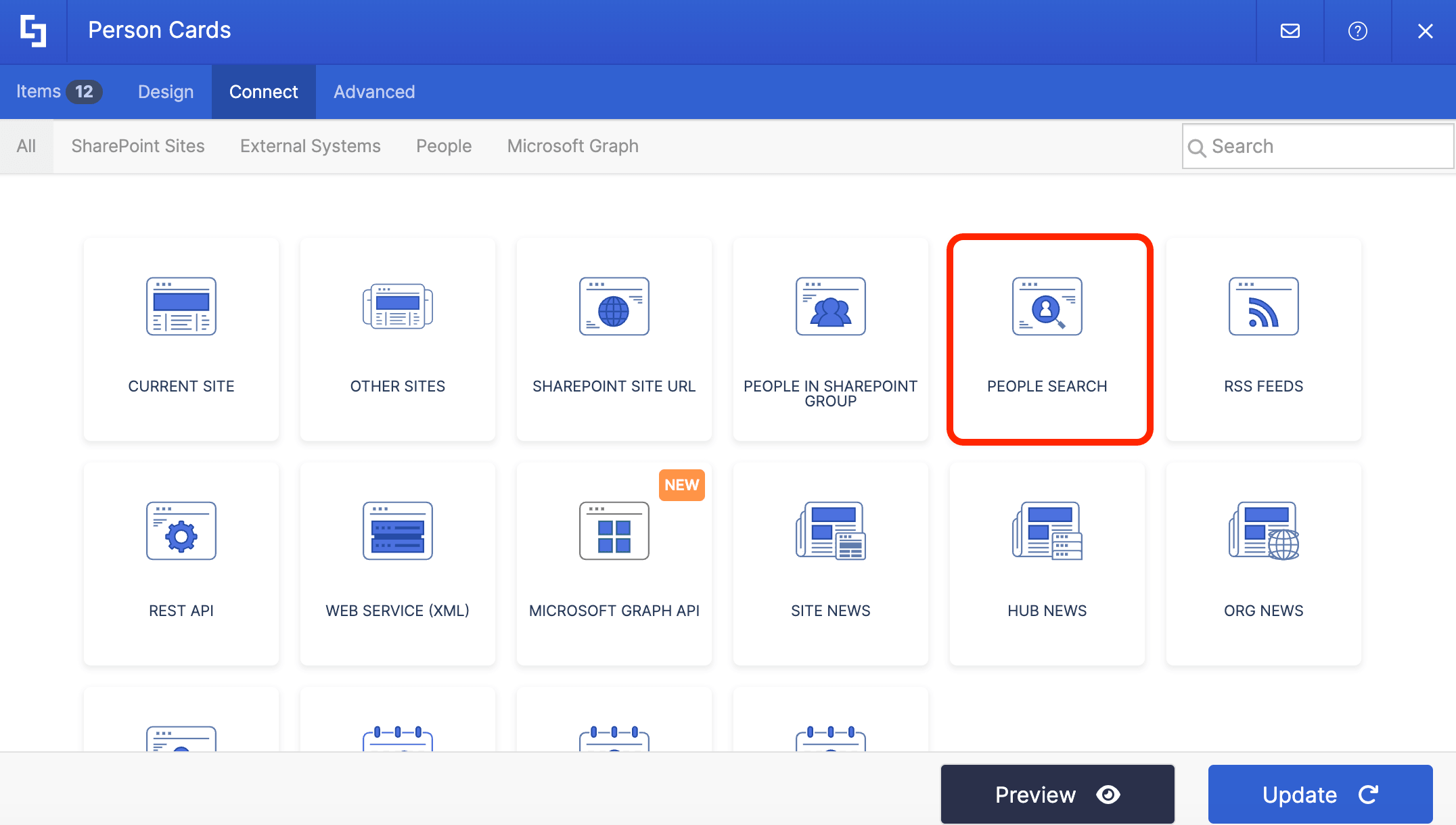
- Under the Filter field, select All People. This will list all the people in your organization.
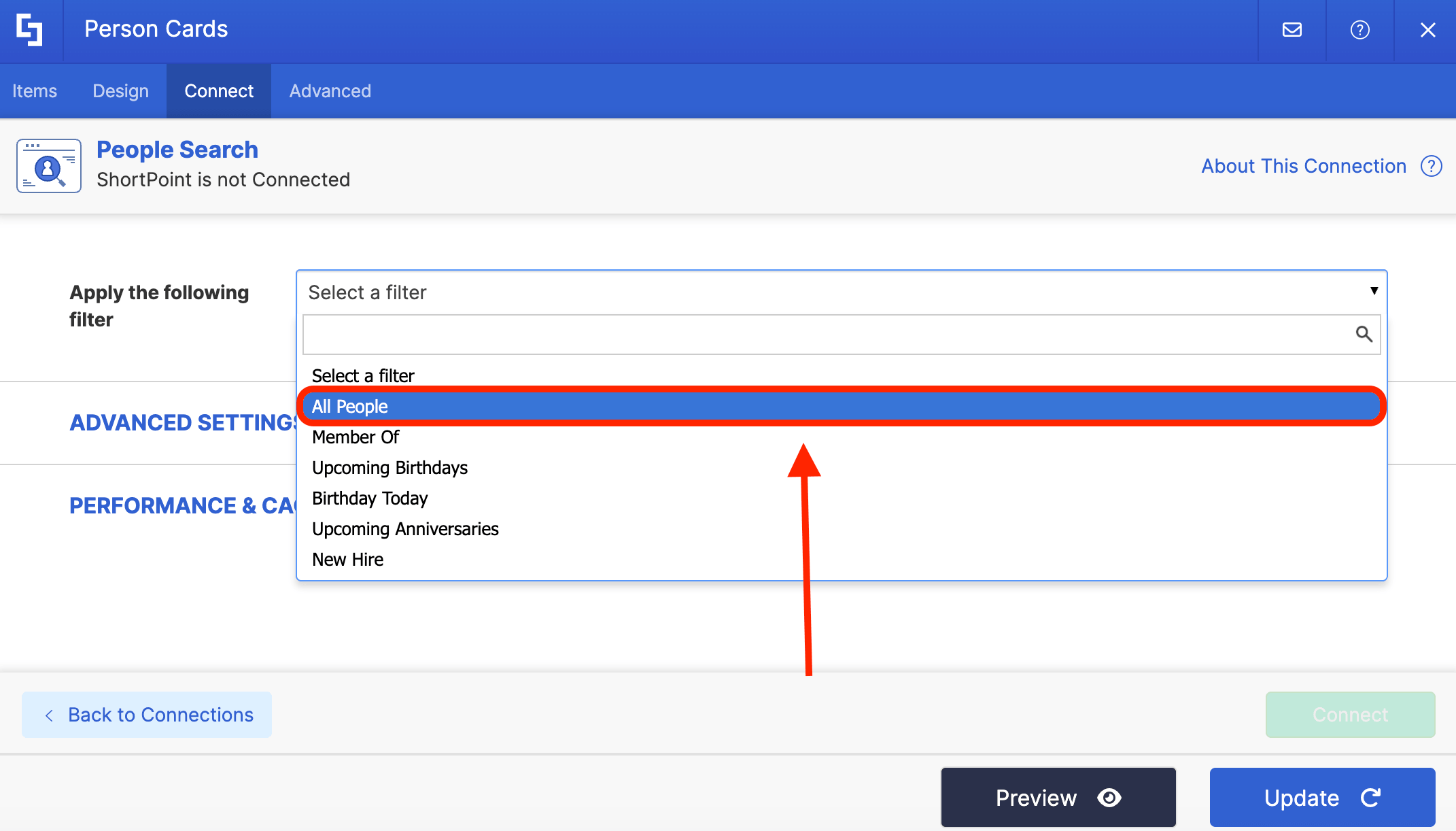
- Then, modify the maximum number of people you want to be shown in the directory. If you don't want to have a limit, simply write '0'.

- Click Connect.
- Go to the Items tab.
- Delete all default content.
- Use the link icon to map the properties you want to be shown:
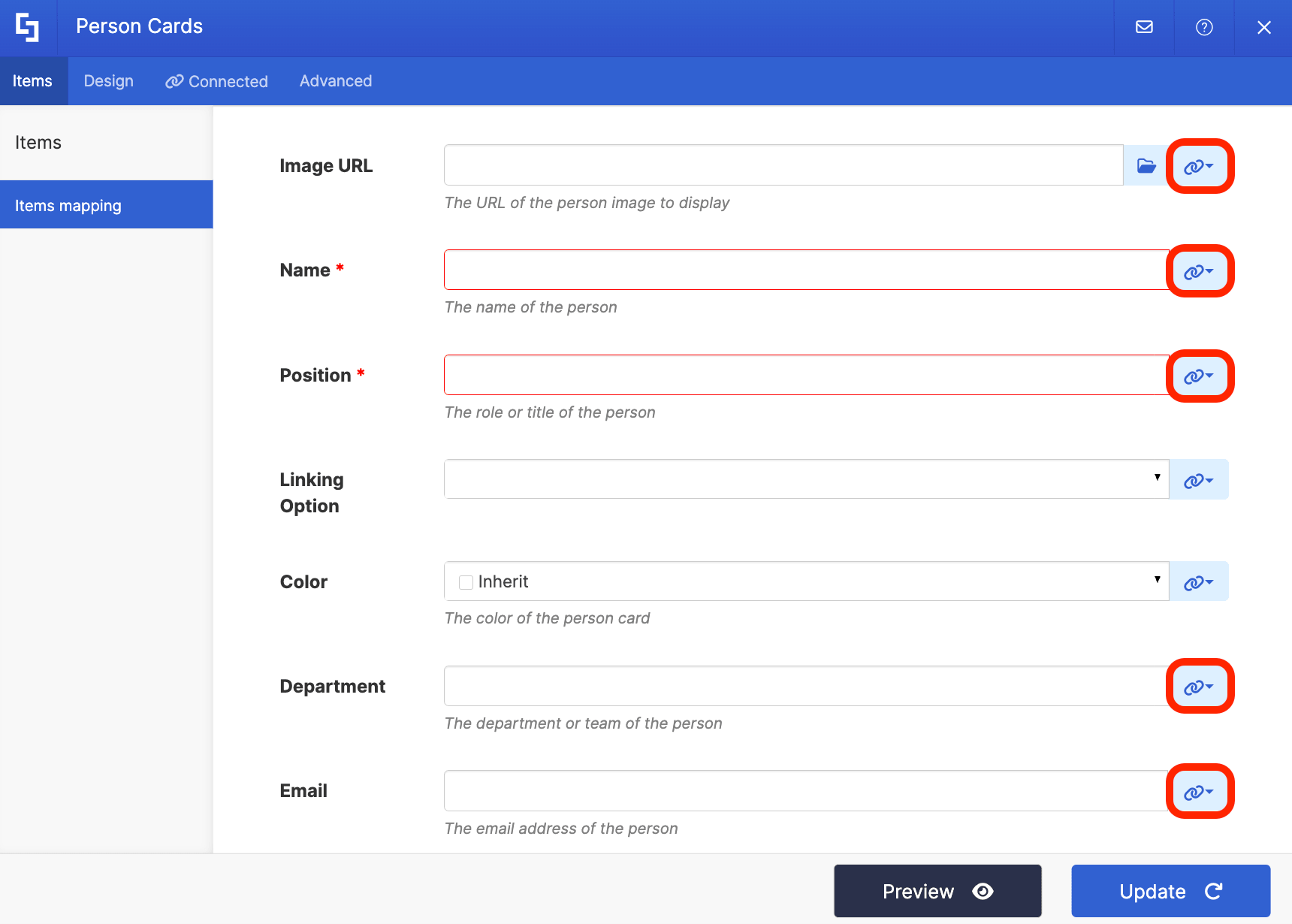
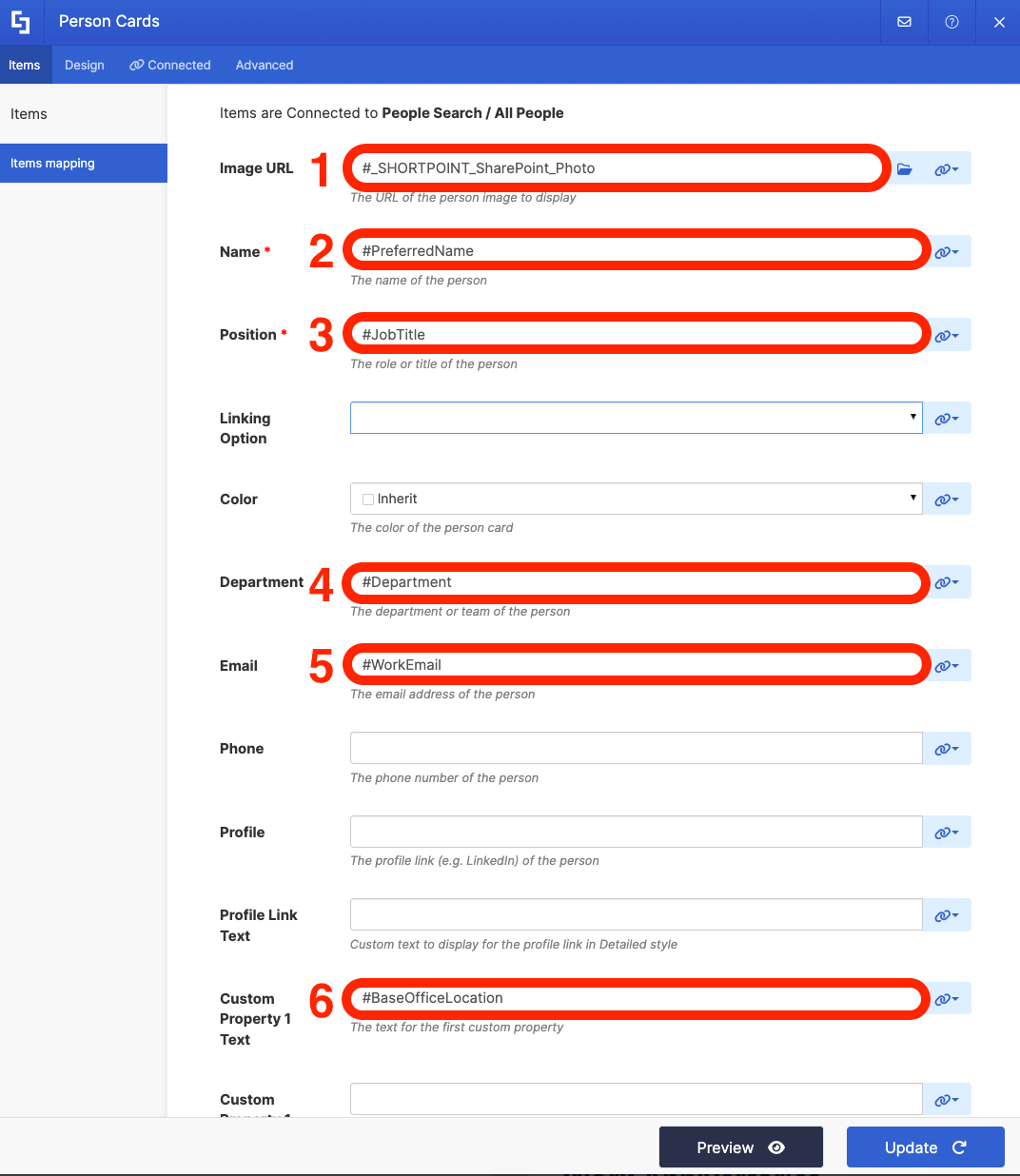
- Here's how we mapped the items. You can replicate it or map your own properties:
- #_SHORTPOINT_SharePoint_Photo - shows the profile image of the employees.
- #PreferredName - shows the name of the employees.
- #JobTitle - show the work title of the employees.
- #Department - shows the department of the employees.
- #WorkEmail - shows the email address of the employees.
- #BaseOfficeLocation -shows the office location of the employees.
- Once done, click Update.
Step 5: Customize the Search & Filter Widgets
- We've already activated the widgets that are crucial for a functional Employee Directory. But, in case you want to make any changes, go to the Toolbar tab and edit the widgets as usual.
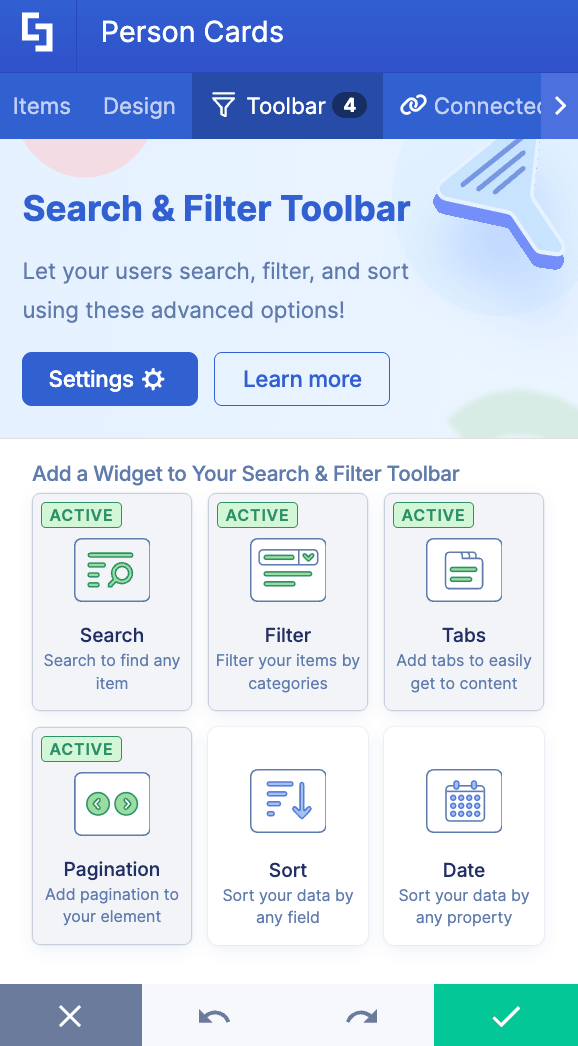
NOTENeed more information about the Search & Filter widgets? Check out Getting Started: The Basics of the Search & Filter Toolbar.
Step 6: Customize the Look
- Go to the Design tab.
- Modify the design of the Person Cards as you like.
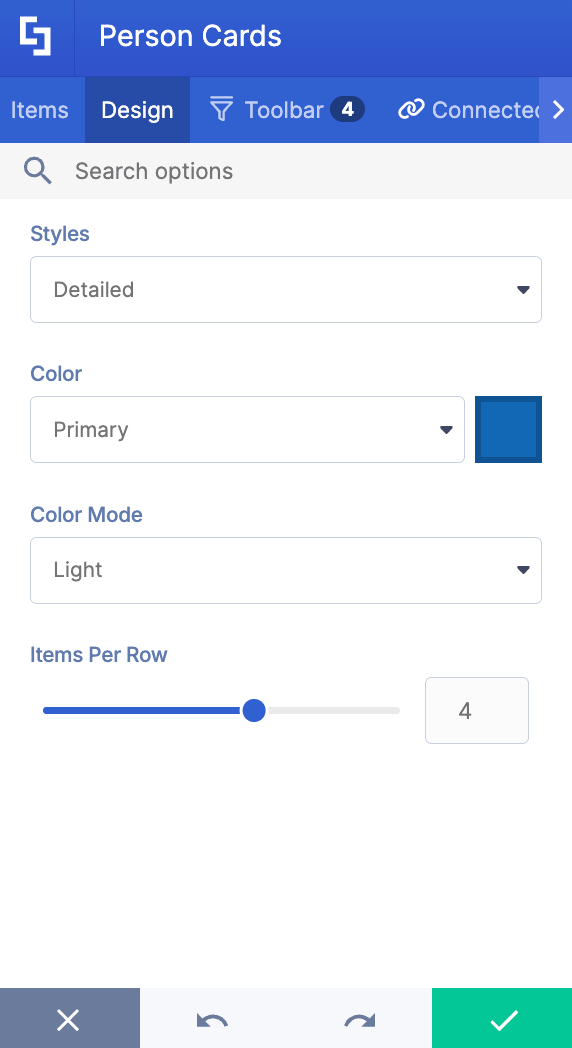
NOTEWant to see all the features you can modify in Person Cards? Check out Person Cards Features.
Step 7: Save
- Once done, click the green checkmark.
- Save your changes:

- And Publish your page:

You now have a fully functional SharePoint employee directory. Your team can now easily find and connect with their colleagues, keeping everyone informed and in sync.
Why Your Intranet Needs a Great Directory
If your intranet is the "digital office," the SharePoint employee directory is your front desk. It's basically where your team gets to ask questions about the people they work with. Here is why it’s a non-negotiable tool for a thriving culture:
It Bridges the Remote Gap
When you don’t see your coworkers in person, it’s easy to feel like you’re working with avatars rather than humans. A directory with rich profiles and basic user information helps build empathy and rapport across time zones, supporting a global workforce.
It Ends the "Search Struggle"
We’ve all been there: you need a quick answer on a contract, but you have no idea who the legal point of contact is for your region. A searchable directory allows you to filter by "Department," getting you to the right person in seconds rather than minutes, saving time and improving collaboration.
It Onboards New Hires Faster
Starting a new job is overwhelming. An accessible directory acts as a "cheat sheet" for new starters, helping them learn names, understand the organization's structure, and find buddies without having to constantly ask their manager for introductions.
Frequently Asked Questions
What is a SharePoint employee directory?
A SharePoint employee directory is a centralized, searchable custom list within SharePoint that consolidates essential employee data such as names, job titles, contact details, and profile pictures. It serves as a single source of truth for employee information, enabling quick access and fostering better organizational transparency.
Can I customize the directory's appearance?
Yes! SharePoint allows you to configure the design to create a visually appealing layout. You can tailor the desired look of employee cards, reorder fields, and add filters to enhance usability according to your specific needs.
What are the benefits of using a SharePoint employee directory?
It enhances collaboration by helping employees quickly find colleagues by department or location. It reduces time wasted on searching for contacts, supports onboarding, and promotes organizational transparency.
Is my personal information safe in the directory?
Absolutely. The employee directory is connected to the data in your SharePoint Active Directory. It will not modify any information in it. In addition, SharePoint provides robust security features, including advanced access controls to protect sensitive data and ensure compliance with regulations like GDPR. You can manage permissions to control who can see specific employee details.
Why should I bother adding a photo?
Putting a face to a name builds trust. It makes digital communication feel more personal and helps your colleagues recognize you when you finally meet at the next coffee run or company retreat!
Related articles:
- Person Cards: How to Showcase Your Team in SharePoint
- World Clock Design Element: How to Add an Online World Clock to SharePoint Sites
- Canva Design Element: How to Embed Canva into SharePoint
