 Try ShortPoint now
If you have ever tried to design a custom SharePoint page using default tools, you know the struggle: layouts can feel rigid, full-width backgrounds are tricky to set up, and organizing content into clear visual zones often requires custom code.
That is where the ShortPoint Section Design Element comes in. As the fundamental building block of the ShortPoint web part, the Section element acts as a flexible container that brings structure, visual flair, and deep customization to your SharePoint pages, enabling you to add Design Elements inside with ease.
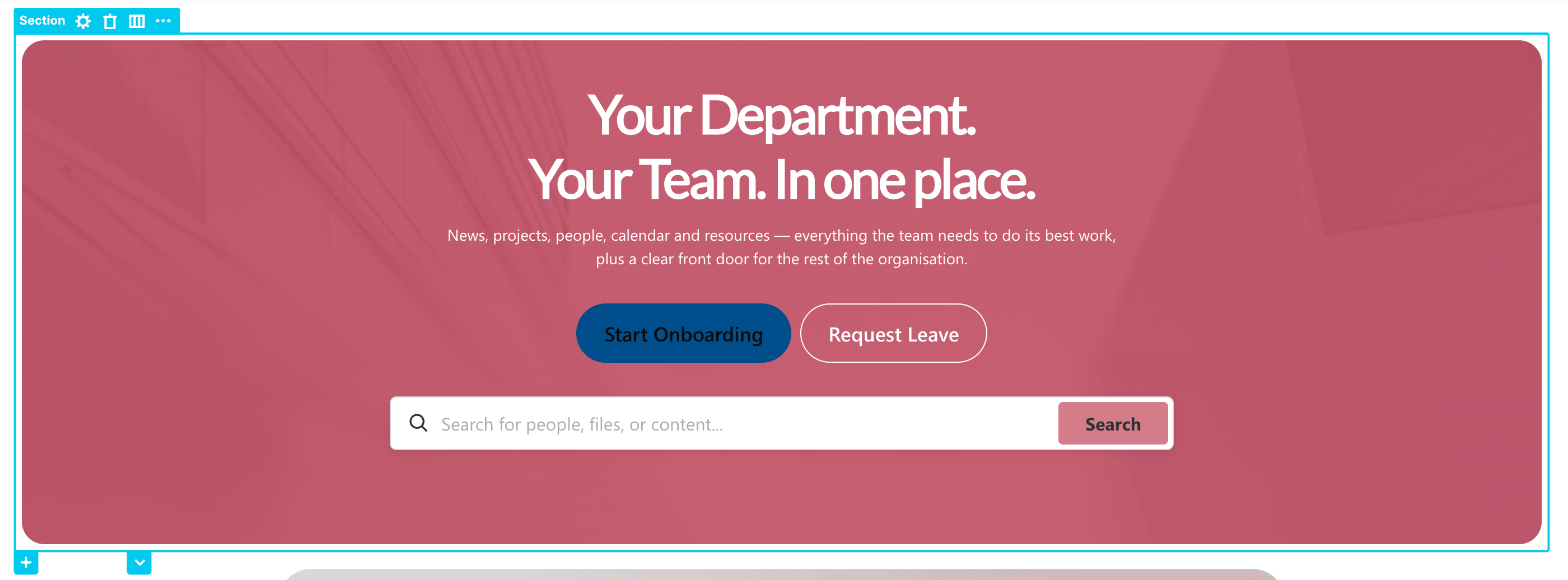
TABLE OF CONTENTS
- Prerequisites
- What is the ShortPoint Section Design Element?
- The Anatomy of a Section
- Adding a New Section
- Adjusting Paddings and Margins
- Section Features
- Practical Use Cases
- Start Designing with the Section Design Element
- Frequently Asked Questions
Prerequisites
- You must have the latest version of ShortPoint installed.
- You must be a ShortPoint Designer with an active license.
What is the ShortPoint Section Design Element?
A Section in ShortPoint is a layout container. Think of it as a canvas where you place a series of Rows to group related information.
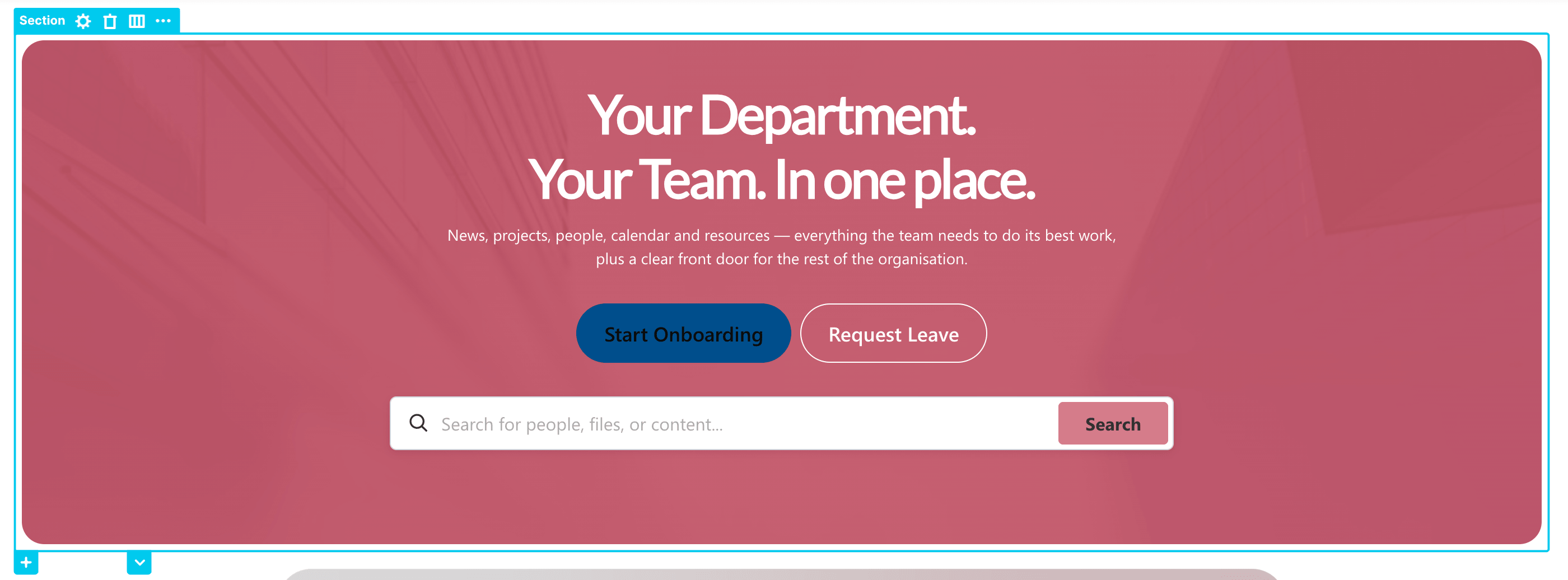
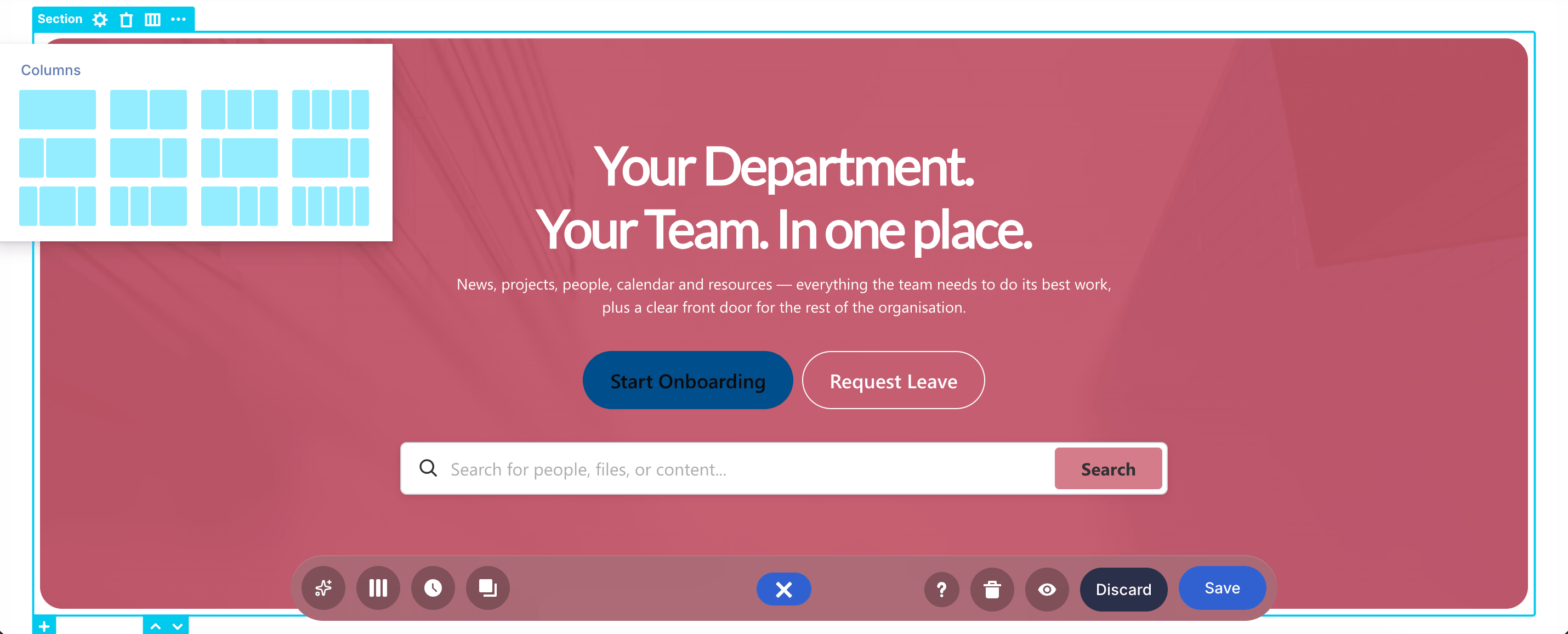
Unlike standard SharePoint page sections, the ShortPoint Section element gives you granular control without writing a single line of code. You can modify its layout:
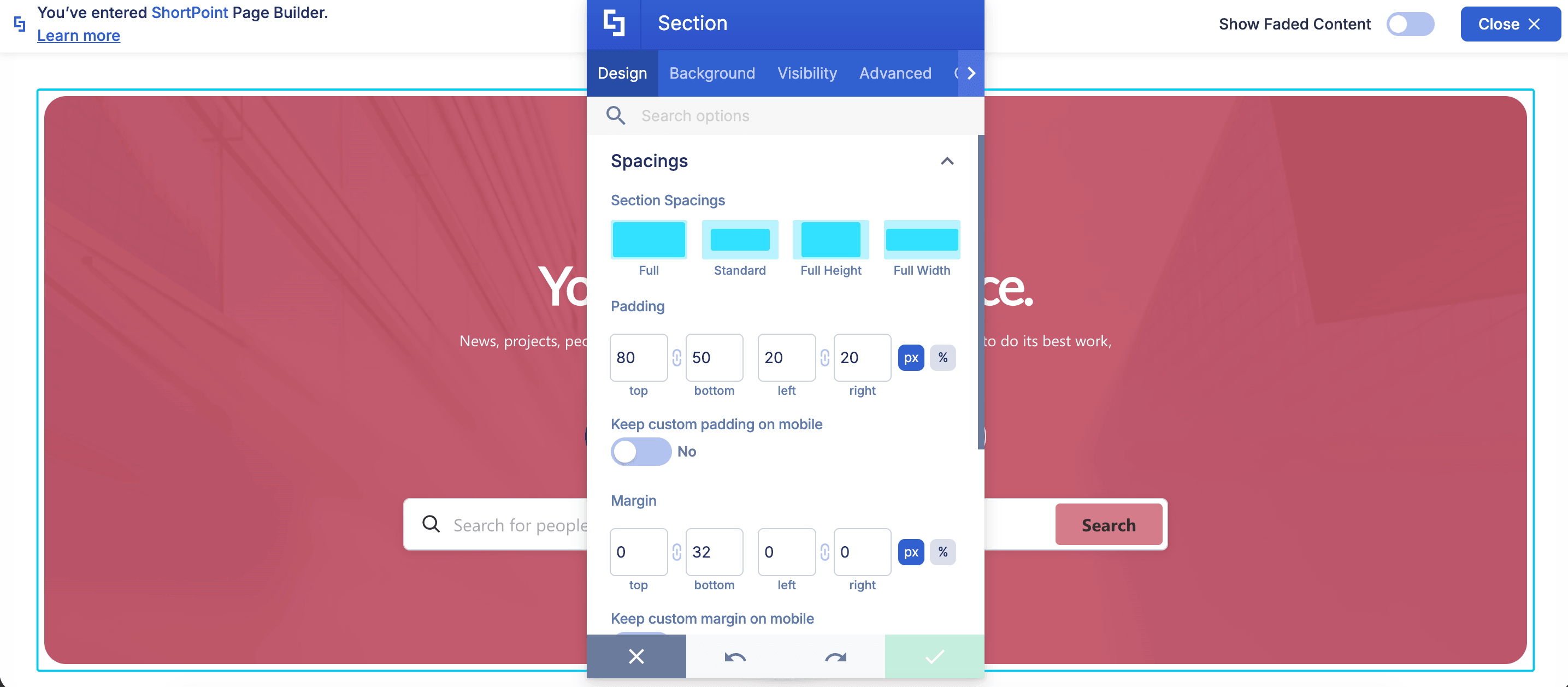
Adjust spacings for different devices:
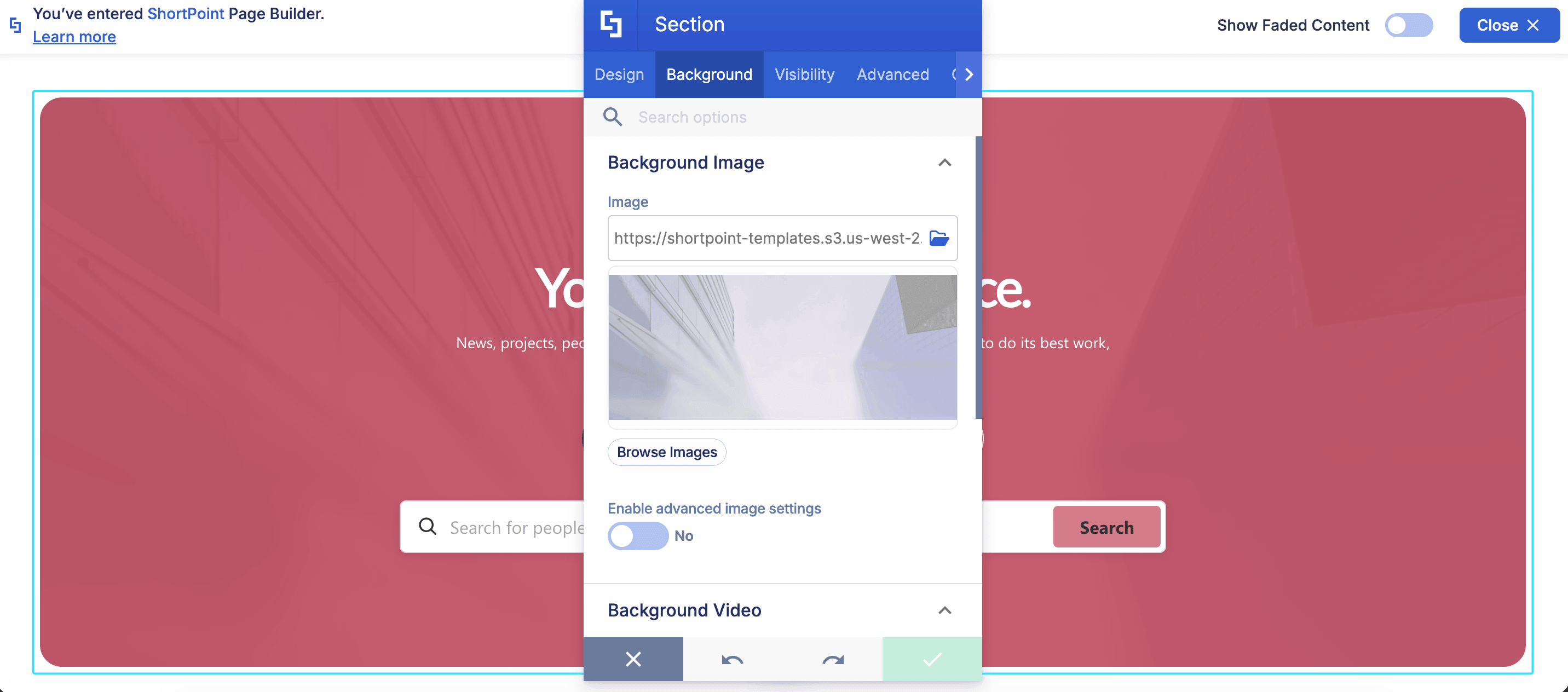
And add background videos, images, or colors:
The Anatomy of a Section
When in edit mode, you can easily identify the Section Design Element with its light blue border. Once you select its EasyPass tag, you’ll see the following components:
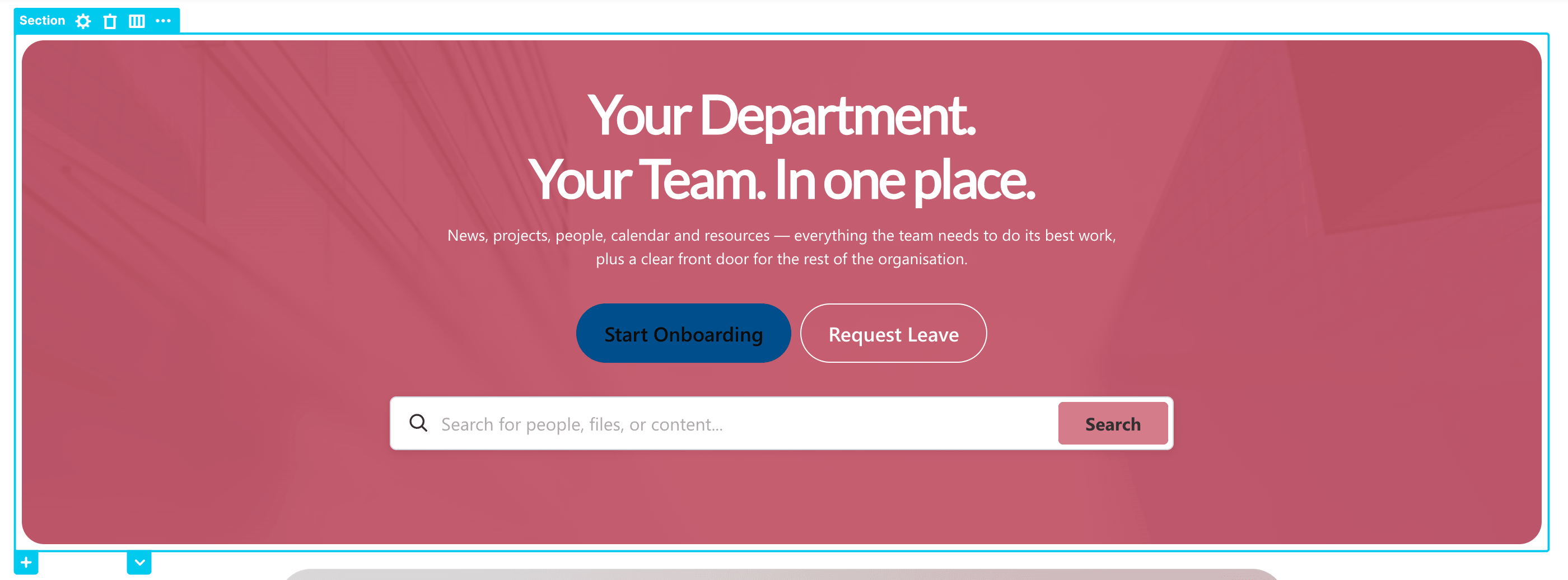
 | Cogwheel icon | opens the Settings window of the Section Design Element. This window has options that allow you to further edit and customize the Section’s design. You can learn more about the features inside the Settings window in Section Features. |
 | Trash icon | deletes the selected Section. |
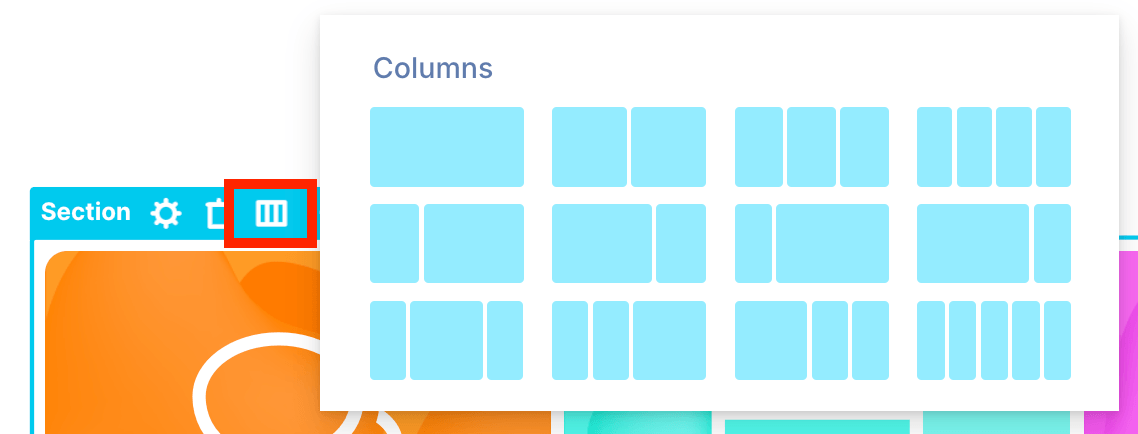 | Show Layout icon | allows you to specify the layout of the Section. |
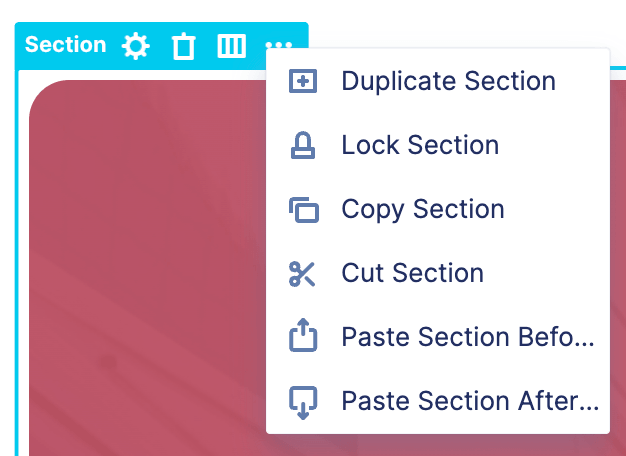 | Ellipsis icon | offers additional options, including:
|
 | Plus icon | allows you to add a new Section. Learn more about it in Adding a New Section. |
Adding a New Section
There are two ways to add a new Section. Choose the option that best suits your needs.
Option 1: Start from Scratch
This option is ideal if you want to design your Section from scratch.
Step 1: Edit the ShortPoint Web Part
- Go to the SharePoint page you want to use and click Edit:

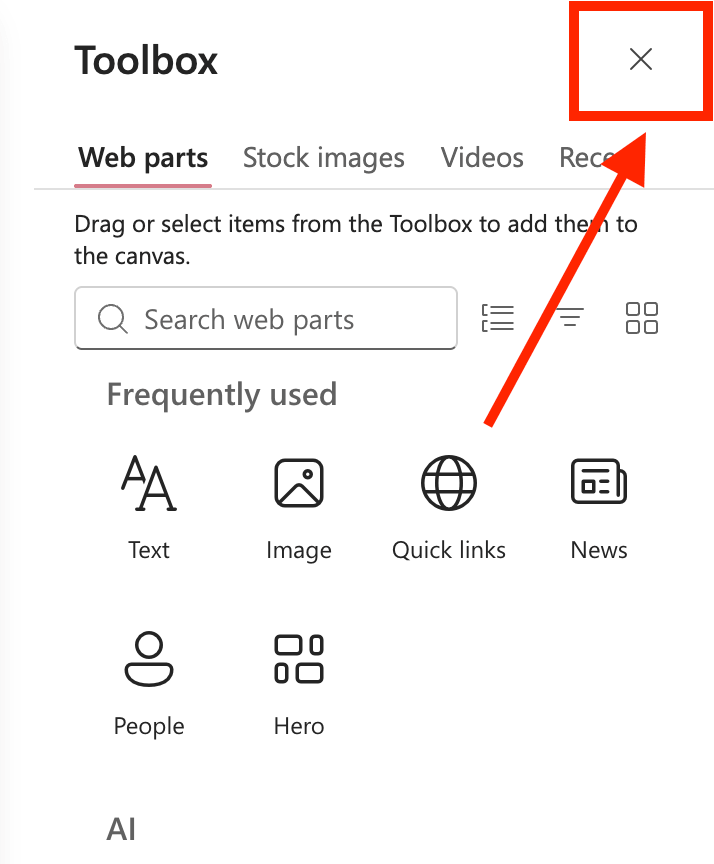
- Close the Toolbox:
- Click the Edit properties icon:

Step 2: Add a Section
- Click the blue plus icon:

- Select the Choose layout icon:

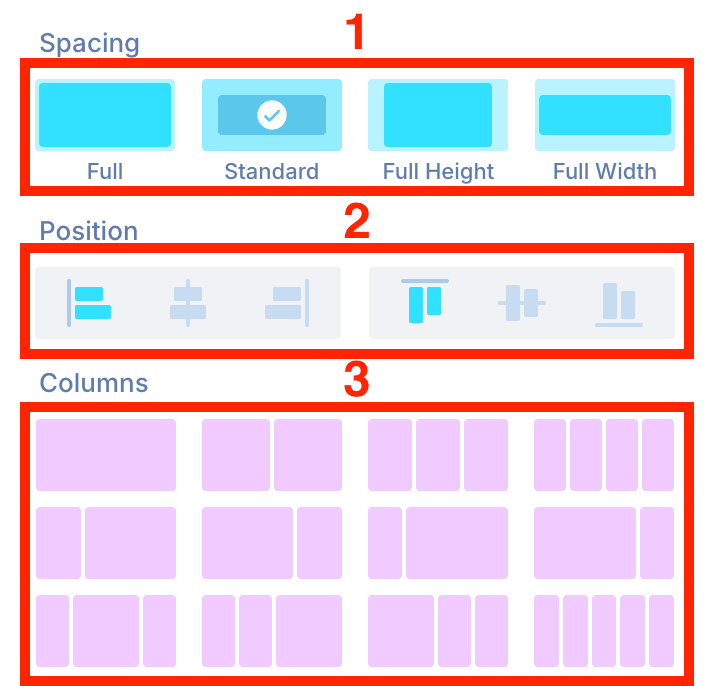
- Pick the style you want to apply:
- Spacing
- Content Alignment
- Columns Style
Step 3: Add Content
- You can now add content to your Section as you like.
Congratulations! You've successfully added a Section.
Option 2: Start from a Template
This option is ideal if you want to fast-track your Section design. ShortPoint offers a wide selection of Section templates made for real-world case scenarios.
Step 1: Edit the ShortPoint Web Part
- Go to the SharePoint page you want to use and click Edit:

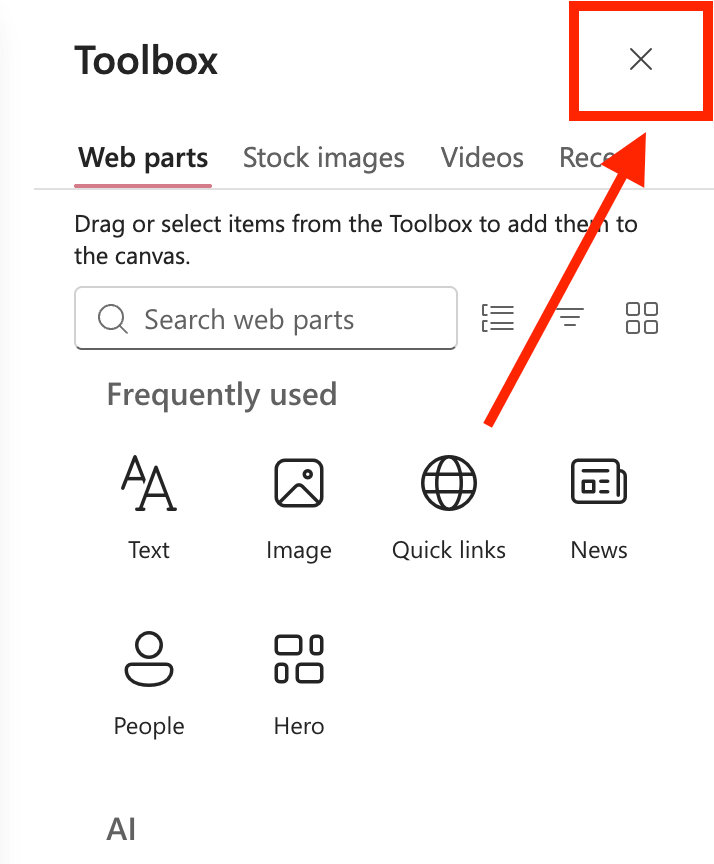
- Close the Toolbox:
- Click the Edit properties icon:

Step 2: Add a Section
- Click the Open templates icon:

- Go to the Sections tab:

- Select a use case:

- Then, browse through the selection and click the plus icon to add the Section template you want to use:
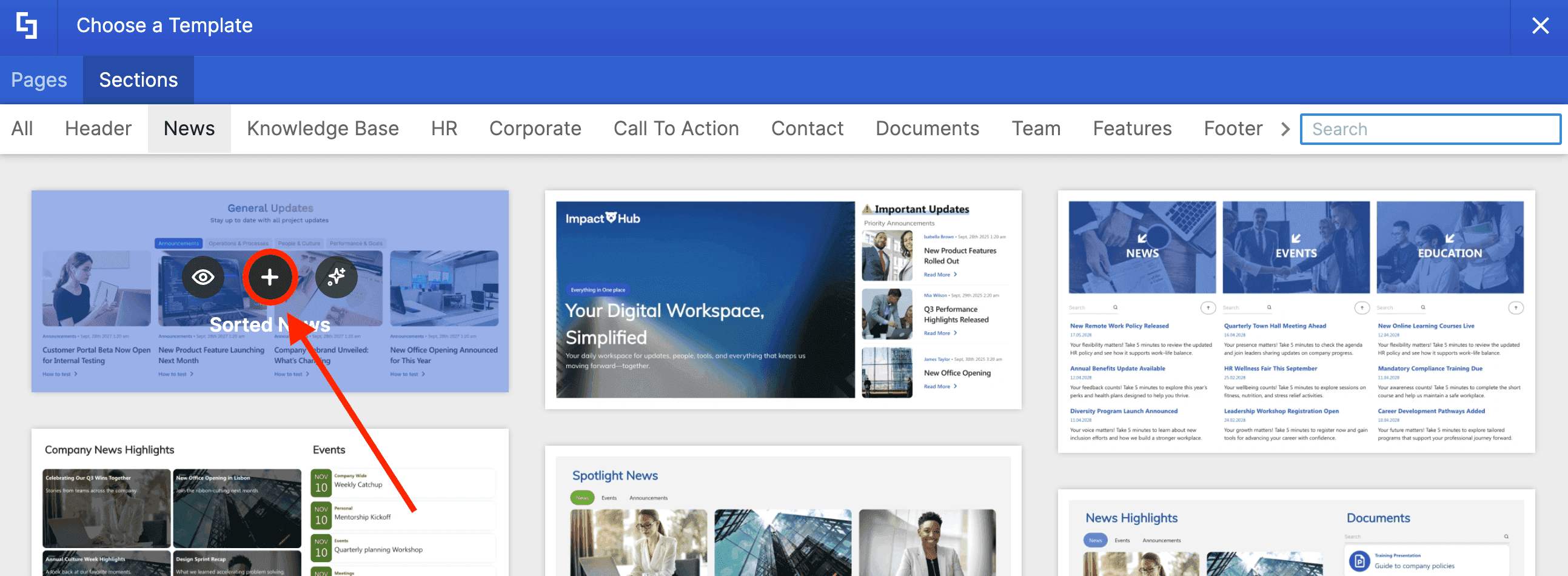
Step 3: Modify Content
- Modify the content of the template to fit your organization's needs.
Awesome! You've successfully added a Section.
Adjusting Paddings and Margins
To make it easier to design your intranet pages, ShortPoint gives its designers four easy ways to adjust the paddings and margins around the Section Design Element. Choose the option that fits your needs:
Option 1: Using the Spacing Icon
- Click the EasyPass tag of the Section you want to edit.
- Hover over the Section.
- Then, click the spacing icon.
- Choose from the available presets. You can choose from Full, Standard, Full Height, or Full Width.
Option 2: Using Hot Actions
- Click the EasyPass tag of the Section you want to edit.
- Hover over it until you see a blue highlight.
- Drag the blue highlight to your desired spacing value.
- (Optional) Click the link icon to duplicate the spacing value for both sides of the Section.
Option 3: Manually Adding a Value
- Click the EasyPass tag of the Section you want to edit.
- Hover over the Section until you see a numerical value and double-click it.
- Write the spacing value and hit Enter.
- (Optional) Click the link icon to duplicate the spacing value for both sides of the Section.
Option 4: Using the Settings Window
- Click the EasyPass tag of the Section.
- Then, select the cogwheel icon to open its Settings window.
- In the Design tab, modify the spacing value. You can choose from a preset or manually write the values.
- Once satisfied, click the green check mark.
Section Features
Listed below are the tabs available inside the Settings window and all the options you can customize:
A. Design Tab
The Design tab allows you to customize the look of the Section Design Element. It has the following options:
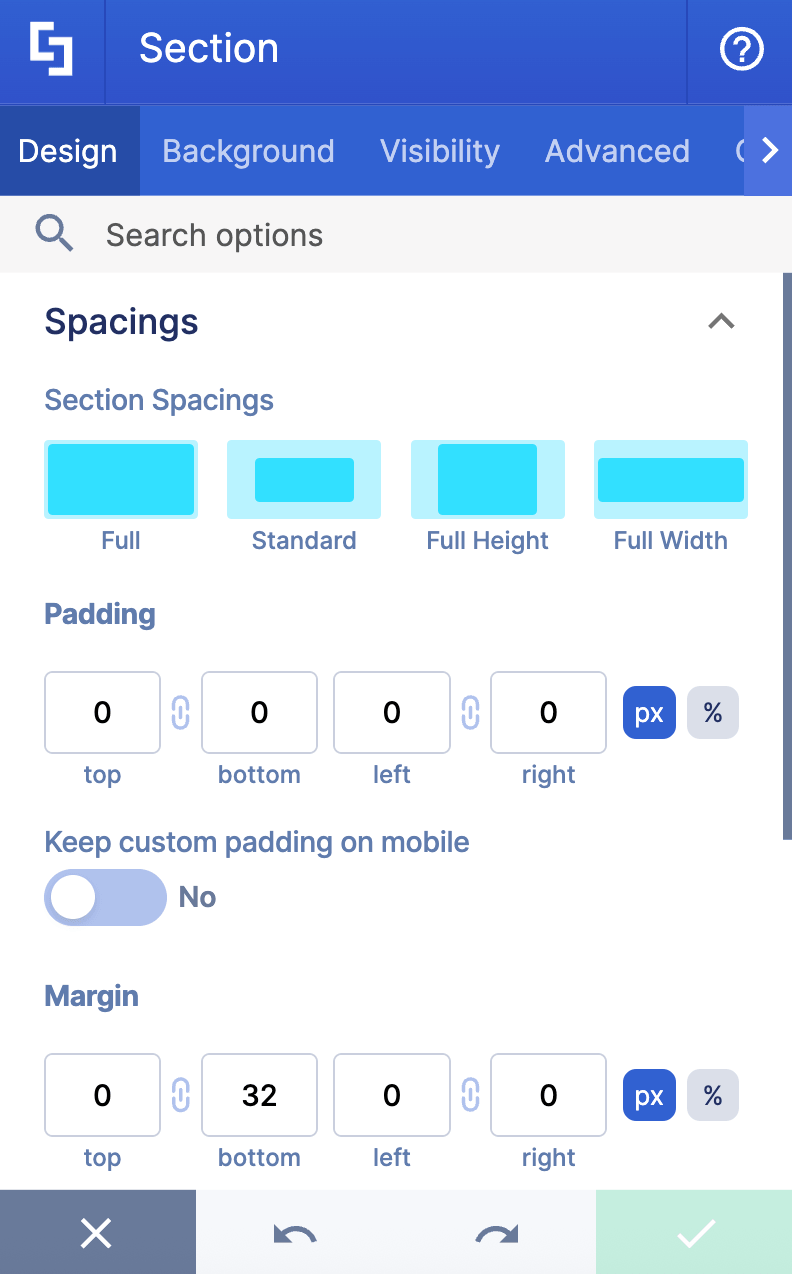
SPACINGS
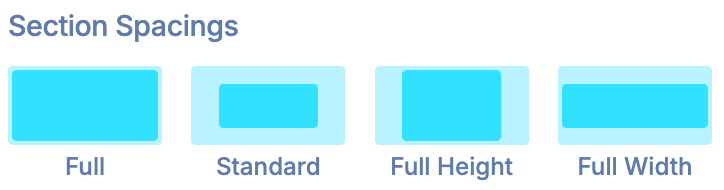 | Section Spacings | allows you to specify the spacing style of the Section. You can choose from Full, Standard, Full Height, or Full Width. |
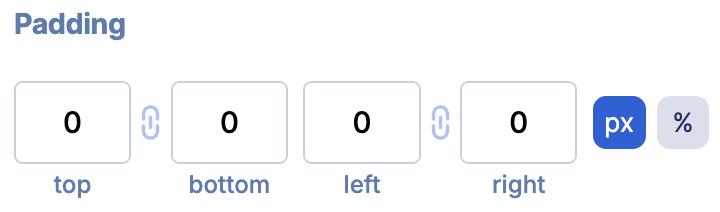 | Padding | allows you to manually set the padding value in px or %. |
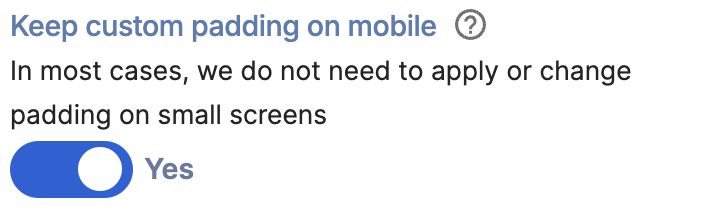 | Keep custom padding on mobile | when enabled, the custom padding value will be kept on mobile. |
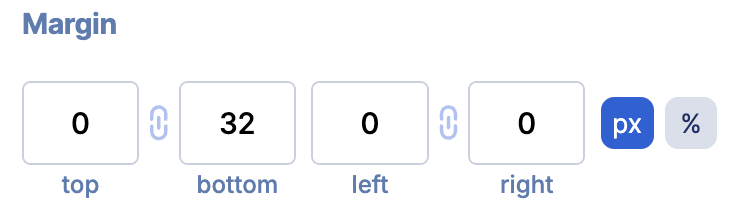 | Margin | allows you to manually set the margin value in px or %. |
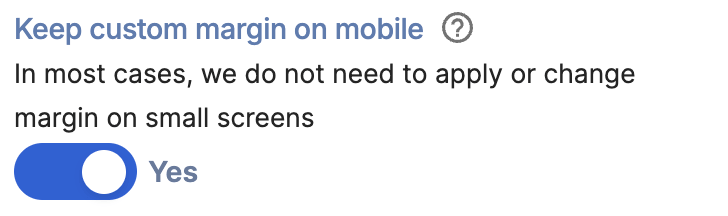 | Keep custom margin on mobile | when enabled, the custom margin value will be kept on mobile. |
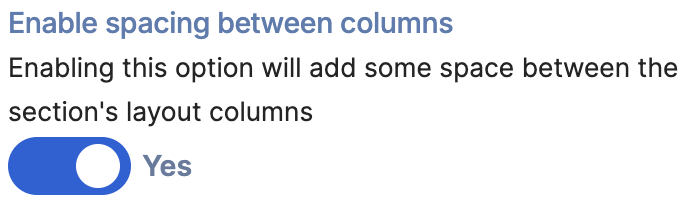 | Enable spacing between columns | enabling this option will add space between the section's layout columns. |
ALIGNMENT
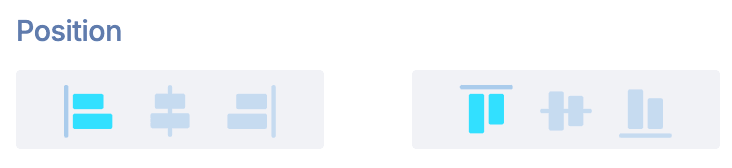 | Position | allows you to choose the vertical and horizontal alignment of the content inside the Section. |
SIZE
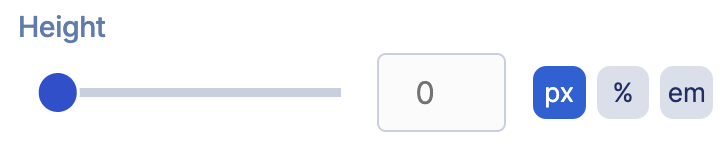 | Height | allows you to adjust the height of the Section Design Element in px, %, or em. |
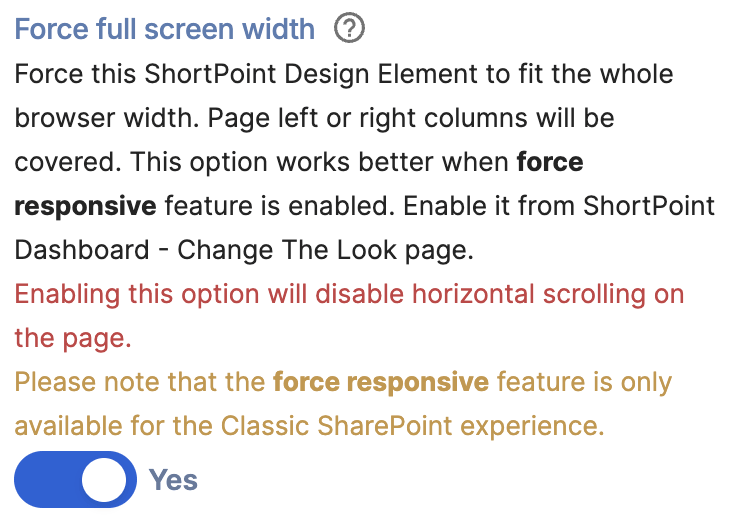 | Force full screen width | when enabled, the Section will fit the whole browser. This will disable horizontal scrolling on the page. |
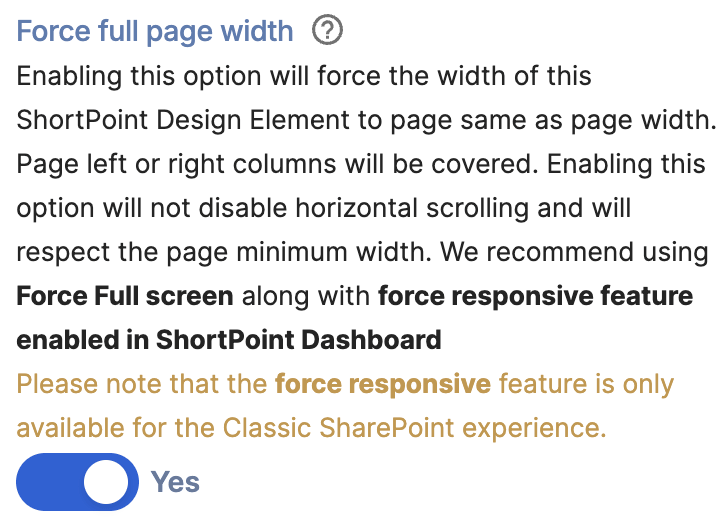 | Force full page width | when enabled, this option will force the width of the Section to be the same as the page width. This will not disable horizontal scrolling and will respect the page's minimum width. |
SETTINGS
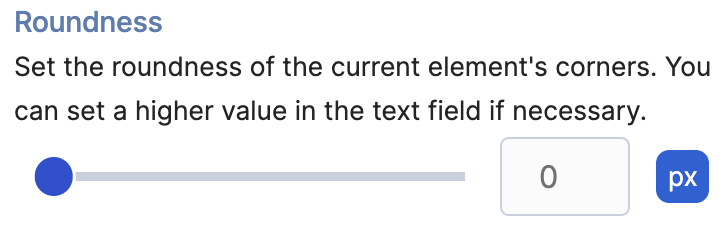 | Roundness | allows you to round the corners of the Section Design Element. Learn more about it in Introducing the Roundness Feature: What It Is and How To Use It. |
B. Background Tab
The Background tab allows you to add a background image, video, or color. See the options available below:
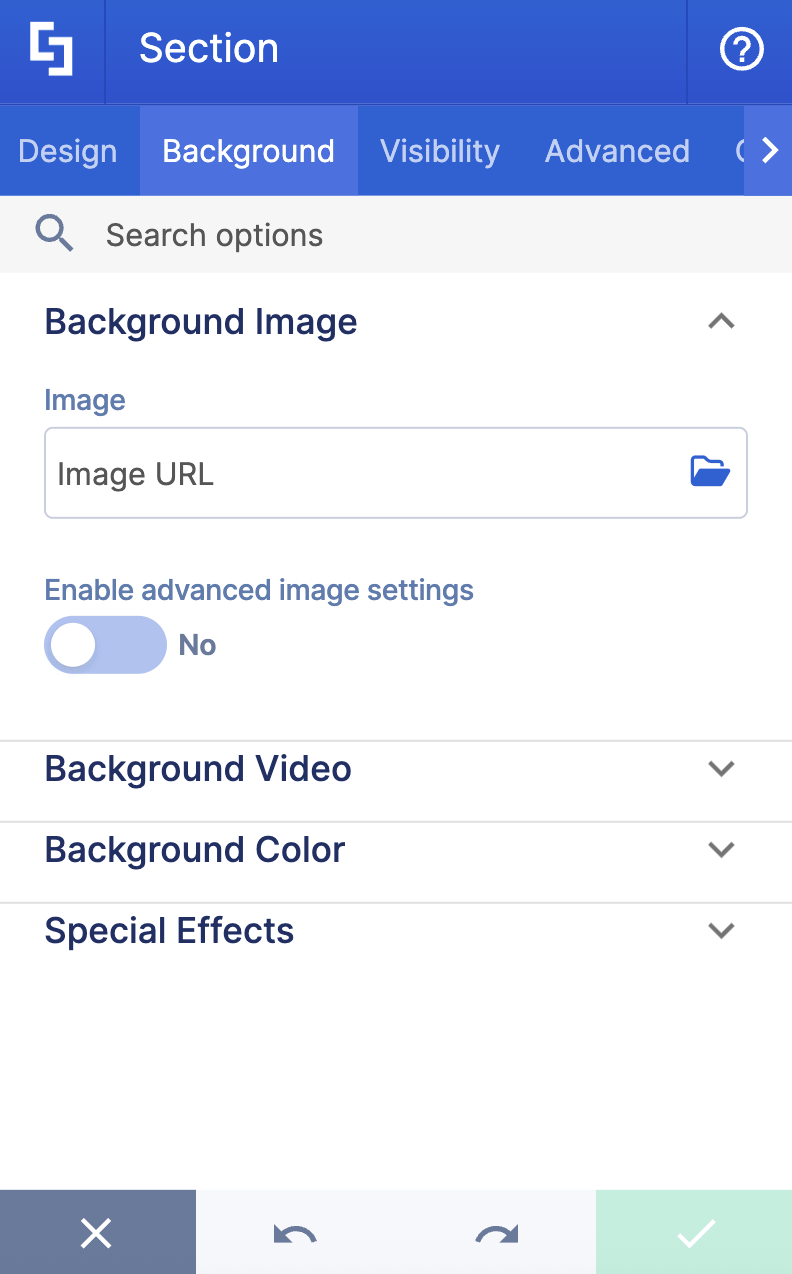
BACKGROUND IMAGE
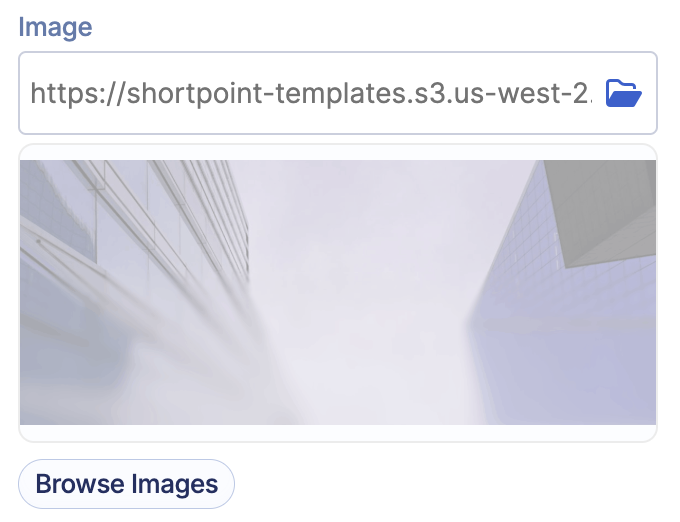 | Image | allows you to add a background image to the Section. You can paste the URL or use the folder icon to select the image you want to use. You can also select Browse Images to gain access to the ShortPoint Gallery. For more information go to How to Add Professional Images using the ShortPoint Gallery. |
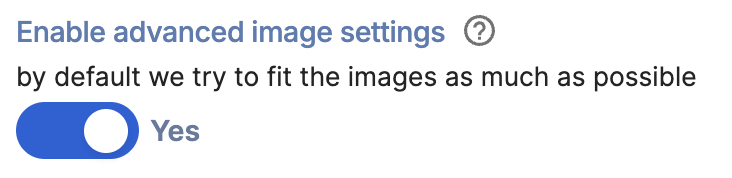 | Enable advanced image settings | when enabled, additional settings will appear. |
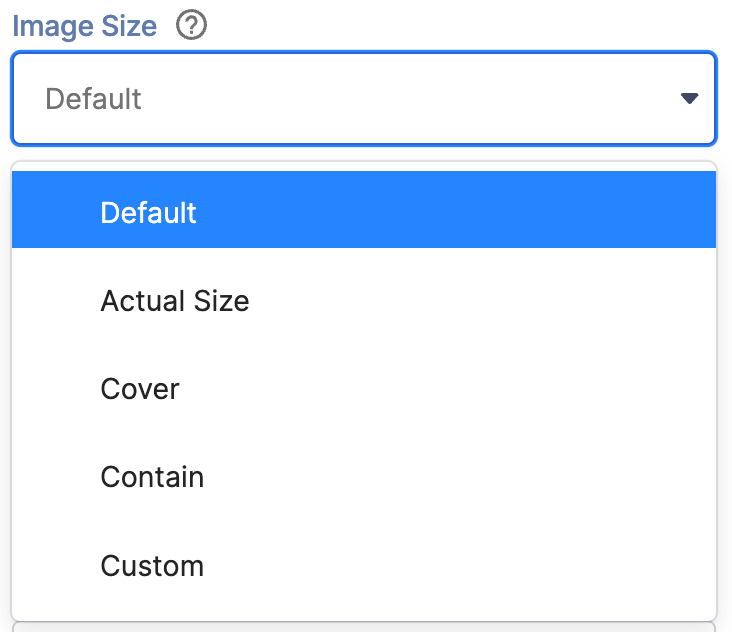 | Image Size | allows you to choose the size of the image. You can choose from the following:
|
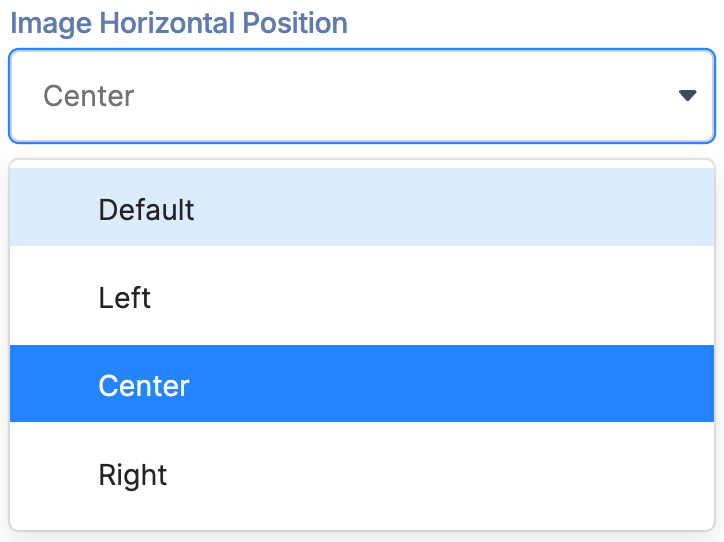 | Image Horizontal Position | allows you to choose the horizontal alignment of the image. |
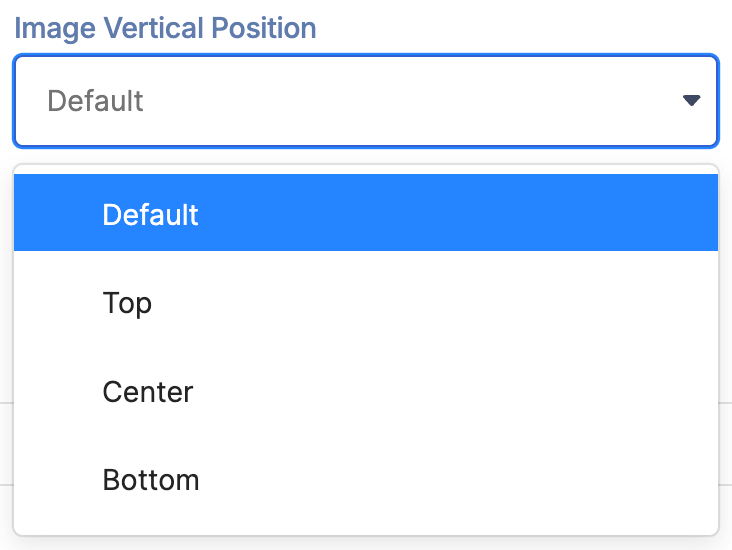 | Image Vertical Position | allows you to choose the vertical alignment of the image. |
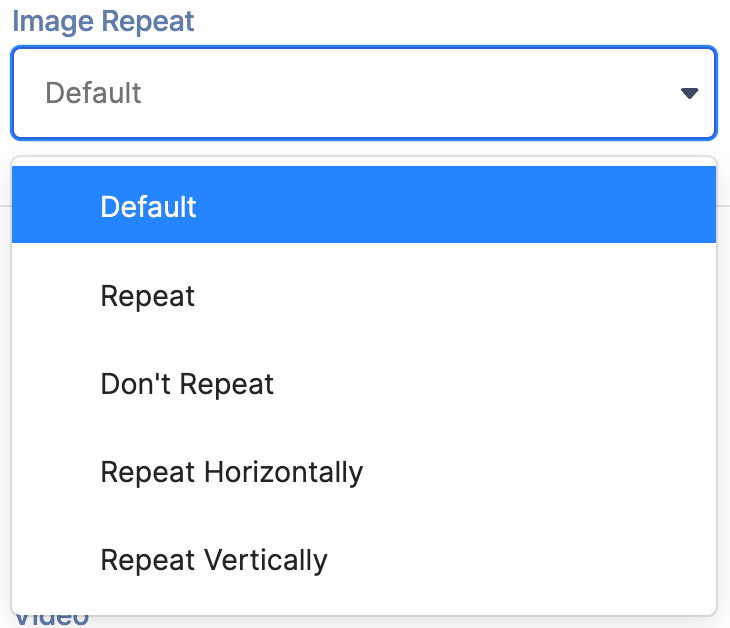 | Image Repeat | allows you to choose whether to repeat the image or not. |
BACKGROUND VIDEO
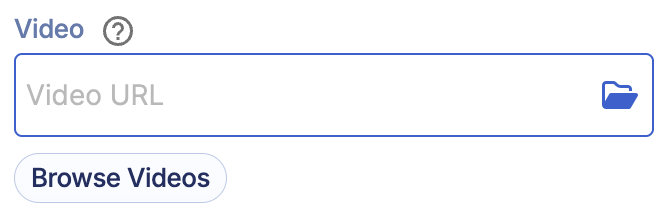 | Video | allows you to add a background video to the Section. You can paste the URL or use the folder icon to select the image you want to use. You can also select Browse Videos to gain access to the ShortPoint Gallery. For more information go to How to Add Professional Images using the ShortPoint Gallery. |
BACKGROUND COLOR
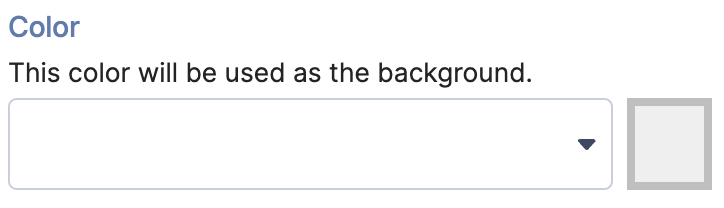 | Color | allows you to add a background color to the Section. You can [1] paste the HEX CODE, [2] use the drop-down, or [3] use the color picker to specify the color you want to use. |
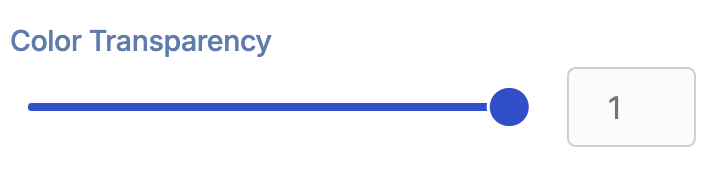 | Color Transparency | allows you to adjust the transparency of the selected color. |
SPECIAL EFFECTS
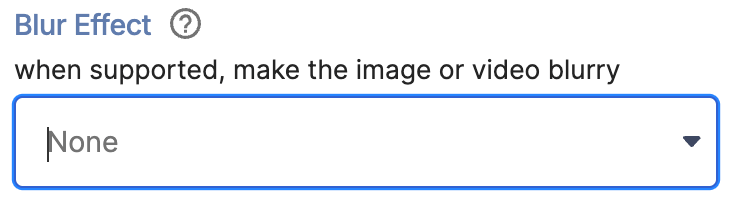 | Blur Effect | allows you to add a blur effect to the background. You can choose from Light, Medium, or Strong. |
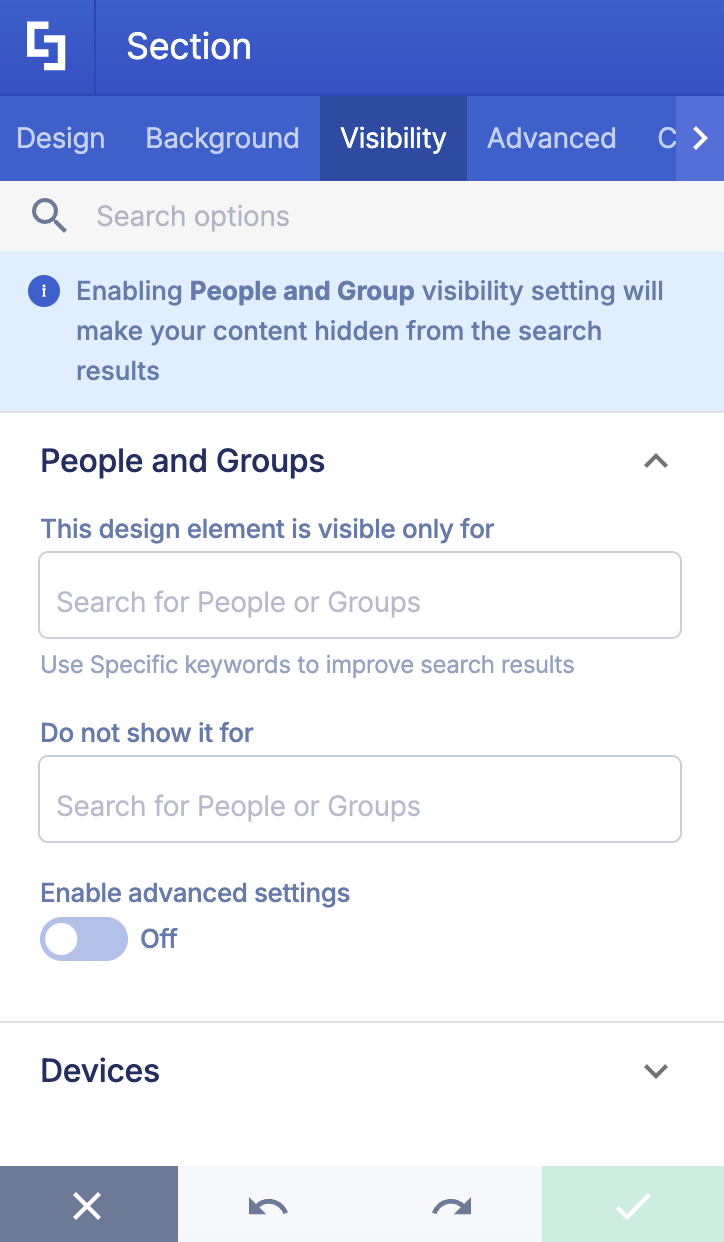
C. Visibility Tab
The Visibility tab allows you to control who can see the Design Element and where it can be seen. For more details, check out How to Use the ShortPoint Visibility Feature for Effective SharePoint Access Management.
D. Advanced Tab
The Advanced tab allows you to further customize the Section. Take a look at the available features:
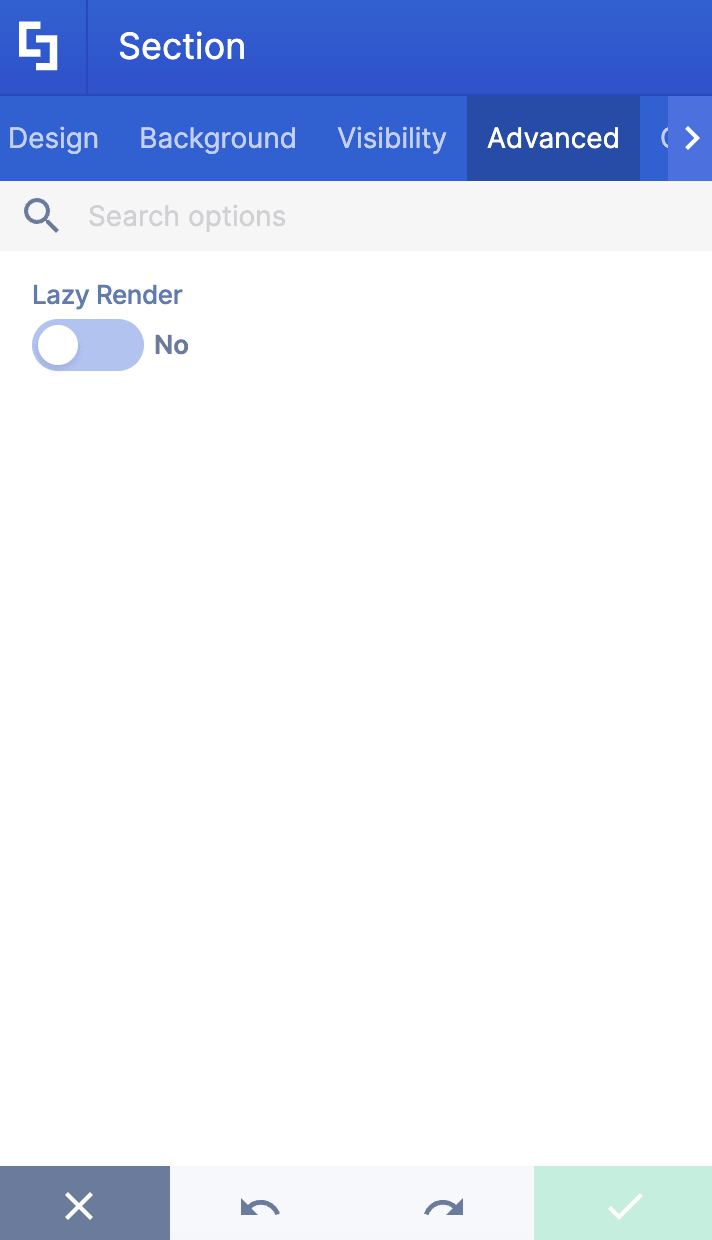
SPEED AND PERFORMANCE
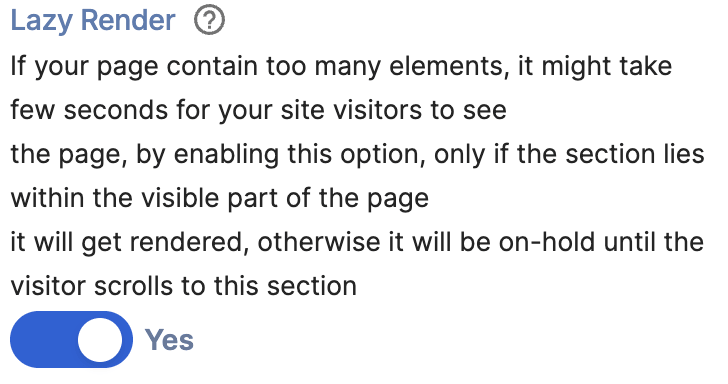 | Lazy Render | when enabled, this will delay the loading of Sections that are not yet visible on the screen. The Section will only render when a user scrolls down to the Section itself. To learn more, go to Enable Lazy Render / Lazy Loading Options on ShortPoint Elements. |
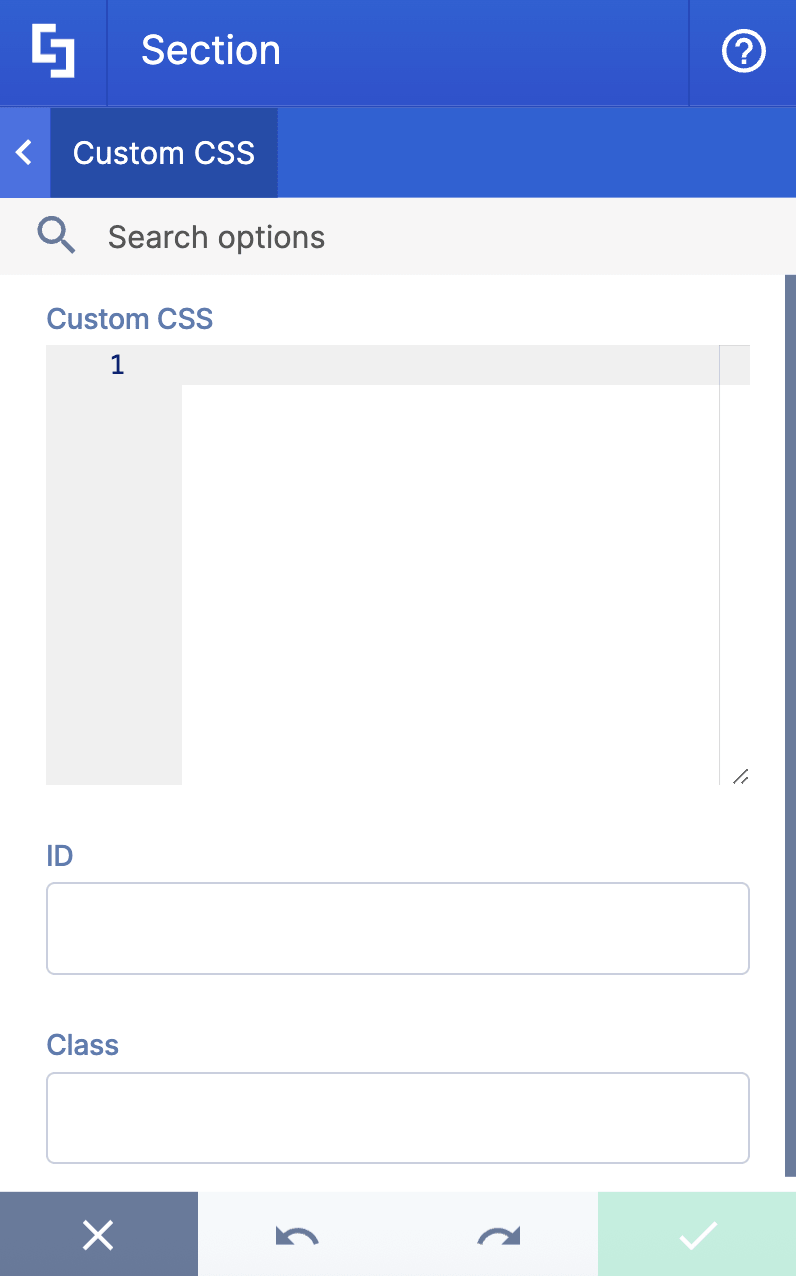
E. Custom CSS Tab
The Custom CSS tab allows you to use your own CSS, HTML, and JavaScript code to customize the Section Design Element.
NOTECheckout our support article on How to Insert Custom CSS(Basic Tutorial) to learn more about it.
Practical Use Cases
Because the Section element is so adaptable, you will find yourself using it across almost every page on your intranet. Here are a few practical ways to leverage it:
- High-Impact Hero Banners
Create a full-width Section at the top of your homepage. Add a rich background image with a slight dark overlay, and place a bold headline, subtitle, and primary call-to-action button inside. This creates an instant, modern portal experience for visiting employees.
- Segmented Department Portals
When building an HR, IT, or Finance hub, use alternating background colors (e.g., light gray and white) across consecutive Sections. This visual alternation breaks up dense information, making it easier for users to scan for FAQs, policy documents, or submit tickets.
- Quick-Link Toolbars
Set up a slim, full-width Section with a distinct brand color across the page to serve as an announcement ribbon or a quick-links bar for frequently used apps (like Payroll, Outlook, or Helpdesk).
- Interactive Media & Video Highlights
Insert a looping background video within a Section to highlight company events, CEO messages, or brand showcases, immediately elevating the visual polish of company news portals.
Start Designing with the Section Design Element
The Section Design Element helps you create beautiful layouts and designs on your SharePoint sites. To unlock its potential, simply update to the latest ShortPoint SPFx version if you're already a ShortPoint Designer.
New to ShortPoint? Start with a FREE 15-day trial. You can try everything ShortPoint has to offer, no strings attached. You can also book a one-on-one demo with our experts so they can introduce you to other powerful features.
Frequently Asked Questions
Do I need to know how to code to use the Section element?
Not at all. ShortPoint is designed as a no-code visual builder. All settings are handled through an intuitive user interface with point-and-click controls.
What is a SharePoint section and how does it differ from a ShortPoint Section?
A SharePoint section is a layout container that divides a page into distinct visual blocks, allowing you to organize content in one, two, or more columns. ShortPoint Sections, however, provide enhanced flexibility with options like background videos, exact height adjustments, section background colors, and mobile-specific visibility, all without coding.
Can I add multiple sections on the same page?
Yes, ShortPoint allows you to add multiple sections on the same page. This helps you design pages with multiple layouts, including full-width columns on communication sites, vertical sections on the right side, and regular sections with different column configurations.
How do I change the section background?
You can add a section background by selecting a color, image, or video in the background tab. This helps to visually separate content areas and enhance the overall design of your SharePoint page.
Can I control who sees a section and where?
Yes, visibility settings allow you to control who can see each section and where it appears, making it easier to target content to specific audiences.
Related articles:
