 Try ShortPoint now
ShortPoint Page Builder is where you design and edit your SharePoint pages with ShortPoint. This article shows you how to open it from any SharePoint page in just a few clicks and walks you through the main parts of the Page Builder.
NOTEFor an in-depth guide on ShortPoint Page Builder and all its functions, check out Introducing ShortPoint Page Builder.
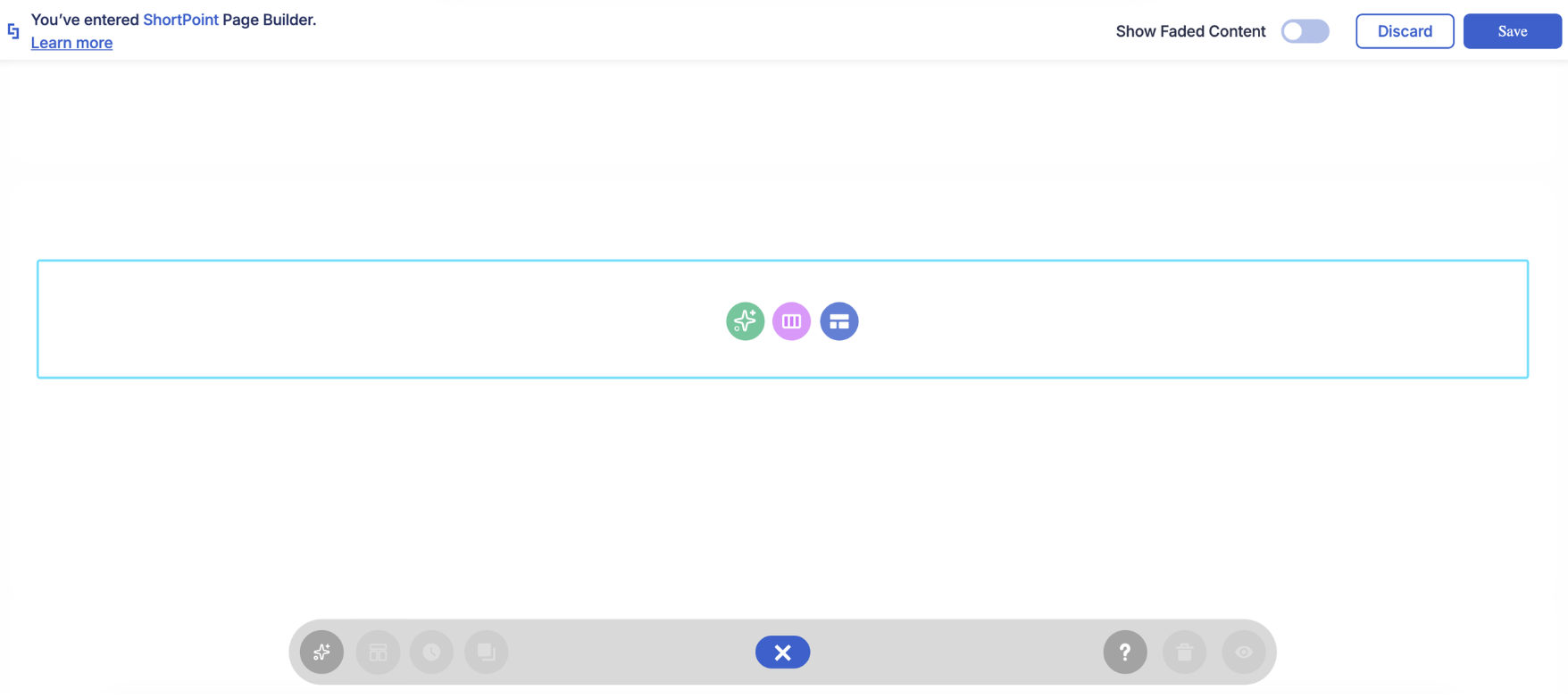
TABLE OF CONTENTS
Prerequisites
- ShortPoint is installed on your SharePoint environment.
- You have permission to edit the SharePoint page you want to work on.
Step-by-Step Tutorial
Follow the steps below to open ShortPoint Page Builder:
Step 1: Edit your SharePoint page
- Go to the SharePoint page you want to use and click Edit in the top-right corner.
Step 2: Close the Toolbox
The SharePoint Toolbox panel opens on the right side of the page. Click the X icon to close it.
Step 3: Add a new section
NOTEIf this is your first time opening the Page Builder on this page, you need to add the ShortPoint web part first. Steps 3 and 4 will show you how.
- Hover over the top of the page canvas and click + Section to add a new section.
Step 4: Select ShortPoint
- In the new section, you'll see a list of web parts you can add. Select ShortPoint.
That's it! You have now opened ShortPoint Page Builder. You'll see the message "You've entered ShortPoint Page Builder" at the top of the page, and you can start designing.
Parts of the Page Builder
Once you're inside the Page Builder, here's what each part of the screen does:
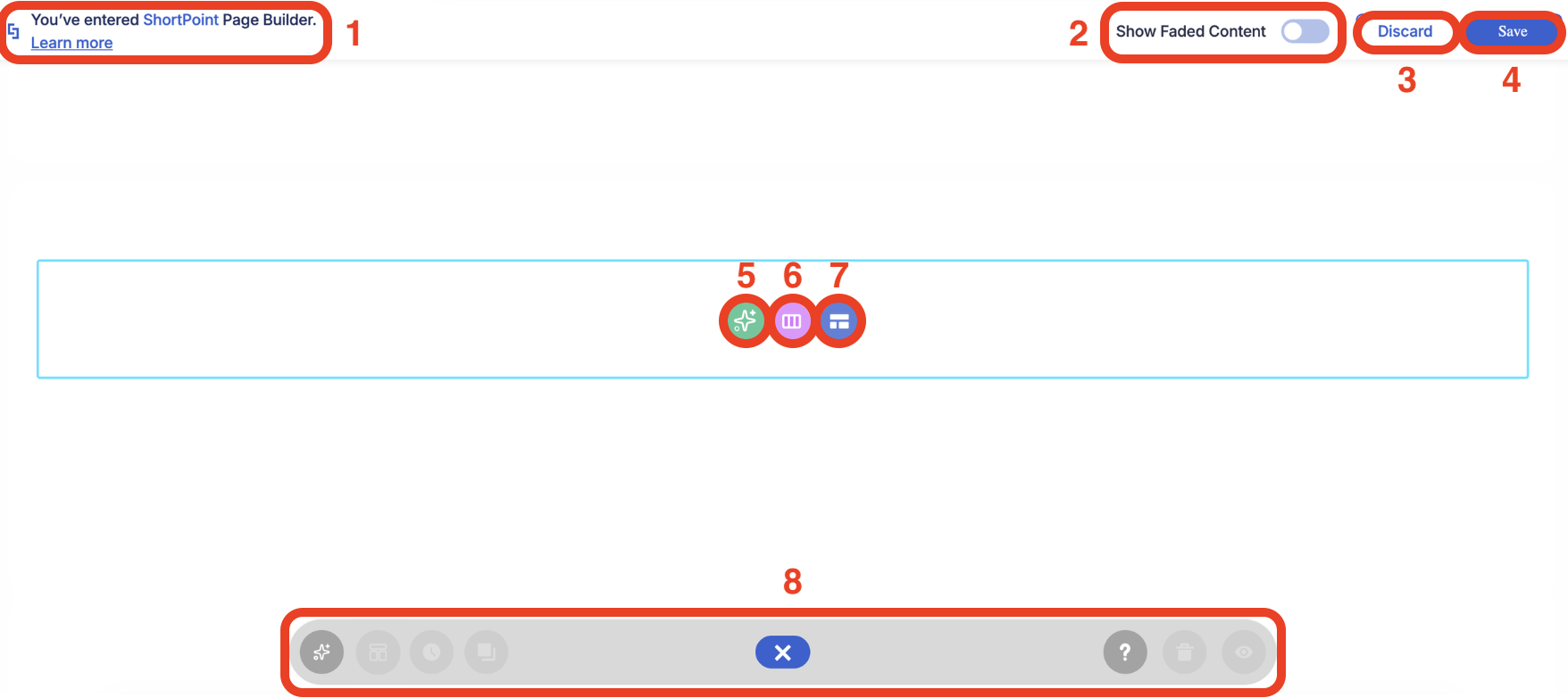
| 1 | Isolate Mode | Opening the Page Builder puts you in Isolate Mode. The rest of your SharePoint page fades out so you can focus on the design you're working on. For more information, check out What is Isolate Mode. |
| 2 | Show Faded Content | Turn this toggle on to see the rest of your SharePoint page while you edit. Turn it off to hide it again. |
| 3 | Discard | Discard the changes you've made. |
| 4 | Save | Apply all the changes you've made. |
| 5 | AI Designer | Describe the design you want, and AI Designer builds it for you on the page. Check out What is AI Designer for more details. |
| 6 | Choose Layout | Start from a blank canvas. Pick a column layout for your section, then use the plus buttons to add Design Elements to each part. |
| 7 | Open Templates | Start from a pre-designed template. Browse the available templates, preview one in detail, and click Insert Template to add it to your page. Check out ShortPoint Templates Library Guide to learn more. |
| 8 | Action Toolbar | The toolbar at the bottom of the screen has your main editing actions, including Preview, Help, and History. Go to ShortPoint Page Builder: Action Toolbar for more details. |
Frequently Asked Questions
Why can't I see the Edit button on my SharePoint page?
You need permission to edit the page. If the Edit button is missing, ask your SharePoint site owner or admin to give you edit access.
I don't see ShortPoint in the list of web parts. What should I do?
Make sure ShortPoint is installed and available on your SharePoint site. If it still doesn't appear, contact your SharePoint admin or reach out to ShortPoint Support.
Why is the rest of my SharePoint page faded out?
That's Isolate Mode. It fades the rest of the page so you can focus on your design. To see the whole page, turn on the Show Faded Content toggle or click the Preview (eye) icon in the Action Toolbar.
How do I leave the Page Builder without saving my changes?
Click Close at the top right or Discard. A prompt will ask you to confirm. Click Yes to discard your edits, or No to keep working.
Should I start with Choose Layout or Open Templates?
Use Choose Layout if you already have a design in mind and want to build it from a blank canvas. Use Open Templates if you'd like a ready-made design that you can customize. If you'd rather describe what you want, try AI Designer.
Related articles:
