 Try ShortPoint now
Want another Design Element just like one you've already built? Instead of copying and pasting it, you can duplicate it in one click. This article shows you how to duplicate Design Elements in ShortPoint Page Builder.
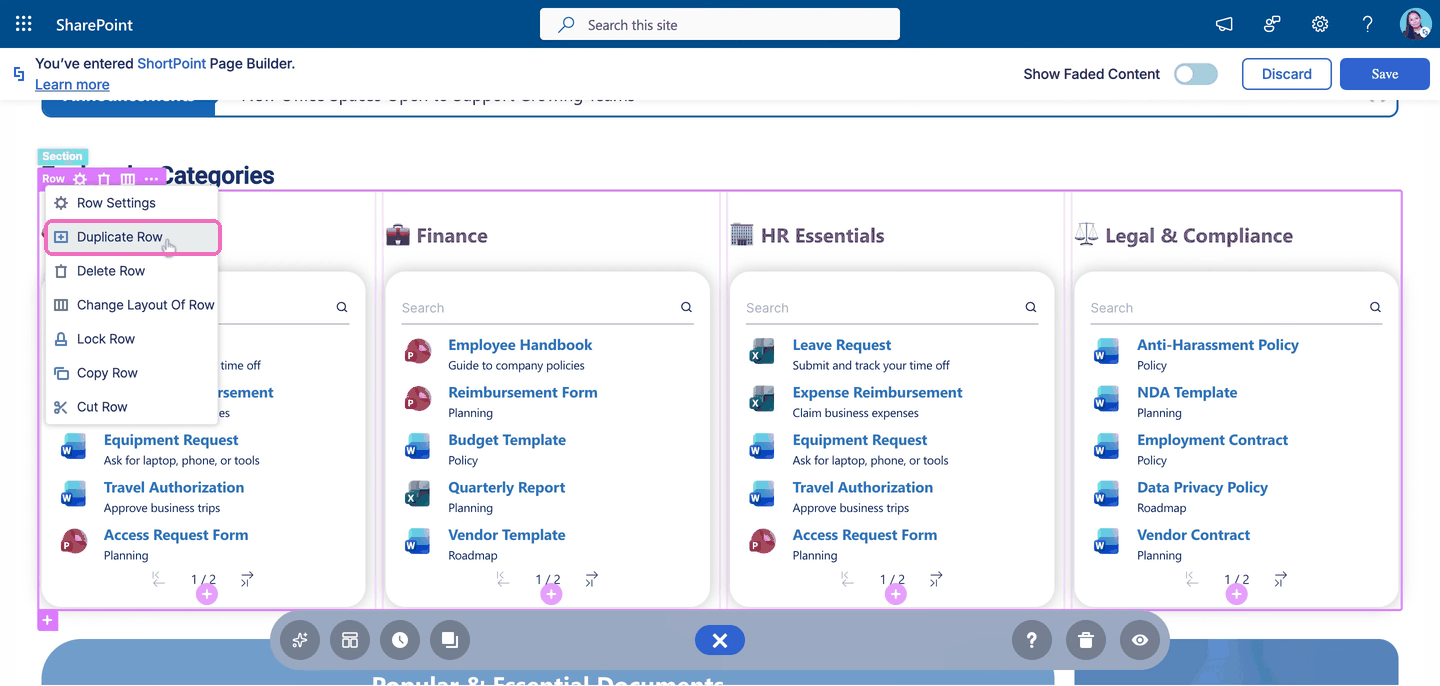
TABLE OF CONTENTS
- Prerequisites
- What Is the Duplicate Option?
- Interactive Tutorial
- Step-by-step Tutorial
- Duplicating Content-holder Design Elements
- Frequently Asked Questions
Prerequisites
- You have the latest version of ShortPoint SPFx installed on your SharePoint environment.
- You are a ShortPoint Designer with an active license.
What Is the Duplicate Option?
The Duplicate option makes an exact copy of a Design Element and places it right below the original. The duplicate keeps everything from the original: its content, its design settings, and any Design Elements inside it.
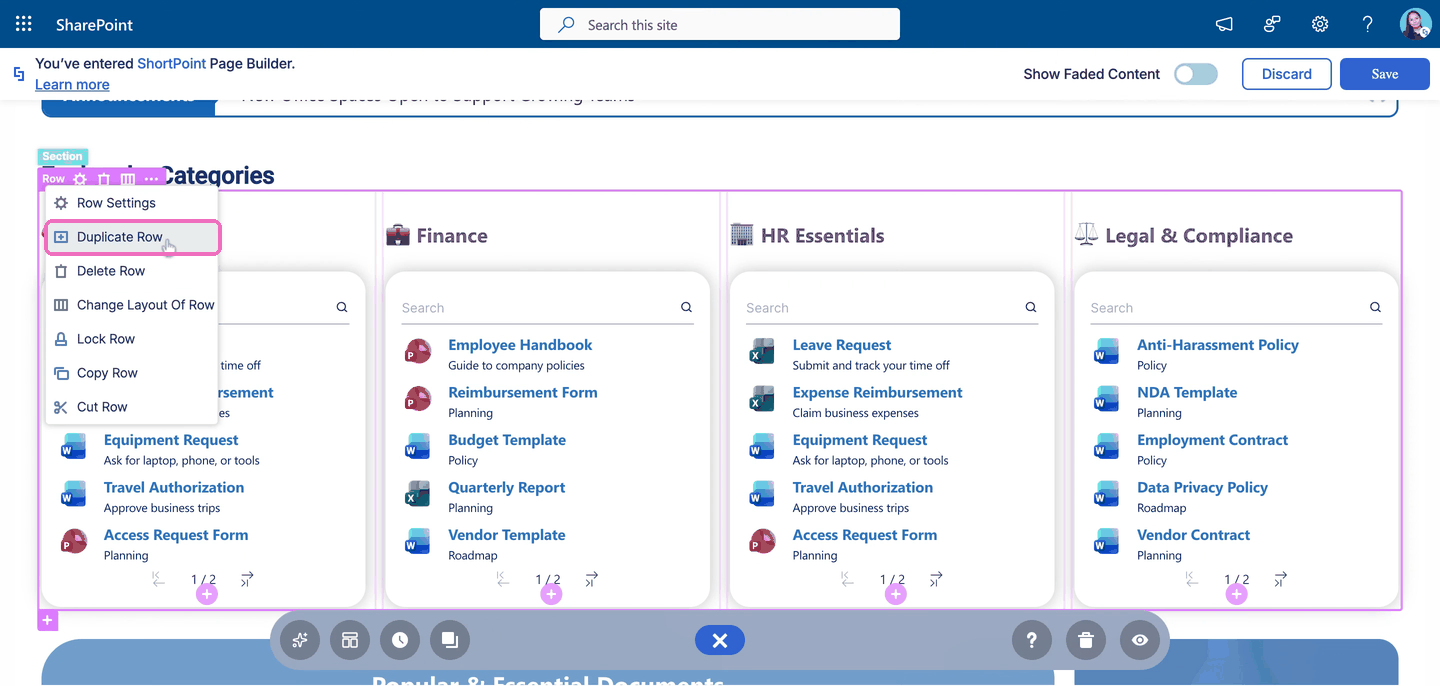
Unlike Copy and Paste, there's no separate paste step. One click and the duplicate is on your page, ready for you to change.
You'll find the option in two places:
- The ellipsis (…) menu on a Design Element's EasyPass tag
- The context menu that opens when you right-click a Design Element's EasyPass tag
The option is named after the element you select. For example, if you select a Row, you'll see Duplicate Row.
Interactive Tutorial
Click Get Started to try it yourself:
Step-by-step Tutorial
Step 1: Open ShortPoint Page Builder
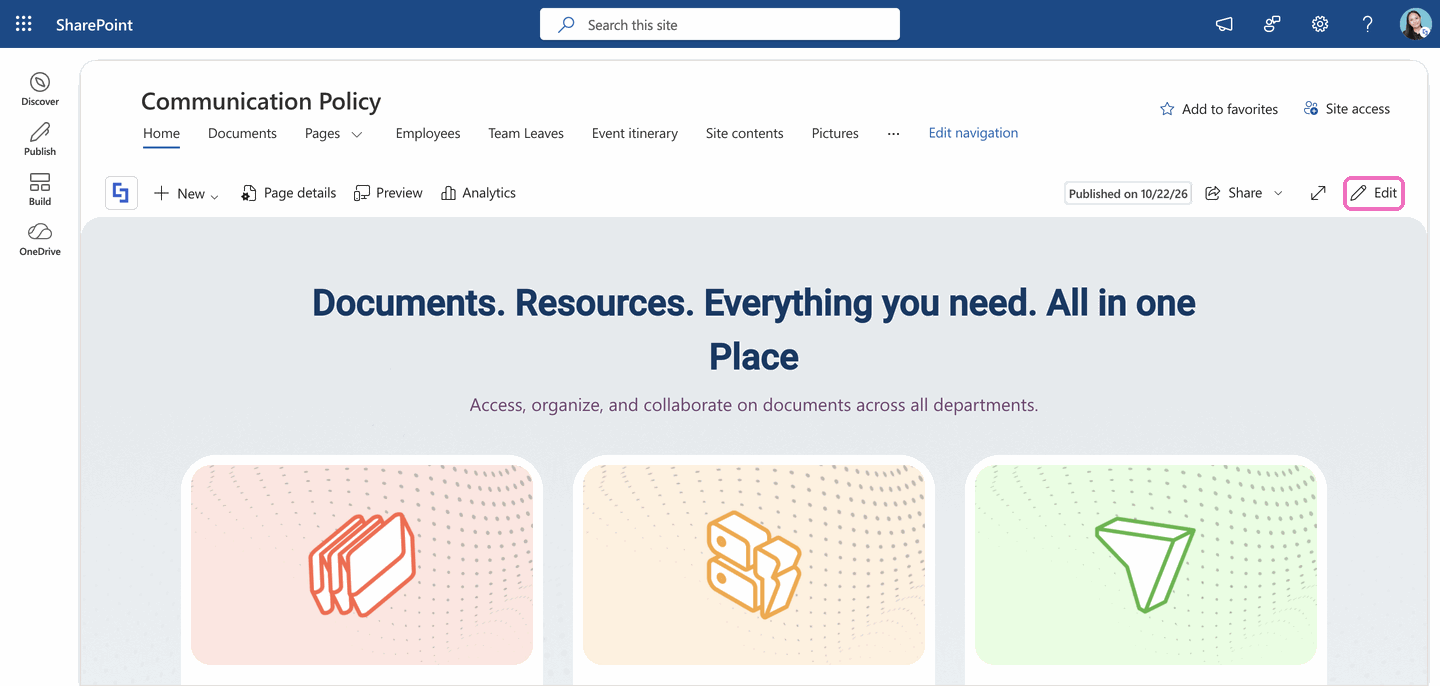
- Go to the SharePoint page you want to use and click Edit.
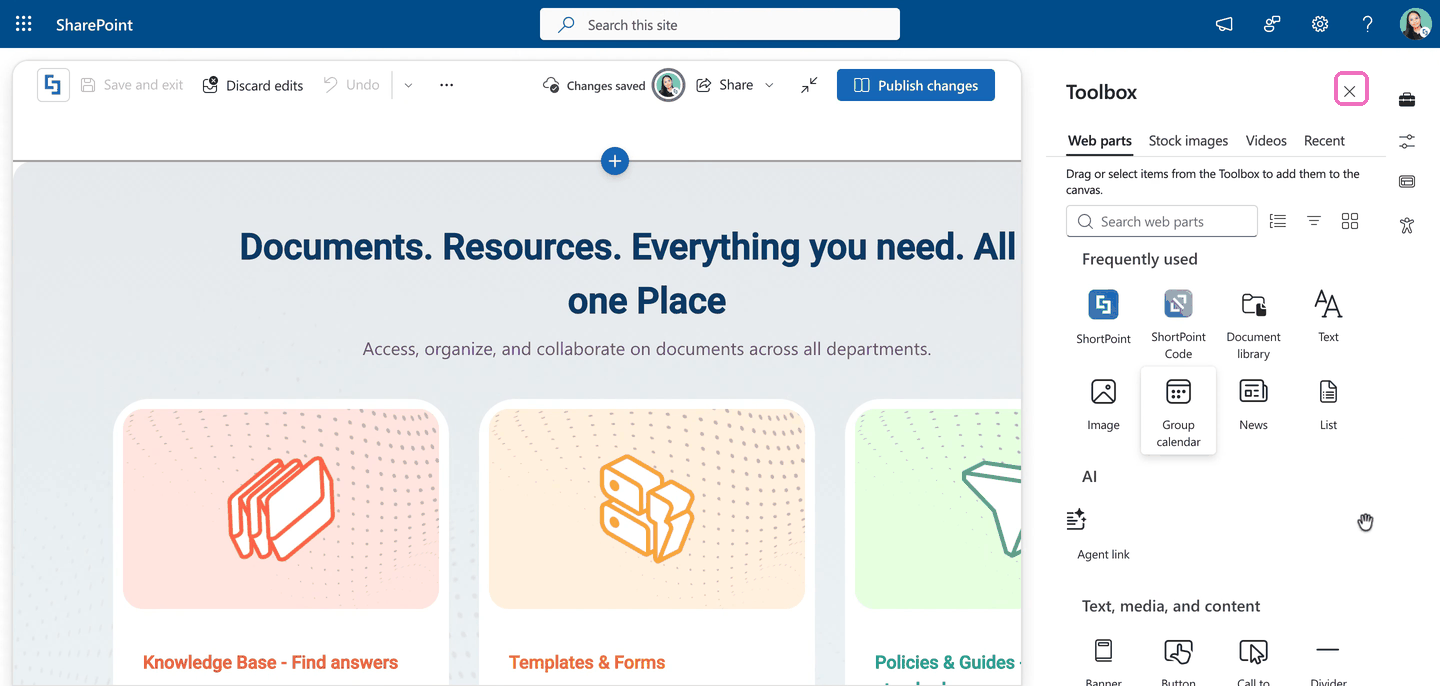
- Close the SharePoint Toolbox by clicking the X icon.
- Click the Edit web part icon on the ShortPoint web part toolbar. This opens ShortPoint Page Builder.
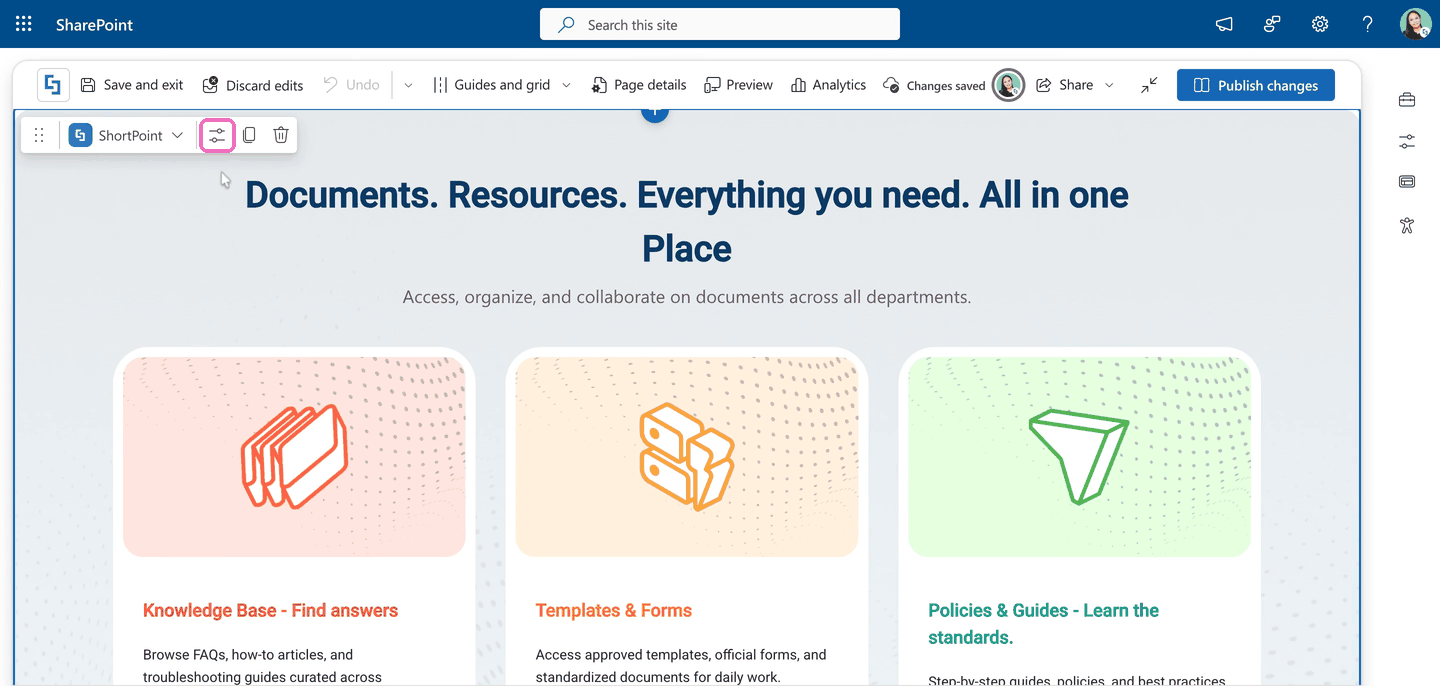
Step 2: Duplicate a Design Element
There are two ways to duplicate a Design Element. Choose the option that suits you.
Option 1: Using the EasyPass tag
- Click the EasyPass tag of the Design Element you want to duplicate. In this example, we are duplicating a Row.
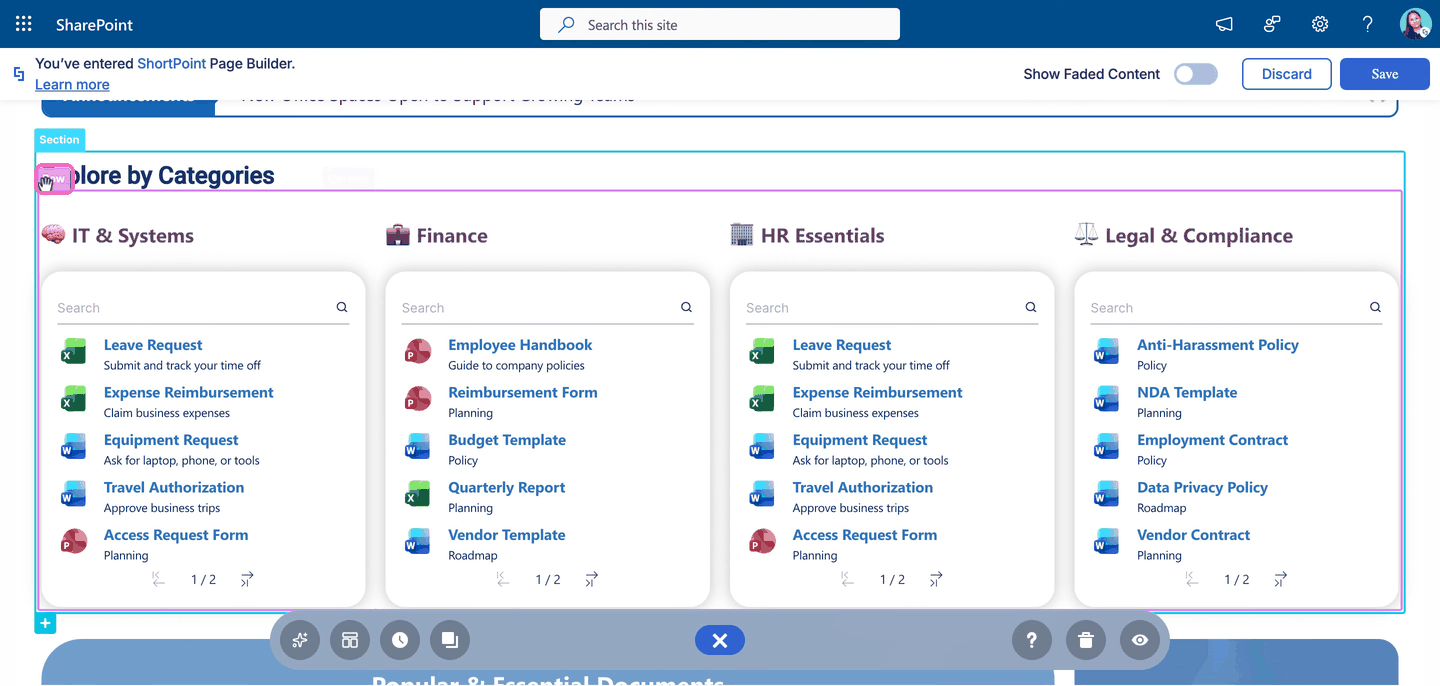
- Click the ellipsis (…) icon.
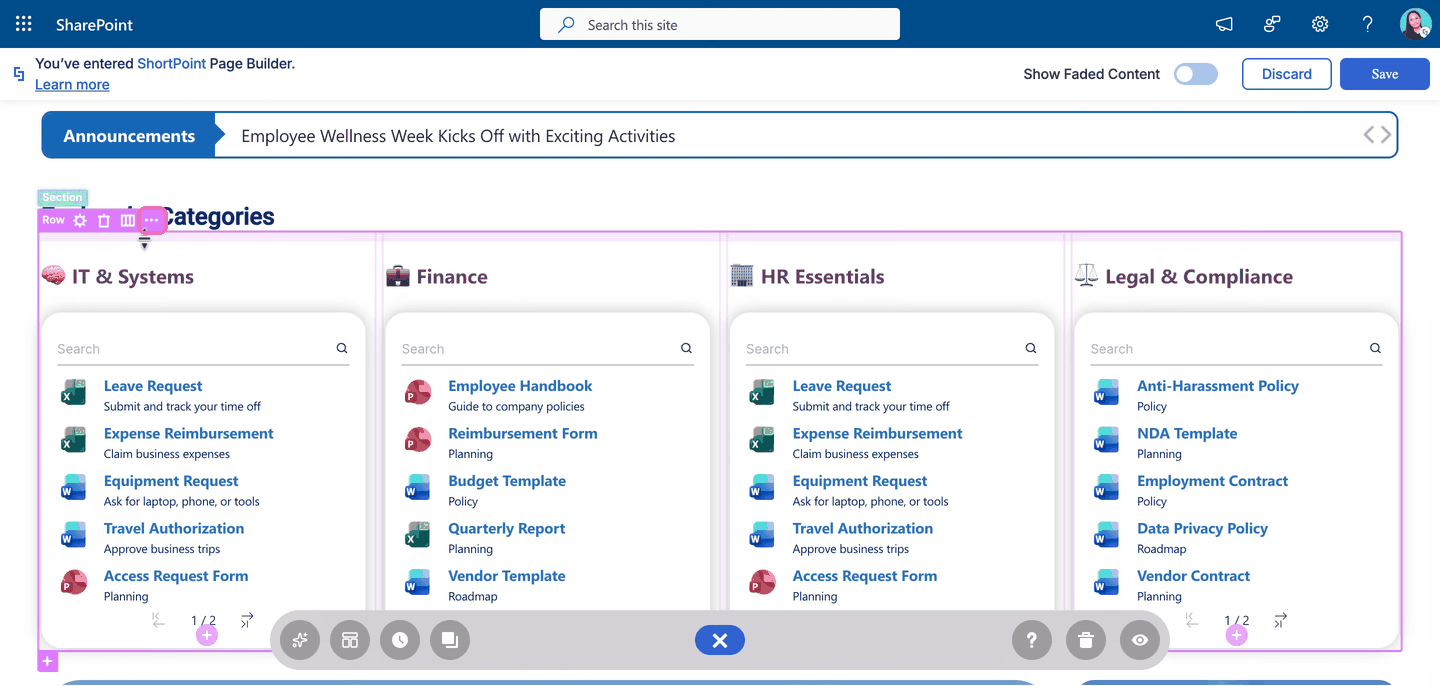
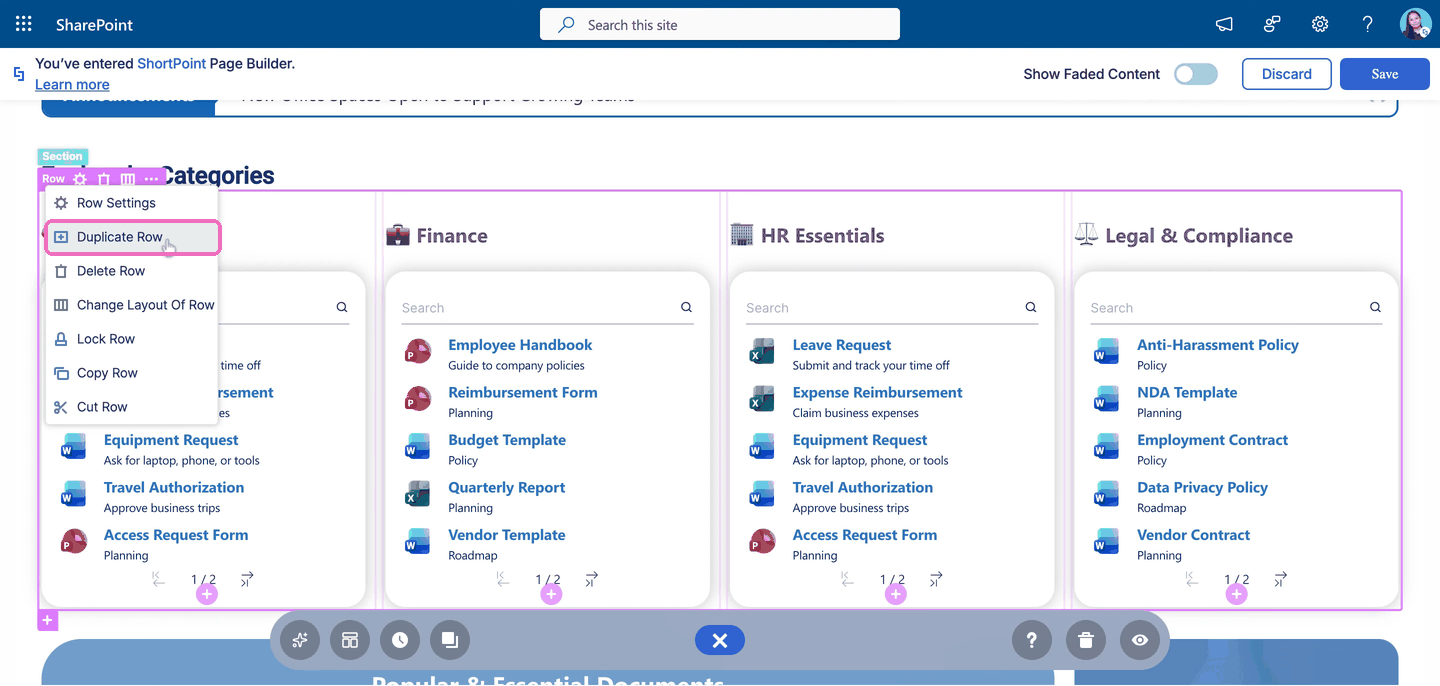
- Select Duplicate from the menu. In this example, it's Duplicate Row.
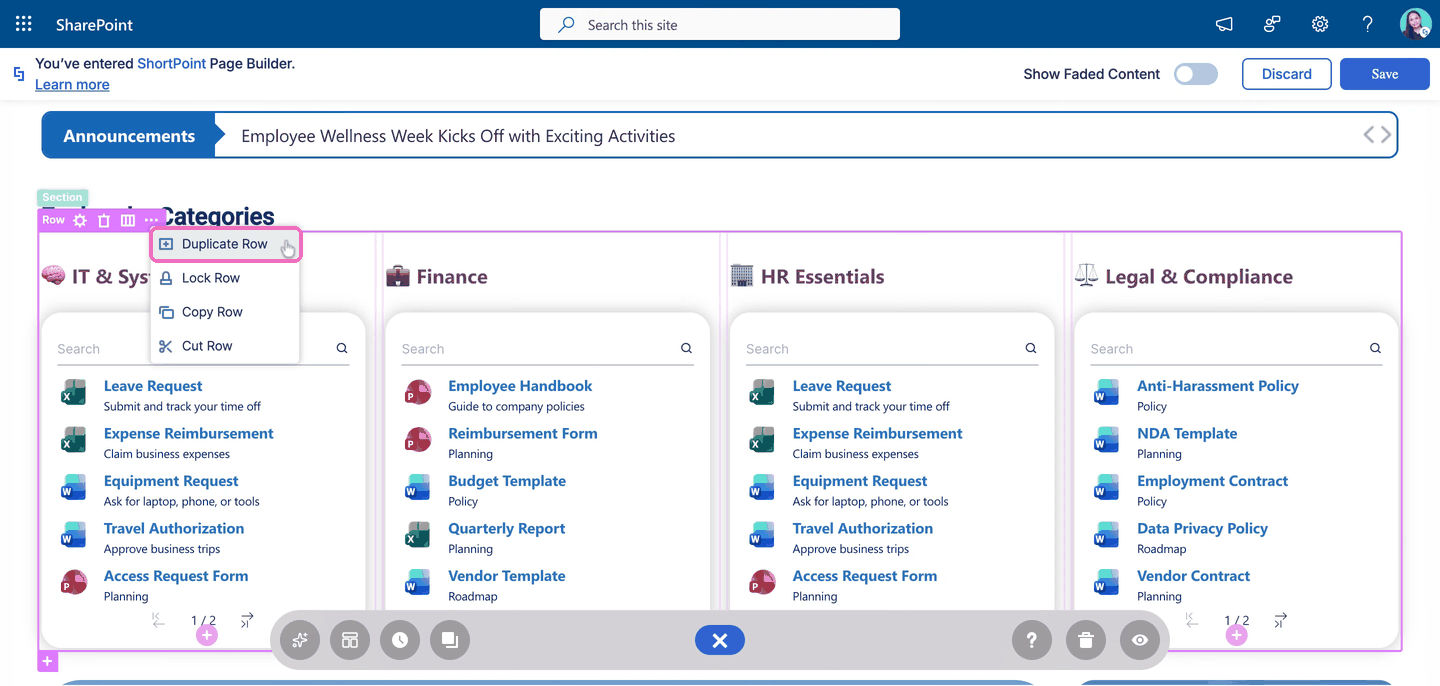
That's it! The duplicate now appears right below the original Design Element.
Option 2: By right-clicking the EasyPass tag
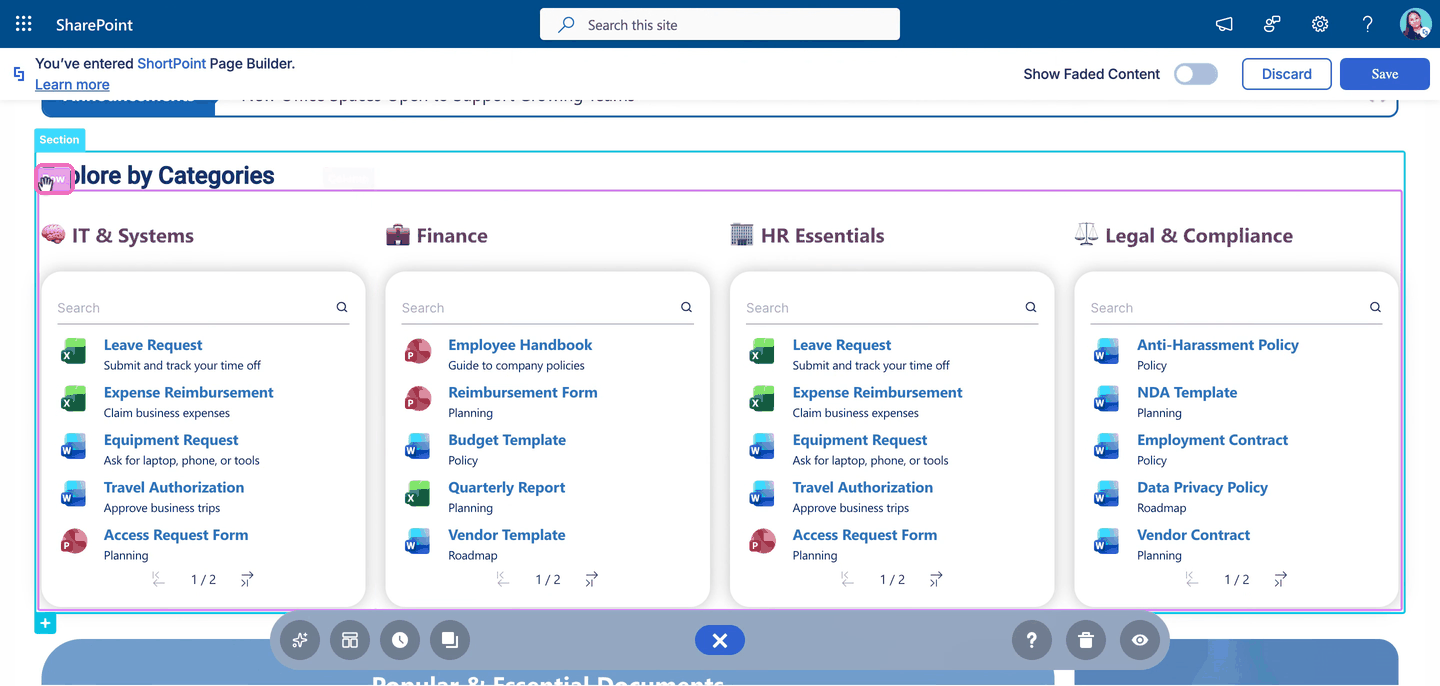
- Right-click the EasyPass tag of the Design Element you want to duplicate. This opens the context menu. In this example, we right-click the Row tag.
- Select Duplicate. In this example, it's Duplicate Row.
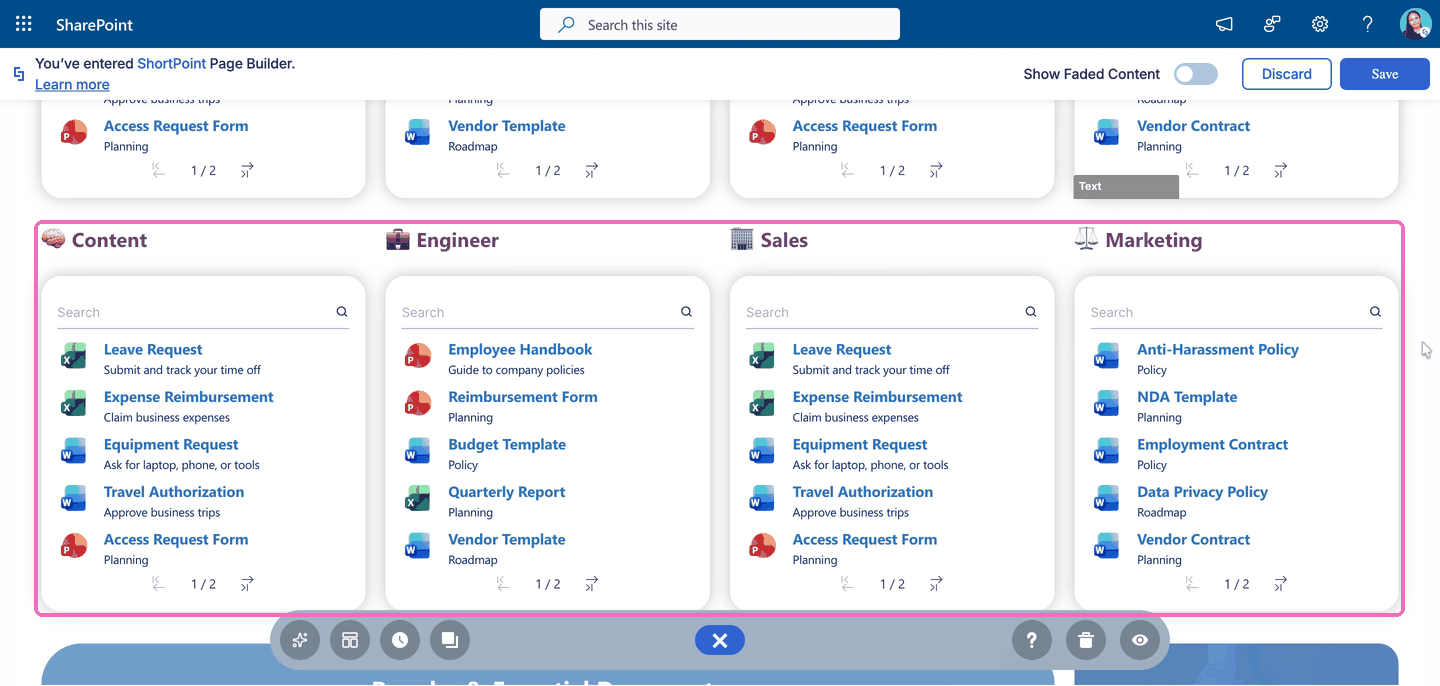
Great! You've duplicated the Design Element. The copy appears right below the original.
Step 3: Customize the Duplicate
- The duplicate works just like any other Design Element, so you can now change it however you like. Edit its content, adjust its design settings, or move it to another spot on your page. In this example, we renamed the headings in the duplicated Row to Content, Engineer, Sales, and Marketing.
Amazing! You've successfully duplicated a Design Element.
Duplicating Content-holder Design Elements
Content-holder Design Elements can hold other Design Elements inside them. These include Section, Column, Accordions, Alert, Background, Frame, Info, List, Panel, Tabs, Toggles, and Well.
When you duplicate a content-holder Design Element, everything inside it is duplicated too. For example, when we duplicated the Row above, its four Columns and all the Panels and File Lists inside them were duplicated with it.
That's it! You now know how to duplicate Design Elements in ShortPoint Page Builder.
Frequently Asked Questions
What's the difference between Duplicate, Copy, and Cut?
- Duplicate adds a copy right below the original in one step, without a separate paste.
- Copy keeps the original Design Element where it is and lets you paste a copy anywhere on your page.
- Cut removes the original Design Element so you can paste it somewhere else.
Where does the duplicate appear?
Right below the original Design Element. If you want it somewhere else, use Copy and Paste instead, or move the duplicate after you create it.
Does duplicating a Design Element also duplicate the elements inside it?
Yes. When you duplicate a content-holder Design Element, such as a Section, Row, or Tabs, everything inside it is duplicated too.
Will changing the duplicate also change the original?
No. The duplicate is a separate Design Element. Any changes you make to it don't affect the original.
Why does the option say "Duplicate Row" instead of "Duplicate"?
The option is named after the Design Element you select. For example, when you select a Row, you'll see Duplicate Row.
Related articles:
- How to Insert Design Elements in Live Mode
- How to Copy and Paste Design Elements in Live Mode
- How to Edit Design Elements in Live Mode
